EdbMails EDB Recovery and Migration software
  • Products
    EdbMails
    All-in-one Recovery and Migration
    Explore our products
    • EDB recovery and Migration
    • OST, PST, MBOX, NSF, EML, MSG
    • Office 365, Exchange Migration
    • SharePoint, OneDrive & Teams
    • G Suite Migration
    • IMAP Migration
    • Duplicate Remover
    • Windows Data Recovery
    • Backup Solutions

    EDB Recovery and Migration

    EdbMails lets you recover corrupted, damaged, and offline Exchange EDB files, convert EDB mailboxes to PST format, and directly migrate mailbox data to Office 365 and live Exchange Server.

    EDB to PST
    Recover corrupted, damaged, offline EDB files and convert Exchange EDB mailboxes to PST file format
    Public Folder to Exchange
    Migrate public folders from an Exchange offline EDB file to live Exchange Server
    EDB to Live Exchange Migration
    Directly migrate offline Exchange database (EDB) files to live Exchange server
    Archive Mailbox to Office 365
    Migrate archive mailboxes from offline EDB files directly to Office 365
    EDB to Office 365 Migration
    Directly migrate offline Exchange database (EDB) files to Office 365
    Public Folder to Office 365
    Migrate public folders from an offline Exchange EDB file to Office 365

    OST, PST, MBOX, NSF, EML, MSG Export and Migration

    EdbMails lets you to recover OST and PST files, export OST, PST, MBOX, NSF, EML, and MSG files to PST files, and directly migrate OST, PST, MBOX, and NSF mailbox data to Office 365 and live Exchange Server.

    OST Recovery and Migration
    Recover offline OST files, convert OST to PST, and migrate OST to Office 365 and Exchange Server
    PST Recovery and Migration
    Recover Outlook PST files , Export PST to PST, migrate PST to Office 365 and Exchange Server
    MBOX Export and Migration
    Export MBOX to PST, migrate MBOX to Office 365 and Exchange Server
    NSF Export and Migration
    Export NSF to PST, migrate NSF to Office 365 and Exchange Server
    EML to PST Export
    Convert EML files to Outlook PST files
    PST to MSG Export
    Convert Outlook PST file to MSG file format
    MSG to PST Export
    Export MSG files to Outlook PST files

    Office 365, Exchange Migration

    EdbMails lets you securely migrate mailboxes across Microsoft 365, Exchange, Google Workspace (G Suite), and IMAP-supported servers such as Outlook, Gmail, Zimbra, Zoho Mail, and cPanel, ensuring zero downtime.

    Office 365 Migration
    Migrate between Office 365 tenants, Office 365 to Exchange, Office 365 to PST, PST files to Office 365.
    Exchange Migration
    Migrate between any Exchange Servers, Exchange to Office 365, Exchange to PST, PST files to Exchange.
    Tenant to Tenant Migration
    Migrate Mailboxes, Public Folders, Archive Mailboxes between Office 365 Tenants.
    Exchange to Office 365
    Migrate Mailboxes, Public Folders, Archive Mailboxes from live Exchange server to Office 365.
    Office 365 to IMAP
    Migrate Office 365 to IMAP, Office 365 to Gmail, Office 365 to Outlook, Office 365 to Zoho etc.
    Exchange to IMAP
    Migrate from live Exchange Server to IMAP servers such as Gmail, Outlook, and Zoho Mail.
    Public Folder to Office 365
    Migrate Public Folders between Office 365 tenants with complete folder hierarchy and mailbox data integrity.
    Exchange to PST
    Export live Exchange Server mailboxes, public folders, and archive mailboxes to Outlook PST files.

    SharePoint, OneDrive & Microsoft Teams Migration

    EdbMails lets you migrate SharePoint sites, OneDrive data, Microsoft Teams, teams, channels, chats, permissions, and documents between Microsoft 365 tenants while maintaining the existing folder structure and data integrity.

    SharePoint Online Migration
    Migrate documents, lists, files and folders from SharePoint sites.
    OneDrive for Business Migration
    Migrate documents, lists, files, folders, private chats from OneDrive.
    Microsoft Teams Migration
    Migrate Teams, chats, channels, documents, files and folders etc.

    Google Workspace / G Suite Migration

    EdbMails G Suite Migration Tool lets you easily migrate emails, calendars, contacts, tasks, and more from G Suite to Office 365, Exchange Server, and IMAP servers using a Google Admin account without requiring individual user credentials.

    G Suite Migration
    Migrate emails, calendars, contacts, tasks from G Suite to Office 365, G Suite to Exchange, G Suite to IMAP Servers
    G Suite to Office 365
    Migrate emails, calendars, contacts, tasks from Google Workspace / G Suite to Office 365
    G Suite to Exchange Server
    Migrate emails, calendars, contacts, tasks from Google Workspace / G Suite to on-Premise Exchange Server
    G Suite to IMAP
    Migrate emails, calendars, contacts, tasks from Google Workspace / G Suite to IMAP, Outlook, Zimbra, Zoho etc.

    IMAP Migration

    EdbMails IMAP Migration tool lets you easily migrate emails from IMAP servers such as Outlook, Gmail, Zoho Mail, Zimbra, cPanel, and more. Supports IMAP to IMAP, Office 365, Exchange Server, PST, and bulk PST to IMAP migration.

    IMAP Email Backup & Migration
    Backup and migrate emails from IMAP servers to PST, Office 365, and On-Premises Exchange Server
    IMAP to Office 365
    Migrate emails, folders, and attachments from IMAP servers to Office 365
    IMAP to Exchange
    Migrate emails, folders, and attachments from IMAP servers to on-premises Exchange Server
    IMAP to PST
    Export emails, folders, and attachments from IMAP servers to Outlook PST files for backup
    PST to IMAP
    Migrate emails, folders, and attachments from bulk PST files to IMAP servers

    Duplicate Remover

    EdbMails Duplicate Remover lets you easily remove duplicate items from Office 365 and Exchange Server, and from IMAP, Outlook, Gmail, Zimbra, Zoho Mail, etc., ensuring a clean and organized mailbox.

    Remove Duplicates
    Easily clean up your Office 365, Exchange, Outlook and IMAP accounts by removing duplicate emails.
    Remove Duplicates from Office 365
    Remove duplicate emails, calendars, contacts, journal tasks, etc. from Office 365.
    Remove Duplicates from Exchange Server
    Remove duplicate emails, calendars, contacts, journal tasks, etc. from live Exchange Server.
    Remove Duplicates from IMAP, Outlook
    Remove duplicate emails, attachments from IMAP, Outlook, Gmail, Zimbra, Zoho Mail etc.

    Exchange, SharePoint, OneDrive, Teams and Office 365 Backup

    EdbMails enables secure, automated backup and recovery for Microsoft 365 services including Exchange Online, SharePoint, OneDrive, Teams, and Live Exchange Server with complete data protection and restore flexibility.

    Office 365 Backup
    Incremental, Granular, Encrypted and Compressed Office 365 Mailboxes Backup
    Exchange Server Backup
    Incremental, Granular, Encrypted and Compressed Exchange Mailboxes Backup
    SharePoint, OneDrive & Teams Backup
    Backup Online site collections, Team sites, Office 365 groups, all documents etc.

    Windows Data Recovery

    EdbMails Windows Data Recovery Software lets you recover permanently deleted data, including photos, videos, documents, and archived files, from partitions on hard drives, SSDs, USB drives, SD cards, and external storage devices.

    Windows Data Recovery
    Recover and restore permanently deleted data from hard drives, SSDs, USB drives, SD cards, and etc.
    Whitepaper
    Request a Demo
    Sign Up
  • Features
  • FAQ
  • Pricing
  • Download
  • Support
  • Sign in
User’s Manual
Exchange Server Backup

User Manual

User Manual

  • FAQ
    • Exchange Server Backup
    • Office 365 Backup
  • Videos
    • Exchange Server Backup
    • Office 365 Backup
  • Screenshots
    • Exchange Backup
    • Exchange Restore
  • How it works?
    • Exchange Backup
    • Exchange Restore
  1. Home
  2. Product
  3. How to perform Exchange server backup?
Download Buy Now

Step by step guide to backup Exchange server

Ensuring the safety of yhbjhbjbjhour Exchange Server data is critical for maintaining business continuity and protecting against unexpected data loss. From accidental deletions and server failures to ransomware attacks, organizations face multiple risks that can disrupt access to important emails and communication. This is why having a secure and reliable Exchange Server backup strategy is more important than ever.

EdbMails Exchange Server Backup Tool is a trusted solution designed to help you safeguard your mailboxes with ease. It supports full and selective backups of emails, calendars, contacts, tasks, and more from on-premises. The software is built for simplicity and reliability, making it easy to configure and use.
Exchange Backup guide

What sets EdbMails apart is its incremental backup feature, which captures only new or modified items after the initial backup—saving time and storage. Your data remains protected with military-grade AES 256-bit encryption, and you have the flexibility to use either a default encryption key or define your own private encryption key for added security and compliance.

This step-by-step guide will walk you through the process of backing up Exchange Server mailboxes using EdbMails, helping you protect your email data with confidence and clarity.

  1. Prerequisites to backup Exchange server mailboxes

    Before starting the backup process of your Exchange Server mailboxes using EdbMails, ensure the following prerequisites are met:

    • Verify that your computer or target drive has adequate available space to accommodate the encrypted backup data. The size of the backup can differ based on the size of the mailboxes, attachments, and the number of users.
    • If connecting to the Exchange server with a Global Admin account, ensure that impersonation rights are granted for proper access and functionality.

       Steps to set impersonation rights in Exchange 2007

       Steps to set impersonation rights in Exchange 2019, 2016, 2013, 2010

    • Confirm that the Exchange Server and Windows OS are running the latest cumulative updates and security patches
    • Ensure that the computer with EdbMails installed has the necessary network access and firewall permissions to establish a connection with the Exchange Server.
  2. Exchange server backup steps using EdbMails

    • Step 1: Download and install EdbMails Application

      • Download and install the EdbMails application on any Windows computer that can connect to your Exchange server.
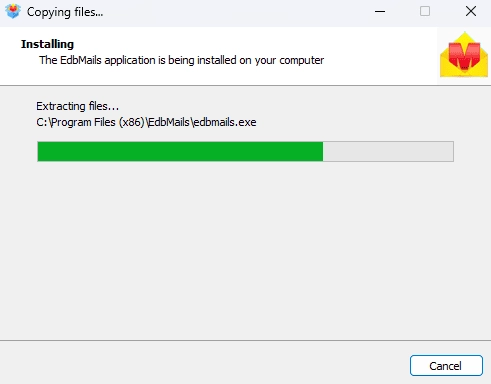
        EdbMails software installation

      • Log in with your registered email address and password, or click 'Start Your Free Trial' to explore the features without creating an account.
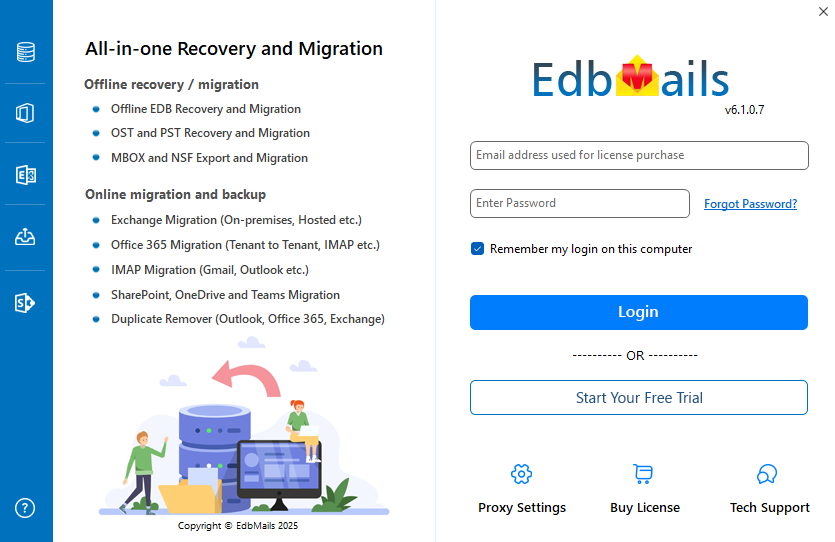
        Login to EdbMails application

      • From the list of the product select ‘Backup Live Exchange’.
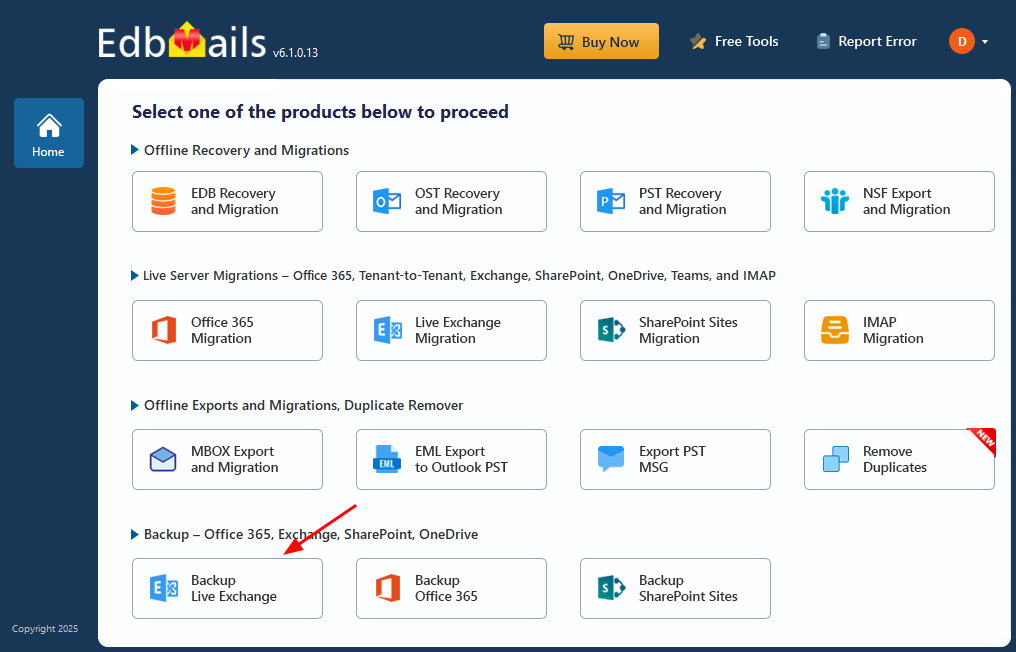
        Backup Live Exchange

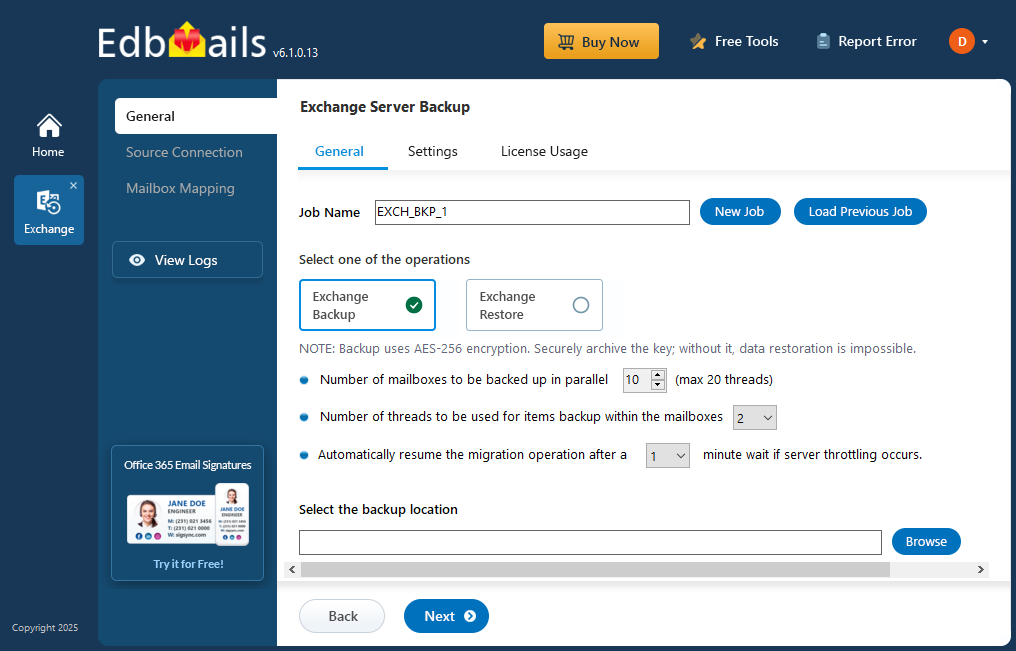
      • Select ‘Exchange Backup’ as backup option
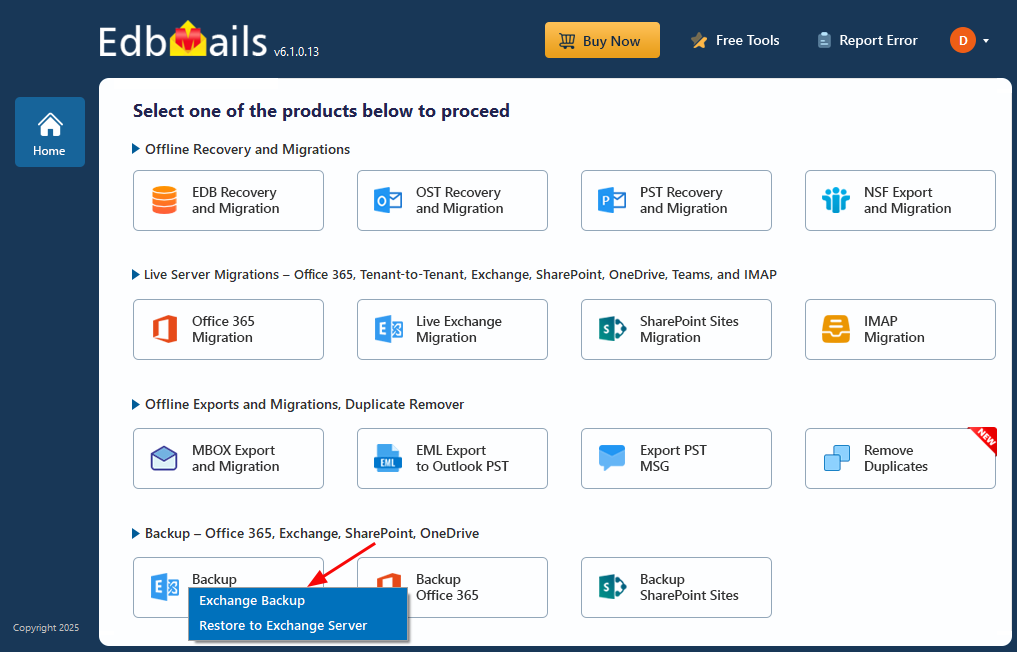
        Exchange Backup

      • You can either keep the default job name or click ‘New Job’ to give it a name that will be easier to identify later.
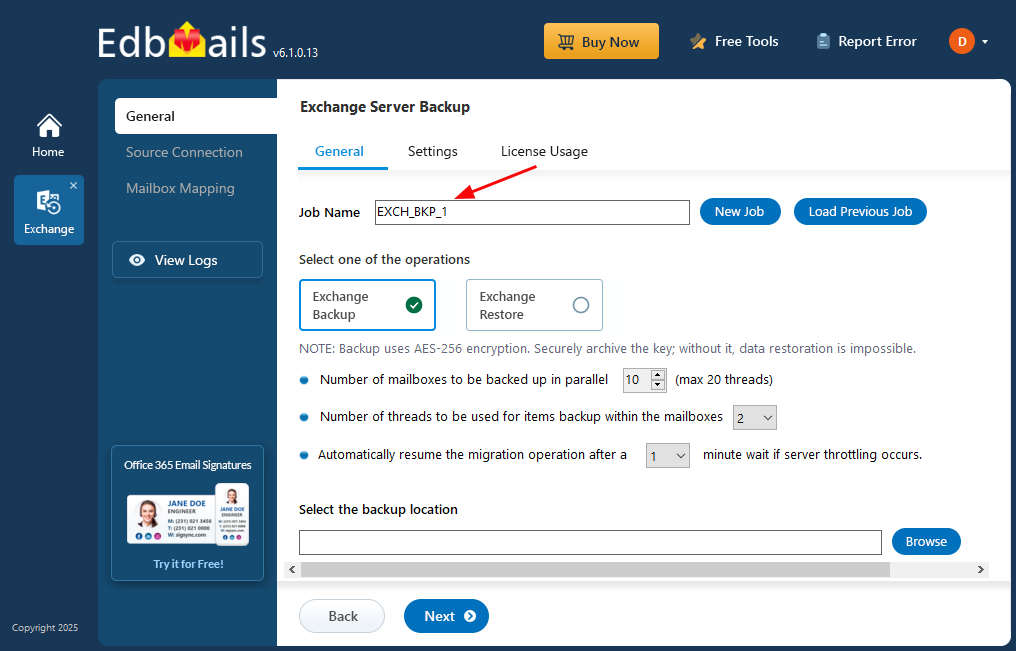
        Job name for Exchange Backup

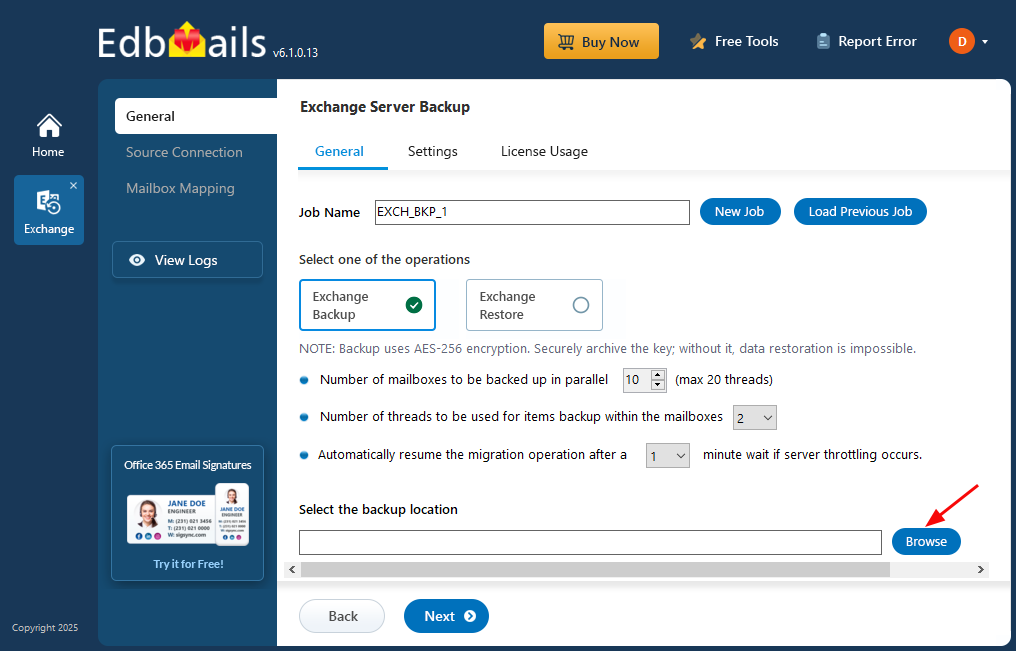
      • Click the ‘Browse’ button

        Click ‘Browse’

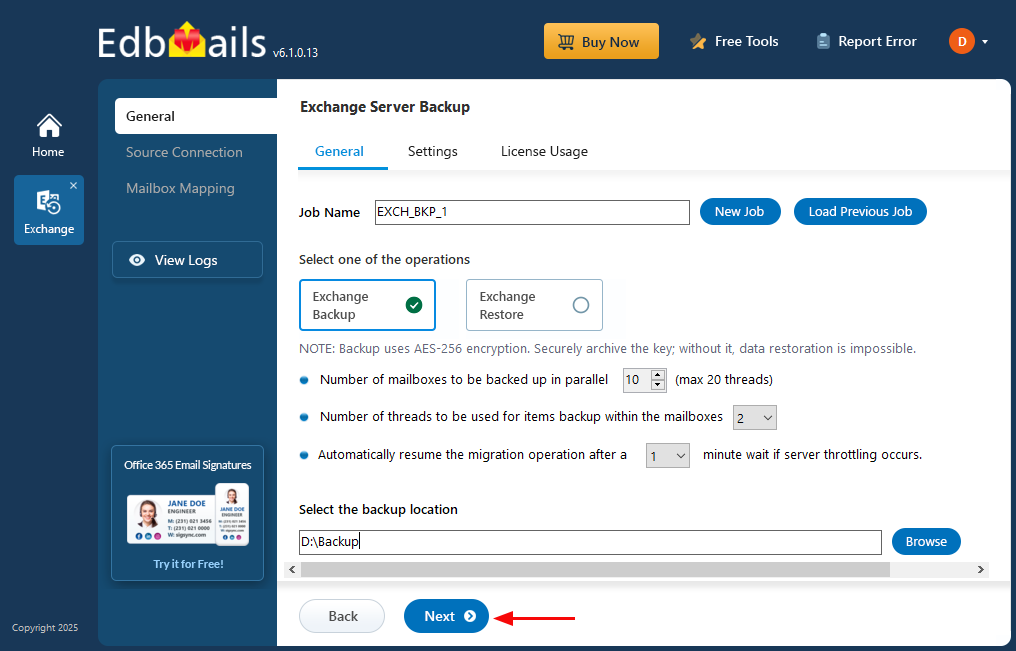
      • Select the location to store the backup data
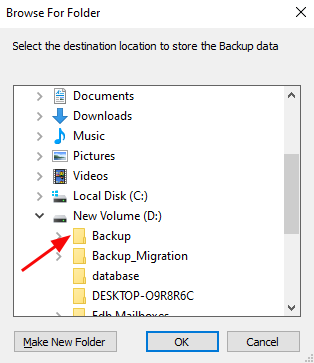
        Select backup location

      • Click ‘Next’ to continue.

        Click ‘Next’

    • Step 2: Connect to source Exchange server

      • To connect to the source Exchange server, click ‘Add New Connection’ to set up a new connection. If a connection already exists, simply select it from the list and click ‘Connect to Existing’ to continue.
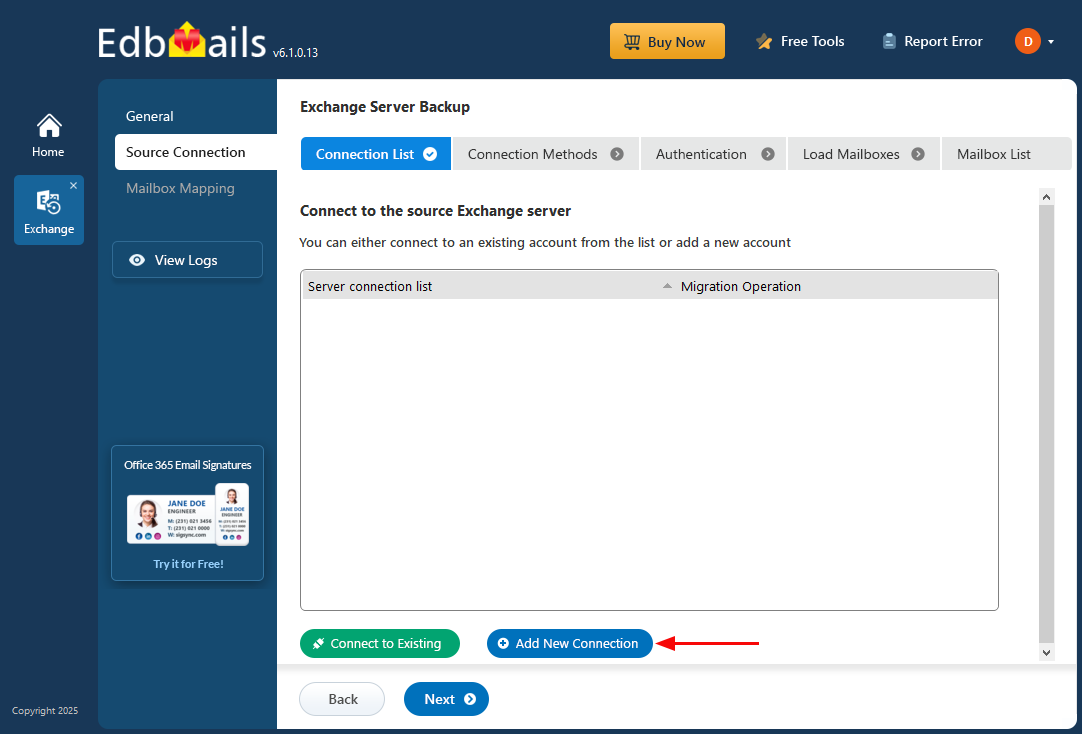
        Required connection options

      • Select the required connection options, then click ‘Next’ to continue.
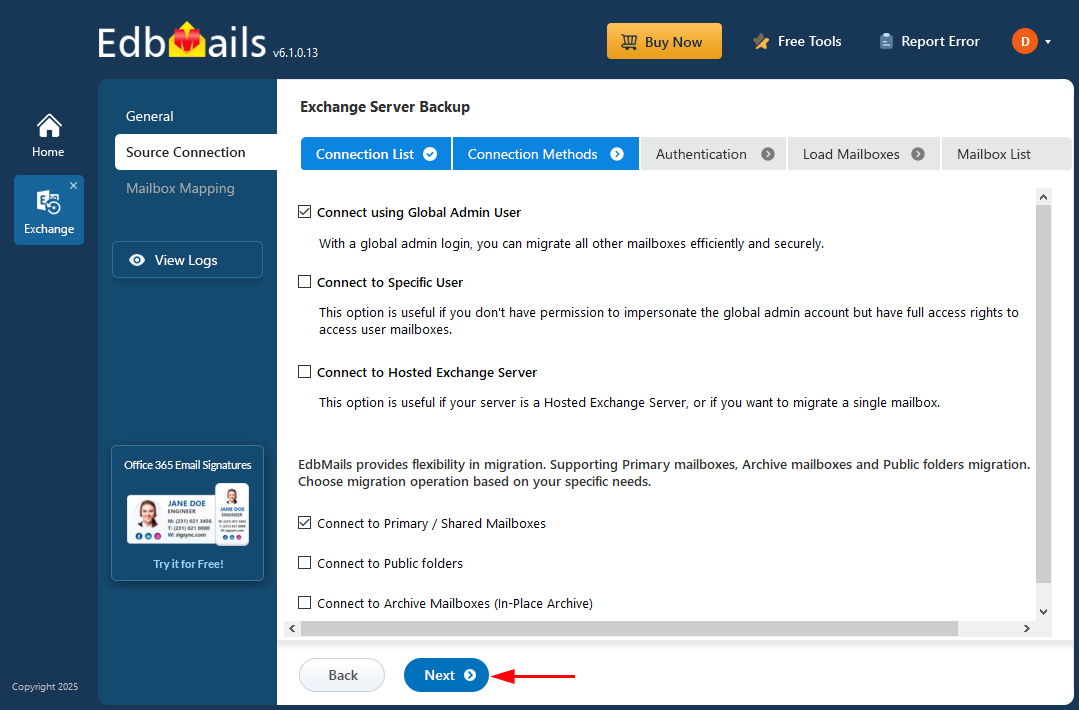
        Select required connection option

      • Enter the source Exchange server details and click the ‘Login’ button.
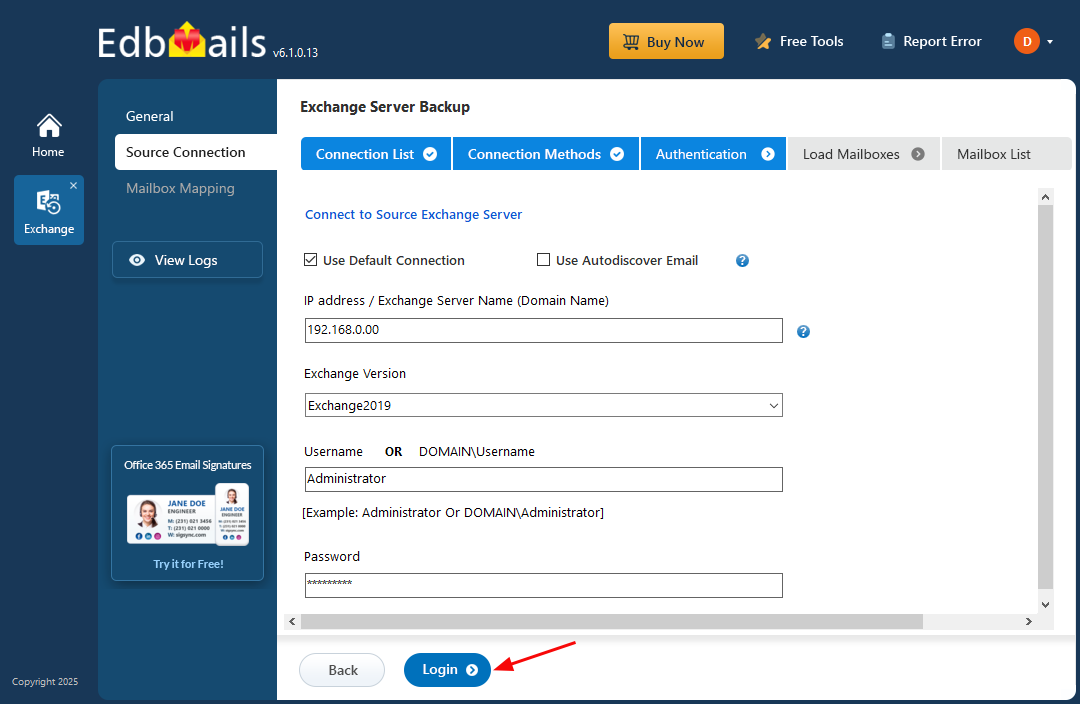
        Login to source Exchange server

      • After logging into the source Exchange server, select the method for loading the mailboxes. EdbMails automatically loads mailboxes, but due to Microsoft API limitations, it can display up to 100 mailboxes. If you need to load more than 100, choose the Load Mailboxes using .CSV file option to load all mailboxes without restrictions.
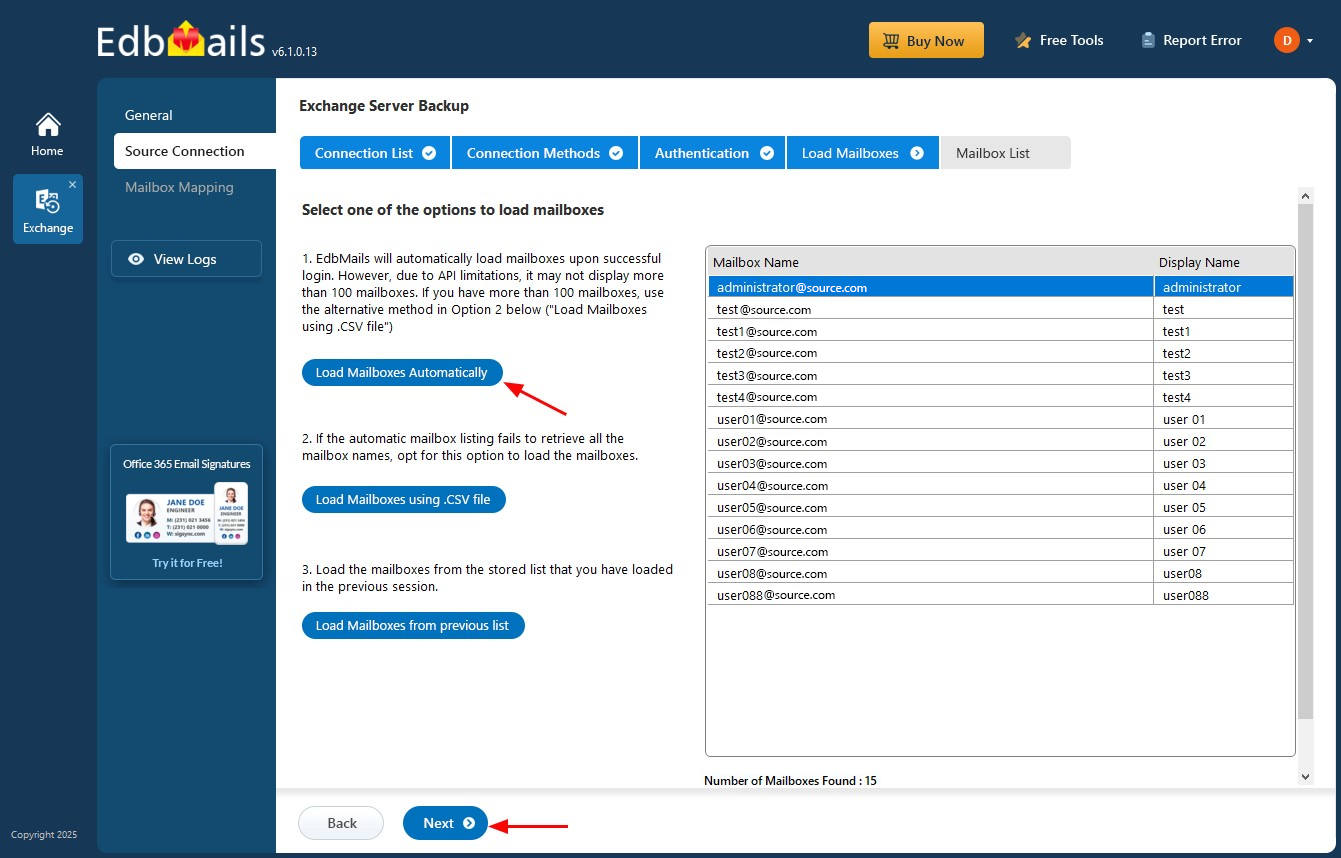
        Choose the option to load the mailboxes

      • Choose the mailboxes you want to backup from the source Exchange server, then click ‘Next’ to continue.
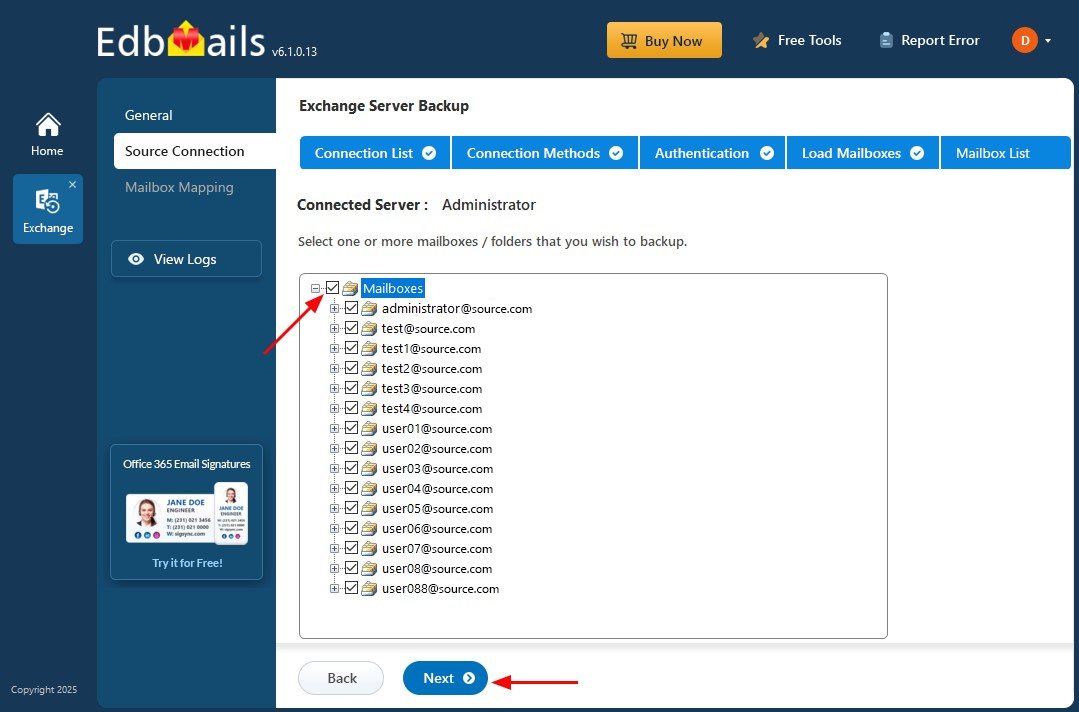
        Select the mailboxes

    • Step 3: Mailbox Mapping

      • Check the selected mailboxes for backup, then click ‘Start Backup’ to begin backing up mailbox data from the live Exchange server.
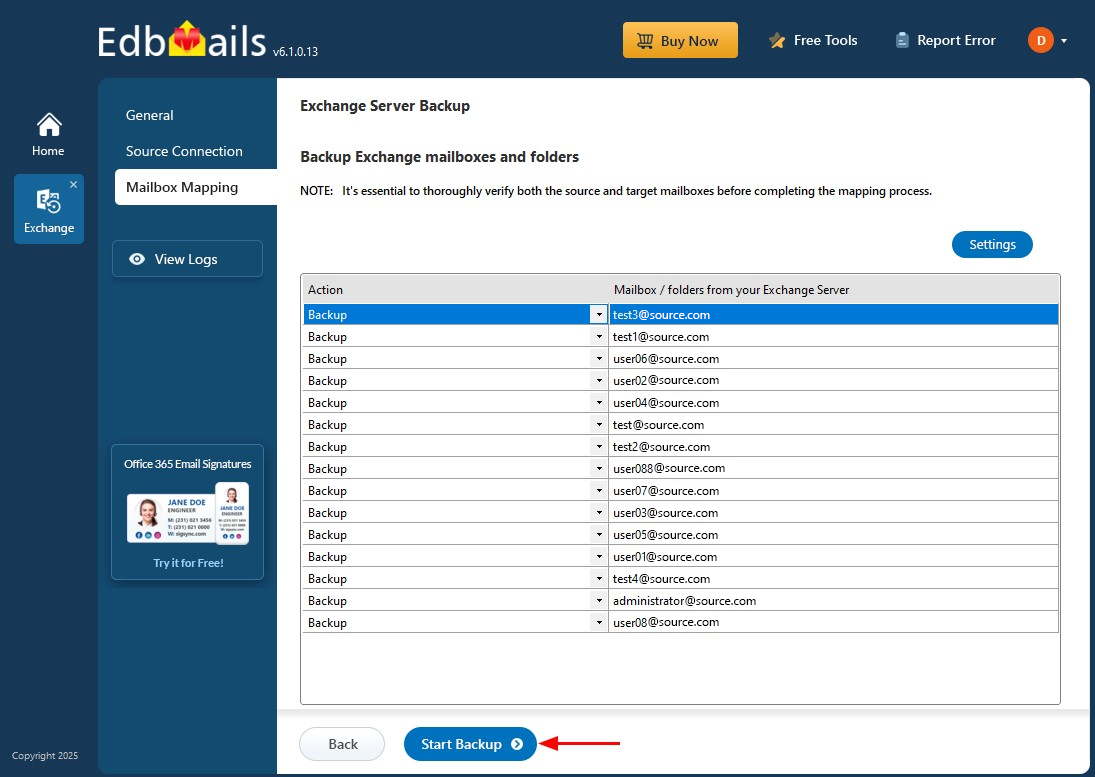
        Start Exchange backup process

      • Choose whether to use the default encryption or create your own private key for enhanced data protection. If you set a private encryption key, be sure to store it safely—you’ll need it next time you perform a backup or restore.
      • Click ‘Save’ to apply your encryption settings.
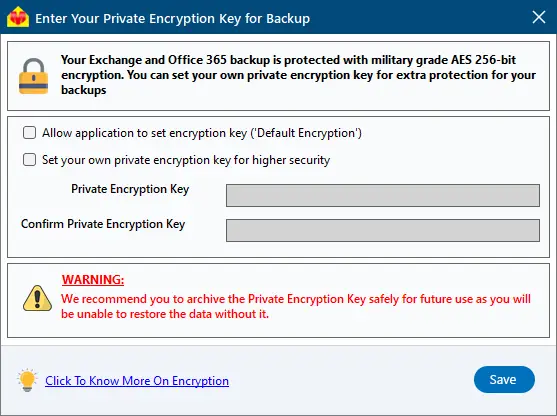
        Set Backup Encryption Key

      • That’s it! EdbMails will automatically start the backup and notify you upon completion. You can click 'View Logs' to check the detailed report, and pause or resume the backup whenever needed.
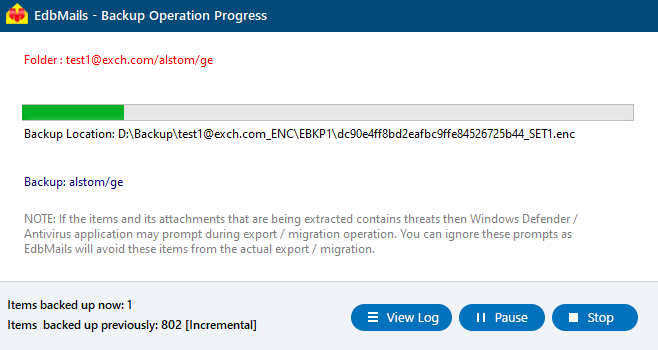
        Exchange backup progress


Additional resources

  • EdbMails Office 365 Backup and Restore Tool
  • Office 365 Backup Step by Step Guide
  • Exchange Server Restore Step By Step Guide
  • Office 365 Restore Step By Step Guide
lady image

 In this manual

IntroductionMigration PrerequisitesMigration Steps

Exchange Backup and Restore

100 Mailboxes $299 Only

Buy Now

Need help?

24/7 Customer support

Contact us on Live chat

Personalized Demo

Book a personalized demo

Still need help?

Email us / Call us

© 2026 Shifttocloud Inc. Privacy Policy | Terms of Use | GDPR | Security | Press Releases

hidden msg
Live Chat

Hi, May I help you?

Hide Chat Now