


Exchange Server to Office 365 Migration Guide
Migrating from Exchange Server to Office 365 enables organisations to modernise their messaging infrastructure while reducing on-premises maintenance and improving scalability. Depending on the Exchange Server version, administrators can choose between cutover, staged, hybrid, or third-party migration approaches. Proper planning involves assessing mailbox data, validating network capacity, configuring migration permissions, reviewing Exchange Server requirements, and establishing a migration strategy that aligns with business objectives. This guide covers the technical prerequisites and migration procedures required for successful Exchange Server to Office 365 migrations. Making this shift also brings teams closer together and keeps the business running without interruption during and after the migration. At the same time, when large volumes of mailbox data are migrated without proper planning can be complex, and without a well-structured migration process can affect productivity.
EdbMails Exchange Migration Software is designed to perform a complete Exchange to Microsoft 365 migration without hassle. It is compatible with Exchange Server 2007, 2010, 2013, 2016, 2019 and Exchange SBS 2011. Whether you are planning a cutover migration, staged migration, EdbMails provides a secure and automated solution to migrate mailboxes, public folders, shared mailboxes and archive mailboxes with minimal administrative effort. During the migration all the emails, contacts, calendars, archives, public and shared mailboxes as well as the permissions are migrated accurately to Office 365 and is done very securely. It features an Incremental migration that takes only a small part of change between previous two migrations to keep migration time at lowest. In concurrent mailbox migration you can select and migrate a number of mailboxes in parallel whereas automatic mailbox mapping reduces your burden to map the mailboxes individually. It will never migrate the duplicate items to your Office 365 environment and your business would run as it is, with zero downtime and no interruption.
Best Method to Migrate Exchange to Office 365
EdbMails Exchange Migration Software supports Exchange Server 2007, 2010, 2013, 2016, and 2019 migrations to Office 365. The solution enables mailbox, archive mailbox, public folder, and shared mailbox migrations while preserving folder hierarchy, mailbox permissions, and metadata throughout the migration process.
Exchange to Office 365 Migration Checklist
Before migrating Exchange Server to Office 365, complete the following preparation tasks:
- Assess mailbox sizes, mailbox count, and Exchange Server version.
- Review Microsoft 365 licensing requirements.
- Configure administrative permissions and migration accounts.
- Validate DNS, Autodiscover, and mail flow settings.
- Evaluate network bandwidth and migration scheduling requirements.
- Perform pilot migrations and validate migrated data.
- Plan post-migration verification and Exchange Server decommissioning activities.
For a detailed preparation guide, refer to the Office 365 Migration Checklist.
Exchange to Office 365 Migration Planning
- Step 1: Select appropriate Exchange to Microsoft 365 migration type
The first step that needs to be done is planning the migration of Exchange to Microsoft 365 mailbox. Available migration options depend on your target and source environments.
Migration Requirement Ideal migration approach Migration flow You want to move all of your email, calendar, and contacts fromExchange to Office 365 at once. Exchange cutover migration Set up your target Office 365 tenant and migrate everything tothe cloud all at once. Suitable for large-scale mailboxmigrations You prefer to transfer mailboxes from Exchange Server to Office365 in smaller batches or on weekends. Staged Exchange migration Migrate your mailboxes and mail data in stages, transferring themost recent data first, followed by the others. You want to retain your on-premises Exchange server and prefermoving to Office 365 gradually Hybrid migration Move mailboxes to Office 365 in a Hybrid deployment of Exchangeand Office 365. Use the Microsoft 365 mail migration advisor to determine which migration method is best for you.
EdbMails supports cutover, staged and hybrid migration projects and allows organisations to migrate mailboxes at their preferred pace. The software eliminates the complexity associated with migration batches and PowerShell-based administration while providing complete visibility into the migration process.
- Step 2: Install cumulative updates (CU) on the Exchange server
Ensure that you have the latest updates installed on the source Exchange.
- Install CU for Exchange server 2010
- Install CU for Exchange server 2013
- Install CU for Exchange server 2016
- Install CU for Exchange server 2019
- Step 3: Consider network and bandwidth requirements
- Network requirements
- Network Configuration: Make yourself aware of the networking road map for Microsoft 365. You should be capable of planning, deploying and administering your network.
- Internet Connectivity: It is important to have a robust and reliable internet connection before migrating the exchange environment to office 365. The internet should also be able to maintain high bandwidth to transfer data and should not face any kind of network congestion.
- Firewall and Port Configuration: Review the firewall and port configurations to allow required data transfer to Office 365 tenants.
- DNS Configuration: Review the DNS record and configure them to point to Office 365 tenants. These must be set up with MX records and Autodiscover to ensure mails are routed to Office 365 tenant after migration.
- Network Latency: Check and configure Network Latency for the smooth data transfer as High Network Latency will result in low migration speeds. (refer how Microsoft 365 networking differs)
- Office 365 Throttling: Microsoft will limit the number of concurrently moved mailboxes in order to provide a stable service. Consider the Office 365 throttling policies while migrating large mailboxes.
- Network Security: Ensure that the transfer of the data over the network is secure. This includes configuring any encryption, authentication and access controls.
- Network Load Balancing: Take into consideration the Network load balancing to have balanced data transfer over the various networks and avoid any bottlenecks.
EdbMails includes automatic retry mechanisms that help handle temporary network interruptions during migration. If the migration process is interrupted, the software can resume from the last successful migration checkpoint without reprocessing already migrated data. Automatic throttling management also helps maintain optimal migration performance when migrating large mailbox volumes to Microsoft 365.
- Bandwidth requirement
The bandwidth requirements for migrating Exchange to Office 365 can change, depending on the number of mailboxes, size of mailbox and type of migration method used. Use Microsoft Remote Connectivity Analyzer or connectivity test tool to test your network connectivity.
- Number of mailboxes: It impacts the bandwidth requirement based on the number of mailboxes you plan to migrate. As the number of mailboxes to be migrated grows, your bandwidth requirement is increased. Check the bandwidth requirement of office 365 migration.
- Size of mailbox: It also impacts on the bandwidth requirement of Office 365 migration based on size of mailbox. As the mailbox size increases, bandwidth requirement is increased.
- Migration Type: The type of migration you are undertaking will influence the network bandwidth requirements. For instance, a cutover migration in which all mailboxes are migrated to the destination at one time will require a large amount of bandwidth compared to a staged migration in which mailboxes are migrated in smaller groups.
- Migration schedule: The schedule of migration is a further influential factor for network bandwidth. For instance migrating off peak hours or at the weekend when network traffic is typically lower will reduce the overall bandwidth requirements.
- Network infrastructure: The network infrastructure which the migration will be utilizing is also a significant factor. If the infrastructure in place supports high bandwidth it will be capable of handling the migration effectively.
- Network Latency: Network Latency between source and destination servers also impacts the migration. High Network Latency necessitates greater bandwidth.
See best practices for network planning and improving migration performance.
- Network requirements
- Step 4: Choose appropriate Microsoft 365 licensing plan
The Microsoft 365 is a cloud-based service which is available as a subscription and comes with a list of licensing plans, one of which caters to certain user requirements. It is advised to analyze the office 365 business plans and office 365 enterprise plans in detail in order to choose the most appropriate one for your organization. You can also sign up for a 30-day free trial of Office 365 to test out the various plans before making a final decision.
- Step 5: Set up your target Office 365 Tenant for Migration
- Create the Office 365 Tenant: Develop a plan for the implementation of the tenant and deploy the tenant. See the tenant roadmap to Office 365.
- Sign in the Microsoft 365 admin center: Microsoft 365 admin center (https://admin.microsoft.com/) and log in with global admin credentials.
- Configure the Tenant setting: Once the tenant is created, you would like to configure and customize the settings for your needs, such as email domains, language and time zone etc.
- Configure Azure AD Connect: Azure AD Connect is the tool used to synchronize your on-premises AD to Azure AD. EdbMails supports Modern Authentication (OAuth 2.0) and Multi-Factor Authentication (MFA) for secure connectivity with Microsoft 365. All mailbox data is transferred through encrypted communication channels, helping ensure security and compliance throughout the migration process. This step is necessary if you want to keep on-premises in a Hybrid environment and to enable single sign-on (SSO) for your users.
- Set up email clients/applications: If you plan to install Office 365 apps and Outlook, review System requirements for Microsoft 365 and Office configuration support matrix. Since Office 365 is a cloud based solution, it will be valuable to know where your Microsoft 365 customer data resides.
- Office 365 services setup: Beside the mail setup you will like to setup other services, such as share point, OneDrive, Teams.
- Setup data retention policies: Data retention is configurable in office 365 to ensure that your data retention is legally compliant and can be set according to business requirements. Setup data retention policies in order to meet your organization's compliance requirements, optionally set mailbox specific data retention policies.
- Step 6: Add and verify the custom domain on Office 365
If you have a custom email domain from your hosting provider to which you want to migrate and receive emails, you must add and verify the domain on Office 365.This will enable you to use your own domain name (such as example.com) for youremail addresses and other Office 365 services.
To set up your custom domain, follow these steps:
- Confirm ownership of your domain by adding a TXT record to your DNS settings.
- Add new domain to your Office 365 tenant. You can add either your own domain or purchase a new one. The domain is used to access your Office 365 services.
- Update your DNS records to point to Office 365. Your DNS records must be updated before you can send and receive e-mail from your new Office 365 e-mail address. You can add or update your MX records after your migration is complete.
- Step 7: Create mailboxes and set up mail-enabled Public folders
Before you migrate to Office 365, ensure that you create mailboxes for users in your organization and assign suitable licenses to them. EdbMails automatically creates mailboxes on target Office 365 servers. The software also automatically maps source Exchange mailboxes with target Microsoft 365 mailboxes, significantly reducing manual effort. Administrators can optionally perform manual mailbox mapping when custom migration requirements exist. However, if you want to create manually refer to the links below
- Add users and assign licenses to Office 365 users
- Add several users at the same time to Office 365
- Assign Microsoft365 licenses to user accounts
If you want to migrate Exchange public folders to Office 365, then create and configure Public folders and make them mail-enabled on Office 365.
- Create an Office 365 Public folder and assign permissions to admin users.
If you are migrating to Office 365 archive mailboxes, ensure to enable In-Place Archives on the Office 365 server.
- Steps to enable In-Place Archive mailboxes in the Office 365 server
- Step 8: Set admin user impersonation rights in the source server
In case you connect to the source Exchange server using the global admin account, do not forget to set impersonation rights.
Steps to set impersonation rights in Exchange 2019, 2016, 2013, 2010.
- Step 9: Verify the admin account mailbox
See if the admin account that has been assigned the management roles has a valid and non-hidden mailbox on Exchange server. See how to configure user mailbox properties for the users from the Exchange admin center (EAC).
- Step 10: Set up Office 365 for sending and receiving large messages
The message size limit can be set to 150 MB on Office 365 Migration. This option will allow us to bypass message size restrictions during the migration process.
- Step 1: Select appropriate Exchange to Microsoft 365 migration type
Steps to Migrate Exchange to Office 365
Step 1: Download EdbMails Exchange to Office 365 migration tool
- Download and install the EdbMails application on your computer.

- See the detailed list of EdbMails system requirements for Exchange to Office 365 migration.
- Open the EdbMails application on your computer.
- Enter your registered email ID and password, then click ‘Login’. If you haven’t created an account yet, select ‘Start Your Free Trial’ to continue with the trial version.Note: The trial version provides access to all key features and supports migration of up to 30 items per folder. For unlimited migration, purchase an Exchange Migration license from the official EdbMails website.After purchasing the license, close the application and launch it again. Then log in with the same email ID and password used during the purchase to complete the license activation.

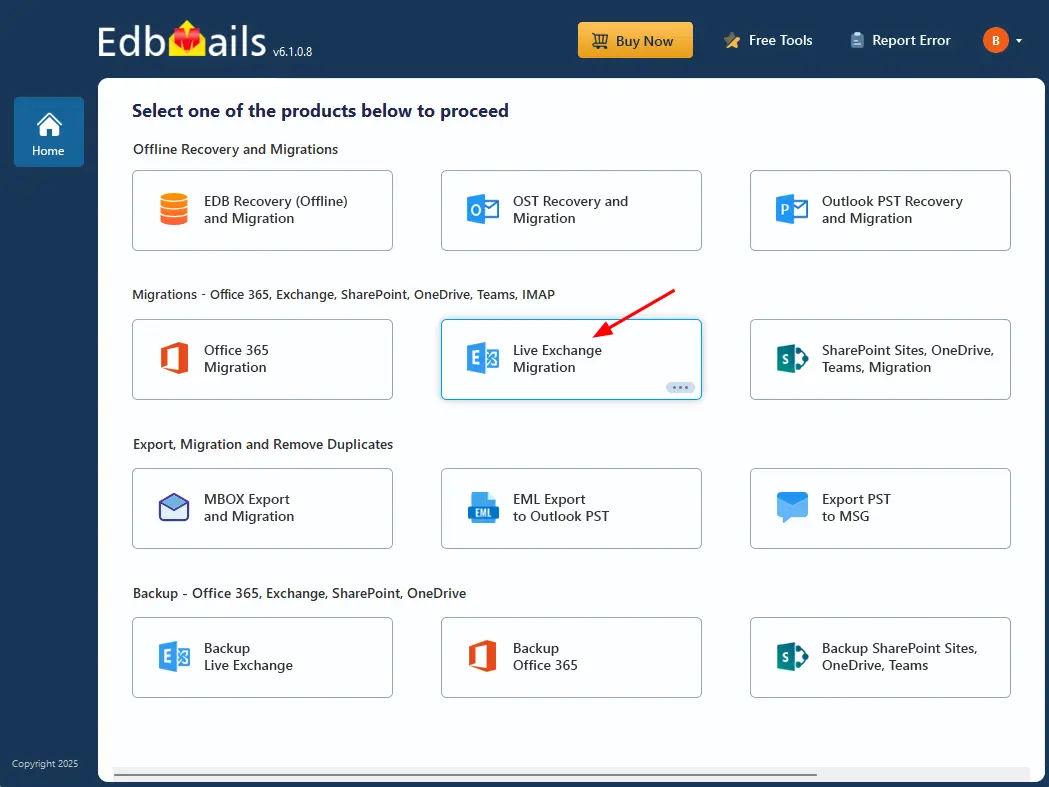
- Select ‘Live Exchange Migration’.
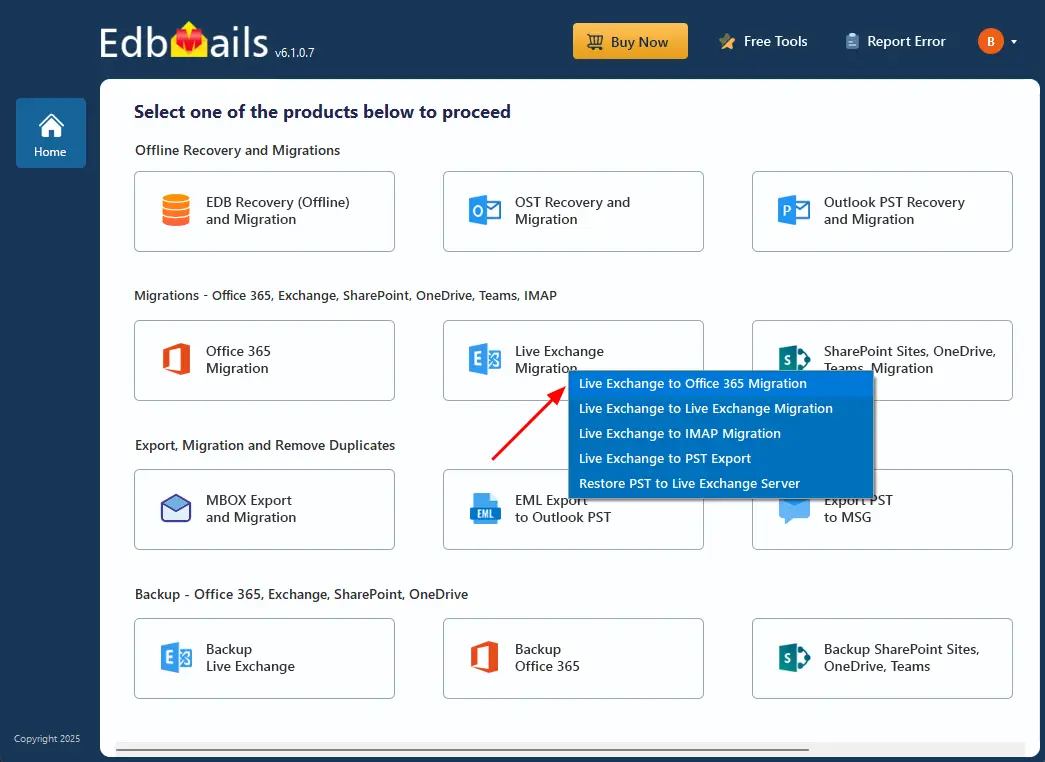
- Select 'Live Exchange to Office 365 Migration'
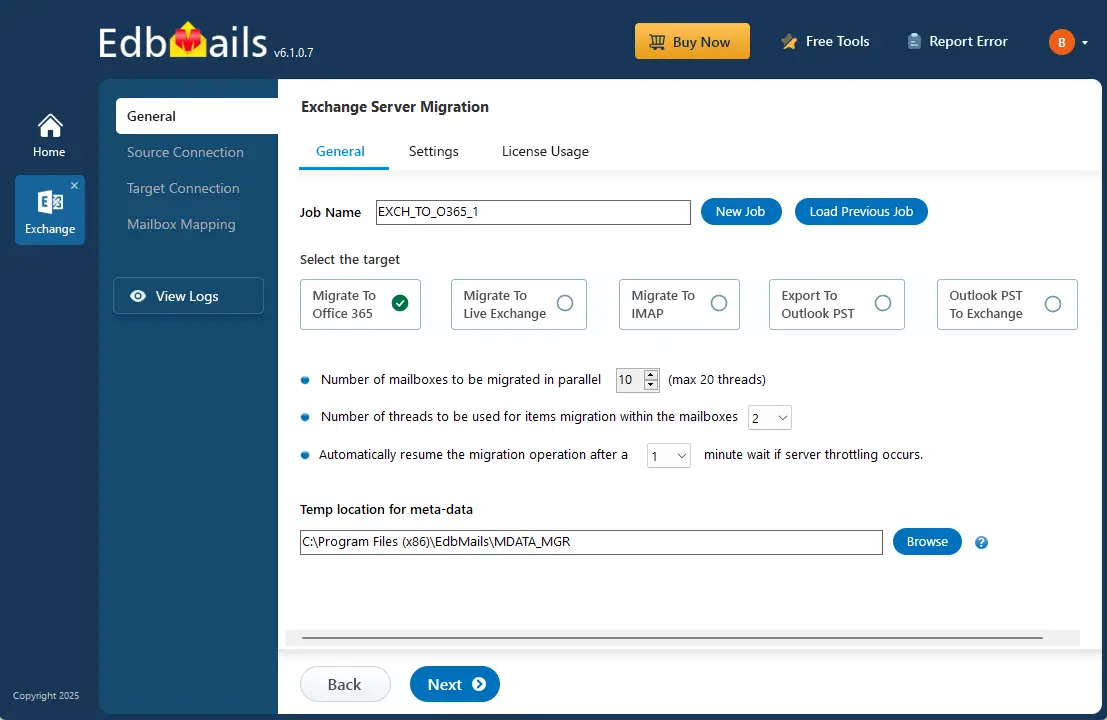
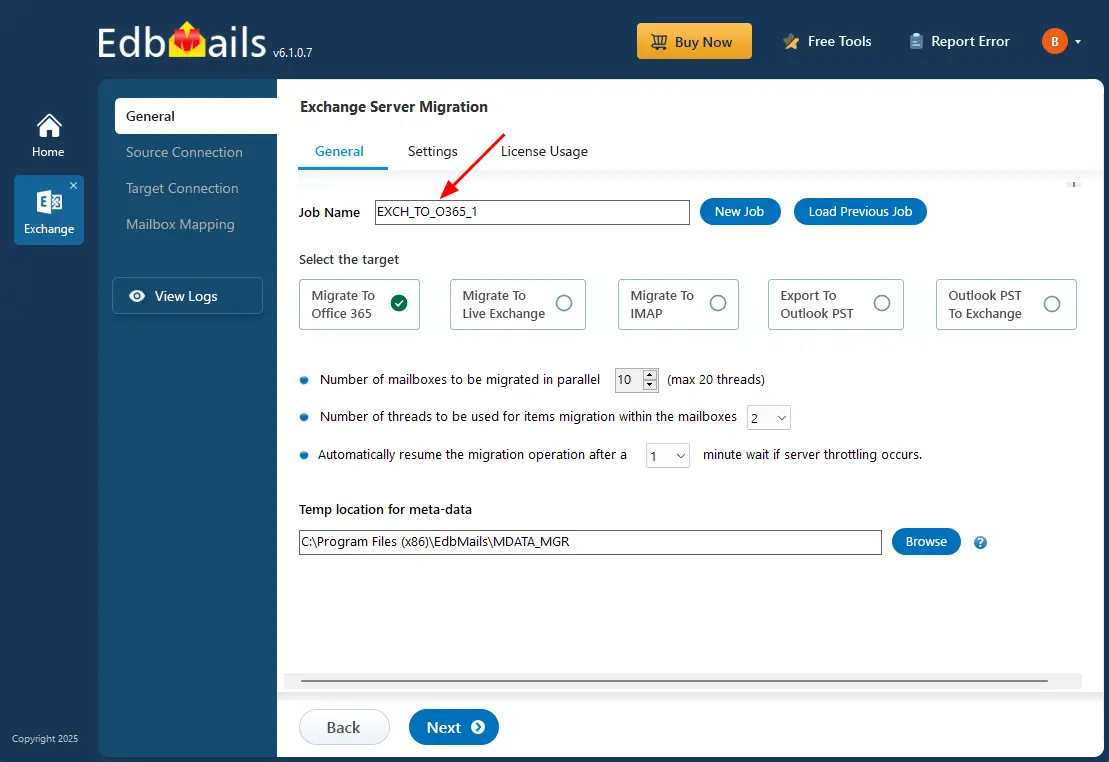
- You can use the default job name or click 'New Job' to modify the job name
- Download and install the EdbMails application on your computer.
Step 2: Connect to source Exchange server
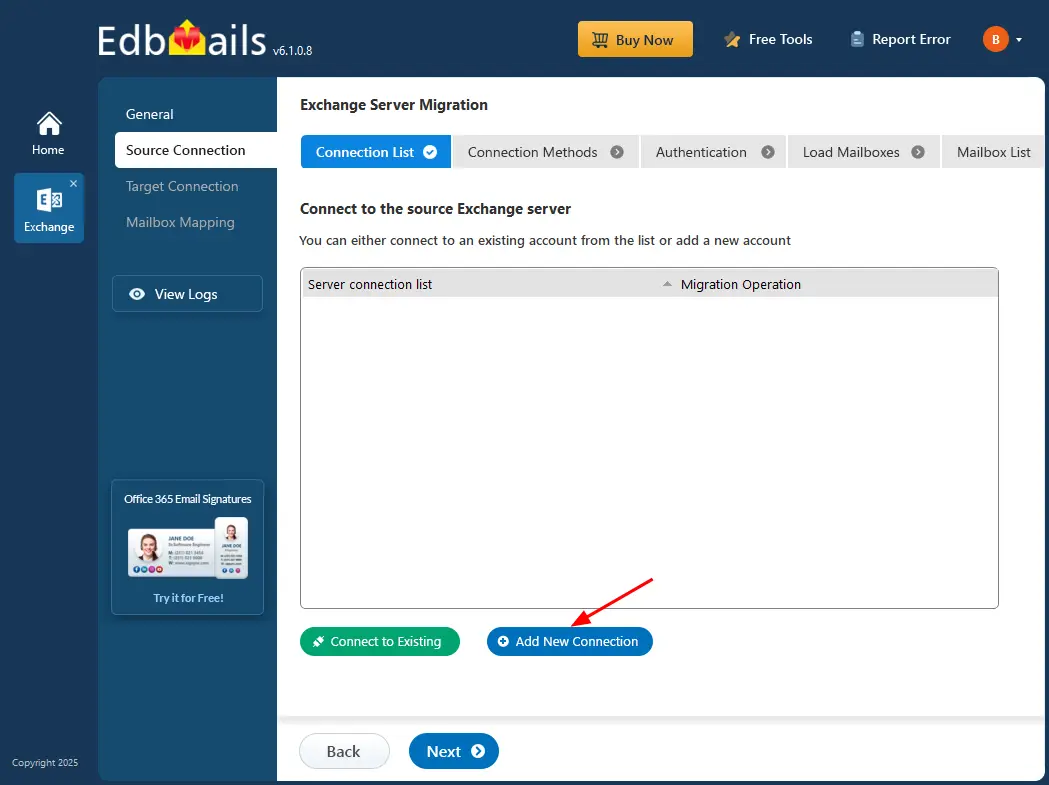
- To establish a new connection with the source Exchange server, click ‘Add New Connection’. To reconnect using a previous connection, select it from the list and click ‘Connect to Existing’ to continue.
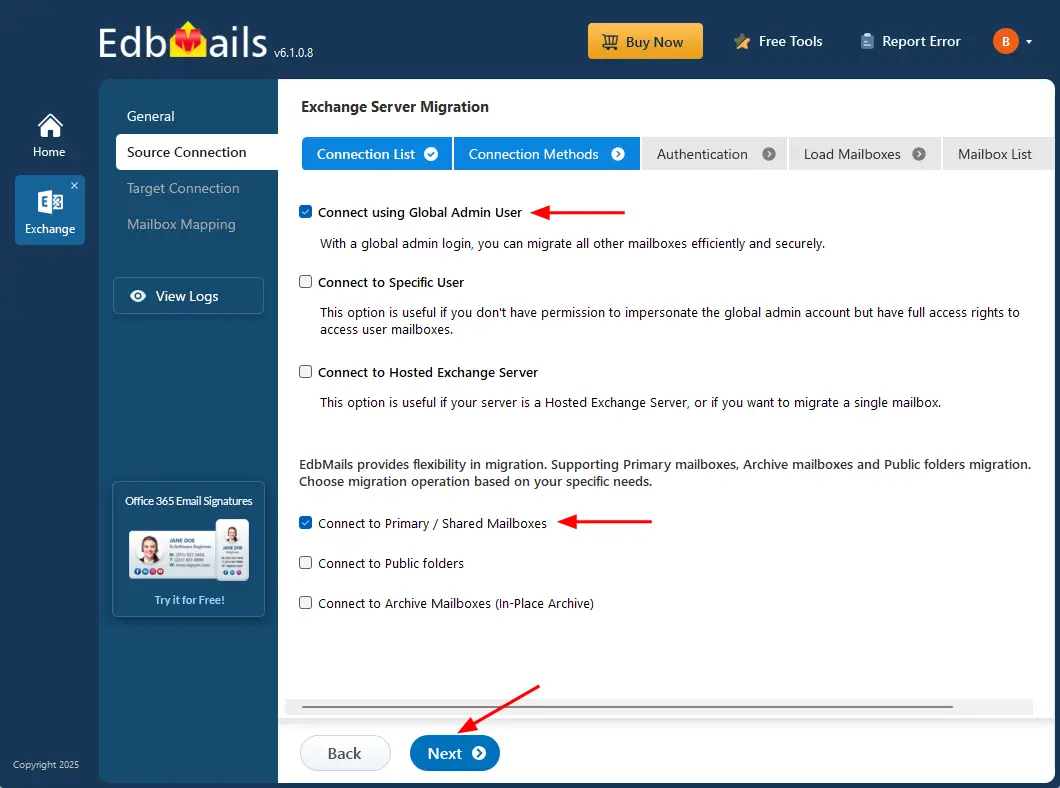
- Select the required connection options and click the ‘Next’ button.
Different options to connect to Exchange server in EdbMails
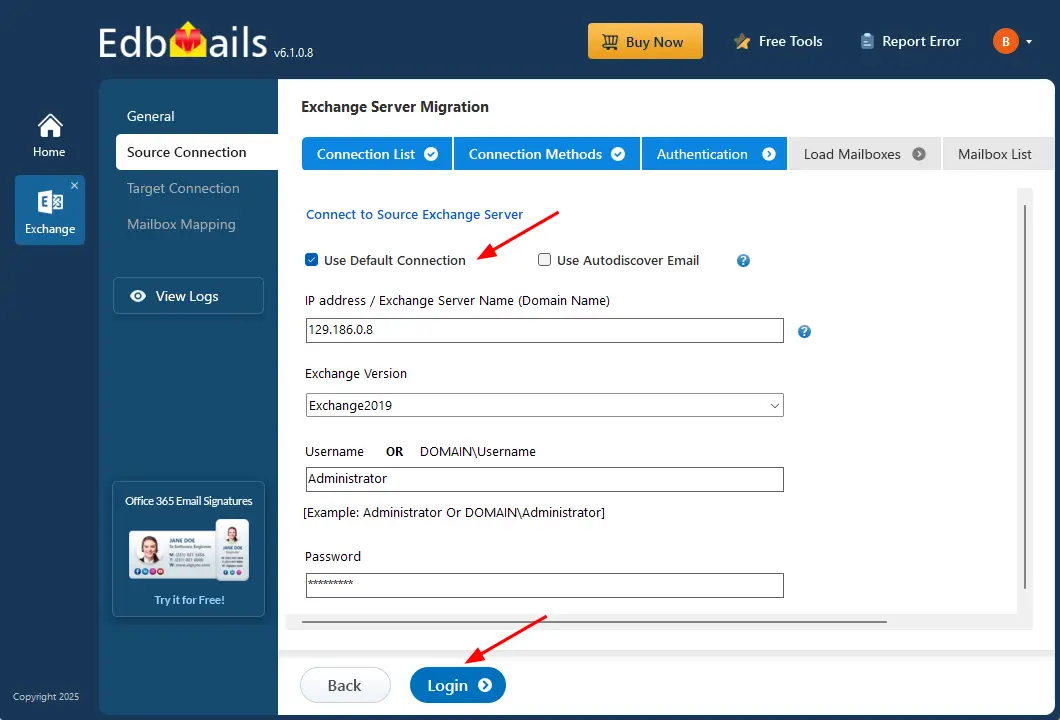
- Enter the source Exchange server details, including the IP address (Domain name), Exchange version, username, and password.
- Click the ‘Login’ button to proceed.
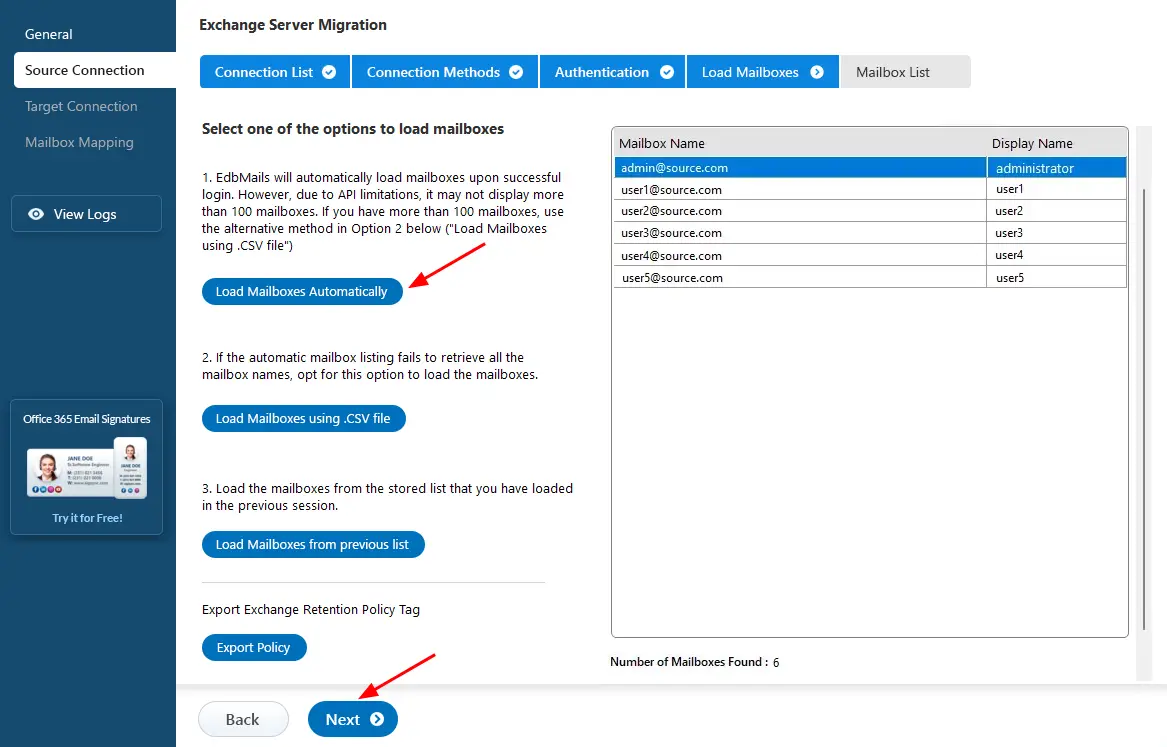
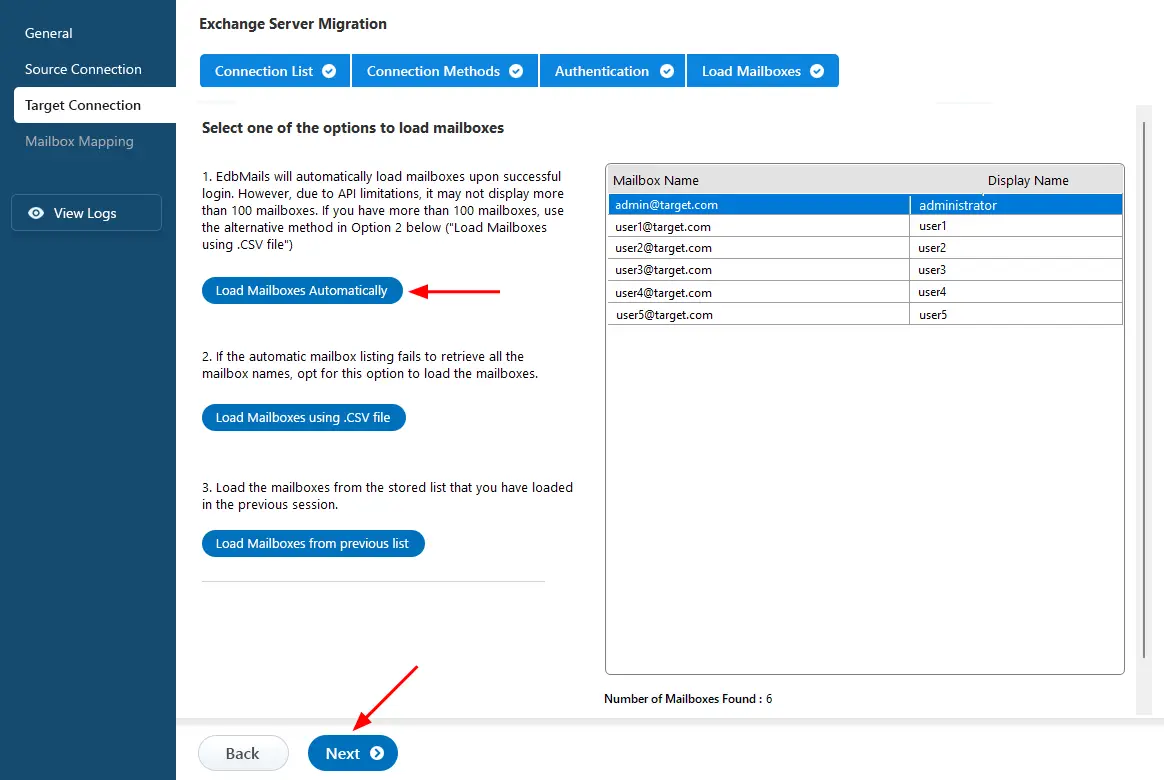
- After signing in to your target Office 365 server, choose the method to load the mailboxes.
- EdbMails can automatically load the mailboxes, simplifying the setup. Due to Microsoft API limitations, the automatic method displays only up to 100 mailboxes at a time.
- For larger environments or when you need to include specific mailboxes, select the ‘Load Mailboxes using .CSV file’ option. This method allows manual selection and gives you complete control over the process.
- Select ‘Load Mailboxes Automatically’ and click ‘Next’ to proceed.
- Choose the specific mailboxes/folders from the source Exchange server for the migration process.
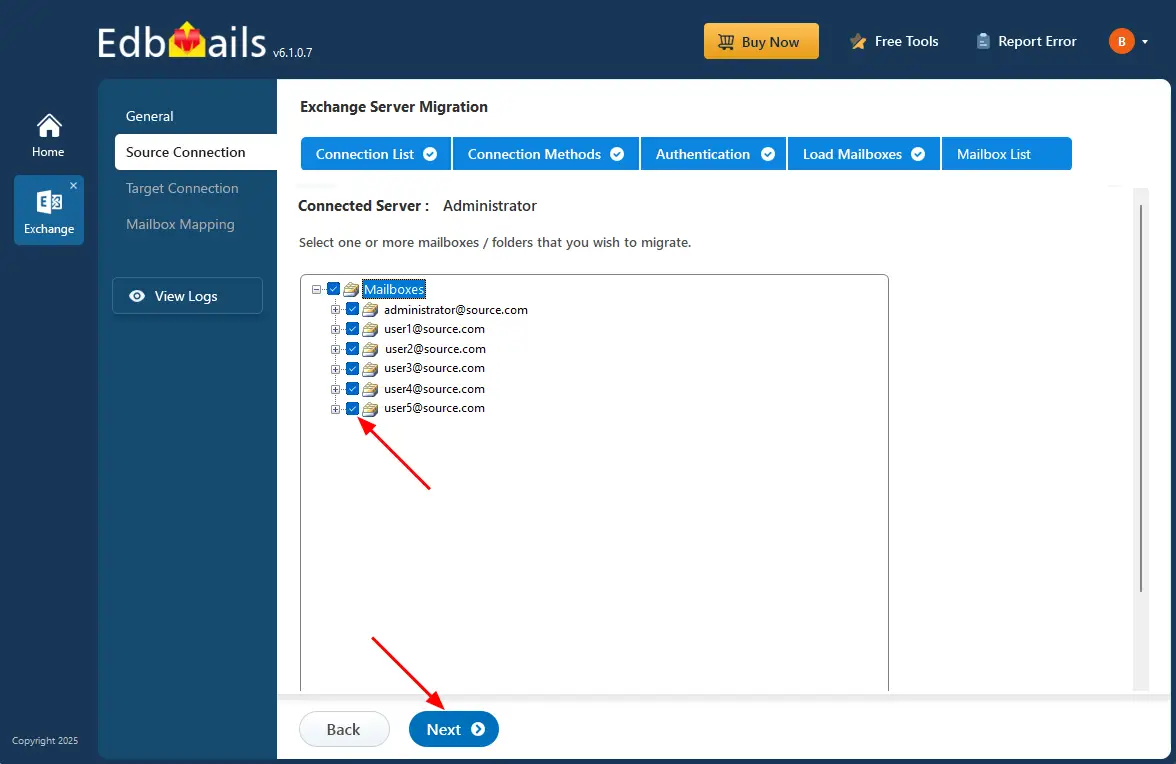
- To establish a new connection with the source Exchange server, click ‘Add New Connection’. To reconnect using a previous connection, select it from the list and click ‘Connect to Existing’ to continue.
Step 3: Connect to target Office 365 server
- Click ‘Add New Connection’ to set up a fresh connection to the target Office 365. If you've connected before, choose it from the list and click ‘Connect to Existing’ to continue.
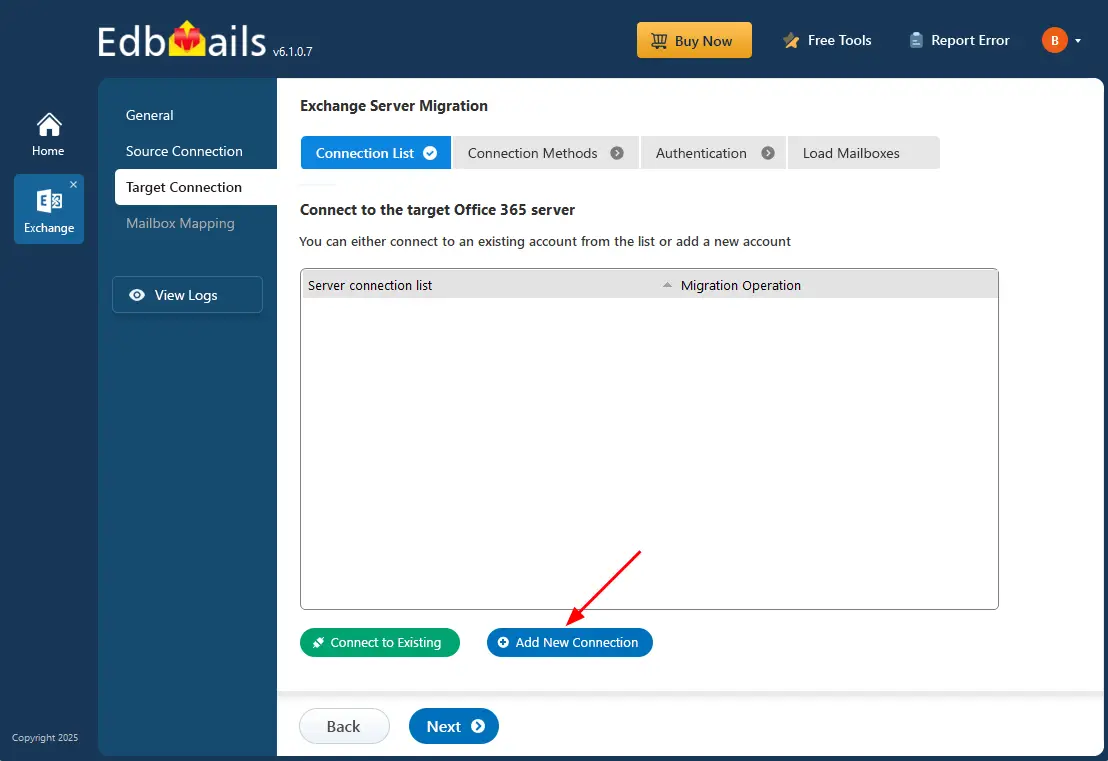
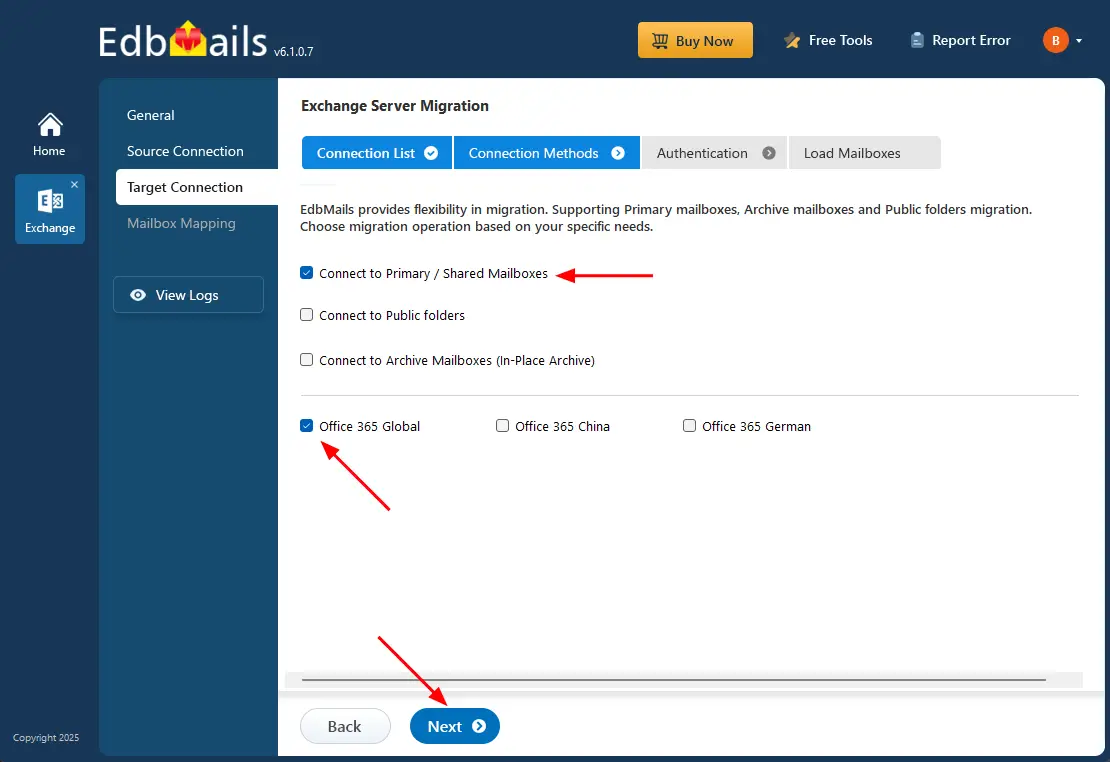
- Select the required options to establish a connection with your target Office 365 server
- Then click the ‘Next’ button to proceed with the migration setup.
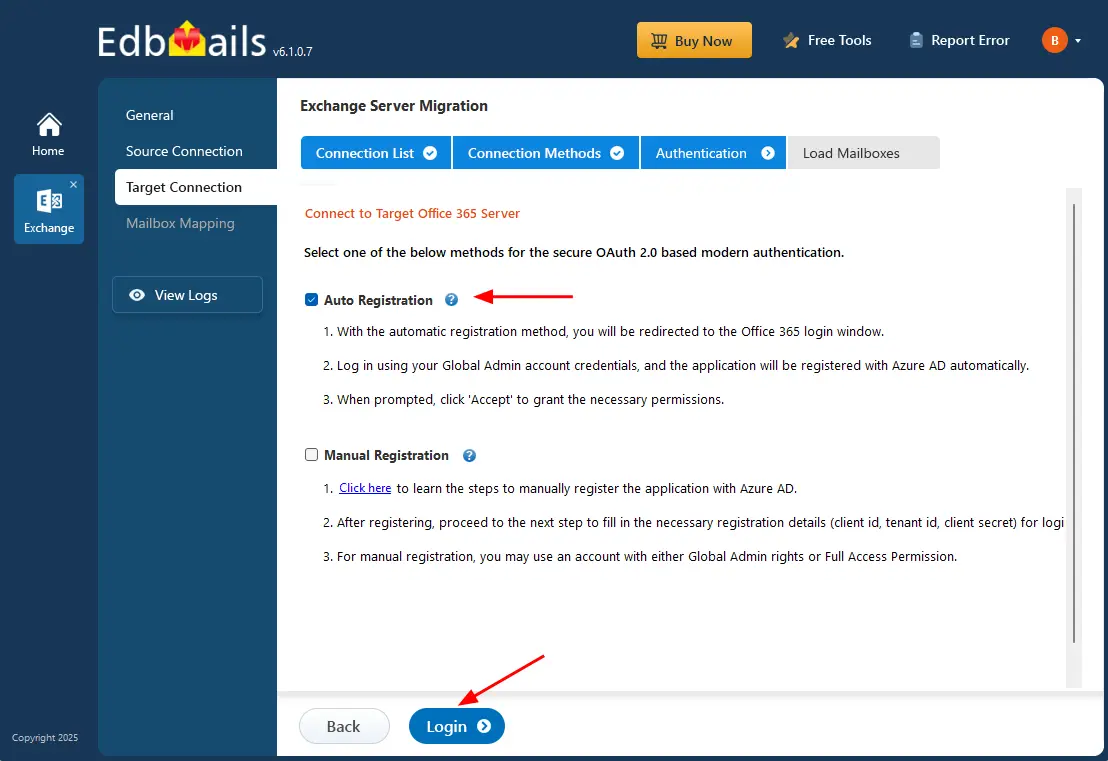
- Ensure you have a Global Admin account with an active mailbox to enable Auto Registration of the EdbMails application in your Entra ID (Azure Active Directory).
- For the Manual Registration method, you can use either a Global Admin account or a user account that has full access permissions.
- Select ‘Auto Registration’ to connect to Office 365 and click the ‘Login’ button to continue.
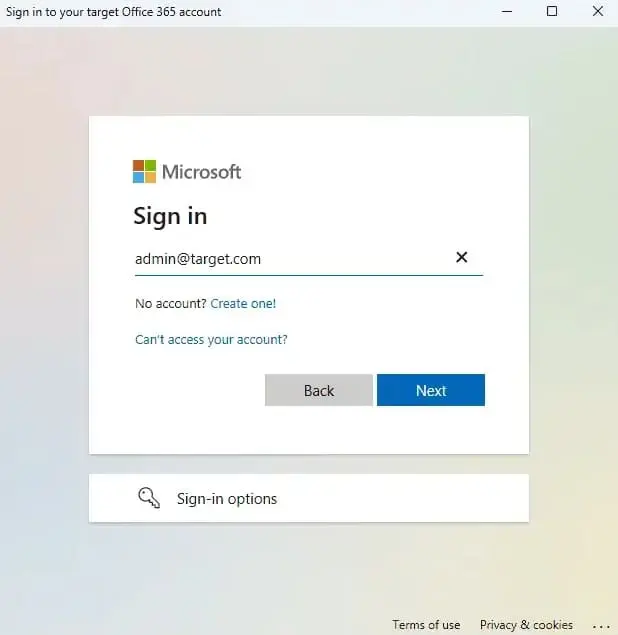
- Authenticate on Microsoft sign-in page.
- Select one of the methods to load the mailboxes.
- You can either select ‘load Mailboxes Automatically’ or load the mailboxes using a CSV file and click ‘Next’ to continue.
- Click ‘Add New Connection’ to set up a fresh connection to the target Office 365. If you've connected before, choose it from the list and click ‘Connect to Existing’ to continue.
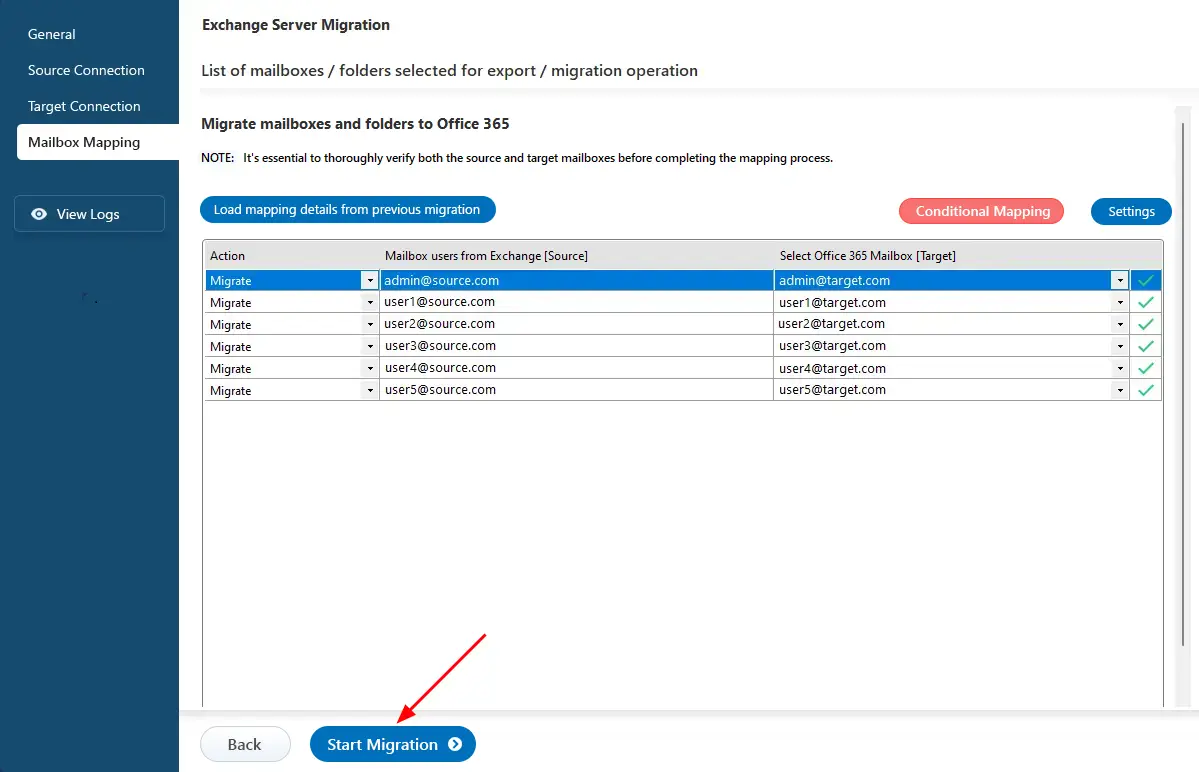
Step 4: Map source and target mailboxes
- Choose the required mailbox mapping option
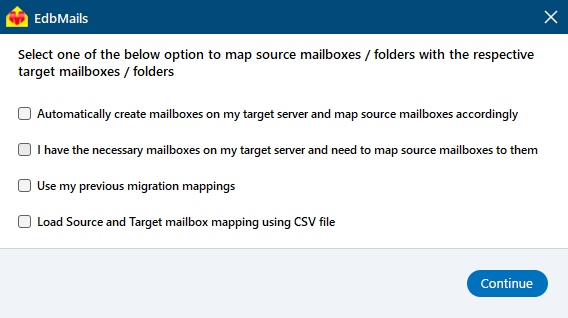
- EdbMails automatically creates mailboxes on your target Office 365 server and assigns the necessary licenses.
Learn more about automatic mailbox creation in the target Office 365 server.
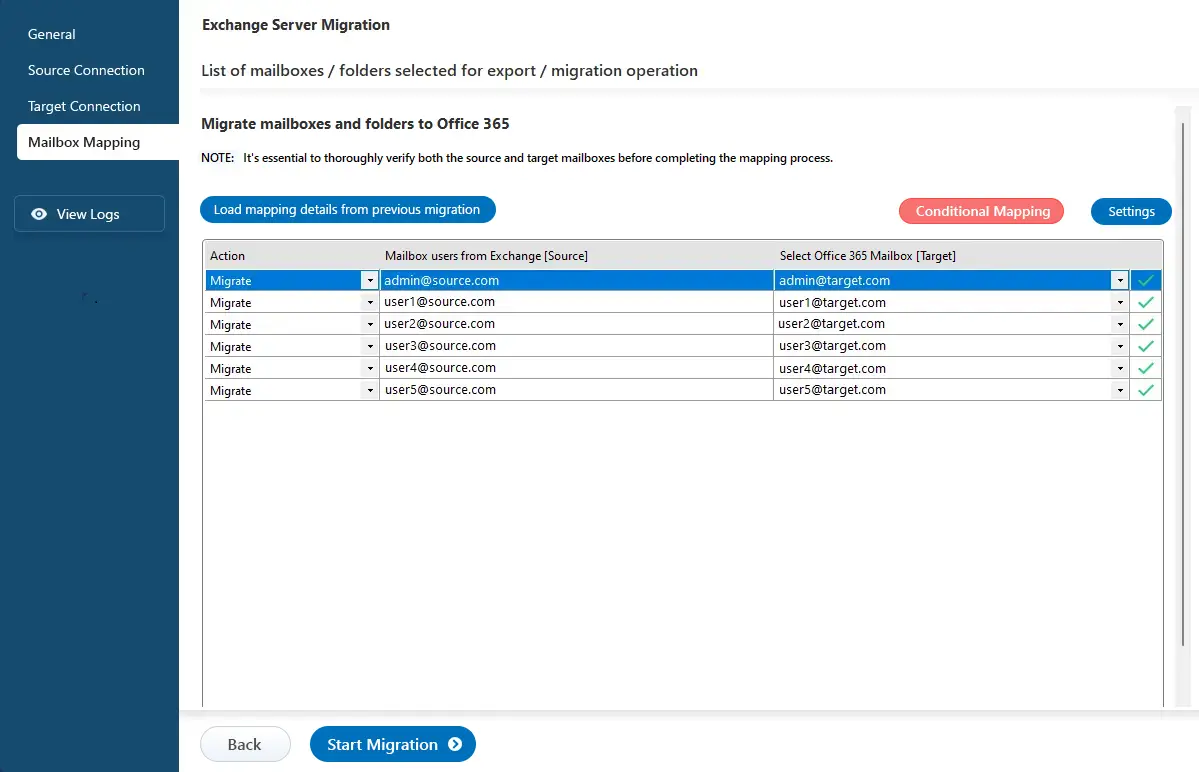
- Choose the required mailbox mapping option
Step 5: Start Exchange to Office 365 migration
- Click the 'Start Migration’ button to initiate the migration process.
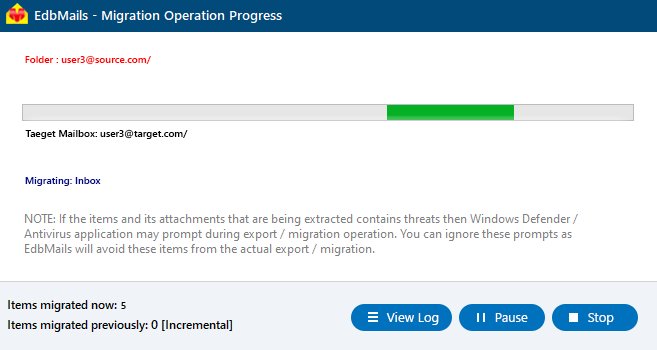
- Track migration progress in progress bar. After migration completion, EdbMails prompts to review the migration status. Click the ‘View Logs’ button to check the migration report. Log in to the target server and verify the migrated items.
- You can verify the list of migrated folders and mailbox items with EdbMails text-based migration log report.
- Login to your target Office 365 server and verify the migrated items.
- Click the 'Start Migration’ button to initiate the migration process.
Exchange to Office 365 Post Migration Tasks
Troubleshooting guide for Exchange to Office 365 Migration
Benefits of EdbMails for Exchange to Office 365 migration
- Supports concurrent mailbox migration that enhances performance by allowingmultiple mailboxes to be transferred simultaneously.
- Provides incremental migration that boosts migration efficiency bytransferring only new and modified data during subsequent migration operations
- Support for migrating Exchange servers 2007, 2010, 2013, 2016 and 2019.
- Easy to use software without any PowerShell scripts.
- Keeps source and target servers data intact
- Migrates Exchange Public folders, Shared Mailboxes and In-Place Archives to Office 365.
- Cost-effective Exchange to Office 365 migration software.
- Automatic mailbox mapping between Exchange server and Office 365.
- Secure modern authentication for Office 365.
- Granular brick-level technology for selective mailbox and mail item migration.
- Free 24x7 tech support to assist with the migration operation.
- EdbMails provides a reliable and fully automated solution for migrating mailboxes directly from any Exchange Server to Microsoft 365 with zero downtime.
- Supports Multi-Factor Authentication (MFA) and OAuth 2.0 authentication for secure Microsoft 365 connectivity.
- Generates detailed migration reports and audit logs for migration verification and compliance.
- Preserves mailbox permissions, folder permissions and access rights during migration.
- Supports selective migration using folder-level and item-level filtering options.
Additional resources:
- EdbMails Exchange migration software
- Exchange to Exchange migration
- Exchange to IMAP migration
- Office 365 Migration Checklist
- Office 365 Migration Scenarios Guide files into Exchange server
- Exchange 2010 to Office 365 migration
- Exchange 2013 to Office 365 migration
- Exchange 2016 to Office 365 migration
- Exchange 2019 to Office 365 migration


