


Microsoft 365 to IMAP migration software
Switching the migration of Office 365 to IMAP is crucial for any organization that requires certain features in email management and has a more flexible system. Office 365 to IMAP migration tool provided by EdbMails enables migration of Office 365 data into the IMAP server directly, without any intermediate stage. EdbMails guarantees that all Office 365 emails are transferred, preserving the folder structure on the target IMAP server.
EdbMails helps with Office 365 migration to multiple IMAP-enabled email servers, such as Outlook, Gmail, Zoho, Zimbra, and others, including IceWarp, cPanel, Plesk, GoDaddy, Rackspace, AWS WorkMail, Bluehost, and DreamHost.
The following sections guide you through the relevant Office 365 to IMAP migration scenarios, pre-migration tasks, migration steps, and useful tips required for migrating your mailbox data from Office 365 to various IMAP servers.
Reasons to migrate from Office 365 to an IMAP server
Reasons to consider migrating from Office 365 to an IMAP server:
- IMAP servers provide more flexibility than Office 365, helping organizations to adjust their email storage, access permissions, and archiving based on their preferences.
- IMAP servers support a more flexible approach to email management, helping organizations to align their operations with the approach that best suits their specific needs.
- Some companies prefer IMAP servers over Office 365 because their email needs keep changing and require a more flexible solution.
- Moving to an IMAP server helps organizations manage their email differently and switch to tools that work better for them.
- Businesses that need more control over their email system may find IMAP servers a more practical choice over Office 365.
- It offers cost-effective solutions for managing emails efficiently without limiting the access or features.
Best Software To Migrate From Office 365 to IMAP Server
EdbMails provides the features that are required for migrating from Office 365 to IMAP. It allows users to perform migration operations with a minimum of clicks using its easy-to-use software interface. Multiple mailboxes migrate together to speed up the migration process and complete the task in the minimum possible time. Using the feature of incremental migration, the non-migrated data gets migrated to the destination from the source, so there is no data duplication on the destination server. Also, it provides automated mailbox mapping for Office 365 and IMAP server to remove manual processes and errors. It is also able to handle Office 365 throttling.
Supported scenarios for Office 365 to IMAP migration by EdbMails
EdbMails supports various types of Office 365 to IMAP migration. Below are the migration scenarios that EdbMails supports for Office 365 to IMAP migration:
- Office 365 to Zimbra migration
- Office 365 to Zoho Mail migration
- Office 365 to Gmail migration
- Office 365 to IceWarp migration
- Office 365 to cPanel migration
- Office 365 to Rackspace migration
- Office 365 to Plesk migration
- Office 365 to AOL Emails migration
- Office 365 to ProtonMail migration
- Office 365 to AWS Workmail migration
- Office 365 to 123 Reg migration
- Office 365 to Bluehost migration
- Office 365 to Dovecot migration
- Office 365 to hMailServer migration
- Office 365 to BigRock migration
- Office 365 to Liquid web migration
- Office 365 to Dreamhost migration
- Office 365 to Comcast migration
Office 365 to IMAP migration: Pre-migration tasks
The following steps need to be completed before you can begin migrating your mailbox data from Office 365 to an IMAP server:
- On the source Office 365 server side:
- Make sure to have an Office 365 Global admin account with the required license
- Assign the suitable Office 365 licenses for the required mailboxes
Click here to assign Microsoft 365 licenses to user accounts
- To migrate your Office 365 public folders and archive/shared mailboxes you must set them up correctly.
Click here to create Office 365 Public folder and assign admin permissions.
Click here to create Shared mailboxes on Office 365 and set the required permission.
Click here to enable archive mailboxes on Office 365
- Make sure that you have the required Bandwidth for Office 365 migration
Click here for network and migration planning, performance factors and best practices for Office 365 migration.
- In order to move large messages (items), set Office 365 so that the message size limit can be increased.
Click here for the steps to increase the message size on Office 365 to 150MB.
- On the target IMAP server side:
- Get your IMAP server host name, port number, email address, and password to log in to the target IMAP server.
- If migrating multiple mailboxes, prepare a CSV file with columns as email address, password, IMAP server host name, and port number.
- If migrating Office 365 to Gmail, create an app password for the Gmail account.
Click here for the steps to create an app password for your Gmail account.
- On the source Office 365 server side:
Steps for Office 365 to IMAP migration using EdbMails
EdbMails can help you with a smooth and simple migration from Office 365 to IMAP with a user-friendly interface. So you can migrate all your mailboxes' data easily and securely with the following steps:
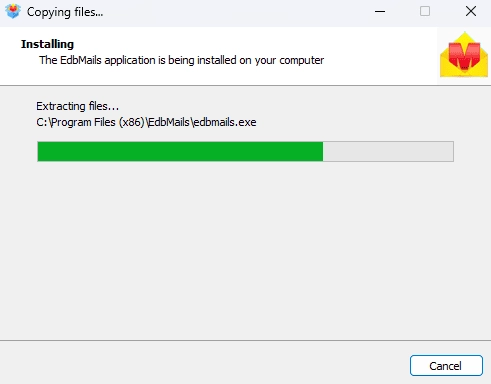
Step 1: Download and Install EdbMails application- Download and install the EdbMails application on your computer.
- Double click the EdbMails setup (EdbMailsSetup.exe) to install the application.
- Follow the instructions that appear to complete the installation.
See EdbMails system requirements for Office 365 migration
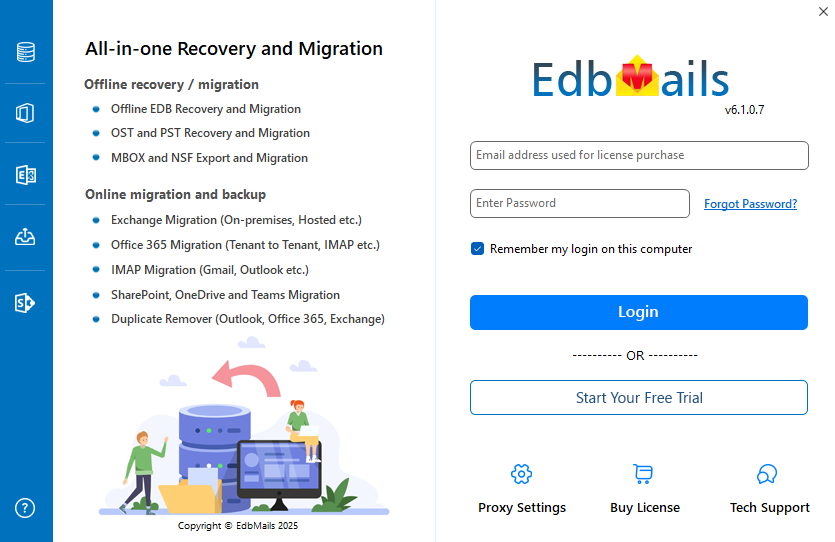
- Click 'Login' or 'Start Your Free Trial' to access the application
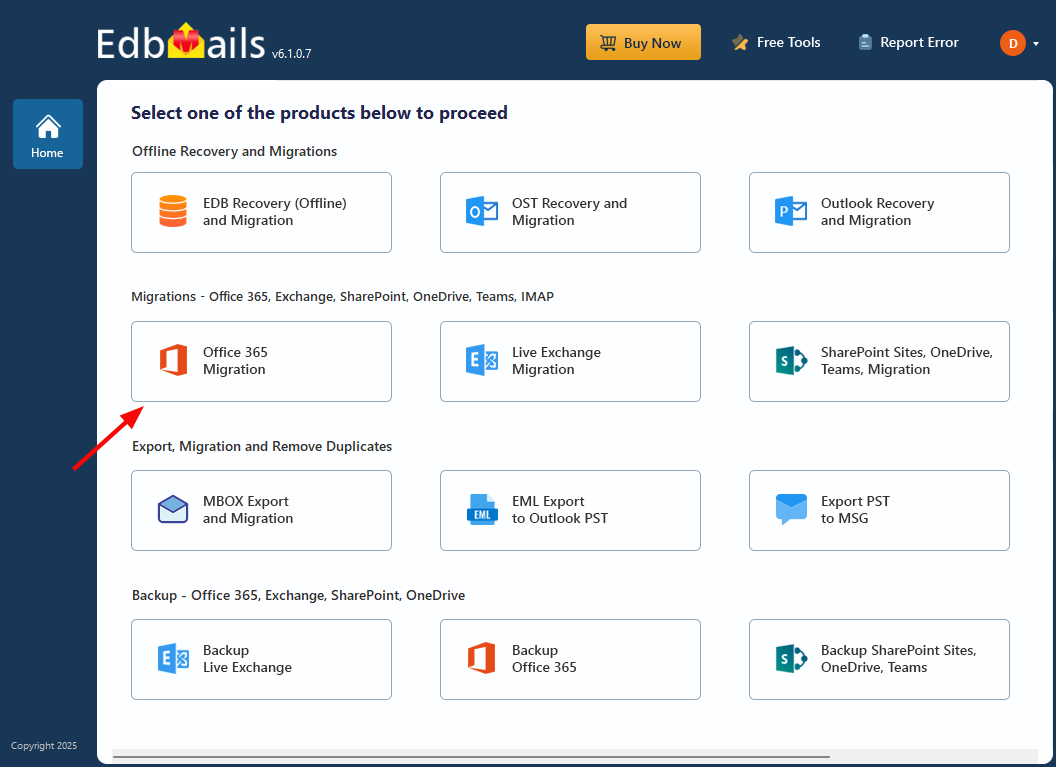
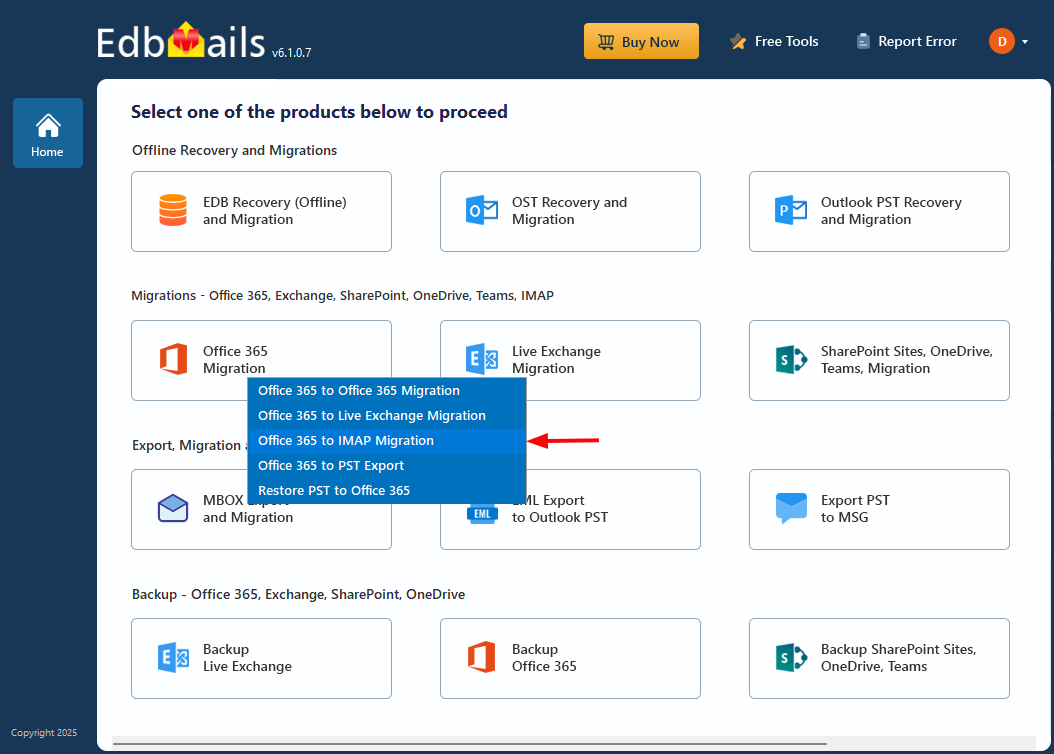
- Select the option 'Office 365 Migration'
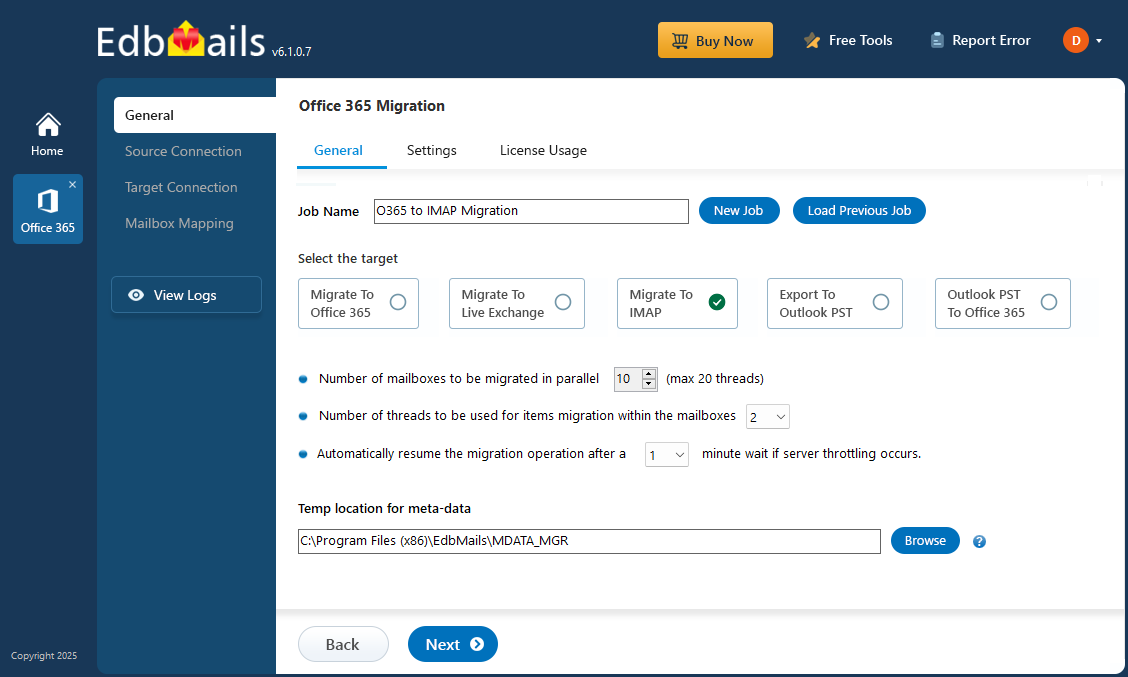
- Select ‘Office 365 to IMAP migration’
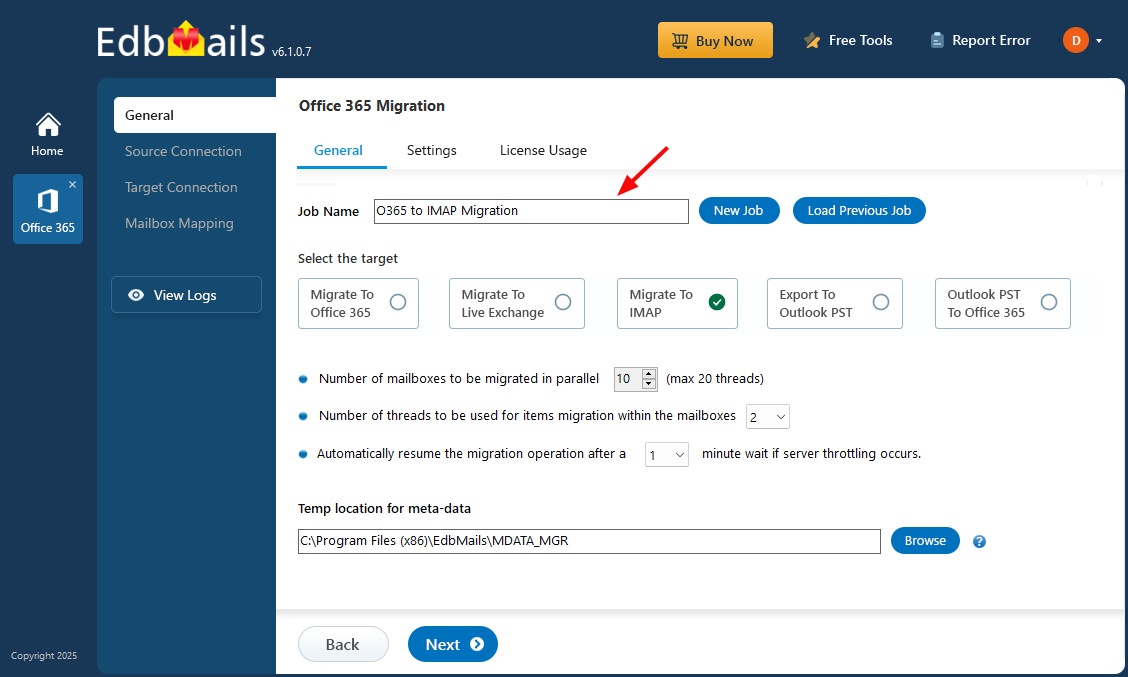
- Either keep the default job name or enter your preferred job name, then click 'Next' to proceed.
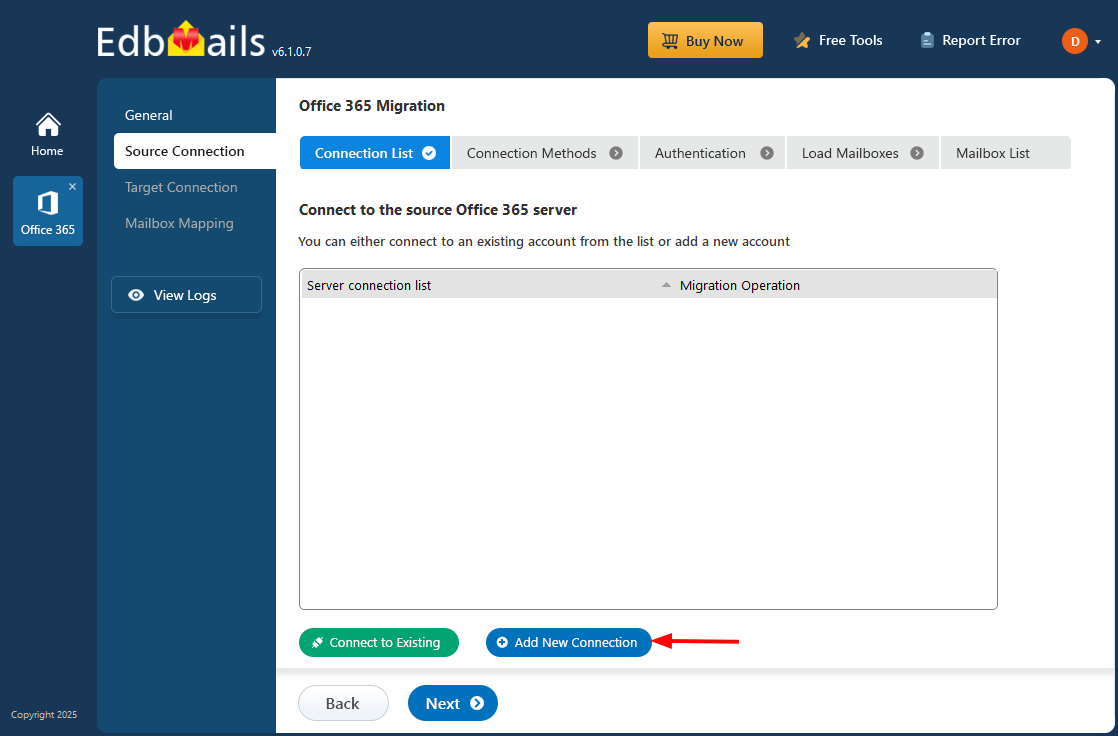
- Click the ‘Add New Connection’ button to establish a new connection to the source Office 365. To use the previous connection, select it from the connection list and click the ‘Connect to Existing’ button to proceed.
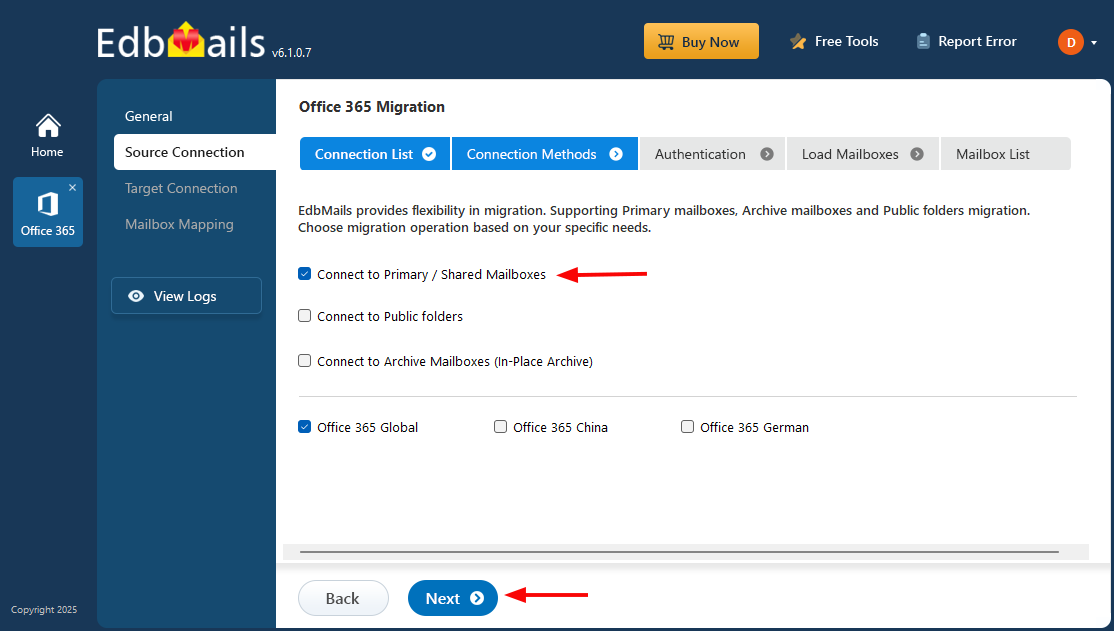
- Choose the required connection options and click the ‘Next’ button.
- Select the appropriate connection method and click the ‘Login’ button to continue.
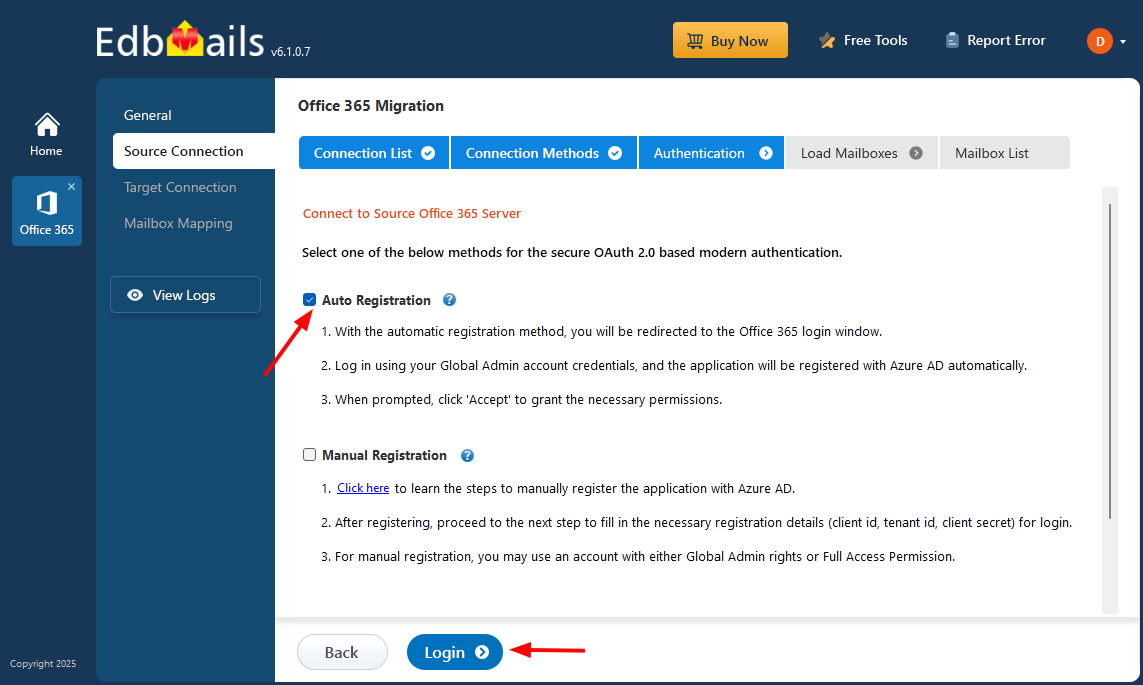
Connect to Office 365 server using secure modern authentication
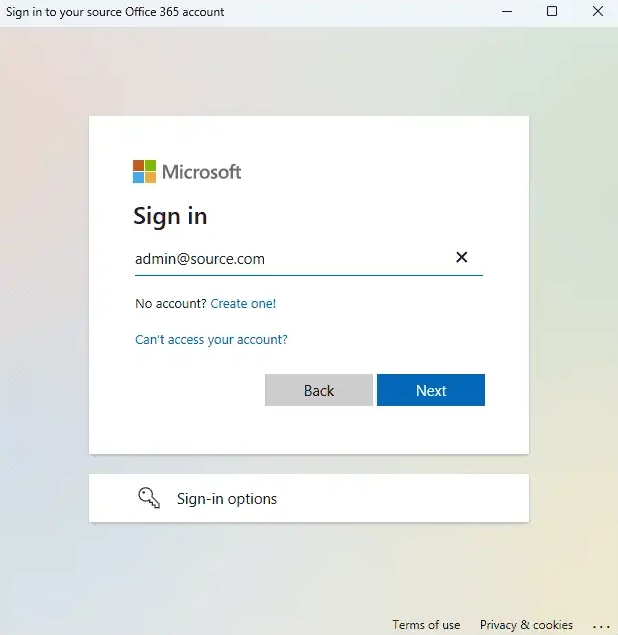
- Authenticate on Microsoft sign-in page.
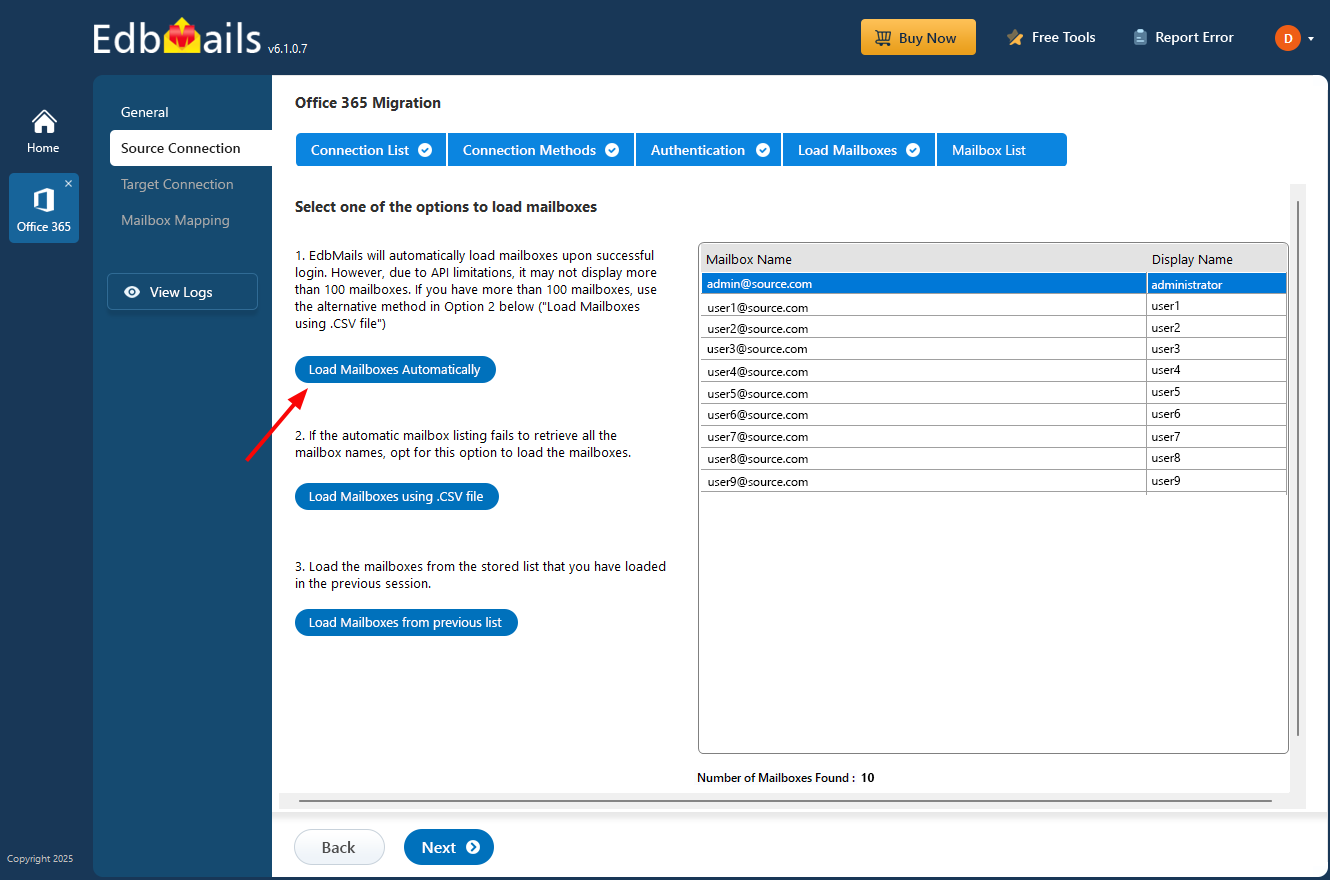
After the successful authentication, choose one of the methods to load the mailboxes. You can also load and migrate the mailboxes using a CSV file.
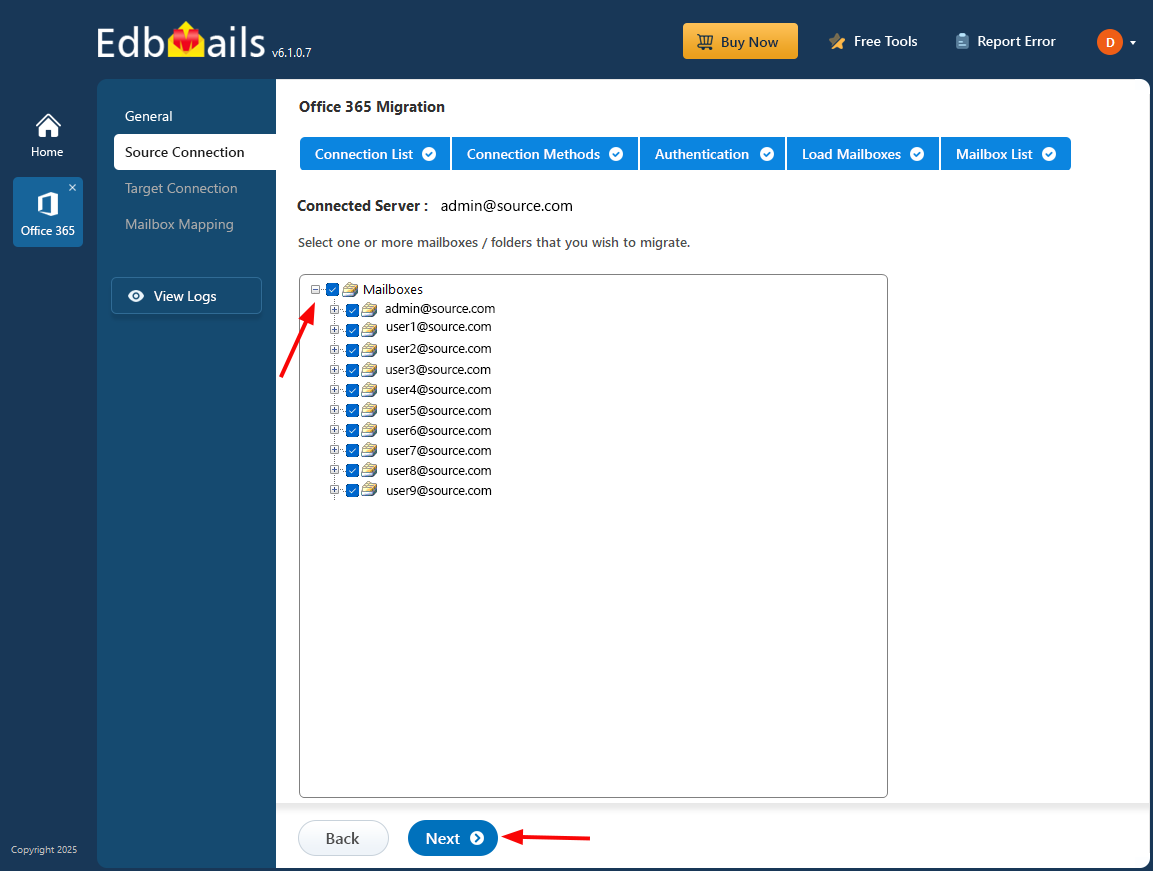
- Select the mailboxes you want to migrate from the source Office 365 server.
- Click ‘Next’ to proceed.
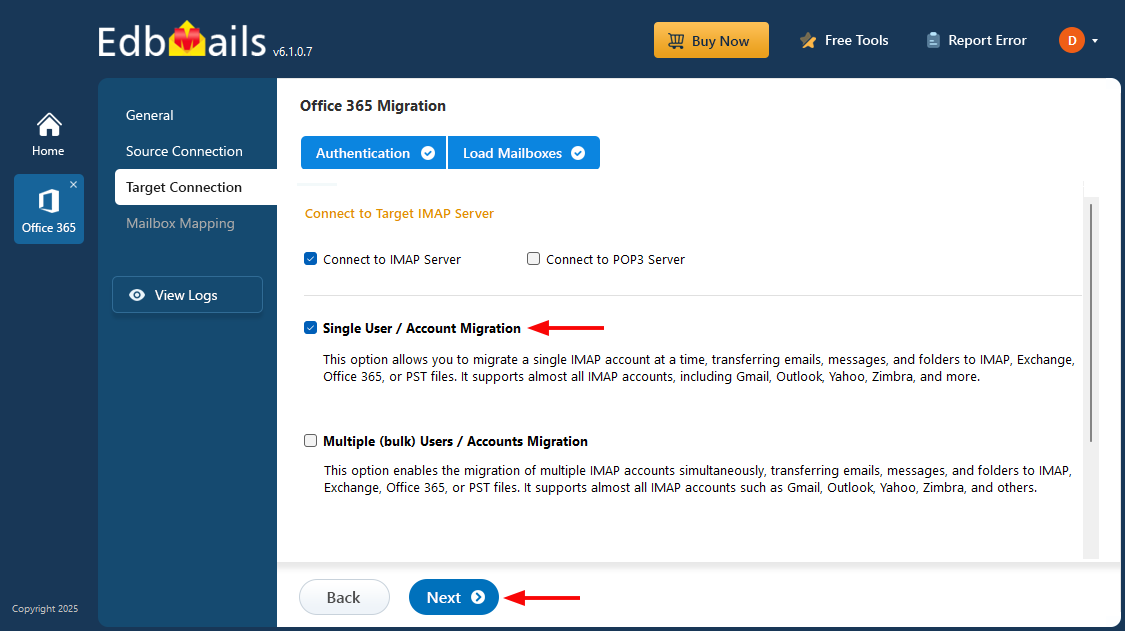
- Choose the required protocol, such as 'Connect to IMAP' or 'Connect to POP3.' To connect a single user account, select 'Single User / Account Migration.'
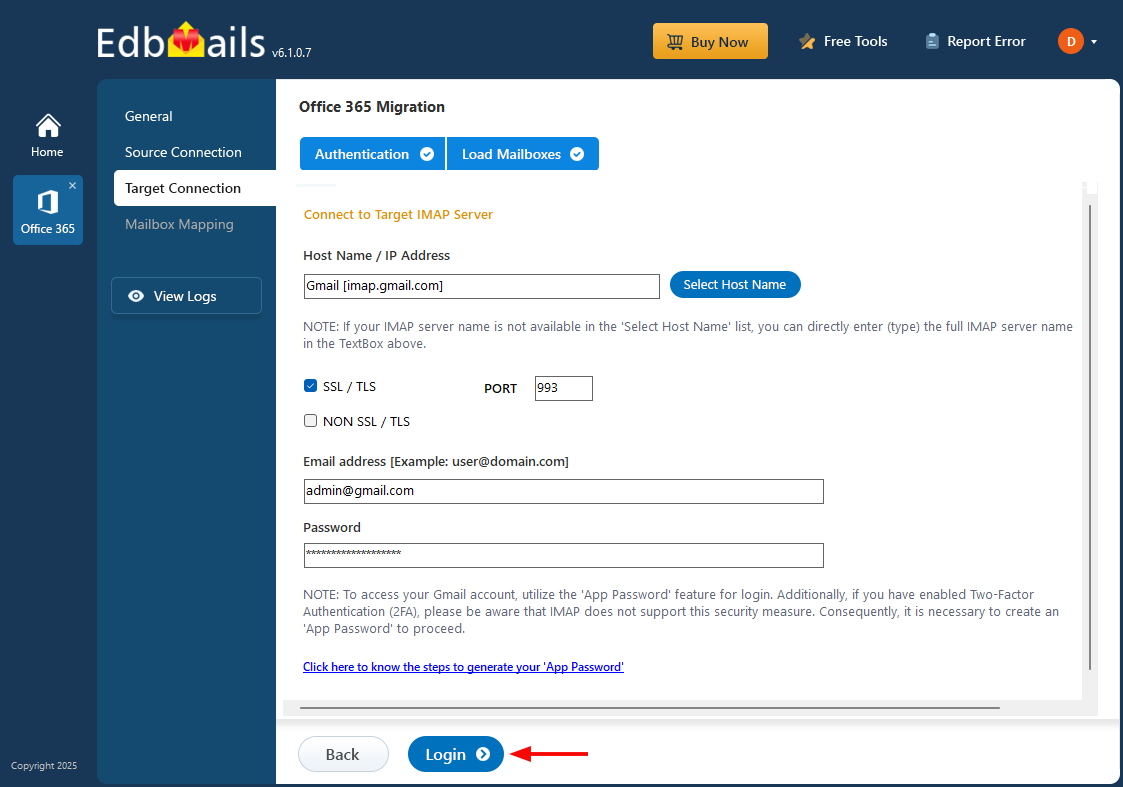
- Select the appropriate IMAP host name from the list or manually enter it. Then, provide the email address and password. For Gmail accounts, be sure to create an app password and use that instead.
- Click the ‘Login’ button.
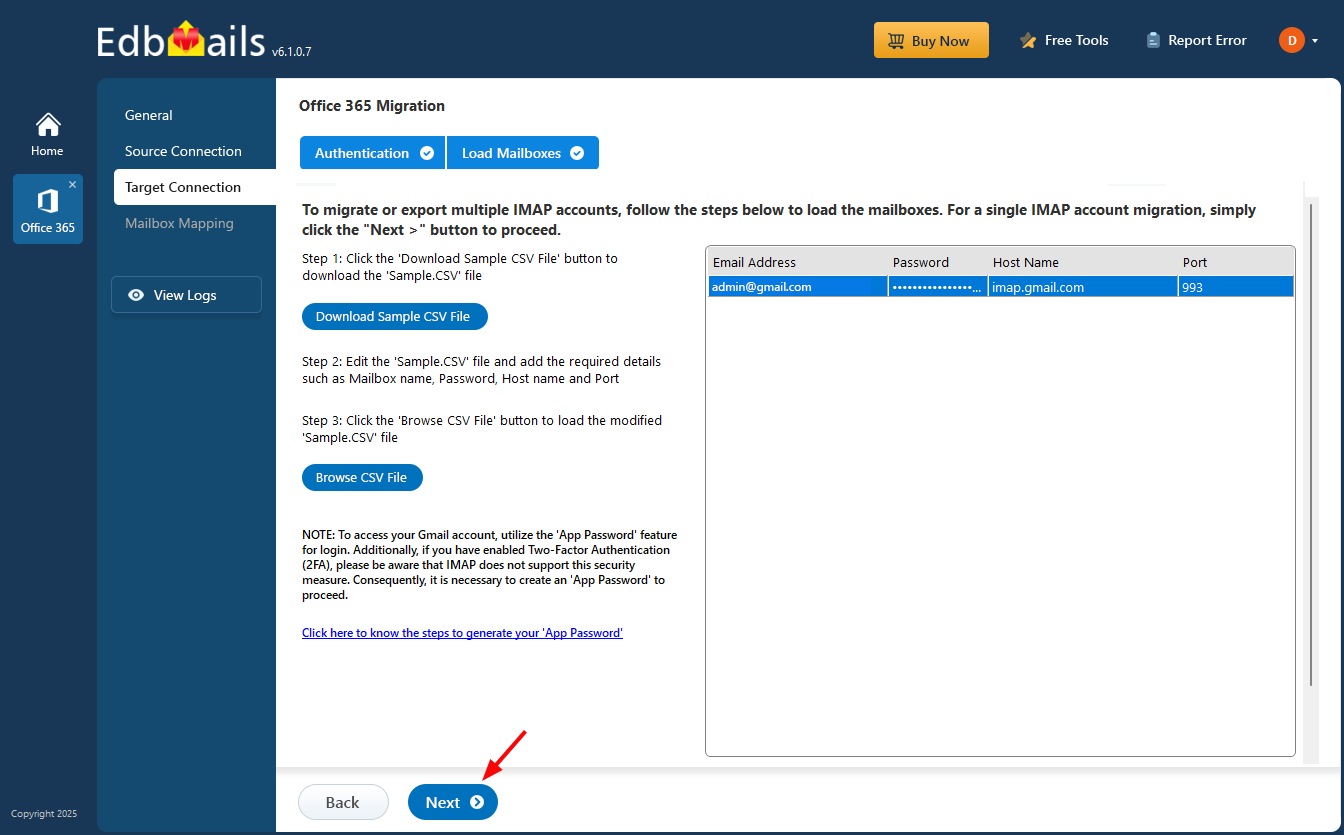
- Once the mailboxes are loaded, click ‘Next’ to proceed.
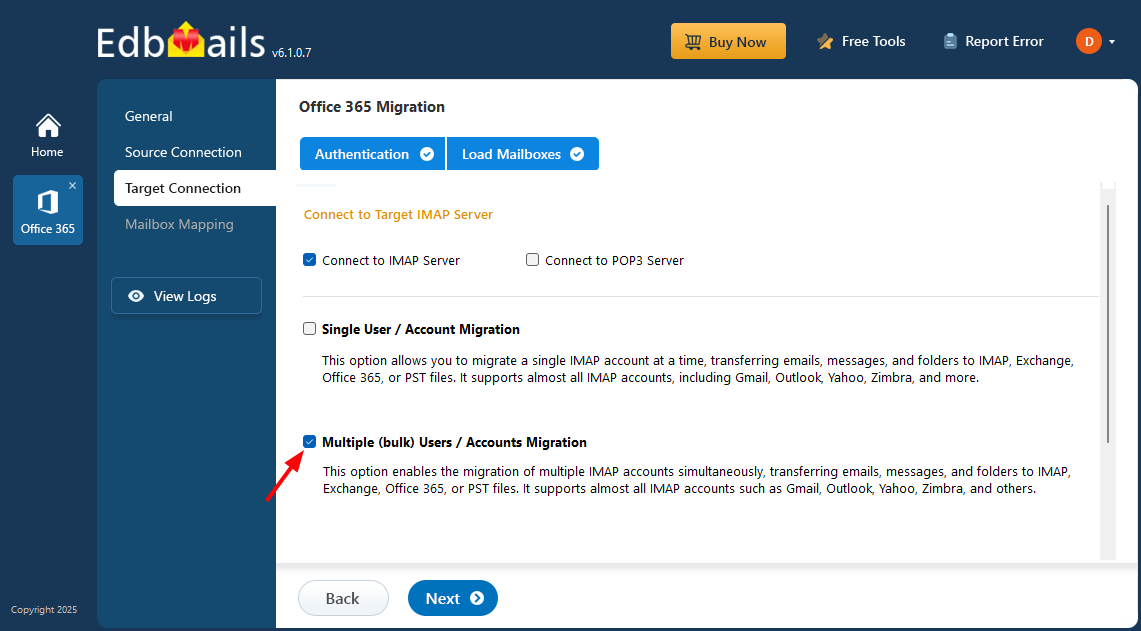
- For migrating multiple mailboxes, choose 'Multiple (Bulk) Users/Accounts Migration,' and click 'Next' to proceed
- Click on ‘IMAP Migration CSV File.’
- You will be prompted to download the sample .csv file. Choose the destination folder where you want to save the file
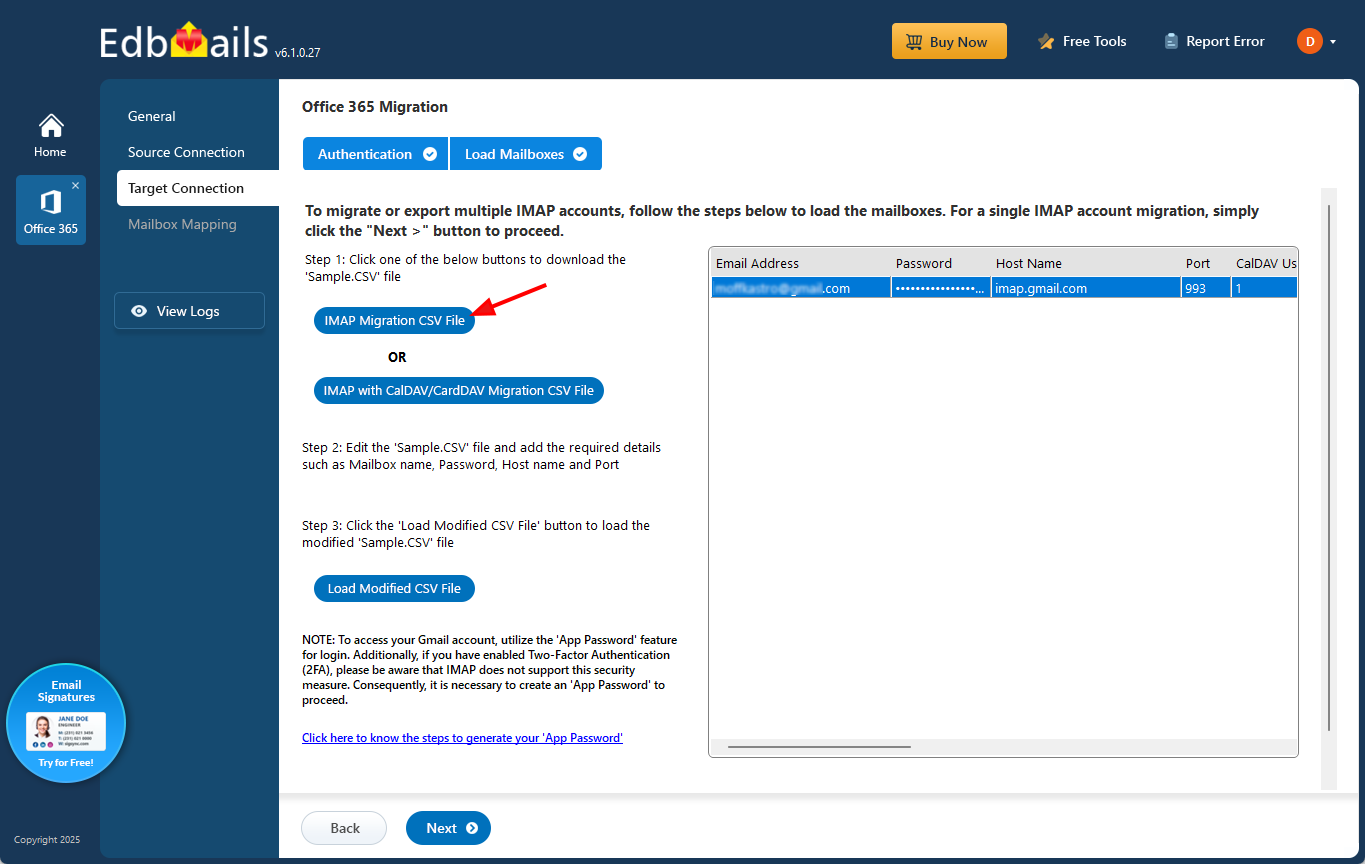
- Open the downloaded CSV file and update it with the required details, including the email address (mailbox name), password, host name, and port. You can set other fields to 'NA' as they are not required when migrating email data. After making the changes, save and close the CSV file.

- Click the 'Load Modified CSV File' button to select the CSV file.
- Verify the mailboxes and proceed by clicking 'Next'.
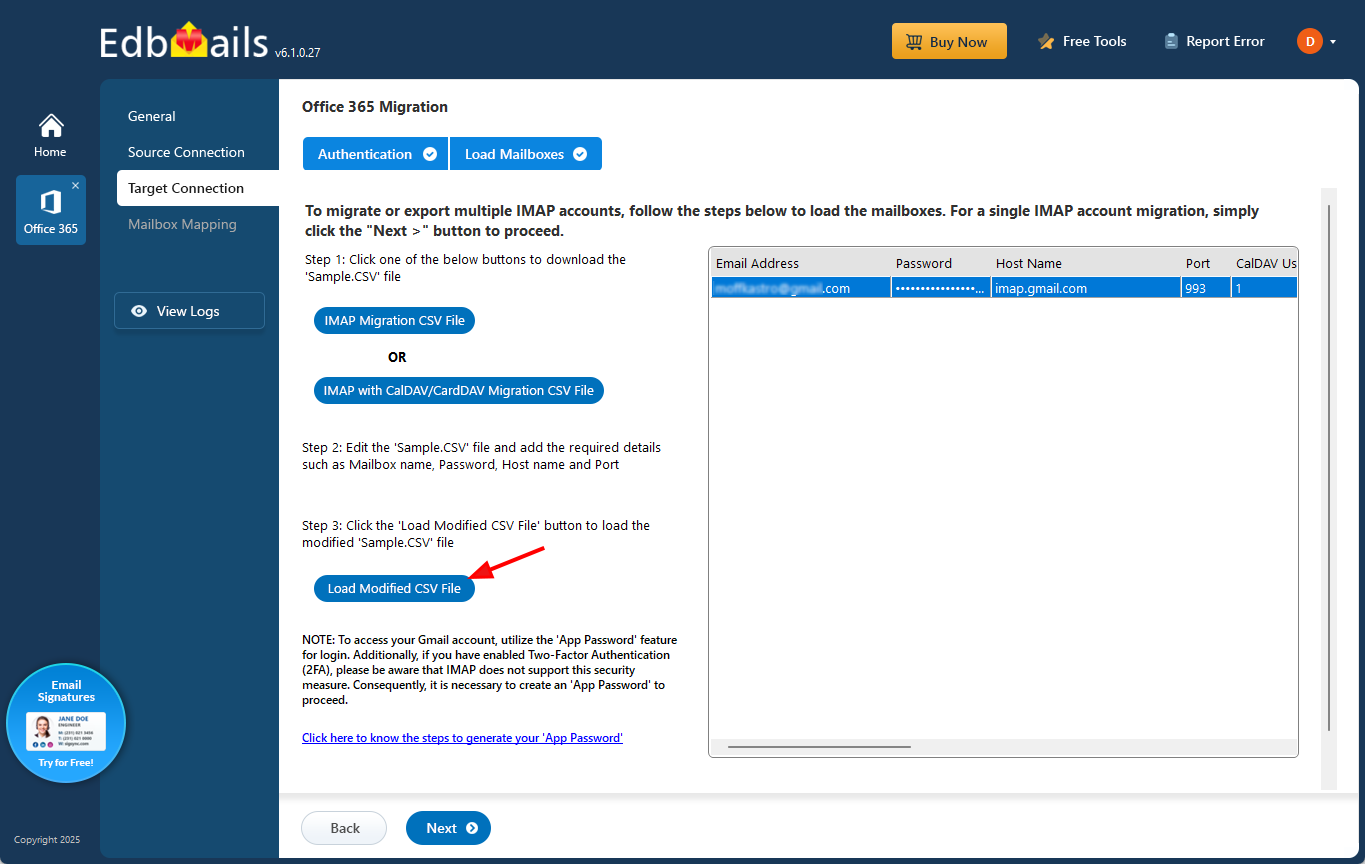
- To migrate calendars and contacts, along with emails, from Office 365 to an IMAP platform that supports CalDAV/CardDAV, select ‘IMAP with CalDAV/CardDAV Migration CSV File’.
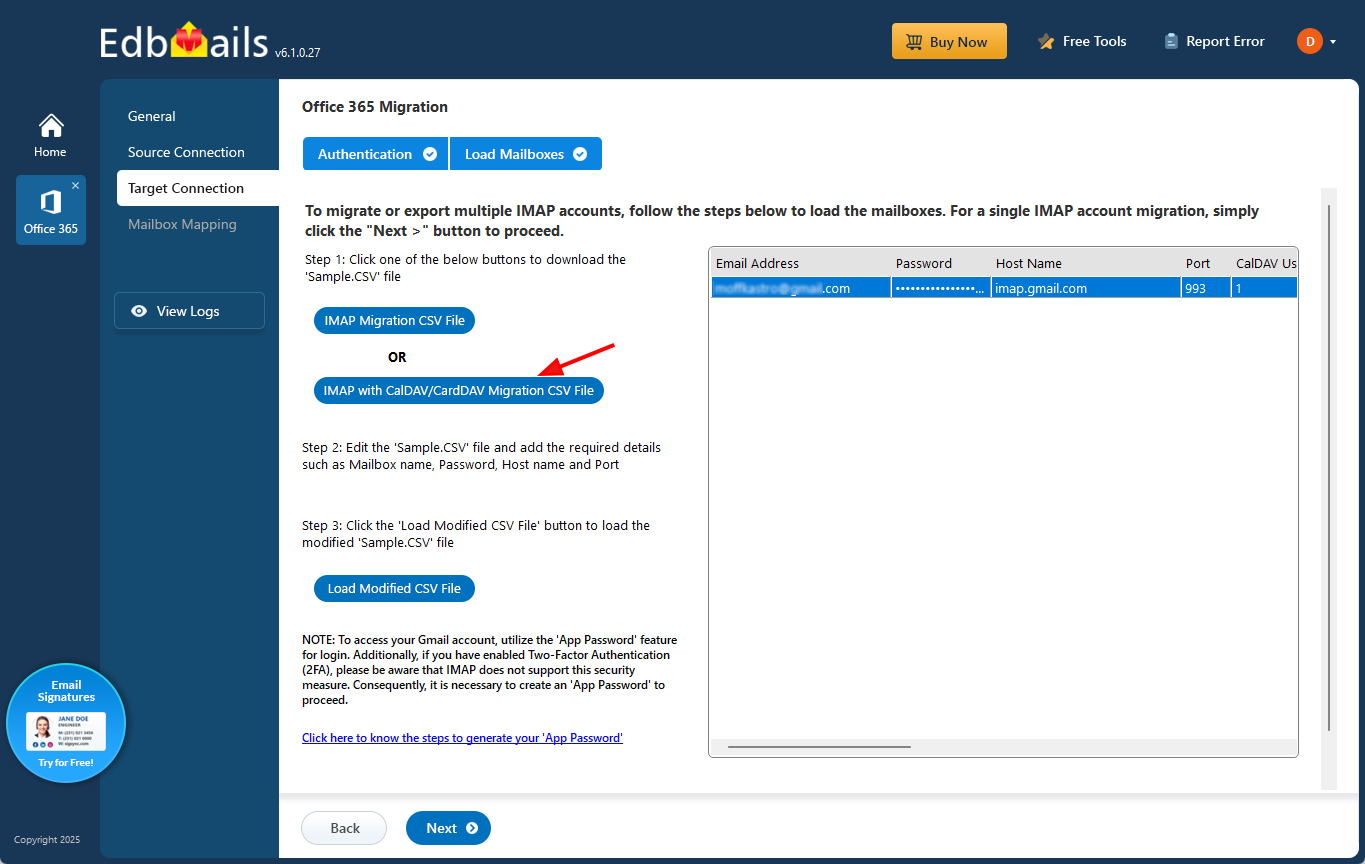
- You will be prompted to download a sample CSV file, choose a location on your computer, and save it.
- Open the CSV file and update it with the required details: Source Mailbox Name, Password, Host, Port, CalDAV Username, CalDAV Password, CalDAV Server, CalDAV Folder, CardDAV Username, CardDAV Password, CardDAV Server, CardDAV Folder. Save and close the CSV file.

- Click on ‘Load Modified CSV File’ and browse to the location where you saved the updated CSV file. Select the modified CSV file and load it into the application.
- After mapping the mailboxes, click the ‘Start Migration’ button and initiate the migration process.
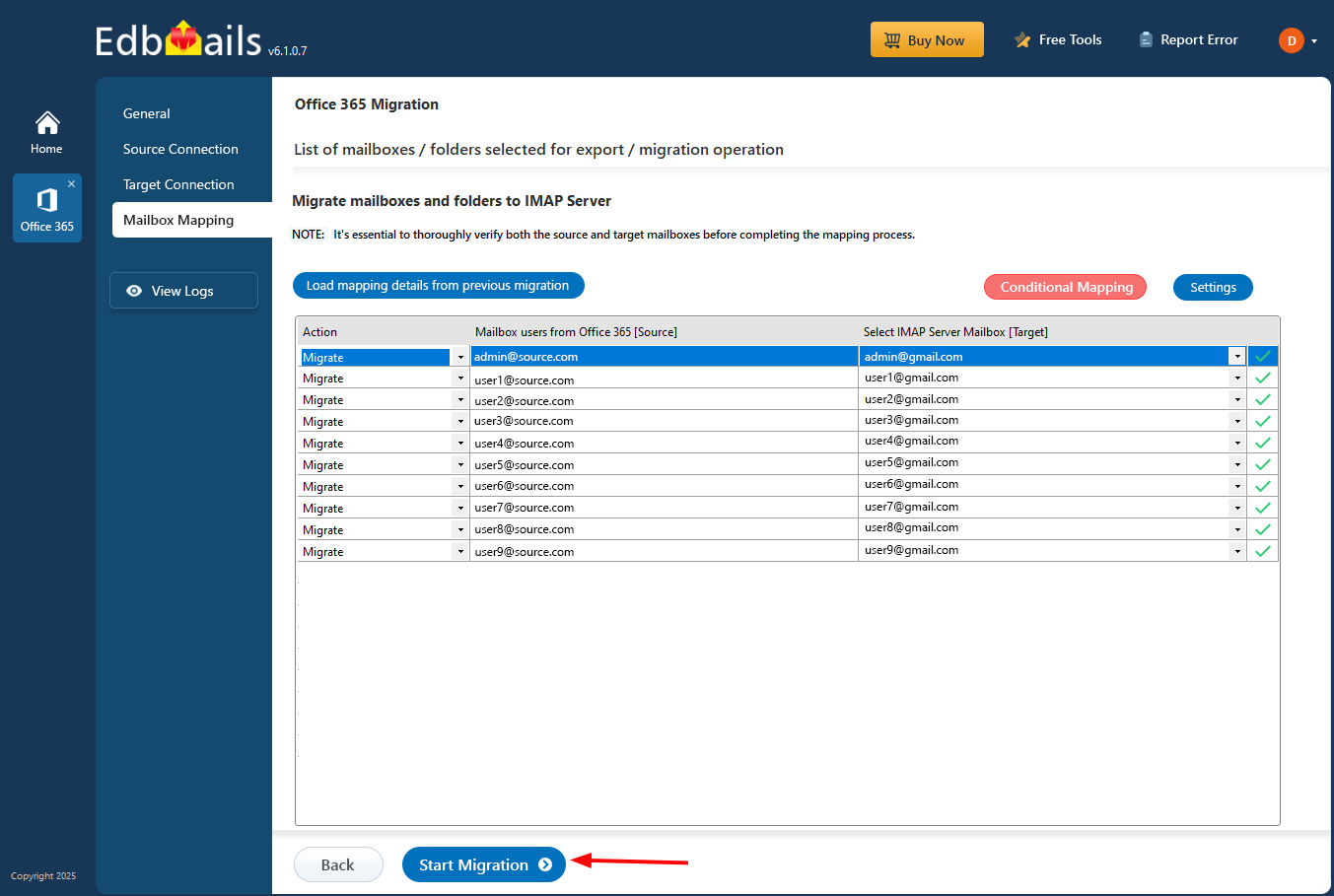
- To review the migration report, click the ‘View Log’ button, which provides a comprehensive report detailing the number of emails, folders, and mailbox items successfully migrated.
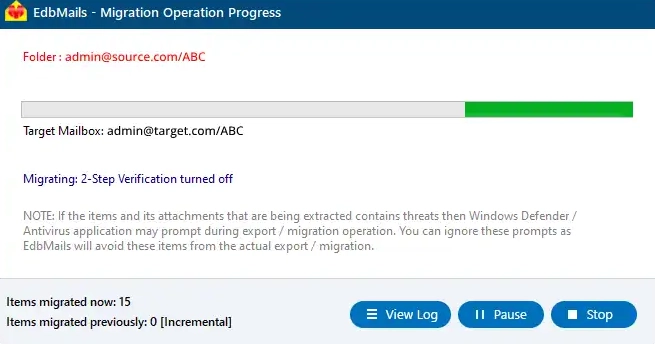
- Also, log in to your target server and verify the migrated items.
Post migration actions for Microsoft 365 to IMAP
When the migration is completed, change your MX records to allow mail flow to the new server.
Best Practices for Microsoft 365 to IMAP Migration
There are several recommended best practices for migrating your Office 365 to an IMAP account. These practices make the process of moving a mailbox to an IMAP account as smooth and seamless as possible.
- Start the migration planning process early: Begin the migration planning process well in advance to prevent possible migration challenges.
- Select a proper migration tool: While migrating Office 365 to an IMAP account, you need to select an appropriate Office 365 to IMAP migration tool for a better and smoother migration process. Use EdbMails as it satisfies your requirements.
- Batch the migration: You can better manage the migration by breaking it down into batches. This will make troubleshooting and managing the migration easier.
- Pilot thorough tests: Make a full test in a pilot environment before the real migration process. This step will help to discover and resolve any kind of problem.
- Ensure transparent communication with stakeholders: Communicate consistently and openly with all stakeholders involved. Make sure all stakeholders are aware, follow their deadlines, and understand what they need to do.
- Monitor the migration as it progresses: Constant monitoring throughout the migration is critical. Continue to monitor the migration and ensure it proceeds as planned, making modifications as necessary.
- Improves the migration performance: With EdbMails, you have the facility to migrate 10 mailboxes in parallel. In the case of performance, the performance can be improved by 20 for simultaneous mailbox migration.
- Run migration from multiple computers: It allows you to install EdbMails on many computers to run multiple mailboxes to speed up the migration process.
- Support to enable incremental migration avoiding duplicity: EdbMails ensures to support incremental migration in subsequent migrations, that migrating only new & modified source items that have not been processed in the former migration runs, and doesn't add duplicate items on target machines.
Benefits for Office 365 to IMAP migration in EdbMails
- EdbMails Office 365 to IMAP tool interface is easy to use; migration can be accomplished in just a few clicks.
- Mailboxes Migration from Office 365 to various IMAP-enabled email servers ( Gmail, Zoho, Zimbra, Icewarp, cPanel, and more).
- Automatic mailbox mapping avoids the manual efforts.
- EdbMails keeps your migration secure by supporting modern authentication and maintaining compliance with ISO 27001, one of the most recognized security standards out there, so you can migrate with confidence.
- EdbMails runs multiple mailbox migrations simultaneously, cutting down the overall time dramatically up to 10 times faster than doing it the traditional way.
- Not everything in a mailbox always needs to move over. That's why EdbMails gives you hands-on control with filtering options like Date, Subject, Attachment, From Address, To, Cc, and Bcc, letting you pick exactly what gets migrated from Office 365 to IMAP, nothing more, nothing less.
- Provides support for unlimited Office 365 public folder migration from a domain.
- Supports the migration of archive mailboxes from Office 365 to IMAP.
- Supports incremental migration without creating duplicate items on the target server during consecutive migrations.
- Support for cutover and staged migration methods.
Frequently asked questions:
Which is the best software for Office 365 to IMAP migration?
EdbMails is the best software for migrating from Microsoft 365 to IMAP-enabled email servers. The software is equipped with numerous advanced features, such as concurrent mailbox migration, support for delta migration during consecutive migrations, automatic mailbox mapping between the source Office 365 and the target IMAP servers, customized target IMAP folder mapping, user-defined mapping of mailboxes and folders and more.
Which IMAP-enabled email servers does EdbMails support for migration from Office 365?
EdbMails supports all IMAP-enabled servers including Gmail, G Suite, Zoho, Zimbra, Icewarp, cPanel, AOL, ProtonMail and more.
Does EdbMails support selective migration of mailbox data from Office 365 to IMAP?
Yes, EdbMails offers advanced filtering options allowing users to selectively migrate mailbox data based on criteria such as emails received within a certain date range , subject, attachment name, sender/recipient address, etc.
Does EdbMails support Delta (Incremental) migration from Office 365 to IMAP?
Yes, EdbMails supports incremental migration, preventing the creation of duplicate items on the target server during a consecutive migration process.
Are there limitations or special considerations when using EdbMails for Office 365 to IMAP migration?
EdbMails allows smooth migration; however, certain factors like network bandwidth, server settings, and permissions may influence the migration process. Understanding these factors beforehand can optimize the migration experience.
Which product do I need to choose to perform email migration from Office 365 to IMAP Server?
To migrate Microsoft 365 to IMAP, an Office 365 migration license is required.
Click here know the Office 365 to IMAP migration licensing details


