


Export Google Workspace (G Suite) to Outlook PST
Organizations often need to export Google Workspace mailboxes to Outlook PST files for offline backup, litigation hold, employee offboarding, compliance archiving, or as a staging step before migrating to another email platform. Since Outlook PST is a proprietary Microsoft file format, Google Workspace does not offer a direct, built-in way to export mailboxes to PST. Manual workarounds exist, but they're slow, manual, and difficult to scale across a domain.
EdbMails Google Workspace Migration Tool removes this complexity with a dedicated Google Workspace to PST export option that lets administrators export any number of Google Workspace mailboxes, emails, attachments, contacts, calendars, and tasks directly into Outlook PST files.
The application connects to Google Workspace using secure API-based communication with domain-wide delegation, allowing administrators to access and export organizational mailboxes using a single admin account, without requiring individual user credentials. EdbMails preserves the original Gmail folder hierarchy, message metadata, and read/unread status, and lets you save the exported PST files to a local drive, network share, or external storage location of your choice.
With support for bulk mailbox export, advanced filter settings based on date range, folder, sender, or recipient, and automatic PST file splitting for large mailboxes, EdbMails helps administrators export Google Workspace data efficiently while keeping exported PST files within Outlook's supported size limits.
This guide walks through the complete step-by-step procedure to export Google Workspace email to PST using EdbMails.
Why Export Google Workspace to PST?
Organizations export Google Workspace mailboxes to PST files when they need a portable copy of mailbox data that can be accessed, stored, or imported into other email platforms. Exporting Google Workspace data to PST provides flexibility for backup, archiving, compliance, and mailbox management requirements.
Common scenarios where organizations export Google Workspace mailboxes to PST include:
Offline Access to Google Workspace Mail Data
Exporting mailboxes to PST allows users and administrators to access emails and other mailbox data locally through Microsoft Outlook without requiring continuous access to Google Workspace.
Email Archiving and Data Retention
Organizations can export Google Workspace mailboxes to PST files for long-term storage, internal record keeping, and data retention requirements.
Employee Offboarding and Mailbox Preservationn
When employees leave an organization, administrators can export their Google Workspace mailboxes to PST files to preserve important business communications and historical data.
Migration Preparation
PST files can be used as an intermediate format when moving mailbox data from Google Workspace to Outlook, Microsoft 365, Exchange Server, or other email environments.
Legal and Compliance Requirements
Organizations can export mailbox data to PST files for legal review, audits, investigations, or compliance-related data management.
Prerequisites for Google Workspace to PST Export
Before exporting Google Workspace mailboxes to PST, ensure the following requirements are completed to guarantee a secure and successful export.
Step 1: Source Google Workspace Requirements
- An active Google Workspace Admin account with Super Administrator privileges
- API access is enabled in the Google Workspace Admin console
- A Service Account created in Google Cloud Console with domain-wide delegation enabled
- Required API scopes configured for Gmail, Contacts, Calendar, and Tasks access.
Steps to Configure a Google Workspace (G Suite) Admin Account.
Step 2: Local Destination Requirements
- Sufficient free disk space on the destination drive or network path to store the exported PST files
- Decide in advance whether PST files should be split by size (recommended for mailboxes larger than 20 GB, since Outlook 2019 and earlier versions cap PST files at 50 GB)
Step-by-Step Guide to Export Google Workspace Email to PST
Follow the steps below to export emails, contacts, calendars, and tasks from Google Workspace to Outlook PST using EdbMails:
Step 1: Download the EdbMails Application
- Download and install the EdbMails application on your computer
See EdbMails system requirements for Google Workspace to PST Export.
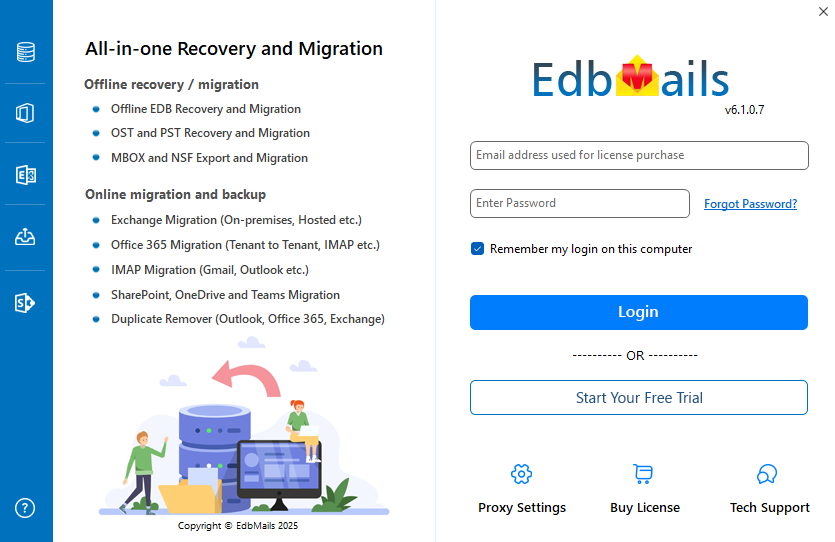
- Enter your registered email address and password, then click 'Login'. If you have not created an account yet, choose 'Start Your Free Trial' to continue using the trial version.
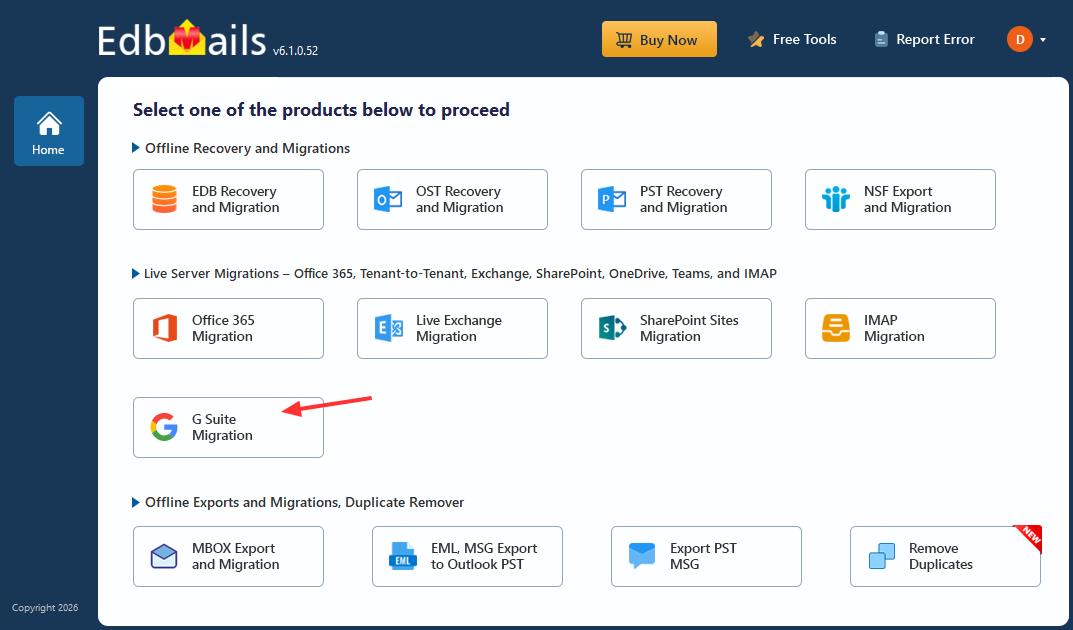
- Select the option 'Google Workspace (G Suite) Migration'.
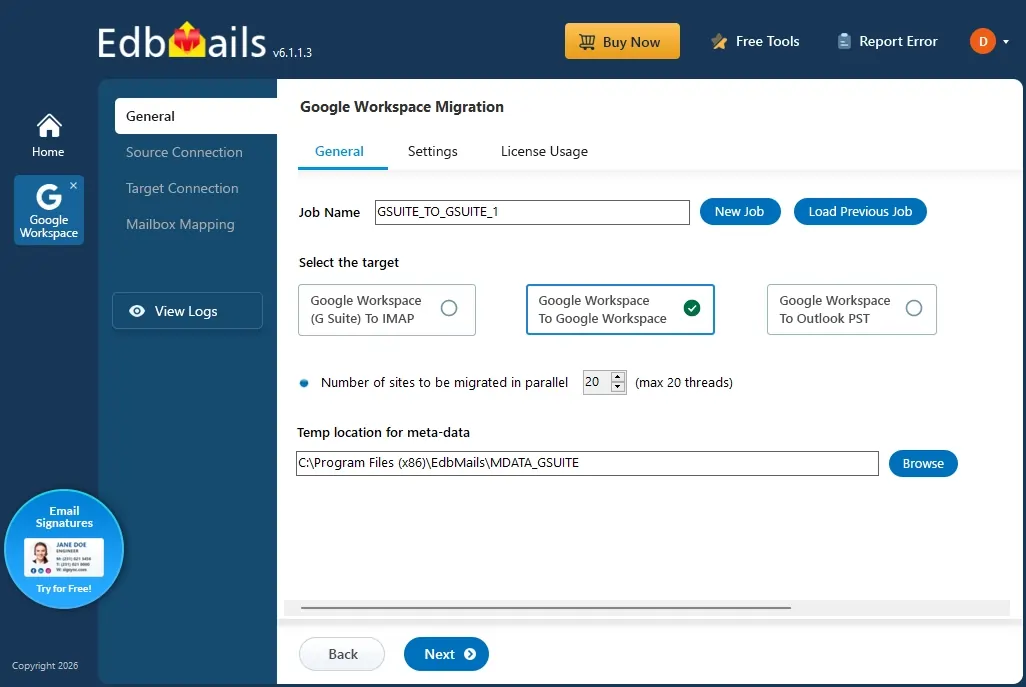
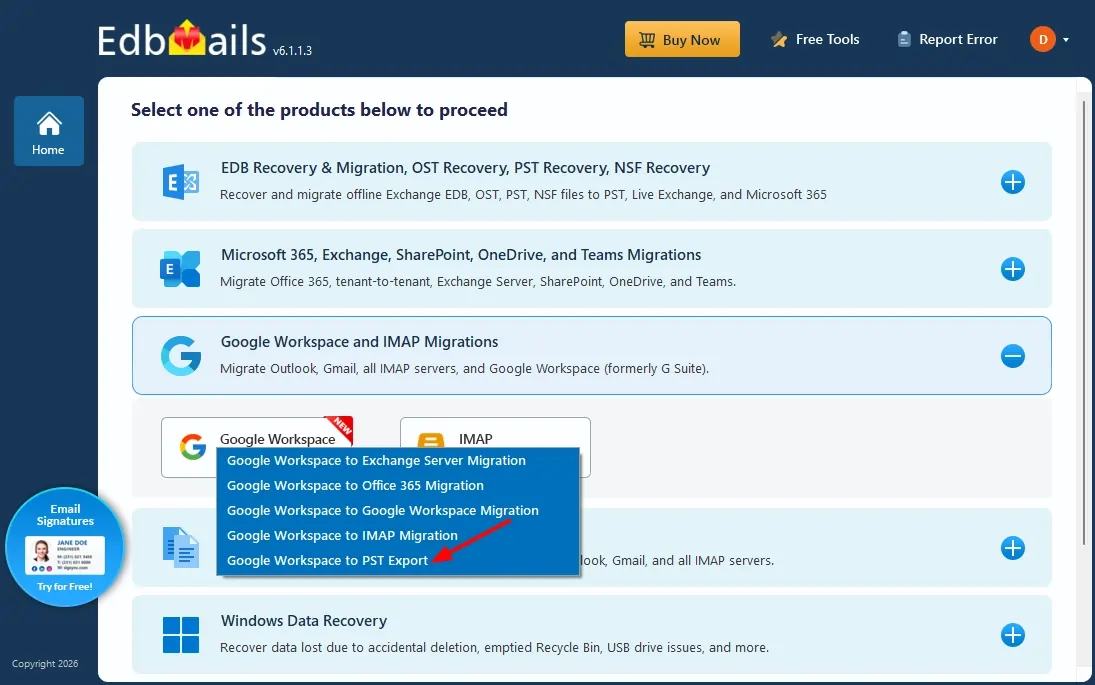
- Select 'Google Workspace to PST Export'.
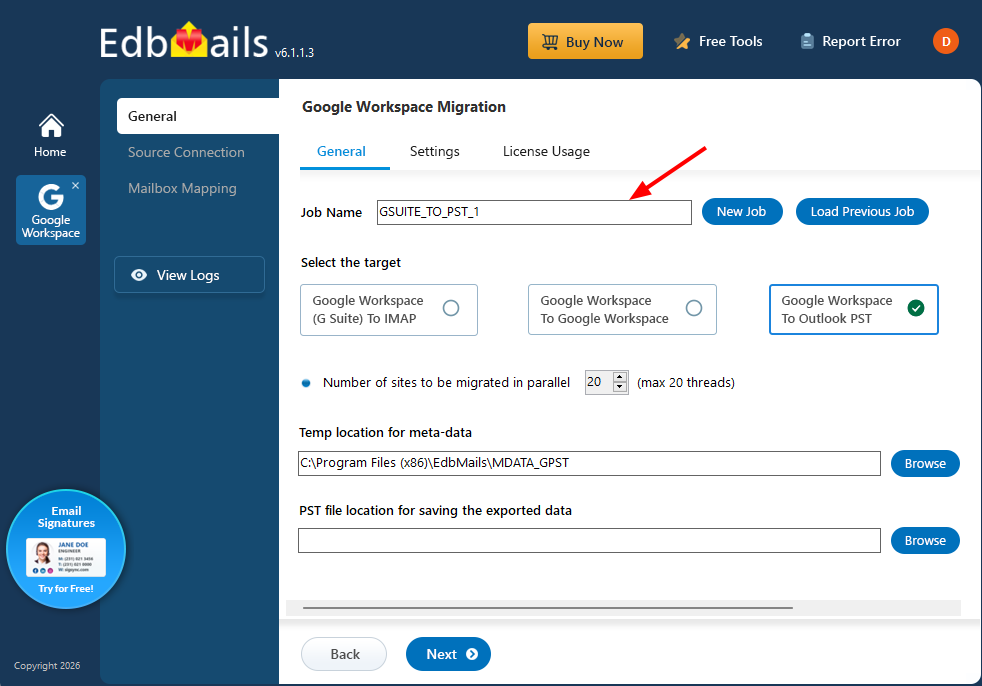
- You can proceed with the default job name, or click 'New Job' to create and assign a custom name of your choice.
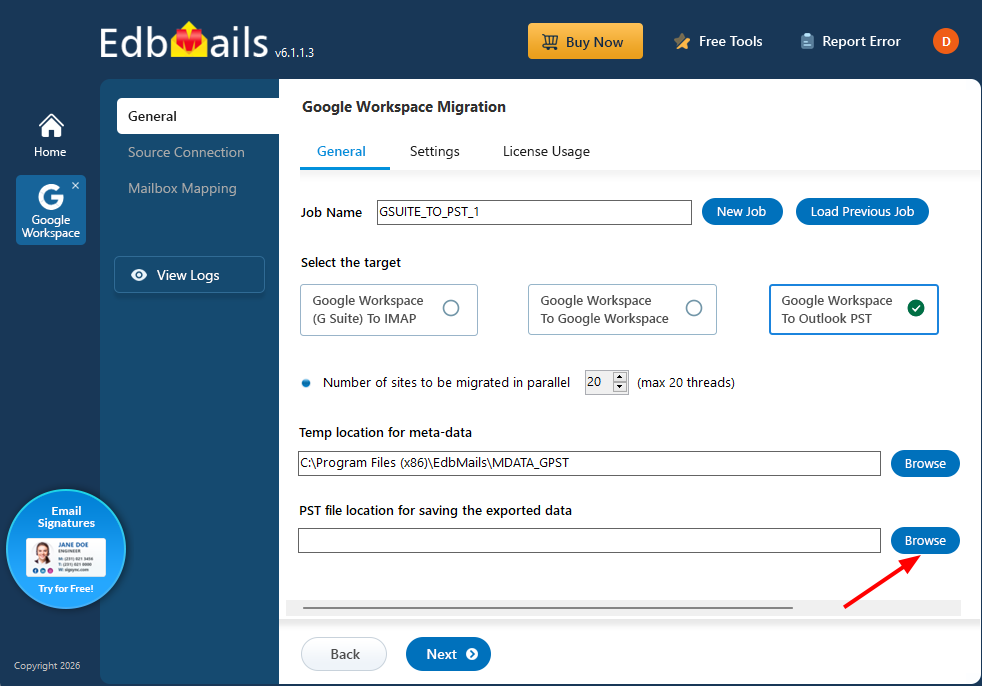
- Click ‘Browse’ to specify the location for saving the PST files..
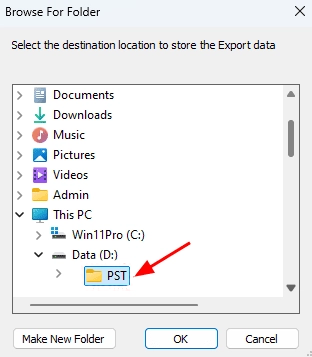
- Choose the folder where you want to save the PST files, and ensure the selected drive has sufficient free disk space.
- Download and install the EdbMails application on your computer
Step 2: Connect to the Source Google Workspace Server
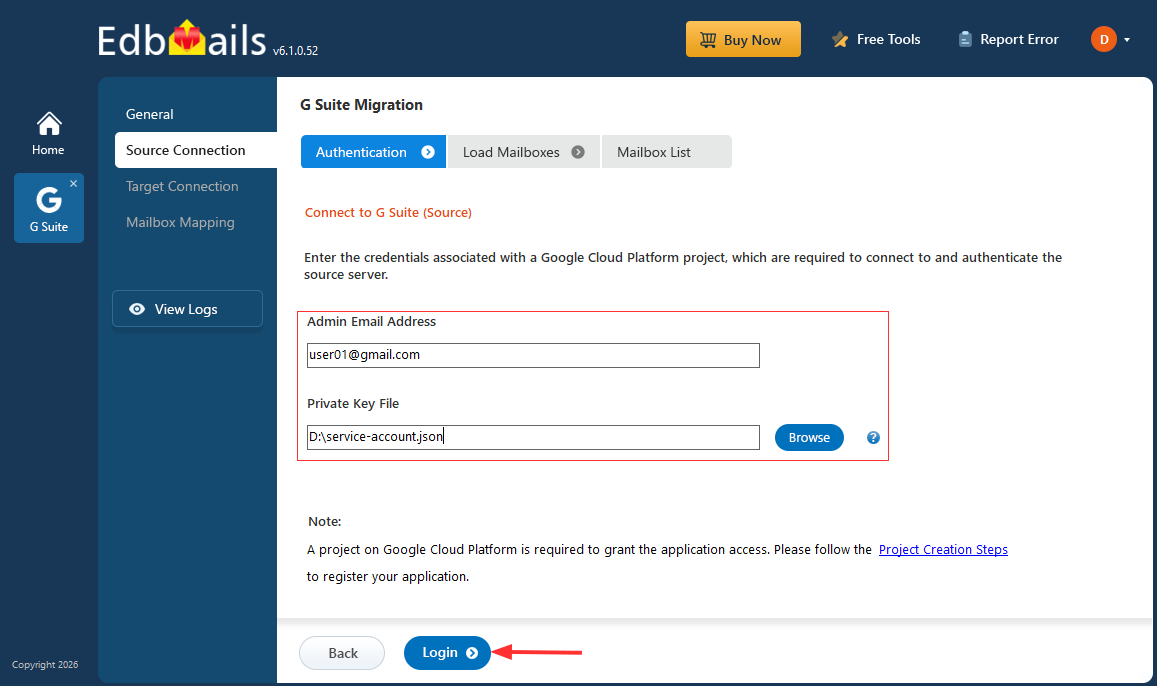
- Enter the admin email address, click 'Browse' to select the JSON file you downloaded from the Google Cloud Console, and then click 'Login'.
Steps to Create a Google Cloud Project and Download the JSON File.
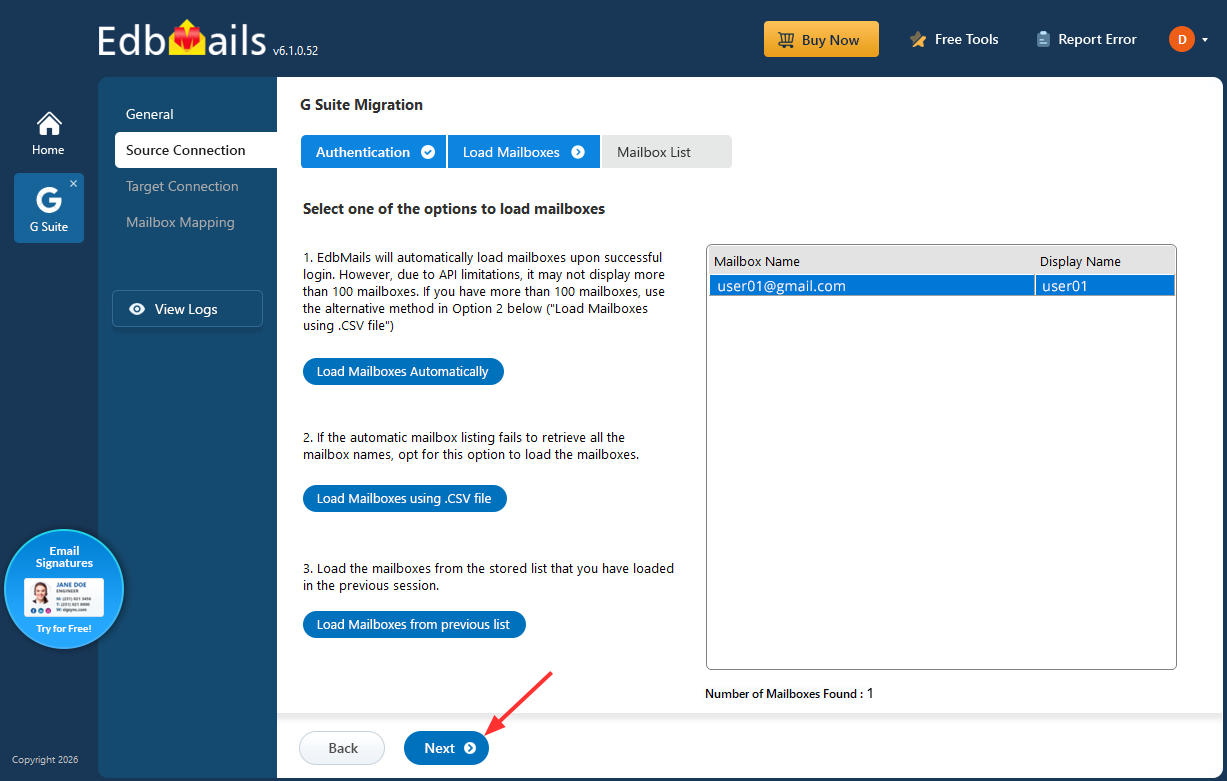
- Select one of the methods to load the mailboxes, then click 'Next'.
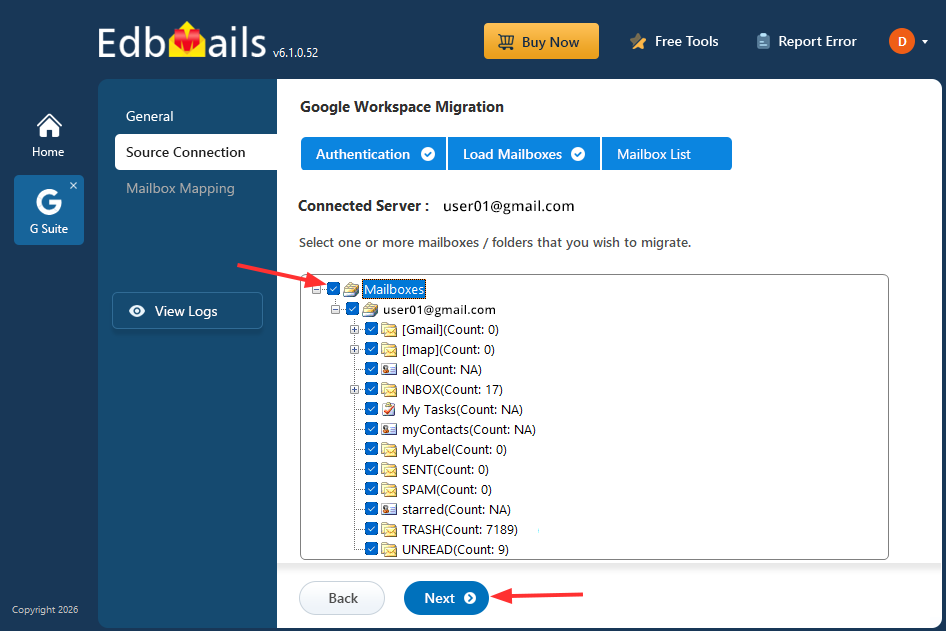
- Select the mailboxes you want to export, then click 'Next' to continue.
- EdbMails lets you customize your export by applying advanced filters. You can also use date-based filtering to export only the items that fall within a specified date range.
- Enter the admin email address, click 'Browse' to select the JSON file you downloaded from the Google Cloud Console, and then click 'Login'.
Step 3: Start Google Workspace to PST Export
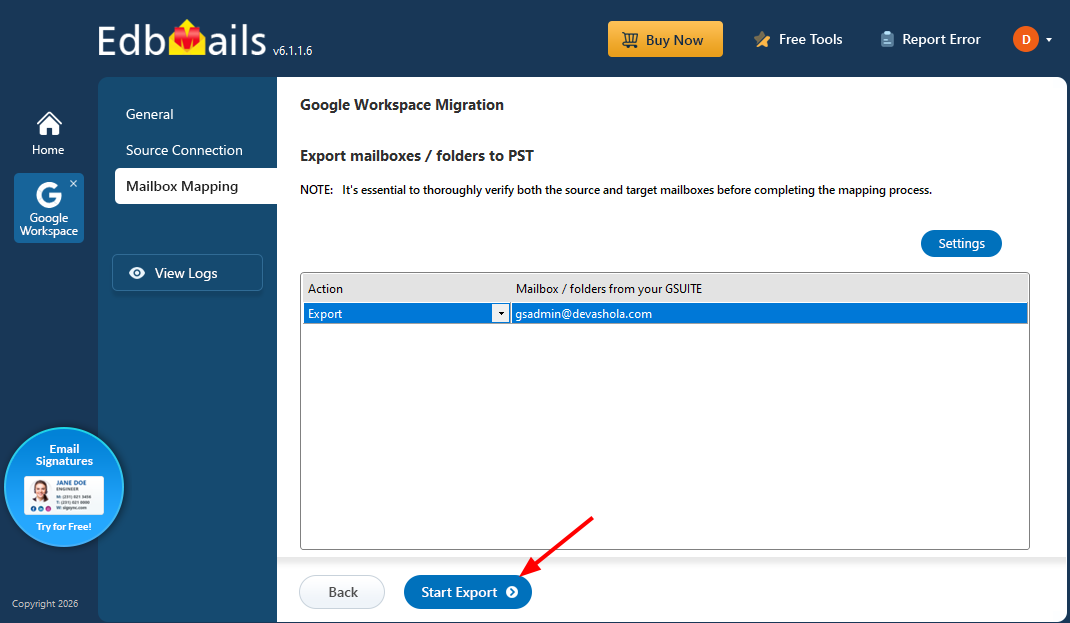
- Verify the selected mailboxes, choose Export as the Action, and click ‘Start Export’ to initiate the export process.
- The export process begins as shown below. Once the operation is complete, EdbMails displays a confirmation message. An export report is also generated automatically, which you can access by clicking the ‘View Logs’ button
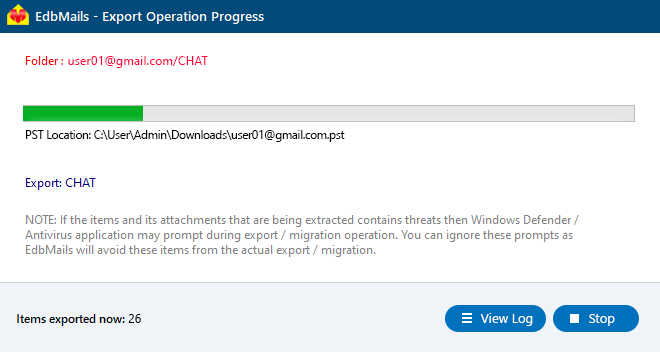
- Verify the selected mailboxes, choose Export as the Action, and click ‘Start Export’ to initiate the export process.
Google Workspace to PST Post-Export Tasks
Once the Google Workspace to Outlook PST export is complete, perform the following steps to verify and use the exported data
- Verify the Exported PST Files
Open each PST file in Outlook (File > Open & Export > Open Outlook Data File) and confirm that emails, attachments, contacts, calendars, and tasks have been exported correctly, along with the original folder structure.
- Import PST Files into Outlook, Office 365, or Exchange
If the PST files are intended for ongoing use rather than archival, they can be opened directly in Outlook or imported into Office 365 and Exchange Server mailboxes using EdbMails.
- Store PST Files Securely
Save exported PST files to an encrypted or access-controlled location, especially when they are being retained for compliance, legal hold, or backup purposes.
- Verify the Exported PST Files
Benefits of EdbMails for Google Workspace to PST Export
- Complete Data Export: Export emails, attachments, contacts, calendars, and tasks from Google Workspace to PST without data loss, while preserving folder hierarchy and metadata.
- Secure API-Based Access: Uses secure API authentication with domain-wide delegation to access Google Workspace mailboxes without requiring individual user passwords.
- Bulk Mailbox Export: Export multiple Google Workspace mailboxes to PST in a single project, reducing manual effort for large organizations.
- Automatic PST Splitting: Automatically split large exports into multiple PST files of a defined size to stay within Outlook's supported file size limits.
- Selective Data Export: Apply filters based on date range, folder, sender, or recipient to export only the required data and reduce export time.
- Real-Time Export Monitoring: Track export progress with live status updates and detailed reports for better visibility and validation.
- Zero Downtime: Users can continue working in Google Workspace while the export runs in the background.
- User-Friendly Interface: A simple, step-by-step workflow designed for administrators, without requiring PowerShell scripts or Google Vault licensing.
Frequently Asked Questions
- How do I export Google Workspace emails to PST?
Google Workspace emails can be exported to PST by connecting the source Google Workspace account, selecting the required mailboxes, choosing PST as the export format, and starting the export process. EdbMails allows administrators to export emails, attachments, contacts, calendars, and tasks directly into Outlook PST files.
- Can I export multiple Google Workspace mailboxes to PST at once?
Yes, EdbMails supports bulk Google Workspace mailbox export. Administrators can select multiple mailboxes and export them to PST files in a single operation instead of exporting each mailbox individually.
- Can I open Google Workspace PST exports in Outlook?
Yes, PST files exported from Google Workspace can be opened directly in Microsoft Outlook. The exported PST files contain mailbox data such as emails, attachments, contacts, calendars, and tasks..
- Does exporting Google Workspace to PST preserve folder structure and email metadata?
Yes, EdbMails preserves mailbox hierarchy, Gmail labels, email metadata, and read/unread status during the export process.
- Is there a size limit for exporting Google Workspace mailboxes to PST?
There is no fixed mailbox size limit for exporting Google Workspace data to PST. For large mailboxes, EdbMails provides PST splitting options to divide data into multiple PST files based on the required size..


