EdbMails EDB Recovery and Migration software
  • Products
    EdbMails
    All-in-one Recovery and Migration
    Explore our products
    • EDB recovery and Migration
    • OST, PST, MBOX, NSF, EML, MSG
    • Office 365, Exchange Migration
    • SharePoint, OneDrive & Teams
    • G Suite Migration
    • IMAP Migration
    • Duplicate Remover
    • Windows Data Recovery
    • Backup Solutions

    EDB Recovery and Migration

    EdbMails lets you recover corrupted, damaged, and offline Exchange EDB files, convert EDB mailboxes to PST format, and directly migrate mailbox data to Office 365 and live Exchange Server.

    EDB to PST
    Recover corrupted, damaged, offline EDB files and convert Exchange EDB mailboxes to PST file format
    Public Folder to Exchange
    Migrate public folders from an Exchange offline EDB file to live Exchange Server
    EDB to Live Exchange Migration
    Directly migrate offline Exchange database (EDB) files to live Exchange server
    Archive Mailbox to Office 365
    Migrate archive mailboxes from offline EDB files directly to Office 365
    EDB to Office 365 Migration
    Directly migrate offline Exchange database (EDB) files to Office 365
    Public Folder to Office 365
    Migrate public folders from an offline Exchange EDB file to Office 365

    OST, PST, MBOX, NSF, EML, MSG Export and Migration

    EdbMails lets you to recover OST and PST files, export OST, PST, MBOX, NSF, EML, and MSG files to PST files, and directly migrate OST, PST, MBOX, and NSF mailbox data to Office 365 and live Exchange Server.

    OST Recovery and Migration
    Recover offline OST files, convert OST to PST, and migrate OST to Office 365 and Exchange Server
    PST Recovery and Migration
    Recover Outlook PST files , Export PST to PST, migrate PST to Office 365 and Exchange Server
    MBOX Export and Migration
    Export MBOX to PST, migrate MBOX to Office 365 and Exchange Server
    NSF Export and Migration
    Export NSF to PST, migrate NSF to Office 365 and Exchange Server
    EML to PST Export
    Convert EML files to Outlook PST files
    PST to MSG Export
    Convert Outlook PST file to MSG file format
    MSG to PST Export
    Export MSG files to Outlook PST files

    Office 365, Exchange Migration

    EdbMails lets you securely migrate mailboxes across Microsoft 365, Exchange, Google Workspace (G Suite), and IMAP-supported servers such as Outlook, Gmail, Zimbra, Zoho Mail, and cPanel, ensuring zero downtime.

    Office 365 Migration
    Migrate between Office 365 tenants, Office 365 to Exchange, Office 365 to PST, PST files to Office 365.
    Exchange Migration
    Migrate between any Exchange Servers, Exchange to Office 365, Exchange to PST, PST files to Exchange.
    Tenant to Tenant Migration
    Migrate Mailboxes, Public Folders, Archive Mailboxes between Office 365 Tenants.
    Exchange to Office 365
    Migrate Mailboxes, Public Folders, Archive Mailboxes from live Exchange server to Office 365.
    Office 365 to IMAP
    Migrate Office 365 to IMAP, Office 365 to Gmail, Office 365 to Outlook, Office 365 to Zoho etc.
    Exchange to IMAP
    Migrate from live Exchange Server to IMAP servers such as Gmail, Outlook, and Zoho Mail.
    Public Folder to Office 365
    Migrate Public Folders between Office 365 tenants with complete folder hierarchy and mailbox data integrity.
    Exchange to PST
    Export live Exchange Server mailboxes, public folders, and archive mailboxes to Outlook PST files.

    SharePoint, OneDrive & Microsoft Teams Migration

    EdbMails lets you migrate SharePoint sites, OneDrive data, Microsoft Teams, teams, channels, chats, permissions, and documents between Microsoft 365 tenants while maintaining the existing folder structure and data integrity.

    SharePoint Online Migration
    Migrate documents, lists, files and folders from SharePoint sites.
    OneDrive for Business Migration
    Migrate documents, lists, files, folders, private chats from OneDrive.
    Microsoft Teams Migration
    Migrate Teams, chats, channels, documents, files and folders etc.

    Google Workspace / G Suite Migration

    EdbMails G Suite Migration Tool lets you easily migrate emails, calendars, contacts, tasks, and more from G Suite to Office 365, Exchange Server, and IMAP servers using a Google Admin account without requiring individual user credentials.

    G Suite Migration
    Migrate emails, calendars, contacts, tasks from G Suite to Office 365, G Suite to Exchange, G Suite to IMAP Servers
    G Suite to Office 365
    Migrate emails, calendars, contacts, tasks from Google Workspace / G Suite to Office 365
    G Suite to Exchange Server
    Migrate emails, calendars, contacts, tasks from Google Workspace / G Suite to on-Premise Exchange Server
    G Suite to IMAP
    Migrate emails, calendars, contacts, tasks from Google Workspace / G Suite to IMAP, Outlook, Zimbra, Zoho etc.

    IMAP Migration

    EdbMails IMAP Migration tool lets you easily migrate emails from IMAP servers such as Outlook, Gmail, Zoho Mail, Zimbra, cPanel, and more. Supports IMAP to IMAP, Office 365, Exchange Server, PST, and bulk PST to IMAP migration.

    IMAP Email Backup & Migration
    Backup and migrate emails from IMAP servers to PST, Office 365, and On-Premises Exchange Server
    IMAP to Office 365
    Migrate emails, folders, and attachments from IMAP servers to Office 365
    IMAP to Exchange
    Migrate emails, folders, and attachments from IMAP servers to on-premises Exchange Server
    IMAP to PST
    Export emails, folders, and attachments from IMAP servers to Outlook PST files for backup
    PST to IMAP
    Migrate emails, folders, and attachments from bulk PST files to IMAP servers

    Duplicate Remover

    EdbMails Duplicate Remover lets you easily remove duplicate items from Office 365 and Exchange Server, and from IMAP, Outlook, Gmail, Zimbra, Zoho Mail, etc., ensuring a clean and organized mailbox.

    Remove Duplicates
    Easily clean up your Office 365, Exchange, Outlook and IMAP accounts by removing duplicate emails.
    Remove Duplicates from Office 365
    Remove duplicate emails, calendars, contacts, journal tasks, etc. from Office 365.
    Remove Duplicates from Exchange Server
    Remove duplicate emails, calendars, contacts, journal tasks, etc. from live Exchange Server.
    Remove Duplicates from IMAP, Outlook
    Remove duplicate emails, attachments from IMAP, Outlook, Gmail, Zimbra, Zoho Mail etc.

    Exchange, SharePoint, OneDrive, Teams and Office 365 Backup

    EdbMails enables secure, automated backup and recovery for Microsoft 365 services including Exchange Online, SharePoint, OneDrive, Teams, and Live Exchange Server with complete data protection and restore flexibility.

    Office 365 Backup
    Incremental, Granular, Encrypted and Compressed Office 365 Mailboxes Backup
    Exchange Server Backup
    Incremental, Granular, Encrypted and Compressed Exchange Mailboxes Backup
    SharePoint, OneDrive & Teams Backup
    Backup Online site collections, Team sites, Office 365 groups, all documents etc.

    Windows Data Recovery

    EdbMails Windows Data Recovery Software lets you recover permanently deleted data, including photos, videos, documents, and archived files, from partitions on hard drives, SSDs, USB drives, SD cards, and external storage devices.

    Windows Data Recovery
    Recover and restore permanently deleted data from hard drives, SSDs, USB drives, SD cards, and etc.
    Whitepaper
    Request a Demo
    Sign Up
  • Features
  • FAQ
  • Pricing
  • Download
  • Support
  • Sign in
User’s Manual
Duplicate Remover -
Office 365, Exchange & IMAP

User Manual

User Manual

  • How it works?
    • Remove duplicates from Office 365
    • Remove duplicates from Exchange
    • Remove duplicates from IMAP
    • Remove duplicates from Outlook
    • Remove duplicates from Yahoo Mail
    • Remove duplicates from iCloud Mail
    • Remove duplicates from AOL Mail
  • FAQ
    • Remove duplicates from IMAP
  • Videos
    • Remove duplicates from IMAP
    • Remove duplicates from Office 365
    • Remove duplicates from Exchange
  • Screenshots
    • Remove duplicates from IMAP
  1. Home
  2. Product
  3. Remove Duplicate Emails in Outlook – Best Outlook Duplicate Remover Tool
Download Buy Now

Remove Duplicate Emails in Outlook

Microsoft Outlook is one of the most widely used email clients, trusted by individuals and organizations for managing emails, contacts, calendars, tasks, and more. However, as Outlook data grows over time, users often face a frustrating issue with duplicate emails, contacts, and calendar items. These duplicate items not only clutter your mailbox but also slow down Outlook’s performance, increase PST/OST file size, and make it harder to locate important messages.

Outlook duplicates may arise for several reasons: improper synchronization with Exchange/IMAP servers, accidental imports from PST/OST/EML files, incorrect rules or filter configurations, or technical issues during backups and migrations. Whatever the cause, removing duplicates manually is tedious and error-prone. This is where the EdbMails Outlook Duplicate Remover Tool comes in handy. It provides a fast, secure, and accurate way to scan Outlook mailboxes, identify duplicates based on customizable criteria, and eliminate them without data loss.
Remove duplicates from Office 365

In this guide, we’ll explore everything you need to know about removing duplicate emails in Outlook, including causes, challenges, step-by-step removal, planning, prerequisites, and post-cleanup best practices.

  1. Common Causes of Duplicate Emails in Outlook

    Understanding why duplicates occur is the first step toward preventing them. Some of the most common causes include:

    1. Synchronization issues

      When Outlook is connected with Exchange, Office 365, Gmail (IMAP), or other servers, sync errors may result in duplicate messages.

    2. Improper import/export operations

      Repeatedly importing PST, OST, or backup files into Outlook without filtering duplicates can create multiple copies of the same messages.

    3. Rules and filter misconfiguration

      Incorrectly defined Outlook rules, forwarding settings, or spam filters may inadvertently duplicate incoming emails.

    4. Multiple device access

      Accessing Outlook on laptops, desktops, and mobile devices simultaneously may trigger duplication during synchronization.

    5. Server timeouts or interruptions

      Connection interruptions can cause Outlook to resend or redownload emails, leading to duplicate copies.

    6. Third-party add-ins and plug-ins

      Certain Outlook add-ons or synchronization tools may duplicate messages while performing background operations.

    7. Synchronization issues

      When Outlook is connected with Exchange, Office 365, Gmail (IMAP), or other servers, sync errors may result in duplicate messages.

    8. Restoration from backups

      Restoring data multiple times from previous backups often introduces duplicates into Outlook folders.

  2. EdbMails Outlook Duplicate Remover Tool

    While Outlook provides some built-in features (like cleaning up conversations), they are limited in functionality and may not remove duplicates across all folders. EdbMails Outlook Duplicate Remover tool offers a complete solution with advanced features:

    1. Supports all Outlook versions: 2021, 2019, 2016, 2013, 2010, 2007, and Office 365 connected Outlook.
    2. Multiple matching criteria: Subject, Sender, Recipient, Date, Attachments, Internet Message ID.
    3. Flexible actions: Soft Delete (mark as deleted), Hard Delete (permanent removal), or Move to Deleted Items.
    4. Safe and non-destructive: Original mailbox data remains intact while only duplicates are removed.
    5. Preview before removal: Verify detected duplicates before confirming deletion.
    6. Detailed logs and reports: Know exactly how many duplicates were found and removed.
    7. Optimizes Outlook performance by reducing file size and improving search efficiency.
  3. Planning to remove duplicate emails in Outlook

    Before performing duplicate removal, proper planning ensures accuracy and safety:

    1. Identify duplicate sources

      Check whether duplicates were caused by imports, sync issues, or incorrect rules.

    2. Choose target folders

      Focus on Inbox, Sent Items, Archive, and large folders most likely to contain duplicates.

    3. Define duplicate criteria

      Decide whether duplicates should match subject, sender, date, attachments, or all combined.

    4. Select removal action

      Move to Deleted Items for verification, Soft Delete for marking items, or Hard Delete for permanent cleanup.

  4. Prerequisites Before Removing Outlook Duplicates

    To ensure smooth deduplication, prepare the following:

    • Download and Install EdbMails Outlook Duplicate Remover on your computer.
    • Ensure Outlook is properly configured on your computer.
    • Have account details to log in.
    • Verify there are no ongoing sync operations with the mail server.
    • For IMAP/Exchange/Office 365 mailboxes connected in Outlook, ensure network stability.
  5. Steps to remove duplicate Emails in Outlook using EdbMails

    Step 1: Download and Install the EdbMails application

    • Download and install the EdbMails application on your computer running on Windows OS.
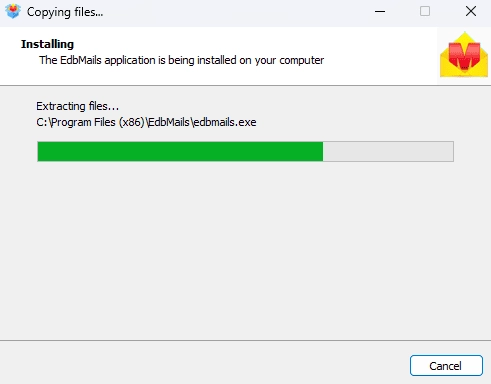
      Download and Install the EdbMails application

    • Log in using your registered email address and password or choose the 'Start Your Free Trial'.
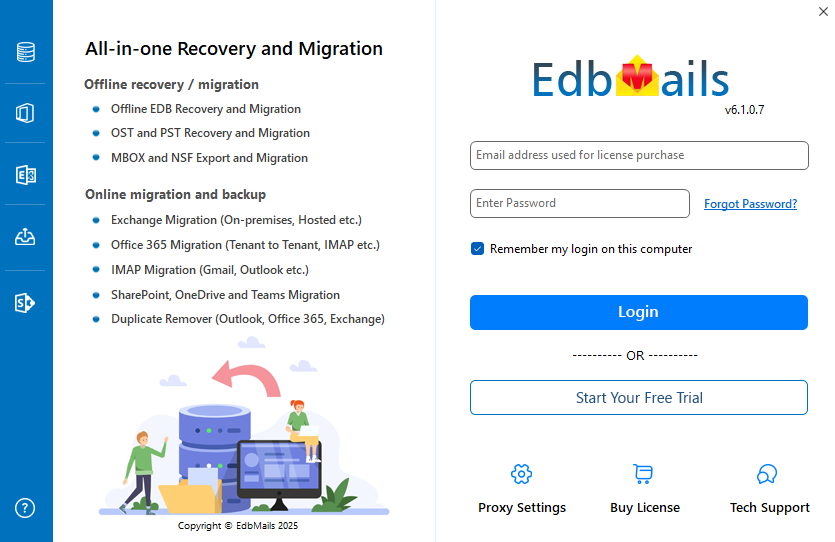
      Login to EdbMails application

    Step 2: Select Duplicate Remover product

    • From the dashboard, choose ‘Remove Duplicates from O365. Exchange. IMAP’.
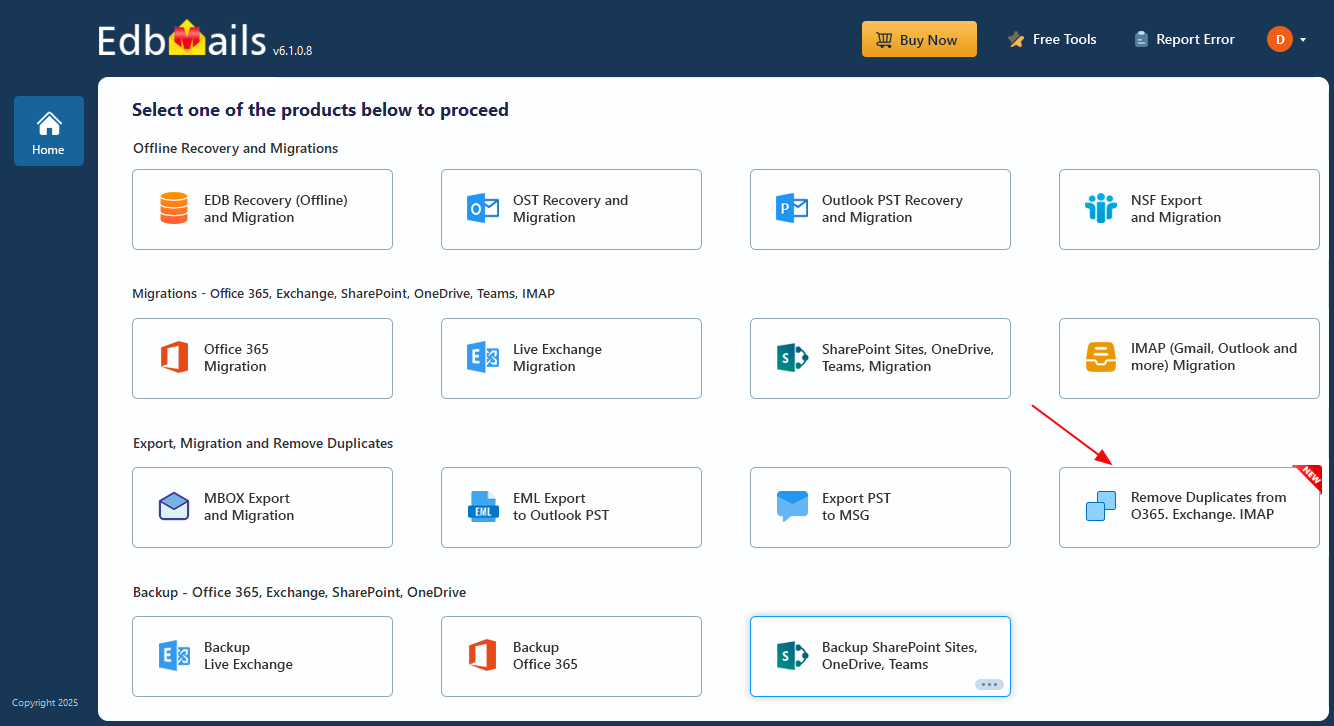
      Select Remove Duplicates from O365. Exchange. IMAP

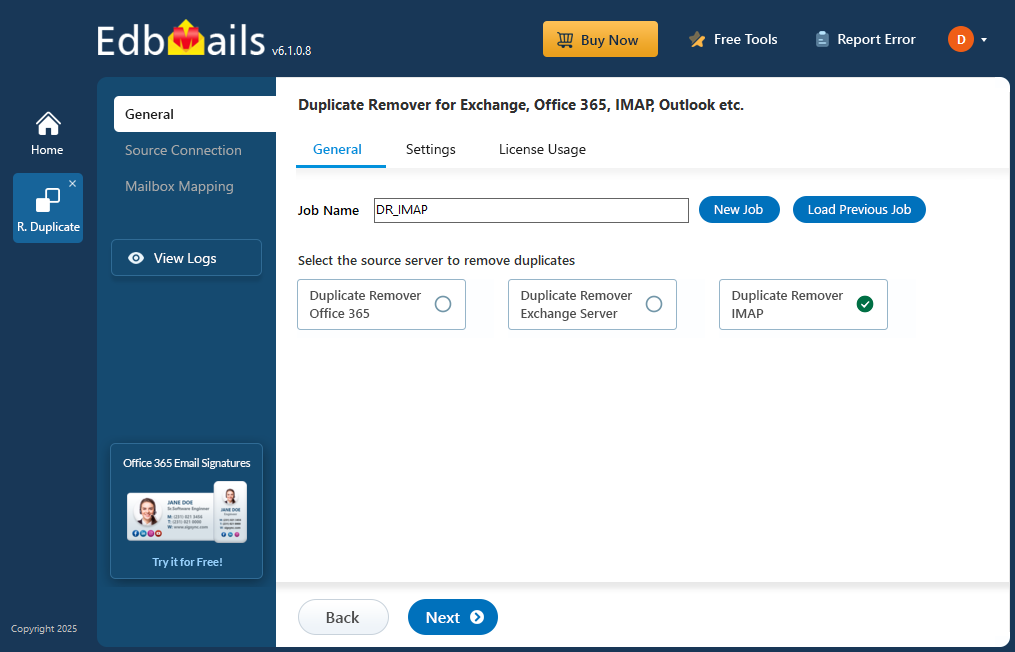
    • Choose the option ‘Remove Duplicates from IMAP Mailboxes’ to proceed.
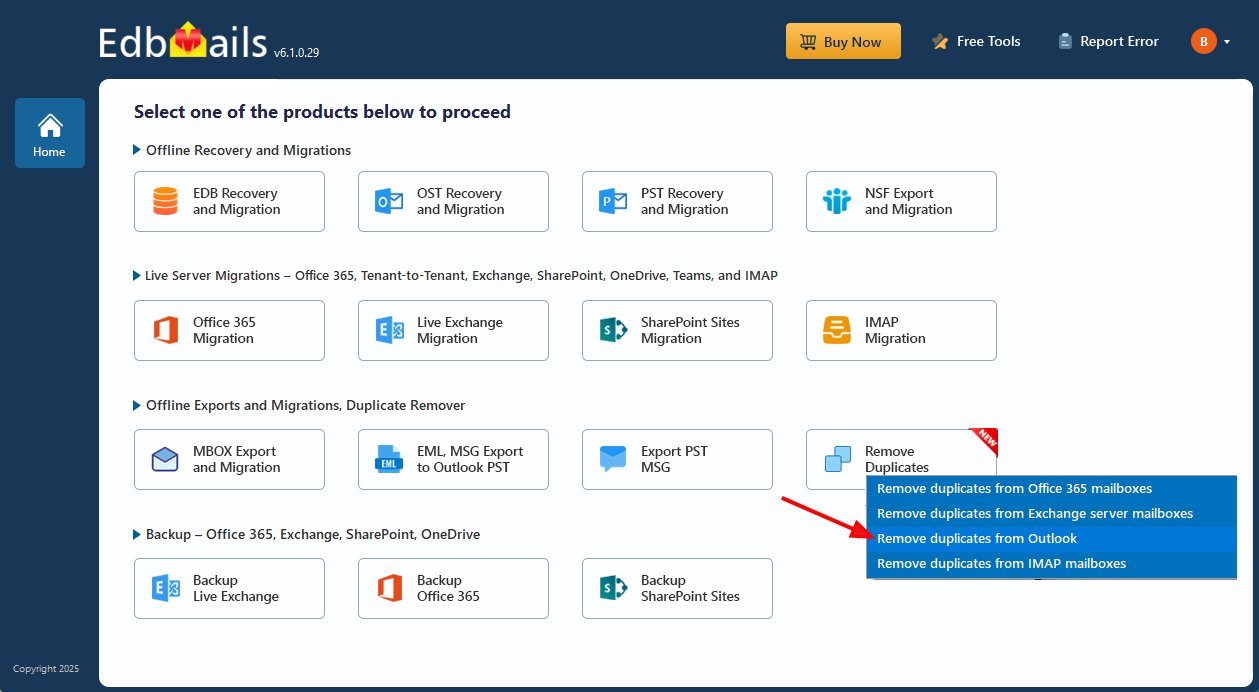
      Remove Duplicate From IMAP server

    • You can proceed with the default job name or click ‘New Job’ to change.
    • EdbMails performs duplicate removal simultaneously on multiple mailboxes, leveraging parallel processing for faster results
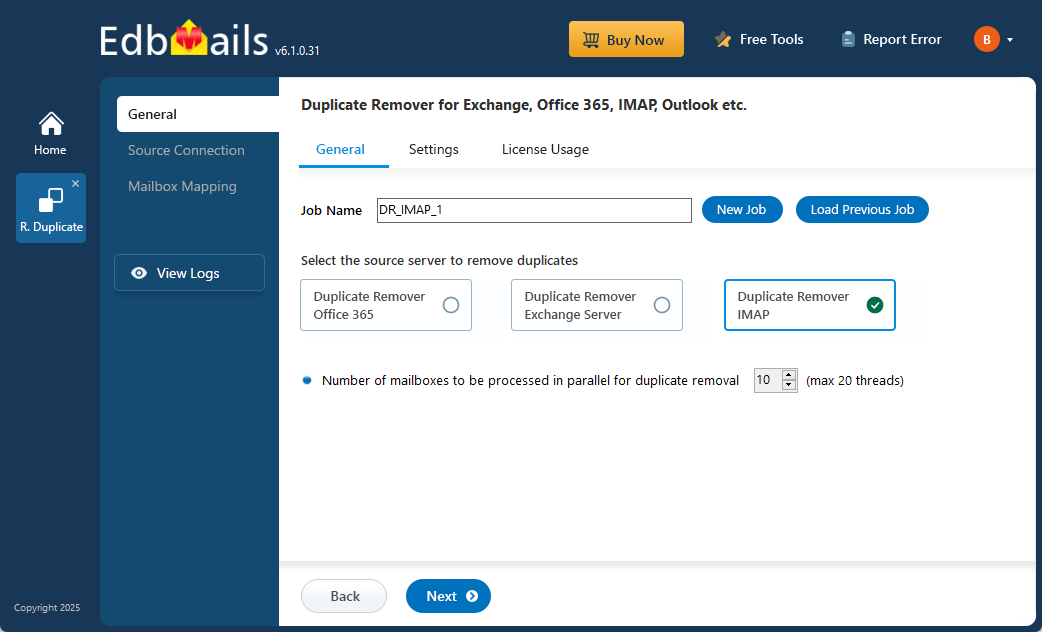
      Remove Duplicate Assign Job Name

    • On the Settings page, choose how duplicates should be handled - move them to Deleted Items, mark as Soft Delete, or permanently Hard Delete.

      You can also set matching criteria such as Subject, Date, From address, Body content, or Internet Message ID to detect duplicates accurately.After configuring the options, click “Next” to proceed with the duplicate removal process.
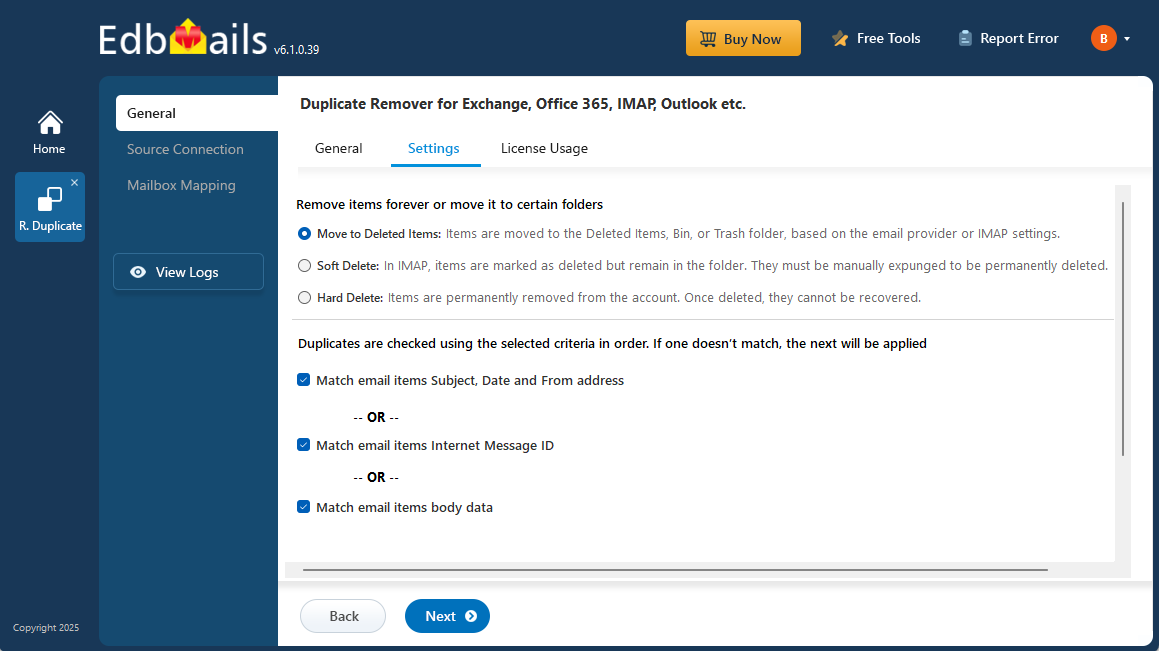
      Remove Duplicate Settings

    Step 3: Connect Your Outlook IMAP Account

    • To remove duplicates from a single user, select ‘Single User / Account Migration’.
    • Choose the desired protocol (IMAP or POP3) and click ‘Next’ to continue.
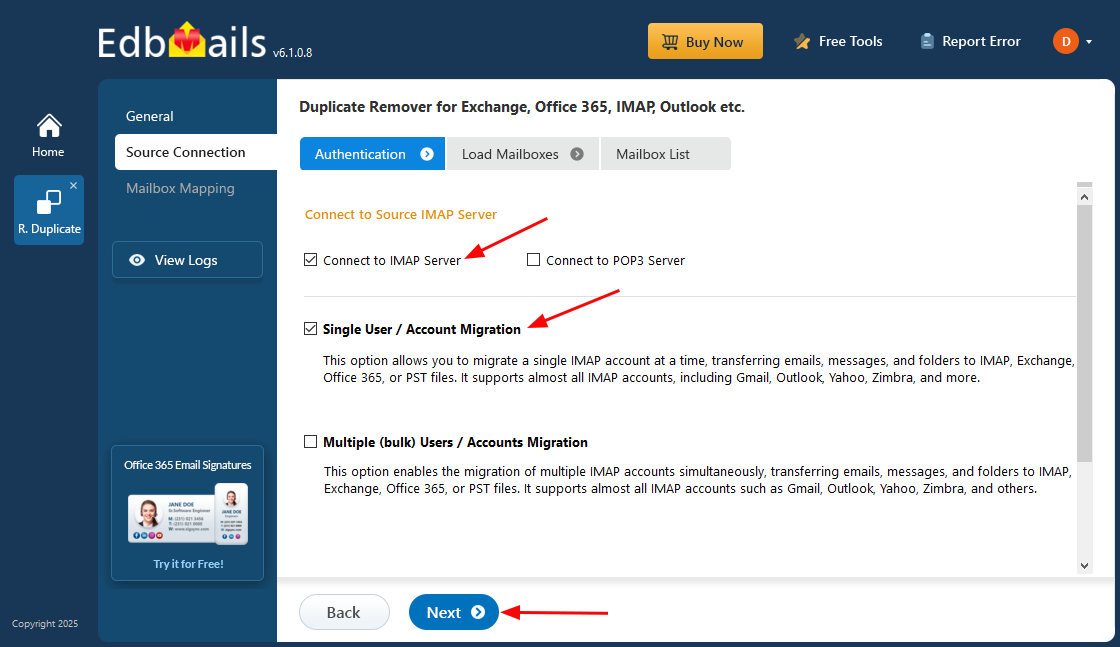
      Remove Duplicate Single Account Migration

    • Select the IMAP hostname (imap-mail.outlook.com) in the list. Next, enter the email address and password of your Outlook, and click ‘Login’.
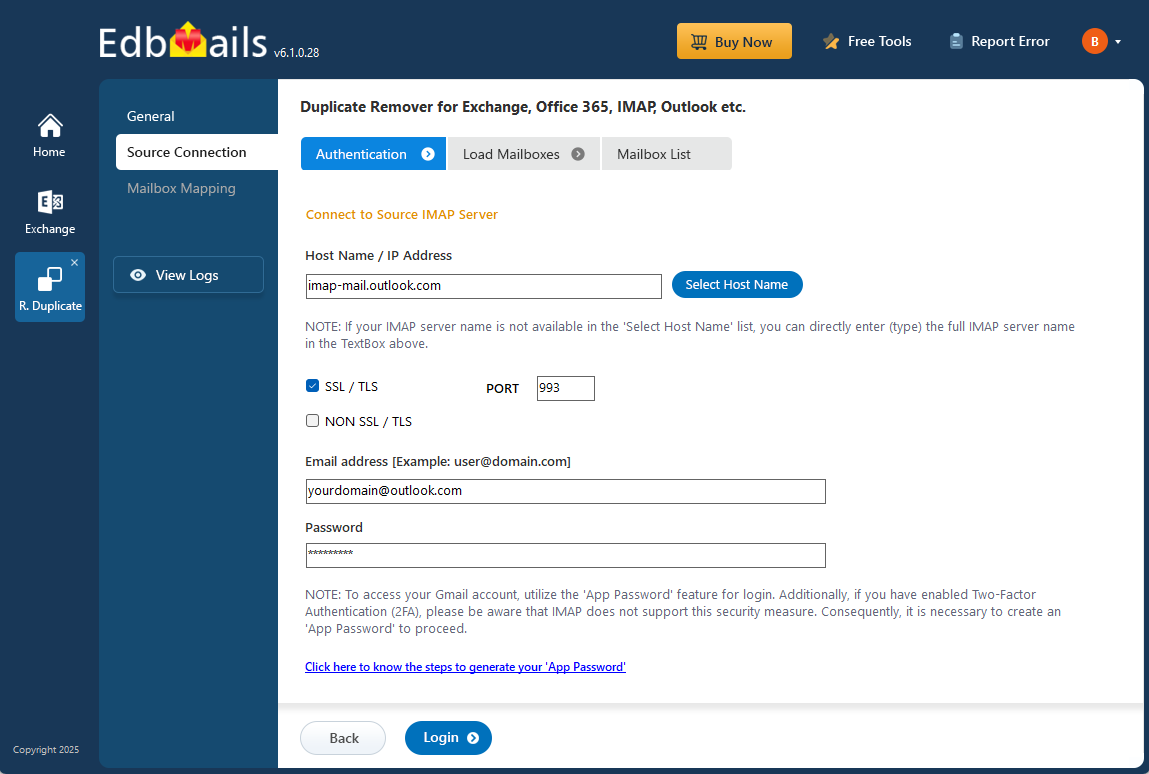
      Login to Single Outlook User

    • To connect to multiple Outlook mailboxes, choose the ‘Multiple (Bulk) Users / Accounts Migration’ option and click ‘Next’ to continue.
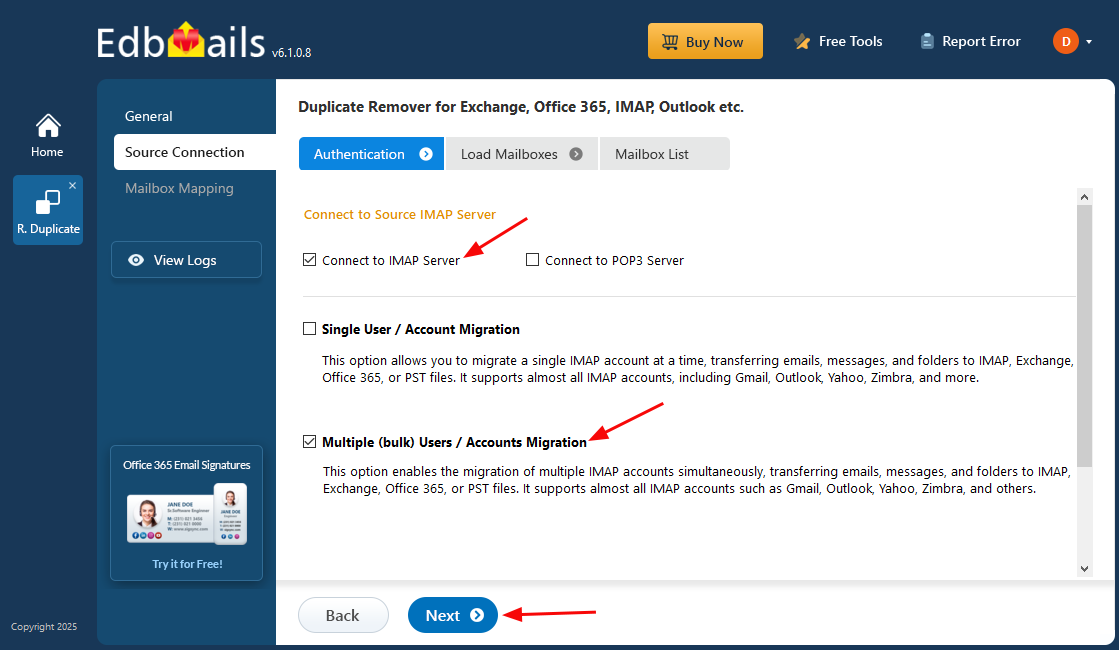
      Remove Duplicates from Multiple Outlook Users

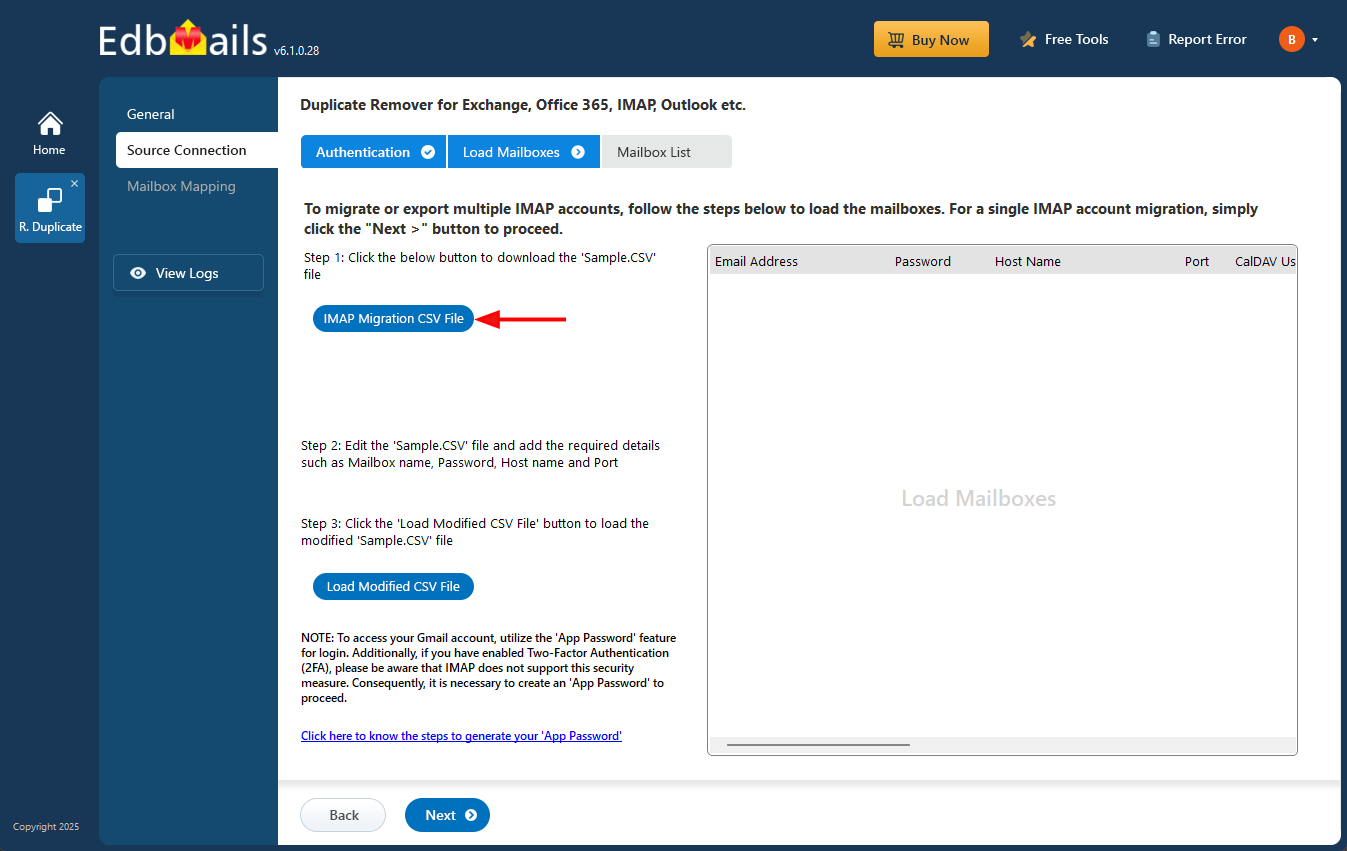
    • Click ‘Download Sample CSV File’.

      IMAP migration CSV file

    • Choose the location to save the CSV file.
    • Open the CSV file and update it with the required details such as Source Mailbox Name, Password, Host, and Port Number.
    • Save the changes and close the CSV file.

      Remove Duplicate CSV file

    • Click on the ‘Browse CSV File’ button.
    • Select the modified CSv file and click ‘Next’. Browse CSV File
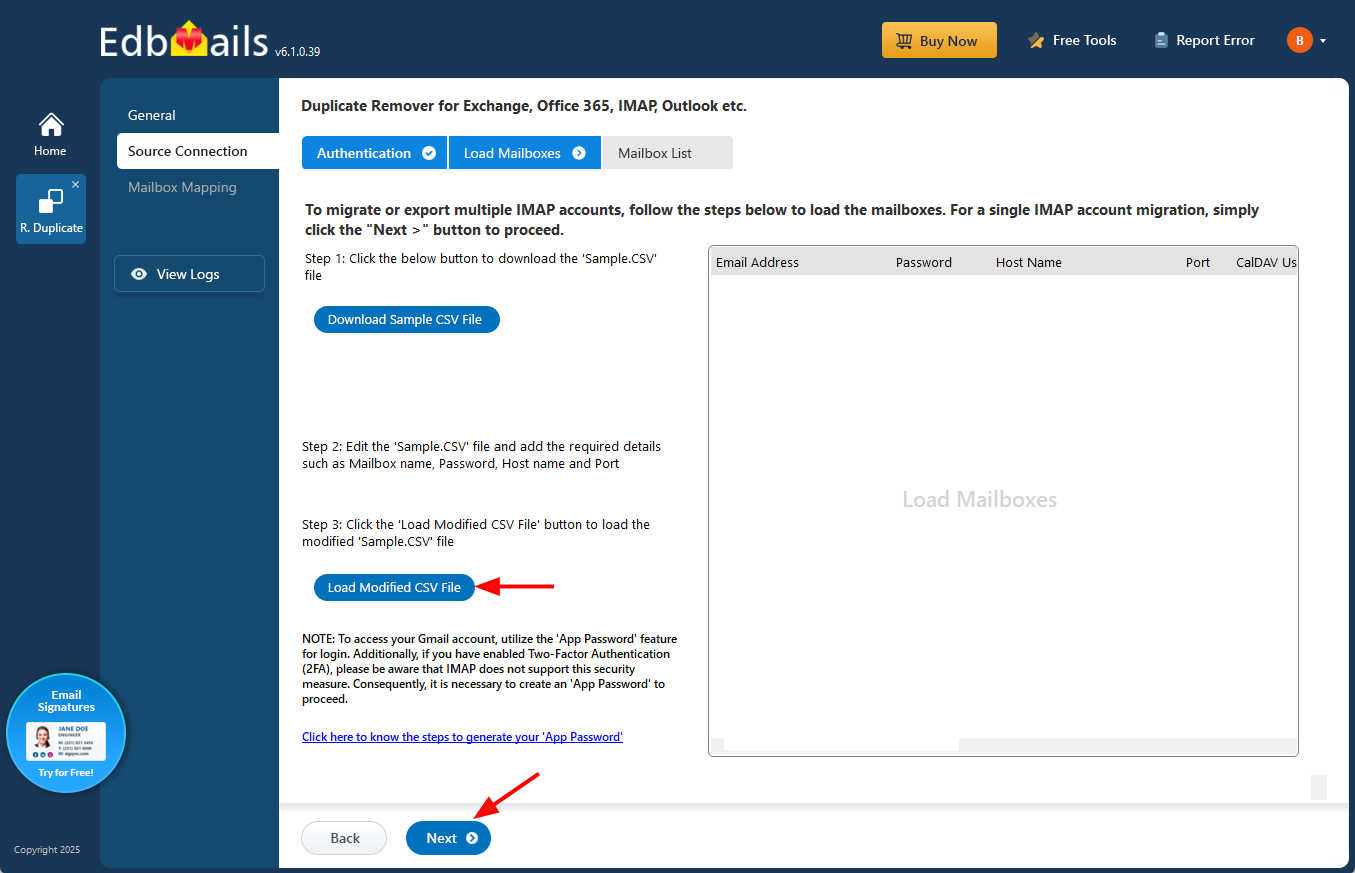
       

    • Choose the mailboxes or folders you want to include in the duplicate removal process, and then click ‘Next’ to continue.
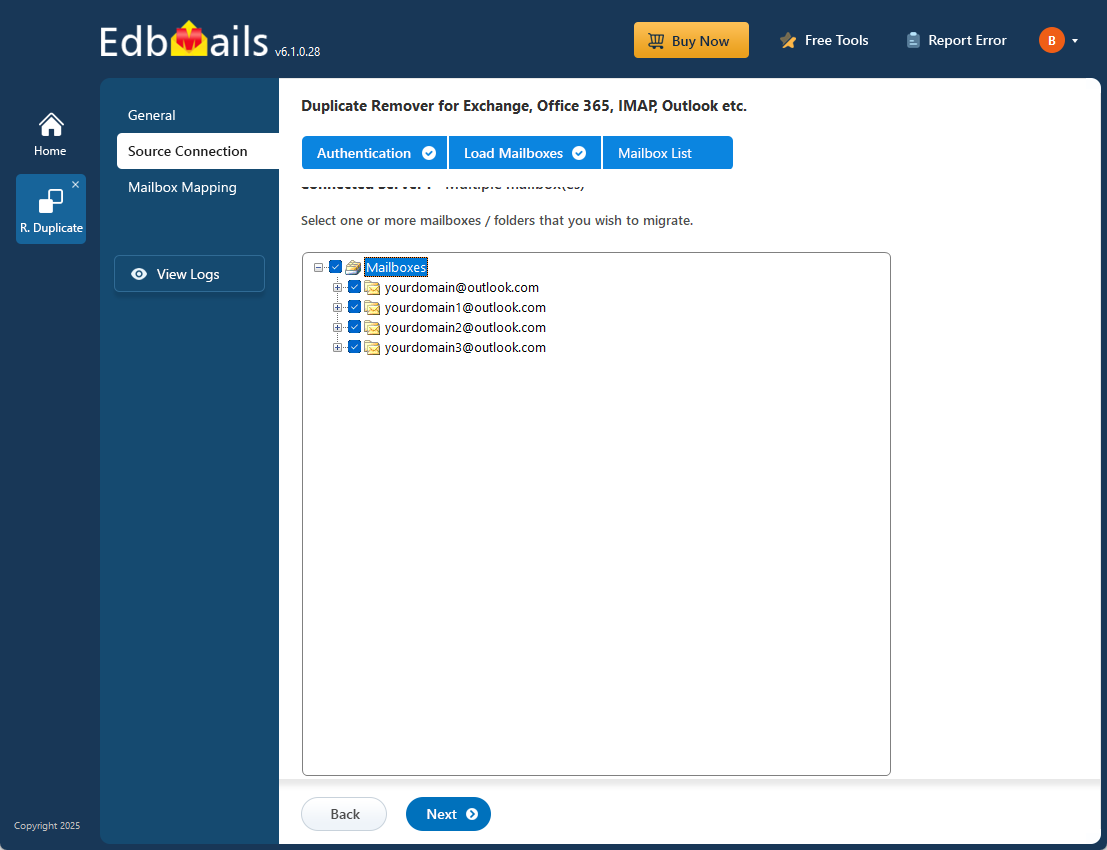
      Remove Duplicate Mailbox Selection

    Step 4: Verify Mailboxes

    • Review the list of selected mailboxes and confirm that the Action is set to ‘Remove Duplicate’.
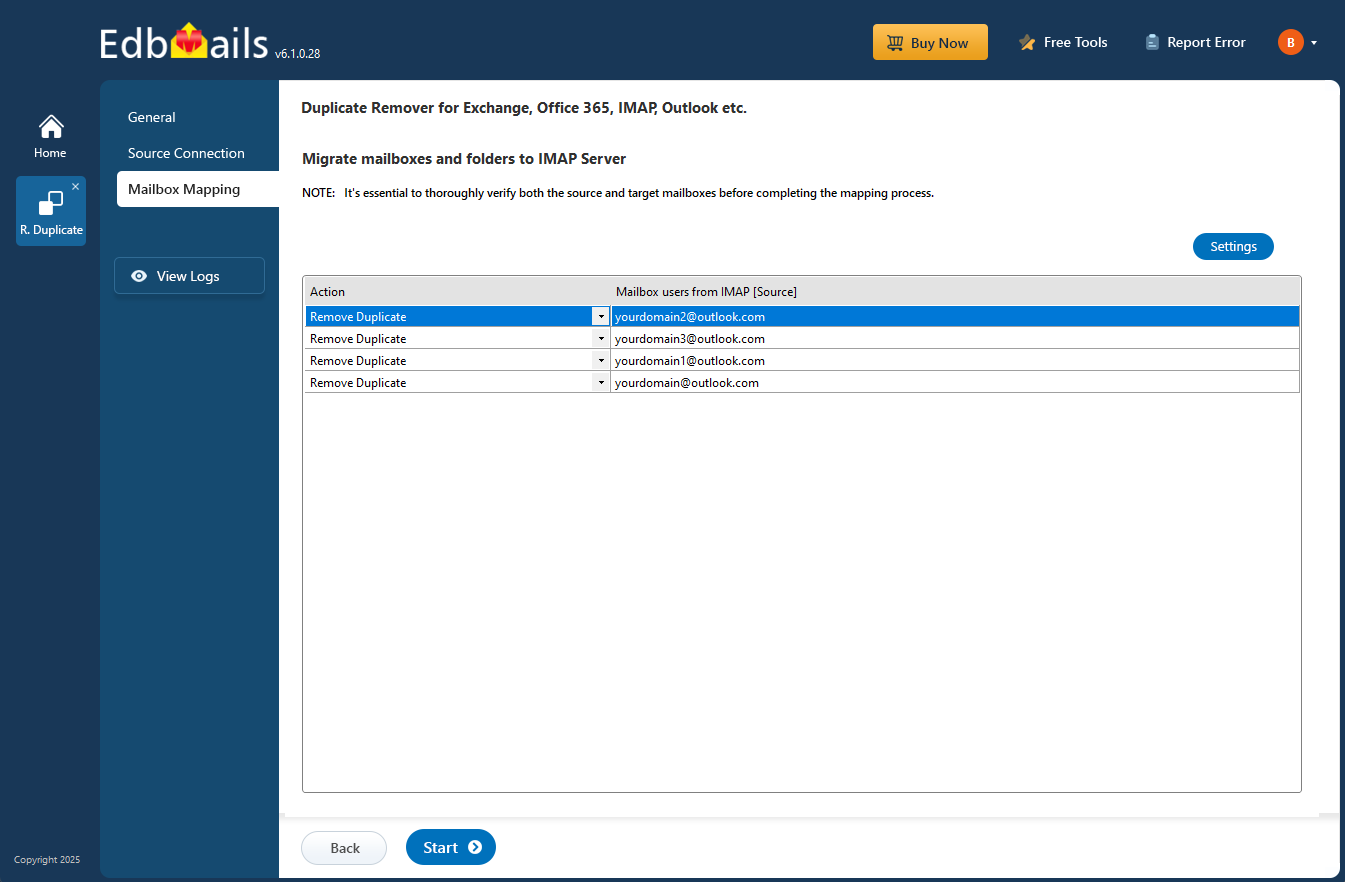
      Verify the mailboxes to remove duplicates

    • Click on the ‘Start’ button to initiate the duplicate removal operation.
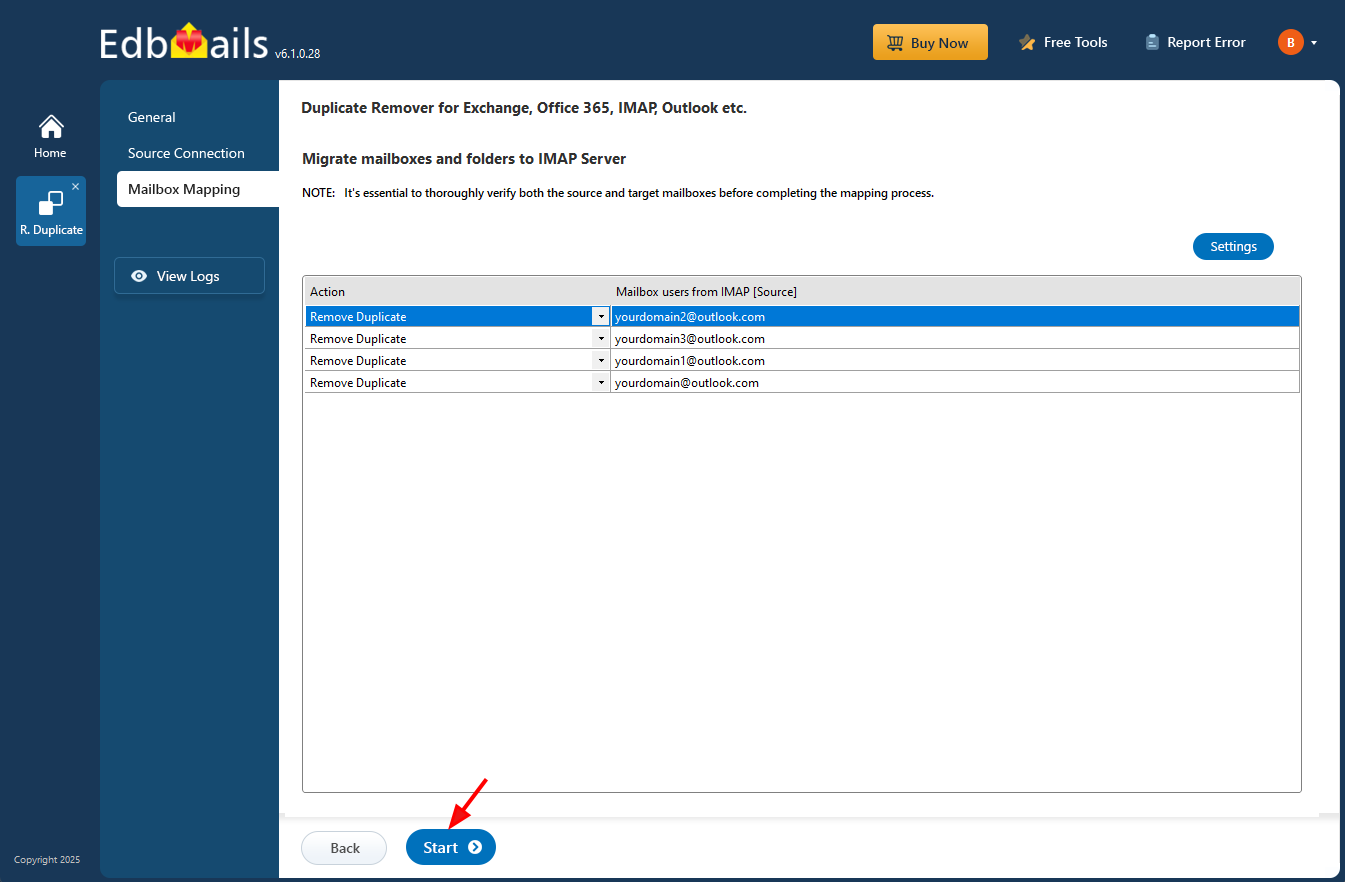
      Start removing duplicates in Outlook

    Step 5: Monitor and Confirm Removal of Duplicate Emails

    • A progress bar will display the status of the duplicate removal process. Once completed, a confirmation message appears.
    • Click ‘View Log’ to see a detailed report of how many duplicate emails were removed.
    • Finally, sign in to your Outlook account and verify the items
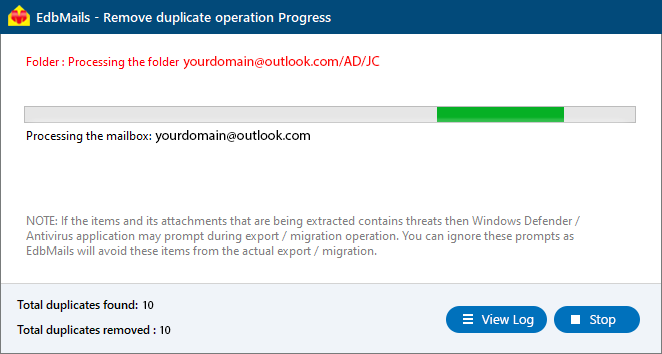
      Remove Duplicate Progress

  6. Post-Duplicate Removal Process

    • Check the Deleted Items folder: Ensure important emails were not mistakenly moved.
    • Review log reports: Cross-check duplicates identified and removed.
    • Adjust Outlook rules/filters: Correct misconfigured settings to avoid recurrence.
    • Monitor synchronization: Ensure proper sync with IMAP/Exchange servers.
  7. Preventing Future Duplicates in Outlook

    1. Avoid importing PST/OST files multiple times.
    2. Configure Outlook rules carefully to prevent duplicate forwarding.
    3. Regularly archive old emails to separate PST files.
    4. Disable unnecessary add-ins that may cause sync conflicts.
    5. Use reliable internet connections during sync to avoid download errors.
    6. Perform periodic deduplication using EdbMails.

Additional resources:

  • Remove Duplicate Emails in Office 365
  • Remove Duplicate Emails in Exchange Server
  • EdbMails OST to PST Converter
  • EdbMails IMAP Migration
lady image


 In this manual

IntroductionCauses to Duplicate EmailsDuplicate Remover FeaturesPlanning to remove duplicatesPrerequisitesSteps to remove duplicatesPost-Duplicate RemovelPreventing Future Duplicates

Duplicate Remover

100 Mailboxes $299 Only

Buy Now

Need help?

24/7 Customer support

Contact us on Live chat

Personalized Demo

Book a personalized demo

Still need help?

Email us / Call us

© 2026 Shifttocloud Inc. Privacy Policy | Terms of Use | GDPR | Security | Press Releases

hidden msg
Live Chat

Hi, May I help you?

Hide Chat Now