EdbMails EDB Recovery and Migration software
  • Products
    Exchange EDB / Email Recovery Tools
    • EDB Recovery and MigrationRecover EDB to PST, EDB to Office 365 and Exchange NO Duplicate Migration
    • OST Recovery and MigrationRecover OST to PST, OST to Office 365 and Exchange Migration
    • PST Recovery and MigrationRecover Outlook PST, PST to Office 365 and Exchange Migration
    • MBOX Export and MigrationExport MBOX to PST, MBOX to Office 365 and Exchange Migration
    • NSF Export and MigrationExport NSF to PST, NSF to Office 365 and Exchange Migration
    • EML to PST ExportEML files export to Outlook PST format
    • PST to MSG ExportOutlook PST files export to MSG format
    • MSG to PST ExportExport MSG files Outlook PST files
    Exchange and Office 365 Migration
    • Exchange Server MigrationMigrate between any Exchange Servers, Exchange to Office 365, Export Exchange to PST, Migrate PST files to Exchange server
    • Office 365 MigrationMigrate between Office 365 tenants, Office 365 to Exchange, Export Office 365 to PST, Migrates PST files to Office 365
    • IMAP Email Backup & MigrationMigrate between any IMAP Servers (Gmail, Outlook, Zimbra, Zoho, Yahoo etc.), IMAP to Office 365, Exchange, IMAP to PST, PST to IMAP
    • G Suite MigrationMigrate emails, contacts, calendars from G Suite /Google Work Space to Office 365, Exchange, IMAP
    • SharePoint Online MigrationMigrate documents, lists, files and folders from SharePoint sites
    • OneDrive for Business MigrationMigrate documents, lists, files and folders from OneDrive
    • Microsoft Teams MigrationMigrate Teams, chats, channels, documents, files and folders etc.
    Exchange and Office 365 Backup
    • Office 365 BackupIncremental, Granular, Encrypted and Compressed Office 365 Mailboxes Backup
    • Exchange Server BackupIncremental, Granular, Encrypted and Compressed Exchange Mailboxes Backup
    • SharePoint, OneDrive & Teams BackupBackup Online site collections, Team sites, Office 365 groups, all documents etc.
    • Duplicate Remover - Office 365, Exchange, IMAP & Outlook Remove duplicate emails, calendars, contacts, journal etc. from Office 365, Exchange, IMAP, Outlook, Gmail, Zimbra, Zoho Mail etc.
    • Windows Data Recovery Recover and restore permanently deleted data from partitions across hard drives, SSDs, USB drives, SD cards, and external storage devices.
    • More Products
  • Features
  • FAQ
  • Pricing
  • Download
  • Support
  • Sign in
User’s Manual
SharePoint Migration

User Manual

User Manual

  • FAQ
    • SharePoint Migration
    • OneDrive Migration
    • Microsoft Teams Migration
    • Office 365 Migration
  • Videos
    • SharePoint Migration
    • OneDrive Migration
    • Microsoft Teams Migration
    • Office 365 Migration
  • Screenshots
    • SharePoint Migration
    • OneDrive Migration
    • Microsoft Teams Migration
    • Office 365 Migration
  • How it works?
    • SharePoint Migration
    • Create a SharePoint site
    • Enable site/subsite creation
    • Add admin as SharePoint site member
    • Disable audit logs in SharePoint
    • OneDrive Migration
    • Microsoft Teams Migration
  1. Home
  2. Product
  3. Steps to disable audit logs in SharePoint Online
Download Buy Now

Steps to disable audit logs in SharePoint Online

Auditing in SharePoint provides an effective means to monitor activities on your site. However, it can be readily disabled if auditing is unnecessary or unwanted.

Prior to enabling auditing for all event types, it's important to recognize that audit logs can quickly become voluminous. Like any log data, an excess of information can impede the efficient retrieval of relevant details during critical incidents. While SharePoint Online audit logs offer some relief regarding size concerns compared to on-premises setups, it's advisable to evaluate the necessity of logging every user action, including document views and searches.

To disable auditing in your SharePoint site collection, you must have administrative rights.

  1. Go to your site collection, click the 'Settings' button in the top-right area, and then click 'Site information'
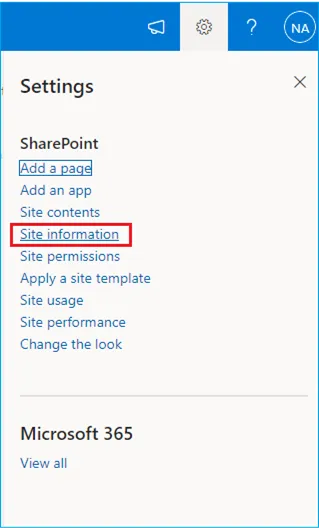
    Site Information Settings

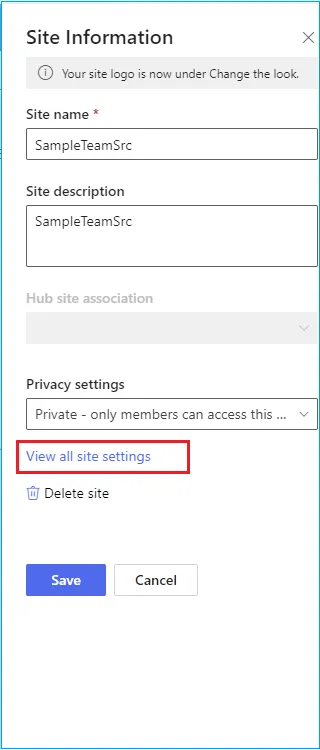
  2. Next, click 'View all site settings'

    View all site settings

  3. Click on 'Site Collection Audit Settings' under the 'Site Collection Administration' section.
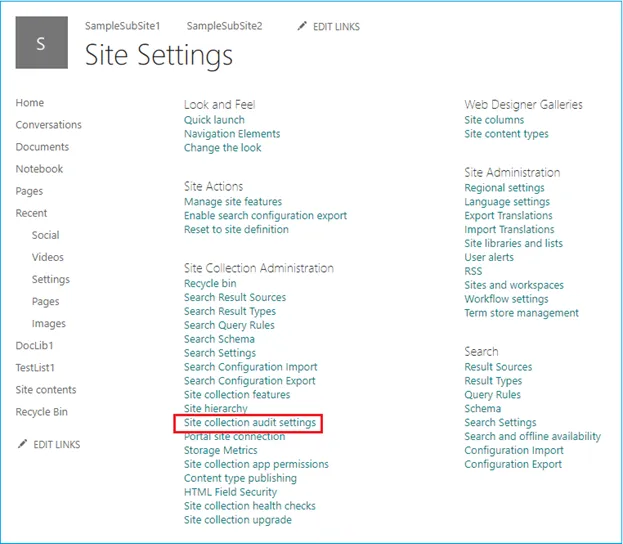
    Site collection audit settings

  4. On the Configure Audit Settings page, disable all options such as 'Opening or downloading documents', 'Viewing items in lists', 'Viewing item properties', 'Editing items', etc.
  5. Click 'OK' to save the settings.

 This setting will turn off auditing in your SharePoint site collection.

 In this manual

Steps to disable audit logs

SharePoint Migration

Just 10 Sites $80 Only

Buy Now

Need help?

24/7 Customer support

Contact us on Live chat

Personalized Demo

Book a personalized demo

Still need help?

Email us / Call us

© 2026 Shifttocloud Inc. Privacy Policy | Terms of Use | GDPR | Security | Press Releases

hidden msg
Live Chat

Hi, May I help you?

Hide Chat Now