


Resolve the ‘Exchange Database Status Unknown’ Error
Exchange Server is commonly used by organizations to handle email communication and collaboration. Under normal conditions, when the mailbox database is in a healthy state and properly mounted, users can access their mailboxes without interruption. However, there are situations where the database status displays as “Unknown” in the Exchange Admin Center (EAC) or through PowerShell commands.
In some cases, the database may still be mounted, yet errors such as ‘Content index state: Unknown’ may appear. These issues can affect email delivery, search functionality, and overall server performance. The problem becomes more critical in environments that do not use a Database Availability Group (DAG), as automatic failover and recovery options are unavailable.
This error can arise for several reasons, including corruption within the mailbox database, Exchange services that are not running, or changes made to the database name using the Exchange Admin Center.
To address this issue, EdbMails EDB to Exchange Migrator offers a practical and reliable solution. It allows you to recover mailboxes from a dismounted or corrupted database, even when the status is unknown, and migrate the data directly to a live Exchange server. The process is straightforward and does not require complex configurations, ensuring safe and efficient recovery without data loss.
This step-by-step guide will show you how to use EdbMails to resolve the 'Exchange database status unknown' error by securely recovering your mailboxes and migrating them to a healthy Exchange environment, ensuring minimal disruption to your organization.
How to resolve the error Exchange server database status unknown?
You can resolve the error with the following methods:
Method 1: Restart the Exchange server and Exchange services
In some cases, IT administrators update or modify the Exchange server database name but forget to restart the server afterward. Without a restart, these changes aren't properly synchronized, leading to the Exchange server Database Status Unknown error. In many cases, a simple server restart is all it takes to sync the changes and resolve the issue.
Check if the Exchange services are in the running state
- Press Windows Key + R and type services.msc.
- Find the services related to the Exchange server, right-click on the item, and select 'Restart'.
Once the server restarts, check the database status in the Exchange Admin Center (EAC). If everything is working correctly, the status should show as Mounted. However, if it still appears as Dismounted or shows Unknown, continue with the next steps to troubleshoot and resolve the issue.
Method 2: Check the database status from the EAC and remount it
If the database fails to mount even after an Exchange server restart, remount the database from the EAC or by using PowerShell cmdlets.
- In the EAC, go to 'servers' and click 'databases'.
- Select the Exchange database whose status shows unknown.
- Click on 'More Options' and select 'Mount' to remount the database.
To remount the database status with the PowerShell, run the Mount-Database cmdlet on the Exchange Management Shell (EMS) as an administrator.
Mount-Database -IdentityDismount-Database -Identity
The
is the one which shows the status as Unknown If the database error still persists even after you mount it, then most likely your database is corrupted and you must repair the corrupted EDB file.
Method 3: Repair the Exchange database (EDB) with Eseutil
Eseutil is a built-in Microsoft utility used for performing Soft and Hard Recovery on Exchange databases. To use it, navigate to the folder where the Exchange server is installed and then launch eseutil.exe to begin the recovery process.
- Check the database consistency with the cmdlet eseutil/mh
Run the following cmdlet with Eseutil on the Exchange database which shows the status as unknown.
eseutil/mh
- If the status shows Clean Shutdown, you can remount the database. Run the following cmdlet to mount the database to the Exchange server
Mount-Database -Identity
If the status shows Dirty Shutdown, you must repair the database
A Dirty Shutdown state usually means that the Exchange server database is significantly corrupted. To recover from this, there are two recovery approaches: Soft Recovery and Hard Recovery. Soft Recovery works by replaying the transaction log files to bring the database back to a consistent state. It's the safer option and typically used when log files are available and intact. Hard Recovery, on the other hand, performs a deeper scan and attempts to repair the database itself. However, it comes with a major drawback—Eseutil may discard any data it cannot recover, which can result in permanent data loss.
For Soft Recovery operation, run the cmdlet: eseutil/r
The following cmdlet shows the recovery operation with the path
eseutil /r E01 /l C:\Exchange\EDB /d C:\Exchange\EDB\DB02
- r stands for recovery
- l stands for the location of the transaction log files
- d stands for the database path
- E01 is the missing log file you need to copy into the log file folder for the soft recovery operation.
For the Hard Recovery operation: eseutil/p
See how to repair Exchange database with Eseutil
Limitation: Repairing an Exchange database using Eseutil requires in-depth knowledge of PowerShell commands and carries the risk of data loss, especially if the utility cannot fully recover the contents of the database. In the following section, we’ll look at a more reliable and efficient method to recover a corrupted EDB file and migrate its data directly to a live Exchange server.
- Check the database consistency with the cmdlet eseutil/mh
Method 4: Repair and migrate EDB to Exchange server with EdbMails tool
EdbMails EDB to PST Converter is a Microsoft-partnered Exchange recovery solution designed to fully recover EDB files without any data loss. This user-friendly tool provides a graphical interface that allows you to either convert EDB files to PST or directly migrate mailboxes and email data to a live Exchange server. It effectively addresses the 'Exchange Database Status Unknown' error in Exchange server versions 2019, 2016, 2013, 2010 and 2007. Below, we outline the steps for recovering and migrating your data using EdbMails.
Step 1: Download and install EdbMails Exchange recovery tool- Download and install EdbMails on any computer that has access to both source and target environment. Alternatively, you can also perform the recovery and migration process by installing EdbMails on a non-Exchange server computer.

- Start the EdbMails application and sign in with your email and password. If you don’t have an account yet, click ‘Start Your Free Trial’ to begin using the trial version.Note: You can export a limited number of items (up to 30 per folder) using the trial version. Upgrade to the licensed edition for full mailbox access.
Click here to purchase the license from the EdbMails website.
Once the purchase is complete, restart the application and sign in with the same email credentials to activate your license.

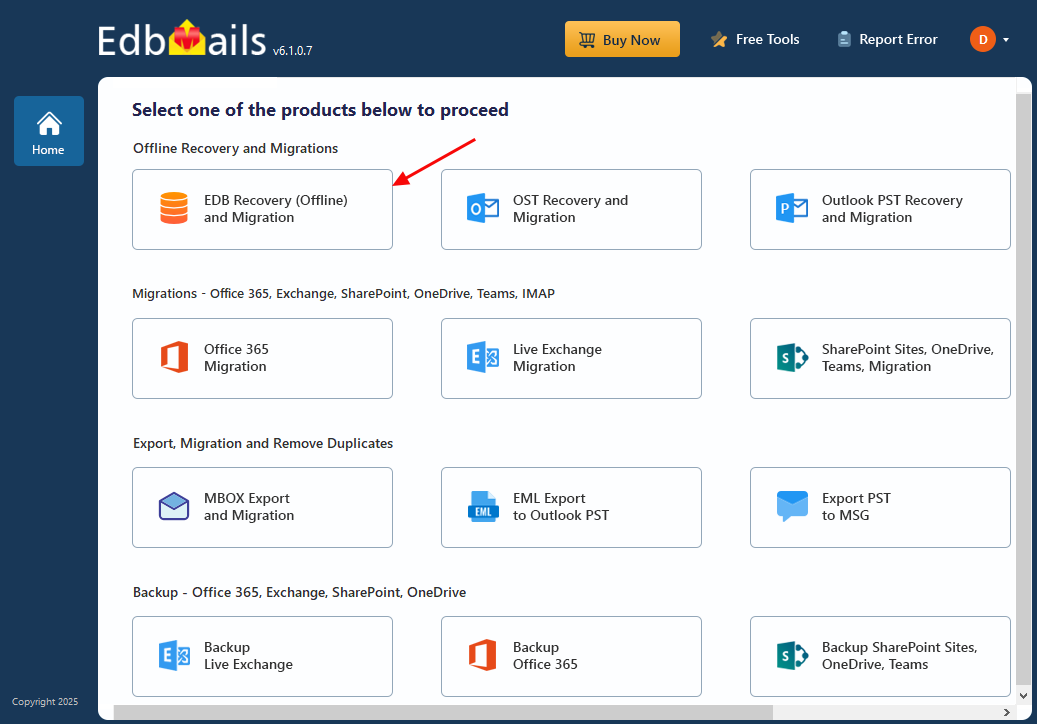
- Select ‘EDB Recovery (Offline) and Migration’ as your product option
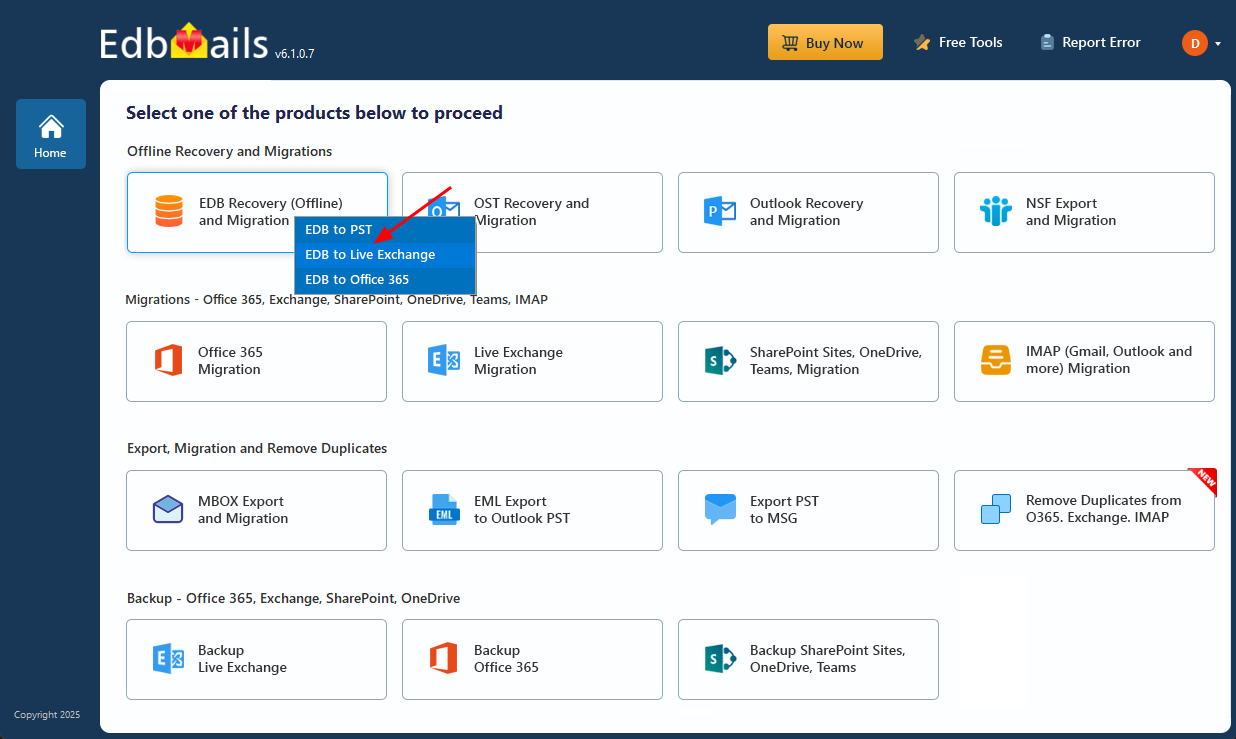
- Choose ‘EDB to Live Exchange’ option to proceed.
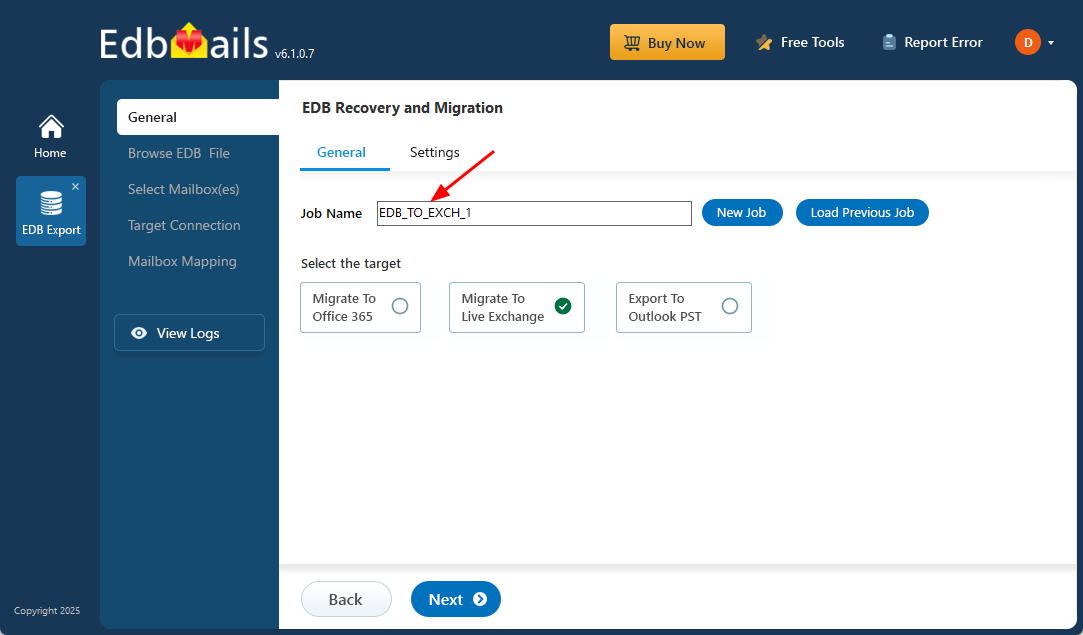
- Either use the default name assigned to the job or click ‘New Job’ to create a personalized name.
- Then, click ‘Next’ to continue.
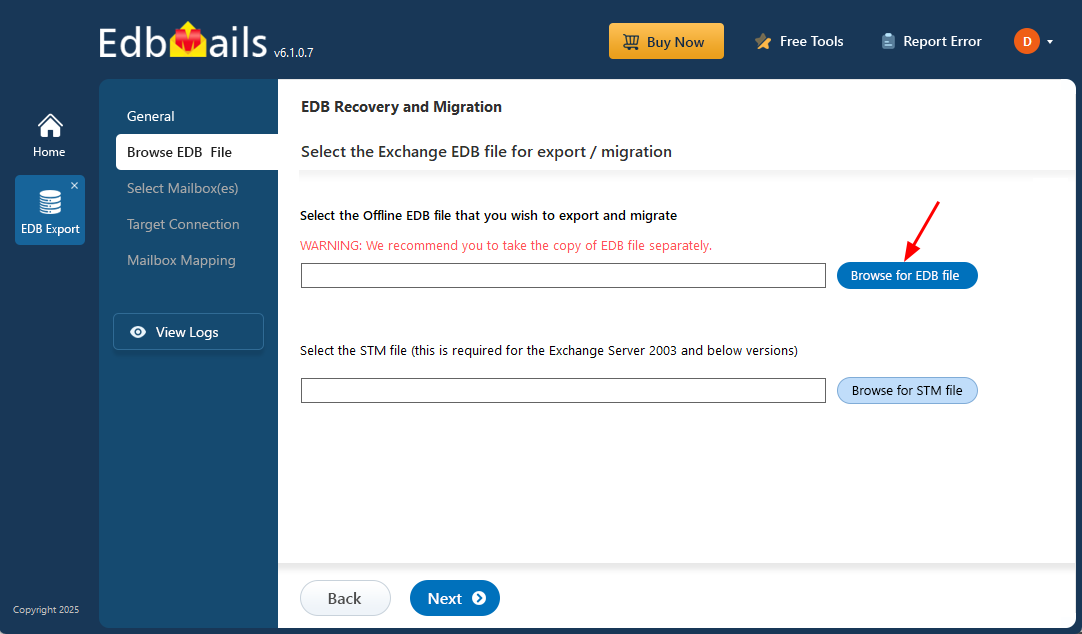
- Click ‘Browse for EDB file’
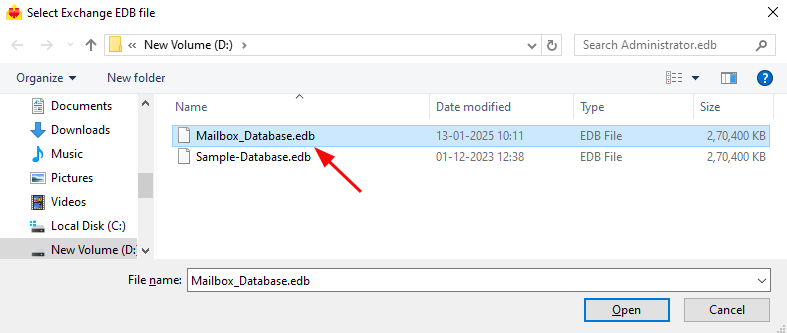
- Select the offline Exchange EDB file you want to import to the Exchange server.
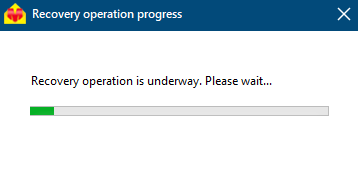
- EdbMails scans your offline EDB file and retrieves mailbox data in case of any corruption. The time required for recovery depends on the database’s size and condition, so it’s important to let the process finish completely.
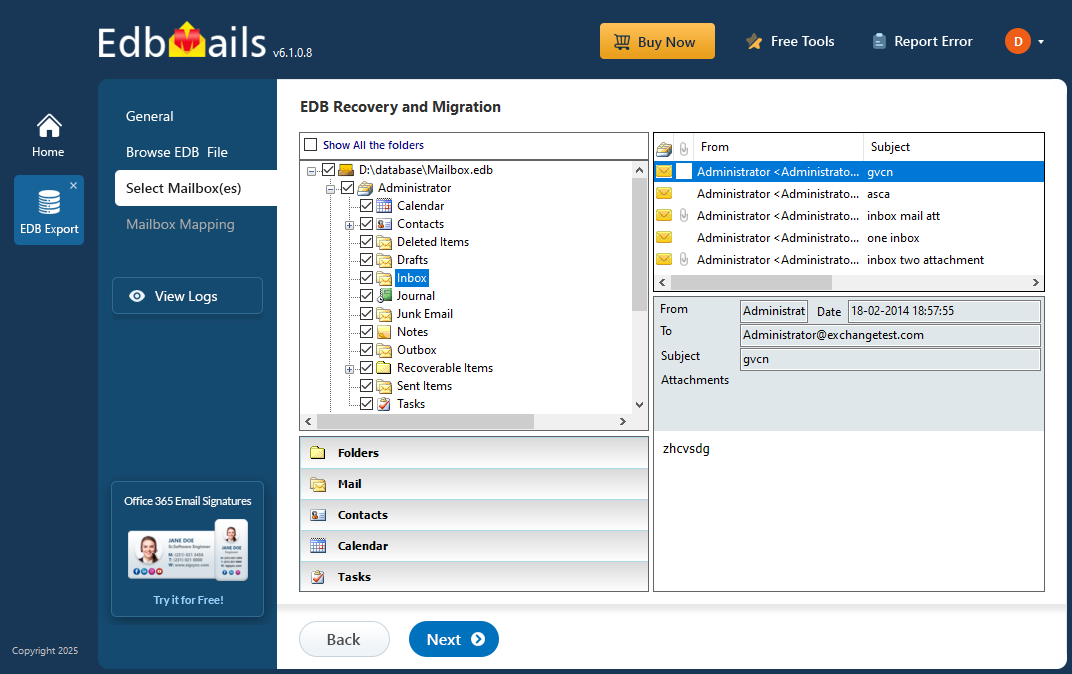
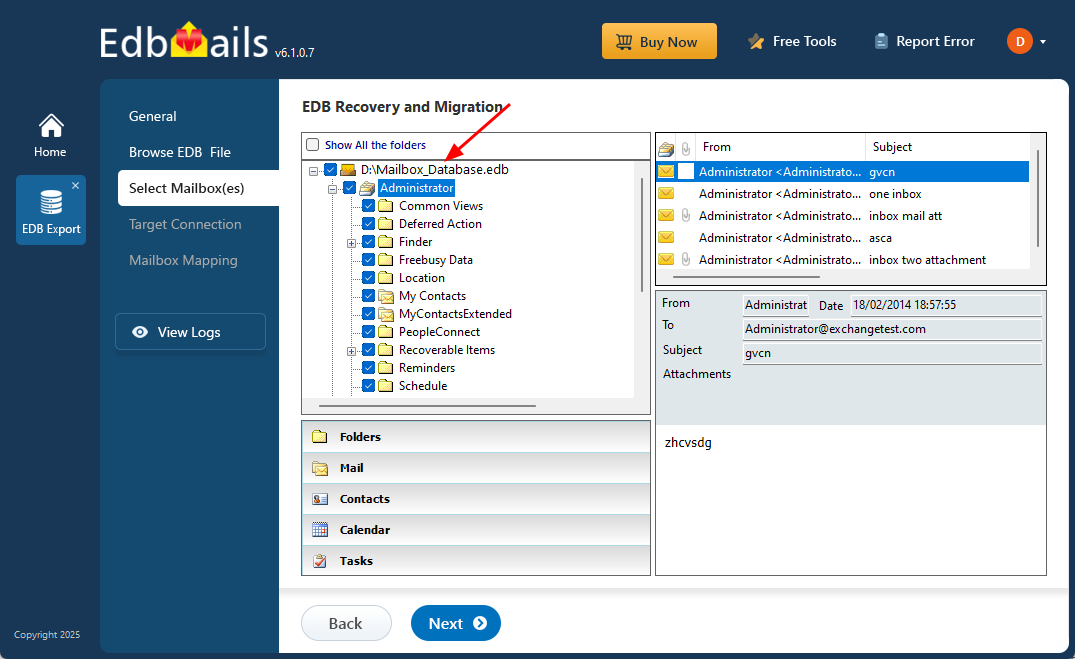
- Once the scan and recovery are complete, EdbMails displays a clear view of all recovered mailboxes. You can expand any mailbox and click on individual folders to preview emails, contacts, calendars, tasks, journals, notes, etc in the right-side pane before proceeding.
- Select the mailboxes or specific folders you'd like to export, then click ‘Next’ to move forward.
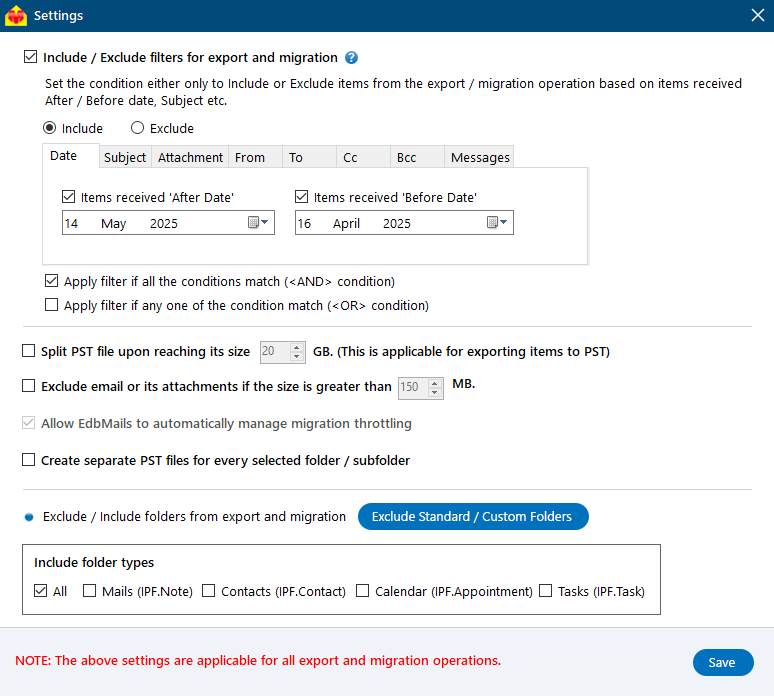
- EdbMails lets you apply filters to customize your EDB to live Exchange migration, so you can move only the mailboxes or items you need. For instance, date filters allow you to migrate emails from a specific time period, making the process faster and more efficient. To set filters, simply click the ‘Settings’ button on the right-hand side of the interface.
Click here to learn more about setting date filters for EDB to live Exchange Migration.
- EdbMails comes with other additional settings for export, like splitting a PST file during export and excluding emails that exceed a specified size limit.
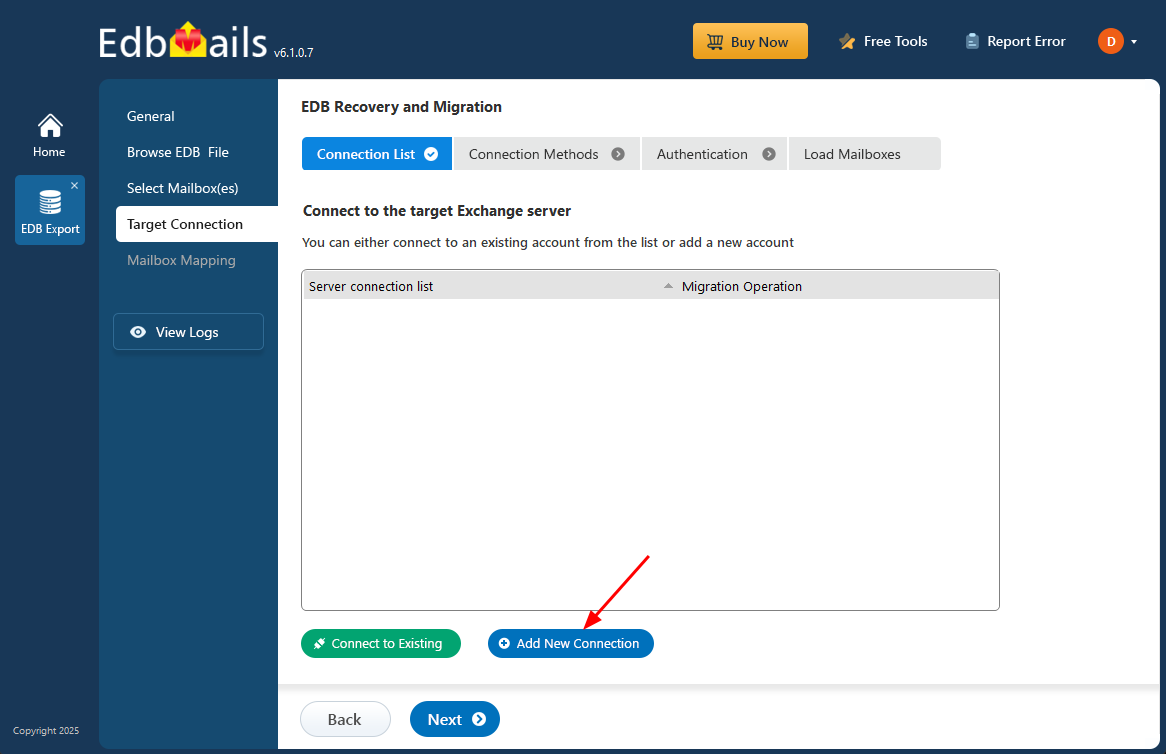
- To connect with the target Exchange server, click ‘Add New Connection’ and set up the configuration. If a connection already exists, select it from the list and click ‘Connect to Existing’ to proceed.
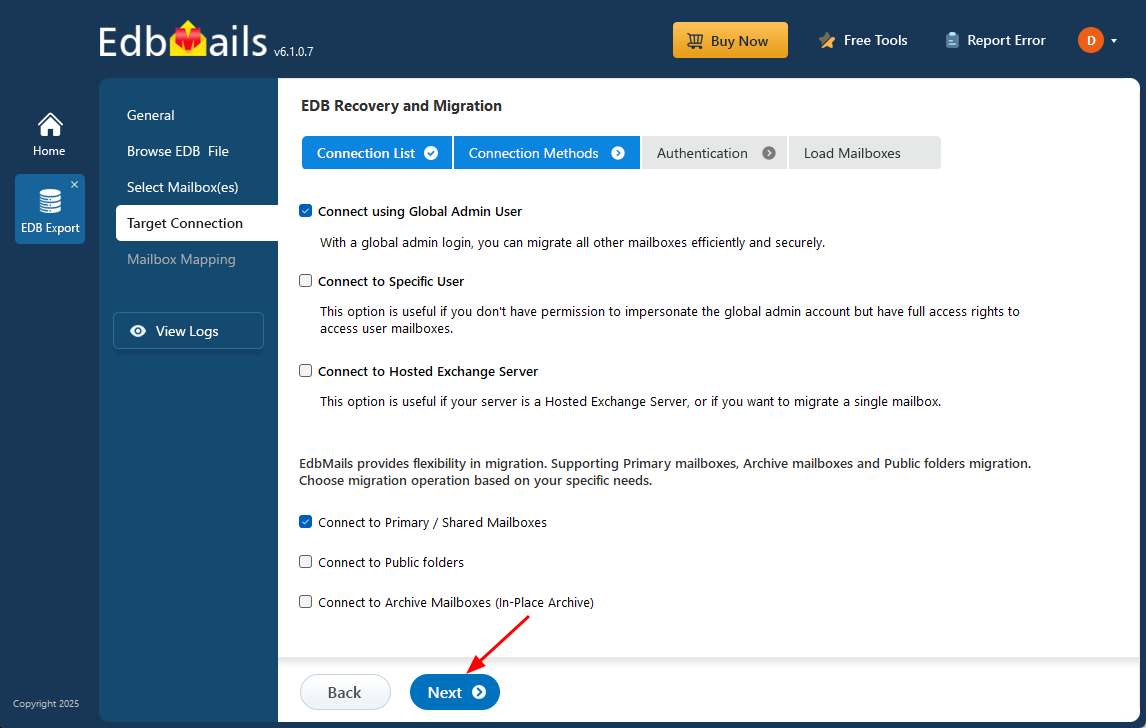
- Select the required connection options and click the ‘Next’ button.
Different options to connect to Exchange server in EdbMails
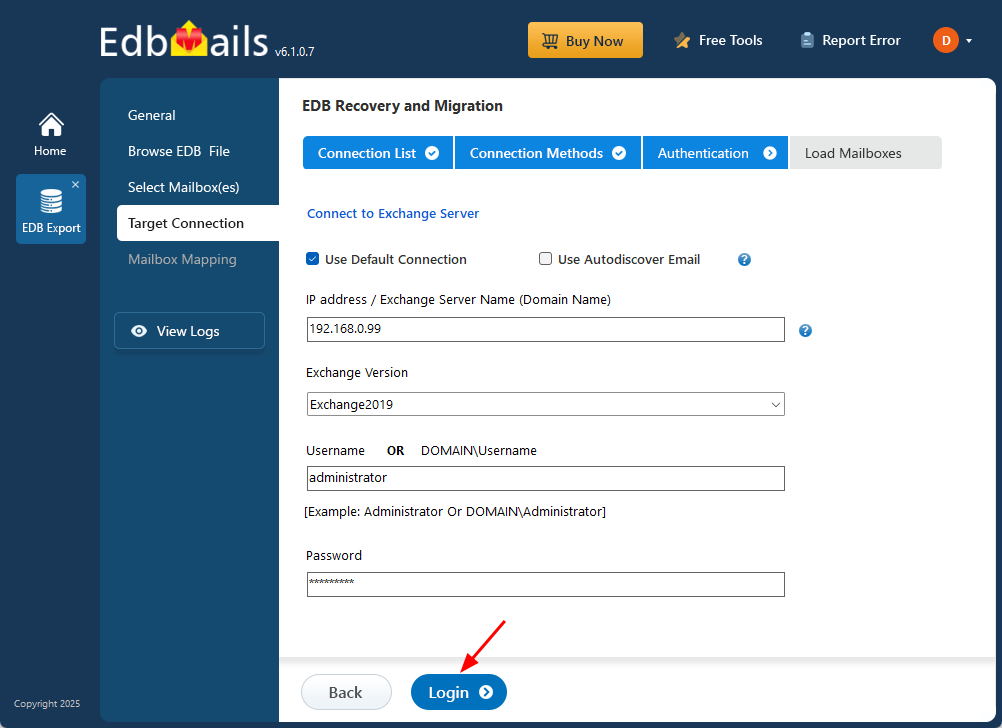
- Fill in the target Exchange server details to complete the connection setup, then click ‘Login’ to move forward.
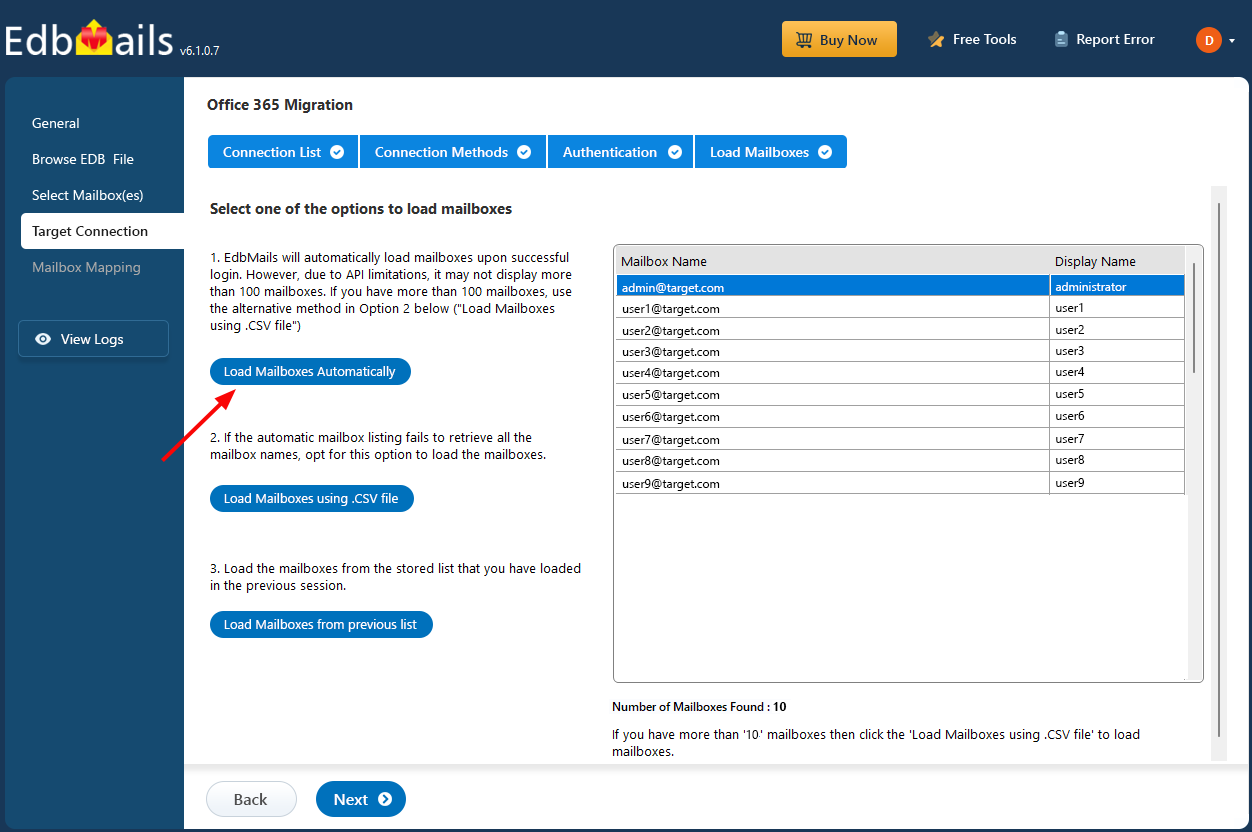
- EdbMails automatically loads up to 100 mailboxes from the target Exchange server, in line with the maximum limit set by Microsoft’s API. If your organization has more than 100 mailboxes, you can load the rest by importing a list using the CSV file method. Just select the method that suits your setup to continue loading mailboxes.
- Choose the required mailbox mapping option
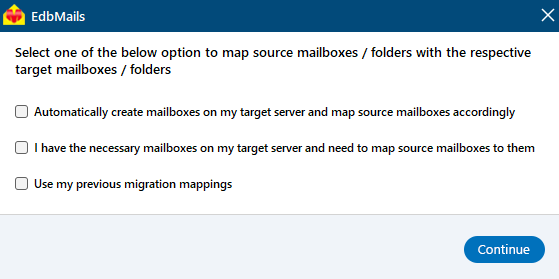
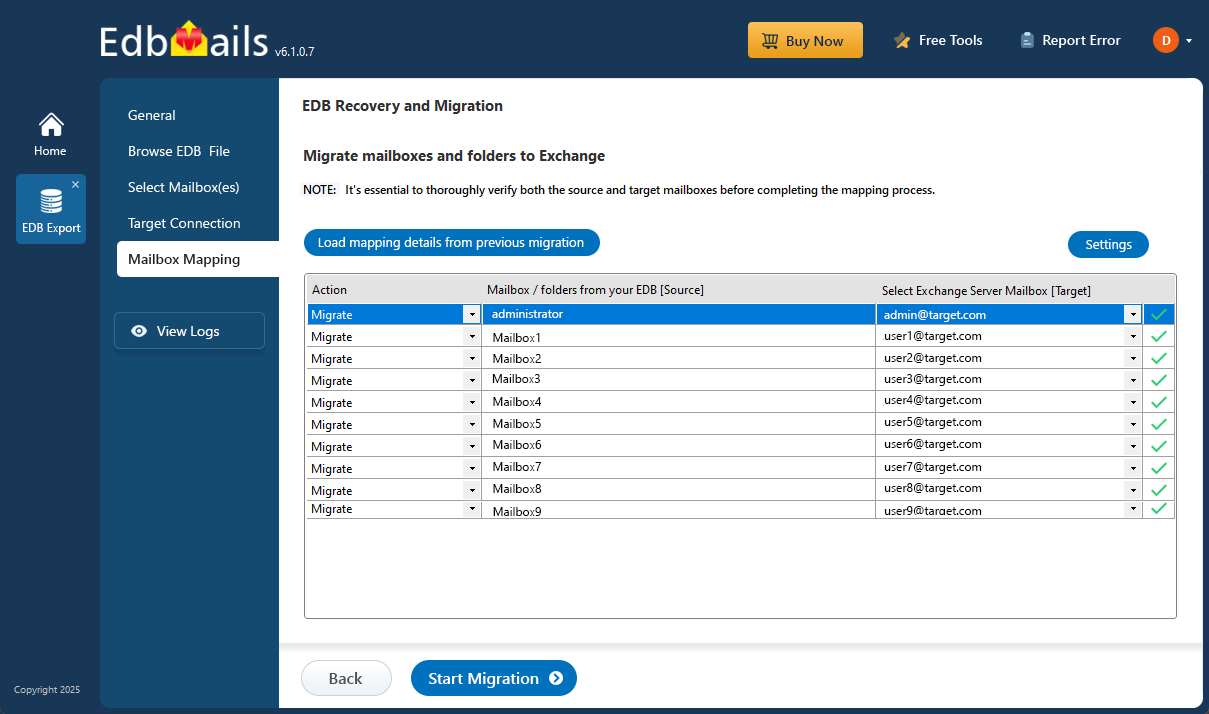
- If EdbMails is installed directly on the target Exchange server, you have the option to automatically create mailboxes during the migration. The software also streamlines the process by auto-mapping mailboxes based on matching display names from the source and target servers. For more control, you can manually map mailboxes and folders to align with your specific migration requirements.
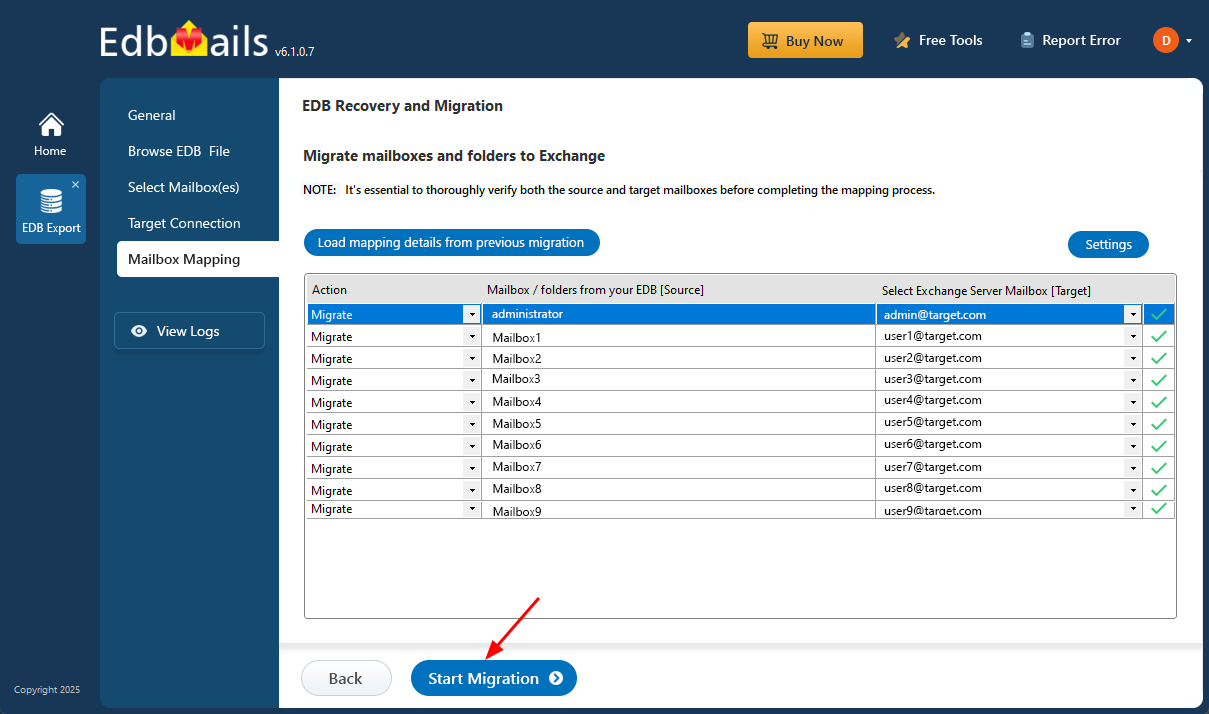
- After completing mailbox mapping, click ‘Start Migration’ to begin migrating mailbox data from the EDB file to the target Exchange server.
- You can track the migration progress in real-time using the progress bar. Once the process is complete, EdbMails will display a confirmation message to let you know that the migration was successfully finished.
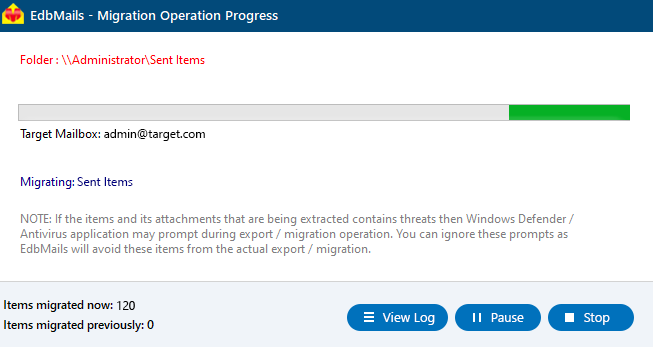
- Click on the ‘View Logs’ button to open the migration report and review details, including the number of emails, folders, and mailbox items that were successfully migrated.
- Download and install EdbMails on any computer that has access to both source and target environment. Alternatively, you can also perform the recovery and migration process by installing EdbMails on a non-Exchange server computer.
Concluding Words
The ‘Exchange Database Status Unknown’ error typically occurs due to a corrupted database or when Exchange server services are not running. The first step in resolving the issue is to restart the Exchange server and its associated services. If the database still fails to mount or remains in the unknown state, an EDB recovery is necessary to recover the emails from the dismounted Exchange database. EdbMails provides an efficient solution for this, enabling you to recover and migrate mailboxes from a damaged database to a live Exchange server without downtime or data loss. Unlike manual methods, EdbMails offers a user-friendly graphical interface that simplifies Exchange database recovery and migration with just a few clicks!


