Office 365 Source Server Connection
EdbMails connects securely to the Office 365 source server using modern authentication, including MSAL (Microsoft Authentication Library), OAuth 2.0, and TLS encryption. Authentication is performed over the Microsoft Sign-In page, and login credentials are never saved by EdbMails. This combination of MSAL, OAuth 2.0, and TLS encryption ensures safe and secure access to Office 365 data.
In the EdbMails ‘Connect to Office 365 (Source)’ window, you have the following options:
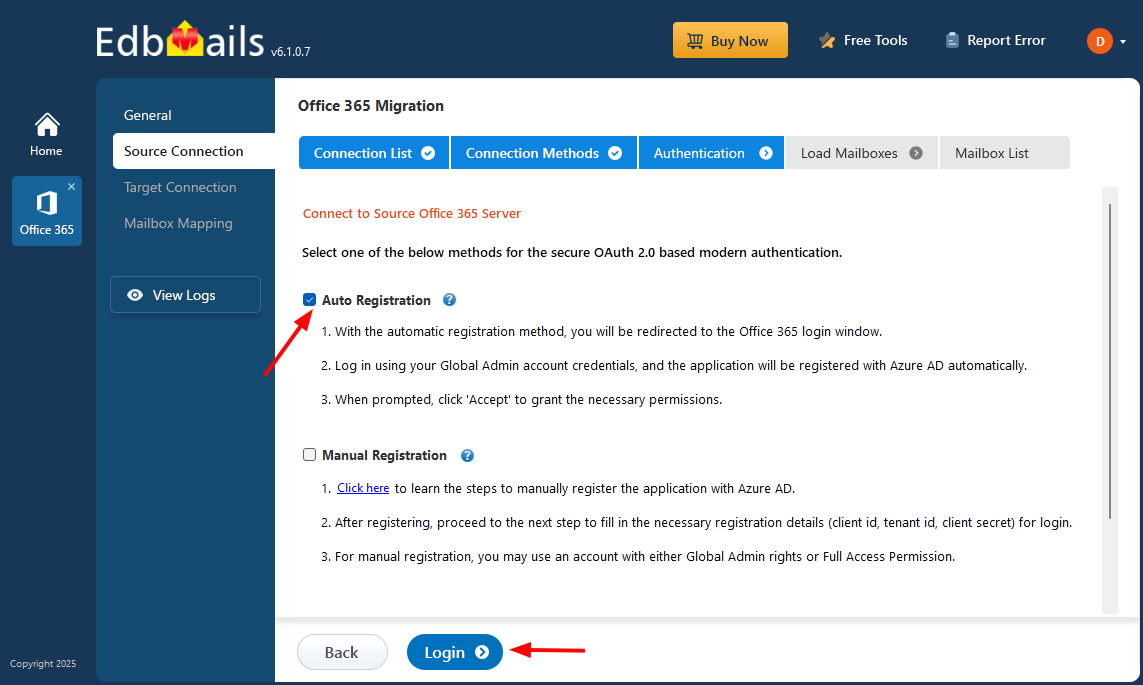
Auto Registration
EdbMails automatically handles the application registration within your Entra ID (Azure Active Directory). The ‘Auto Registration’ method requires Global admin access.
Click here to know the detailed steps for automatic registration of the EdbMails application in Entra ID (Azure AD).
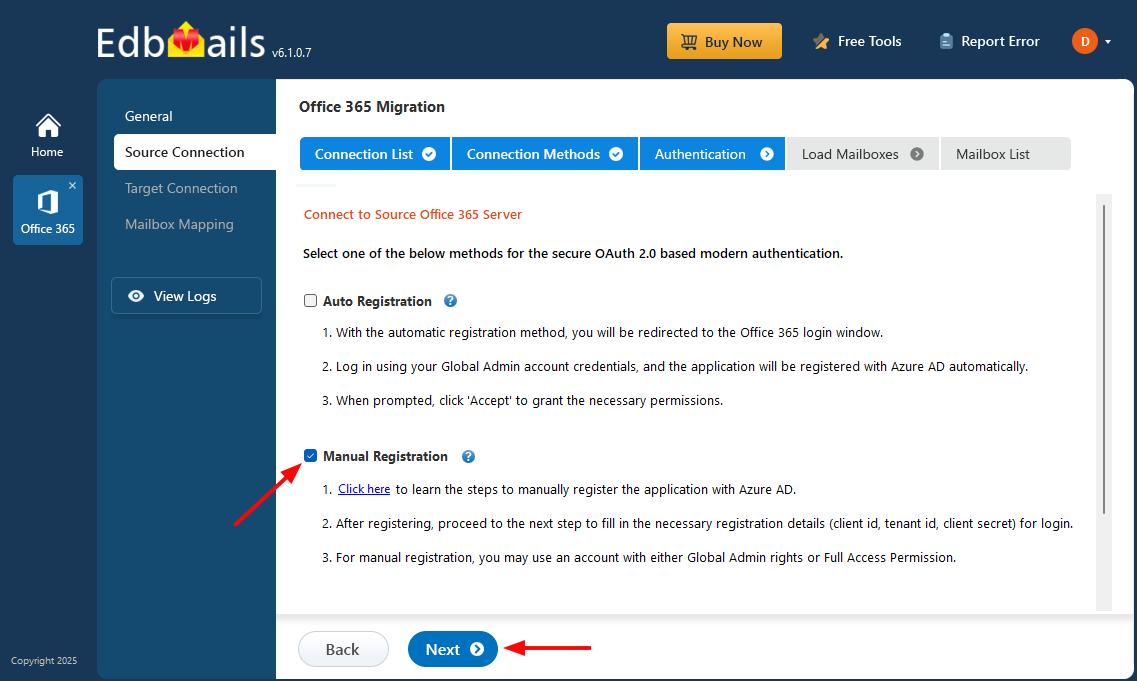
Manual Registration
If you want to manually register the EdbMails migration application within your Entra ID (Azure AD), opt for manual registration and click the ‘Next’ button. You can use either a Global admin account or any user account with full access rights for the Manual Registration method.
Click here to know the steps to register the EdbMails application manually in Entra ID (Azure AD).
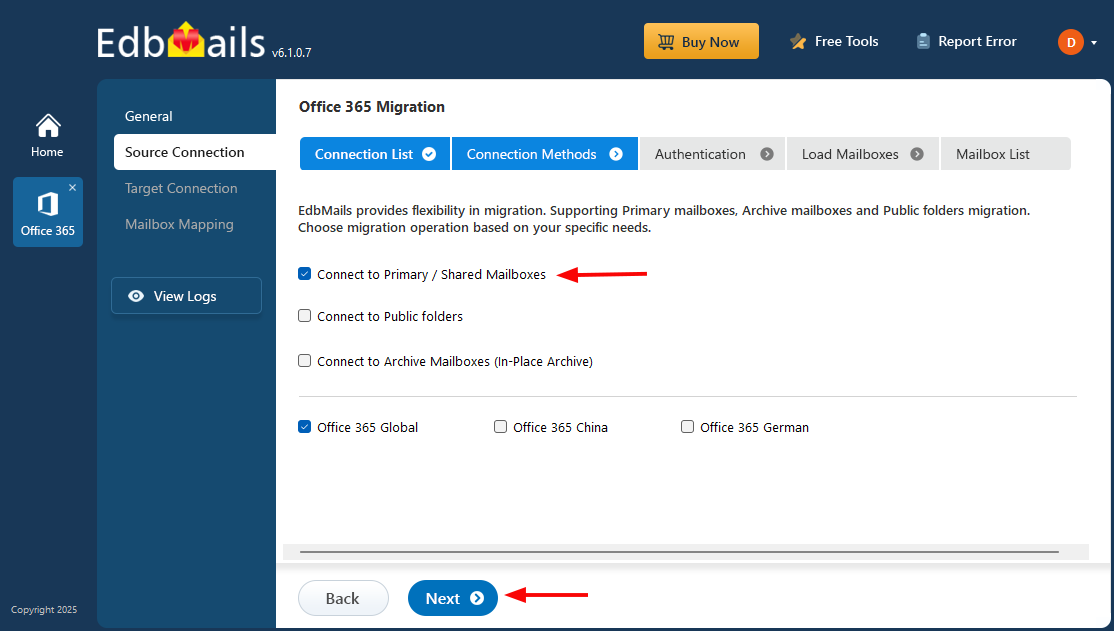
Select Migration Operation
EdbMails provides flexibility in migration operations. You can select to migrate either primary/shared mailboxes, public folders or archive mailboxes. Select the required migration operation and click the ‘Continue’ button.
Authentication on Microsoft Sign-in page
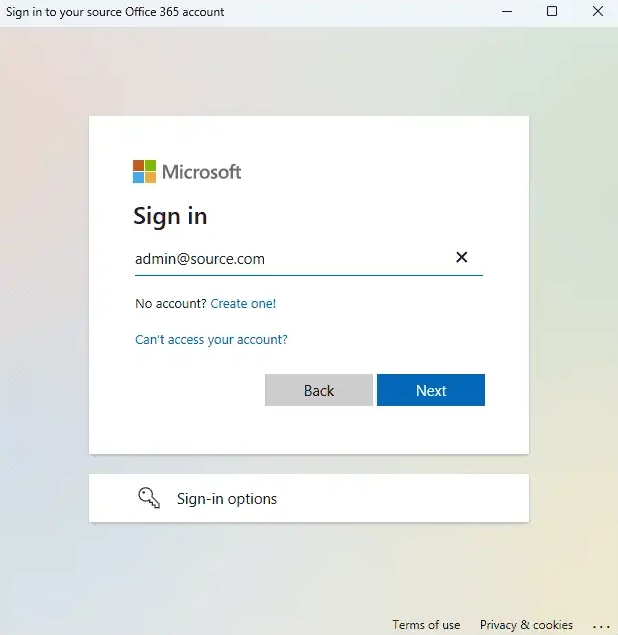
Now, authenticate on Microsoft Sign in page using your Office 365 Global Admin account having a mailbox.
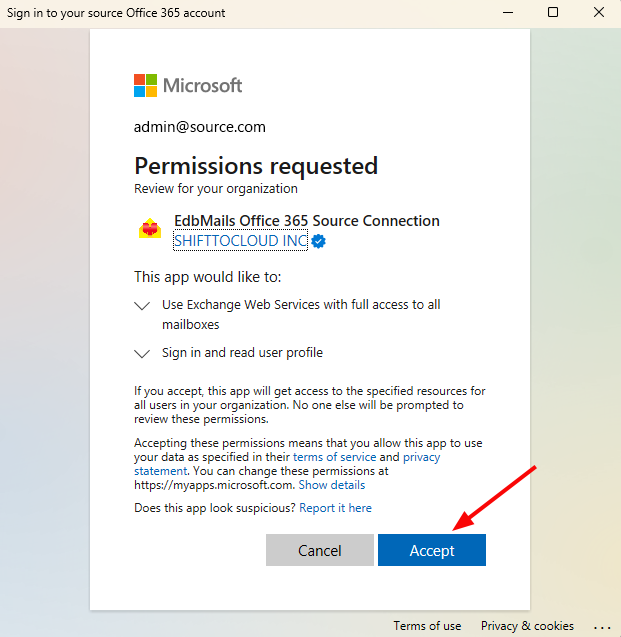
Accept the required permissions
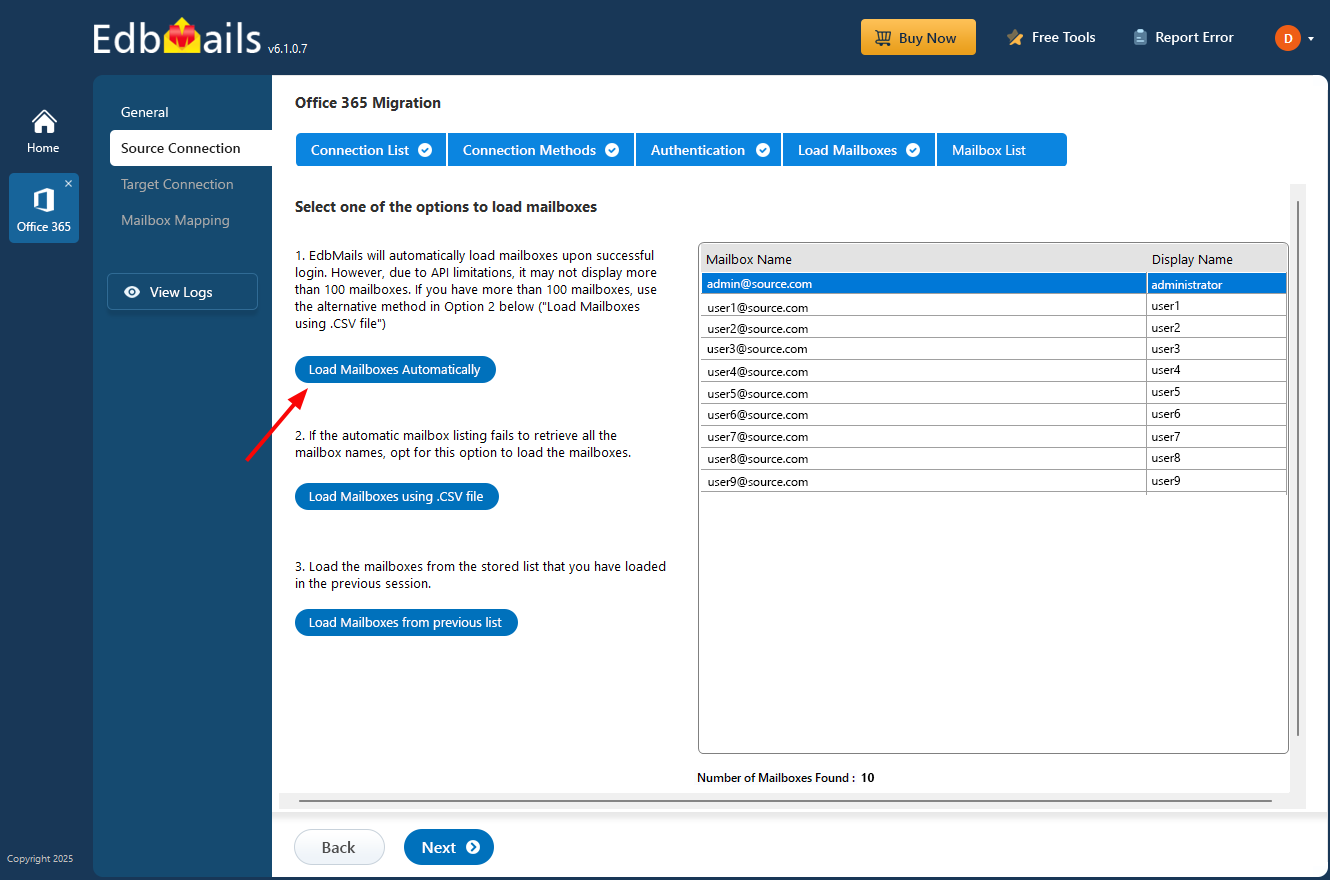
Selection of Mailbox loading option
EdbMails automatically loads mailboxes from the source Office 365 server, though the Microsoft API caps this at 100 mailboxes per load. If the required mailboxes are not listed this way, the CSV file option can be used to load them instead, or mailboxes can be loaded from a previously saved list.