


Recover Deleted Archive Files on Windows
Archive files such as ZIP, RAR, 7Z, and TAR are commonly used to store and transfer multiple files in a single compressed package. Accidental deletion of these archive files can result in the loss of important documents, images, backups, or project data stored within them.
EdbMails Data Recovery Software helps recover permanently deleted archive files from HDDs, SSDs, USB drives, and SD cards detected by Windows. Whether the archive was deleted using Shift + Delete or removed after emptying the Recycle Bin, the software scans the storage device to locate recoverable files.
The recovery process runs in secure read-only mode, ensuring the original storage device remains unchanged during scanning. If the deleted archive file has not been overwritten, you can view the detected archive files and restore the required items safely to another location.
This step-by-step guide explains how to recover deleted archive files on Windows using EdbMails.
Pre-requisites for Archive Recovery
Before you begin recovering deleted archive files, ensure the following:
- Install EdbMails Data Recovery Software on your computer.
- Purchase and activate the required license for Data recovery.
- Ensure sufficient free storage space to save the recovered archive files.
- Avoid using the affected drive to prevent overwriting deleted data.
Steps to Recover Deleted Archive Files on Windows
Follow the steps below to securely recover your deleted data from archive files using EdbMails. This guide helps you locate, access, and safely restore the archived data while maintaining its integrity throughout the recovery process.
- Download and install the EdbMails application on your computer.

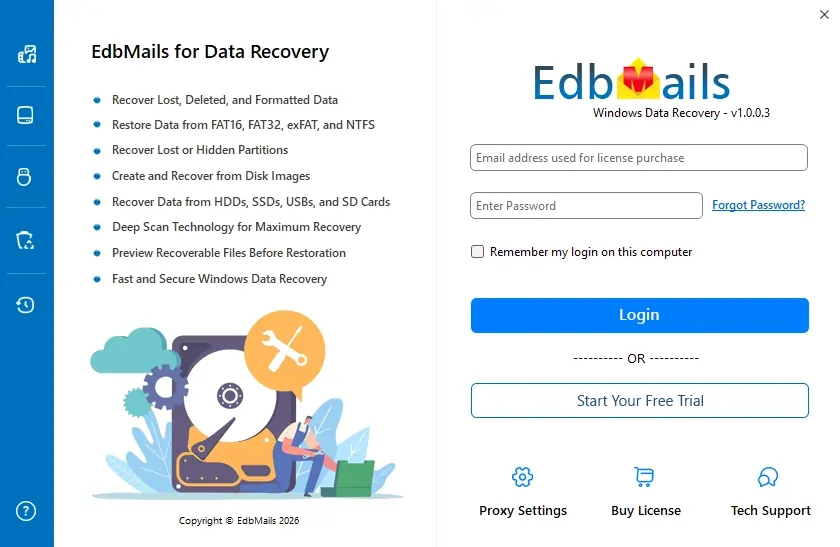
- Enter your email address and password to login. If you haven’t registered yet, click ‘Start Your Free Trial’ to explore the features.
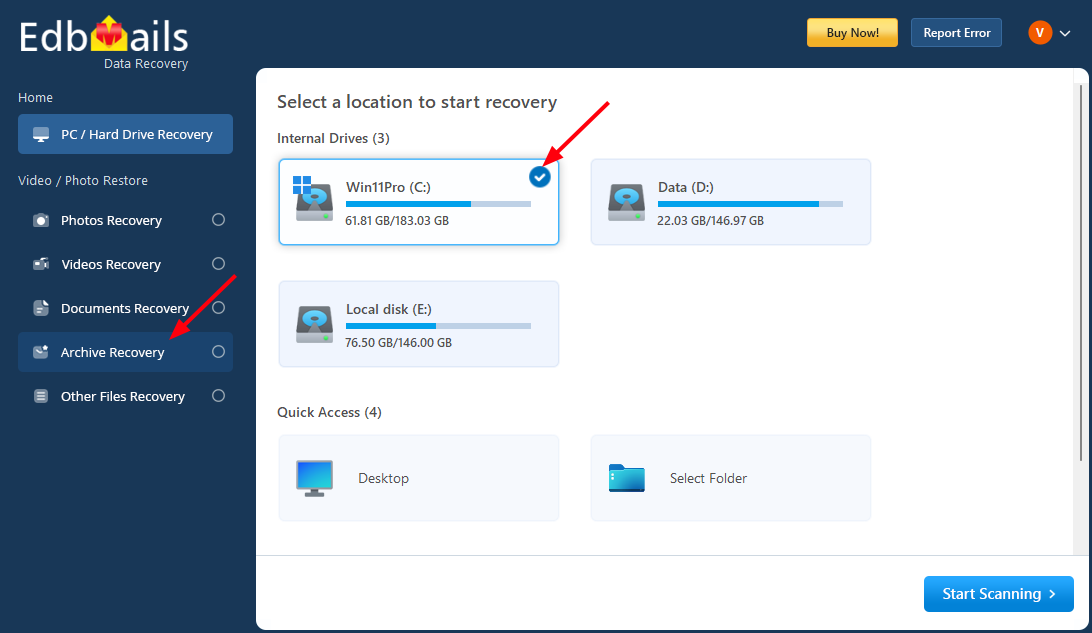
- Choose the drive from which you want to recover items, then click the ‘Archive Recovery’ option in the left-side toolbar to filter and locate archived files.
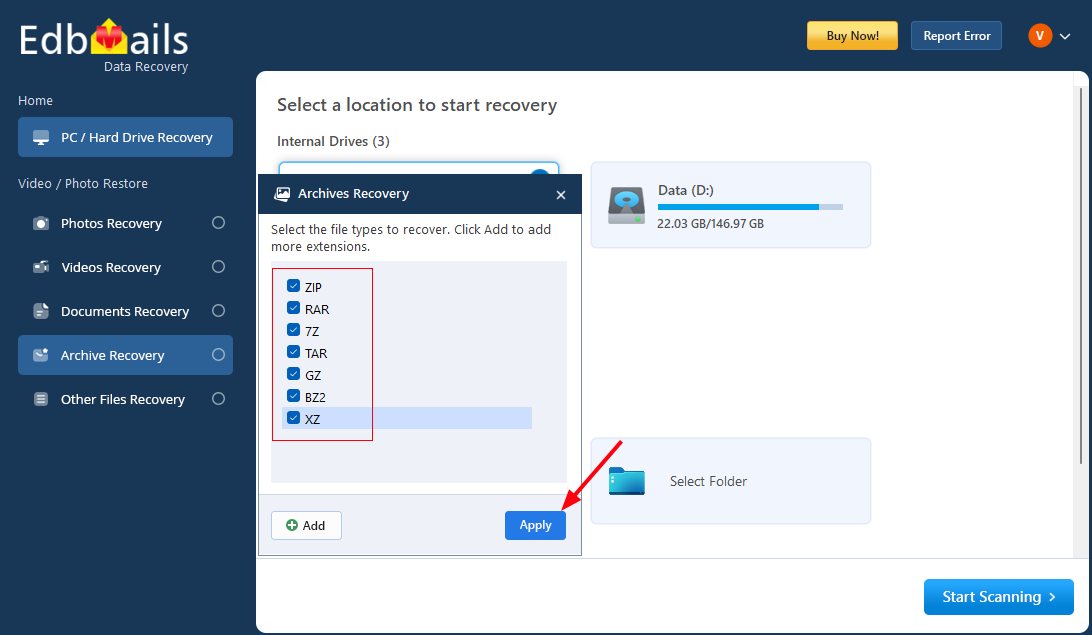
- Select the file types you want to recover, then click ‘Apply’.
Note: If you have additional file extensions, click the ‘Add’ button and enter the file type.
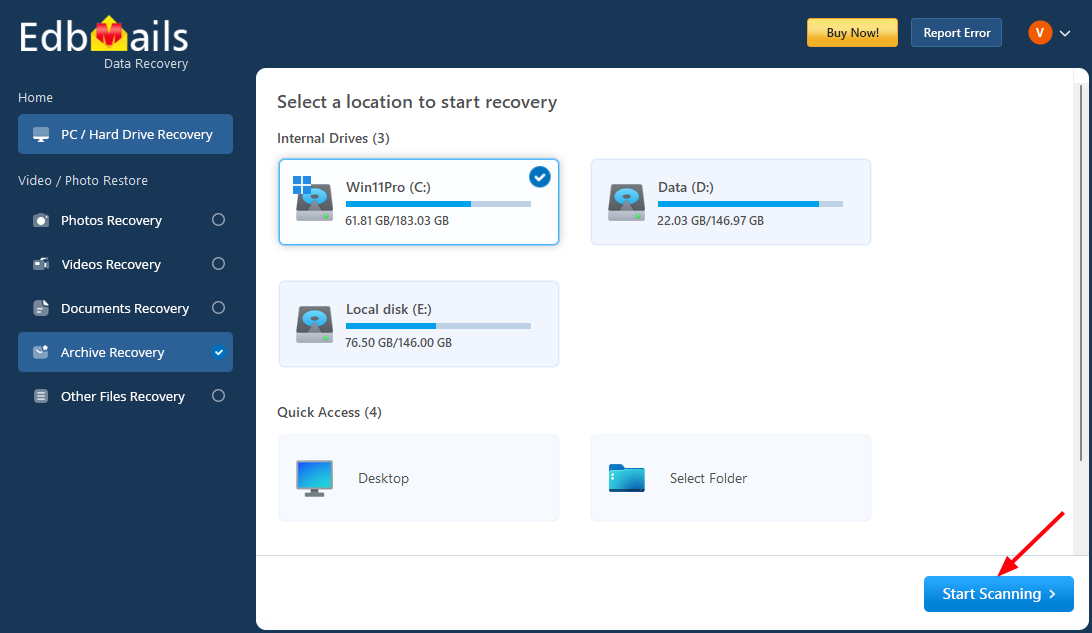
- Click the ‘Start Scanning’ button.
- Select the items you want to recover.
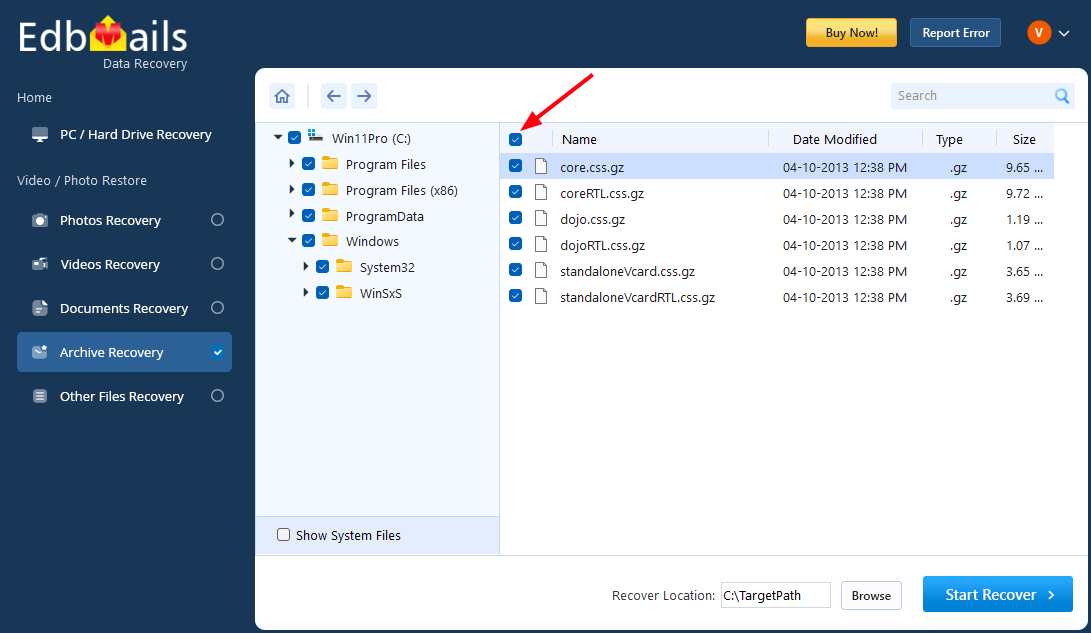
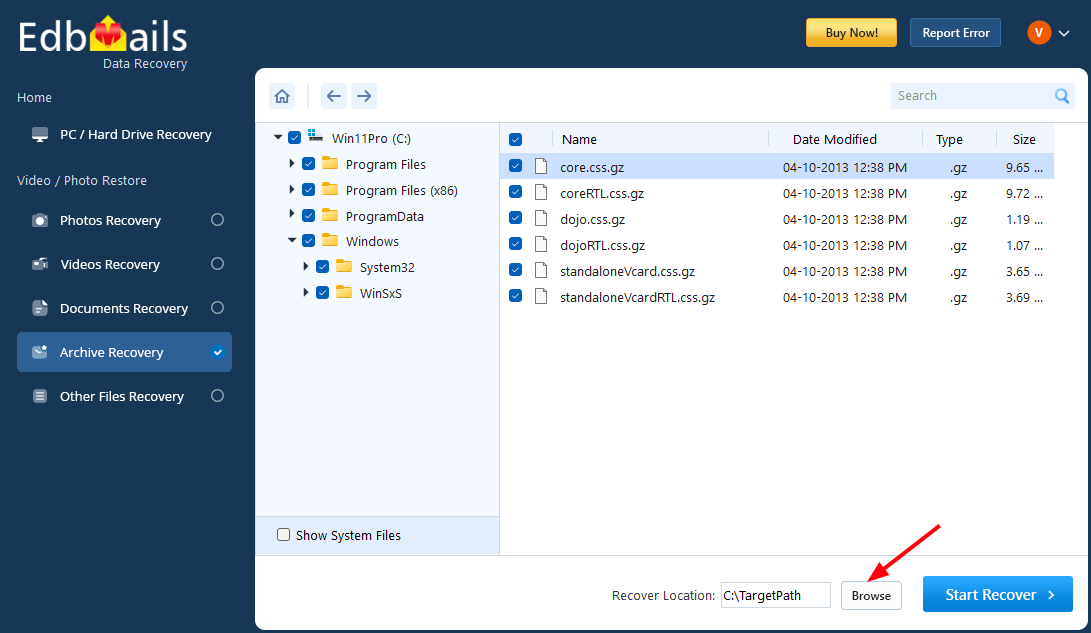
- Click the ‘Browse’ button to select the recovery location.
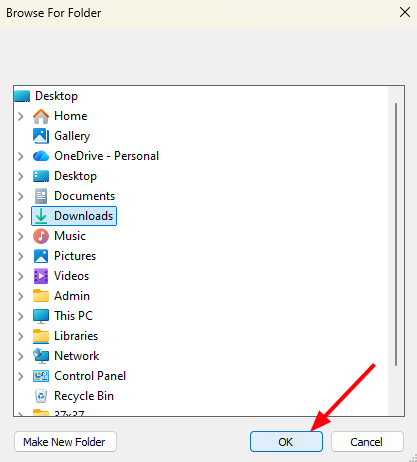
- Choose the desired location and click ‘OK’.
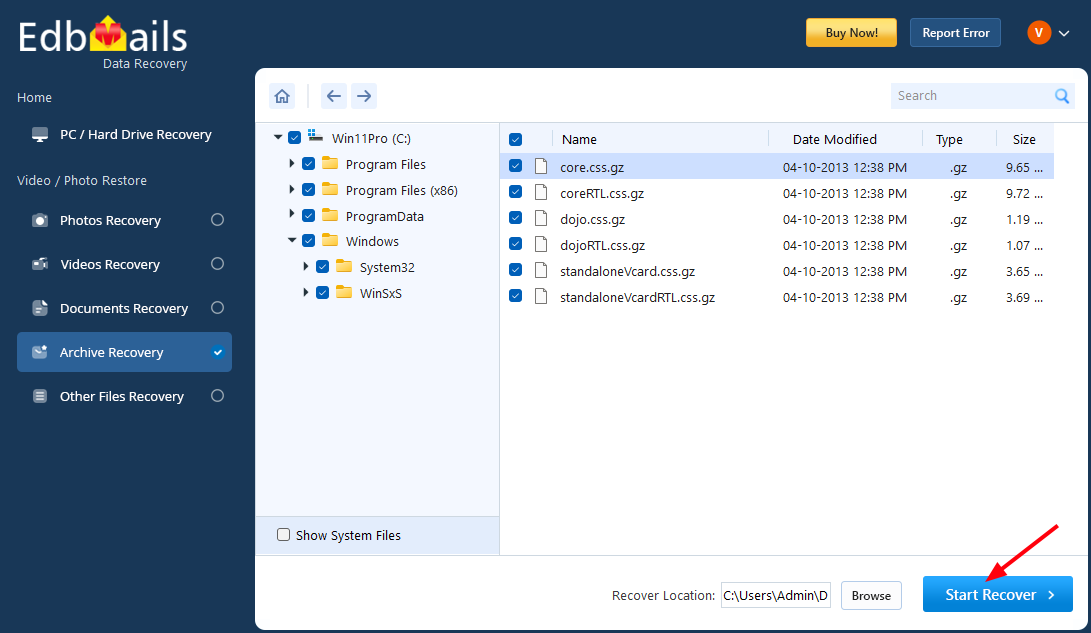
- Click the ‘Start Recover’ button.
- After the recovery process is complete, you will see the total number of recovered archive files.
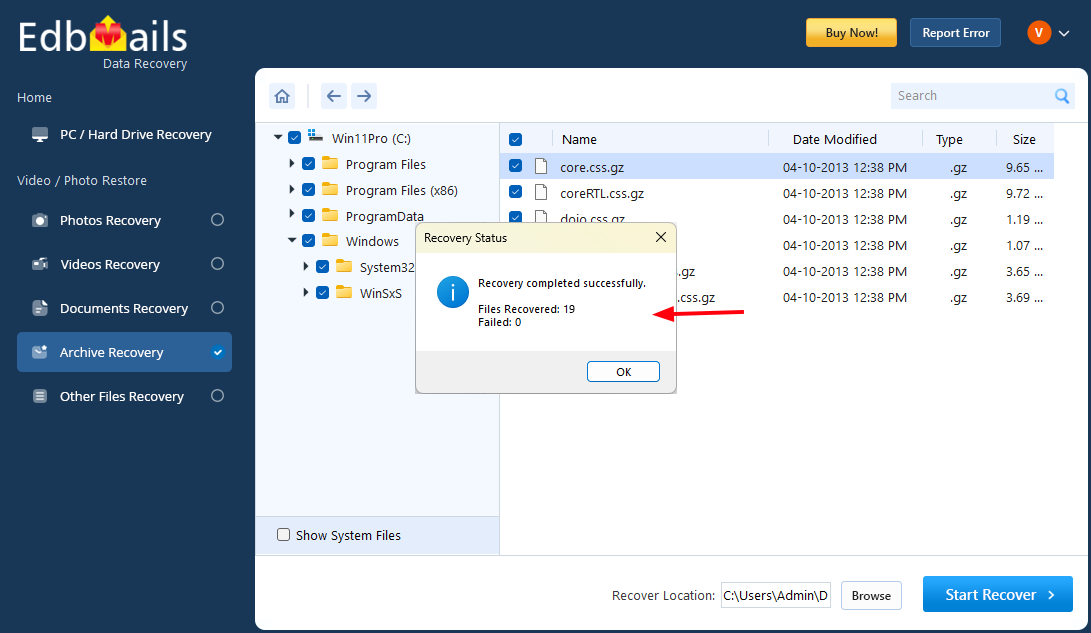
- Navigate to the recovery location to view the recovered archive files.
- Download and install the EdbMails application on your computer.
Supported Archive File Types
EdbMails Data Recovery Software supports recovery of widely used archive and compressed file formats that are commonly used for data storage, backup, and file sharing. Whether the archive contains documents, images, videos, applications, or backup data, the software scans and identifies recoverable compressed files efficiently.
The supported archive formats include:
- ZIP (.zip) – One of the most commonly used compressed file formats for bundling multiple files into a single archive.
- RAR (.rar) – Popular compressed format known for efficient compression and multi-volume archives.
- 7Z (.7z) – High-compression archive format widely used for reducing file size while maintaining data integrity.
- TAR (.tar) – Archive format commonly used for grouping multiple files, especially in backup and system environments.
- GZ (.gz) – Compressed format often used along with TAR files for efficient storage.
- ISO (.iso) – Disk image archive format used for storing complete copies of CDs, DVDs, or system images.
In addition to the above formats, the software can detect and recover other standard compressed and archived file types identified during the scanning process. If the deleted archive file has not been overwritten, it can be viewed and restored safely to a secure location.
Benefits of Using EdbMails Archive Recovery Tool
- Recovers permanently deleted archive files from Windows storage devices.
- Supports archive recovery from HDDs, SSDs, USB drives, and SD cards.
- Allows users to view detected archive files before recovery.
- Enables selective recovery of required archive files.
- Performs secure read-only scanning without modifying the original data.
- Simple and user-friendly interface suitable for both individuals and IT professionals.
- Compatible with multiple Windows operating systems.


