EdbMails EDB Recovery and Migration software
  • Products
    Exchange EDB / Email Recovery Tools
    • EDB Recovery and MigrationRecover EDB to PST, EDB to Office 365 and Exchange NO Duplicate Migration
    • OST Recovery and MigrationRecover OST to PST, OST to Office 365 and Exchange Migration
    • PST Recovery and MigrationRecover Outlook PST, PST to Office 365 and Exchange Migration
    • MBOX Export and MigrationExport MBOX to PST, MBOX to Office 365 and Exchange Migration
    • NSF Export and MigrationExport NSF to PST, NSF to Office 365 and Exchange Migration
    • EML to PST ExportEML files export to Outlook PST format
    • PST to MSG ExportOutlook PST files export to MSG format
    • MSG to PST ExportExport MSG files Outlook PST files
    Exchange and Office 365 Migration
    • Exchange Server MigrationMigrate between any Exchange Servers, Exchange to Office 365, Export Exchange to PST, Migrate PST files to Exchange server
    • Office 365 MigrationMigrate between Office 365 tenants, Office 365 to Exchange, Export Office 365 to PST, Migrates PST files to Office 365
    • IMAP Email Backup & MigrationMigrate between any IMAP Servers (Gmail, Outlook, Zimbra, Zoho, Yahoo etc.), IMAP to Office 365, Exchange, IMAP to PST, PST to IMAP
    • G Suite MigrationMigrate emails, contacts, calendars from G Suite /Google Work Space to Office 365, Exchange, IMAP
    • SharePoint Online MigrationMigrate documents, lists, files and folders from SharePoint sites
    • OneDrive for Business MigrationMigrate documents, lists, files and folders from OneDrive
    • Microsoft Teams MigrationMigrate Teams, chats, channels, documents, files and folders etc.
    Exchange and Office 365 Backup
    • Office 365 BackupIncremental, Granular, Encrypted and Compressed Office 365 Mailboxes Backup
    • Exchange Server BackupIncremental, Granular, Encrypted and Compressed Exchange Mailboxes Backup
    • SharePoint, OneDrive & Teams BackupBackup Online site collections, Team sites, Office 365 groups, all documents etc.
    • Duplicate Remover - Office 365, Exchange, IMAP & Outlook Remove duplicate emails, calendars, contacts, journal etc. from Office 365, Exchange, IMAP, Outlook, Gmail, Zimbra, Zoho Mail etc.
    • Windows Data Recovery Recover and restore permanently deleted data from partitions across hard drives, SSDs, USB drives, SD cards, and external storage devices.
    • More Products
  • Features
  • FAQ
  • Pricing
  • Download
  • Support
  • Sign in
User’s Manual
Windows Data Recovery

User Manual

User Manual

  • Overview
  • System Requirements
  • Installation
    • Installation process
    • Reinstall or Upgrade
    • How to uninstall
  • FAQs
  • Videos
  • Screenshots
    • SD Card Data Recovery
    • Recycle Bin Recovery
    • USB Data Recovery
    • Hard Drive Data Recovery
    • Photo Recovery
    • Video Recovery
    • Document Recovery
    • Archives Recovery
  • How it works?
    • SD Card Data Recovery
    • Recycle Bin Recovery
    • USB Data Recovery
    • Hard Drive Data Recovery
    • Photo Recovery
    • Video Recovery
    • Documents Recovery
    • Archives Recovery
  1. Home
  2. Product
  3. Uninstall EdbMails Windows Recovery Software
Download Buy Now

Uninstalling the EdbMails Application

This section provides instructions to uninstall the Windows recovery software from your system. Uninstalling the software may be required when you want to remove the application, reinstall it, or free up system resources.

The uninstall process is simple and can be completed using the Windows system settings without affecting other applications on your system.

Before You Uninstall

Before removing the software, ensure the following:

  • Complete or stop any ongoing recovery tasks to avoid interruption during the process
  • Exit the EdbMails application completely to prevent conflicts during uninstallation

Follow the steps to uninstall the software through the standard Windows method.

  1. Click on the ‘Start’ button located in the Windows taskbar.
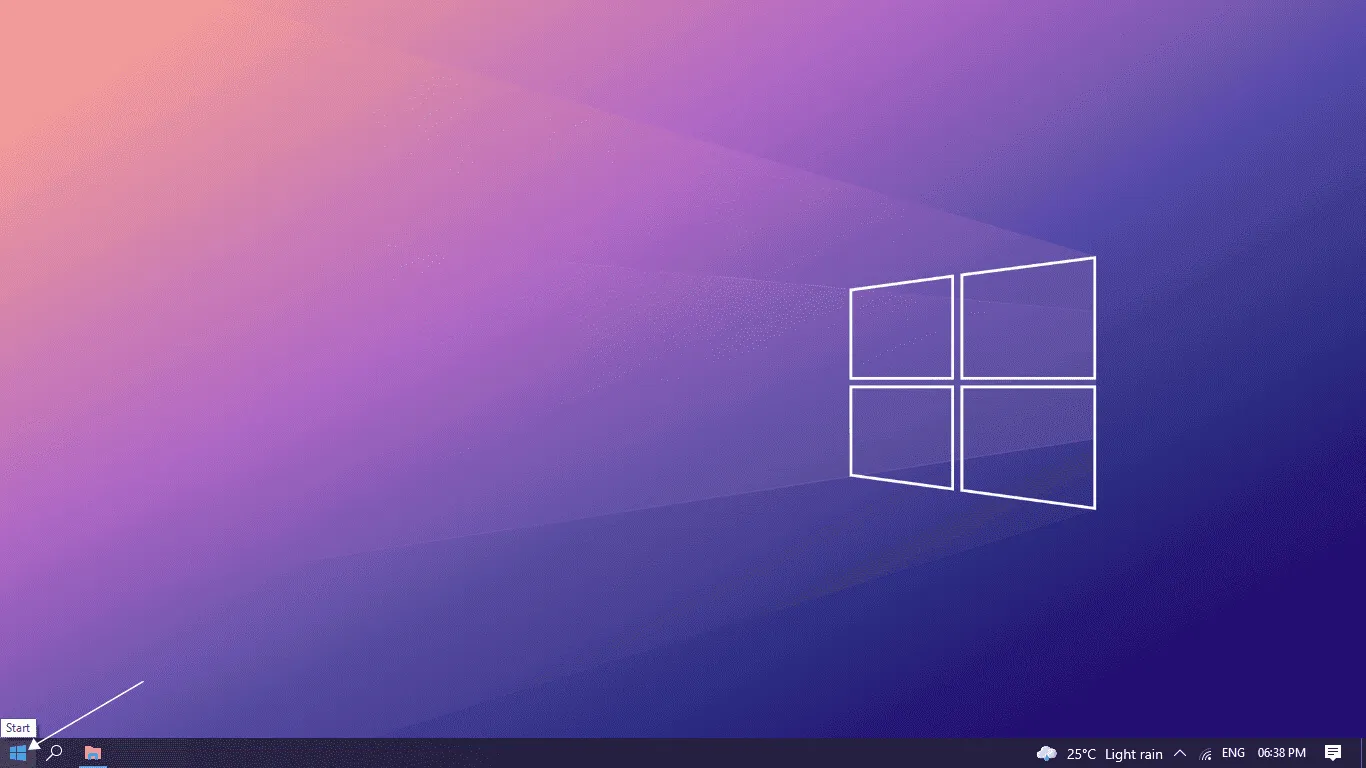
    Click Start

  2. Search for and select ‘Settings’ from the menu.
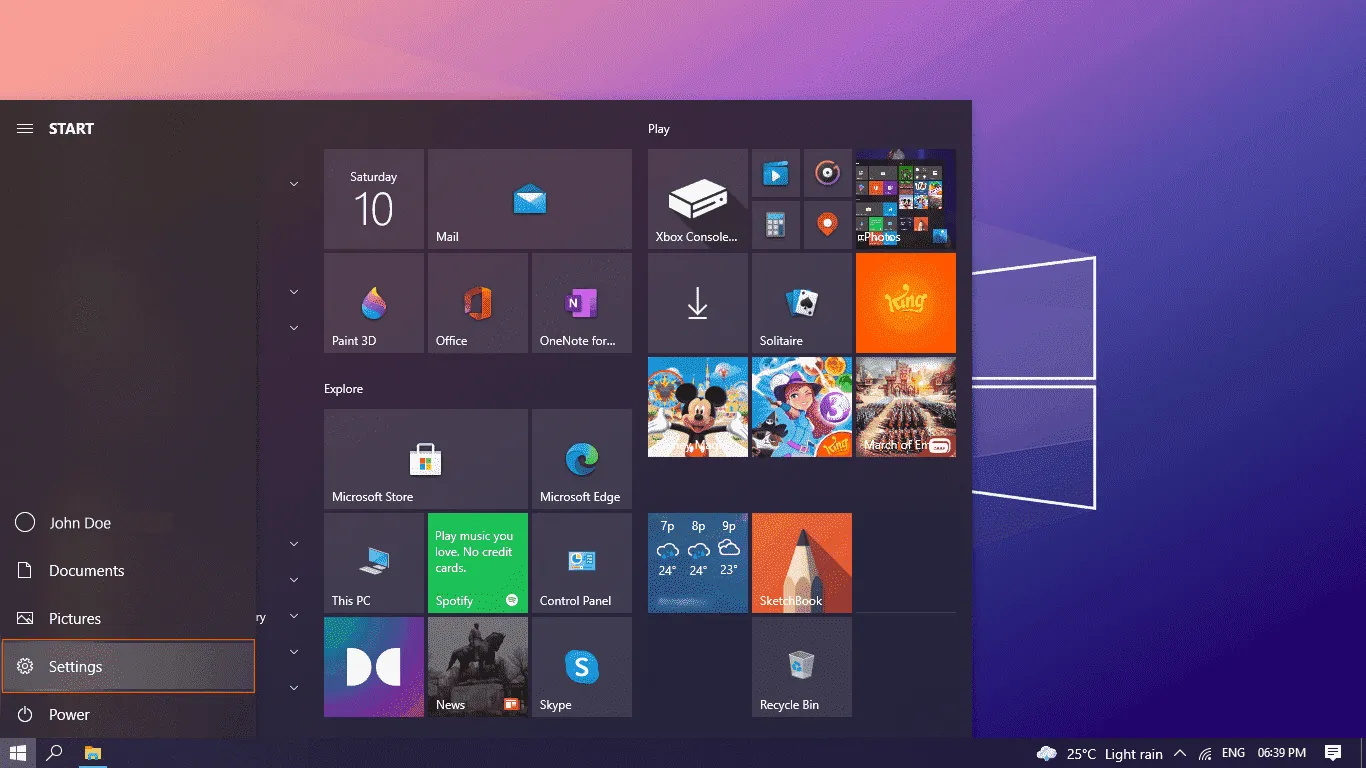
    settings

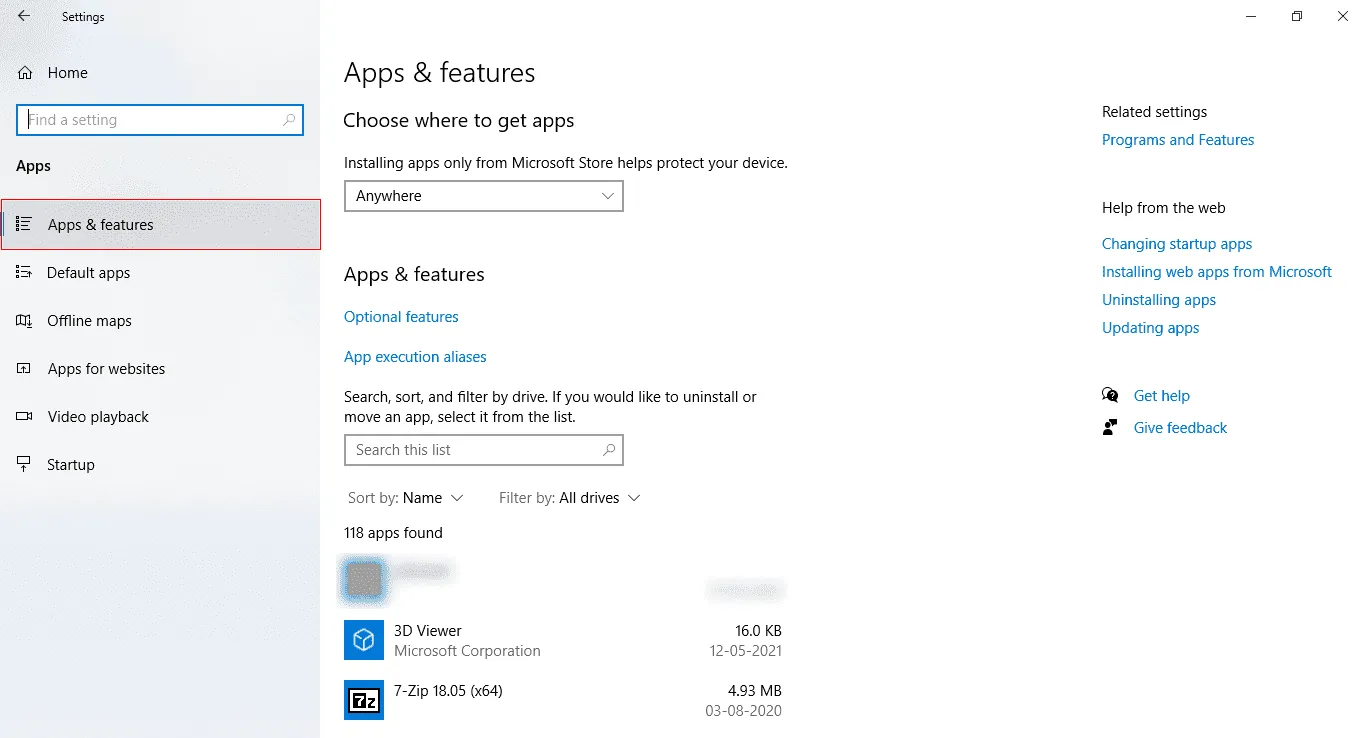
  3. In the Settings window, click on 'Apps'.
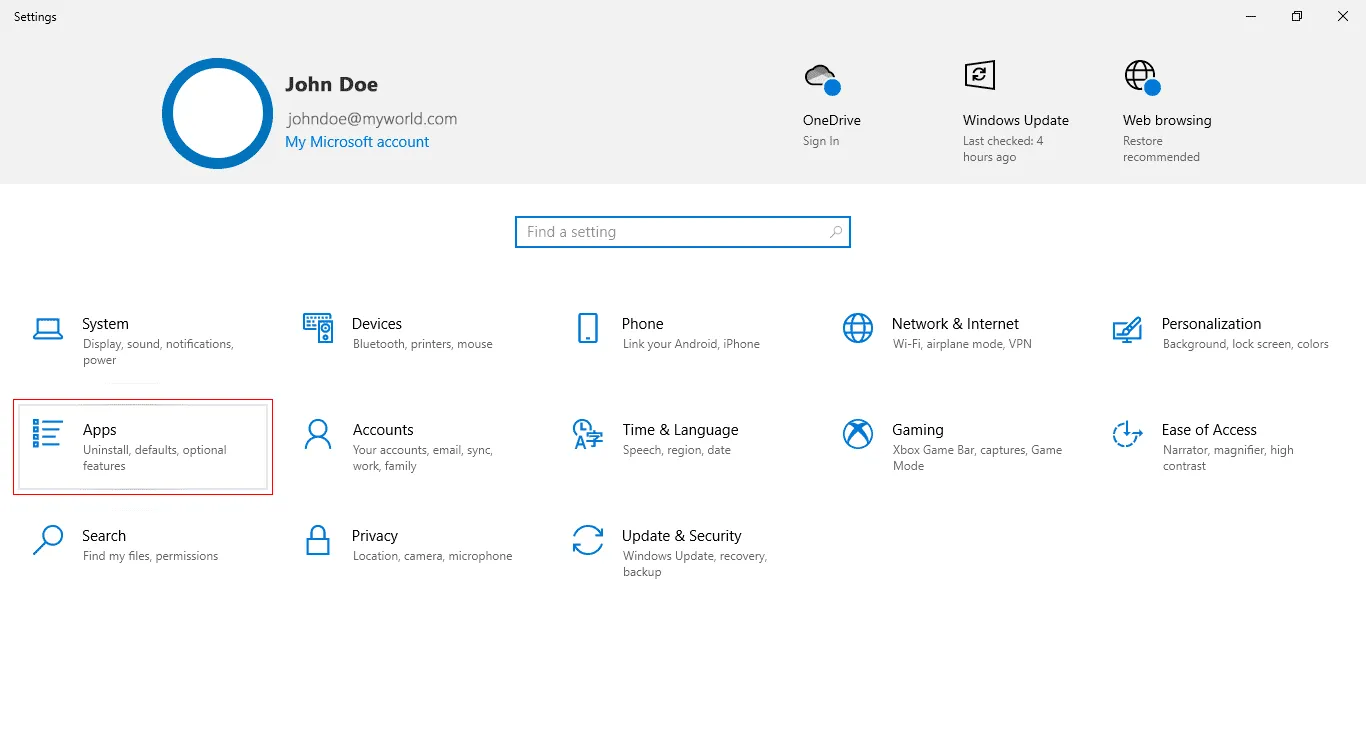
    Select Apps

  4. Choose ‘Installer Apps’.

    installed apps

  5. Locate EdbMails by browsing the list or by entering it in the search bar.
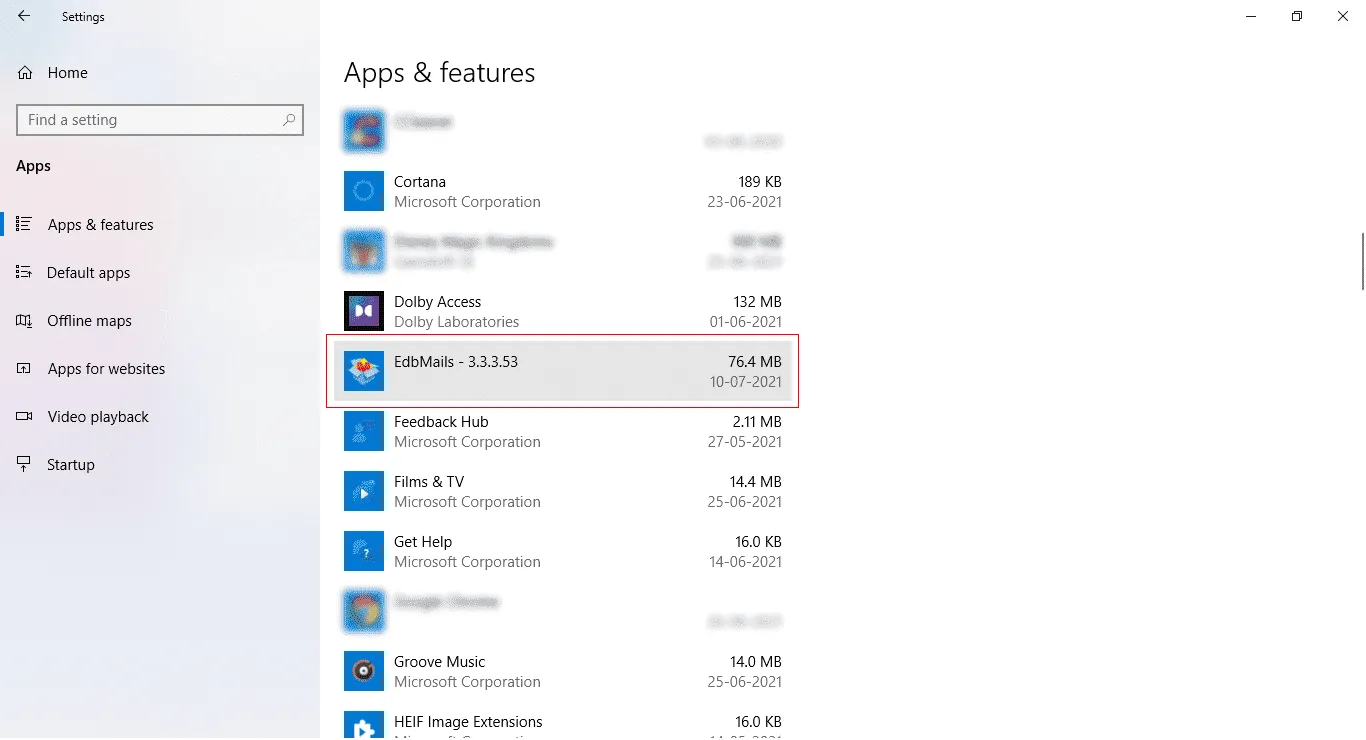
    locate EdbMails

  6. Click the three dots(...) next to EdbMails, then click ‘Uninstall’ and confirm.
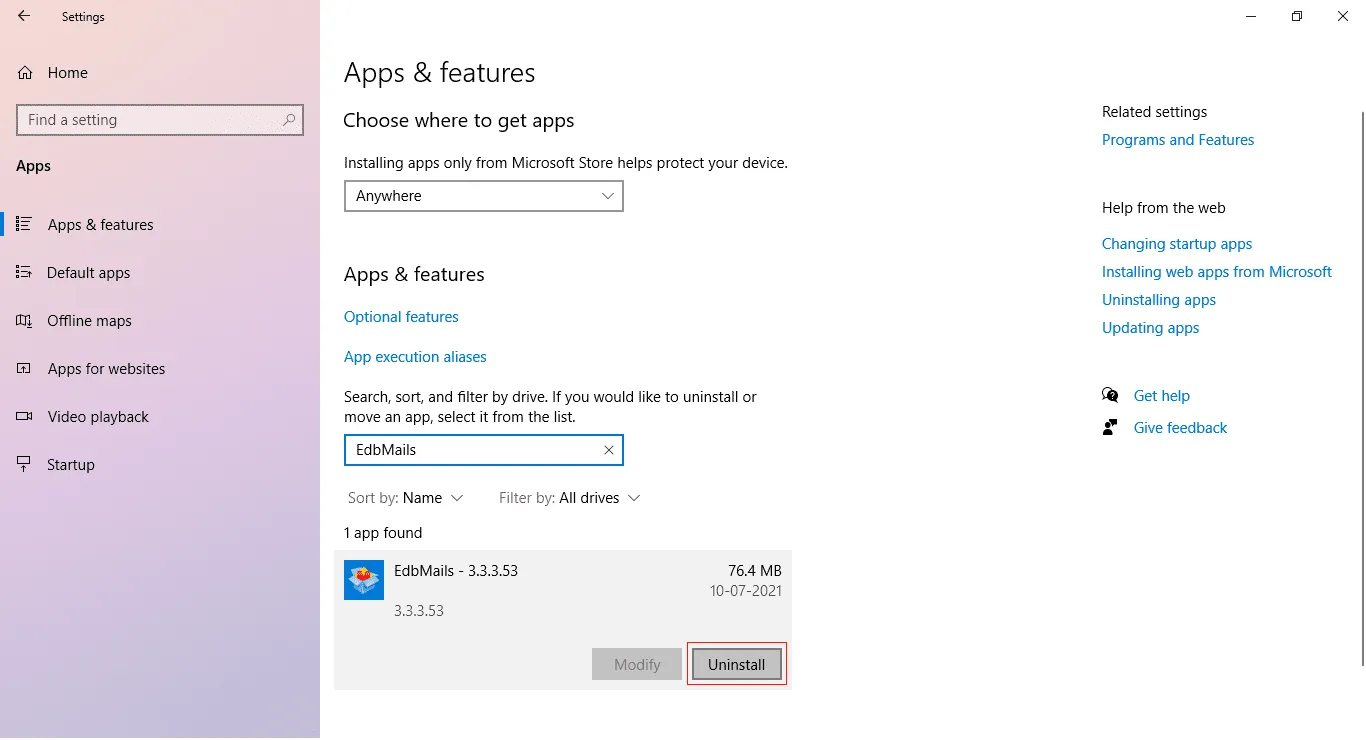
    Uninstall EdbMails

How to Uninstall EdbMails Using the Control Panel

To uninstall EdbMails using Control Panel follow the below steps:

  • Open the Control Panel on your Windows system and navigate to Programs and Features.
  • Locate the EdbMails application in the list of installed programs.
  • Select the application and click Uninstall to start the removal process.
  • Follow the instructions displayed in the uninstall wizard to complete the process.
  • After the process finishes, the application will be removed from your system.

 

 In this manual

IntroductionBefore You UninstallHow to Uninstall

Windows Data Recovery

Starts from $45

Buy Now

Need help?

24/7 Customer support

Contact us on Live chat

Personalized Demo

Book a personalized demo

Still need help?

Email us / Call us

© 2026 Shifttocloud Inc. Privacy Policy | Terms of Use | GDPR | Security | Press Releases

hidden msg
Live Chat

Hi, May I help you?

Hide Chat Now