


USB Data Recovery
Data loss from USB storage devices often occurs due to accidental deletion, files being removed using Shift + Delete, or unsafe removal. Files may become inaccessible or appear missing, but in many cases, the data still exists on the device. A detailed scan can locate these recoverable files, enabling safe and reliable recovery without modifying the source USB drive.
USB flash drives and other removable storage devices are widely used for storing photos, videos, documents, and other important files. EdbMails Data Recovery Software provides an efficient solution to recover lost or deleted data from USB drives. The software supports a wide range of file types and storage formats, helping you quickly and securely restore your important files.
With EdbMails, you can recover data from USB flash drives/pen drives and other removable storage without any technical expertise. Its user-friendly interface and powerful scanning engine ensure that even large volumes of data can be retrieved efficiently.
This guide provides step-by-step instructions to help you recover your lost files from USB drives, ensuring a smooth and secure recovery process.
Supported File Formats for USB Data Recovery
EdbMails Data Recovery supports the recovery of commonly used file formats stored on USB drives. During the scan process, the application identifies and displays recoverable files across multiple categories.
Supported file types include:
- Documents: DOC, DOCX, XLS, XLSX, PPT, PPTX, PDF, TXT, CSV
- Images: JPG, JPEG, PNG, GIF, BMP, TIFF
- Audio: MP3, WAV, WMA, AAC
- Video: MP4, AVI, MOV, WMV, MKV
- Compressed Files: ZIP, RAR, 7Z
- Other Common Files: HTML, XML, LOG, EXE
In addition to the formats listed above, EdbMails can recover other file types that were deleted from the USB drive, provided the data remains recoverable on the storage device.
Steps to Recover Deleted Files from a USB Drive
Follow the steps below to recover lost or deleted files from your USB storage device.
- Download and install the EdbMails application on your computer.

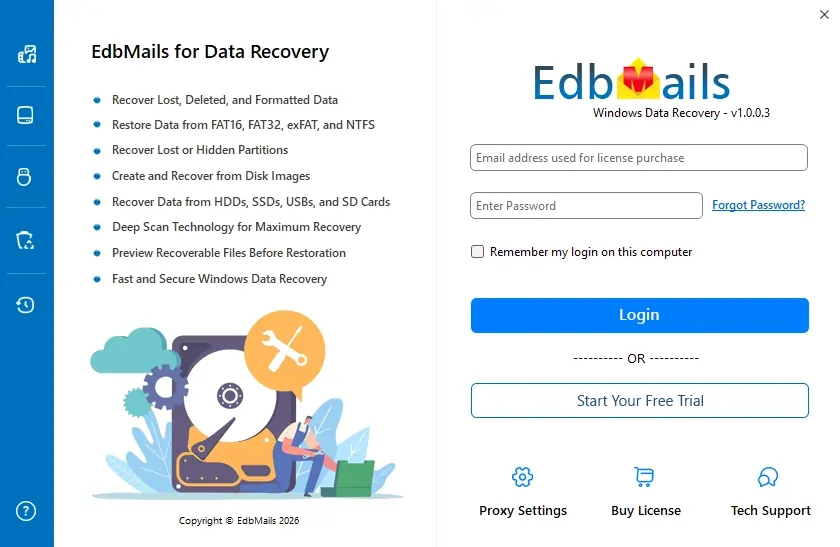
- Enter your email address and password to login. If you haven’t registered yet, click ‘Start Your Free Trial’ to explore the features.
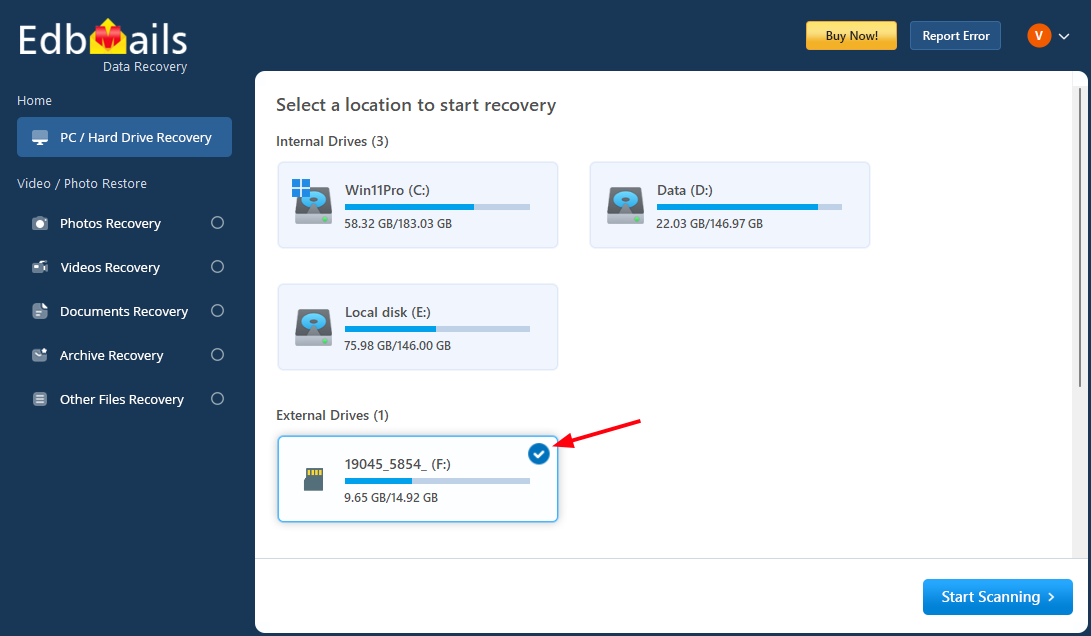
- Insert the USB/Pen drive into your computer.
- Select the USB/Pen drive to recover your deleted items.
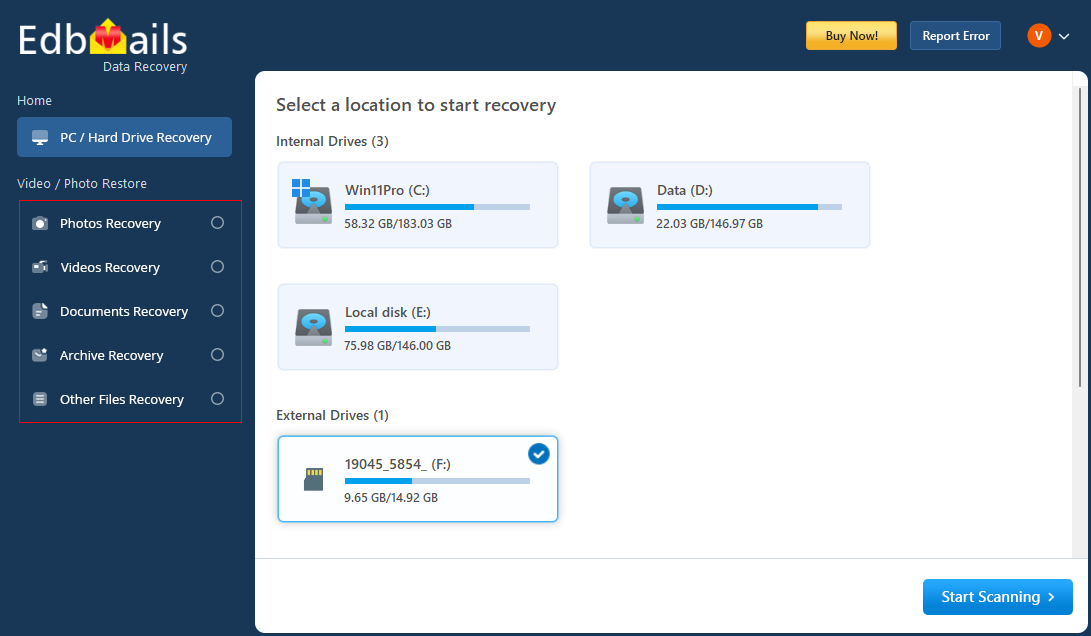
- If needed, select the desired filter from the left-side navigation bar and click the ‘Apply’ button.
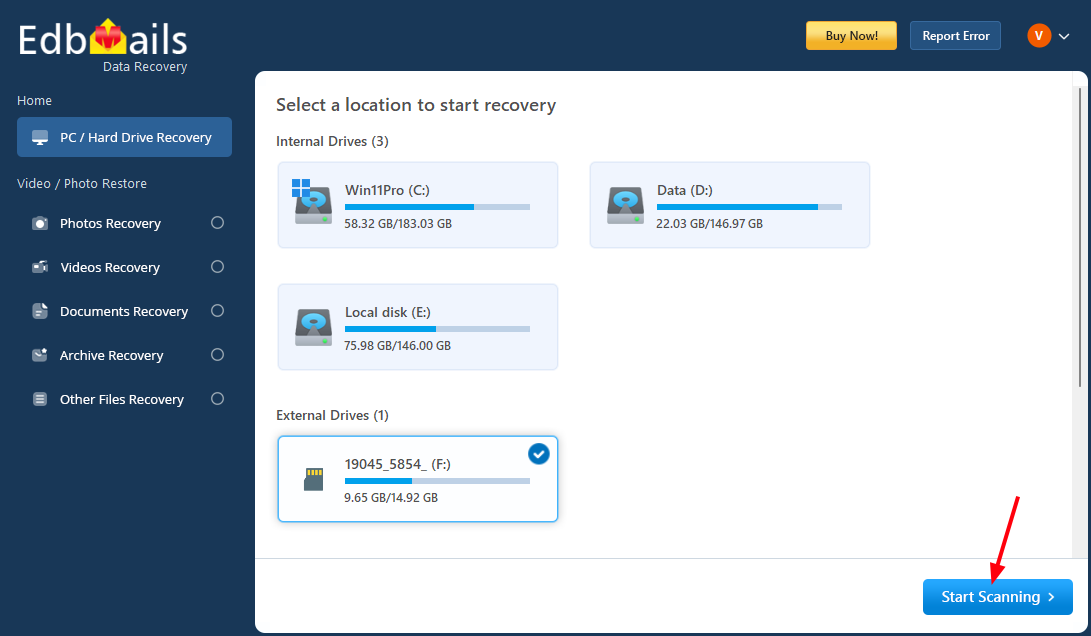
- Click the ‘Start Scanning’ button.
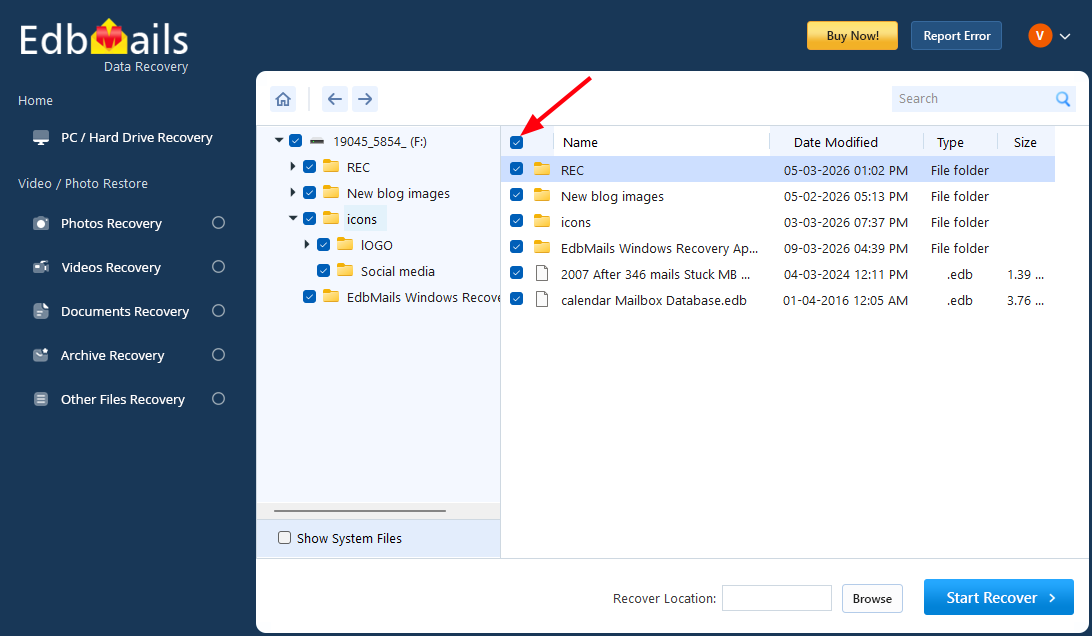
- Select the required folders that you want to recover.
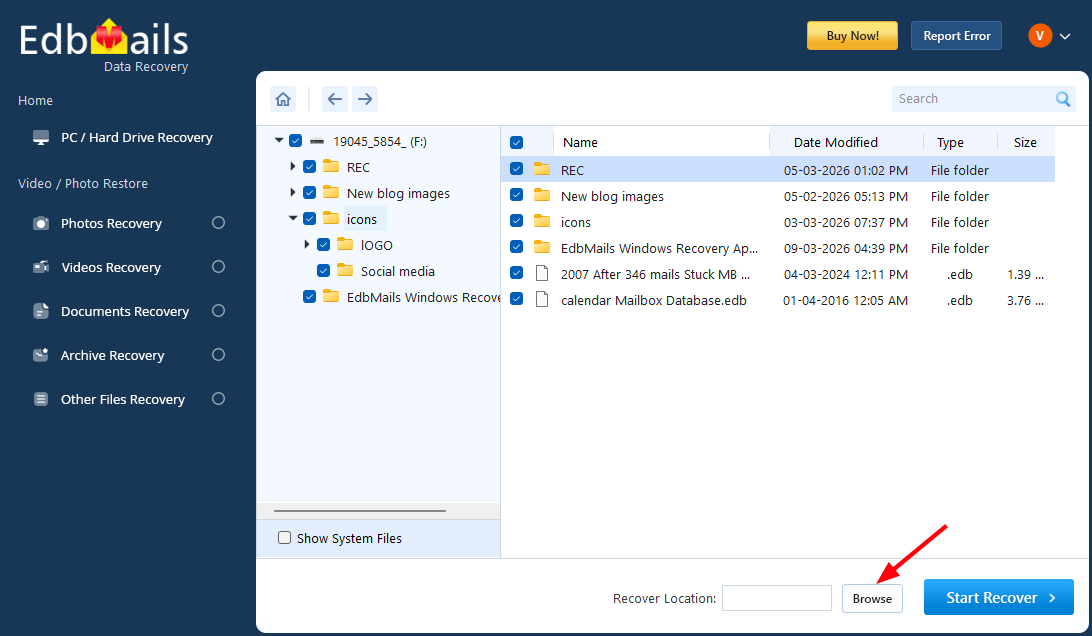
- Click the ‘Browse’ button to select the recovery location.
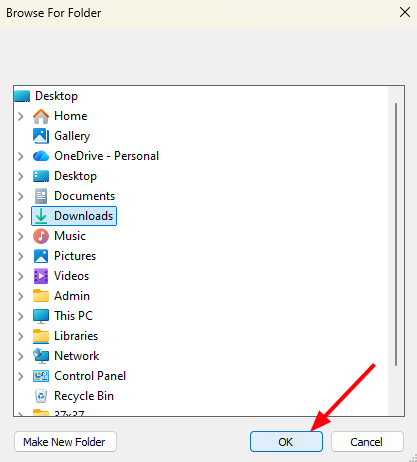
- Choose the desired location and click ‘OK’.
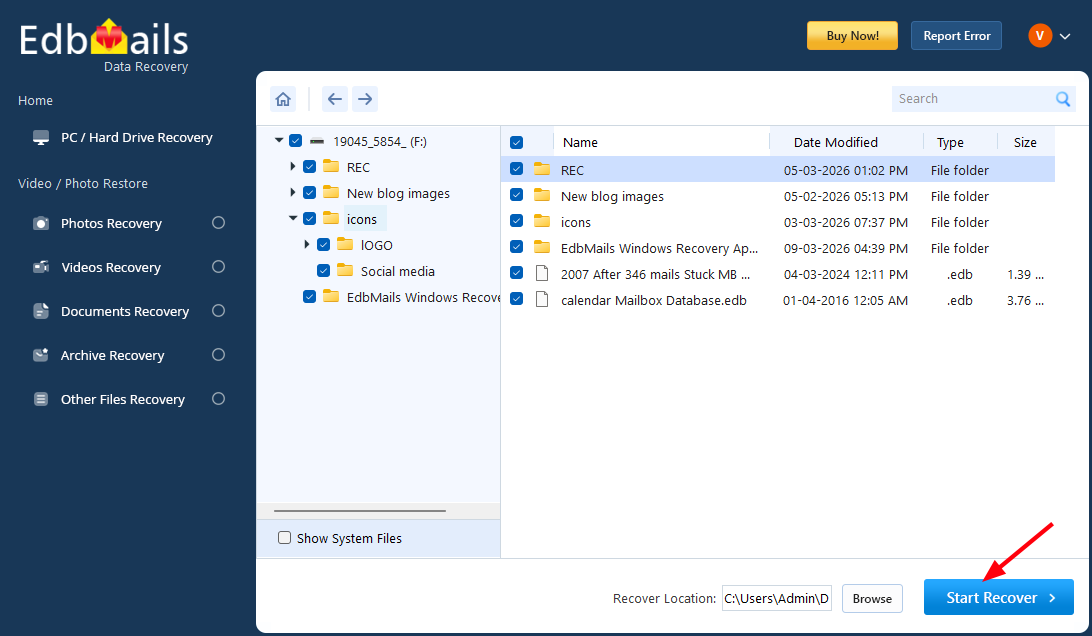
- Click the ‘Start Recover’ button.
- Once recovery is complete, the total number of recovered items will be displayed.
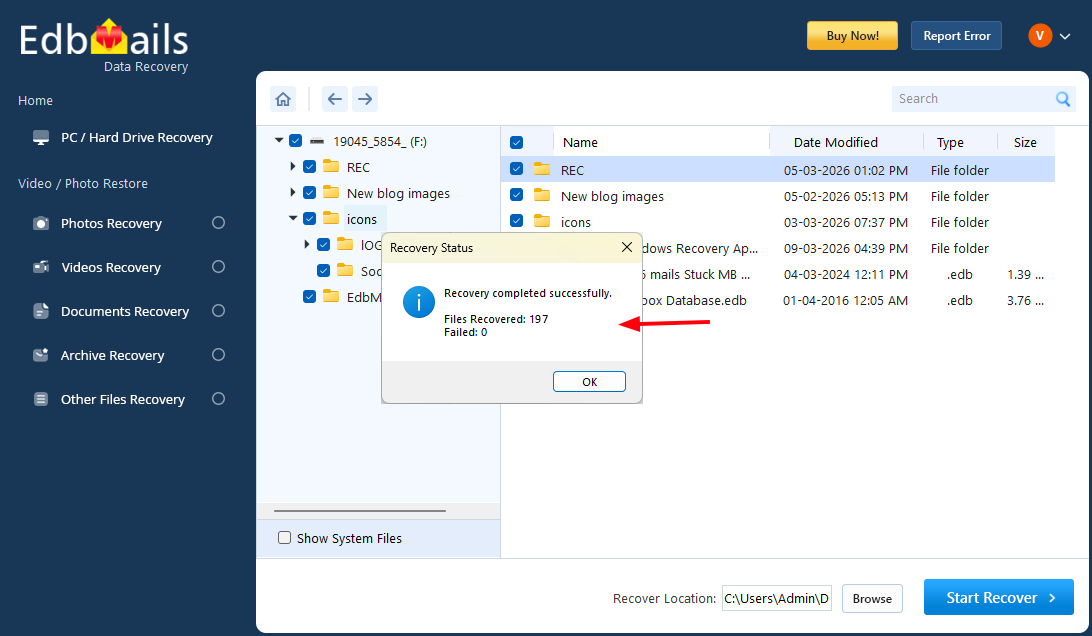
- Open the recovery location to view your recovered files.
- Download and install the EdbMails application on your computer.
Key Features of EdbMails USB Data Recovery Software
- Recover deleted and permanently deleted files: EdbMails enables users to recover files that were accidentally deleted from USB storage devices. The software can identify files removed through normal deletion as well as those deleted using Shift + Delete, helping restore important data that is no longer accessible through the operating system.
- Automatically detect connected USB drives: The application automatically identifies USB drives connected to the computer and lists them among the available storage devices. This allows users to quickly locate the correct USB drive and begin the recovery process without manually configuring the device.
- Supports recovery of multiple file types: EdbMails supports recovery of a wide range of commonly used file formats. Users can recover documents, photos, videos, audio files, compressed archives, and other important files that were stored on the USB device.
- View recoverable files before restoration: After scanning the USB drive, the software allows users to view the recoverable items detected during the scan. This helps users verify the available files and confirm that the required data is present before initiating the recovery process.
- Category-based file filtering options: The software includes filtering options that organize recoverable files into categories such as photos, videos, documents, archives, and other file types. This makes it easier to locate specific files quickly when the scan results contain a large number of items.
- Selective file and folder recovery: Instead of restoring all detected data, users can select specific files or folders they want to recover. This selective recovery approach helps save time and allows users to focus only on the data they actually need.
- Secure read-only scanning process: The software performs all scanning operations in read-only mode. This ensures that the original USB drive data is not modified, overwritten, or affected during the recovery process, maintaining the integrity of the source device.
- Supports FAT32, exFAT, and NTFS File Systems: EdbMails USB Data Recovery Software supports USB drives that use commonly used Windows file systems such as FAT32, exFAT, and NTFS. This compatibility allows the software to scan the connected USB drive and identify deleted files available for recovery.
- Simple and user-friendly interface: EdbMails provides an intuitive interface that guides users through the recovery process step by step. Even users without technical experience can easily scan a USB drive, locate recoverable files, and restore them with minimal effort.
EdbMails can recover deleted files from these memory cards when they are connected to a Windows system through a card reader or adapter.


