


Recycle Bin Recovery on Windows
Files deleted on Windows systems are first moved to the Recycle Bin, where they can be easily restored. However, once the Recycle Bin is emptied, files are permanently removed from internal drives such as HDDs and SSDs and are no longer visible. Even after deletion, the underlying data may still exist on the storage device until it is overwritten.
EdbMails Data Recovery Software helps recover files deleted from the Recycle Bin on Windows internal drives. In addition, files deleted from USB drives and SD cards are removed directly without going to the Recycle Bin, but they can still be recovered through a detailed scan. The software performs scanning in secure read-only mode, ensuring that the original data is not modified during the recovery process.
If the deleted data has not been overwritten, you can view the detected files and selectively restore the required items to a safe location. This step-by-step guide explains how to recover deleted files from the Recycle Bin using EdbMails.
Pre-requisites for Recycle Bin Recovery
Before starting the recovery process, ensure the following:
- Install EdbMails Data Recovery Software on your Windows computer.
- Purchase and activate the required license for full recovery.
- Verify that your system has sufficient free storage space to save recovered files.
- Avoid writing new data to the affected drive to prevent overwriting deleted files.
Steps to Recover Files Deleted from the Recycle Bin
Follow the steps below to quickly recover deleted files from the Recycle Bin and restore your data safely and efficiently.
Step 1: Download and Install EdbMails application
- Download and install the EdbMails application on your computer.

- Enter your email address and password to login. If you haven’t registered yet, click ‘Start Your Free Trial’ to explore the features.

- Expand and select the ‘Data Recovery Software’ option.
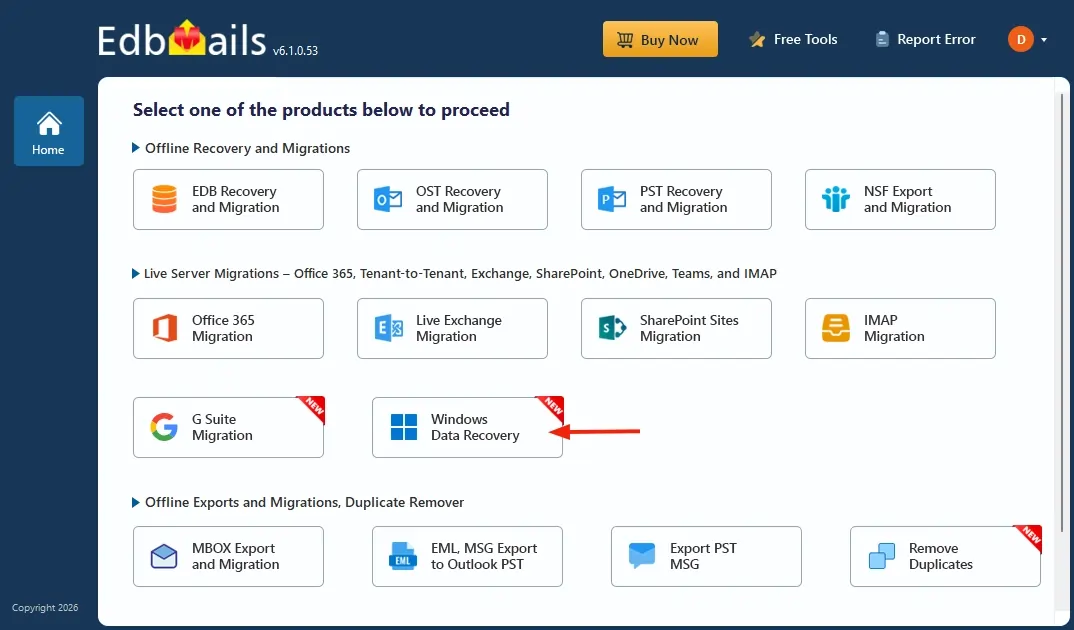
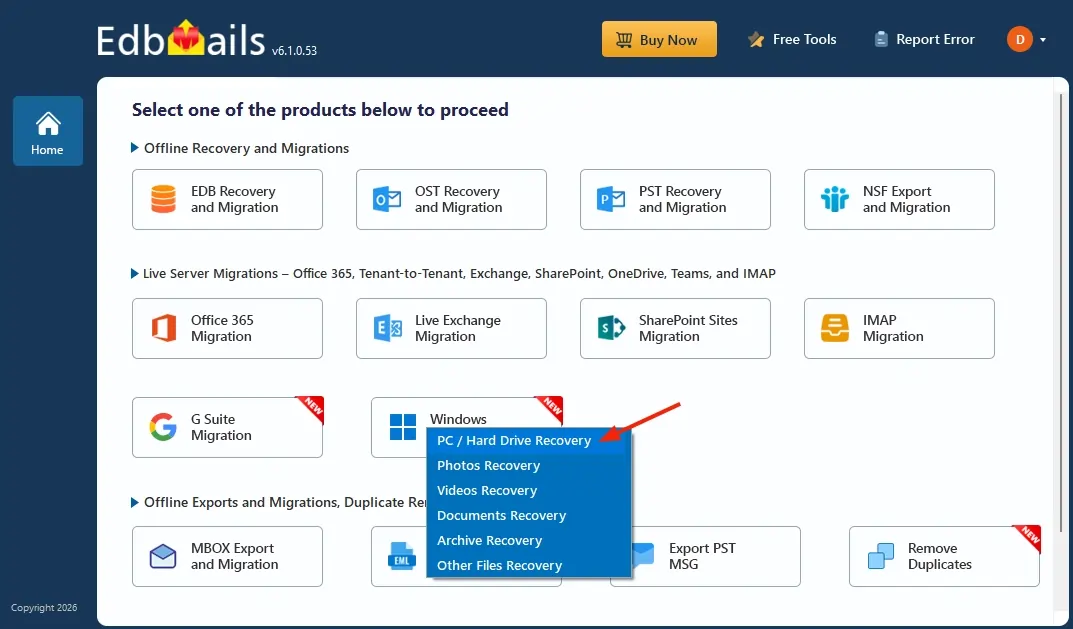
- Now, select the ‘PC / Hard Drive Recovery’ option.
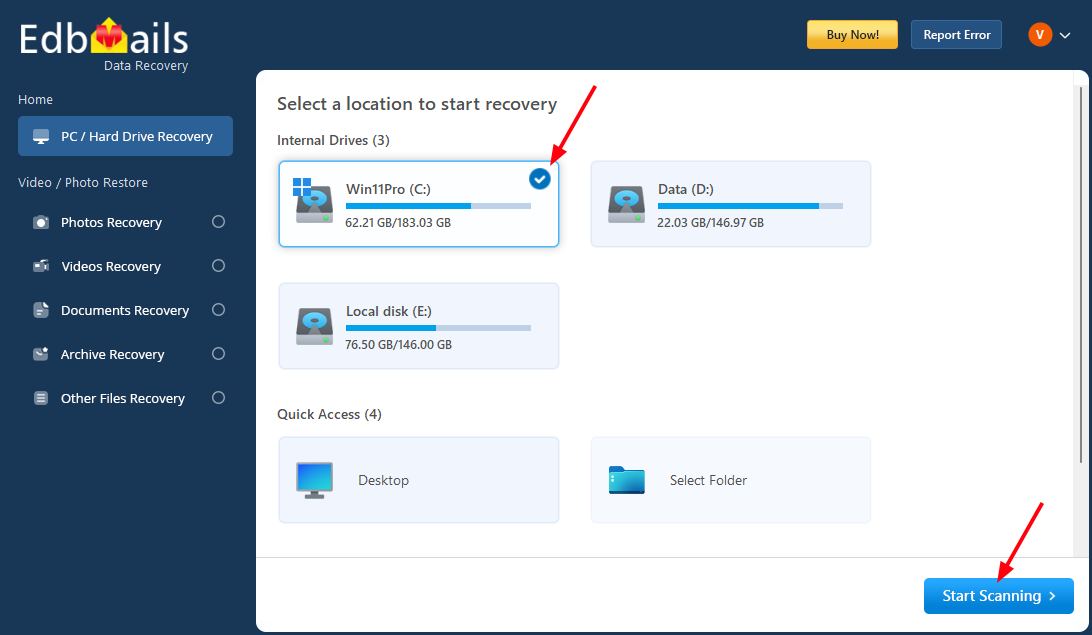
- Select the drive (e.g., C:, D:) where the deleted files were originally stored, then click ‘Start Scanning’ to locate deleted files from the Recycle Bin.
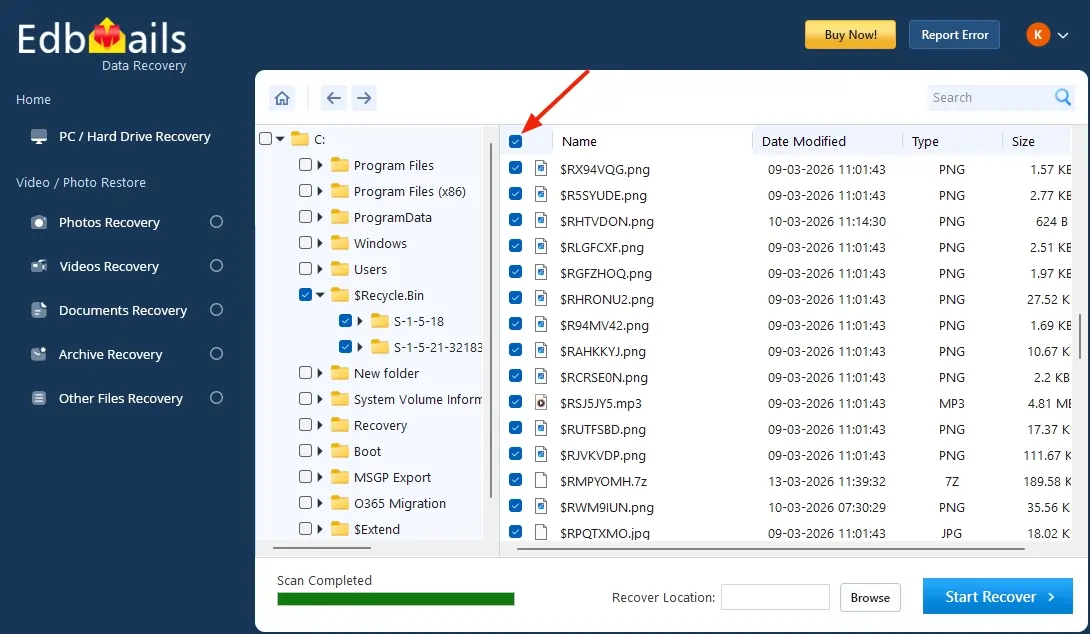
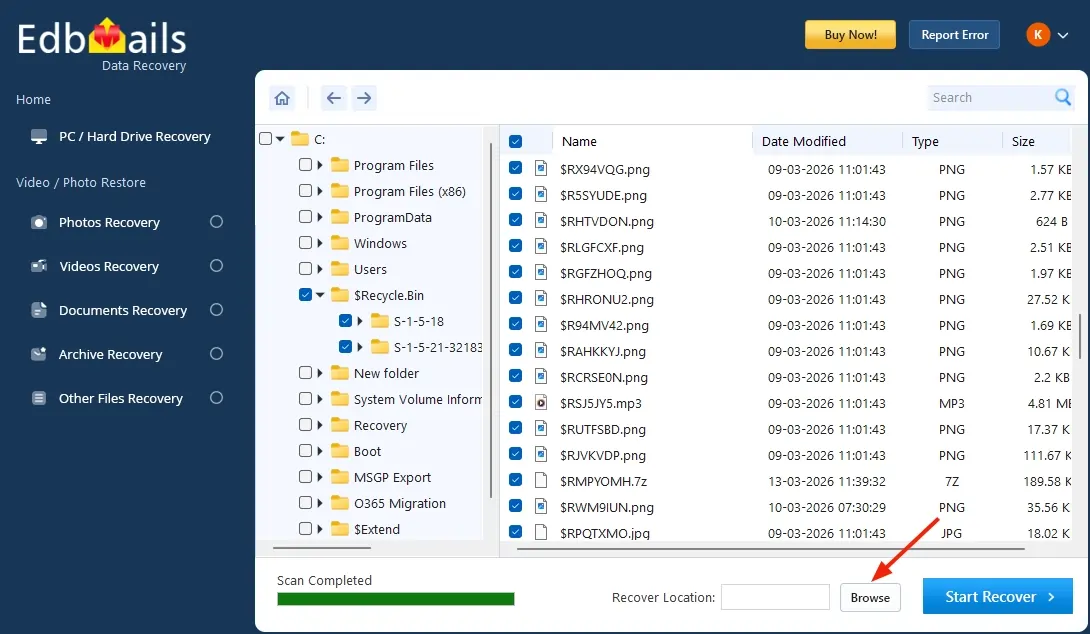
- Open the Recycle Bin folder and select the files/folders you want to recover.
- Click the ‘Browse’ button to select the recovery location.
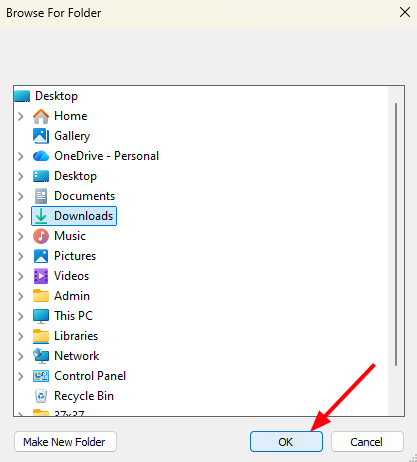
- Select the desired location and click ‘OK’.
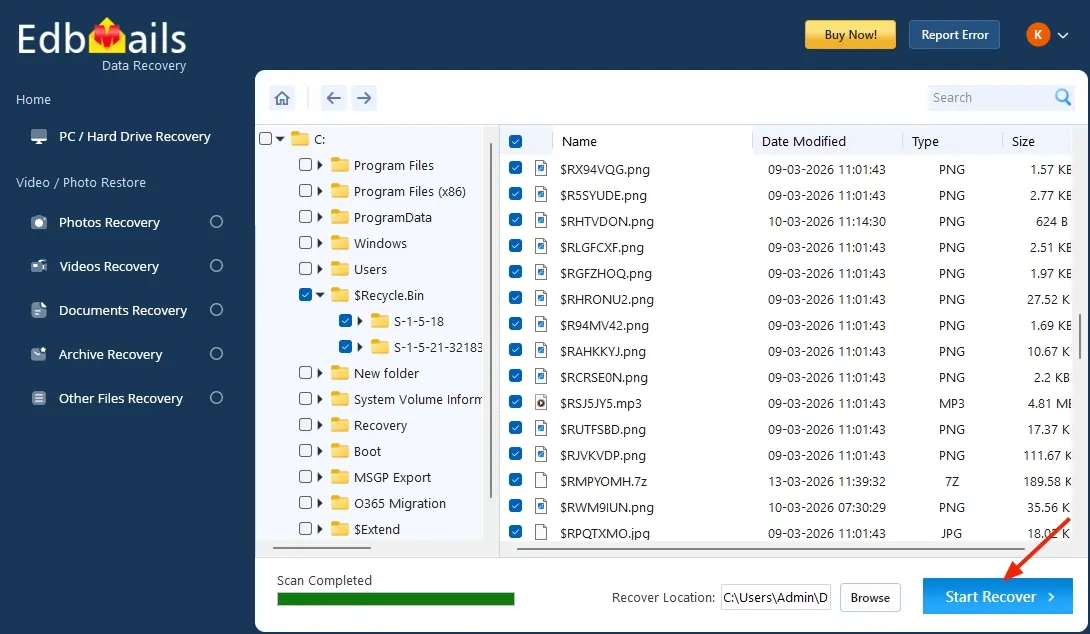
- Click the ‘Start Recover’ button.
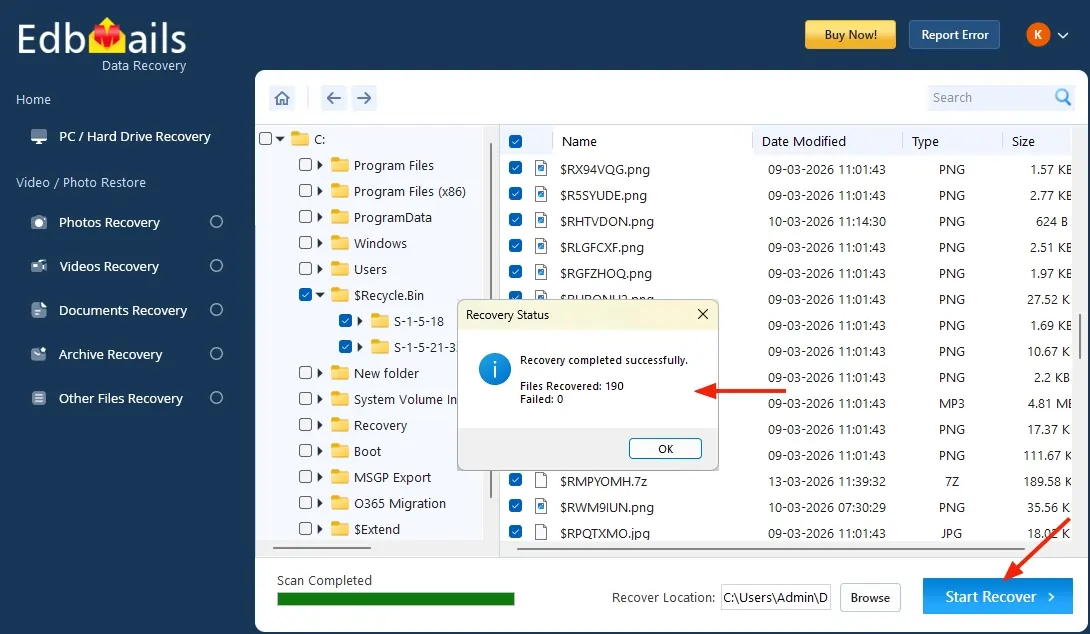
- Once the recovery is complete, you will be prompted with the number of files recovered.
- Go to the chosen recovery location to view and verify the files that have been restored.
- Download and install the EdbMails application on your computer.
Supported File Types for Recycle Bin Recovery
EdbMails supports recovery of all common file types deleted from the Recycle Bin, including:
- Photos & Images – JPG, PNG, BMP, GIF, TIFF, WEBP, ICO
- Videos – MP4, AVI, MKV, MOV, WMV, FLV, WEBM
- Documents – PDF, DOC/DOCX, XLS/XLSX, PPT/PPTX, TXT
- Archives – ZIP, RAR, 7Z, TAR, GZ, BZ2, XZ
- Audio Files – MP3, WAV, AAC
- System & Other Files – EXE, DLL, ISO, HTML, XML, JSON
The software organizes recoverable files in category-based filters to simplify navigation and speed up the recovery process.
Key Features of EdbMails Recycle Bin Recovery Software
- Recovers deleted files, including those removed using Shift + Delete or after emptying the Recycle Bin
- Supports recovery from HDDs, SSDs, USB drives, and SD cards
- Allows users to view detected files before recovery
- Enables selective recovery of required files and folders
- Category-based filtering for faster navigation through scan results
- Performs secure read-only scanning without modifying the original drive
- Compatible with multiple Windows operating systems


