


AWS WorkMail to Office 365 Migration
Migrating from AWS WorkMail to Office 365 is a strategic decision for organizations seeking better productivity, flexibility, and collaboration. Although AWS WorkMail delivers dependable email and calendar services, Microsoft 365 provides a complete suite of productivity tools, like Teams, OneDrive, SharePoint, along with advanced security and compliance features. With these added capabilities, Office 365 becomes an ideal choice for businesses that want to improve communication, manage data more efficiently, and support modern hybrid work environments.
EdbMails IMAP Migration Tool provides a secure and efficient solution to migrate AWS WorkMail mailboxes to Office 365 without downtime or risk of data loss. It supports incremental migration, so only new or modified items are transferred during subsequent runs, which helps save bandwidth and avoids duplicate emails. The tool also allows parallel mailbox migration, enabling multiple mailboxes to be moved at the same time and reducing the overall migration duration.
With automatic mailbox creation and folder mapping, EdbMails streamlines the entire setup process and makes sure every item is delivered to the correct destination. Its advanced filtering capabilities allow users to migrate only the required emails or folders by applying conditions such as date range, subject, sender, recipient, attachments, or read and unread status, giving full flexibility and control throughout the migration process.
By combining powerful automation, precision mapping, and enterprise-grade security, EdbMails IMAP Migration Software delivers a reliable and efficient solution for AWS WorkMail to Office 365 migration, ensuring data integrity, minimal user disruption, and a seamless transition to Microsoft’s cloud ecosystem.
User Query
"We currently use Amazon WorkMail for email and would like to migrate to Office 365 due to organizational requirements. We also want to know if there is a method to preserve our existing domain name on Microsoft and migrate easily without extensive planning and preparation."
AWS Workmail to Office 365 Migration Plan
Planning is one of the most important steps before you begin the AWS Workmail to Office 365 migration. Here is a checklist of points to consider before you migrate.
- Evaluate the overall data size and determine the total number of mailboxes to be migrated to plan resources, timelines, and migration strategy effectively.
- Create a detailed list of all data and mailbox permissions in AWS WorkMail that need to be transferred to Office 365 during migration.
- Set up the necessary user mailboxes on Office 365 and assign the corresponding licenses to each account.
- Ensure you have enough network capacity and bandwidth to migrate.
- Communicate the migration plan and flow to your end users.
AWS Workmail to Office 365 Migration Prerequisites
- Prepare all necessary details before starting the migration, including the IMAP server hostname, port number, email address, and password, to ensure a smooth and error-free transfer.
- For migrating multiple users, download the sample CSV file from the EdbMails application, then update the file with the IMAP server hostname, port number, email address, and password for each user's mailbox you wish to migrate.
See how to find your IMAP server host name. - Ensure that Office 365 mailboxes are created and licenses are assigned to them. You can choose the option in EdbMails to automatically create Office 365 mailboxes. However, if you prefer to do it manually, refer to the links below:
Add users and assign licenses to Office 365 users
Assign Microsoft 365 licenses to user accounts - To migrate AWS Work mail to Office 365 Public folders, ensure that you create public folders and assign permissions on the target server.
Create Office 365 Public folder and assign permission to the admin user - Similarly, if you want to migrate mailboxes to Office 365 archive mailbox, enable In-Place archive in target O365 server
Steps to enable archive mailbox in Microsoft 365. - If you have a custom email domain from the source which you want to retain and receive emails to, you must add and verify the domain on Office 365.
Steps to add a custom domain to Office 365 and steps to add DNS records to connect your domain. - Configure Office 365 to send and receive large messages.
Follow the steps to increase the message size on Office 365 to 150MB.
See message size limits on Office 365 for more information.
Steps to Migrate AWS WorkMail to Office 365
Step 1: Download and install EdbMails IMAP migration software
- Download EdbMails and install the application on your computer.

- Start the EdbMails application on your system.
- Enter your registered email ID and password, then click ‘Login’. If you’re accessing EdbMails for the first time, click ‘Start Your Free Trial’ to use the Free trial.Note: The trial version includes all essential features and allows exporting up to 30 items per folder. To unlock unlimited exports and remove this limitation, purchase a valid license from the official EdbMails website.
Visit our pricing page to explore plans and purchase your license.

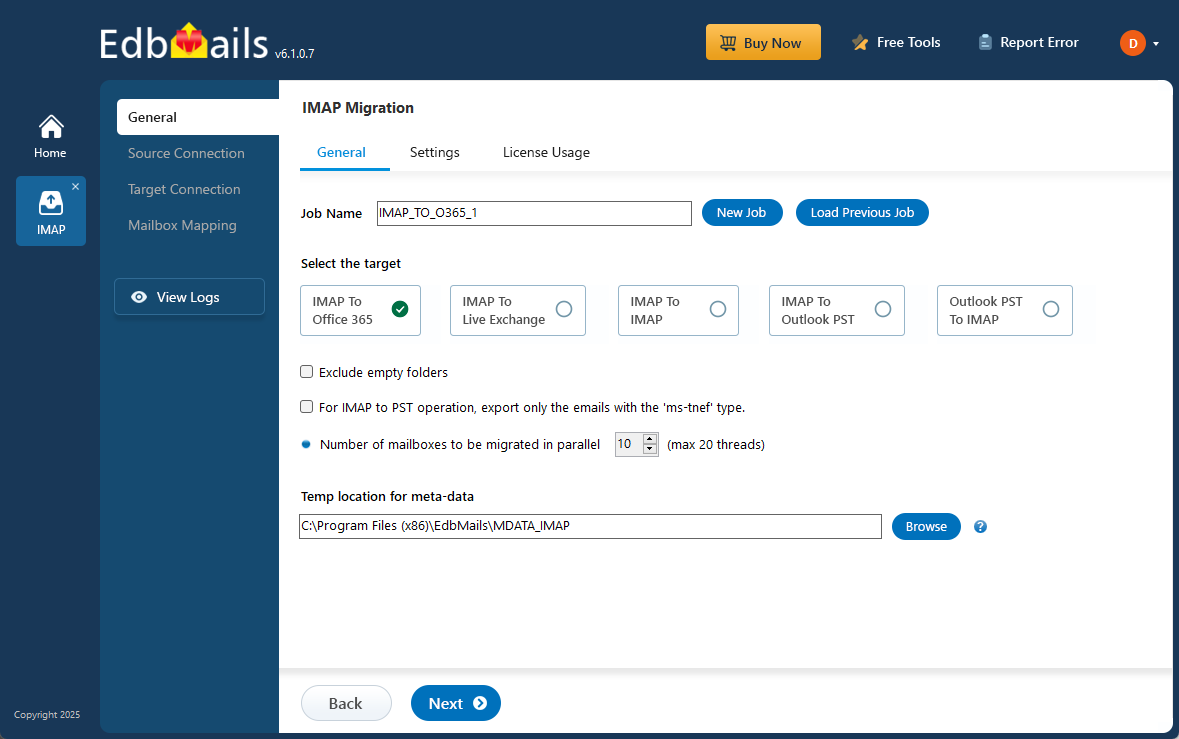
- Select the option ‘IMAP (Gmail, Outlook & more) Migration’.
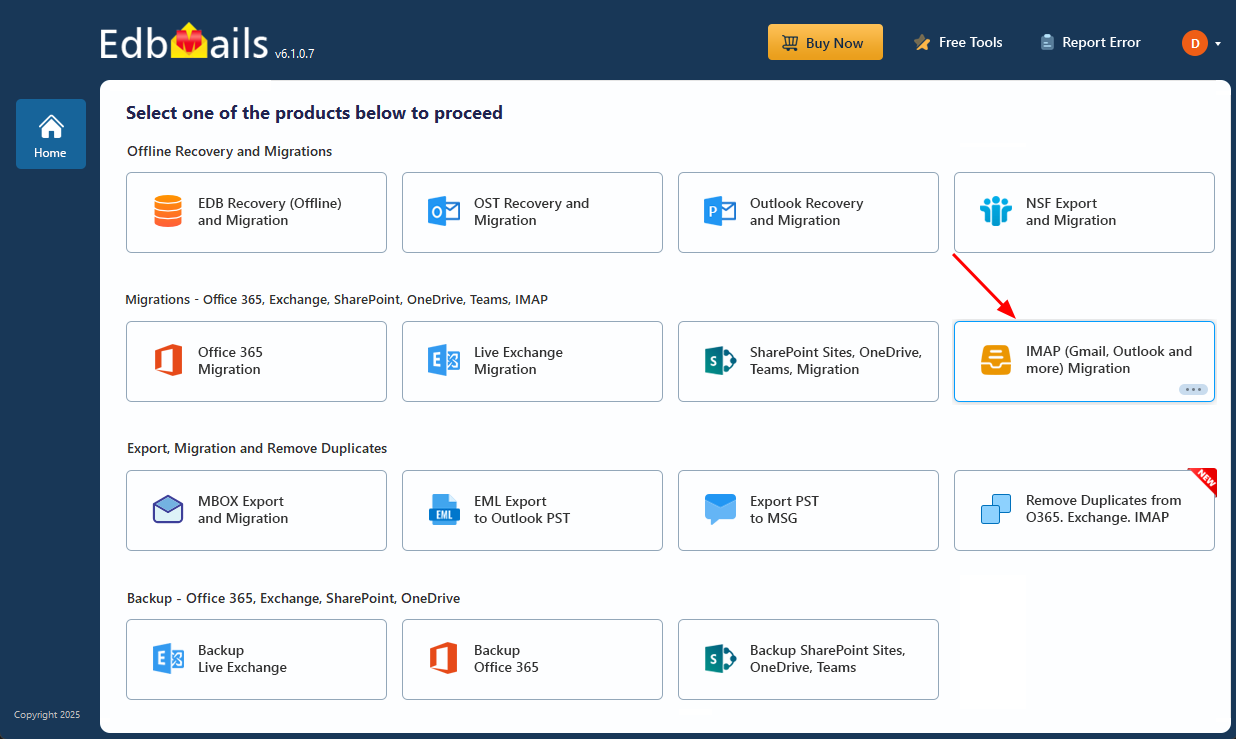
- Select ‘IMAP to Office 365 Migration’.
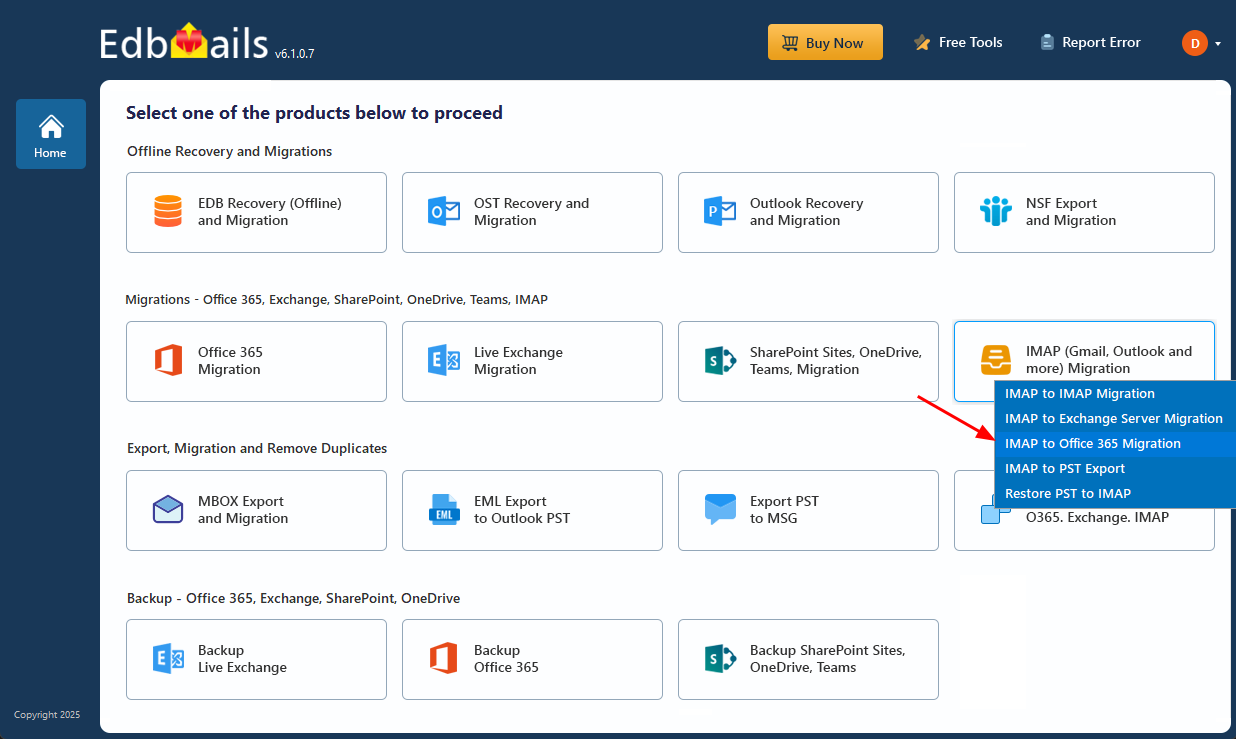
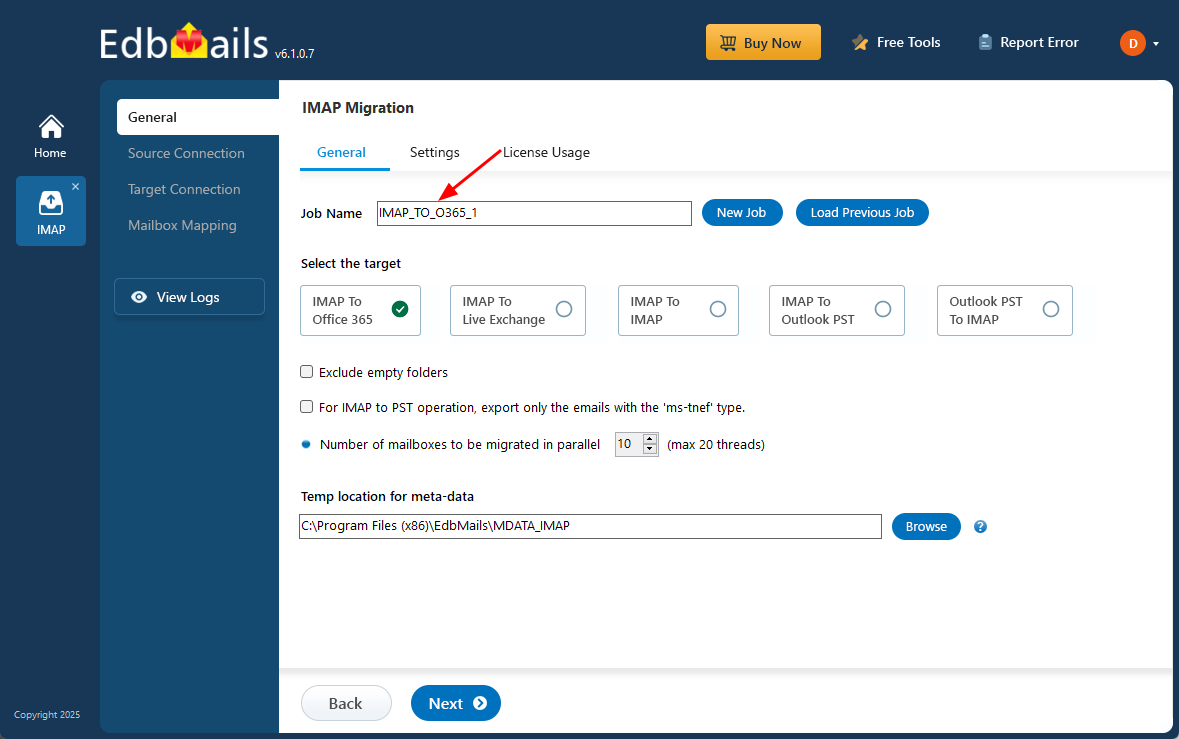
- You can proceed with the default job name or select ‘New Job’ to assign a custom name for your migration task.
- Download EdbMails and install the application on your computer.
Step 2: Connect to source AWS WorkMail server
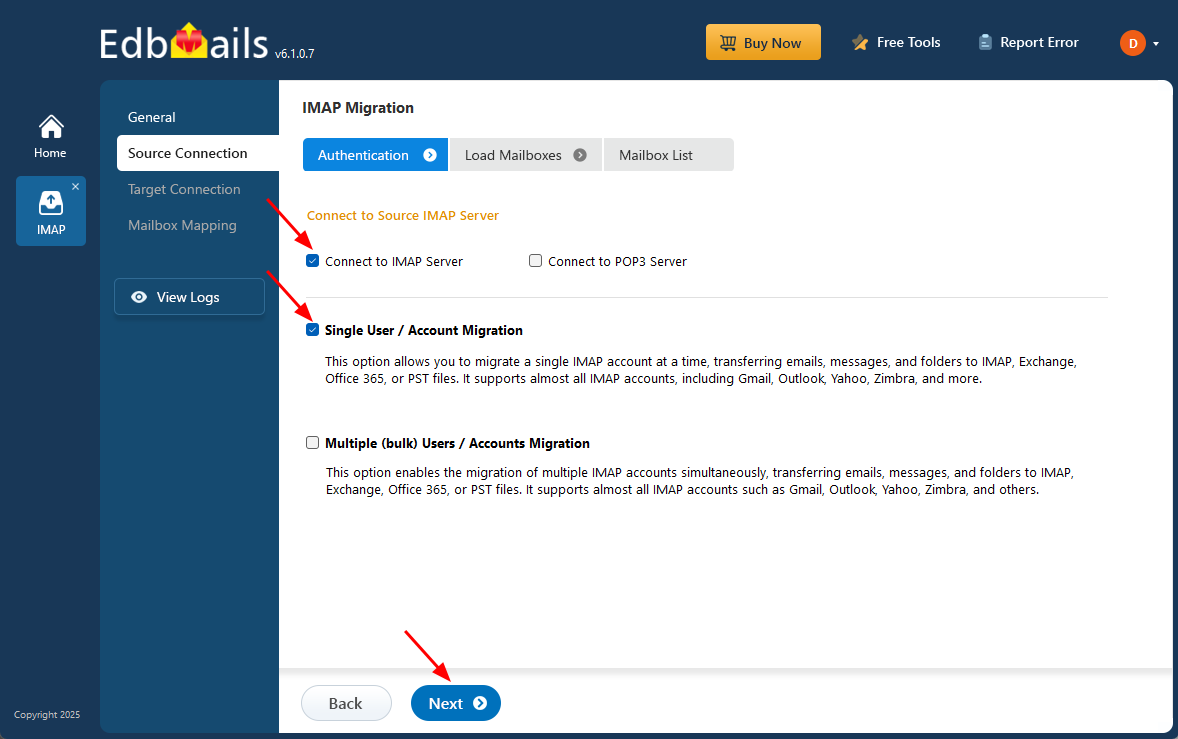
- To connect a single AWS Workmail account for migration, click ‘Single User / Account Migration’, choose the suitable connection option such as ‘Connect to IMAP Server’ or ‘Connect to POP3 Server’. Click ‘Next’ to proceed.
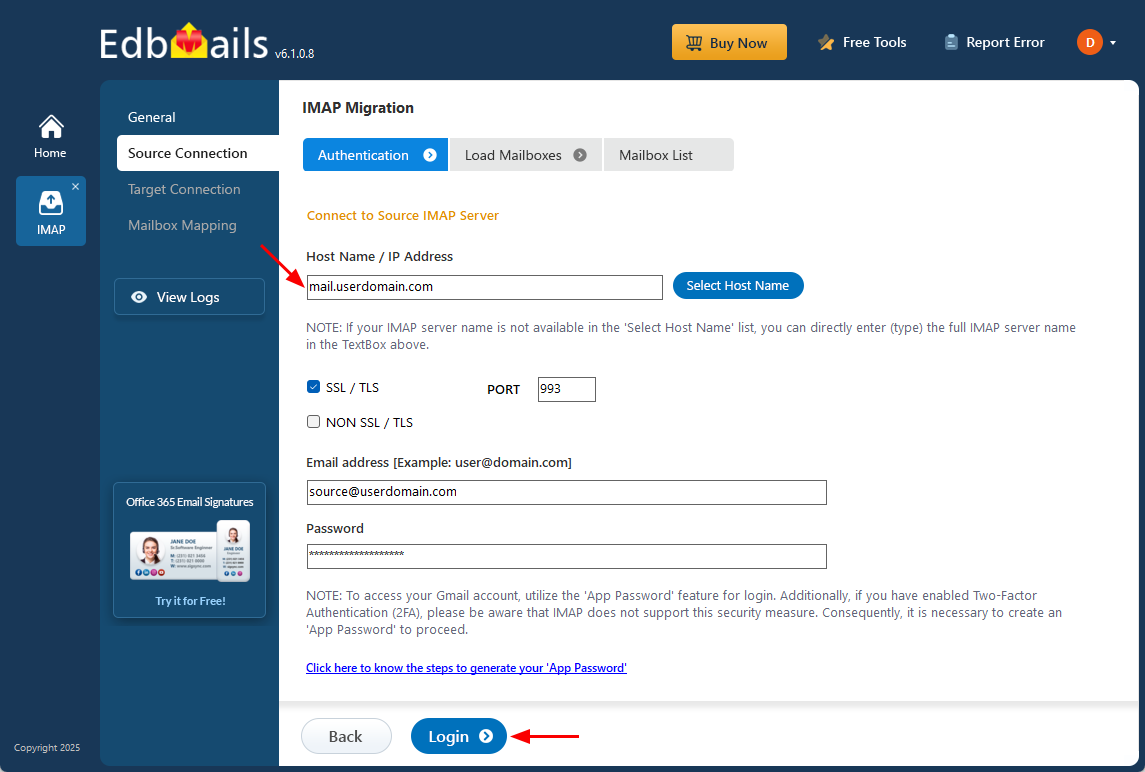
- From the IMAP host list, select ‘AWS WorkMail’ or manually enter your IMAP server details.
- Next, provide the necessary login details including your email address, password, and the SSL port number, which is typically 993 when SSL encryption is enabled.
- Click on the ‘Login’ button to establish a secure connection with your AWS WorkMail account.
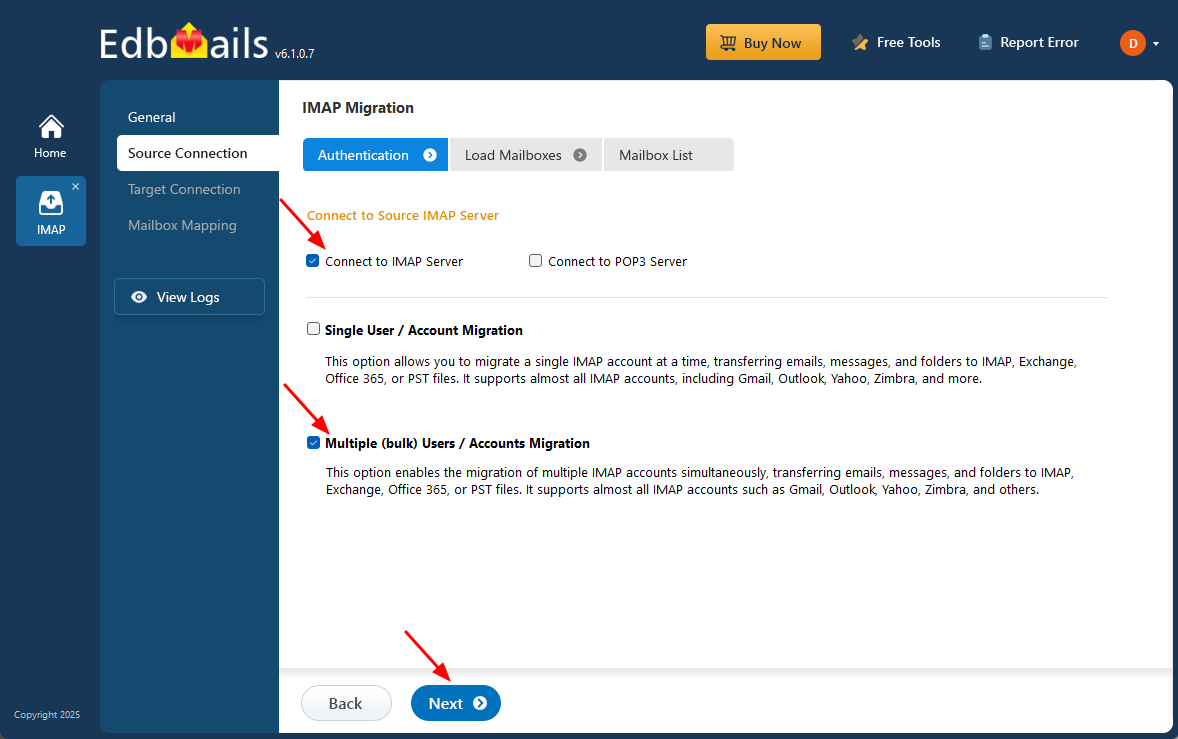
- To migrate multiple AWS Workmail mailboxes at once, select ‘Multiple (bulk) Users/Accounts Migration’, choose the suitable connection method such as ‘Connect to IMAP Server’ or ‘Connect to POP3 Server’.
- Then proceed by clicking ‘Next’.
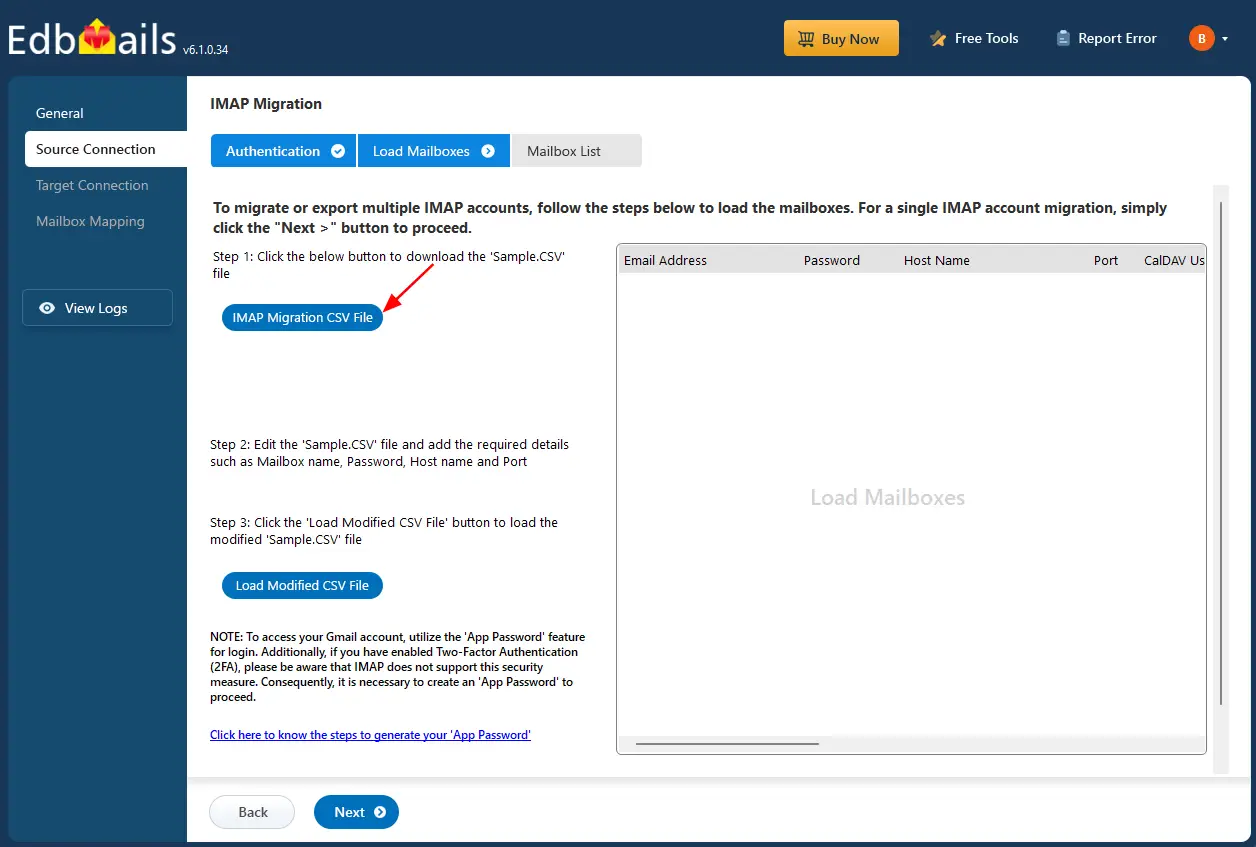
- Select the ‘IMAP Migration CSV File’ option to download the ‘Sample.CSV’ file. The file will be automatically saved to your local system, allowing you to access and refer to it whenever required.
- Open the CSV file and provide the required information for each AWS WorkMail account you plan to migrate.
- This includes the user’s email address, password, IMAP server name, and corresponding port number.

- Once you've updated the CSV file with all the necessary mailbox details, save and close the file.
- Then, click the 'Load Modified CSV File' button, navigate to the saved location, select your file, and upload it to continue with the migration process.
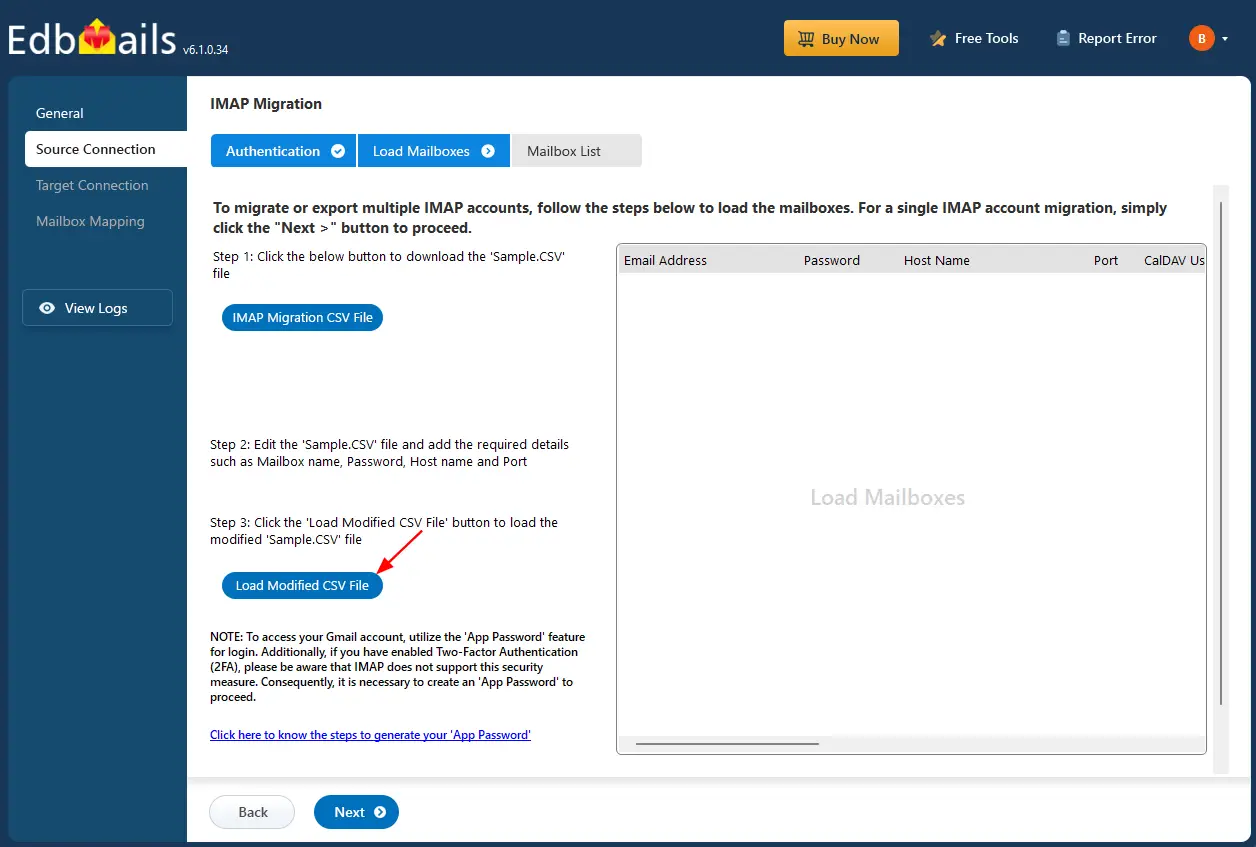
- To connect a single AWS Workmail account for migration, click ‘Single User / Account Migration’, choose the suitable connection option such as ‘Connect to IMAP Server’ or ‘Connect to POP3 Server’. Click ‘Next’ to proceed.
Step 3: Select the mailboxes or folders to migrate
- Select the mailboxes or individual folders you want to include in the migration. Once you've made your selection, click ‘Next’ to move forward with the process.
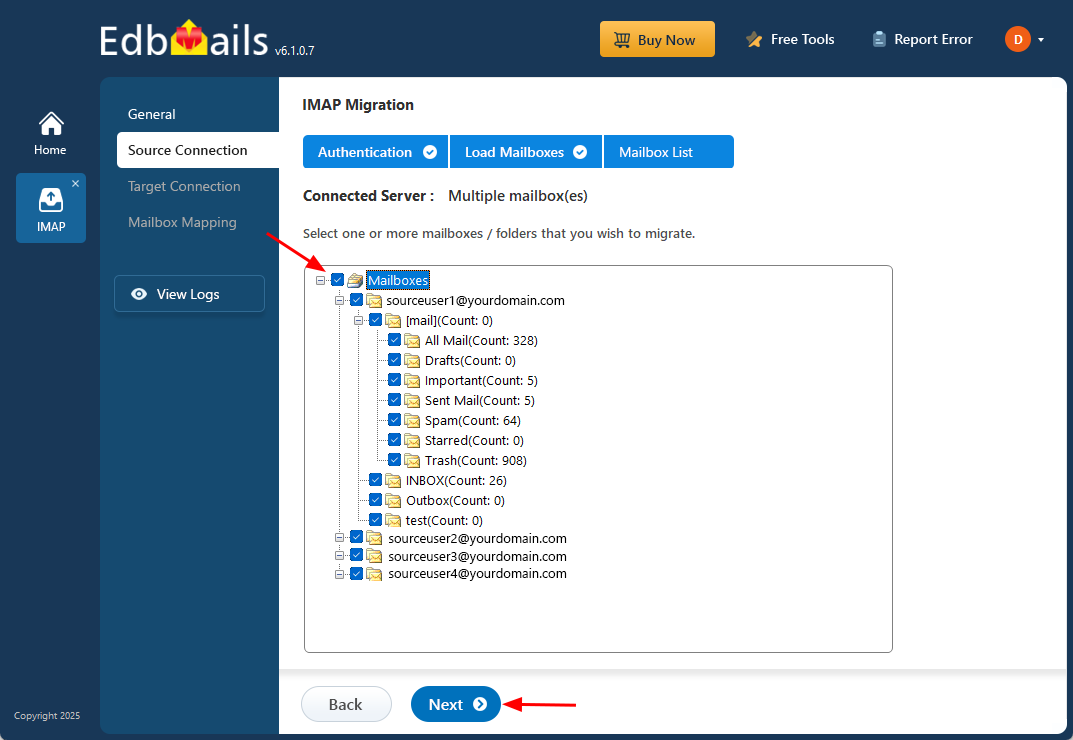
- Select the mailboxes or individual folders you want to include in the migration. Once you've made your selection, click ‘Next’ to move forward with the process.
Step 4: Connect to target Office 365 server
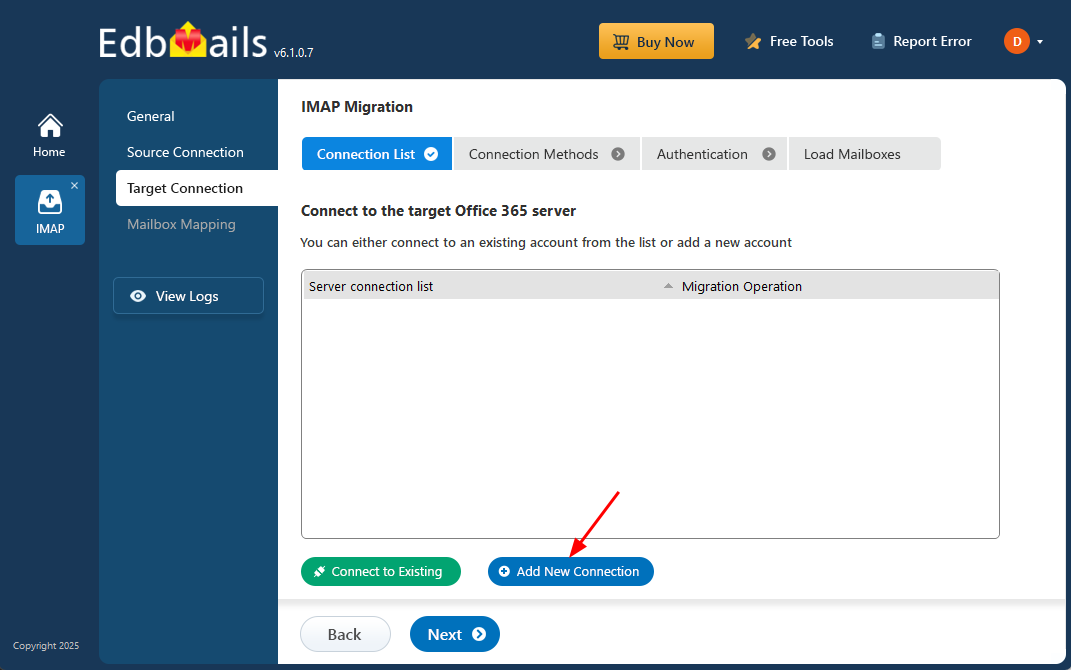
- Click on ‘Add New Connection’ to set up a connection with your target Office 365 account.
- If a connection has already been configured, simply select it from the list and choose ‘Connect to Existing’ to continue.
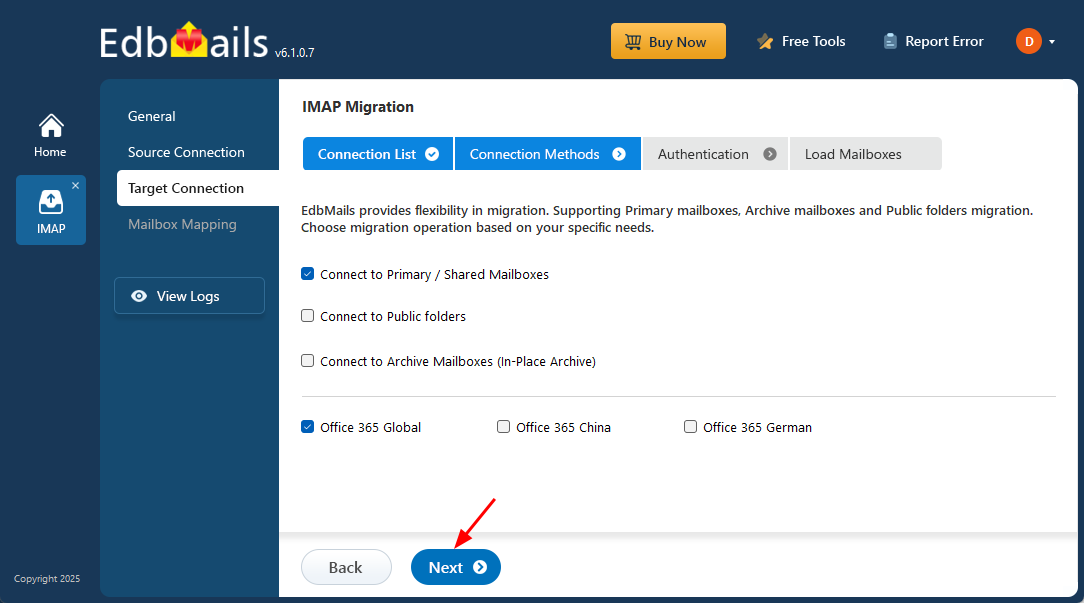
- EdbMails provides versatile migration options that let you migrate primary mailboxes, archive mailboxes, and public folders using one centralized platform
- Select your preferred connection option based on your migration requirements, and click ‘Next’ to continue with the authentication steps.
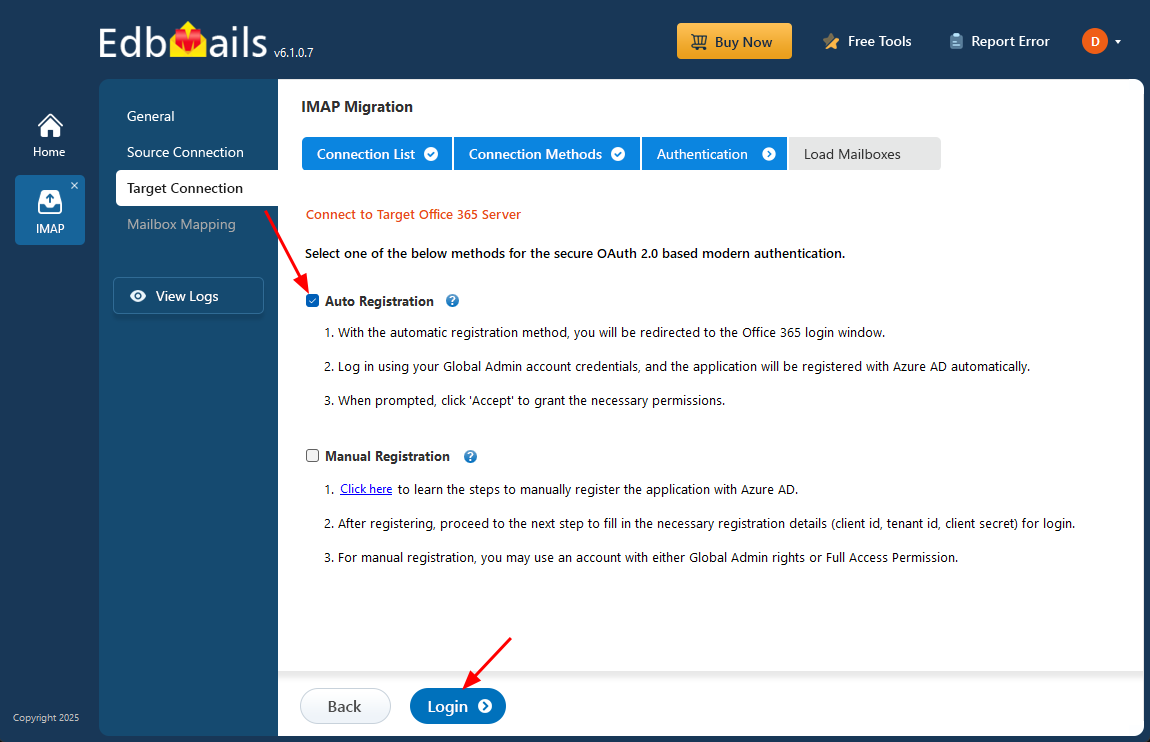
- Choose any of the available options to create a secure connection using OAuth 2.0 modern authentication:
- Select Auto Registration if you prefer a quick and smooth setup. Sign in with a Global Admin account and provide the required permissions to automatically register the application in Azure AD.
- Or choose Manual Registration if you prefer to enter the Azure AD application details yourself. This method supports both Global Admin accounts and accounts with Full Access permissions.
- Click ‘Login’ to proceed.
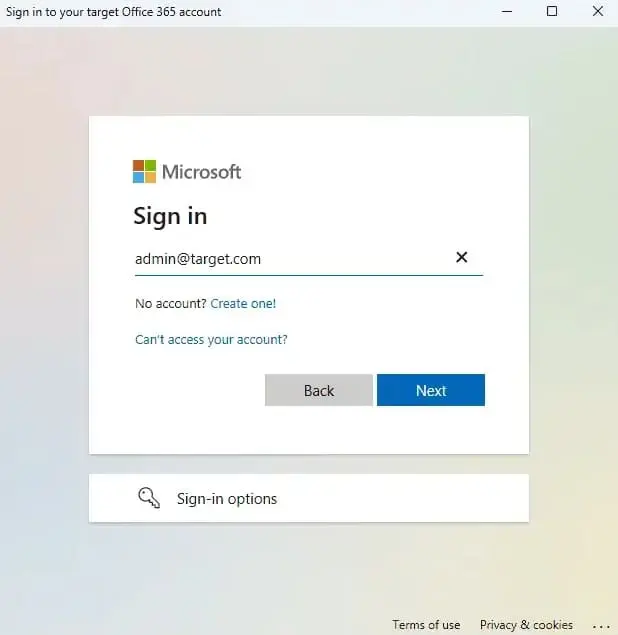
- Authenticate on Microsoft sign-in page.
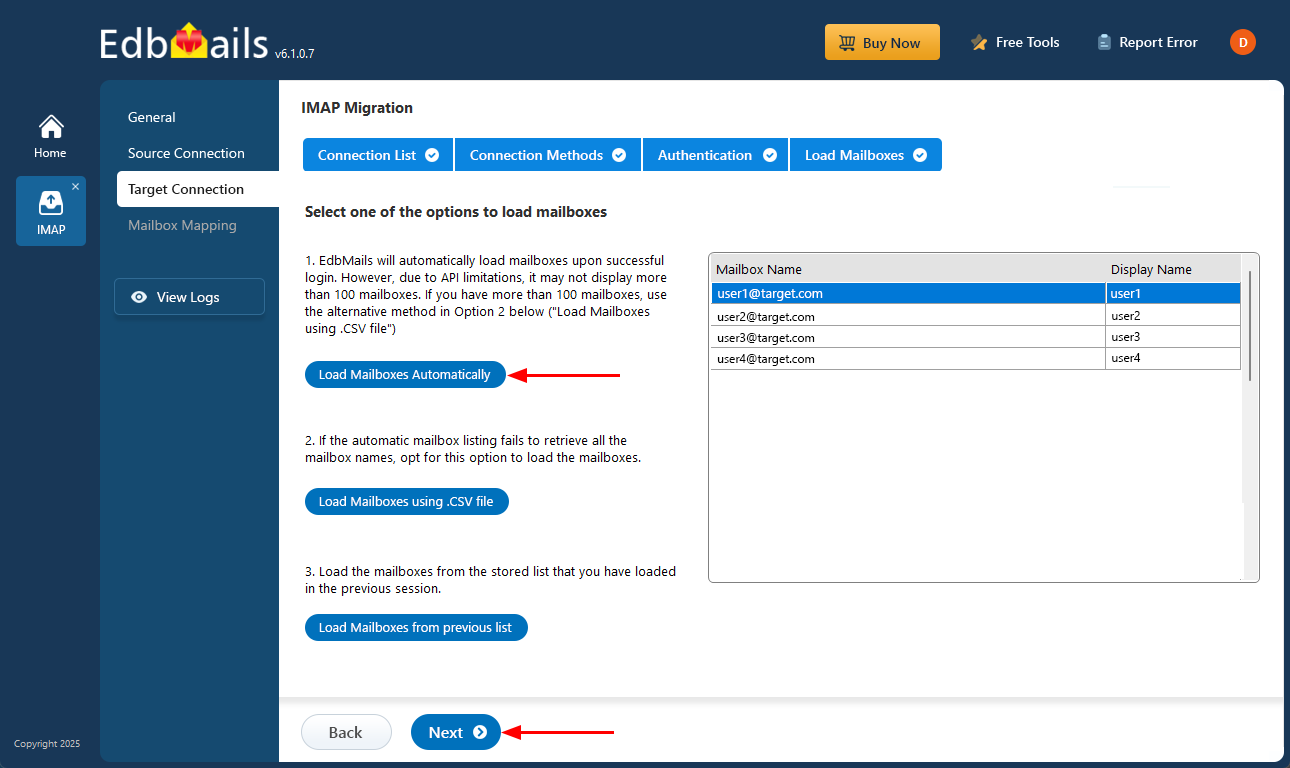
- Once authentication is completed successfully, select any one of the following options to load the mailboxes:
i) Load Mailboxes Automatically: After logging in, EdbMails automatically detects and lists the mailboxes, making the process quick. Due to Microsoft API restrictions, only a maximum of 100 mailboxes can be displayed. If your organization contains more than 100 mailboxes, use the alternative option given below.
ii) Load Mailboxes using CSV file: If the automatic method does not retrieve all mailbox names, choose ‘Load Mailboxes using .CSV file’ to manually upload and load the required mailboxes.
iii) Load Mailboxes from previous list: This option allows you to load mailboxes from a previously saved list imported in an earlier session.
- Choose ‘Load Mailboxes Automatically’ and click ‘Next’ to move forward.
Step 5: AWS WorkMail to Office 365 mailboxes mapping
- Choose your preferred method to map the source AWS Workmail mailboxes or folders to their corresponding mailboxes or folders on the target Office 365 account.
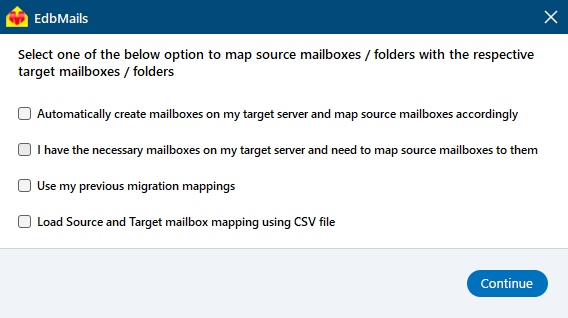
- EdbMails lets you automatically create the required mailboxes in your target Office 365 account.
- It also automatically maps your source AWS mailboxes and folders to the matching ones in Office 365, making large migrations easier to manage.
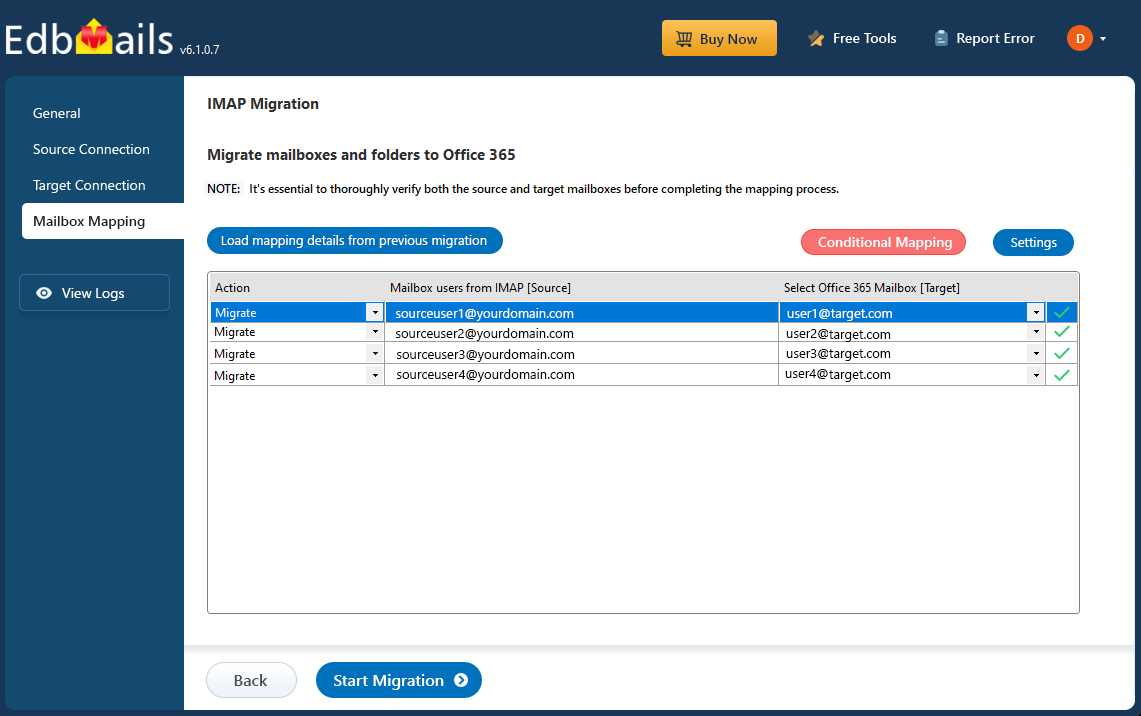
- Choose your preferred method to map the source AWS Workmail mailboxes or folders to their corresponding mailboxes or folders on the target Office 365 account.
Step 6: Start AWS WorkMail to Office 365 migration
- Review the mailbox mapping for accuracy, then click the ‘Start Migration’ button to initiate the migration process.
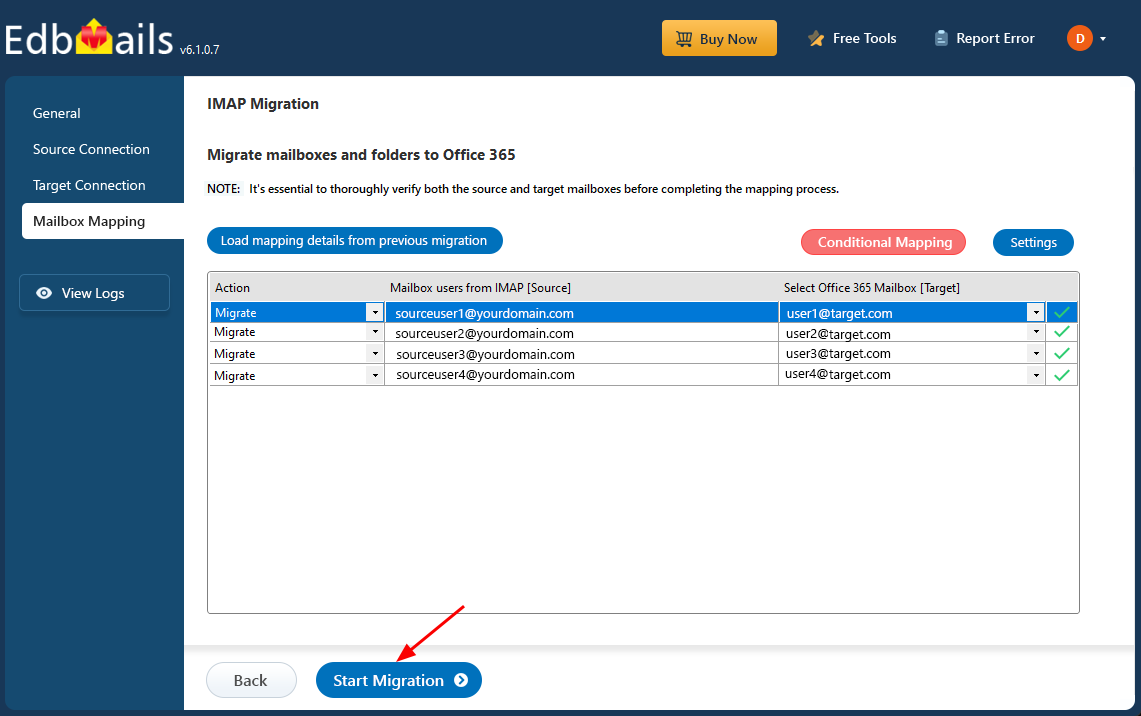
- Click the ‘View Logs’ button to open the detailed migration report. This report includes comprehensive information, such as mailbox mapping, a summary of the migration process, and the item count for each migrated mailbox and folder.
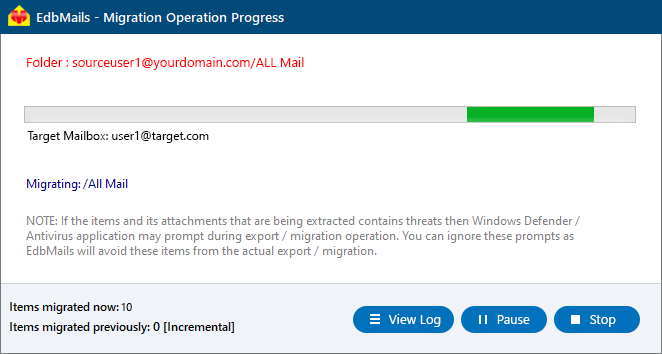
- Review the mailbox mapping for accuracy, then click the ‘Start Migration’ button to initiate the migration process.
Amazon WorkMail to Office 365 post migration tasks
- Step 1: Update the MX records to point to Office 365
Update the DNS records known as MX records to enable email and receive messages on the target Office 365 server. In addition, configure the Autodiscover record to allow Outlook to connect to the migrated mailboxes.
- Step 2: Create a new Outlook profile for users in the new domain
Configure the Outlook profile for each user in your domain if Outlook has problems connecting to Office 365 mailboxes.
- Step 1: Update the MX records to point to Office 365
Troubleshooting Guide for AWS WorkMail to Office 365 Migration
For troubleshooting, visit : Knowledge Base.
For more queries, check Frequently Asked Questions or contact support.
Benefits of EdbMails to migrate AWS WorkMail to Office 365
- Safe & Secure Server-to-Server Migration
EdbMails enables a secure server-to-server migration from AWS WorkMail to Office 365, ensuring safe transfer of emails, calendars, and contacts with end-to-end encryption. This direct connection eliminates manual intervention, providing a fast, reliable migration while maintaining complete data security and integrity.
- Maintains Folder Hierarchy & email Integrity
When migrating from AWS WorkMail to Office 365, EdbMails preserves the folder hierarchy and all email attributes. This means your folder structure, including Inbox, Sent Items, and Drafts, remains intact. It ensures a smooth transition with all data properly organized and preserved.
- Lifetime Free Software Updates
EdbMails provides lifetime free software updates, ensuring that as AWS WorkMail and Office 365 evolve, your migration tool stays compatible with the latest features and improvements. This commitment to ongoing updates guarantees users access to continuous enhancements at no extra cost, keeping the tool effective and relevant over time.
- Full Compatibility with Windows Versions
EdbMails is fully compatible with all versions of Windows, from the latest Windows 11 to earlier versions like Windows 7 and 8. This broad compatibility ensures seamless installation and performance across various operating systems, offering flexibility for users in diverse environments.
- No Spyware or Ads included
Unlike many migration tools, EdbMails is completely free from spyware or intrusive advertisements. The software focuses entirely on delivering high-performance migration without any unwanted distractions, ensuring a clean, professional user experience throughout the entire process.
- Migrates all AWS WorkMail Folders
EdbMails ensures a comprehensive migration of all AWS WorkMail folders, including Inbox, Sent, Drafts, Trash, and any custom folders. Every piece of data is meticulously transferred, guaranteeing that no important email or folder is missed, delivering a seamless and thorough migration experience.
- Export to Multiple email Clients
In addition to Office 365, EdbMails offers the flexibility to migrate emails from AWS WorkMail to various other platforms, including Gmail, Yahoo Mail, iCloud, Hotmail, and more. This multi-platform migration feature ensures users can easily transition to their preferred email service.
- Advanced Filtering and Data Customization Options
EdbMails offers advanced filtering and customization options, allowing users to select specific emails based on criteria like date range, subject, sender, or attachment type. You can also choose specific folders for migration and exclude both standard and custom folders from the operation, ensuring that only relevant data is transferred and optimizing the migration process.


