


IMAP to IMAP Migration
IMAP to IMAP migration is commonly performed when organizations move between email hosting providers, cloud platforms, or messaging environments that support the IMAP protocol. The migration process transfers mailbox data, including emails, folder hierarchy, attachments, and message metadata, from a source IMAP server to a target IMAP server while maintaining data integrity. Large mailbox sizes, duplicate item prevention, bandwidth limitations, and minimizing user disruption are key considerations that require a reliable migration solution.
EdbMails IMAP Migration Tool provides a secure and automated approach for migrating mailboxes between IMAP-enabled email servers. The software supports migration across Gmail, Outlook, Yahoo Mail, Zoho Mail, Zimbra, cPanel, Plesk, GoDaddy, Rackspace, AWS WorkMail, Bluehost, DreamHost, and other IMAP-compliant platforms while preserving mailbox structure, emails, attachments, and message properties throughout the migration process.
With its incremental migration feature, EdbMails intelligently prevents duplicate emails even during repeated transfers, ensuring accuracy and consistency. The software also supports concurrent mailbox migration, enabling multiple accounts to be migrated simultaneously for faster completion and improved performance. EdbMails also provides zero downtime by running migrations in the background while users continue accessing their mailboxes without any disruption. Combined with advanced filtering options and an intuitive interface, it offers a smooth, error-free, and efficient IMAP to IMAP migration experience for businesses of all sizes.
IMAP to IMAP Migration Plan
Planning is one of the most important steps before you begin migrating your IMAP data to IMAP. Here is a brief checklist of points to consider before you migrate.- Clean up the source by deleting unused mailboxes and removing duplicate email files.
- Make an inventory of items before you make the move such as
- User accounts, email addresses and passwords.
- The source and target server details, browser and operating systems used.
- Network settings, DNS configurations, MX records, firewall settings.
- Licensing plans on your current source IMAP server.
- Determine the size and number of mailboxes you want to migrate.
- Create appropriate user mailboxes on the target server.
- Ensure you have enough network capacity and bandwidth to migrate.
- Communicate the migration plan and changes to your end users and stakeholders.
- Perform a test migration before you start the actual one.
- Start the actual migration, verify the endpoints and update the MX records.
- Check for correct mail flow.
IMAP to IMAP Pre-migration Activities
- Obtain your IMAP server hostname, port number, email address, and password.
- If you plan to migrate multiple users download the sample CSV file from the EdbMails application and enter the details of each users mailboxes you want to migrate
- If you want to connect to Gmail, make sure to create an app password and use it in place of your regular password.
Step-by-Step Guide for IMAP to IMAP Migration
Step 1: Download and install EdbMails IMAP migration tool
- Download and install EdbMails on your computer.
See EdbMails system requirements for IMAP to IMAP migration

- Start the EdbMails application on your computer.
- Enter your registered email address and password, then click ‘Login’. If you do not have an account, click ‘Start Your Free Trial’ to use the trial version.Note: The Free Trial lets you access all key features and export up to 30 items per folder. To remove this limitation and export unlimited items, purchase a valid license from the EdbMails website.
Click here to purchase the license from the EdbMails website.
After purchasing, restart the application and sign in again with the same email address and password used during the purchase to activate your license.

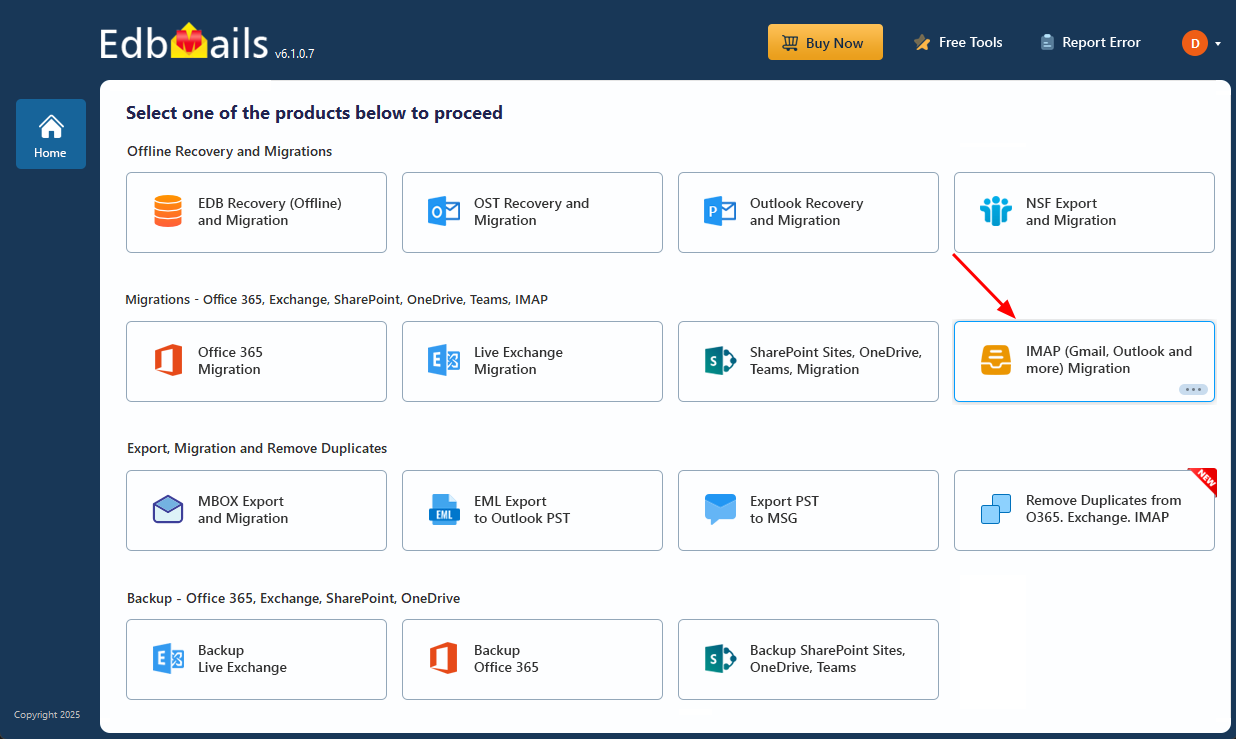
- Select the ‘IMAP (Gmail, Outlook & more) Migration’
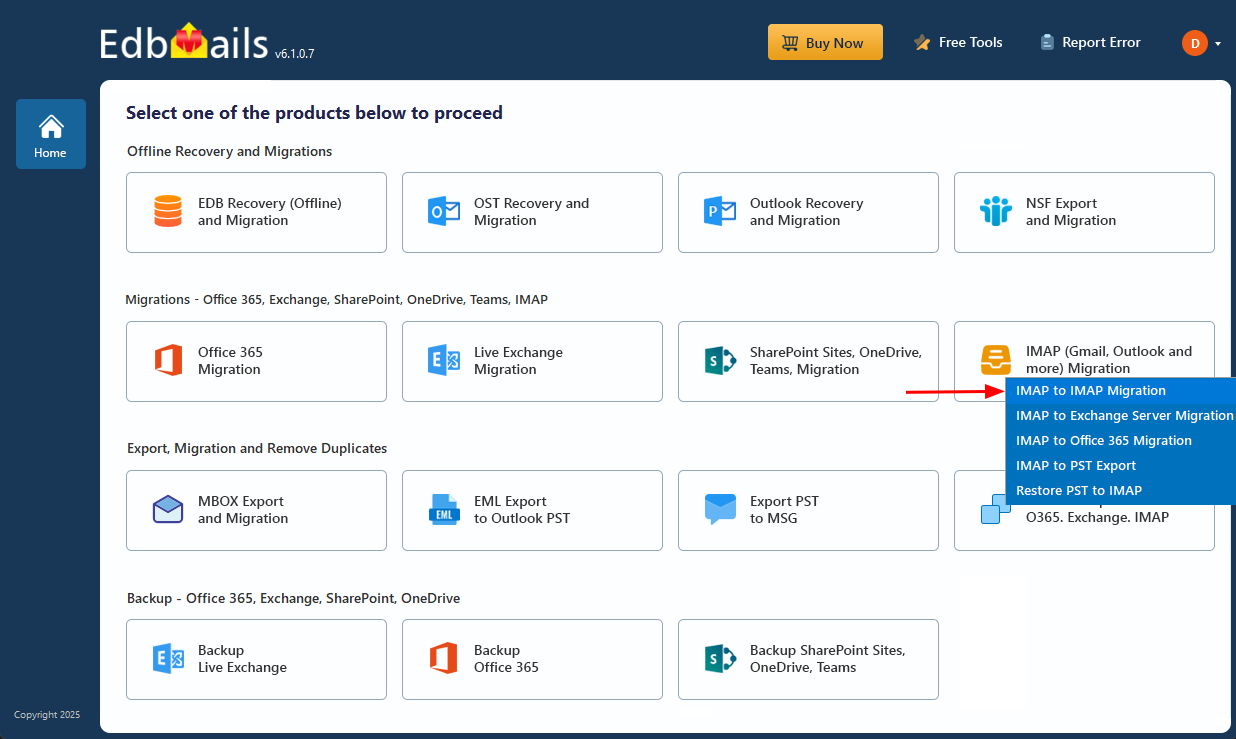
- Select ‘IMAP to IMAP Migration’.
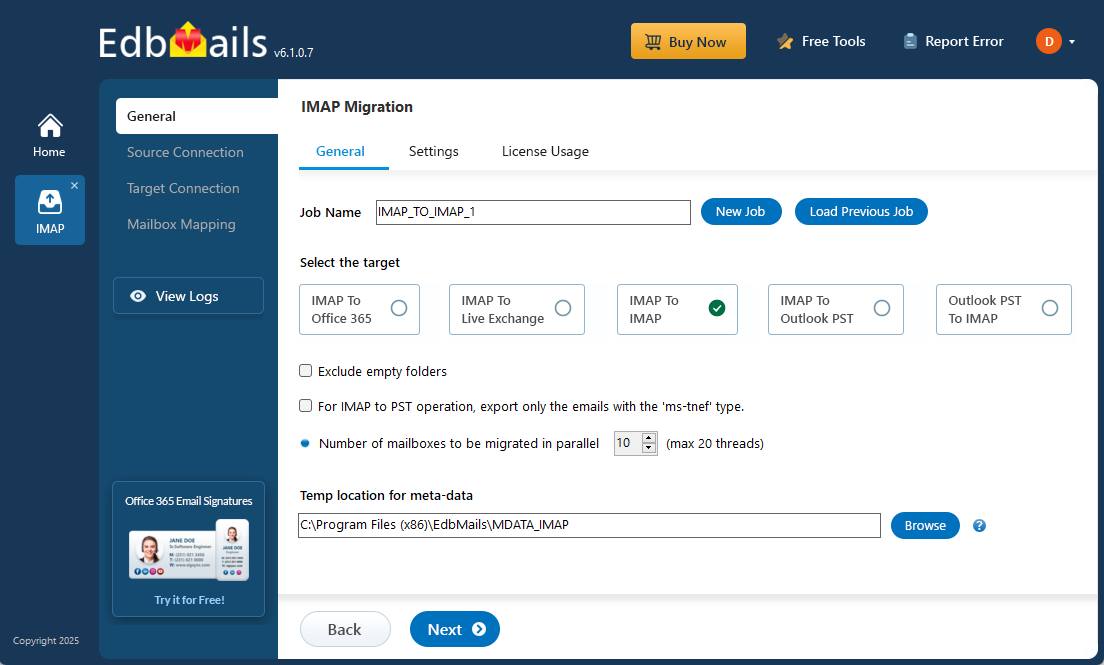
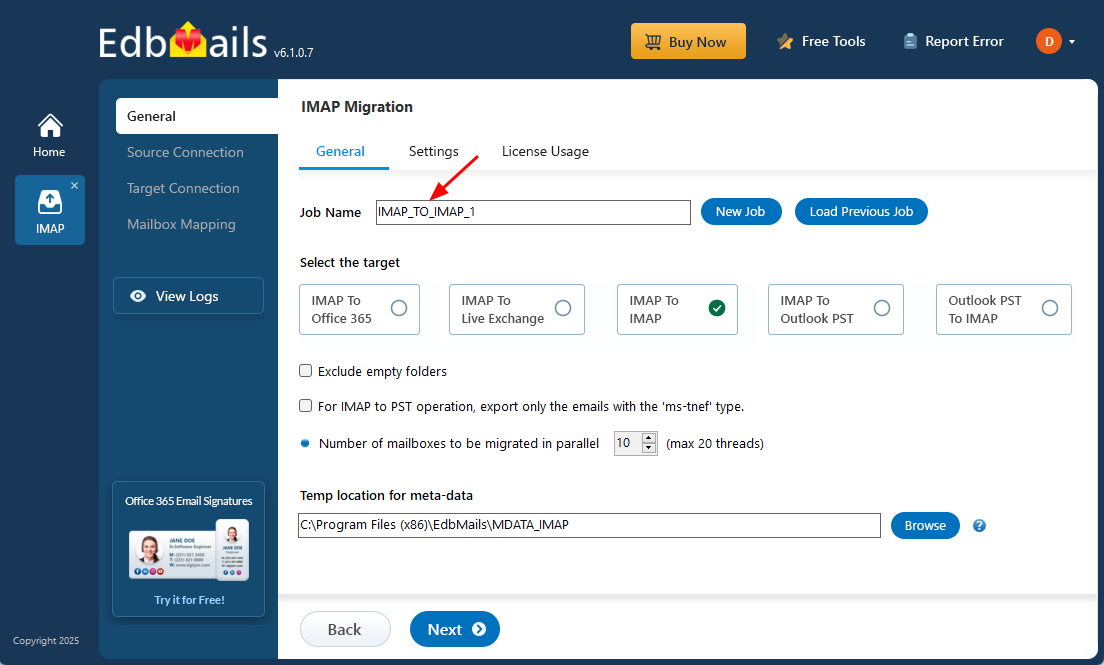
- You may move forward with the preassigned default job name, or click on ‘New Job’ to change the name as per your preference before proceeding further.
- Download and install EdbMails on your computer.
Step 2: Connect to the Source IMAP Server
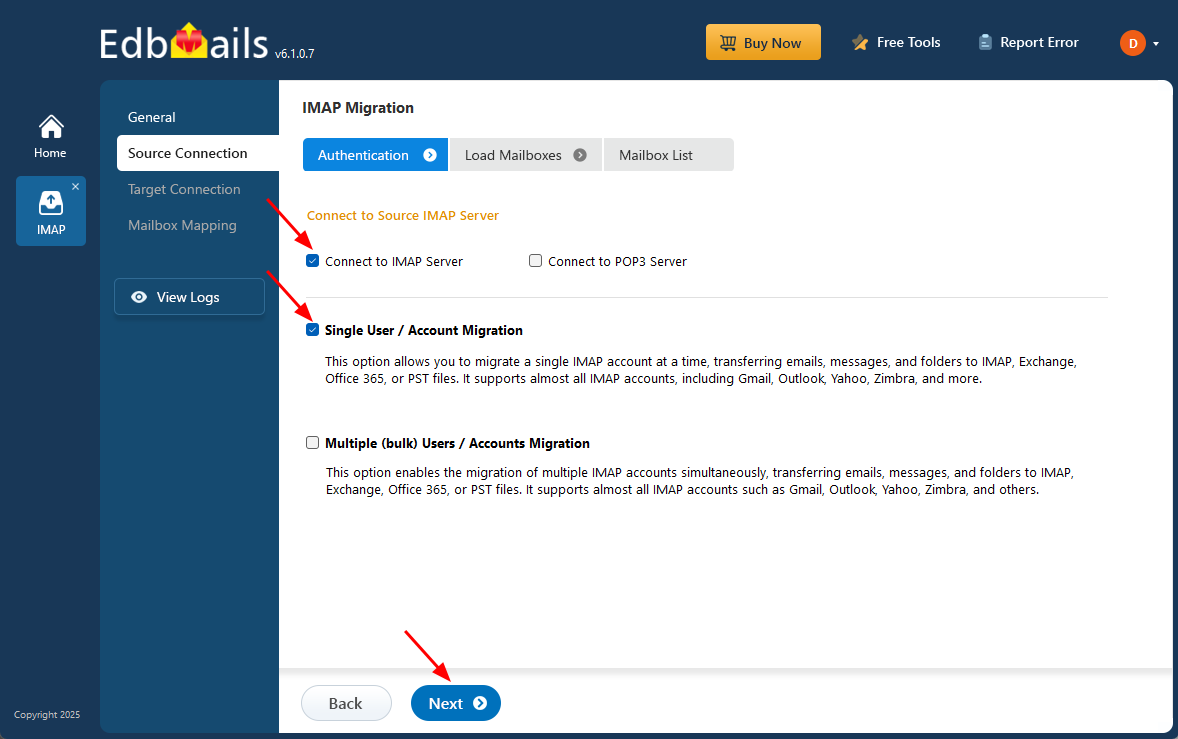
- To migrate a single account, select ‘Single User / Account Migration’, choose the required option such as ‘Connect to IMAP Server’ or ‘Connect to POP3 Server’, and click ‘Next’ to proceed to the next step.
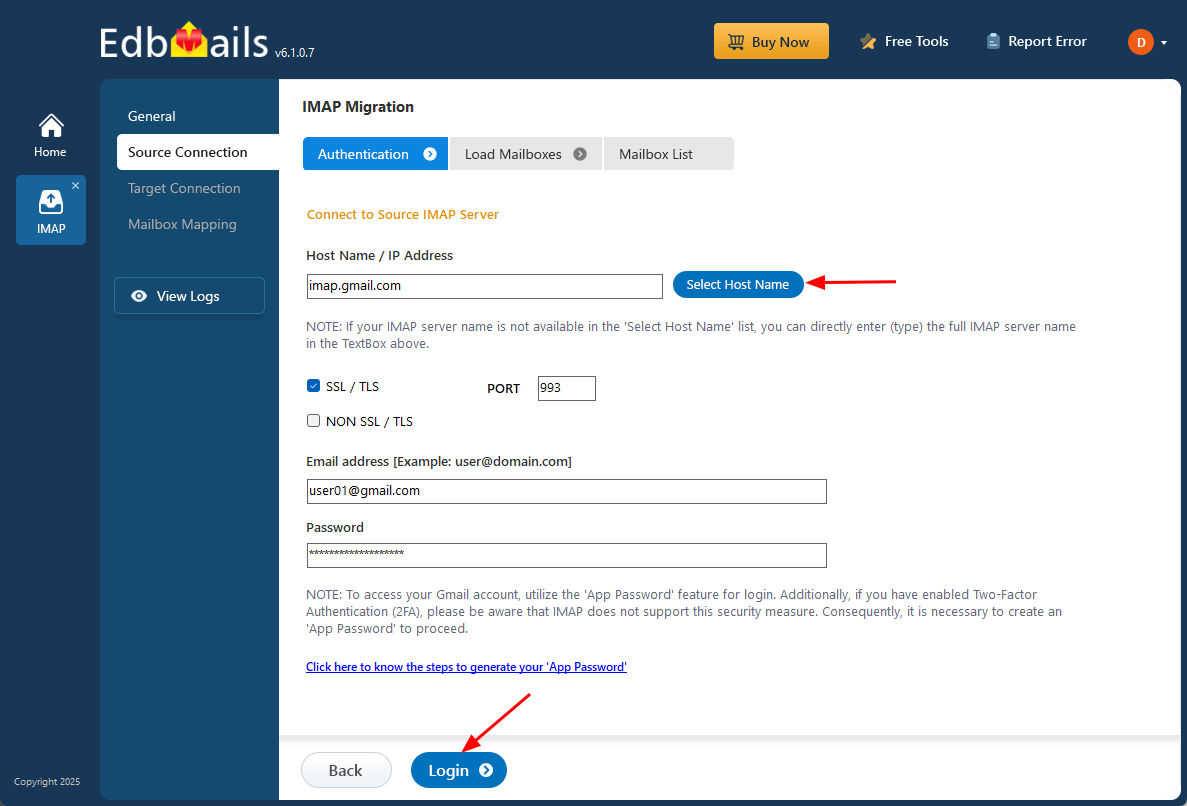
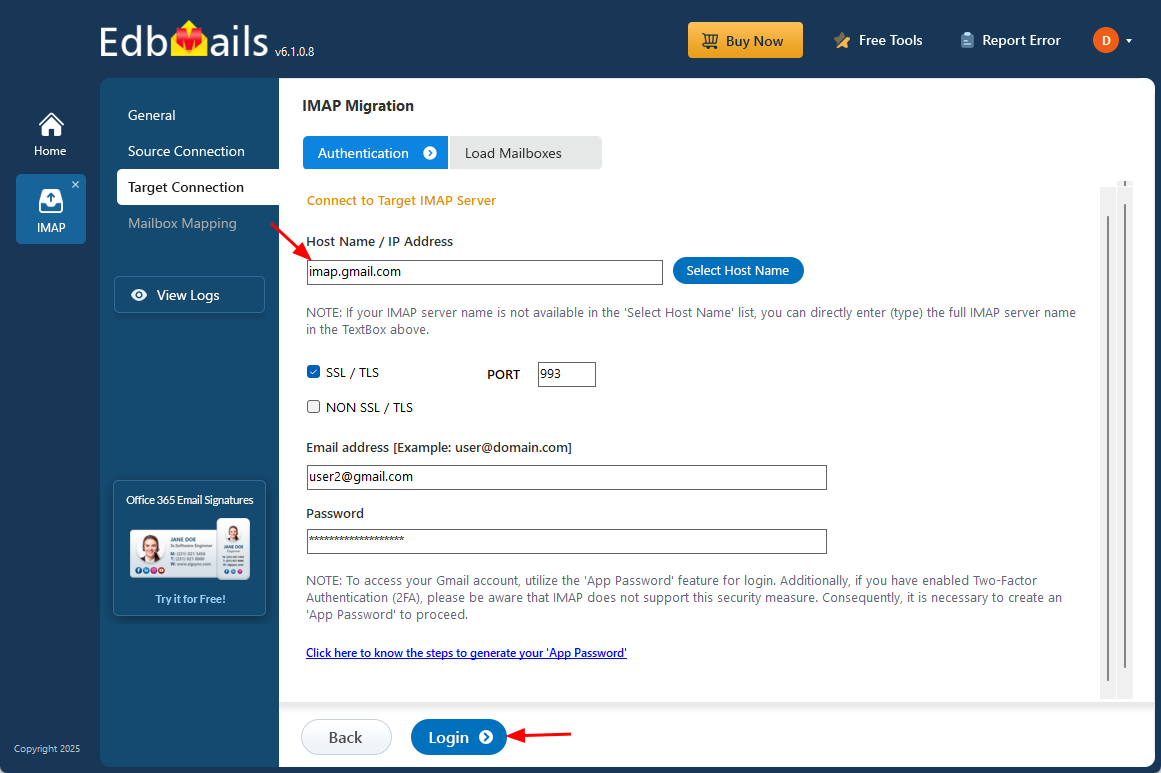
- Choose the correct IMAP host name from the list or enter it manually, then enter your email address and password. When connecting to a Gmail account, generate an app password and use it in place of your regular password to complete the connection.
- Click the ‘Login’ button.
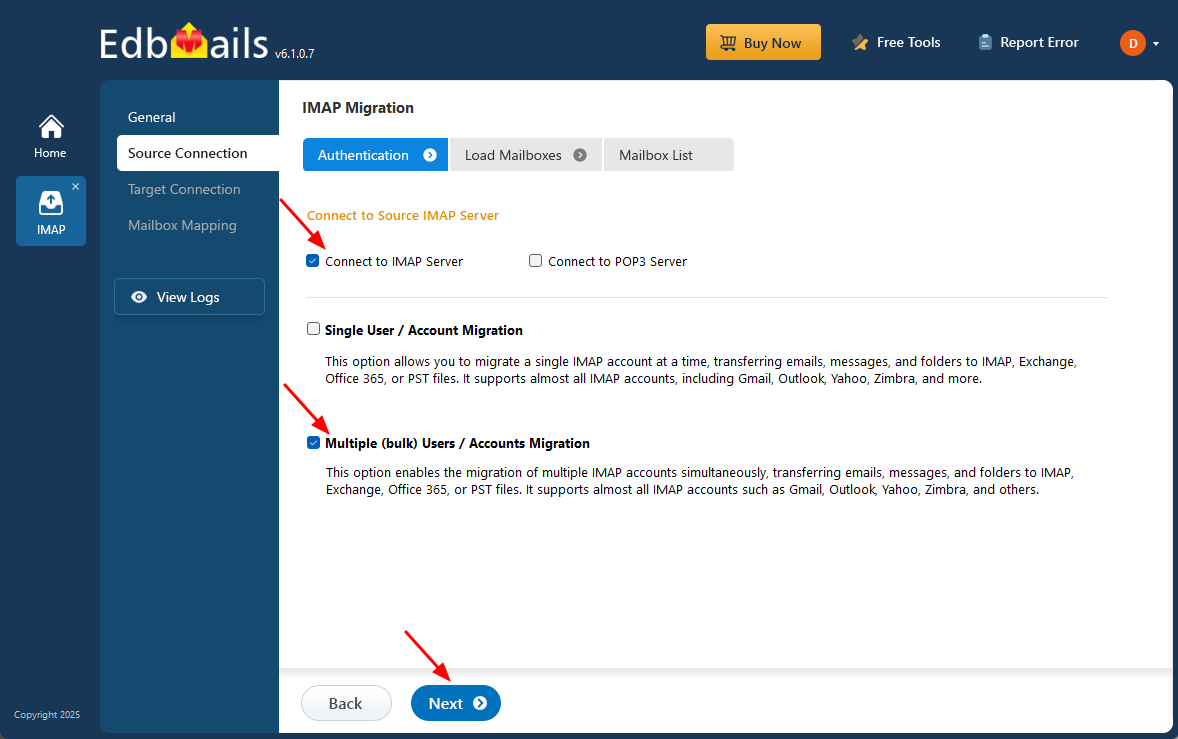
- For migrating multiple mailboxes, choose ‘Multiple (bulk) Users/Accounts Migration’, then select the appropriate option such as ‘Connect to IMAP Server’ or ‘Connect to POP3 Server’, and then click ‘Next’.
- Click ‘IMAP Migration CSV File’ for downloading the ‘Sample.CSV’ file.
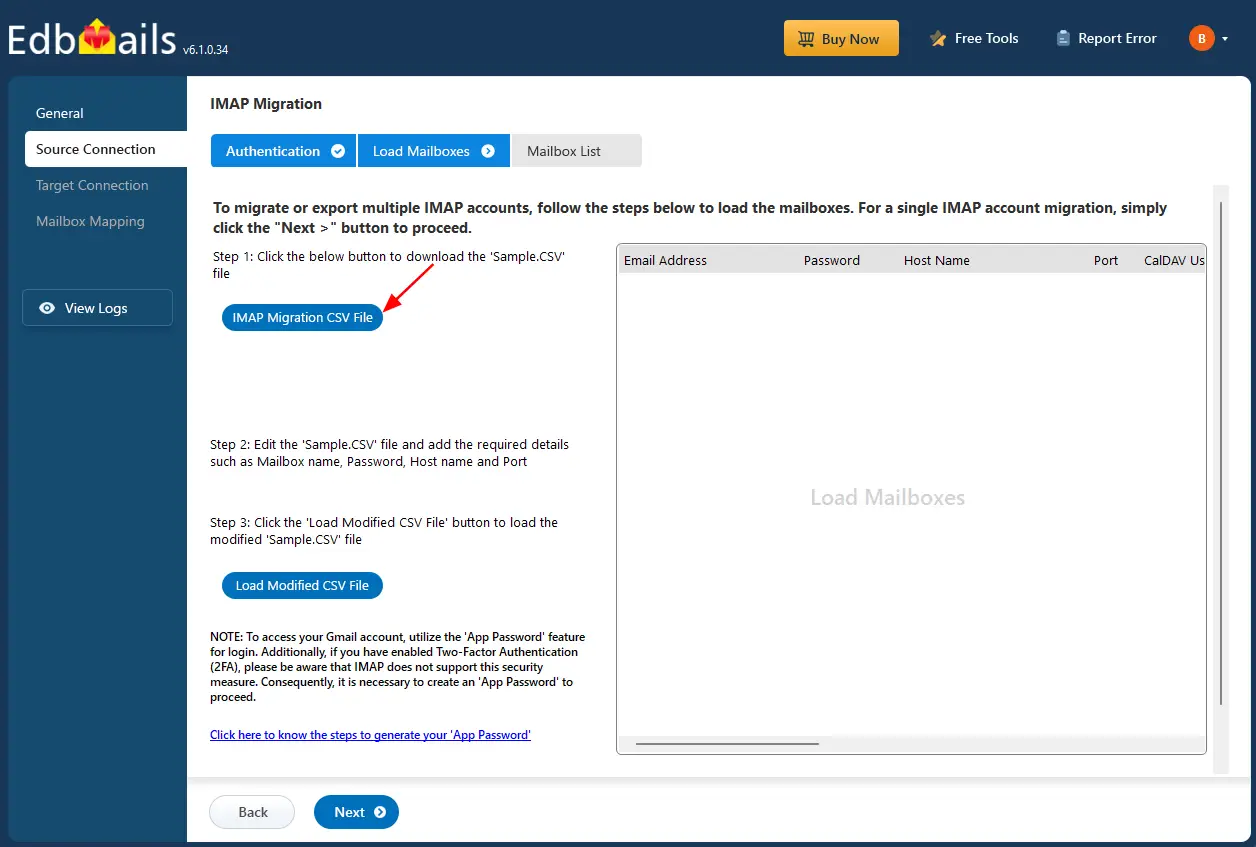
- Edit the CSV file by entering the required details such as the email address, password, host name, and port number, then save the file after updating the information.

- Close the CSV file, then click the ‘Load Modified CSV File’ button and choose the updated CSV file to proceed.
- Verify the mailboxes, and click 'Next'.
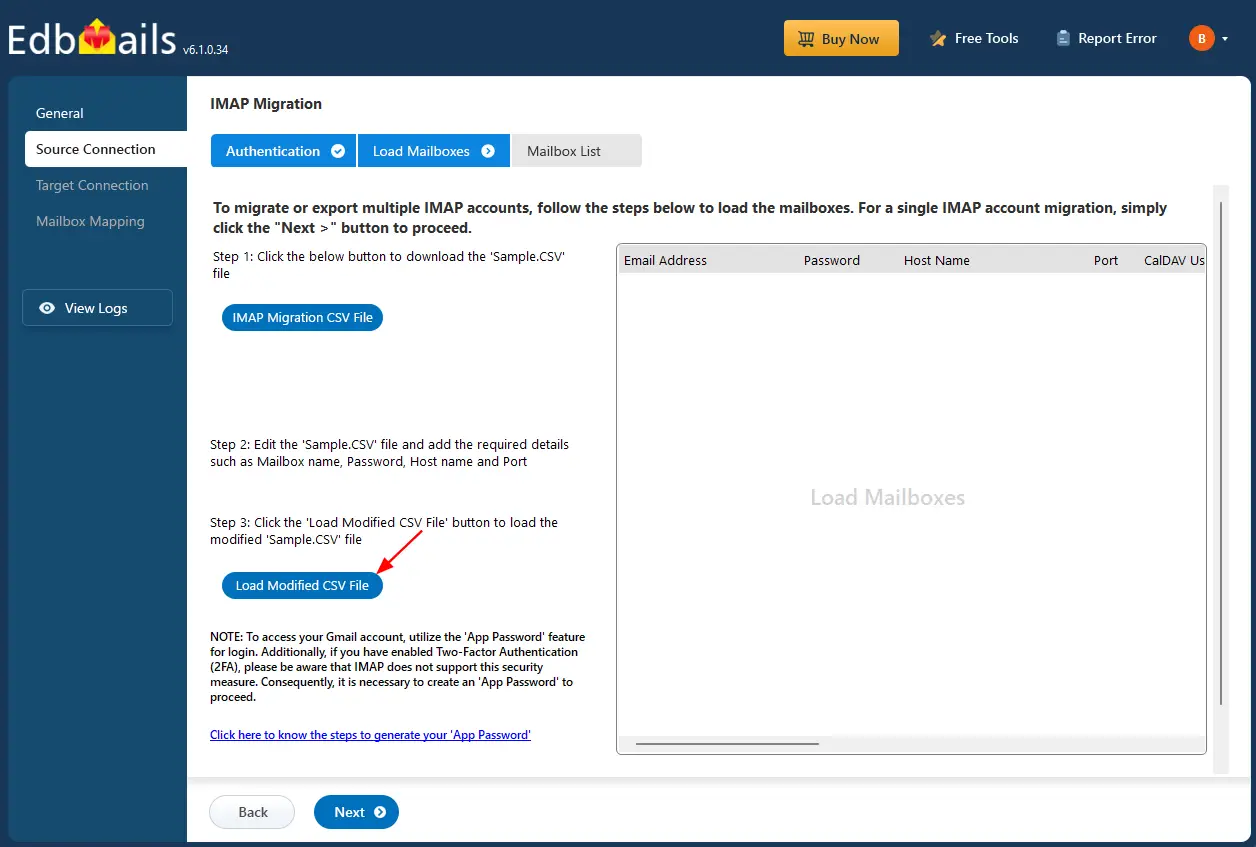
- To migrate a single account, select ‘Single User / Account Migration’, choose the required option such as ‘Connect to IMAP Server’ or ‘Connect to POP3 Server’, and click ‘Next’ to proceed to the next step.
Step 3: Select the Source IMAP Server Mailboxes
- Select the mailboxes or particular folders you want to migrate and once your selection is complete, click ‘Next’ to continue.
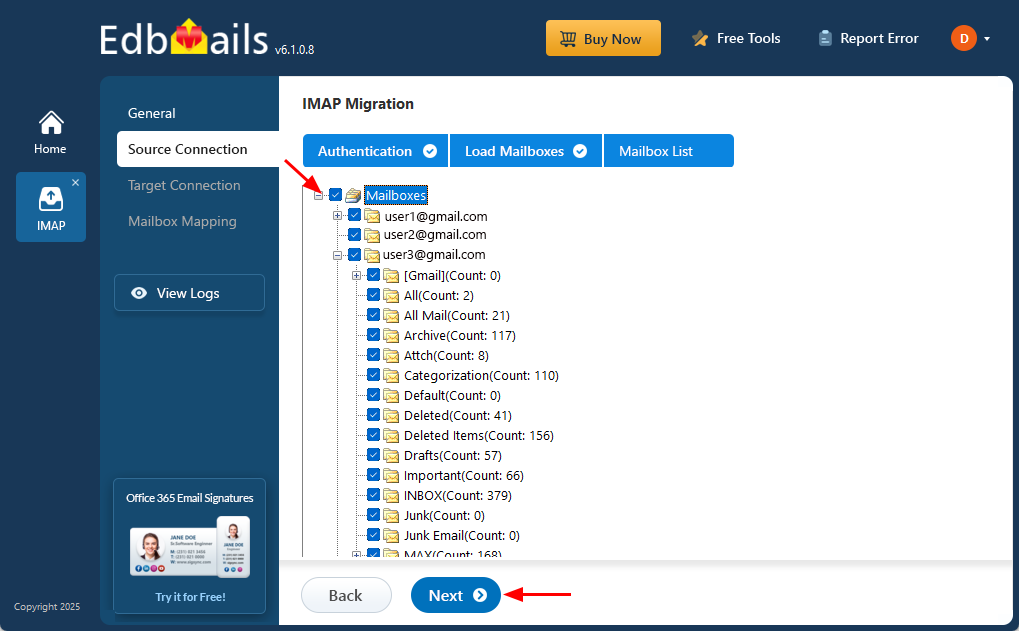
- Select the mailboxes or particular folders you want to migrate and once your selection is complete, click ‘Next’ to continue.
- Step 4: Connect to the Target IMAP Server
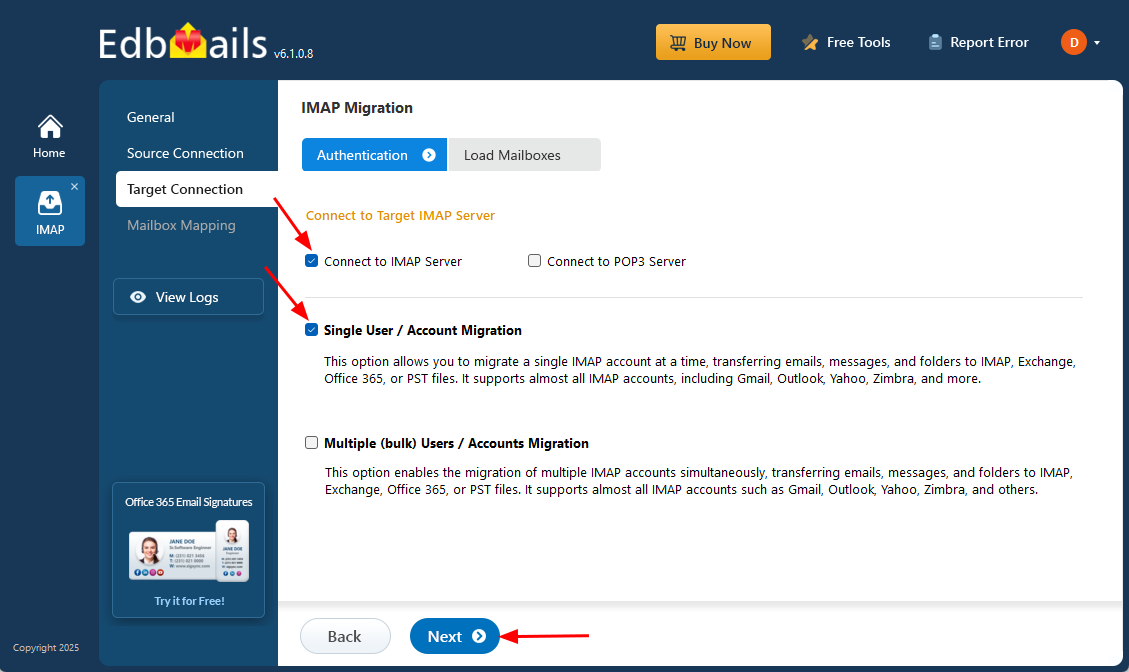
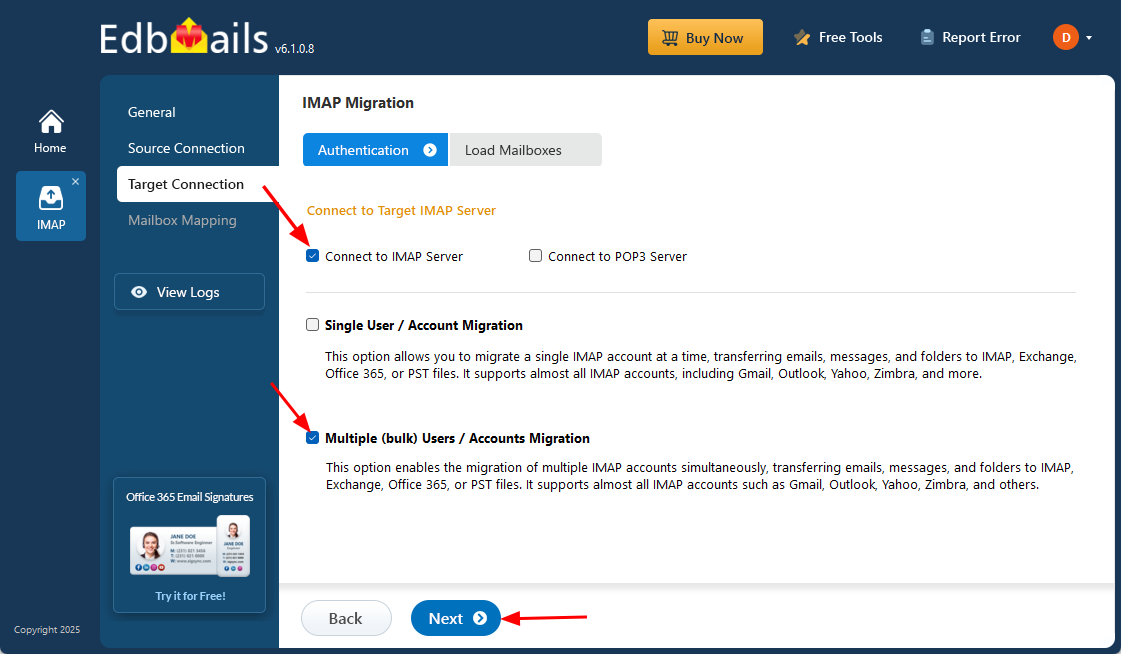
- To connect an individual user account, select ‘Single User / Account Migration’. Next, choose the appropriate protocol such as ‘Connect to IMAP Server’ or ‘Connect to POP3 Server’, then click ‘Next’ to continue.
- For a single-user login, choose the correct IMAP hostname from the list or enter it manually, then enter the email address and password. If you are connecting to a Gmail account, generate an app password and use it in place of your regular account password.
- Click the ‘Login’ button.
- For enabling the migration of multiple IMAP accounts simultaneously, select ‘Multiple (bulk) Users/Accounts Migration’ and click ‘Next’.
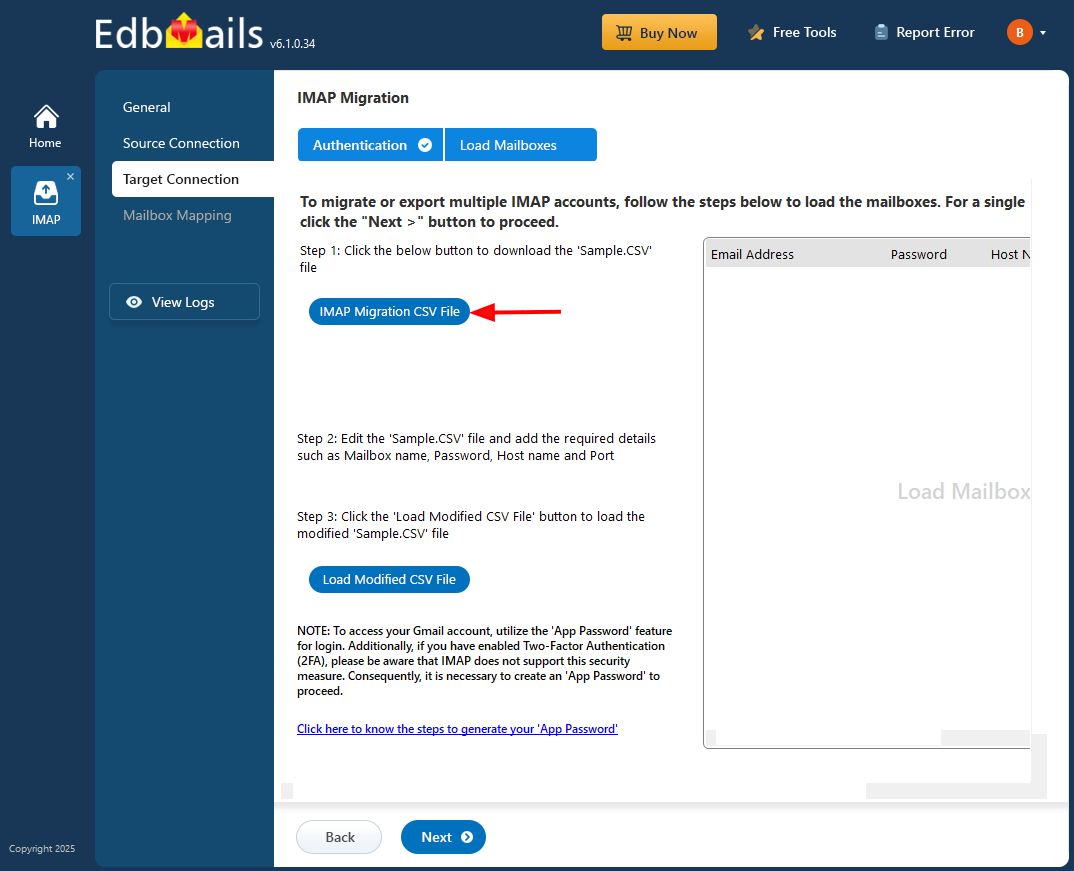
- Click ‘IMAP Migration CSV File’ to download the ‘Sample.CSV’ file.
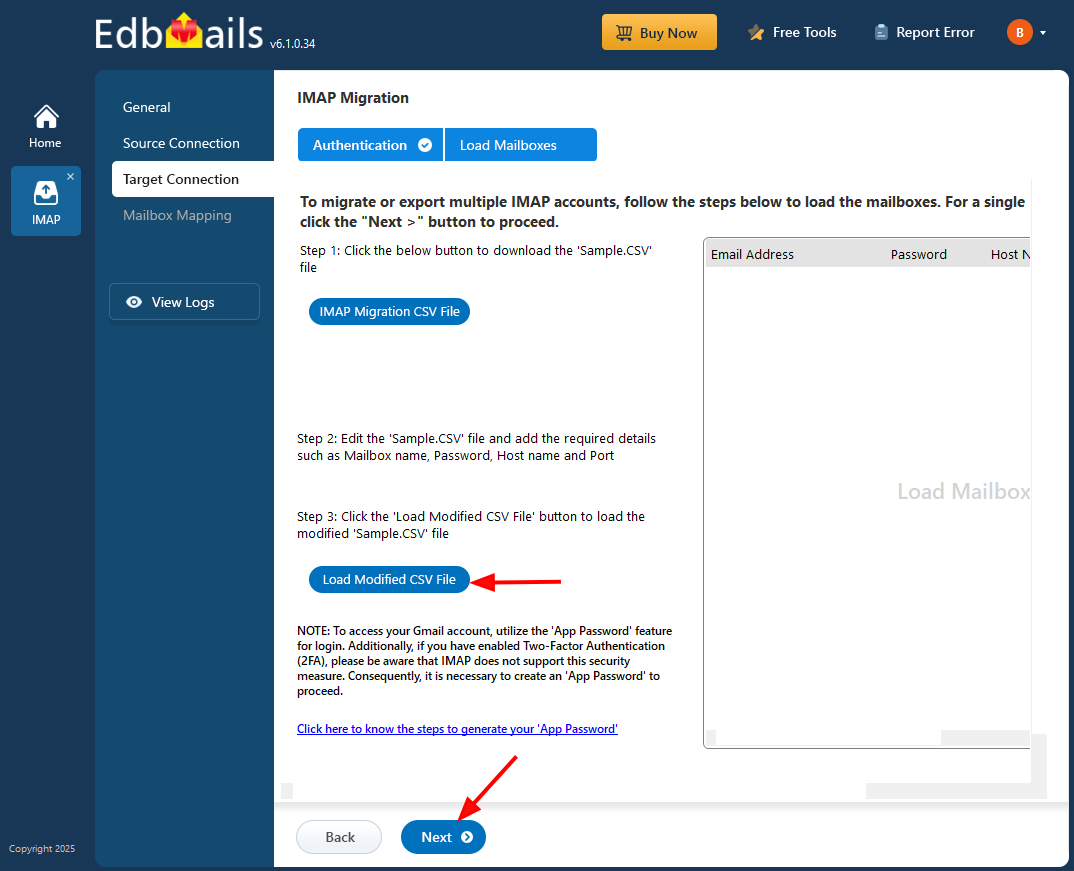
- Modify the CSV file with the required details such as email address, password, host name and port number in the CSV file and save the changes.

- Close the CSV file, click the 'Load Modified CSV File' button, select the modified CSV file .
- Verify the mailboxes, and click 'Next'.
Refer to the EdbMails detailed steps on connecting to single and multiple users during IMAP migration.
- To connect an individual user account, select ‘Single User / Account Migration’. Next, choose the appropriate protocol such as ‘Connect to IMAP Server’ or ‘Connect to POP3 Server’, then click ‘Next’ to continue.
- Step 5: Map source and target mailboxes
- Choose the required mailbox mapping option.
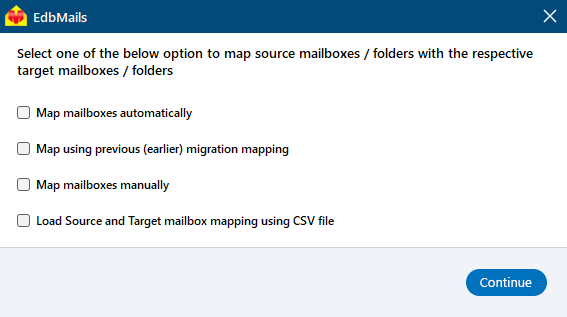
- EdbMails automatically maps the source and target IMAP mailboxes.
- You can also manually map the mailboxes
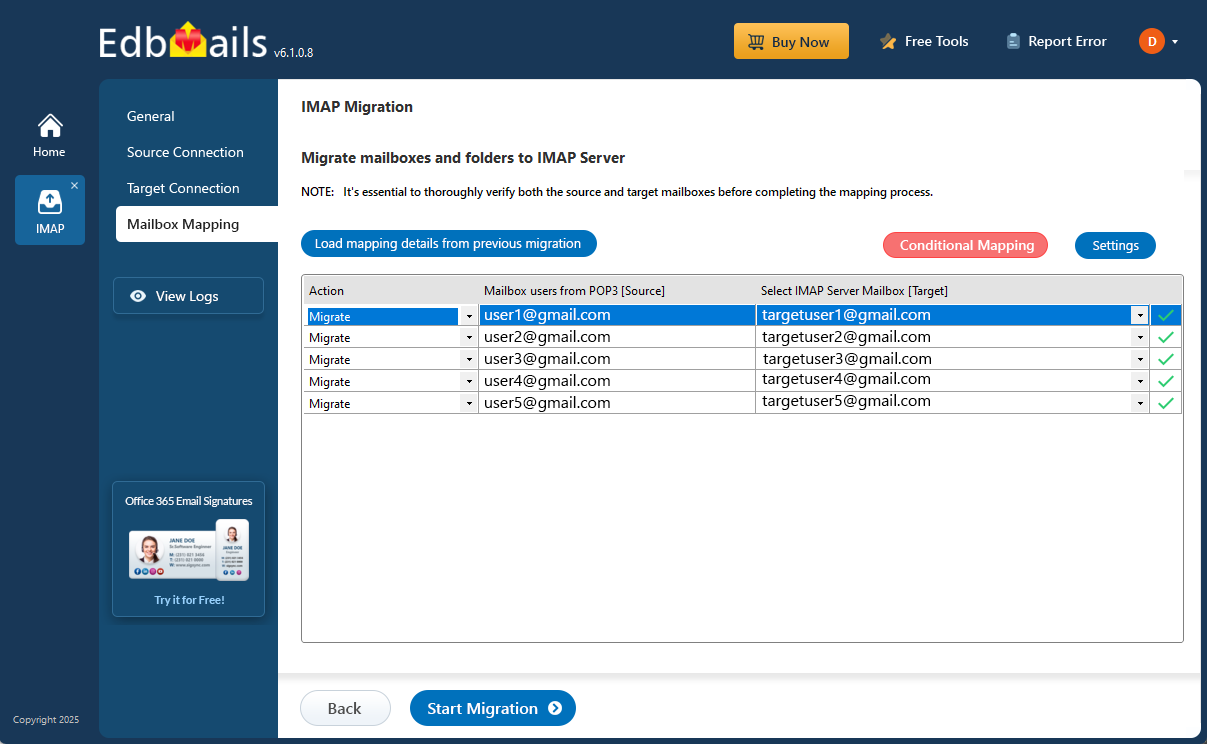
- Choose the required mailbox mapping option.
- Step 6: Start Office 365 to IMAP migration operation
- Verify both the source and target mailboxes before completing the mapping process.
- Click the ‘Settings’ button to apply the filters. For example, you can set a date filter to migrate only the data within a certain date range.
- Click the ‘Start Migration’ button and initiate the migration process.
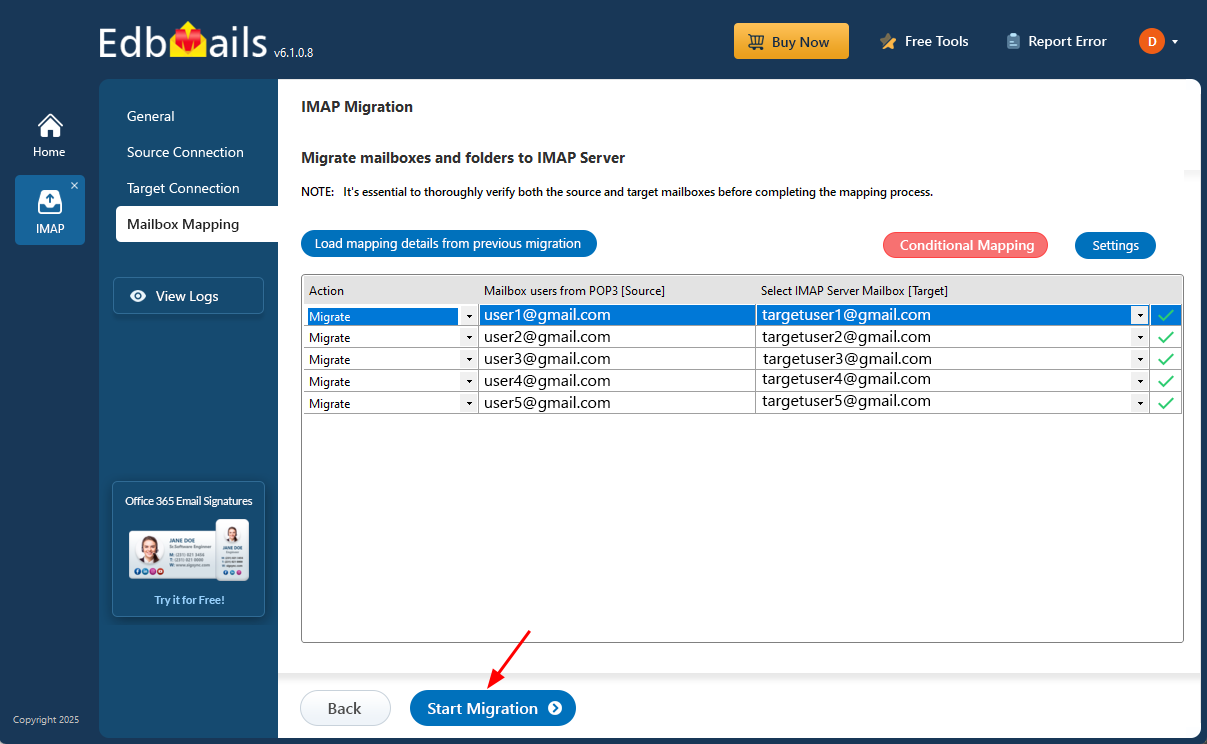
- Click the ‘View Log’ button to access the migration report, which includes a mailbox migration status, errors, and a summary of migrated items, including the total number of items exported and ensuring clear tracking and evaluation of the process.
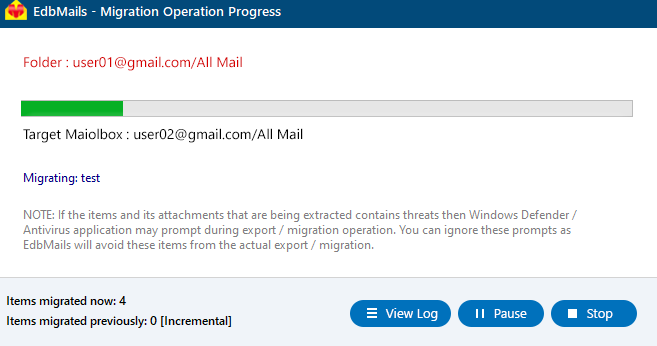
- Also, log in to your target server and verify the migrated items.
IMAP to IMAP Post-migration Activities
Once the migration is completed, update your MX records to route email traffic to the new server.
IMAP to IMAP migration troubleshooting:
For troubleshooting, visit Knowledge Base articles.
For more queries, check Frequently Asked Questions or contact support.
Advantages of EdbMails for IMAP to IMAP migration
- Concurrent mailbox migration
EdbMails IMAP migration software allows migration of multiple mailboxes simultaneously, significantly accelerating the overall migration process. This capability is especially valuable for organizations managing large volumes of email data, as it reduces downtime and maximizes resource efficiency. By processing several mailboxes in parallel, EdbMails shortens the project timeline and makes large-scale migrations more manageable and time-efficient compared to traditional, sequential migration methods.
- Incremental migration
EdbMails IMAP migration supports incremental migration feature which ensures that after the initial transfer, only new or modified items are migrated, effectively preventing data duplication. This approach conserves bandwidth by transferring only changes and helps maintain data integrity in both source and target mailboxes. Incremental migration is particularly advantageous for ongoing or staged migrations, as it allows users to continue using their email accounts without interruption. This feature enables a seamless transition, reduces network load, and supports a zero-downtime migration experience, ensuring a smooth, efficient migration process.
- Granular email filtering
The advanced include/exclude filters allow precise control over the migration, letting you filter emails by date, subject, attachment, and sender address, recipient address, read/unread status of the messages. This ensures that only the necessary data is transferred, optimizing the migration scope and efficiency.
- Folder exclusion options
With folder-specific controls, EdbMails lets you exclude standard folders as well as custom folders from the migration operation. This prevents unwanted or unnecessary folders from being migrated and reduces clutter.
- Data security and consistency
EdbMails is built with robust security protocols that maintain strict data consistency between the source and target servers. It ensures that every email, attachment, and metadata is accurately transferred, without any corruption or data loss.
- Broad IMAP server compatibility
EdbMails supports migrations across all IMAP-enabled email servers, including Gmail, Zoho Mail, Zimbra, Plesk, Outlook, Hotmail, Rackspace, GoDaddy, cPanel and more. This wide compatibility makes it suitable for a wide range of migration scenarios.
- All Windows OS compatibility
The software is fully compatible with all Windows versions including Windows 11, 10, 8.1, 8, 7, and all Windows server versions, providing flexibility across diverse system environments for both personal and enterprise-level users.
- Free trial and 24x7 support
EdbMails offers a free trial version of the software along with 24x7 customer support, ensuring users have access to help during migration. This support guarantees smooth and uninterrupted migration assistance when needed.


