


HostMonster to Office 365 Migration
HostMonster, a long-standing provider of web hosting and domain services since 1996, has evolved its offerings to include VPS, dedicated hosting, and other advanced features. Its hosting plans provide useful tools such as unlimited storage, a drag-and-drop site builder, webmail options like Horde and RoundCube, cPanel for easy management, IMAP email support, and built-in spam protection. While these features are suitable for small businesses, growing organizations often find HostMonster’s email capabilities limited in scalability and collaboration.
To overcome these limitations, many organizations are transitioning to Microsoft 365 (Office 365), which offers a modern, integrated, and scalable environment. Office 365 provides seamless access to Outlook, Teams, OneDrive, and SharePoint enabling cloud-based storage, real-time collaboration, and communication from a unified platform. These capabilities make it an ideal choice for businesses looking to enhance productivity and streamline communication across teams.
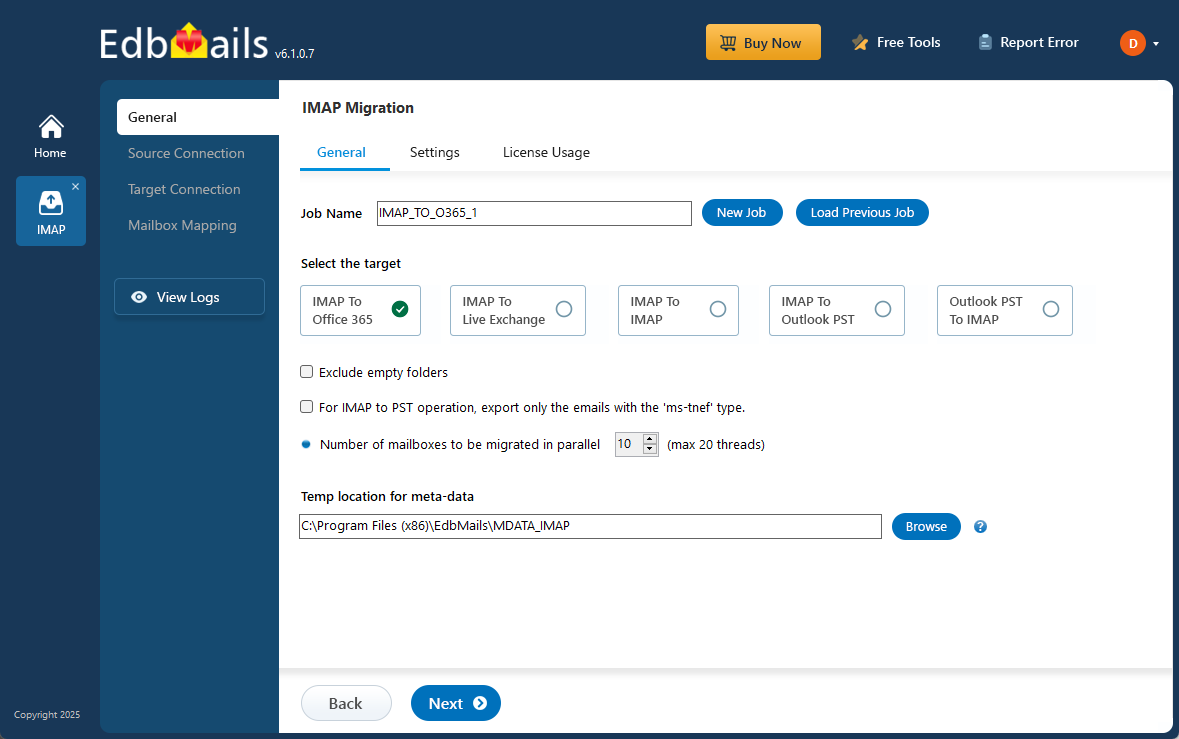
EdbMails IMAP migration tool simplifies the entire HostMonster to Office 365 transition by ensuring a secure and complete transfer of mailboxes, folders, attachments, and other items without data loss or downtime. With its intuitive interface, users can perform migrations without complex scripts or technical expertise. EdbMails also includes features such as selective item migration, pause and resume functionality, and delta migration to transfer only newly added or modified items, eliminating duplication. Together, these features make EdbMails a reliable solution for achieving a smooth and efficient HostMonster to Office 365 migration.
User Query
“Our company is planning to migrate to Office 365. Currently, our website domain is hosted by HostMonster. To ensure a smooth migration, we’re gathering all the necessary information in advance for transferring our emails from Horde to Office 365. We need to retain our current domain name and ensure that emails sent to our HostMonster domain are seamlessly routed to Office 365. Could someone guide us on the best approach to achieve this without experiencing any downtime or issues? Thanks”
HostMonster to Office 365 Migration Plan
Proper planning is crucial before you begin HostMonster to Office 365 migration. Below is a checklist to ensure a smooth and secure migration process.
- Determine the size of the data and the number of mailboxes you want to migrate.
- Make a list of all the data and permissions from HostMonster email that you want to transfer.
- Create appropriate user mailboxes on Office 365 and assign licenses to them.
- Ensure you have enough network capacity and bandwidth to migrate.
- Communicate the migration plan and flow to your end users.
Pre-migration Steps for HostMonster to Office 365
- Have the users email address, passwords, IMAP hostname and port number.
- Find the IMAP server name of your HostMonster server. You can find this information from your server’s dashboard settings or by connecting your email system to Outlook.
- Before you migrate HostMonster to Office 365, ensure that you create mailboxes for your users in your organization and assign suitable licenses to them.
- If you have a custom email domain from your hosting provider to which you want to migrate and receive emails, you must add and verify the domain on Office 365.
Steps to add a custom domain to Office 365 and Steps to add DNS records to connect your domain.
- Configure Office 365 to send and receive large messages.
Follow the steps to increase the message size on Office 365 to 150MB and see tips to optimize IMAP migration to Exchange online.
Steps to Migrate from HostMonster to Office 365
Step 1: Download and Install EdbMails software
- Download and install the EdbMails application on your computer running on Windows OS.
See a detailed list of EdbMails system requirements for IMAP migration.

- Launch the EdbMails application on your computer.
- Enter your registered email address and password, then click ‘Login’. If you’re using EdbMails for the first time, select ‘Start Your Free Trial’ to continue with the trial version.Note: The trial version includes all major features and lets you migrate up to 30 items per folder. For unlimited migration, purchase an IMAP Migration license from the official EdbMails website.Once the purchase is complete, close and reopen the application. Log in again with the same email address and password used during the purchase to activate your license successfully.

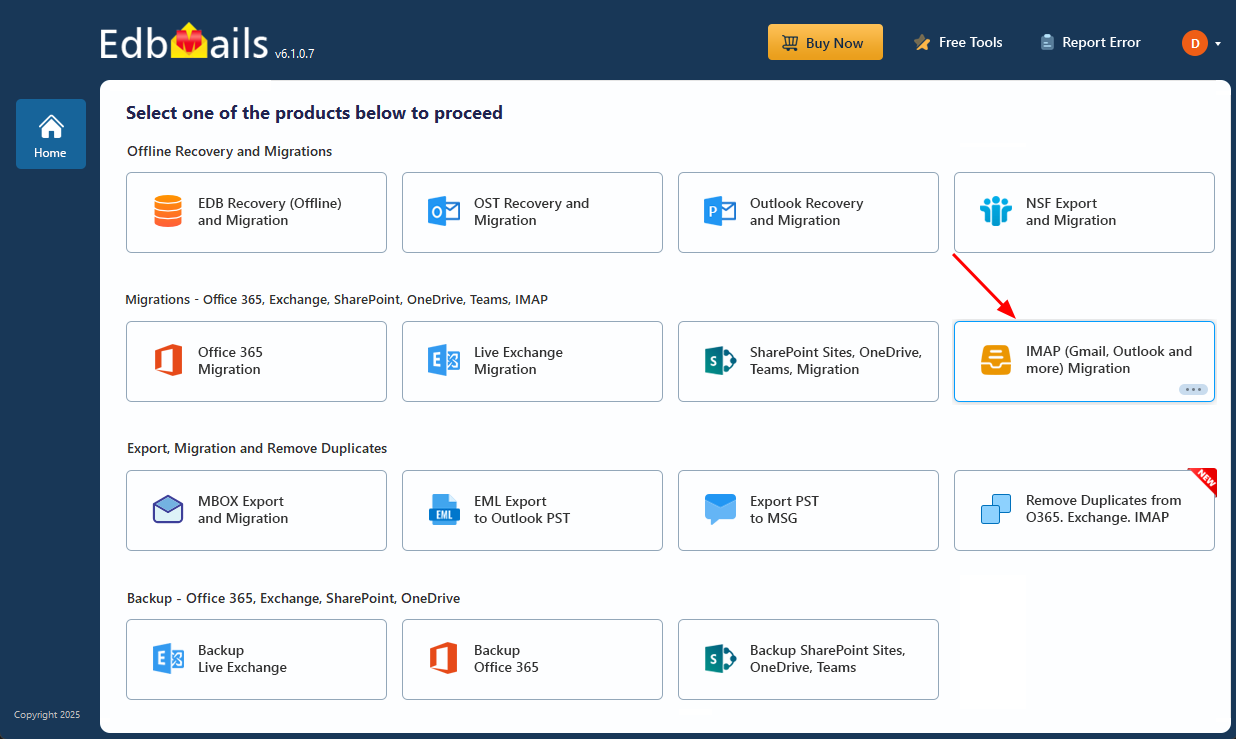
- Select the option ‘IMAP (Gmail, Outlook & more) Migration’.
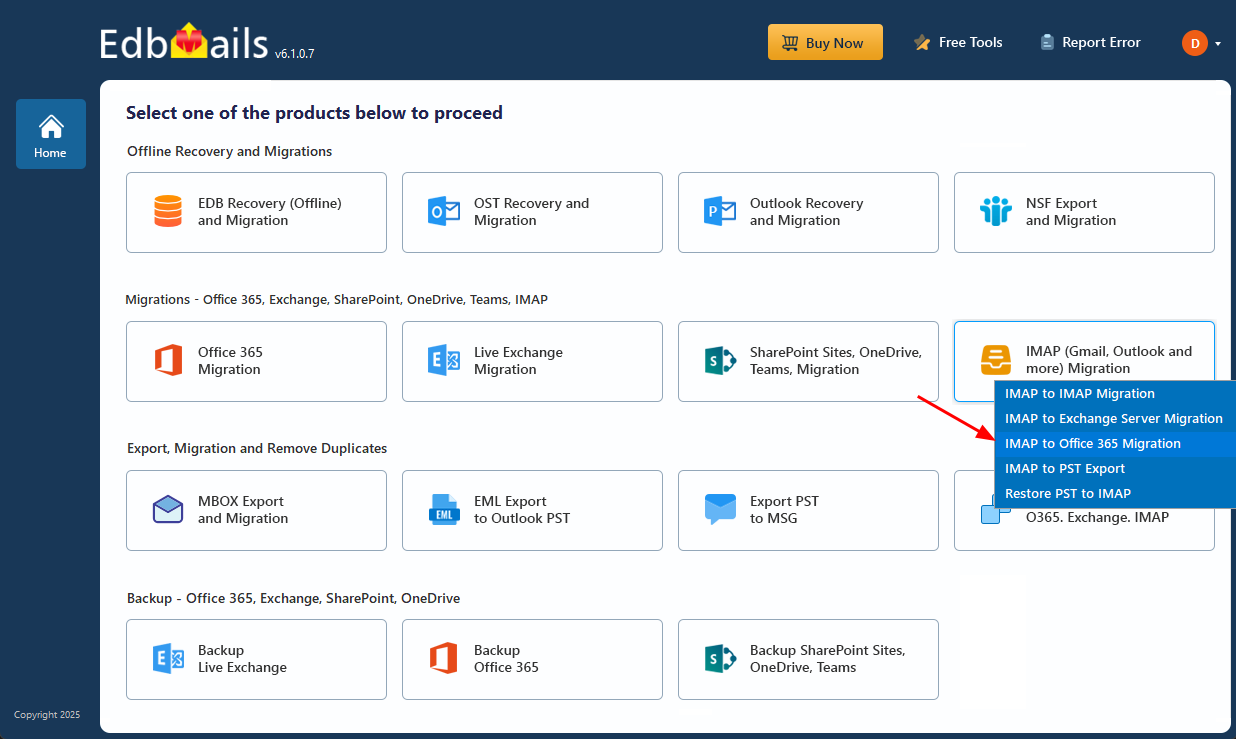
- Select ‘IMAP to Office 365 Migration’.
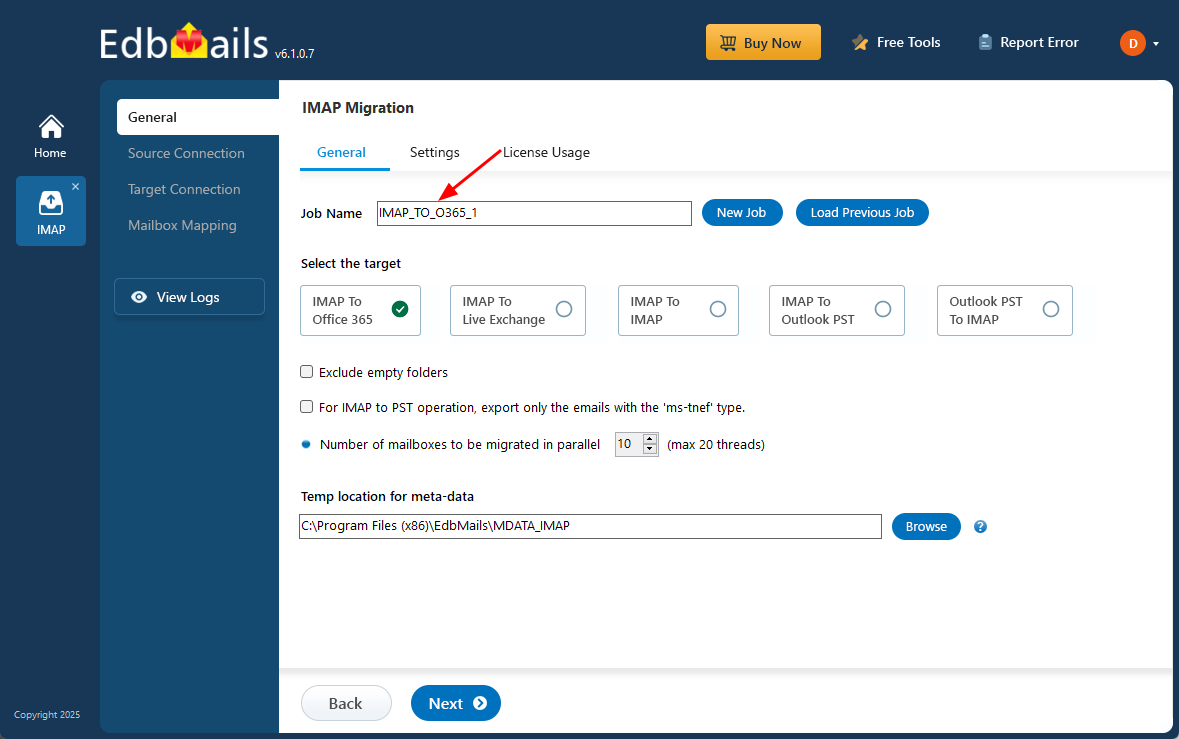
- You can either use the default job name or click on 'New Job' to customize it as needed.
- Download and install the EdbMails application on your computer running on Windows OS.
Step 2: Connect to source Hostmonster server
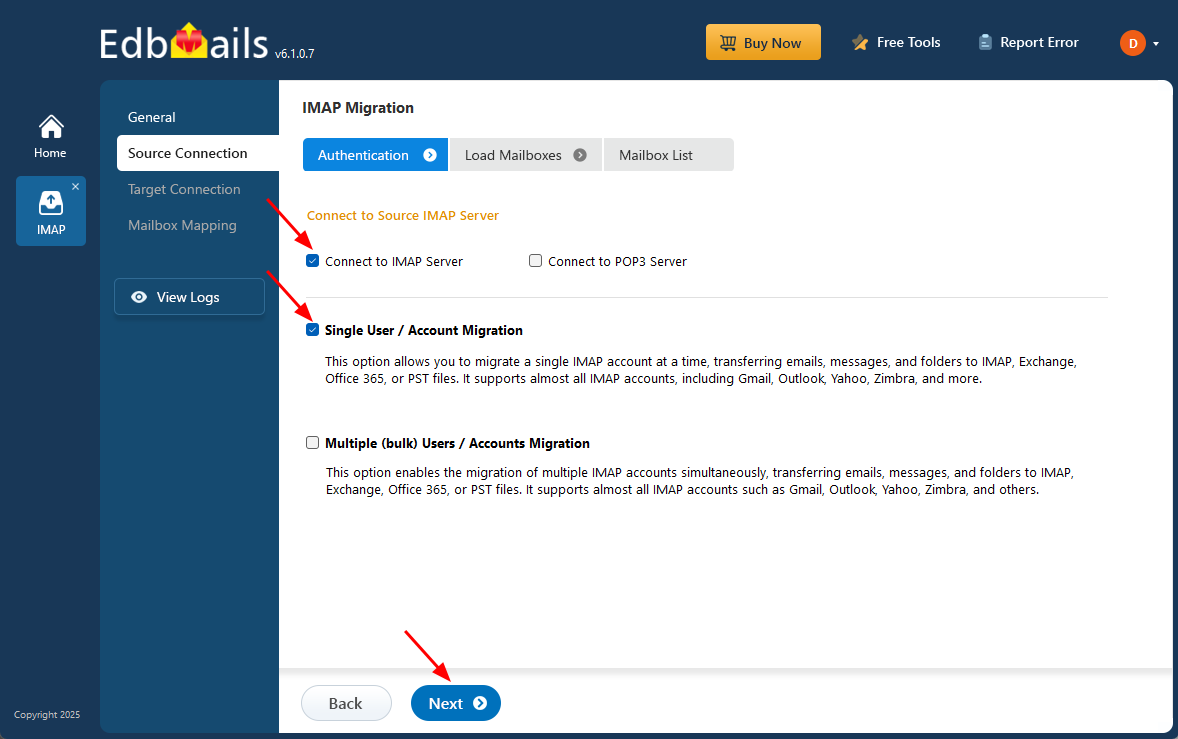
- To migrate a single Hostmonster email account, select ‘Single User / Account Migration’, then choose the appropriate connection method such as ‘Connect to IMAP Server’ or ‘Connect to POP3 Server’ based on your setup.
- After selecting the option, click ‘Next’ to continue setting up the connection.
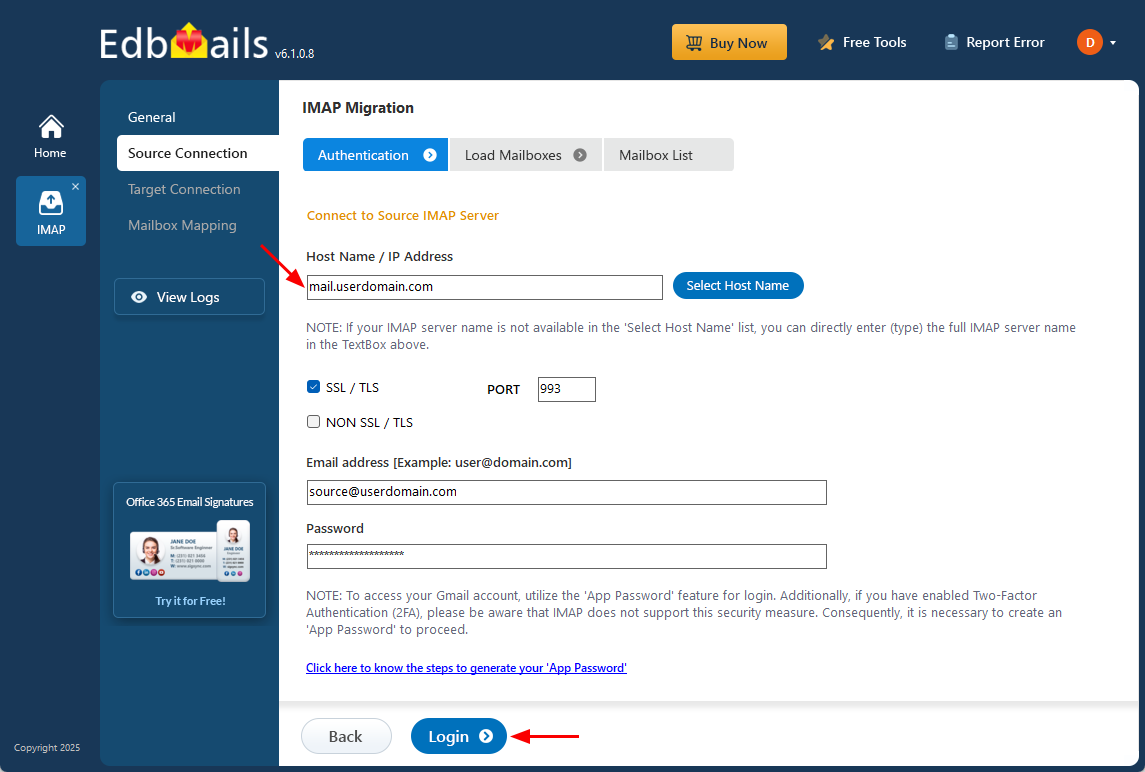
- From the IMAP host list, select ‘Hostmonster’ or manually enter the IMAP server details specific to your account. Then, provide your full email address and password.
- Click on the ‘Login’ button to establish a secure connection with your Hostmonster account.
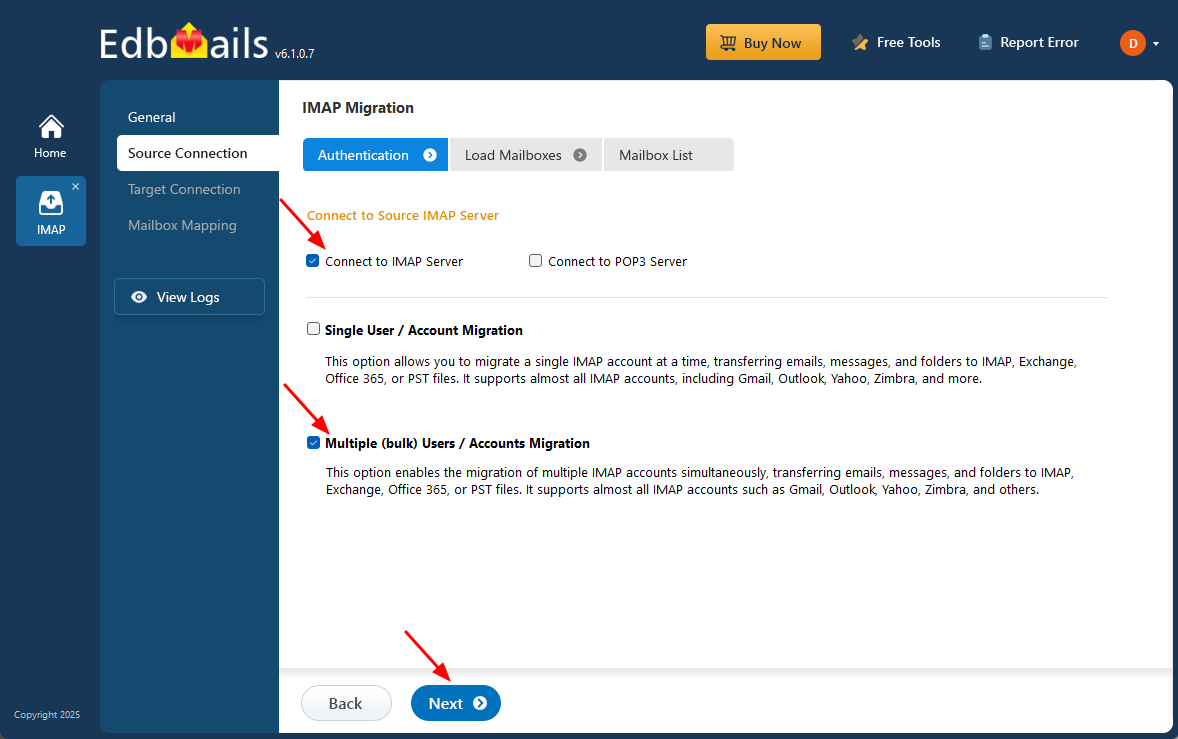
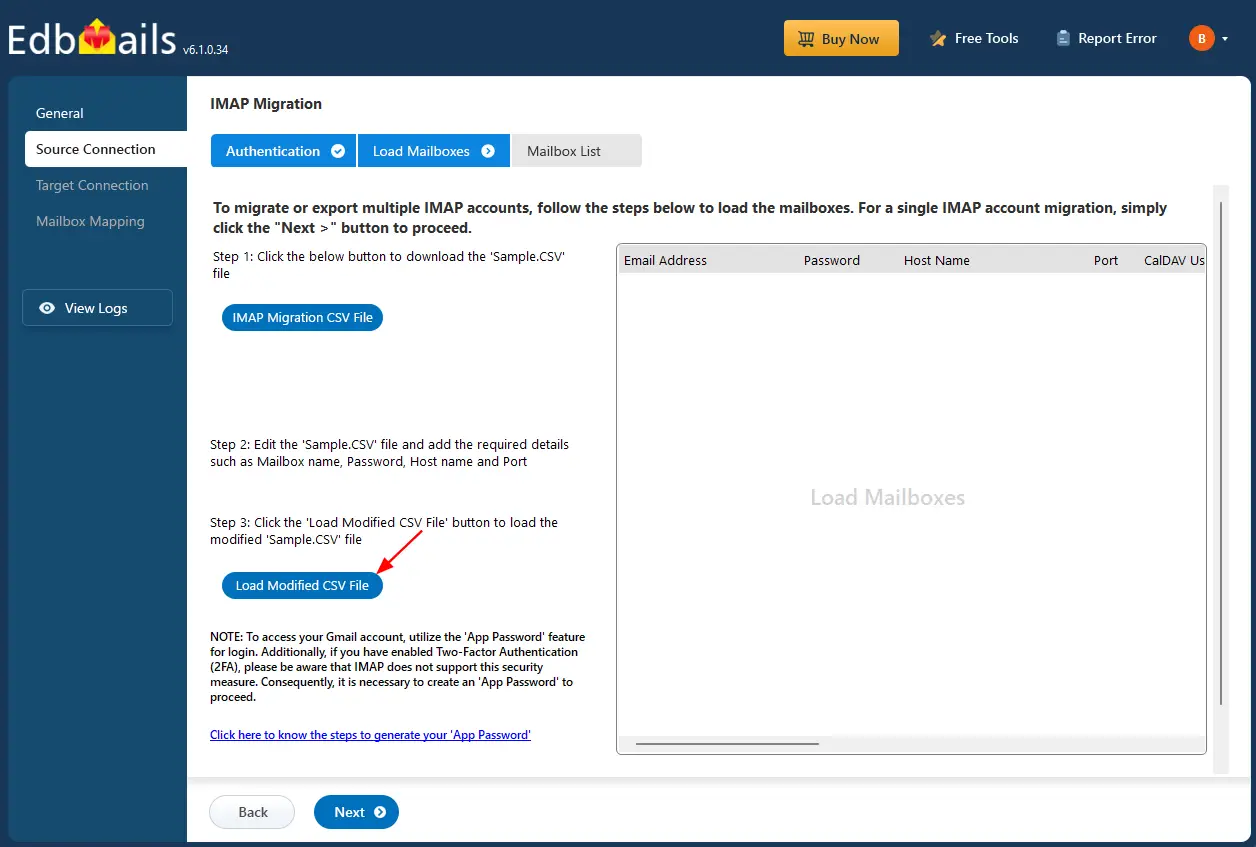
- For migrating multiple Hostmonster mailboxes in a single operation, choose ‘Multiple (Bulk) Users/Accounts Migration’ and select the appropriate connection option such as ‘Connect to IMAP Server’ or ‘Connect to POP3 Server’, then click ‘Next’ to continue.
- Click ‘IMAP Migration CSV File’.
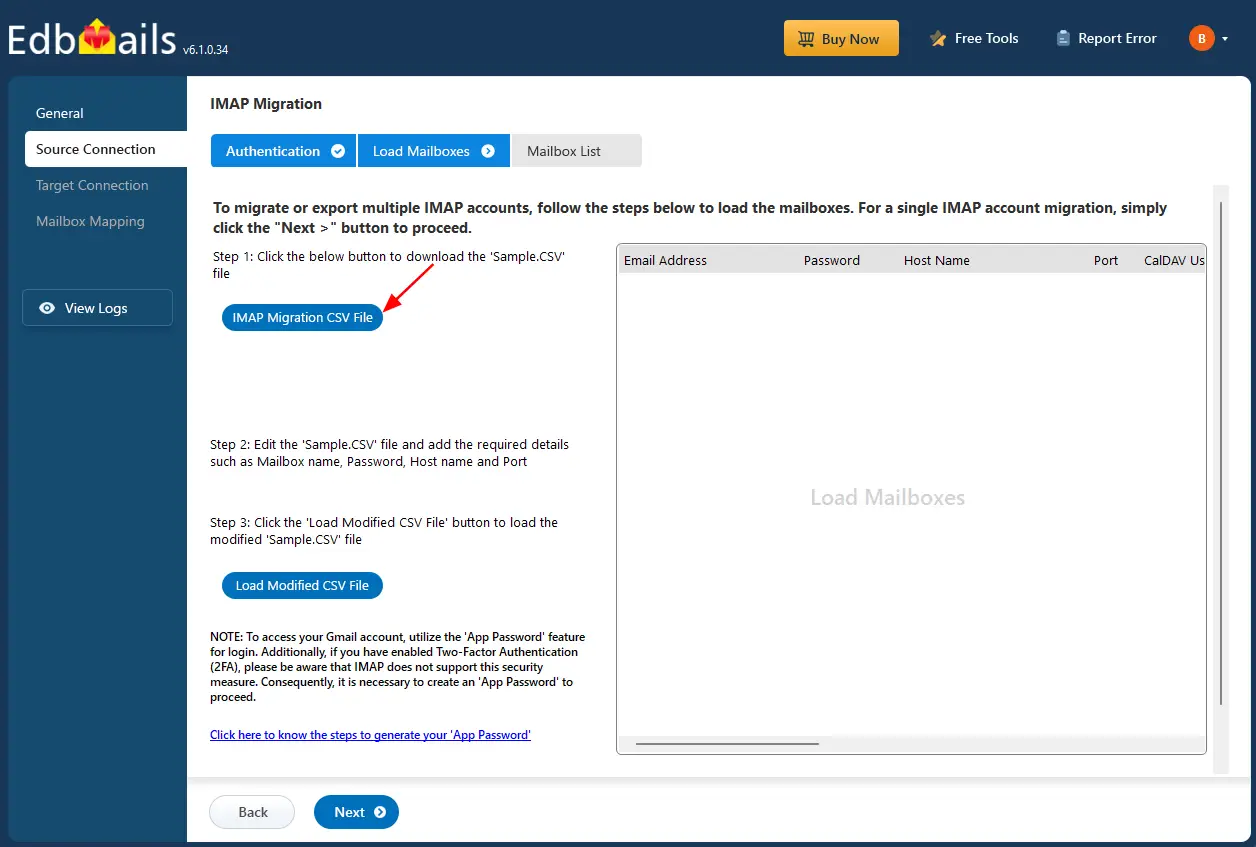
- Open the CSV file and enter the necessary details for each Hostmonster account you wish to migrate. This includes the user's email address, account password, IMAP server name, and the corresponding port number. After filling in all the required fields, save the file to proceed with the migration setup.

- Once you've updated the CSV file with all the necessary mailbox details, save and close the file.
- Then, click the 'Load Modified CSV File' button, navigate to the saved location, select your file, and upload it to continue with the migration process.
Step 3: Select source HostMonster server mailboxes
- Select the mailboxes or individual folders you want to include in the migration. Once you've made your selection, click ‘Next’ to move forward with the process.
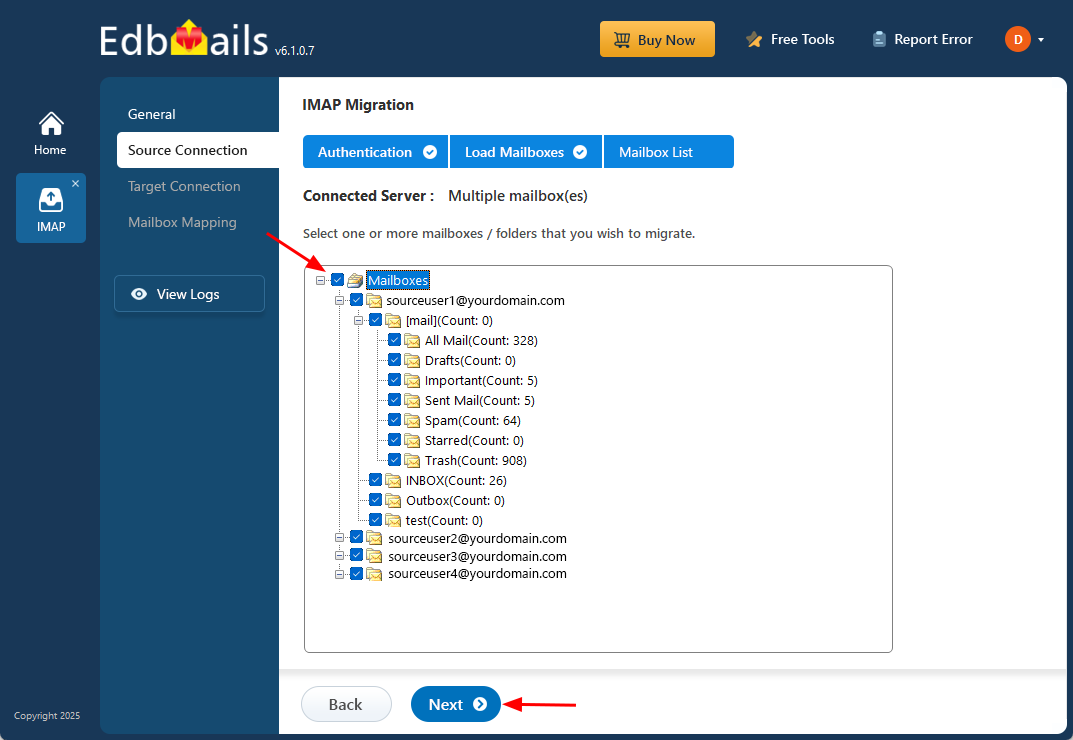
- Select the mailboxes or individual folders you want to include in the migration. Once you've made your selection, click ‘Next’ to move forward with the process.
Step 4: Connect to target Office 365 server
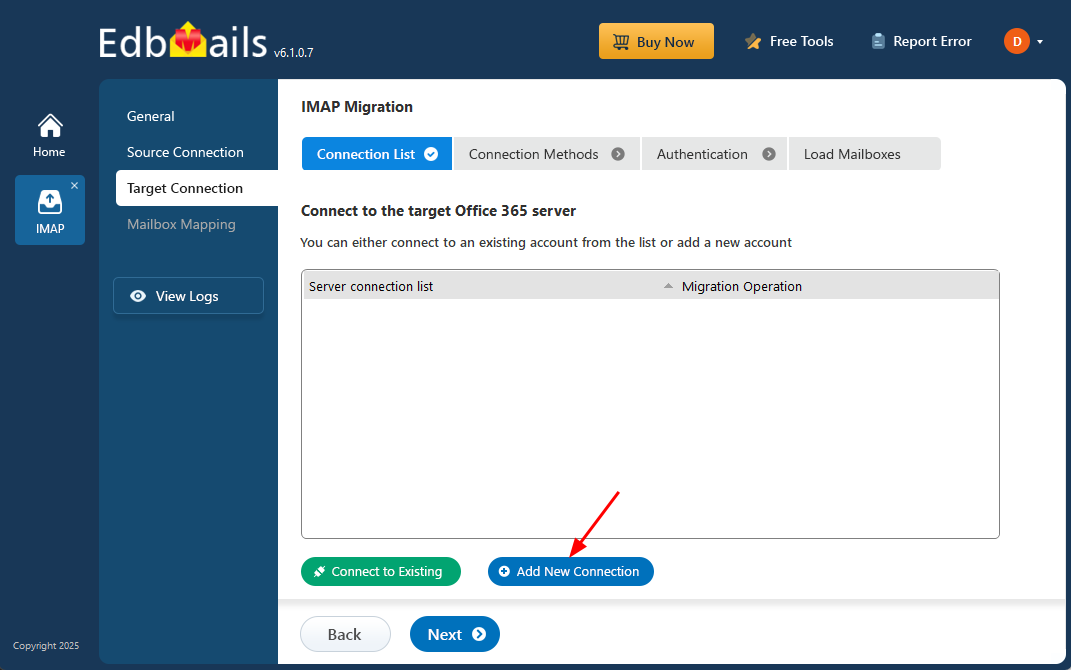
- Select the ‘Add New Connection’ option to establish a connection with your target Office 365 account.
- If you have previously set up a connection, you can choose it from the available list and click ‘Connect to Existing’ to proceed.
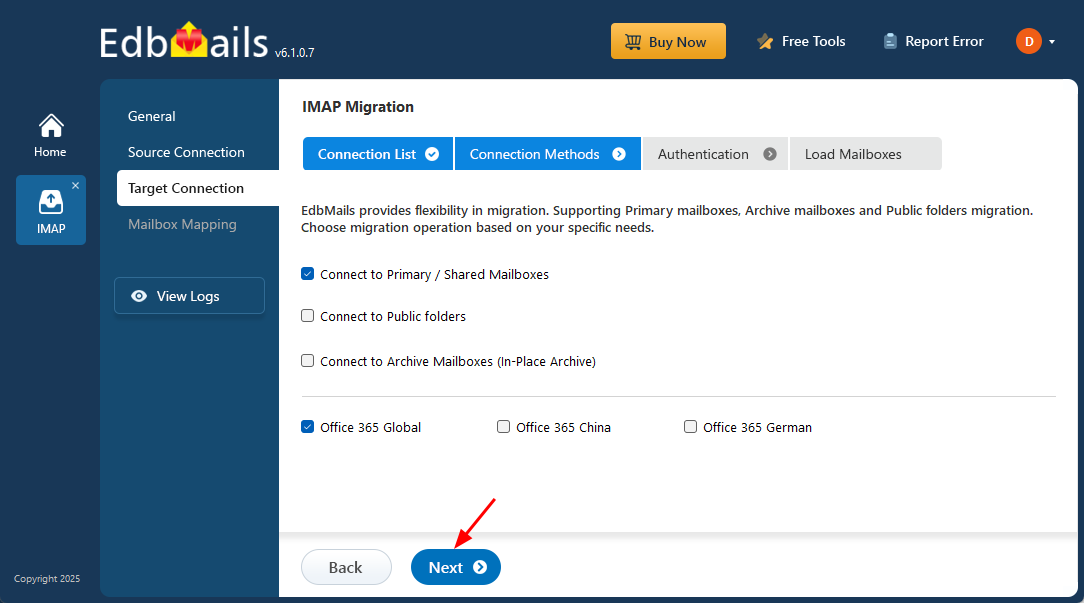
- Select the appropriate connection settings based on your migration requirements, then click ‘Next’ to proceed with the migration.
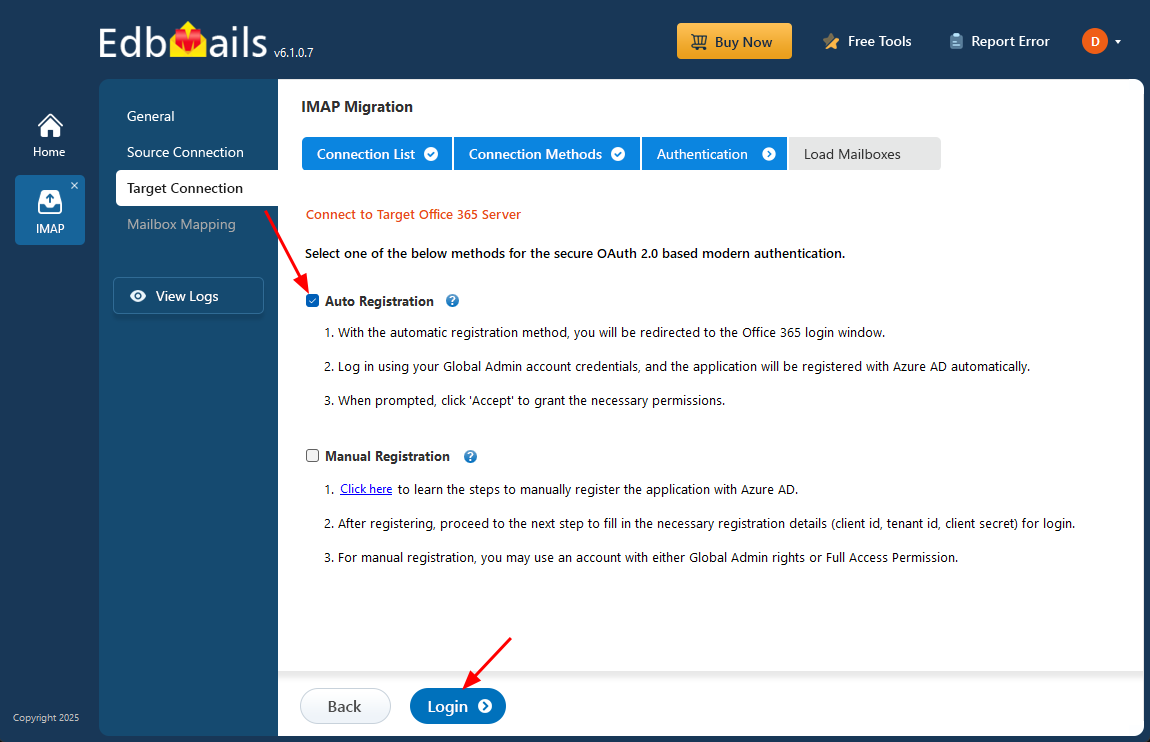
- Select any of the available options to create a secure connection using OAuth 2.0 modern authentication.
- Choose Auto Registration for a quick and simple setup. Sign in using a Global Admin account and grant the necessary permissions to automatically register the application in Azure AD.
- Alternatively, select Manual Registration if you want to manually provide the Azure AD application details. This option works with both Global Admin accounts and accounts that have Full Access permissions.
- Click ‘Login’ to continue.
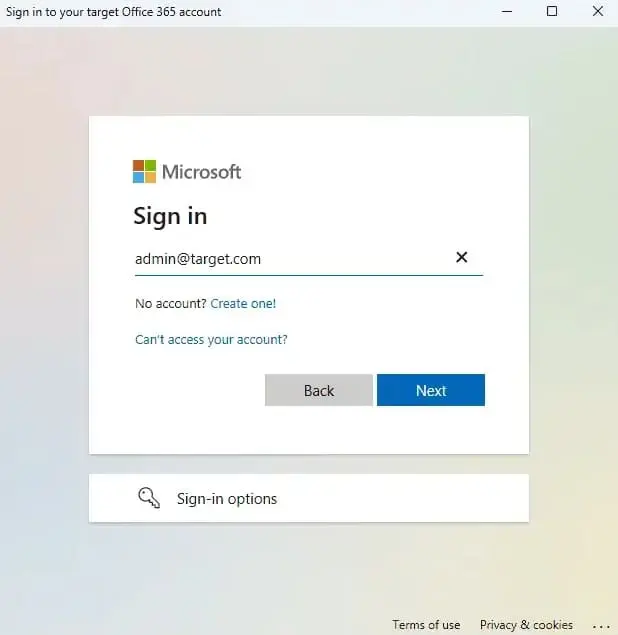
- Authenticate on Microsoft sign-in page.
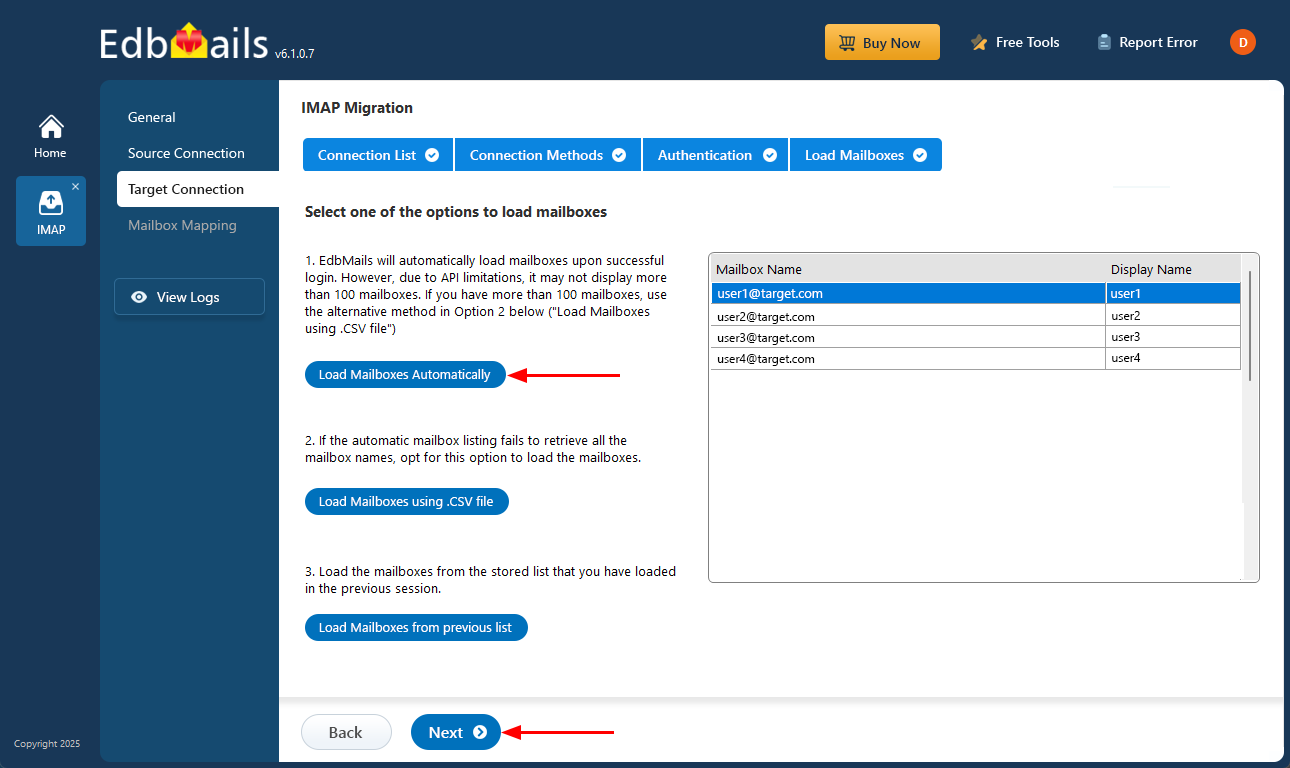
- After successful authentication, choose one of the following options to load the mailboxes:
i) Load Mailboxes Automatically: After signing in, EdbMails automatically retrieves and displays the mailboxes, making the process quick and straightforward. However, due to Microsoft API restrictions, only up to 100 mailboxes can be listed. If your organization contains more than 100 mailboxes, use the alternative option below.
ii) Load Mailboxes using CSV file: If all mailbox names are not retrieved through the automatic method, select the ‘Load Mailboxes using .CSV file’ option to manually add and load the required mailboxes.
iii) Load Mailboxes from previous list: This option allows you to load mailboxes directly from the list that was previously imported and saved in your earlier session.
- Choose ‘Load Mailboxes Automatically’ and click ‘Next’ to continue.
Step 5: HostMonster to Office 365 mailboxes mapping
- Choose your preferred method to map the source mailboxes and folders to their corresponding mailboxes and folders on the target Office 365 account.
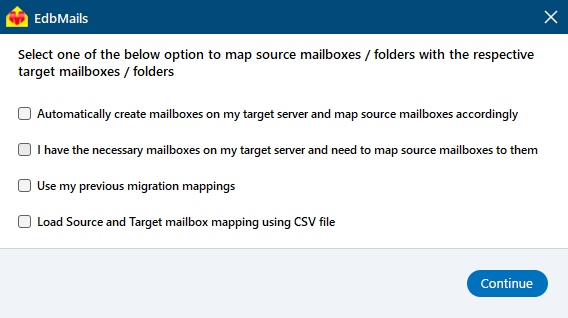
- EdbMails lets you automatically create the required mailboxes in your target Office 365 account.
- It also automatically maps your source Hostmonster mailboxes and folders to the matching ones in Office 365, making large migrations easier to manage.
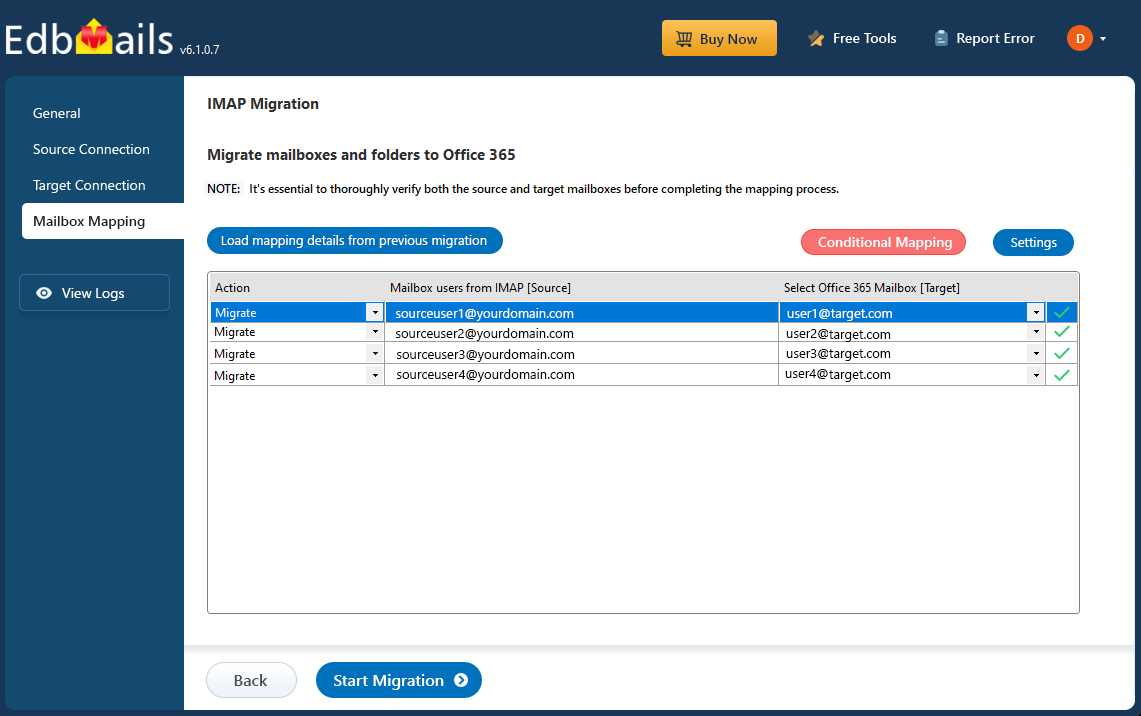
- Choose your preferred method to map the source mailboxes and folders to their corresponding mailboxes and folders on the target Office 365 account.
Step 6: Start HostMonster to Office 365 migration
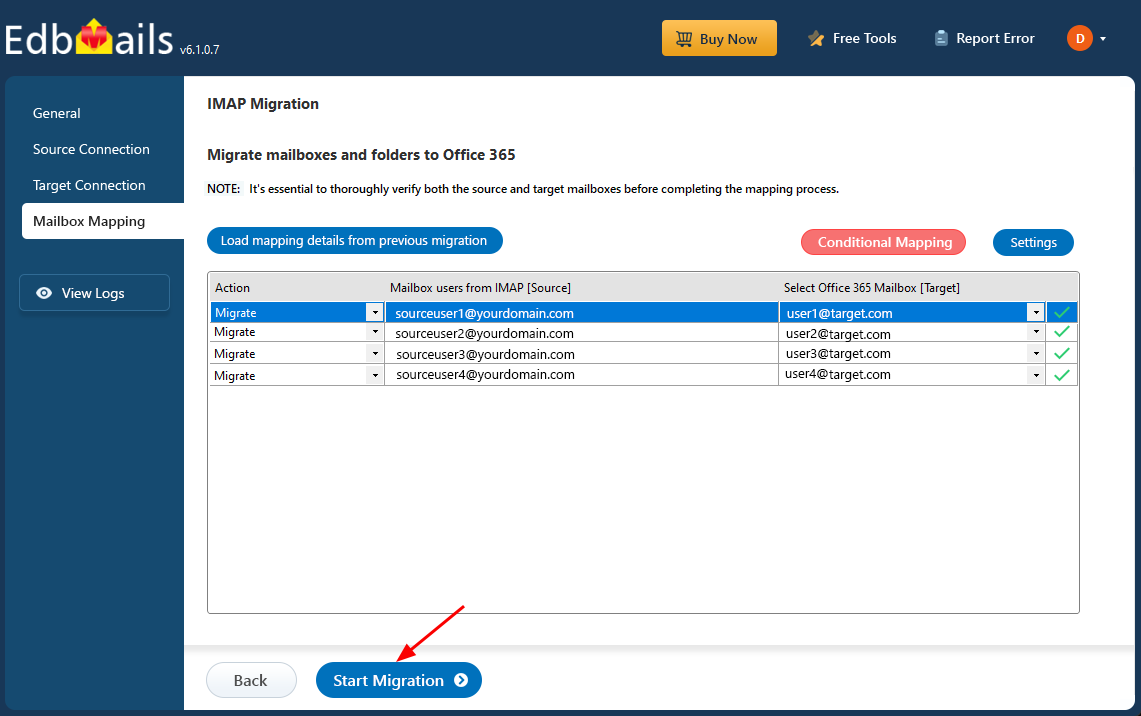
- Review the mailbox mapping for accuracy, then click the ‘Start Migration’ button to initiate the migration process.
- Click the ‘View Logs’ button to access the full migration report. This report includes comprehensive information, such as mailbox mapping, a summary of the migration process, and the item count for each migrated mailbox and folder.
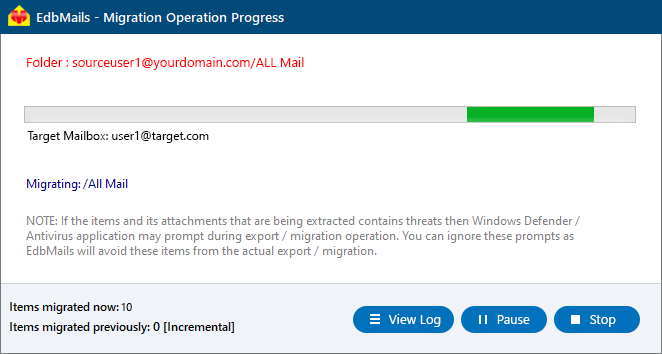
- Review the mailbox mapping for accuracy, then click the ‘Start Migration’ button to initiate the migration process.
HostMonster to Office 365 Post-Migration Tasks
- Step 1: Update the MX records to point to Office 365
Update DNS records to enable and receive email messages on the target Office 365 server. In addition to this setup, configure the Autodiscover record to allow Outlook to connect to the migrated mailboxes.
- Step 2: Create a new Outlook profile for users in the new domain
Configure and recreate the Outlook profile for each user in your domain if Outlook has problems connecting to Office 365 mailboxes.
- Step 1: Update the MX records to point to Office 365
Troubleshooting Guide for HostMonster to Office 365 Migration
For troubleshooting, visit Knowledge Base.
For more queries, check Frequently Asked Questions or contact support.
Benefits of EdbMails to Migrate from HostMonster to Office 365
- Bulk Migration Option
EdbMails supports bulk mailbox migration from HostMonster to Office 365, enabling you to migrate multiple mailboxes in a single operation. This capability minimizes manual effort and ensures large-scale migrations are completed efficiently with no disruption to ongoing business activities.
- Data Intactness for Complete Accuracy
EdbMails maintains complete data integrity during migration, ensuring that all email components including attachments and folder hierarchy are migrated without any loss or alteration. This results in an exact replica of your original HostMonster mailbox in Office 365.
- Highly Secure Mailbox Migration with OAuth 2.0
EdbMails provides industry-leading security through OAuth 2.0 authentication, ensuring your HostMonster to Office 365 migration is highly secure. By using this authorization, it protects your credentials and data from unauthorized access, maintaining compliance with modern security standards.
- Personalize your Migration Destination Folder Choice
With EdbMails, you can map and customize destination folders in Office 365, giving you the flexibility to reorganize your data during migration. This ensures that all mail items are migrated to their appropriate locations seamlessly.
- Transparent Pricing with no Hidden Costs
EdbMails offers transparent, upfront pricing for HostMonster to Office 365 migrations, with no hidden fees or unexpected charges. This ensures clarity in your budgeting and provides you with a cost-effective solution that scales to your business needs.


