


Rackspace to Gmail Migration
Rackspace is recognized for its dependable service and stable uptime. However, Gmail, as part of the robust Google Workspace ecosystem, provides better scalability, improved cost efficiency, and smooth integration with productivity applications such as Google Docs, Sheets, and Slides. Migrating to Gmail helps simplify communication while enabling real-time collaboration and efficient cloud-based workflows that support higher productivity and business growth.
Gmail delivers strong security features such as two-factor authentication and built-in encryption, helping organizations keep their communication protected. While the migration process might seem challenging at first, the right approach can make it quick, secure, and smooth. With its familiar interface, reliable cloud infrastructure, and seamless integration with the Google ecosystem, Gmail provides a future-ready platform for businesses looking to improve productivity and simplify communication. Migrating to Gmail is not just a transition, but a strategic step toward a more efficient email environment.
EdbMails IMAP migration software simplifies this migration by providing a seamless, secure, and efficient way to migrate all your emails, attachments, and user data from Rackspace to Gmail, ensuring a smooth transition without any data loss or downtime.
Utilizing EdbMails, businesses can streamline their migration and enjoy a smooth, secure transition to Gmail, allowing uninterrupted business operations.
User Query
Hi folks! I've been using Rackspace for a while, but after discovering all the benefits of Gmail, I'm looking to migrate my email from Rackspace to Gmail. Can anyone suggest an easy, secure, and efficient way to make this migration? Appreciate any help! Thanks!
Common Migration Challenges & Solutions
During a Rackspace to Gmail migration, users may encounter a few technical challenges. Here’s how to overcome them effectively:
- Login Failures: Authentication errors can occur if IMAP access isn’t enabled or credentials are incorrect.
Solution: Ensure IMAP is enabled on the source, verify correct credentials, and use app passwords where required. EdbMails securely connects through IMAP authentication to prevent login failures.
- Rate Limits: Gmail imposes connection and sending limits that can slow down large migrations
Solution: Schedule migrations in batches to avoid throttling and ensure smooth data transfer.
- Folder Mapping Issues: Inconsistent folder names or structures between Rackspace and Gmail can cause confusion.
Solution: EdbMails uses automatic folder mapping to correctly align and organize folders during the migration.
- Email Duplicates: Re-running migrations may lead to duplicate messages.
Solution: Enable delta migration to transfer only new or changed emails, preventing duplicates.
- Login Failures: Authentication errors can occur if IMAP access isn’t enabled or credentials are incorrect.
Reasons to Migrate from Rackspace email to Gmail
There are several compelling reasons why users are migrating from Rackspace to Gmail, including:
- Vertical Scaling Complexities: Rackspace lacks efficient options for vertical scaling, making it challenging for users to scale their resources as needed.
- Limited External Instance Storage: Rackspace imposes limitations on external instance storage, which can hinder users who require additional storage capacity.
- Limited Features in the Cloud Environment: Rackspace offers a limited set of features compared to the robust cloud environment provided by Gmail, restricting users from accessing advanced functionalities.
- Single Region Association: Rackspace accounts are tied to a single region, limiting the flexibility for users who require a distributed or multi-region setup.
- Inadequate Technical Support: Users have reported unsatisfactory technical support services from Rackspace, which can impede timely issue resolution and support.
- Lack of Diverse Templates: Rackspace lacks a variety of templates, limiting customization options for users who want to personalize their email communications.
How does EdbMails simplify Rackspace to Gmail Migration Process?
EdbMails offers a powerful IMAP migration tool that specializes in Rackspace to Gmail migration seamlessly. With its user-friendly interface, you can easily select and transfer your desired Rackspace emails to Gmail, ensuring a smooth and efficient transition without clutter. EdbMails stands out with its concurrent migration feature, enabling users to transfer multiple mailboxes simultaneously, significantly reducing migration time. It supports universal language compatibility, making it ideal for global teams regardless of language barriers. As a cost-effective solution, EdbMails offers up to 75% off regular prices, providing exceptional value for businesses and individuals alike. The platform also enhances security with Multi-Factor Authentication (MFA), ensuring that your data remains protected throughout the migration process. With EdbMails, you can migrate Rackspace email to Gmail and that will be efficient, secure, and hassle-free, allowing you to transition to Gmail’s robust ecosystem with zero downtime and maximum reliability.
Rackspace to Gmail Migration Planning
Before you begin Rackspace to Office 365 migration, thorough planning is essential to ensure a successful and seamless transition. To help you with the process, here is a checklist of important points to consider:
- Remove any unused mailboxes, redundant mail items, and duplicate files from the source server to streamline the migration.
- Before proceeding with the migration, create an inventory of important items. Here are some key items to include:
- User accounts, email addresses, and login credentials.
- Source and target server details, including information about browsers and operating systems used.
- Network settings, DNS configurations, MX records, and firewall settings.
- Outlook settings and version utilized within your organization.
- Licensing plans associated with your current source server.
- List of data and permissions from Rackspace that need to be transferred.
- Determine the size of the data and the number of mailboxes that will be migrated to Office 365.
- Decide whether to opt for a cutover migration (migrating all data at once) or a staged migration (migrating data in phases) based on your requirements.
- Estimate the approximate time required for the migration, taking into account factors such as data size and network capabilities.
- Create user mailboxes on gmail
- Verify that your network has sufficient capacity and bandwidth to handle the migration process effectively.
- Communicate the migration plan and upcoming changes to your end users and stakeholders to ensure a smooth transition.
- Perform a test migration to identify and address any potential issues before initiating the actual migration.
- Start the migration process, ensuring endpoints are correctly configured and MX records are updated as necessary.
- Develop a plan for decommissioning any unused apps and their associated settings after the migration is complete.
Pre-migration activities for Rackspace to Gmail Migration
- Ensure that IMAP settings are enabled on both the source (Rackspace) and target (Gmail / G Suite) servers to facilitate migration.
- Keep a record of the email addresses and passwords for all users you plan to migrate from the Rackspace server.
- Confirm that you have the email addresses for all users on Gmail. If using Gmail, create an app password for the account.
Click here for steps to create an app password for a Gmail account.
Steps to Migrate from Rackspace to Gmail
Step 1: Download and install the EdbMails software
- Download and install EdbMails on your computer.
See EdbMails system requirements for Rackspace to Gmail migration

- Launch the EdbMails application on your system.
- Enter your registered email address and password, then click ‘Login’. If you’re using EdbMails for the first time, choose ‘Start Your Free Trial’ to proceed with the trial version.Note: The trial edition provides all major features and allows you to migrate up to 30 items per folder. For unlimited migration and purchase an IMAP Migration license from the official EdbMails website.After completing the purchase, close and reopen the application, then log in again using the same email address and password you used to buy the license to ensure successful activation.

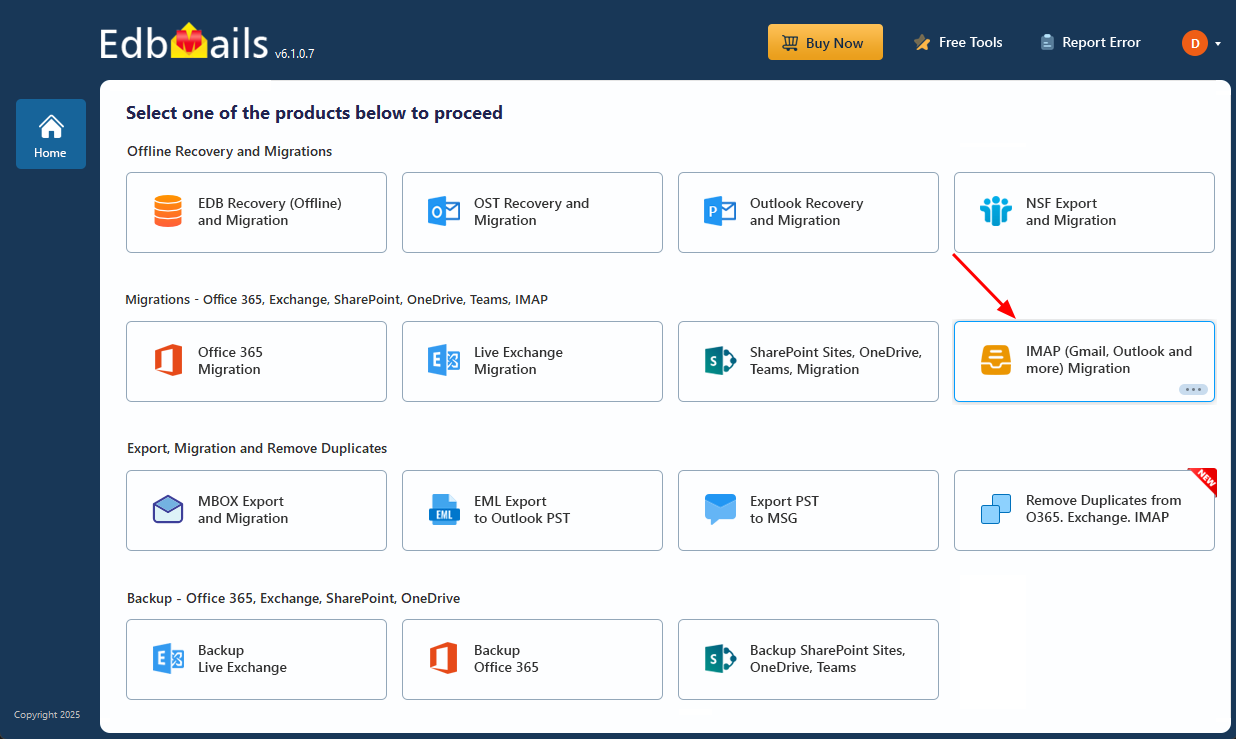
- Select the ‘IMAP (Gmail, Outlook & more) Migration’.
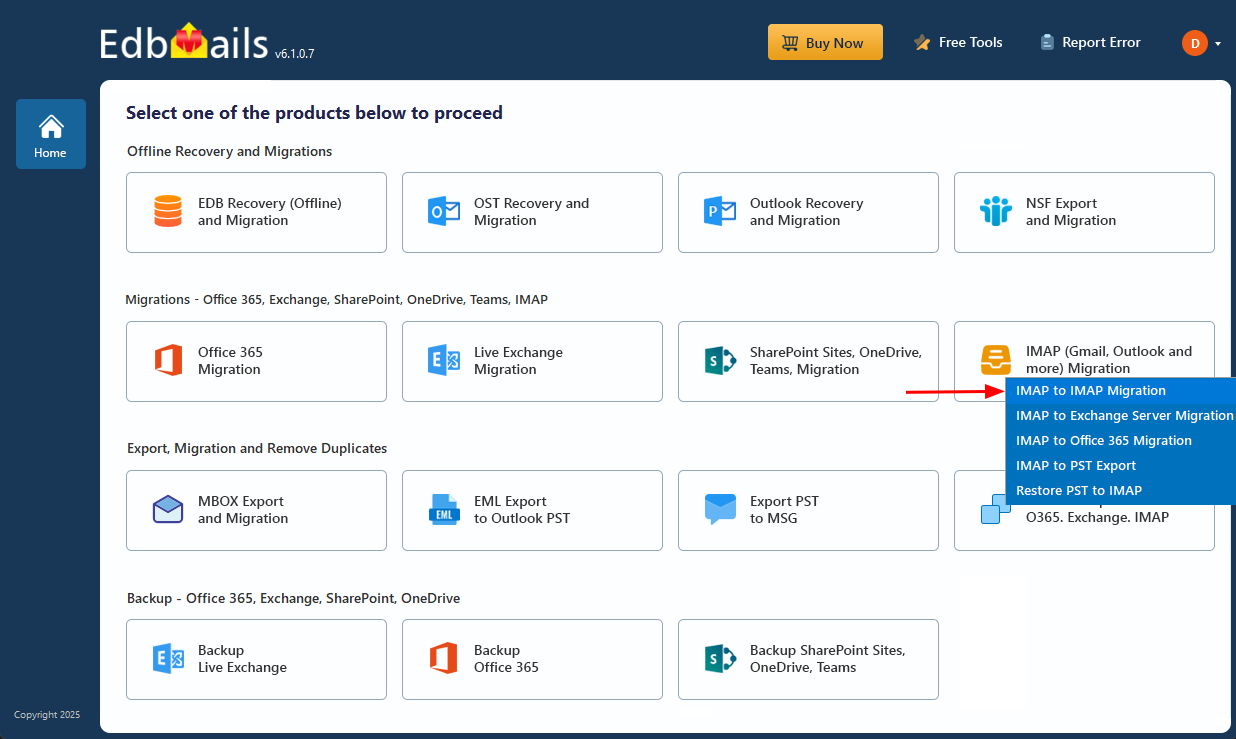
- Select ‘IMAP to IMAP Migration’.
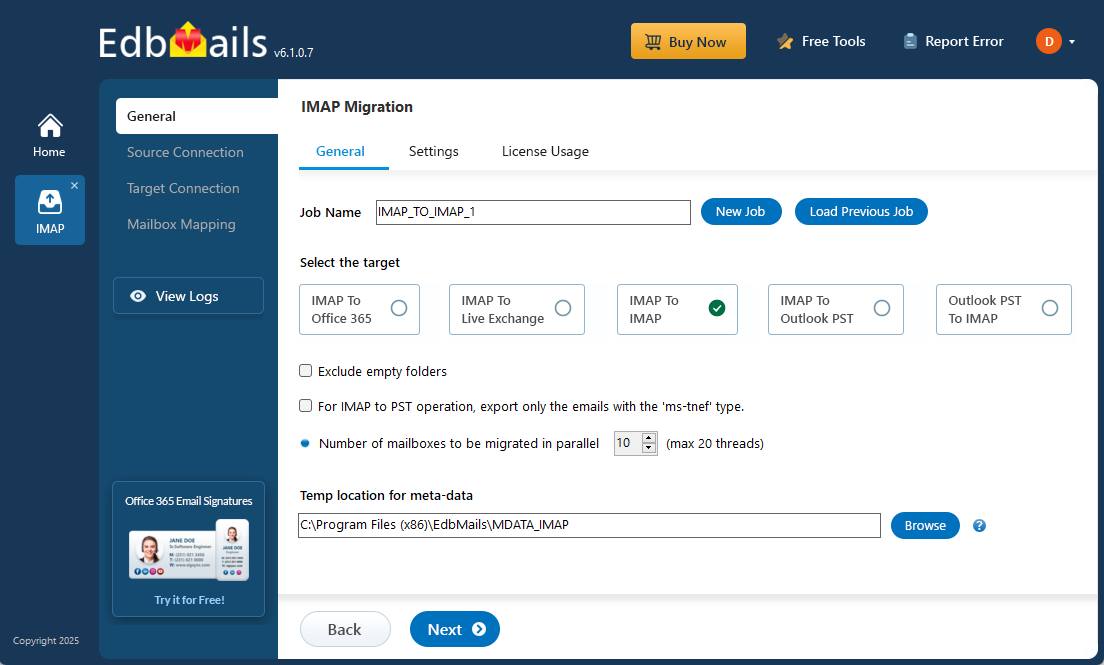
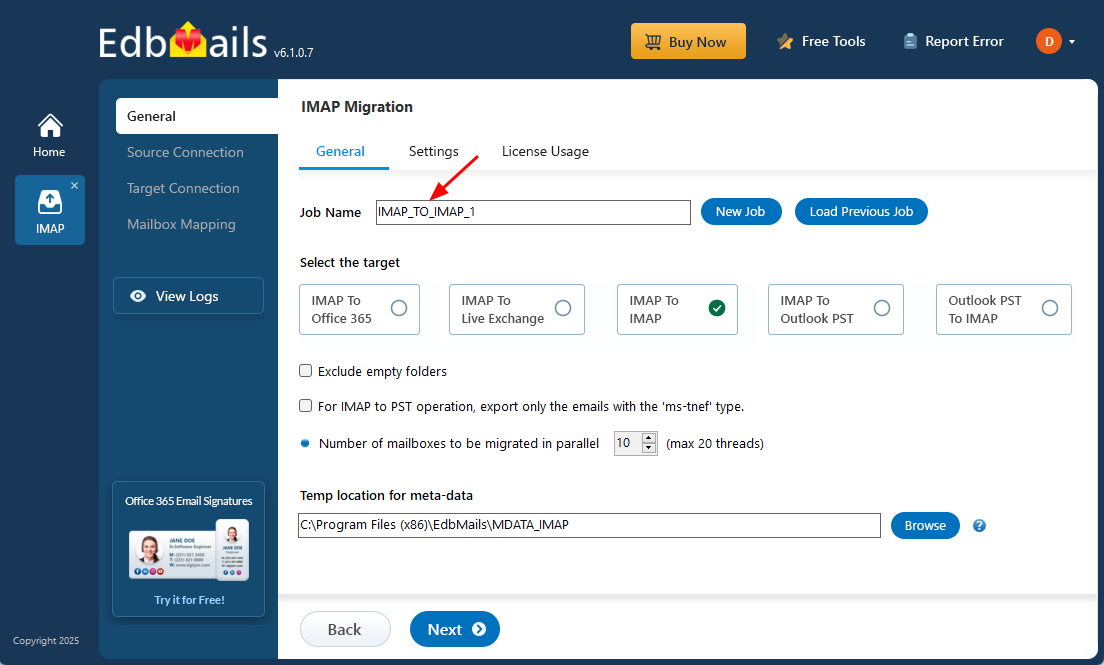
- Proceed with the default job name or click ‘New Job’ to assign a custom name for easier identification before continuing.
- Download and install EdbMails on your computer.
Step 2: Connect to the source Rackspace server
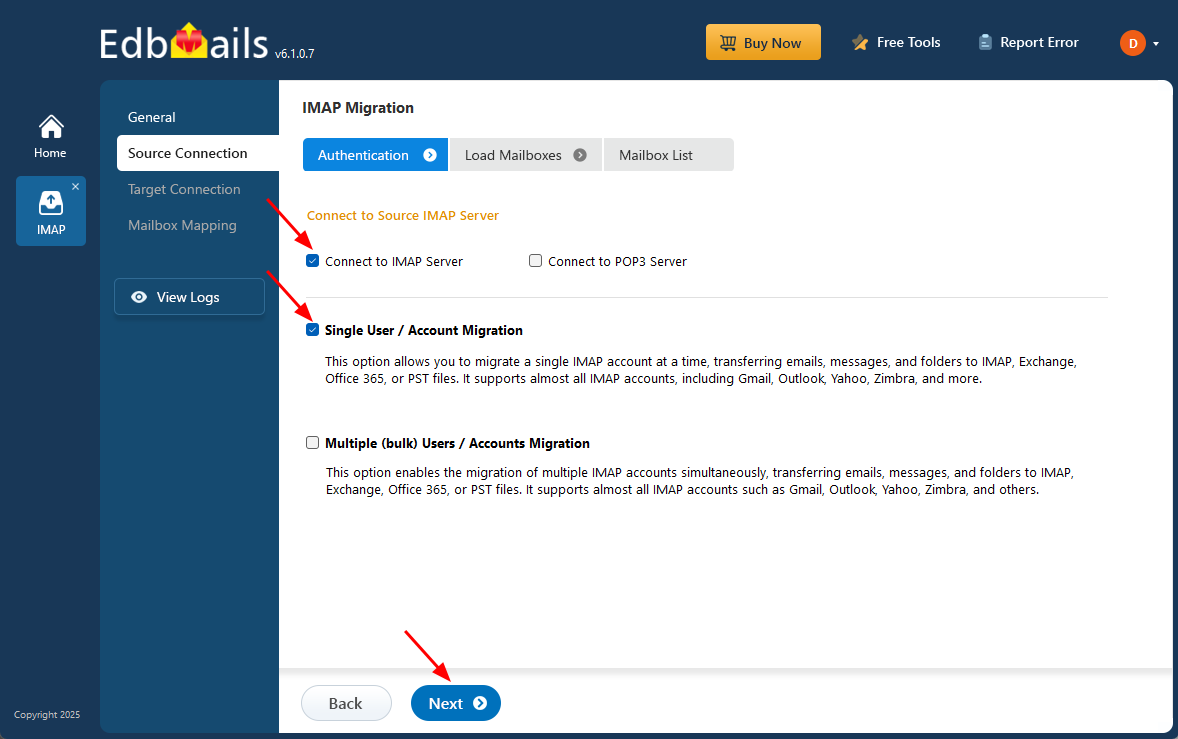
- To connect a single Rackspace account for migration, click ‘Single User / Account Migration’, choose the suitable connection option such as ‘Connect to IMAP Server’ or ‘Connect to POP3 Server’.
- Click ‘Next’ to proceed.
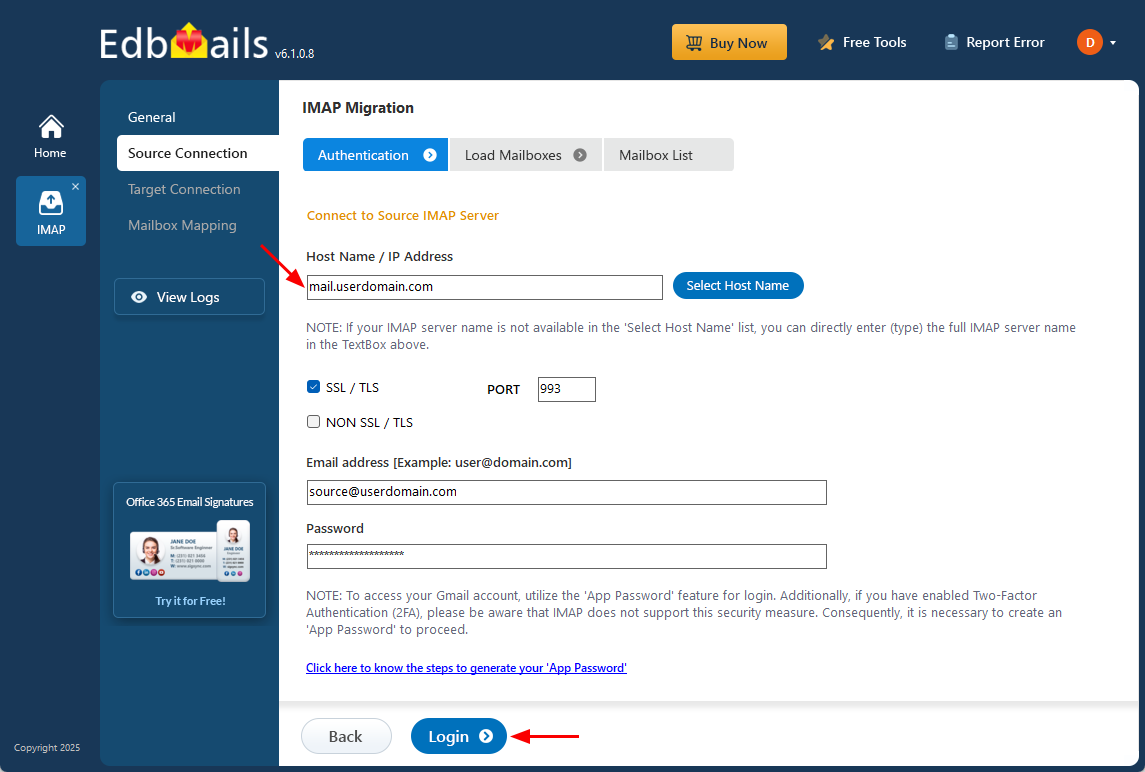
- For a single-user login, select the appropriate IMAP host name for Rackspace from the list or enter it manually (for example, mail.userdomain.com).
- Enter the email address and password in the required fields.
- When adding a Gmail account, generate an app password and use it in place of your regular account password.
Follow the steps to create an app password for your Gmail account.
- Click the ‘Login’ button to proceed.
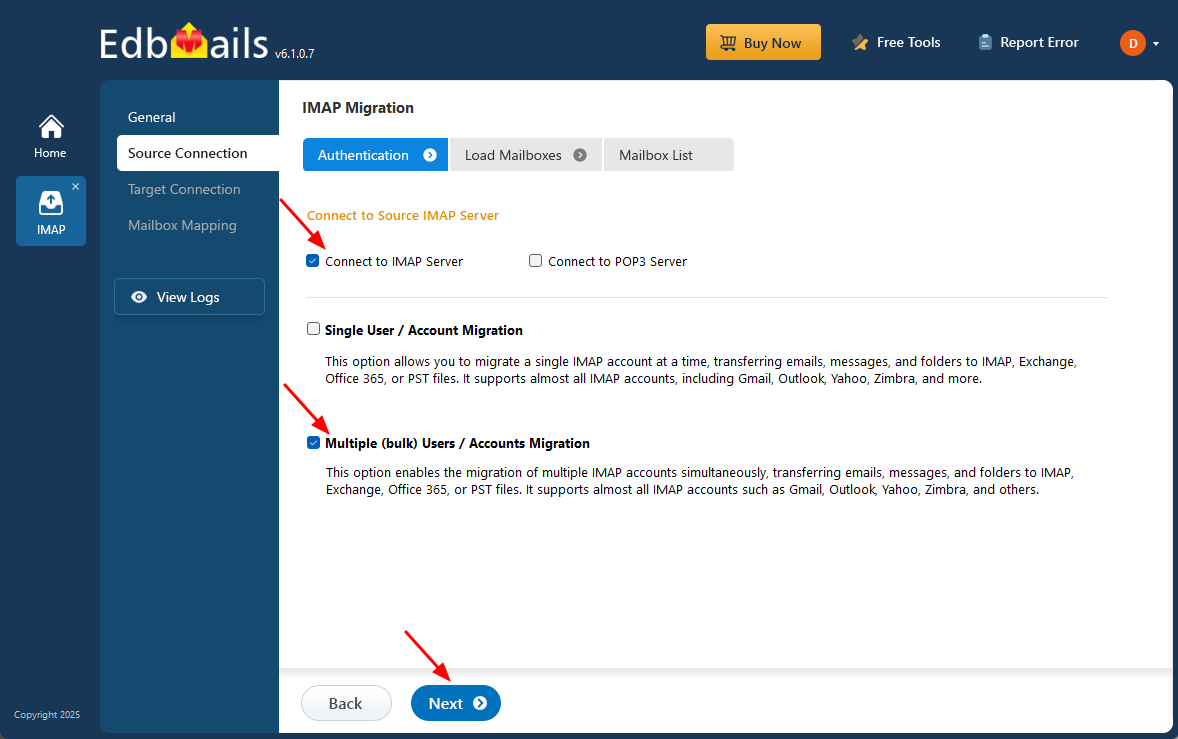
- For migrating multiple Rackspace mailboxes simultaneously, choose ‘Multiple (Bulk) Users/Accounts Migration’, then select the appropriate connection option such as ‘Connect to IMAP Server’ or ‘Connect to POP3 Server’.
- Click ‘Next’ to continue.
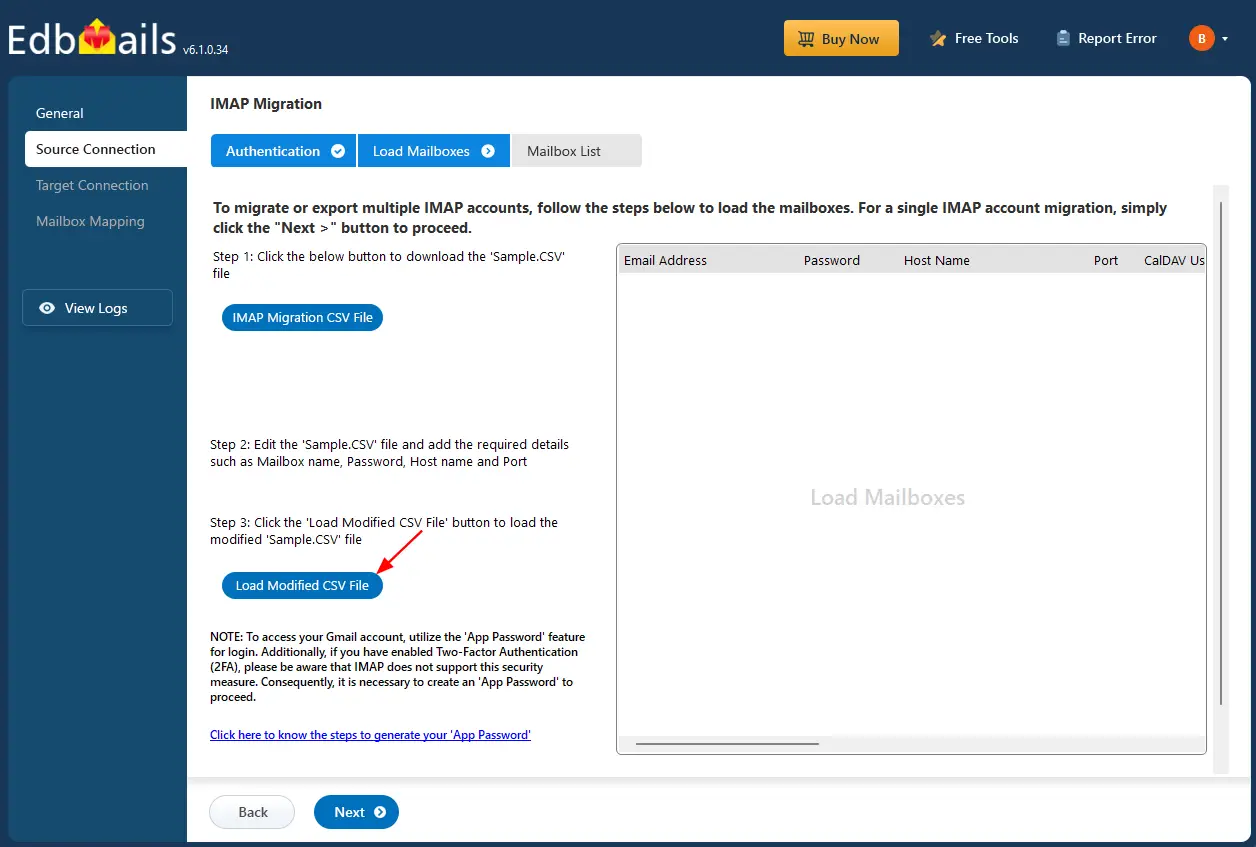
- Choose the ‘IMAP Migration CSV File’ option to download the ‘Sample.CSV’ file, which will be automatically saved to your local drive for future use and reference.
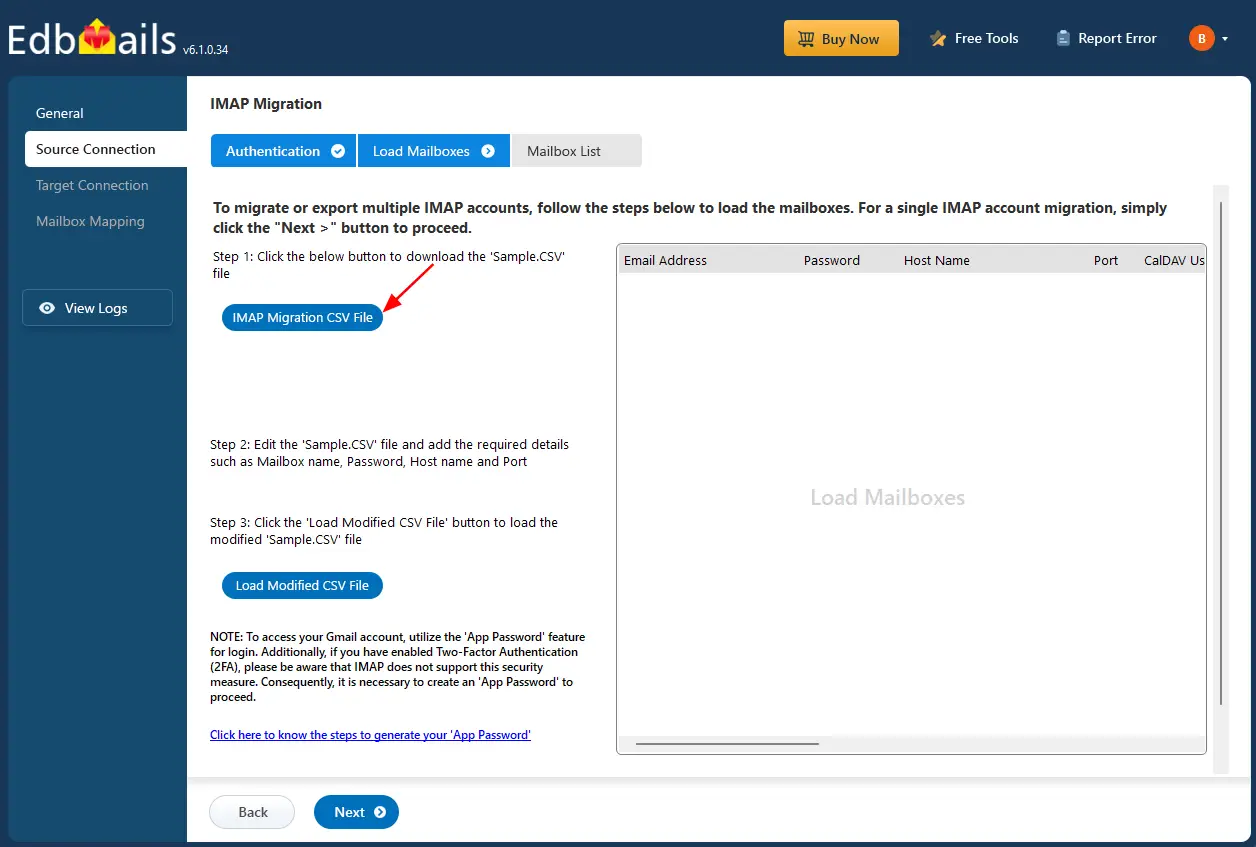
- Open the CSV file and fill in the necessary details, including the email address, password, IMAP server hostname, and port number for each mailbox. After completing the entries, save the CSV file and close.

- Now, click the 'Load Modified CSV File' button, open the CSV file and click ‘Next’ to proceed.
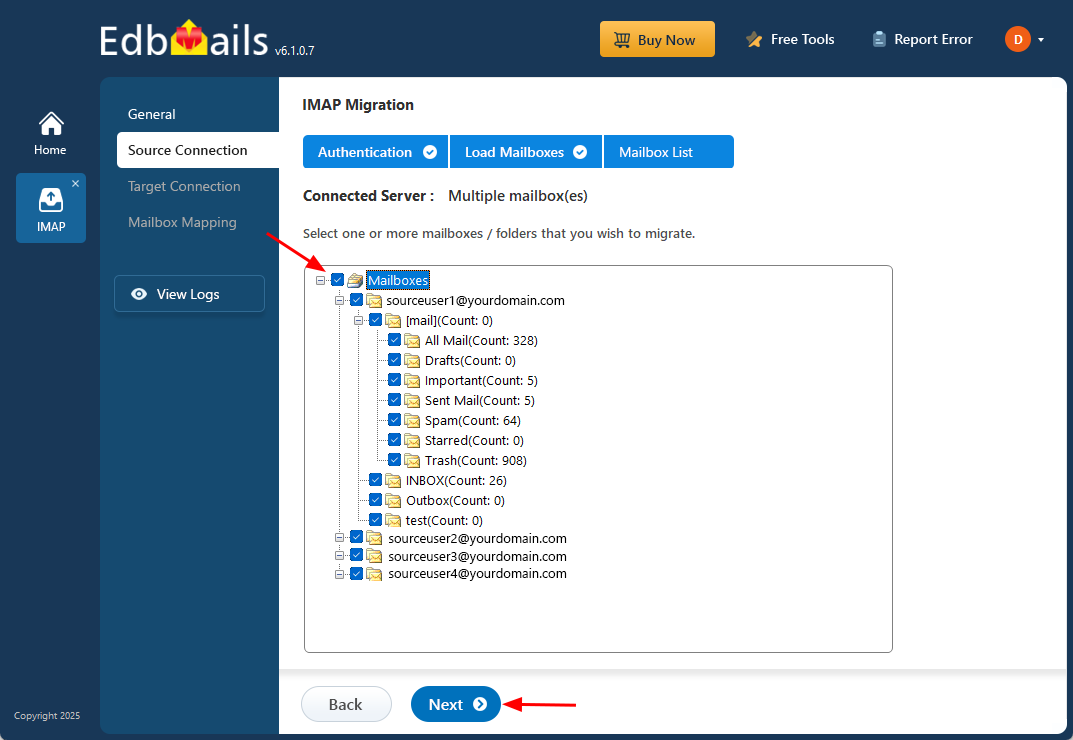
- Choose the specific mailboxes or individual folders you wish to migrate. Once your selection is complete, click ‘Next’ to continue.
Step 3: Connect to the target Gmail server
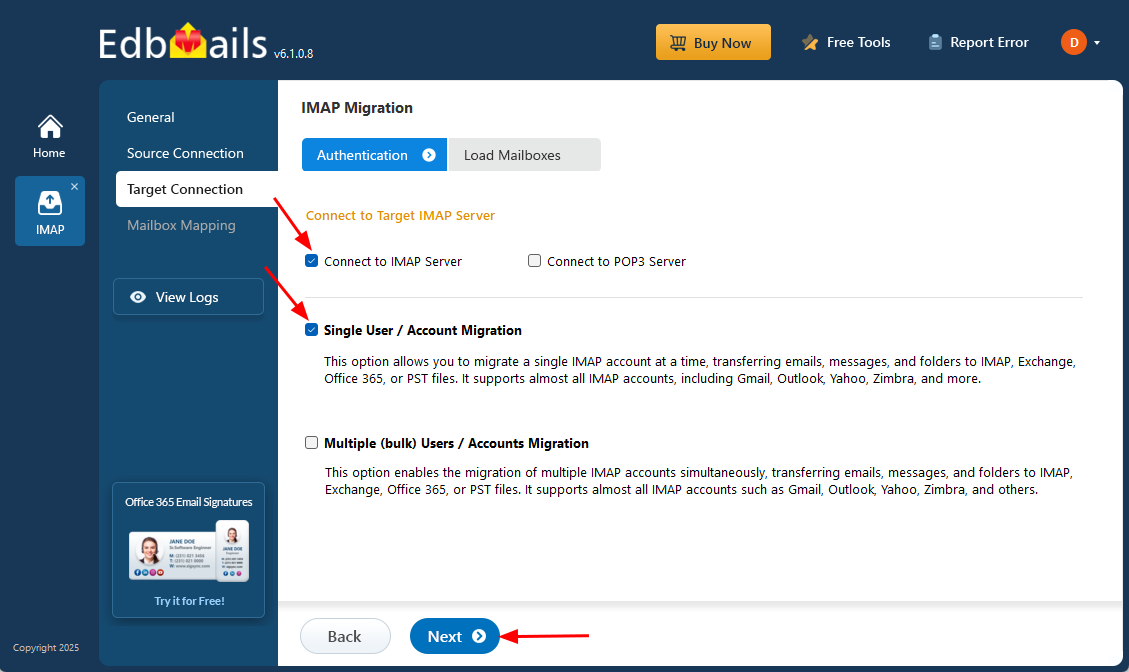
- To connect a single user account, select ‘Single User / Account Migration’. Then, choose the required protocol, such as ‘Connect to IMAP Server’ or ‘Connect to POP3 Server’, and click ‘Next’ to proceed.
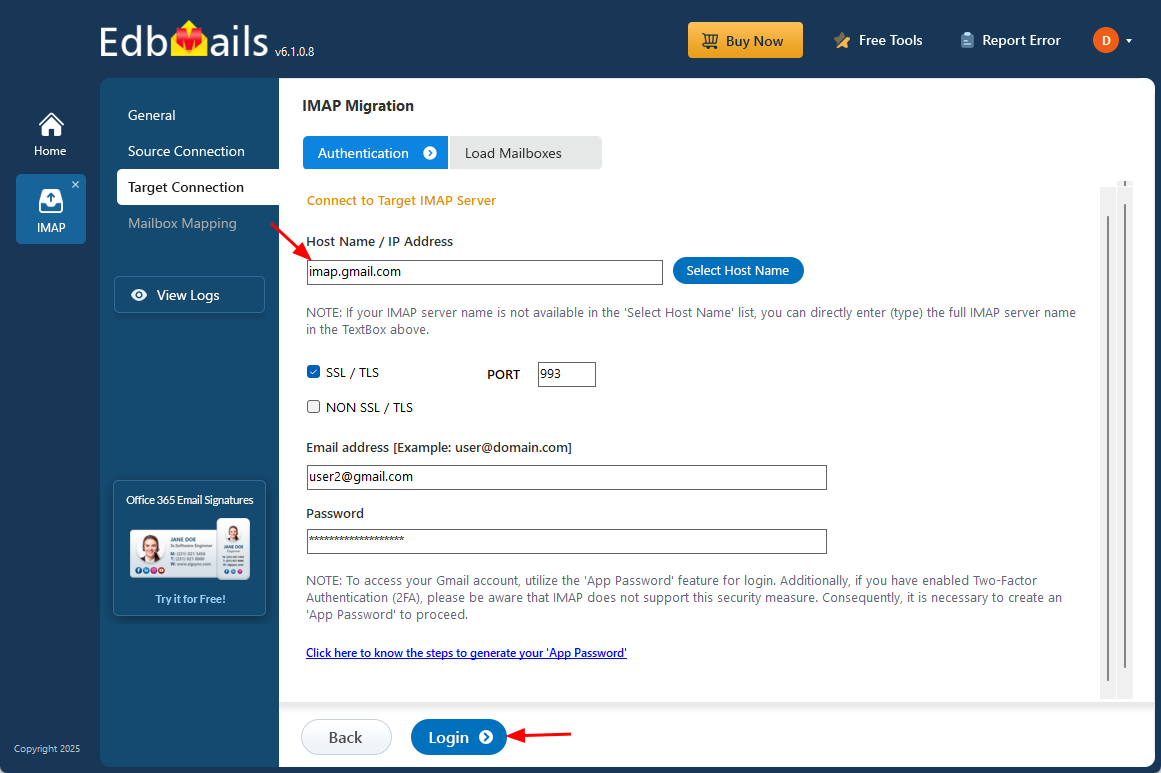
- For single-user login, select the appropriate IMAP hostname for Gmail (imap.gmail.com) from the list, or enter it manually. Then, provide the Gmail address and the corresponding app password (not your regular account password).
- Click the ‘Login’ button to establish the connection.
- For migrating multiple mailboxes, select ‘Multiple (Bulk) Users/Accounts Migration' and click ‘Next’.
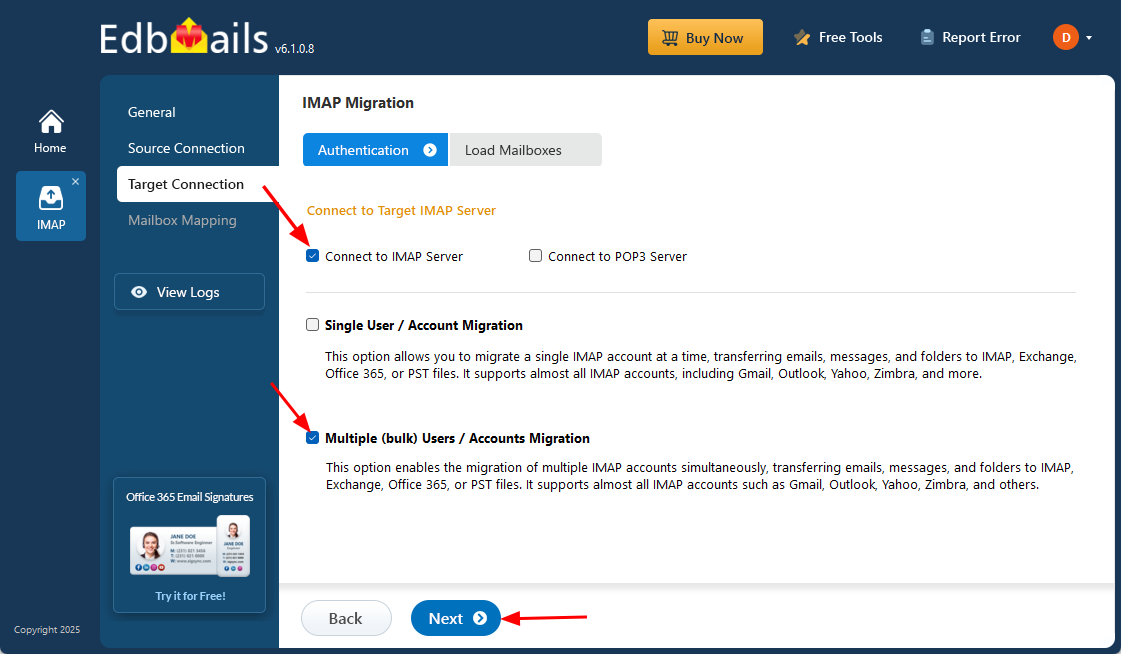
- Click ‘IMAP Migration CSV File’. It will load the sample CSV file to your local drive.
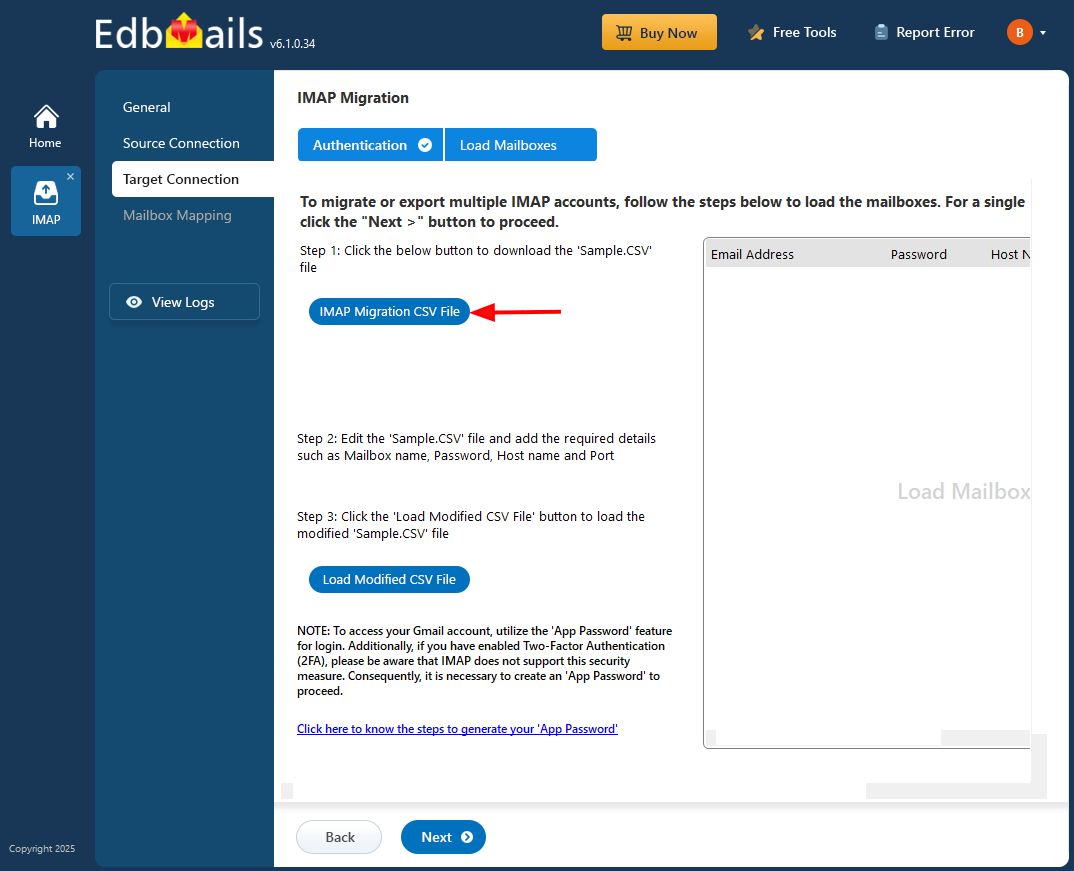
- Open the CSV file and fill in the necessary details, including the email address, password, IMAP server hostname, and port number for each mailbox. After completing the entries, save the file to proceed with the migration.

- Once completed, save the CSV file to apply the changes.
- Then, click the 'Load Modified CSV File' button, open the CSV file and click ‘Next’ to proceed.
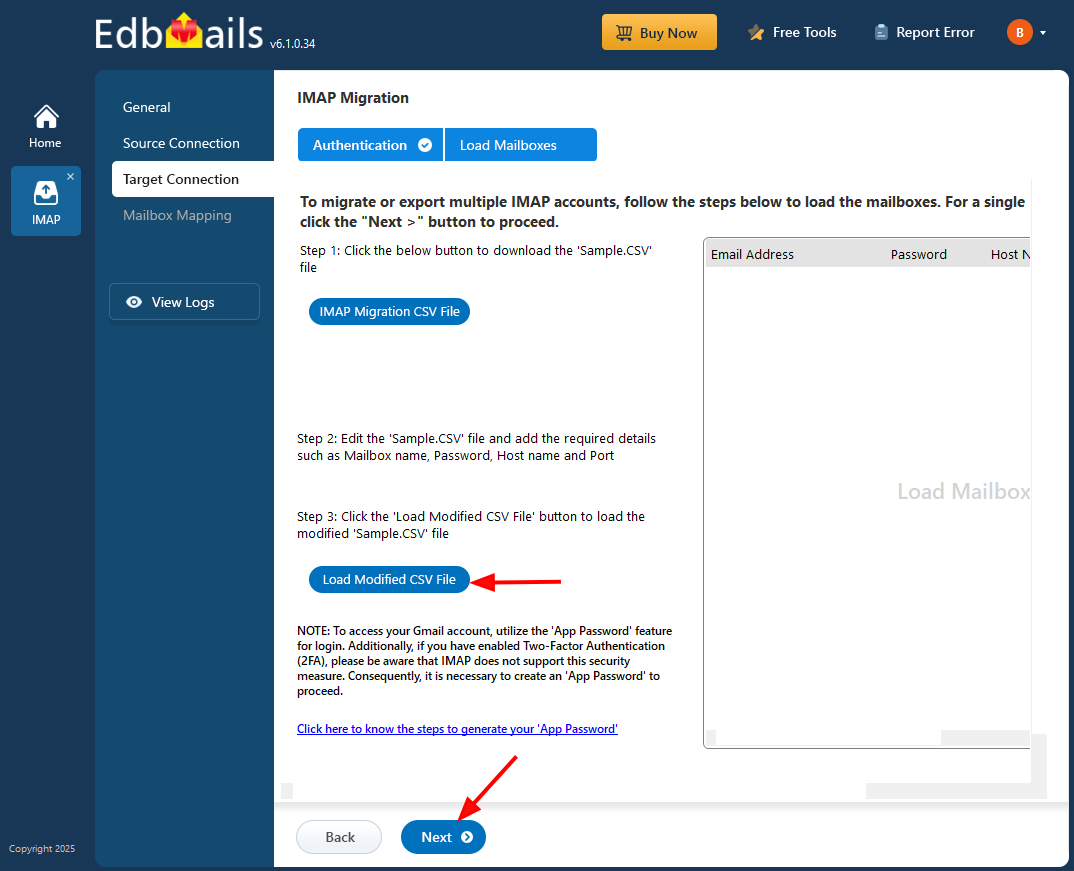
- To connect a single user account, select ‘Single User / Account Migration’. Then, choose the required protocol, such as ‘Connect to IMAP Server’ or ‘Connect to POP3 Server’, and click ‘Next’ to proceed.
Step 4: Rackspace to Gmail mailboxes mapping
- Select the appropriate mailbox mapping option to match source mailboxes with their Gmail counterparts. You can choose automatic or manual mapping based on your needs.
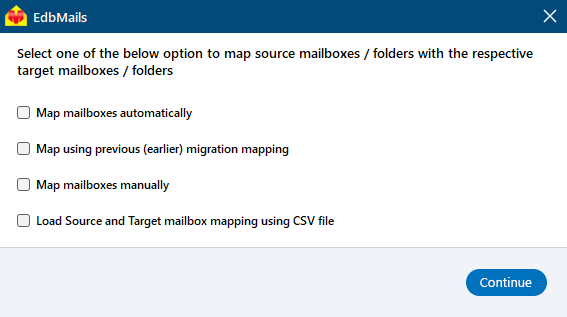
- EdbMails automatically maps source and target mailboxes. You can also manually map the mailboxes.
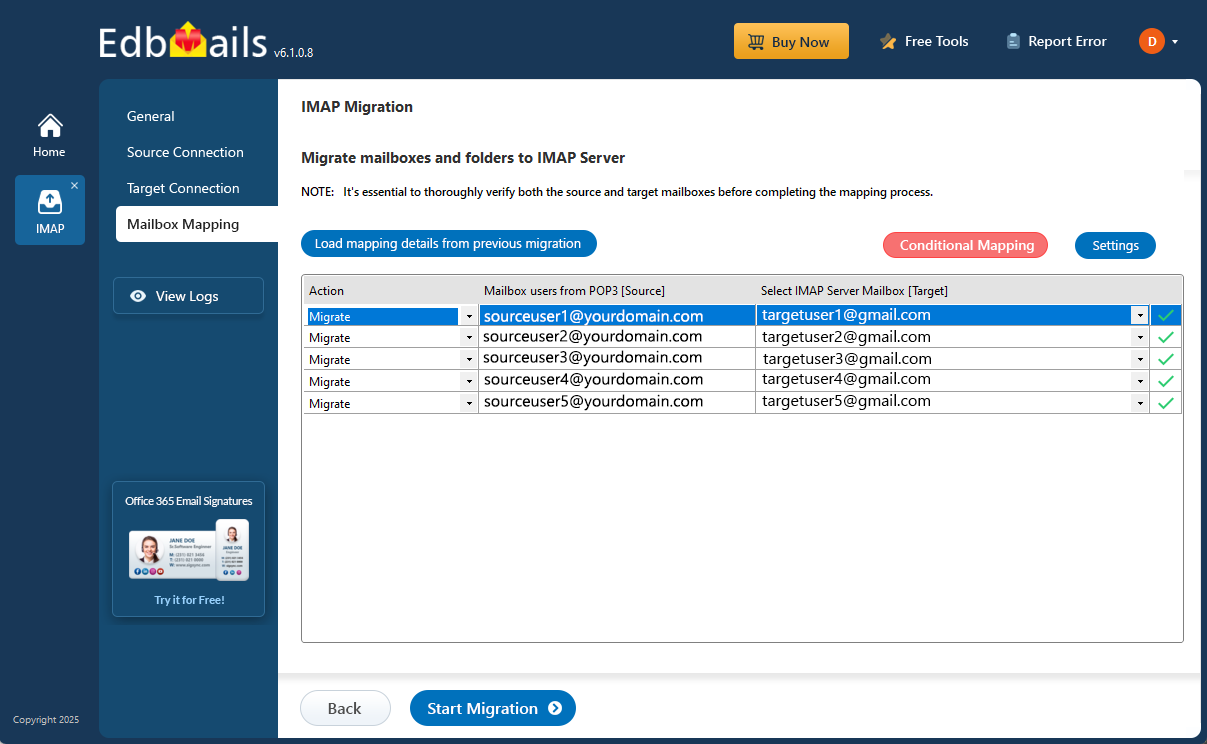
- Select the appropriate mailbox mapping option to match source mailboxes with their Gmail counterparts. You can choose automatic or manual mapping based on your needs.
Step 5: Start Rackspace to Gmail migration
- Verify the mailbox mapping.
- Click the ‘Settings’ button to apply the filters. For example, you can set a date filter to migrate only the data within a certain date range.
- Click the ‘Start Migration’ button and initiate the migration process.
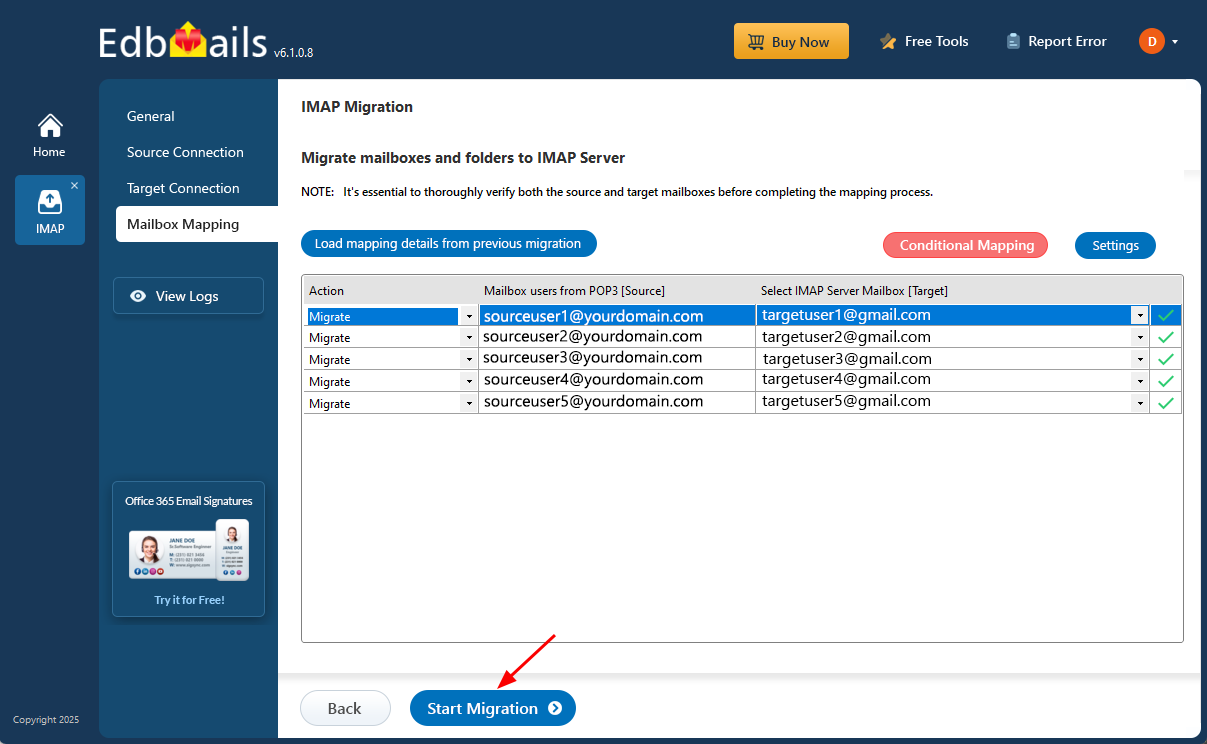
- To view the migration report, click the ‘View Logs’ button. It provides a comprehensive summary showing the number of emails, folders, and mailbox items migrated, along with their respective counts.
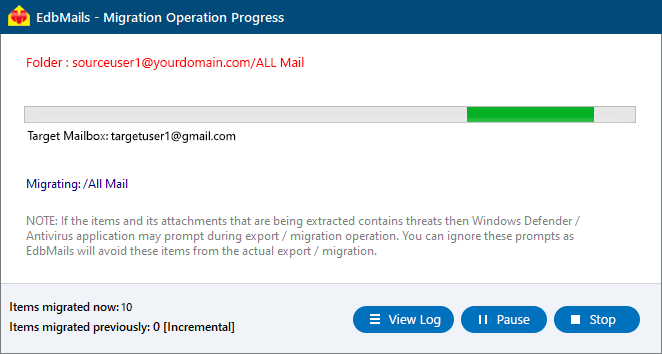
- Also, log in to your target server and verify the migrated items.
Rackspace to Gmail Post-migration Tasks
- Step 1: Update DNS records (MX record) to point to Gmail
- Updating MX Records:
To redirect incoming email traffic to Gmail instead of Rackspace, you need to make changes to the MX records in your DNS provider's portal. This step ensures that emails are properly directed to your Gmail account. - Configuring AutoDiscover (CName):
Include the AutoDiscover (CName) setting in your DNS configuration. This setting assists in the automatic configuration of email clients, enabling a seamless transition to Gmail. By configuring the AutoDiscover (CName) correctly, email clients can easily connect to the Gmail server without any manual configuration. - Setting up Rackspace Mail Forwarding:
To prevent any email loss during the migration process, it is essential to set up mail forwarding in your Rackspace account. This ensures that any incoming messages are forwarded to your Gmail account until the transition is complete. By enabling mail forwarding, you can stay connected and receive all your emails during the migration period
- Updating MX Records:
- Step 2: Decommission or delete the user mailboxes on Rackspace server
Once you have confirmed that you are successfully receiving emails on Gmail, you can proceed with decommissioning and disabling user mailboxes on the Rackspace source. Additionally, make sure to remove any licenses that have been assigned in Rackspace. Follow these steps to perform the necessary actions:
- Log in to the Rackspace Cloud Control Panel.
- Navigate to the ‘Email’ section and click on ‘Mailboxes.’
- Select the desired mailbox(es), whether it's a single mailbox or multiple ones.
- Click on ‘Manage’ next to the respective mailbox and then click on ‘Delete Mailbox’ in the upper-right corner.
- Step 1: Update DNS records (MX record) to point to Gmail
Troubleshooting guide for Rackspace to Gmail migration
For troubleshooting, visit Knowledge Base.
For more queries, check Frequently Asked Questions or contact support.
Benefits of EdbMails to migrate from Rackspace to Gmail
The EdbMails Rackspace to Gmail migration tool offers several benefits that streamline the migration process and enhance the overall experience:
- Bulk Conversion: With EdbMails, you can migrate multiple emails from Rackspace to Gmail in a single operation. By selecting multiple Rackspace accounts using a CSV file, you can efficiently transfer a large volume of data with ease.
- Selective Migration: EdbMails provides the flexibility to choose specific emails for migration. You can apply filters based on email address, date interval, and subject to migrate only the required data, saving time and effort.
- No Limitations: There are no limitations imposed on the number of emails and attachments you can migrate email from Rackspace to Gmail. Whether you have a small or large-scale migration requirement, EdbMails can handle it without restrictions.
- Preserves Folder Structure: During the migration process, EdbMails ensures the preservation of the original folder hierarchy from your Rackspace mailbox. This means that your emails will be organized in the same way in your Gmail account, maintaining a logical structure.
- Maintains Data Integrity: EdbMails maintains all email attributes during the migration process. This includes essential details such as sender information, recipient information, subject, email addresses, text formatting, images, hyperlinks, and more. Your emails will retain their original formatting and data integrity.
- Free Trial Version: EdbMails offers a free trial version that allows you to evaluate the software's performance. You can transfer a few email items from Rackspace to Gmail, giving you a hands-on experience of its capabilities before making a purchase.
- Safe Processing: EdbMails prioritizes the security and integrity of your data. The migration process is carried out securely, ensuring that your sensitive information remains protected throughout the conversion.
Frequently Asked Questions (FAQ)
Will the folder structure from Rackspace be preserved in Gmail when using EdbMails?
Does EdbMails support filtering of emails by date or subject when migrating from Rackspace to Gmail?
Can I use EdbMails to migrate multiple mailboxes from Rackspace to Gmail concurrently?


