


Virgin Media email to Gmail Migration
This guide explains how to migrate your emails from Virgin Media to Gmail with a clear and structured approach. Whether you’re switching for better security, increased storage, or improved productivity, the migration process is designed to deliver a smooth experience with zero downtime.
Virgin Media, one of the leading telecommunications providers in the UK, includes email services along with its broadband and phone packages. Despite this, many users experience limitations such as restricted storage, outdated functionality, and lack of flexibility. This has led a growing number of users to consider migration to Gmail, a widely used cloud-based email platform recognized for its advanced features, strong security, generous storage, and smooth integration with Google services.
When planning a migration of Virgin Media emails to Gmail, you generally have two approaches: a manual method or an automated solution such as EdbMails. The manual approach may suit simple requirements, but it can be time-intensive and more susceptible to errors. In contrast, EdbMails provides a quicker and more dependable option, ensuring secure migration with complete data integrity, zero downtime, and minimal effort.
User Query
"We’ve been relying on Virgin Media for our email services, but as our requirements grow, we’re looking for improved storage options and more sophisticated features. We’re thinking about switching to Gmail due to its strong security and seamless integration with Google’s suite of tools. Could you recommend an efficient and dependable method to transfer our Virgin Media emails to Gmail? - Julia, Netherlands"
Why is Gmail a better choice than Virgin email?
There are several benefits that prompt users to migrate their Virgin email accounts to Gmail. Here, we outline a few key factors that influence this decision.
- Gmail’s user-friendly interface simplifies email management, making it easier for all types of users to navigate their inboxes efficiently.
- Since Gmail is a cloud-based service, users can access their emails from any device, anywhere, as long as they have an internet connection. Virgin Media lacks this flexibility.
- With a Gmail account, users get a generous 15 GB of free storage, which helps manage emails and attachments effectively. This extensive storage capability is one reason users prefer migrating from Virgin.
- Gmail ensures a high level of security with features like two-factor authentication and spam filtering, providing greater peace of mind compared to Virgin’s security options.
- A Gmail account also allows users to access various Google services like Google Drive, Google Docs, and Google Meet. Virgin Media does not offer such an integrated suite of tools.
- Additionally, Gmail’s search functionality is far more advanced, making it easier to locate specific emails and attachments compared to Virgin’s basic search capabilities.
Now that we’ve discussed why Gmail is a better choice, let’s explore solutions to migrate Virgin email to Gmail effectively.
Expert solution to migrate Virgin email to Gmail
When migrating Virgin email to Gmail, users often face challenges due to the lack of direct manual methods. In such cases, using an automated tool is the most reliable solution. EdbMails IMAP migration tool is an expert solution designed to simplify this process with precision and ease. This powerful utility offers a user-friendly graphical interface (GUI), making it accessible even for non-technical users. It ensures that your migration is smooth and hassle-free by automatically creating the target mailboxes in Gmail, saving you time and effort.
EdbMails is ISO 27001:2013 certified, providing users with a high level of data security and compliance, which is critical for organizations handling sensitive information. Unlike other third-party tools, EdbMails is highly preferred because of its comprehensive features and cost-effective pricing. It is not only reliable but also supports multiple languages, making it a versatile tool for users across different regions. The tool’s seamless integration, robust features, and advanced security measures make it the go-to solution for businesses and individuals alike. Whether you are migrating a single account or multiple mailboxes, EdbMails is built to handle the task efficiently. This makes it the perfect choice for those looking for a trustworthy, professional, and efficient solution for Virginmedia email to Gmail migration.
Virgin Media email to Gmail Migration Plan
- Assess your specific needs, including the number of users, data volume, and desired migration timeframe.
- Create a Gmail account or G Suite subscription, depending on your requirements. Configure the necessary settings and ensure that your Gmail account is ready to receive the migrated data.
- Configure IMAP migration settings: If you opt for an IMAP migration tool, configure the necessary settings, such as providing the source Virginmedia email server details, target Gmail server details, authentication credentials, and migration options.
- Before migrating all data, perform a test migration to ensure that the process works smoothly. Verify that emails, contacts, and other data are successfully transferred from Virginmedia to Gmail.
- Inform all users about the upcoming migration. Provide instructions on how to access their new Gmail accounts and any necessary setup steps.
- Once you have completed the necessary preparations and testing, initiate the full migration process. Monitor the progress to ensure that all data is transferred correctly.
- After the migration, carefully review the migrated data in Gmail to ensure that everything is intact and accurately transferred. Cross-check emails, contacts, and other important information to confirm their completeness.
- Once you have verified the successful migration and ensure data integrity, you can proceed to decommission your Virginmedia email accounts.
Virgin Media email to Gmail: Pre-migration Activities
- Ensure that IMAP settings are enabled on both the source (Virginmedia) and target (Gmail) servers to facilitate migration.
- Keep a record of the email addresses and passwords for all users you plan to migrate from the Virginmedia server.
- Confirm that you have the email addresses for all users on Virginmedia. If using Gmail, create an app password for the account.
Click here for steps to create an app password for a Gmail account.
Steps to Migrate emails from Virgin Media to Gmail
Step 1: Download and install EdbMails IMAP migration software
- Download and install EdbMails on your computer.
See EdbMails system requirements for Virgin Media to Gmail migration

- Launch the EdbMails application on your computer.
- Enter your registered email ID and password, then click ‘Login’. If you are a first-time user, click ‘Start Your Free Trial’ to proceed with the trial version.Note: The trial version provides full functionality and allows migration of up to 30 items per folder. To continue with unlimited migration, you can purchase an IMAP Migration license from the official EdbMails website.Once the purchase is complete, restart the application and sign in again using the same credentials used during the purchase to activate your license properly.

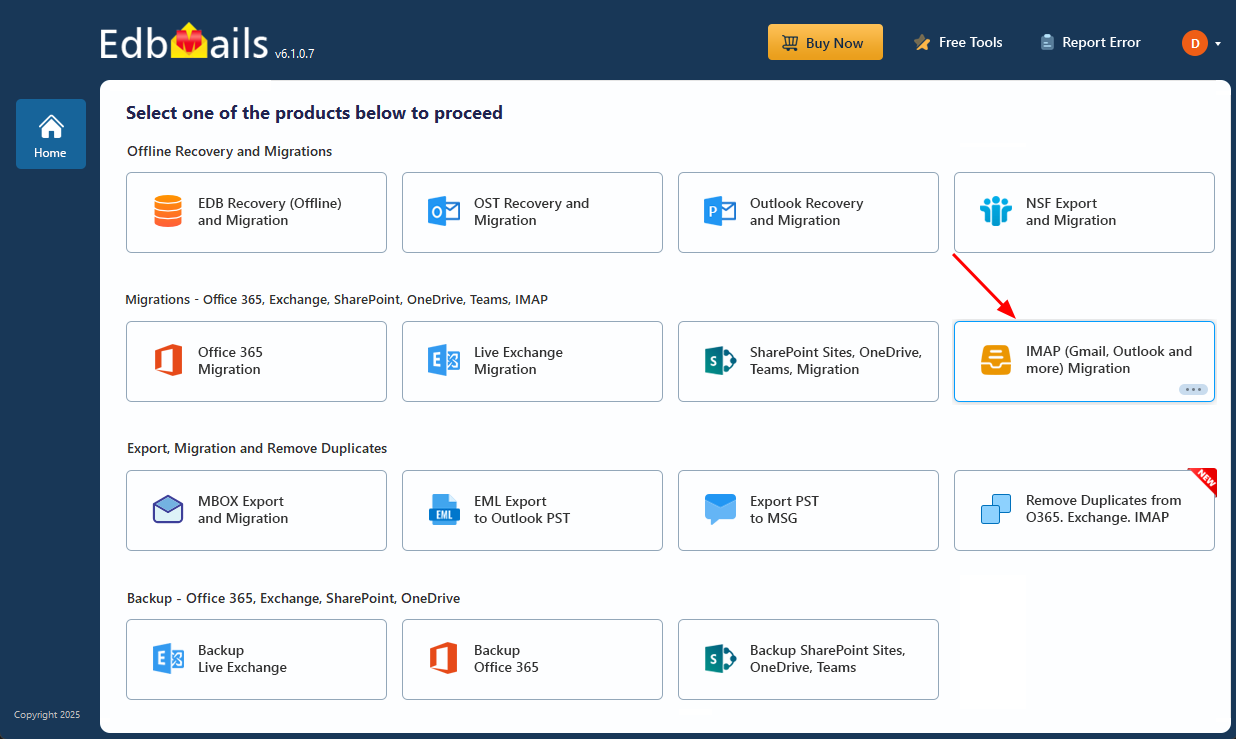
- Select the ‘IMAP (Gmail, Outlook & more) Migration’
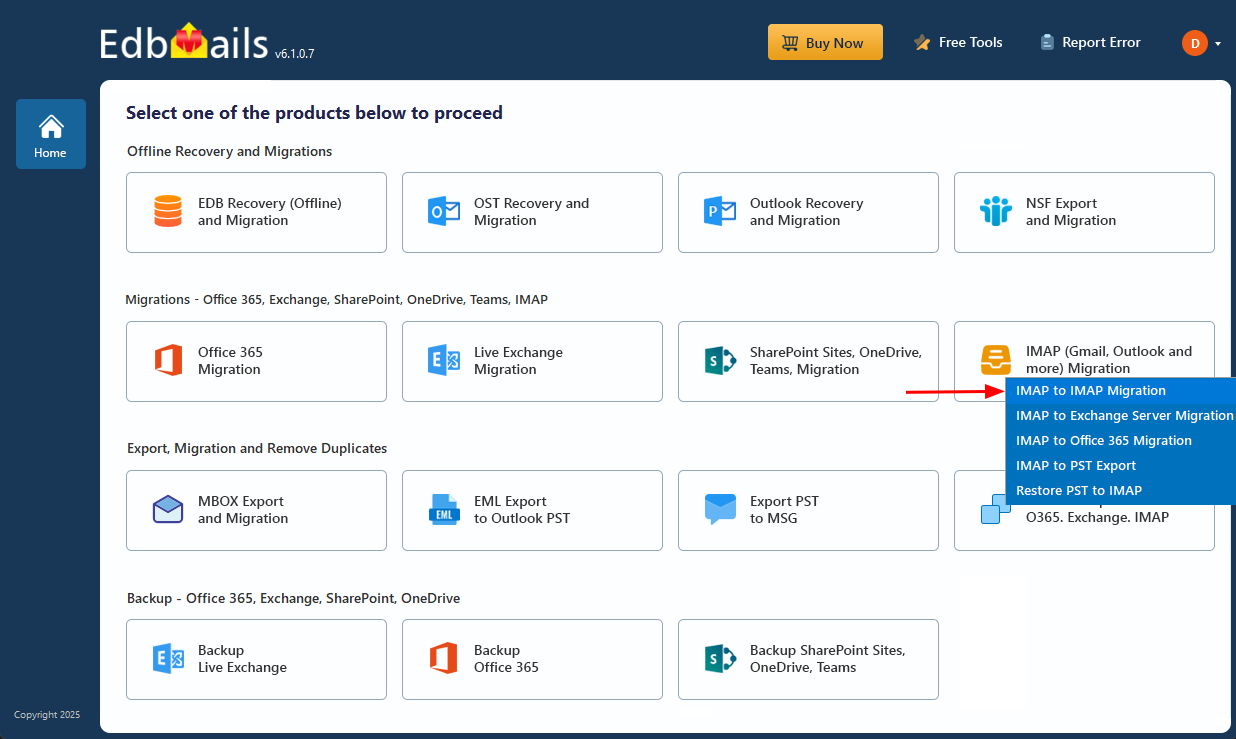
- Select ‘IMAP to IMAP Migration’.
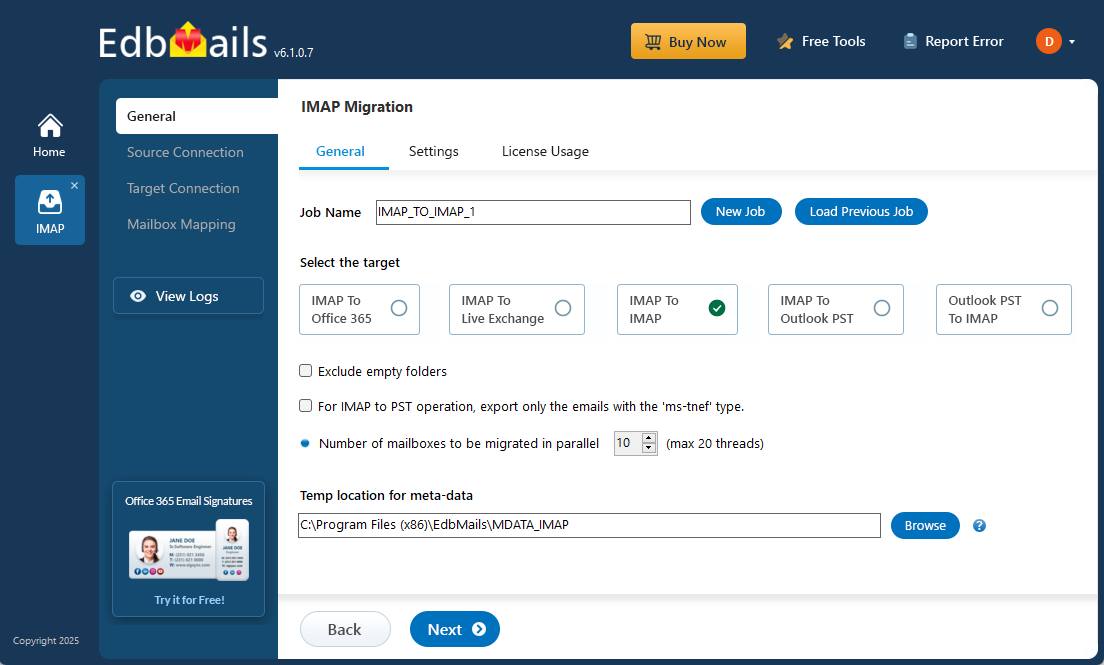
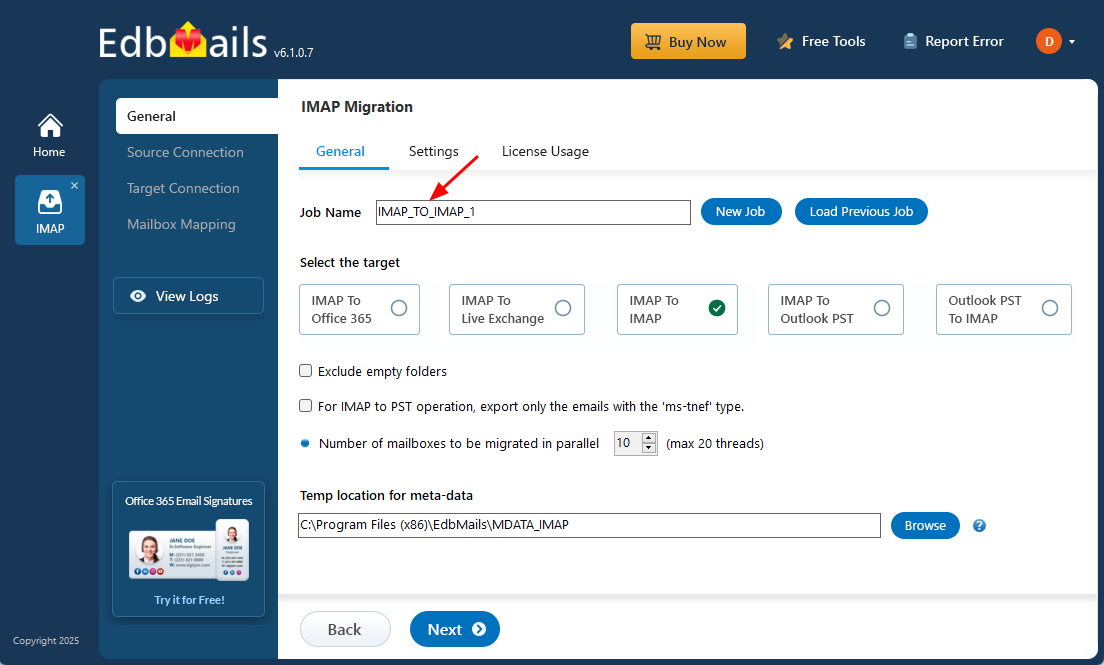
- You can proceed with the default job name or select ‘New Job’ to assign a custom name, making it easier to identify and manage the migration task before continuing.
- Download and install EdbMails on your computer.
Step 2: Connect to the source Virgin Media email server
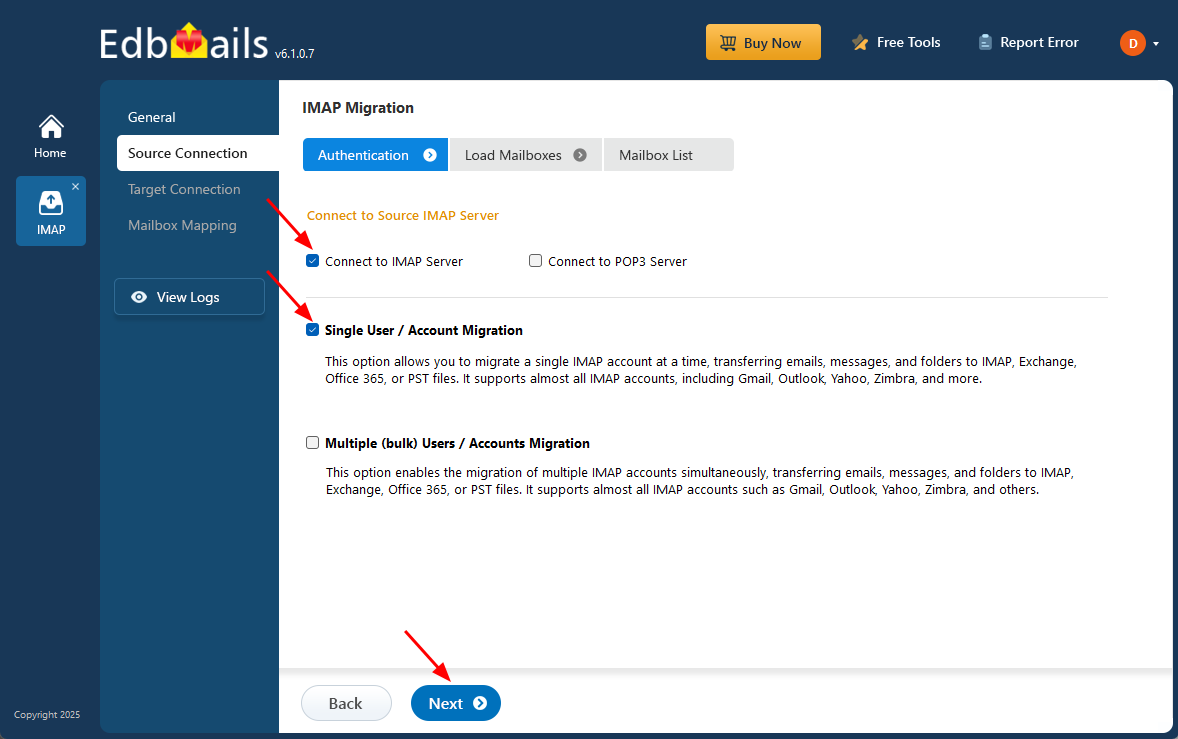
- To connect a single Virgin Media Server for migration, click ‘Single User / Account Migration’, choose the suitable connection option such as ‘Connect to IMAP Server’ or ‘Connect to POP3 Server’.
- Click ‘Next’ to proceed.
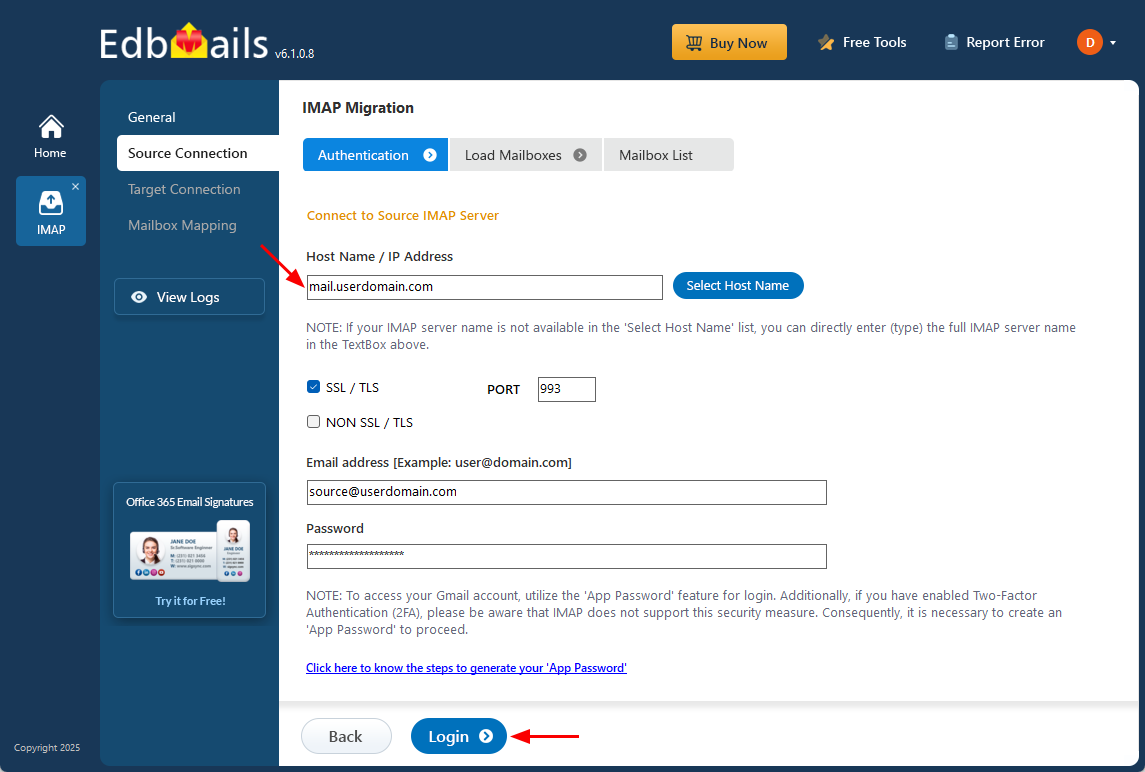
- For a single-user login, select the appropriate IMAP host name for Virgin Media Server from the list or enter it manually (for example, mail.userdomain.com).
- Enter the email address and password in the required fields.
- When adding a Gmail account, generate an app password and use it in place of your regular account password.
Follow the steps to create an app password for your Gmail account.
- Click the ‘Login’ button to proceed.
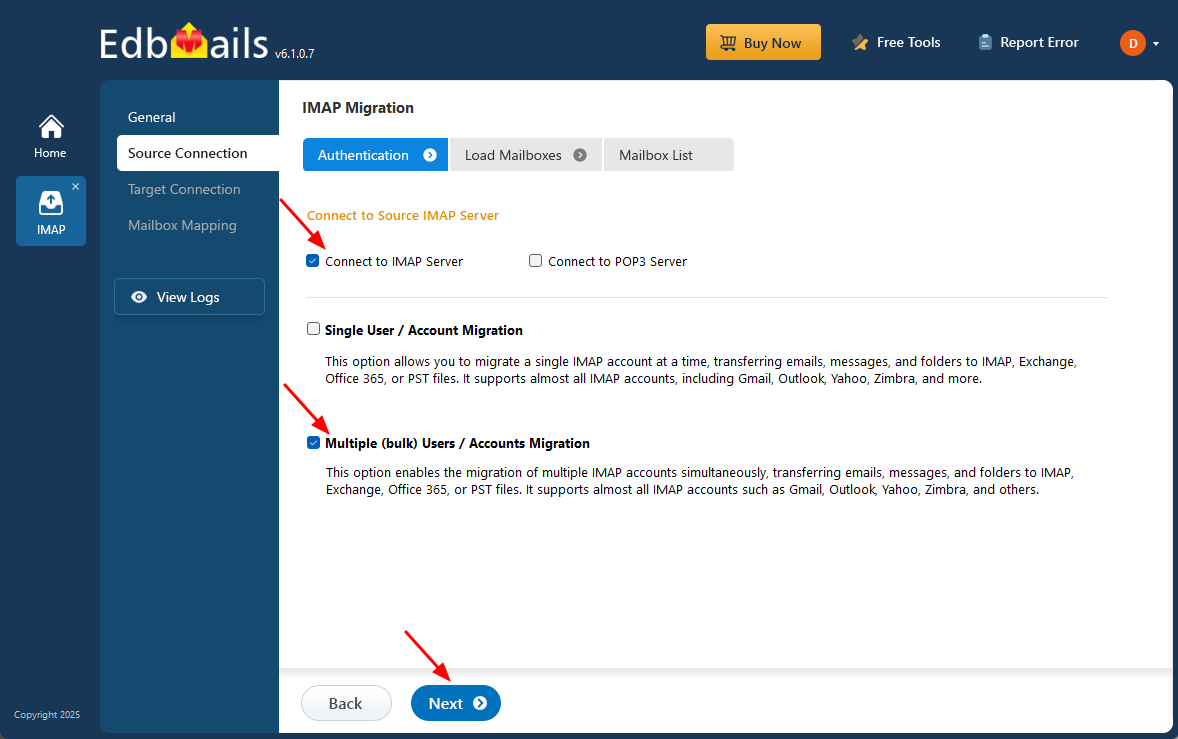
- For migrating multiple Virgin Media user mailboxes at once, choose ‘Multiple (Bulk) Users/Accounts Migration’, then select the appropriate connection option such as ‘Connect to IMAP Server’ or ‘Connect to POP3 Server’.
- Click ‘Next’ to continue.
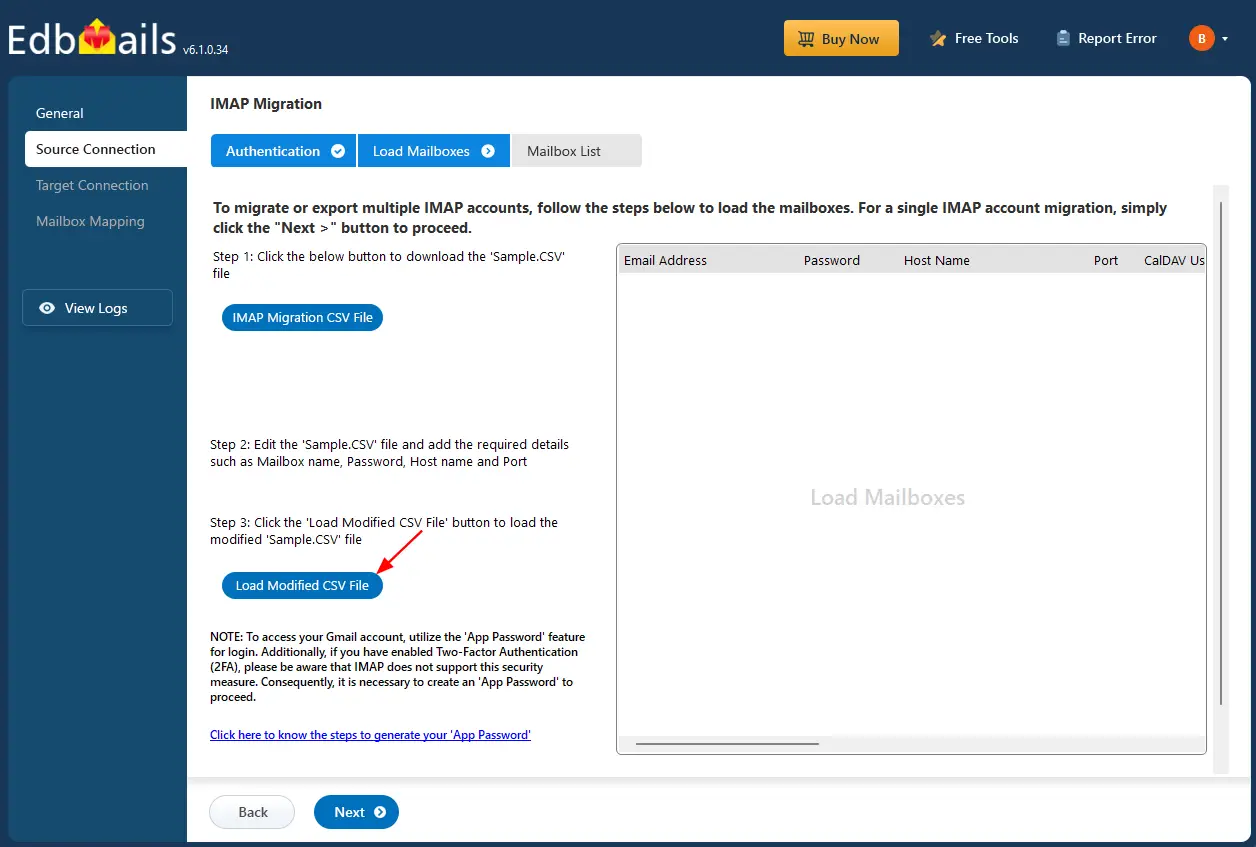
- Click ‘IMAP Migration CSV File’. It will load the sample CSV file to your local drive.
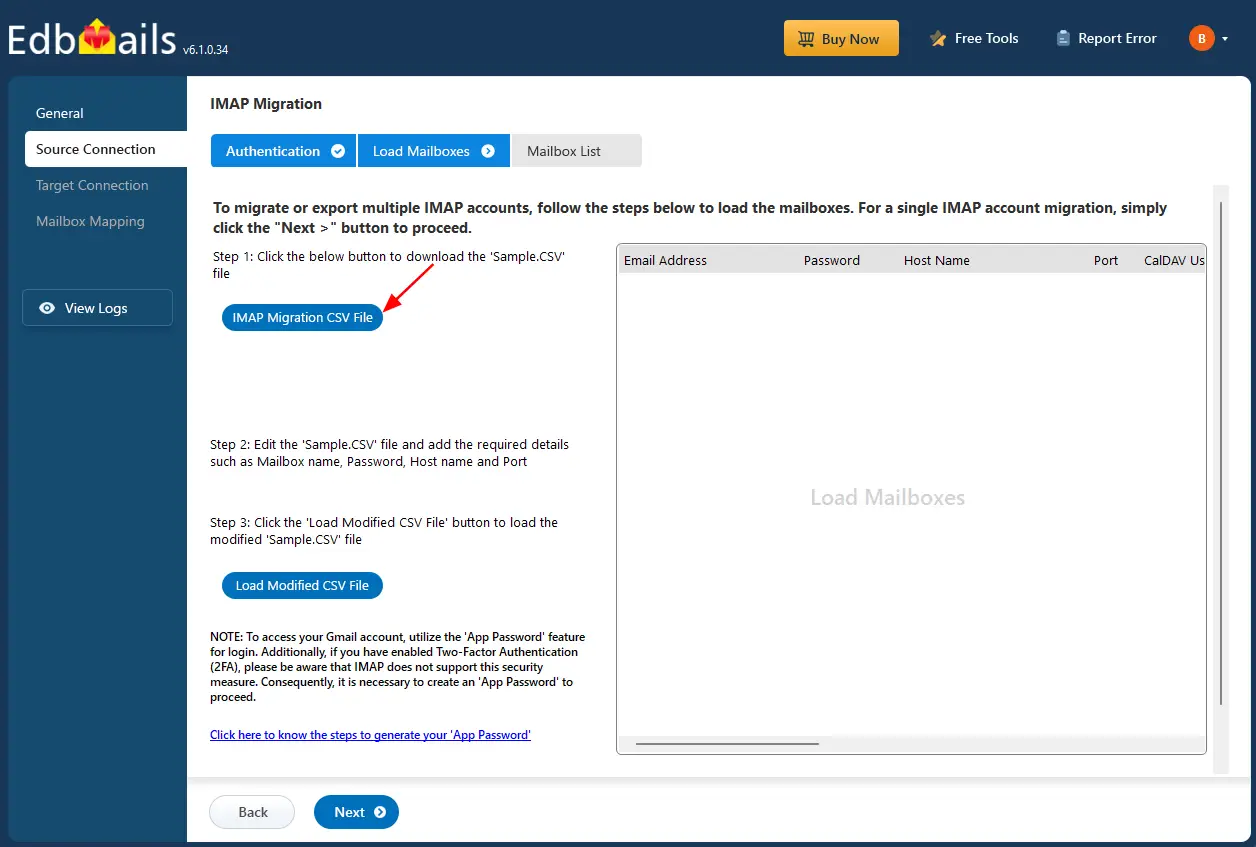
- Open the CSV file and fill in the necessary details, including the email address, password, IMAP server hostname, and port number for each mailbox. After completing the entries, save and close the updated CSV file.

- Once you’ve added all the required information to the CSV file, save the changes and close the file to proceed with the next steps in the migration process.
- Then, click the 'Load Modified CSV File' button, open the updated CSV file and click ‘Next’ to proceed.
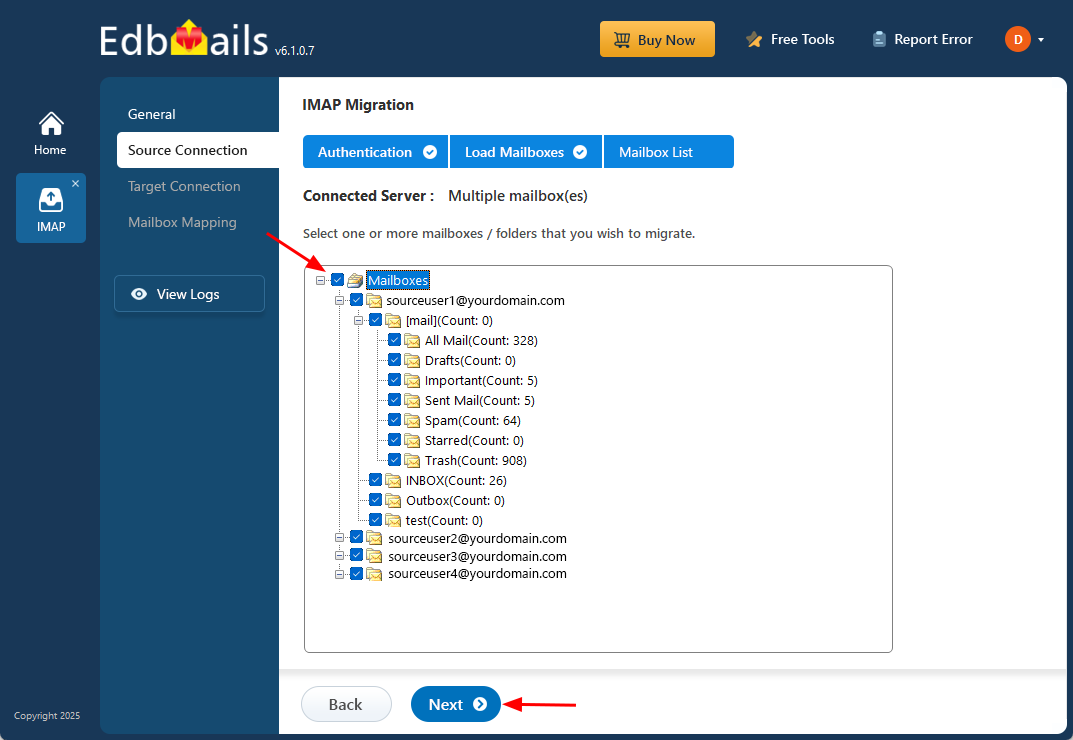
- Choose the specific mailboxes or individual folders you wish to migrate. Once your selection is complete, click ‘Next’ to continue.
Step 3: Connect to the target Gmail server
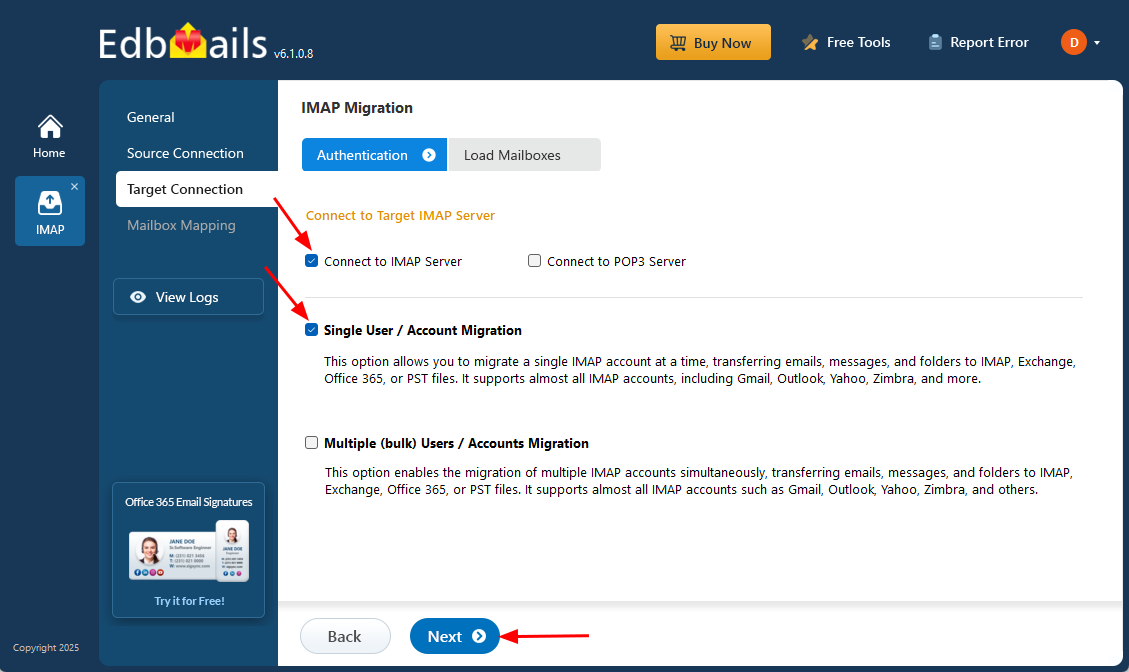
- To connect a single user account, select ‘Single User / Account Migration’ Then, choose the required protocol, such as ‘Connect to IMAP Server’ or ‘Connect to POP3 Server’, and click ‘Next’ to proceed.
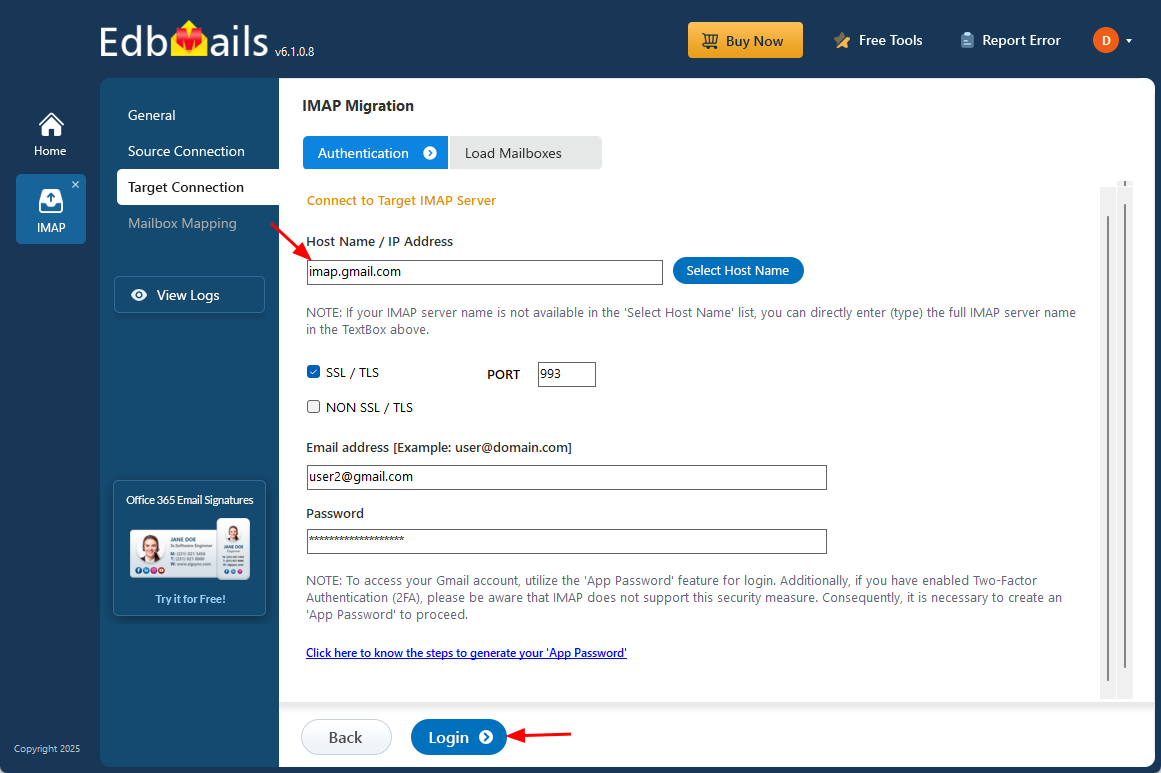
- For single-user login, select the appropriate IMAP hostname for Gmail (imap.gmail.com) from the list, or enter it manually. Then, provide the Gmail address and the corresponding app password (not your regular account password).
- Click the ‘Login’ button to establish the connection.
- For migrating multiple mailboxes, select ‘Multiple (Bulk) Users/Accounts Migration and click ‘Next’.
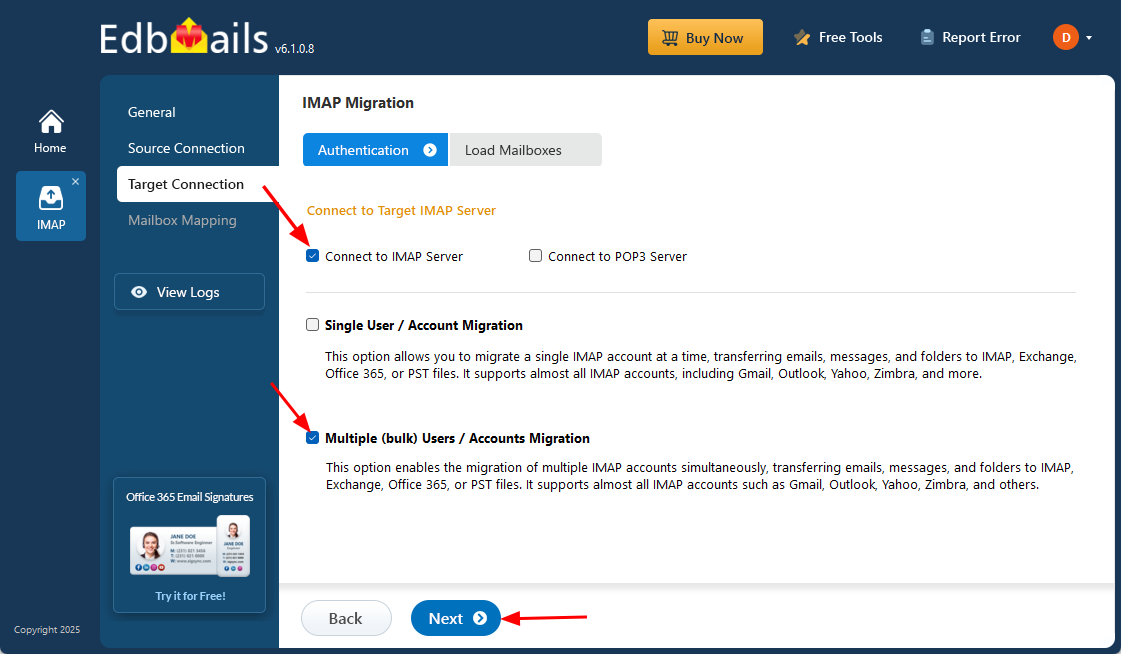
- Click ‘IMAP Migration CSV File’. It will load the sample CSV file to your local drive.
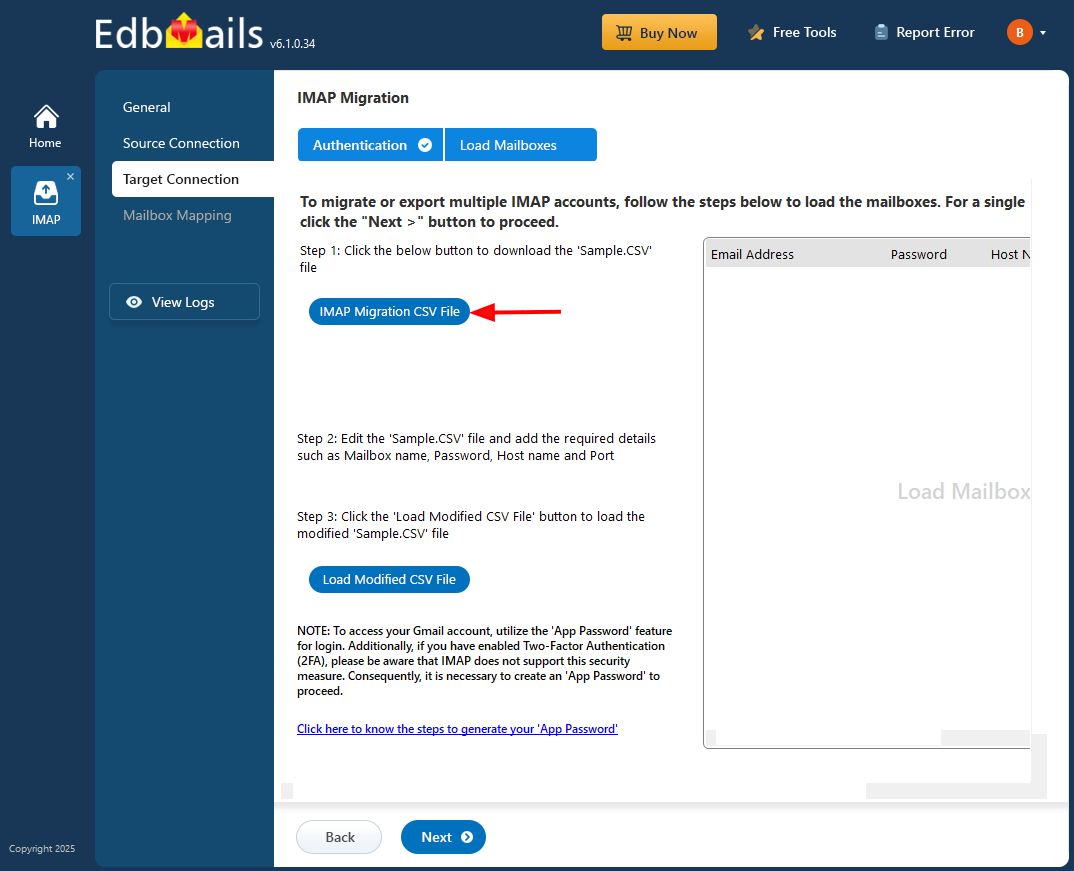
- Open the CSV file and fill in the necessary details, including the email address, password, IMAP server hostname, and port number for each mailbox. After completing the entries, save and close the updated CSV file.

- After updating the CSV file, save it and close it.
- Then, click the 'Load Modified CSV File' button, open the updated CSV file and click ‘Next’ to proceed.
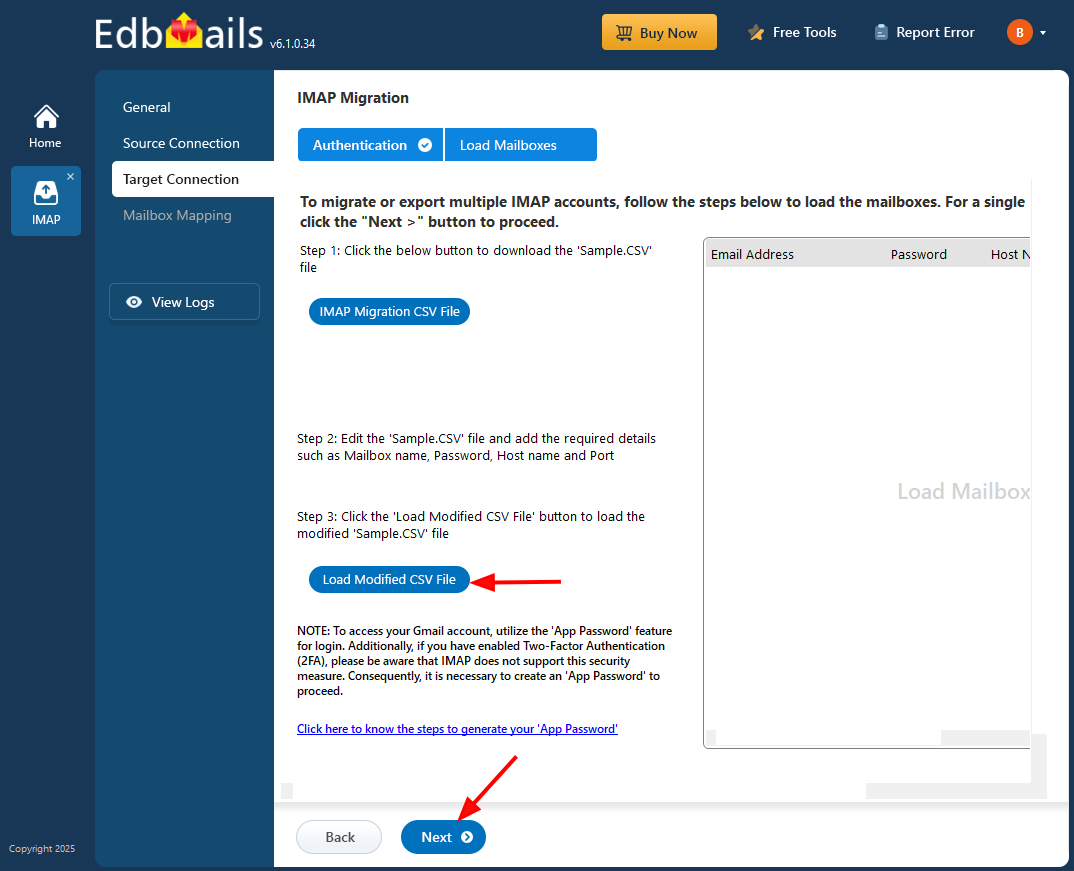
- To connect a single user account, select ‘Single User / Account Migration’ Then, choose the required protocol, such as ‘Connect to IMAP Server’ or ‘Connect to POP3 Server’, and click ‘Next’ to proceed.
Step 4: Virgin Media email to Gmail mailboxes mapping
- Select the appropriate mailbox mapping option to match source mailboxes with their Gmail counterparts. You can choose automatic or manual mapping based on your needs.
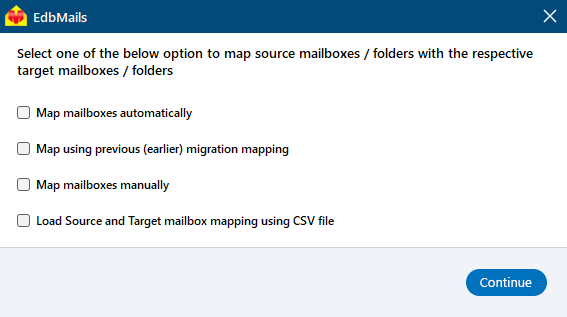
- EdbMails automatically maps source and target mailboxes. You can also manually map the mailboxes.
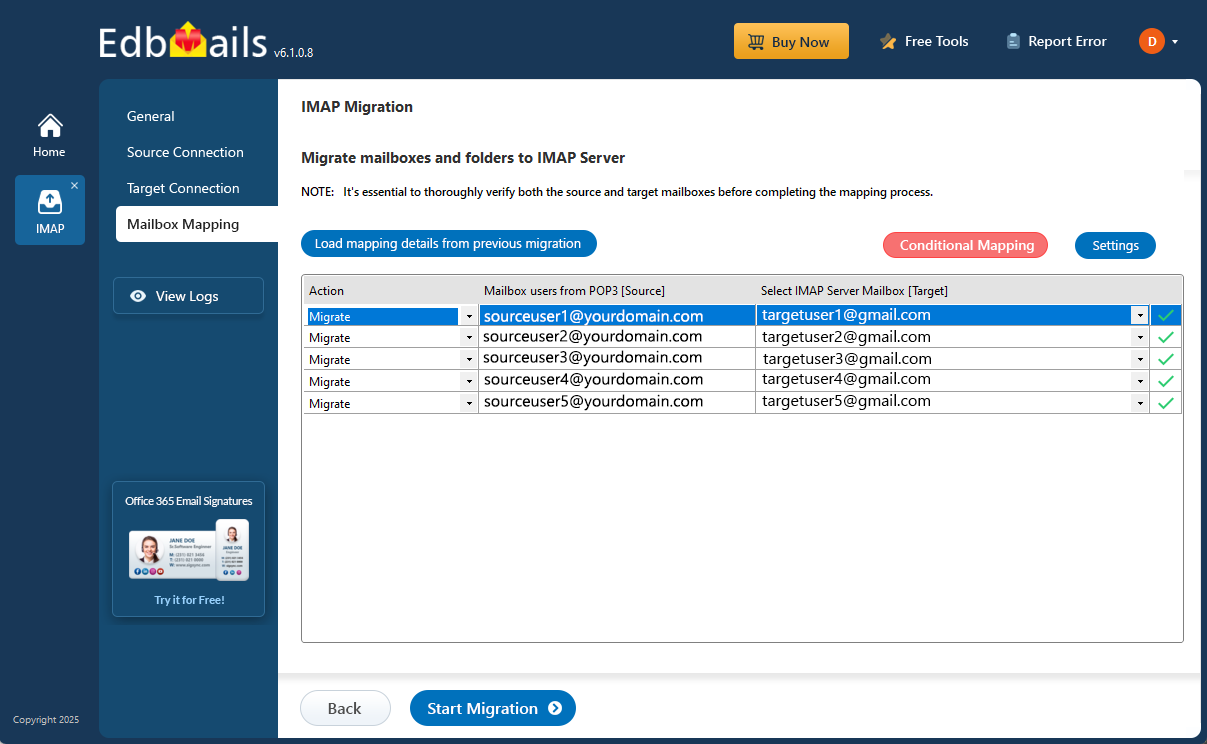
- Select the appropriate mailbox mapping option to match source mailboxes with their Gmail counterparts. You can choose automatic or manual mapping based on your needs.
Step 5: Start Virgin Media email to Gmail migration
- Verify the mailbox mapping.
- Click the ‘Settings’ button to apply the filters. For example, you can set a date filter to migrate only the data within a certain date range.
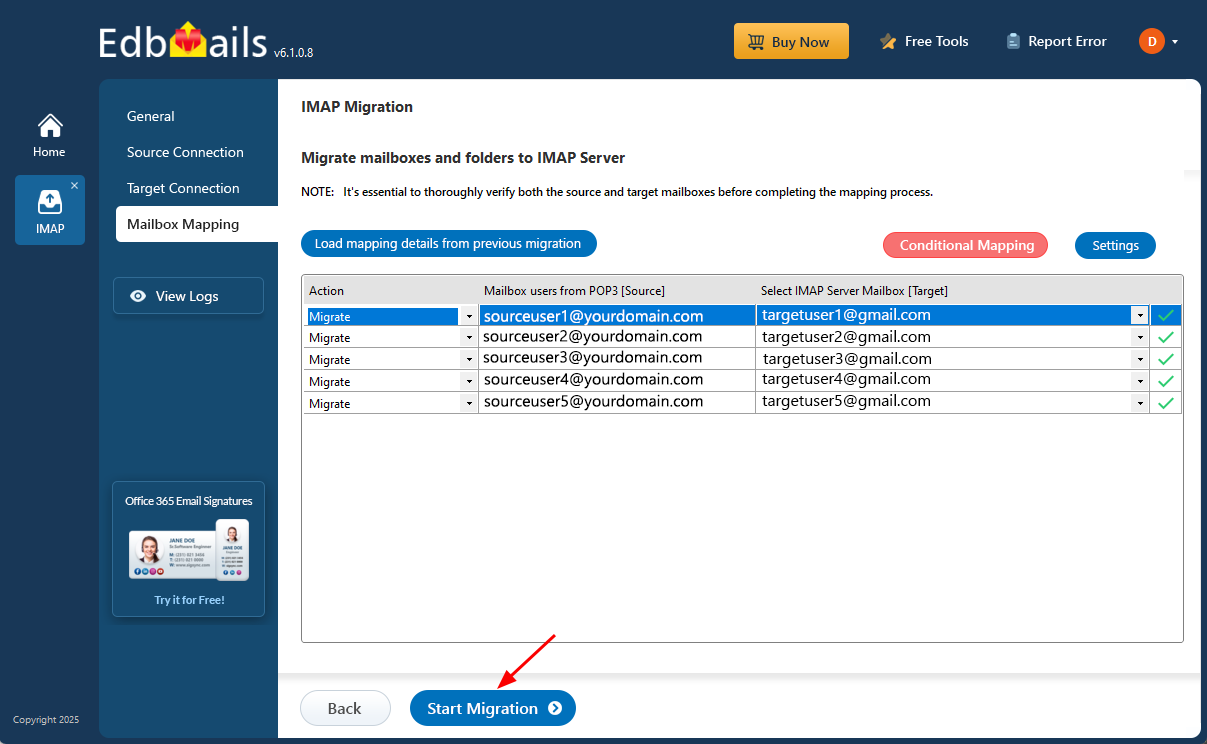
- Click the ‘Start Migration’ button and initiate the migration process.
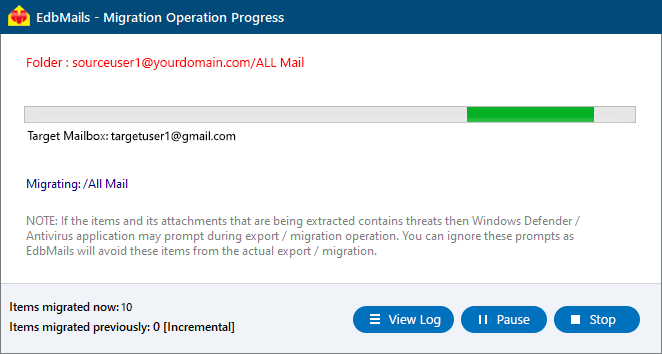
- To view the migration report, click the ‘View Logs’ button. It provides a comprehensive summary showing the number of emails, folders, and mailbox items migrated, along with their respective counts.
Virgin Media email to Gmail Post-migration Tasks
- Step 1: Updating MX Records
In order to redirect incoming email traffic to Gmail instead of Virginmedia, you will need to make adjustments to the MX records in your DNS provider's portal. This crucial step ensures that emails are correctly routed to your Gmail account, ensuring smooth communication.
- Step 2: Configuring AutoDiscover (CName)
To facilitate the automatic configuration of email clients and ensure a seamless transition to Gmail, it is important to include the AutoDiscover (CName) setting in your DNS configuration. By correctly configuring this setting, email clients can effortlessly connect to the Gmail server without the need for manual configuration.
- Step 3: Setting up Virginmedia Mail Forwarding
To avoid any email loss during the migration process, it is vital to set up mail forwarding in your Virginmedia account. This ensures that any incoming messages are forwarded to your Gmail account until the transition is fully completed. By enabling mail forwarding, you can remain connected and receive all your emails without interruption throughout the migration period.
- Step 1: Updating MX Records
Troubleshooting Guide for Virgin Media email to Gmail Migration
For troubleshooting, check out our knowledge base articles. If you have additional questions, browse the FAQs or contact our dedicated support team for personalized assistance.
Benefits of EdbMails for Virginmedia email to Gmail Migration
- Transfer Attachments and Headers:
EdbMails ensures that all attachments and headers in your Virgin Media emails are successfully migrated to Gmail without any data loss. Whether it’s emails with large attachments or specific header details, the software guarantees a smooth transfer while preserving the structure of your data.
- Preview Complete Data:
Before initiating the actual migration, EdbMails allows you to preview your entire email data. This ensures that users can verify the data and make any necessary adjustments prior to starting the migration process, ensuring a seamless transfer to Gmail with no surprises.
- Windows based Software:
Being a Windows-based software, EdbMails can easily be installed and operated on any Windows system including Windows 10, 8, 8.1, and 7. The user-friendly interface and simple setup process make it an ideal choice for businesses looking for a reliable solution to migrate Virgin Media emails to Gmail without requiring advanced technical skills.
- Maintains all properties:
EdbMails preserves all email properties during the Virginmedia email to Gmail migration process. From email structure and formatting to metadata such as sent dates, CC, BCC, and more, the software ensures no information is altered or lost, providing a complete and accurate migration to Gmail.
- Detailed Migration Reports:
EdbMails generates detailed migration reports throughout the transfer process. These reports provide insights into the success or failure of each email and attachment, helping users track the migration and resolve any issues that may arise during the Virgin Media to Gmail migration.
FAQs - Virginmedia email to Gmail Migration
- How long does Virginmedia email to Gmail migration take?
The duration depends on mailbox size, internet speed, migration time, number of accounts, and network speed.
- Will all attachments and folders be preserved?
Yes, EdbMails maintains all emails, attachments, and folder structures are migrated intact without any data loss.
- Is there any downtime during migration?
No, there is zero downtime and users can continue accessing their Virginmedia emails without any interruption throughout the migration process.


