


Zimbra to Gmail Migration
Planning to migrate emails from Zimbra to Gmail and need a reliable solution? This guide will help you get started. In today’s fast-moving digital environment, choosing the right email platform plays an important role in maintaining efficient communication and smooth business operations. Although both Zimbra and Gmail provide their own set of features, many organizations increasingly prefer Gmail for its advanced capabilities and effortless integration with other services.
As part of the Google ecosystem, Gmail provides a reliable cloud-based platform with 15 GB of free storage, strong security, and easy access across multiple devices and platforms. Its simple, user-friendly interface and seamless integration with Google Workspace applications make it a practical choice for businesses aiming to simplify workflows, improve collaboration, and increase overall productivity.
Zimbra, while a powerful collaboration suite for managing emails, calendars, and contacts, may fall short in areas like flexibility, real-time collaboration, and third-party integration. For companies aiming to modernize their email systems and boost productivity, migrating from Zimbra to Gmail is a strategic upgrade.
To simplify the process of migrating from Zimbra to Gmail, businesses can leverage the EdbMails IMAP Migration tool. This tool ensures a seamless transition, allowing you to transfer all emails from Zimbra to Gmail without any data loss or complications. With advanced features like delta migration, EdbMails efficiently transfers only new or modified data after the initial sync, reducing migration time. The tool also provides pause and resume migration options, giving businesses complete control over the process without interruptions. Additionally, EdbMails ensures secure authentication through the Microsoft sign-in page, safeguarding your credentials during the Zimbra to Gmail migration. Automated mailbox mapping further simplifies the process, as the tool intelligently maps mailboxes between the source and target, ensuring a hassle-free migration experience. By utilizing EdbMails, businesses can streamline their migration and enjoy a smooth, secure transition to Gmail, allowing uninterrupted business operations.
User Query
"Our organization is using Zimbra Mail Server, and we have more than 100 users. We are now planning to move all user accounts, including emails, passwords, and calendars, to Gmail. Could you provide a solution for migrating everything smoothly to Gmail without any data loss?"
Why Users Prefer Switching from Zimbra to Gmail?
When it comes to migrating Zimbra emails, Gmail stands out as the preferred choice for several reasons. Let's explore the key factors that make Gmail the top choice for migration:
- Speed, reliability, and user-friendliness:
Gmail delivers fast and reliable performance, allowing both individuals and organizations to access their emails effortlessly. Its intuitive interface ensures smooth navigation and easy email management, making daily operations more efficient.
- Robust security measures:
Google places a strong emphasis on data security. With advanced encryption, two-factor authentication, and stringent security protocols, users can be confident that their sensitive information is well-protected on Gmail.
- Efficient email organization:
Gmail excels in managing email data with its automatic sorting features. It effectively categorizes emails into separate sections or folders such as promotions, spam, social, and more. This feature simplifies email management and improves productivity.
- Ad-Free Experience:
Unlike some other platforms, Gmail provides a clean, distraction-free interface without intrusive ads based on your search history, ensuring uninterrupted workflow and focus
- Speed, reliability, and user-friendliness:
Zimbra to Gmail Migration Planning
Before you migrate Zimbra to Gmail, thorough planning is crucial. It's essential to prepare both the source and target environments and establish a backup plan to mitigate risks and prevent data loss. Here's a unique checklist of considerations for a successful migration:
- Determine the size and number of mailboxes you intend to migrate from Zimbra to Gmail, enabling you to allocate resources appropriately.
- Create a detailed list of the data and permissions from Zimbra that you need to transfer, ensuring a seamless transition to Gmail.
- Create user mailboxes on Gmail that align with your organizational requirements, granting appropriate access and permissions.
- Verify that your network has adequate capacity and bandwidth to support the migration process effectively.
- Communicate the migration plan to stakeholders and end-users, providing them with necessary information and addressing any concerns or queries they may have.
- Perform a test or pilot migration before initiating the actual migration to identify and resolve any potential issues proactively.
Zimbra to Gmail Migration Prerequisites
Before the Zimbra to Gmail migration, make sure the following prerequisites are in place:
- Enable IMAP Settings Ensure that IMAP is activated on both the source Zimbra server and the target Gmail or Google Workspace account to allow smooth data transfer.
- Maintain User Credentials Keep a record of all email addresses and passwords for the users you plan to migrate from the Zimbra server.
- Prepare Gmail Accounts Verify that Gmail accounts exist for all users. For Gmail, generate an app password for each account to enable secure access during migration.
Click here for steps to create an app password for a Gmail account.
Steps to migrate Zimbra to Gmail using EdbMails
Step 1: Download and install the EdbMails software
- Download and install EdbMails on your computer.
See EdbMails system requirements for Zimbra to Gmail migration

- Launch the EdbMails application on your system.
- Enter your registered email address and password, then click ‘Login’. If you’re using EdbMails for the first time, choose ‘Start Your Free Trial’ to proceed with the trial version.Note: The trial edition provides all major features and allows you to migrate up to 30 items per folder. For unlimited migration and purchase an IMAP Migration license from the official EdbMails website.After completing the purchase, close and reopen the application, then log in again using the same email address and password you used to buy the license to ensure successful activation.

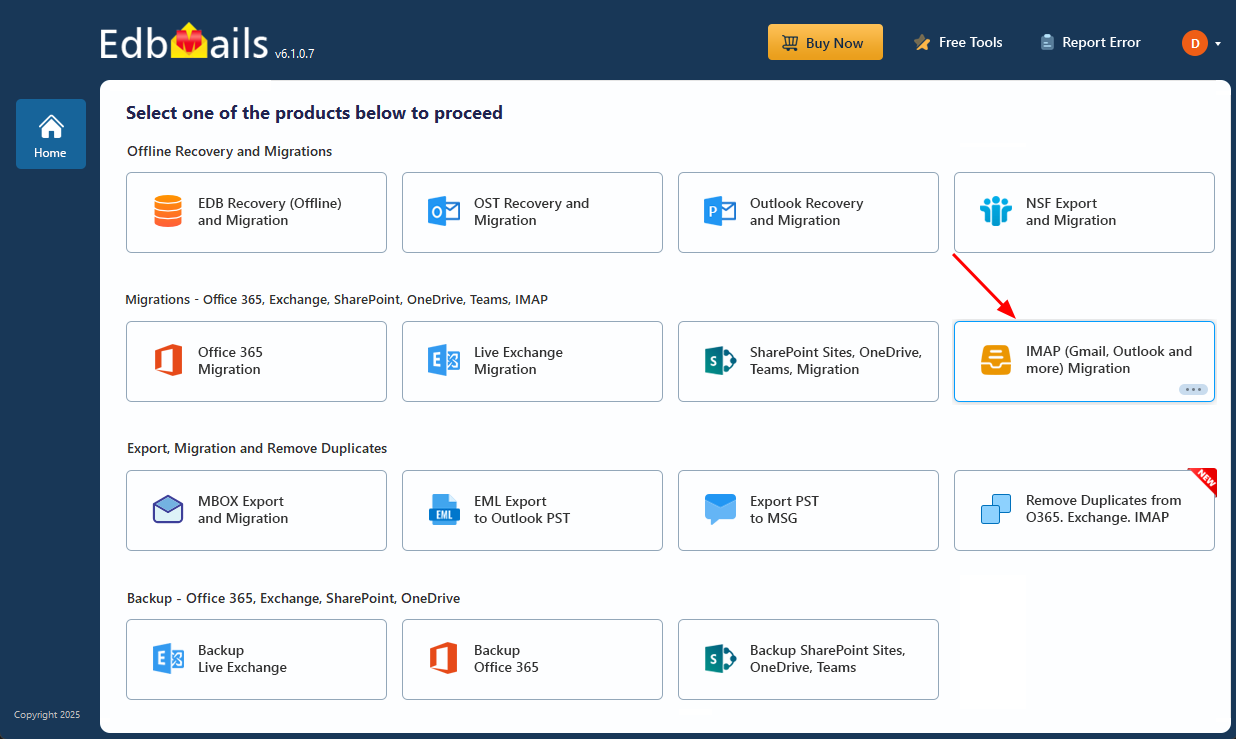
- Select the ‘IMAP (Gmail, Outlook & more) Migration’
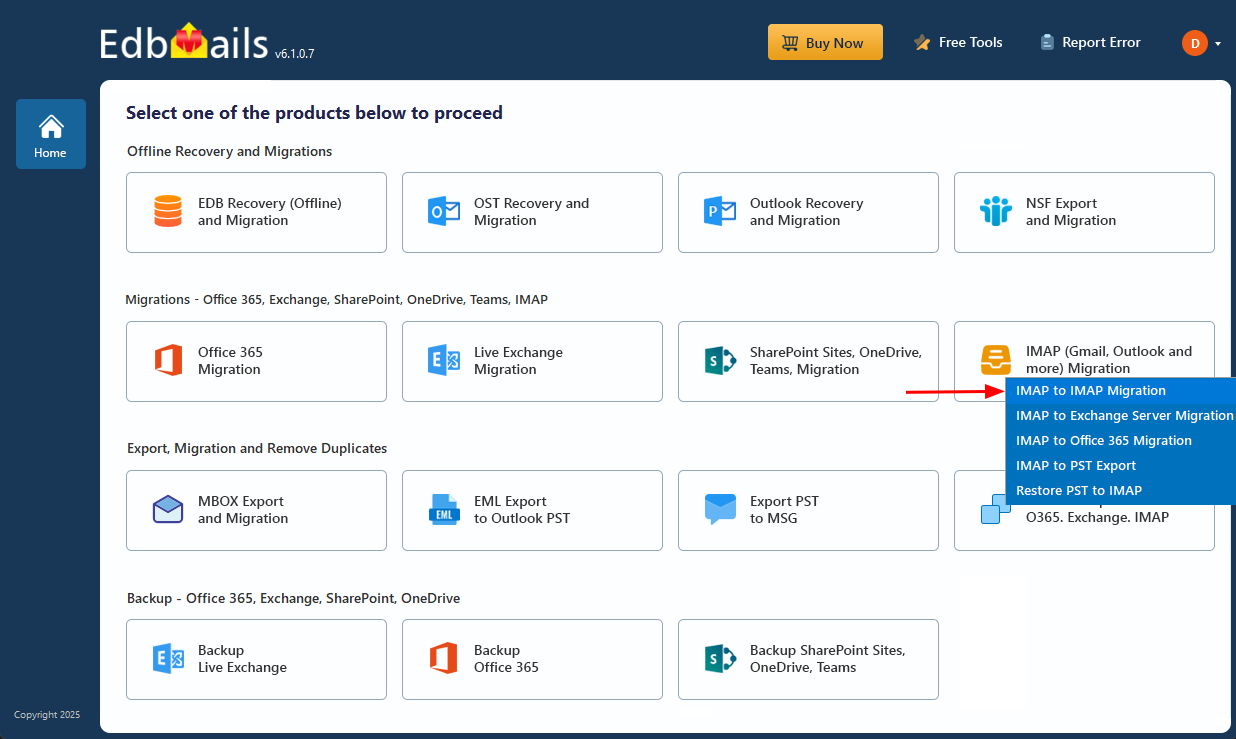
- Select ‘IMAP to IMAP Migration’.
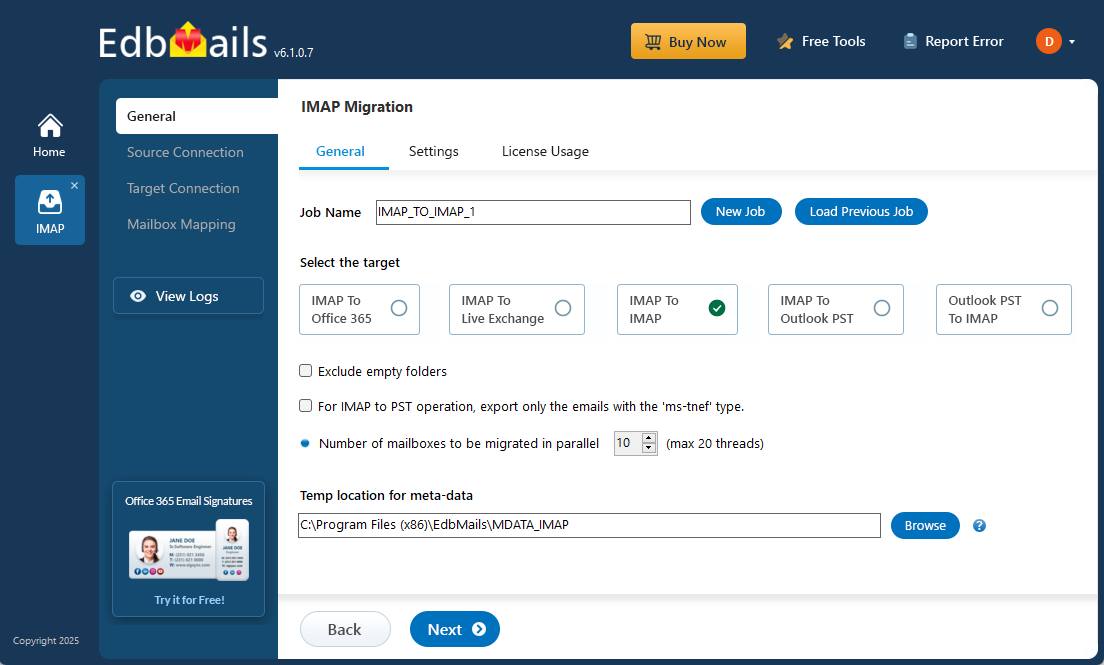
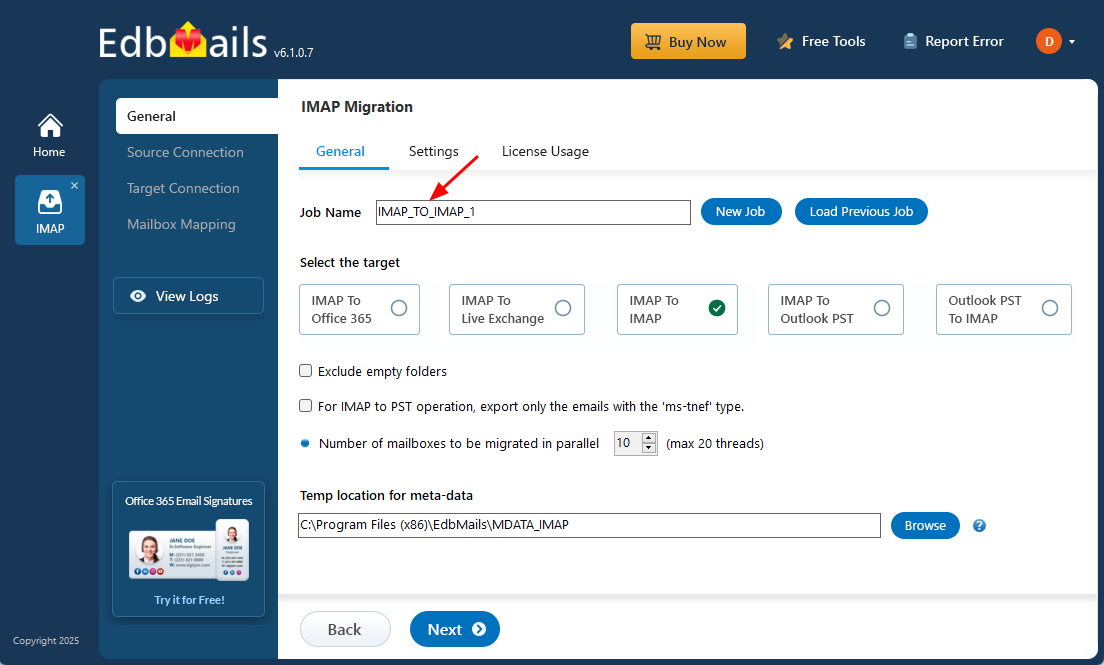
- Use the default job name or click 'New Job' to modify the job name and continue
- Download and install EdbMails on your computer.
Step 2: Connect to the source Zimbra server
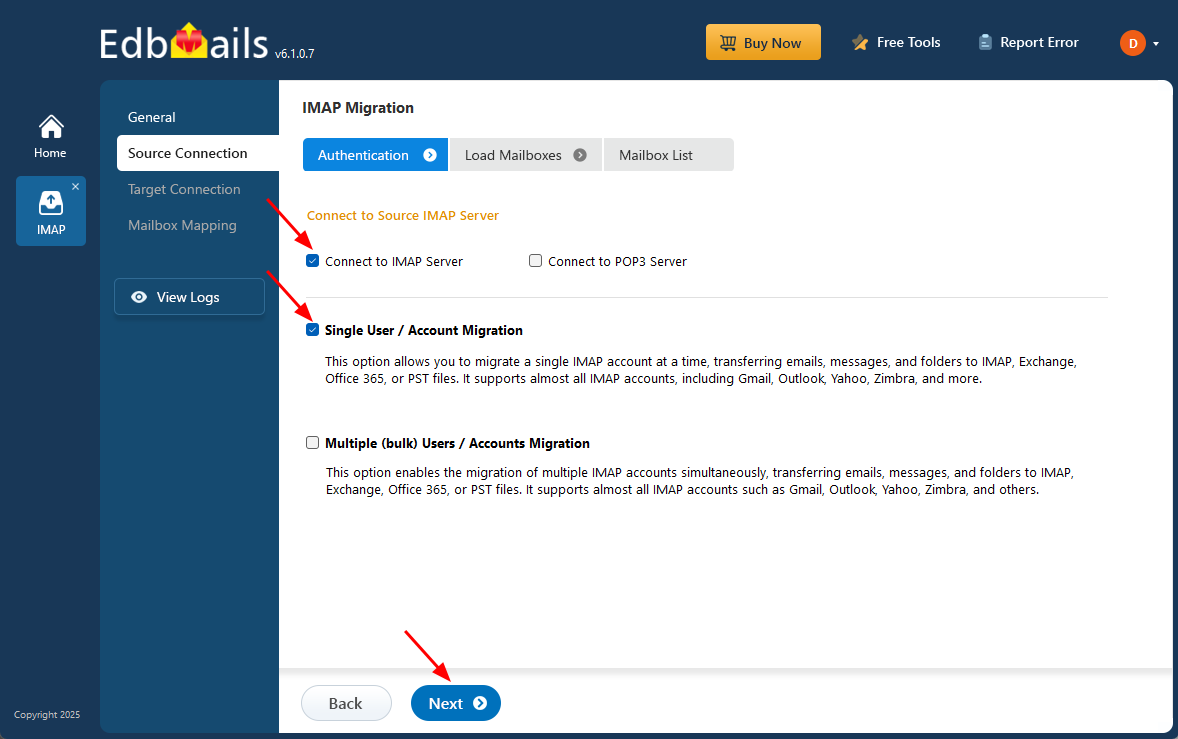
- To connect a single Zimbra account for migration, click ‘Single User / Account Migration’, choose the suitable connection option such as ‘Connect to IMAP Server’ or ‘Connect to POP3 Server’.
- Click ‘Next’ to proceed.
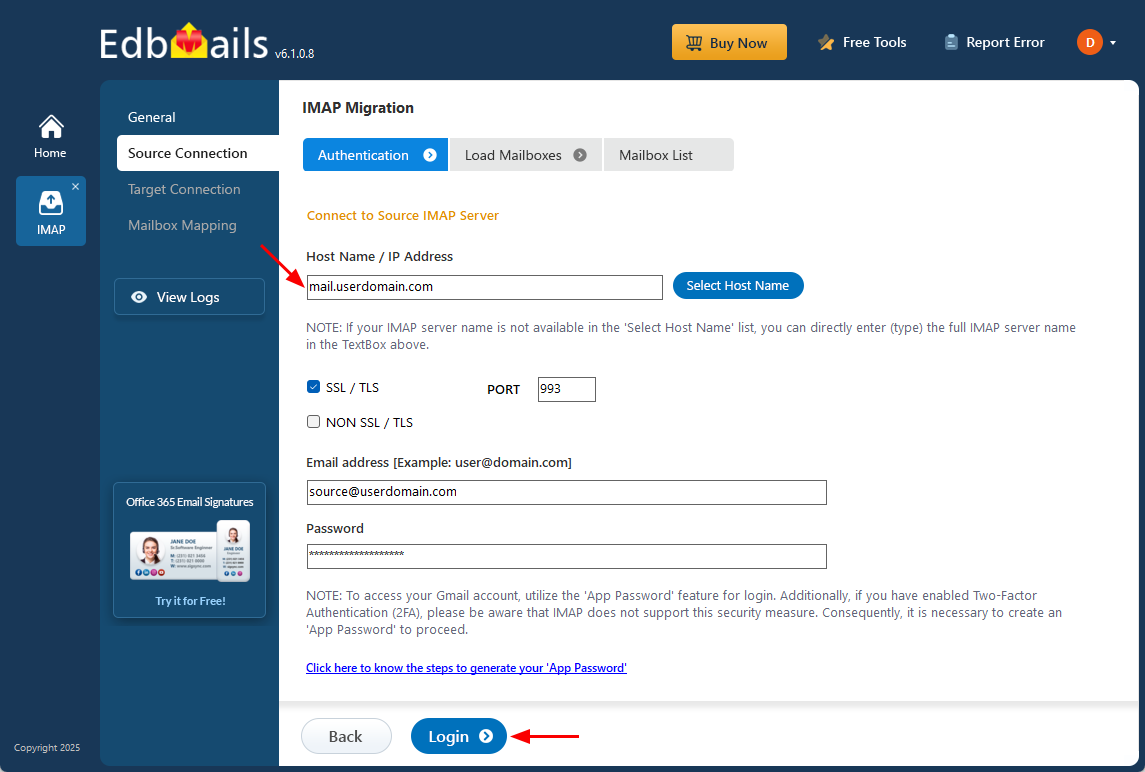
- For a single-user login, select the appropriate IMAP host name for Zimbra from the list or enter it manually (for example, mail.userdomain.com).
- Enter the email address and password in the required fields.
- When adding a Gmail account, generate an app password and use it in place of your regular account password.
Follow the steps to create an app password for your Gmail account.
- Click the ‘Login’ button to proceed.
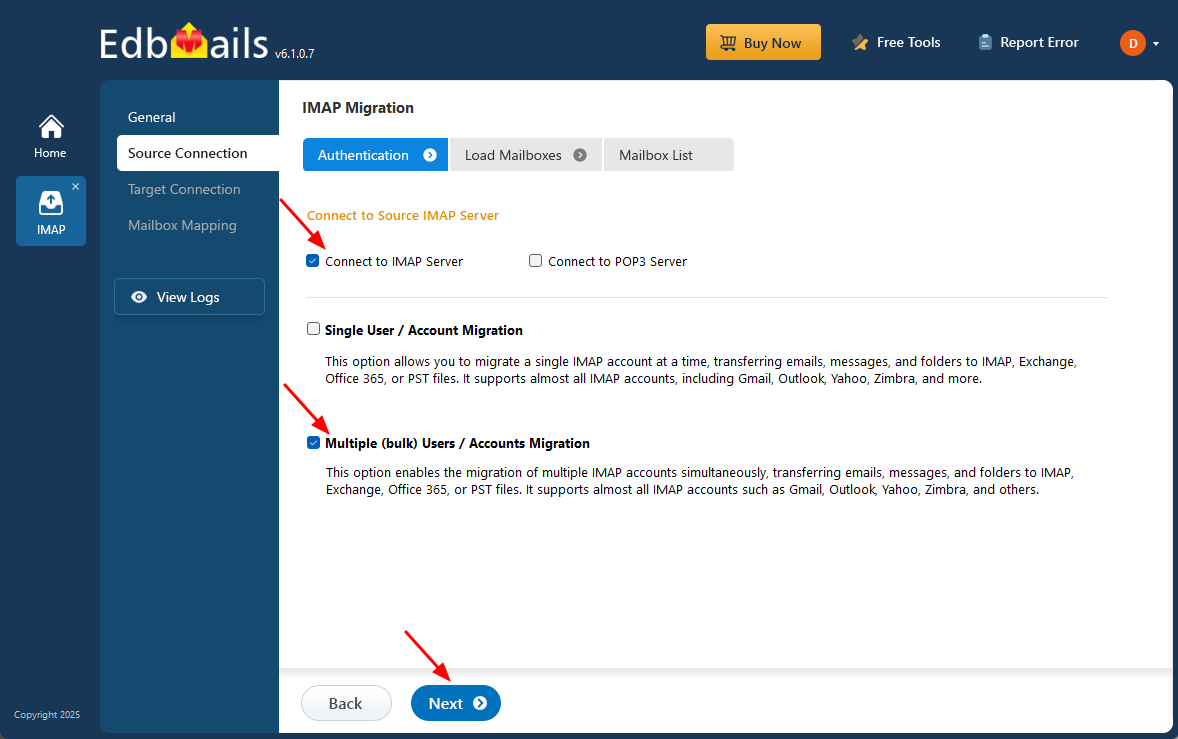
- For migrating multiple Zimbra mailboxes simultaneously, choose ‘Multiple (Bulk) Users/Accounts Migration’, then select the appropriate connection option such as ‘Connect to IMAP Server’ or ‘Connect to POP3 Server’.
- Click ‘Next’ to continue.
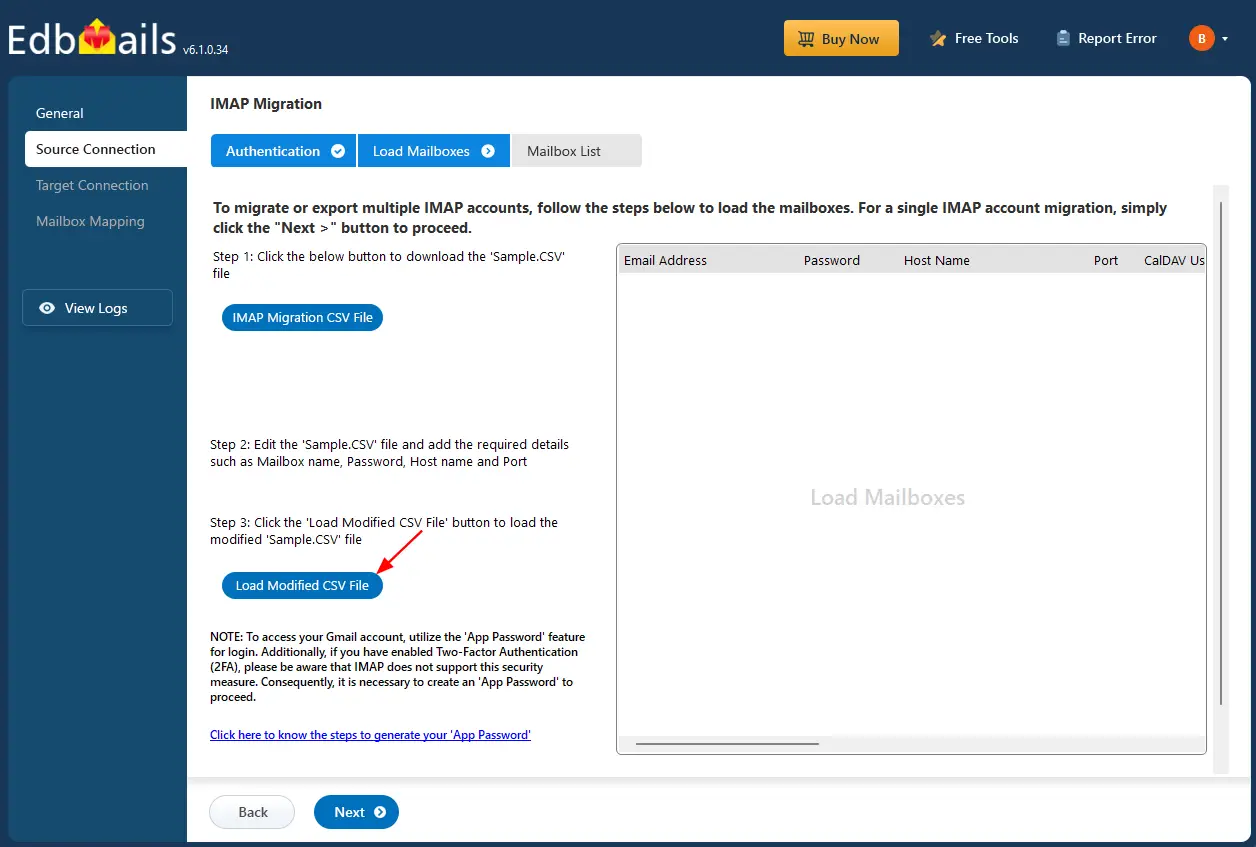
- Choose the ‘IMAP Migration CSV File’ option to download the ‘Sample.CSV’ file, which will be automatically saved to your local drive for future use and reference.
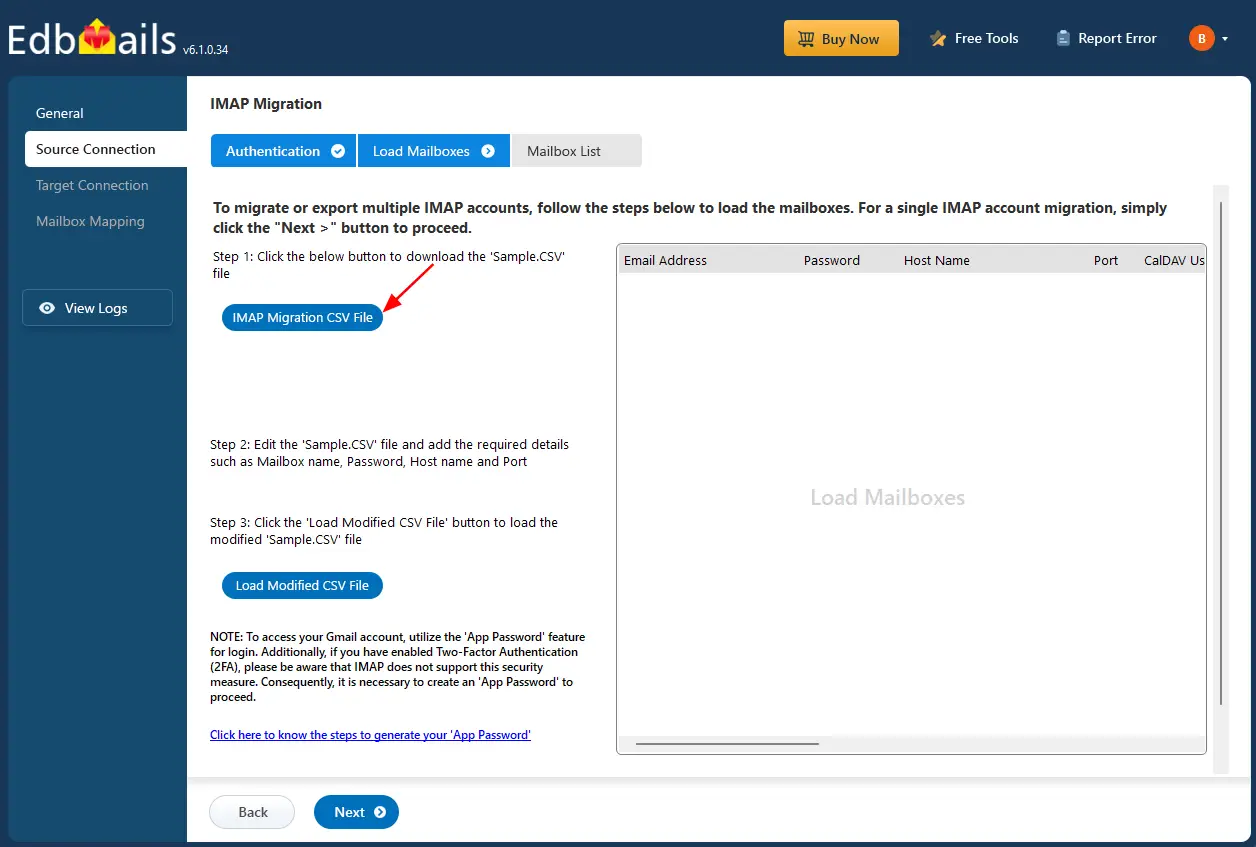
- Open the sample CSV file and enter the required details, such as the email address, password, host name, and port number.

- After entering the required details in the CSV file, save your changes and close the file to continue with the next steps.
- Next, click the 'Load Modified CSV File' button, locate your updated CSV file, select it, and open it to proceed.
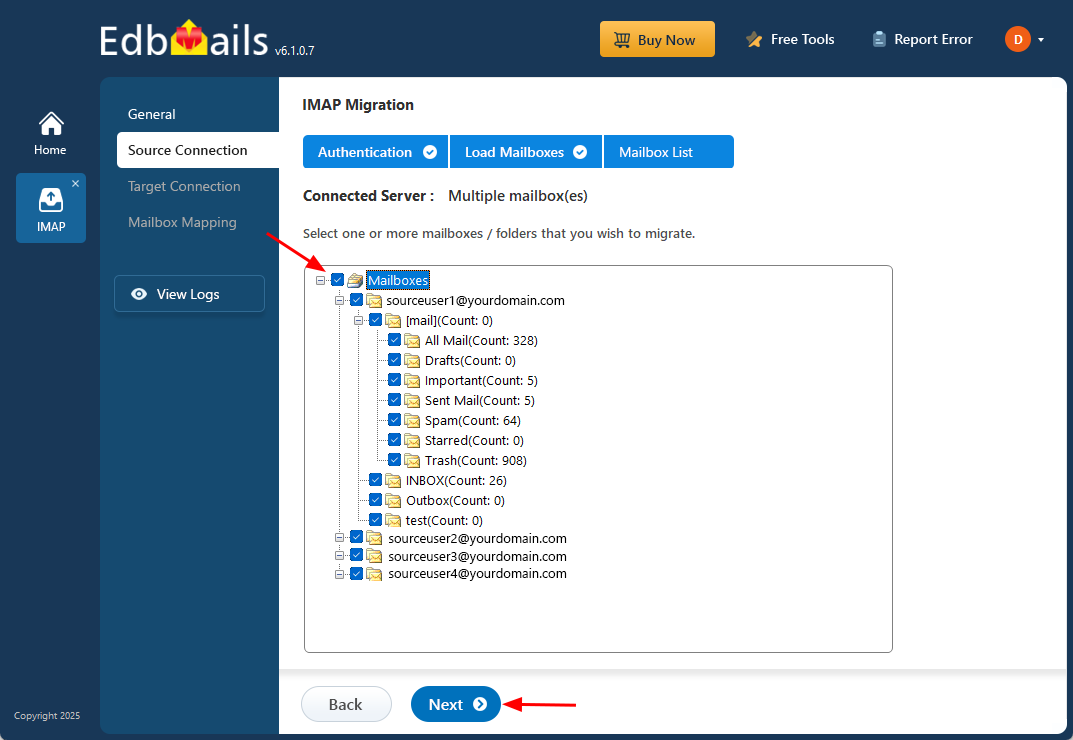
- Choose the specific mailboxes or individual folders you wish to migrate. Once your selection is complete, click ‘Next’ to continue.
Step 3: Connect to the target Gmail server
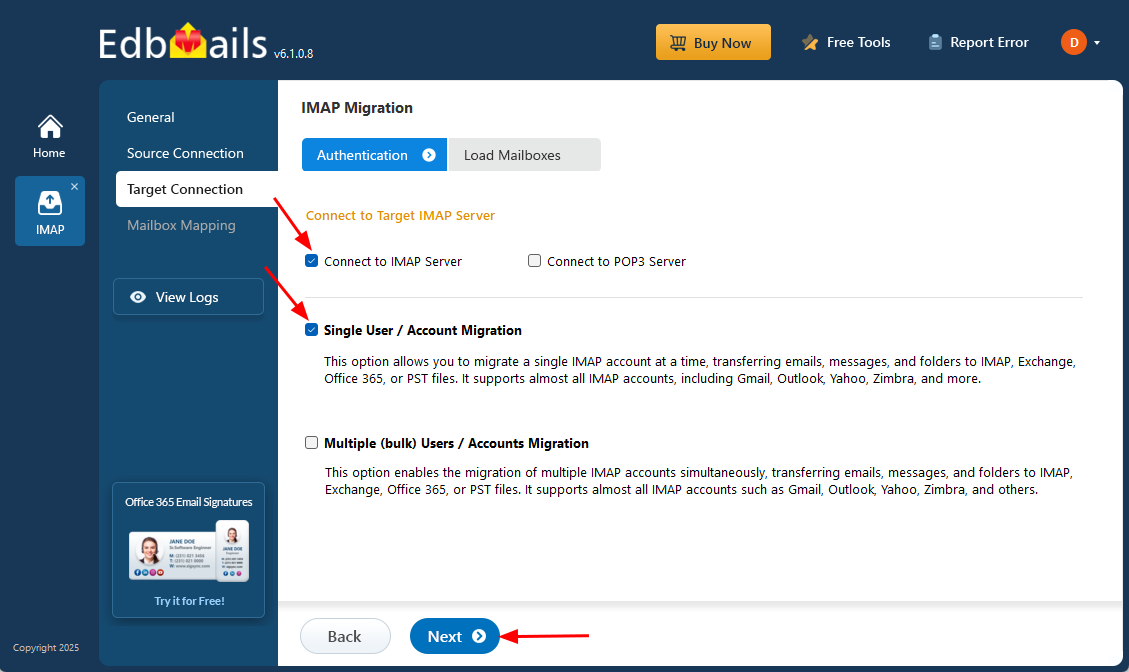
- To connect a single user account, select ‘Single User / Account Migration’ Then, choose the required protocol, such as ‘Connect to IMAP Server’ or ‘Connect to POP3 Server’, and click ‘Next’ to proceed.
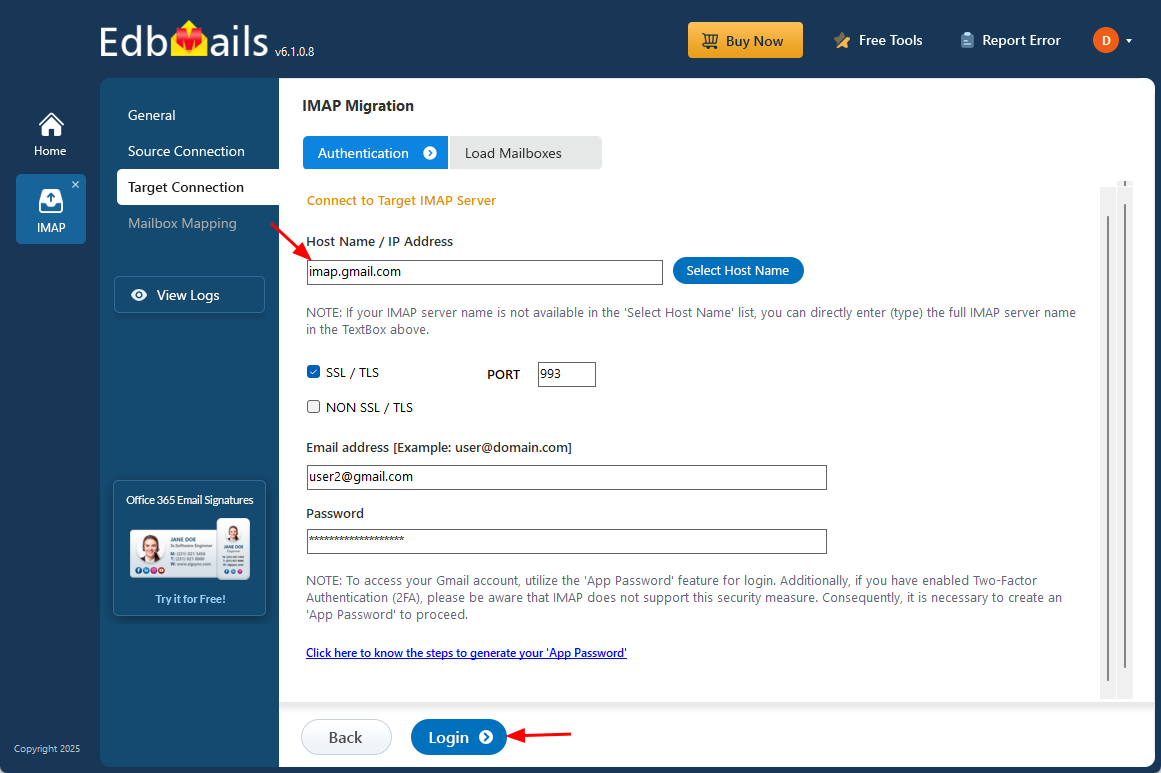
- For single-user login, select the appropriate IMAP hostname for Gmail (imap.gmail.com) from the list, or enter it manually. Then, provide the Gmail address and the corresponding app password (not your regular account password).
- Click the ‘Login’ button to establish the connection.
- For migrating multiple mailboxes, select ‘Multiple (Bulk) Users/Accounts Migration and click ‘Next’.
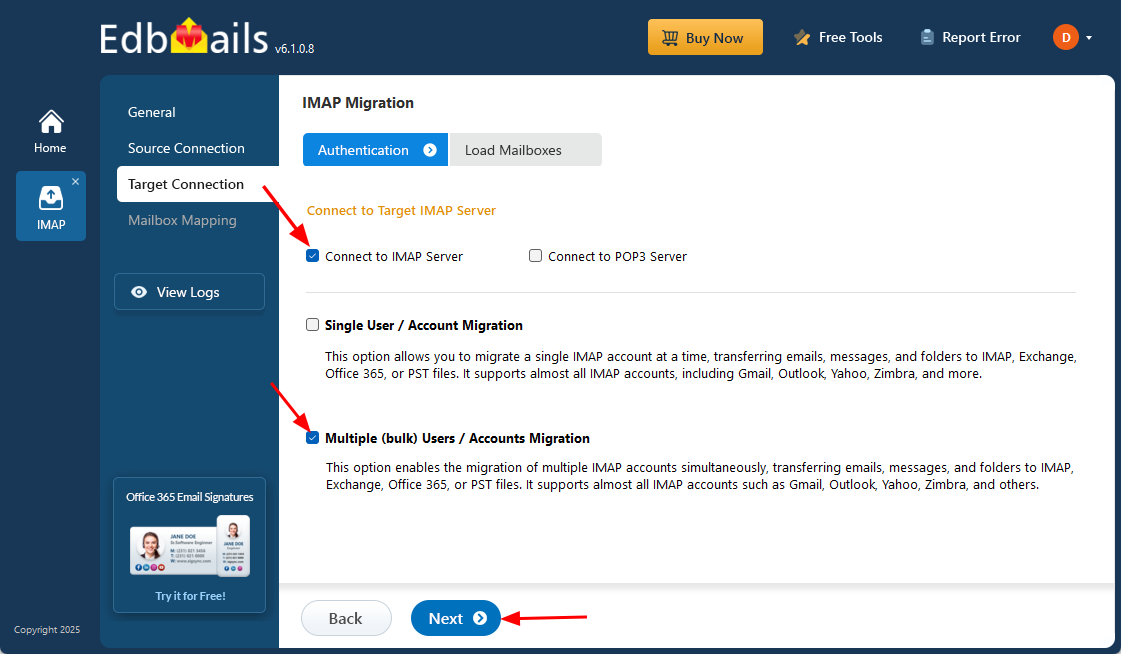
- Click ‘Download Sample CSV File’.
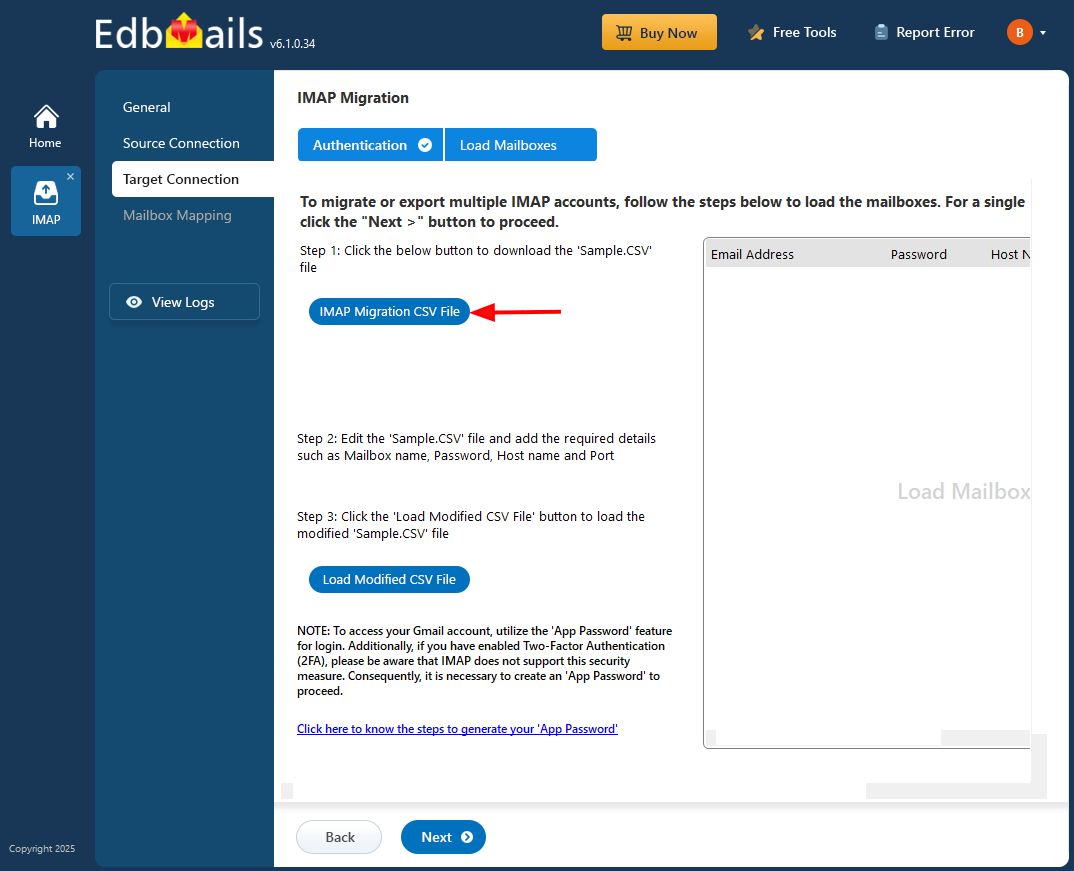
- Modify the CSV file with the required details such as email address, password, host name and port number in the CSV file and save the changes.

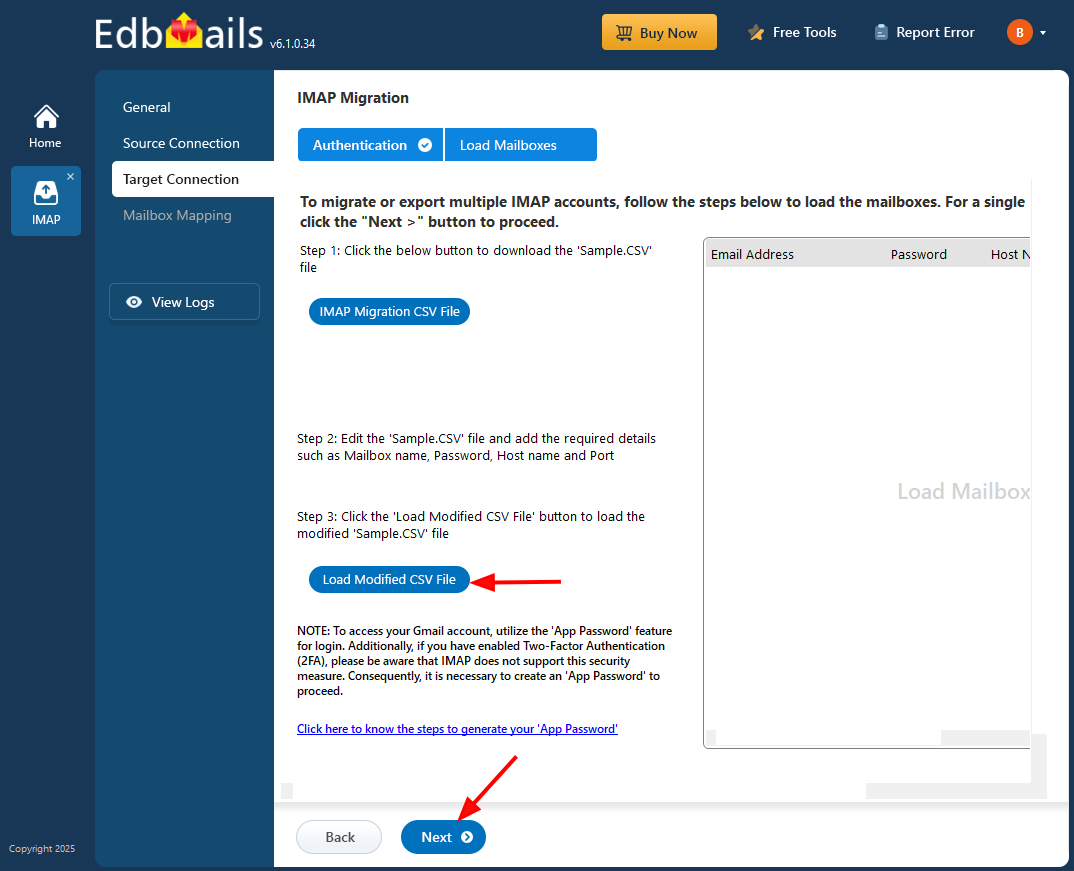
- Close the CSV file, click the 'Browse CSV File' button , select the modified CSV file .
- Verify the mailboxes, and click 'Next'.
- To connect a single user account, select ‘Single User / Account Migration’ Then, choose the required protocol, such as ‘Connect to IMAP Server’ or ‘Connect to POP3 Server’, and click ‘Next’ to proceed.
Step 4: Zimbra to Gmail mailboxes mapping
- Choose the required mailbox mapping option
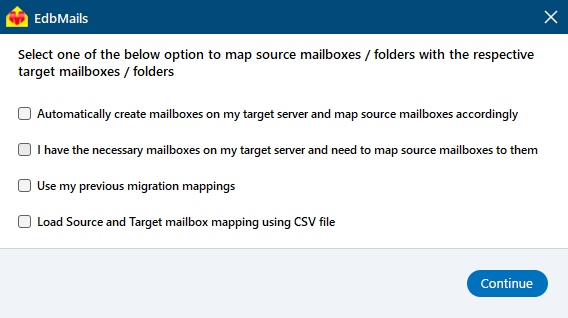
- EdbMails automatically maps source and target mailboxes. You can also manually map the mailboxes.
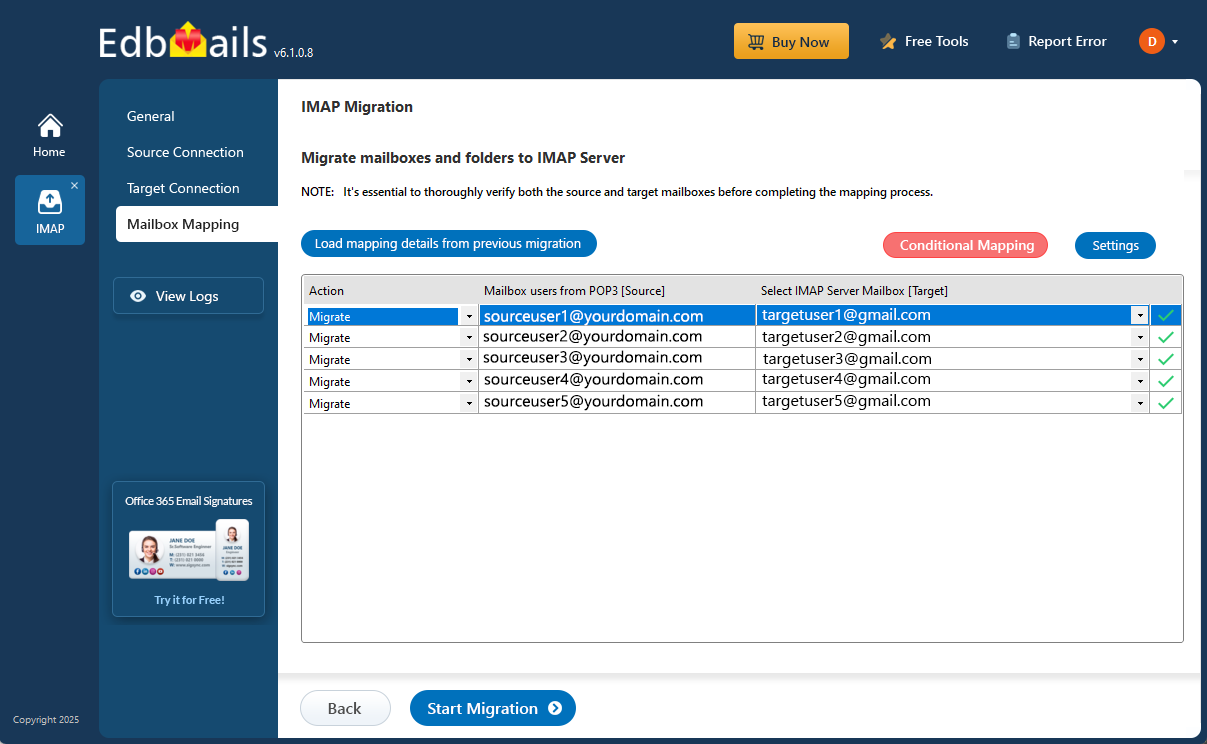
- Choose the required mailbox mapping option
Step 5: Start Zimbra to Gmail migration
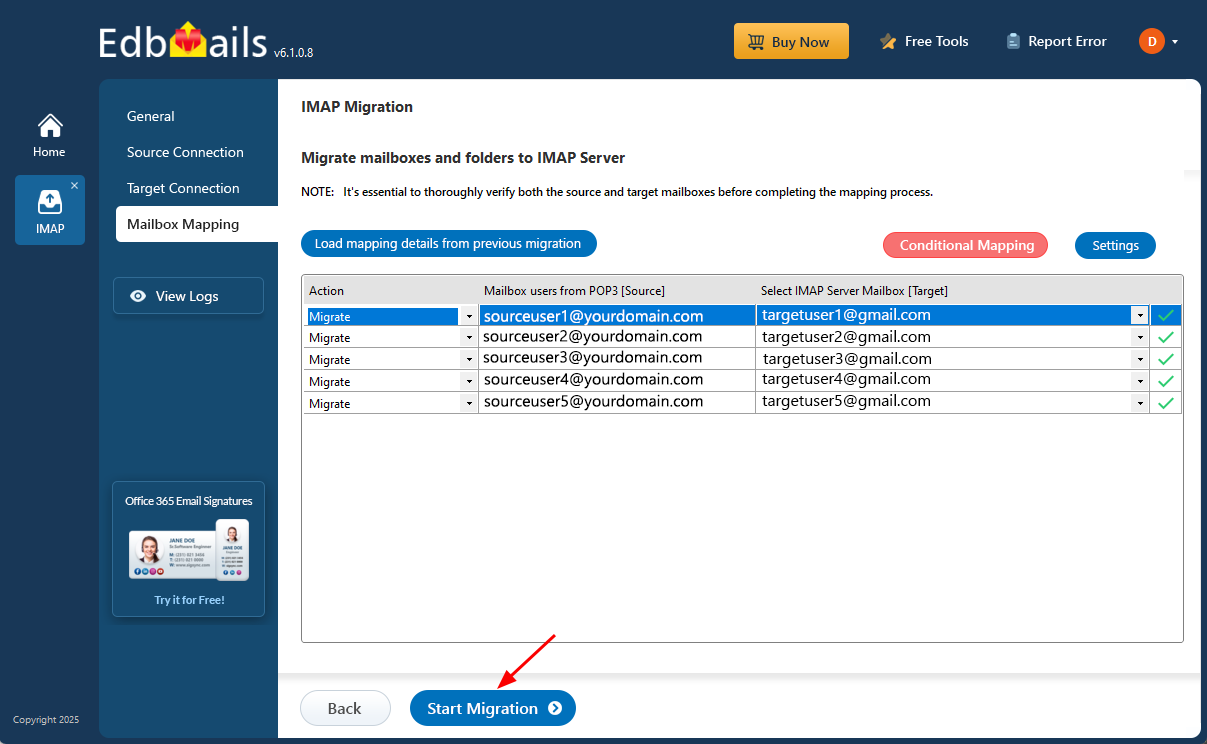
- Verify the mailbox mapping.
- Click the ‘Settings’ button to apply the filters. For example, you can set a date filter to migrate only the data within a certain date range.
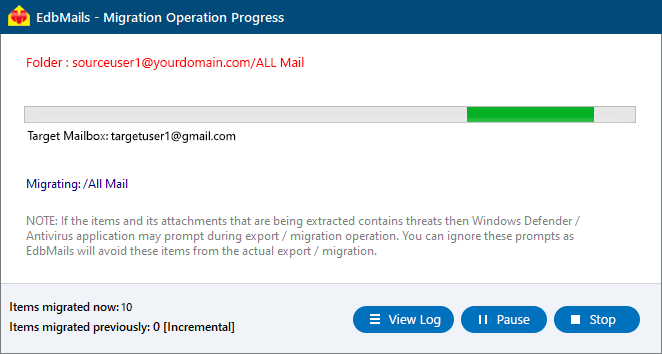
- Click the ‘Start Migration’ button and initiate the migration process.
- To view the migration report, click the ‘View Logs’ button. It provides a comprehensive summary showing the number of emails, folders, and mailbox items migrated, along with their respective counts.
Zimbra to Gmail Post-migration Tasks
Once the migration is completed, update your MX records to route email traffic to the new server.
Troubleshooting Guide for Zimbra to Gmail Migration
Visit the EdbMails Knowledge Base for step-by-step troubleshooting guidance.
Check the Frequently Asked Questions for common solutions.
Reach out to our 24/7 technical support team for migration error assistance.
Benefits of EdbMails to migrate Zimbra to Gmail
EdbMails Zimbra to Gmail migration tool provides several benefits that simplify the process and enhance the overall experience:
- User-friendly Interface:
EdbMails provides a user-friendly interface that makes the migration process intuitive and easy to navigate. You don't need to be a technical expert to migrate your Zimbra mailbox to Gmail.
- Efficient Migration:
EdbMails ensures a smooth and efficient migration of your Zimbra data to Gmail. It transfers emails, folders, subfolders, from source server to target server seamlessly, without any disruptions or data loss.
- Advanced Mapping and Filtering Options:
With EdbMails, you have the flexibility to map and filter specific data during the Zimbra to Gmail migration. You can choose which mailboxes and folders to migrate, apply date filters, and customize the migration to meet your specific requirements.
- Data integrity and security:
EdbMails prioritizes data integrity and security during the migration process. Your Zimbra data is transferred to Gmail securely, ensuring the confidentiality and privacy of your information.
- Zero downtime:
By using EdbMails, you can achieve zero downtime during the migration. The efficient migration process ensures that you can quickly resume your email operations on Gmail without significant disruptions.
- 24 x 7 free tech support:
EdbMails provides 24 x 7 free tech support throughout the migration process. The expert team is available to assist you with any queries or issues you may encounter, ensuring a smooth and successful migration experience.


