


Migrate emails from GMX Mail to Office 365
GMX Mail is a widely used free email service, especially popular in Germany and nearby regions. It provides essential features such as email organization, contact management, and attachment handling to help users manage their communication efficiently. One of the notable features of GMX is the ability to import contacts directly from social media platforms, making it convenient for both personal and professional use. However, many users are now choosing to migrate from GMX Mail to Office 365 to benefit from its advanced features, improved collaboration capabilities, and integrated productivity tools.
Microsoft 365 (Office 365) is a cloud-based subscription service from Microsoft that brings email, calendars, contacts, and tasks together in a single platform. It also includes powerful applications such as Word, Excel, and Teams, helping users collaborate efficiently and manage their work more productively. With its integrated environment and business-focused features, Office 365 has become a preferred platform for organizations and professionals looking to improve teamwork and overall efficiency.
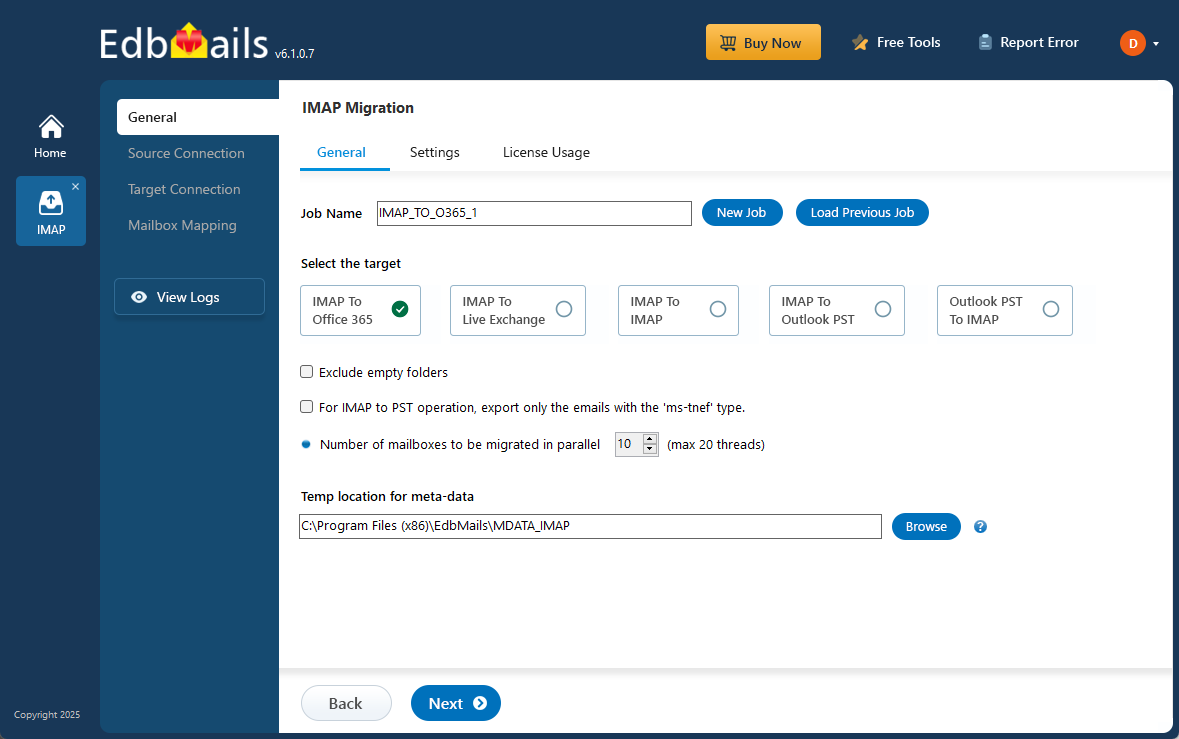
Migrating emails from GMX to Office 365 can be performed using manual methods or specialized migration software. Although IMAP-based manual migration is an option, it often becomes time-consuming and difficult to manage, especially when handling large mailboxes. Automated solutions such as EdbMails IMAP migration tool provide a more efficient and dependable approach. EdbMails simplifies the migration process with an intuitive interface, supports selective folder migration, and securely manages email data to ensure accurate mailbox migration. This makes it a practical solution for completing GMX Mail to Office 365 migration smoothly with zero downtime.
User Query
" I've been using my '@gmx.net' email via IMAP as a paying 'GMX TopMail' customer, but the storage limitations are a problem. I want to move my GMX emails to Microsoft 365 Exchange and continue managing them in Microsoft 365. Is it possible to send, receive, and manage GMX emails through Microsoft 365 without deleting them from the GMX server? What’s the best way to achieve this? "
Reasons to Migrate emails from GMX Mail to Office 365
Here are the key reasons why users prefer to make the switch to Office 365:
- Enhanced security features: GMX Mail offers basic security options such as two-factor authentication and spam filtering. However, Office 365 delivers advanced protection with cyber threat security, password policies, and Identity and Access Management (IAM) for comprehensive protection.
- Lack of productivity tools in GMX Mail: GMX Mail lacks integrated productivity tools, which can limit its suitability for professional or business environments. In contrast, Office 365 provides a comprehensive suite of applications including Outlook, Word, Excel, and Microsoft Teams that support real-time collaboration and significantly enhance productivity across organizations.
- Insufficient cloud storage: GMX Mail provides only 2 GB of cloud storage, which is insufficient for users with larger data needs. Office 365, however, offers 1 TB of cloud storage per user, ensuring ample space for all business data.
- Compatibility and integration: GMX Mail offers limited compatibility with external applications, restricting business operations. Office 365’s seamless integration with Microsoft tools and third-party applications enhances workflow and allows for greater collaboration within diverse business environments.
Challenges of Manual GMX Mail Migration to Office 365
Here are the main obstacles businesses and users face when choosing a manual migration approach:
- Time-consuming process: Manual migration is lengthy, requiring significant time and effort to complete each step.
- Requires technical expertise: The process demands a solid understanding of technical tasks, making it difficult for non-technical users.
- Risk of data loss: Unstable internet connections or application crashes can lead to data loss during the migration.
- Not suitable for bulk migration: Manual migration is inefficient for transferring large volumes of data or multiple accounts at once.
- Prone to user errors: High user involvement increases the risk of mistakes that could result in data corruption or incomplete migration.
EdbMails: Professional Solution for GMX Mail to Office 365 Migration
EdbMails IMAP migration software offers a professional solution for migrating GMX Mail to Office 365, simplifying the complexities often associated with manual migration. By automating the migration process, EdbMails reduces the risk of data loss and eliminates the need for technical expertise. Its user-friendly interface ensures a seamless and efficient experience, making it accessible even for non-technical users. While EdbMails effectively handles email migration, it currently supports the transfer of email data only, excluding contacts, calendars, and tasks from the migration process.
One of the key benefits of EdbMails is that it requires no complex PowerShell commands, as the entire migration is carried out through its intuitive graphical interface. Additionally, EdbMails provides selective folder migration, allowing users to migrate only the necessary folders, optimizing the process by excluding irrelevant data. It also maintains the original folder hierarchy, ensuring your GMX Mail folder structure is preserved in Office 365. EdbMails automatically retries failed items, ensuring no data is left behind, and supports delta migration to transfer only new or modified emails after the initial migration. A detailed migration summary is provided to give users a clear overview of the process, enabling quick resolution of any issues. EdbMails makes GMX Mail to Office 365 migration secure, efficient, and hassle-free.
GMX Mail to Office 365 Migration Planning
Planning is one of the most important steps before you begin GMX Mail to Office 365 migration. Prepare the environment and have a backup plan in place to avoid potential risks and data loss. Here is a checklist of points to consider before you migrate.
- Determine the size of the data and the number of mailboxes you want to migrate.
- Make a list of all the data and permissions from GMX Mail that you want to transfer.
- Create appropriate user mailboxes on Office 365 and assign licenses to them.
- Ensure you have enough network capacity and bandwidth to migrate.
- Communicate the migration plan and flow to your end users.
Pre-migration activities for GMX Mail to Office 365 Migration
- Find the IMAP server name of your GMX Mail server. You can find this information from your server’s dashboard settings or by connecting your email system to Outlook.
- Before you migrate GMX Mail to Office 365, ensure that you create mailboxes for your users in your organization and assign suitable licenses to them.
- If you plan to migrate the source Public folders to Public folders on Office 365, ensure that you create and configure the Public folder mailboxes on the target server.
- Ensure that the admin account on the target Office 365 server has the impersonation rights to migrate mailboxes and Public folders.
- If you have a custom email domain from your hosting provider to which you want to migrate and receive emails, you must add and verify the domain on Office 365.
Steps to add a custom domain to Office 365 and Steps to add DNS records to connect your domain.
- Configure Office 365 to send and receive large messages.
Follow the steps to increase the message size on Office 365 to 150MB and see tips to optimize IMAP migration to Exchange online.
Steps to Migrate GMX Mail to Office 365
Step 1: Download and install EdbMails IMAP migration software
- Download EdbMails and install the application on any computer running on Windows OS that is connected to the source and target environment.
See a detailed list of EdbMails system requirements for IMAP migration.

- Open the EdbMails application on your computer.
- Enter your registered email address and password, then click ‘Login’. If you have not created an account yet, choose ‘Start Your Free Trial’ to continue using the trial version.Note: The Free Trial lets you explore all key features and migrates up to 30 items per folder. To migrate unlimited items, purchase an IMAP Migration license from the EdbMails website.
Click here to view IMAP Migration pricing details.
After completing the purchase, close and reopen the application, then log in with the same email and password used during the purchase to activate your license.

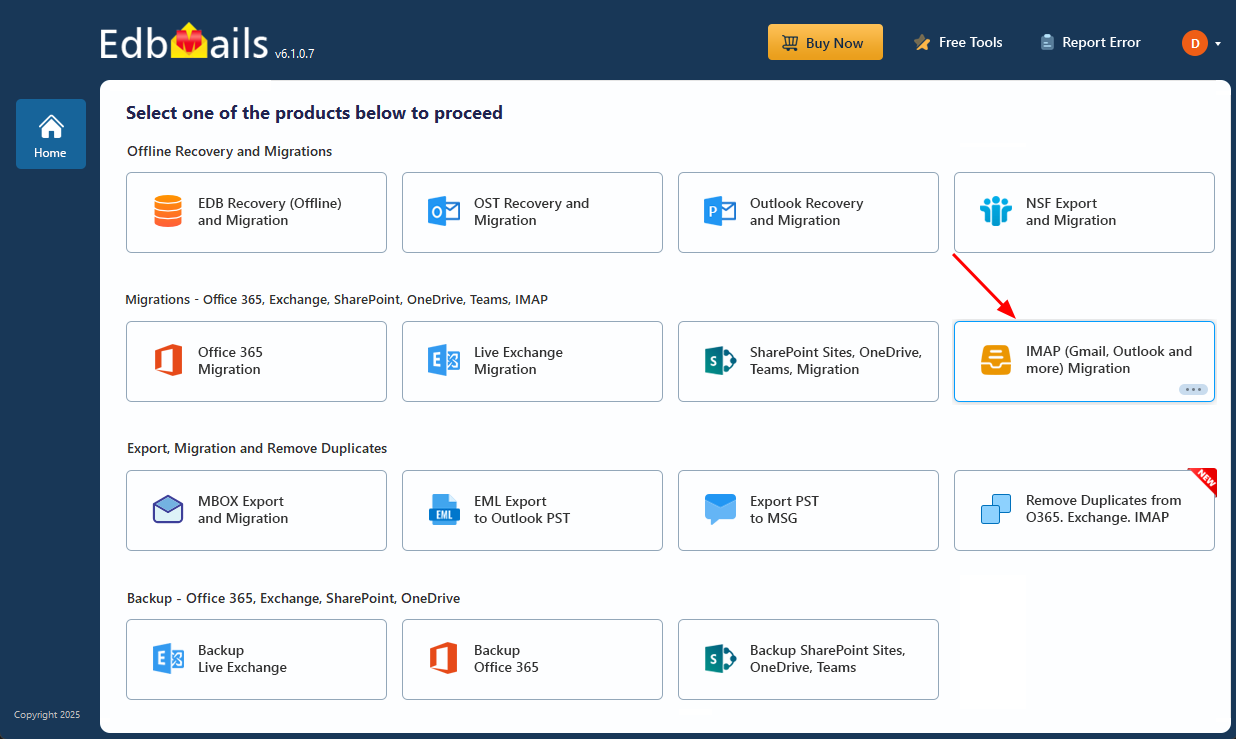
- Select the option ‘IMAP (Gmail, Outlook & more) Migration’.
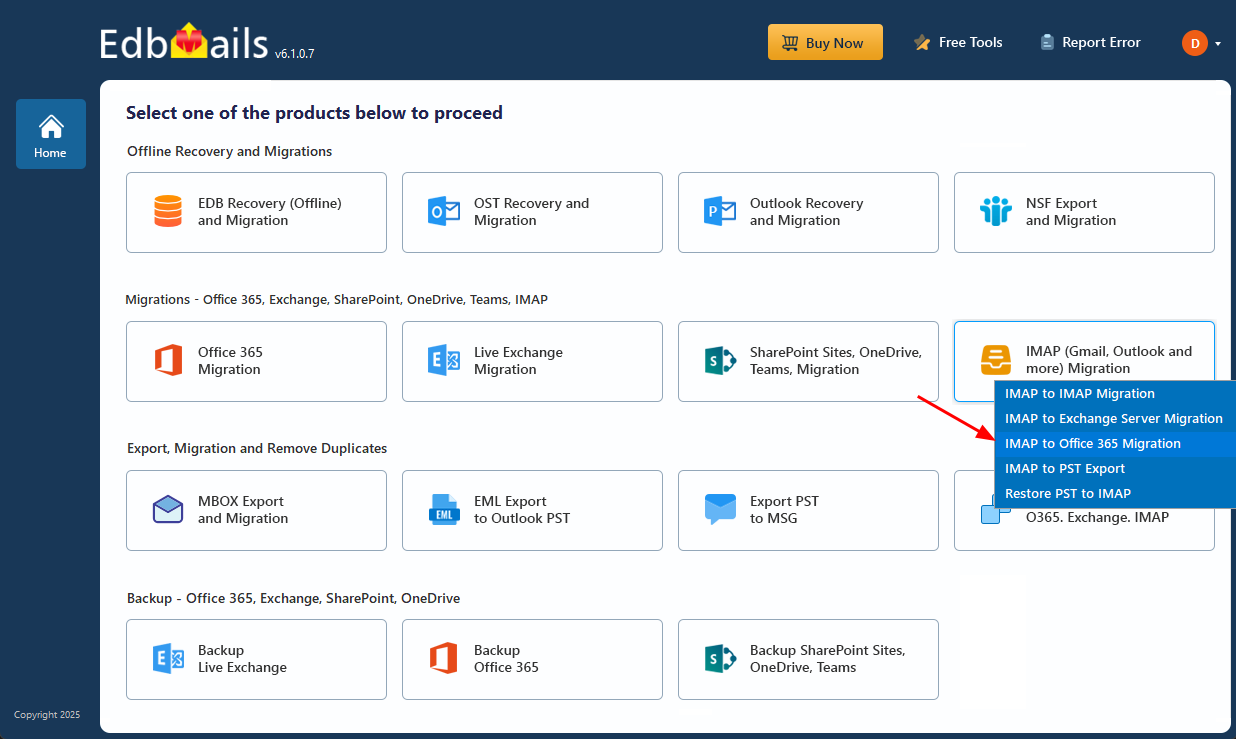
- Select ‘IMAP to Office 365 Migration’.
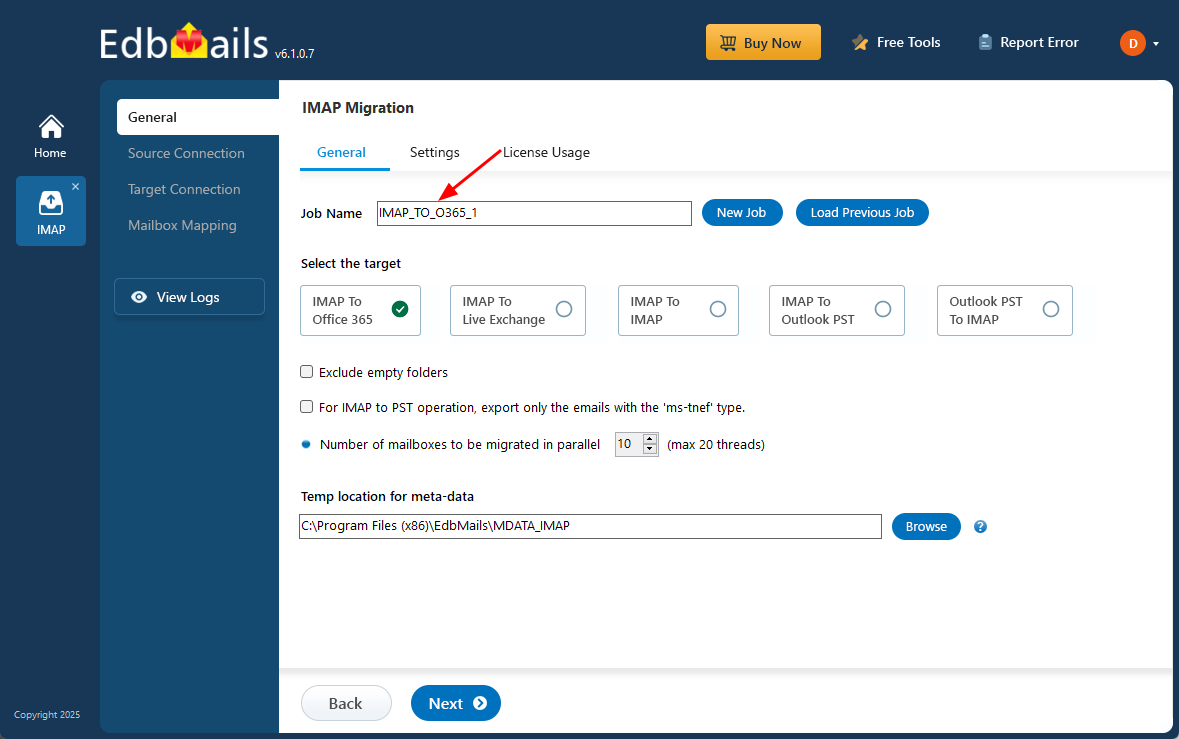
- A default job name is assigned automatically. If required, select ‘New Job’ and provide a custom name to make the job easier to identify during the migration process.
- Download EdbMails and install the application on any computer running on Windows OS that is connected to the source and target environment.
Step 2: Connect to source GMX Mail server
- To connect one GMX account, select ‘Single User / Account Migration’, choose the desired protocol like ‘Connect to IMAP Server’ or ‘Connect to POP3 Server’, and then click ‘Next’ to continue.
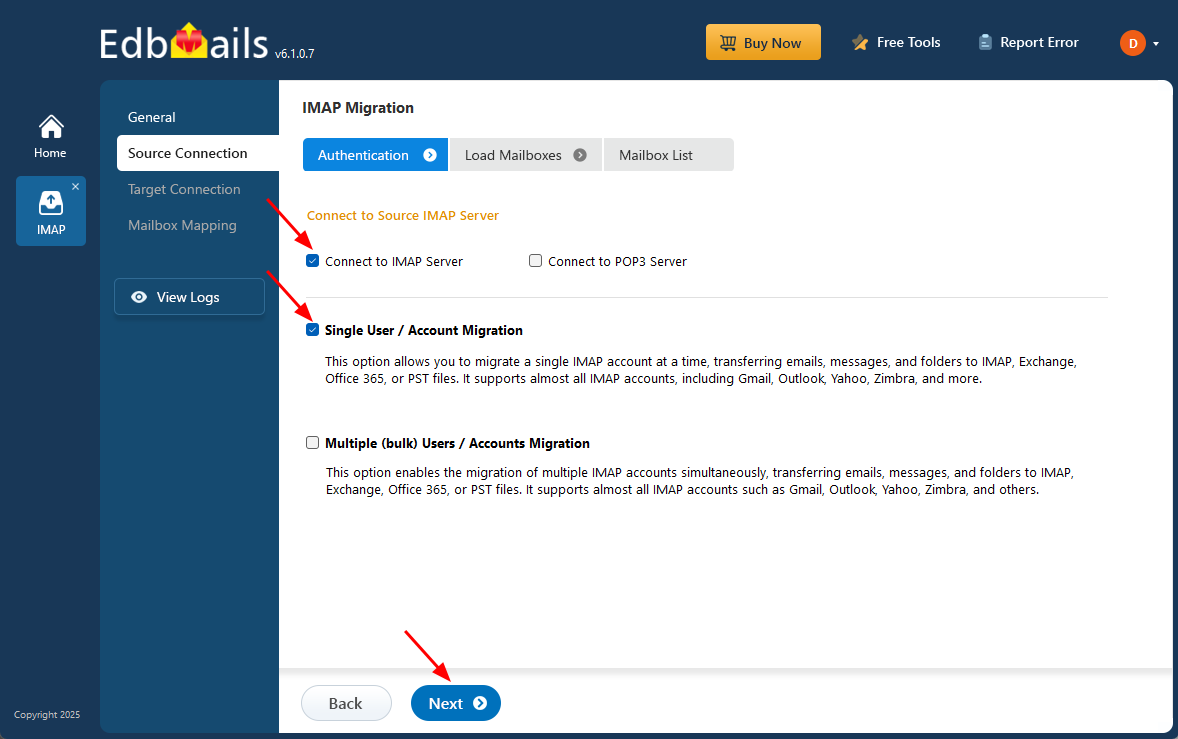
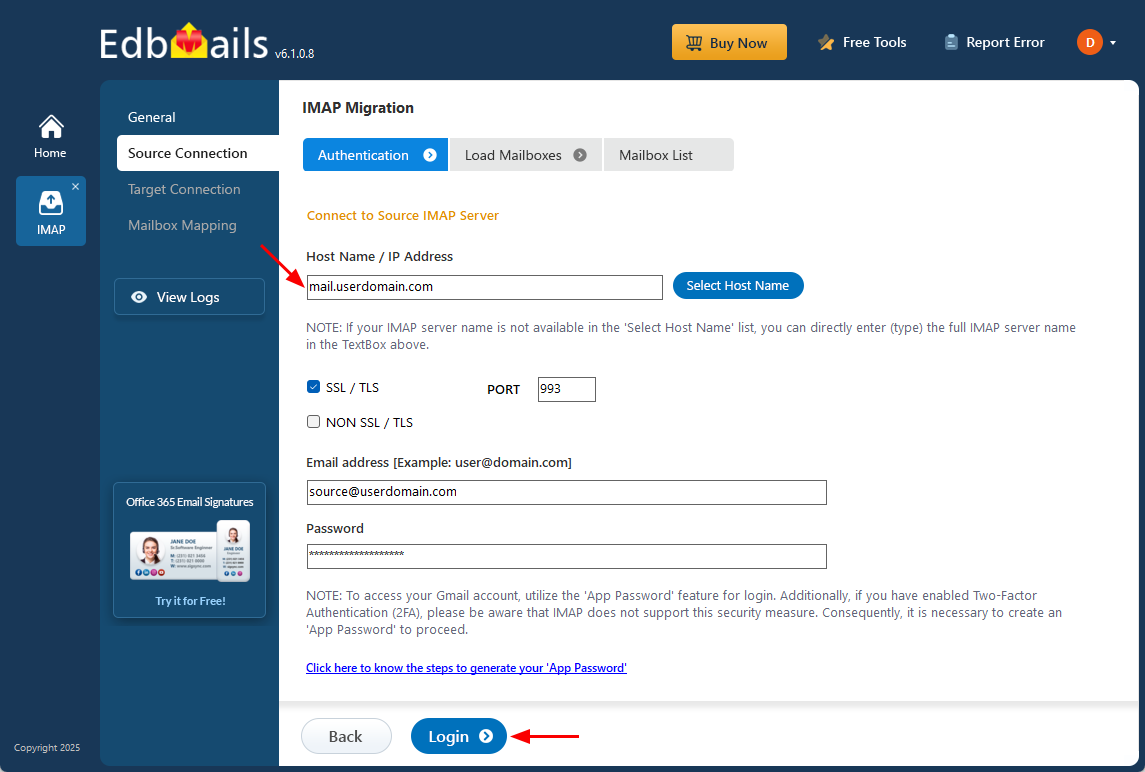
- For a single-user login, choose the appropriate IMAP host name for your GMX server from the list or enter the full IMAP Server name manually.
- Next, enter your email address and password. If connecting a Gmail account, make sure to create an app password and use it instead of your regular password.
- Click the ‘Login’ button.
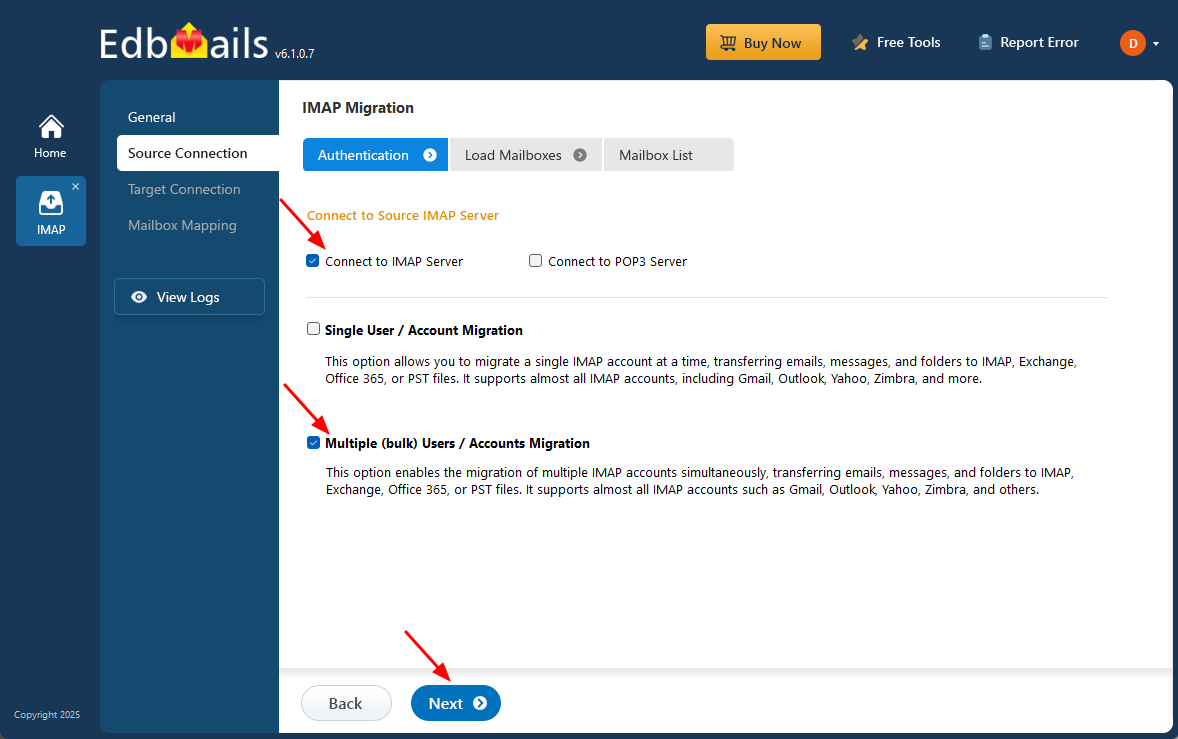
- To connect and migrate multiple GMX user mailboxes at once, select ‘Multiple (bulk) Users/Accounts Migration’, choose the suitable connection method such as ‘Connect to IMAP Server’ or ‘Connect to POP3 Server’.
- Then proceed by clicking ‘Next’.
- Click ‘IMAP Migration CSV File’. It will load the sample CSV file to your local drive.
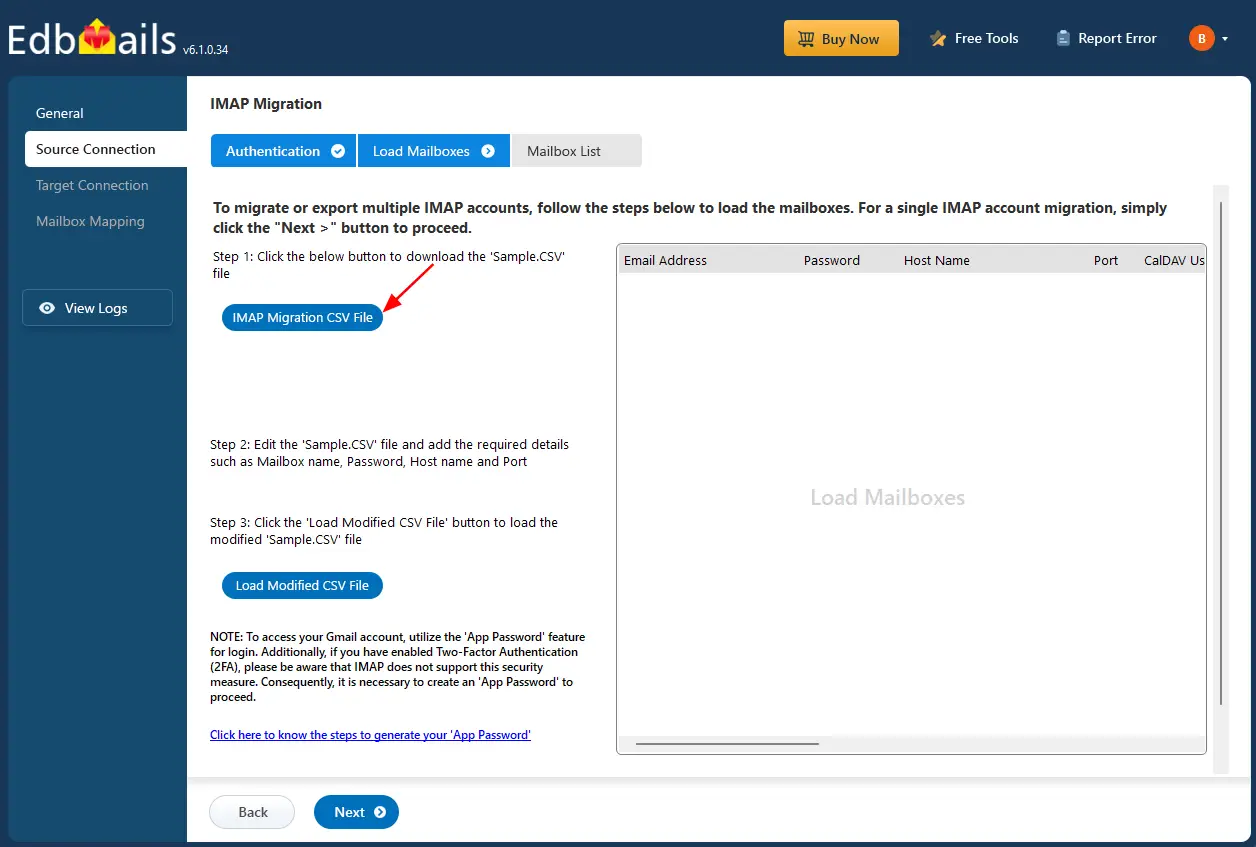
- Open the CSV file and fill in the necessary details, including the email address, password, IMAP server hostname, and port number for each mailbox. After completing the entries, save the file to proceed with the migration.

- After entering the required details in the CSV file, save your changes and close the file to continue with the next steps.
- Then, click the 'Load Modified CSV File' button, open the CSV file and click ‘Next’ to proceed.
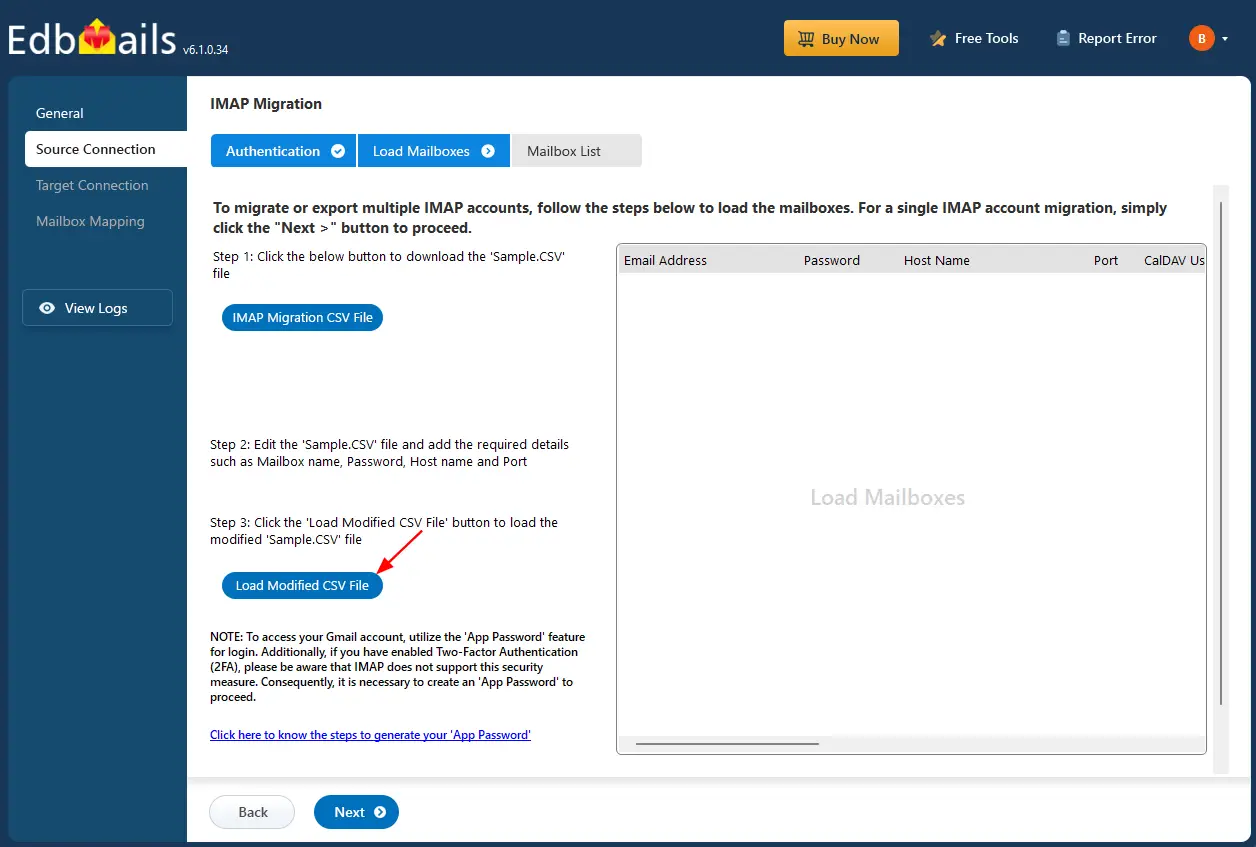
- To connect one GMX account, select ‘Single User / Account Migration’, choose the desired protocol like ‘Connect to IMAP Server’ or ‘Connect to POP3 Server’, and then click ‘Next’ to continue.
Step 3: Select source GMX Mail server mailboxes
- Choose the specific mailboxes or individual folders you wish to migrate. Once your selection is complete, click ‘Next’ to continue.
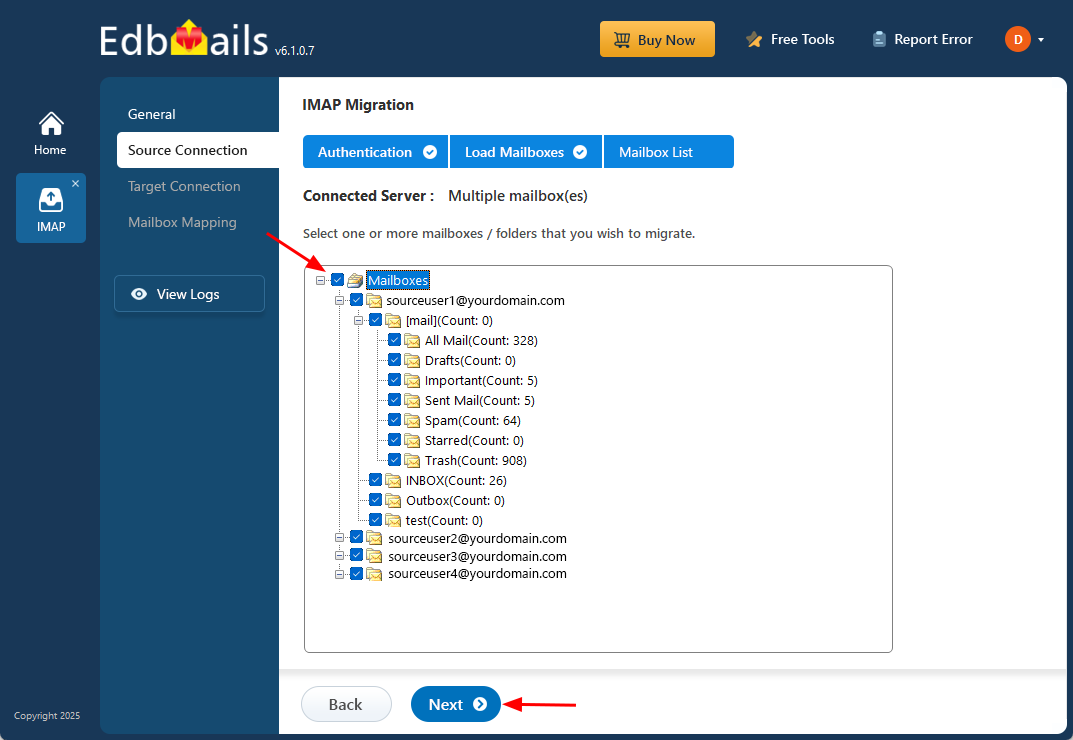
- Choose the specific mailboxes or individual folders you wish to migrate. Once your selection is complete, click ‘Next’ to continue.
Step 4: Connect to target Office 365
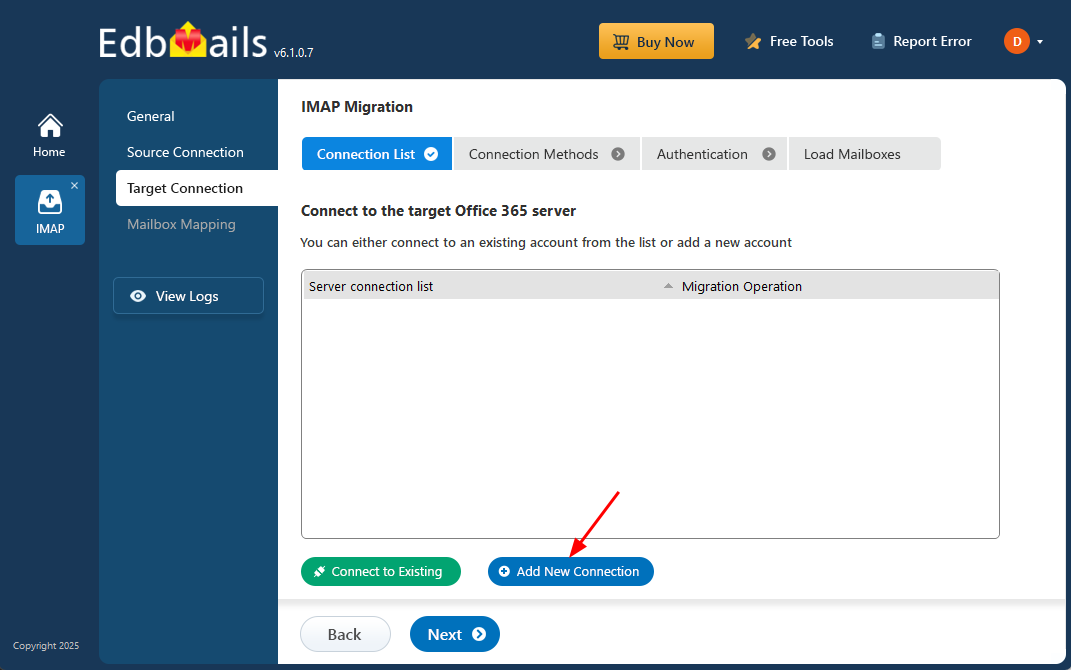
- Click the ‘Add New Connection’ button to create a new connection to your target Office 365 server. To use an existing connection, simply select it from the list and click ‘Connect to Existing’ to continue.
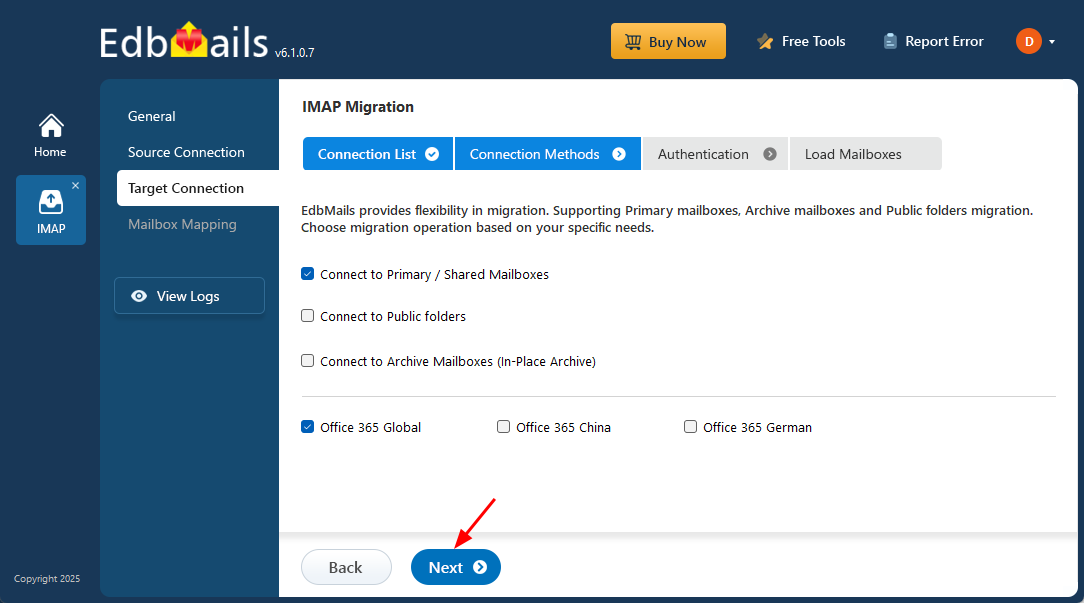
- Select the required migration / connection operation (Primary / Shared, Public folders, Archive mailboxes).
- Click ‘Next’ to proceed with the setup.
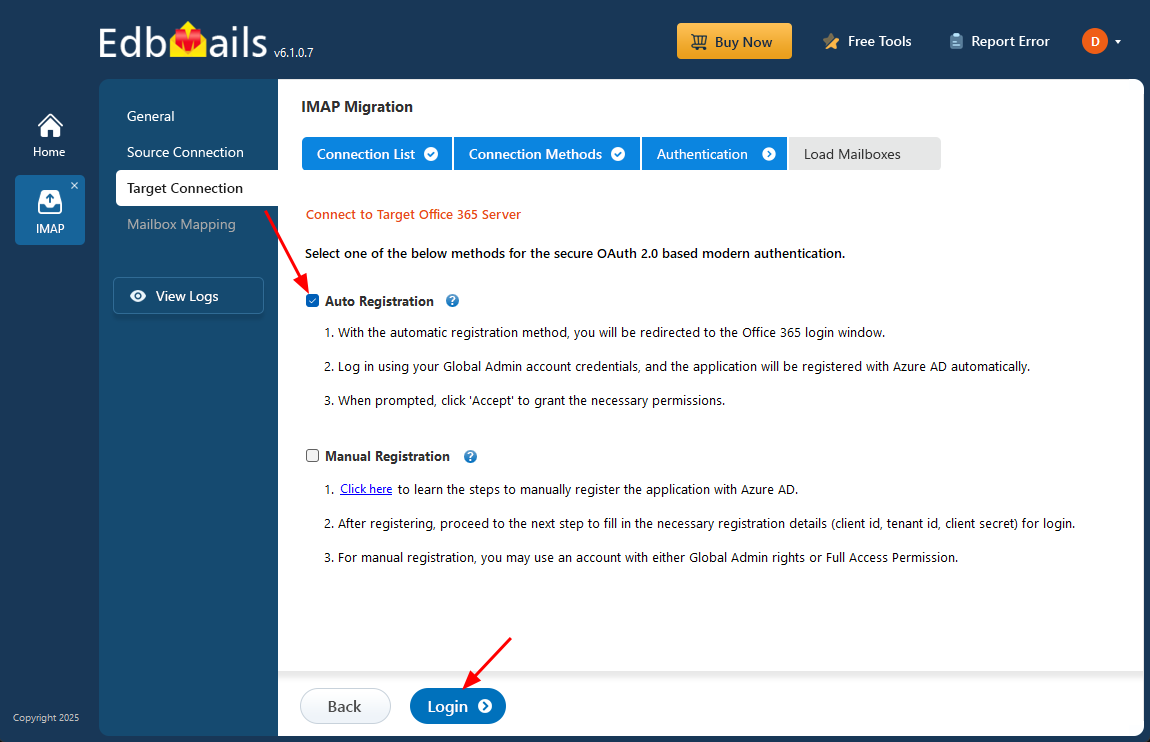
- Select any of the available options to establish a secure connection using OAuth 2.0 modern authentication.
- Choose Auto Registration for a quick setup. Sign in with a Global Admin account and grant the required permissions to automatically register the application in Azure AD.
- Alternatively, select Manual Registration if you prefer to enter the Azure AD application details yourself. This method supports both Global Admin accounts and accounts with Full Access permissions.
- Click ‘Login’ to proceed.
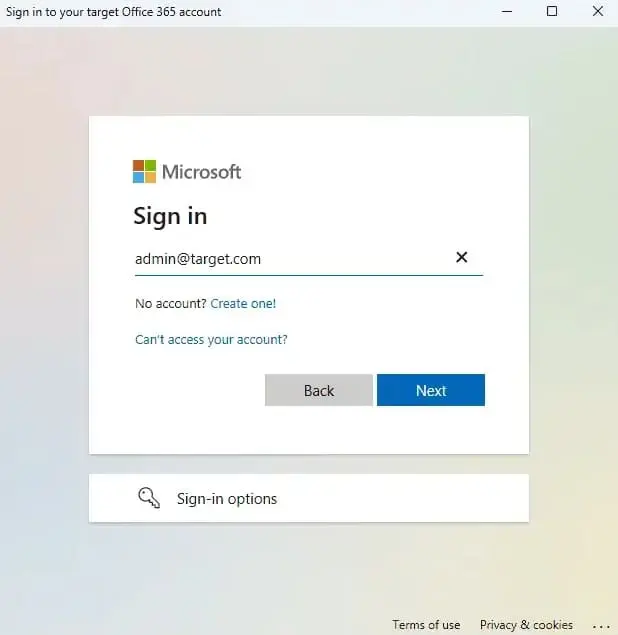
- Authenticate on Microsoft sign-in page.
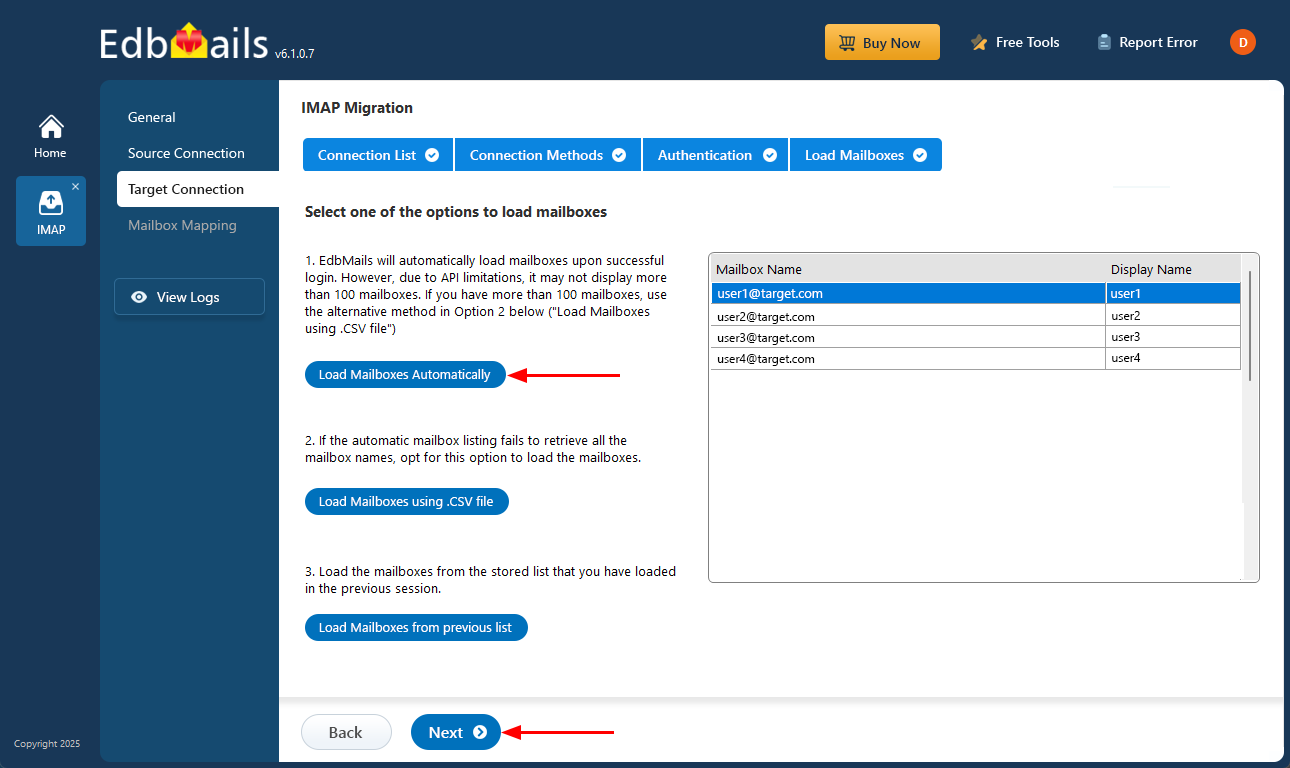
- Select one of the methods to load the mailboxes.
- You can Select ‘Load Mailboxes Automatically’, ‘Load Mailboxes using .CSV file’ or ‘Load Mailboxes from previous list’.
- EdbMails automatically loads Office 365 mailboxes. However, due to Microsoft API limitations, it displays only the first 100 mailboxes. For loading more than 100, use the CSV file option and proceed by clicking ‘Next’.
- Click the ‘Add New Connection’ button to create a new connection to your target Office 365 server. To use an existing connection, simply select it from the list and click ‘Connect to Existing’ to continue.
Step 5: GMX Mail to Office 365 mailboxes mapping
- Select a suitable mapping option to accurately associate source GMX mailboxes with their corresponding Office 365 target mailboxes.
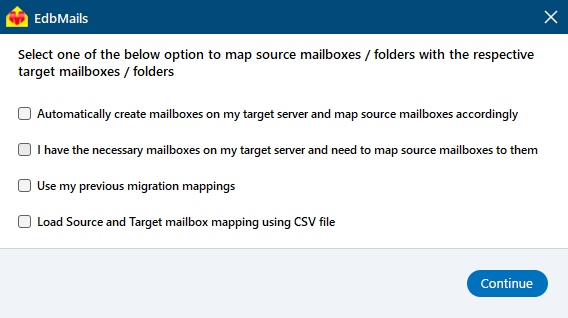
- EdbMails streamlines migration by automatically creating mailboxes in Office 365, effortlessly setting up target mailboxes and mapping source IMAP server mailboxes and folders. This functionality is crucial for ensuring precise management of large-scale mailbox migrations.
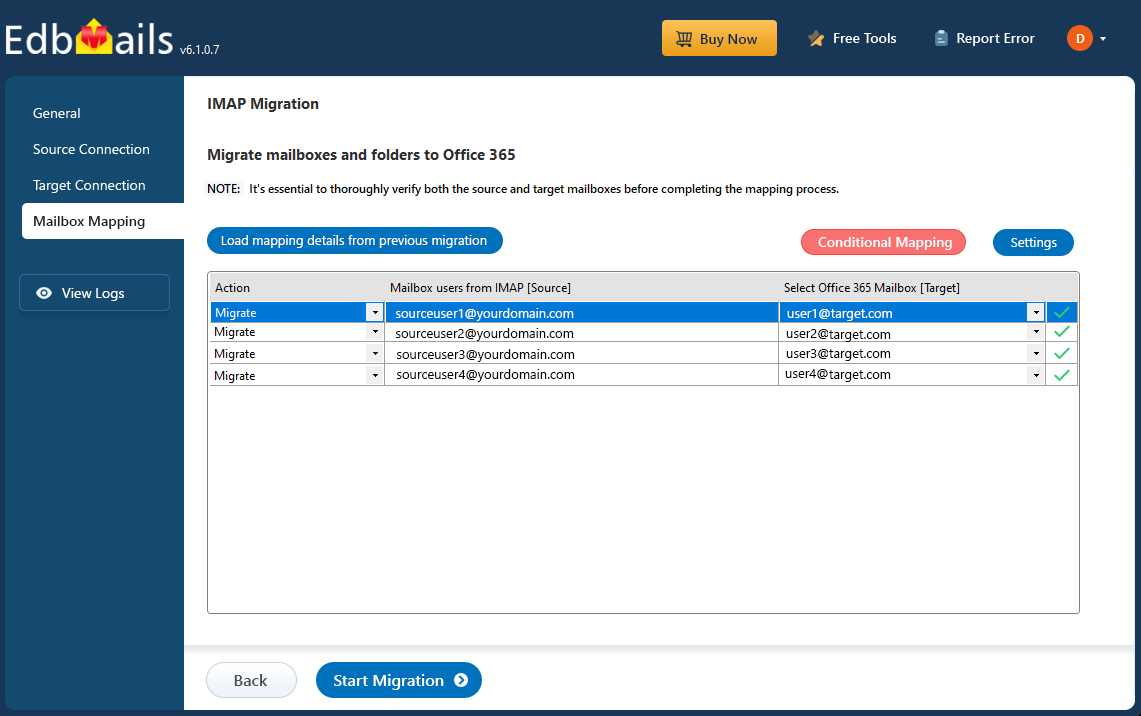
- Select a suitable mapping option to accurately associate source GMX mailboxes with their corresponding Office 365 target mailboxes.
Step 6: Start GMX Mail to Office 365 migration
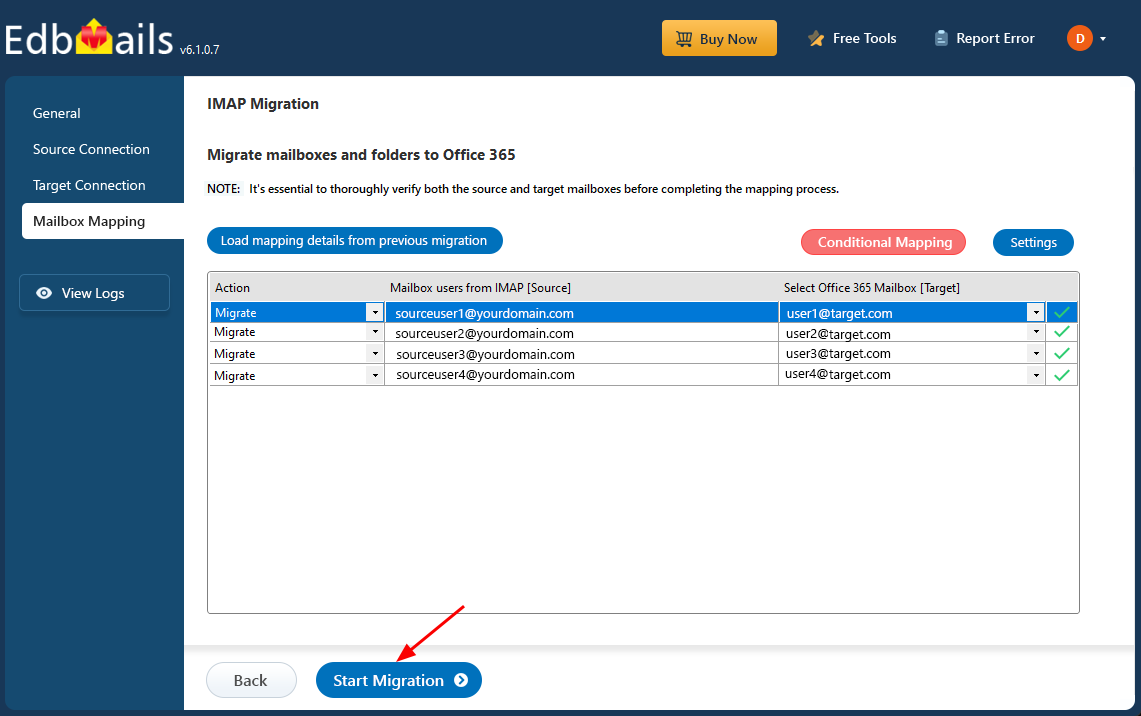
- Once the mailboxes are mapped, click the 'Start Migration' button to begin the migration process.
- Click the 'View Logs' button to access the migration report, which provides comprehensive details on each migrated folder and mailbox. The report includes mailbox mapping, the count of migrated items, and any errors encountered, allowing you to verify and audit the migration process effectively.
- Also log into your target server to verify the migrated items.
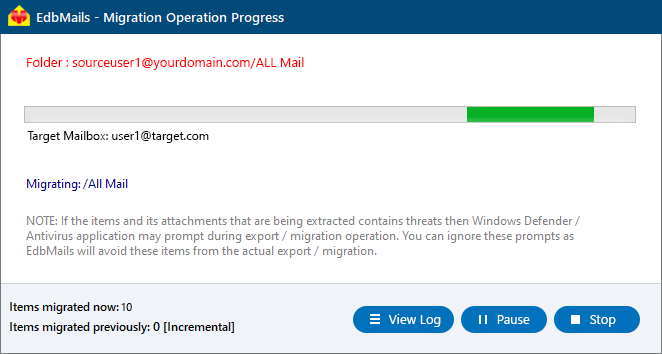
- Once the mailboxes are mapped, click the 'Start Migration' button to begin the migration process.
GMX Mail to Office 365 Post-migration Tasks
- Step 1: Update the MX records to point to Office 365
If you have not done this step previously, change the DNS records known as MX records to enable and receive email messages on the target Office 365 server. In addition to this setup, configure the Autodiscover record to allow Outlook to connect to the migrated mailboxes.
- Step 2: Create a new Outlook profile for users in the new domain
Configure and recreate the Outlook profile for each user in your domain if Outlook has problems connecting to Office 365 mailboxes.
- Step 1: Update the MX records to point to Office 365
Troubleshooting Guide for GMX Mail to Office 365 Migration
For troubleshooting, check out our knowledge base articles. If you have additional questions, browse the FAQs or contact our dedicated support team for personalized assistance.


