


T-online email to Office 365 Migration
T-Online is a widely used German email service recognized for its simplicity, reliability, and adherence to strict data privacy standards. It offers various plans including Freemail, Mail S, and Mail M to accommodate different user needs. While T-Online ensures secure communication and compliance with German data protection laws, many users are migrating to Office 365 (Microsoft 365) to benefit from its advanced features, enhanced security, and significantly larger storage capacity. For instance, T-Online provides 1 GB of storage for Freemail and up to 15 GB for Mail M, whereas Office 365 offers 50 GB by default, expandable to 100 GB, making it a more scalable solution for growing email needs.
Another key factor driving migration is the limited security capabilities of T-Online. Although it includes basic encryption, it lacks enterprise-grade protections found in Office 365, such as Multi-Factor Authentication (MFA), Data Loss Prevention (DLP), and advanced threat detection tools. Moreover, Office 365 goes beyond just email by offering seamless access to productivity apps like Outlook, Word, Excel, Teams, and OneDrive—empowering users with an all-in-one collaboration and communication platform. These advantages make Office 365 a preferred choice for both individual users and organizations seeking modern, secure, and feature-rich email solutions.
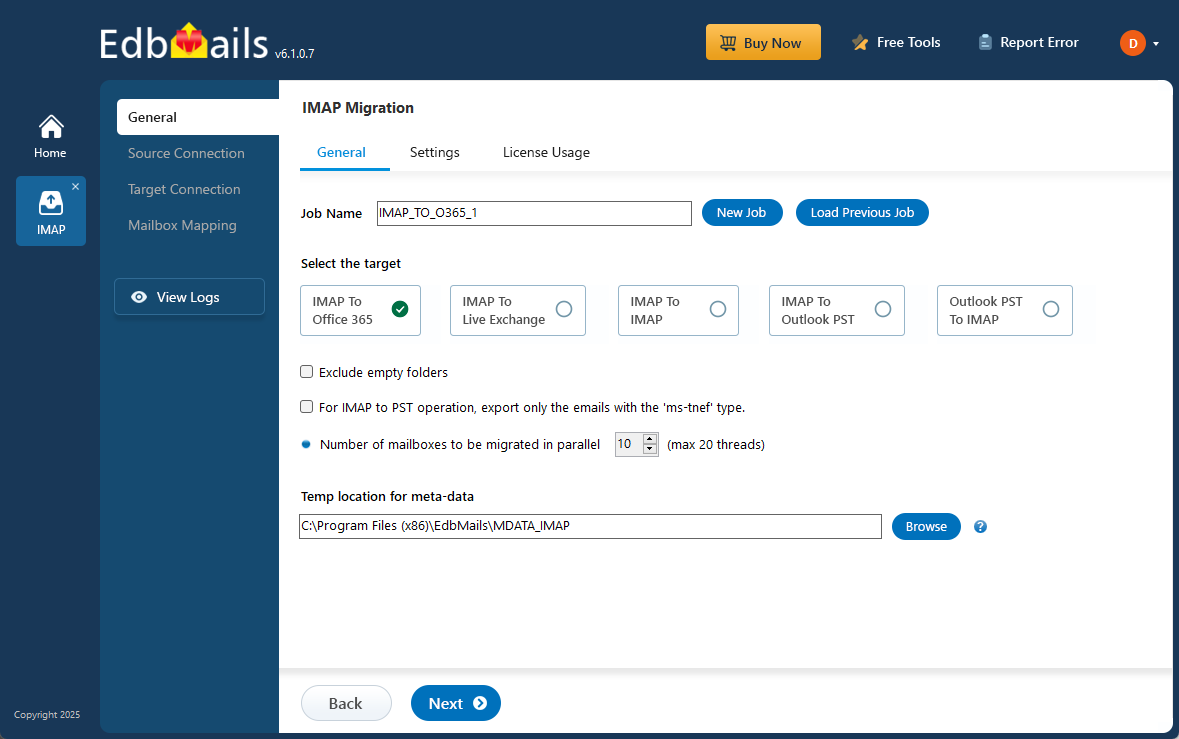
Many users searching for a way to move from T-online to Office 365 face the challenge that no manual migration method exists. However, EdbMails IMAP migration software offers a systematic and reliable automated solution for seamless migration from T-online to Office 365.
EdbMails simplifies the migration process with several advanced features. Its incremental migration ensures only new or modified emails are transferred, avoiding duplication and saving time. The granular (brick-level) migration feature allows users to select specific folders, mail items, or even individual emails for migration, giving them full control over the process. The automatic mailbox mapping feature ensures that source and destination mailboxes are mapped without the need for manual configuration, reducing errors. EdbMails also provides lifetime licenses with free software updates, guaranteeing access to the latest features at no extra cost, making it an efficient, cost-effective solution for migrating T-online emails to Office 365.
User Query
"Our business has been relying on T-online for email, but we now need more storage, stronger security, and seamless integration with other productivity tools. We’re considering moving to Office 365. Could you offer a straightforward, trustworthy, and secure solution for migrating our T-online emails to Office 365?" - Jhon, Melbourne.
Comparison of T-Online emails and Office 365 Features
| Feature | T-Online | Office 365 |
|---|---|---|
| Storage Capacity | Up to 15 GB | 50 GB (expandable to 100 GB) |
| Security Features | Basic encryption | Advanced threat protection, DLP, MFA |
| Collaboration Tools | Offers few | Outlook, Teams, OneDrive, etc. |
| Integration | Limited | Seamless with Microsoft apps |
T-online email to Office 365 Migration Plan
Proper planning is crucial before you begin T-online email to Office 365 migration. It's essential to set up the environment and establish a backup strategy to prevent risks and data loss. Below is a checklist to ensure a smooth and secure migration process.
- Determine the size of the data and the number of mailboxes you want to migrate.
- Make a list of all the data and permissions from T-online email that you want to transfer.
- Create appropriate user mailboxes on Office 365 and assign licenses to them.
- Ensure you have enough network capacity and bandwidth to migrate.
- Communicate the migration plan and flow to your end users.
Pre-migration Steps for T-online email to Office 365
- Find the IMAP server name of your T-online email server. You can find this information from your server’s dashboard settings or by connecting your email system to Outlook.
- Have the users email address, passwords, IMAP hostname and port number.
- Create mailboxes on your target Office 365 server. You can choose the option to automatically create target mailboxes in EdbMails. If you prefer to create them manually, refer to the links below.
- If you have a custom email domain from your hosting provider to which you want to migrate and receive emails, you must add and verify the domain on Office 365.
Steps to add a custom domain to Office 365 and Steps to add DNS records to connect your domain.
- Configure Office 365 to send and receive large messages.
Follow the steps to increase the message size on Office 365 to 150MB and see tips to optimize IMAP migration to Exchange online.
Steps to Migrate emails from T-online to Office 365
Step 1: Download and install EdbMails IMAP migration software
- Start by downloading EdbMails and installing it on any Windows computer. The installation process is quick and user-friendly, designed to run smoothly across all major Windows versions.
See a detailed list of EdbMails system requirements for IMAP migration.

- Launch the EdbMails application on your system.
- Enter your registered email address and password, then click ‘Login’. If you’re using EdbMails for the first time, choose ‘Start Your Free Trial’ to proceed with the trial version.Note: The trial edition provides all major features and allows you to migrate up to 30 items per folder. For unlimited migration and purchase an IMAP Migration license from the official EdbMails website.After completing the purchase, close and reopen the application, then log in again using the same email address and password you used to buy the license to ensure successful activation.

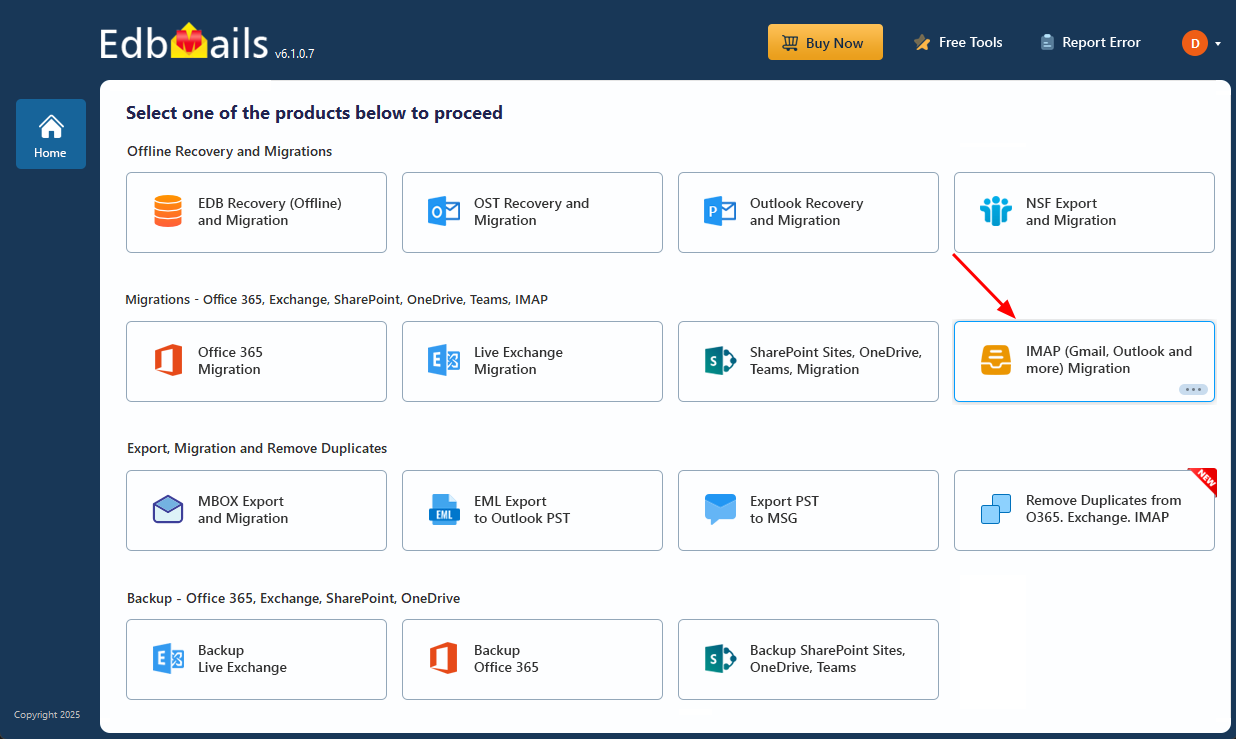
- Select the option ‘IMAP (Gmail, Outlook & more) Migration’.
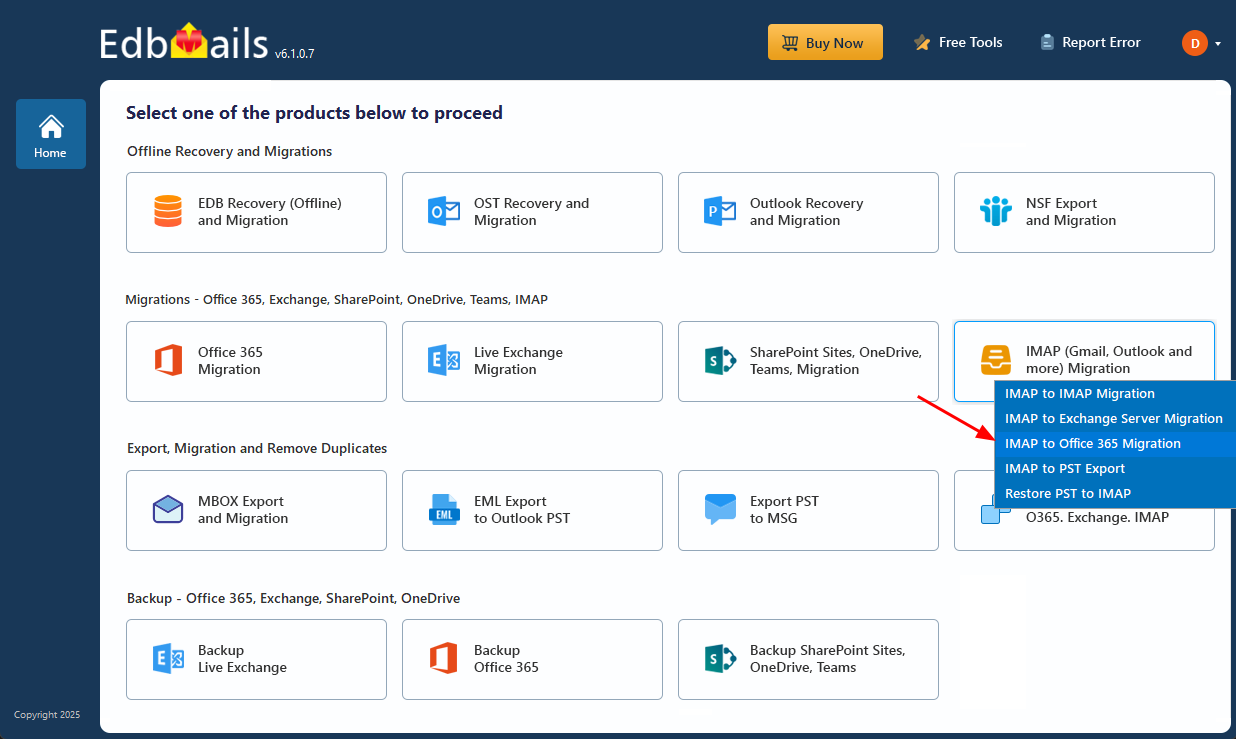
- Select ‘IMAP to Office 365 Migration’.
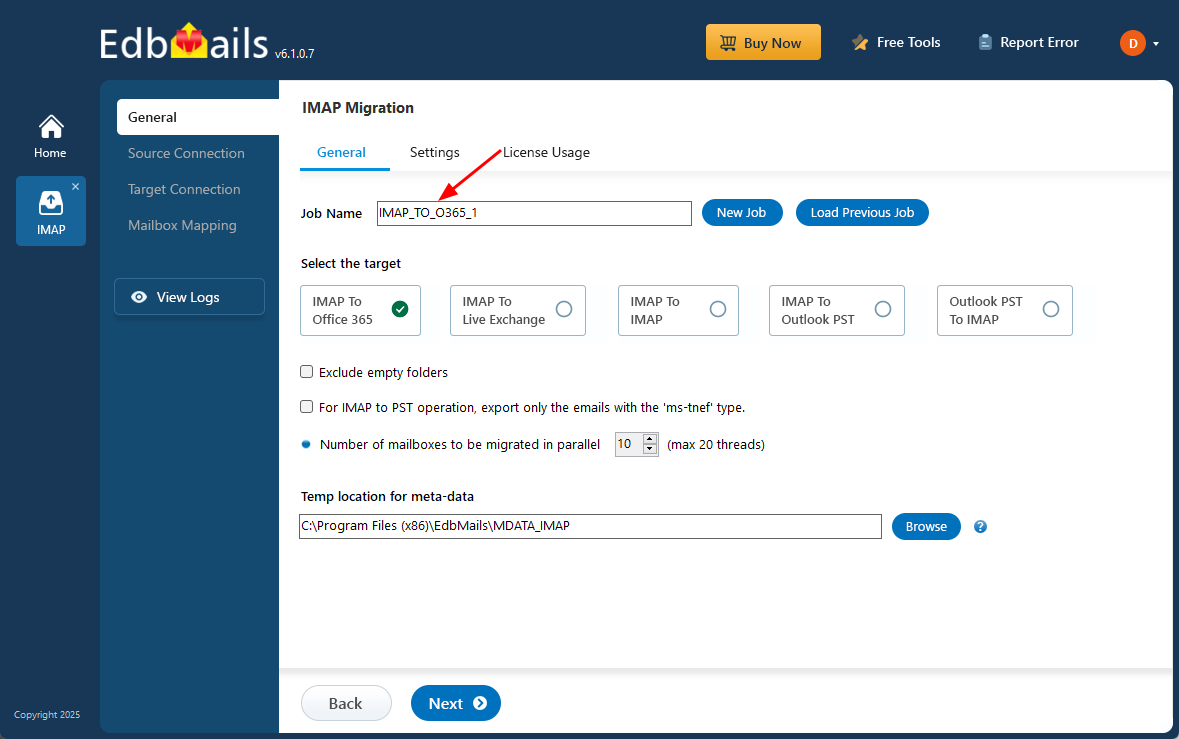
- You can continue with the default job name provided by EdbMails or select ‘New Job’ to assign a custom name. This allows you to organize multiple migration tasks more efficiently and makes it easier to identify, track, and manage each migration job.
- Start by downloading EdbMails and installing it on any Windows computer. The installation process is quick and user-friendly, designed to run smoothly across all major Windows versions.
Step 2: Connect to the source T-online email server
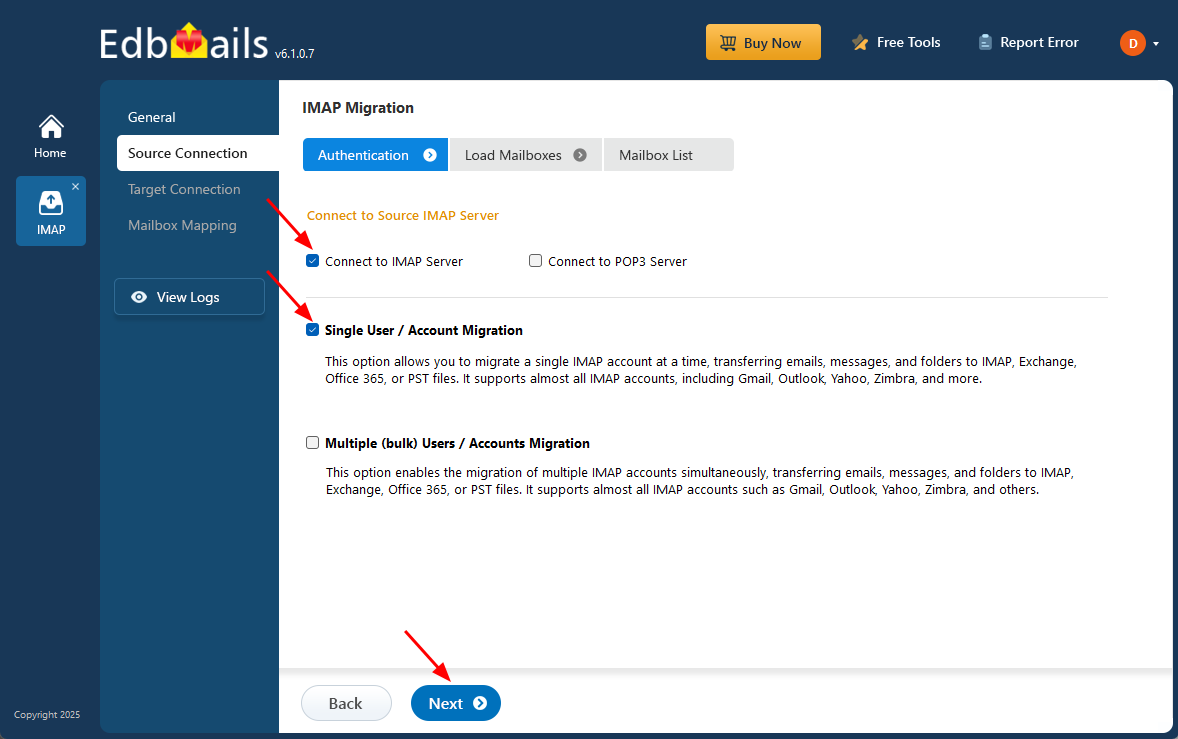
- To connect a single T-online account for migration, click ‘Single User / Account Migration’, choose the suitable connection option such as ‘Connect to IMAP Server’ or ‘Connect to POP3 Server’.
- Click ‘Next’ to proceed.
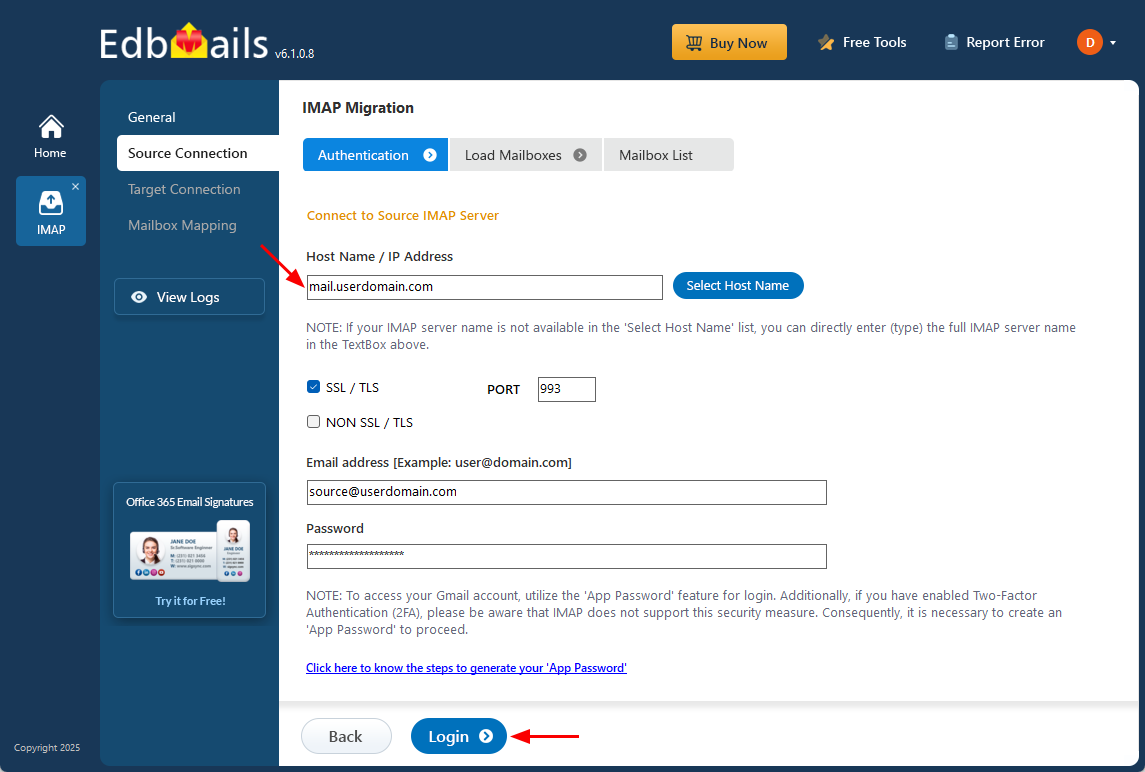
- For a single-user login, select the appropriate IMAP host name for T-online from the list or enter it manually (for example, mail.userdomain.com).
- Enter the email address and password in the required fields.
- When adding a Gmail account, generate an app password and use it in place of your regular account password.
Follow the steps to create an app password for your Gmail account.
- Click the ‘Login’ button to proceed.
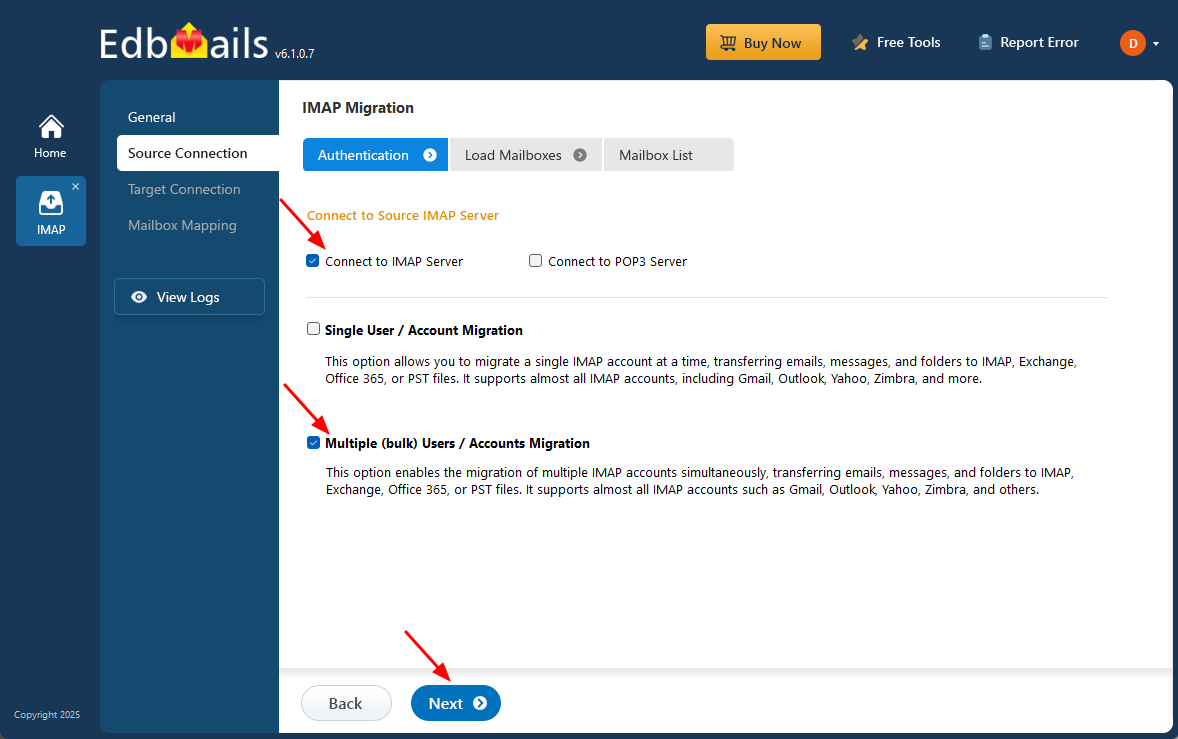
- For migrating multiple T-online mailboxes simultaneously, choose ‘Multiple (Bulk) Users/Accounts Migration’, then select the appropriate connection option such as ‘Connect to IMAP Server’ or ‘Connect to POP3 Server’.
- Click ‘Next’ to continue.
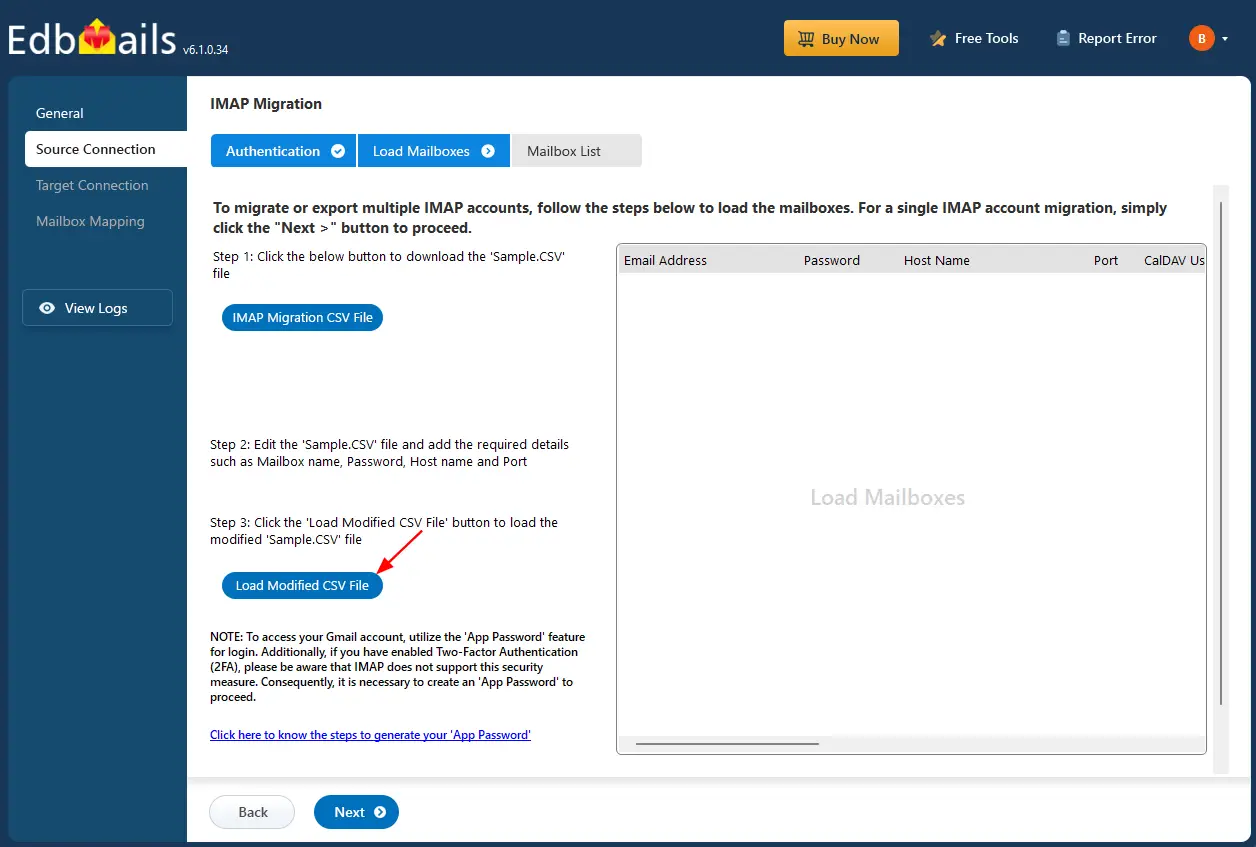
- Click ‘IMAP Migration CSV File’. It will load the sample CSV file to your local drive.
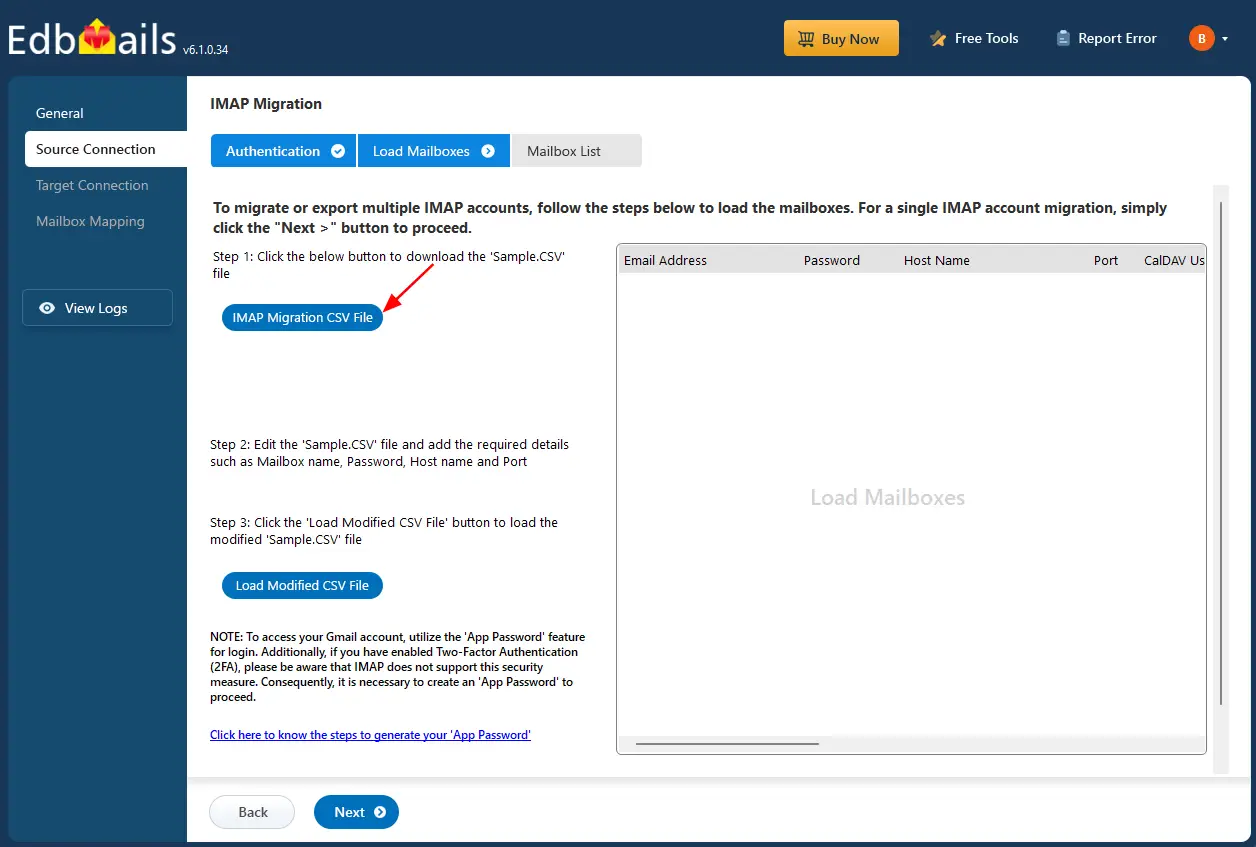
- Open the CSV file and fill in the necessary details, including the email address, password, IMAP server hostname, and port number for each mailbox. After completing the entries, save and close the updated CSV file.

- After updating the CSV file, save it and close it.
- Then, click the 'Load Modified CSV File' button, open the updated CSV file and click ‘Next’ to proceed.
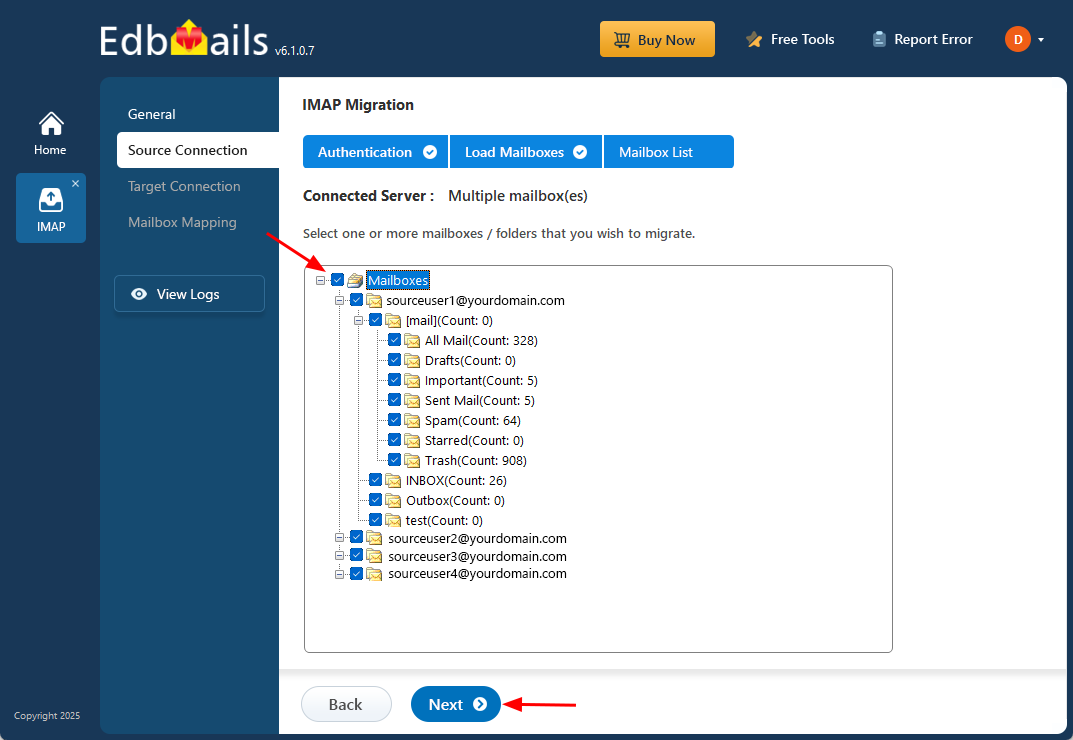
- Choose one or more mailboxes or specific folders you wish to migrate.
- Then click ‘Next’ to continue with migration.
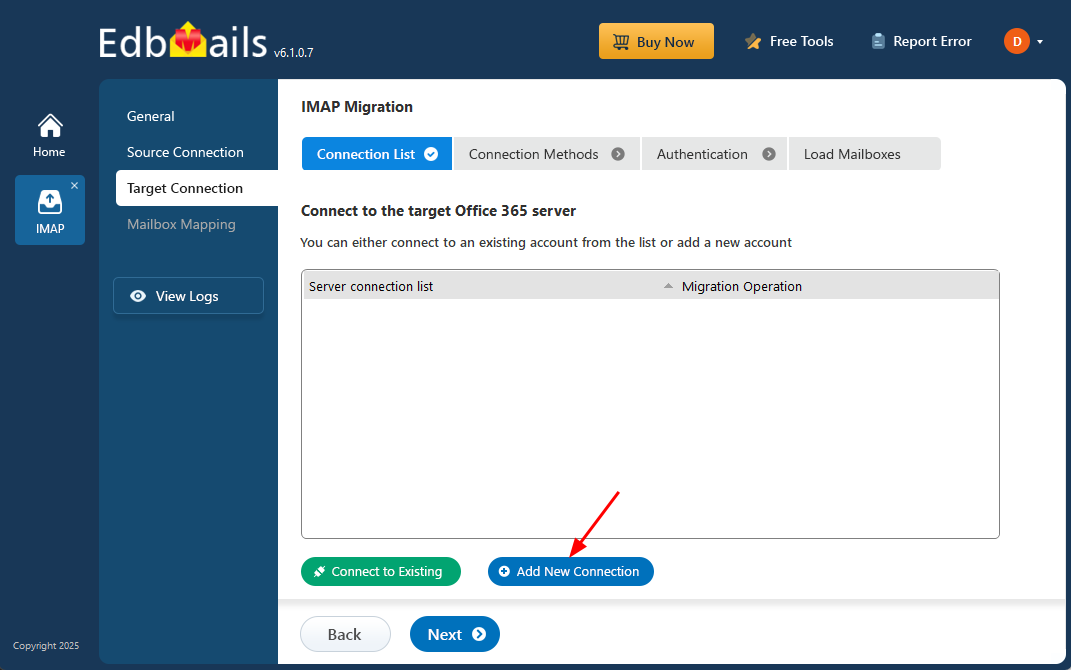
Step 3: Connect to target Office 365 server
- Click the ‘Add New Connection’ button to create a new connection to your target Office 365 server. To use an existing connection, simply select it from the list and click ‘Connect to Existing’ to continue.
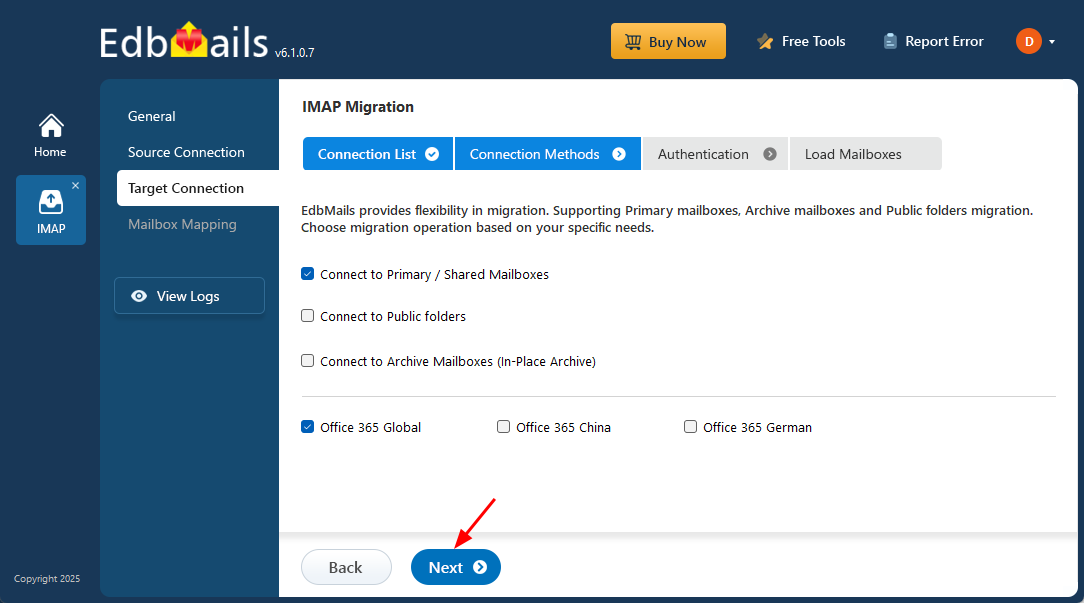
- EdbMails provides flexible migration options, allowing you to migrate primary mailboxes, archive mailboxes, and public folders seamlessly in a single solution.
- Choose the necessary connection options and click ‘Next’ to continue with authentication methods.
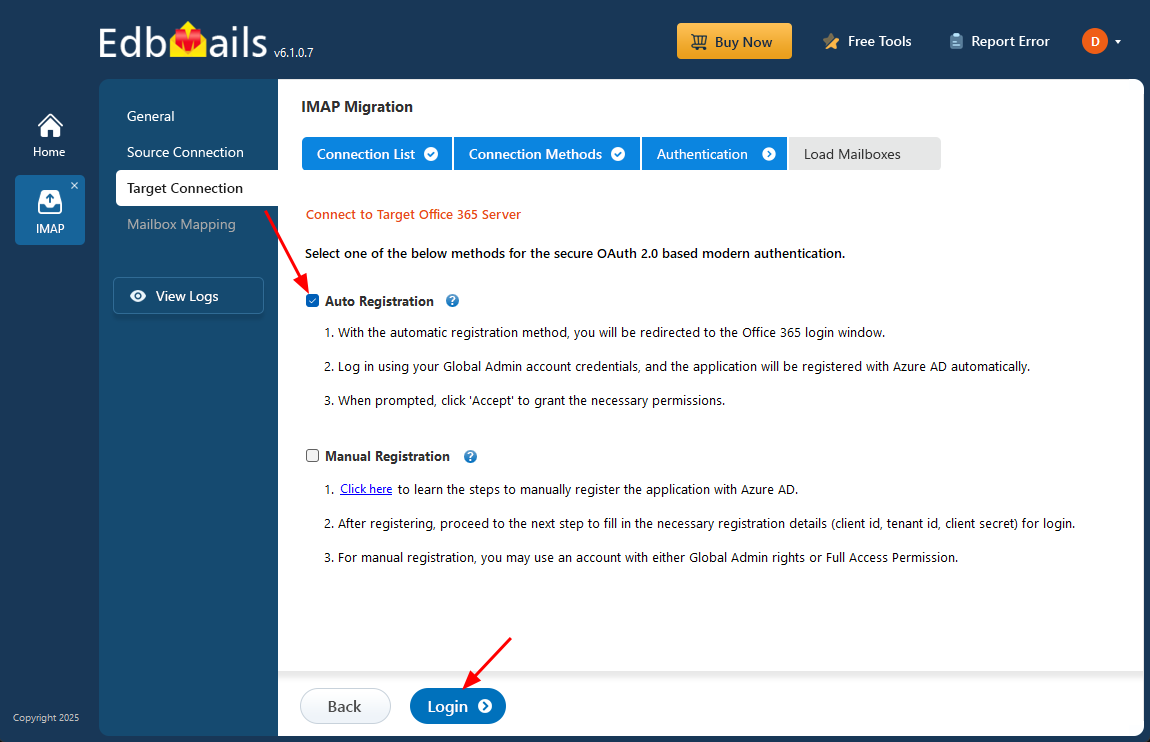
- Choose your preferred secure authentication method for the target Office 365.
- The login process takes place on the official Microsoft sign-in page, where your credentials are securely authenticated through OAuth 2.0, ensuring a safe and protected access experience.
- Click the ‘Login’ button.
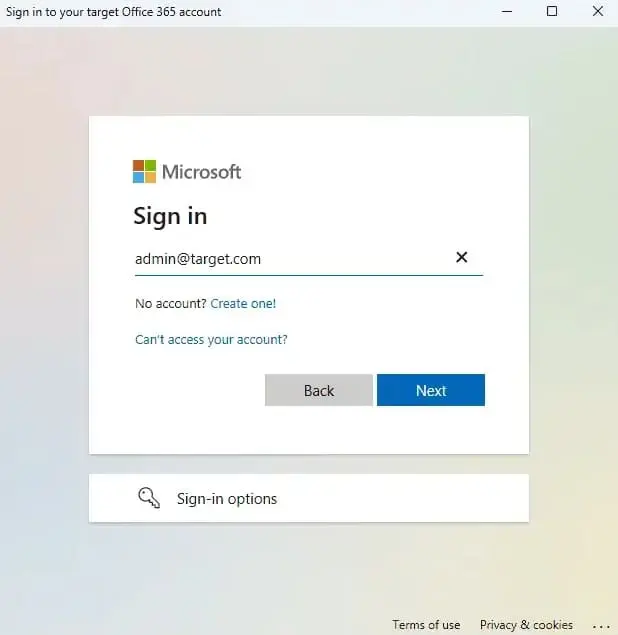
- Authenticate on the Microsoft sign-in page.
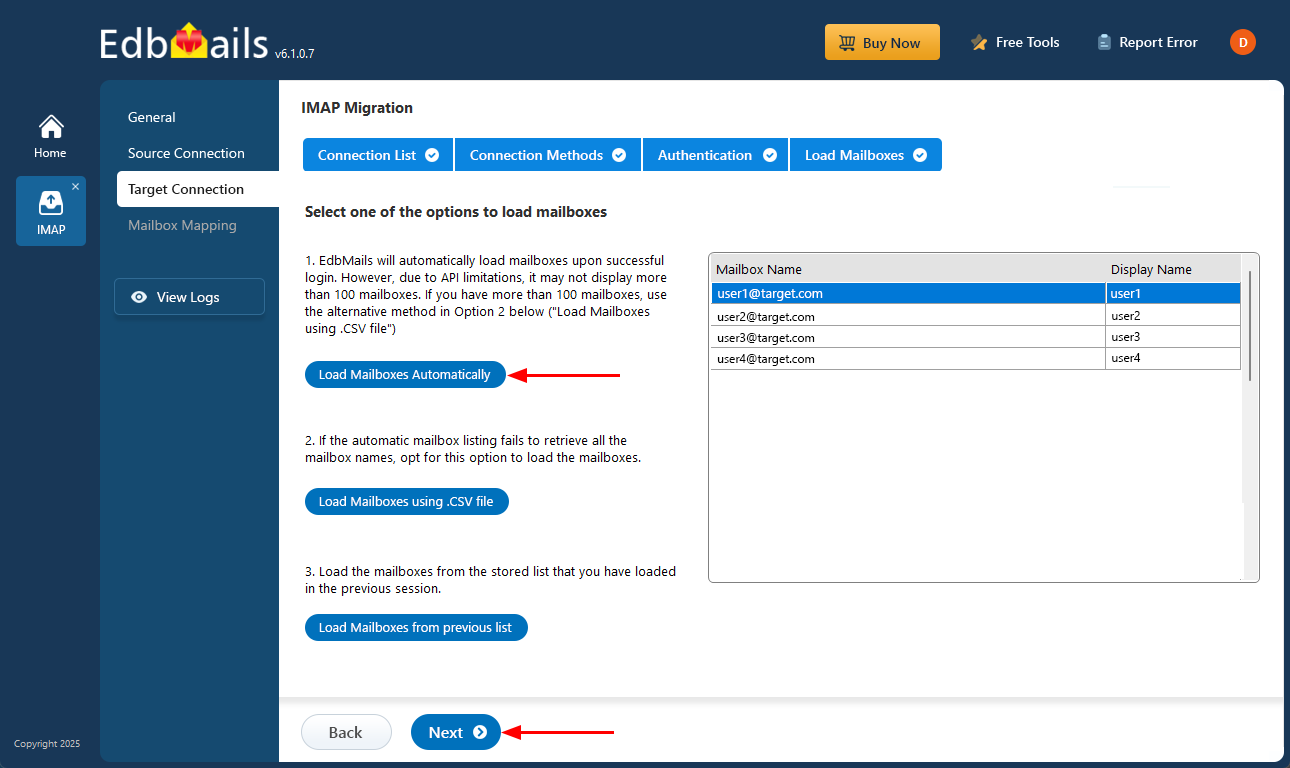
- Select a method to load your mailboxes. EdbMails automatically retrieves and displays the mailboxes of your Office 365 users. However, due to limitations in the Microsoft API, only the first 100 mailboxes are displayed. If your environment contains more than 100 mailboxes, you can use the CSV file option to load the complete list of mailboxes for migration.
- Click the ‘Next’ button to continue
- Click the ‘Add New Connection’ button to create a new connection to your target Office 365 server. To use an existing connection, simply select it from the list and click ‘Connect to Existing’ to continue.
Step 4: T-online email to Microsoft 365 mailboxes mapping
- Select the required mapping option
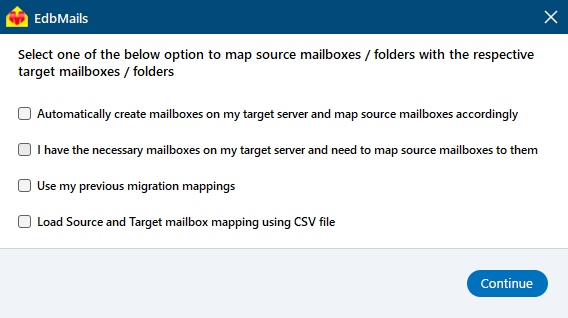
- With EdbMails, you can choose to have the software automatically create mailboxes on the target server, or if the mailboxes are already created, simply select the appropriate option.
- EdbMails automatically maps mailboxes between the source and target servers, but you also have the option to manually map mailboxes.
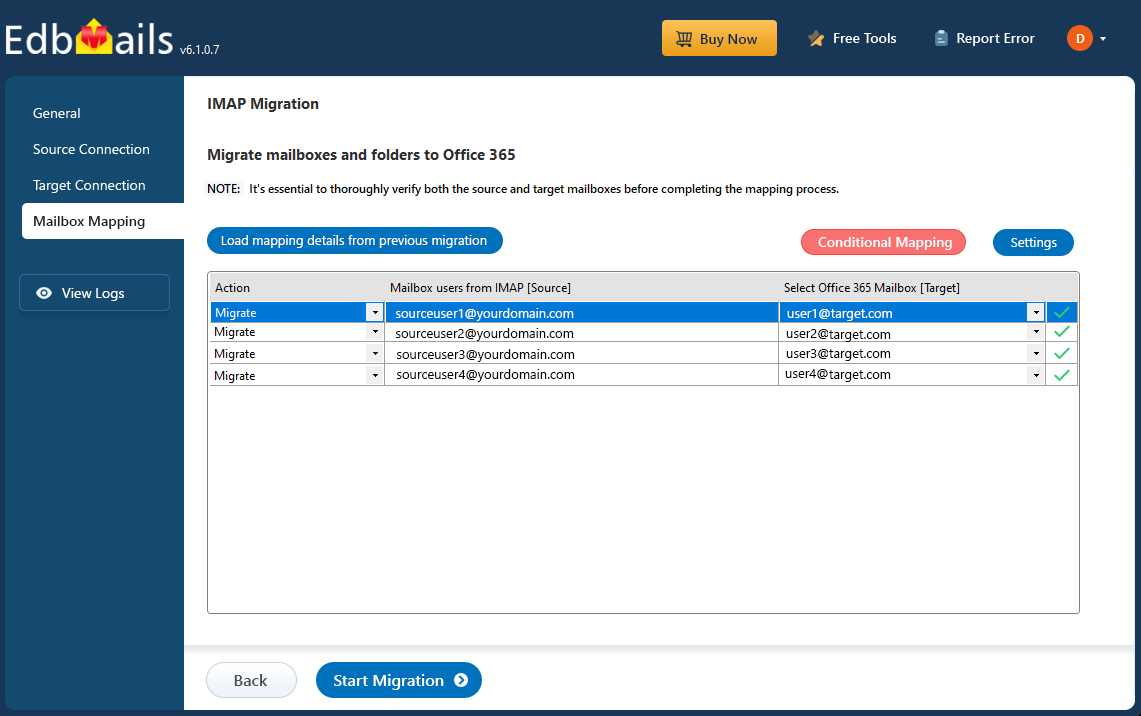
- Select the required mapping option
Step 5: Start T-Online email to Office 365 migration
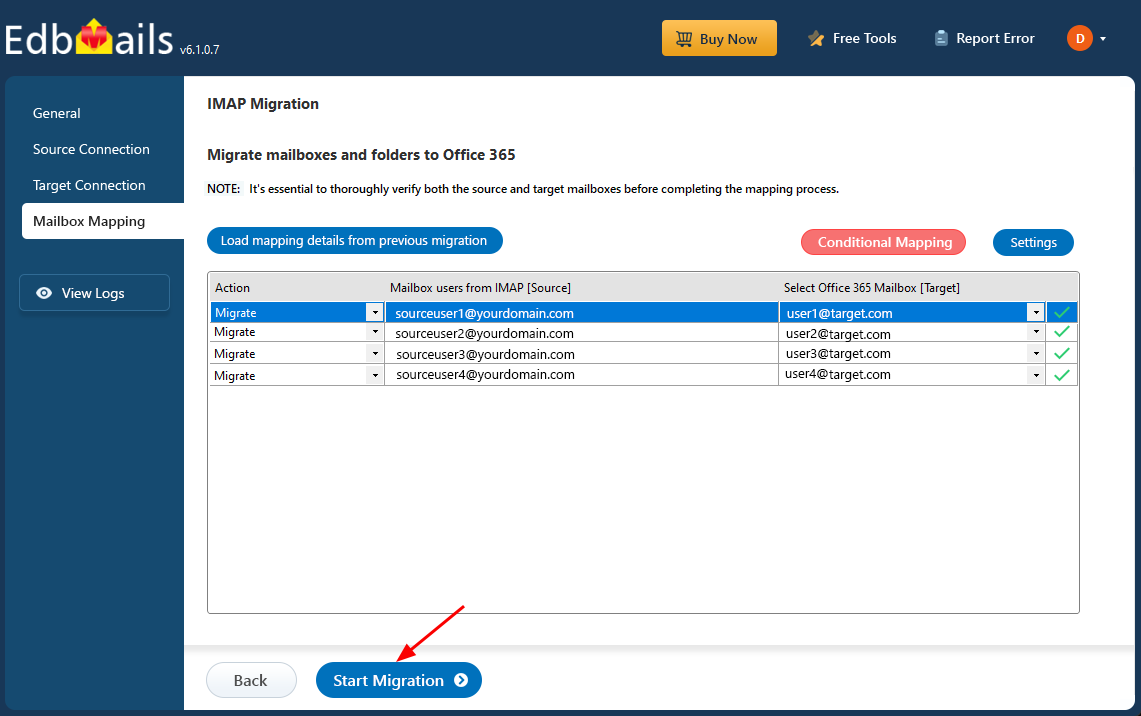
- After mapping the mailboxes, click the ‘Start Migration’ button to initiate the migration process
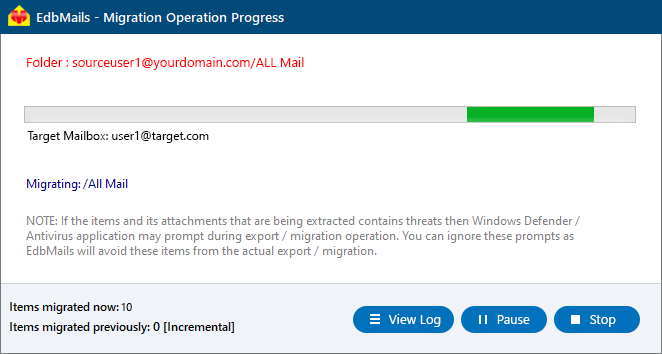
- You can now track the migration progress using the progress bar. When the migration is complete, EdbMails will display a confirmation message.
- Click the 'View Logs' button to open the migration report, which provides a detailed summary of the entire process, including the total number of items migrated from each folder.
- After mapping the mailboxes, click the ‘Start Migration’ button to initiate the migration process
T-online email to Microsoft 365 Post-migration Tasks
- Step 1: Modify MX records to direct email to Office 365.
Update MX records for directing email to the new server. Additionally, configure the Autodiscover record to ensure that migrated mailboxes connect smoothly with email clients like Outlook.
- Step 2: Set up a new Outlook profile for users in the new domain
If users encounter issues connecting Outlook to Office 365 mailboxes, manually configure their Outlook profiles in the new domain.
- Step 1: Modify MX records to direct email to Office 365.
Troubleshooting Guide for T-online email to Office 365 Migration
For troubleshooting, check out our knowledge base articles. If you have additional questions, browse the FAQs or engage with our customer care team for personalized assistance.
Benefits of EdbMails for T-online email to Office 365 Migration
- Concurrent Migration for Efficient email Transfer
EdbMails supports concurrent migration, enabling the simultaneous transfer of multiple mailboxes from T-online to Office 365. This speeds up the migration process and reduces downtime, making it ideal for businesses that need to migrate large volumes of data without interrupting operations.
- Script-free Migration for Hassle-free Setup
EdbMails ensures a script-free migration, eliminating the need for complex manual configurations. The user-friendly interface simplifies the entire migration process. Users can start the migration without any technical expertise, making it accessible for businesses of all sizes.
- Migrate without Data loss for complete assurance
With EdbMails, migrating from T-online to Office 365 is secure and reliable. The tool ensures no data loss during the migration process. Every email, folder, and attachment is transferred accurately, ensuring that nothing is overlooked or compromised during the move.
- Free Trial to Test all Features
EdbMails offers a free trial version that lets users test all features before committing to the full migration. This allows businesses to experience the tool’s functionality firsthand and ensure it meets their specific requirements before moving forward with the full migration.
- Maintaining Data Integrity during the Migration
EdbMails prioritizes maintaining data integrity throughout the entire migration process. The tool ensures that email structure, folders, and attachments are preserved exactly as they were in T-online. This attention to detail ensures a seamless transition without disrupting the organization’s workflow.


