


Migrate Comcast email to Office 365
Comcast Corporation is one of the largest telecommunications companies in the United States, delivering services that include cable television, high-speed internet, voice solutions, and mobile connectivity. Its email service, available through Xfinity and associated with the comcast.net domain, is generally included as part of its internet subscription plans. Users can access their email accounts by signing in with their Xfinity ID.
Although Comcast email works well for everyday communication, it lacks the advanced collaboration and productivity capabilities available in Microsoft 365 (formerly Office 365). Microsoft’s platform brings together robust applications like Outlook, Teams, OneDrive, and SharePoint in one integrated environment, making it a preferred solution for both individuals and businesses.
However, migrating from Comcast to Office 365 presents several obstacles, including:
- Data mapping issues: Discrepancies between Comcast's email structure and Office 365.
- Downtime concerns: Ensuring minimal disruption during migration.
- Data integrity: Maintaining the accuracy and completeness of email data.
EdbMails simplifies the migration from Comcast to Office 365, securely hosted on Microsoft’s servers, by overcoming common migration challenges through a reliable and well-organized process. Its incremental migration feature transfers only newly added or modified data, avoiding duplicates and minimizing the overall migration time.
EdbMails includes a concurrent migration feature that enables multiple mailboxes to be migrated simultaneously, helping increase overall speed and efficiency. With advanced filtering options, users can choose specific emails, folders, or date ranges so that only the required data is migrated while avoiding unnecessary items. EdbMails also provides a simple step-by-step migration wizard that walks users through each stage, ensuring a smooth and trouble-free migration experience.
By using EdbMails, organizations can efficiently migrate their Comcast email to Office 365 while benefiting from enhanced performance, robust security, and reliable data transfer.
User Query
"We have Comcast email accounts and would like to permanently migrate them to Office 365. Is there a reliable way to migrate without losing any of our emails, which are currently hosted at Comcast? The requirement is that Comcast Hosted Office 365 be moved directly to Microsoft 365."
Top Reasons to Migrate from Comcast to Office 365
- Comcast email is tied to Xfinity internet, meaning if you cancel your subscription, you’ll lose access to your mailbox. Migrating to Office 365 keeps your email independent and always accessible.
- Microsoft 365 is an all-in-one productivity suite that combines email, Office apps, collaboration, and cloud storage under a single platform.
- You can easily integrate Outlook, Teams, SharePoint, and OneDrive to access everything in one place, improving productivity and communication.
- No need for external hosting or domains. Office 365 is a complete cloud-based email solution managed directly by Microsoft.
- Easy email management. You can add public folders, shared mailboxes, and aliases quickly through the Microsoft 365 admin center.
- Enterprise-grade security and reliability. Your data and emails are stored safely on Microsoft’s secure cloud servers with high uptime and compliance.
Comcast to Office 365 Migration Planning
Before you start to migrate comcast email to office 365 ensure that you have made a detailed plan so that all your data is safe. Planning also saves your time and gives an overview of the entire operation. Here is a checklist of points to consider.
- Ensure that you have administrator access to both Comcast and Office 365 accounts.
- Keep your Comcast email's IMAP connection information handy if you have an IMAP server on the source.
- Make a list of what you want to migrate and what you want to leave behind.
- Remove unwanted and unnecessary mailboxes from the source.
- Request that your users save or export large attachments to their local storage.
- Consider whether you want to keep the Comcast domain or get a custom domain for your email.
- Communicate all of these changes to your end users, stakeholders and keep them updated.
- Perform a pilot migration to ensure everything works as expected.
- After you complete the migration, allow enough time for testing and verification.
- Add the MX records on Office 365 and configure Outlook for all users.
Pre Migration Activities for Comcast to Office 365 Migration
- Create a list of users in a CSV file, which you want to migrate from BigRock.
- Find the name of your source email server from an email client
- Purchase a suitable Office 365 licensing plan. You can also sign up for a 30 day free trial and decide to go with a suitable one later. Compare Office 365 business plans and Compare Office 365 enterprise plans
- Create Office 365 mailboxes and assign licenses to them
Add users and assign licenses to Office 365 users
Assign Microsoft 365 licenses to user accounts - If you plan to migrate your mailboxes to Office 365 Public folders, ensure that you create and configure the Public folder mailboxes on the target server.
Create Office 365 Public folder and assign mailbox user. - Similarly, if you want to migrate mailboxes to Office 365 In-Place archive, enable them from the admin center.
Steps to enable archive mailbox in Microsoft 365. - If you have a custom email domain from the source which you want to retain and receive emails to, you must add and verify the domain on Office 365.
Steps to add a custom domain to Office 365 and steps to add DNS records to connect your domain. - Configure Office 365 to send and receive large messages.
Follow the steps to increase the message size on Office 365 to 150MB. See message size limits on Office 365 for more information.
Steps to Migrate Comcast email to Office 365
Step 1: Download and Install EdbMails software
- Download and install EdbMails on your computer.

- Launch the EdbMails application on your computer.
- Enter your registered email address and password, then click ‘Login’. If you’re using EdbMails for the first time, select ‘Start Your Free Trial’ to continue with the trial version.Note: The trial version includes all major features and lets you migrate up to 30 items per folder. For unlimited migration, purchase an IMAP Migration license from the official EdbMails website.Once the purchase is complete, close and reopen the application. Log in again with the same email address and password used during the purchase to activate your license successfully.

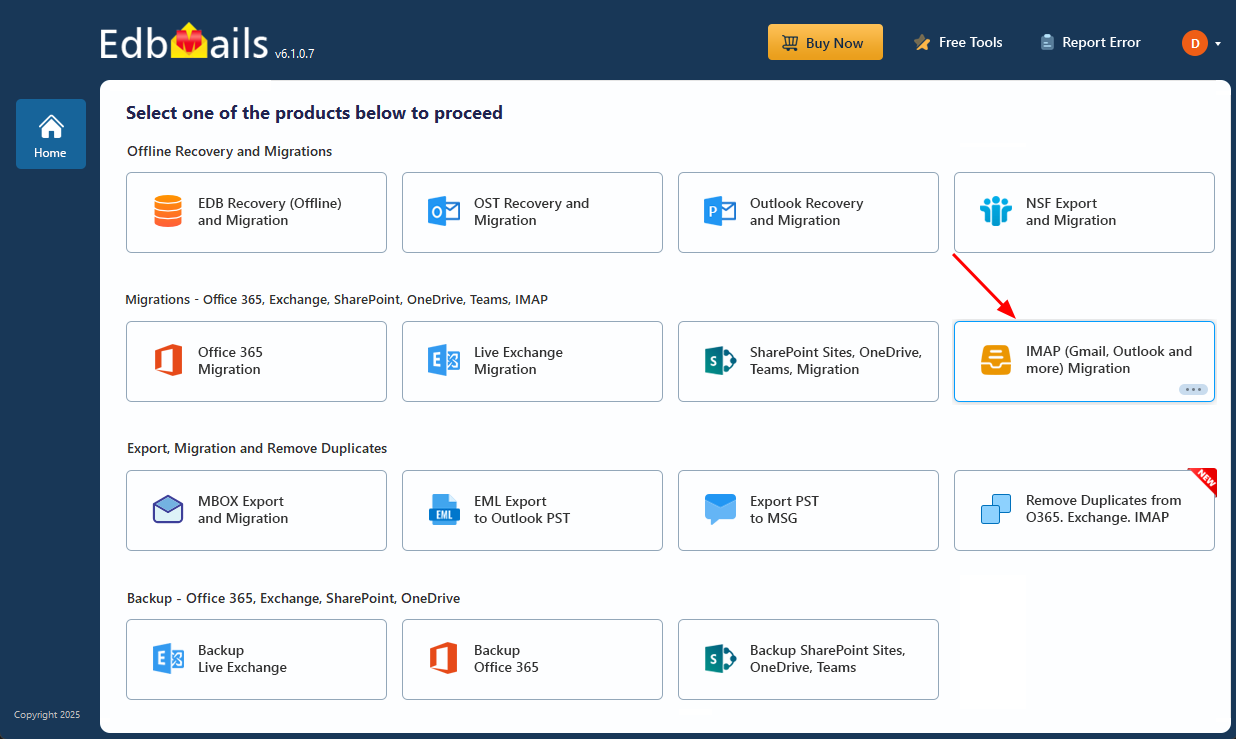
- Select the option ‘IMAP (Gmail, Outlook & more) Migration’.
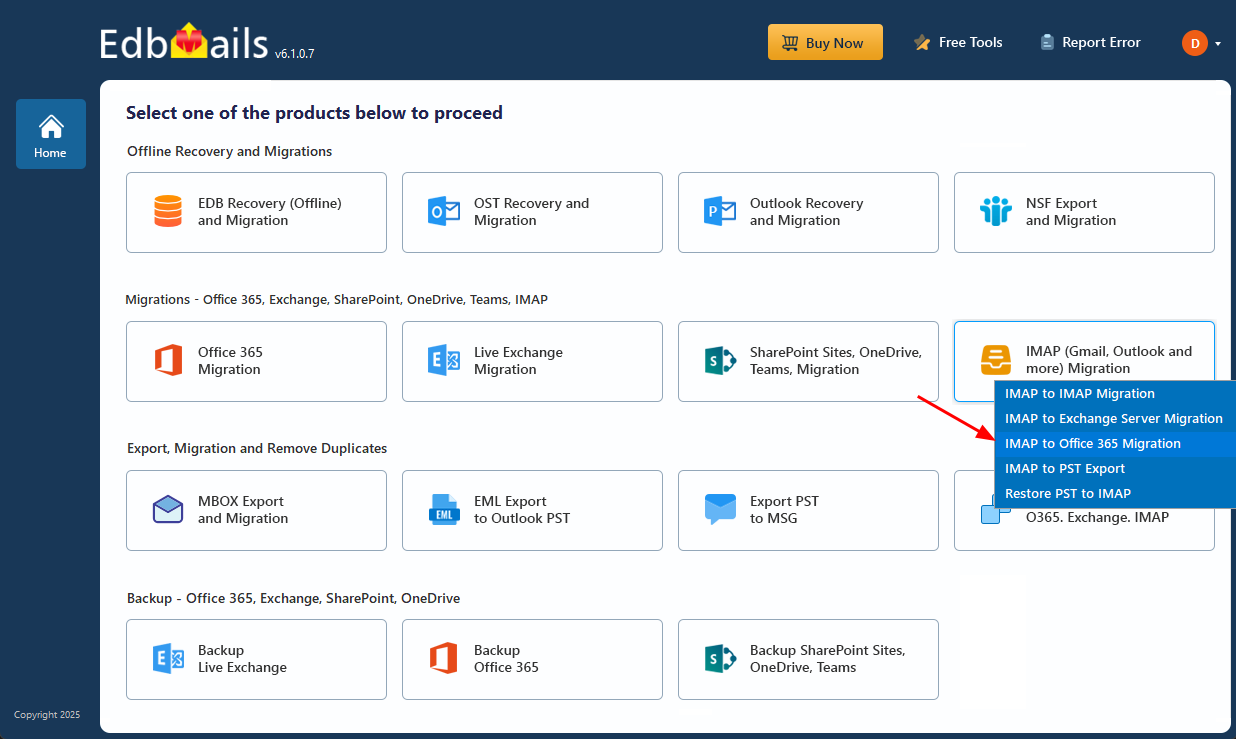
- Select ‘IMAP to Office 365 Migration’.
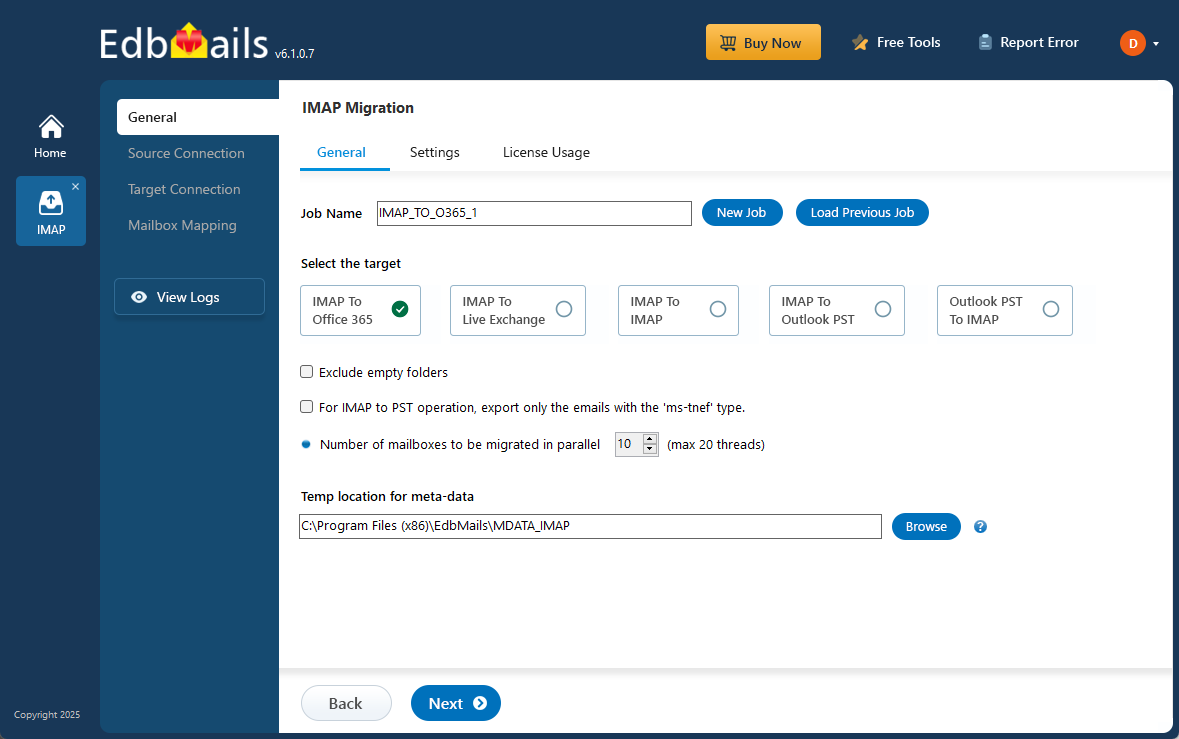
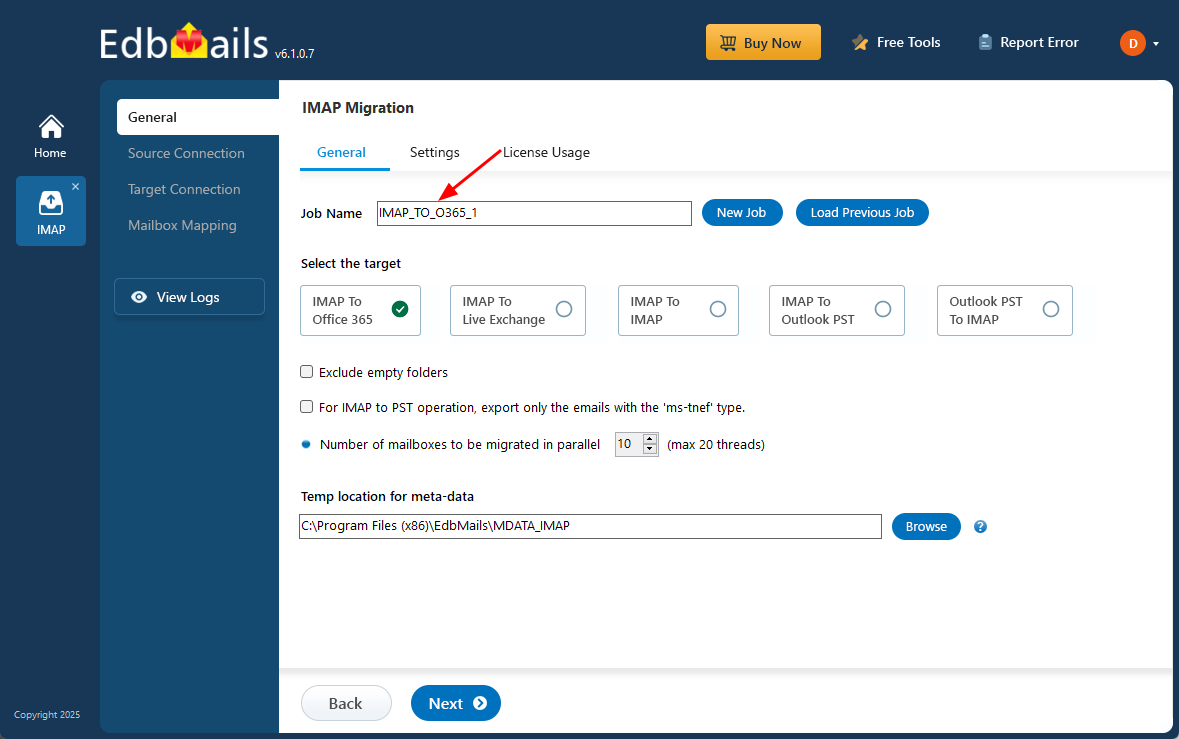
- You can either go with the default job name or click on 'New Job' if you'd like to customize it.
- Download and install EdbMails on your computer.
Step 2: Connect to the Source Comcast Mail Server
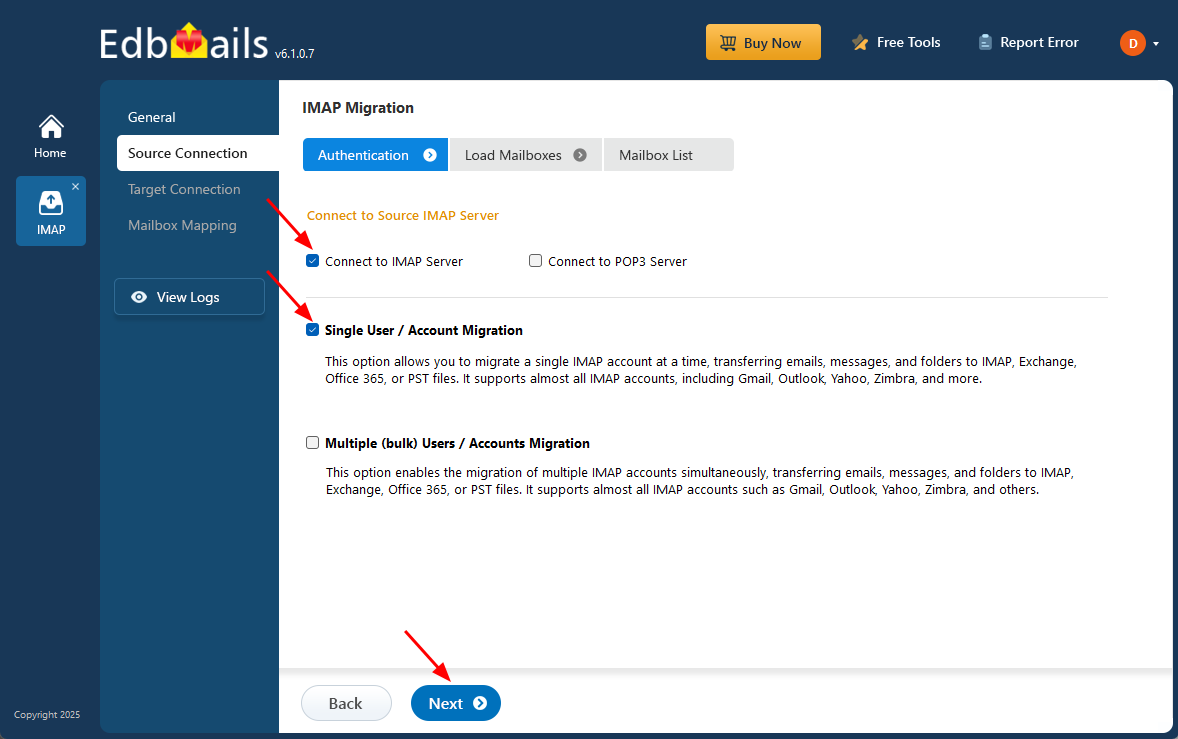
- To migrate a single Comcast email account, select ‘Single User / Account Migration’, then choose the appropriate connection method such as ‘Connect to IMAP Server’ or ‘Connect to POP3 Server’ based on your setup.
- After selecting the option, click ‘Next’ to continue setting up the connection.
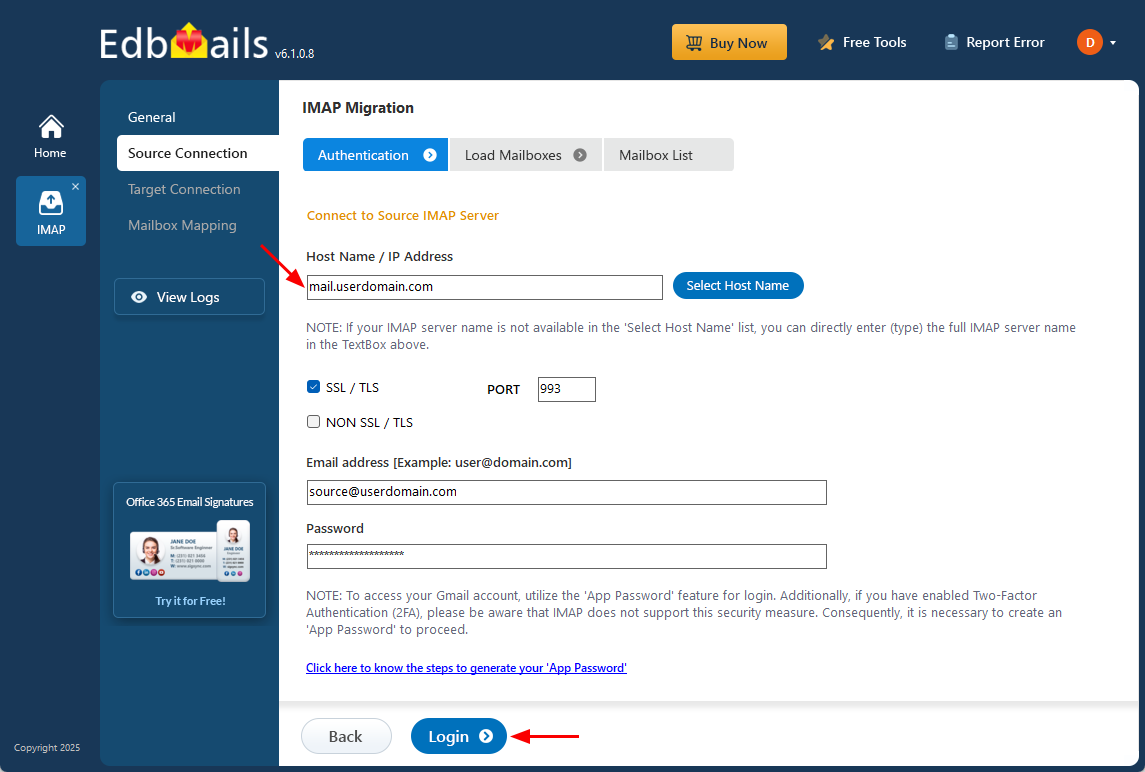
- Choose the appropriate IMAP hostname for Comcast, typically imap.comcast.net, from the available list or type it in manually.
- After that, enter your complete Comcast email address along with your password to verify your account and establish the connection to the server.
- Next, click the ‘Login’ button.
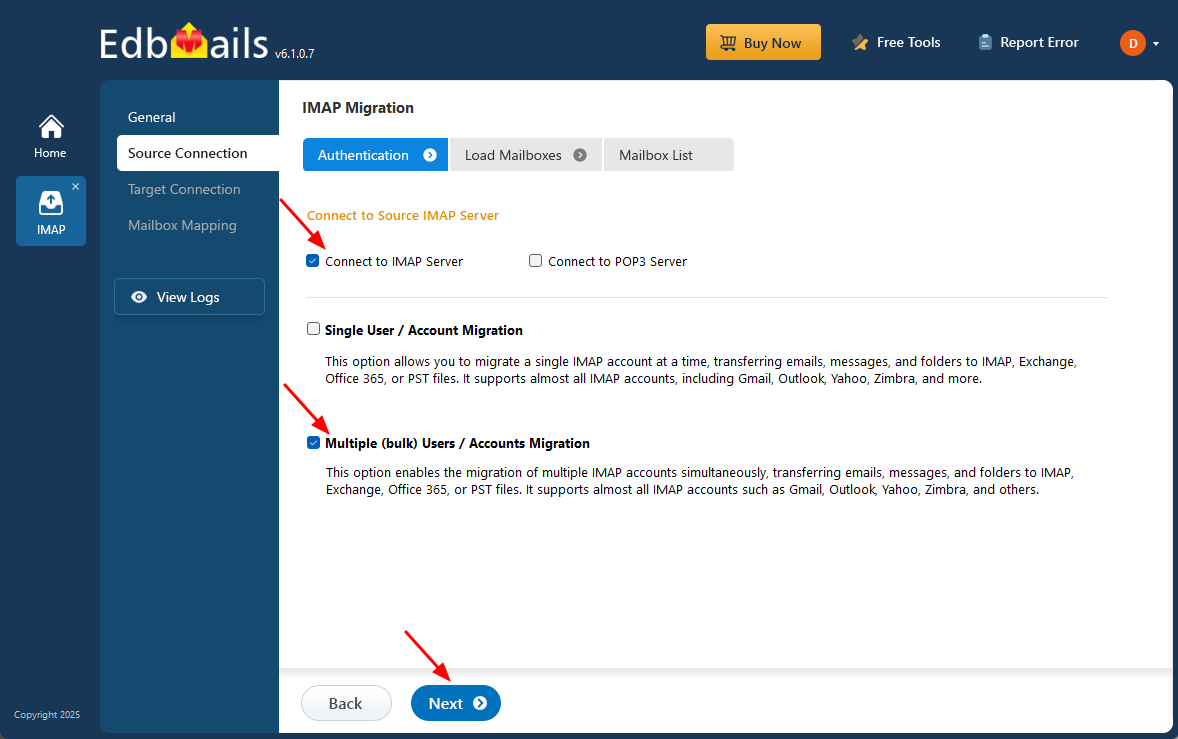
- For migrating multiple Comcast mailboxes in a single operation, choose ‘Multiple (Bulk) Users/Accounts Migration’ and select the appropriate connection option such as ‘Connect to IMAP Server’ or ‘Connect to POP3 Server’, then click ‘Next’ to continue.
- Click ‘IMAP Migration CSV File’.
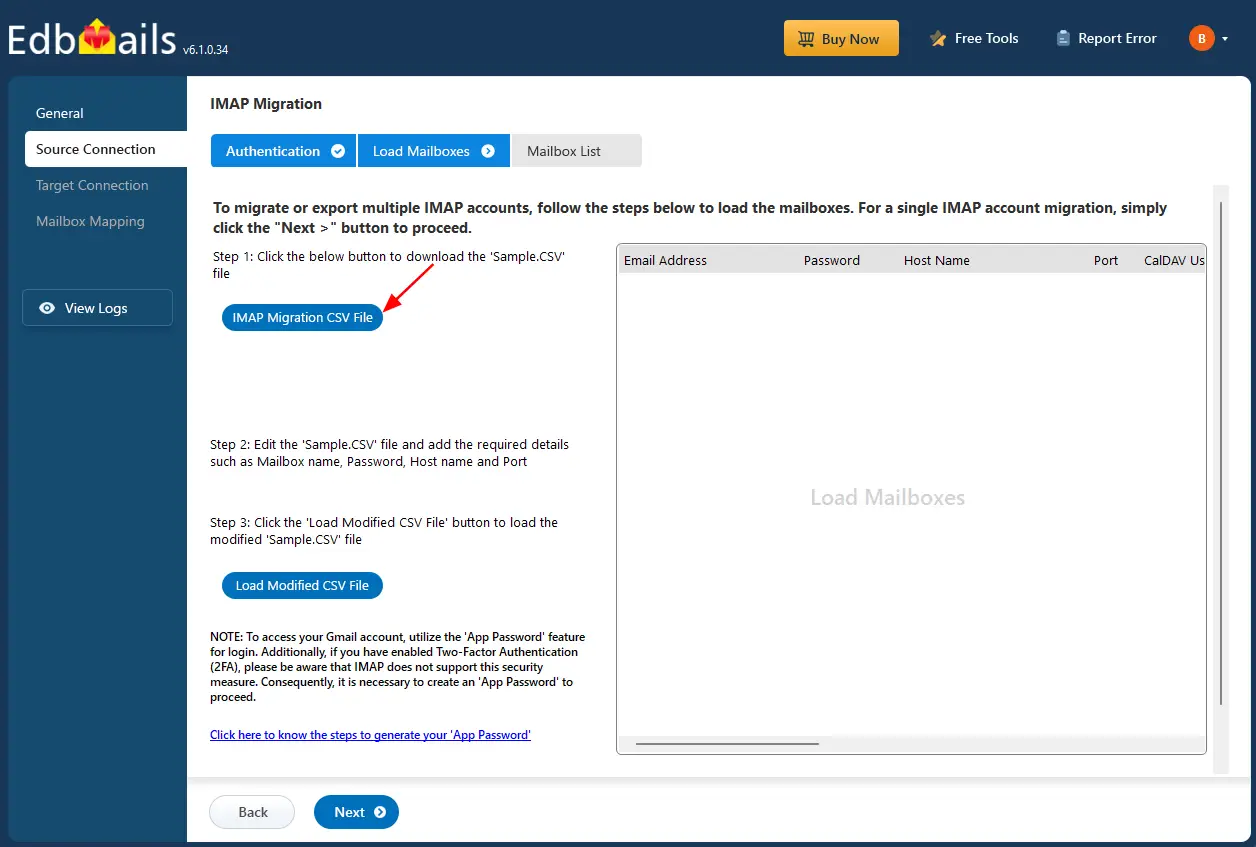
- Open the CSV file and input the required details, such as email address, password, server name, and port number. Once you've entered all the information, save the file.

- After updating the CSV file, save it and close it.
- Next, click the 'Load Modified CSV File' button, locate your updated CSV file, select it, and open it to proceed.
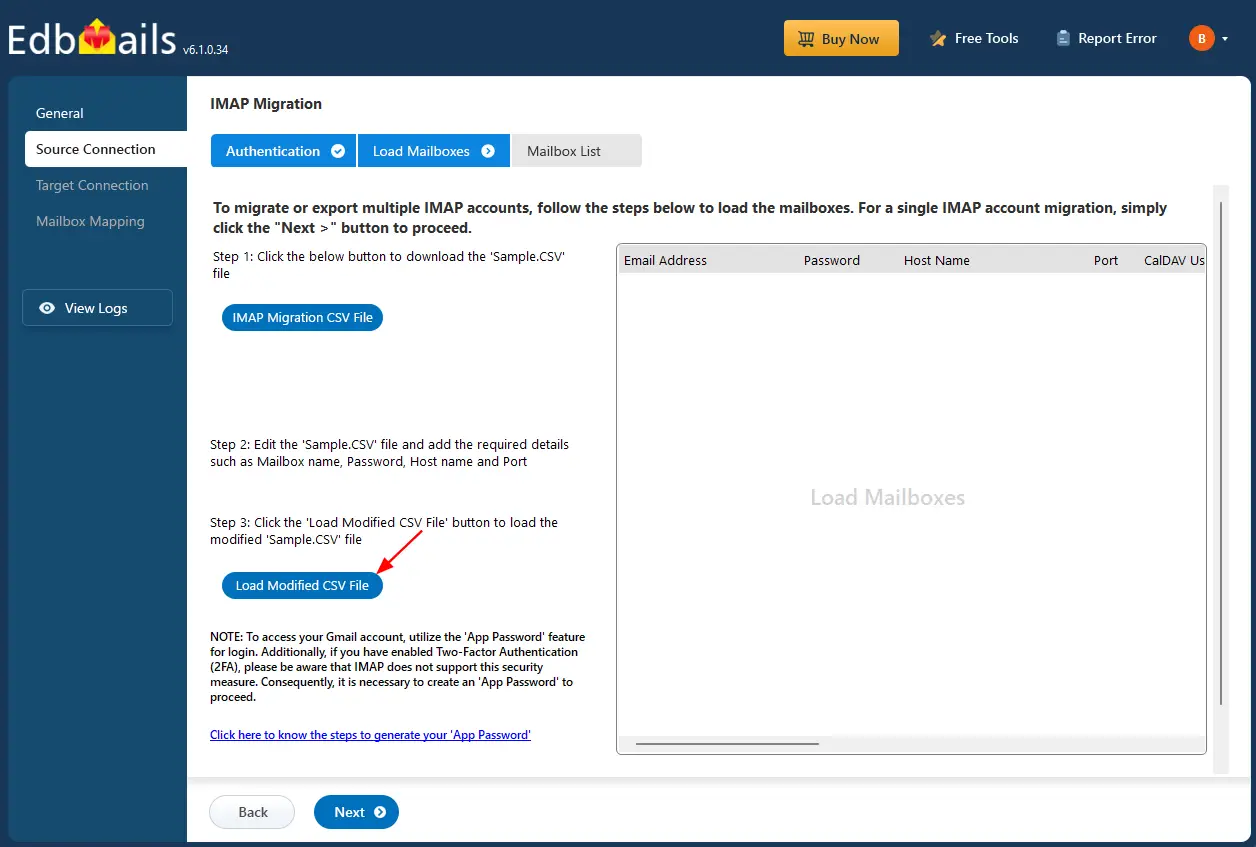
Step 3: Select source Comcast server mailboxes
- Choose the mailboxes or specific folders you wish to migrate, then click ‘Next’ to continue.
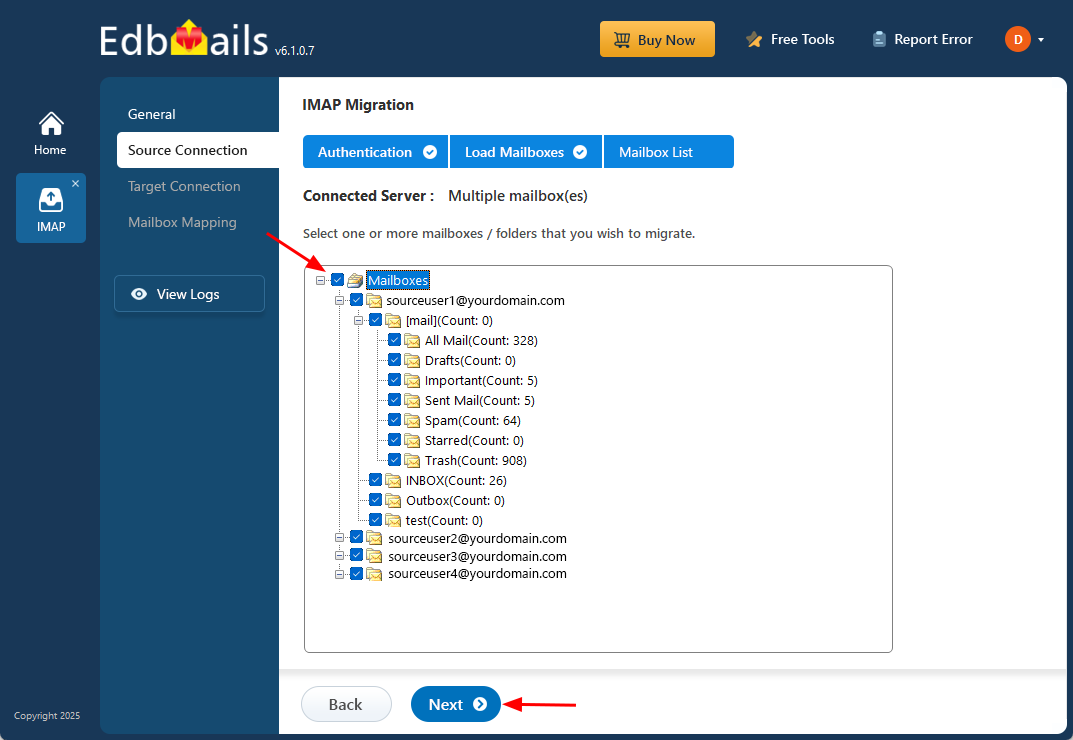
- Choose the mailboxes or specific folders you wish to migrate, then click ‘Next’ to continue.
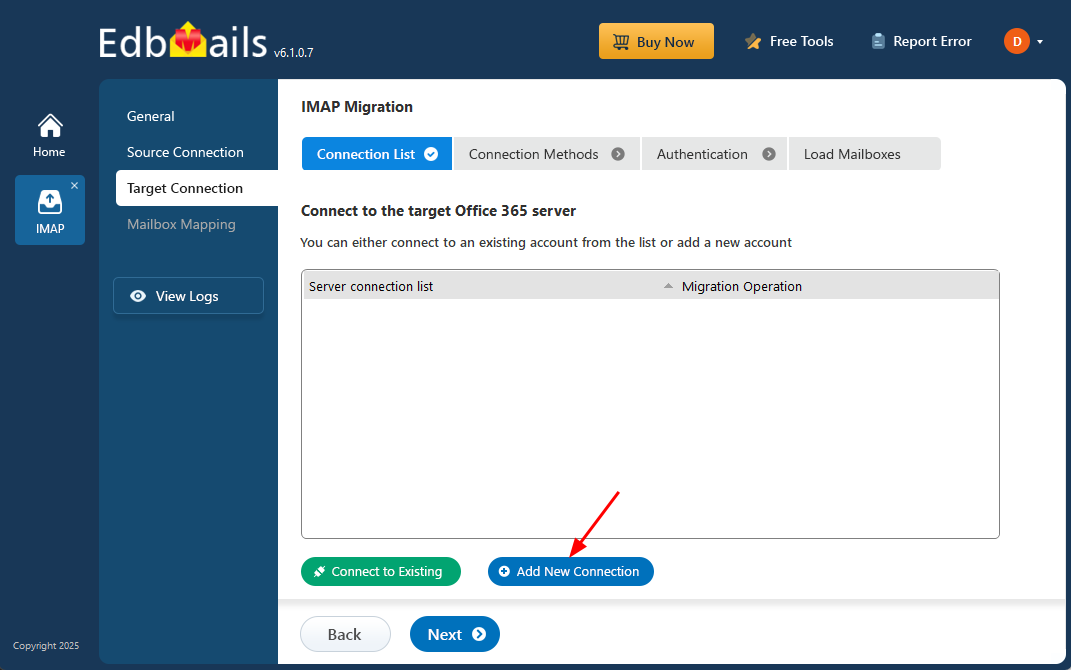
Step 4: Connect to target Office 365 server
- Select the ‘Add New Connection’ option to establish a connection with your target Office 365 account.
- If you have previously set up a connection, you can choose it from the available list and click ‘Connect to Existing’ to proceed.
- Choose the necessary connection options and click ‘Next’ to continue
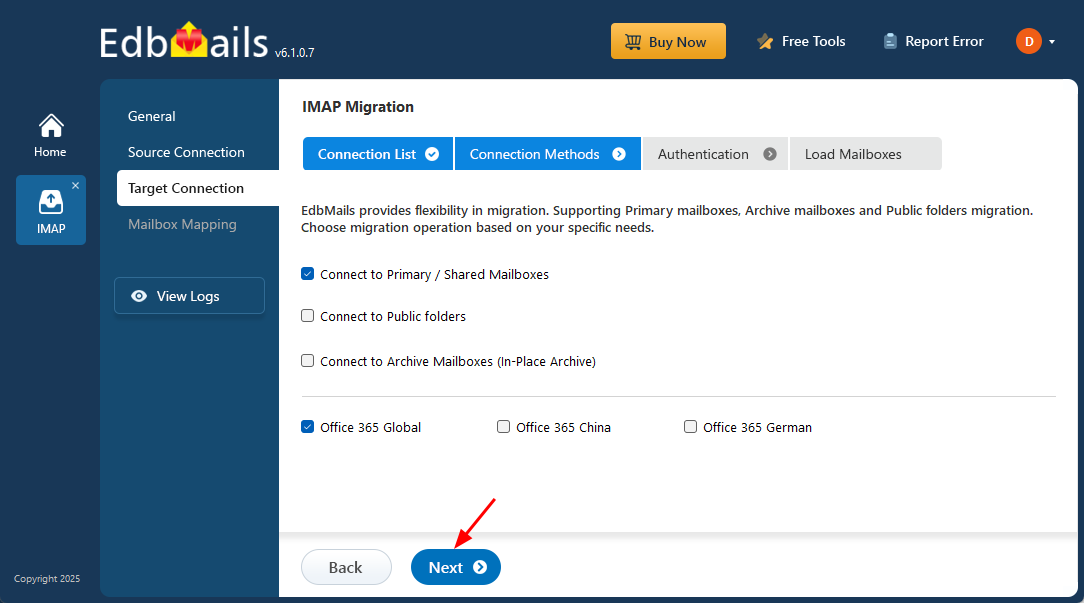
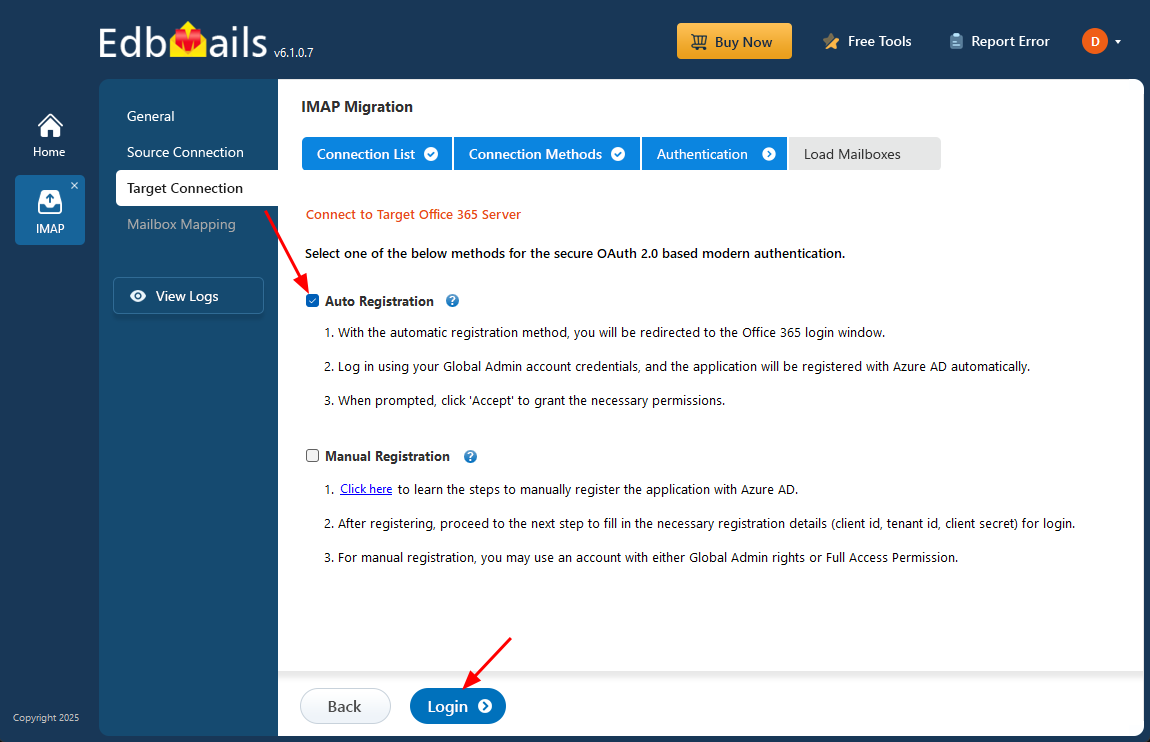
- Select any of the available options to establish a secure connection using OAuth 2.0 modern authentication.
- Choose Auto Registration for a quick and straightforward setup. Sign in with a Global Admin account and grant the required permissions to automatically register the application in Azure AD.
- Alternatively, select Manual Registration if you prefer to enter the Azure AD application details yourself. This method supports both Global Admin accounts and accounts with Full Access permissions.
- Click ‘Login’ to proceed.
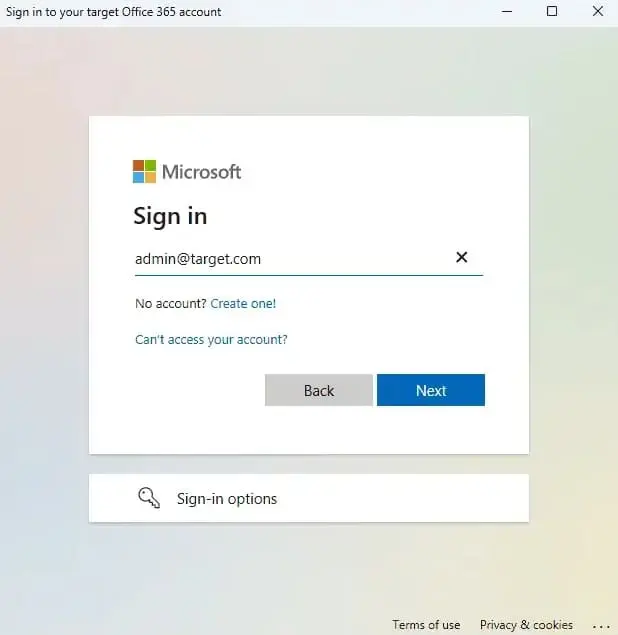
- Authenticate on Microsoft sign-in page.
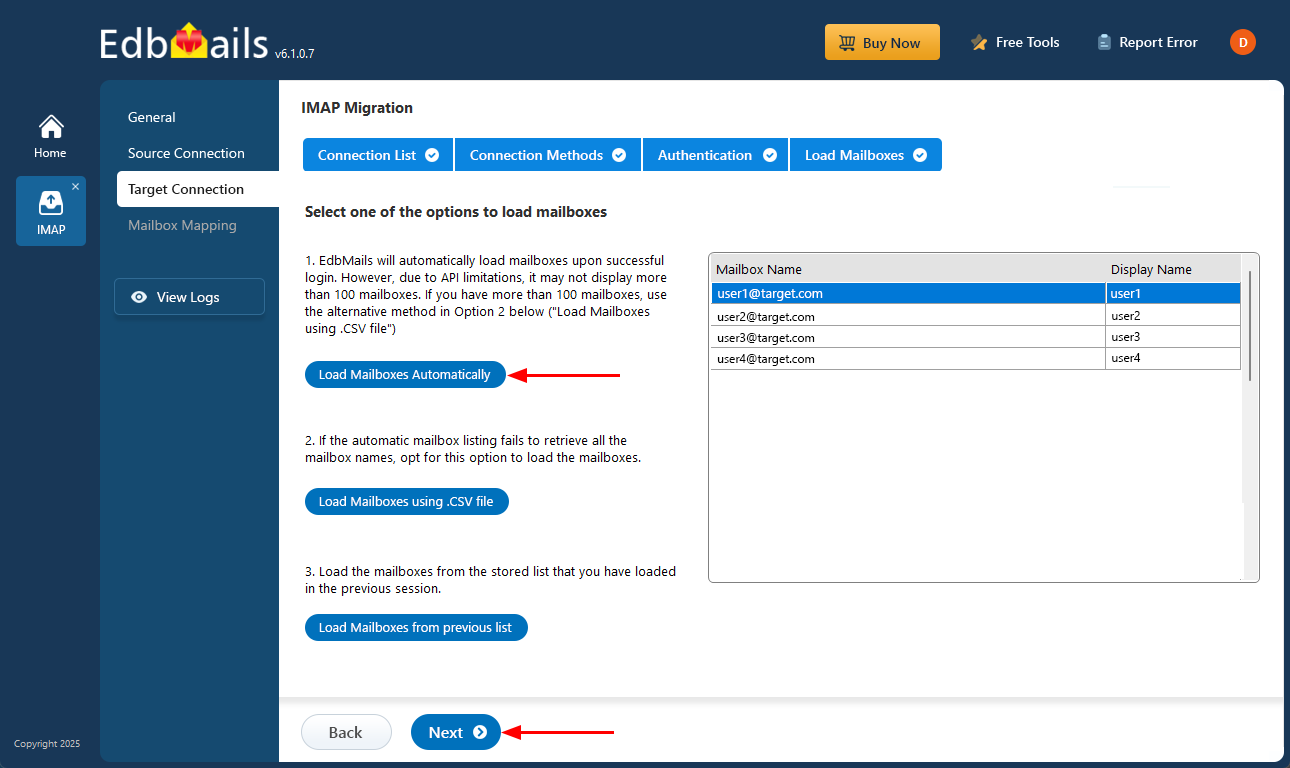
- After successful authentication, choose one of the following options to load the mailboxes:
- i) Load Mailboxes Automatically: After signing in, EdbMails automatically retrieves and displays the mailboxes, making the process quick and straightforward. However, due to Microsoft API restrictions, only up to 100 mailboxes can be listed. If your organization contains more than 100 mailboxes, use the alternative option below.
- ii) Load Mailboxes using CSV file: If all mailbox names are not retrieved through the automatic method, select the ‘Load Mailboxes using .CSV file’ option to manually add and load the required mailboxes.
- iii) Load Mailboxes from previous list: This option allows you to load mailboxes directly from the list that was previously imported and saved in your earlier session.
- Choose ‘Load Mailboxes Automatically’ and click ‘Next’ to continue.
Step 5: Comcast to Office 365 mailboxes mapping
- Select a preferred option to map the source mailboxes and folders with their corresponding mailboxes and folders on the target Office 365 account.
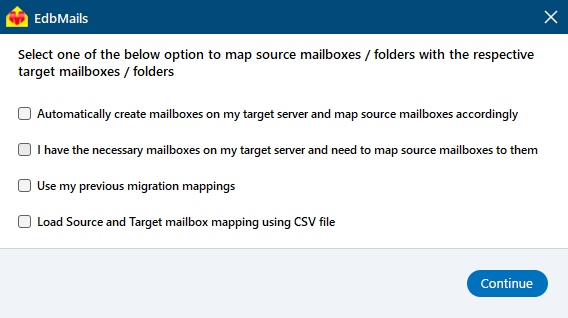
- EdbMails lets you automatically create the required mailboxes in your target Office 365 account.
- It also automatically maps your source hMailserver mailboxes and folders to the matching ones in Office 365, making large migrations easier to manage.
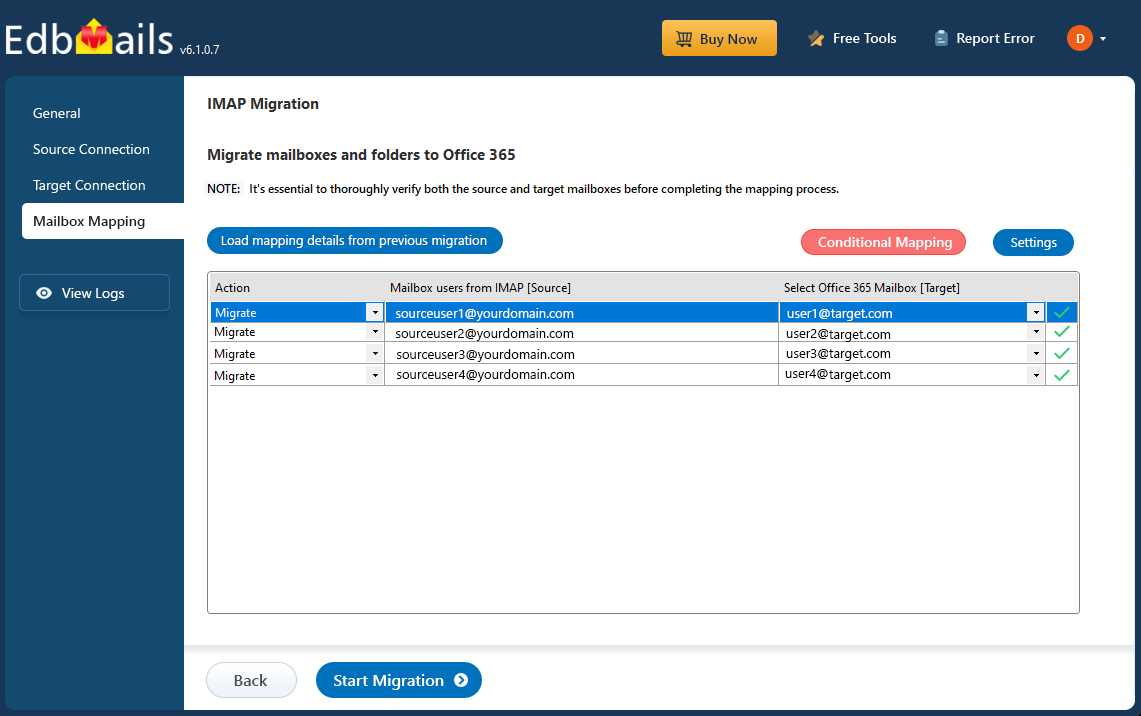
- Select a preferred option to map the source mailboxes and folders with their corresponding mailboxes and folders on the target Office 365 account.
Step 6: Start Comcast to Office 365 migration
- Verify the mailbox mapping, then click the ‘Start Migration’ button to begin the migration process.
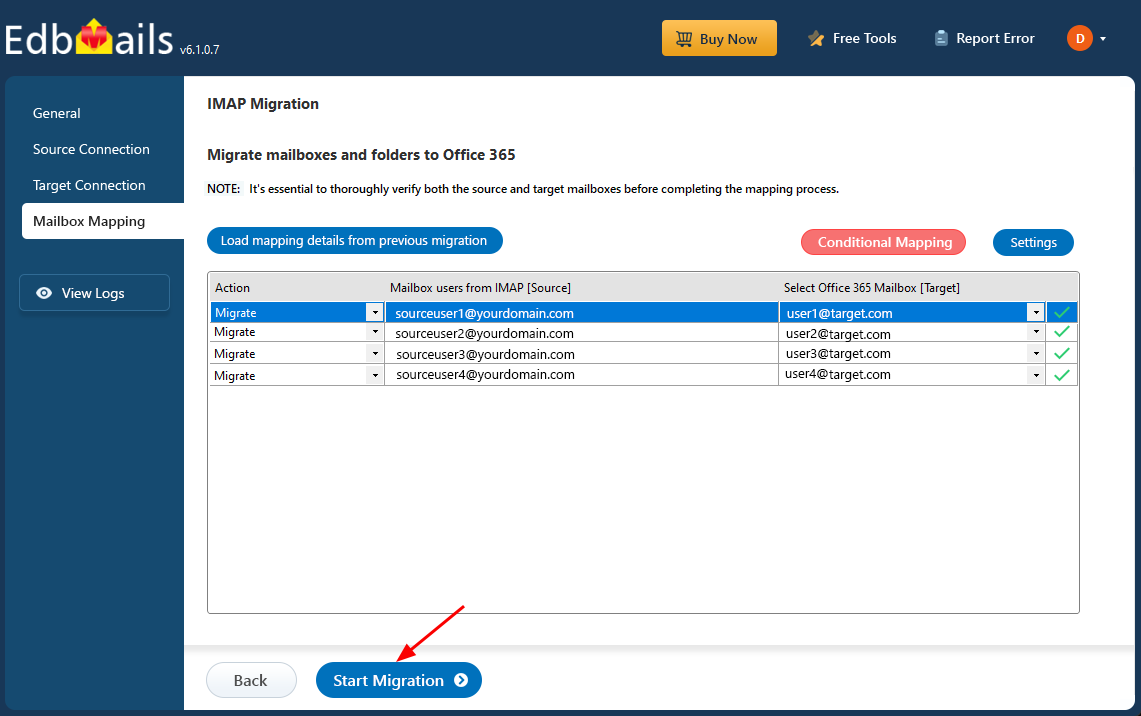
- Click the ‘View Logs’ button to access the full migration report. The report provides detailed information, including the mailbox mapping, an overall summary of the migration, and the item count for each mailbox and folder that was migrated.
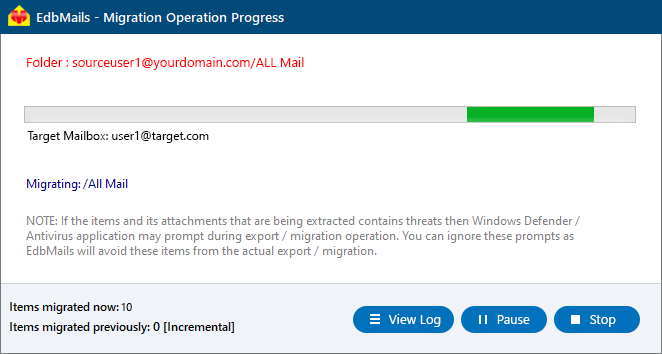
- Verify the mailbox mapping, then click the ‘Start Migration’ button to begin the migration process.
Comcast to Office 365 Post-migration Tasks
- Step 1: Update the MX records to point to Office 365
Update the MX records to start receiving emails on your target Office 365 server. Also, make sure to configure the Autodiscover record so that Outlook can connect to the migrated mailboxes.
- Step 2: Set up a new Outlook profile for users in the new domain
If users experience issues connecting to Office 365 mailboxes, create and configure a new Outlook profile for each user in your domain.
- Step 1: Update the MX records to point to Office 365
Troubleshooting Guide for Comcast to Office 365 Migration
For troubleshooting, explore our knowledge base articles. If you need further help, browse the FAQs or reach out to our support team for tailored assistance.
Comcast Email to Office 365 Migration Made Simple with EdbMails
Looking for a reliable way to move your Comcast emails to Office 365? EdbMails offers a secure, automated, and hassle-free migration tool designed to simplify the entire process without any data loss or downtime.
Key Benefits and Features
- Secure and Trusted Migration
EdbMails ensures a completely safe migration experience. Your login details and personal data are never stored or cached, providing full security and privacy throughout the migration.
- Migrate Multiple Comcast Accounts at Once
Save time by migrating multiple Comcast mailboxes in one go. The batch migration option helps administrators easily transfer all user accounts to Office 365 in a single process.
- Simple and User-Friendly Interface
The software features an intuitive and easy-to-navigate interface that makes the process straightforward for both technical and non-technical users.
- Transfer Emails with Attachments
Migrate all your Comcast emails along with attachments, embedded items, and formatting directly to Office 365. EdbMails ensures that every message is migrated completely and accurately.
- Preserve Email Attributes and Formatting
All essential email details, including sender and recipient addresses (To, Cc, Bcc, From), subject lines, hyperlinks, and formatting, are perfectly retained during the migration.
- Maintain Original Folder Structure
EdbMails keeps your mailbox structure exactly the same in Office 365 as it was in Comcast Webmail - ensuring a familiar and organized experience after migration.
- Compatible with All Windows Versions
EdbMails supports all major Windows editions, including Windows 11, Windows 10, Windows 8, Windows 7, and Windows Server versions, ensuring flexibility for every user environment.


