


Yandex mail to Office 365 Migration
As organizations expand and adapt to new demands, migrating from one email platform to another often becomes essential, particularly when aiming for better security, scalability, and overall productivity. One such transition that is becoming increasingly popular is migrating from Yandex Mail to Microsoft Office 365.
Yandex Mail is an email service created by the Russian tech company Yandex. It provides essential email features with 20 GB of storage and includes built-in tools such as Yandex Disk, Calendar, and Contacts. While it works well for personal use or small-scale communication, Yandex Mail may not provide the advanced features and capabilities that many modern businesses require.
Office 365, now known as Microsoft 365, is a powerful cloud-based productivity platform that includes tools such as Microsoft Outlook, Microsoft Word, Microsoft Excel, and Microsoft Teams. It provides strong security, large-scale cloud storage, and real-time collaboration capabilities. These features help users stay productive from any location while keeping their data secure and compliant.
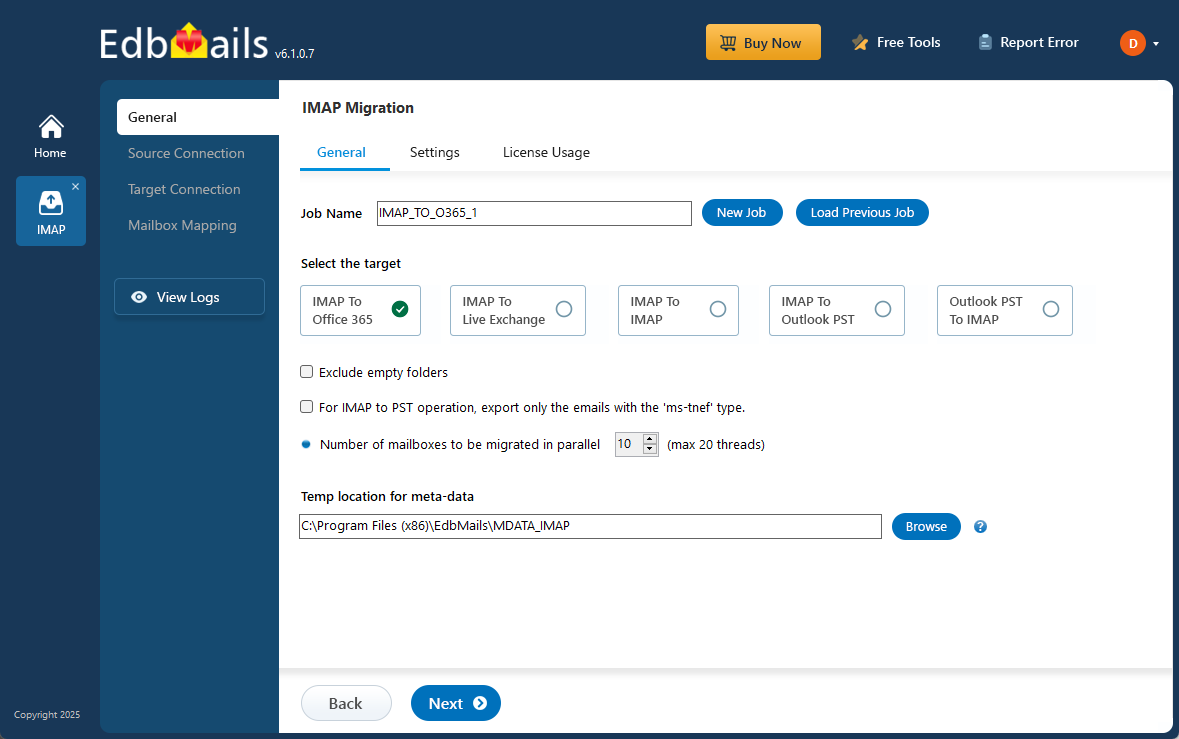
As Yandex Mail reaches its limitations for expanding business requirements, migrating to Microsoft 365 becomes a practical step. This migration helps organizations gain advanced features, better centralized management, and the flexibility needed to support long-term growth.
EdbMails IMAP migration tool is the perfect solution for migrating Yandex Mail to Office 365. It is built to handle email transfers smoothly while preserving the original folder and subfolder hierarchy. During the migration, important email properties such as headers, signatures, hyperlinks, and attachments are maintained, ensuring that the mailbox data remains complete and unchanged. The tool enables a secure and efficient migration of emails from Yandex Mail to Office 365, making the migration process simple and hassle-free.
Apart from its strong migration capabilities, EdbMails is also known for its easy-to-use interface and practical features. It provides a free personalized demo so users can explore the software before making a purchase decision. The tool is available with a lifetime license, which means there are no recurring costs, and it also includes free software updates to keep the application up-to-date with any improvements or new features. Safety and security is a key focus in EdbMails, ensuring that all your data is migrated without any risk. In addition, users can rely on free 24/7 customer support for expert assistance whenever required. With these features, EdbMails becomes a dependable solution for organizations planning to migrate from Yandex Mail to Office 365.
Challenges and Solutions in performing Yandex mail to Office 365 migration
- Data integrity issues:
Challenges: Yandex Mail to Office 365 migration can result in data integrity issues if not managed properly. Critical components such as folder hierarchy, subfolders, and email metadata including attachments, headers, and digital signatures may not be preserved accurately without a specialized migration tool.
Solutions: EdbMails IMAP to Office 365 Migration maintains complete data integrity. It preserves folder hierarchy, metadata, and attachments. Perform pre-migration checks, enable incremental migration, and verify mailbox data after migration.
- Risk of data loss:
Challenges: Transferring large volumes of emails, especially those with attachments, increases the possibility of data loss. Without a dependable migration solution, essential messages may be skipped or corrupted during the process, leading to incomplete transfers and potential disruption of business operations.
Solutions: Prevent data loss by using a secure and error-handling migration tool that retries failed items automatically. Split large mailboxes into smaller batches, and validate mail counts in Office 365 post-migration.
- Complexity of the migration process:
Challenges: Yandex Mail and Office 365 have different configurations, requiring the careful setup of IMAP settings and mapping email data. A lack of proper technical expertise can lead to delays or migration failures, disrupting operations.
Solutions: Simplify the process using an automated migration solution that requires minimal technical setup. Ensure correct IMAP settings, map mailboxes properly, and run a pilot migration before full transfer to avoid configuration errors.
- Compatibility issues with third-party integrations:
Challenges: Many businesses rely on third-party tools within Yandex Mail. Migrating these integrations to Office 365 while preserving functionality can be tricky and may require additional configurations to ensure a seamless transition.
Solutions: List existing integrations in Yandex and identify Office 365-compatible alternatives. Export unsupported items like contacts or calendars manually and reconfigure integrations post-migration to maintain business continuity.
- Handling large mailboxes and bulk data migration:
Challenges: Mailboxes with years of emails can be overwhelming due to the amount of data involved. Limited bandwidth and migration tools’ performance may result in slower transfers, increasing the time and complexity of migration.
Solutions: Use incremental or staged migration to manage large mailboxes efficiently. Migrate during off-peak hours, clear unnecessary data, and leverage EdbMails’ throttling and resume features to ensure fast, uninterrupted transfer.
- Dealing with email downtime during migration:
Challenges: During migration, ensuring minimal email downtime is critical. Any interruptions in email access can lead to communication delays, affecting productivity. Careful planning and the right migration strategy are essential to avoid significant disruptions.
Solutions: Plan a zero-downtime migration by running Yandex and Office 365 mailboxes in parallel. Migrate during non-business hours, and ensure users continue accessing emails without interruption.
EdbMails simplifies these complexities by providing a secure, reliable, and user-friendly solution for seamless migration with Zero downtime and data loss.
- Data integrity issues:
Yandex mail to Office 365 Migration Planning
Planning is one of the most important steps before you begin Yandex Mail to Office 365 migration. Prepare the environment and have a backup plan in place to avoid potential risks and data loss. Here is a checklist of points to consider before you migrate.
- Determine the size of the data and the number of mailboxes you want to migrate.
- Make a list of all the data and permissions from Yandex Mail that you want to transfer.
- Create appropriate user mailboxes on Office 365 and assign licenses to them.
- Ensure you have enough network capacity and bandwidth to migrate.
- Communicate the migration plan and flow to your end users.
Yandex mail to Office 365: Pre-migration activities
- Find the IMAP server name of your Yandex Mail server. You can find this information from your server’s dashboard settings or by connecting your email system to Outlook.
- Before you migrate Yandex Mail to Office 365, ensure that you create mailboxes for your users in your organization and assign suitable licenses to them.
- If you plan to migrate the source Public folders to Public folders on Office 365, ensure that you create and configure the Public folder mailboxes on the target server.
Create Office 365 Public folder and assign mailbox user. - Ensure that the admin account on the target Office 365 server has the impersonation rights to migrate mailboxes and Public folders.
- If you have a custom email domain from your hosting provider to which you want to migrate and receive emails, you must add and verify the domain on Office 365.
Steps to add a custom domain to Office 365 and Steps to add DNS records to connect your domain. - Configure Office 365 to send and receive large messages.
Follow the steps to increase the message size on Office 365 to 150MB and see tips to optimize IMAP migration to Exchange online.
Steps to Migrate Yandex mail to Office 365
Step 1: Download and install EdbMails IMAP migration software
- Download EdbMails and install the application on any computer running on Windows OS that is connected to the source and target environment.
See a detailed list of EdbMails system requirements for IMAP migration.

- Launch the EdbMails application on your computer.
- Enter your registered email address and password, then click ‘Login’. If you are a new user, click ‘Start Your Free Trial’ to proceed with the trial version.Note: The trial edition provides access to all core features and allows migrating up to 30 items per folder. To migrate unlimited items, you need to purchase a IMAP Migration license from the EdbMails website.
Click here to view IMAP Migration pricing details.
After completing the purchase, restart the application and log in again using the same email address and password used during the purchase. This will activate your license successfully.

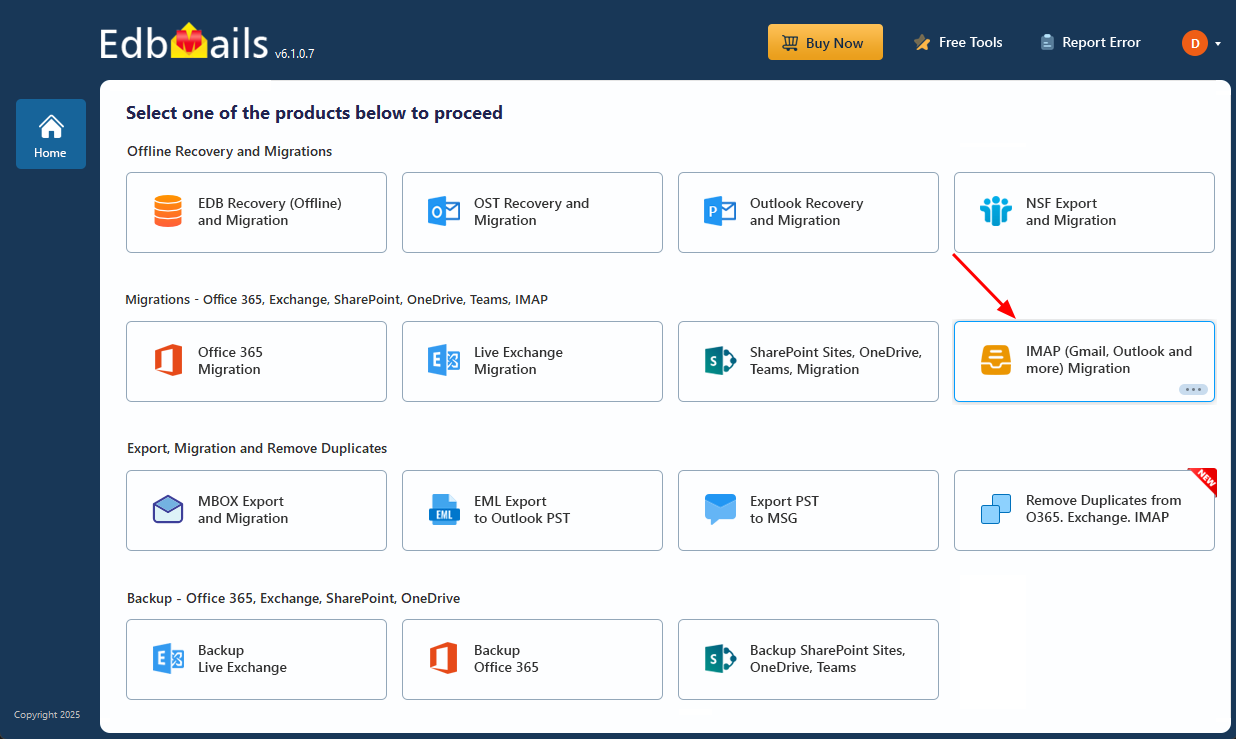
- Select the option ‘IMAP (Gmail, Outlook and more) Migration’
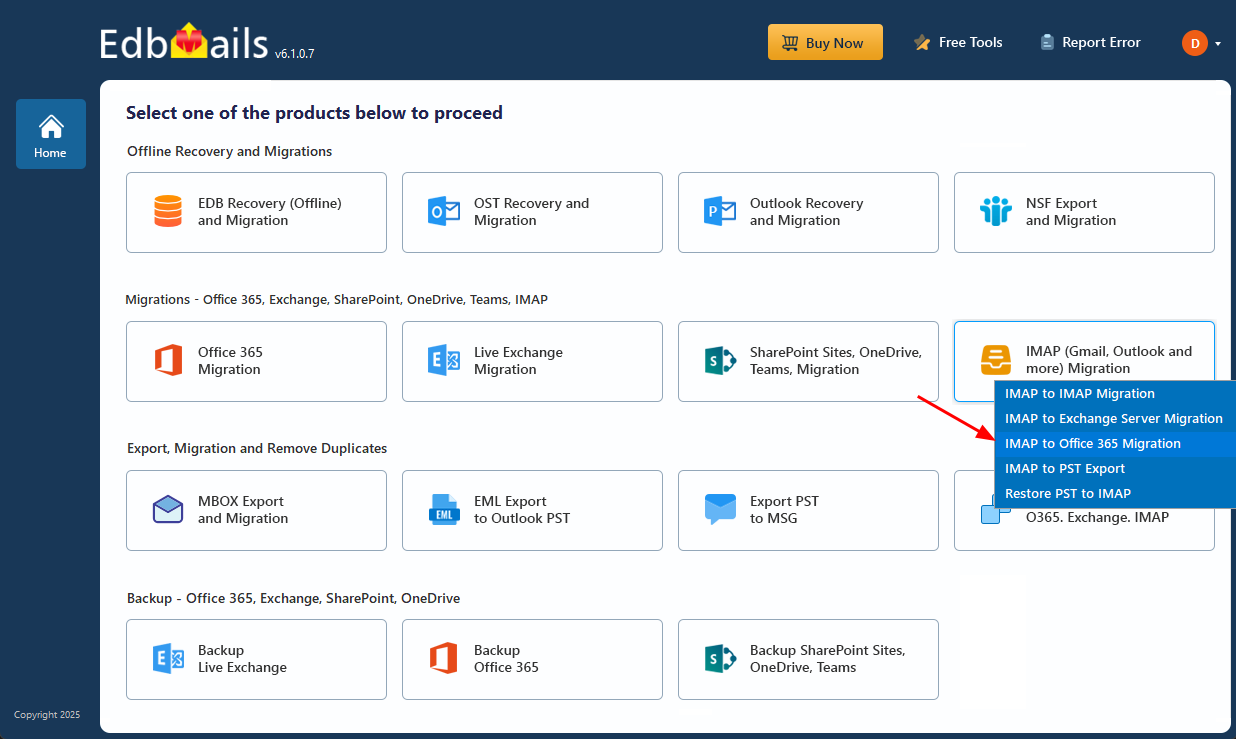
- Select ‘IMAP to Office 365 Migration’.
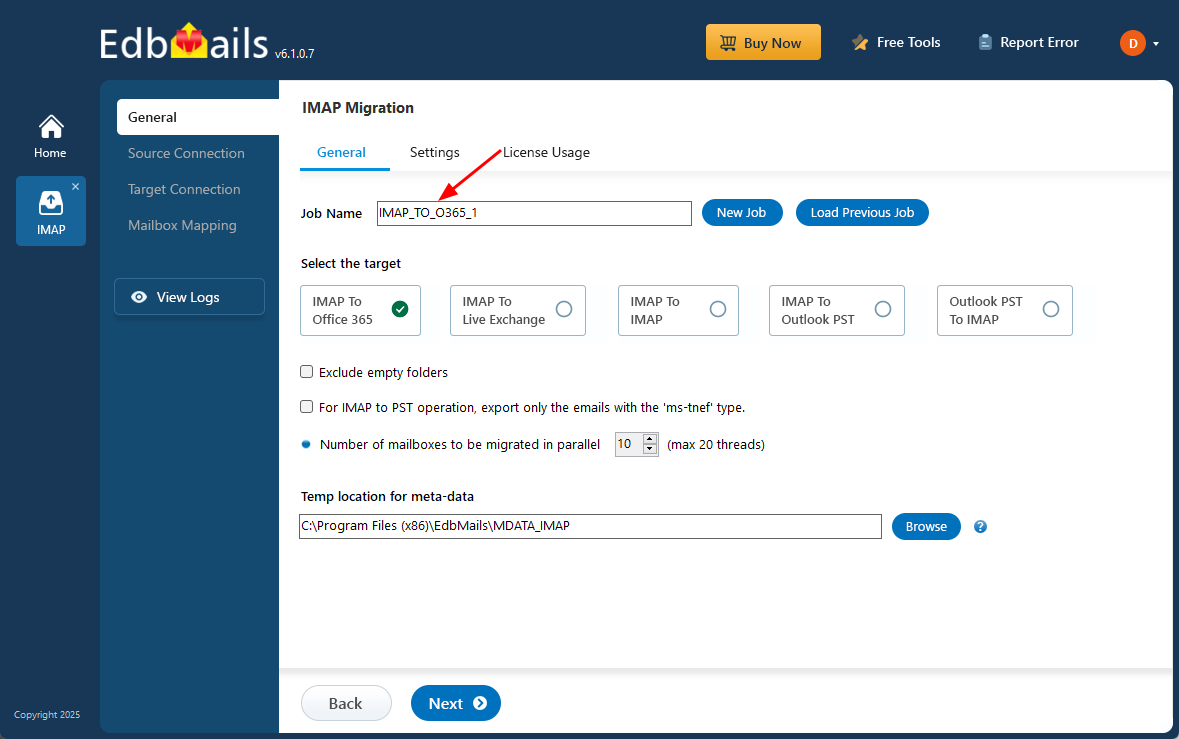
- The software automatically assigns a job name by default. If needed, you can choose ‘New Job’ to enter a custom name that is clear, unique, and easy to identify based on your requirements.
- Click ‘Next’ to proceed.
- Download EdbMails and install the application on any computer running on Windows OS that is connected to the source and target environment.
Step 2: Connect to source Yandex mail server
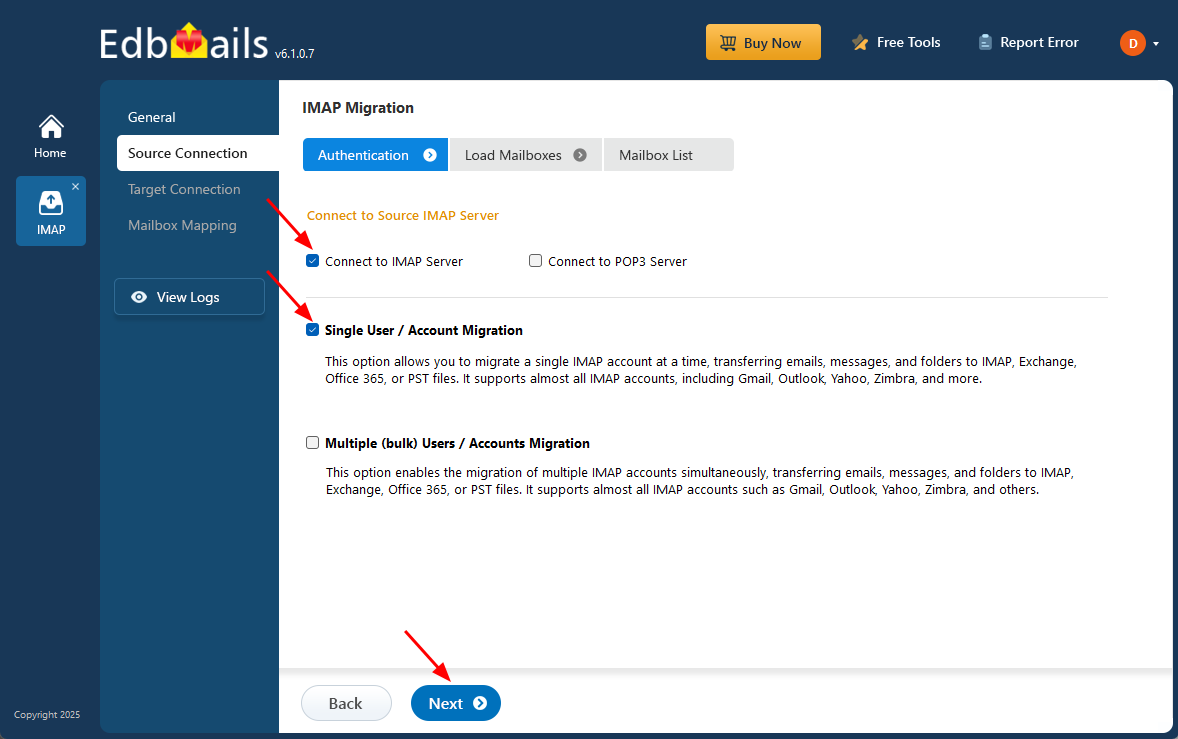
- To migrate a single Yandex Mail account, select ‘Single User / Account Migration’, choose the suitable connection option such as ‘Connect to IMAP Server’ or ‘Connect to POP3 Server’, and click ‘Next’ to proceed.
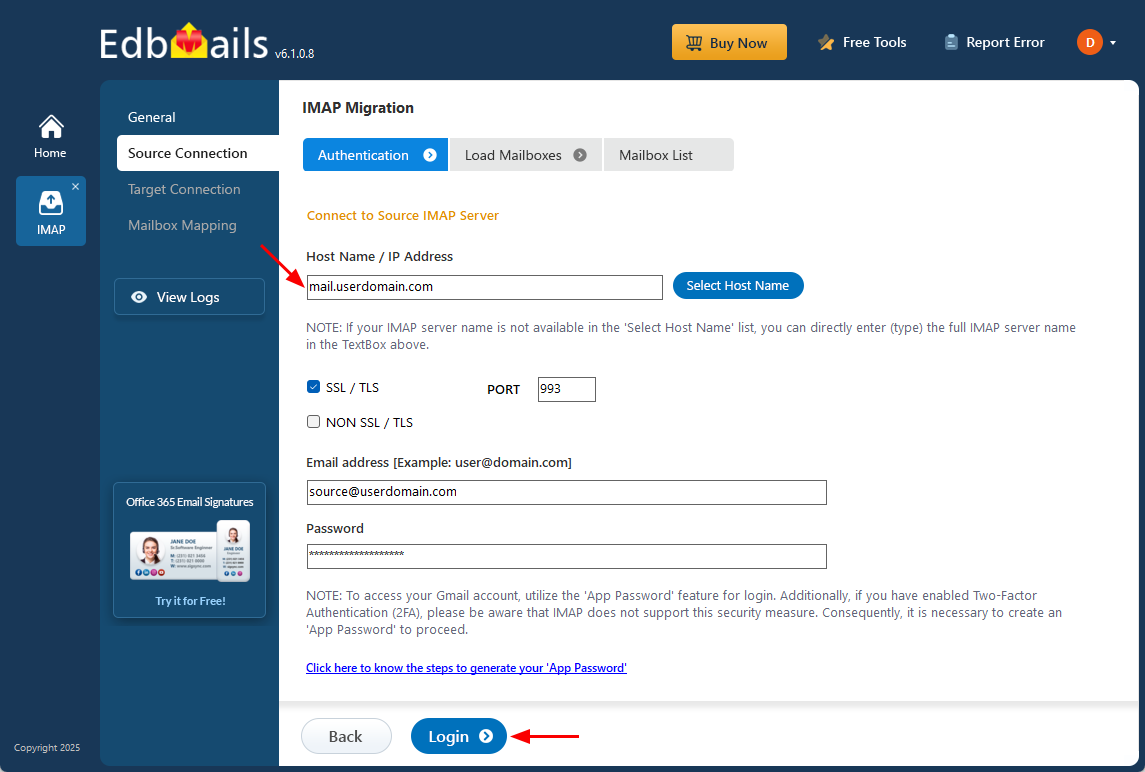
- For a single user login, select the suitable IMAP host name for Yandex Mail from the list or enter it manually.
- Then, provide your email address and password to continue.
- If you are adding a Gmail account, create an app password and use it instead of your standard account password.
- Click the ‘Login’ button.
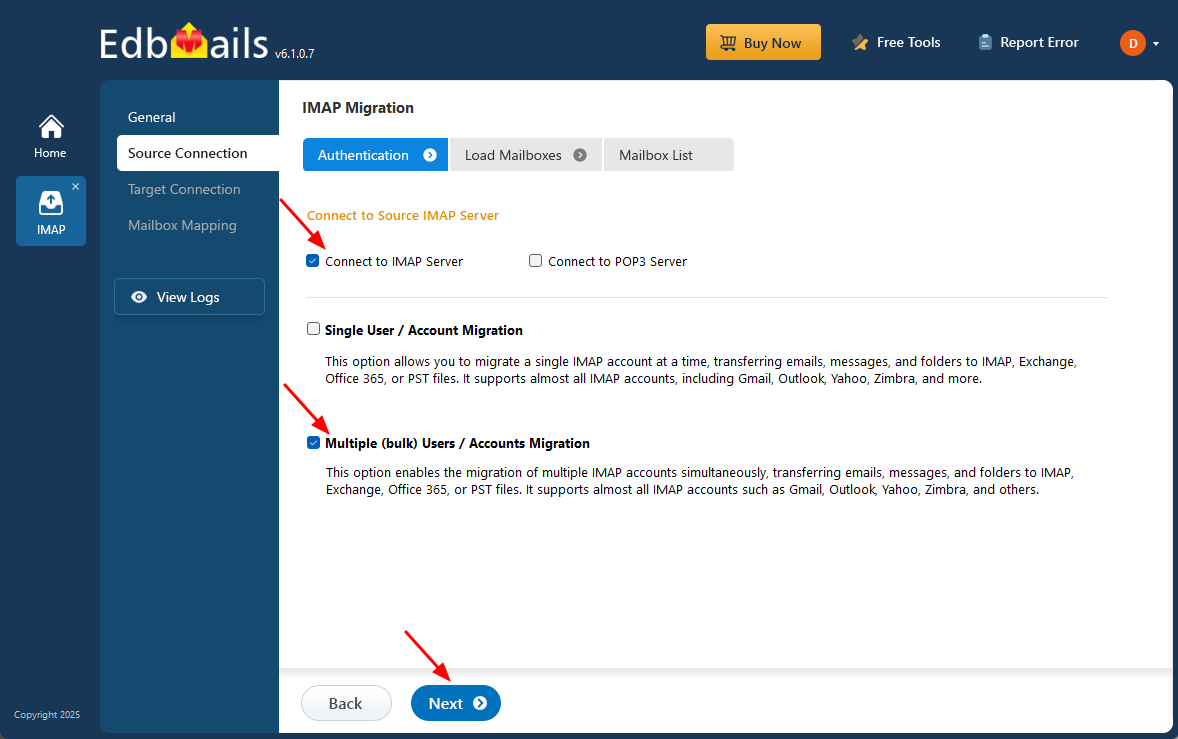
- To migrate multiple Yandex mailboxes at once, select ‘Multiple (bulk) Users/Accounts Migration’, choose the suitable connection method such as ‘Connect to IMAP Server’ or ‘Connect to POP3 Server’, and then proceed by clicking ‘Next’.
- Click ‘IMAP Migration CSV File’. It will load the sample CSV file to your local drive.
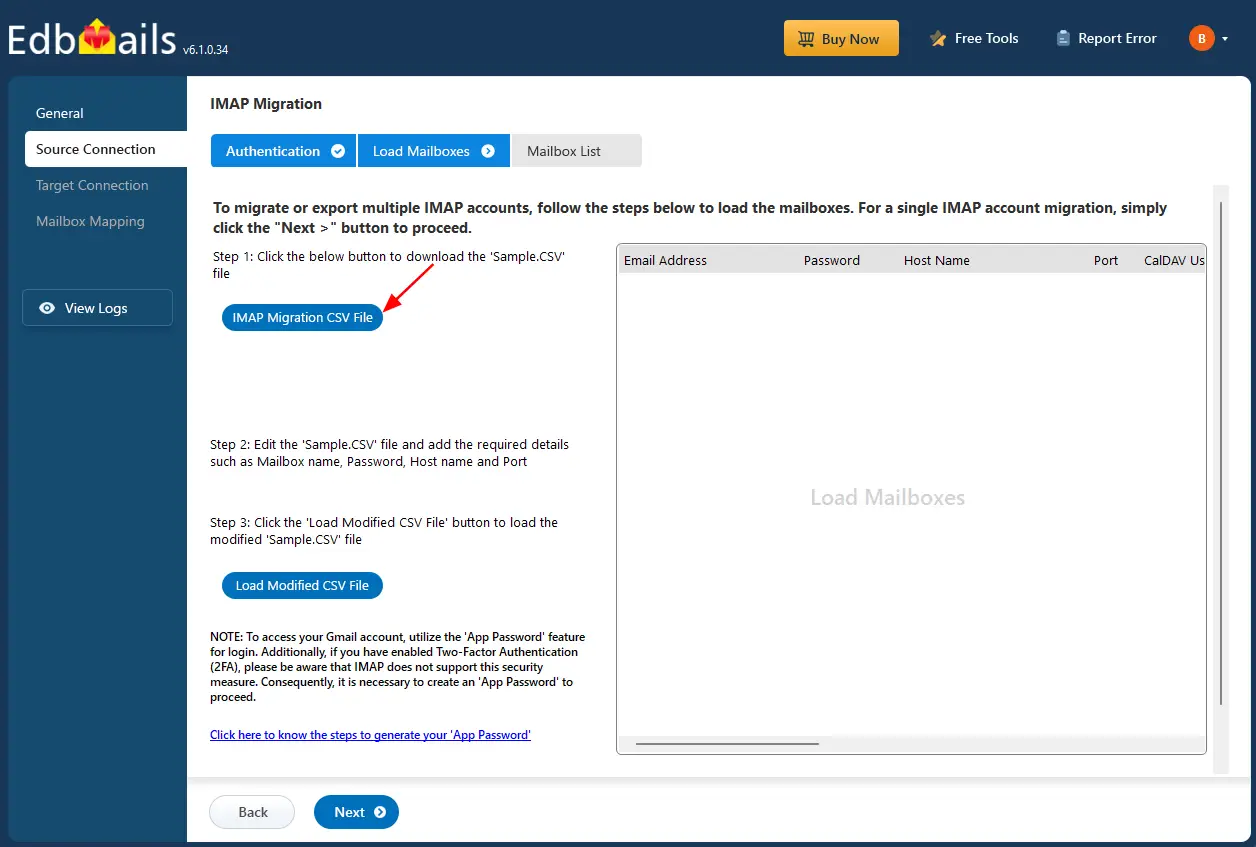
- Open the CSV file and fill in the necessary details, including the email address, password, IMAP server hostname, and port number for each mailbox. After completing the entries, save the file to proceed with the migration.

- Save the changes and close the CSV file when you're done.
- Then, click the 'Load Modified CSV File' button, open the CSV file and click ‘Next’ to proceed.
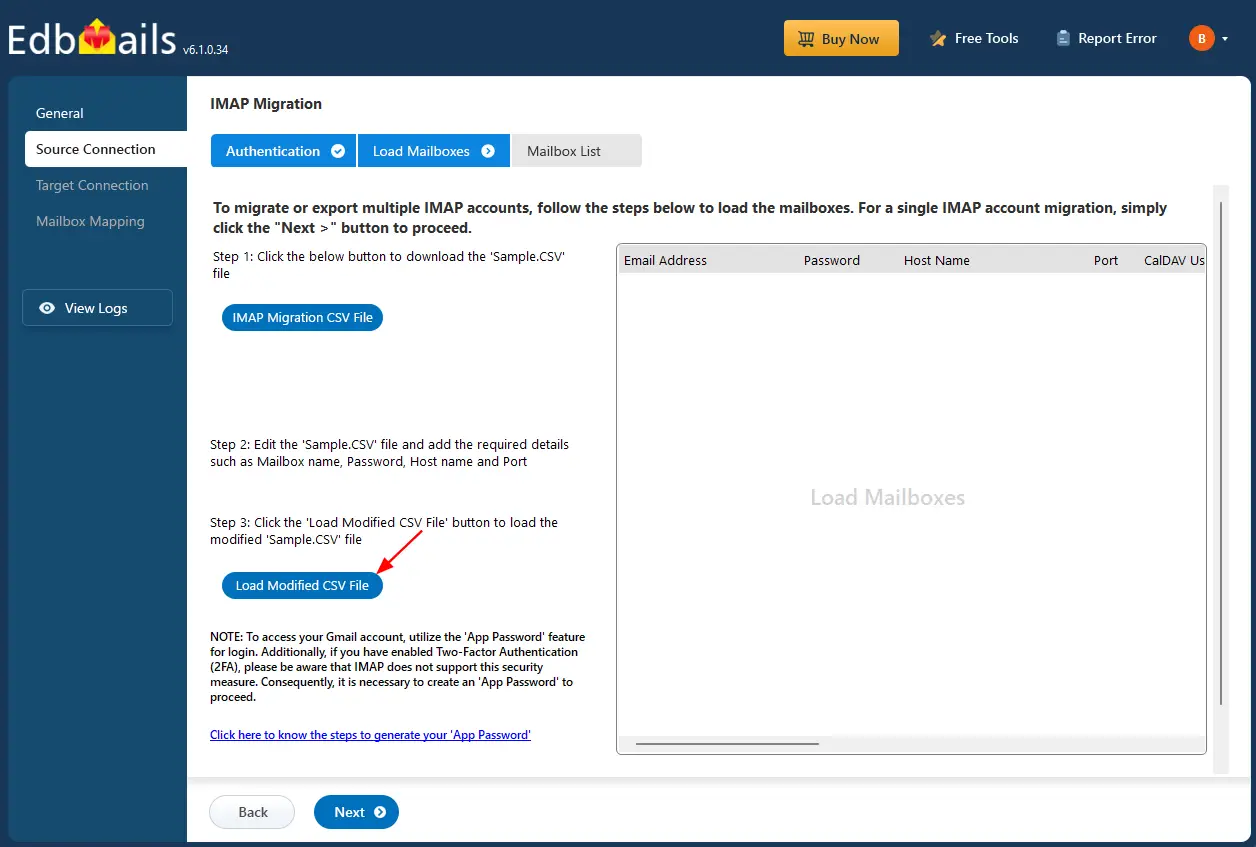
- To migrate a single Yandex Mail account, select ‘Single User / Account Migration’, choose the suitable connection option such as ‘Connect to IMAP Server’ or ‘Connect to POP3 Server’, and click ‘Next’ to proceed.
Step 3: Select source Yandex mail server mailboxes
- Select the mailboxes or specific folders you want to migrate, and then click ‘Next’ to proceed with the migration setup.
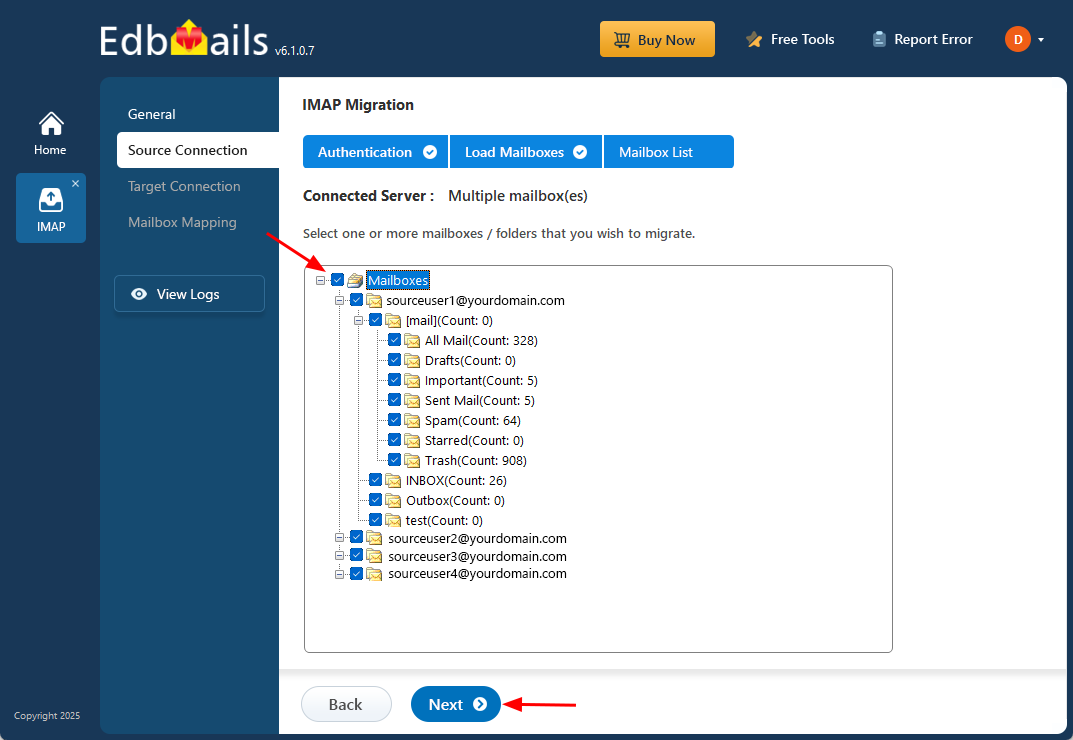
- Select the mailboxes or specific folders you want to migrate, and then click ‘Next’ to proceed with the migration setup.
Step 4: Connect to target Office 365 server
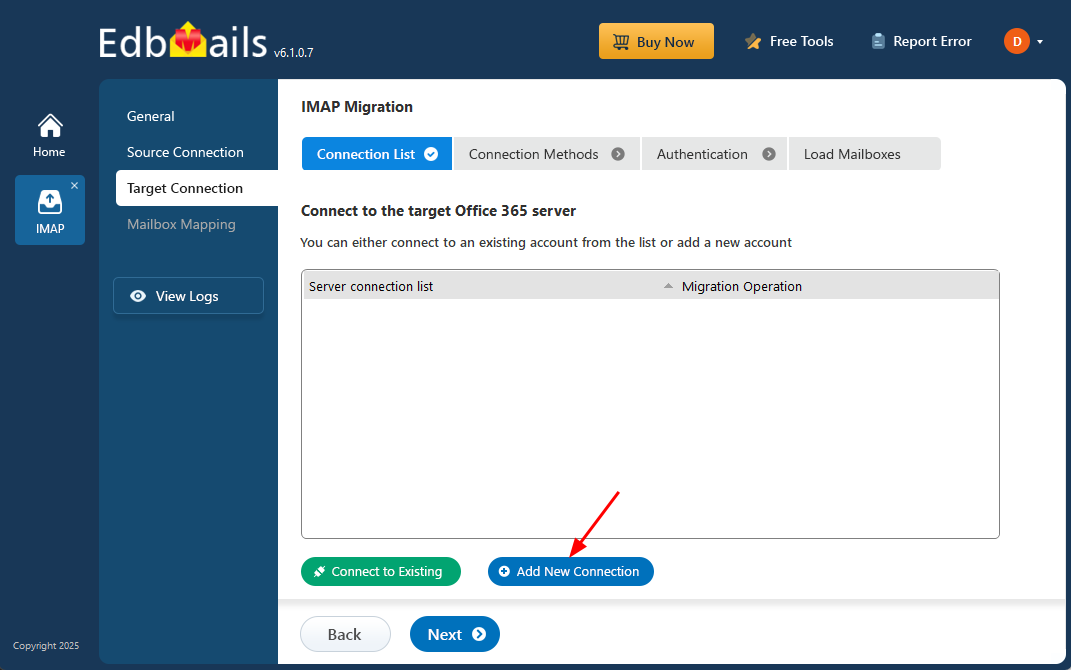
- Click the ‘Add New Connection’ button to create a new connection to your target Office 365 server. To use an existing connection, simply select it from the list and click ‘Connect to Existing’ to continue.
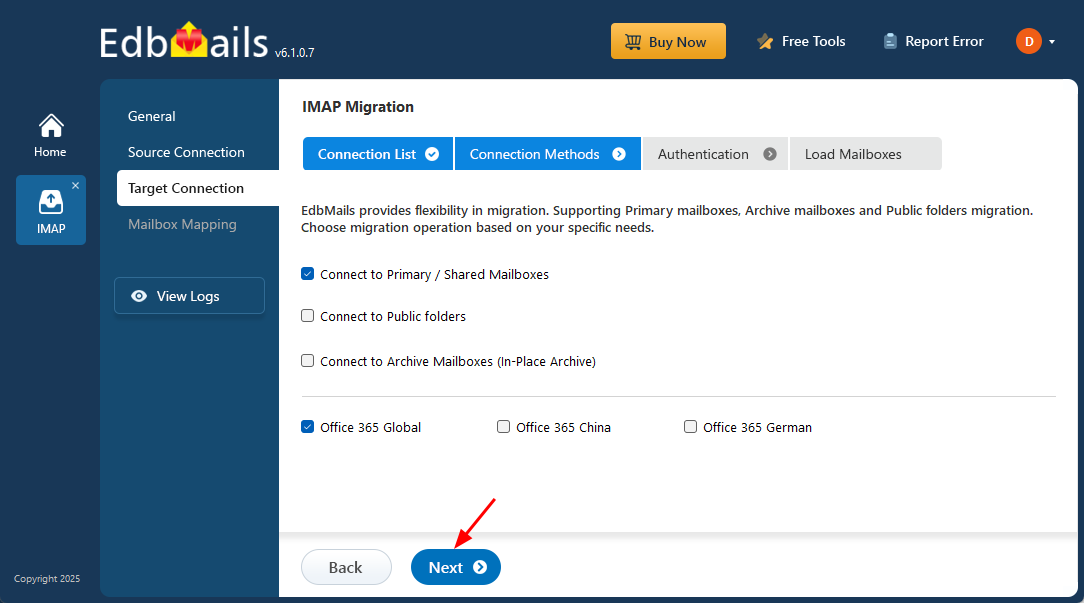
- Select the required migration / connection operation (Primary / Shared, Public folders, Archive mailboxes)
- Click ‘Next’ to proceed with the setup.
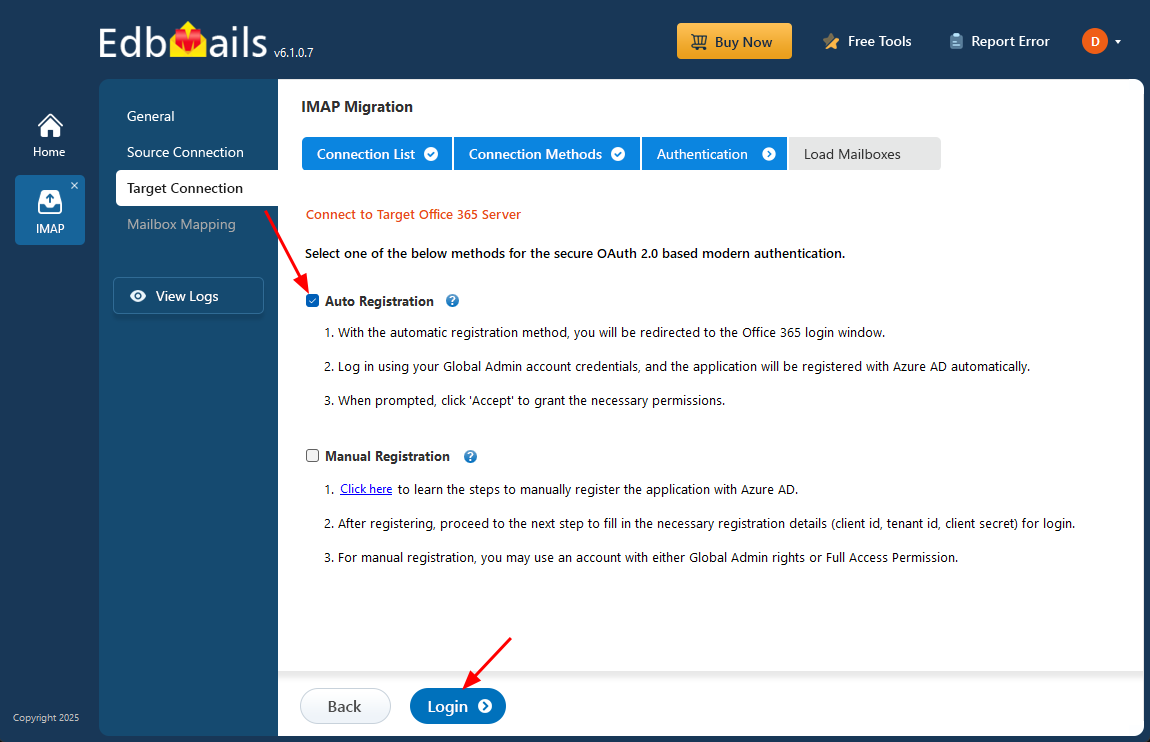
- Select any of the available options to establish a secure connection using OAuth 2.0 modern authentication.
- Choose Auto Registration for a quick setup. Sign in with a Global Admin account and grant the required permissions to automatically register the application in Azure AD.
- Alternatively, select Manual Registration if you prefer to enter the Azure AD application details yourself. This method supports both Global Admin accounts and accounts with Full Access permissions.
- Click ‘Login’ to proceed.
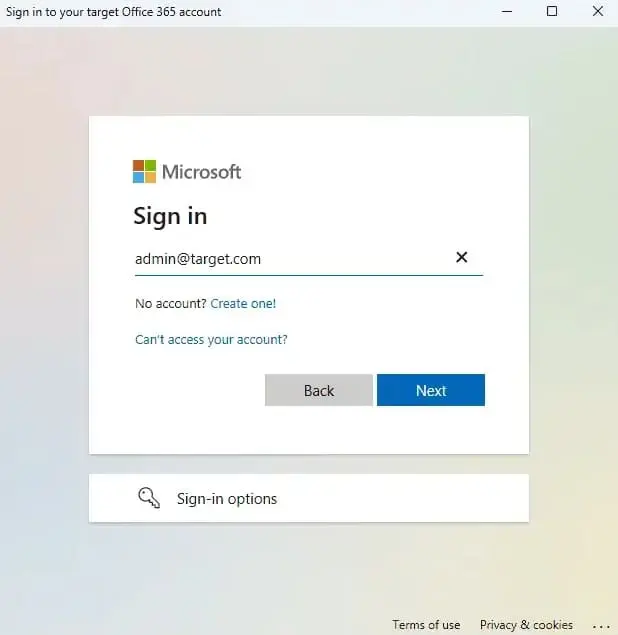
- Authenticate on Microsoft sign-in page.
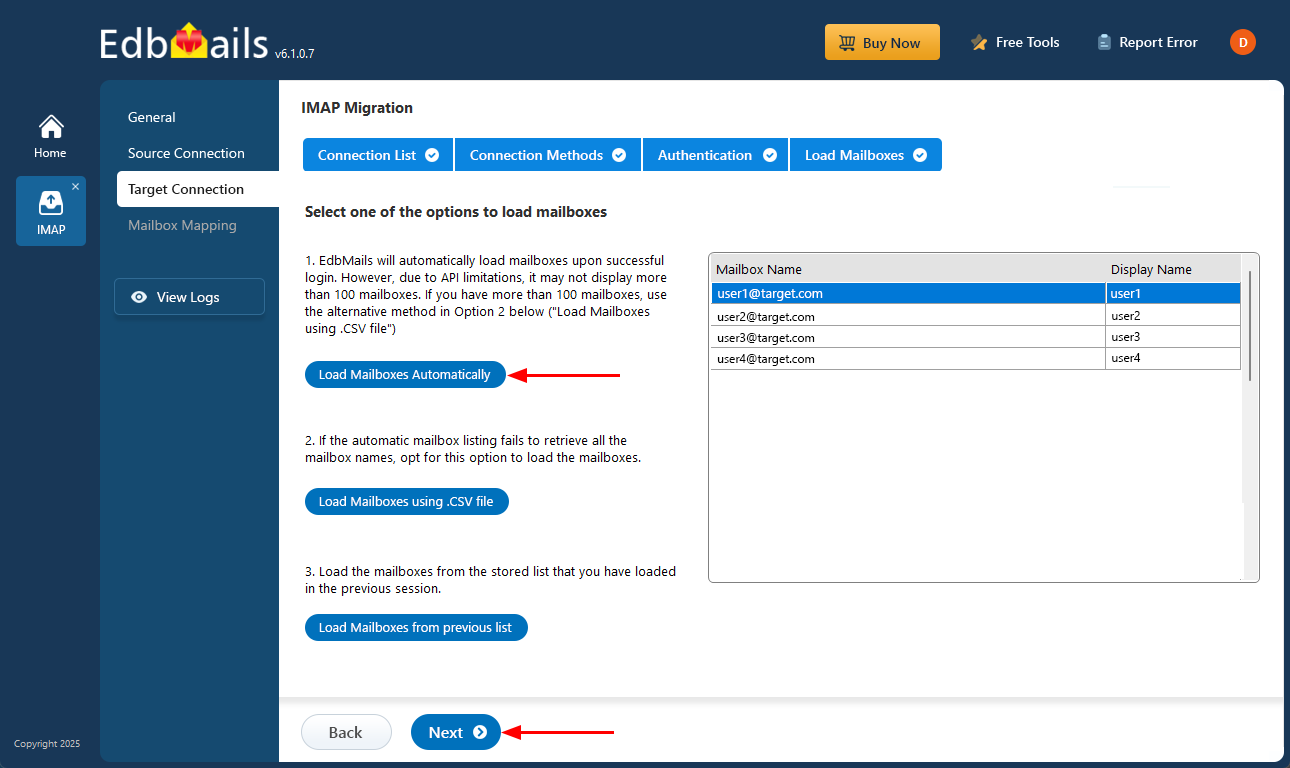
- After successful authentication, choose one of the following options to load the mailboxes:
i) Load Mailboxes Automatically: After signing in, EdbMails automatically retrieves and displays the mailboxes, making the process quick and straightforward. However, due to Microsoft API restrictions, only up to 100 mailboxes can be listed. If your organization contains more than 100 mailboxes, use the alternative option below.
ii) Load Mailboxes using CSV file: If all mailbox names are not retrieved through the automatic method, select the ‘Load Mailboxes using .CSV file’ option to manually add and load the required mailboxes.
iii) Load Mailboxes from previous list: This option allows you to load mailboxes directly from the list that was previously imported and saved in your earlier session.
- Choose ‘Load Mailboxes Automatically’ and click ‘Next’ to continue.
- Click the ‘Add New Connection’ button to create a new connection to your target Office 365 server. To use an existing connection, simply select it from the list and click ‘Connect to Existing’ to continue.
Step 5: Yandex mail to Office 365 mailboxes mapping
- Choose the desired option to map the source mailboxes and folders to their corresponding mailboxes and folders on the target Office 365 account.
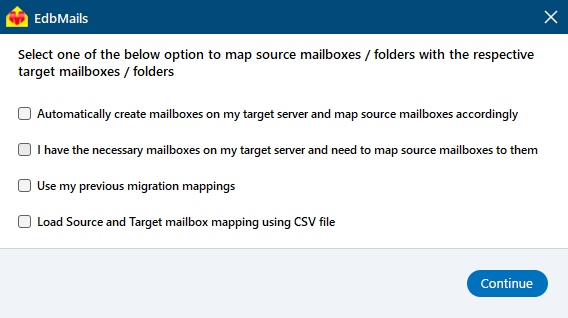
- EdbMails lets you automatically create the required mailboxes in your target Office 365 account.
- It also automatically maps your source Yandex mailboxes and folders to the matching ones in Office 365, making large migrations easier to manage.
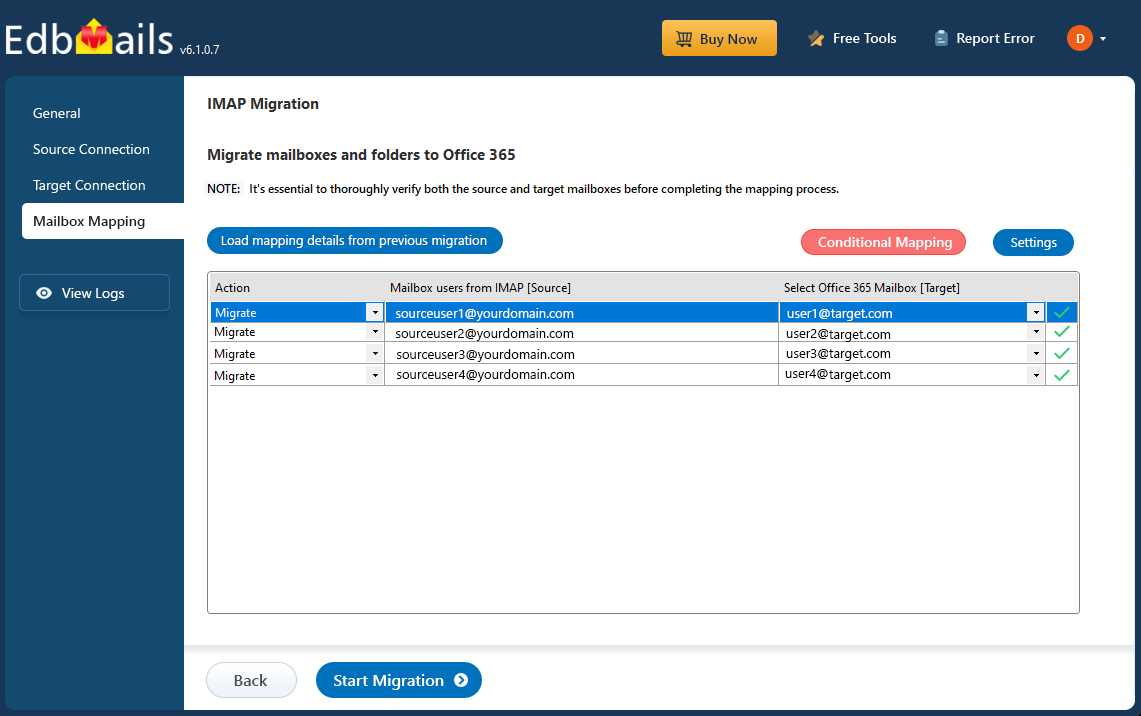
- Choose the desired option to map the source mailboxes and folders to their corresponding mailboxes and folders on the target Office 365 account.
Step 6: Start Yandex Mail to Office 365 migration
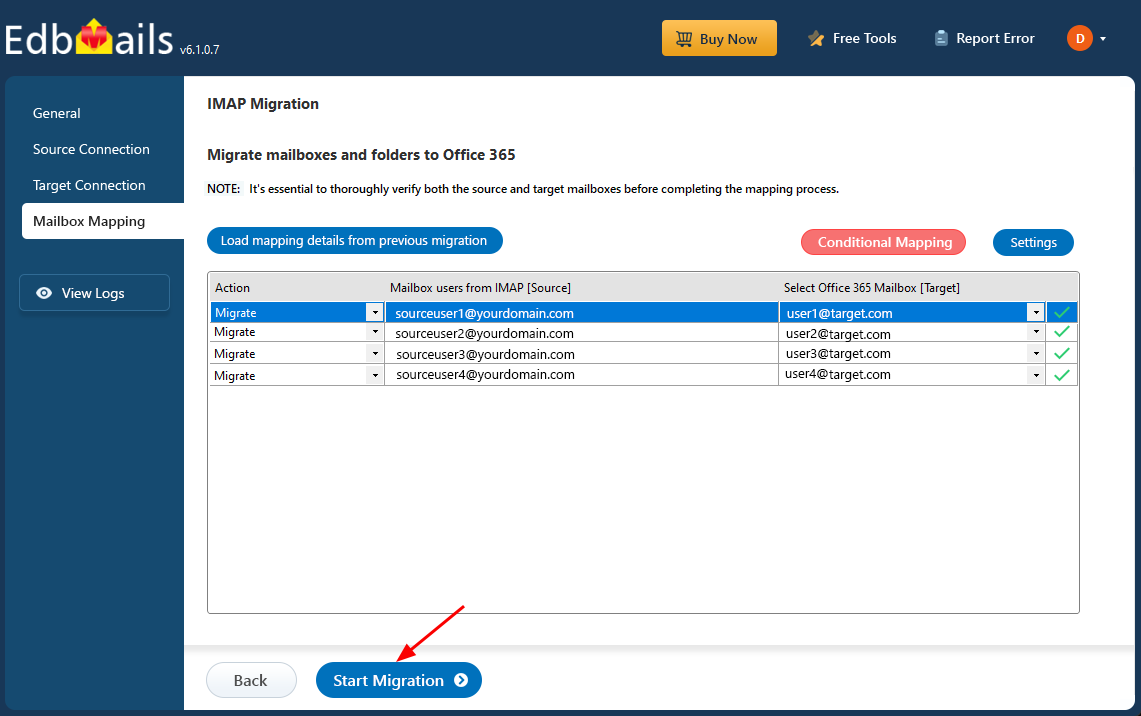
- Review the mailbox mapping to ensure accuracy, then click the ‘Start Migration’ button to initiate the migration process.
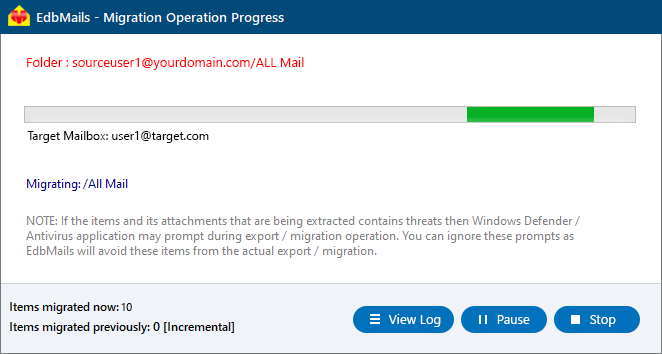
- Click the 'View Logs' button to access the full migration report. The report provides detailed information, including the mailbox mapping, an overall summary of the migration, and the item count for each mailbox and folder that was migrated.
- Review the mailbox mapping to ensure accuracy, then click the ‘Start Migration’ button to initiate the migration process.
Yandex mail to Office 365 Post-migration Tasks
- Step 1: Update the MX records to point to Office 365
If you have not done this step previously, change the DNS records known as MX records to enable email and receive messages on the target Office 365 server. In addition, configure the Autodiscover record to allow Outlook to connect to the migrated mailboxes.
- Step 2: Create a new Outlook profile for users in the new domain
Configure the Outlook profile for each user in your domain if Outlook has problems connecting to Office 365 mailboxes.
- Step 1: Update the MX records to point to Office 365
Troubleshooting guide for Yandex mail to Office 365 Migration
For troubleshooting, check out our knowledge base articles. If you have additional questions, browse the FAQs or contact our dedicated support team for personalized assistance.
Strategic Reasons for Migrating from Yandex Mail to Microsoft 365
- Global Collaboration and Hybrid Work Enablement: Microsoft 365 offers a suite of tools like Teams, SharePoint, and OneDrive, facilitating flawless collaboration across geographies. These tools support hybrid work environments, allowing employees to work from anywhere while maintaining productivity and communication.
- Advanced Security and Compliance: Microsoft 365 provides enterprise-grade security features, including data loss prevention, advanced threat protection, and compliance solutions that adhere to global standards. This is crucial for organizations handling sensitive information and needing to comply with regulations such as GDPR.
- Scalability and Flexibility: As businesses grow, their IT needs evolve. Microsoft 365 offers scalable solutions that can be tailored to an organization's size and requirements, ensuring that the email and productivity tools grow with the business.
- Integration with Existing Microsoft Ecosystem: Organizations already using Microsoft products like Windows Server, Azure, and Dynamics 365 will find seamless integration with Microsoft 365, streamlining IT management and reducing compatibility issues.
Advantages of EdbMails for Yandex mail to Office 365 Migration
- Multi-language Migration Support
EdbMails offers multi-language support for Yandex Mail to Office 365 migration, allowing businesses from different regions to seamlessly migrate their email data. The tool supports various languages, ensuring that users worldwide can perform migrations without language barriers or translation issues.
- Direct Migration without Intermediate Steps
EdbMails provides direct migration from Yandex Mail to Office 365 without the need for intermediate steps. This simplifies the process and reduces the chance of errors or data loss. The straightforward approach ensures a faster, smoother migration experience with minimal manual intervention.
- Automatic Throttling Management
EdbMails automatically manages throttling during the Yandex Mail to Office 365 migration process, ensuring consistent speed even under network limitations. This feature helps avoid the risk of migration delays or failures caused by server limitations, ensuring that large mailboxes are migrated without performance issues or disruptions.
- Delta Migration
EdbMails supports delta migration , allowing users to migrate only the data that has changed since the initial migration. This feature saves time and bandwidth by transferring only new emails or updates, ensuring an efficient migration process without redundancy or unnecessary data transfers.
- Automatic Mailbox Mapping
EdbMails automates mailbox mapping between Yandex Mail and Office 365, eliminating the need for manual configuration. This feature ensures that emails are accurately mapped to their respective folders and that the structure remains intact throughout the migration process, making the transition seamless.


