


Migrate Horde emails to Office 365
Looking for a reliable way to migrate your Horde emails to Office 365 (Microsoft 365)? This step-by-step guide helps you complete the migration smoothly while keeping full control of your data. It explains the process in a clear and practical manner, making it easier to migrate emails from Horde to Office 365 with accuracy and zero downtime. Whether you are an IT administrator, a business user, or an individual looking for an improved email environment, this guide provides the right information to help you perform a secure and hassle-free migration.
Horde Groupware Webmail Edition, part of the cPanel webmail suite, is a widely used email client that provides essential email management along with basic task and calendar features. While it supports everyday communication needs, many organizations are now shifting to modern cloud platforms for improved performance and security.
With the growing adoption of Microsoft 365, businesses are increasingly opting for migration from Horde to Office 365 to take advantage of its advanced security, scalability, and collaboration capabilities. This migration enables access to modern productivity applications, enterprise-level data protection, and consistent availability across multiple devices. As a result, migrating from Horde to Office 365 has become a practical step for organizations looking to enhance communication, strengthen security, and support modern workplace productivity.
Though the process might seem challenging, especially without a built-in manual method, the good news is that automated solutions such as EdbMails IMAP migration tool make this task straightforward. Ready to learn how to transfer your Horde emails to Office 365? Let’s dive into the details.
User Query
"I have been using Horde Webmail for managing my emails, and now I need to migrate all my emails, including attachments, to Office 365. Can anyone help me with the detailed steps to complete this migration? I’m new to this process and would really appreciate a step-by-step guide to ensure everything transfers without issues." - Jane, New York
Why should you Migrate emails from Horde to Office 365?
- User interface (UI): Horde's interface is functional but lacks modern design elements. Office 365 offers a streamlined, intuitive UI that enhances user experience with clear navigation and easy access to emails, tasks, and calendars, boosting productivity.
- Storage: Horde has limited storage, forcing users to manage inbox space manually. Office 365 provides scalable storage solutions, eliminating concerns about email limits and ensuring seamless archiving of important emails and attachments for future access.
- Spam filtering: Office 365 outperforms Horde with its advanced spam filtering and security features. It effectively blocks phishing attacks and malicious emails, ensuring a cleaner inbox and protecting your data from cyber threats with built-in defenses.
- Integration: While Horde operates independently, Office 365 integrates smoothly with the entire Microsoft ecosystem. This connectivity enables seamless collaboration across Word, Excel, Teams, and OneDrive, allowing real-time sharing and access to essential tools.
- Accessibility: Horde’s web-based access limits usage to a single platform. Office 365 offers cloud-based access, ensuring you can view, send, and organize emails from any device such as a laptop, phone, or tablet boosting productivity from anywhere.
These reasons make Office 365 the ideal choice for migrating from Horde email. EdbMails offers a secure and easy solution for seamless Horde email to Office 365 migration.
Professional Solution for Exporting Horde email to Office 365
Migrating emails from Horde to Office 365 can seem overwhelming, but with the right automated solution, the process becomes simple and efficient. EdbMails is a powerful tool that streamlines this migration, making it accessible to both professionals and beginners. It ensures that your emails are transferred seamlessly, without any loss of data or functionality. The tool offers a smooth migration process that guarantees accuracy and reliability, making the transition to Office 365 hassle-free.
EdbMails IMAP migration tool simplifies this migration with its user-friendly interface for migrating emails from Horde to Office 365. With delta migration, it only transfers changes made since the initial migration, saving time and reducing data transfer. Its automatic mailbox mapping ensures mailboxes are correctly mapped, preventing errors. Advanced filter settings let users select specific emails based on criteria such as date, subject, or attachments, ensuring only relevant emails are moved. Additionally, EdbMails enables migration with zero downtime, keeping your email communication uninterrupted. This makes the transition smooth, efficient, and secure, with full control over the process, ensuring zero disruption to your business operations.
Horde email to Office 365 Migration Plan
Planning is one of the most important steps before you begin the Horde email to Office 365 migration. Here is a checklist of points to consider before you migrate.
- Determine the size of the data and the number of mailboxes you want to migrate.
- Make a list of all the data from the Horde email that you want to transfer.
- Create appropriate user mailboxes on Office 365 and assign licenses to them.
- Ensure you have enough network capacity and bandwidth to migrate.
- Communicate the migration plan and flow to your end users.
Horde email to Microsoft 365: Pre-migration activities
- Find the IMAP server name of your Horde email server. You can find this information from your server’s dashboard settings or by connecting your email system to Outlook.
- Have the users email address, passwords, IMAP hostname and port number.
- Create mailboxes on your target Office 365 server. You can choose the option to automatically create target mailboxes in EdbMails. If you prefer to create them manually, refer to the links below.
- If you have a custom email domain from your hosting provider to which you want to migrate and receive emails, you must add and verify the domain on Office 365.
Steps to add a custom domain to Office 365 and Steps to add DNS records to connect your domain. - Configure Office 365 to send and receive large messages.
Follow the steps to increase the message size on Office 365 to 150MB and see tips to optimize IMAP migration to Exchange online
.
Step-by-Step Guide to Migrate Horde emails to Office 365
Step 1: Download and install EdbMails IMAP migration software
- Download and install EdbMails on your computer.

- Launch the EdbMails application on your system.
- Enter your registered email ID and password, then click ‘Login’. If you are using EdbMails for the first time, choose ‘Start Your Free Trial’ to proceed with the trial version.
Note: ThThe trial edition provides access to all key features and allows migrating up to 30 items per folder. To enable unlimited migration, purchase IMAP migration license from the official EdbMails website.
Click here to know IMAP Migration Pricing Details.
After completing the purchase, close the application and open it again. Sign in using the same email ID and password used during the license purchase to activate the license successfully.

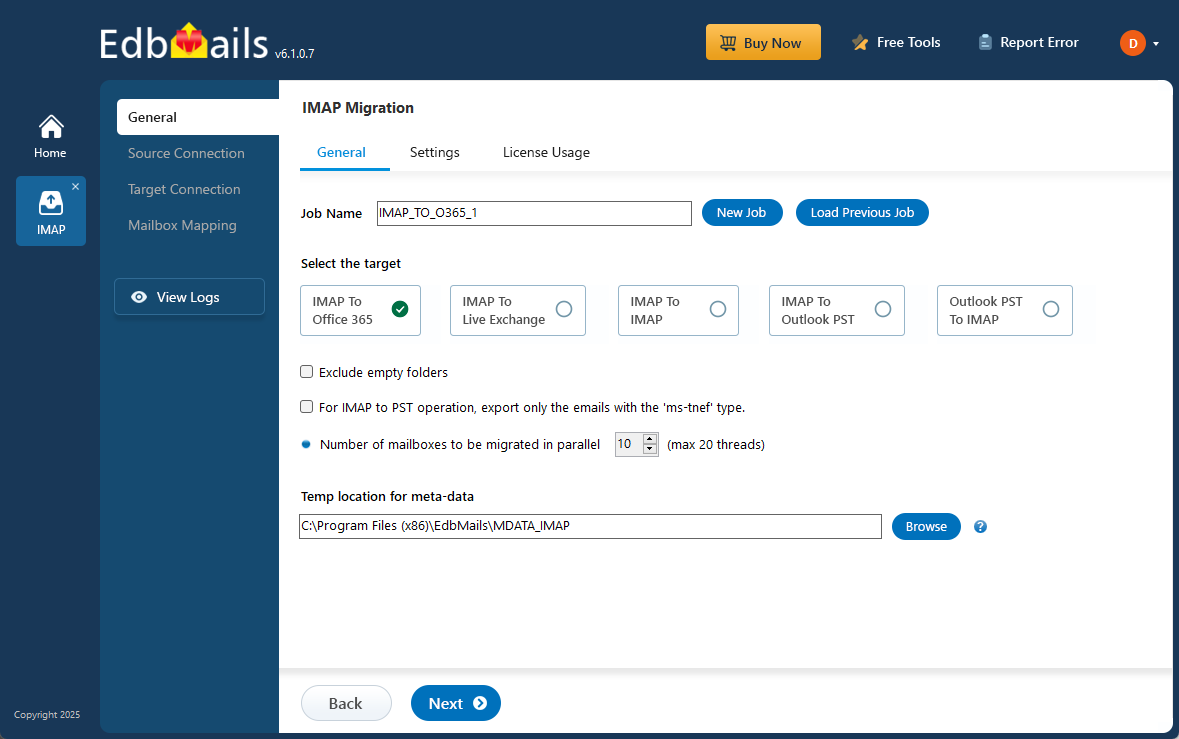
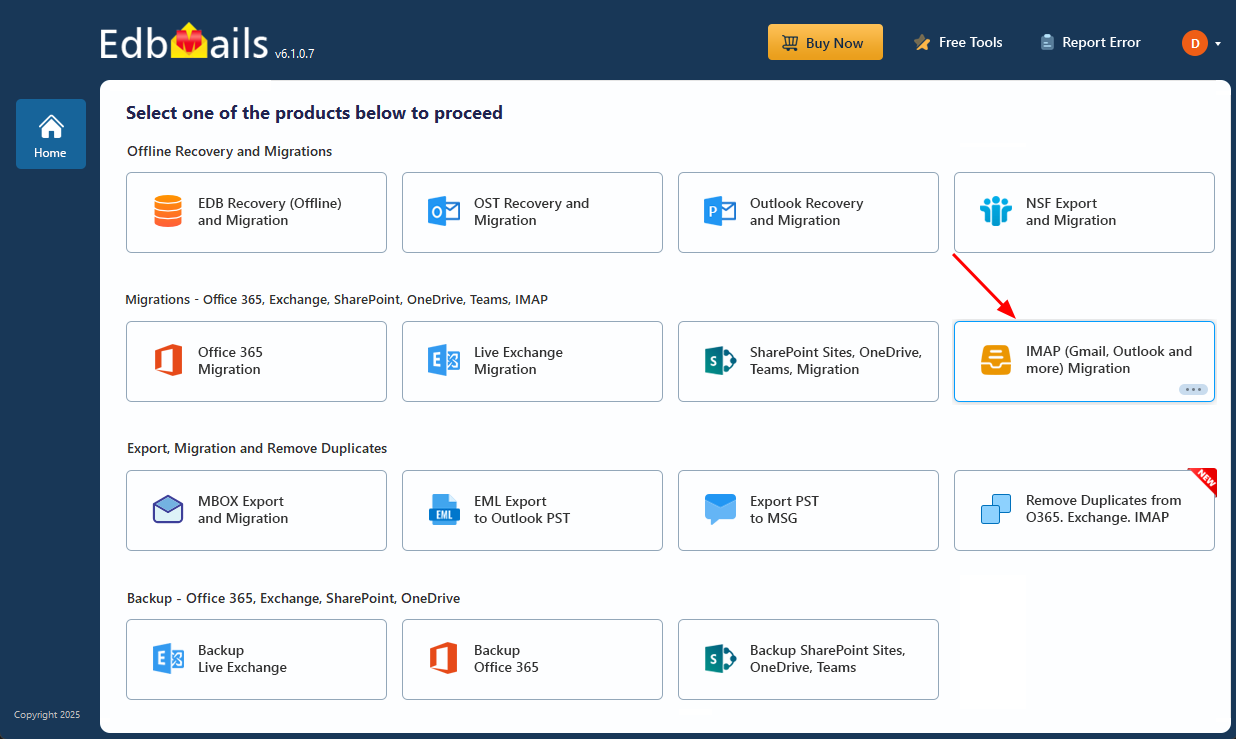
- Select the option ‘IMAP (Gmail, Outlook & more) Migration’.
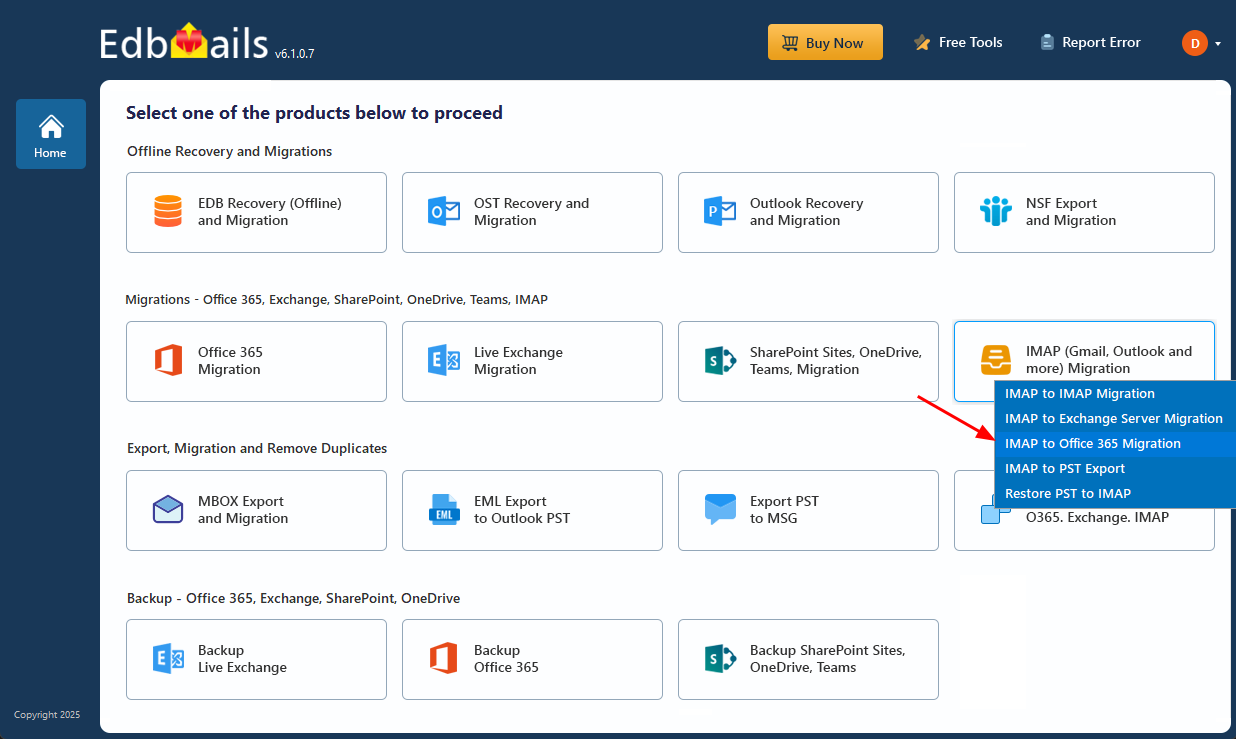
- Select ‘IMAP to Office 365 Migration’.
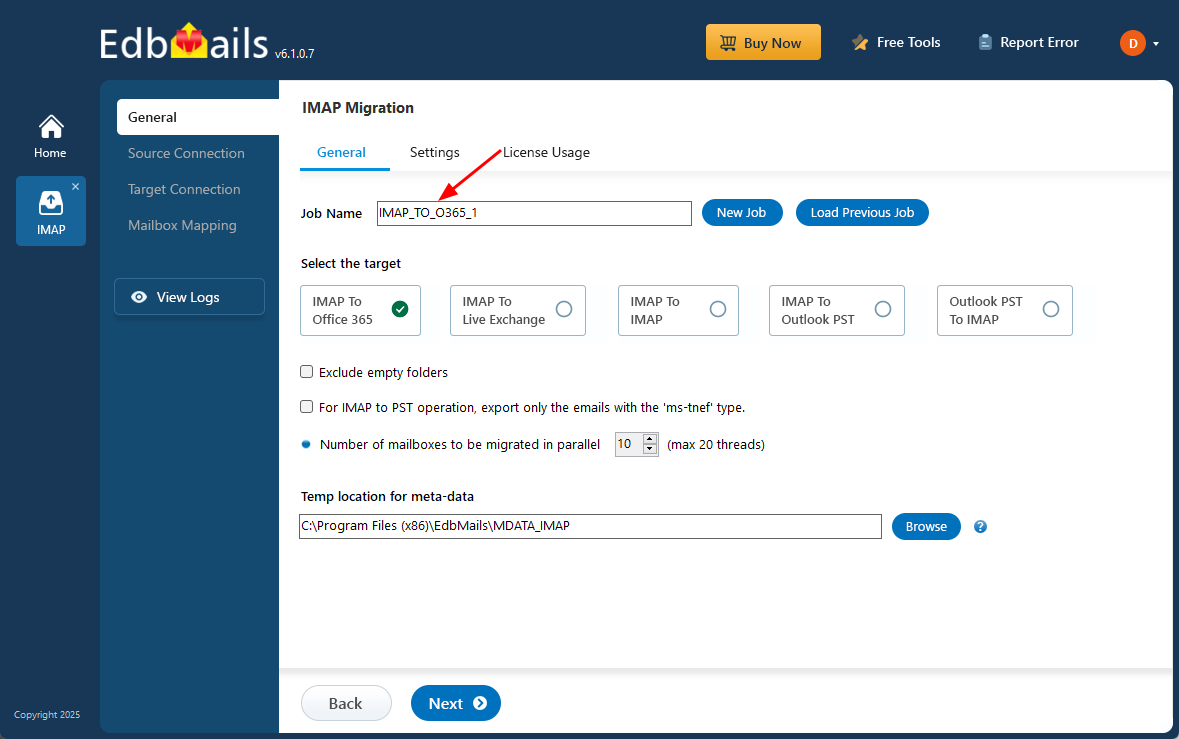
- When you start a migration, the system automatically assigns a default job name. If needed, you can modify it for better tracking and organization, especially when managing multiple migrations. Simply click on ‘New Job’ and provide a custom name.
- Download and install EdbMails on your computer.
Step 2: Connect to the source Horde email server
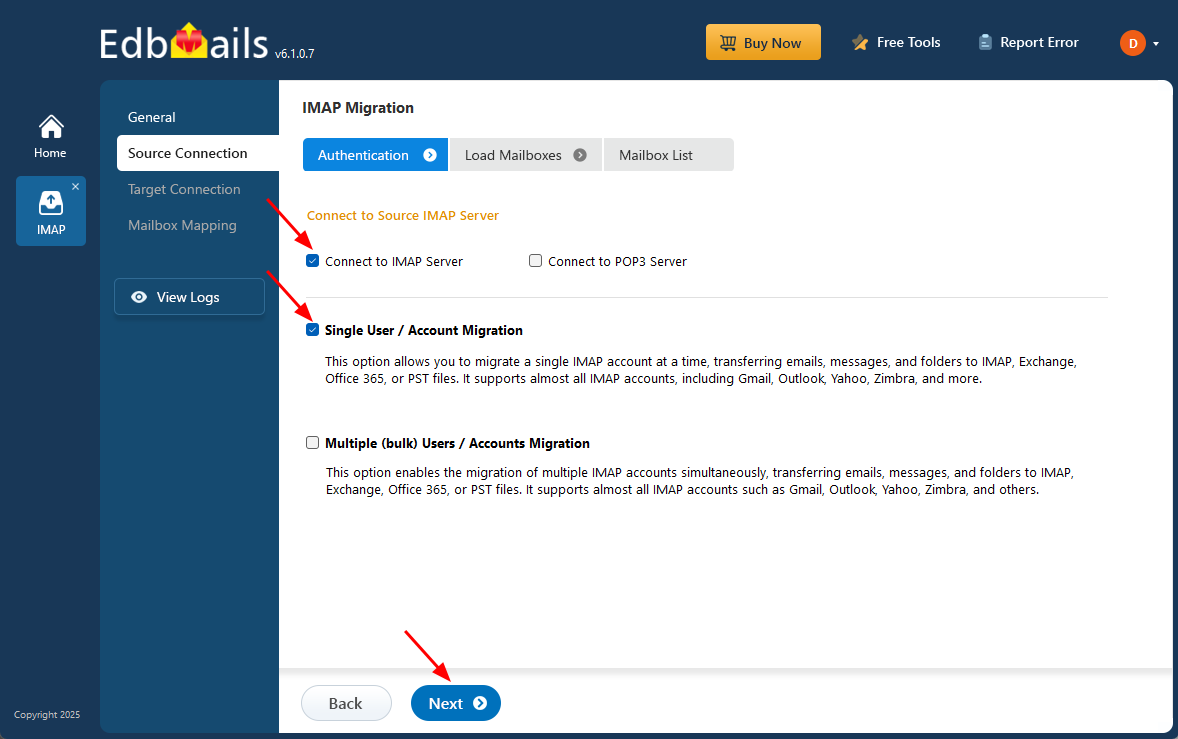
- To migrate one Horde account, select ‘Single User / Account Migration’, then choose the appropriate connection method such as ‘Connect to IMAP Server’ or ‘Connect to POP3 Server’ based on your setup. Click ‘Next’ to continue with the process.
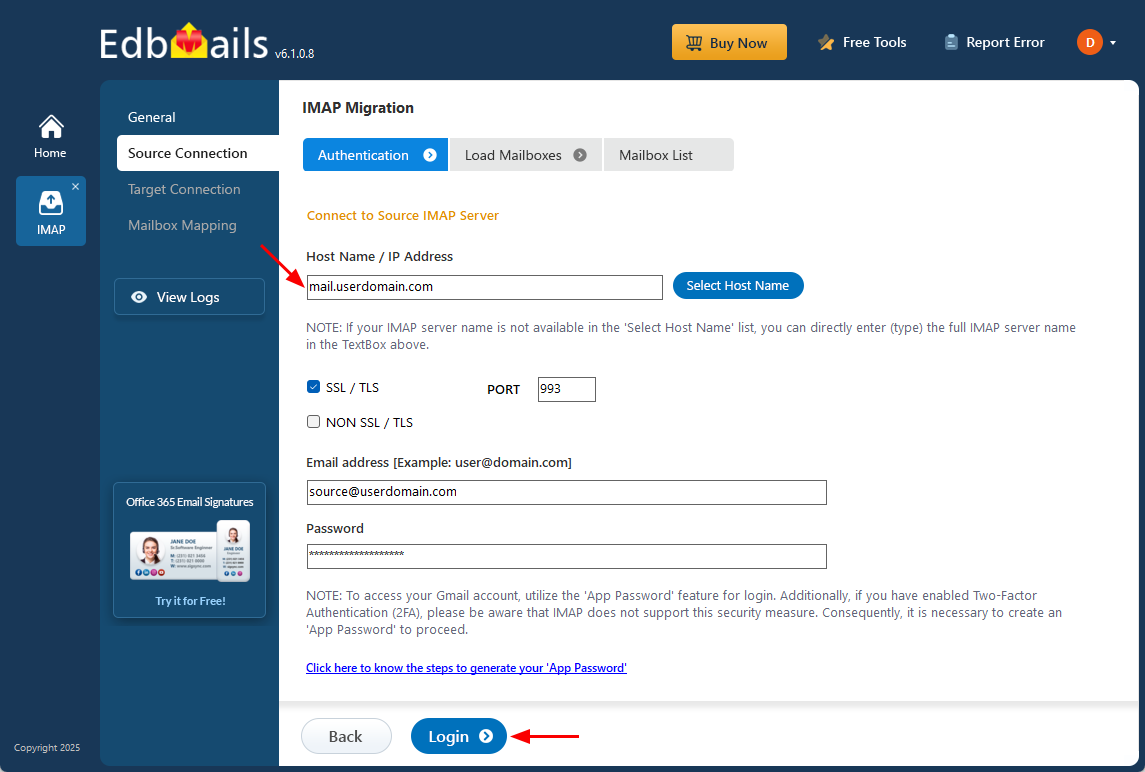
- You can obtain your Horde server connection details from the Outlook mail client if the account is already configured, or directly from your server control panel. In most cases, the hostname will be in the format
mail.userdomain.com, and if needed, you may also use the server’s IP address. - For IMAP connections, select port 993 and make sure SSL/TLS encryption is enabled to ensure a secure connection. Then enter the email address and password of your source account to connect successfully.
- EdbMails does not save or store your credentials and relies on secure OAuth 2.0 authentication when logging in to Office 365.
- Click the ‘Login’ button to proceed.
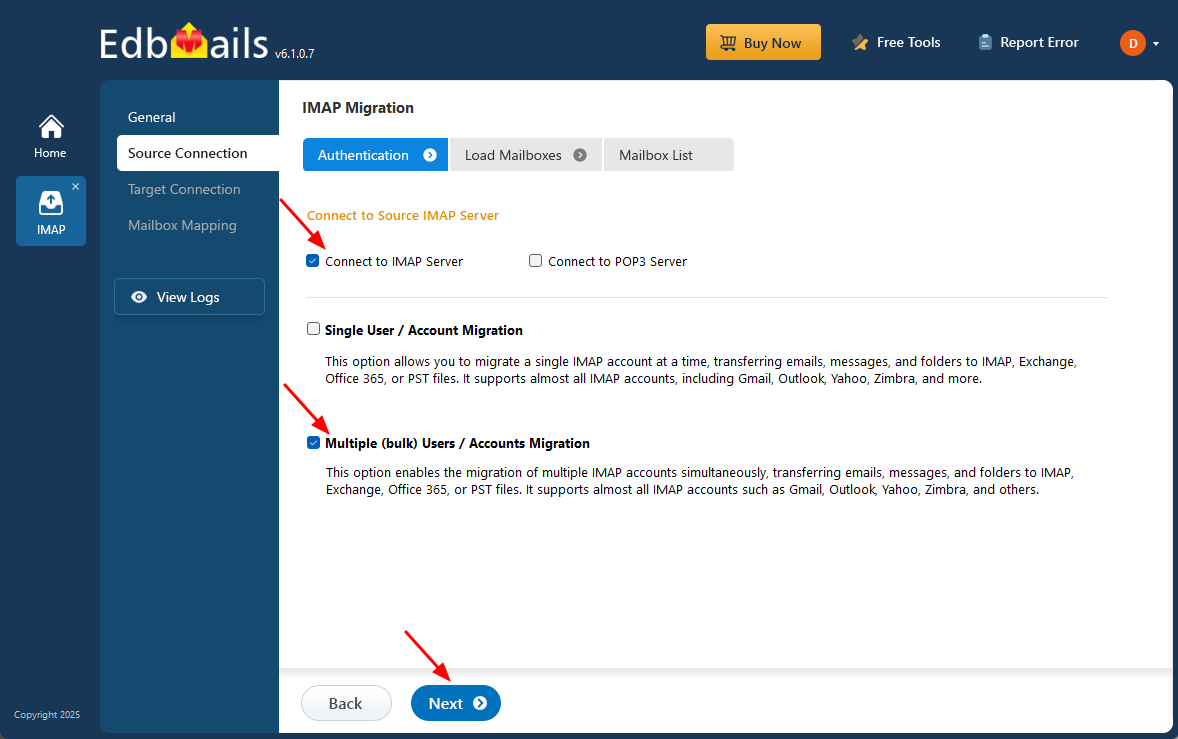
- To migrate multiple Horde mailboxes in a single process, choose ‘Multiple (Bulk) Users/Accounts Migration’, then select the appropriate option for connecting to source IMAP Server such as ‘Connect to IMAP Server’ or ‘Connect to POP3 Server’.
- After selecting the method, click ‘Next’ to continue.
- Click ‘IMAP Migration CSV File’. It will load the sample CSV file to your local drive.
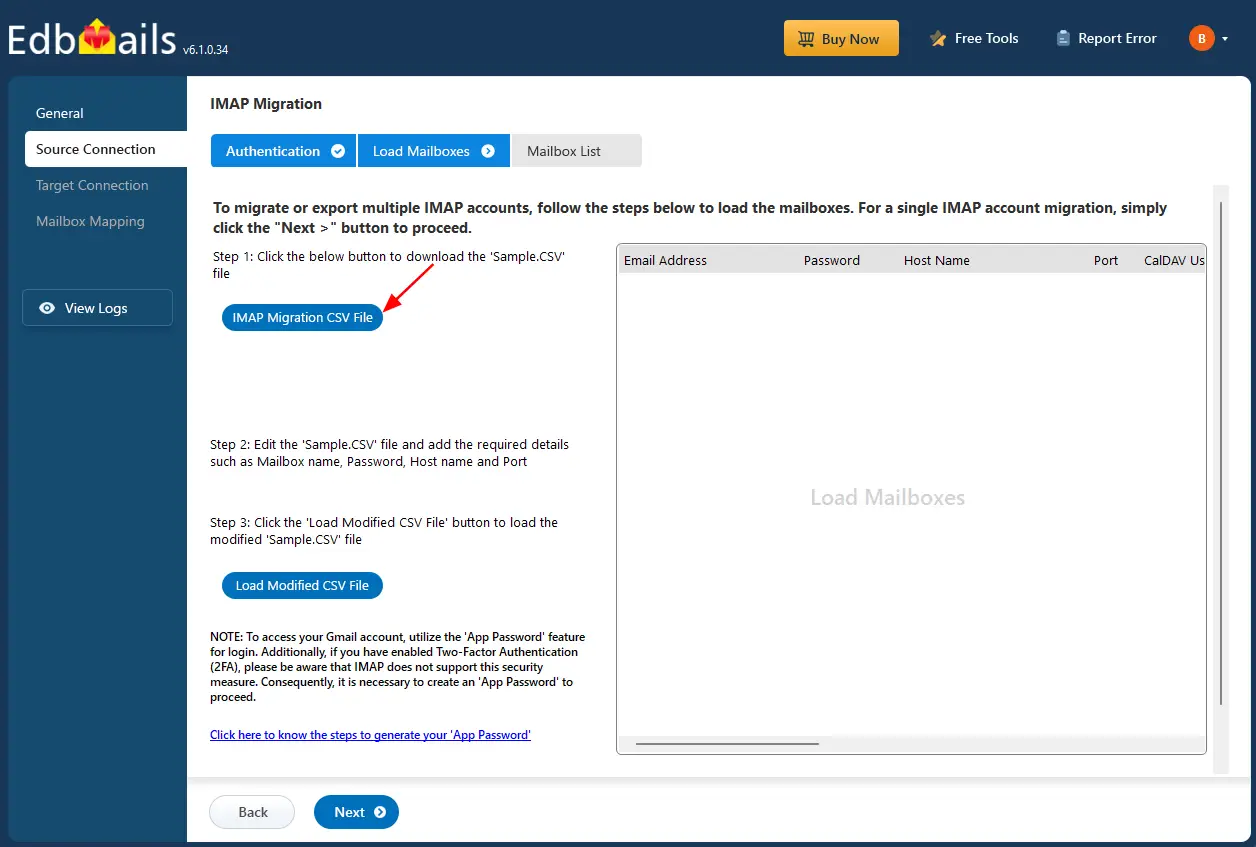
- Open the CSV file and fill in the necessary details, including the email address, password, IMAP server hostname, and port number for each mailbox. After completing the entries, save and close the updated CSV file.

- After updating the CSV file, save it and close it.
- Then, click the 'Load Modified CSV File' button, open the updated CSV file and click ‘Next’ to proceed.
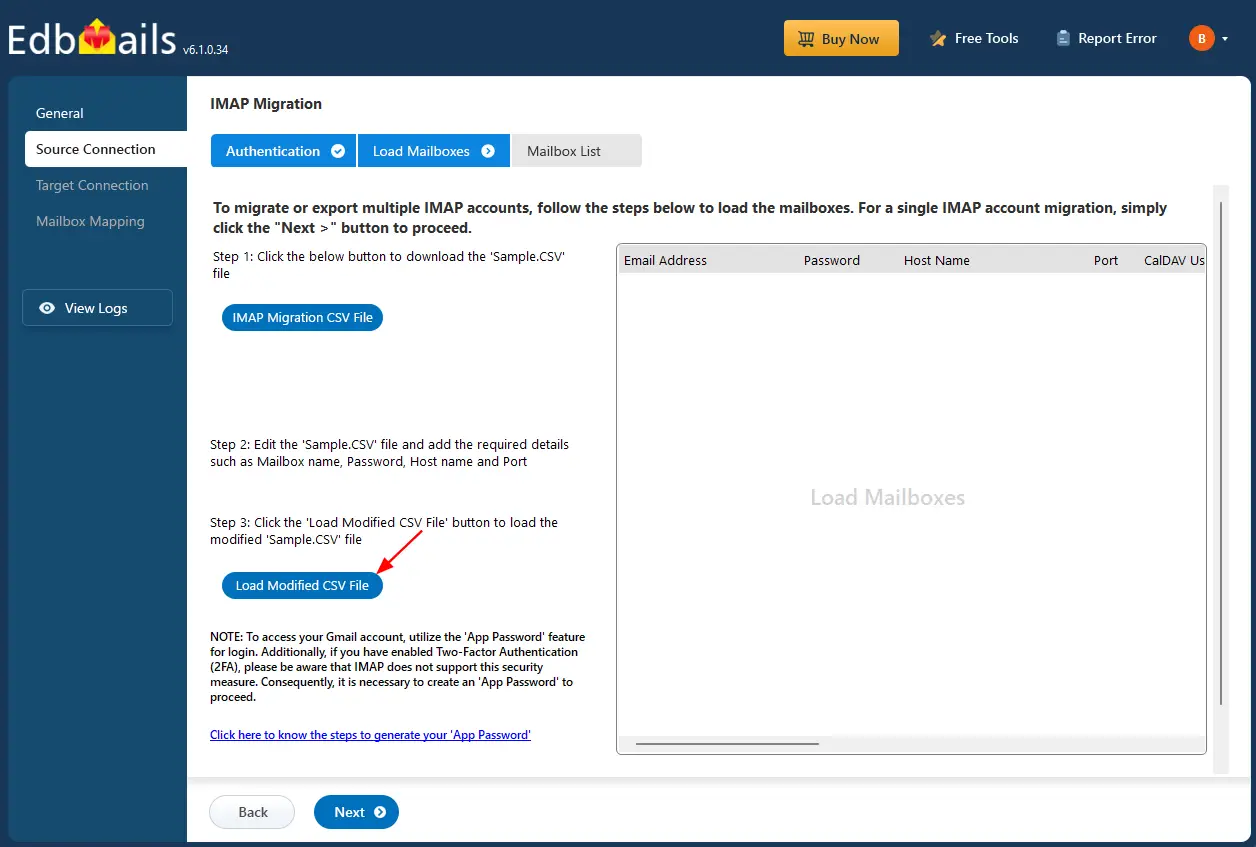
- To migrate one Horde account, select ‘Single User / Account Migration’, then choose the appropriate connection method such as ‘Connect to IMAP Server’ or ‘Connect to POP3 Server’ based on your setup. Click ‘Next’ to continue with the process.
Step 3: Select the mailboxes or folders to migrate
- Choose the mailboxes or specific folders you wish to migrate, then click ‘Next’ to continue.
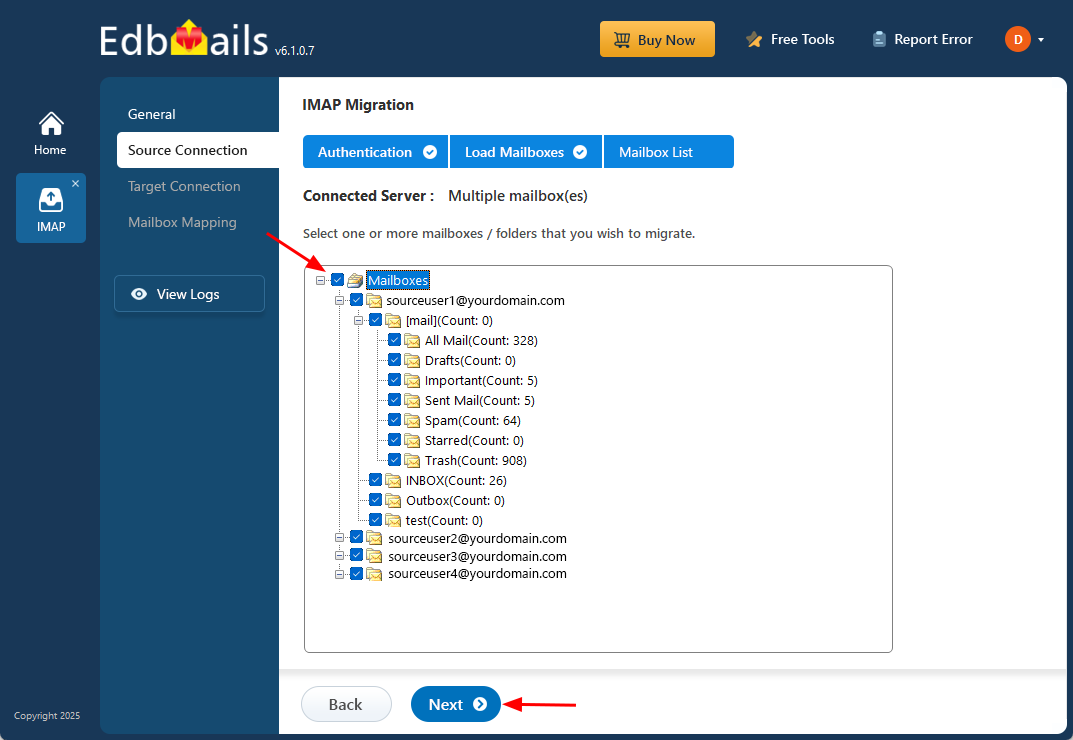
- Choose the mailboxes or specific folders you wish to migrate, then click ‘Next’ to continue.
Step 4: Connect to target Office 365 server
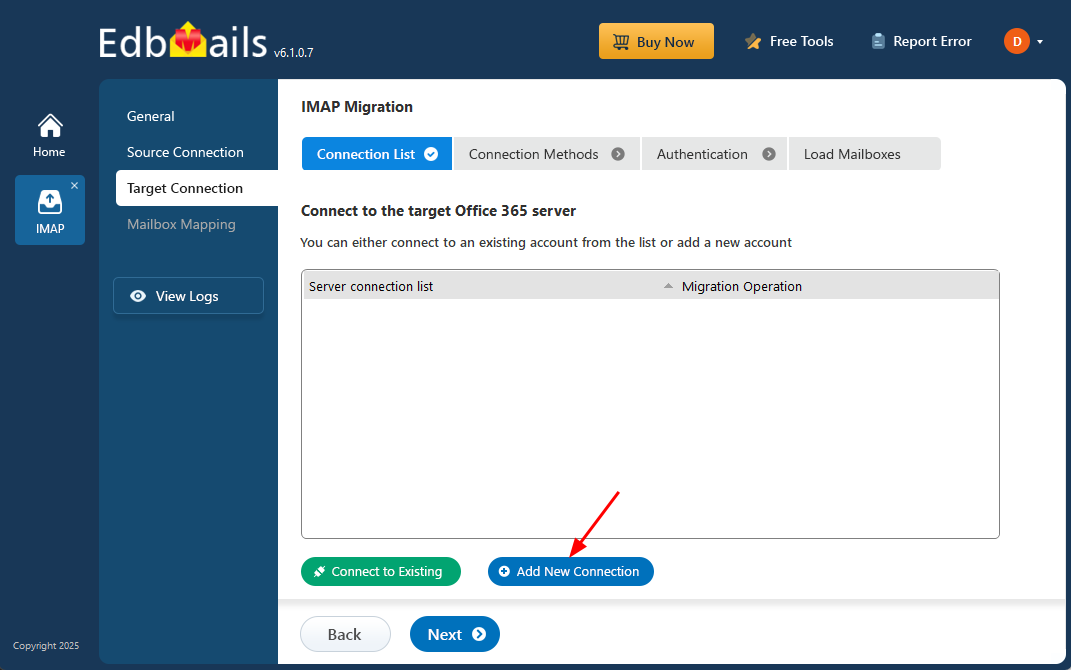
- Select the ‘Add New Connection’ option to set up a new connection to the target Office 365 account.
- If a connection has already been configured, just select it from the list and click ‘Connect to Existing’ to proceed.
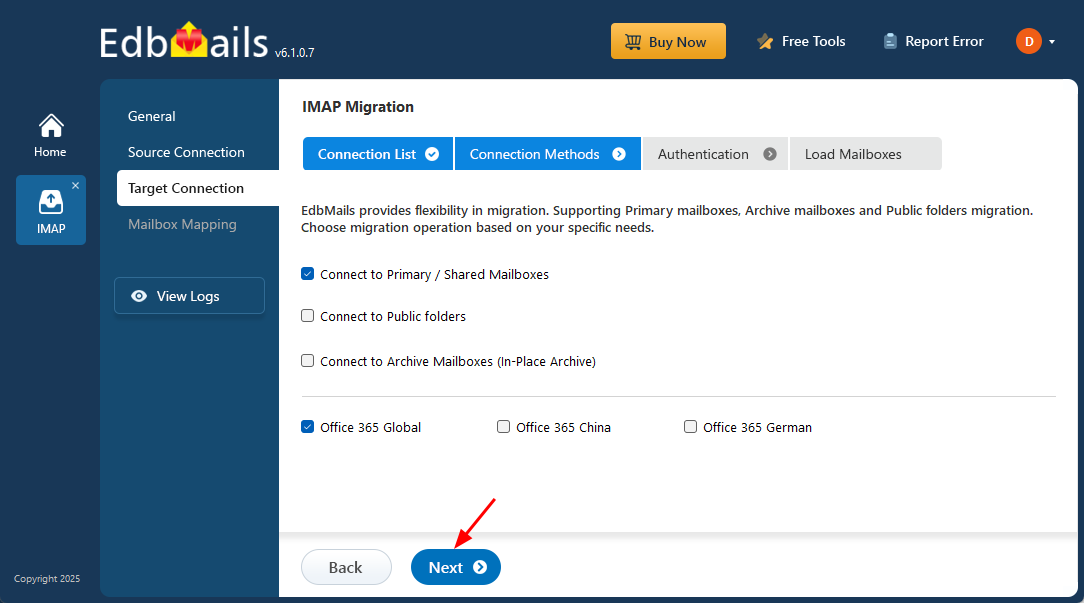
- EdbMails provides flexible migration options, allowing you to migrate primary mailboxes, archive mailboxes, and public folders as needed.
- Choose the appropriate connection settings and click ‘Next’ to continue with the authentication process.
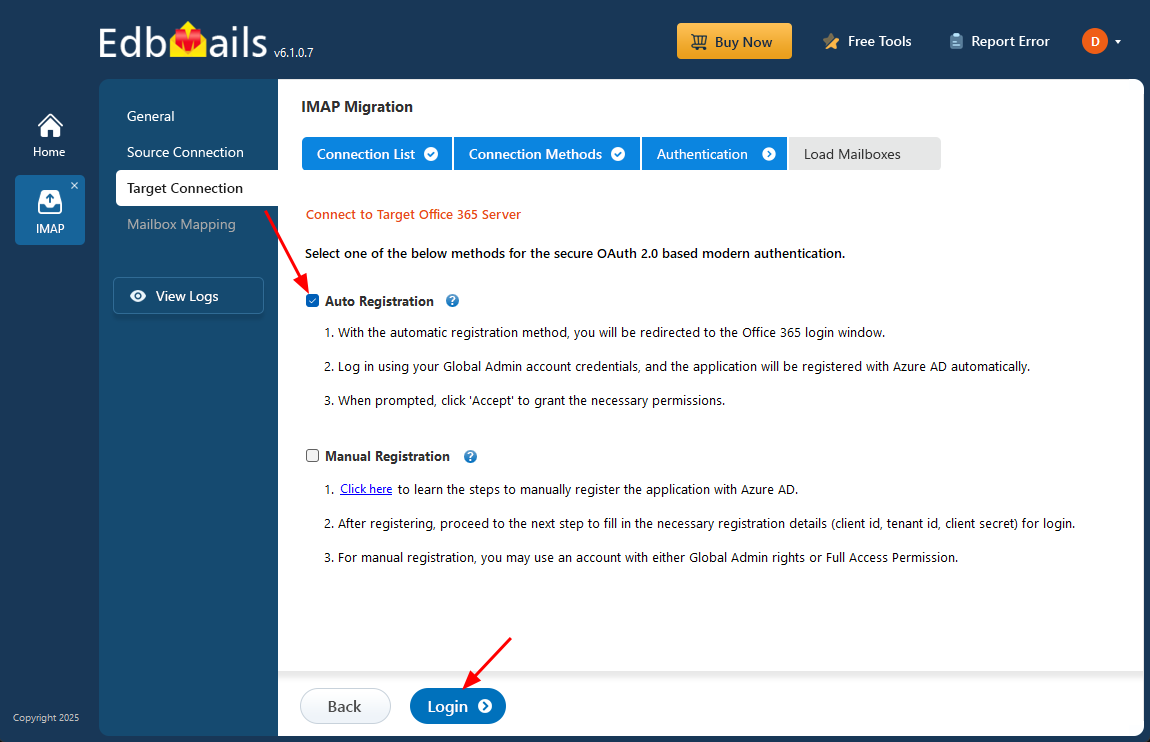
- Choose the authentication method based on your requirement.
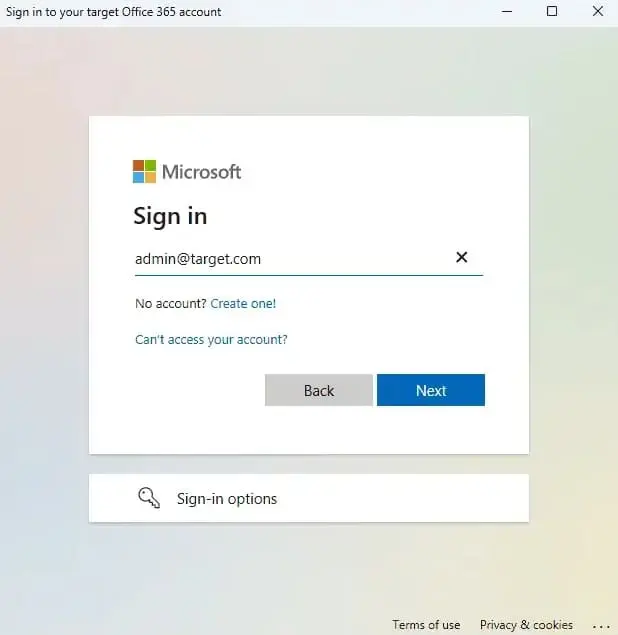
- Complete the sign-in through the official Microsoft login page, where your credentials are securely verified using OAuth 2.0.
- Click ‘Login’ to proceed.
- Authenticate on Microsoft sign-in page.
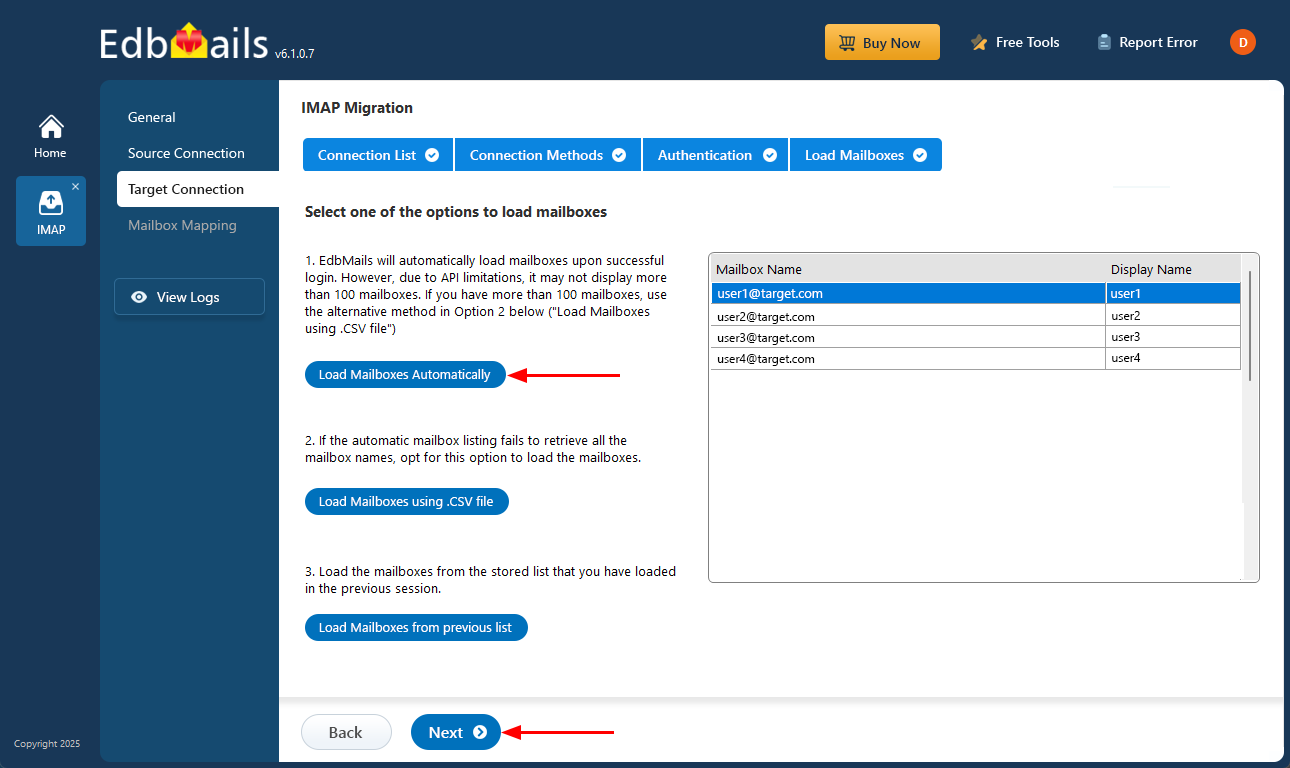
- EdbMails automatically loads mailboxes, making the setup process fast and convenient.
- Because of Microsoft API limitations, the automatic option can display only up to 100 mailboxes at a time.
- In larger environments or when you need to add specific additional mailboxes, you can choose the CSV file method.
- Loading mailboxes through a CSV file allows manual selection and provides complete control over the process.
- Click ‘Next’ to proceed.
Step 5: Horde to Office 365 mailboxes mapping
- Select a preferred option to map the source mailboxes and folders with their corresponding mailboxes and folders on the target Office 365 account.
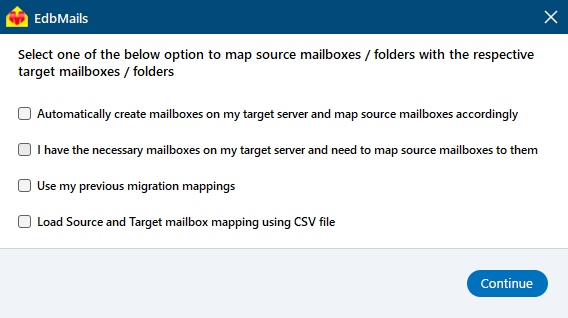
- EdbMails lets you automatically create the required mailboxes in your target Office 365 account.
- It also automatically maps your source Horde mailboxes and folders to the matching ones in Office 365, making large migrations easier to manage.
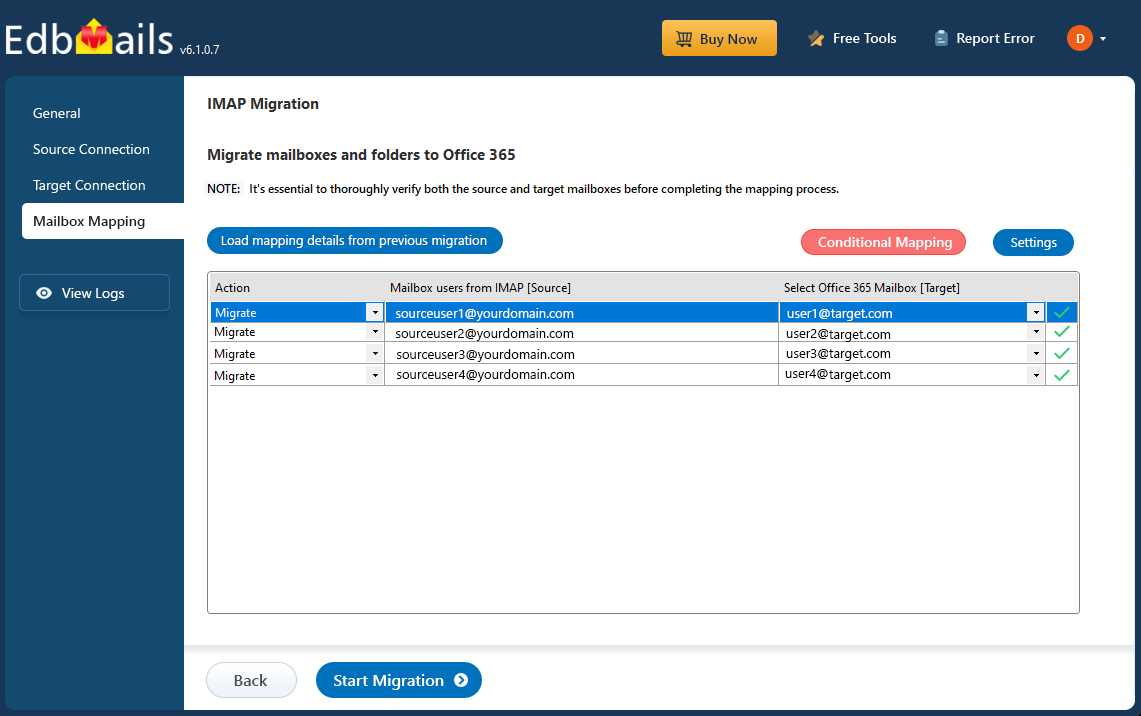
- Select a preferred option to map the source mailboxes and folders with their corresponding mailboxes and folders on the target Office 365 account.
Step 5: Start Horde to Office 365 migration
- Verify the mailbox mapping, then click the ‘Start Migration’ button to begin the migration process.
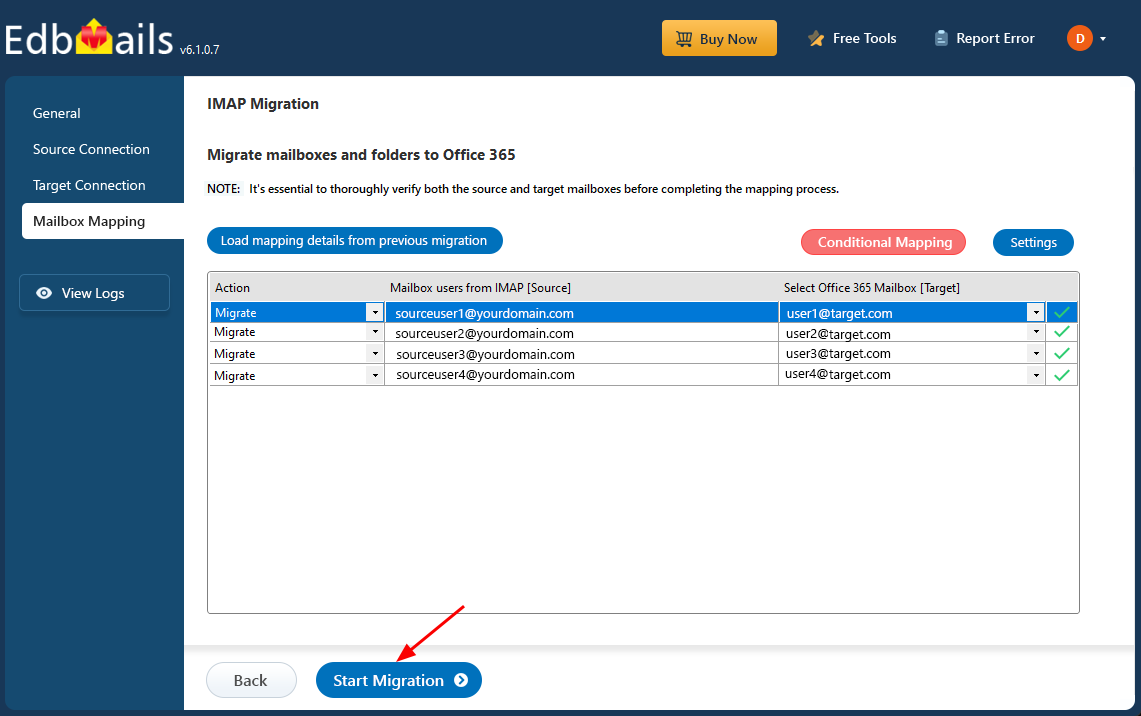
- Click the ‘View Logs’ button to access the full migration report. The report includes comprehensive details such as mailbox mapping, a summary of the overall migration, and the item count for each migrated mailbox and folder.
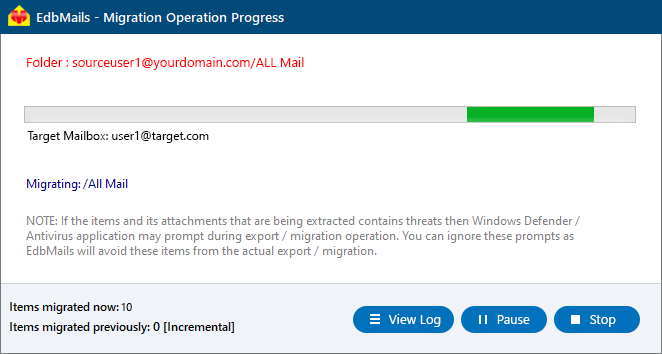
- Verify the mailbox mapping, then click the ‘Start Migration’ button to begin the migration process.
Horde email to Office 365 Post-migration Tasks
- Step 1: Modify MX records to direct email to Office 365.
Update MX records for directing email to the new server. Additionally, configure the Autodiscover record to ensure that migrated mailboxes connect smoothly with email clients like Outlook.
- Step 2: Set up a new Outlook profile for users in the new domain
If users encounter issues connecting Outlook to Office 365 mailboxes, manually configure their Outlook profiles in the new domain.
- Step 1: Modify MX records to direct email to Office 365.
Horde email to Office 365 migration troubleshooting
For troubleshooting, check out our knowledge base articles. If you have additional questions, browse the FAQs or engage with our customer care team for personalized assistance.
Benefits of EdbMails for Horde email to Office 365 Migration
- Retain Meta Properties
EdbMails ensures that all meta properties such as sender, recipient, subject, date, and other important attributes are retained during the Horde email to Office 365 migration process. This guarantees that the integrity of your email data is maintained and no crucial information is lost during the transition.
- No File Size Restrictions
With EdbMails, you won’t encounter file size limitations when migrating Horde emails to Office 365. This flexibility allows you to migrate large mailboxes without worrying about size restrictions, ensuring a smooth and uninterrupted migration for all your email data.
- Batch Transfer
EdbMails supports batch migration, enabling the transfer of multiple mailboxes simultaneously. This feature reduces migration time and ensures efficiency when handling large numbers of accounts, making it a great choice for businesses needing to migrate large volumes of email data quickly.
- Clear Navigation and Immediate Feedback
The intuitive user interface of EdbMails ensures clear navigation throughout the migration process. Real-time feedback allows users to monitor progress, providing immediate updates on the status of the migration. This keeps the user informed and confident throughout the entire process.
- Compliance with Data Retention Policies
EdbMails ensures that the migration process complies with organizational data retention policies. It handles data securely, keeping email records in line with compliance standards. This makes it ideal for businesses needing to meet legal or regulatory data retention requirements during migration.
Frequently Asked Questions
- How long does the Horde email to Office 365 migration take?
The duration depends on migration time, mailbox size, number of accounts, and network speed.
- Will my attachments and folders be preserved?
Yes. All emails, folders, attachments, and metadata (such as sender, date, and subject) are fully preserved, ensuring complete data integrity after migration.
- Is there downtime during migration?
No. EdbMails enables zero-downtime migration, allowing users to continue sending and receiving emails while the transfer runs in the background.


