


Rackspace to AWS Migration
Migrating from Rackspace Email to AWS is a strategic step for organizations looking to modernize their email environment and bring services into the AWS ecosystem. Rackspace provides hosted email with IMAP support, whereas AWS provides scalable cloud options such as Amazon WorkMail or custom email servers hosted on EC2. Moving to AWS gives organizations more control over their infrastructure, improved security capabilities, and smoother integration with other AWS services.
However, the migration process can involve several challenges, including maintaining data integrity during IMAP transfers, preserving the original folder hierarchy, managing credentials securely, and migrating large mailboxes without the risk of data loss. Compatibility issues may also occur depending on the AWS environment selected, such as WorkMail or an EC2-hosted mail server. In addition, it is important to ensure encryption during data transfer, handle authentication securely, and reduce downtime to prevent service interruptions and maintain email continuity. With proper planning and the right tools, organizations can successfully address these challenges and complete the migration securely and efficiently.
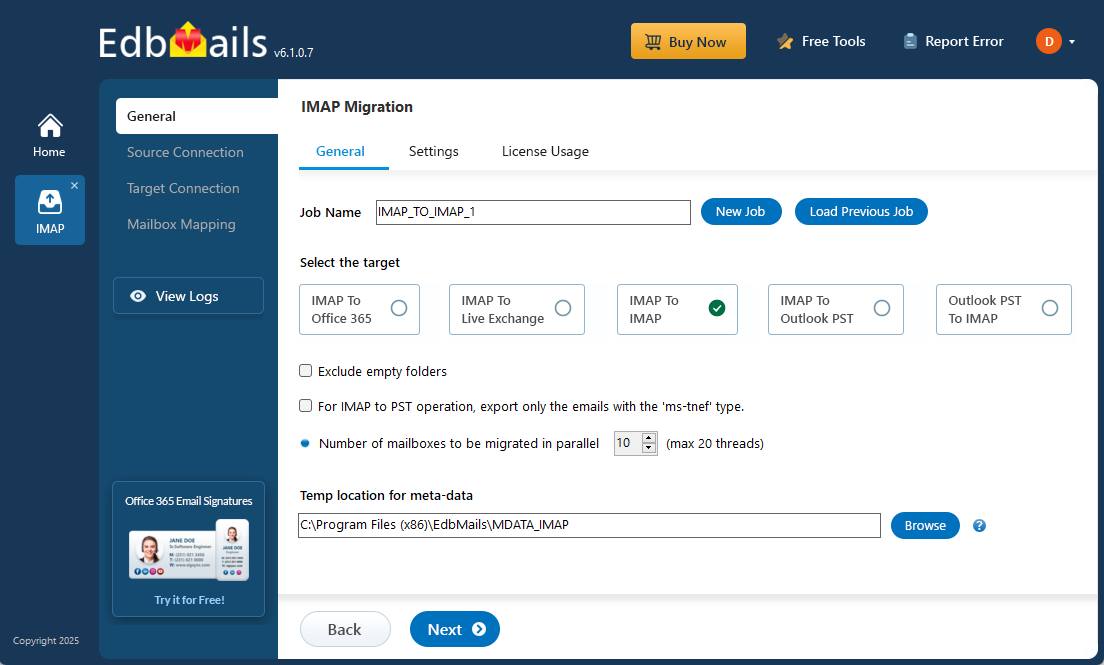
EdbMails provides a reliable way to migrate your email data from Rackspace to Amazon Web Services (AWS) using its powerful IMAP migration feature. It enables you to migrate Rackspace mailboxes to AWS easily while maintaining the original email properties and folder hierarchy. The user-friendly interface and advanced migration capabilities help ensure a smooth and efficient transition. Features like incremental migration transfer only newly added or modified data, which helps avoid duplication and reduces the overall migration time. Advanced filtering options allow you to select specific folders or data types for migration, giving you better control based on your requirements. Automated mailbox mapping accurately connects Rackspace mailboxes with AWS accounts, removing the need for manual configuration.
To ensure data security, EdbMails uses AES 256-bit military-grade encryption during the migration process, protecting your information and maintaining complete confidentiality. With these capabilities, EdbMails ensures a secure, reliable, and efficient migration from Rackspace to AWS.
Why do users want to Migrate from Rackspace to AWS?
If you want to migrate from Rackspace to AWS or Amazon WorkMail, there are several compelling reasons to make the move. Here are some key features that make Amazon WorkMail a preferred choice over Rackspace:
- Enhanced Security: AWS and Amazon WorkMail provide a secure business email and calendaring service that is compatible with various email clients on desktop and mobile devices. You can trust the robust security measures implemented by AWS to protect your data.
- Improved Performance: AWS offers high-speed performance for data management in the cloud. With AWS infrastructure, you can experience efficient and reliable email services, ensuring seamless communication within your organization.
- Control and Flexibility: By migrating to Amazon WorkMail, you can integrate it with your existing corporate directory, giving you complete control over encryption keys and the storage location of your data. This level of control enhances data privacy and compliance with your organization's policies.
- Versatile Accessibility: Amazon WorkMail enables users to access their emails, contacts, and calendar events using popular email clients like Microsoft Outlook, web browsers, and native iOS and Android email programs. This flexibility ensures that users can seamlessly transition to the new email environment without disruptions.
Rackspace to AWS Migration Planning
Before you begin to migrate from Rackspace to AWS, proper planning is crucial to ensure a successful and seamless transition. Follow the below checklists of important considerations:
- Streamline the migration process by removing any unused mailboxes, redundant mail items, and duplicate files from the source server.
- Create an inventory of essential items including user email addresses, passwords, source and target server details, network settings, DNS configurations, MX records, firewall settings, licensing plans, data permissions, and any other dependencies.
- Determine the size of the data and the number of mailboxes that will be migrated to AWS, enabling better resource allocation.
- Choose between a cutover migration (migrating all data at once) or a staged migration (migrating data in phases) based on your specific requirements.
- Estimate the time required for the migration, considering factors such as data size and network capabilities.
- Ensure that your network has sufficient capacity and bandwidth to handle the migration process effectively.
- Communicate the migration plan and upcoming changes to end users and stakeholders, minimizing disruptions and facilitating a smooth transition.
- Conduct a test migration to identify and address any potential issues before proceeding with the actual migration.
- Begin the migration process, ensuring that endpoints are correctly configured and MX records are updated as needed.
- Decommission any unused apps and associated settings after the migration is successfully completed.
Pre-migration activities for Rackspace to AWS Migration
- Enable IMAP settings on both the Rackspace and AWS servers.
- Maintain a comprehensive record of email addresses and passwords for all users you intend to migrate from the Rackspace server.
- Verify that you have the email address passwords for all users on AWS.
Steps to Migrate from Rackspace to AWS
Step 1: Download and install the EdbMails software
- Download and install the EdbMails application on your computer to get started with the Rackspace to AWS migration process.
See EdbMails system requirements for Rackspace to AWS email migration.

- Launch the EdbMails application on your computer.
- Enter your registered email ID and password, then click ‘Login’. If you are opening EdbMails for the first time, select ‘Start Your Free Trial’ to begin using the trial version.Note: The trial version provides access to all key features and allows migrating up to 30 items per folder. To remove this limit and enable unlimited migration, you need to purchase an IMAP Migration license from the official EdbMails website.After completing the purchase, close the application and reopen it. Then sign in using the same email ID and password used during the purchase to successfully activate your license.

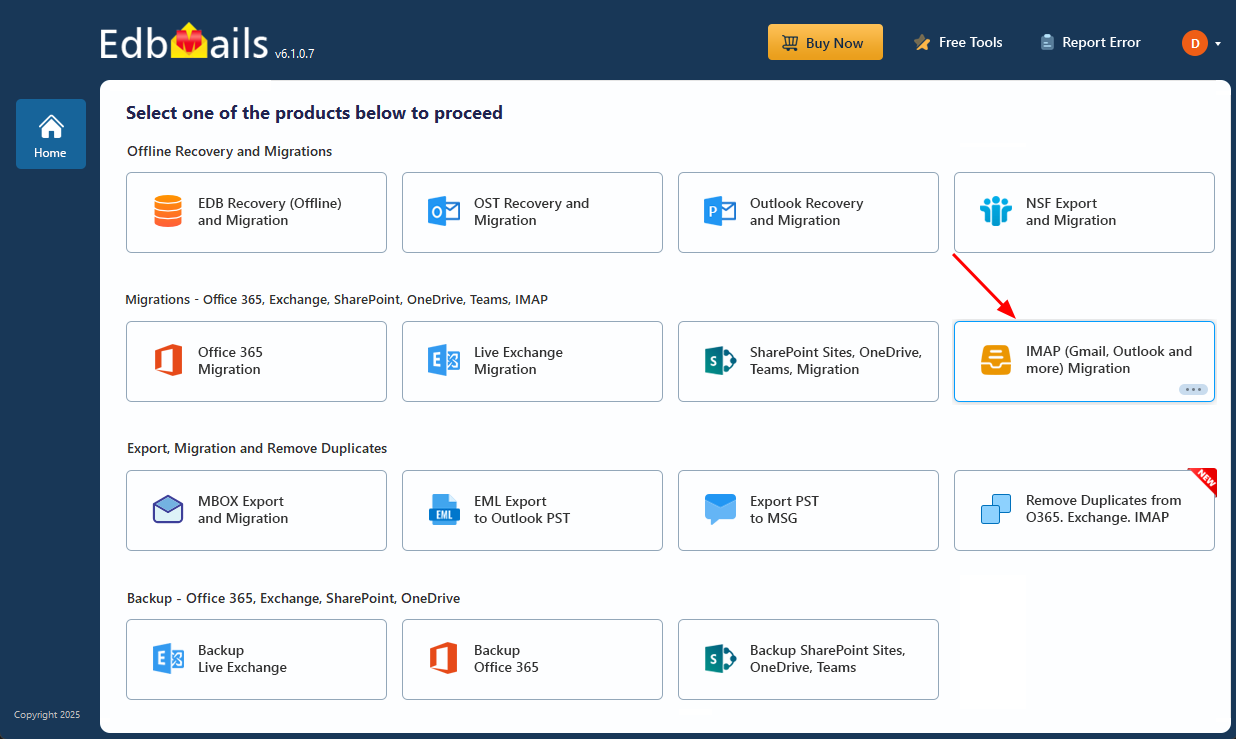
- Select the ‘IMAP (Gmail, Outlook & more) Migration’.
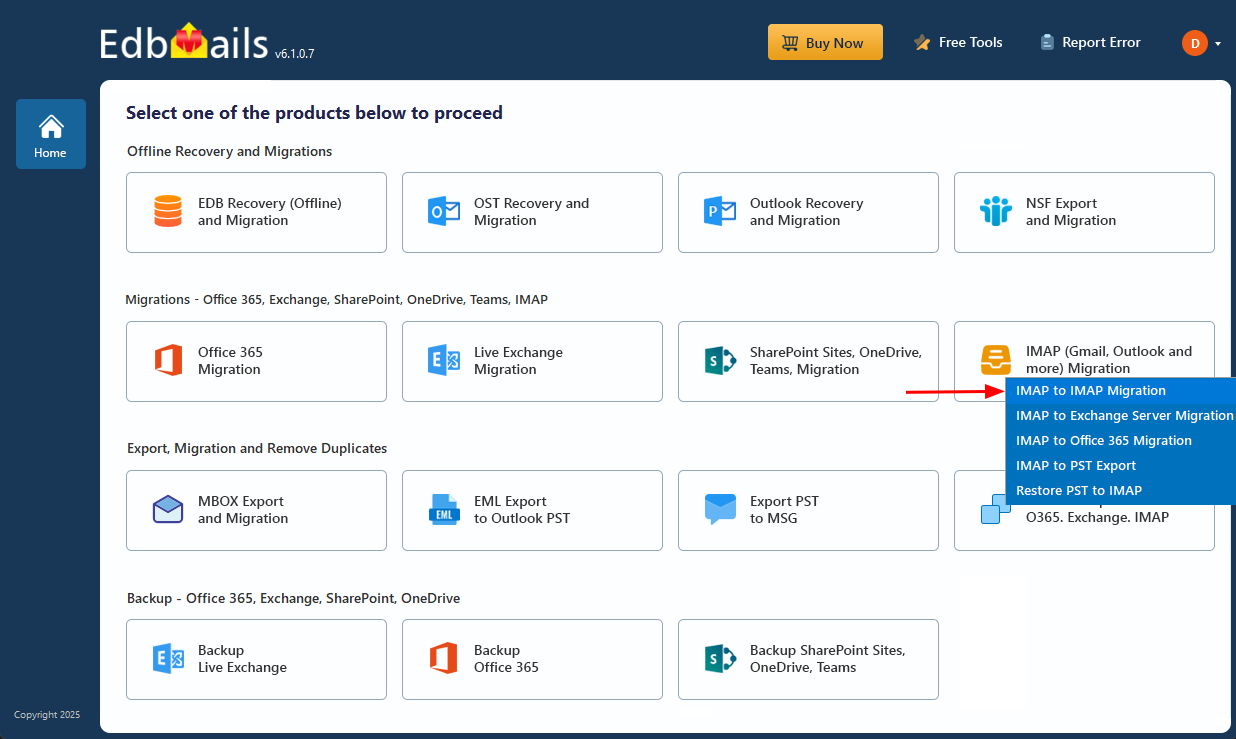
- Select ‘IMAP to IMAP Migration’.
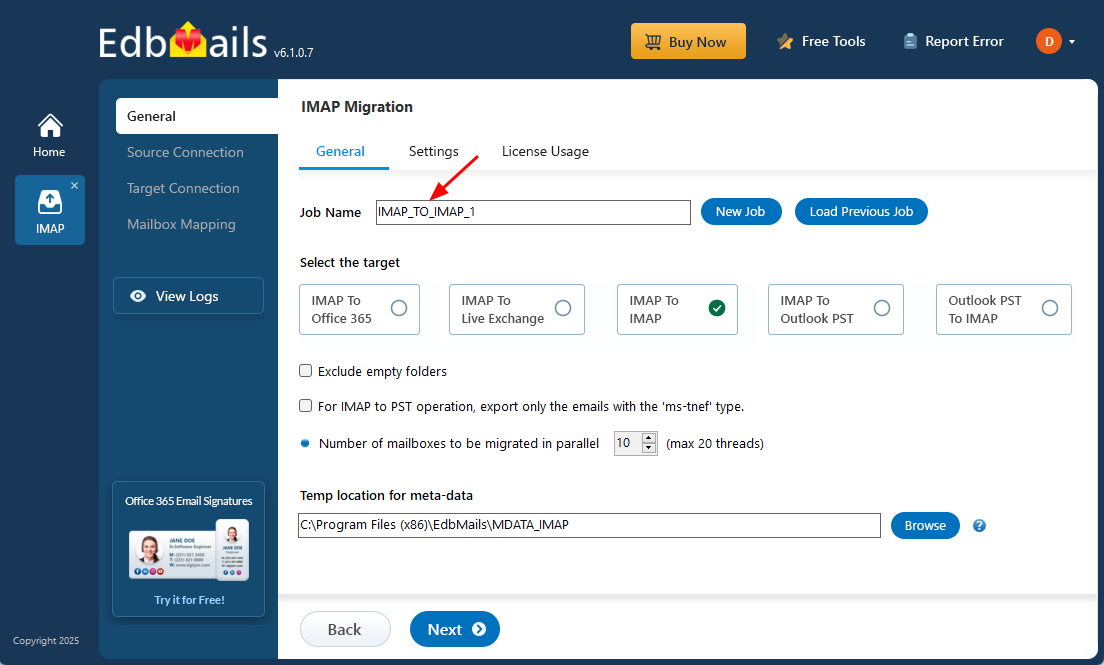
- Use the default job name provided by EdbMails, or click ‘New Job’ to create a custom name for easier identification.
- Download and install the EdbMails application on your computer to get started with the Rackspace to AWS migration process.
Step 2: Connect to the source Rackspace server
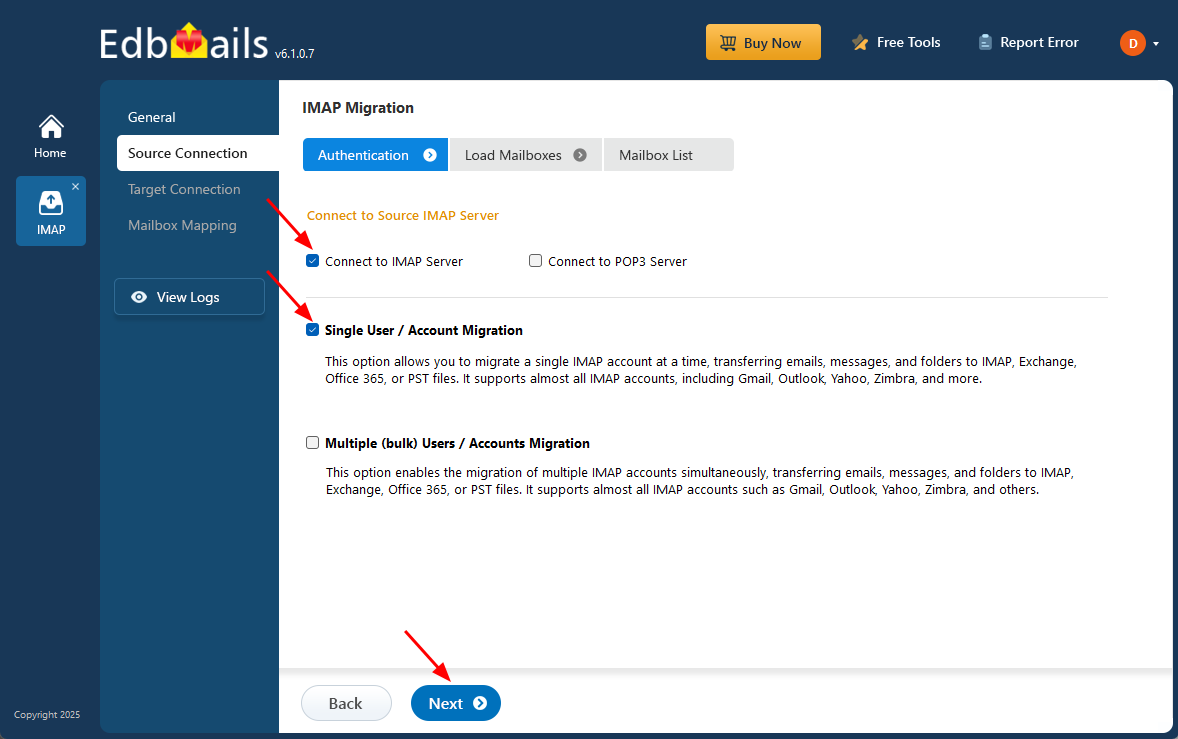
- To connect a single Rackspace account for migration, click ‘Single User / Account Migration’, choose the suitable connection option such as ‘Connect to IMAP Server’ or ‘Connect to POP3 Server’.
- Click ‘Next’ to proceed.
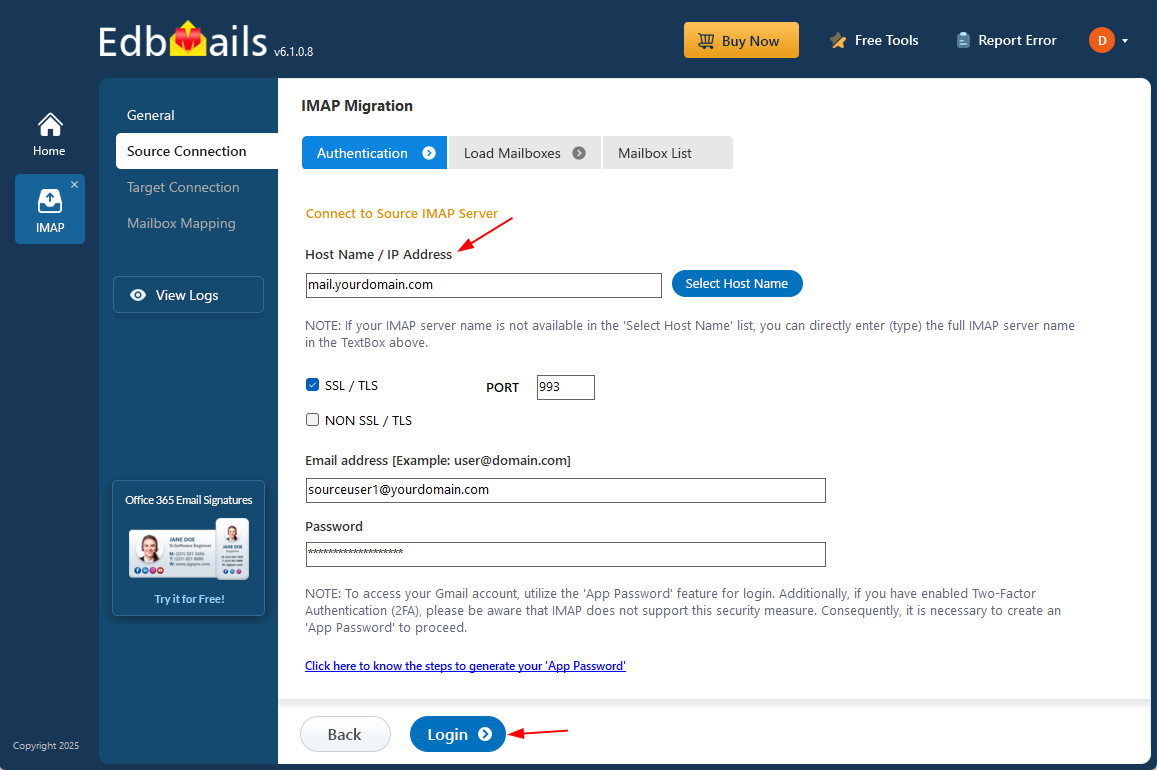
- Choose the appropriate Rackspace from the IMAP host list, or manually enter the IMAP server details if required.
- Then enter the required login credentials such as your email address, password, and the SSL port number (usually 993 when SSL encryption is enabled).
- Click the ‘Login’ button to proceed.
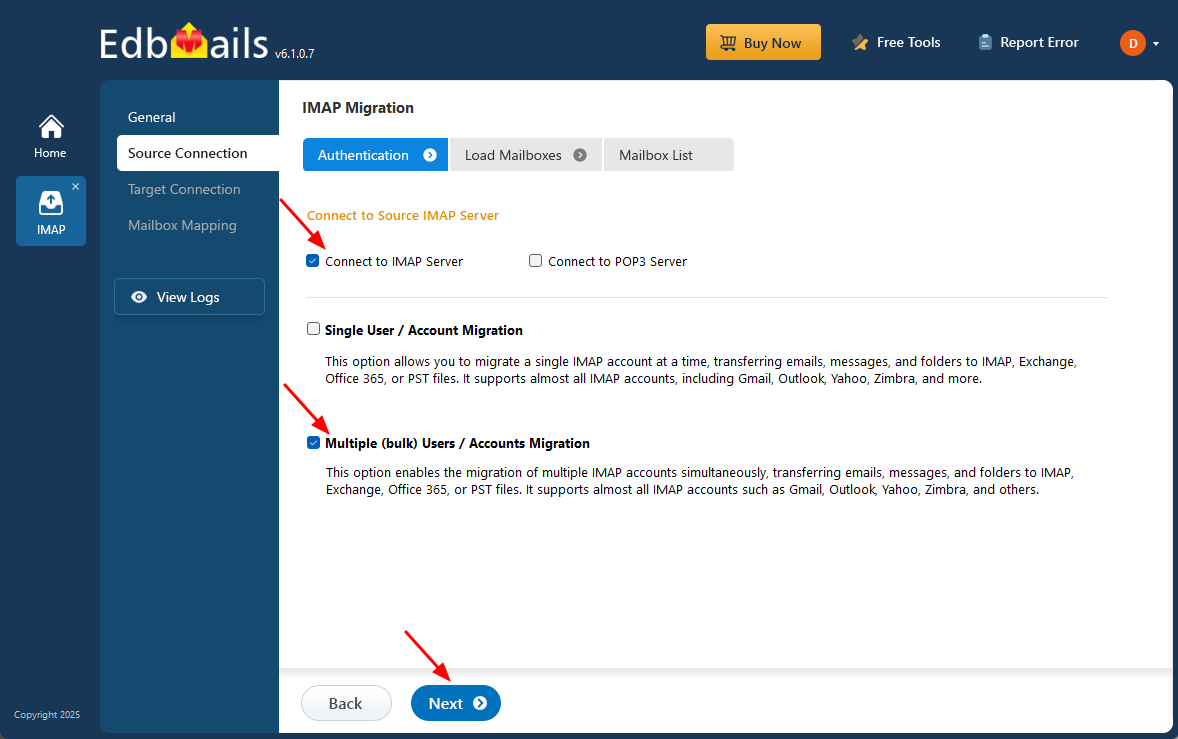
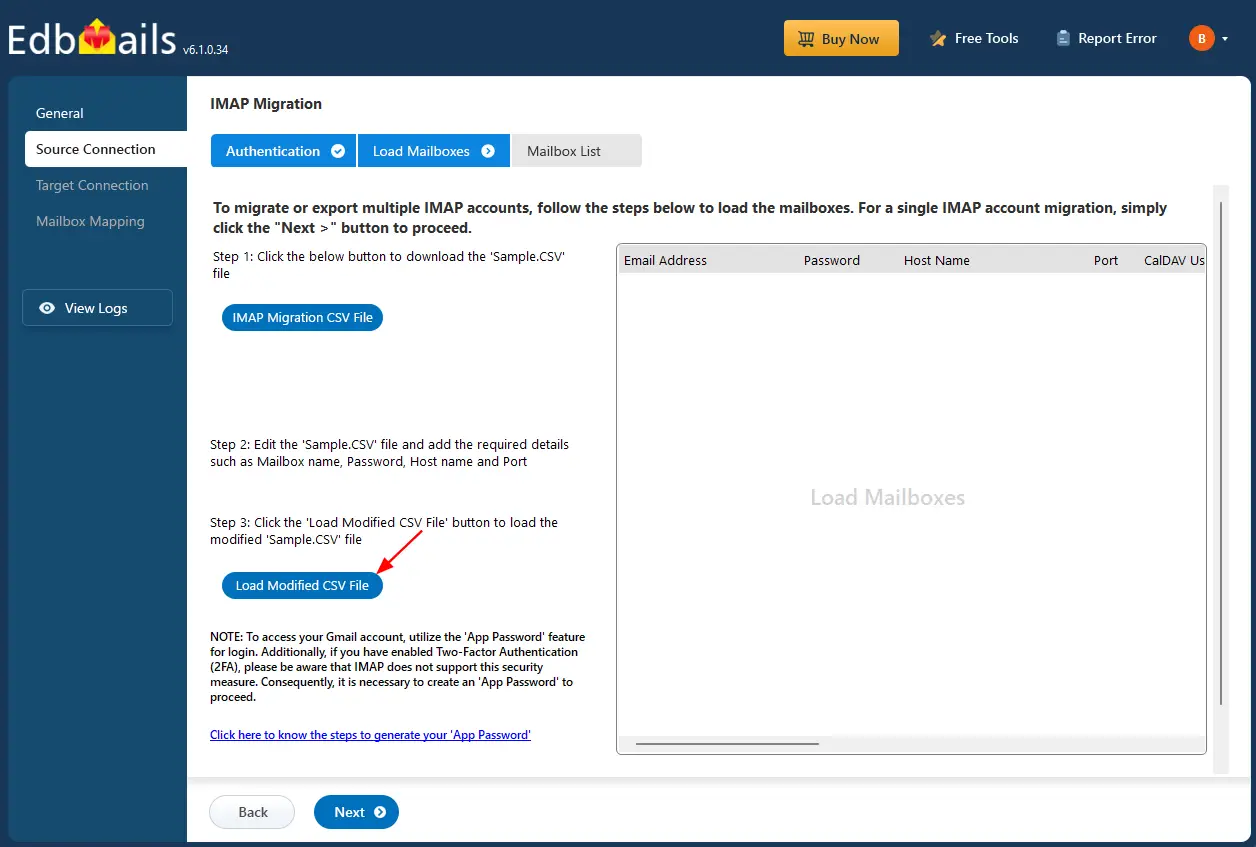
- To migrate multiple Rackspace mailboxes at once, select ‘Multiple (bulk) Users/Accounts Migration’, choose the suitable connection method such as ‘Connect to IMAP Server’ or ‘Connect to POP3 Server’.
- Then proceed by clicking ‘Next’.
- Click ‘IMAP Migration CSV File’ and choose a destination folder on your local computer to save the CSV file.
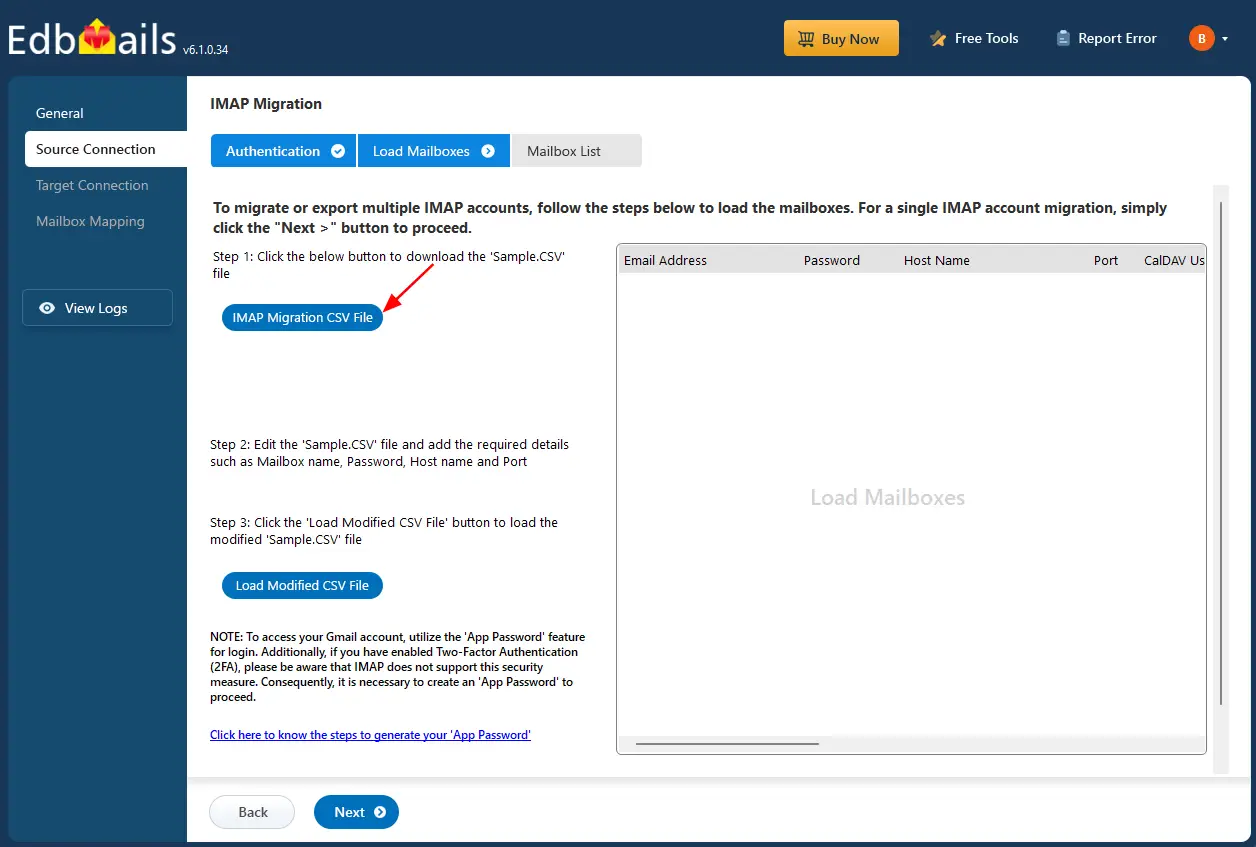
- Open the CSV file and provide the required information for each Rackspace account you plan to migrate.
- This includes the user’s email address, password, IMAP server name, and corresponding port number.
- Once all information is added, save your changes and close the CSV file.

- Now, click the 'Load Modified CSV File' button, open the CSV file and click ‘Next’ to proceed.
Step 3: Select the source Rackspace server mailboxes
- Choose the mailboxes or specific folders you wish to migrate, and then click ‘Next’ to continue.
See tips to optimize IMAP migration to Exchange online
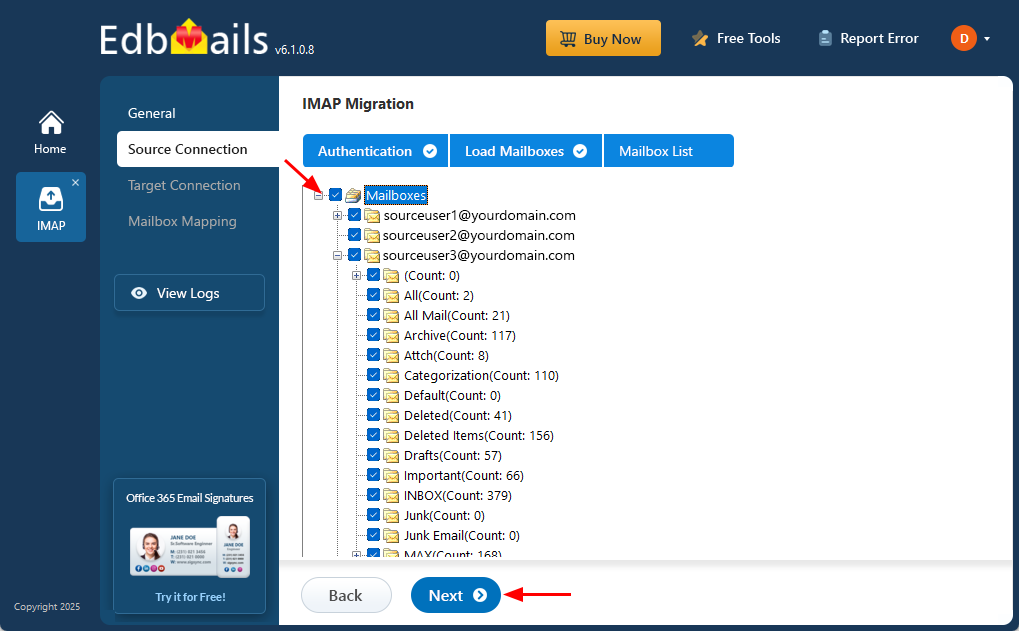
- Choose the mailboxes or specific folders you wish to migrate, and then click ‘Next’ to continue.
Step 4:Connect to the target AWS server
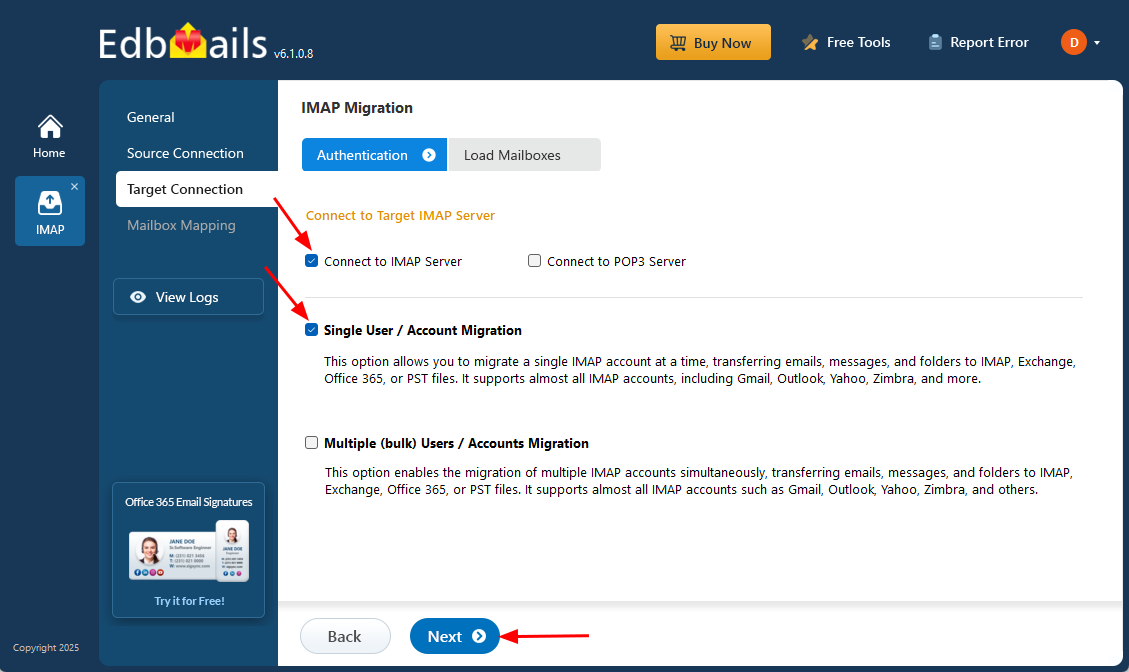
- To connect a single user account, select ‘Single User / Account Migration’. Then, choose the required protocol, such as ‘Connect to IMAP Server’ or ‘Connect to POP3 Server’, and click ‘Next’ to proceed.
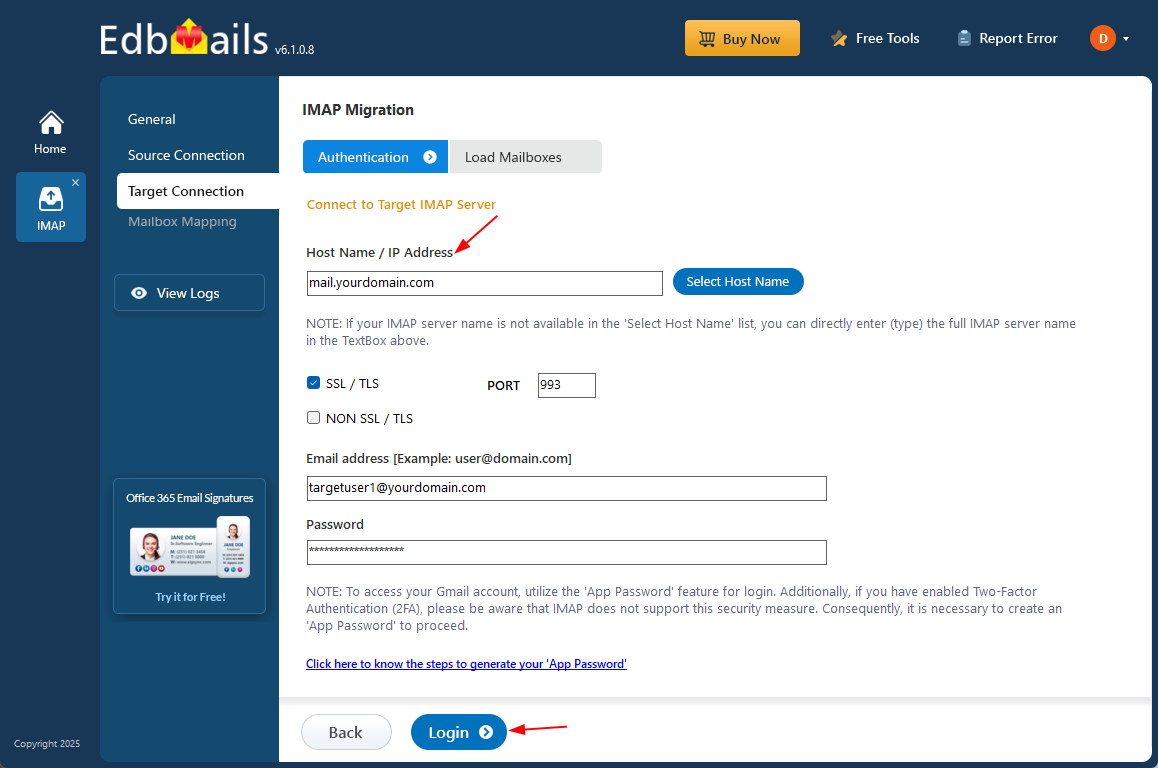
- For a single-user login, select the appropriate Rackspace IMAP host name from the list or enter it manually (for example, mail.userdomain.com).
- Enter the email address and password in the required fields.
- If you are adding a Gmail account, generate an app password and use it in place of your regular account password.
- Click the ‘Login’ button.
- To set up a connection for multiple target AWS mailboxes, choose the ‘Multiple (Bulk) Users/Accounts Migration’ option and click ‘Next’ to continue.
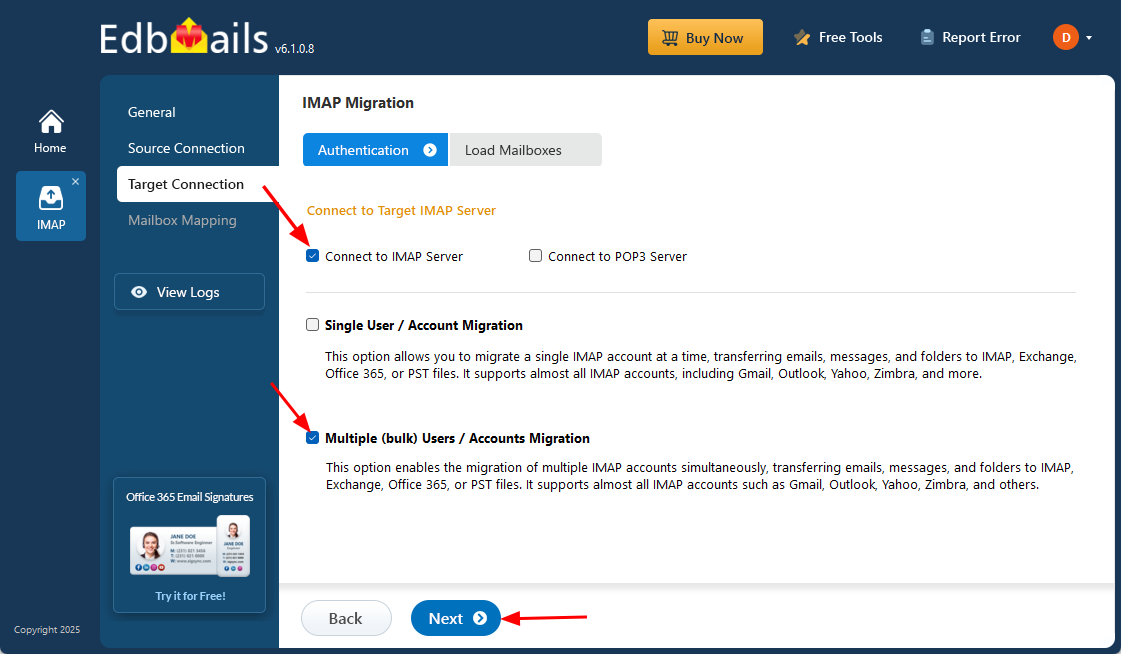
- Click ‘IMAP Migration CSV File’ to automatically download a sample CSV template to your computer for entering mailbox details.
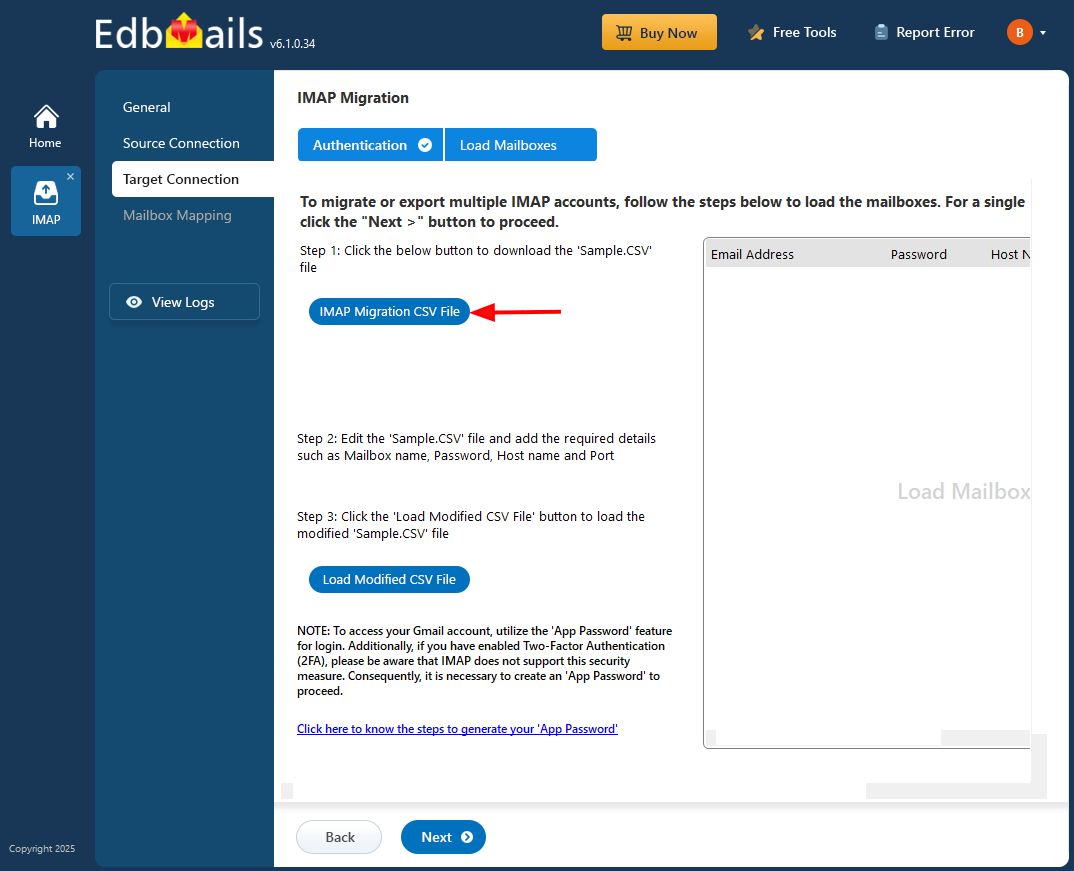
- Open the CSV file and fill in the necessary details, including the email address, password, IMAP server hostname, and port number for each mailbox. After completing the entries, save the file to proceed with the migration.

- Once completed, save the CSV file to apply the changes.
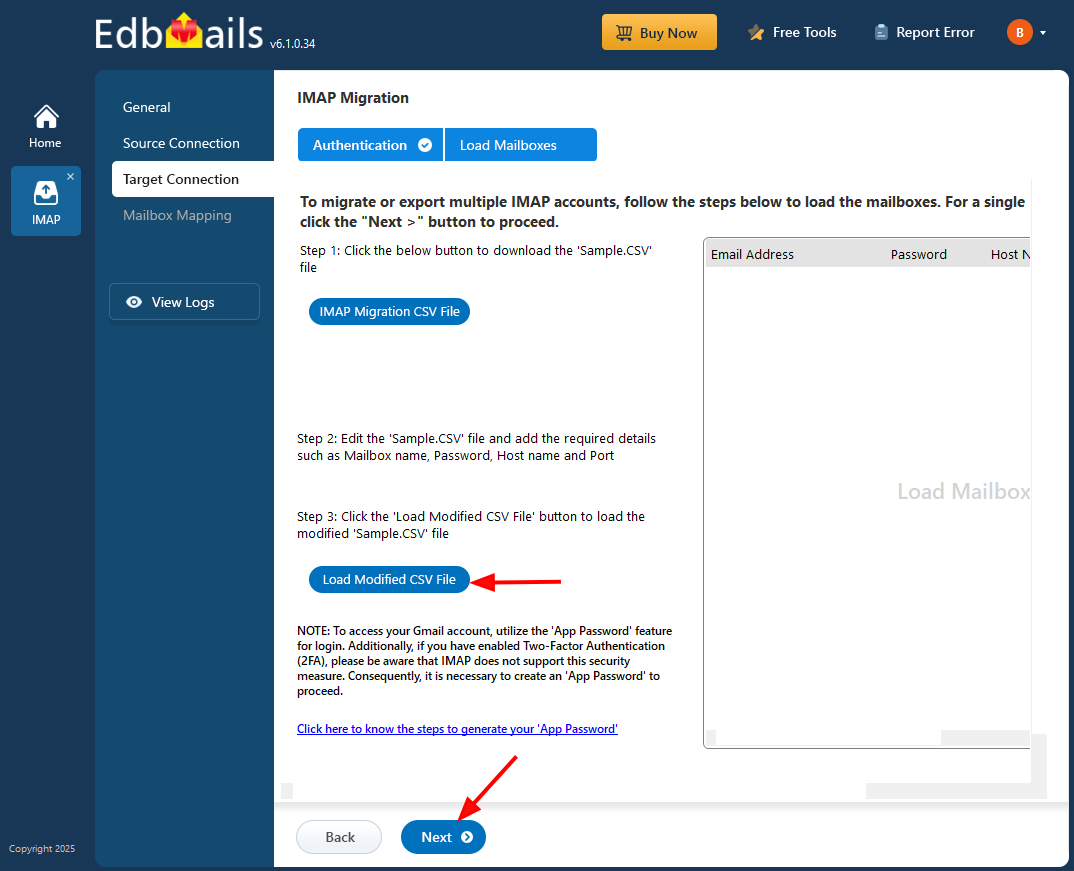
- Then, click the 'Load Modified CSV File' button, open the CSV file and click ‘Next’ to proceed.
- To connect a single user account, select ‘Single User / Account Migration’. Then, choose the required protocol, such as ‘Connect to IMAP Server’ or ‘Connect to POP3 Server’, and click ‘Next’ to proceed.
Step 5: Rackspace to AWS mailboxes mapping
- Select one of the mailbox mapping options.
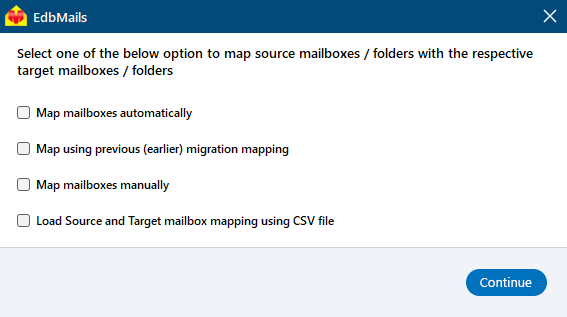
- EdbMails automatically maps mailboxes between the source and target servers. You also have the option to manually map mailboxes if needed.
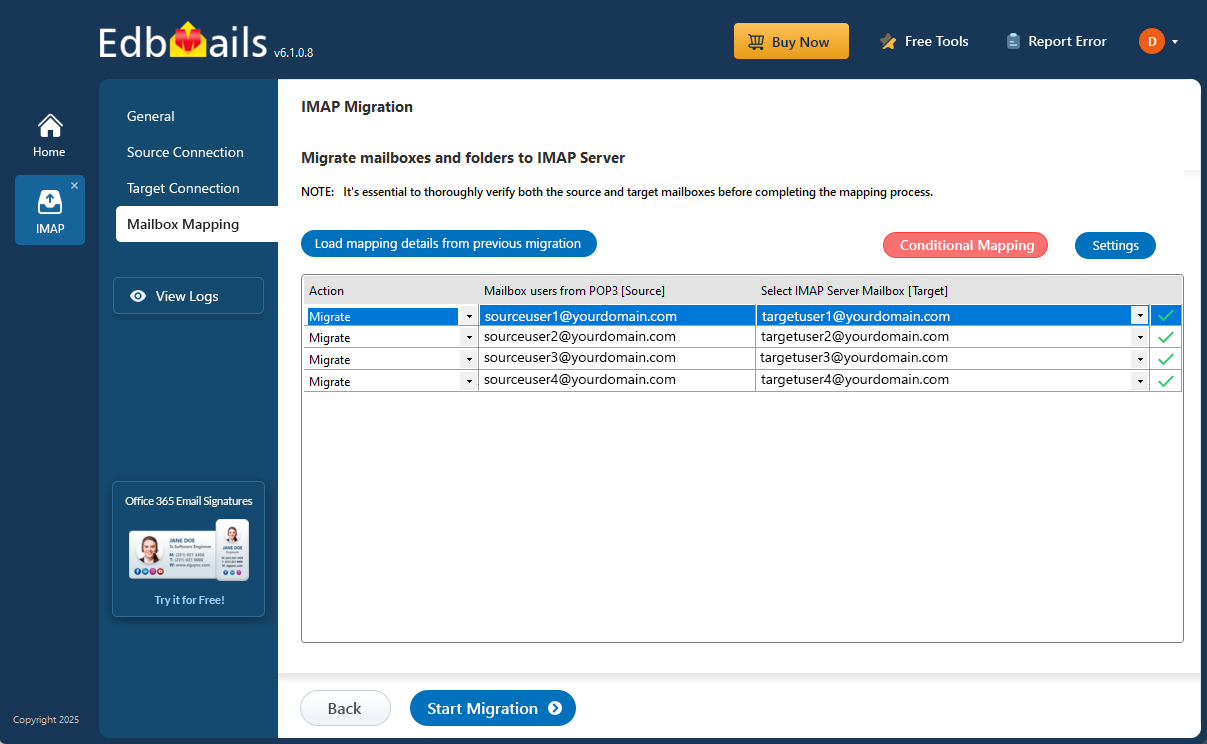
- Select one of the mailbox mapping options.
Step 6: Start Rackspace to AWS migration
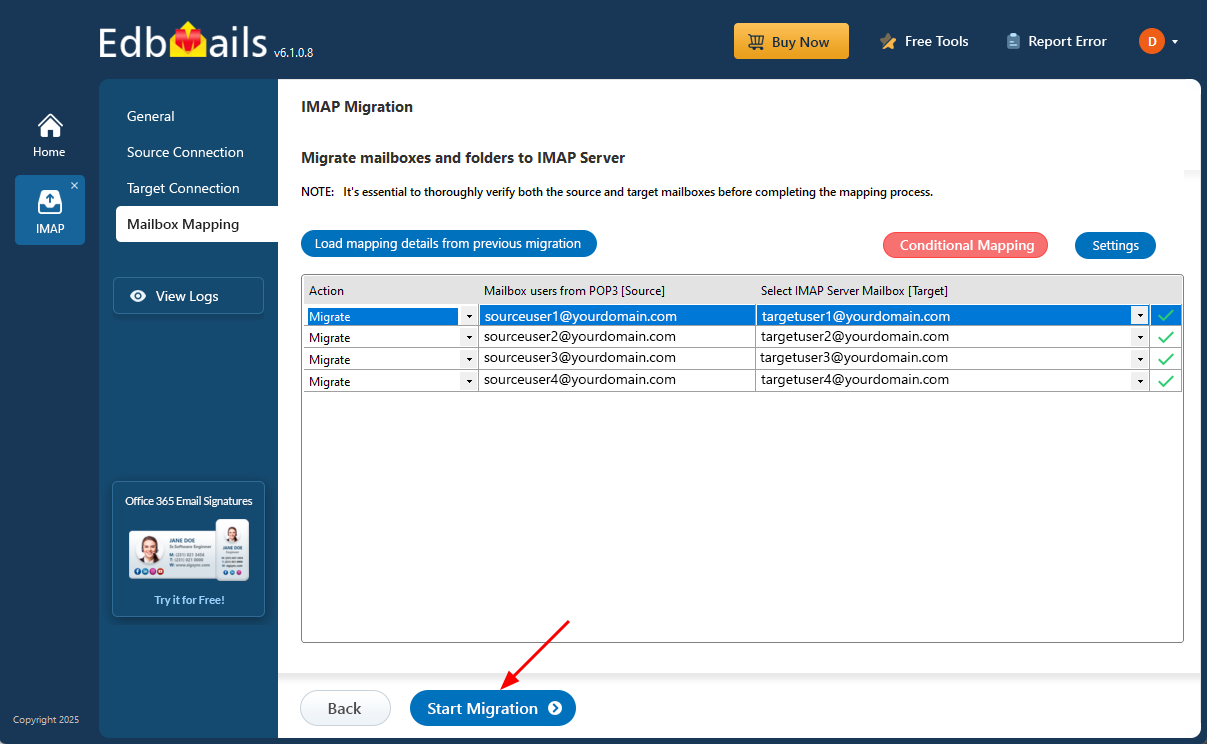
- After mapping the mailboxes, click the ‘Start Migration’ button to initiate the migration process.
- Click on the ‘View Logs’ button to open the migration report. It gives you a detailed overview of the process, showing how many emails, folders, and mailbox items were migrated.
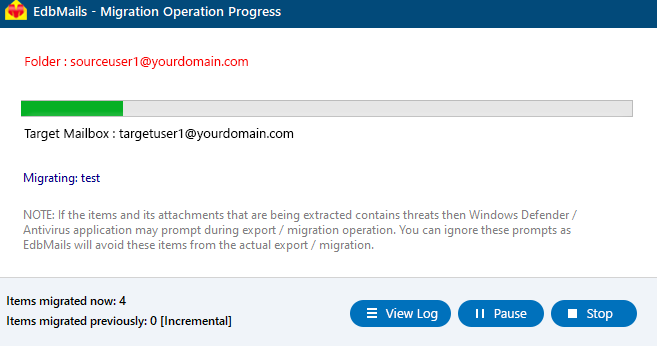
- Also, log in to your target server and verify the migrated items.
- After mapping the mailboxes, click the ‘Start Migration’ button to initiate the migration process.
Rackspace to AWS Post-migration Tasks
Step 1: Update DNS records (MX record) to point to AWS
- Updating MX Records:
In order to redirect incoming email traffic from Rackspace to AWS, it is necessary to modify the MX records within your DNS provider's portal. This crucial step ensures that emails are correctly routed to your AWS account, ensuring a smooth transition.
- Configuring AutoDiscover (CName):
Include the AutoDiscover (CName) configuration in your DNS settings. This configuration facilitates the automatic set up of email clients, allowing for a seamless transition to AWS. By properly configuring the AutoDiscover (CName), email clients can connect to the AWS server without requiring manual configuration.
- Establishing Rackspace Mail Forwarding:
To prevent any email loss during the migration process, establish mail forwarding within your Rackspace account. This ensures that any incoming messages are forwarded to your AWS account until the migration is fully completed. Enabling mail forwarding allows you to stay connected and receive all your emails without interruption throughout the migration period.
- Updating MX Records:
- Step 2: Decommission or delete the user mailboxes on Rackspace server
Once you have confirmed that you are successfully receiving emails on , you can proceed with decommissioning and disabling user mailboxes on the Rackspace source. Additionally, make sure to remove any licenses that have been assigned in Rackspace. Follow these steps to perform the necessary actions:
- Log in to the Rackspace Cloud Control Panel.
- Navigate to the ‘Email’ section and click on ‘Mailboxes.’
- Select the desired mailbox(es), whether it's a single mailbox or multiple ones.
- Locate the 'Manage' option adjacent to the specific mailbox, and then proceed to click on 'Delete Mailbox' in the upper-right corner.
Troubleshooting guide for Rackspace to AWS Migration
For common migration issues, check the knowledge base articles. For more information on EdbMails IMAP migration, visit the frequently asked questions section or contact our support team.
Why choose EdbMails for Rackspace to AWS migration?
EdbMails Rackspace to AWS migration tool offers several benefits for a seamless and efficient migration process:
- User-Friendly Interface: EdbMails provides a user-friendly interface that simplifies the migration process. With its intuitive design, users can easily navigate and utilize the tool without extensive technical knowledge.
- Efficient Data Migration: The tool ensures a smooth and efficient transfer of data from Rackspace to AWS. It maintains data integrity and preserves the folder hierarchy, ensuring that all mailbox items, including emails, folders, subfolders are migrated accurately.
- Incremental Migration: EdbMails supports incremental migration, allowing users to perform multiple migration passes without duplicating previously migrated data. This feature saves time and minimizes the risk of data loss during the transition.
- Advanced Filter Options: Users can apply advanced filters during the migration process to selectively migrate specific mailbox items based on date range, subject, sender, or other criteria. This flexibility enables users to customize their migration and migrate only the necessary data.
- Robust Reporting and Monitoring: EdbMails provides comprehensive reporting and monitoring features. You can track the progress of the migration, monitor mailbox item counts with the detailed log reports, ensuring transparency and accountability throughout the migration process.
- Pause and Resume Functionality: The tool offers the flexibility to pause and resume the migration process as needed. This feature is beneficial in case of interruptions or when you want to prioritize certain mailboxes for migration.
- No Impact on Source Environment: During the migration, EdbMails ensures minimal impact on the source Rackspace environment.You can continue working with the mailboxes without any disruption while the migration is in progress.
- Cost-Effective Solution: EdbMails offers a cost-effective solution for Rackspace to AWS migration. By automating the migration process and reducing manual effort, it helps save time, resources, and associated costs.
Frequently Asked Questions (FAQ)
Does EdbMails preserve folder hierarchy?
Can I apply filters to only migrate specific date ranges or senders when migrating from Rackspace to AWS?
Can I pause and resume the migration process with EdbMails when migrating from Rackspace to AWS?


