


Export and Save Your Outlook Emails to a Hard Drive
Storing Outlook emails on your hard drive is an effective way to protect important messages and ensure continued access over time. Particularly when Outlook stops responding, the OST file becomes inaccessible, or you're migrating data between computers. Since OST files are tied to a specific Outlook profile and cannot be opened independently, saving mailbox data locally is not only beneficial but often essential.
The following section outlines simple, step-by-step methods to securely save Outlook emails to your hard drive using both Outlook's built-in features and external tools. When the OST file becomes orphaned, or Outlook is unable to open it, you can use our OST to PST Converter to retrieve the data and save it locally.
Why is email backup in Outlook important?
Here are some of the most important reasons why you should regularly back up your Outlook emails:
- Protection against Data Loss: Email data loss can result from a variety of issues, including system crashes, hardware failures, malware infections, accidental deletion, or Exchange database corruption. In such cases, having a local backup of your Outlook emails is essential. Saving a copy of your mailbox ensures that critical information such as business communications, financial documents, or personal messages remains accessible even if the original data is lost or the server becomes unavailable.
- Access to emails on different Devices: If you use multiple devices such as a desktop, laptop, tablet, or smartphone, downloading your Outlook emails ensures you can access them anytime, even without an internet connection. This is especially helpful when you're traveling, working remotely, or need to store emails on a portable or external hard drive for easy transfer and backup across devices.
- Compliance with Regulations: Depending on your industry, you may be required to keep records of your emails for a certain period of time to comply with regulations, such as HIPAA, FINRA (Financial Industry Regulatory Authority), or SOX. Backing up your emails to Outlook can help you meet these requirements and avoid legal penalties.
- Prevents Downtime: Losing your email data can result in downtime that may impact your business operations. For instance, if the Outlook connection to the Exchange server fails, it can cause email synchronisation issues. Backing up your Outlook emails ensures that you can quickly restore your data in case of loss and keep your business running smoothly.
How to copy emails from Outlook to the hard drive?
To save emails to your hard drive, you can use Outlook's built-in export options or third-party tools to save emails in different formats. The following methods can help you back up your Outlook emails to the format that best suits your needs.
- Method 1: Copy Outlook emails to hard drive in MSG format
This method is useful for those who want to keep a copy of their emails in a format that can be easily opened in Outlook later.
- Step 1: Open Microsoft Outlook
- To begin, open Microsoft Outlook on your computer.
- Make sure that you have the latest version of Outlook installed to avoid compatibility issues.
- Step 2: Select the emails you want to save
- Next, select the emails that you want to save to your hard drive.
- You can select multiple emails by holding down the ‘Ctrl’ key and clicking on each email.
- Step 3: Drag the emails and drop it into your hard drive folder
- Create a folder where you want to save all the emails
- Drop the selected emails from Outlook into this folder to save them in the Outlook Message Format (MSG).
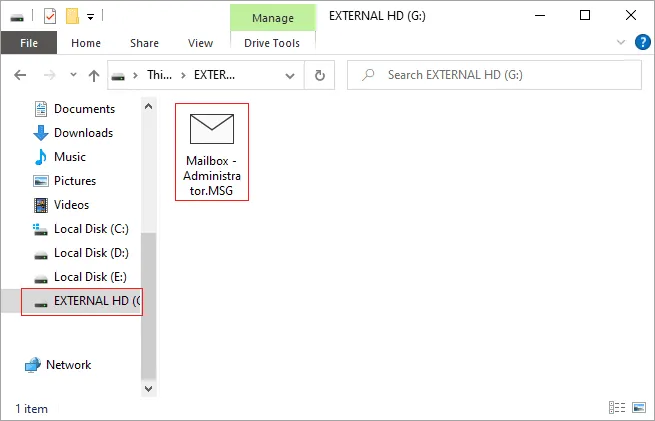
- Step 1: Open Microsoft Outlook
- Method 2: Backup Outlook emails to hard drive in HTML format
This method is useful for those who want to save their emails in a format that can be easily viewed using any web browser or text editor program. Here are the steps to save Outlook emails to a hard drive by backing them up in HTML format:
- Step 1: Open Microsoft Outlook
- Launch Microsoft Outlook on your computer
- Make sure that you have the latest version of Outlook installed to avoid compatibility issues.
- Step 2: Select the email you want to backup
- Select an email from any folder in Outlook
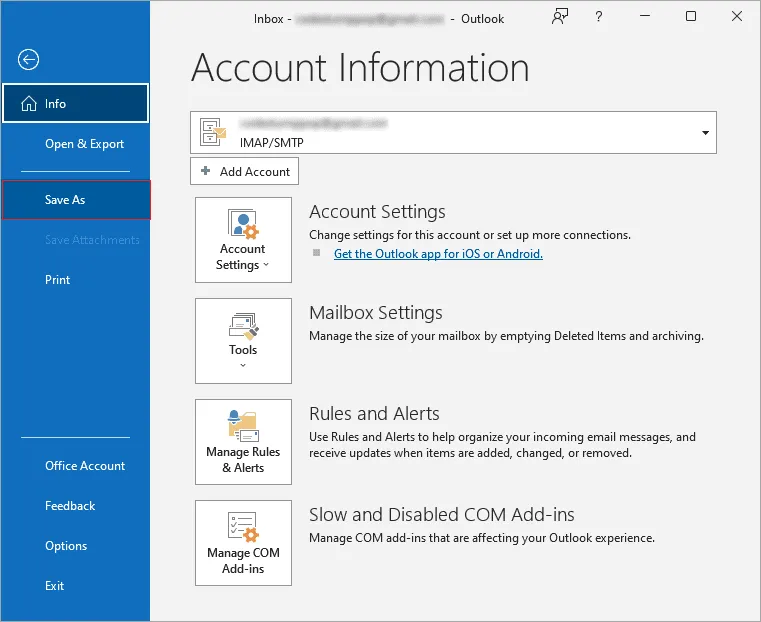
- Click on the ‘File’ menu in the top-left corner of the Outlook window.
- Step 3: Save the email in the HTML format
- Click ‘Save As’ and select the ‘Save as type’ as HTML format
- Specify the location on your hard drive to save the file and click ‘OK’
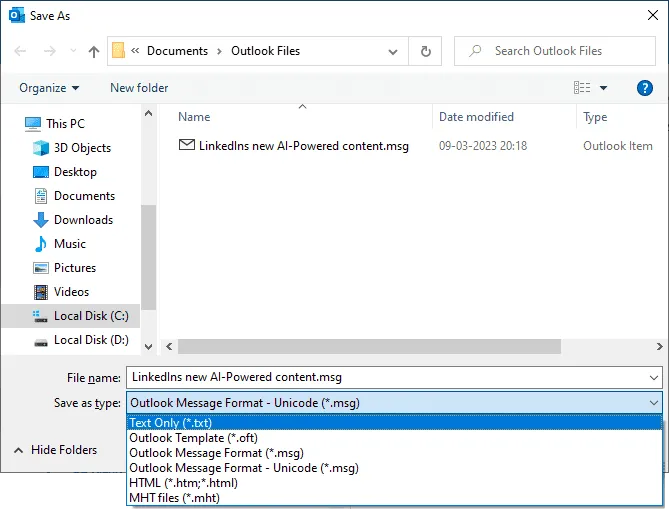
- Click ‘Save As’ and select the ‘Save as type’ as HTML format
- Step 1: Open Microsoft Outlook
- Method 3: Save emails from Outlook 365 to hard drive in PDF format
This method is useful for those who want to save their emails in a format that can be easily shared and viewed on any device.
- Step 1: Open the HTML File in a Web Browser
- To begin, navigate to the folder on your hard drive where you saved the Outlook emails in HTML format.
- Double-click on any email to open it in your default web browser.
- Step 2: Open the print dialog in the browser
- After the email is opened in your web browser, click on the ‘Print’ option or press the ‘Ctrl + P’ keys on your keyboard to open the print dialog box.
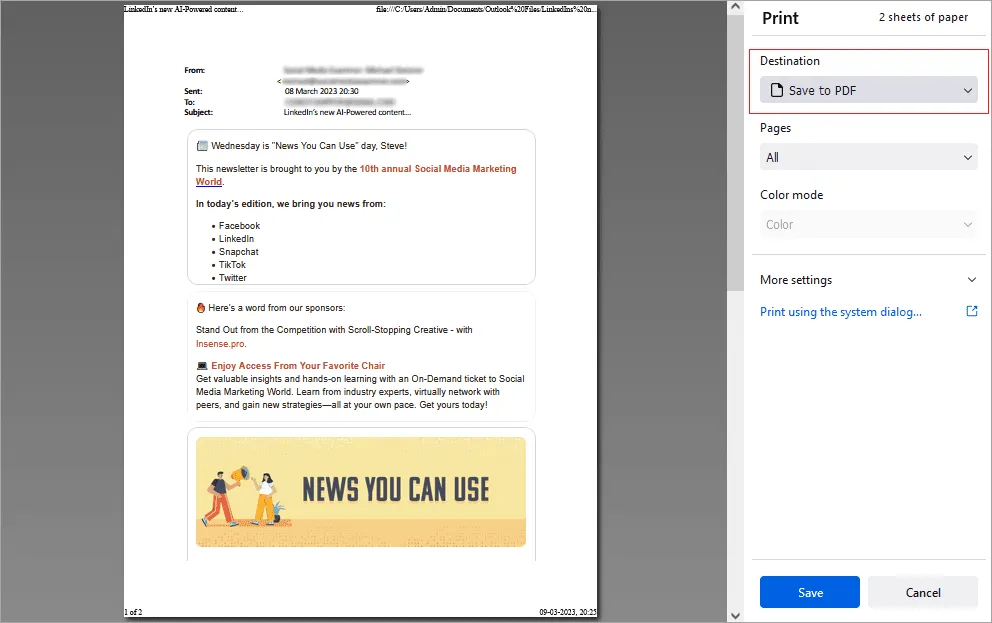
- Step 3: Choose the save to PDF option
- In the print dialog box, choose ‘Save to PDF’ option as your printer, which allows you to save the email as a PDF file.
- Then, click on ‘Save’ to continue.
- Step 4: Choose a location to save the PDF File
- A ‘Save As’ dialog box appears, prompting you to choose a location on your hard drive to save the PDF file.
- Name the file appropriately and select the folder where you want to save it. Click ‘Save’ to complete the process.
- Step 5: Verify that the email is saved in PDF format
- To verify that the email has been saved successfully in PDF format, navigate to the folder where you saved the PDF file and double-click on it to open it in a PDF reader.
- You should be able to view the email as a PDF file with all the formatting intact.
- Step 1: Open the HTML File in a Web Browser
- Method 4: Save emails from Outlook to hard drive in .DOC format
This method is useful for those who want to edit or modify the content of the email before saving it, or who prefer to keep their emails in a format that is easily editable using Microsoft Word.
- Step 1: Open Microsoft Word program
- Open Word processing programs on your computer such as Microsoft Word.
- Navigate to the folder on your hard drive where you saved the Outlook emails in HTML format.
- Open the saved HTML file in Word by going to ‘File’ > ‘Open’.
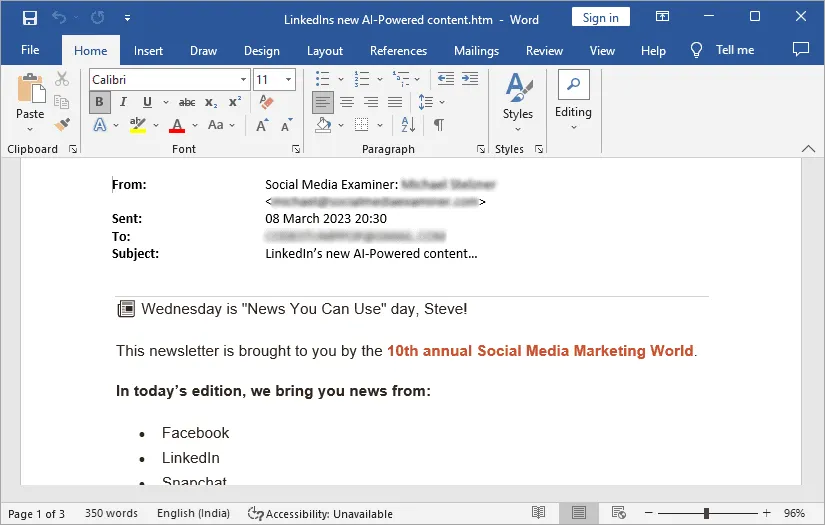
- Step 2: Save the HTML email file in the DOC file format
- Click ‘File’ > ’Save’ to save the email file as Microsoft Word Document
- Choose a name for the document and select the folder where you want to save it.
- Click ‘Save’ to complete the process.
- Step 1: Open Microsoft Word program
- Method 5: Export Outlook emails to hard drive in PST format
One of the easiest ways to save Outlook emails to your hard drive is by exporting them to a PST (Personal Storage Table) file. A PST file stores all your Outlook data like emails, contacts, calendars, and tasks in one place. This method is helpful if you want to keep a backup or move your emails to another Outlook account later.
- Step 1: Launch Microsoft Outlook and go to File
- Open Microsoft Outlook on your computer.
- Click on the ‘File’ tab in the top left corner of the window to access the Backstage View of Outlook.
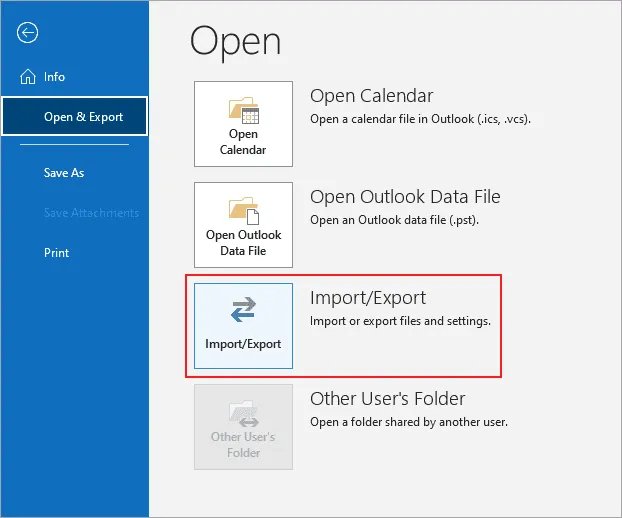
- Step 2: Click Open & Export > Import/Export
- In the Backstage View, click on ‘Open & Export’ to expand the menu.
- Click on ‘Import/Export’ to open the Import and Export Wizard dialog box.
- Step 3: Select Export to a file and select the PST option
- In the Import and Export Wizard, select ‘Export to a file’ and click ‘Next’.
- In the ‘Export to a File’ dialog box, select ‘Outlook Data File (.pst)’ and click ‘Next’.
- Step 4: Select the folders to save to your hard drive
- Select the folder that contains the emails you want to export and click ‘Next’.
- Choose a location on your hard drive where you want to save the PST file and give it a name.
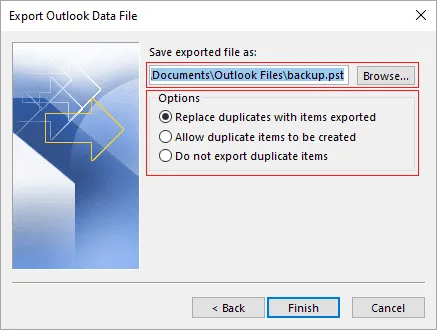
- If you want to protect the PST file with a password, enter the password and click ‘OK’.
- Click ‘Finish’ to begin the export process.
- Step 5: Start exporting emails from Outlook to PST file
- Wait for the export process to finish.
- The amount of time it takes depends on the number of emails being exported.
- Navigate to the location on your hard drive where you saved the PST file and verify that it was created successfully.
- You can double-click on the file to open it in Outlook and view the exported emails.
Note: While exporting emails from Outlook to PST using the Import/Export wizard is a useful way to back up your emails, the following are some of the disadvantages to be aware of:
- PST files have a maximum size limit, which means that if you have a large number of emails or attachments, you may need to split the file into multiple parts to avoid exceeding the limit.
- The Outlook Import/Export wizard may not be able to export emails from corrupted data files. For instance, if Outlook is not able to read your email data from the Offline Storage Table file (OST) or if the application has crashed and you are not able to open Outlook, then it is recommended to use a third-party OST to PST converter tool such as EdbMails.
- Step 1: Launch Microsoft Outlook and go to File
- Method 6: Recover and back up emails from a corrupted or inaccessible OST file
Outlook automatically creates an OST file when configured with an Exchange Server or Office 365 account. If this OST file becomes corrupted, orphaned, or the Exchange Server is no longer accessible, the methods above won't work since Outlook itself can't open the file. In such cases, you'll need a dedicated recovery tool to extract and back up your mailbox data locally.
- To recover data this way, use the OST to PST Converter: select the damaged OST file, let the tool repair and scan it, preview the recovered mailbox contents, then export the selected folders to PST. Once exported, you can copy the PST file to an external hard drive or any other storage location.
For the complete walkthrough with screenshots, see our OST to PST Converter guide.
Benefits of EdbMails for exporting Outlook emails to your computer
- Complete Mailbox Backup: Recovering data this way creates a unified, structured backup of your entire mailbox - including orphaned or encrypted files - rather than saving emails one at a time like the MSG or HTML methods above.
- Selective Backup: You can tailor the process to your needs, such as excluding specific folders, filtering by date range, and backing up only the data that matters to you.
- User-Friendly Interface: EdbMails has a user-friendly interface that makes it easy to open an OST file without Outlook. Whether you are backing up your emails for personal or business reasons, you don't need to be an IT expert to use EdbMails to backup your Outlook emails.
- Comprehensive Backup: When you use EdbMails to backup your Outlook emails, you get a comprehensive backup that includes all of your emails, contacts, calendars, tasks, and other data. Other methods may not include all of this data in the backup.
- Efficient and Fast: EdbMails is a fast and efficient tool that can quickly convert your OST files to PST format. You don't need to spend a lot of time waiting for the conversion process to complete.
- Compatibility: EdbMails is compatible with all versions of Microsoft Outlook, which means that you can use it to backup emails from Outlook 2021, 2019, 2016, 2013, 2010, and 2007.
Summary
In this article, we explored different ways to download or copy emails from Outlook to your computer. You can save emails individually as MSG, HTML, or PDF files, or export them to PST format using Outlook's built-in features. However, these methods are best suited for saving one email or just a few at a time. If you're using an Exchange account and need to back up a large number of emails - or if the OST file itself is corrupted or inaccessible - the OST to PST Converter is a more efficient solution for repairing the file and exporting all mailbox data in one go.


