


Repair and Convert Orphaned OST Files to PST Files
If you use Outlook with an Exchange or Microsoft 365 account, you have probably noticed that your emails are still there even when the internet goes down. That works because Outlook keeps a local copy of your mailbox on your computer, stored as an OST file. As long as the file is there, you can read old emails, check your calendar, and look up contacts without touching the server.
What most people do not realize is that an OST file is permanently tied to the Exchange account that created it. Not just associated with it. Tied to it. So when that account gets deleted, the mailbox gets disabled, or the Exchange server is decommissioned, Outlook has no way to validate the OST anymore. It stops working. The file becomes what is known as an orphaned OST.
At that point, Outlook will not open the file. You cannot plug it into a new profile or import it the way you would a regular PST file. The data is physically sitting on your hard drive but you cannot get to it through any standard Outlook method.
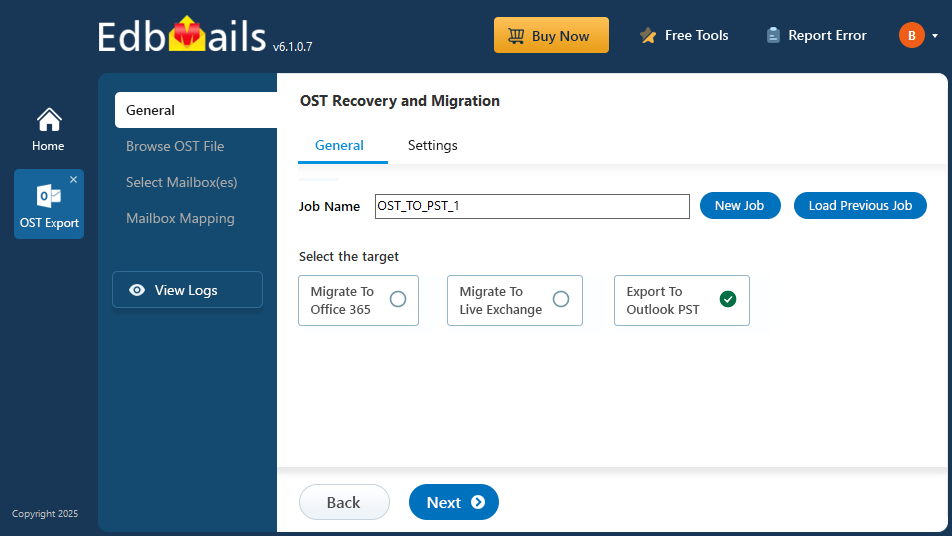
The fix is to convert the orphaned OST into a PST file. A PST has no attachment to any account or server. You can open it in any Outlook profile, on any Windows machine, without any server involvement at all. That is the key difference between the two formats, and it is why converting makes sense here.
EdbMails OST to PST Converter does this conversion without needing the original Exchange account, Outlook profile, or a live server connection. It goes directly to the orphaned OST file on disk and pulls the data out. This guide explains why OST files end up orphaned, what you can do to prevent it, and how to run the recovery using EdbMails step by step.
Common Reasons that make a Microsoft Exchange OST File Orphaned
Understanding why an OST becomes orphaned helps you figure out the right recovery approach and avoid the same situation in the future. Here are the most common causes.
- Exchange Server Crash: When the Exchange Server goes down permanently or Outlook cannot sync with it, the local OST file loses its server connection. Any data stored locally in the OST that was not yet synced to the server becomes stranded. EdbMails recovers mailbox data directly from the orphaned OST without needing the Exchange server to be functional or available.
- Exchange Storage Failures: Bad sectors on the server's storage disk can cause incorrect data reads and database corruption. When the Exchange database itself becomes unavailable as a result, the local OST file on every connected client machine is left orphaned. EdbMails scans and extracts data from the orphaned OST even when the Exchange database on the server side is corrupted or completely inaccessible.
- Unexpected Power Failures: A sudden power outage or abnormal server shutdown while Exchange is actively writing to the database can damage mailbox data and leave the connected OST files orphaned. EdbMails repairs file-level issues caused by these interruptions and converts the affected OST to PST, restoring access to whatever mailbox data was stored locally before the failure occurred.
- Exchange Cache Controller Failure: If the caching controller used by the Exchange Server fails, cached mailbox data can be lost and the database may become corrupted. The local OST file becomes orphaned as a direct result. EdbMails bypasses any dependency on the server-side cache and retrieves mailbox data directly from the orphaned OST file.
- Mailbox Deletion or Access Revocation: When an administrator deletes a mailbox, disables an account, or revokes access, Outlook immediately loses its ability to sync with the server. The OST file on the local machine is left behind with no way to reconnect. EdbMails lets you recover and export all data from the orphaned OST without needing mailbox access, server credentials, or admin permissions on the original server.
- Virus Infection on Exchange Databases: Virus or malware infections can damage Exchange databases to the point where they become unusable. When the database is gone, every OST file that was syncing to it becomes orphaned. EdbMails safely extracts mailbox data from these orphaned files without requiring the original database or server environment to be intact.
- Accidental Deletion or Server Reinstallation: Accidentally deleting Exchange databases, reformatting the server OS, repartitioning disks, or reinstalling the Exchange server environment can make the original server completely unavailable. Any local OST files that were syncing to it became orphaned immediately. EdbMails recovers data from these orphaned OST files independently of the Exchange environment and converts it to PST format.
How to Avoid Orphaning of OST Files
Not every orphaned OST situation is avoidable, but good server hygiene reduces the risk considerably. Here are the practical steps worth taking.
- Use Reliable Server Hardware : A large share of Exchange database failures trace back to hardware issues, particularly with storage. Using dependable server components reduces the chance of the kind of storage failure that leaves OST files stranded.
- Protect Against Power Failures: A UPS gives the server enough time to shut down cleanly during a power outage rather than cutting power mid-write. Abrupt shutdowns during database writes are one of the more common ways Exchange databases end up corrupted and OST files end up orphaned.
- Keep Antivirus Protection Active on the Server : A trusted antivirus solution running on the Exchange server reduces the risk of the kind of malware infection that can wipe out or corrupt a mailbox database and orphan every connected OST file.
- Back Up Mailbox Data Regularly : Frequent backups of Outlook mailbox data mean that even when an OST becomes orphaned, the data loss window is limited to whatever happened since the last backup. Regular backups will not stop an OST from becoming orphaned, but they significantly reduce the stakes when it does happen.
Even with all of these measures in place, things go wrong. When they do, EdbMails OST to PST Converter recovers data from orphaned OST files and restores mailbox access without requiring the Exchange server or the original Outlook profile to be available.
How to Recover and Convert Orphaned OST Files to PST
When an OST file is orphaned, the usual Outlook options for opening or importing it will not work. The file is there on disk but Outlook treats it as inaccessible because the account it belonged to is gone. EdbMails reads orphaned OST files directly without needing the original Exchange account, Outlook profile, or server connection. Here is how to run the recovery.
Steps to Export orphaned OST to PST
Step 1: Download and Install EdbMails OST to PST Converter
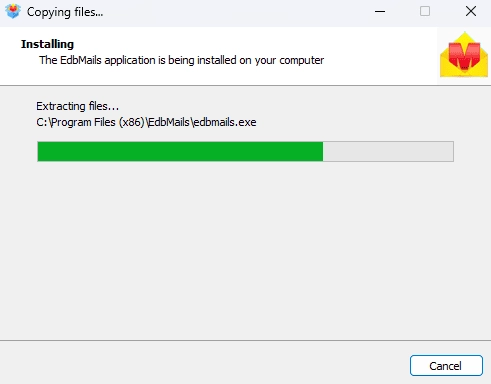
- Download and install the EdbMails application on any Windows computer. It does not need to be the same machine the OST was created on.
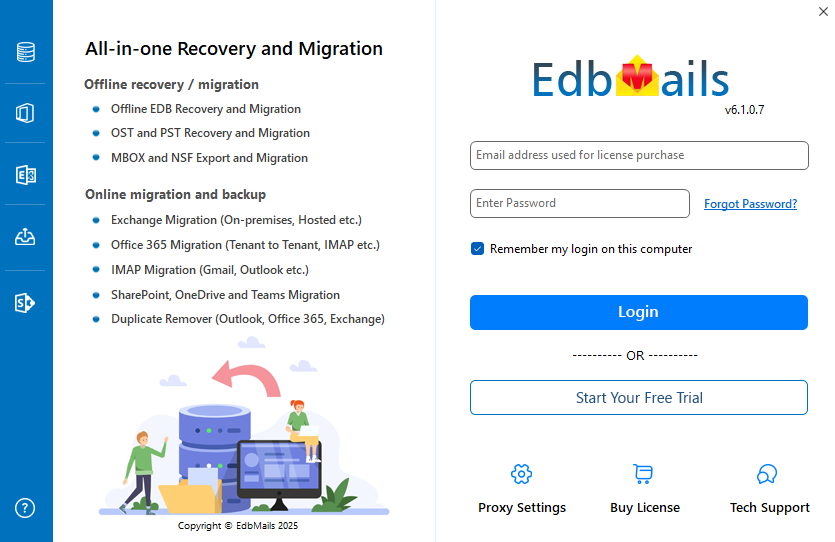
- Open EdbMails. If you have an account, log in with your email address and password. If you are evaluating the tool first, click 'Start Your Free Trial' to proceed without logging in. The free trial converts up to 30 items per folder across all folders, which is enough to verify the orphaned OST is readable and the recovered data looks correct before you purchase.
- Once your license is purchased, close and reopen EdbMails and log in with the same credentials used at checkout to activate it.Note: The Free Trial version lets you explore the software features and export up to 30 items from each and every folder. To unlock full functionality, you need to purchase a valid license from the EdbMails website.
Click here to purchase the license from the EdbMails website.
After completing the purchase, close and relaunch the EdbMails application, then login using the same email address and password used during the purchase to activate your license.
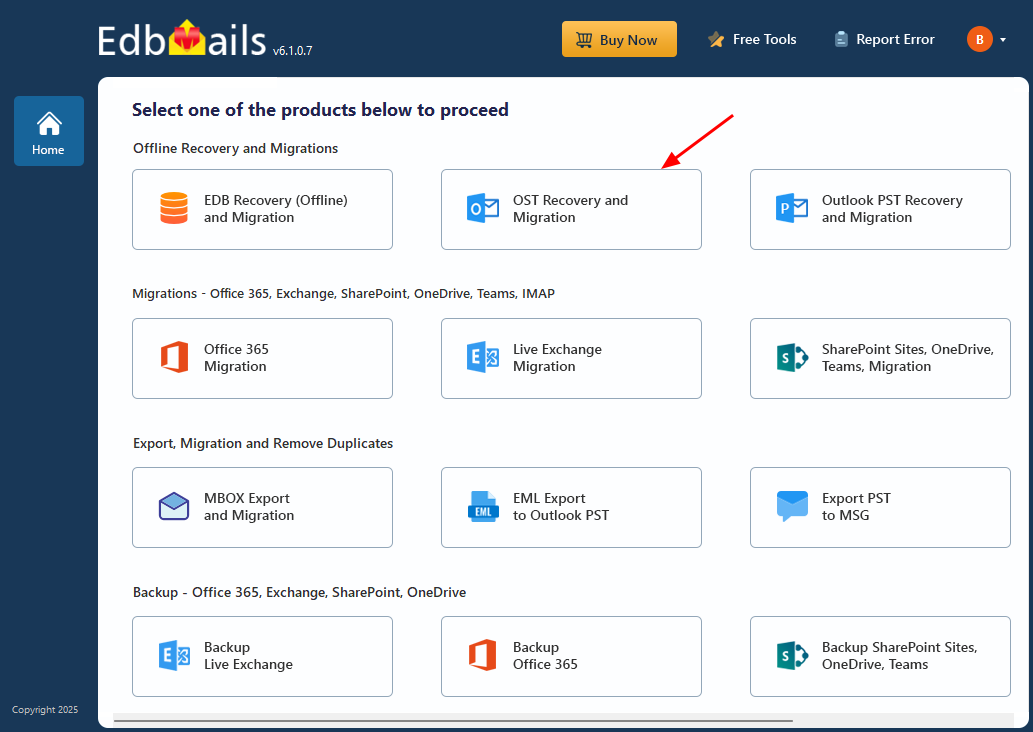
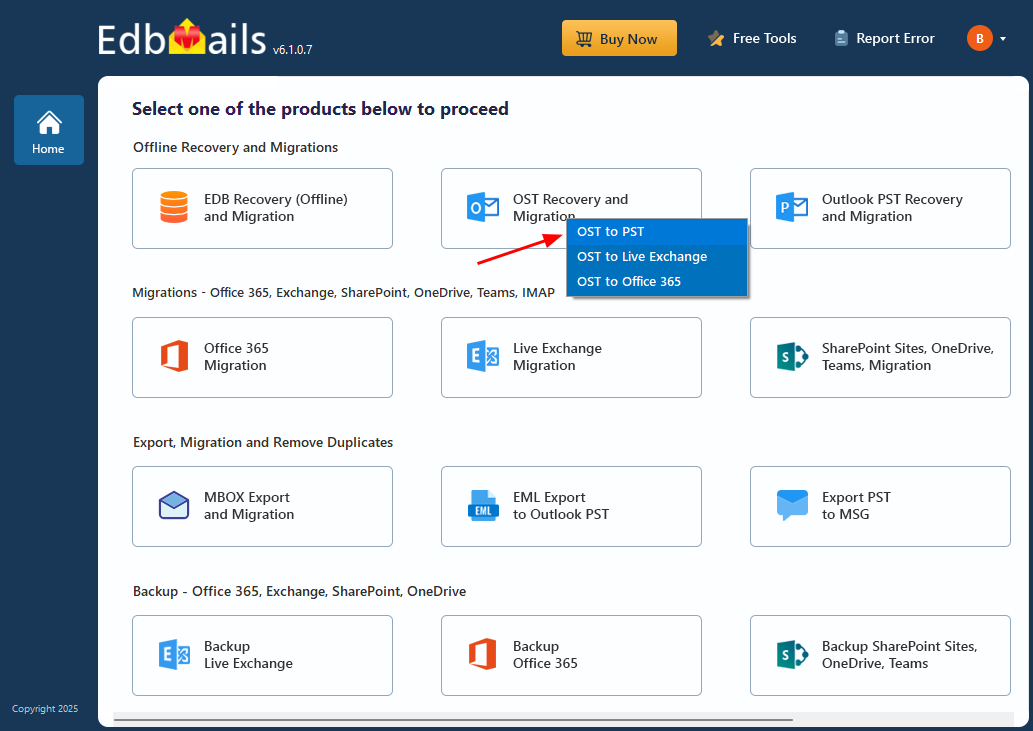
- From the EdbMails home screen, select 'OST Recovery and Migration'.
- Then select 'OST to PST'.
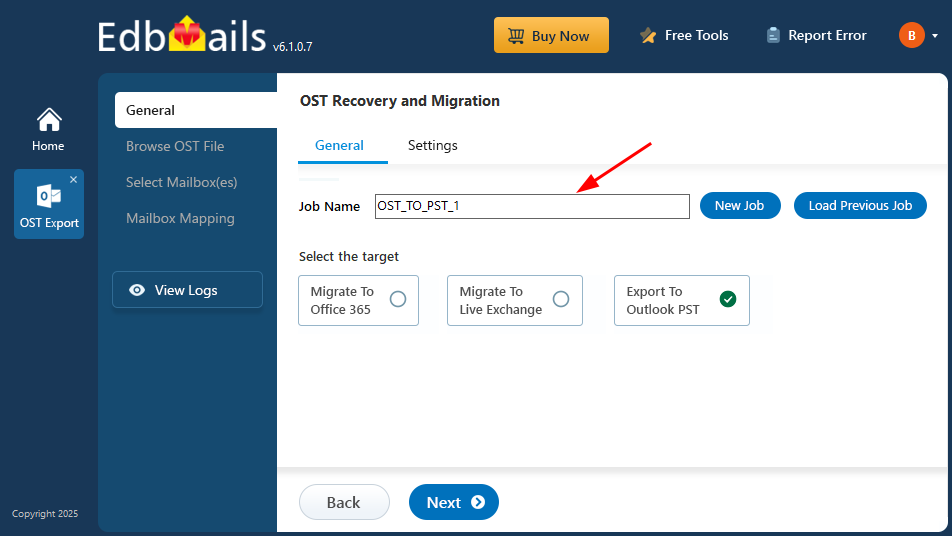
- You can keep the default job name or click 'New Job' to rename it. Using a descriptive job name is helpful when you are working with multiple orphaned files.
Step 2: Select the Orphaned OST File
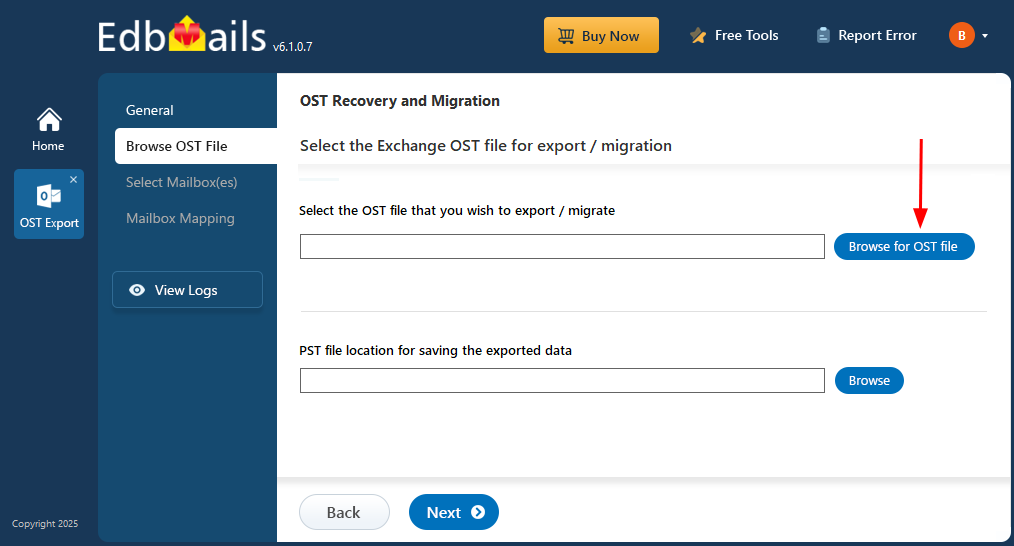
- Click ‘Browse for OST file'.
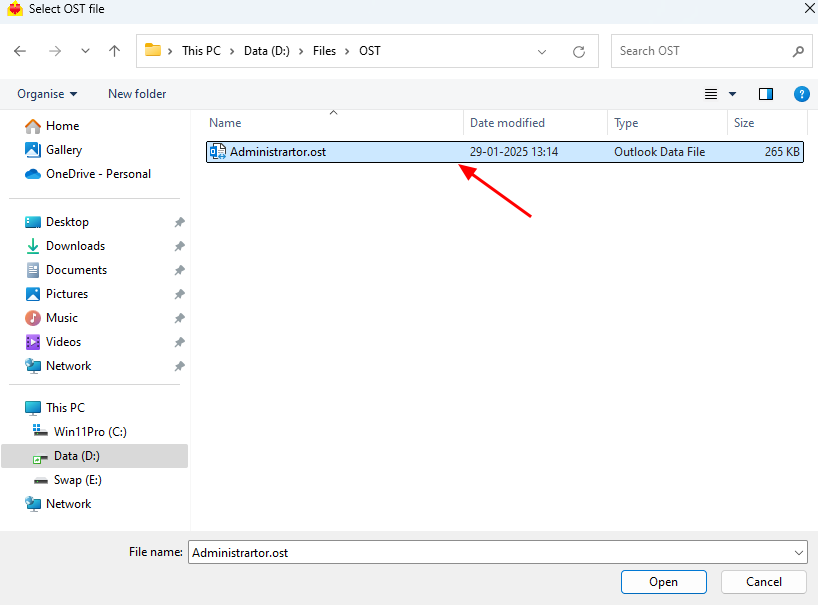
- Navigate to the location of the orphaned OST file on your local drive and select it. If the OST is stored on a network share, you can point EdbMails to that location as long as the share has read and write permissions assigned. Click 'Next' to continue.
- Click 'Browse' to select the destination folder where the recovered PST file will be saved.
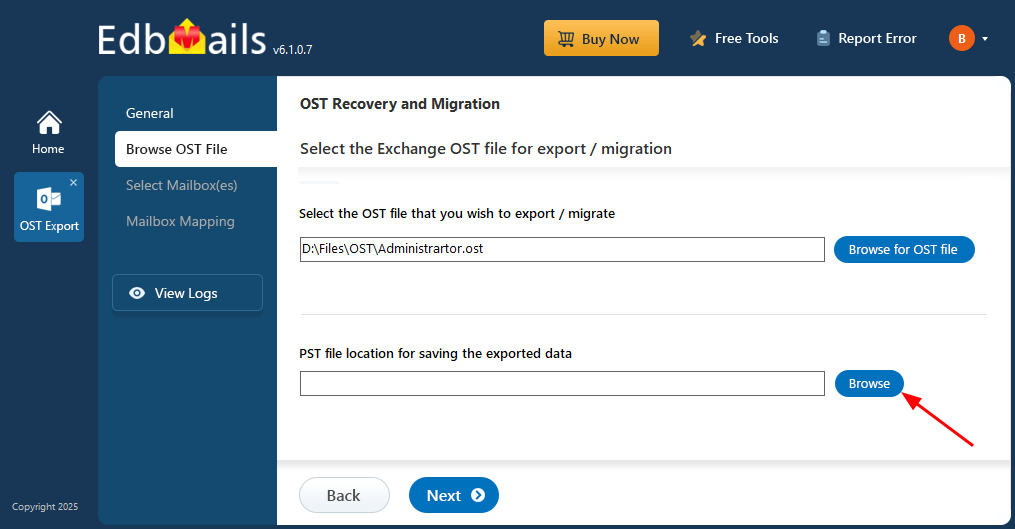
- Select the save location and make sure the drive has enough free space to hold the output PST. As a rough guide, expect the PST to be roughly the same size as the source OST.
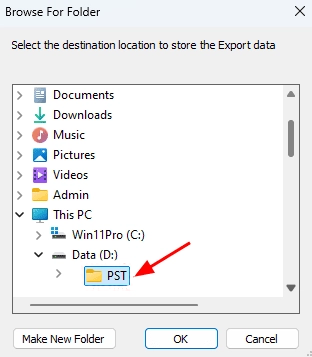
- EdbMails now scans the orphaned OST file. This is not just a directory read. EdbMails analyzes the full file structure, including the message store, folder tree, and item-level data, to recover everything stored in the file. For a large orphaned OST or one that has some file-level damage in addition to being orphaned, this step takes longer. Let it run to completion so the recovery is thorough.
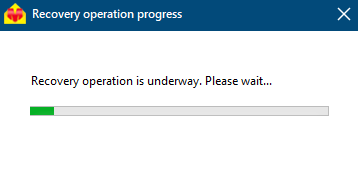
- When the scan finishes, the full mailbox structure appears in the left pane: Inbox, Sent Items, Contacts, Calendar, Tasks, Notes, and any custom folders the mailbox contained. You can click through folders to preview individual items on the right side of the screen. EdbMails lets you open and browse an OST file in full detail before exporting anything, which is the best way to confirm the data is intact before running the conversion.
Step 3: Preview and Select What to Convert
- Select the entire OST file if you want to recover everything, or expand the folder tree and check only the specific folders you need. If the orphaned OST is large and you only need the Inbox and Contacts, selecting just those folders keeps the output PST lean and the conversion faster. Click 'Next' when your selection is ready.
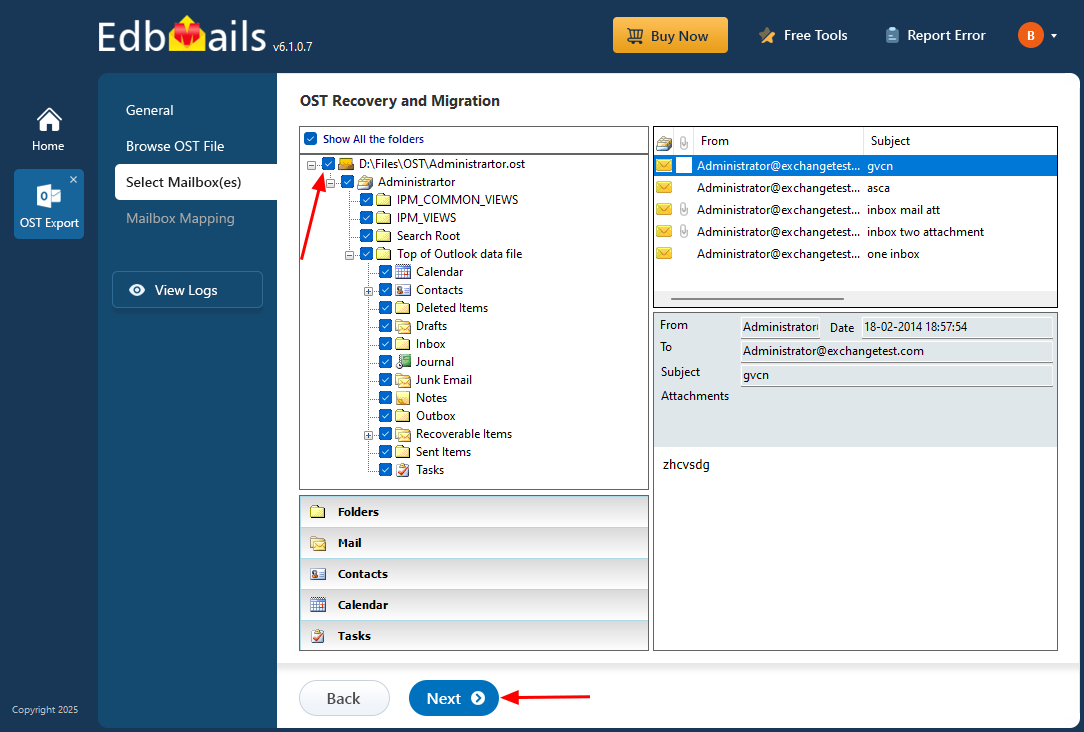
- EdbMails also supports date-based and folder-based filters if you want to export only items within a specific date range. To set these up, go to the 'General' tab and click the 'Settings' tab at the top right. More details on filter settings are here.
Click here to learn more about setting date filters for OST to PST conversion.
Step 4: Export the Orphaned OST to PST
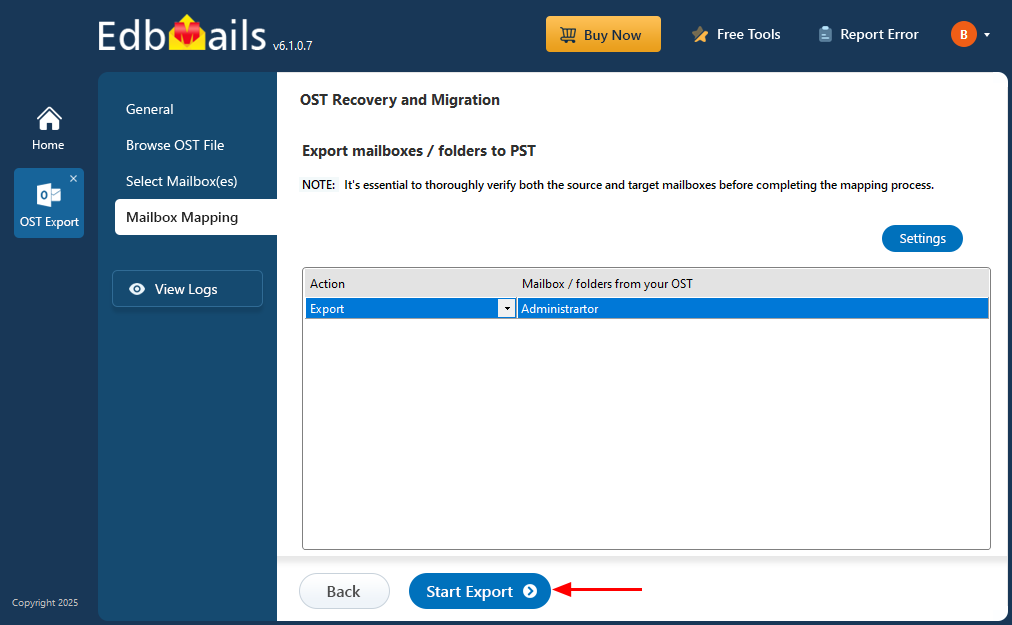
- Review the selected mailboxes and folders listed in the export summary. Confirm the 'Action' is set to 'Export' and click 'Start Export'.
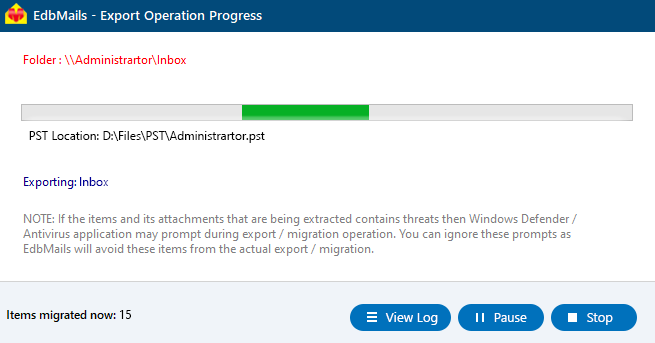
- The export progress screen shows which folder is currently being processed, the destination PST path, and a running count of items exported. For large orphaned OST files, this runs in the background so you can continue using the computer in the meantime.
When the export finishes, EdbMails confirms completion. Open the output PST file in Outlook using File > Open & Export > Open Outlook Data File to verify the recovered data. Everything recovered from the orphaned OST should appear in its original folder structure with metadata, attachments, and formatting intact.
- Download and install the EdbMails application on any Windows computer. It does not need to be the same machine the OST was created on.
What EdbMails Recovers from an Orphaned OST File
EdbMails recovers the complete mailbox contents from orphaned OST files, not just emails. Here is what comes across in the conversion:
- Emails including all attachments, inline images, and original formatting
- Contacts with all fields, categories, and notes
- Calendar events including recurring appointments and meeting requests
- Tasks with due dates, priorities, and status
- Notes and journal entries
- Original folder hierarchy including all subfolders and custom folders
- Email metadata including send and receive timestamps, read and unread status, flags, and categories
- Data from all folder types including Inbox, Sent Items, Drafts, Deleted Items, and any custom folders the mailbox had
For export of email, calendars, and contacts specifically, EdbMails preserves all fields and formatting across all three item types.
Common Errors You May See with Orphaned OST Files
Outlook prompts you to create a new profile when opening: This happens because Outlook detects that the profile tied to the OST no longer has a valid Exchange connection. Rather than creating a new profile and losing access to the orphaned file, use EdbMails to open and convert the OST directly. See also: Fix Outlook data file cannot be accessed.
"The set of folders cannot be opened" error: This error appears when Outlook cannot establish a connection to the Exchange mailbox the OST was created for. If the account is gone, this error will keep appearing regardless of profile settings. EdbMails reads the file independently of Outlook. See: Fix Outlook the set of folders cannot be opened.
OST file appears grayed out or unselectable in Outlook: Outlook grays out OST files that are not tied to an active profile. This is expected behavior for an orphaned file. EdbMails bypasses this entirely since it does not route through Outlook to read the file.
"Your Outlook data file cannot be configured" message: This message typically means Outlook cannot match the OST to a valid Exchange account. See: Your Outlook data file cannot be configured. EdbMails handles this scenario by reading the OST file directly without needing the account to be configured.
Errors have been detected in the OST file This message from SCANPST or Outlook itself means the OST has file-level damage in addition to being orphaned. SCANPST handles only minor corruption. EdbMails recovers from both orphaning and structural damage in the same operation. See: Errors have been detected in the OST.
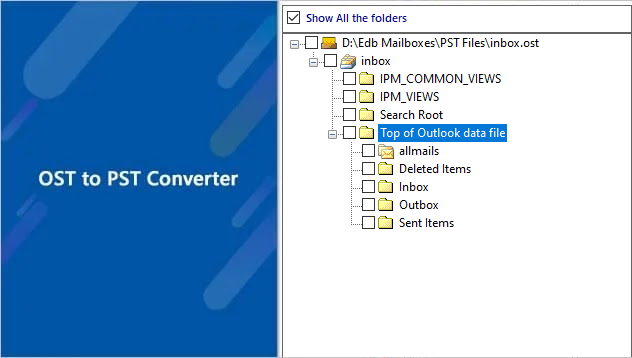
Video Tutorial
Frequently Asked Questions
What exactly is an orphaned OST file?
Can I reconnect an orphaned OST file to a new Outlook profile?
Does EdbMails need the original Exchange account to recover an orphaned OST?
What is the difference between a corrupted OST and an orphaned OST?
Can I recover deleted emails from an orphaned OST file?
Does the recovery preserve the original folder structure?
Can I select specific folders from an orphaned OST instead of recovering everything?
Can I use EdbMails to migrate the orphaned OST data directly to Office 365 instead of converting to PST?
Will EdbMails work if the orphaned OST file is also encrypted?
Can I try EdbMails on my orphaned OST file before purchasing?
Additional resources
- How to open an OST file?
- Rebuild OST file
- Repair corrupt Outlook OST file
- Convert encrypted OST file to PST
- Selective OST to PST Conversion
- OST to Office 365
- Recover deleted mailbox items from OST
- Granular recovery of OST file
- Export email, calendars, contacts from OST
- Fix Outlook data file cannot be accessed


