


OST to PST Export Log Report
An export log report for OST to PST conversion is a crucial document that records every aspect of the process, including details such as file status, exported folders and mailboxes, the count of exported items, and any errors encountered. This log ensures that every element of the OST file emails, attachments, and folders is accurately transferred to PST without data loss. It becomes essential when handling large or complex data sets, where tracking the success of each conversion is vital. Without a log report, users cannot verify if the migration was fully successful, making it challenging to troubleshoot issues or ensure compliance in regulated environments.
EdbMails OST to PST Converter provides a detailed export log report, capturing information like the application version installed on your computer, the date and time of the export, and the export path, which is crucial for troubleshooting when issues arise. This log not only lists converted items and highlights potential errors such as corrupt files or permissions problems, but it also gives users the tools to resolve them quickly.
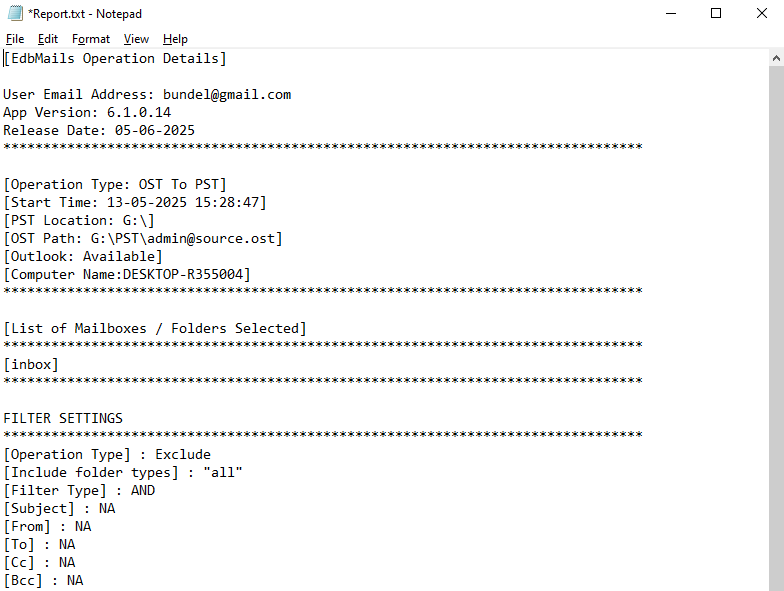
The log report details the following elements:
- Details of the OST to PST export operation
- The folders and mailboxes that are exported
- The count of exported items
- App version installed on your computer
- Date and Time of the export operation
- The export path that is required for troubleshooting when you encounter issues with the application.
What you can actually see in the report
Open the log file, and you'll see a summary section listing your app version, the export start time, and both the source OST path and destination PST location. Below that, it lists exactly which mailboxes and folders were included in the export, along with any filters like subject, sender, or date range that were applied.
For teams handling compliance audits, this matters because the report is timestamped and tied to a specific OST file path; you don't have to reconstruct what happened after the fact. If an export is interrupted or a folder fails to transfer, that shows up here rather than requiring you to manually open the PST and compare folder-by-folder against the source.
On multi-mailbox jobs, this becomes the fastest way to confirm nothing was skipped instead of opening each converted PST individually; the log gives you the exported item count per folder in one file.
The log report comprehensively covers all the information in one place for easy viewing and saves time when you quickly need to view the summary of the entire OST to PST export operation. You can view it either during or after the completion of the export operation. There is no need to manually compare and verify each and every folder from the source and target files. However, it is always advised to verify the target data for the accuracy of the export operation. You can contact our 24/7 Tech support for any observations.
Frequently Asked Questions(FAQs):
What does the log report actually record?
Can I check the report while the export is still running?
Does the log tell me if something failed to export?
Where is the log file saved?


