


How to Resolve the ‘Outlook data file cannot be configured’ Error
Microsoft Outlook is a comprehensive application that helps to manage emails, calendars, contacts, and tasks from a single interface. However, users may sometimes encounter the error ‘Your Outlook data file cannot be configured’ during profile creation or account setup. This issue commonly occurs when there are problems with the Offline Storage Table (OST) file.
This issue usually occurs when the OST file becomes corrupted, fails to synchronize properly, or is associated with incorrect account configurations. In certain situations, a damaged or misconfigured Outlook profile can also cause the error, blocking mailbox access and interrupting your day-to-day work.
To address this issue, an effective approach is required to repair and recover the OST file. When the file is severely damaged, a dedicated OST to PST Converter can help.
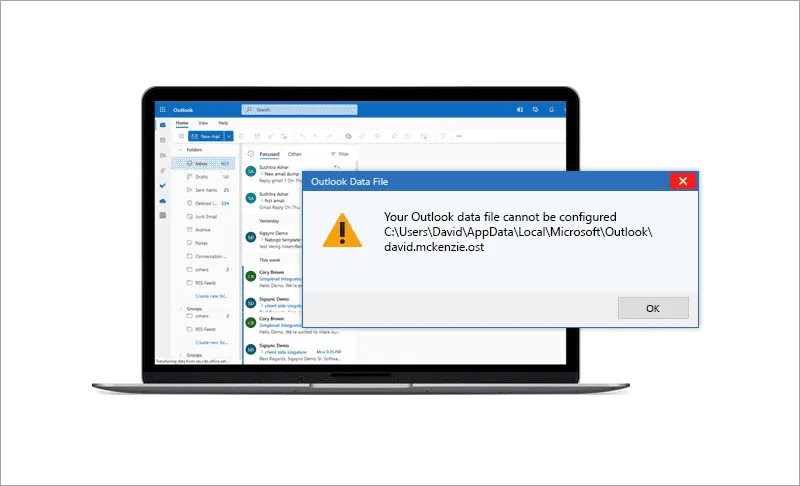
This page outlines clear steps to help you identify the cause of the issue, recover your data with EdbMails, and regain complete access to Outlook in a safe and reliable way.
What causes the error ‘Outlook data file cannot be configured’?
The most common cause of the 'Outlook data file cannot be configured' error is a corrupted Outlook profile or a damaged Outlook data file (OST or PST).
Some other common causes of this issue are outlined below, including the reasons for the error ‘Outlook errors have been detected in the file OST’.
- Corrupted Outlook Data Files: Corrupted Outlook data files can create problems when you're trying to set up a new account or access an existing one. This corruption can happen for many reasons, like a sudden system crash, a virus infection, or an unexpected Outlook shutdown. When the OST file is damaged, Outlook may fail to open your mailbox and, in some cases, even crash during startup.
- Incorrect Settings: If Outlook isn't syncing your emails, it could be due to incorrect account or server settings, missing or wrong passwords, or problems with your internet connection. These configuration issues can also lead to the error message: ‘Outlook data file cannot be configured OST’
- Compatibility Issues: Compatibility problems between Outlook versions or your operating system can also trigger the ‘Outlook data file cannot be configured’ error. Using an outdated version of Outlook may lead to bugs and vulnerabilities, causing slow performance and preventing Outlook from connecting properly to the Exchange server.
- Corrupted Windows Registry: The Windows registry is a crucial component of the operating system. Corrupted registry entries can cause issues with Outlook and result in the data file configuration error.
- Damaged Outlook Profile: A damaged Outlook profile can create problems when setting up a new account or accessing an existing one. This can result from system crashes, virus attacks, or incorrect settings. In these situations, using an OST file opener tool to access the OST file may be necessary.
- Disabled Cached Exchange Mode: Outlook uses the Cached Exchange mode to create and configure the Outlook data file. In case the Cached Exchange mode is turned off, you may get the data file configuration error message. Follow the steps to enable Cached Exchange mode in Outlook.
How to fix the error ‘Outlook data file cannot be configured’?
The following methods can help you resolve the error ‘Your outlook data file cannot be configured’ in Windows 11, 10, 8.1, 8 and 7.
- Method 1: Delete and create a new Outlook profile
Deleting and creating a new Outlook profile can help resolve the ‘Outlook data file cannot be configured’ error by resetting the settings that may be causing the issue. A new profile generates a fresh set of files and configurations for Outlook to work with, which can replace any corrupted or incorrect data from the old profile. This often fixes the error by starting Outlook with clean, working settings.
- Step 1: Close Outlook and open the Control Panel
- Save any unsaved work and close Microsoft Outlook.
- Click on the ‘Start’ button and open the ‘Control Panel’
- Step 2: Locate and open the Mail applet
- In the Control Panel, search for ‘Mail’ or ‘Mail (32-bit)’ and open it.
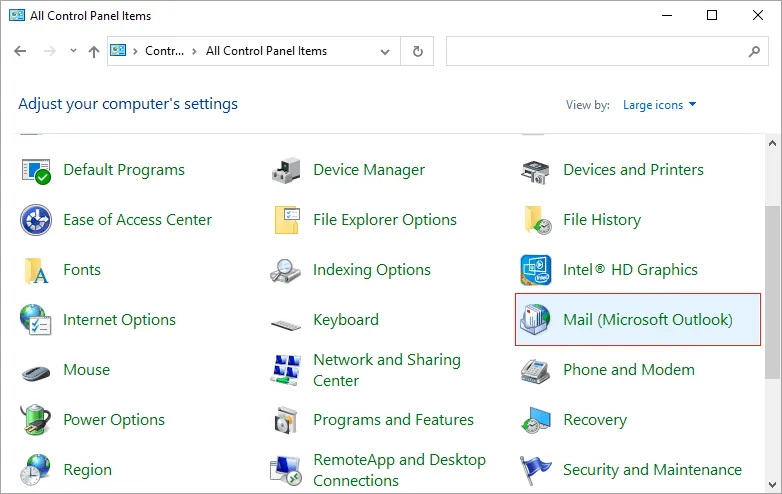
- In the Control Panel, search for ‘Mail’ or ‘Mail (32-bit)’ and open it.
- Step 3: Create a backup of the current Outlook profile
- Click ‘Show Profiles’ and select your current Outlook profile.
- Click ‘Copy’ and create a backup of the current profile.
- Step 4: Delete the current Outlook profile
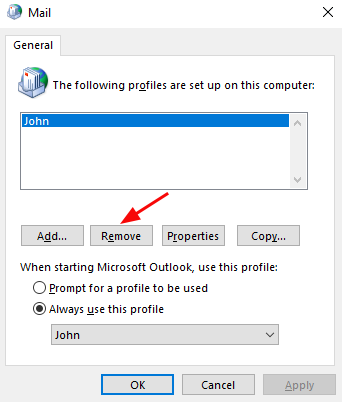
- Now, select your current Outlook profile and click ‘Remove’
- Confirm the action and delete the profile.
- Step 5: Create a new Outlook profile
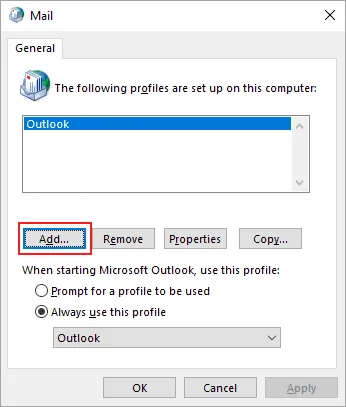
- Click ‘Add’ to create a new Outlook profile.
- Enter a name for the new profile and click on ‘OK’.
- Follow the on-screen instructions to set up your email account in the new profile.
- Step 6: Set the new profile as the default profile
- In the Mail Setup window, select the new profile from the drop-down menu under ‘When starting Microsoft Outlook, use this profile’.
- Click ‘Apply’ and then ‘OK’
- Close all windows and restart Microsoft Outlook.
Check if the error message is fixed. It is important to note that reconfiguring your Outlook profile creates a new OST file, and any synchronization changes saved in the old OST file are lost.
Note: When you configure an Office 365 account with Outlook, the application creates an .nst file, and you may receive the error message ‘Outlook Data file (.nst) cannot be configured’. In such cases, delete the Outlook profile associated with the Office 365 account and reconfigure it as described in the preceding steps.
- Step 1: Close Outlook and open the Control Panel
- Method 2: Repair the Outlook data file with ScanPST
ScanPST is a built-in repair tool in Microsoft Outlook that scans and repairs corrupted or damaged Outlook data files (PST and OST files). Repairing the Outlook data file with ScanPST can sometimes help to resolve the ‘Outlook data file cannot be configured’ error.
- Step 1: Close Outlook and open the Control Panel
- Save any unsaved work and close Microsoft Outlook.
- Click on the ‘Start’ button and open the ‘Control Panel’
- Step 2: Locate and open the Mail applet
- In the Control Panel, search for ‘Mail’ or ‘Mail (32-bit)’ and open the applet.
- Step 3: Open the Data Files tab and select the data file to repair
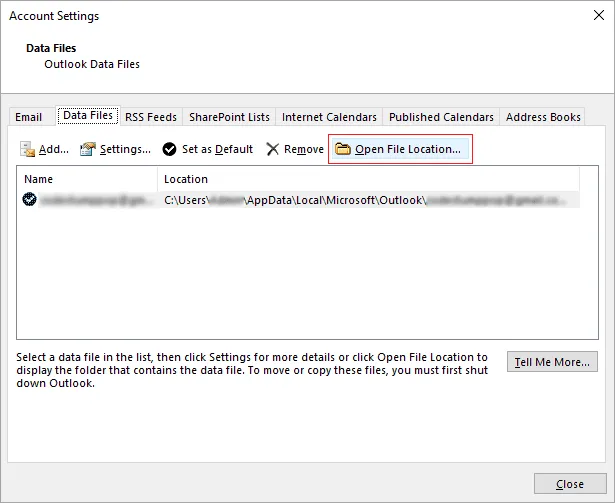
- In the Mail Setup window, click on the ‘Data Files’ tab.
- Select the data file that is causing the error and click on the ‘Open File Location’ button.
- Step 4: Create a backup of the data file
- Before repairing the data file, create a backup by copying the file to a safe location.
- Step 5: Run the Inbox Repair Tool or ScanPST.exe
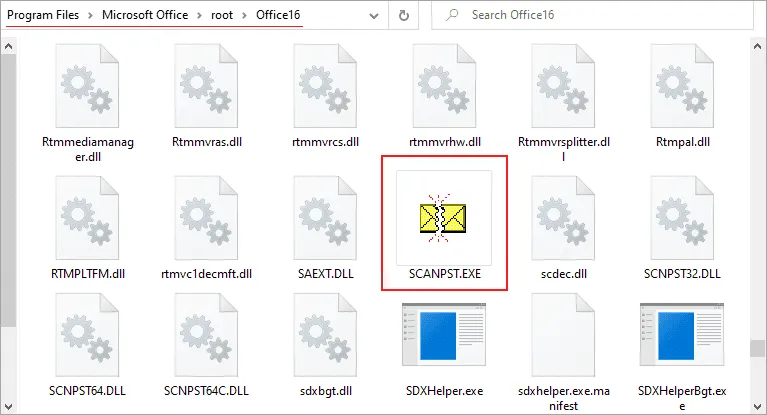
- Navigate to the location C:\Program Files\Microsoft Office\root\Office16.
- Search and run the ‘ScanPST.exe’ application.
- Select the Outlook data file from your computer that you want to repair.
- After the repair operation is complete, relaunch Outlook and check to see if the error is fixed.
While ScanPST can assist in repairing corrupted or damaged Outlook data files, it has several limitations that users should consider which are explained below:
- Repair Capability Limitation: ScanPST is only designed to repair minor corruptions and inconsistencies in Outlook data files. If your file is severely damaged or corrupted, it may not be able to repair or rebuild the Outlook OST file.
- File Size Limitation: ScanPST, the built-in Outlook repair tool, has limitations when it comes to file size. It can scan and repair data files up to 2 GB, but anything larger may not be fully recoverable. In such cases, splitting the oversized OST file into smaller PST files is often necessary, a task that can only be done effectively with professional third-party tools.
- Risk of Data Loss: While using ScanPST to repair a corrupted or damaged Outlook data file, there is a risk of data loss. The tool may delete some of your data during the repair process, or it may not be able to recover all of your data.
Note: If the Inbox Repair Tool fails to repair the data file, try using a third-party tool like EdbMails OST to PST converter software or PST repair tool for Outlook to restore your email data.
- Step 1: Close Outlook and open the Control Panel
- Method 3: Recover data from a severely damaged OST file
If the methods above don't resolve the error, the OST file itself may be too damaged for Outlook's built-in tools to repair. In this case, you'll need a dedicated recovery tool to extract your mailbox data and restore it in a usable format.
To recover data this way, use the OST to PST Converter:
- Select the damaged OST file, let the tool repair and scan it, preview the recovered mailbox contents, then export the selected folders to PST.
- Once exported, import the PST file back into Outlook to restore full access to your mailbox.
For the complete walkthrough with screenshots, see our Convert OST to PST guide.
Benefits of using EdbMails over the other methods to resolve the Outlook data file issue:
- Fast and Efficient: EdbMails is a fast and efficient tool that can convert large and corrupted OST files to PST format quickly. The tool uses advanced algorithms to ensure a smooth and error-free conversion process and can also repair Outlook OST from corruption.
- User-Friendly Interface: EdbMails has a user-friendly interface that enables you to perform the conversion process effortlessly. The tool provides step-by-step instructions to guide you through the entire export and migration operations.
- Maintains Data Integrity: EdbMails ensures that the converted PST file contains all the data from the original OST file, including emails, contacts, calendars, tasks, notes, and attachments. The tool maintains the original formatting and metadata of the data, such as sender, recipient, date, and time.
- Supports Selective Conversion: EdbMails enables you to perform selective conversion of OST data to PST. You can choose which folders or items you want to convert and exclude any unwanted data.
- Supports All Versions of Outlook: EdbMails supports OST file conversion from versions of Microsoft Outlook, including Outlook 2021, 2019, 2016, 2013, 2010, 2007, and 2003. You can convert OST files to PST format regardless of the Outlook version you are using.
- No File Size Limitation: EdbMails can handle large OST files of any size without any issues. There is no file size limitation, and you can convert files of any size to PST format. Learn how to export Outlook emails to an external hard drive.
This approach is especially useful over manual repair tools because it preserves data integrity even from severely corrupted files, works regardless of file size, and lets you selectively recover only the folders you need. There is no file size limitation, and you can convert files of any size to PST format.
Summary
In conclusion, the 'Your Outlook data file cannot be configured' error is a common problem that can block access to your mailbox. Solutions include repairing the data file, resetting Outlook settings, creating a new profile, or addressing issues with the .nst file. When the data file is severely corrupted or inaccessible, recovering the data with the OST to PST Converter is the most reliable approach, preserving mailbox structure and integrity throughout the process.


