


Export Selective Mailbox Items and Folders from OST to PST
When handling OST files, you don't always need to export the entire mailbox. In many cases, extracting only selected emails, folders, contacts, or calendar entries is the more efficient approach. Selective export minimizes file size, removes irrelevant data, and keeps the resulting PST file structured and easy to manage. Large attachments, junk emails, or irrelevant data can make PST files unnecessarily bulky, increasing the risk of corruption and slowing down Outlook's performance.
Outlook's native export options offer limited flexibility and don't support this kind of granular filtering. EdbMails OST to PST Converter fills that gap — letting you export content based on date range, subject, sender, specific folders, and more, giving you the control native tools lack.
When Selective Export Makes Sense
Selective OST export is useful in several real-world scenarios:
- Exporting specific emails — extract only the emails tied to a certain project, sender, or time frame using custom criteria like date range, sender name, subject line, or attachments, instead of exporting the entire OST file.
- Exporting specific folders — your OST file might include Inbox, Drafts, Sent Items, and custom folders, but you may only want to export certain ones. This is especially useful for skipping folders like Junk Email or Conversation History.
- Exporting specific item types — retrieve and export only particular mailbox item types, such as contacts, calendar entries, or tasks, without exporting emails.
- Removing unwanted items — skip duplicate messages, junk mail, or emails with oversized attachments during export, so the resulting PST file is clean and ready to use in Outlook.
Available Filter Options
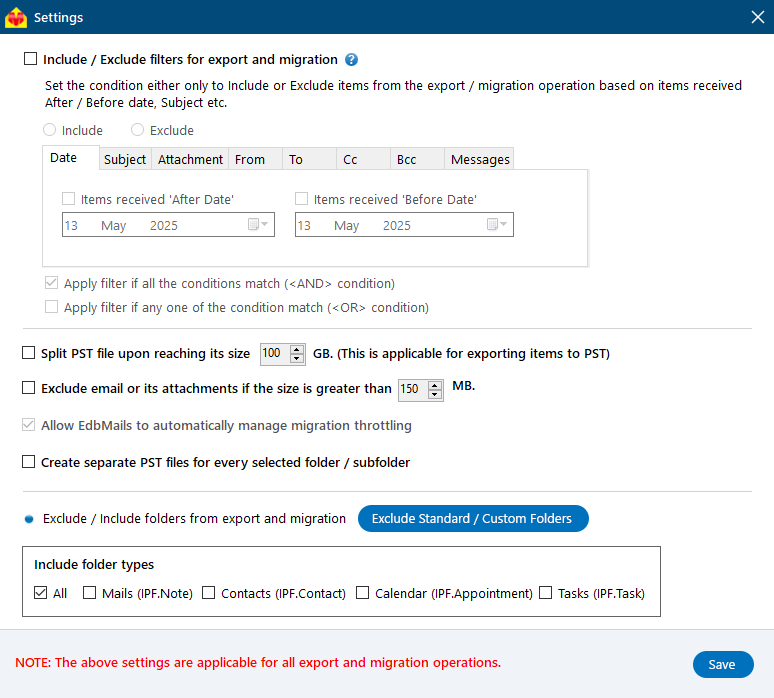
EdbMails includes a full set of include/exclude filters you can apply during OST to PST export:
- Date — include or exclude items based on a received date range (after a date, before a date, or between two dates).
- Subject — include or exclude items based on the email or calendar subject line.
- Attachments — include or exclude items based on attachment names within the message.
- From — include or exclude emails from specific sender addresses.
- To — include or exclude emails sent to specific recipient addresses.
- Cc / Bcc — include or exclude emails based on Cc or Bcc address.
- Read/Unread status — include or exclude messages based on whether they've been read.
Filters can be combined using either an AND condition (an item must match all specified conditions to be included) or an OR condition (an item is included if it matches any one of the conditions) — giving you precise control over exactly which items get exported.
Two additional options round out the filtering toolkit:
- Export without attachments — move only the message content and skip attachments, useful for reducing PST size when attachments aren't needed.
- Split the output PST file — for large exports, EdbMails can split the resulting PST into smaller files by size. See splitting a large OST file into multiple PST files for details.
For the full breakdown of filter behavior, see the EdbMails advanced filter settings reference.
How to Apply Include/Exclude Filters in EdbMails
- Open the include/exclude filter settings — in the EdbMails main window, check 'Include/Exclude filters for export and migration' before starting the job.
- Choose Include or Exclude — use 'Include' to migrate only items matching your criteria, or 'Exclude' to skip specific items while migrating everything else.
- Set your filter criteria — apply any combination of Date, Subject, Attachments, From, To, Cc, Bcc, and read/unread status filters covered above.
- Choose AND or OR matching — select whether an item must match all conditions or just one to be included.
- Save your settings and start the export — EdbMails applies the filters as it scans and exports the OST file to PST.
Excluding Standard and Custom Folders
Exclude Standard Folders
If you don't need to export certain standard Outlook folders, click 'Exclude Standard / Custom Folders.' You can exclude folders such as Inbox, Contacts, Calendars, Tasks, Journal, Sent Items, Outbox, Drafts, Notes, and Deleted Items. By default, Conversation History and Junk Email are already excluded.
Exclude Custom Folders
Custom folders are the ones you've created yourself. To exclude one, type the folder name, click 'Add,' and click 'OK' to confirm.
Frequently Asked Questions
Can I export selective OST data without installing Microsoft Outlook?
Yes. EdbMails allows you to export selective mailbox items and folders from an OST file to PST without requiring Outlook to be installed. The tool has a built-in OST parser and preview engine, enabling independent extraction of emails, contacts, calendars, and other items.
Does selective export work with orphaned OST files?
Will selective export preserve email metadata like read/unread status and timestamps?
Is it possible to export only calendar items or contacts without exporting emails?
Can I combine multiple filters, like date range and sender, in a single export?
Does selective export reduce the risk of PST file corruption?
Can I use selective export for compliance or legal discovery purposes?


