


Convert ANSI and Unicode OST Files to PST Files
In today’s globally connected workplace, Exchange mailboxes often contain folder names, data, and character sets shaped by regional languages and domain-specific standards. For example, a user based in Germany may have mailbox folders named in German, with Outlook saving this information in an OST file using localized language settings. When these OST files are converted to PST through Outlook’s native export options, essential components such as Unicode characters or non-English folder names may be altered, omitted, or misrepresented, resulting in an incomplete or inaccurate conversion.
EdbMails OST to PST Converter is specifically designed to address this requirement. It supports both ANSI and Unicode OST files while accurately retaining all language-specific content, including right-to-left languages like Arabic, complex characters from Chinese and Japanese, and special European characters such as ä, ø, and ç. Whether handling multilingual mailbox data from global teams or preserving native formatting during migration, EdbMails delivers a reliable and accurate conversion with no data loss or formatting issues.
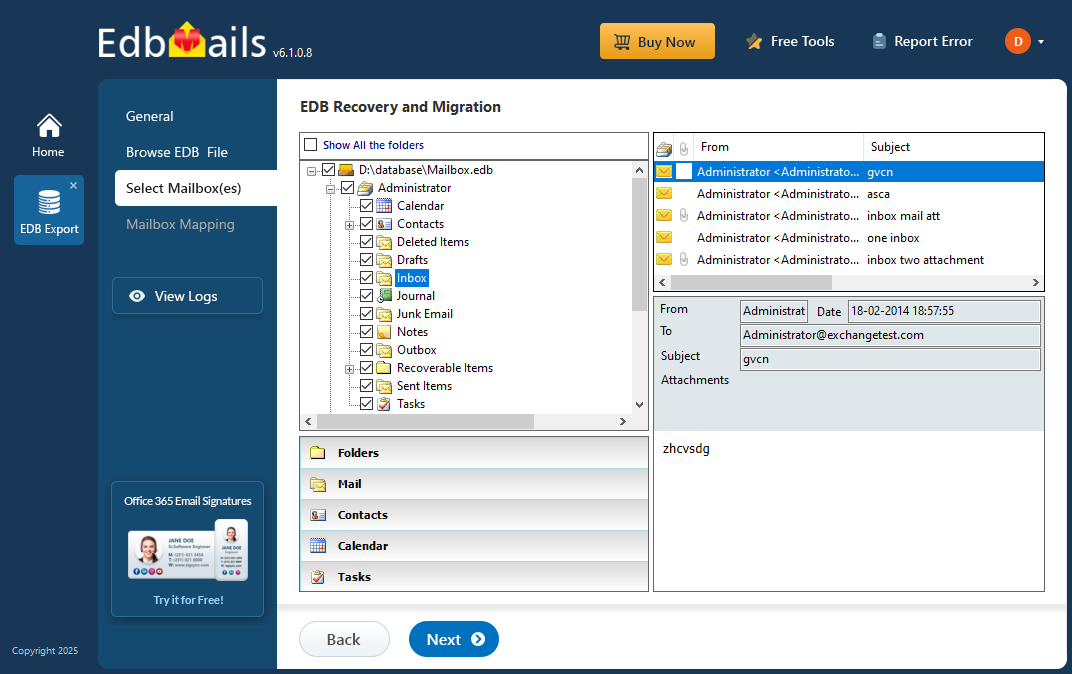
In this step-by-step guide, you’ll learn how to add your OST file to the application, let EdbMails scan and evaluate its contents, and export the data into a PST file while preserving the original language settings and folder structure. The process is simple and requires no manual folder renaming or character encoding adjustments, making it an ideal solution for language-sensitive Outlook data recovery and migration.
Practical uses of the language conversion feature of EdbMails
- Legal and regulatory email archiving: Organizations across industries are required to retain email communications for compliance, legal discovery, and audit purposes. EdbMails OST to PST Converter enables secure conversion of ANSI and Unicode OST files into PST format while preserving all regional languages, special characters, and folder names. This ensures archived data remains readable, searchable, and legally valid over time.
- Multilingual email migration: Businesses operating across multiple countries often manage mailboxes containing different languages and character sets. EdbMails accurately converts multilingual OST files to PST without altering content, encoding, or formatting. This makes it ideal for cross-region mailbox migrations, mergers, or organizational restructuring where language integrity is critical.
- Global use for Outlook email export and migration: EdbMails is a versatile, globally accessible application designed for organizations and users across various countries. Its language support feature makes it an ideal tool for converting emails and data in multiple languages, ensuring that organizations operating in multilingual environments can efficiently manage and preserve their email communications without losing any language-specific details.
- Cross-platform email backup: Converting OST files to PST provides flexibility to access Outlook data across different systems and environments. EdbMails ensures that language-specific content, non-English text, and special symbols are preserved during conversion, making PST files reliable for backups, transfers, and long-term storage.
- Accurate eDiscovery and content analysis: For legal teams and IT administrators, maintaining the original language and character encoding of emails is essential for eDiscovery and investigations. EdbMails preserves Unicode and ANSI data accurately, ensuring keyword searches, filtering, and content analysis deliver precise results without missing multilingual data.
How does EdbMails preserve language settings when converting OST to PST?
Step 1: Download and launch EdbMails OST to PST Converter.
Step 2: Browse and add the OST file - folder names and content in the original regional language display correctly during preview, with no manual renaming needed.
Step 3: Click 'Export to Outlook PST' to begin the conversion; Unicode and ANSI characters, including right-to-left scripts and European special characters, are retained automatically.
Step 4: Import the exported PST file into Outlook to verify that all language-specific folder names and special characters have been preserved.
For the complete conversion walkthrough, see the full OST to PST converter guide.


