


How to Recover Deleted Mailboxes from an OST File
Efficient email management plays a vital role in day-to-day business operations, and platforms such as Outlook and Exchange Server offer quick access to emails and other data. However, accidental deletion of mailboxes or important email items can result in sudden data loss, which may interrupt communication and impact overall productivity.
In general, when emails or folders are deleted in Outlook, they are moved to the ‘Deleted Items’ folder, from where they can be restored easily. However, when these items are permanently deleted either manually or due to mailbox retention policies, recovering them is more complex. In such cases, EdbMails OST to PST Converter proves to be a reliable solution, as it enables you to recover deleted emails from OST files with efficiency and accuracy.
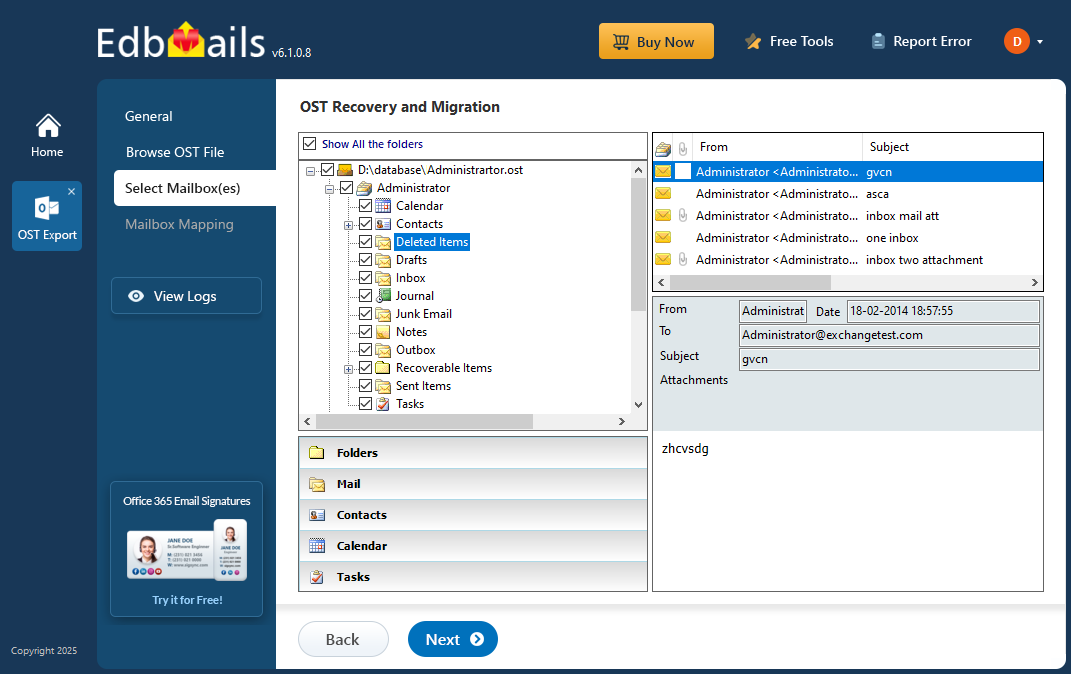
EdbMails enables recovery even when the original Outlook profile or Exchange server connection is unavailable. Through a step-by-step interface, the tool guides you in restoring lost mailbox data, making the process both accessible and reliable for users of all technical levels.
Reasons for OST File Data Deletion
There could be many reasons for OST file data deletion, but in practice, it can be categorized into two different types.
- Soft Deletion: In this situation, the email data is not permanently deleted from the system. It is moved to the Deleted Items folder in Outlook and then you can restore the data to retrieve these deleted items.
- Hard Deletion: In this situation, the OST file data is deleted permanently. And you cannot recover the data from the Deleted Items folder.
Reasons for Permanent Deletion of OST File Data
- When the Shift+Delete key is pressed for deleting an item, it leads to permanent deletion.
- When the Deleted items folder is accidentally emptied without backing up the data.
You can use ScanOST for Outlook to retrieve and export the deleted emails from the Deleted Items folder. But if the OST file cannot be opened or if the mail items are permanently deleted from this folder, the only option is to restore your emails from a backup OST snapshot.
Practical Situations of Deleted Email Recovery from Outlook Files
Here are some real time scenarios where recovering deleted email items from an OST file can be necessary:
- Accidental Deletion: An email can be accidentally deleted by a user, which may result in the permanent loss of important data. In such cases, EdbMails can help to recover deleted mailboxes or items from an OST file and export them to a PST file.
- Corruption: OST files may get corrupted due to unexpected system shutdowns, malware infections, or hardware issues, making some emails inaccessible or causing them to be deleted. EdbMails helps in such situations by repairing the damaged OST file and recover deleted emails or items, ensuring you can retrieve important mailbox data without relying on Outlook or the original server.
- Malware Attacks: Malware attacks can cause significant damage to OST files, resulting in data loss. EdbMails can recover deleted emails or items from an infected OST file, ensuring that important data is not lost.
- Accidental Modification: Users may accidentally modify or overwrite important email items, which can result in data loss. EdbMails can help to recover deleted mailboxes or items from an earlier backup of the OST file.
- Exchange Server Crash: An unexpected Exchange Server crash can make mailbox data inaccessible or lead to the deletion of important emails. EdbMails enables you to recover those deleted items directly from the OST file, without any connection to the original server. You can also export recovered Outlook emails to an external hard drive for safe, long-term storage and easy access.
How to Recover Deleted Mailbox Items from an OST File?
Deleted items in an OST file are typically stored in the 'Recoverable Items' > 'Deletions' subfolder. By default, Outlook retains these items for 14 days after deletion, though administrators can extend this window to up to 30 days. If the mailbox has Litigation Hold or a retention policy enabled, deleted items may be preserved even longer in the 'Purges' subfolder and remain recoverable well beyond the standard window.
EdbMails scans these folders specifically during the recovery process, displaying deleted emails, contacts, calendar items, and other mailbox data separately from the active mailbox contents. This lets you identify exactly what was deleted and choose which items to restore, rather than recovering the entire mailbox.
To recover deleted items from your OST file:
- Download and install EdbMails, then sign in or start your free trial.
- Select the offline OST file you want to scan, and choose a location to save the recovered data.
- Once EdbMails completes the scan, browse the 'Recoverable Items' folder (and 'Purges', if applicable) to preview the deleted emails, contacts, and other items available for recovery. Select the specific items or folders you want to restore.
- Click 'Start Export' to recover the selected items into a new PST file, which you can then import back into Outlook.
For the complete step-by-step installation and export walkthrough, see our Convert OST file to PST guide.
Frequently Asked Questions (FAQ)
Can I restore deleted emails from an OST file if the Outlook account no longer exists?
Yes. EdbMails can recover deleted emails directly from an OST file even if the original Outlook profile, Exchange mailbox, or Office 365 account has been deleted or is no longer accessible. The recovery does not depend on reconnecting to the original account.
Does restoring deleted emails from an OST file require an Exchange Server connection?
Can I preview deleted emails before restoring them from the OST file?
Is it possible to restore only specific deleted emails instead of the entire mailbox?


