


How to Fix the ‘Outlook Not Updating Inbox Automatically’ Error?
If your Outlook inbox isn’t updating or receiving new emails as expected, it usually indicates a syncing problem with the mail server. This can occur due to a damaged Outlook profile, network issues, or a corrupted OST file. As a result, your inbox may fail to display the latest messages and appear outdated.
If restarting Outlook or creating a new profile doesn’t fix the issue, it usually indicates that the OST file is inaccessible or no longer connected to the server. In these cases, EdbMails OST Recovery Tool provides a reliable solution by converting the offline OST file into a PST file. This makes it easy to restore your mailbox data and access it in Outlook without any synchronization problems.
In the following sections, you’ll find clear, step-by-step instructions to identify the issue and apply the right solution to restore proper inbox synchronization.
Here is a comprehensive list of possible causes for the error ‘Outlook inbox not updating’ and how they can affect the working of Outlook.
- Slow or Unstable Internet Connection: If your internet connection is slow or unstable, it can prevent Outlook from connecting to the server and downloading new emails. This issue can cause Outlook to stop syncing emails and updating the inbox.
- Missing or Relocated Data File: If the Outlook data file is moved or deleted from its original location, Outlook may not be able to find and access it, resulting in the error message. This can happen if the user accidentally moves or deletes the file, or if the file is moved by another program or process.
- Corrupted Outlook Profile: If your Outlook profile is corrupted, it can prevent your inbox from updating. You can try creating a new Outlook profile or rebuilding the OST file in Outlook to fix the issue.
- Incorrect email Account Settings: If Outlook is not connecting to the Exchange server, your email account settings are most likely incorrect, which can prevent Outlook from updating the inbox. Check that your email account settings are correct and up to date.
- Conflicting Add-ins or Programs: Conflicts with other programs or add-ins can cause the error message. For example, antivirus software, backup software, or third-party add-ins may interfere with Outlook and cause the data file to become inaccessible.
- Corrupted or Damaged Outlook Profile: If your Outlook profile is corrupted or misconfigured, the application may fail to access the linked data file, and your inbox may stop updating. This can happen if profile settings are accidentally changed, the profile becomes damaged due to software issues or crashes, or the file has been affected by interference from antivirus/backup software or third-party add-ins. Try creating a new Outlook profile or rebuilding the OST file to resolve this.
- Outlook Version Compatibility Issues: If the user upgrades or downgrades the version of Outlook, it may cause compatibility issues with the data file, resulting in the error message. This can happen if the user upgrades to a newer version of Outlook that is not compatible with the data file format or if the user downgrades to an older version of Outlook that cannot read the data file.
- Firewall Settings: If your firewall settings are blocking Outlook from connecting to the server, it can prevent your inbox from updating. You can try temporarily disabling your firewall to see if this fixes the issue. If it does, then you may need to configure your firewall to allow Outlook to connect to the server.
How to resolve the issue ‘Outlook not updating inbox error’?
- Method 1: Check the internet connection
- Step 1: Close Outlook on your computer
- You can do this by opening a web browser and trying to access a website.
- If you are unable to access a website, then your internet connection may be down or unstable.
- Step 2: Check your internet speed
- You can use an online speed test tool to check your internet speed.
- If your internet speed is too slow, it may be affecting Outlook's ability to connect to the server and download new emails.
- Step 3: Check your network configuration
Ensure that your network configuration settings are correctly set up, and that your computer is connected to the right network.
- Step 4: Check if other programs can access the internet
- Check if other programs on your computer can access the internet.
- If other programs can access the internet without any issues, then it is possible that Outlook is experiencing a problem with its connection to the email server.
- Step 5: Try resetting your internet connection
- You can try resetting your internet connection by unplugging your modem and router for a few minutes, and then plugging them back in.
- This task can sometimes help to resolve internet connectivity issues.
- Step 6: Check the computer time and date settings
- If your computer's clock is not set correctly, it can cause issues with syncing your mailbox.
- You can access the time and date settings by right-clicking on the clock in the taskbar and selecting ‘Adjust date/time’.
- Step 1: Close Outlook on your computer
- Method 2: Restart Microsoft Outlook
Restarting Outlook is a common method to solve most of the Outlook inbox and email synchronization problems.
- Step 1: Close Microsoft Outlook and related processes
- Click the ‘X’ in the top-right corner of the program window or select the ‘File’ menu and click ‘Exit.’
- Give Outlook a few minutes to fully close down and release any resources that it was using.
- Restart Outlook
- Step 2: Check for Outlook updates
- After Outlook has restarted, check to see if there are any updates available.
- Go to the ‘File’ menu and select ‘Office Account’ or ‘Account,’ depending on your version of Outlook.
- From there, you can check for updates and install any that are available.
After you have checked for updates, try accessing your inbox again to see if Outlook can synchronize and update emails with the server. If it cannot update the inbox and shared folders automatically, you may need to try the next method to resolve the issue.
- Step 1: Close Microsoft Outlook and related processes
- Method 3: Clear Outlook Cache
Clearing the Outlook cache can help fix problems related to syncing emails and other mailbox data. Over time, cache files may become corrupted, which can interfere with Outlook’s ability to sync properly. Removing these files allows Outlook to create fresh, error-free cache data, which often resolves the synchronization issue.
- Step 1: Close Microsoft Outlook
- Before you can clear the Outlook cache, you need to make sure that Microsoft Outlook is closed.
- Step 2: Navigate to the Outlook Cache Folder
- Open the Run dialog box: Press the Windows key + R on your keyboard to open the Run dialog box.
- Type ‘%localappdata%\Microsoft\Outlook’ and click ‘OK’, which opens the folder where the Outlook cache files are stored.
- Step 3: Delete the contents of the RoamCache folder
- Open the RoamCache folder
- Select all the files in the folder and then press the Delete key on your keyboard.
- After you have deleted the contents, close the folder.
- Step 4: Restart Microsoft Outlook
- Now that you have cleared the Outlook cache, you can open Microsoft Outlook again.
- When you open Outlook, it creates new cache files, which should help to resolve any issues you were experiencing with your inbox not updating.
- Step 1: Close Microsoft Outlook
- Method 4: Disable incompatible Outlook Add-ins
While accessing Outlook, you may encounter a message ‘Outlook detected a COM add-in problem’. These COM add-ins decrease performance or cause Outlook to crash. In such cases, disabling or removing the incompatible add-ins from Outlook can help resolve mail synchronization and email not updating problems.
- Step 1: Close and relaunch Microsoft Outlook in Safe mode
- You can do this by clicking on the ‘X’ in the top-right corner of the program window or by going to the File menu and selecting ‘Exit’
- To open Outlook in safe mode, hold down the CTRL key while clicking on the Outlook icon, which launches Outlook in safe mode with all add-ins disabled.
- Step 2: Check if the issue has been resolved
- After you launch Outlook in safe mode, try accessing your inbox again to see if the issue has been resolved.
- If the error ‘Outlook not updating inbox automatically is resolved’, then it is likely that one or more of your add-ins is causing the issue.
- Step 3: Disable the Outlook add-ins one at a time
- To disable add-ins, go to the File menu and select ‘Options.’
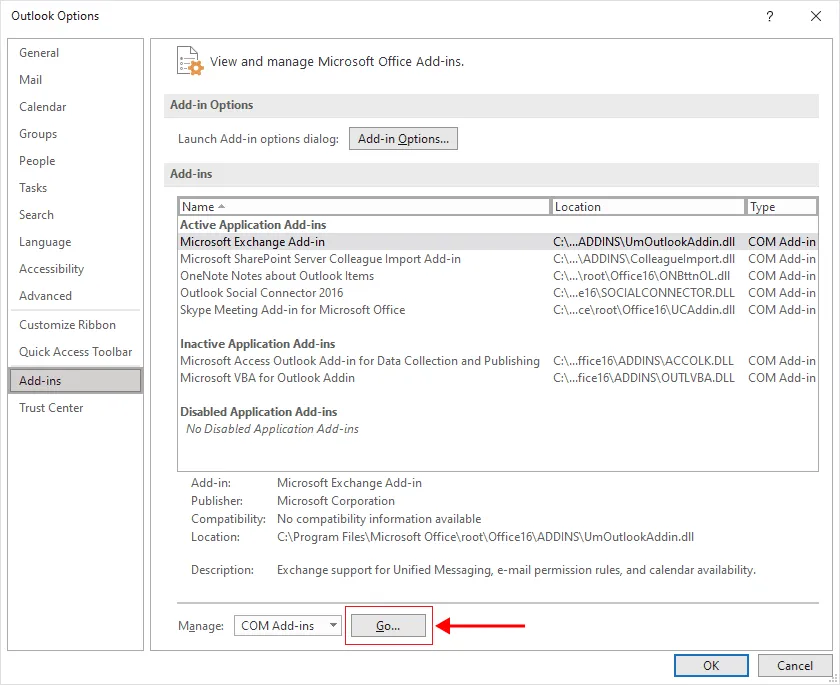
- From there, select ‘Add-ins’ and then click on the ‘Go’ button next to ‘Manage COM Add-ins’, which brings up a list of all of the add-ins that are currently installed in Outlook.
- To identify which add-in is causing the issue, disable one add-in at a time and then try accessing your inbox again.
- If the issue is resolved, then the add-in that you just disabled is likely causing the issue.
- Step 4: Remove or update incompatible Add-ins
- Once you have identified the add-in that is causing the issue, you can either remove it from Outlook or update it to a compatible version.
- Finally, restart Outlook to check if the issue has been resolved.
- Step 1: Close and relaunch Microsoft Outlook in Safe mode
- Method 5: Check and reconfigure Outlook settings
Configuring Outlook settings can help to resolve the ‘Outlook inbox not updating’ error by ensuring that Outlook is properly configured to connect to your mailbox and sync your email, calendar, and other data. Here are some specific settings to check:
- Step 1: Check email account settings in Outlook
- Open Outlook and go to the ‘File’ menu.
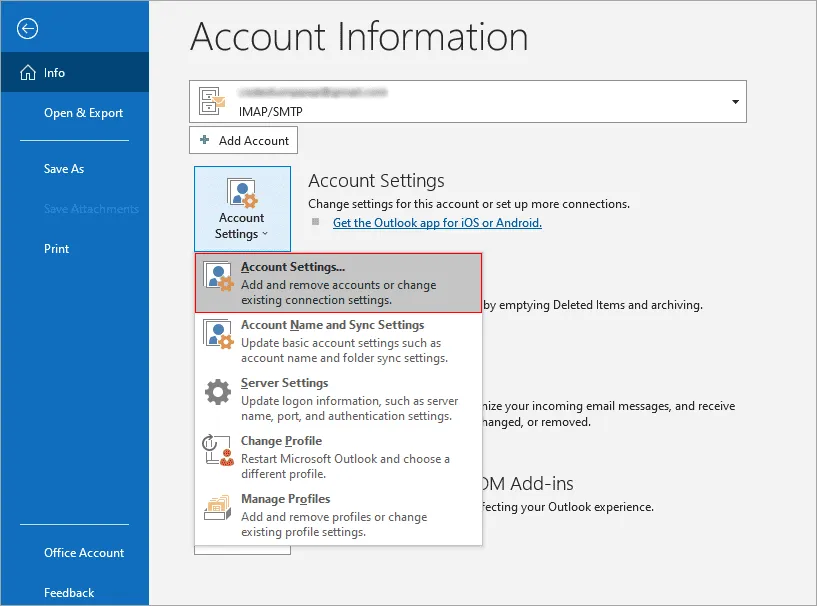
- From there, select ‘Account Settings’ and then ‘Account Settings’ again.
- This brings up a list of all of the email accounts that you have set up in Outlook.
- Step 2: Check the server settings for your email account
- Double-click on the email account that you are having issues with to bring up its settings.
- From there, check the incoming and outgoing server settings to make sure that they are correct.
- This step helps you to identify any issues with the settings that could be preventing Outlook from properly syncing with your mailbox.
- Step 3: Reconfigure your email account settings
- If there are any issues with your email account settings, you can reconfigure them by clicking on the ‘Change’ button and then following the prompts to update your settings.
- Restart Outlook and check if the issue has been resolved
- Step 4: Check the Cached Exchange mode settings
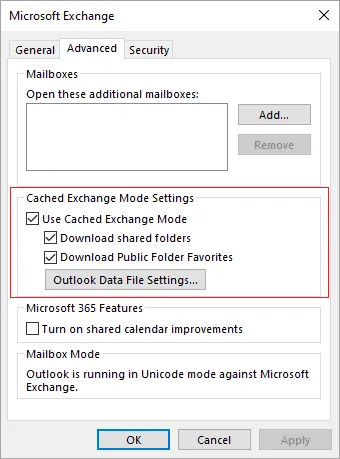
Check your Cached Exchange mode settings to ensure that they are properly configured. Cached Exchange mode in Outlook can help to improve performance by storing a copy of your mailbox on your local computer. However, if the settings are not configured correctly, it can cause issues with syncing your mailbox.
- You can access the Cached Exchange mode settings by going to ‘File > Account Settings > Account Settings’, and then selecting your Exchange account and clicking ‘Change’.
After you restart Outlook, try accessing your inbox again to see if the issue has been resolved. If the application is unable to open the Outlook data file, you may need to try the next method to resolve the issue.
- You can access the Cached Exchange mode settings by going to ‘File > Account Settings > Account Settings’, and then selecting your Exchange account and clicking ‘Change’.
- Step 1: Check email account settings in Outlook
- Method 6: Repair the OST file and recover mailbox data
If the Outlook data file cannot be accessed or you're still experiencing inbox sync issues, the OST file itself may be damaged or orphaned. Recovering the data by converting it to PST format lets you restore your emails and mailbox contents without loss, even from corrupted or orphaned files.
To repair and recover the OST file, use the OST to PST Converter:
- Select the damaged OST file, let the tool scan and repair it, preview the recovered mail items, then export them to PST. Once exported, import the PST file back into Outlook to restore your inbox.
For the full step-by-step walkthrough with screenshots, see our OST to PST Converter guide.
Sometimes this issue is caused by corruption in the OST file, or by the mailbox being temporarily moved on Exchange - both of which can prevent Outlook from syncing properly until the file is repaired.


