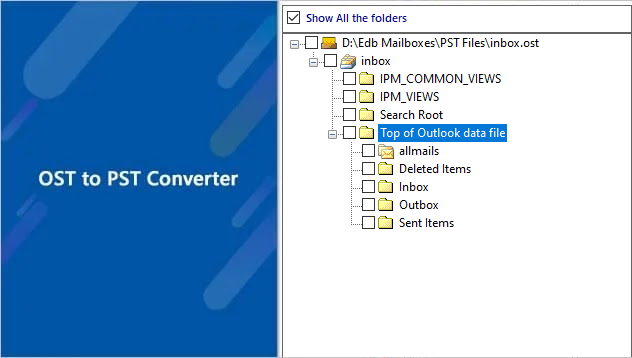
Import OST File to Office 365
Importing OST Files to Office 365 is a must when users switch to Microsoft 365, face problems with an old Outlook profile, or want to restore mailbox data from another computer. OST files are associated with a specific Outlook profile and can't be opened directly, therefore, their contents can be accessed only by a specialized migration tool.
EdbMails OST to Office 365 migrator offers this migration as an easy task. It provides you with the facility to directly convert OST mailbox contents like emails, contacts, calendar entries, and their attachments into your Office 365 account, without using any manual methods or complex setup.
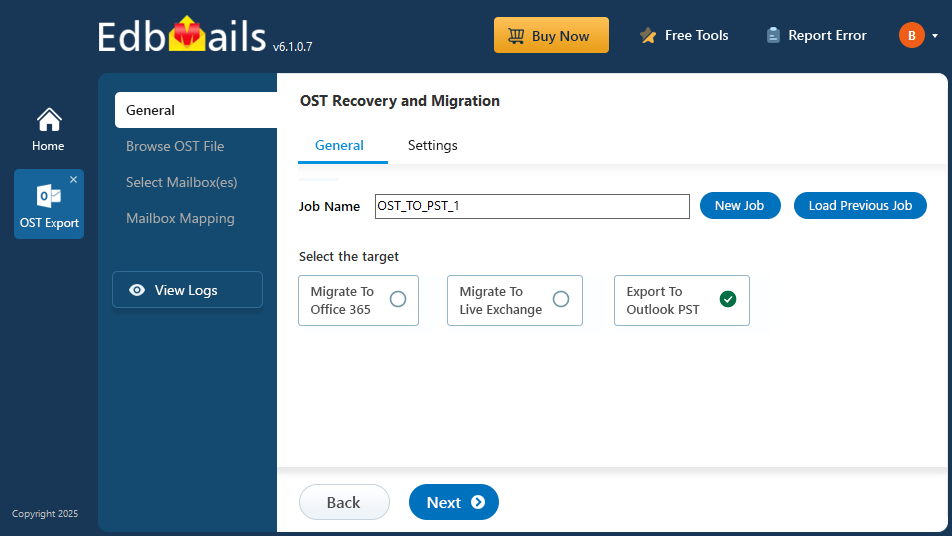
The software is very user-friendly with simple steps. All you need to do is: choose the OST file, connect to the Office 365 tenant, and select the desired items/folders to transfer from the OST mailbox. So you can easily transfer the entire mailbox or just selected OST elements.
Why Import OST to Office 365?
There can be many situations where you may need to import your emails from OST to Office 365. Here are some of the common scenarios:
- Moving to Office 365: Better productivity, security, and reliability are forcing many organizations to move from on-premises Exchange servers to cloud-based Office 365. In such cases, users need to move their data, including OST files to Office 365.
- Changing to a New Computer: When you switch to a new computer or device, you may lose access to your locally saved OST files. If you transfer these files to Office 365, you will be able to access their emails and other data from any device that has internet access.
- Recovering Data After a System Crash: Local OST files may get lost in case of a system crash for users. When migrating these files to Office 365, you ensure that you can still use your data without any loss.
- Complexity of Microsoft Migration Tools: Microsoft’s in-built migration tool for Office 365 is complex and time-consuming, and involves a lot of research and scripting.
- Transitioning from Exchange Server to Office 365: Switching to Office 365 is a great opportunity to resolve storage limitations, compliance issues, support concerns, and eDiscovery challenges that usually accompany OST files in Exchange environments. Microsoft has also withdrawn support and technical assistance for legacy Exchange and Windows servers, making it more important than ever to move forward. Upgrading your mailbox to Office 365 gives you better accessibility, security, and long-term reliability.
- Accessing emails on the Cloud: Email Migration from OST to Office 365 helps you reduce the troubles associated with on-premise Exchange servers, which require frequent updates, security checks, and system maintenance. Using Office 365 allows you to access your emails easily via Office Outlook and mobile apps on multiple devices.
Steps to import OST to Office 365 with EdbMails
Step 1: Download and install EdbMails software
- Download and install the EdbMails application on your computer.
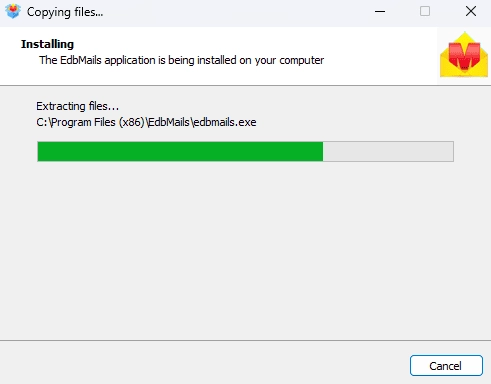
- Launch the EdbMails application on your system.
- Enter your registered email address and password, then click ‘Login’. If you’re a new user, select ‘Start Your Free Trial’ to proceed with the trial version.Note: Free Trial gives you access to all major features, and you can export up to 30 items per folder. To use full features and unlimited exports, you need to have a valid license purchased from the EdbMails website.
Click here to purchase the license from the EdbMails website.
After purchasing the software, just exit and restart the EdbMails application. Use the same email address and password that you used while purchasing to successfully activate your license.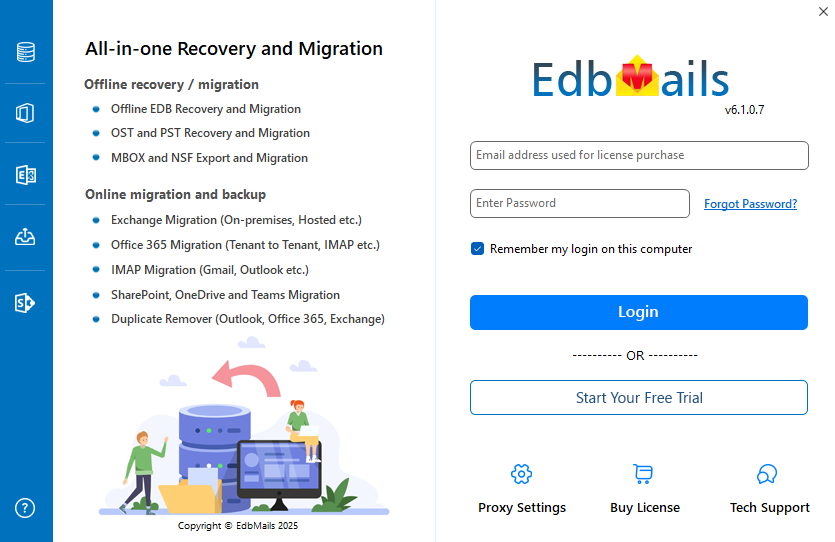
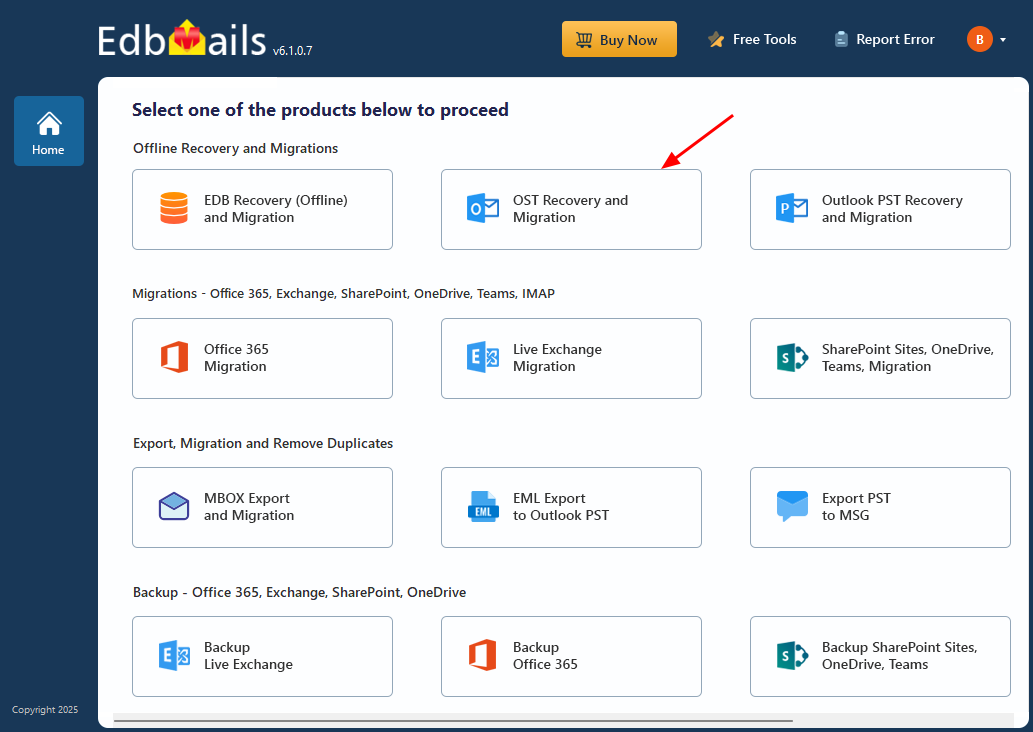
- Select ‘OST Recovery and Migration’.
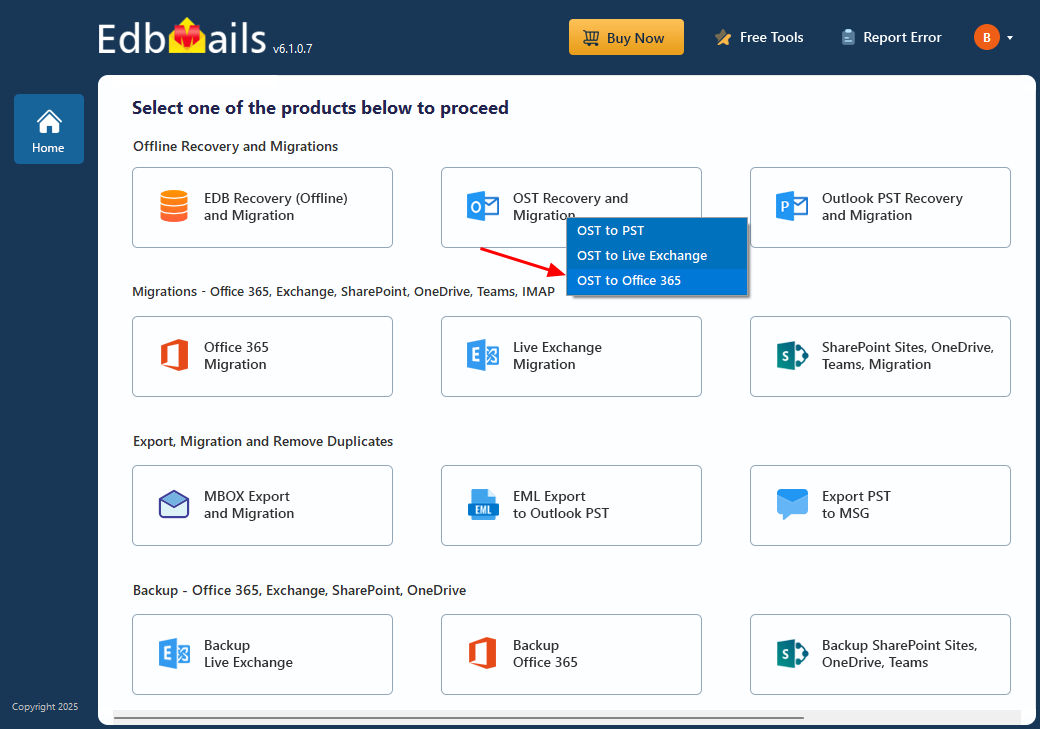
- Select ‘OST to Office 365’.
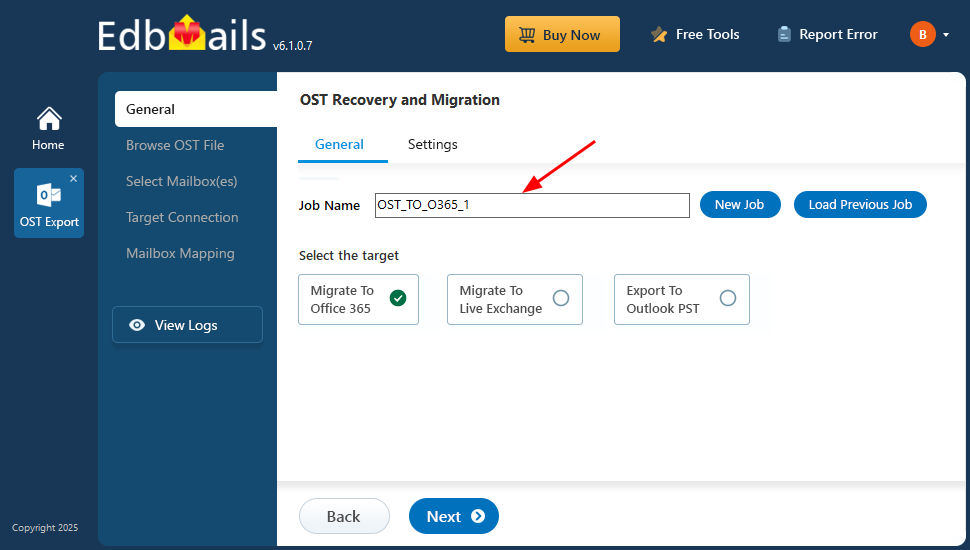
- You can retain the default job name or click the ‘New Job’ button to change the job name.
- Then, click ‘Next’ to continue.
Step 2: Browse and select the OST file that you want to upload
- Click ‘Browse for OST file'.
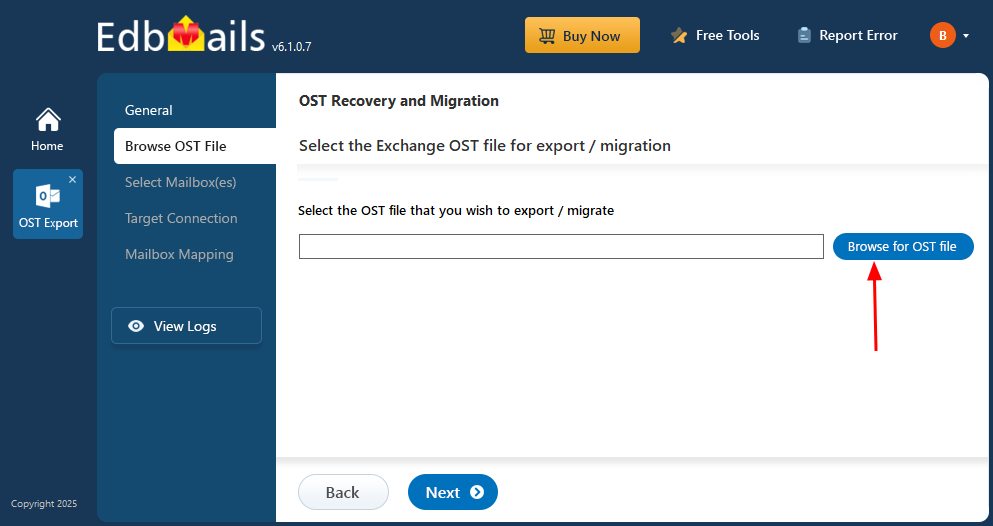
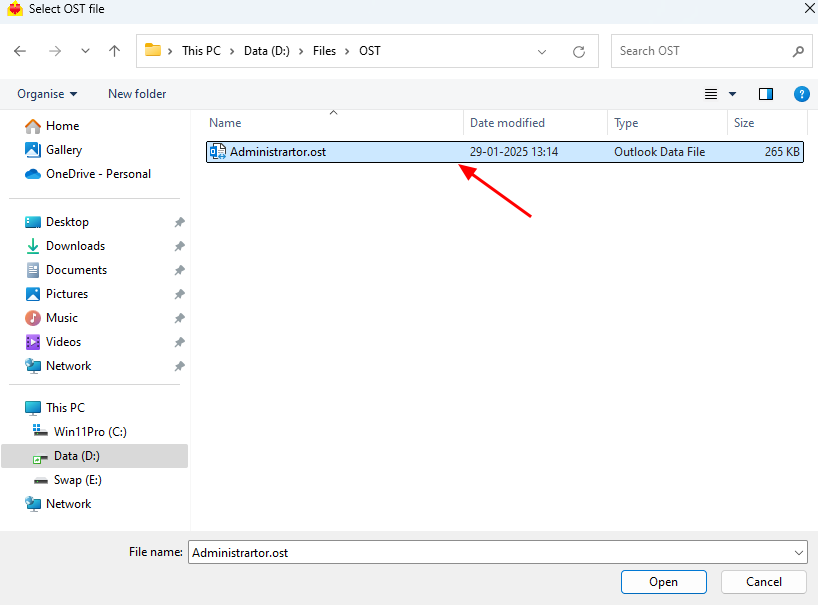
- Select the offline OST file from the local drive and then click on ‘Next’ to proceed. You can also share the OST file on a network with read/write permissions.
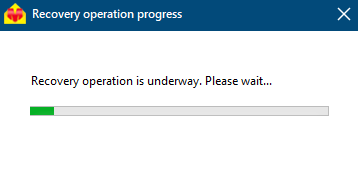
- EdbMails scans the offline OST file and recovers mailbox data even if the file is damaged or corrupted. In the process, the tool scans the file structure and its content to recover emails and other mailbox items. The complete recovery will depend on the size of the file and how damaged it is, so wait for the scan to complete.
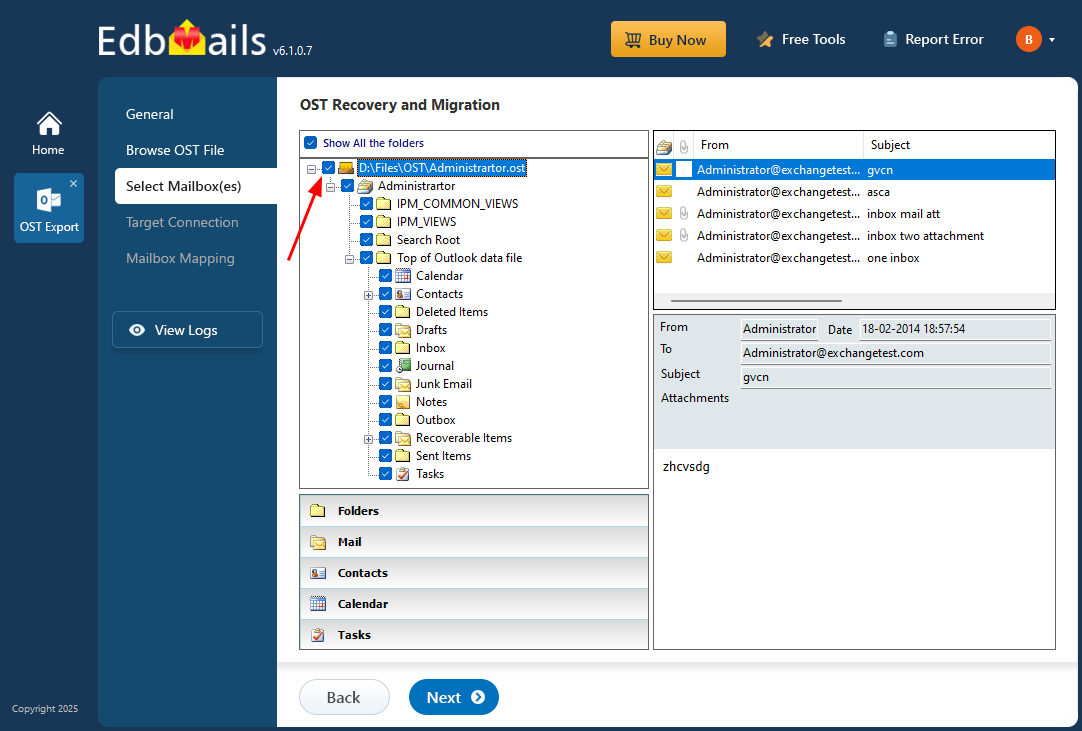
- Once the recovery is done, you will see the complete folder structure in left pane. You can open folders and view the emails, contacts, calendars, tasks and notes in the application even if Outlook is not installed on your computer.
Step 3: Preview and choose the mailbox
- Check emails, calendars, mailboxes, or folders, and click ‘Next’.
Step 4: Connect to the target Office 365 server
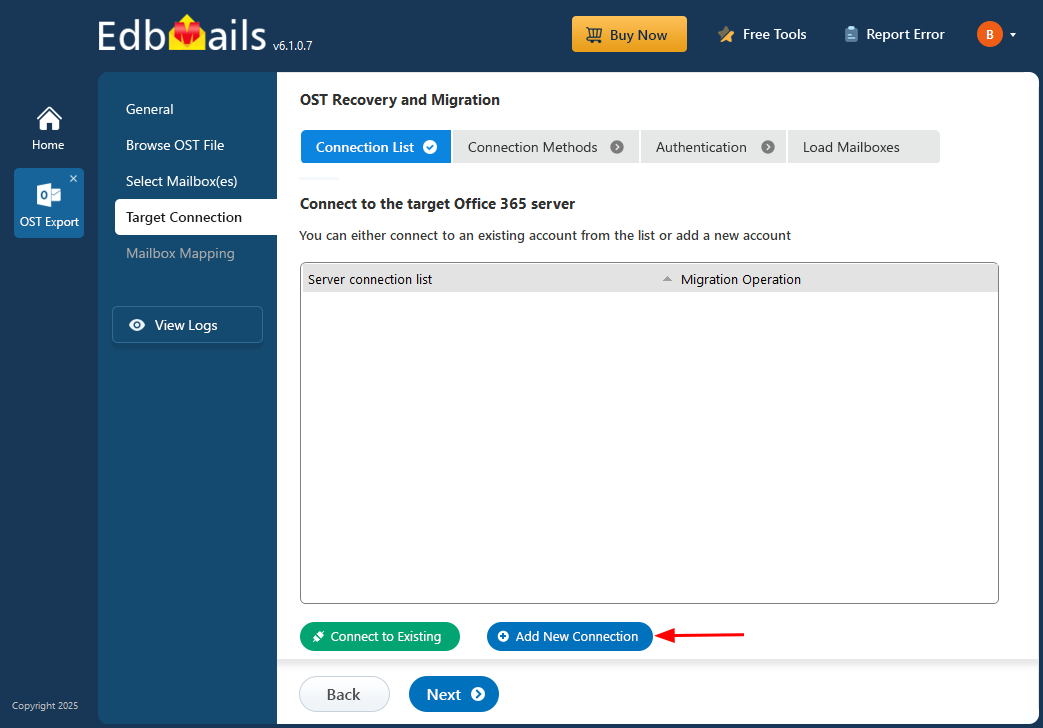
- Click the ‘Add New Connection’ button to configure a new connection to your target Office 365 server. If you’ve previously connected, simply choose that connection from the list and click ‘Connect to Existing’ to proceed.
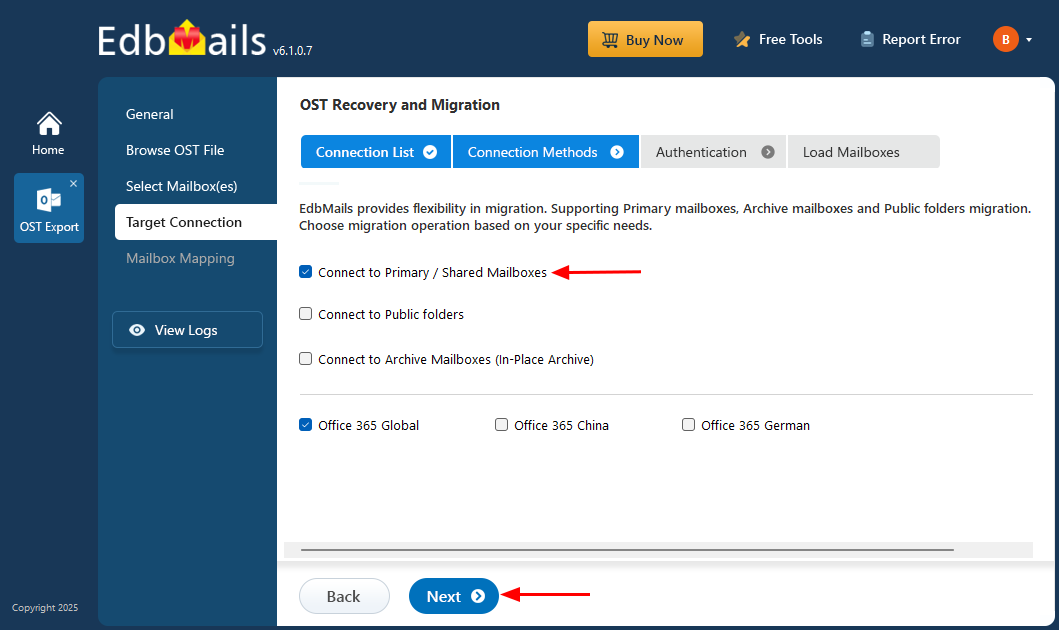
- Choose the connection options you require and hit the ‘Next’ button.
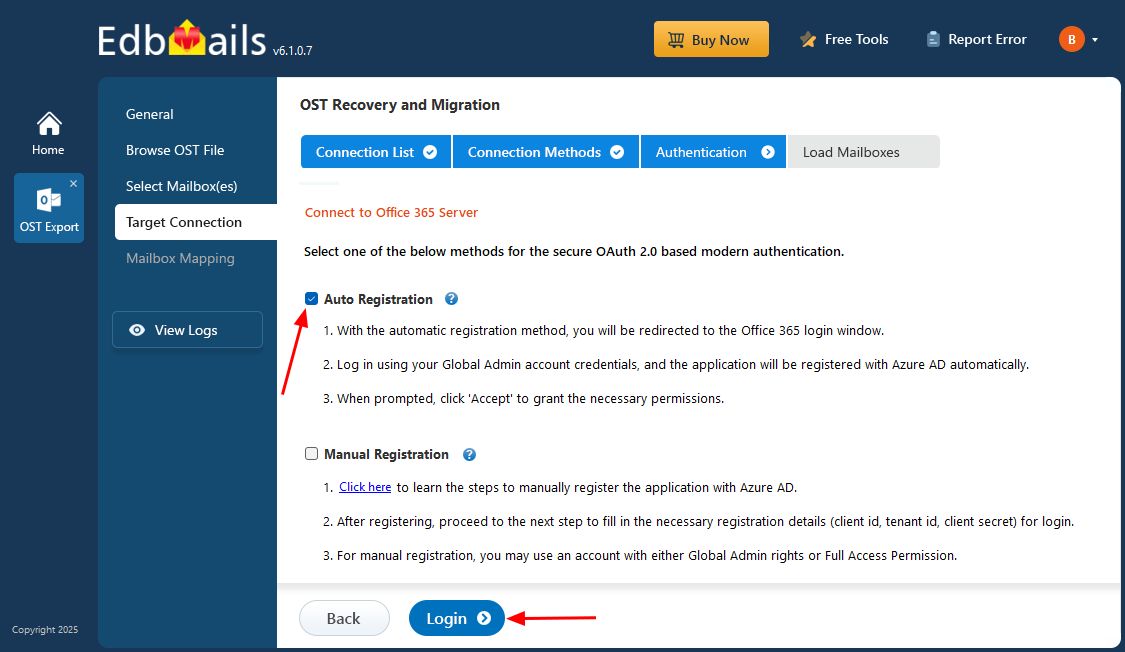
- Select an authentication method and click on the ‘Login’ button to continue.
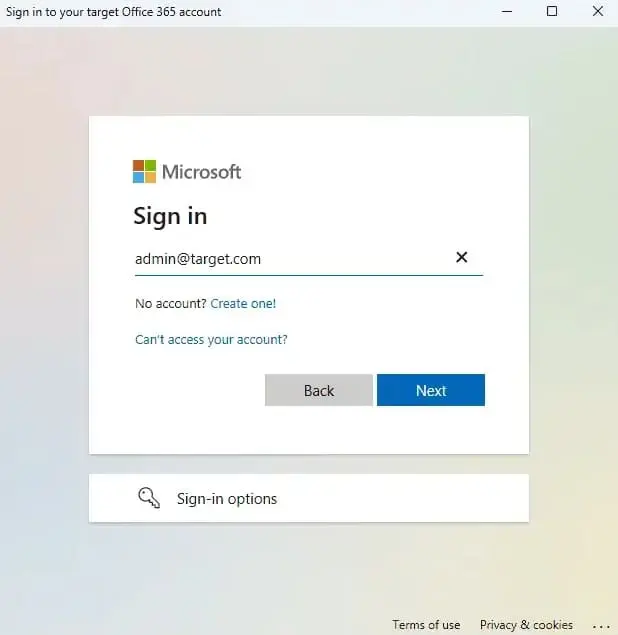
- Authenticate on Microsoft sign-in page.
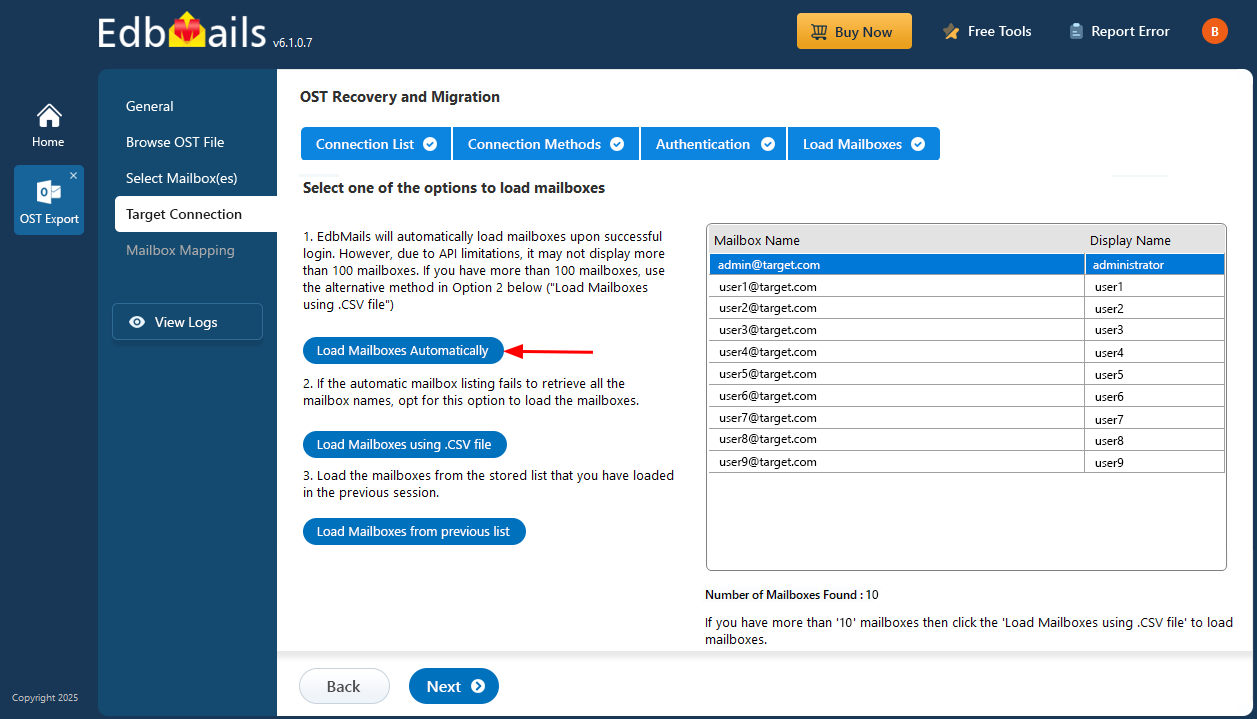
- Choose one of the available methods to load the mailboxes. Alternatively, you can import the mailbox list using a CSV file for bulk selection.
Step 5: Map source and target mailboxes
- Choose the required mailbox mapping option.
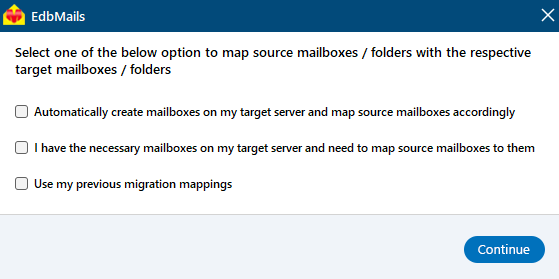
- EdbMails automatically creates the required mailboxes on your destination Office 365 server and assigns the proper licenses making the migration simple.
- By default, EdbMails automatically maps mailboxes & folders between the source and target server. If required, you can manually map source mailboxes to specific target mailboxes for more control over the migration
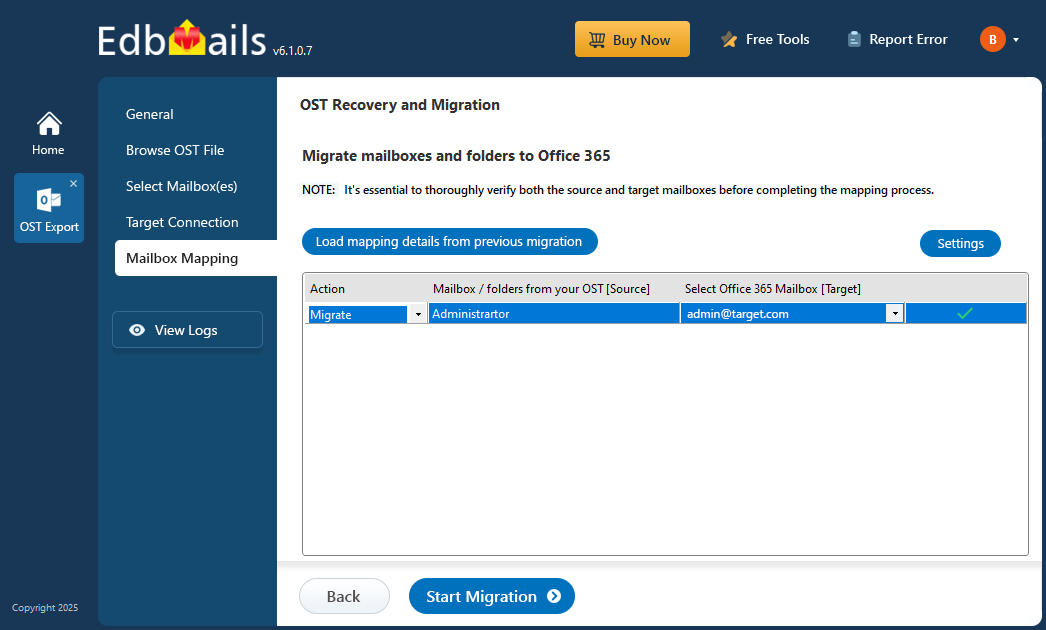
Step 6: Initiate the import of all your mailbox data from OST to Office 365
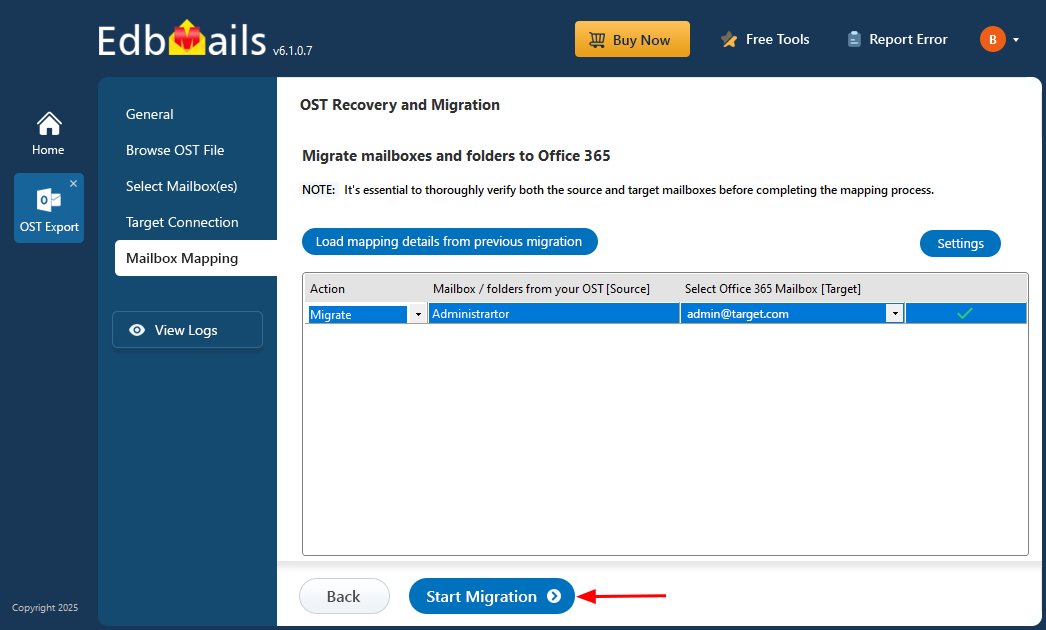
- Click on the ‘Start Migration’ button to start the migration.
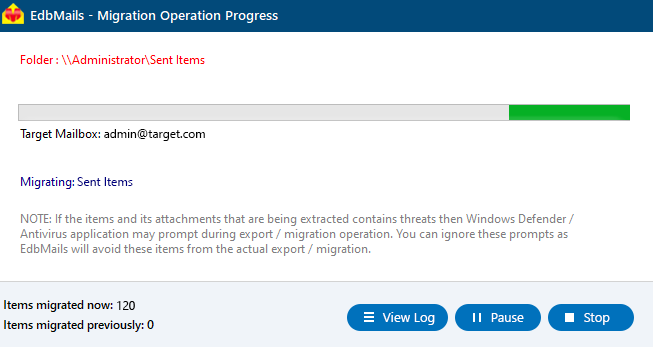
- Migration is underway, and you can track its progress with the progress bar. You can pause or resume the process anytime you want. After the migration process is completed, EdbMails will show a confirmation message for the successful completion of the process.
- Download and install the EdbMails application on your computer.
Why Use EdbMails to Import OST File to Office 365?
- Import OST File Directly & Securely: EdbMails lets you import OST Files directly to Office 365 without Outlook, Exchange connectivity, or the original user profile. This eliminates the need to manually export OST to PST or Import OST to PST steps, making the migration process faster. This process is as simple as it securely moves the mailbox data to Microsoft 365.
- Full Recovery of OST Files: EdbMails recovers emails, attachments, contacts, calendars, tasks, notes, and scans from offline, orphaned, and inaccessible OST files. This ensures no data loss when you import OST file data to Office 365, even after profile deletion, system crash, or computer migration.
- Selective and Secure OST Files: With EdbMails, you can migrate selective mailbox and folder level, allowing users to import only the data they need. This helps in reducing unnecessary data transfer, reduces mailbox size, and improves performance in comparison to the export of the entire OST using traditional export OST to PST methods.
- Easy Alternative to Microsoft Migration Tools: Microsoft’s native migration tools typically involve scripting, admin-level configurations, and a lot of setup. EdbMails comes with a step-by-step guided interface, whether you import OST to PST for backup or import OST file data directly to Office 365, the tool ensures accuracy, security, and ease of use for both individuals and organizations.
- Automatic Mailbox Mapping: EdbMails automatically maps source and target mailboxes and creates mailboxes on the destination tenant if needed during import OST File to Office 365. This minimizes manual effort and helps to ensure a smooth and accurate migration.
- Pause and Resume Migration Reliability: EdbMails allows pausing and resuming migration at any point of time to provide continuous migration in case of network interruption. This skill makes importing an OST File to Office 365 reliable in unstable environments, without duplication of the previously migrated data.