Recover an Encrypted OST File to PST
An OST (Offline Storage Table) file on Microsoft Outlook is an Offline Storage Table that holds a synchronized copy of data from an Exchange Server, Office 365, or IMAP account. It allows an individual to access their email offline, and once back online, all modifications are synchronised automatically with the mail server. For the purposes of securing your mailbox, your OST file will be encrypted with a MAPIEntryID GUID key specific to that Outlook profile. At times, there will be another form of encryption via a password, which can also be added within your Outlook account details.
However, this security mechanism can become an issue when the OST file gets corrupted, the Exchange profile is deleted, or the password is forgotten. In such cases, you will not be able to access the OST file, and thus, important emails, contacts, calendars, and other mailbox items are inaccessible.
The best way to do this is to recover the encrypted OST file and then convert it into a PST (personal storage table) file. The PST files are independent of your Exchange profile and can be opened directly in Outlook without the need for the original account credentials. EdbMails OST to PST Converter makes the process much easier and safer by extracting the data from encrypted, orphaned, or corrupted OST files and converting them into completely accessible PST files.
This is a page on the causes behind the corruption of OST files and how EdbMails recovers encrypted OST data and converts it to PST.
The following are the reasons for OST file corruption:
- Abrupt Network Interruptions: OST files are synchronized with the Exchange server on a continuous basis. The data write process can be interrupted if a network device disconnects unexpectedly or the connection is lost while synchronizing. This results in inconsistency of the OST file most of the time and makes it unstable or inaccessible. EdbMails extracts mailbox data directly from corrupted OST files without the need for a network connection and server sync.
- Large OST Files: Outlook has more difficulty managing and maintaining stability when an OST file exceeds recommended size limits. Large OST files kept for a long time are more likely to get corrupted. Exporting such files to PST helps mitigate these risks. EdbMails safely converts large OST files to PST format, and it supports PST splitting to avoid further corruption and to manage mailbox data easily.
- Malware, System and Application Issues: OST corruption can also occur due to malware or virus infections, Ransomware attacks, storage device failure, incompatible Outlook plugins, bad updates, or frequent crashing of Outlook. These issues can corrupt the internal structure of the OST file. EdbMails recovers data from the damaged or infected OST file using the advanced scan and restores the mailbox items, keeping the integrity of data.
- Unexpected Outlook or System Shutdown: Unexpected system shutdowns or forced shutdown of Outlook while working on the OST file can halt the read/write process and cause file corruption. EdbMails fixes inconsistencies at the file level and recovers mailbox data even if Outlook fails to open the OST file.
- Errors in Storage Device: Bad sectors or failure in the storage device where the OST file is stored result in partial loss or corruption of data, and the file becomes unreadable. EdbMails extracts mailbox data from corrupted OST files from faulty drives and converts them to accessible PST files.
Recover an encrypted OST file and convert it to PST
With EdbMails OST to PST Converter, you can easily recover encrypted OST files and convert them to PST format. The tool uses advanced algorithms to ensure the recovery of encrypted or password-protected OST files without any data loss. It supports standard encryption techniques and works with OST files from all versions of Outlook, including 2021, 2019, 2016, 2013, 2010, 2007, and 2003.
Steps to Export Encrypted OST File to PST
Step 1: Download and install EdbMails converter tool for OST on your computer
- Download and install the EdbMails application on any Windows-based machine.
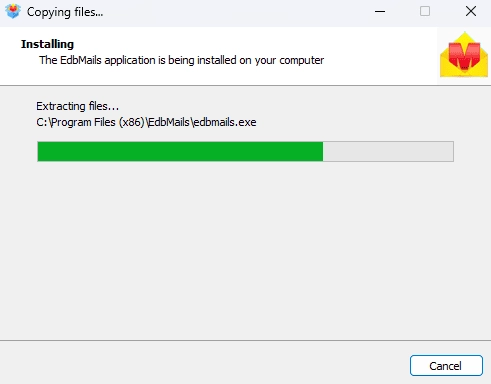
- Open the EdbMails application on your computer.
- Enter your registered email ID and password and click on ‘Login’. New users can select ‘Start Your Free Trial’ to move to the trial version.Note: Free Trial includes full access to all features and export up to 30 items from each folder. You can remove this restriction by buying a valid license from the EdbMails website that gives you full access.
Click here to purchase the license from the EdbMails website.
Once you have purchased, close and reopen the EdbMails application. Then log in with the same email address and password you used to purchase it to activate your license.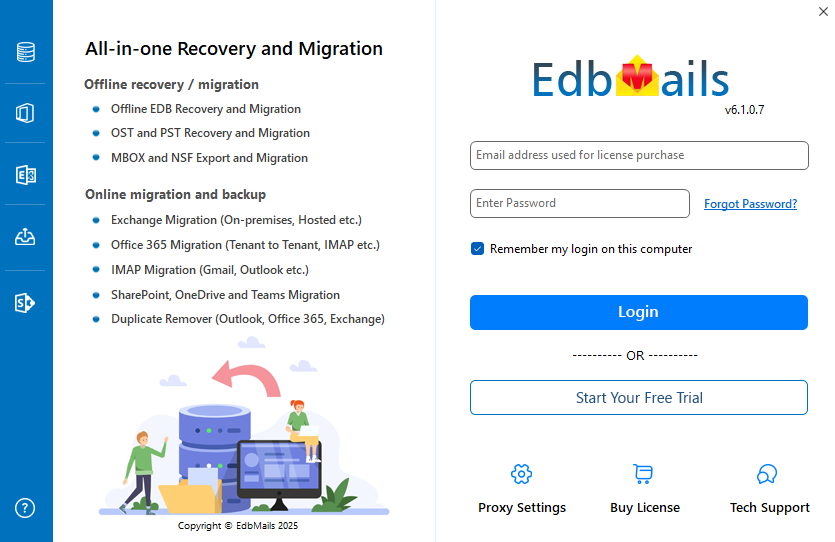
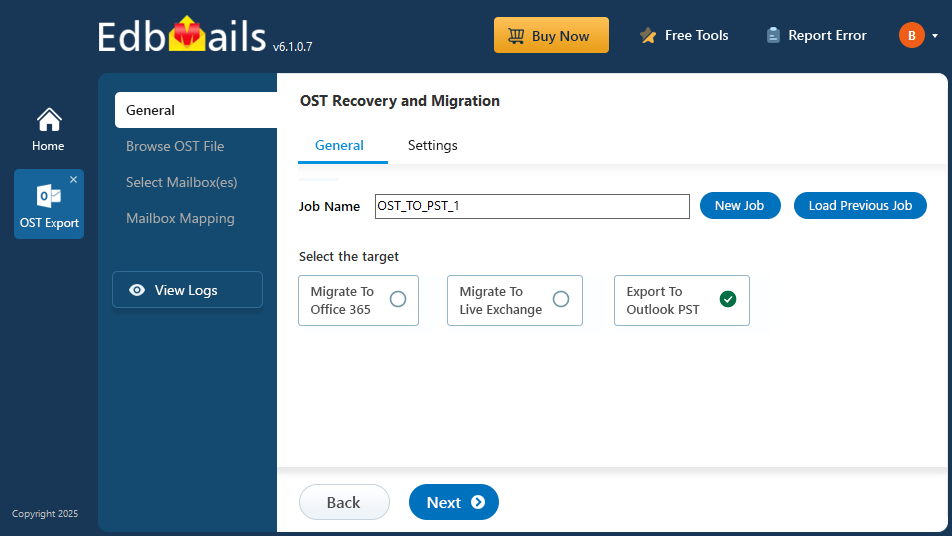
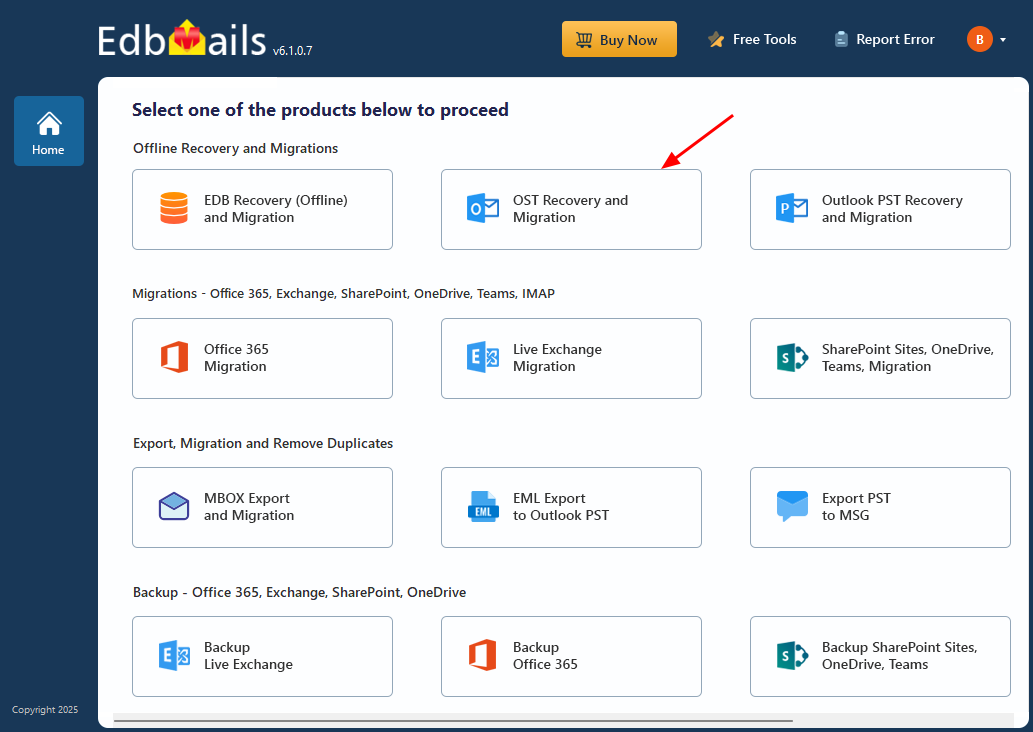
- Select ‘OST Recovery and Migration’.
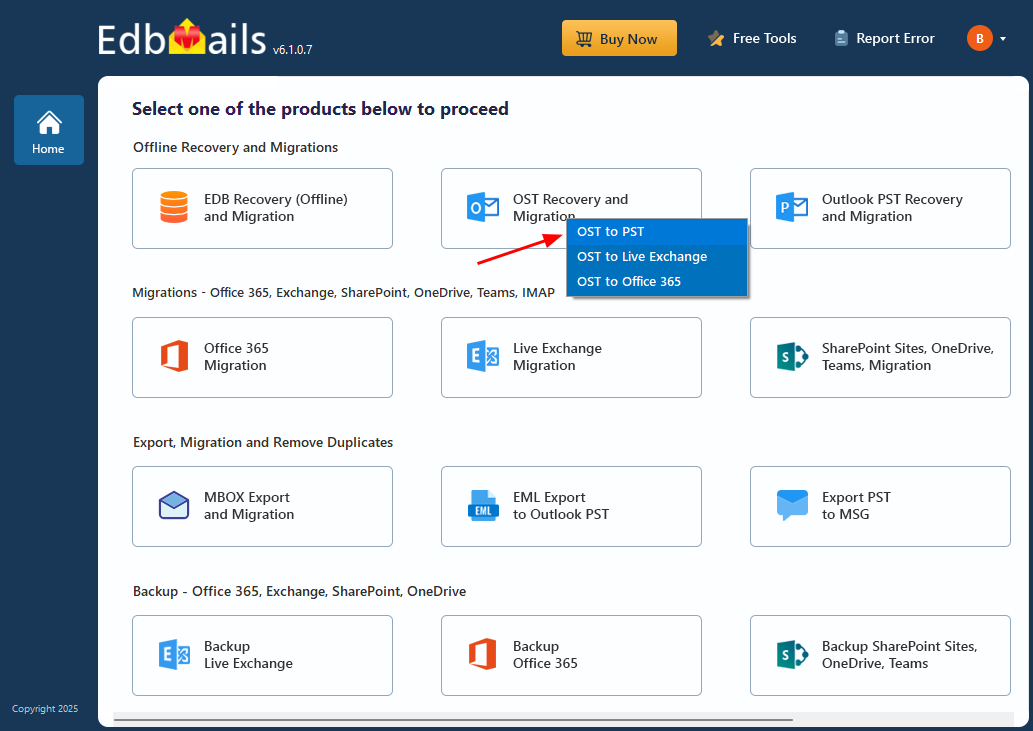
- Select operation as ‘OST to PST’.
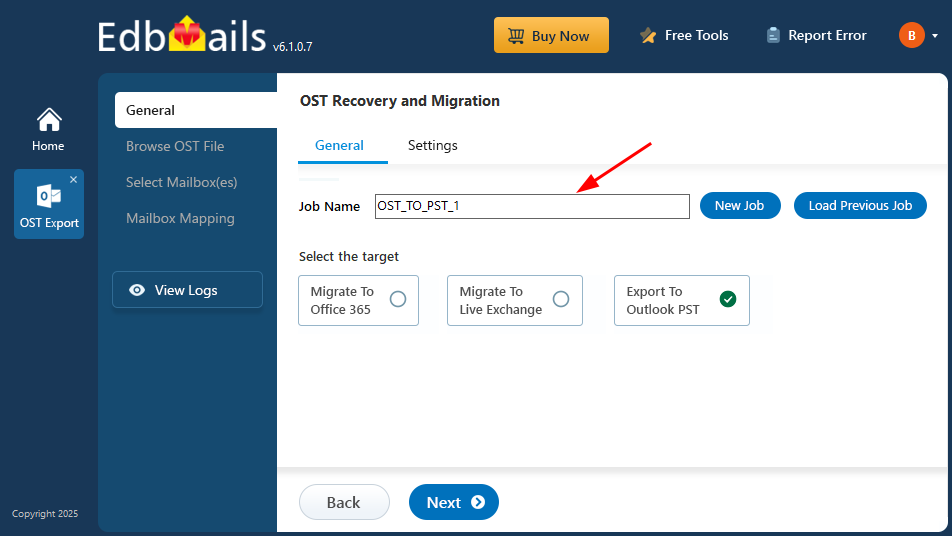
- You may keep the default job name as it is, or select the ‘New Job’ option if you want to rename and create a new job.
- Then click ‘Next’ to proceed.
Step 2: Select the encrypted OST file for the export
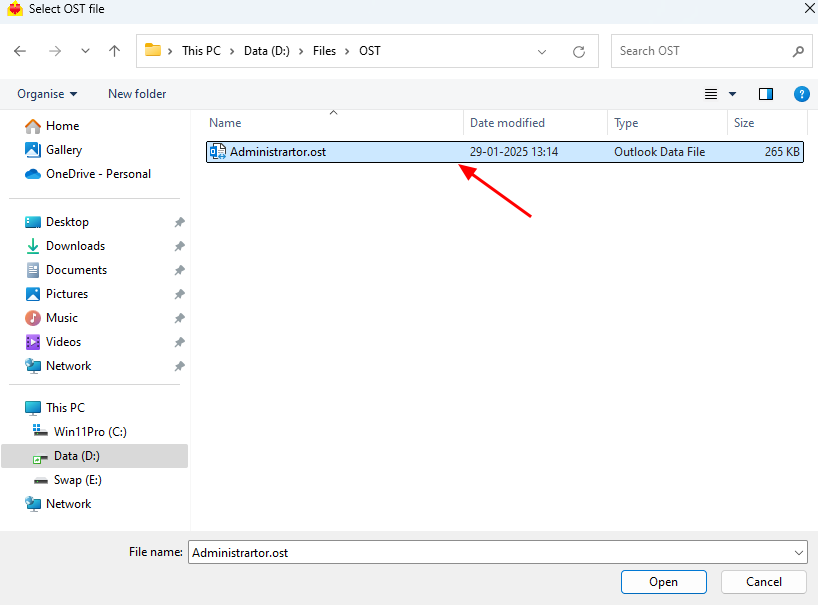
- Click ‘Browse for OST file'.
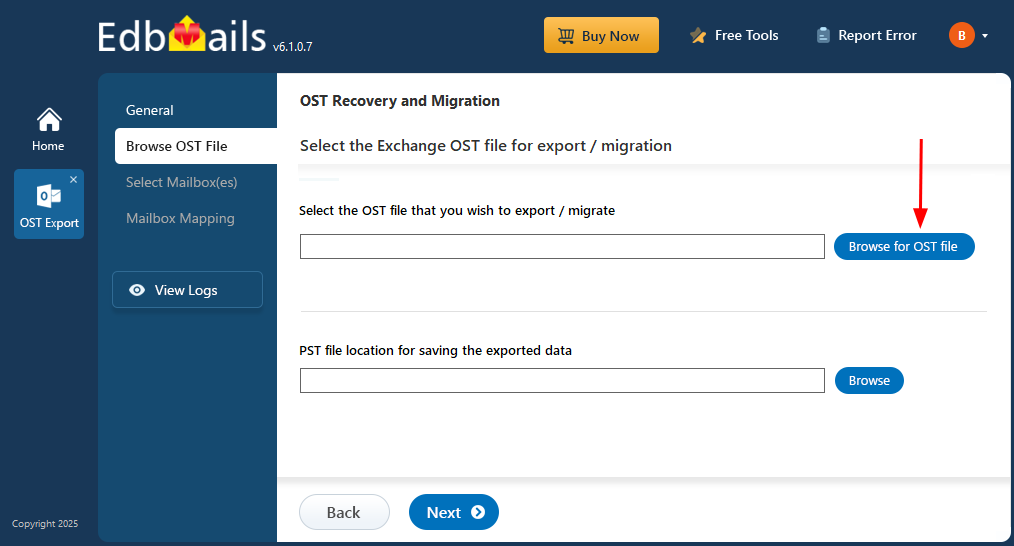
- Now select the OST file you want to export from your local drive and click on the ‘Next’ button to continue. If you want, you can also select an OST file on a network drive, as long as it has the correct read and write permissions.
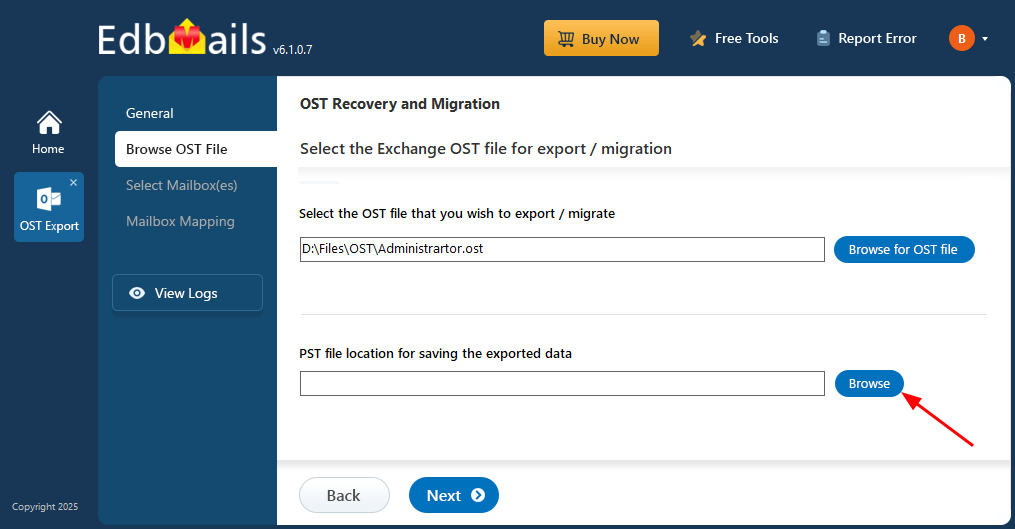
- Click ‘Browse’.
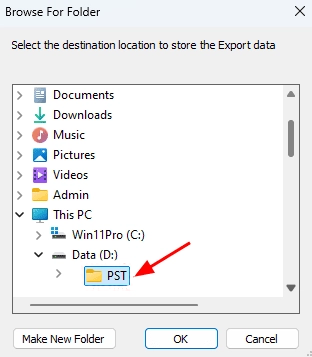
- Choose where you want to save your exported PST file, and ensure the drive has enough free space to complete the export.
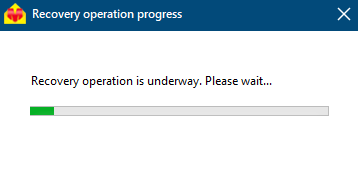
- EdbMails scans the offline OST file to get the complete mailbox data restored from a corrupted and damaged OST file. The scan performed will check all the file structures and their contents to fetch out emails and other mailbox objects. Scanning time varies with file size and amount of corruption. Wait until the scanning process completes.
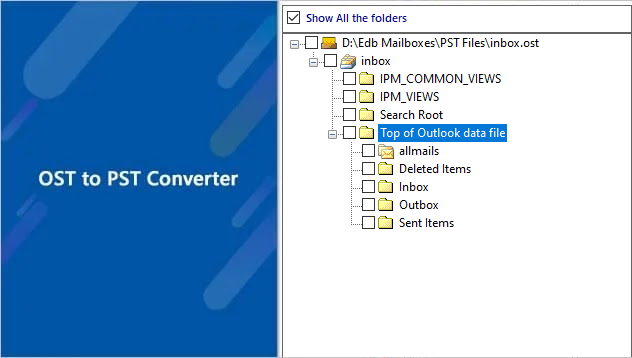
- Once the recovery process is completed, the application shows the OST file data with the original folder and subfolder structure maintained. You can simply expand any folder to browse its contents. When you select a folder like Emails, Contacts, Notes, Tasks, Calendar, etc., all the items related to that folder are shown with a clear and detailed preview on the right-hand side of the screen. With the help of EdbMails OST to PST Converter, you can open OST files without installing Outlook.
Step 3: Preview and select the mailbox
- Select the desired mailboxes or folders, then click the ‘Next’ button to proceed.
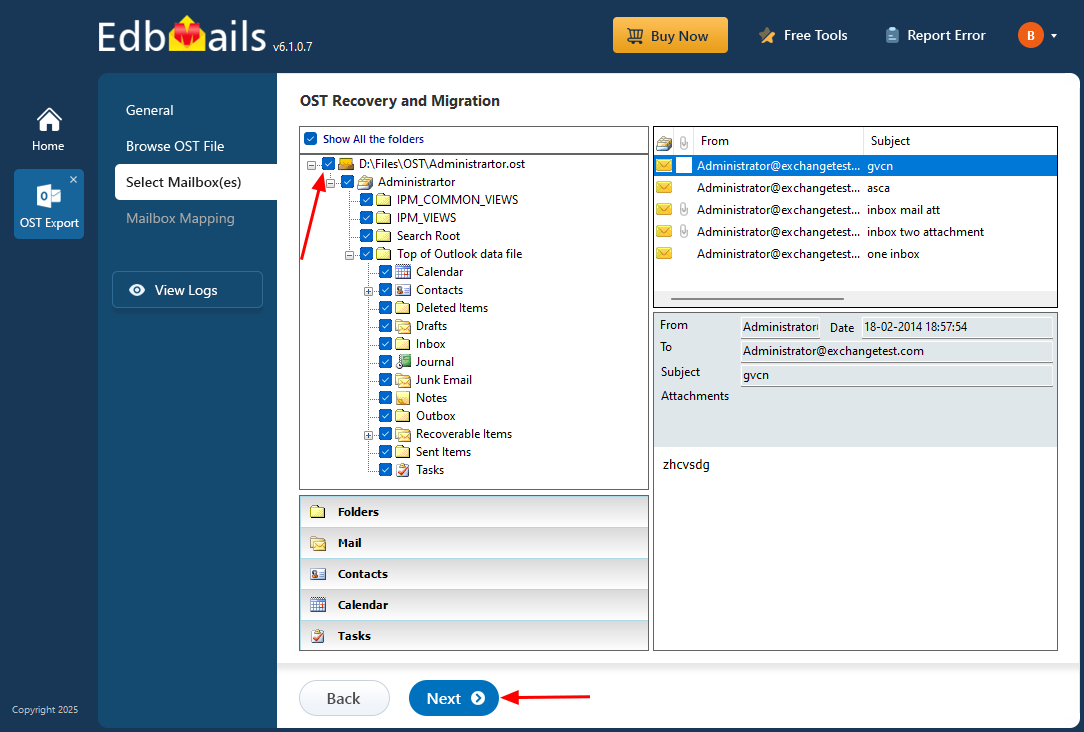
- EdbMails permits the use of different filter criteria to customize your export according to your requirements. Let's take date filters, to filter the items in your selected range, navigate to the ‘General’ tab on the left, and then go to ‘Settings’ on the top right.
Click here to learn more about setting date filters for OST to PST conversion.
Step 4: Export mail items from Outlook OST to PST
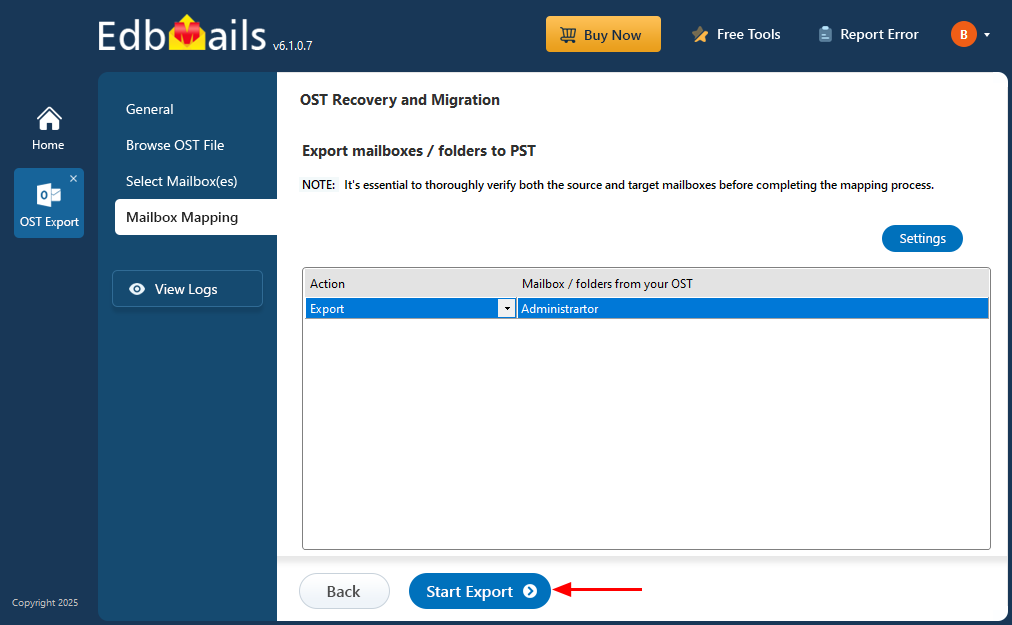
- EdbMails OST to PST converter is the best and fastest tool that accurately converts offline OST files to PST format. Check the selected mailboxes and folders for export, ensure that the ‘Action’ is set to ‘Export’, and click on the ‘Start Export’ button to begin the export.
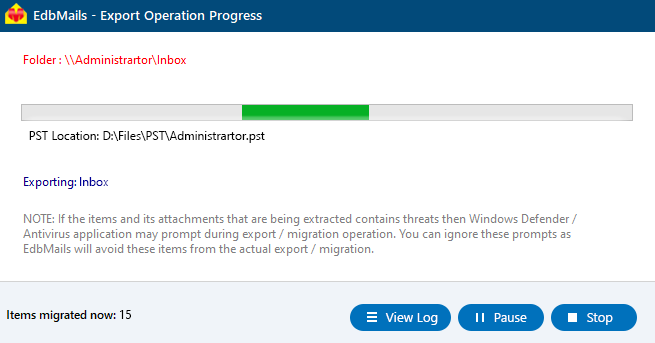
- The export process has started, and you can monitor its progress via the status bar. The interface displays the mailbox and folder being exported, the destination PST file location, and the number of items successfully exported. After the export is complete, EdbMails displays a message that the export has been completed.
- Download and install the EdbMails application on any Windows-based machine.