


Convert OST to PST in Outlook 2024, 2021, 2019 and Earlier
An OST file is Outlook's local offline copy of your Exchange or Microsoft 365 mailbox - emails, contacts and calendars stay accessible even when you are not connected to the server. The catch is that it is tied to the account and profile that created it. You cannot copy it to a new machine and open it in another Outlook profile, you cannot access it after the Exchange account is deleted, and if it gets corrupted or orphaned Outlook will not touch it at all. In those cases the EdbMails OST to PST Converter converts the file directly, with no Outlook profile or Exchange connection required.
Extracting data from an OST file, particularly one created by an older version of MS Outlook, can pose challenges. Converting the OST to PST breaks that dependency. A PST file is standalone. It opens in any Outlook profile on any Windows machine, with no server or account required. That is why OST to PST conversion comes up in so many situations: moving to a new computer, recovering data after an Exchange server failure, creating an offline backup, or dealing with a corrupted OST that Outlook refuses to open.
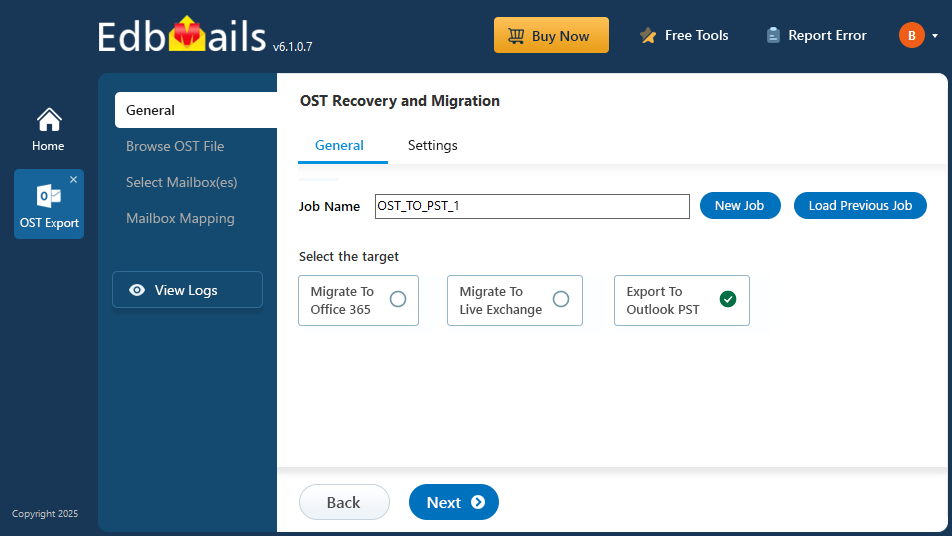
Outlook includes built-in import/export options that work well when the OST file is healthy and still associated with an active Outlook profile. For scenarios involving orphaned, inaccessible, encrypted, or corrupted OST files, the EdbMails OST to PST Converter provides a reliable way to recover and export mailbox data while preserving the original folder structure, emails, contacts, calendars, tasks, and other Outlook items.
Quick Method Comparison
Before diving into the steps, check the table below to find the right method for your situation. The manual Outlook options have real limitations that catch people out. Knowing upfront which method applies to you will save a lot of wasted time.
| Method | Works on corrupted OST? | Works on orphaned OST? | Requires Exchange connection? | Best for |
| Import/Export Wizard | No | No | Yes | Healthy OST, full mailbox export |
| Auto Archive | No | No | Yes | Archiving older items by date |
| EdbMails | Yes | Yes | No | Healthy, corrupted, orphaned, encrypted, or any sized OST files |
Reasons to Convert OST to PST Format
There are several compelling reasons to convert OST files to PST format:
- When migrating mailbox data from one system to another, relying solely on the OST file can be complex. Converting OST to PST streamlines the migration process, ensuring a smoother transition.
- Large OST files are prone to corruption and damage, putting your data at risk. By converting OST to PST, you can mitigate the chances of data loss and overcome mailbox size limitations.
- In cases where the Exchange Server encounters problems or if Exchange data is accidentally deleted, having previously converted OST files to PST format provides a reliable way to maintain access to your valuable mailbox items.
- OST to PST conversion allows you to conveniently access and manage your offline-saved OST file data in Outlook's PST format. This enables seamless online access to your mailbox items.
- OST files are compatible only with Exchange and Outlook. If you plan to switch to a different email client, converting OST to PST becomes essential for migrating your old mailbox items to the new platform.
Step-by-Step OST to PST Conversion Methods for All Outlook Versions
If you need to convert an OST file to PST format, it is important to proceed with caution. Before you get started, ensure that your Outlook account is synced with the Exchange profile and that you have the necessary login credentials. Additionally, take a backup of your mailbox data and store it securely, as manual methods may carry some risks.
- Method 1: Convert OST to PST Using the Outlook Import/Export Wizard
Outlook's Import/Export wizard is the most straightforward route when your OST file is healthy and still connected to an active Exchange or Microsoft 365 profile. It works across all Outlook versions, though the menu path changed slightly between older and newer versions, use the steps below that match what you are running.
One thing to check before you start: if you are on Outlook 2016 or later and your account uses Cached Exchange Mode, Outlook may only export the last 12 months of mail by default. If you need your full history, go to 'File' > 'Account Settings' > 'Account Settings', double-click your Exchange account, and drag the Mail to keep offline slider to 'All' before running the export. It is a step that is easy to miss and explains why many users end up with a PST that looks incomplete.
Step 1: Open the Outlook Import/Export Wizard
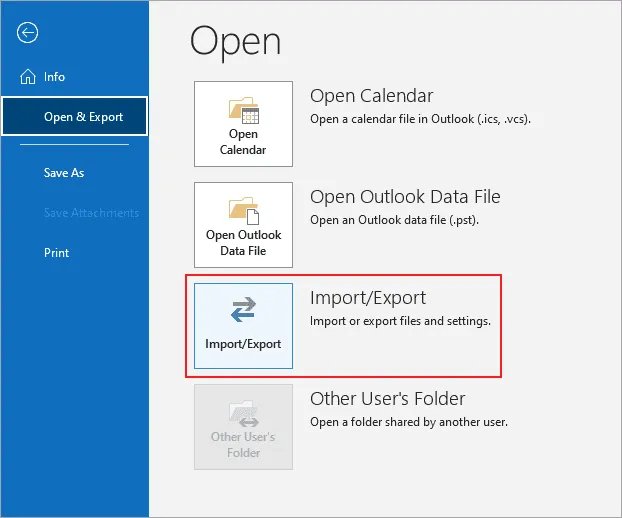
- Launch Microsoft Outlook and click the 'File' tab on the top left corner of the window
- Navigate to 'Open & Export' and select 'Import/Export'.
Step 2: Select the Export Type and Save Location
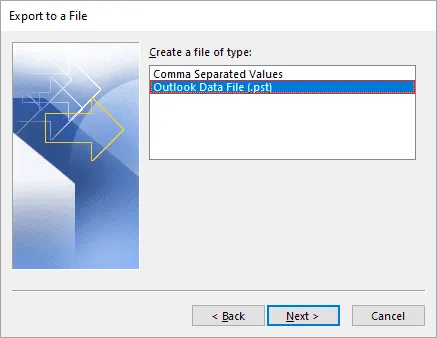
- From the Import/Export wizard, choose 'Export to a file' and click 'Next'.
- Select the file type as 'Outlook Data File (.pst)' and click 'Next'.
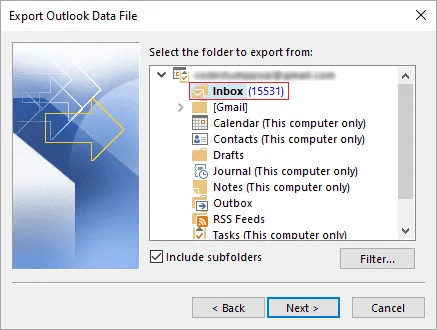
- Choose the folder or account that you wish to export and click 'Next'.
- Select a location to save the exported PST file and give it a name.
Step 3: Pick the Mailbox Items to Export
- Select the 'Include subfolders' option to export all items in the folder, if you skip this, only the top-level folder comes across, not the subfolders inside it
- If you wish to export only specific items, choose 'Filter' and set your criteria
- Click 'Next' to proceed
Step 4: Export the OST File to PST
- If you want to protect the exported PST file with a password, enter it and click 'OK'
- Click 'Finish' to start the export
- Allow the process to complete, then click 'OK' to acknowledge
Step 5: Import the PST File into Outlook
Once the export is done, here is how to bring the PST back into Outlook:
- Open Microsoft Outlook and click the 'File' tab
- Click 'Open & Export' and choose 'Import/Export'
- Select 'Import from another program or file' and click 'Next'
- Choose 'Outlook Data File (.pst)' as the file type and click 'Next'
- Browse to where you saved the PST file and select it
- To prevent duplicates, choose 'Replace duplicates with items imported'
- Select the folder or account where you want the data and click 'Finish'
For Outlook 2013 and 2010: The menu path is the same, 'File' > 'Open & Export' > 'Import/Export'. If you cannot see "Open & Export," go to 'File' > 'Open' > 'Import' and follow the same steps from Step 2.
For Outlook 2007: Go to 'File' > 'Import and Export' and follow the same steps from Step 2.
What to do if the export completes but the PST is missing items: This almost always means Outlook is only exporting its cached data, not your full mailbox history. Go back to your account settings and change the sync window to All, then re-run the export. If the OST file itself is damaged or disconnected from Exchange, the sync window change will not help, move to Method 3.
- Method 2: Convert OST to PST Using Auto Archive Settings
Auto Archive is less of a full conversion tool and more of an ongoing housekeeping feature. It moves older items out of your live mailbox into a PST file on a schedule you define. It is useful if your goal is to reduce mailbox size or archive emails older than a certain date rather than export everything at once.
It is not a substitute for a full OST to PST conversion, and it will not help if your OST file is inaccessible or disconnected from Exchange. But if you are on a healthy mailbox and want to archive older items automatically, here is how to set it up.
One heads-up before you start: Auto Archive skips Contacts by default, and it will not run until the time interval you set has passed. If you need the archive right now, use the manually trigger the archive process described at the end of this section rather than waiting for the schedule.
- Step 1: Access Auto Archive Settings in Outlook
Launch Microsoft Outlook and click the 'File' tab
Navigate to 'Options' > 'Advanced' > 'AutoArchive Settings'
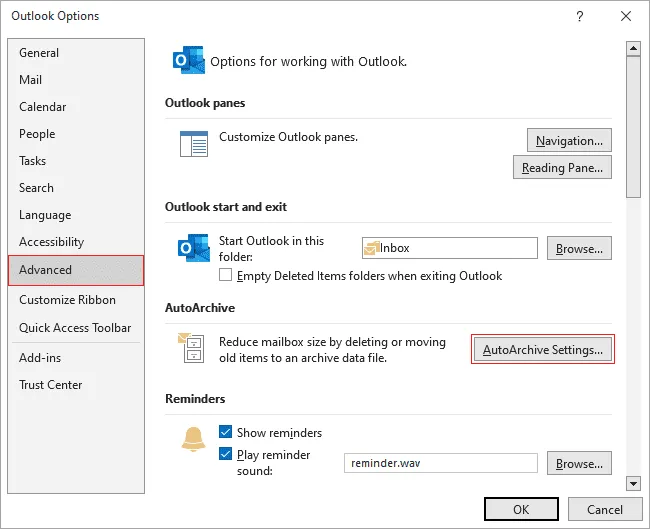
Step 2: Configure Auto Archive Options
- In the Auto Archive settings window, check 'Run AutoArchive every' and specify the frequency
- Choose the folder(s) you wish to archive
- Set the age threshold, items older than this will be moved to the archive
- Designate the location where you want to save the archived PST file
- Click 'OK' to save
Step 3: Customize Auto Archive for Specific Folders
If you want different archive settings per folder:
- Right-click the folder in Outlook's navigation pane
- Choose 'Properties'
- Go to the 'AutoArchive' tab
- Select 'Archive this folder using these settings' and configure your preferences
- Click 'OK'
Step 4: Initiate the Archive Process
- Allow the time frame you configured to pass for the process to run automatically, or
- Manually trigger the archive process by clicking 'File' > 'Tools' > 'Clean Up Old Items' in Outlook 2016 and later, or 'File' > 'Cleanup Tools' > 'Archive' in Outlook 2013/2010
- Check the designated save location to confirm the archived PST file was created
Note: If your OST file is corrupted or orphaned, direct export or archiving from Outlook may not be possible. In such cases, you can use EdbMails to repair corrupt OST files and convert them to PST format.
Challenges of Exporting OST to PST from Outlook
- Lack of Support for Older Versions: Older versions of Outlook no longer receive security updates, feature enhancements, and patches. This lack of support can hinder the smooth exporting of OST files to PST.
- Data Integrity and Compatibility Concerns: When converting OST files to PST from older Outlook versions, compatibility issues can arise, particularly around special characters, oversized OST files, metadata, and calendar items. These can impact data integrity during conversion.
- Complex Manual Export Process: Manually exporting OST to PST requires a good understanding of Outlook's export wizard and in some cases scripting knowledge. The process can be time-consuming and error-prone, especially without technical experience.
- Difficulty Diagnosing Errors: Older Outlook versions lack comprehensive error reporting, making it harder to diagnose and fix conversion errors. This leads to frustration and delays.
- Performance and Stability: Older versions of Outlook can exhibit sluggish performance and frequent crashes, which further complicates OST to PST exports.
To avoid these challenges, using a reliable third-party tool like EdbMails is the practical solution.
- Step 1: Access Auto Archive Settings in Outlook
- Method 3: Convert OST to PST Using EdbMails
When converting an OST file to PST using Outlook's built-in tools is not working, because the OST is corrupted, the Exchange account no longer exists, or you are working on a different machine, EdbMails handles the conversion without needing the original Exchange profile or a live server connection.
With EdbMails, you can easily convert your OST files to PST, allowing seamless access to your emails, contacts, calendar entries, and other mailbox data across any version of Outlook. You can also apply filters to export selective mail items based on date, subject, sender, or attachment criteria. Exporting special characters and metadata is handled automatically.
For a complete walkthrough with screenshots, advanced options, and feature details, see the EdbMails guide to convert OST to PST.
To convert OST to PST using EdbMails, follow the steps below:
When the Manual Methods Fail: Common Scenarios and What to Do
"Outlook cannot open the OST file" The OST file is orphaned or the Exchange account it was linked to has been deleted. Outlook cannot open an OST that is no longer connected to its original account. There is no workaround using Outlook's native tools. Use EdbMails, which reads orphaned OST files directly without needing the original account or server.
"The export completes but the PST is empty or missing items" Outlook's Cached Exchange Mode sync window is almost certainly the cause. Outlook 2016 and later default to caching only 12 months of mail, so the export only captures the cache, not the full mailbox. Change the Mail to keep offline slider to All in your account settings before re-running the export. If the OST is damaged, this will not help, use EdbMails instead.
"SCANPST says the file is too damaged to repair" SCANPST is designed for minor corruption only. It frequently fails on heavily damaged, oversized, or ransomware-affected OST files. EdbMails handles cases that SCANPST cannot, extracting whatever data is recoverable and converting it to PST. See also: Repair corrupted OST files from Outlook 365.
"I'm on a new computer and don't have the original Outlook profile" The Import/Export method requires the original Outlook profile to be present. Without it, Outlook cannot open the OST. EdbMails converts OST files independently, just point it at the file and run the conversion.
"My OST file is encrypted or password-protected" Outlook's Export wizard cannot handle encrypted OST files from certain Exchange configurations. EdbMails supports conversion of encrypted OST files without compromising data integrity.
"Outlook shows 'The set of folders cannot be opened'" This is a common error when the OST file has become inaccessible. See Fix Outlook the set of folders cannot be opened for the full troubleshooting guide.
Version and Scenario Support Reference
| Outlook Version | Import/Export Method | Auto Archive Method | EdbMails |
| Outlook 2024 / Microsoft 365 | ✓ | ✓ | ✓ |
| Outlook 2021 | ✓ | ✓ | ✓ |
| Outlook 2019 | ✓ | ✓ | ✓ |
| Outlook 2016 | ✓ | ✓ | ✓ |
| Outlook 2013 | ✓ | ✓ | ✓ |
| Outlook 2010 | ✓ | ✓ | ✓ |
| Outlook 2007 | ✓(different menu path) | ✓ | ✓ |
| Outlook 2003 | Limited | Limited | ✓ |
| Corrupted OST | ✗ | ✗ | ✓ |
| Orphaned OST | ✗ | ✗ | ✓ |
| Encrypted OST | ✗ | ✗ | ✓ |
| Large OST (10 GB+) | ✓(slow) | ✗ | ✓ |
| No Exchange connection | ✗ | ✗ | ✓ |
Why Choose EdbMails for OST File Conversion
The manual methods above only work when the OST file is healthy and still tied to a live Outlook profile. EdbMails converts corrupted, orphaned, encrypted and password-protected OST files to PST on every Outlook version from 2003 to Microsoft 365, with no original profile or live Exchange connection needed.
For the full feature list, pricing and a free trial, refer to the EdbMails OST to PST Converter.
Frequently Asked Questions
Does the conversion process differ between Outlook versions?
How do I convert an OST file to PST in Outlook 2016?
How do I convert an OST file to PST in Outlook 2021?
How do I convert an OST file to PST in Outlook 2007?
How do I convert an orphaned OST file to PST?
Why does AutoArchive skip my Contacts folder?
Why is my exported PST file missing emails?
Why can't I open my OST file directly in Outlook?


