


Exchange Cutover Migration: Complete Guide
Cutover migration is a method that helps the organizations to move the entire on-premises Exchange server in one single phase. Unlike phased migration, the entire mailbox data is migrated in one go. This method is used when the company intends to move all the users simultaneously. It is useful for small and medium size organizations with less amount of mailbox data so that it will get completed as per the plan without the project timeline extending.
A cutover migration is frequently selected when you need to entirely remove the on-premises Exchange server or when rapid migration is required to avoid long-term coexistence between environments.
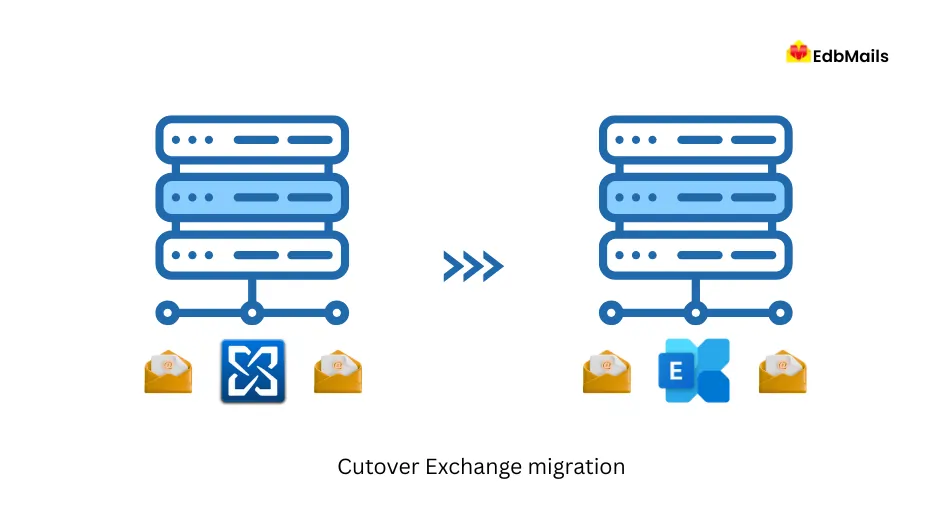
You can migrate from MS Exchange 2007, 2010, 2013, 2016 and 2019 to Exchange server or Office 365 without having to apply many settings with the EdbMails Exchange Migration Software. The tool lets you migrate all data, like mailboxes, public folders, archive mailboxes, and shared mailboxes etc.
EdbMails handles the entire process, maintains the zero downtime, and ensures end users can begin work on the target server immediately. By combining speed, reliability, and ease of use, EdbMails makes cutover migration an efficient choice for businesses that need a smooth, all-at-once move to the cloud.
Strategic Scenarios for Exchange Cutover Migration
EdbMails streamlines the process of cutover migration where the user simply needs to choose the mailboxes that have to be migrated and carry out the process with the default setting unless there are some specific types of data to exclude. Therefore, this would be a perfect choice for the following scenarios:
- Decommissioning on-premises servers: When an organization plans to completely retire its on-premises Exchange environment and transition all data in a single step.
- Small to medium data volume: For SMEs with a manageable number of mailboxes and data size, cutover migration provides a quick and efficient transition without requiring a complex staged approach.
- Minimizing complexity: Ideal for businesses seeking a low-maintenance migration that demands minimal technical effort, especially when dedicated IT teams are unavailable to manage phased or long-running projects.
Exchange Cutover Migration step by step Procedure
Step 1: Install EdbMails Exchange Migration Software
- Download and install EdbMails on a Windows computer to get started with the migration process.
- Launch the EdbMails application.
- Enter your registered email ID and password and click 'Login'. If you have not created an account yet, select 'Start Your Free Trial' to continue with the trial version.Note: The trial version includes all features, with migration of 30 items per folder from all mailboxes. To migrate all the items, the license is required.
After purchasing the license, close and restart the application. Then log in with the same email ID and password used during the purchase to successfully activate the license.
See the detailed list of EdbMails system requirements before you begin.

Step 2: Select ‘Live Exchange Migration’ as Migration Option
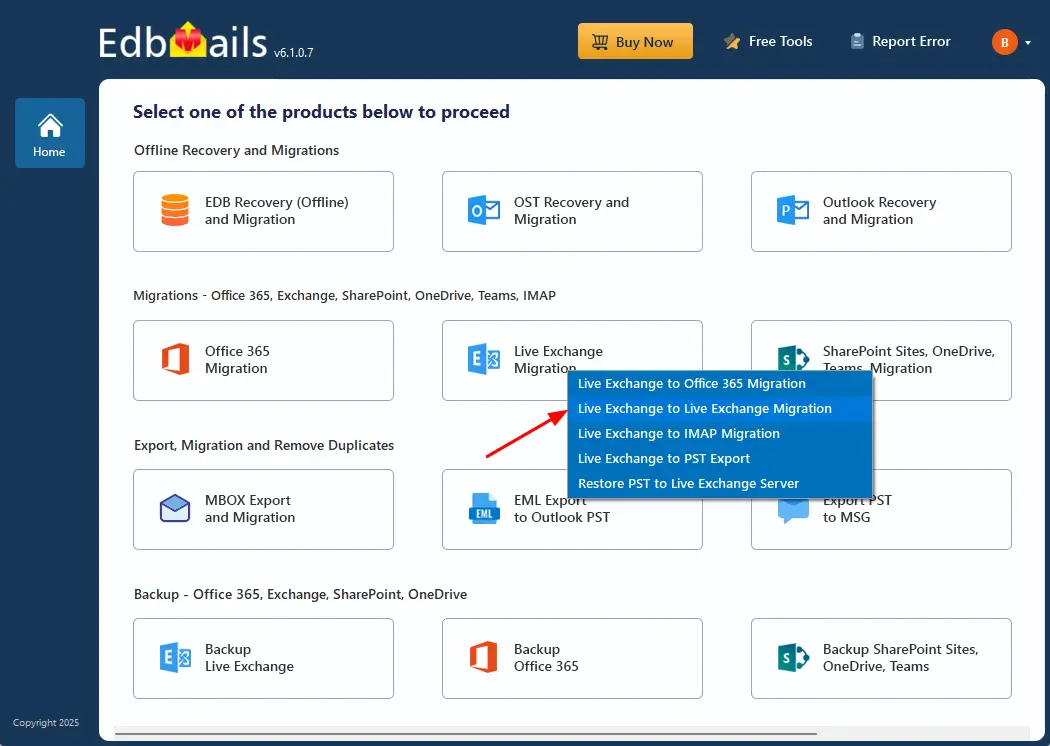
- Select the ‘Live Exchange Migration’ option from the products lists.
- Choose the option 'Live Exchange to Live Exchange Migration' from the dropdown list and proceed
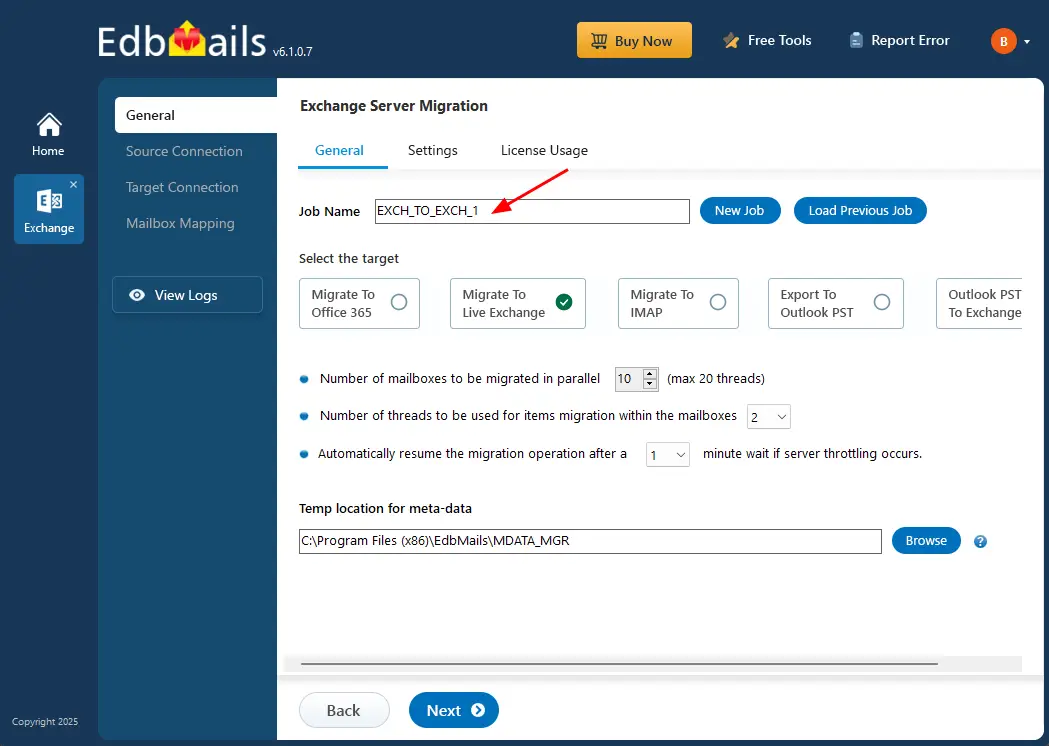
- You can use the default job name or click 'New Job' to give it a different name.
Step 3: Connect to Source Exchange Server
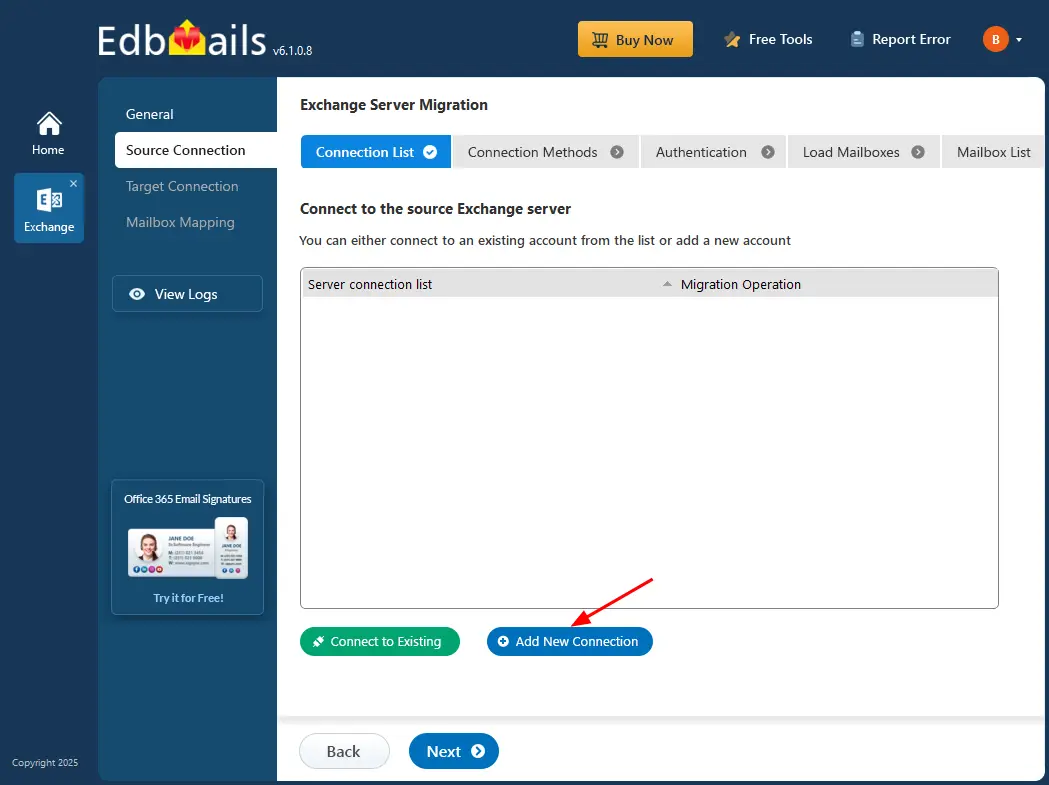
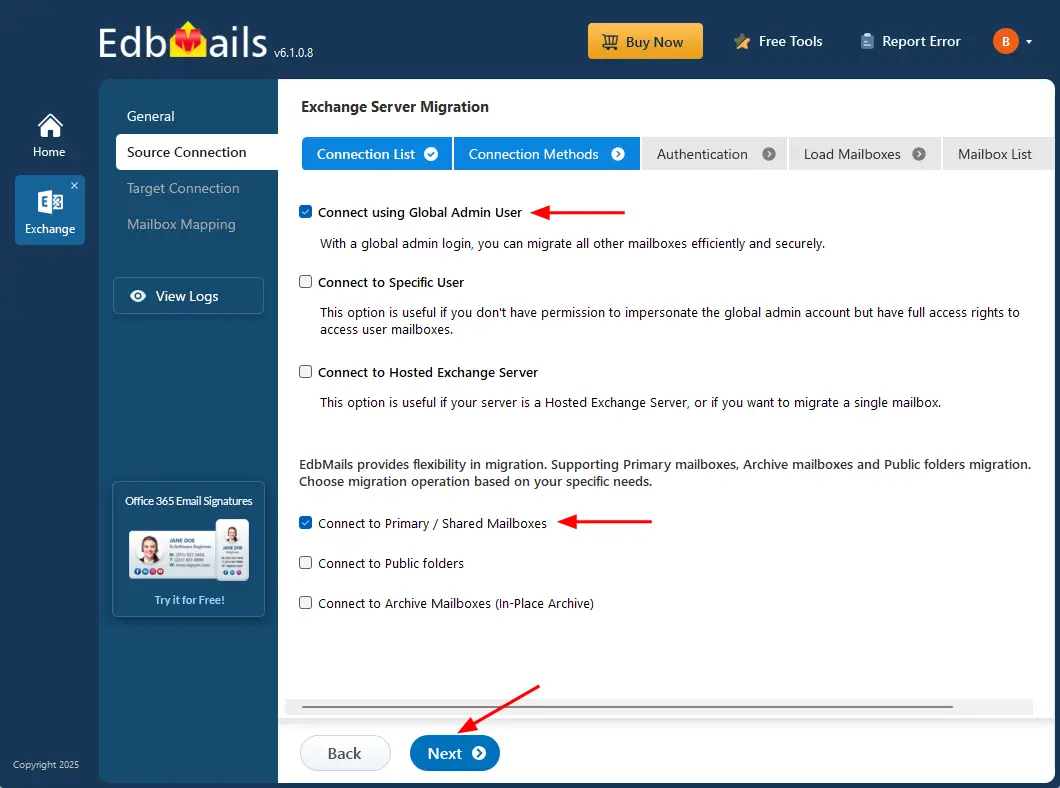
- To set up a new connection with the source Exchange server, click ‘Add New Connection’. If you've connected before, just select it from the list and click ‘Connect to Existing’ to continue.
Set impersonation rights on both source and the target servers.
Click here for the details about different Exchange server connection methods supported by EdbMails.
With EdbMails, you can migrate mailboxes, public folders, and archive mailboxes from the source Exchange to the target server.
Choose the required connection methods and click ‘Next’ to continue.
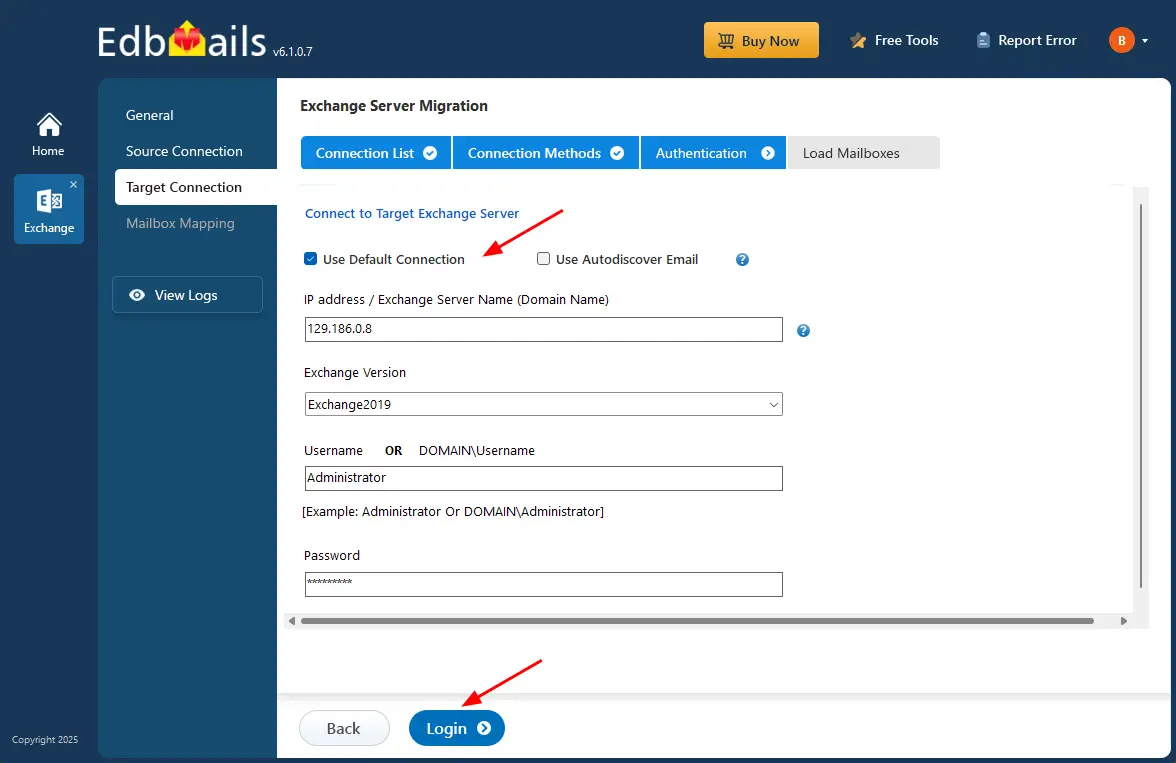
- Provide the target Hosted Exchange server details such as the IP address (Domain name), Exchange version, Username, and password.
- After entering the required information, click the ‘Login’ button.
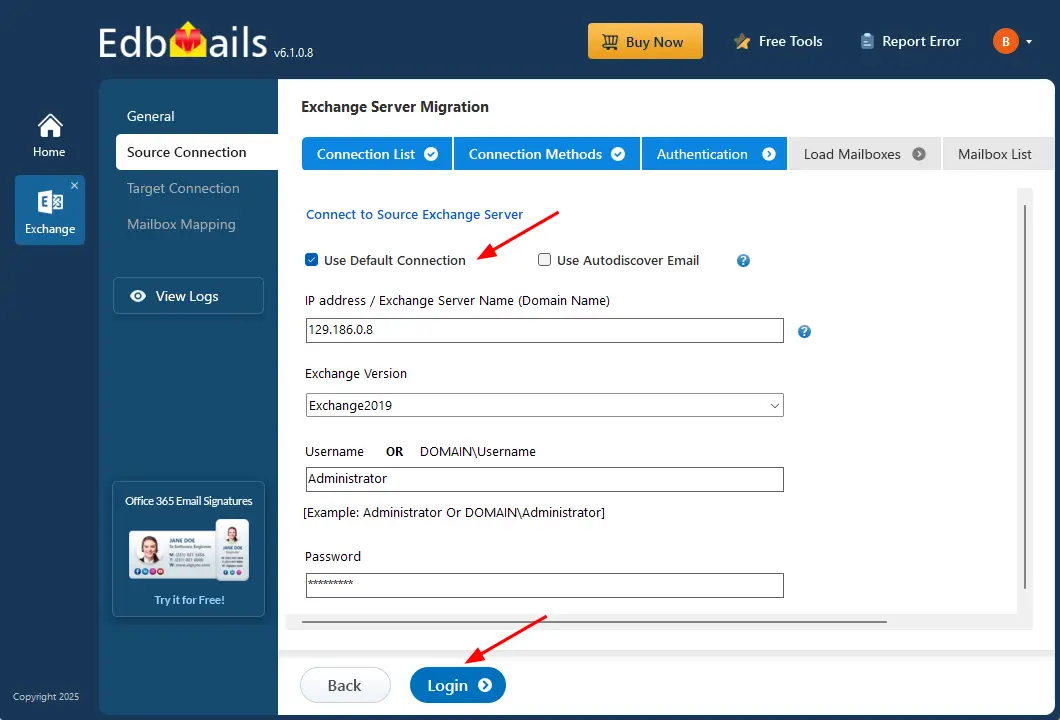
Tip: EdbMails supports ‘Default Connection’ where you specify the Exchange server name and Exchange version, or the ‘Autodiscover Email' option where you directly login with the user credentials.
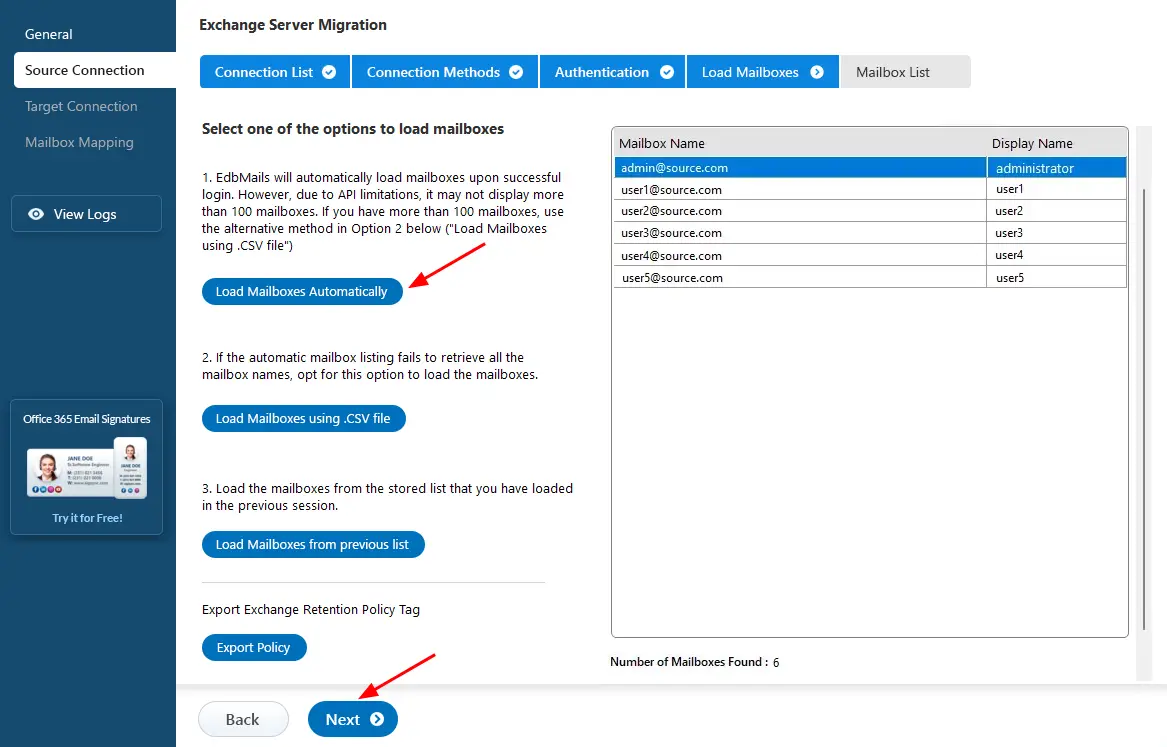
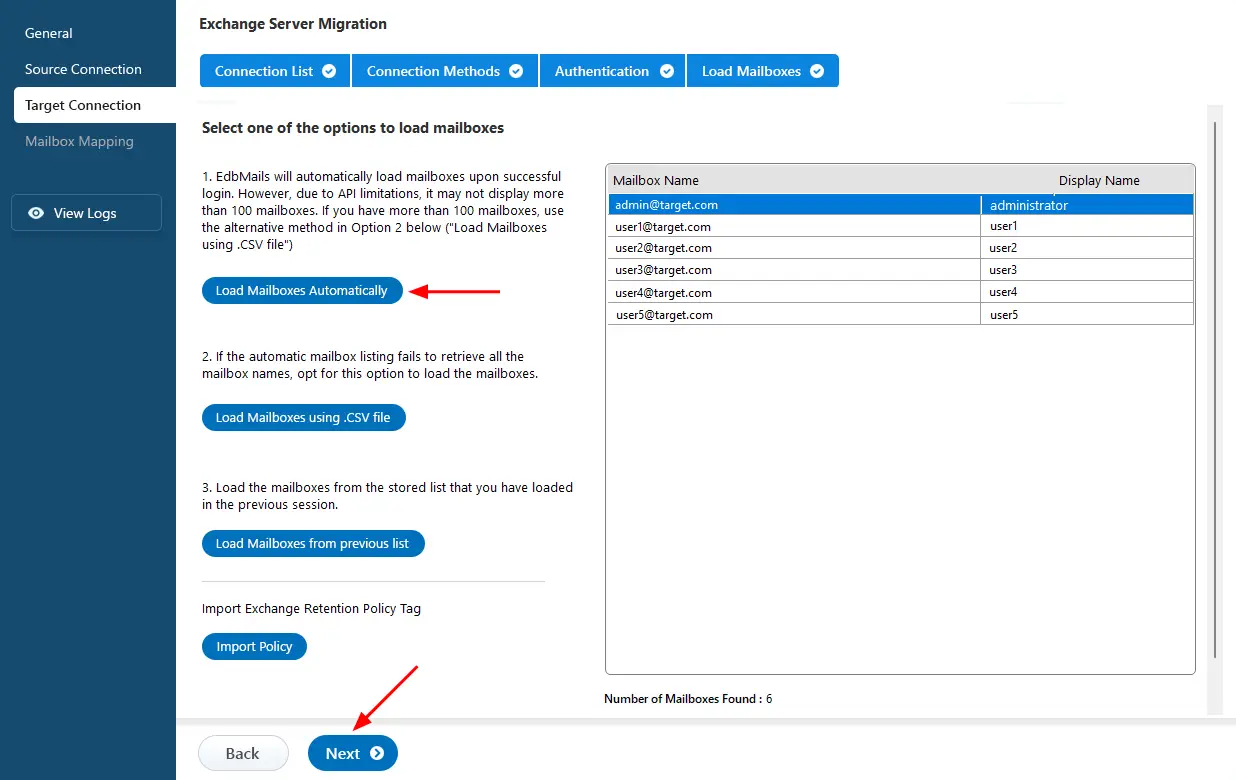
- After successful authentication, choose one of the following options to load the mailboxes:
i) Load Mailboxes Automatically: Once you sign in, EdbMails automatically retrieves and displays the available mailboxes, simplifying the setup process. Due to Microsoft API limitations, only up to 100 mailboxes may appear in the list. If your environment contains more than 100 mailboxes, use the alternative option below.
ii) Load Mailboxes using CSV file: If the automatic method does not show all mailbox names, select ‘Load Mailboxes using .CSV file’ to import and load the required mailboxes.
iii) Load Mailboxes from previous list: This option lets you quickly load the mailbox list that was saved during your earlier session.
- Choose ‘Load Mailboxes Automatically’ and click ‘Next’ to continue.
- To set up a new connection with the source Exchange server, click ‘Add New Connection’. If you've connected before, just select it from the list and click ‘Connect to Existing’ to continue.
Step 4: Select the Mailboxes for Migration
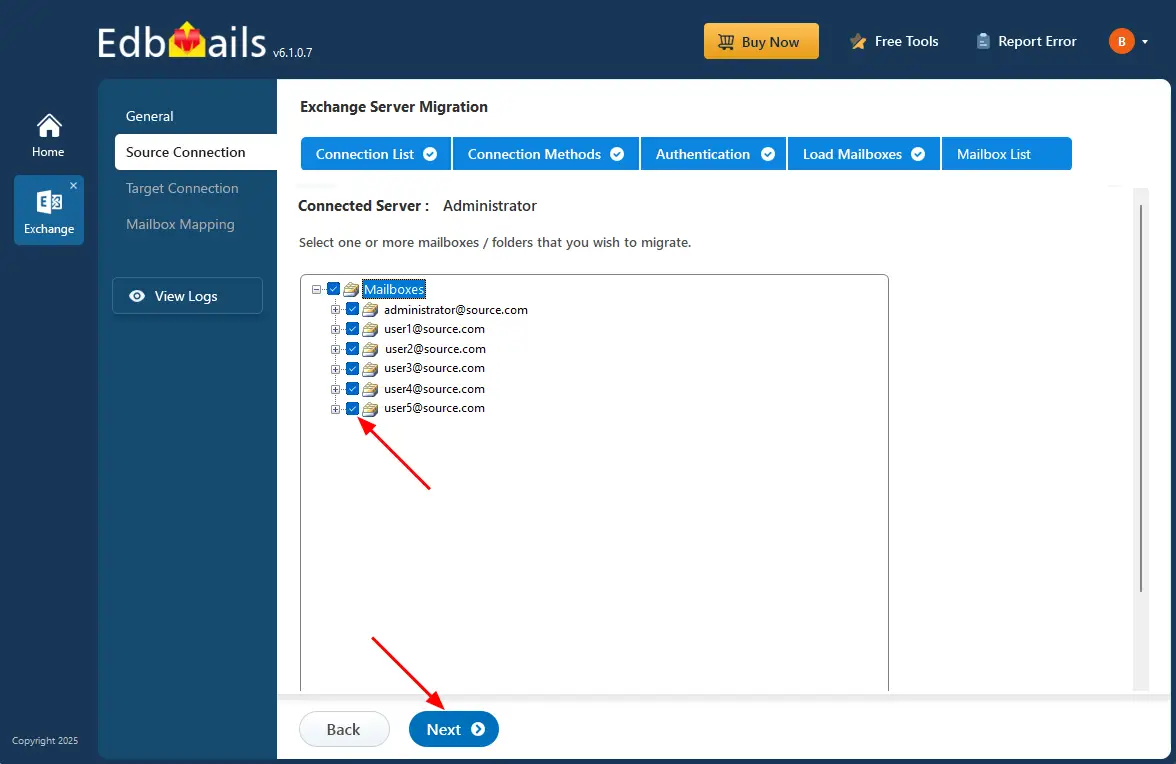
- Select the mailboxes from the source Exchange server that you want to migrate
- Click ‘Next’ and proceed to set up the connection with the target server.
Tip: If this is the first time you’re migrating with EdbMails, the migration is a full migration. On subsequent migrations from the same source to the target, the migration is incremental. If you have duplicate emails in your source server, you can remove them with the Exchange Duplicate remover tool before the migration.
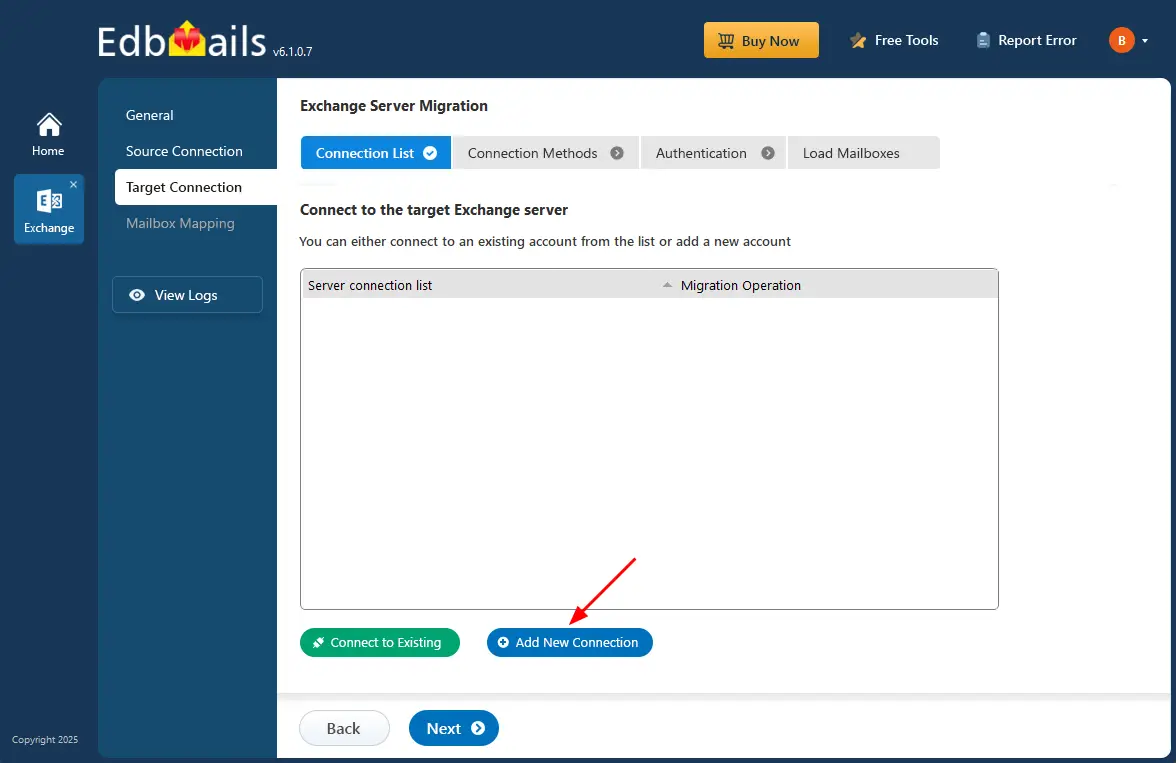
Step 5: Connect to Target Exchange Server
- To connect to the target Exchange server, click ‘Add New Connection’. If you’ve used a connection before, select it from the list and click ‘Connect to Existing’.
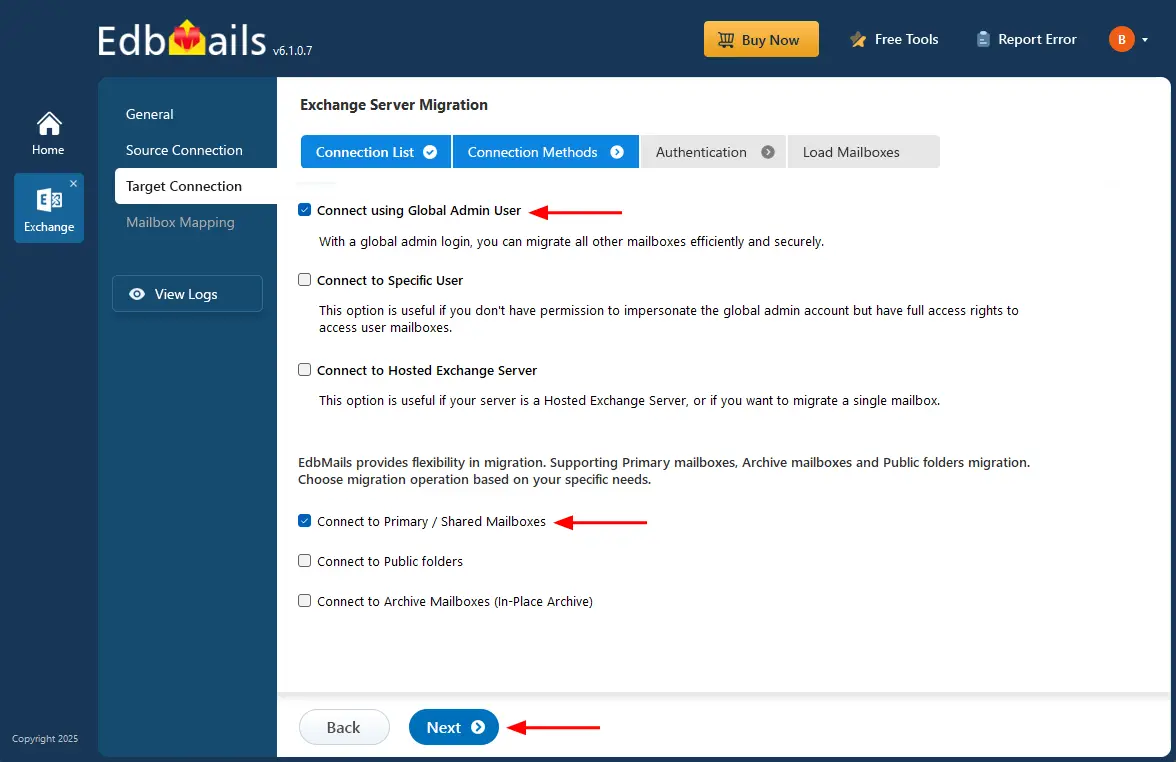
- Choose the options to connect to your target Exchange server and click ‘Next’.
- Choose the required options to connect to your target Exchange server and click the ‘Next’ button.
- Enter the target Exchange server details and click the ‘Login’ button.
- Select one of the methods to load the mailboxes.
Step 6: Map the Source and Target Exchange Server Mailboxes
- Select the required mapping option.
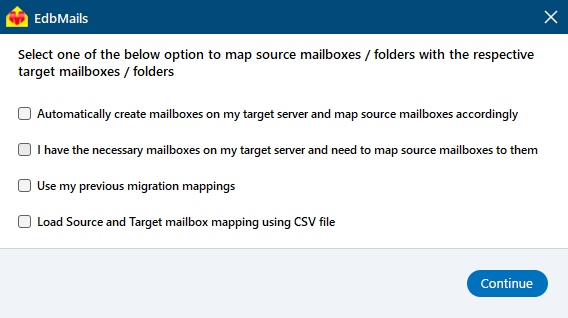
- If you have installed EdbMails on your Exchange server, you can choose to automatically create mailboxes on the target Exchange server.
Click here to know more about automatic mailbox creation.
- EdbMails automatically maps mailboxes between the source and the target Exchange servers. This functionality proves especially helpful when migrating a significant number of mailboxes, ultimately saving you time in the process.
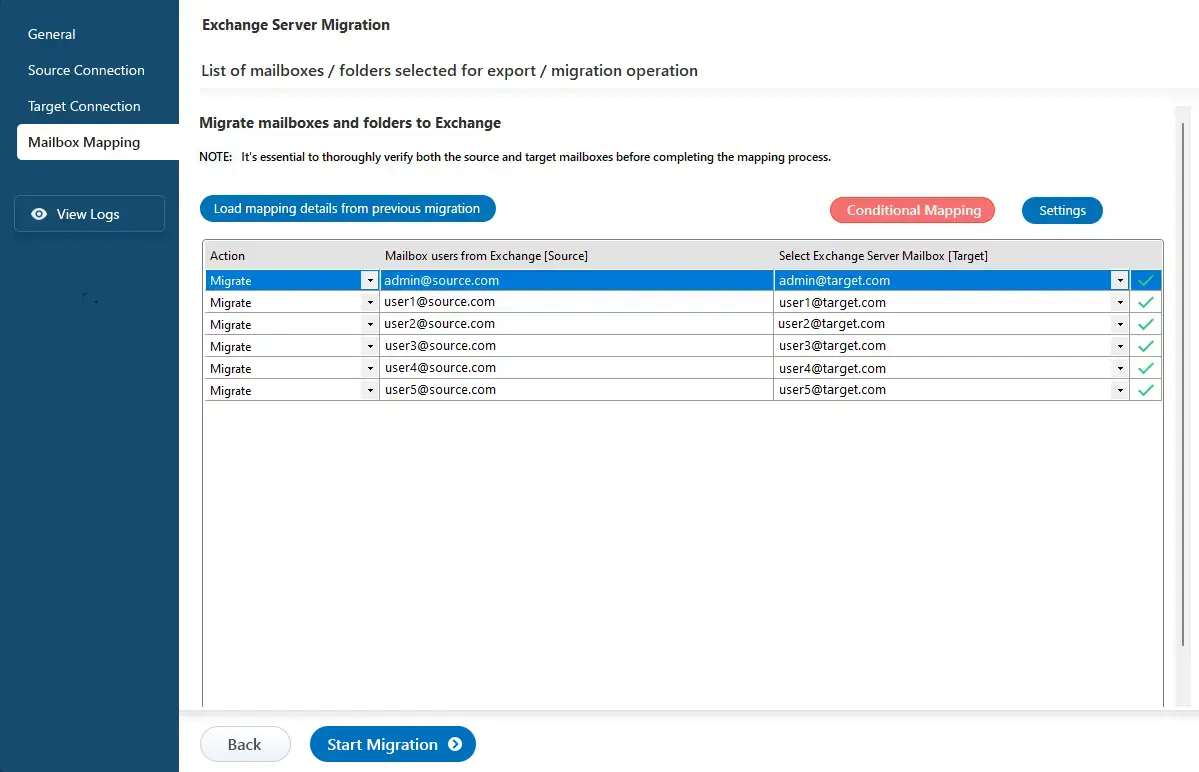
- Select the required mapping option.
Step 7: Start Exchange Cutover Migration
- Once mailbox mapping is done, click ‘Start Migration’ to begin the process.
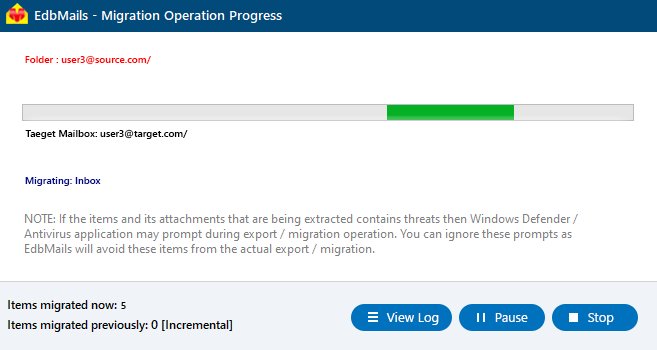
- After starting the migration, you can track its progress in the progress bar. When it’s finished, EdbMails will ask you to check the migration status and view the logs.
Post-Migration Activities
- Step 1: Update MX and Autodiscover Records
For email to be delivered to the new exchange server it is necessary that the DNS records known as MX records are changed to point to the new server. Finally, set up an Autodiscover record to enable Outlook and other email clients to connect automatically to the migrated mailboxes.
- Step 2: Create New Outlook Profiles for Users
If Outlook has trouble connecting to the new server, build and configure an Outlook profile for every user within the domain. This ensures seamless access to emails, calendars, and contacts.
- Step 3: Decommission and Uninstall the Source Exchange Server
After you have finished the migration and all the data is confirmed, you should uninstall the old Exchange server and retire it to avoid resource conflicts.
- Step 1: Update MX and Autodiscover Records


