


Migrate between Hosted Exchange Servers
Hosted Exchange services from providers like GoDaddy, DreamHost, and Liquid Web deliver cloud-based email without the need to maintain on-premises servers. These platforms help businesses manage emails, calendars, and contacts from a single environment while keeping data accessible across multiple devices for smooth communication and collaboration. Many organizations choose to migrate between Hosted Exchange providers to benefit from competitive pricing, improved features, stronger security, better performance, and enhanced compliance capabilities. This type of migration helps maintain business continuity, supports productivity, and keeps operations running smoothly with zero downtime.
EdbMails Exchange Migration tool simplifies Hosted Exchange migration with a complete and reliable solution. It securely migrates all mailbox data including emails, contacts, calendars, and public folders without the need for intermediate steps like PST files. The application preserves the original folder structure and maintains data integrity throughout the process, ensuring a smooth and dependable migration experience.
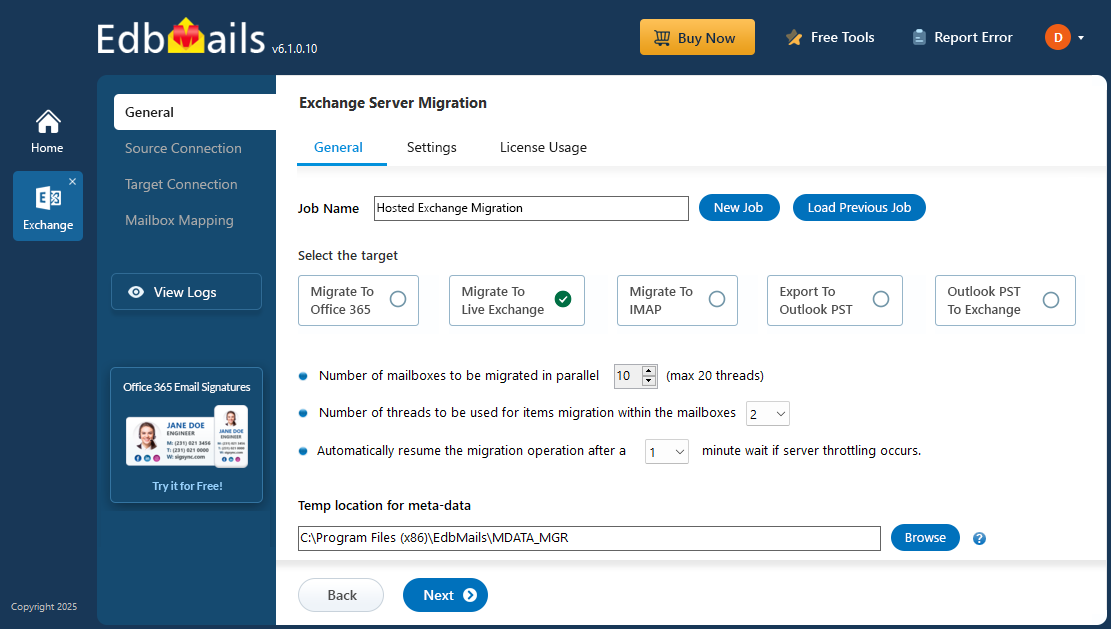
EdbMails includes an incremental migration that migrates only newly added or modified data after the first migration. This approach helps reduce bandwidth usage and saves time during repeated migrations. The software also includes automatic mailbox mapping that accurately matches source and target mailboxes, minimizing the need for manual configuration. In addition, its built-in throttling management maintains stable performance even during heavy workloads, ensuring a smooth and reliable migration process.
With advanced filtering options, you can migrate mailbox data based on specific dates or folders, giving you better control over the entire migration process. The simple and intuitive interface makes EdbMails easy to use for both IT administrators and non-technical users. Whether the objective is to enhance performance, improve security, or lower operational costs, EdbMails ensures secure data handling and a zero downtime migration, making it a trusted solution for businesses of any size.
Hosted Exchange migration: pre-requisites
- Conduct an inventory of mailbox sizes, folder structures, and custom configurations to understand the scope of the migration.
- Analyze available bandwidth to ensure it can handle the data transfer without impacting ongoing operations.
- Communicate the migration timeline, expected downtime, and any changes in access to users to prepare them for the transition.
- Create a sandbox environment for pilot migrations to identify potential issues before the full migration.
- Grant full access permissions for the mailboxes on both the source and the target servers if you are using full access permission method to connect to source and the target Hosted Exchange servers
- Specify email address and passwords in the CSV file if you are connecting to multiple users using the CSV file.
- Get email address and passwords if you are connecting as a specific user on both the source and the target servers.
- Set impersonation rights for the global admin account if you are connecting to source and target Hosted Exchange servers using a global admin account.
Steps to Migrate Hosted Exchange Server
Step 1: Download and Install the EdbMails application
- Download and install EdbMails on your computer.
- Follow the instructions that appear to complete the installation.
System requirements for EdbMails Hosted Exchange migration.

- Launch the EdbMails application on your computer.
- Enter your registered email ID and password and click ‘Login’. If you are a new user, select ‘Start Your Free Trial’ to continue with the trial version.Note: The trial edition includes all main features and allows migration of up to 30 items per folder. For unlimited migration, purchase an Exchange Migration license from the official EdbMails website.After purchasing the license, close the application and open it again. Then log in with the same email ID and password used during the purchase to activate your license successfully.

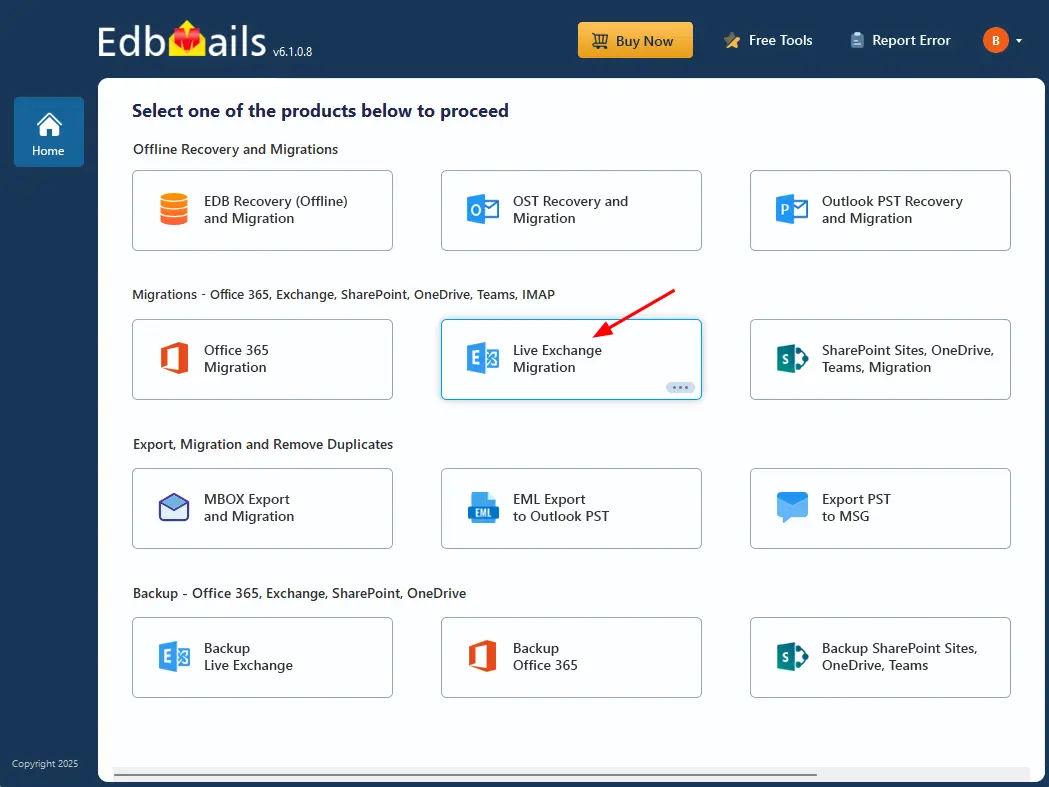
- Select 'Live Exchange Migration'.
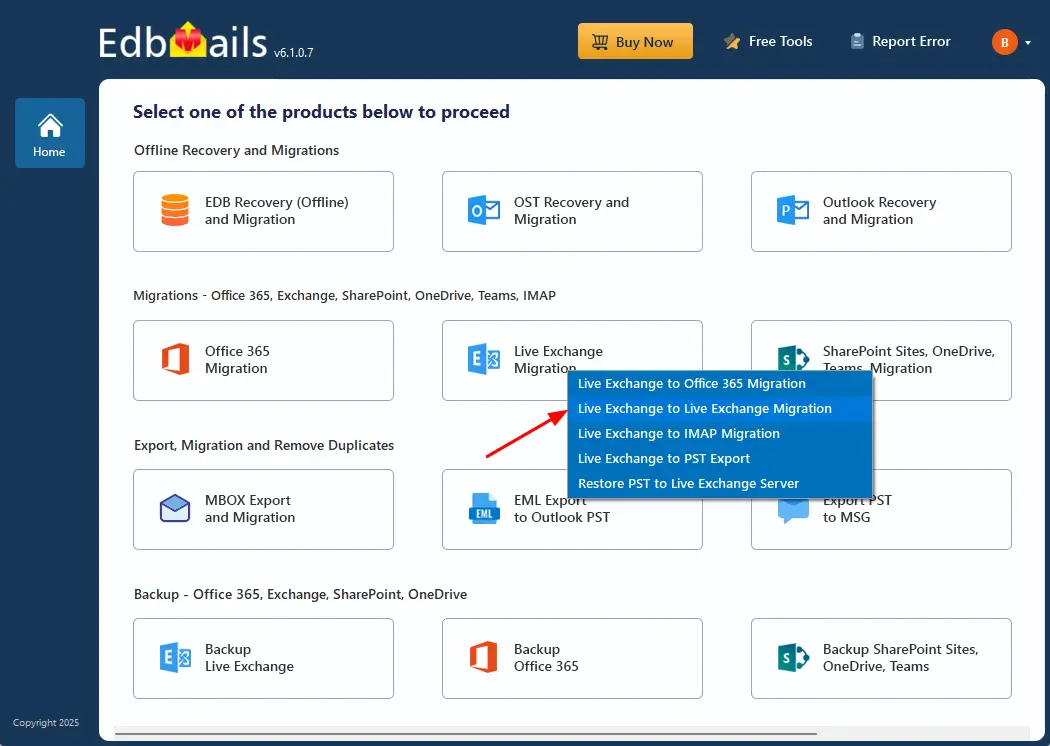
- Select 'Live Exchange to Live Exchange’.
- To set a custom name for the job, click the ‘New Job’ button and enter the name you prefer. If you don’t want to change it, you can continue with the default job name already provided.
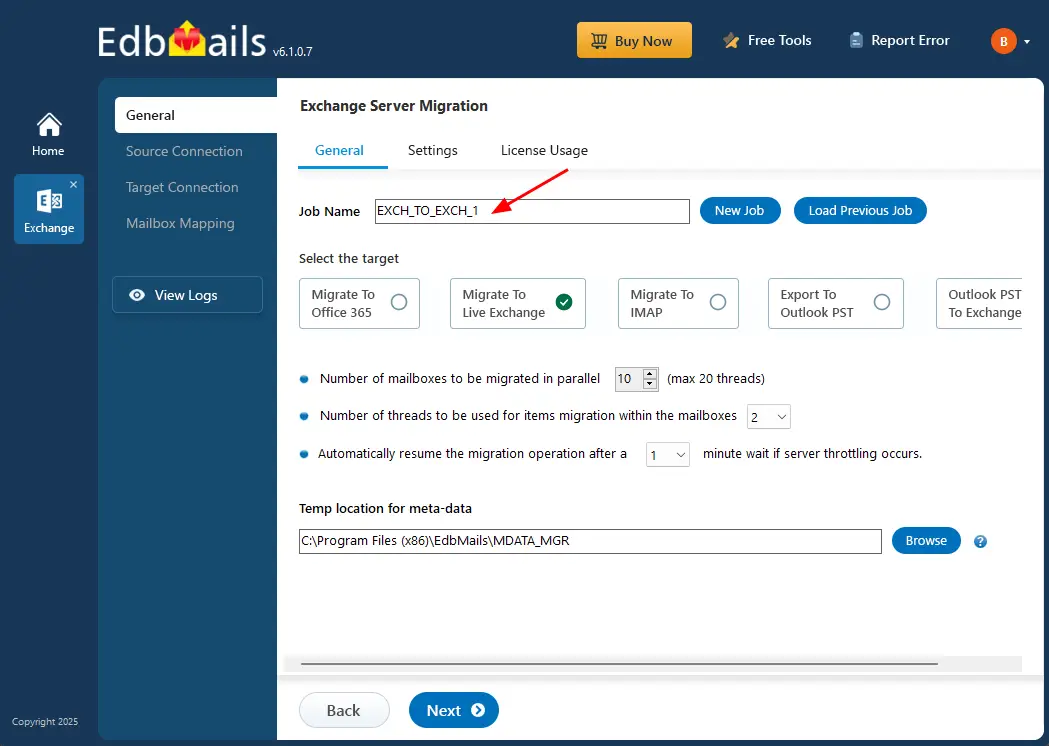
Step 2: Connect to source Hosted Exchange server
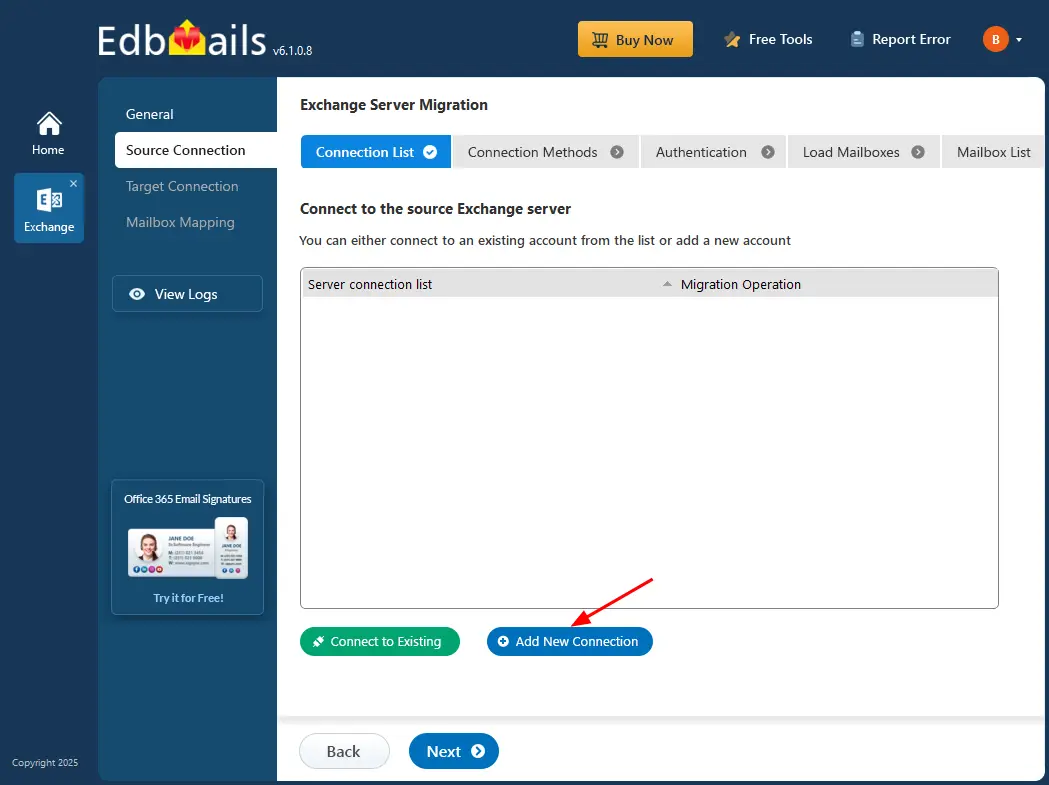
- To set up a new connection to the source Exchange server, click the ‘Add New Connection’ button. If you've connected before, simply select the existing connection from the list and click ‘Connect to Existing’ to proceed..
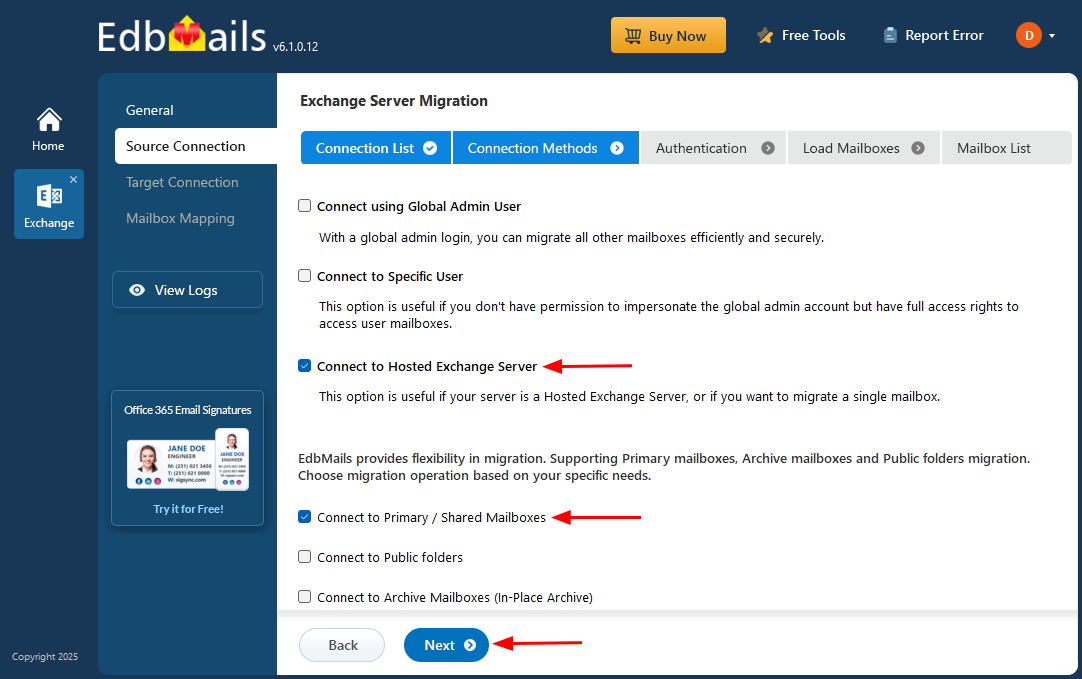
- Select ‘Connect to Hosted Exchange Server’ to establish a connection with your Hosted Exchange environment. This option is suitable when your email system is hosted on a Hosted Exchange Server or when you need to migrate a single mailbox.
- ️Select ‘Connect to Primary / Shared Mailboxes’ and click the ‘Next’ button.
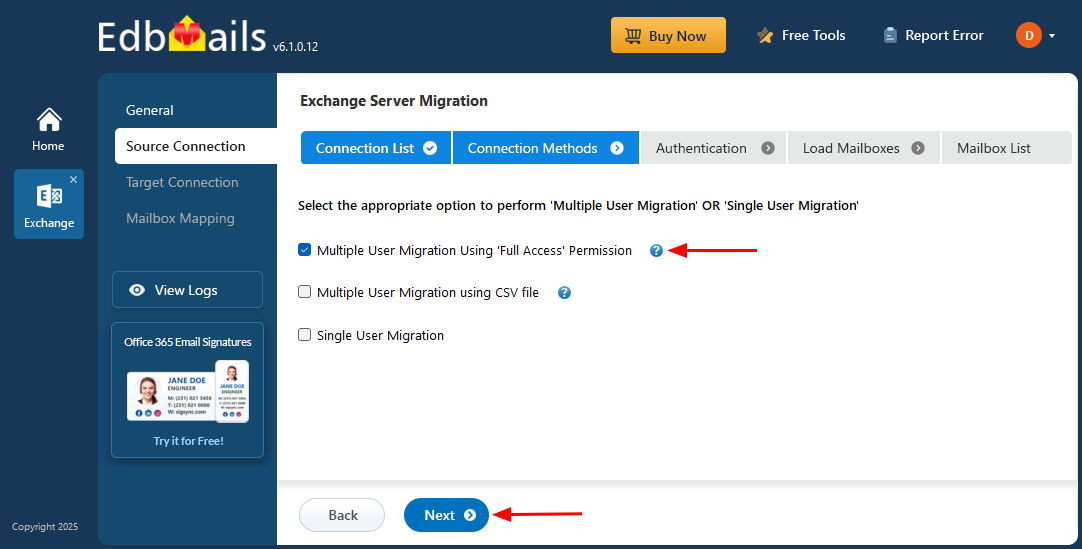
- Select the required options to perform Multiple or Single User Migration, then click the ‘Next’ button.
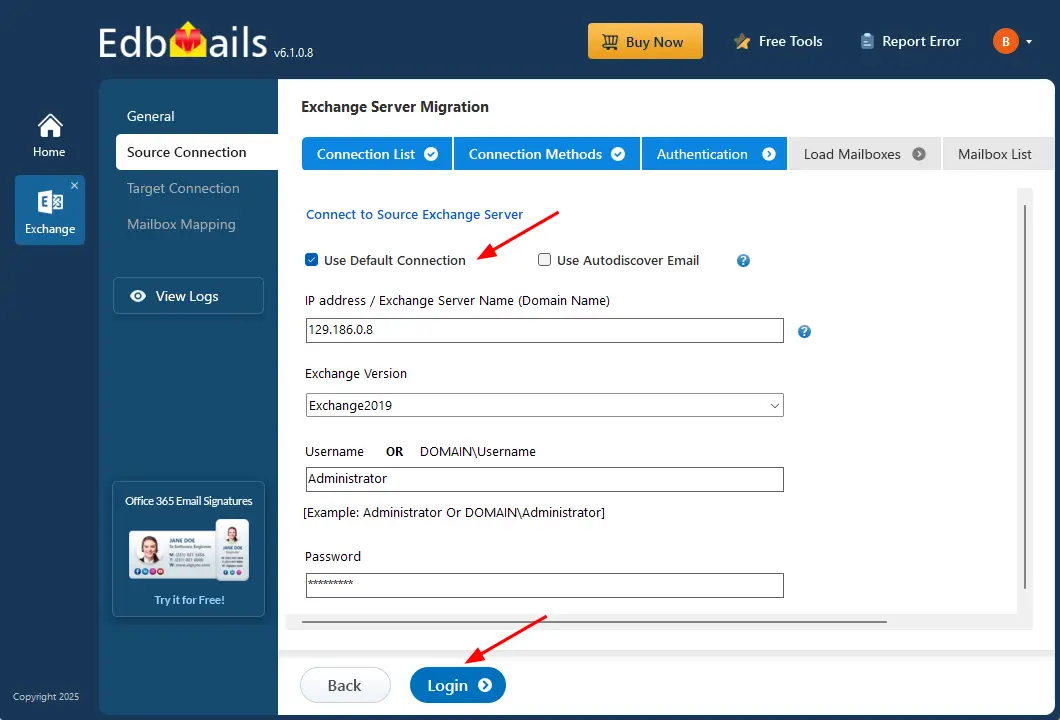
- Select an option to connect to your Hosted Exchange server, ‘Connect Using Autodiscover Email’ with your email address and password or ‘Default Connection’ using a domain name or IP address.
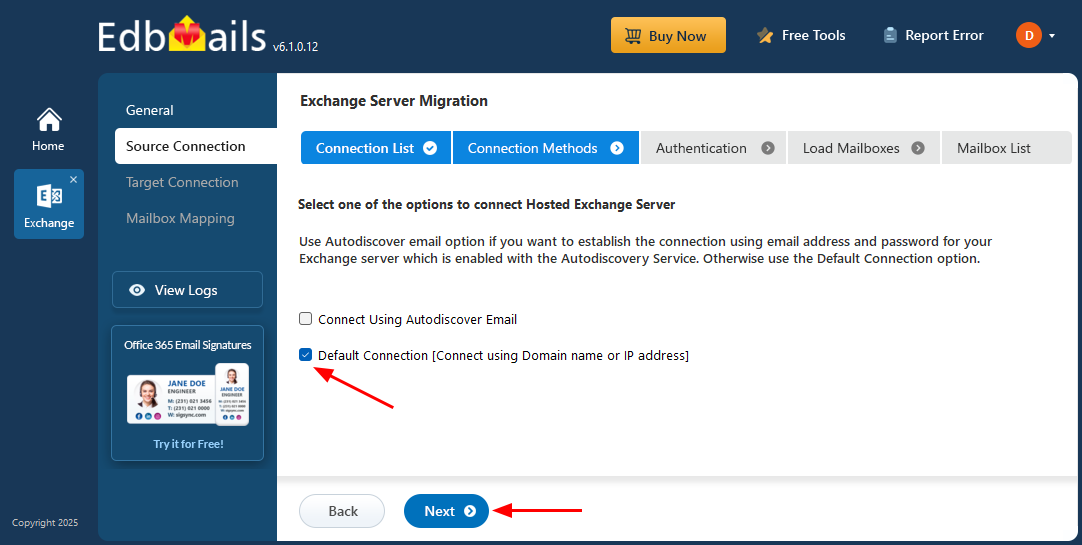
- Select the ‘Use Default Connection’ option and provide the Exchange server name along with the corresponding version, or choose ‘Use Autodiscover Email’ to sign in directly using your user credentials.
- Enter the required source Exchange server information such as the IP address (Domain name), Exchange version, Username, and Password.
- After entering all the necessary details, click ‘Login’ to continue.
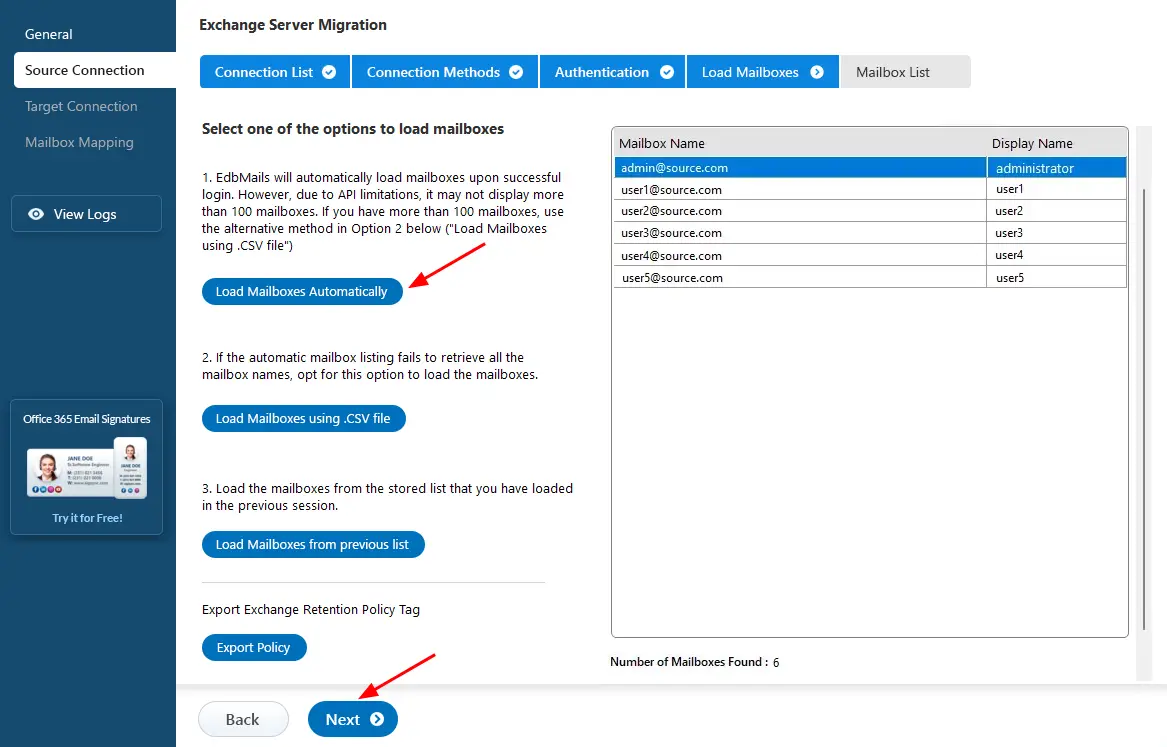
- After successful authentication, select one of the following options to load the mailboxes.
- EdbMails provides an automatic mailbox loading feature that makes the setup simple and quick. Due to Microsoft API limitations, this option displays up to 100 mailboxes at a time.
- If your environment contains more mailboxes or if you need to include specific ones, choose the ‘Load Mailboxes using .CSV file’ option. This method lets you add mailboxes manually and gives you better control over the selection.
- Select ‘Load Mailboxes Automatically’ and click ‘Next’ to continue.
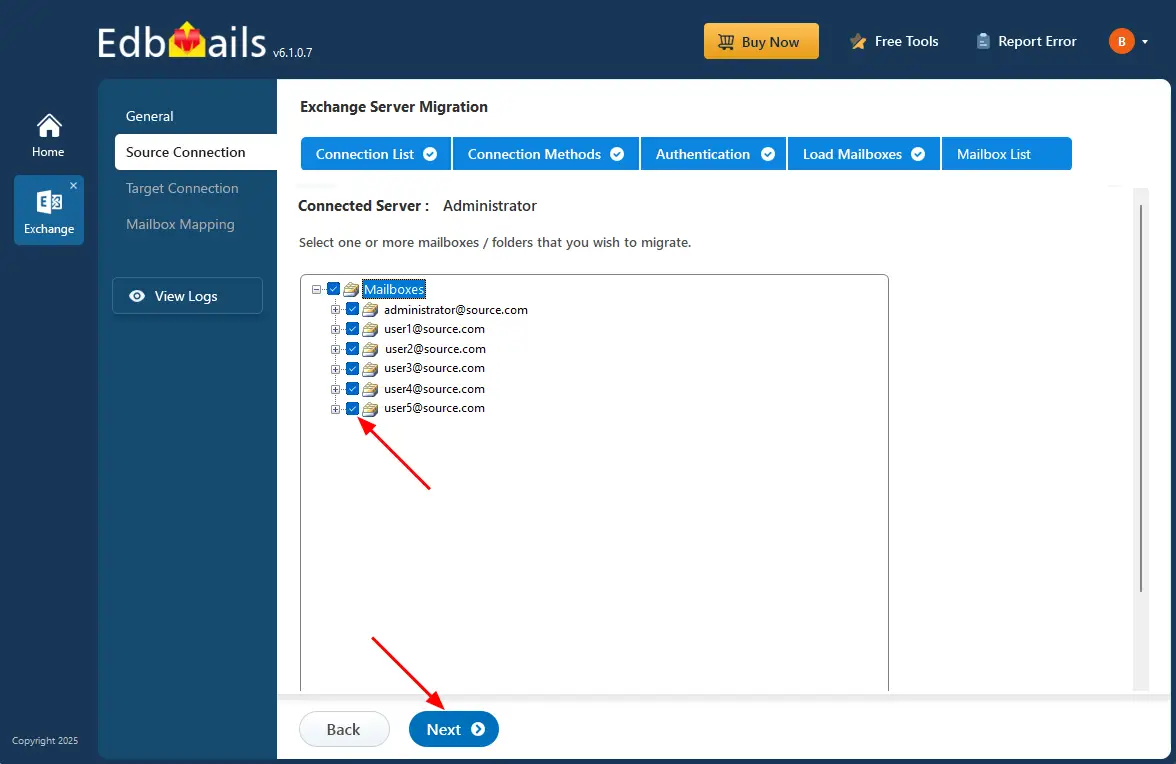
Step 3: Select Hosted Exchange server mailboxes
- Select the mailboxes/folders you want to migrate from the source Hosted Exchange server.
- Then, click the ‘Next’ button.
Next, click ‘Migrate to Live Exchange’.
Step 4: Connect to target Hosted Exchange server
- Establish a new connection to the target Exchange server by clicking the ‘Add New Connection’ button. If you want to reconnect to a previous one, just pick it from the list and hit ‘Connect to Existing’.
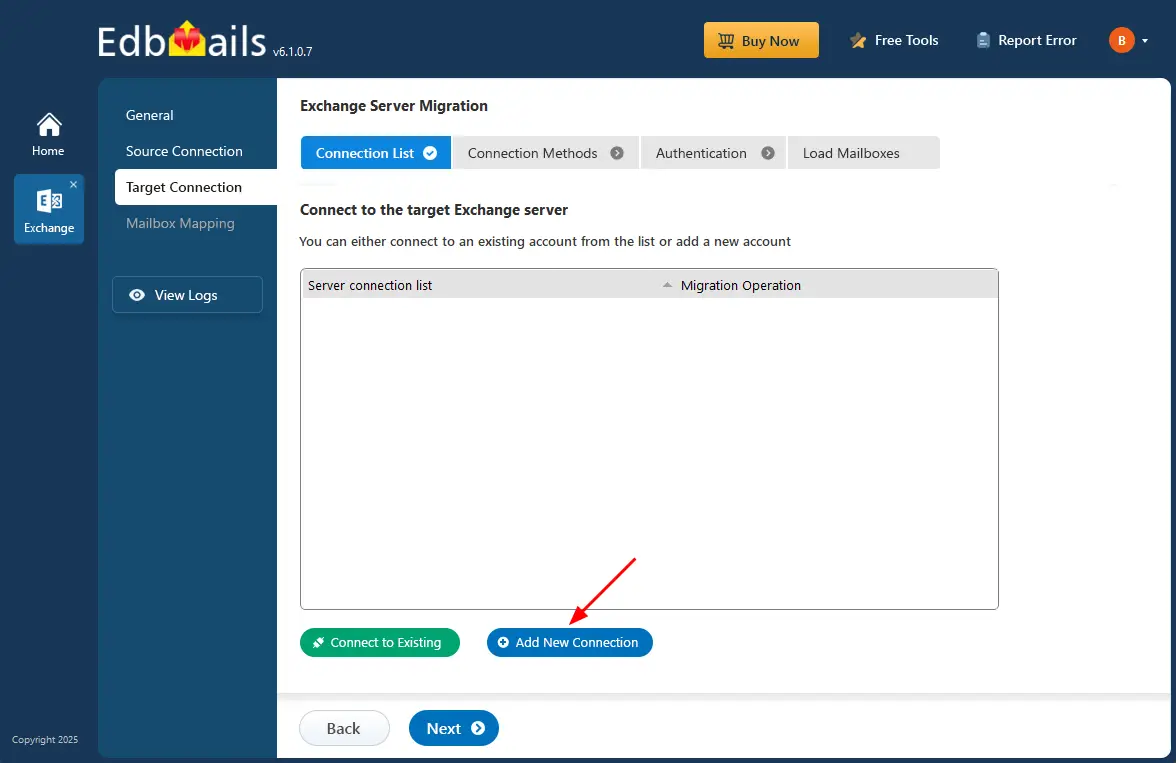
- Select ‘Connect to Hosted Exchange Server’ to connect to your Hosted Exchange server.
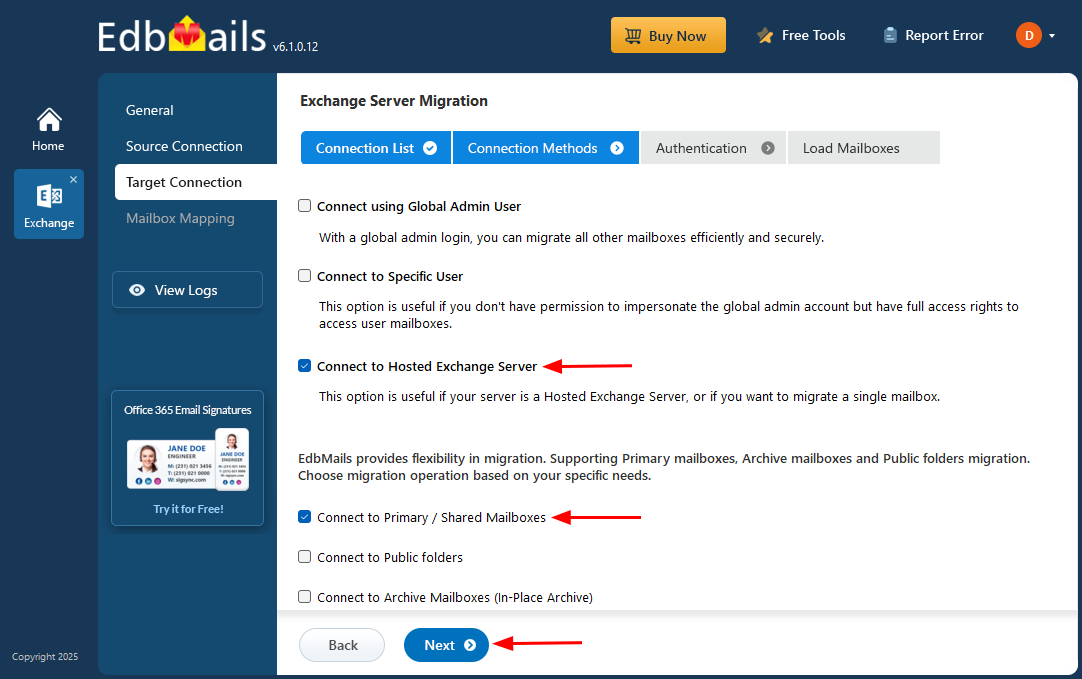
- Select the required options. And click the ‘Next’ button.
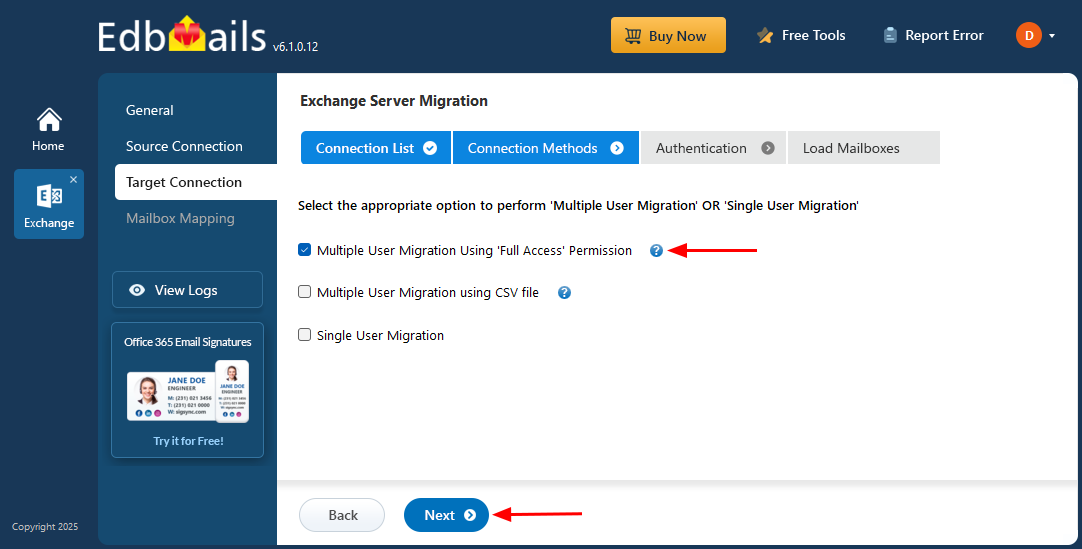
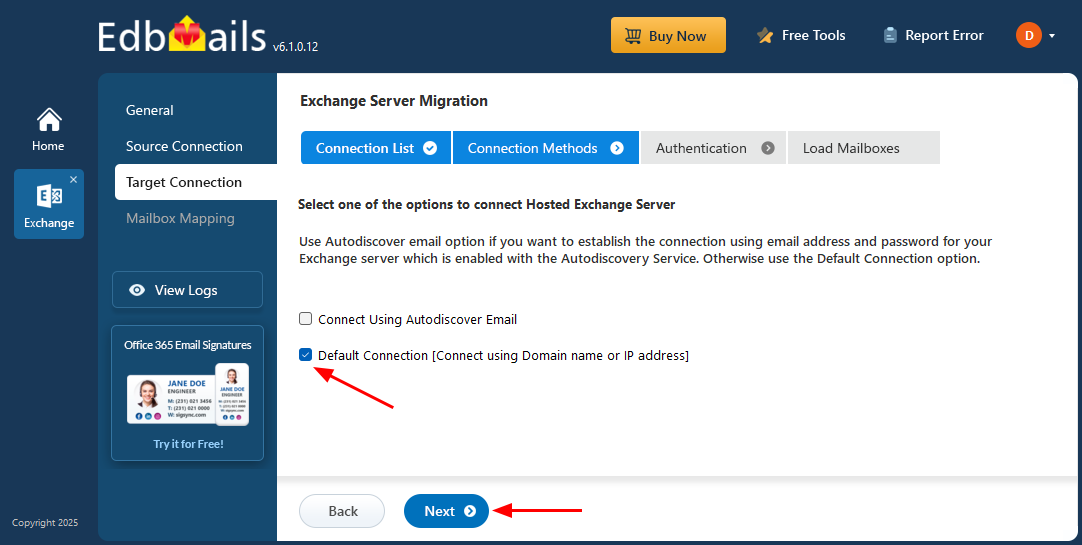
- Select one of the available options to connect to your Hosted Exchange server. Choose ‘Connect Using Autodiscover Email’ and enter your email address and password if Autodiscover is enabled. Alternatively, select ‘Default Connection’ and connect by entering the Exchange server’s domain name or IP address.
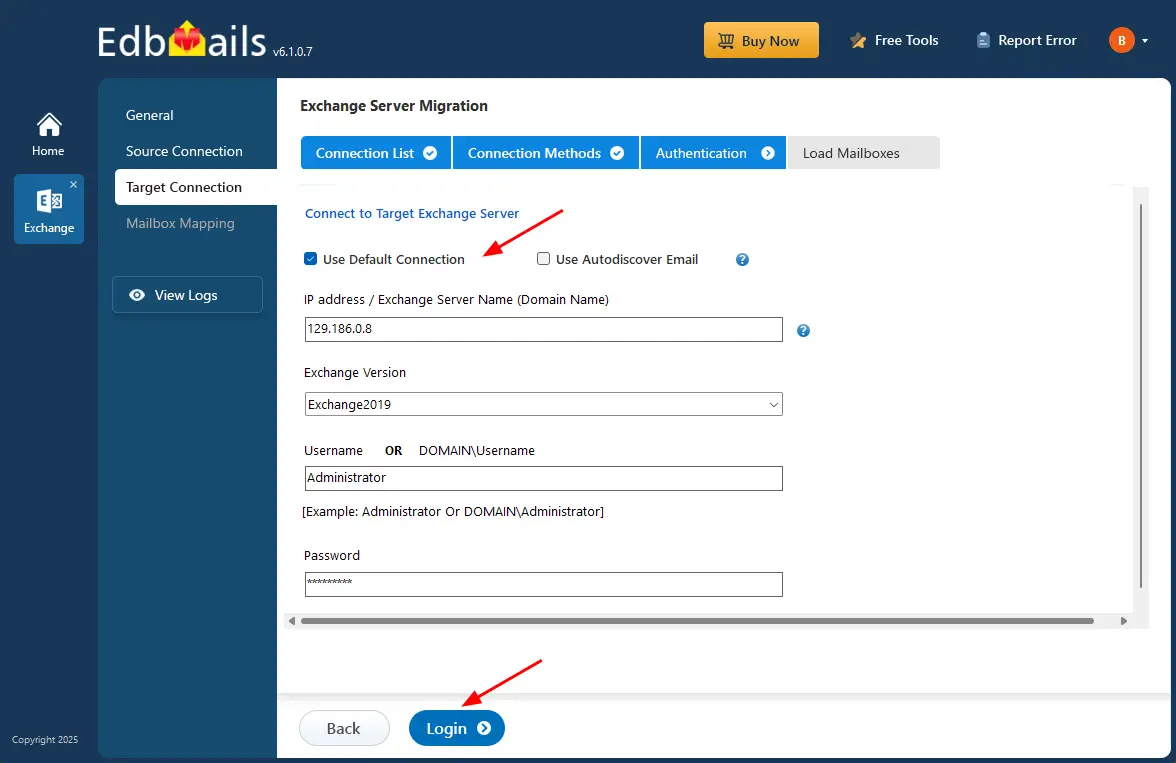
- Provide the target Hosted Exchange server details such as the IP address (Domain name), Exchange version, Username, and password.
- After entering the required information, click the ‘Login’ button.
- Select the required option to load the mailboxes. EdbMails automatically loads your target server mailboxes. You can also load mailboxes using a csv file.
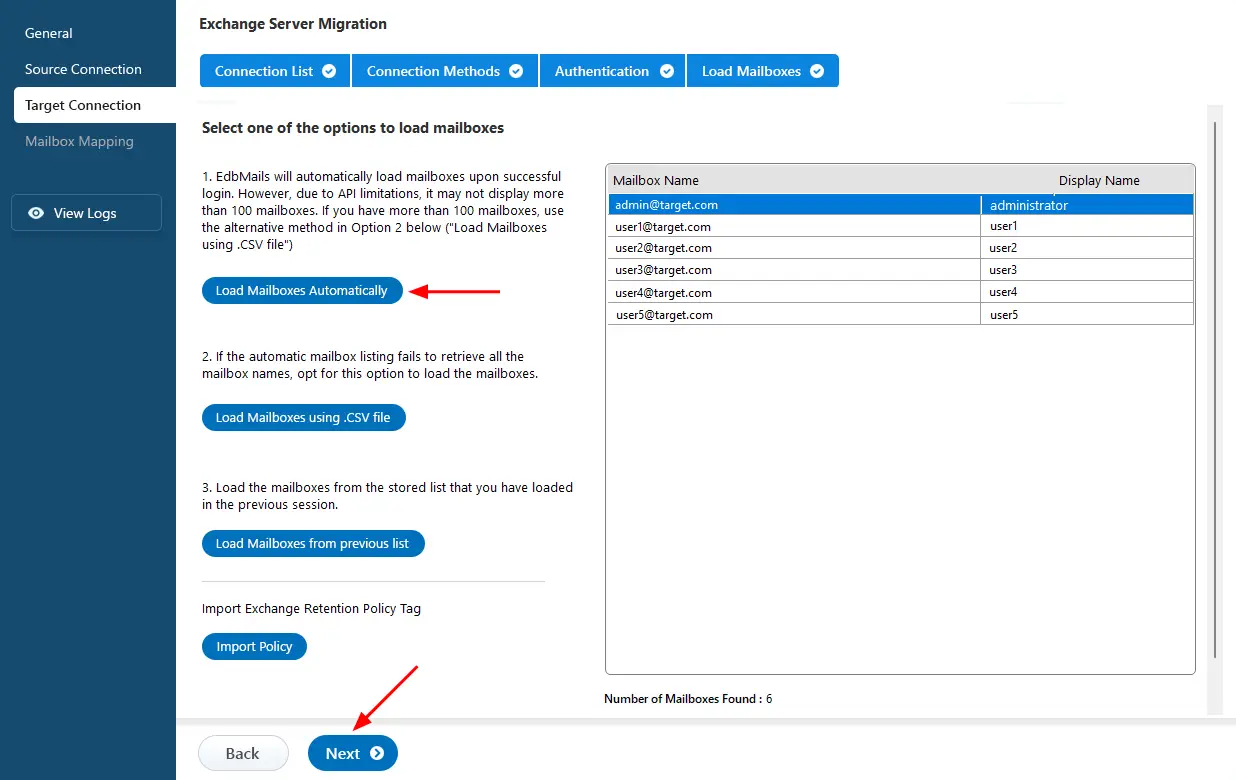
Step 5: Mailbox mapping between Hosted Exchange servers
- Select the required mapping option.
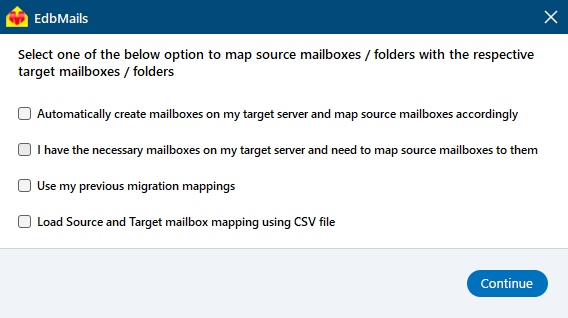
- EdbMails automatically maps mailboxes between the source and target Hosted Exchange servers. This capability is especially beneficial when migrating a large number of mailboxes, as it reduces manual effort and accelerates the overall migration process.
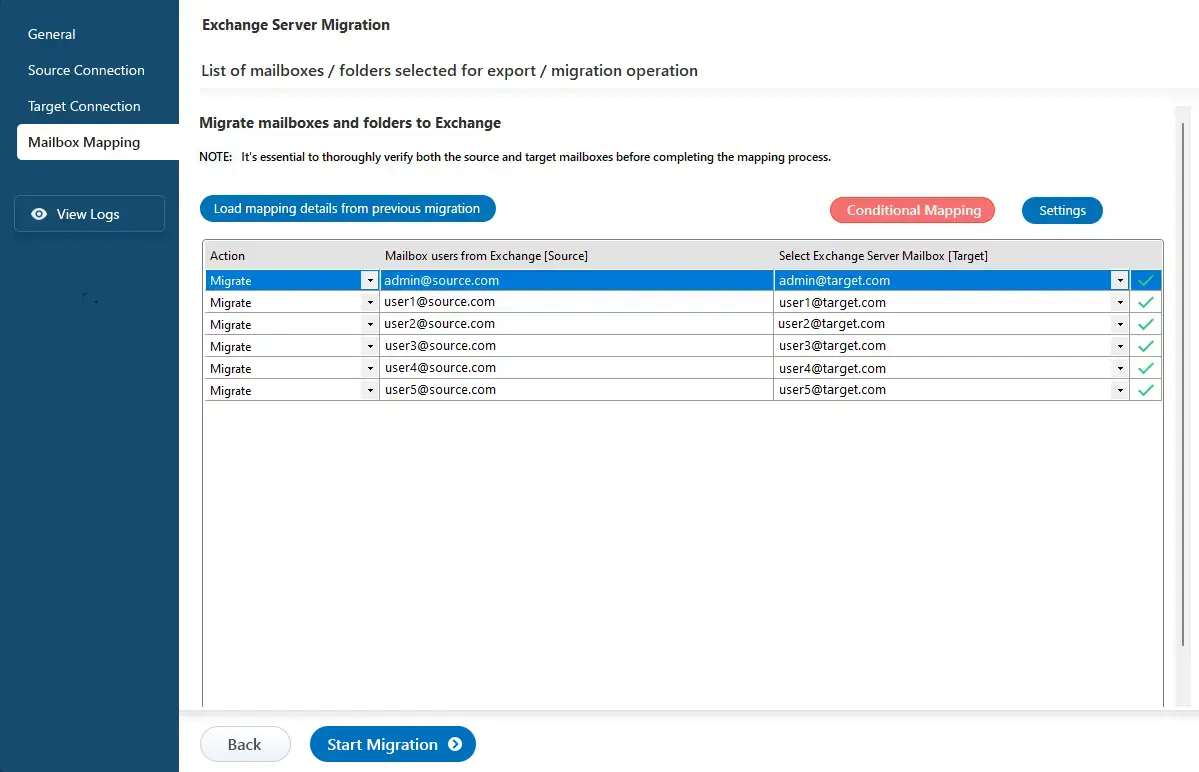
Step 6: Start Hosted Exchange migration
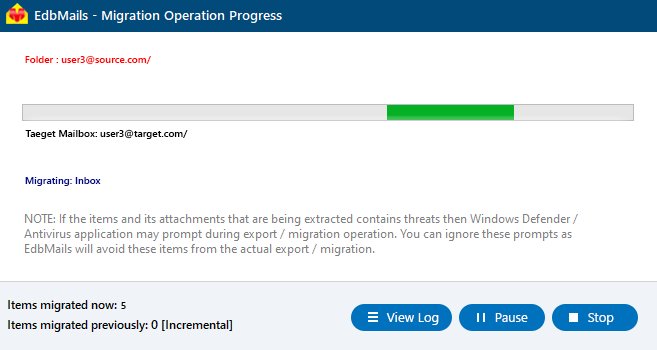
- Click the ‘Start Migration’ button to initiate the process.
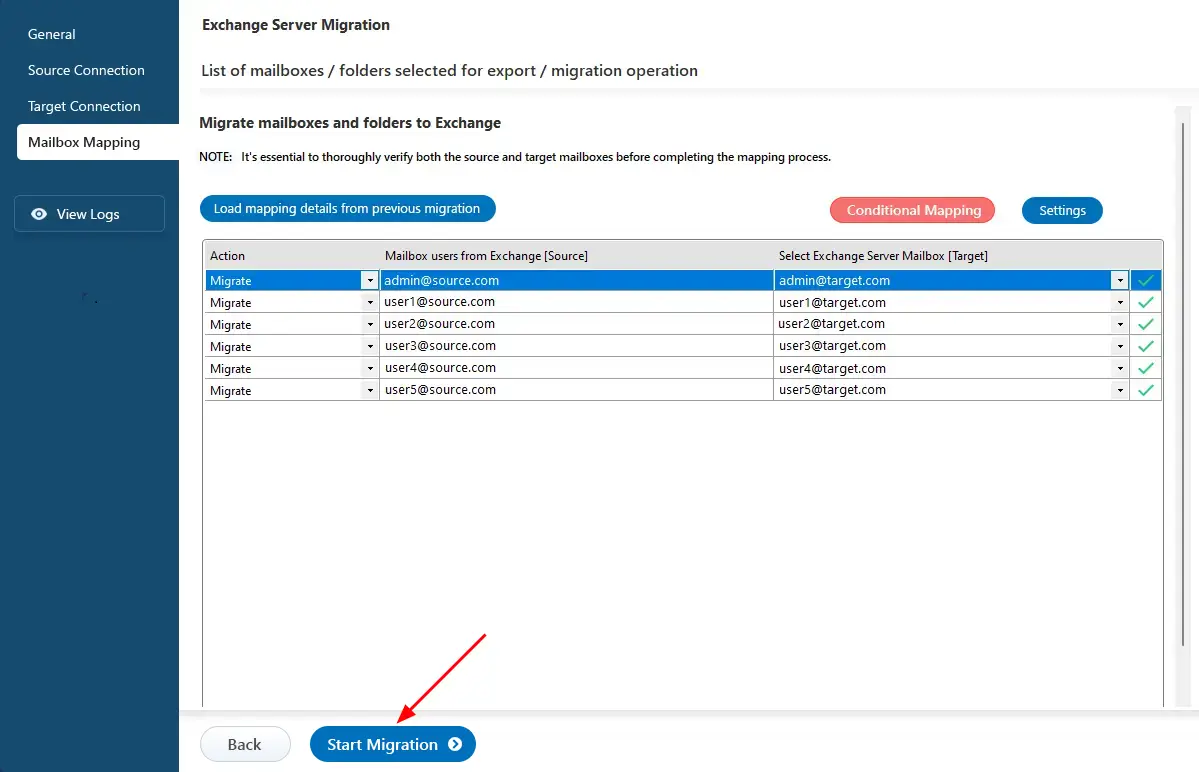
- Once the migration is successfully finished, EdbMails prompts the migration completion message. Click the 'View Log' button to check the migration report.
Hosted Exchange Post-migration Tasks
- Verify that all emails, contacts, calendars, and tasks have been successfully transferred to the new environment.
- Send and receive test emails to confirm that mail flow is functioning correctly.
- Check that all user accounts and permissions are properly configured.
- Update MX records to route incoming emails to the new Hosted Exchange server.
- Help users set up their email clients with the updated server settings.
- Test mobile device connectivity through ActiveSync to ensure smooth synchronization.
- Collect feedback from users to identify any issues or improvements needed after migration.
- Decommission old servers only after confirming successful migration and complete user satisfaction.
Troubleshooting guide for Hosted Exchange Migration
Check the Hosted Exchange migration troubleshooting guide for insights into resolving any migration errors. For further information about the EdbMails Exchange migration tool, please review the frequently asked questions section.
Benefits of EdbMails for Hosted Exchange migration
- Granular Brick-level Migration:
EdbMails provides granular brick-level migration for Hosted to Hosted Exchange transfers, allowing users to selectively migrate individual mailboxes, folders, or specific items. This precise control ensures that only the necessary data is moved, and optimizes the migration process while maintaining data integrity throughout.
- Incremental Migration: EdbMails supports incremental migration, capturing changes made after the initial migration. This synchronizes new emails and modifications without re-migrating the entire mailbox, optimizing internet bandwidth
- Zero Downtime Migration: EdbMails maintains zero downtime during the Hosted Exchange migration operation, enabling users to continuously access their Hosted Exchange environment. This ensures that email and other functionalities remain available without interruption.
- Automatic Mapping of Mailboxes:
EdbMails automates the mapping of mailboxes from the source to target Hosted Exchange servers. This saves time and reduces the manual effort.
- User-friendly Interface:
EdbMails features an intuitive interface that simplifies the Hosted Exchange migration process, enabling users to navigate migration options efficiently, even if they lack specialized knowledge in migration operation.
- Concurrent Mailbox Migration:
EdbMails supports concurrent mailbox migration, allowing multiple mailboxes to be migrated simultaneously, which accelerates the overall migration timeline for organizations with many users.
- Detailed Migration Reports: EdbMails generates detailed migration reports that outline the items migrated, any errors encountered, and key statistics, facilitating post-migration audits and confirming successful migration operation.


