


Exchange to Gmail Migration
Migrating from Microsoft Exchange to Gmail is a practical choice for organizations aiming to modernize their email and collaboration environment. Gmail provides a secure cloud-based platform and integrates smoothly with Google Workspace applications, helping teams communicate and collaborate more efficiently. This approach also supports flexible work setups, allowing users to access their data from anywhere. At the same time, the migration process requires proper planning. It is important to maintain data integrity, keep the original mailbox structure intact, and complete the migration with zero downtime. With the right strategy, organizations can migrate emails, calendars, and contacts to Gmail smoothly and take full advantage of its powerful collaboration features.
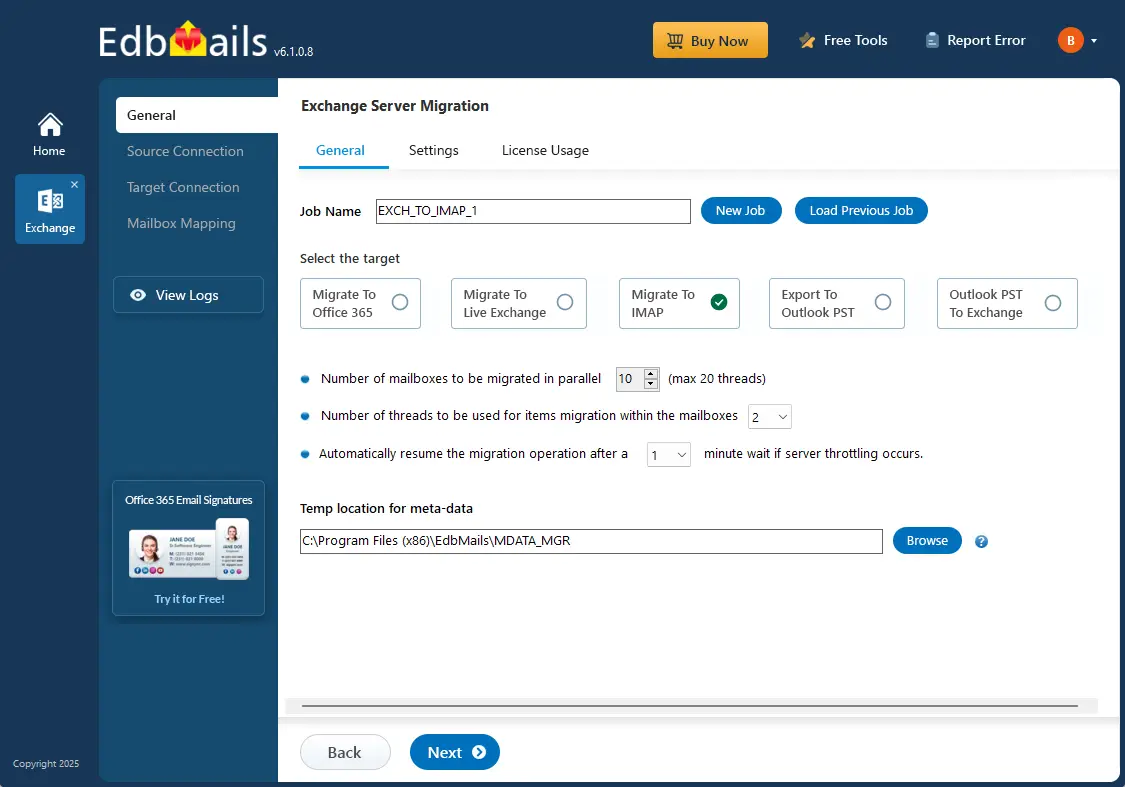
EdbMails Exchange Migration Software enables direct migration from Microsoft Exchange to Gmail. It manages large volumes of email while keeping the original folder hierarchy intact, ensuring data remains well organized after migration. With support for concurrent migration, multiple mailboxes can be migrated at the same time, helping reduce the overall migration duration. The process runs with a zero downtime, allowing organizations to continue their regular operations without interruption. In addition to primary mailboxes, EdbMails also supports migration of emails from Exchange public folders, archive mailboxes, and shared mailboxes.
With concurrent migration support, multiple mailboxes can be migrated at the same time, helping reduce the total migration duration. The entire process runs with zero downtime, ensuring that daily business activities continue without interruption. Along with primary mailboxes, the software also supports migration of emails from Exchange public folders, archive mailboxes, and shared mailboxes.
Exchange to Gmail Migration Challenges and EdbMails Solutions
Challenge 1: IMAP Connection Limits or Throttling during Bulk Migration
EdbMails automatically manages throttling limits using smart reconnection logic. If a session gets throttled or disconnected, the software pauses and reconnects to continue the migration without user intervention. This ensures uninterrupted transfer even for large-scale or multi-mailbox migrations, maintaining migration continuity and stability.
Challenge 2: Maintaining Folder Hierarchy and Integrity
EdbMails preserves folder hierarchy, message properties, and metadata such as read/unread status, timestamps, and attachments during Exchange to Gmail migration. It accurately maps the Exchange folder structure as nested folders in Gmail, ensuring users find their data organized just as it was before migration.
Top reasons for Exchange to Gmail migration
The migration from Microsoft Exchange to Gmail is often driven by a need for enhanced features, greater efficiency, and improved collaboration capabilities. Organizations and individuals alike are recognizing the strategic advantages of migrating to Gmail, a platform built to support modern communication and work environments.
- Cloud-based collaboration
Gmail’s cloud-based platform allows users to access emails, calendars, and documents from any location with internet access. This is especially beneficial for businesses with remote or distributed teams, as it enhances real-time collaboration. EdbMails ensures a smooth migration from Microsoft Exchange to Gmail, helping organizations all emails without data loss or downtime, ensuring workflow continuity.
- Cost efficiency
Gmail’s subscription-based pricing offers a cost-effective solution compared to maintaining on-premises Exchange servers. Organizations eliminate the need for expensive hardware, IT management, and regular server maintenance. EdbMails streamlines the migration process, making it easier for businesses to switch to Gmail’s cost-effective solution while maintaining email data integrity, reducing the time and expense of the transition.
- Seamless integration with Google’s ecosystem
Gmail integrates effortlessly with other Google services like Google Drive, Calendar, and Meet, offering a unified platform for communication and collaboration. EdbMails ensures a smooth migration by efficiently transferring emails, folders, and attachments, allowing organizations to quickly benefit from Google’s interconnected ecosystem. This streamlined transition simplifies daily operations without disruptions, enabling teams to make the most of Google’s collaborative tools.
- Unmatched reliability and security
Gmail leverages Google’s world-class infrastructure, known for its reliability and robust security features. EdbMails enhances email migration by preserving email integrity during the transfer, ensuring that all security protocols are followed. Organizations gain access to Gmail’s multi-factor authentication and encryption features without compromising their existing data, safeguarding critical communications throughout the migration process.
- Cloud-based collaboration
Pre-Migration Setup Required to Migrate Exchange to Gmail
Migrating from Microsoft Exchange to Gmail involves several steps, and pre-migration activities are crucial to ensure a smooth migration.
Step 1: Prepare your system with the following prerequisites for Exchange
- Install cumulative updates (CU) on the source Exchange server for migrating Exchange on-premises to IMAP, it is required that you have the latest cumulative updates (CU) installed on the source server.
- Install for Exchange server 2013
- Install for Exchange server 2016
- Install for Exchange server 2019
- If you are using a global admin account to connect to your Exchange server, set impersonation rights.
Click here to learn the steps to set impersonation rights on the Exchange server
Step 2: Prepare Your Target IMAP Server
- Create user mailboxes and assign the appropriate licenses to your target Gmail accounts.
- Create app passwords for the Gmail accounts.
Click here for the steps to create an app password for a Gmail account.
- If you plan to migrate multiple users, download the sample CSV file from the EdbMails application and prepare the CSV file containing the email addresses, passwords, Gmail hostname, and port numbers for the users mailboxes.
See how to find your IMAP server name and related connection settings.
Step-by-Step guide to Perform Exchange to Gmail Migration
Step 1: Download and install EdbMails software
- Download and install the EdbMails application on your computer.
System requirements for Exchange to Gmail migration.

- Enter your registered email ID and password, then click ‘Login’. If you haven’t created an account yet, choose ‘Start Your Free Trial’ to proceed with the trial version.Note: The trial edition provides access to all core features and supports migration of up to 30 items per folder. To enable unlimited migration, purchase an Exchange Migration license from the EdbMails website.After completing the purchase, close and reopen the application. Then sign in again using the same email ID and password used during the purchase to successfully activate your license.

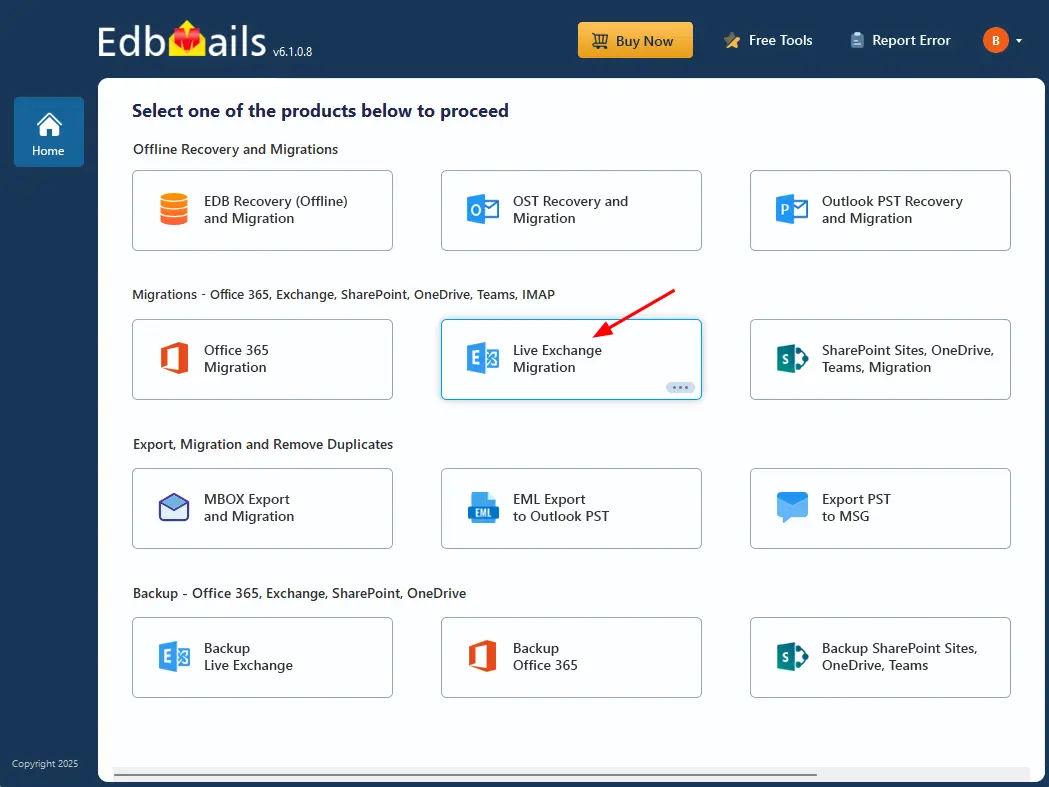
- Select the ‘Live Exchange Migration’ option.
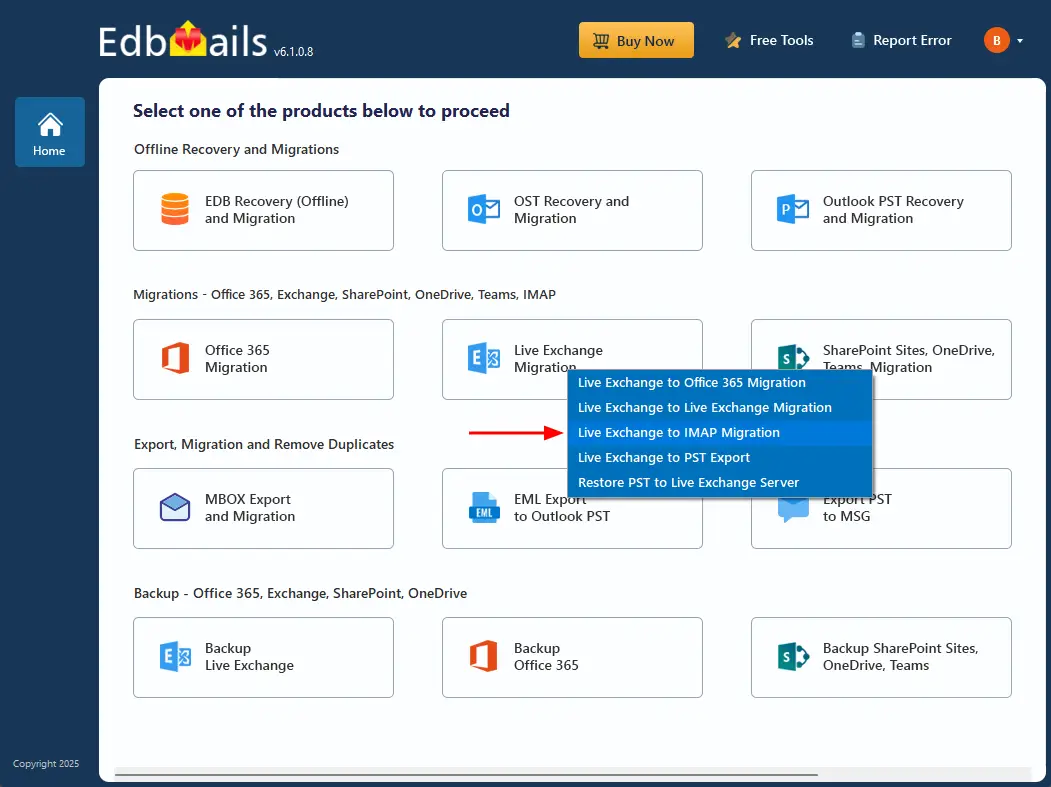
- Choose the ‘Live Exchange to IMAP Migration’.
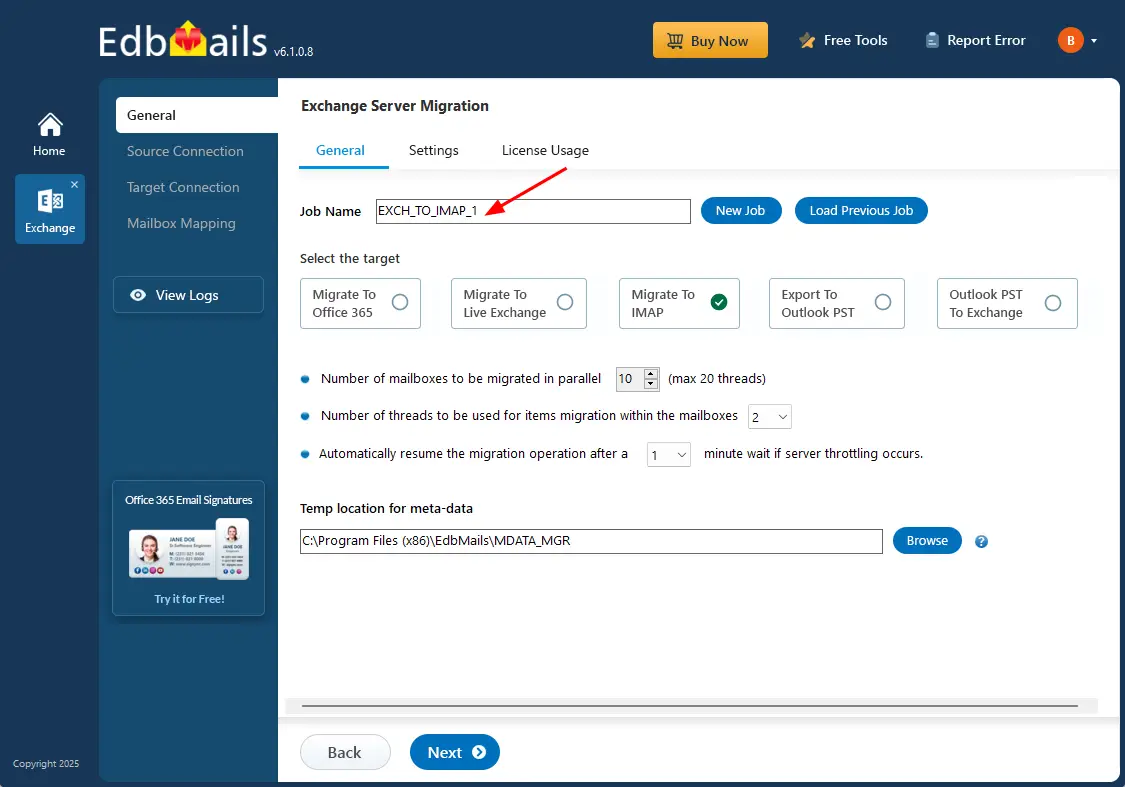
- You can either keep the default job name or click the ‘New Job’ button to change the job name.
- Download and install the EdbMails application on your computer.
Step 2: Connect to source Exchange server
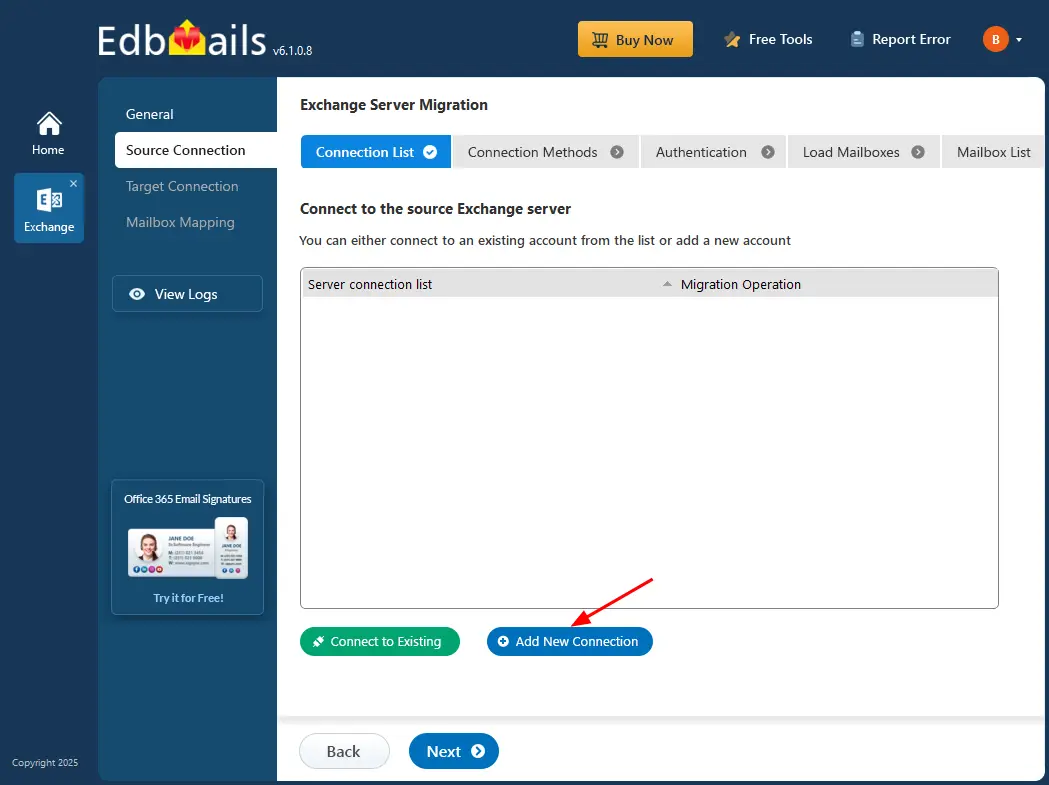
- To create a new Exchange server connection, click ‘Add New Connection’. If you have already configured a connection earlier, choose it from the list and click ‘Connect to Existing’ to continue.
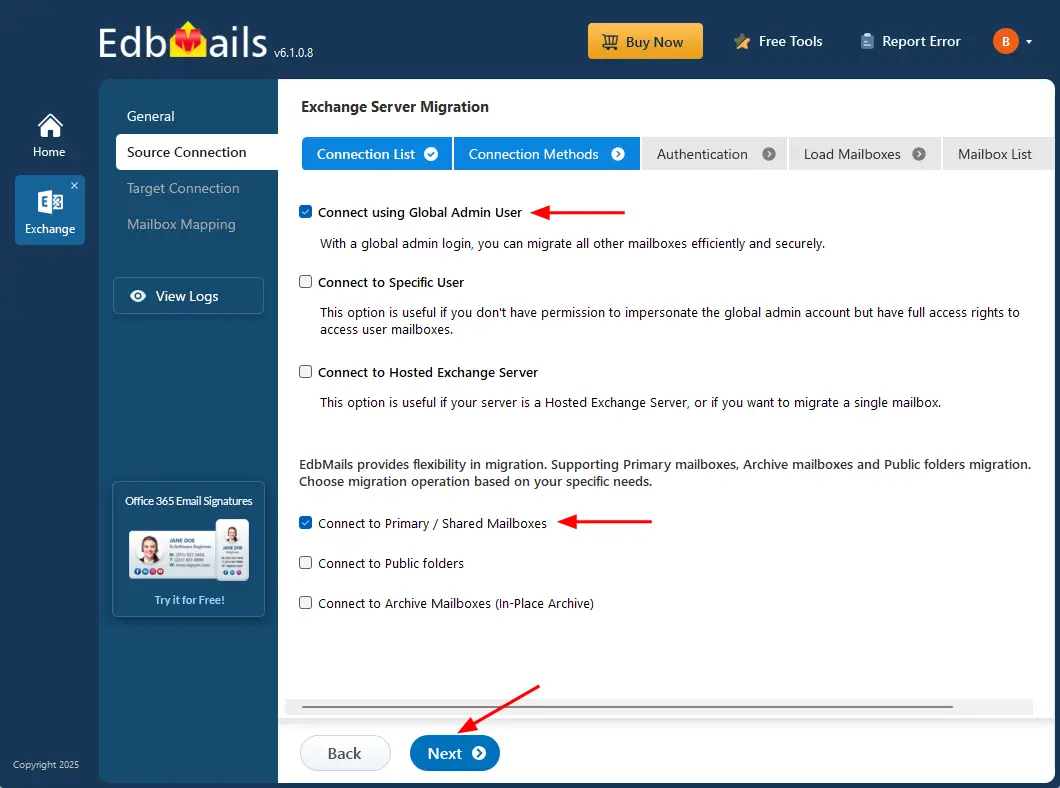
- Select the required connection options and click the ‘Next’ button.
Different options to connect to Exchange server
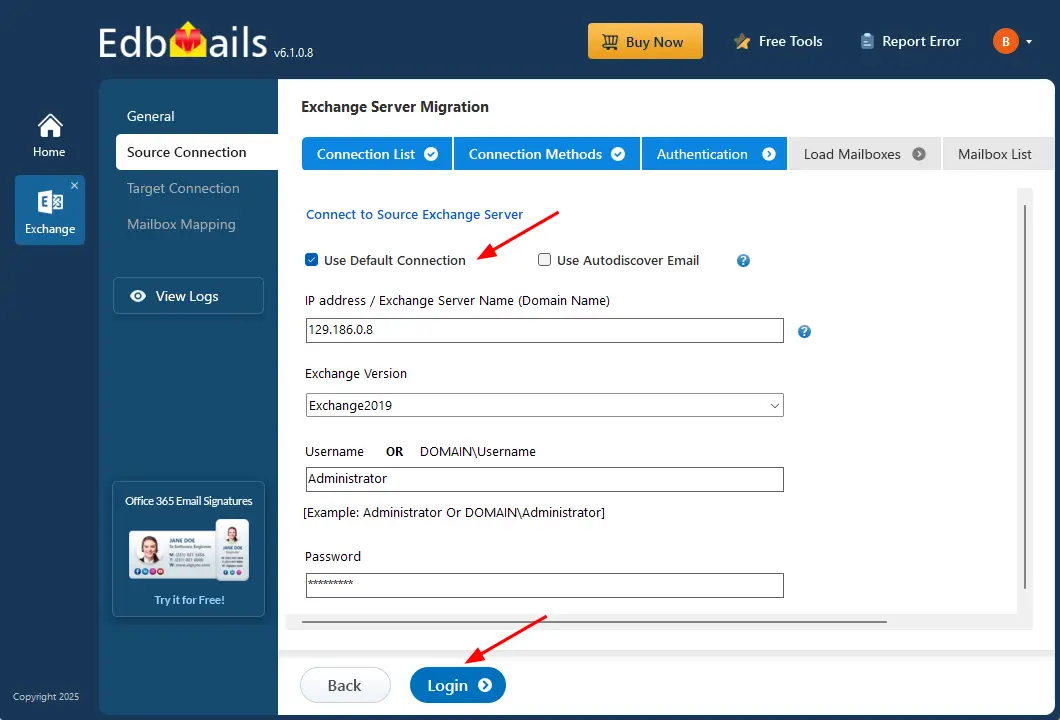
- Enter the source Exchange server details such as IP address (Domain name), Exchange version, Username and password.
- Then click the ‘Login’ button.
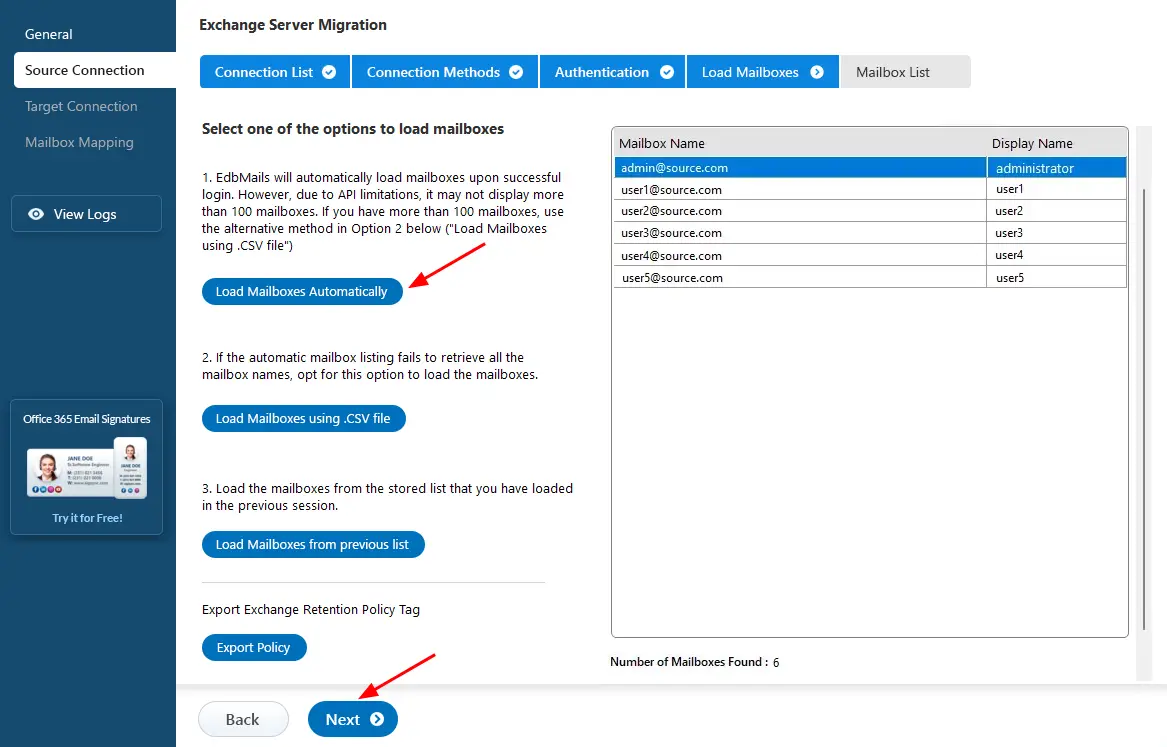
- EdbMails automatically detects and loads mailboxes from the Exchange server. However, due to Microsoft API limitations, the application can display only up to 100 mailboxes at a time. If your environment has more than 100 mailboxes, you can use the CSV file option to load all mailboxes for migration.
- Select ‘Load Mailboxes Automatically’ when the mailbox count is fewer than 100. Then click ‘Next’ to continue.
- To create a new Exchange server connection, click ‘Add New Connection’. If you have already configured a connection earlier, choose it from the list and click ‘Connect to Existing’ to continue.
Step 3: Select source Exchange server mailboxes
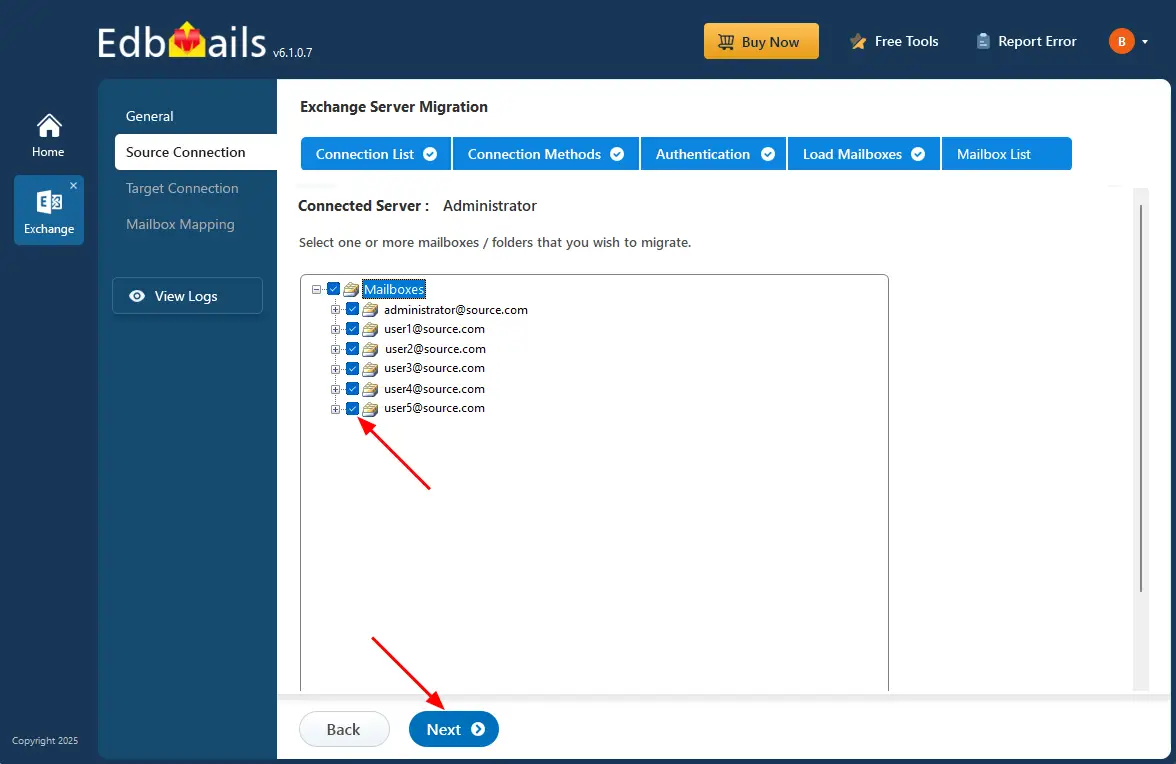
- Choose the mailboxes you wish to migrate.
- Click the ‘Next’ button to proceed.
Step 4: Connect to the target Gmail server
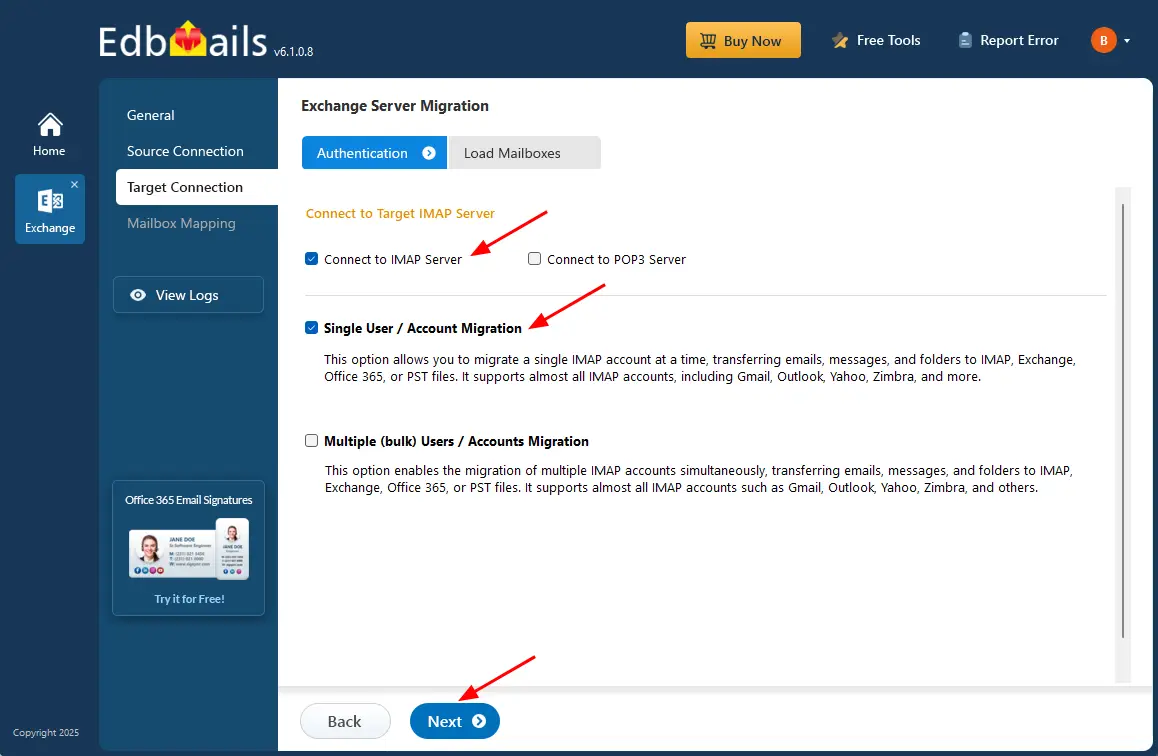
- To migrate one account at a time, choose the ‘Single User / Account Migration’ option. This method supports most IMAP-enabled services such as Gmail, Outlook, Yahoo, Zimbra, and others.
- Click ‘Next’ to proceed to the next step.
- Choose your IMAP server hostname from the list or enter it manually. Next, enter the port number, email address, and app password, then click ‘Login’ to proceed.
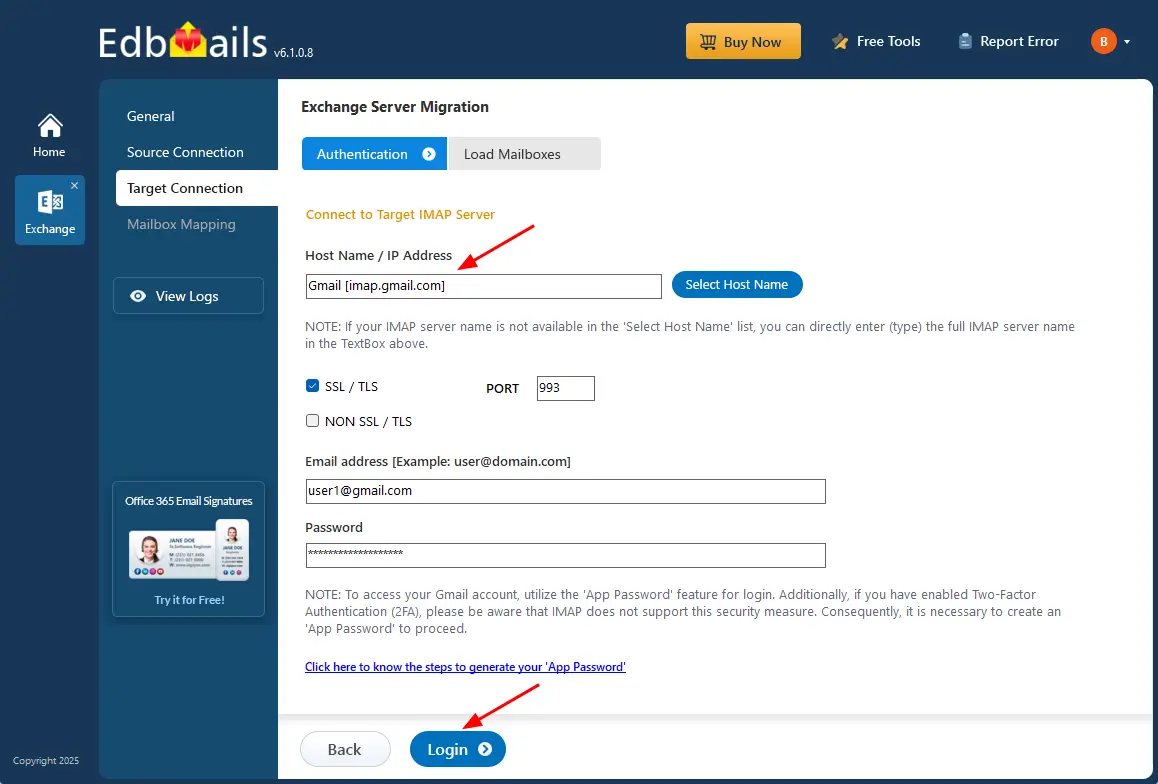
Note: Ensure you create an app password for your Gmail account and use it for IMAP login, instead of your regular Gmail password.
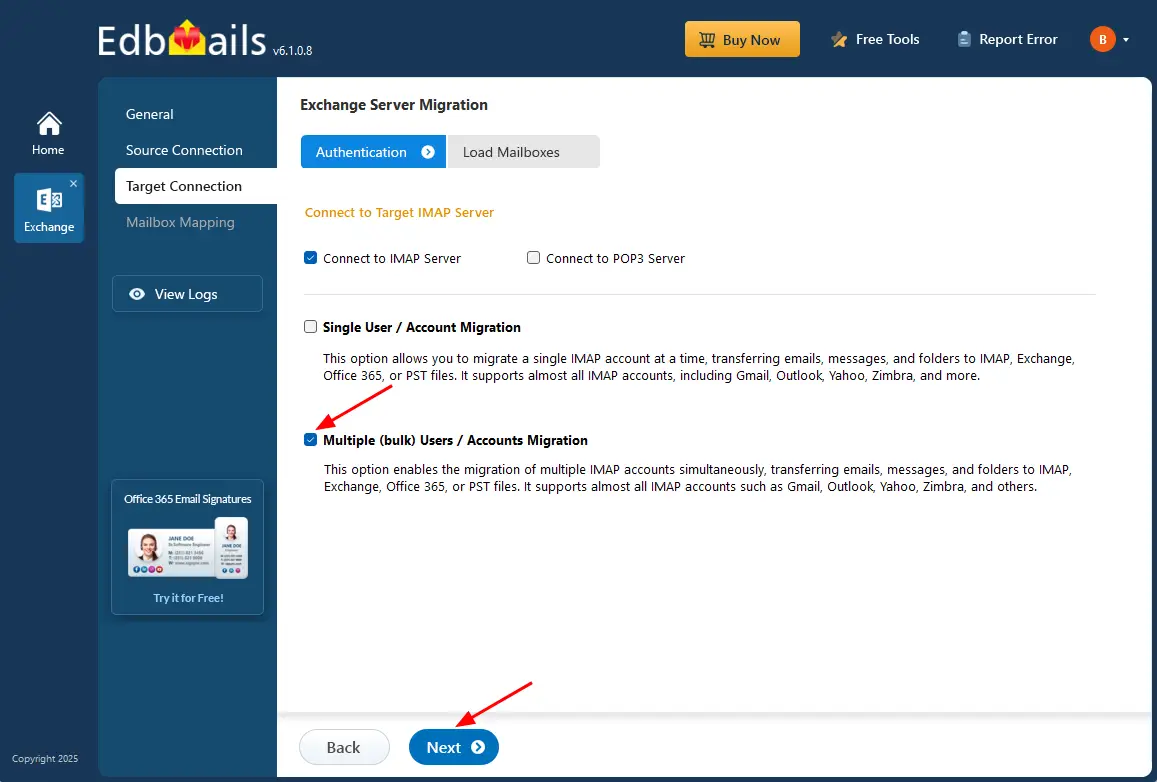
- If you want to migrate multiple Gmail accounts, select ‘Multiple (bulk) Users/Accounts Migration’. Then click the ‘Next’ button.
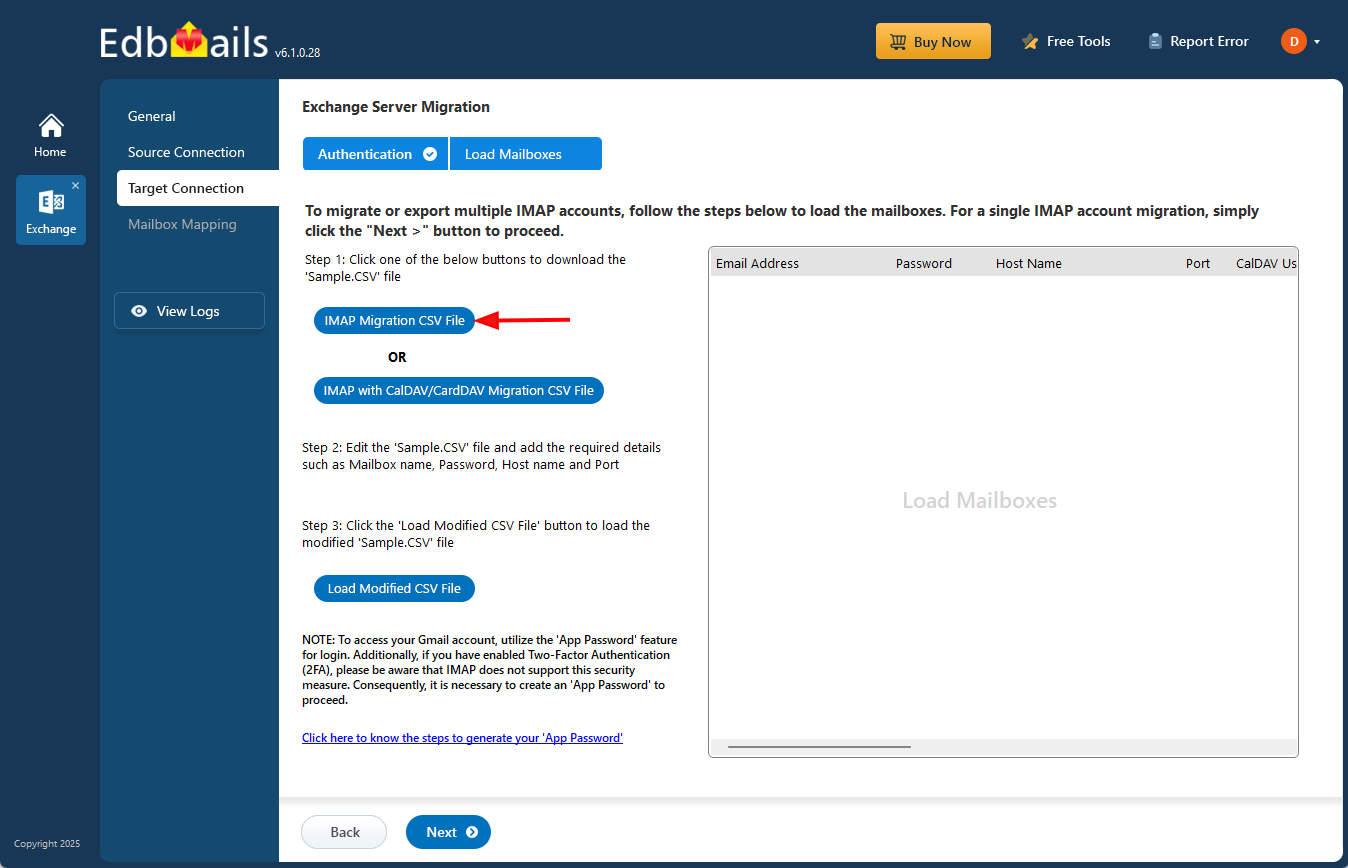
- Click ‘IMAP Migration CSV File’ to download the sample .csv file. Save the file to a suitable location on your computer so you can easily access it while preparing the migration details.
- Open the CSV file and update it with the required details, such as email address (mailbox name), password, hostname, and port. Set the other fields to ‘NA’ if you are migrating only emails from the Exchange server to the IMAP server.
- After entering the necessary information, save and close the CSV file.

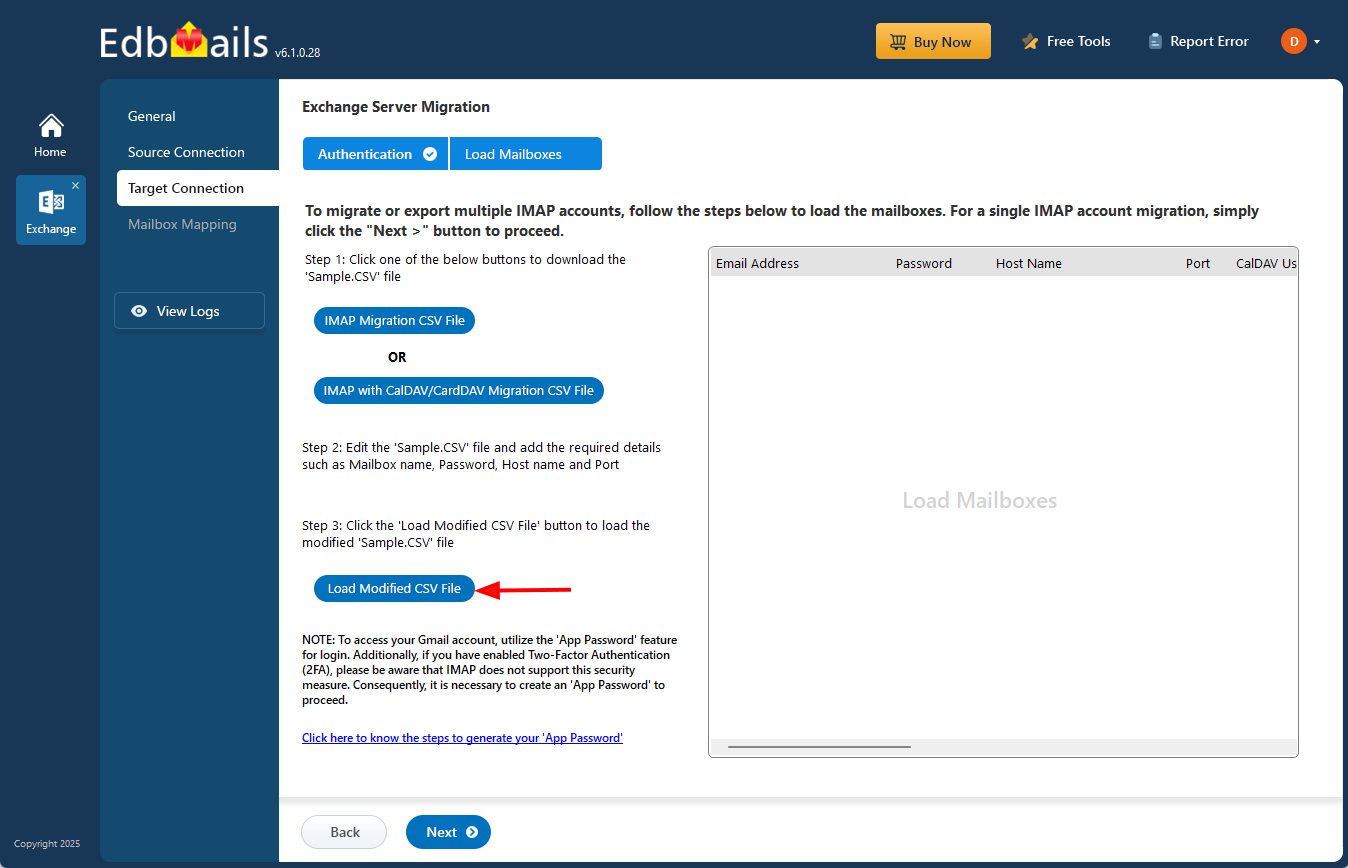
- Click ‘Load Modified CSV File’ and select the updated CSV file to import the details.
- Verify the listed mailboxes and click ‘Next’ to proceed.
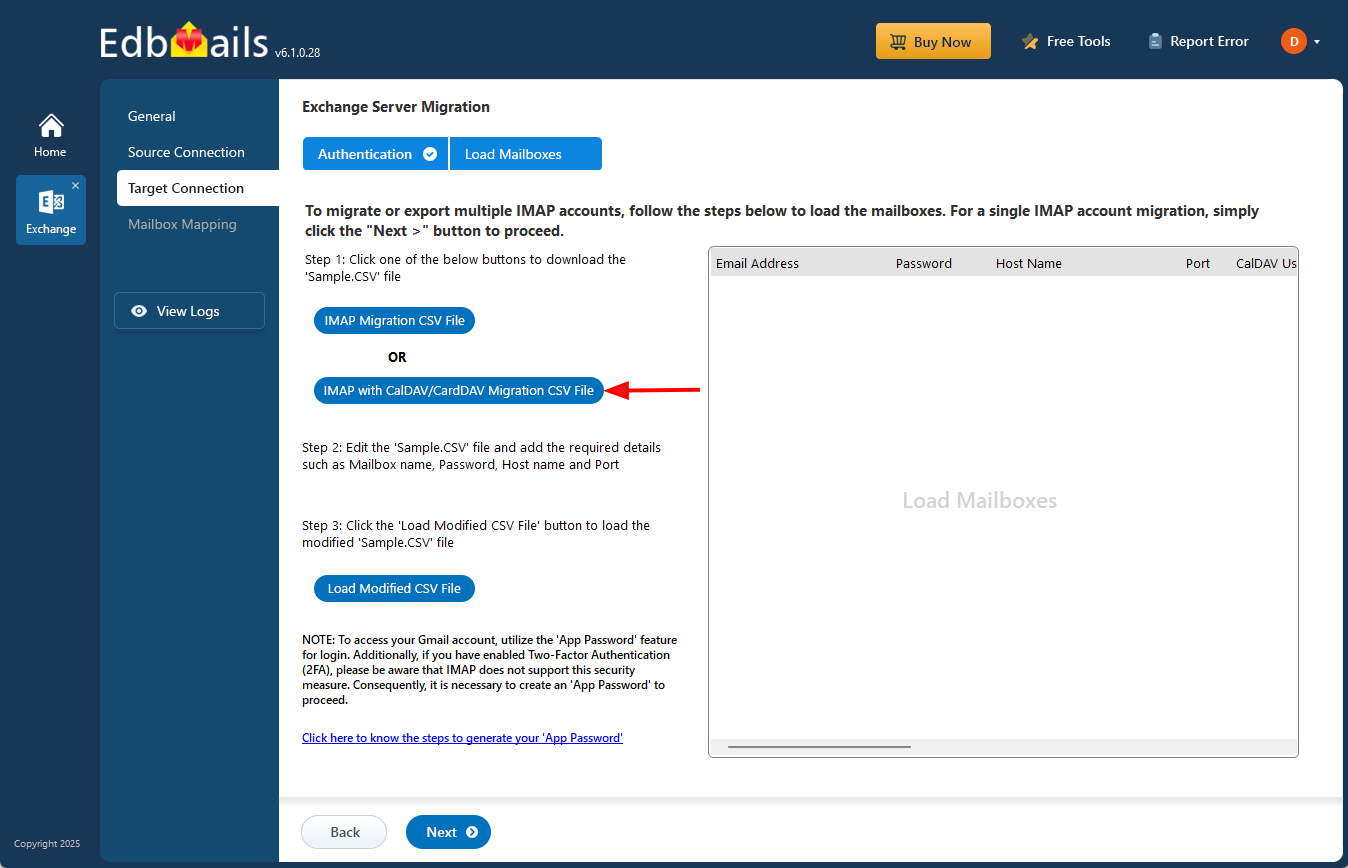
- To migrate emails, calendars, and contacts from Exchange to an IMAP platform that supports CalDAV/CardDAV, select ‘IMAP with CalDAV/CardDAV Migration CSV File’.
- Choose the location to store the CSV file .
- Open the CSV file and enter the required details in the fields such as Source Mailbox Name, Password, Host, Port, CalDAV Username, CalDAV Password, CalDAV Server, CalDAV Folder, CardDAV Username, CardDAV Password, CardDAV Server, and CardDAV Folder. After completing the updates, save the file and close the CSV.

- Click ‘Load Modified CSV File’, browse to the saved CSV file, and load it into the application.
Step 5: Start Exchange to IMAP migration operation
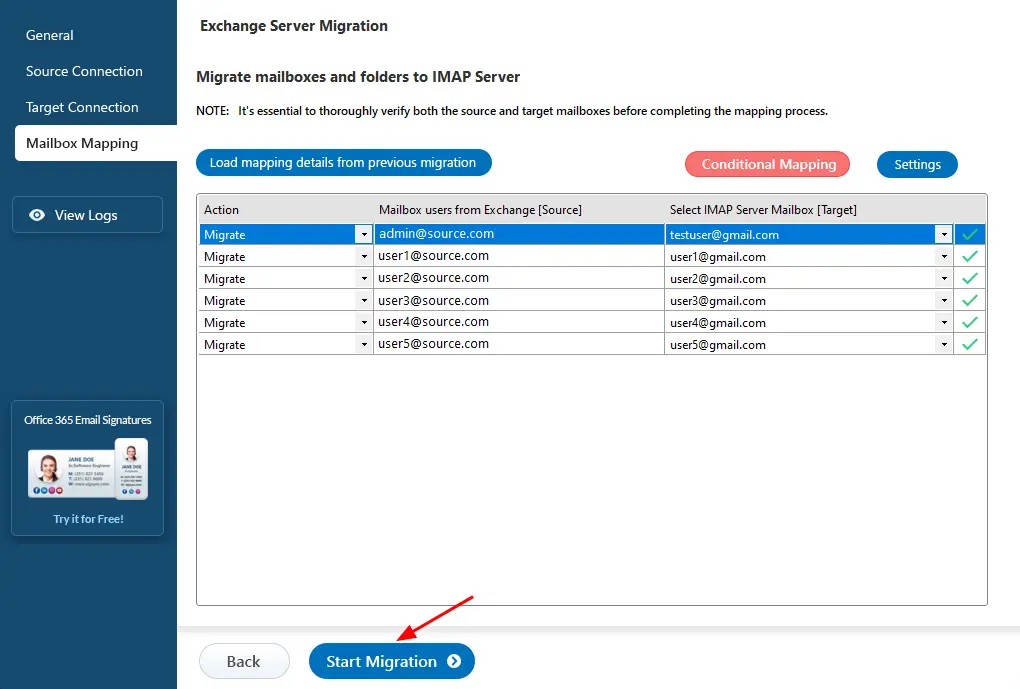
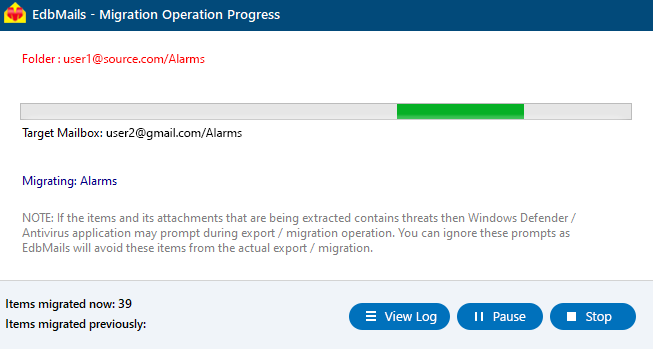
- Verify the mailboxes mapping and click the ‘Start Migration’
- Once the migration is complete, the software prompts the migration completion message. Click the ‘View Logs’ button to view the migration report.
- Login to your target server and verify the migrated items
Exchange to Gmail Post-migration Tasks
Upon completing the migration, update your MX records to route email flow to the new server.
Troubleshooting Guide for Exchange to Gmail Migration
Review the Exchange migration troubleshooting guide for effective solutions to any errors that may arise during the migration process.
Advantages of EdbMails to Migrate Exchange to Gmail Migration
- Incremental (Delta) Migration: EdbMails offers the incremental migration feature, which ensures that only newly added or modified items are migrated after the initial transfer. This prevents duplicate items and reduces data redundancy, saving time and bandwidth during subsequent migrations. Incremental migration is especially beneficial for large or ongoing projects, allowing for smooth updates without the need to reprocess previously migrated data. With EdbMails, organizations can ensure accurate, up-to-date mailbox synchronization across platforms with every migration session.
- Automatic Mailbox Mapping: EdbMails offers multiple options for mailbox mapping between source and target servers, including automated mapping, manual mapping, and mapping based on previous migration settings. This flexibility allows for a customized approach to meet specific migration requirements.
- Advanced Filtering: EdbMails supports precise data migration with advanced filtering options, allowing users to include or exclude data based on criteria such as date range, sender address, recipient address, subject, read/unread status, attachment names, and more.
- Concurrent Migration Support: EdbMails supports concurrent mailbox migration, enabling users to migrate multiple mailboxes simultaneously. This feature enhances migration speed and efficiency, especially for large-scale migrations, by reducing the overall time needed to complete the process. It’s ideal for organizations managing extensive mailbox data and multiple user accounts.
Additional Resources:
- EdbMails Exchange migration software
- Exchange to Exchange migration
- Exchange to Office 365 migration
- Exchange 2010 to 2019 migration
- Exchange 2013 to 2019 migration
- Exchange 2016 to 2019 migration
- Cross-forest and cross-domain migration
- Public folder to Shared mailbox migration
- Archive mailbox migration
- Hosted Exchange Migration


