


Migrate Exchange to Hosted Exchange Server
Migrating from an on-premises Microsoft Exchange server to a Hosted Exchange environment helps organizations modernize their email infrastructure. Platforms such as Microsoft 365, Rackspace, and Intermedia provide improved performance, stronger security, and better collaboration features. To ensure a smooth transition, the migration process requires proper planning and a reliable approach.
EdbMails Exchange Migration Software provides a practical solution for this process. It is built to handle large mailbox data efficiently and supports secure migration of emails, contacts, calendars, and tasks to the hosted environment. The application maintains data integrity throughout the migration and ensures business communication continues without disruption.
EdbMails minimizes network bandwidth usage and allows businesses to keep running without disruption during the migration. Additionally, the software’s ability to manage concurrent mailbox migrations simultaneously further enhances performance, enabling larger organizations to migrate numerous mailboxes in parallel without slowing down the transfer process.
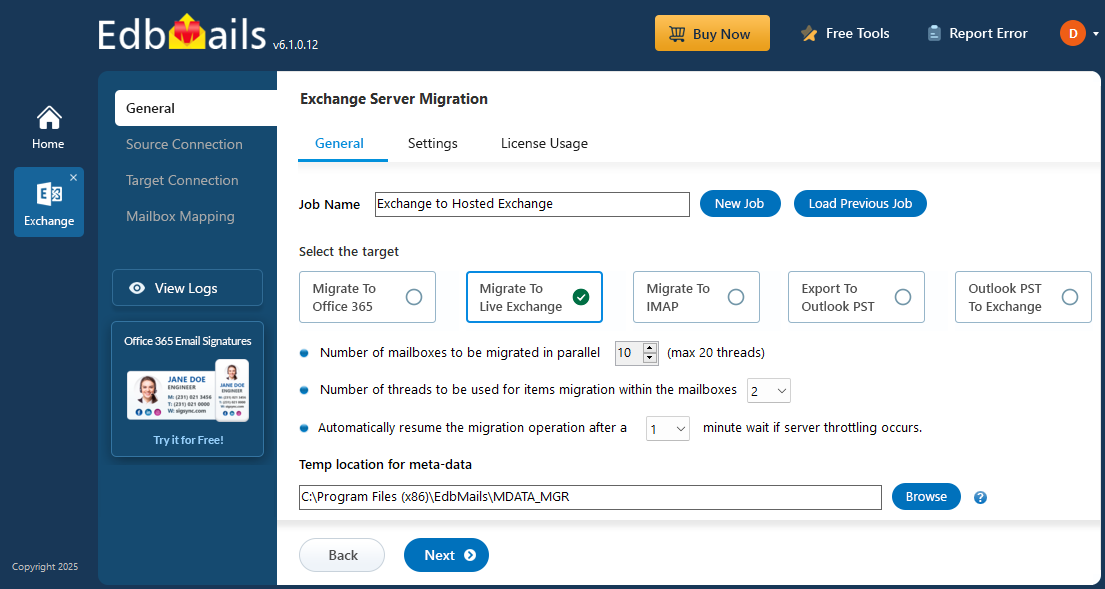
EdbMails provides a simple and easy-to-use interface that makes the migration process straightforward for both technical and non-technical users. The clean and well-organized dashboard allows administrators to monitor migration activity in real time and stay updated on the overall progress. With clear visibility into ongoing tasks, it becomes easier to detect potential issues early and take quick action, helping ensure the migration stays on track.
One of the major strengths of EdbMails is its strong focus on maintaining data integrity during migration. The software uses advanced verification mechanisms throughout the process to ensure that mailbox data remains complete and unchanged. This level of accuracy is important for businesses that depend on reliable communication and information. EdbMails supports multiple Exchange Server versions, including 2019, 2016, 2013, and 2010, enabling organizations to migrate from older Exchange environments to Hosted Exchange platforms. Its compatibility with different Exchange versions helps businesses complete migration smoothly while maintaining the structure and consistency of their data.
Common Challenges & Solutions during Live Exchange to Hosted Exchange Migration.
This section helps build credibility and trust by showing that EdbMails not only performs migrations efficiently but also handles the real-world issues businesses often face during Exchange migrations.
- Mailbox Throttling:
Challenge: Exchange servers often limit the migration speed per mailbox to prevent overload (Microsoft’s throttling policies).
Solution: EdbMails uses parallel migration and automatic throttling management to maintain optimal speed, ensuring continuous and efficient data transfer.
- Credential Authentication Errors:
Challenge: Incorrect credentials or permission issues can stop the migration from proceeding.
Solution: It supports Modern Authentication (OAuth 2.0), simplifying secure login and ensuring that global admin or impersonation rights are properly configured.
- Data Integrity and Loss Prevention:
Challenge: During large migrations, there’s a risk of data corruption or missing mailbox items.
Solution: EdbMails ensures complete data integrity by maintaining folder hierarchy, metadata, and message properties. It uses built-in verification to confirm all data is migrated accurately.
- Downtime and Service Disruption:
Challenge: Migration can affect user access and productivity if not managed properly.
Solution: EdbMails maintains zero-downtime migration and incremental sync, allowing users to continue working while migration happens in the background.
- Mailbox Mapping Complexity:
Challenge: Manually mapping large numbers of mailboxes between source and target can be error-prone.
Solution: It features automatic mailbox mapping, saving time and reducing manual errors.
- Mailbox Throttling:
Exchange to Hosted Exchange migration : pre-requisites
- Network configuration : Ensure that your network settings allow for secure communication between the on-premises Exchange server and the Hosted Exchange environment. This includes verifying firewall settings and configuring necessary ports.
- DNS settings : Update DNS records to facilitate proper name resolution and mail flow during and after the migration. This includes configuring MX records and ensuring Autodiscover is set up correctly.
- User accounts : Prepare user accounts in the Hosted Exchange environment. Ensure that all users who will be migrated have corresponding accounts created and properly licensed.
- Set impersonation rights : If you are using a Global Admin account to connect to the source and target servers, ensure that impersonation rights are set.
- Mailbox size and quotas : Review mailbox sizes and confirm that the Hosted Exchange environment meets the storage requirements for all mailboxes being migrated.
- Compatibility check : Verify that the versions of Exchange in use are compatible for migration. Ensure that all necessary service packs and updates are applied to the on-premises Exchange server.
- Testing environment : If possible, set up a testing environment to validate the migration process before executing it in the production environment.
Steps to Migrate Live Exchange Server to Hosted Exchange Server
Step 1: Download and Install the EdbMails application
- Download and install EdbMails on your system.
Essential system requirements for Exchange to Hosted Exchange migration.

- Open the EdbMails application on your computer.
- Enter your registered email ID and password, then click ‘Login’. If you are using EdbMails for the first time, select ‘Start Your Free Trial’ to proceed with the trial version.Note: The trial version provides access to all key features and allows migration of up to 30 items per folder. To enable unlimited migration, purchase an Exchange Migration license from the EdbMails website.After completing the purchase, close the application and launch it again. Sign in using the same email ID and password used during the purchase to activate the license successfully.

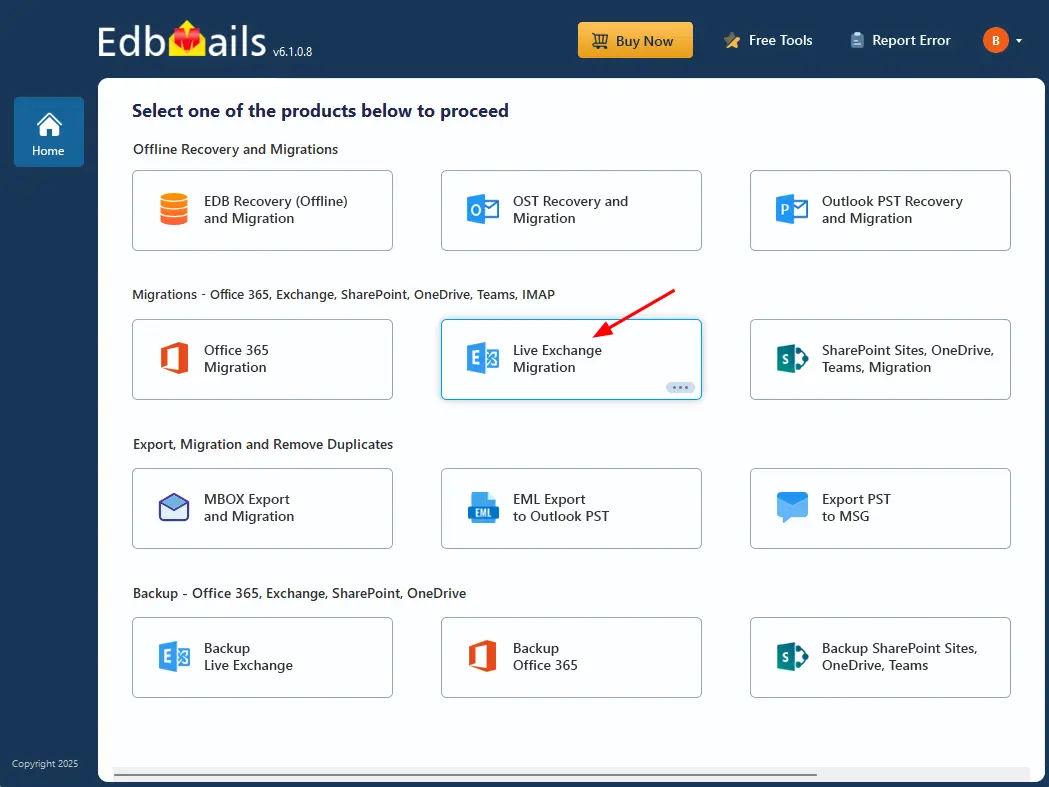
- Select ‘Live Exchange migration’ option.
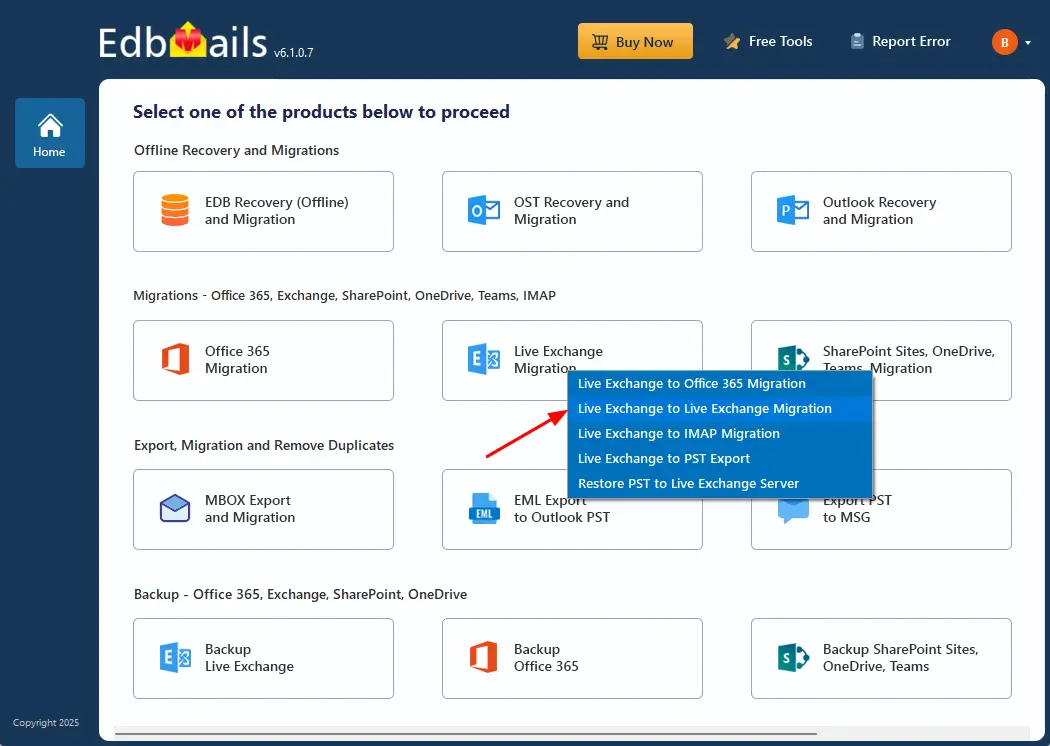
- Select 'Live Exchange to Live Exchange Migration' option.
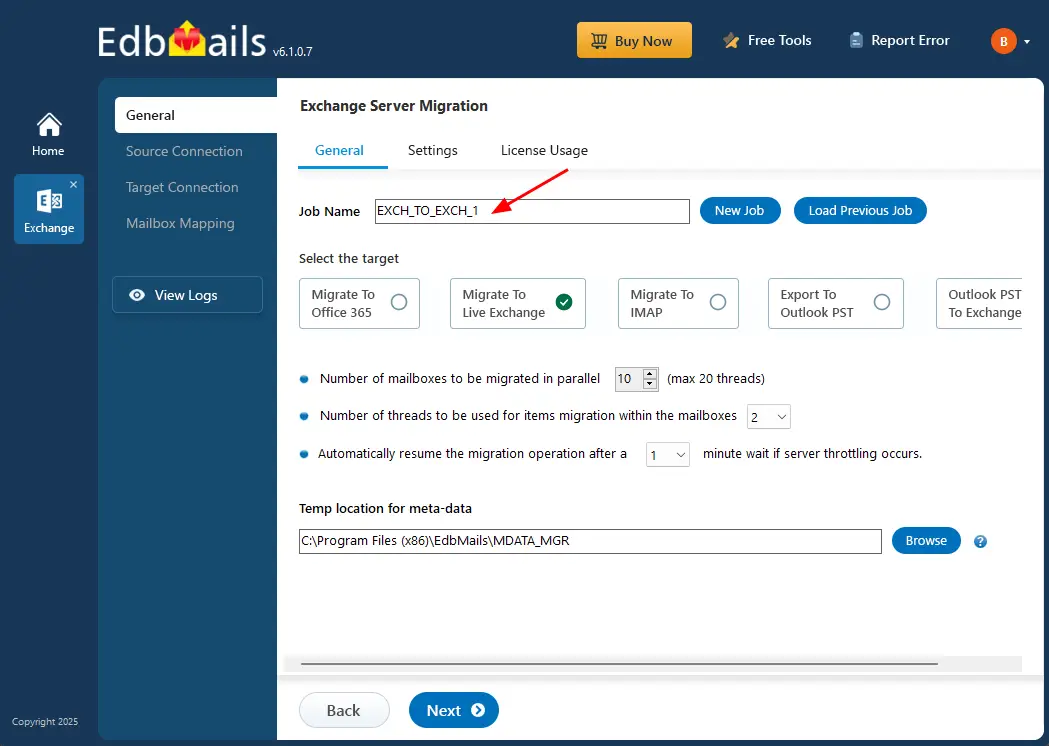
- Click the ‘New Job’ button if you want to assign a custom name to the job and enter the name of your choice. If no changes are required, you can simply proceed with the default job name already displayed.
- Download and install EdbMails on your system.
Step 2: Connect to source Exchange server
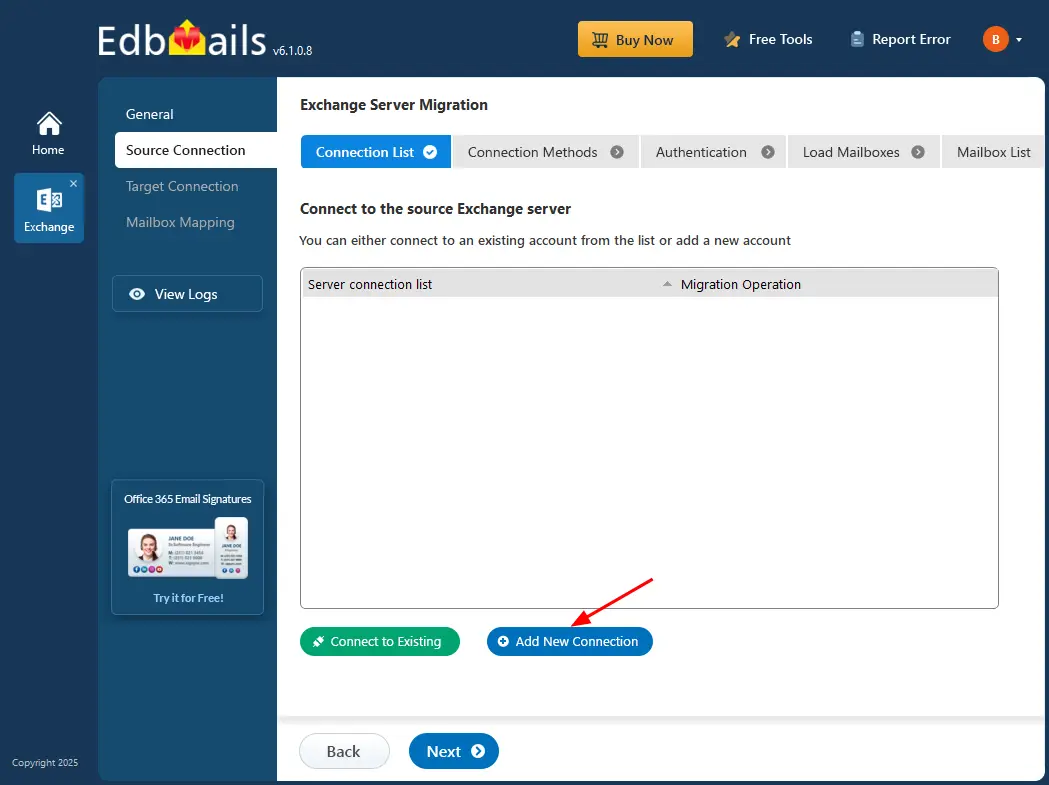
- To create a connection with the source Exchange server, click ‘Add New Connection’. If a connection has already been configured earlier, choose it from the list and click ‘Connect to Existing’ to continue.
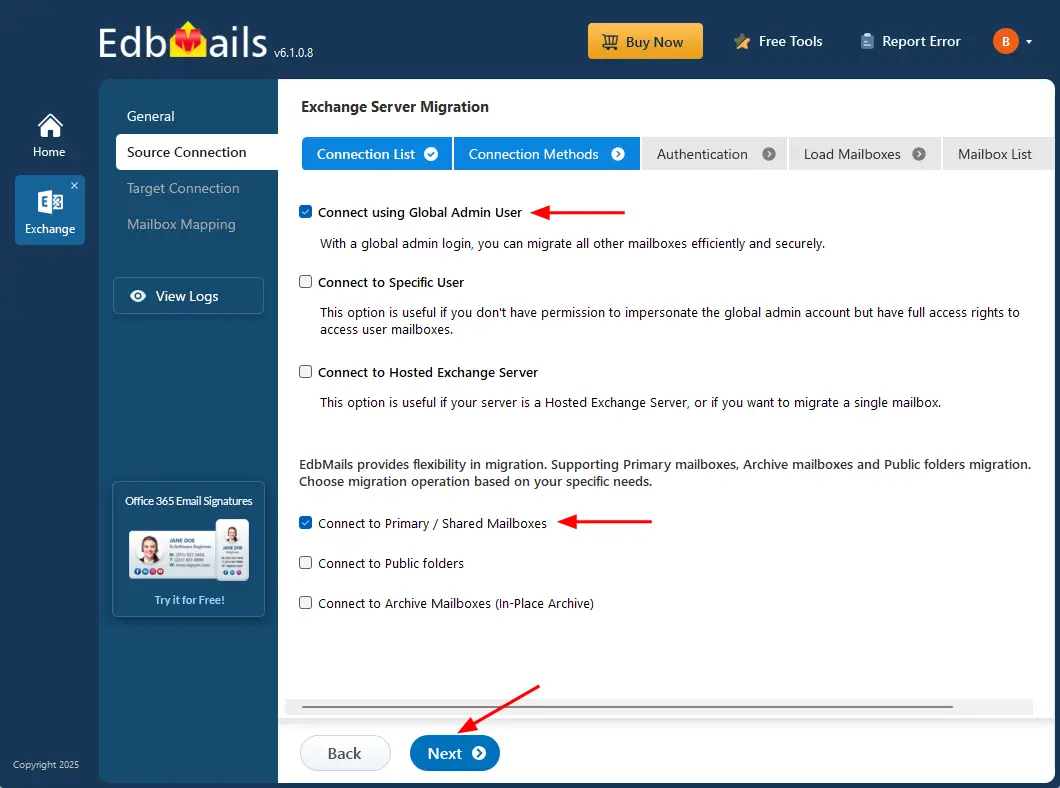
- Select the required connection options and click the ‘Next’ button.
Different options to connect to Exchange server in EdbMails
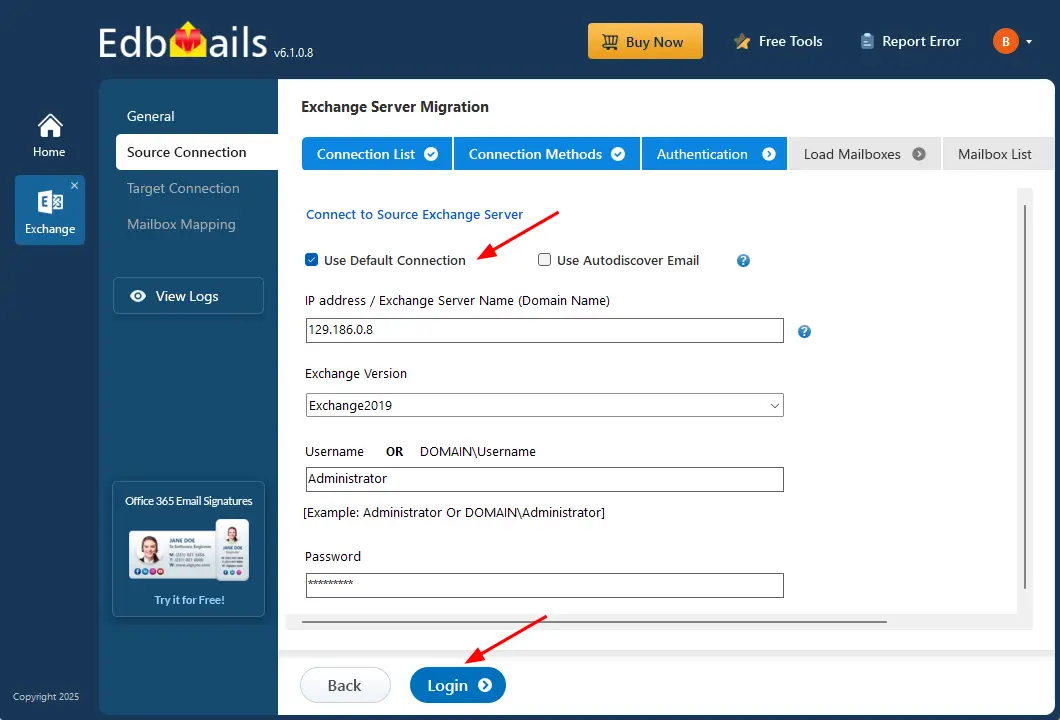
- Select the ‘Use Default Connection’ option and provide the Exchange server name along with the corresponding version, or choose ‘Use Autodiscover Email’ to sign in directly using your user credentials.
- Enter the required source Exchange server information such as the IP address (Domain name), Exchange version, Username, and Password.
- After entering all the necessary details, click ‘Login’ to continue.
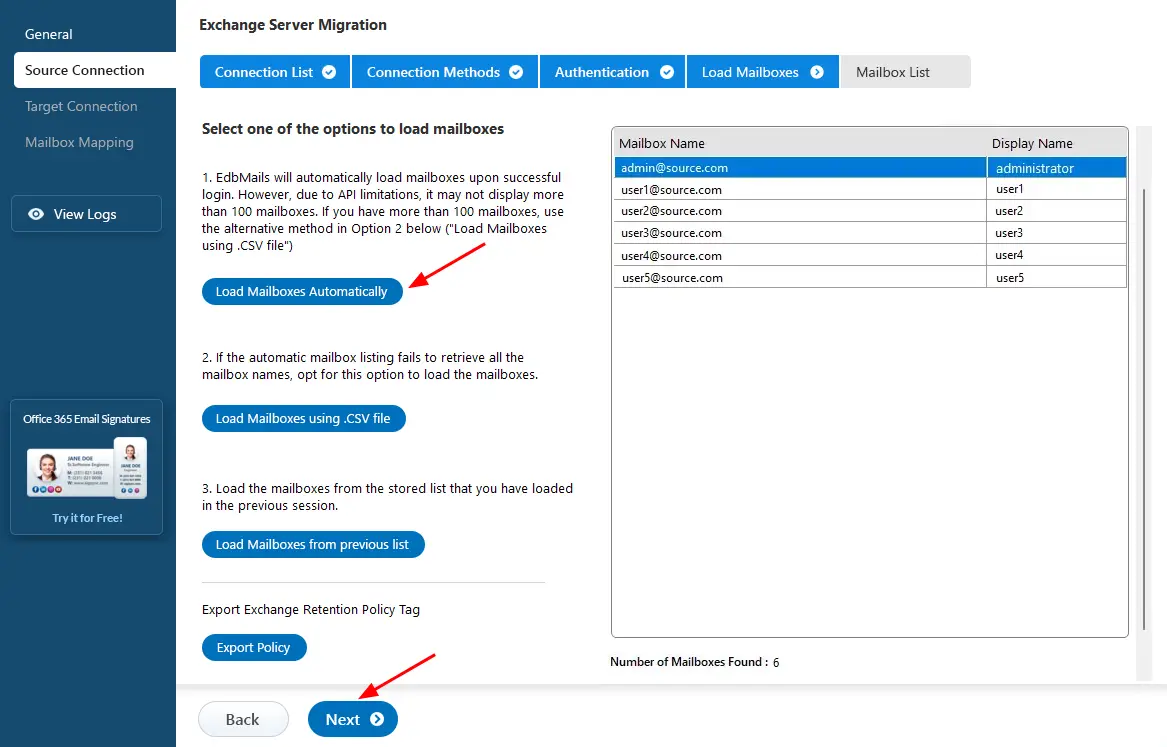
- After successful authentication, choose one of the available options to load the mailboxes.
- EdbMails includes an automatic mailbox loading feature that makes the process quick and easy. Due to Microsoft API limitations, this option displays up to 100 mailboxes at a time.
- If your environment has more mailboxes or you want to include specific ones, select the ‘Load Mailboxes using .CSV file’ option. This allows you to add mailboxes manually and gives you better control over the selection.
- Choose ‘Load Mailboxes Automatically’ and click ‘Next’ to proceed.
- To create a connection with the source Exchange server, click ‘Add New Connection’. If a connection has already been configured earlier, choose it from the list and click ‘Connect to Existing’ to continue.
Step 3: Select Exchange server mailboxes
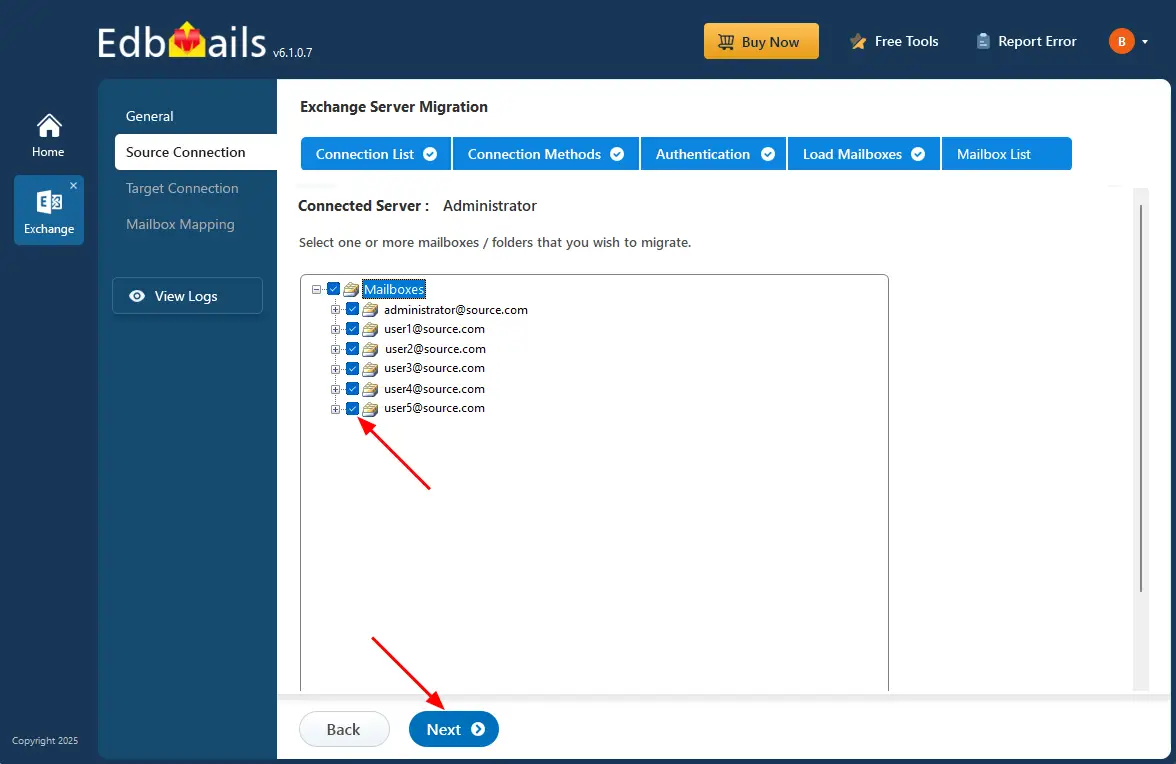
- Select the mailboxes/folders you want to migrate from the source Exchange server.
- Click the ‘Next’ button.
Step 4: Connect to target Hosted Exchange server
- To connect to the target server, click ‘Add New Connection’ for a fresh setup. If you've already created one, Select it from the list and click ‘Connect to Existing’.
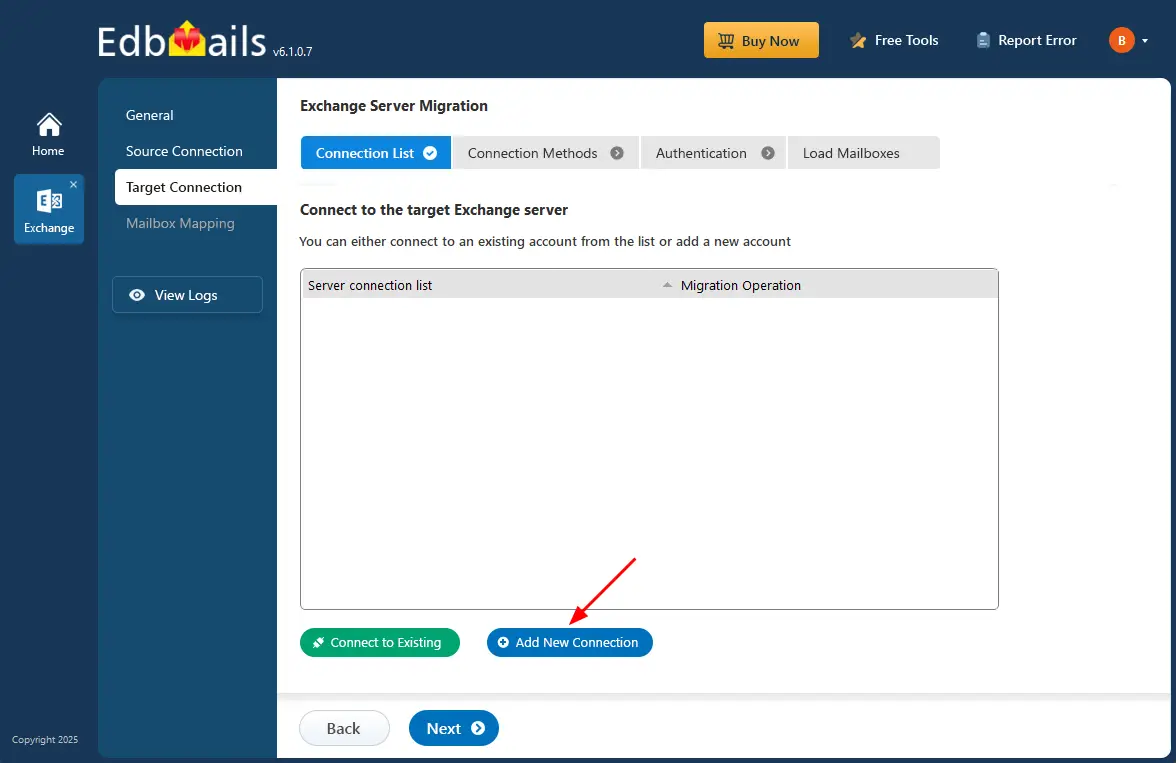
- Select ‘Connect to Hosted Exchange Server’ to connect to your Hosted Exchange server.
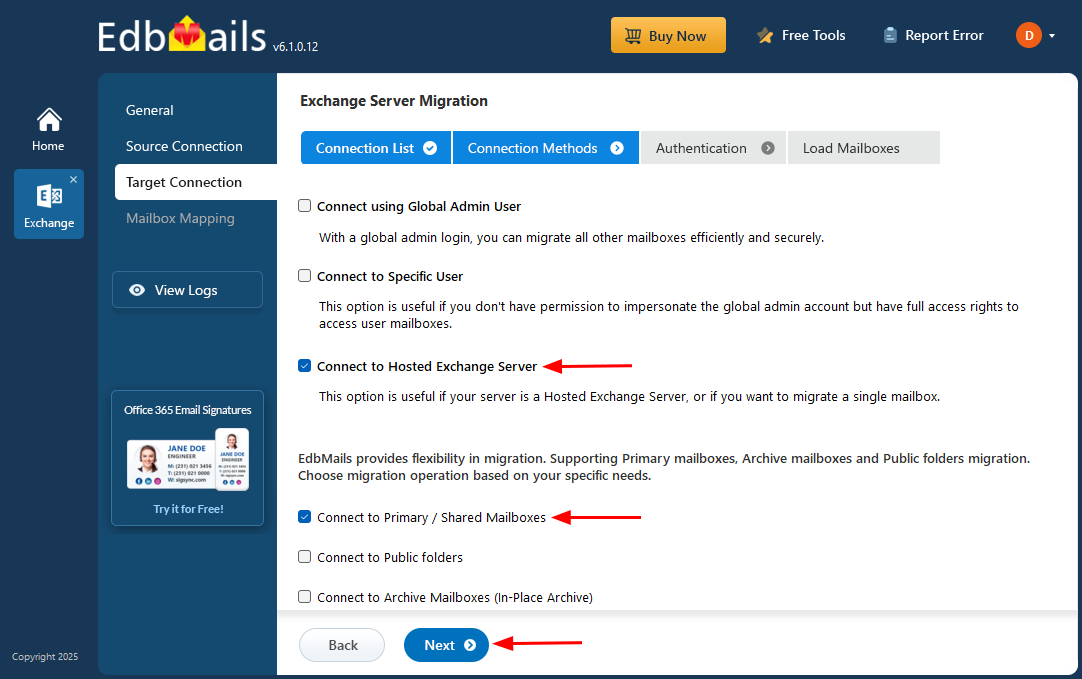
- Select the required options. And click the ‘Next’ button.
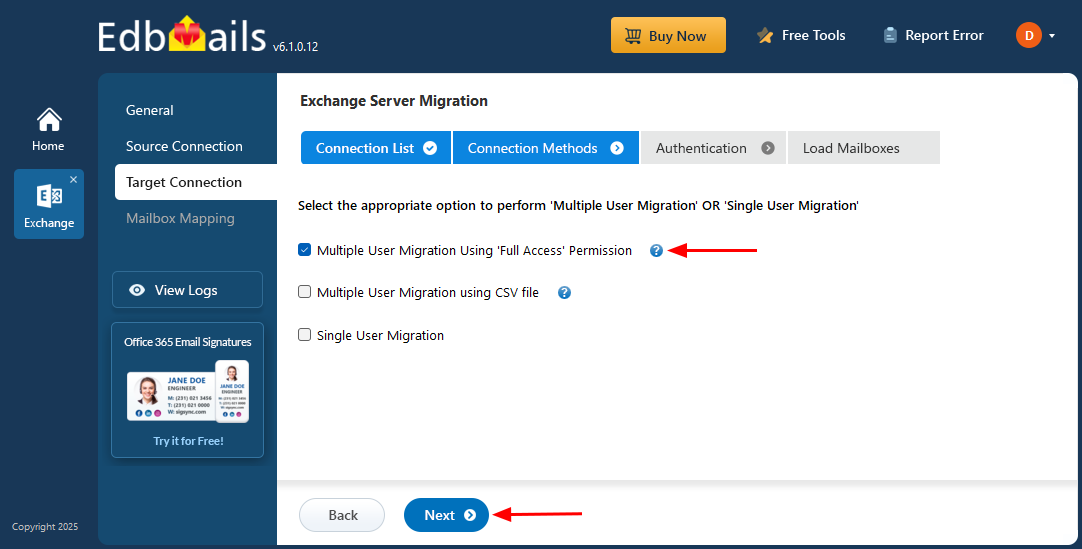
- Choose one of the available options to connect to your Hosted Exchange server. Select ‘Connect Using Autodiscover Email’ and enter your email address and password if Autodiscover is enabled. If not, choose ‘Default Connection’ and connect using the server’s domain name or IP address.
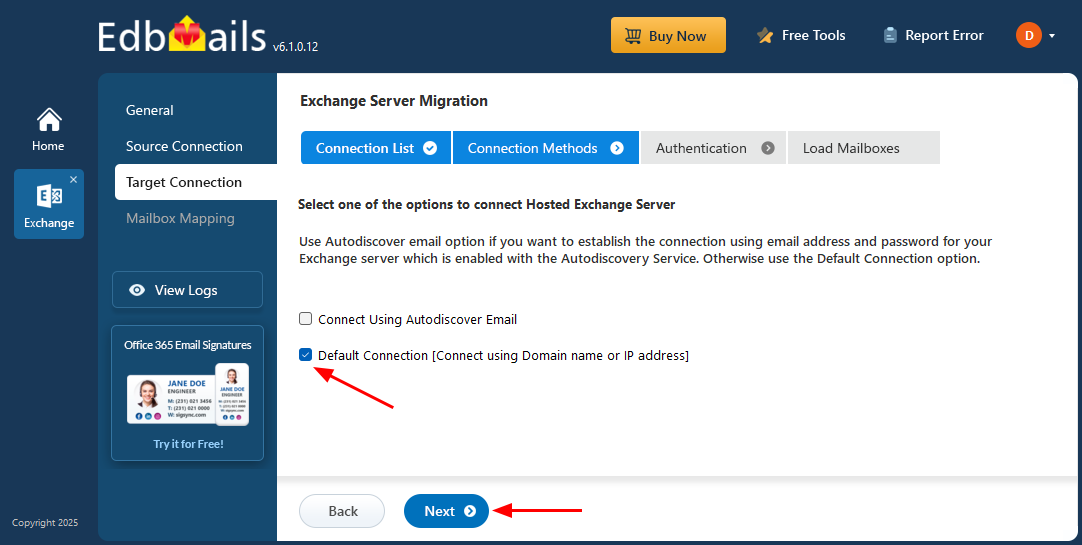
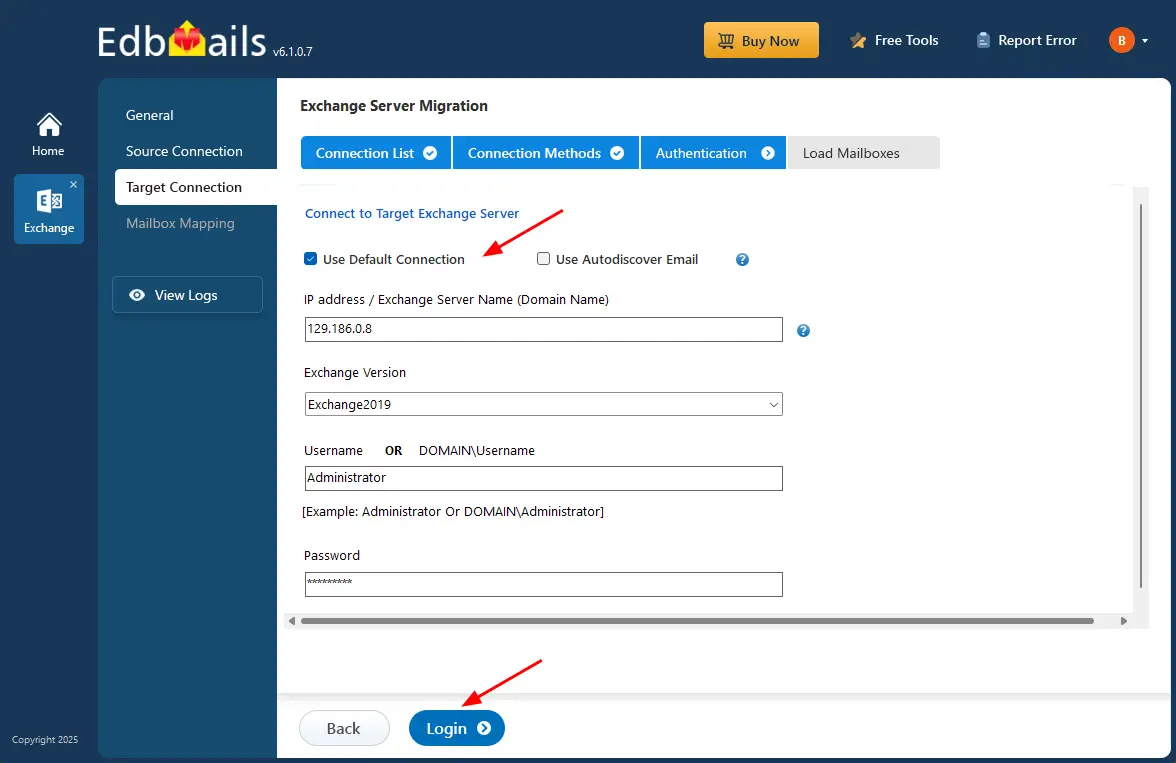
- Provide the target Hosted Exchange server details such as the IP address (Domain name), Exchange version, Username, and password.
- After entering the required information, click the ‘Login’ button.
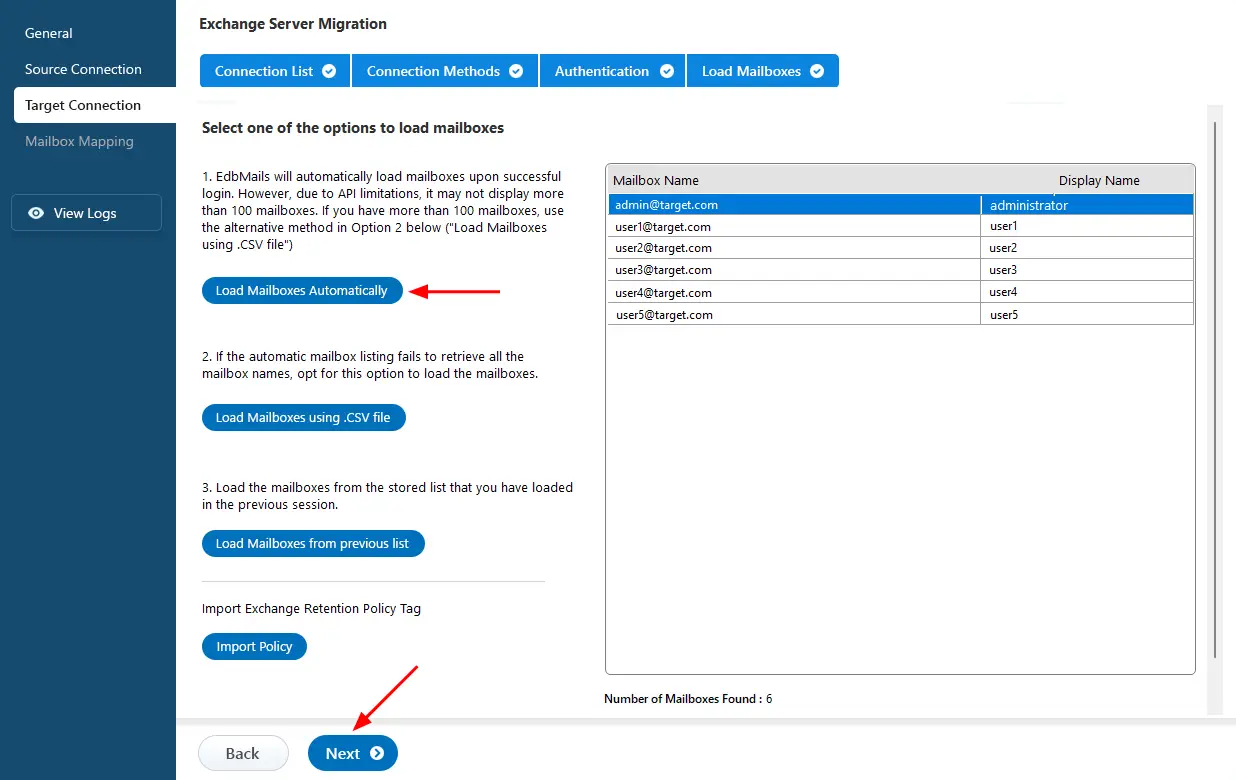
- Choose the required option to load your mailboxes. EdbMails will automatically load the mailboxes for your target server. Alternatively, you can also upload mailboxes using a CSV file.
- To connect to the target server, click ‘Add New Connection’ for a fresh setup. If you've already created one, Select it from the list and click ‘Connect to Existing’.
Step 5: Exchange to Hosted Exchange server mailbox mapping
- Select the required mapping option.
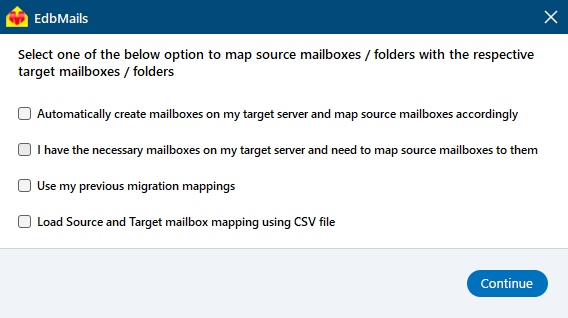
- EdbMails automatically maps mailboxes between the source and the target servers. This feature is especially useful when migrating a large number of mailboxes, as it reduces manual effort and saves time during the overall migration process.
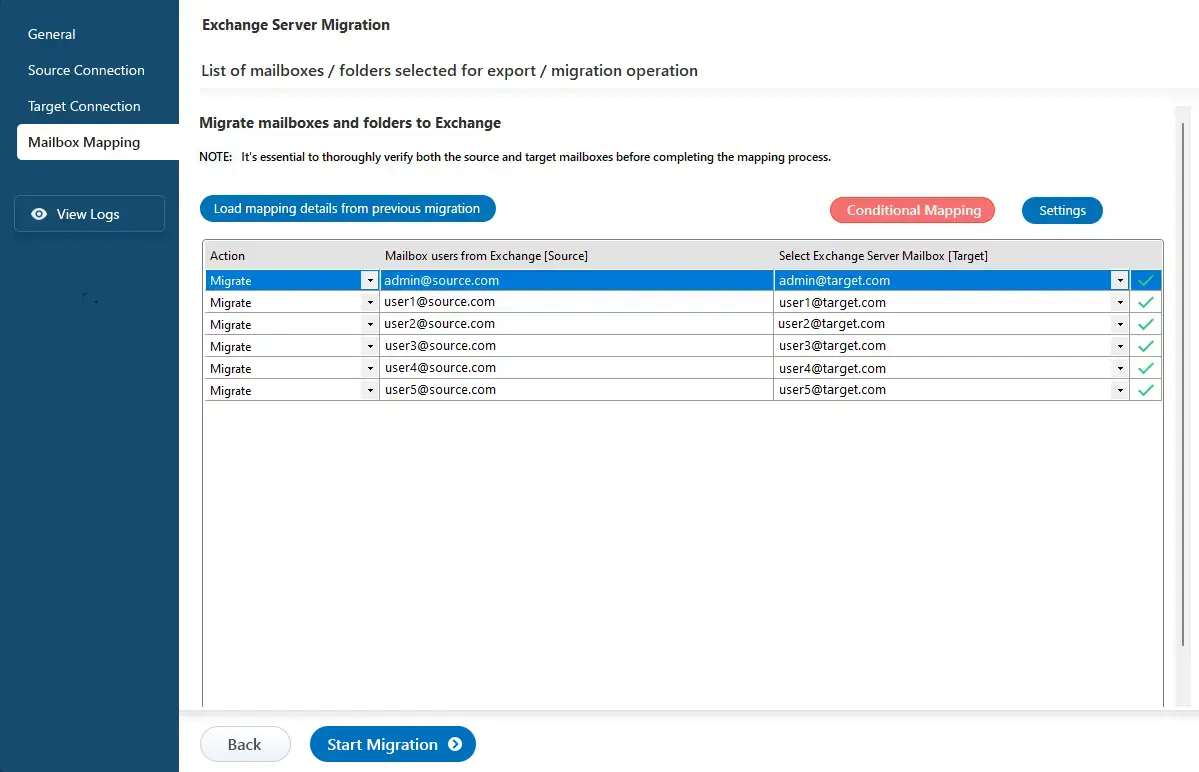
- Select the required mapping option.
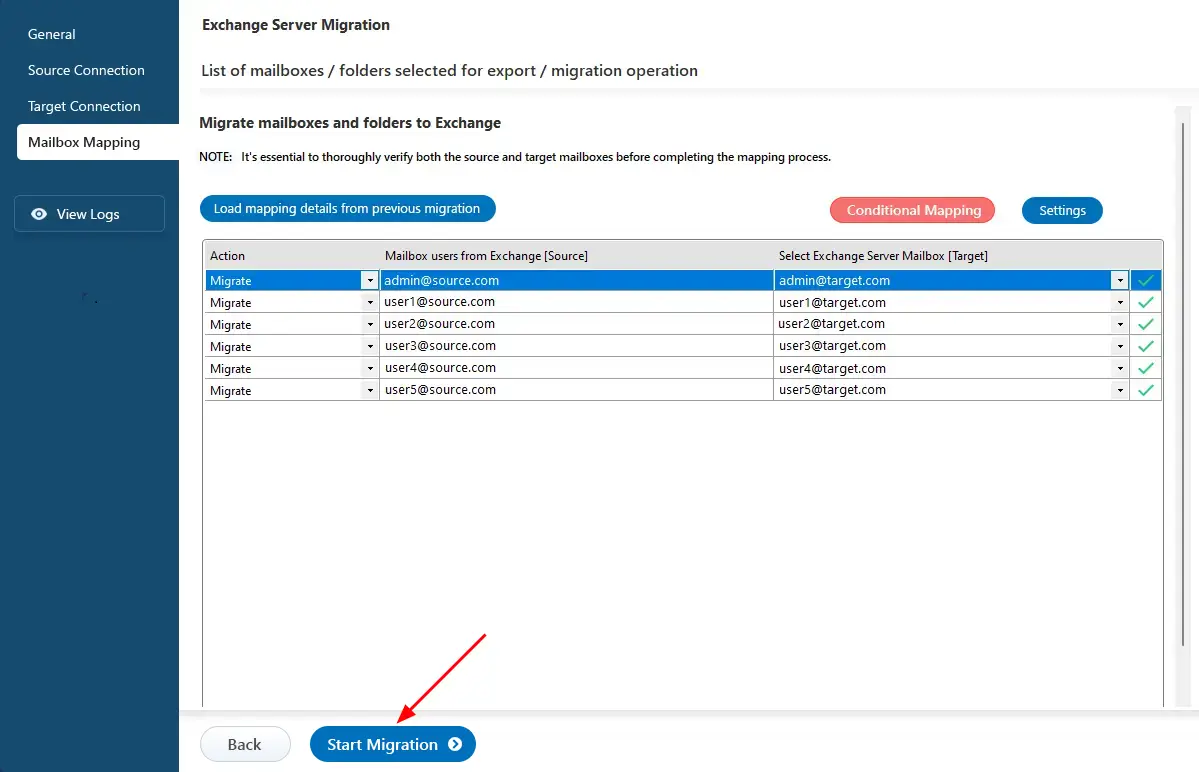
Step 6: Start Exchange to Hosted Exchange migration
- After completing the mailbox mapping, click the ‘Start Migration’ button to initiate the migration process.
- Once the migration is successfully finished, EdbMails prompts the migration completion message. Click the 'View Log' button to check the migration report.
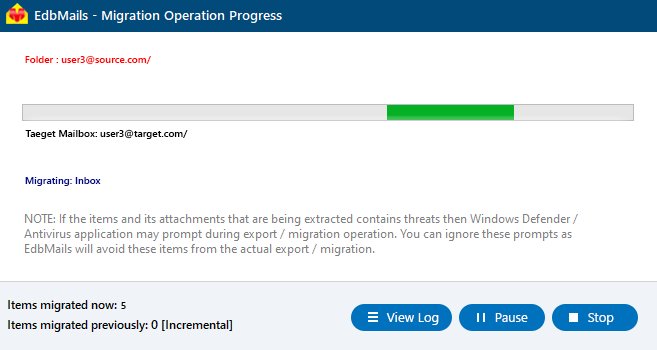
- After completing the mailbox mapping, click the ‘Start Migration’ button to initiate the migration process.
Exchange to Hosted Exchange: Post-migration Tasks
- Verify migration : Confirm that all emails, contacts, calendars, and tasks have been successfully transferred.
- Test mail flow : Send and receive test emails to ensure proper mail flow.
- User account configuration : Ensure all user accounts are correctly set up in the new environment.
- Update MX records : Modify MX records to direct emails to the new server.
- Email client setup : Assist users in configuring their email clients with the new server settings.
- Mobile device testing : Test connectivity for mobile devices using ActiveSync.
- Collect user feedback : Gather feedback from users regarding their experience post-migration.
- Decommission Exchange servers : Shut down Exchange servers after confirming successful migration and user satisfaction.
Troubleshooting Guide for Exchange to Hosted Exchange Migration
Review the Exchange migration troubleshooting guide for solutions to typical migration errors. For additional information regarding EdbMails Exchange migration, visit the frequently asked questions section.
Benefits of EdbMails for Exchange to Hosted Exchange migration
- Incremental Migration: EdbMails features incremental migration, that is, it transfers only the newly added or modified items during the subsequent migration operations, significantly reducing the risk of duplicating existing data. It simplifies the migration process by focusing on relevant changes during Live Exchange migration to Hosted Exchange.
- Advanced Filter Options: Users can filter specific mailbox items and folders to include or exclude during migration, providing greater control over the data transfer. This level of precision ensures that only essential information is migrated, optimizing storage space.
- Automatic Mailbox Mapping: EdbMails automatically identifies and maps corresponding mailboxes between the source and target servers. This eliminates manual effort and saves overall migration preparation time.
- Direct Migration Support: The software supports direct migrations from any version of Exchange server from 2007 to 2019, ensuring compatibility without requiring a coexistence setup.
- Migration Reports: EdbMails automatically generates detailed migration reports that provide insights into the number of items transferred, any errors encountered, and overall migration progress.
- Universal Compatibility: EdbMails is designed to operate seamlessly across all Windows operating systems, ensuring consistent performance and reliability regardless of the environment.
- 24/7 Technical Support: Users have access to 24/7 free technical support, providing assistance for any issues or queries that may arise during the migration process.


