


Hosted Exchange to Live Exchange Migration
Migrating from Hosted Exchange to an Exchange Server is often a strategic step for organizations that want more control over their email environment, better security, and improved compliance. It can also help reduce long-term operational costs. However, the migration process can involve technical challenges such as ensuring zero downtime, maintaining mailbox permissions, and preserving the original folder hierarchy. To complete the migration successfully, it is important to use a reliable solution that securely migrates mailbox data without any data loss. The process should support large-scale migration of emails, calendars, contacts, and other mailbox items while maintaining shared mailboxes, public folders, and other attributes. Ensuring data integrity and retaining existing permissions throughout the migration is essential for a smooth and flawless transition.
EdbMails Exchange Migration tool is designed to handle these requirements efficiently. It supports direct migration from Hosted Exchange to live Exchange servers, including Exchange 2019, 2016, 2013, 2010, and 2007. With high-performance concurrent migration and built-in support for incremental migration, EdbMails ensures a secure, accurate, and duplicate-free migration process while preserving mailbox data integrity throughout the migration.
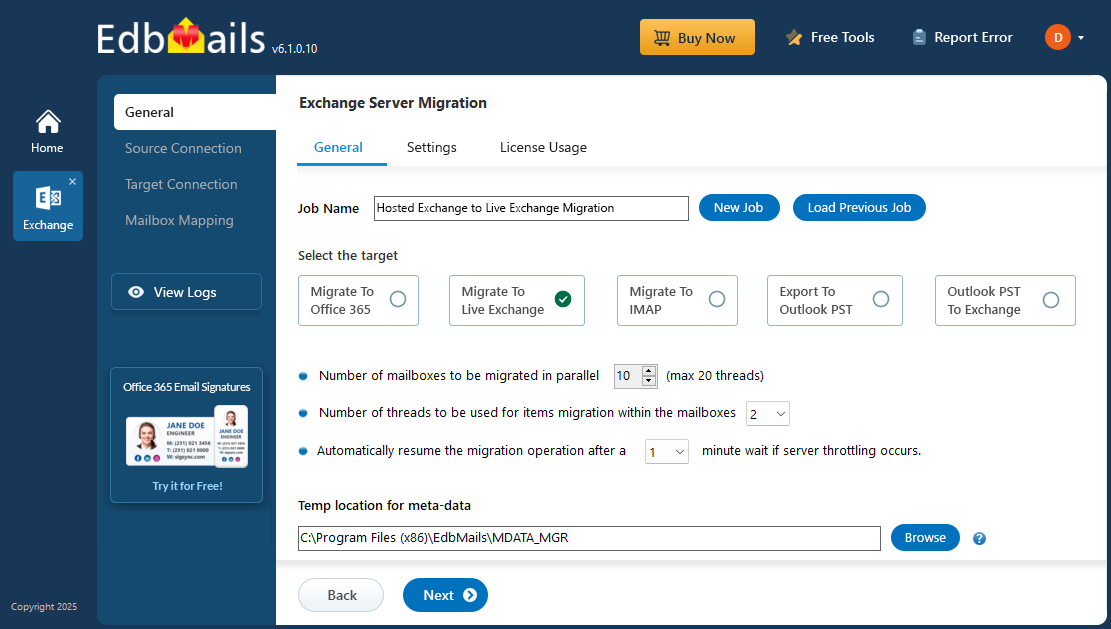
EdbMails delivers a smooth and reliable migration experience by preserving mailbox permissions and the complete folder hierarchy, ensuring email functionality remains intact. With built-in support for zero downtime, users can continue working normally during the migration process without disruption. The software also includes advanced filtering options that allow selective migration. For example, you can choose a specific date range so that only the required emails are migrated to the destination server.
By handling the technical challenges involved in Hosted Exchange to Exchange migration, EdbMails provides a secure and dependable solution that simplifies the entire process while maintaining data integrity and ensuring a smooth migration experience.
Hosted Exchange to on-premises Exchange: Pre-Migration Activities
- Step 1: Check that your system meets the Exchange server setup requirements.
The following links will help you set up your target Exchange server. Learn more about the network, hardware, coexistence scenarios, and operating system requirements for installing Exchange.
- Step 2: Prepare your system with the following prerequisites for Exchange server
Complete the following prerequisites for Active Directory, Windows Mailbox server, and Windows Edge Transport servers before installing the target Exchange server.
- Step 3: Set up the target Exchange server for migration
Given below is a list of key points for installing and preparing the Exchange server for migration.
- Prepare AD and domains
- Before installing the Exchange server you need to prepare your Active Directory forest and its domains for the new version of Exchange.
- If you have a separate team to manage the Active Directory schema, you need to first extend the active directory schema, else proceed to the next step to prepare the Active Directory.
- If you have multiple domains you need to additionally prepare the Active Directory domains.
- Install Exchange server on your computer
Before installing the Exchange server, ensure that you meet the server system requirements and prerequisites as outlined previously. Next, follow the link to install Exchange 2016 or install Exchange 2019 from the setup wizard based on which server you want to migrate to.
- Prepare a clean Exchange target environment
- Create and configure a Send connector to send mail outside the Exchange organization.
- By default, Exchange automatically creates receive connectors for inbound mail flow when the mailbox server is installed. If you need to configure receive connectors, follow the steps in the link.
- Add accepted domains to allow recipients to send and receive email from another domain.
- Configure the default email address policy to add the accepted domain to every recipient in the organization.
- Configure external URLs (domains) on the virtual directories in the Client Access (frontend) services on the Mailbox server to allow clients to connect to your server from the internet (outside the organization’s network).
- Configure internal URLs on the virtual directories in the Client Access (frontend) services on the Mailbox server to allow clients to connect to your server from the internal network.
- Configure SSL certificates from a third-party certificate authority for services such as Outlook Anywhere and Exchange ActiveSync.
- Verify the Exchange server installation by running the command Get-ExchangeServer on the Exchange Management Shell (EMS).
- Create trust relationship between forests (Optional)
A forest trust is an authentication between two domains within the same Active Directory forest which creates a trust between two root domains for exchanging information. By creating a trust in advance, it is possible to address the trust issues during or after the migration.
- Create mailboxes on the target Exchange server
Before starting the migration, ensure that mailboxes are created on the target Exchange server. If you’ve installed EdbMails on the target server, you can select the option to automatically create mailboxes during the migration setup. Alternatively, if you prefer to create them manually, refer to the links below for detailed steps.
- Assign management roles to the admin account
If you are using a global admin account to connect source and target Exchange servers, ensure to set impersonation rights.
- Configure the throttling and message-size limits
Create custom policies for EWS throttling and set the message size to the maximum value on the Exchange server by following the steps provided in the link below.
- Prepare AD and domains
- Step 1: Check that your system meets the Exchange server setup requirements.
Challenges and Solutions for Hosted Exchange Migration
1. Downtime Risk:
- Challenge: Migration downtime can interrupt email access and business operations.
- Solution: The EdbMail Exchange Migration Tool supports zero-downtime migration, allowing users to continue accessing their mailboxes during the transfer process.
2. Mailbox Permissions and Folder Structure Loss:
- Challenge: Incorrect migration methods can lead to loss of mailbox permissions, shared mailboxes, or folder hierarchy.
- Solution: EdbMails automatically preserves all mailbox permissions, folder structures, shared mailboxes, and public folders, ensuring a seamless user experience after migration.
3. Duplicate Items or Data Overlap:
- Challenge: Re-running migrations often causes duplication of emails and other items.
- Solution: EdbMails Exchange incremental (delta) migration feature transfers only newly added or modified items, preventing duplicates and optimizing bandwidth.
4. Complex Mailbox Mapping:
- Challenge: Manually mapping large numbers of mailboxes between source and target servers can be time-consuming and error-prone.
- Solution: EdbMails software offers automatic mailbox mapping, which aligns source and target mailboxes intelligently to reduce manual effort.
5. Performance Bottlenecks During Large-Scale Migration:
- Challenge: Migrating thousands of mailboxes can strain resources and extend migration time.
- Solution: With parallel mailbox migration and high-performance data transfer, EdbMails speeds up large-scale migrations efficiently.
6. Data Integrity Concerns:
- Challenge: Incomplete or corrupted data transfer can affect mailbox reliability.
- Solution: EdbMails ensures complete mailbox integrity and uses secure connection protocols (OAuth, TLS) for safe data transfer.
Steps to Migrate Hosted Exchange to Live Exchange Server
Step 1: Download and install EdbMails software
- Download and install EdbMails on your computer that has access to both the source and target servers.

System requirements for Hosted Exchange to on-premises Exchange migration
- Launch the EdbMails application on your computer.
- Enter your registered email ID and password, then click ‘Login’. If you are using EdbMails for the first time, select ‘Start Your Free Trial’ to continue with the trial version.Note: The trial version includes all important features and allows migration of up to 30 items per folder. To perform unlimited migration, purchase an Exchange Migration license from the official EdbMails website.Once the purchase is completed, close the application and open it again. Then log in using the same email ID and password used during the purchase to activate your license.

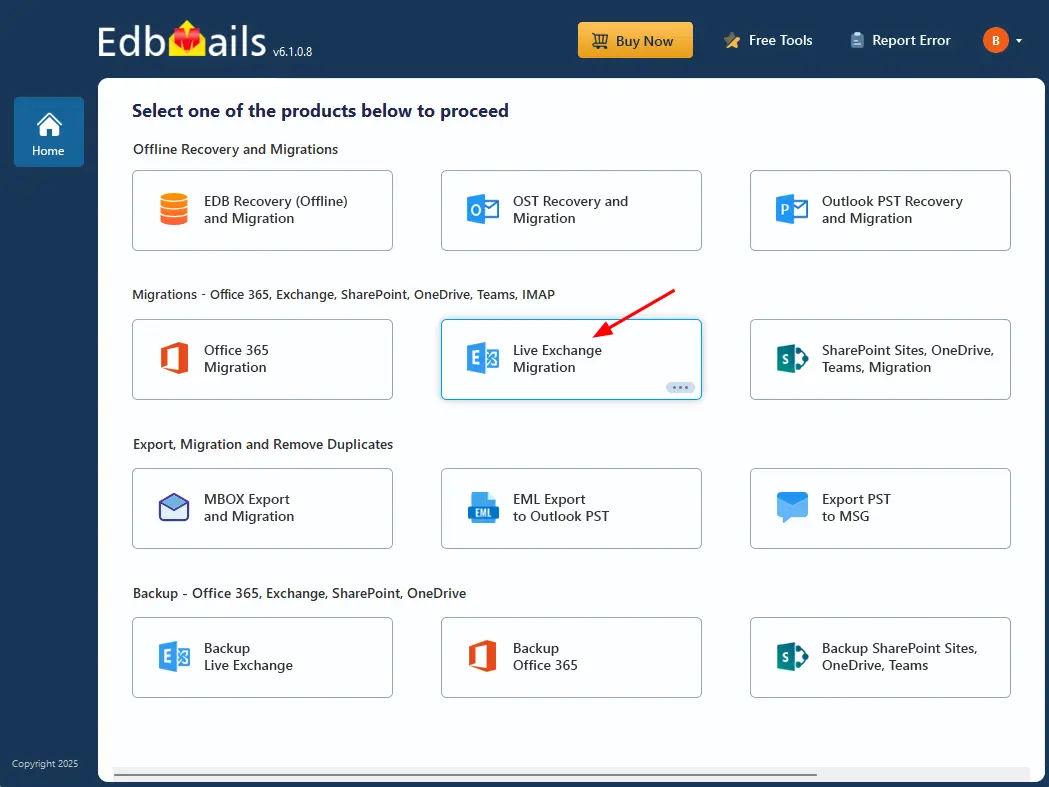
- Choose the ‘Live Exchange migration’ option.
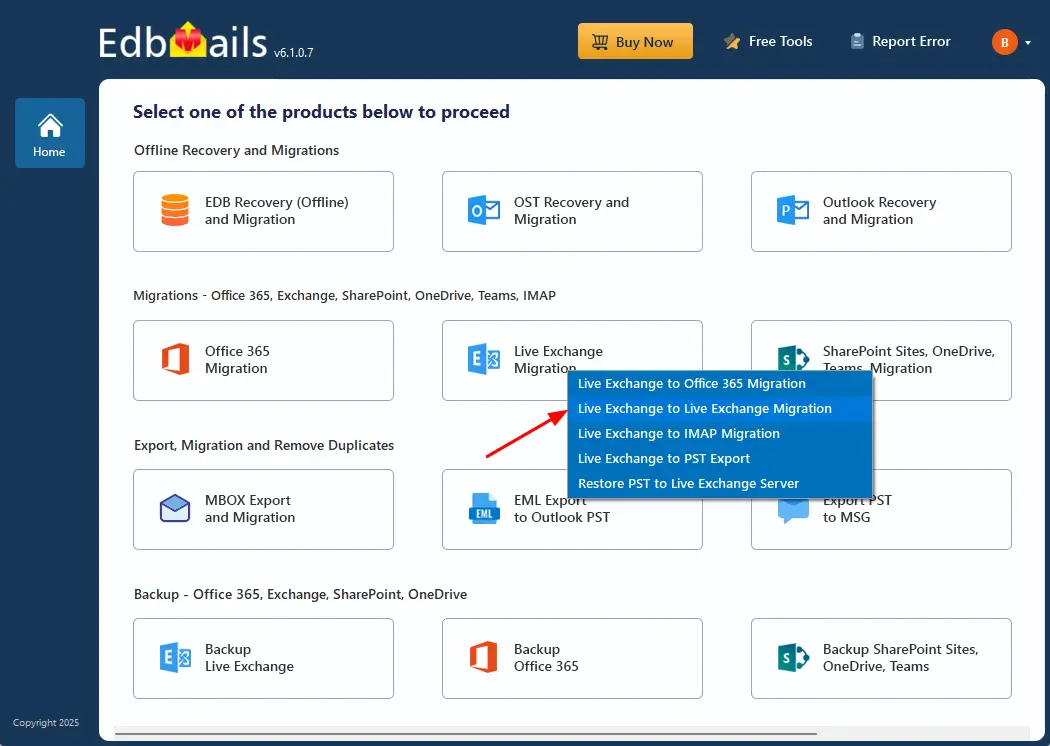
- Select 'Live Exchange to Live Exchange Migration'
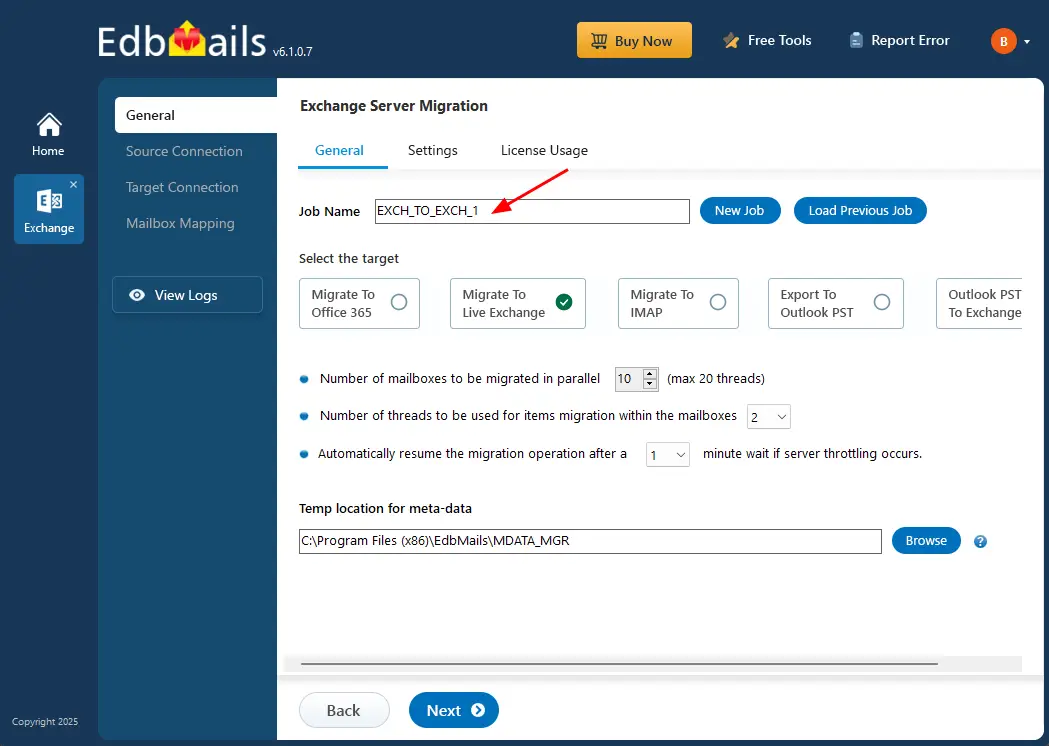
- Keep the default job name, or click ‘New Job’ to enter a name of your choice.
- Download and install EdbMails on your computer that has access to both the source and target servers.
Step 2: Connect to source Hosted Exchange server
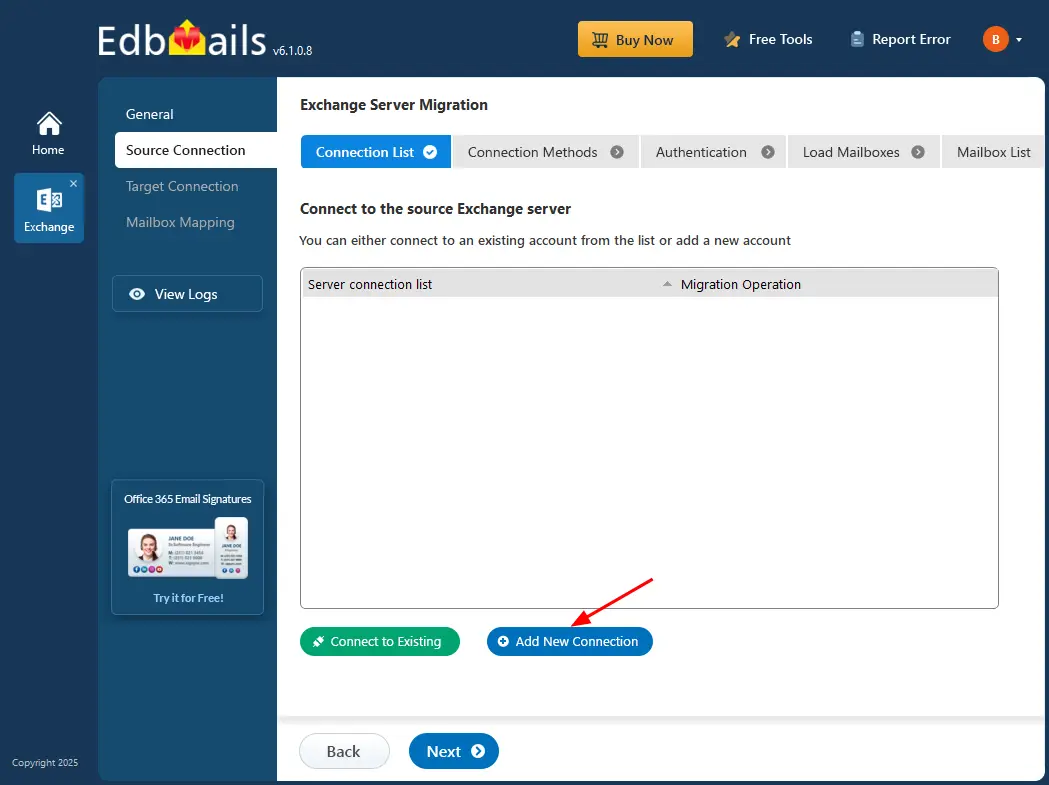
- To create a new connection with the source Hosted Exchange server, click ‘Add New Connection’. If a connection was already created earlier, select it from the available list and click ‘Connect to Existing’ to continue.
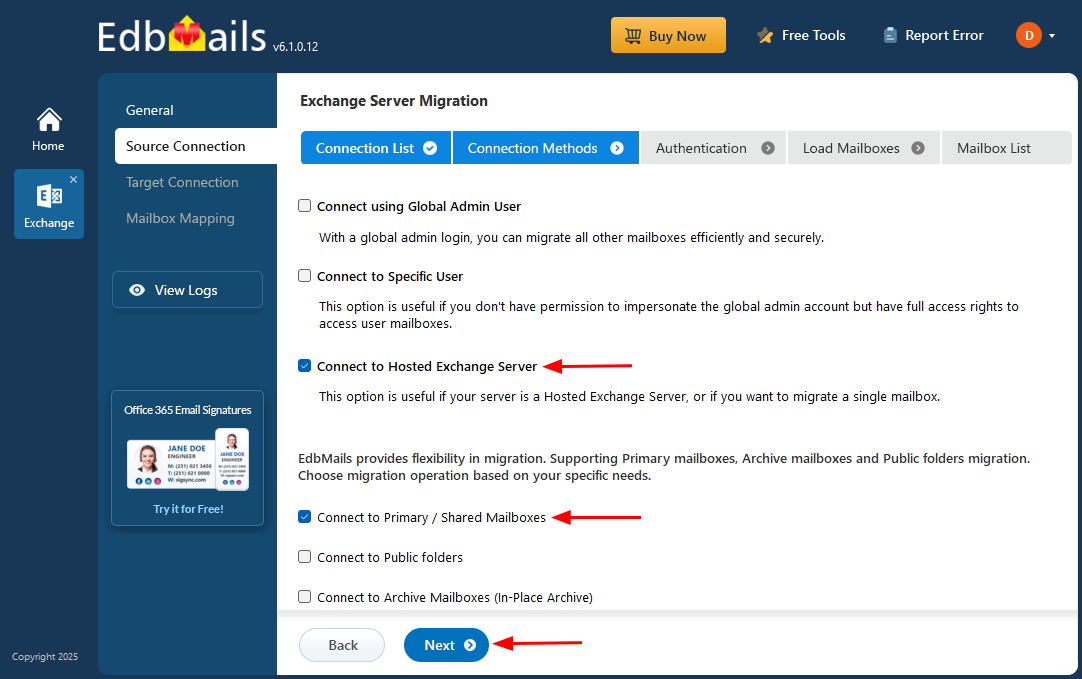
- Choose ‘Connect to Hosted Exchange Server’ to set up a connection with your Hosted Exchange environment. This option is ideal if your email service runs on a Hosted Exchange Server or when you need to migrate a single mailbox.
- Select ‘Connect to Primary / Shared Mailboxes’, then click ‘Next’ to continue.
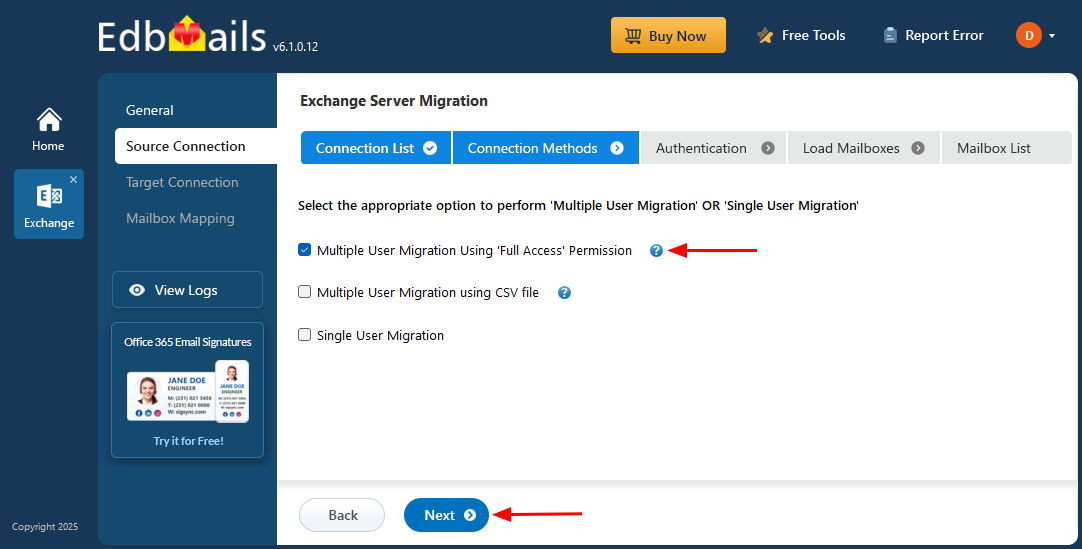
- Select the appropriate option to perform ‘Multiple user migration’ or ‘Single User migration’.
Different options to connect to Hosted Exchange server
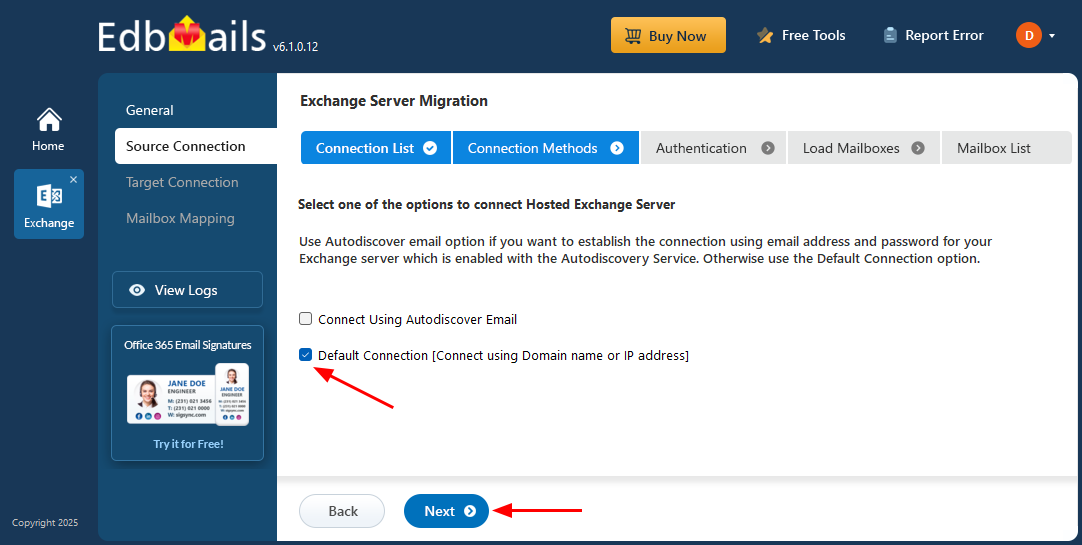
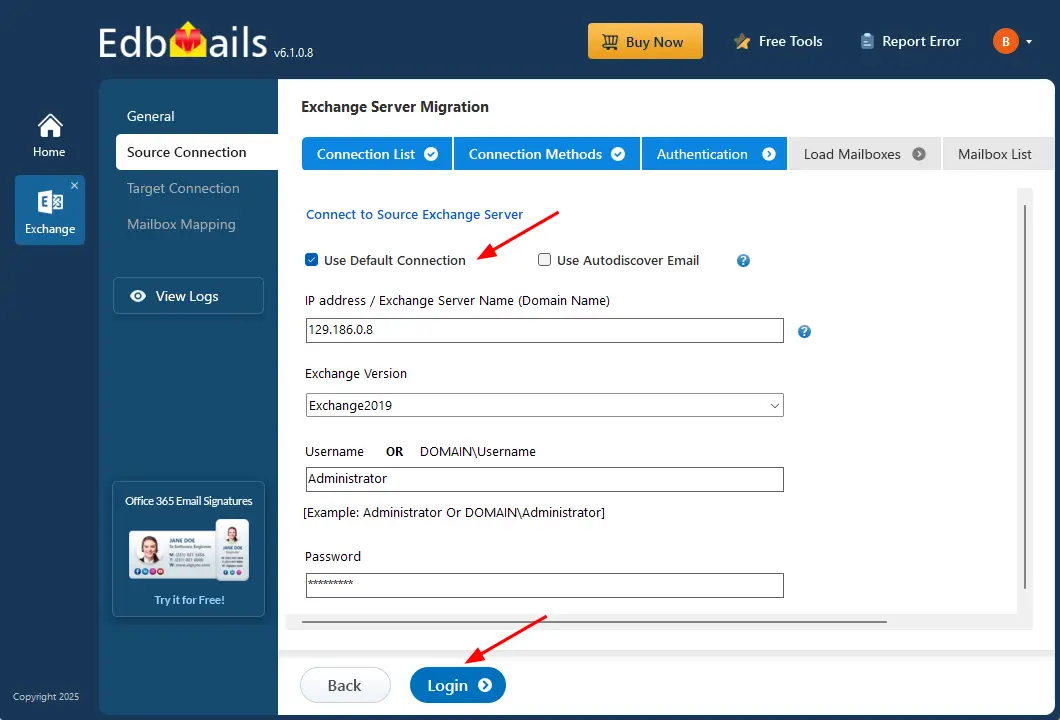
- Choose either 'Connect Using Autodiscover Email' with your email address or password for your Hosted Exchange server that has Autodiscover service enabled, or select 'Default Connection' using the domain name or IP address.
- Enter the source Exchange server details such as IP address (Domain name), Exchange version, Username and password.
- Then click the ‘Login’ button to continue.
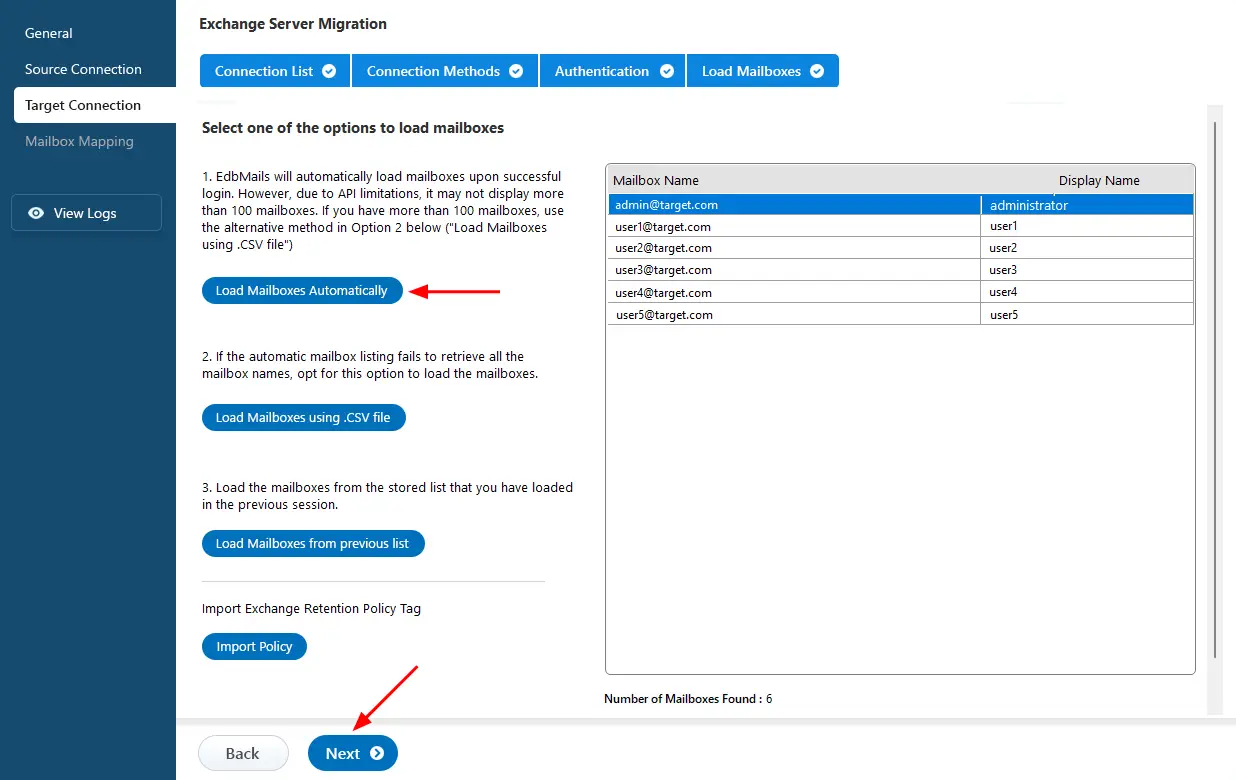
- Select the required option to load the mailboxes. EdbMails automatically loads mailboxes from your source Hosted Exchange server. You can also load mailboxes using a csv file.
- To create a new connection with the source Hosted Exchange server, click ‘Add New Connection’. If a connection was already created earlier, select it from the available list and click ‘Connect to Existing’ to continue.
Step 3: Select the Hosted Exchange server mailboxes
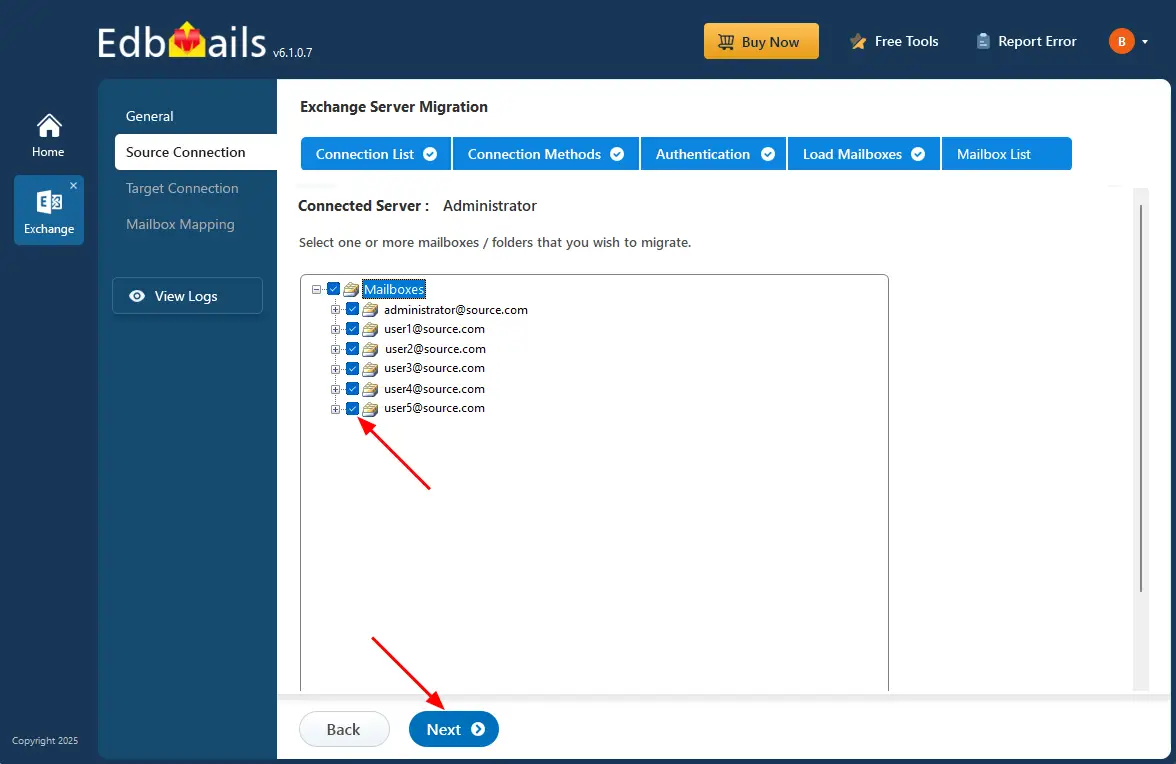
- Select the primary mailboxes/folders you want to migrate to the target Live Exchange server.
- Click the ‘Next’ button.
Step 4: Connect to the target on-premises Exchange server
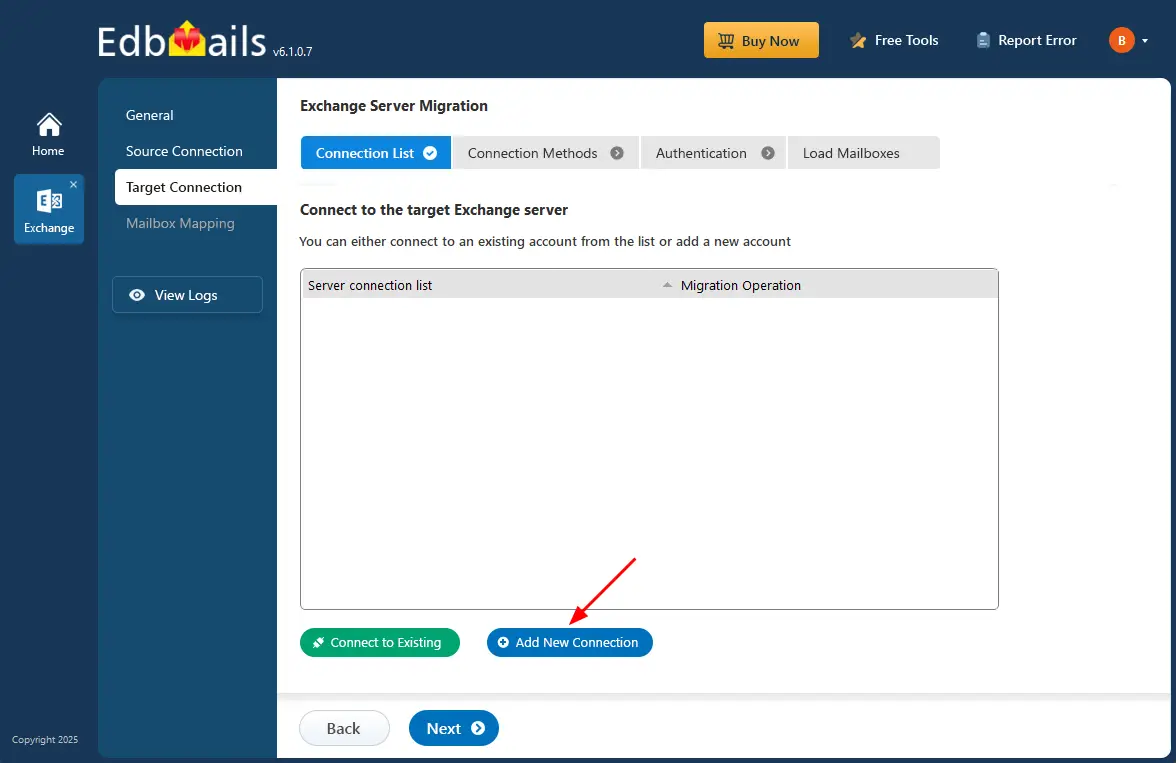
- To connect to the target Exchange server, click ‘Add New Connection’ for a fresh setup. If you've already created one, select it from the list and click ‘Connect to Existing’.
- Choose the required connection option.
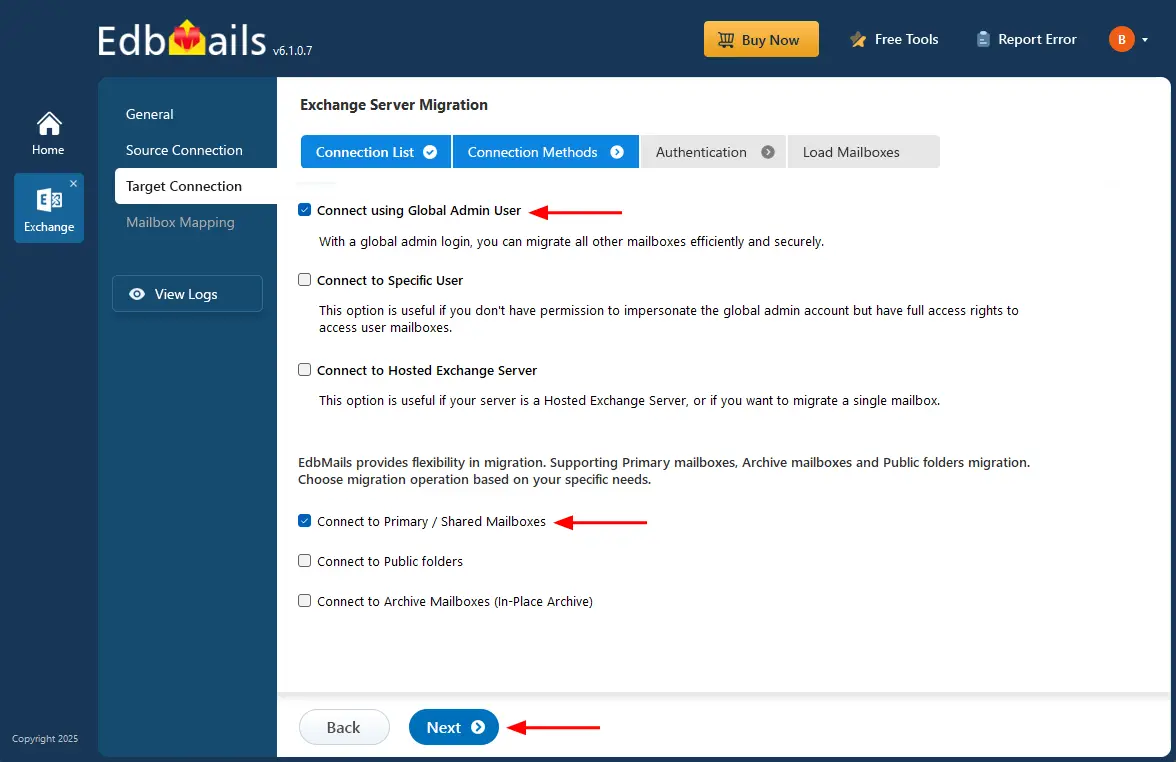
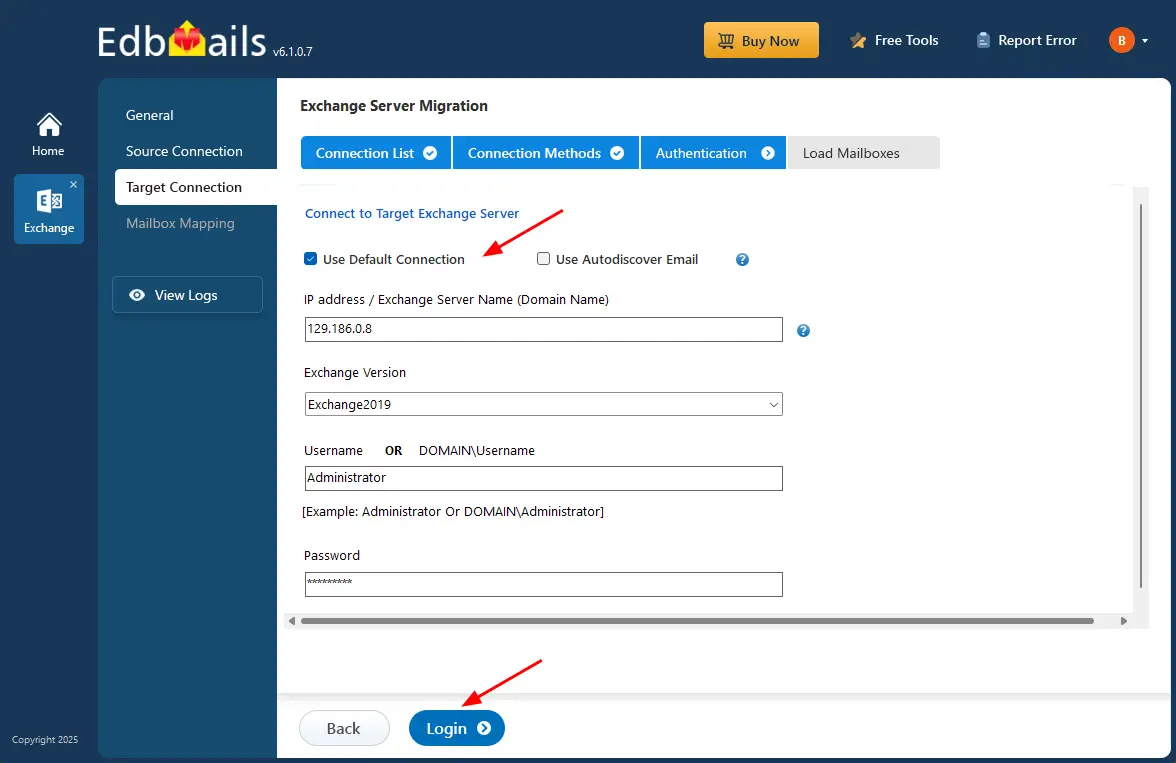
- Enter the target Exchange server details and click the ‘Login’ button.
- After successful authentication, select one of the following options to load the mailboxes:
i) Load Mailboxes Automatically: After signing in, EdbMails automatically loads and displays the available mailboxes, making the configuration process simple. Due to Microsoft API limitations, only up to 100 mailboxes may be displayed. If your environment has more than 100 mailboxes, use the alternative option below.
ii) Load Mailboxes using CSV file: If the automatic option does not display all mailbox names, choose ‘Load Mailboxes using .CSV file’ to load the required mailboxes.
iii) Load Mailboxes from previous list: This option allows you to quickly access the mailbox list that was saved and imported during your previous session.
- Select ‘Load Mailboxes Automatically’ and click ‘Next’ to proceed.
- To connect to the target Exchange server, click ‘Add New Connection’ for a fresh setup. If you've already created one, select it from the list and click ‘Connect to Existing’.
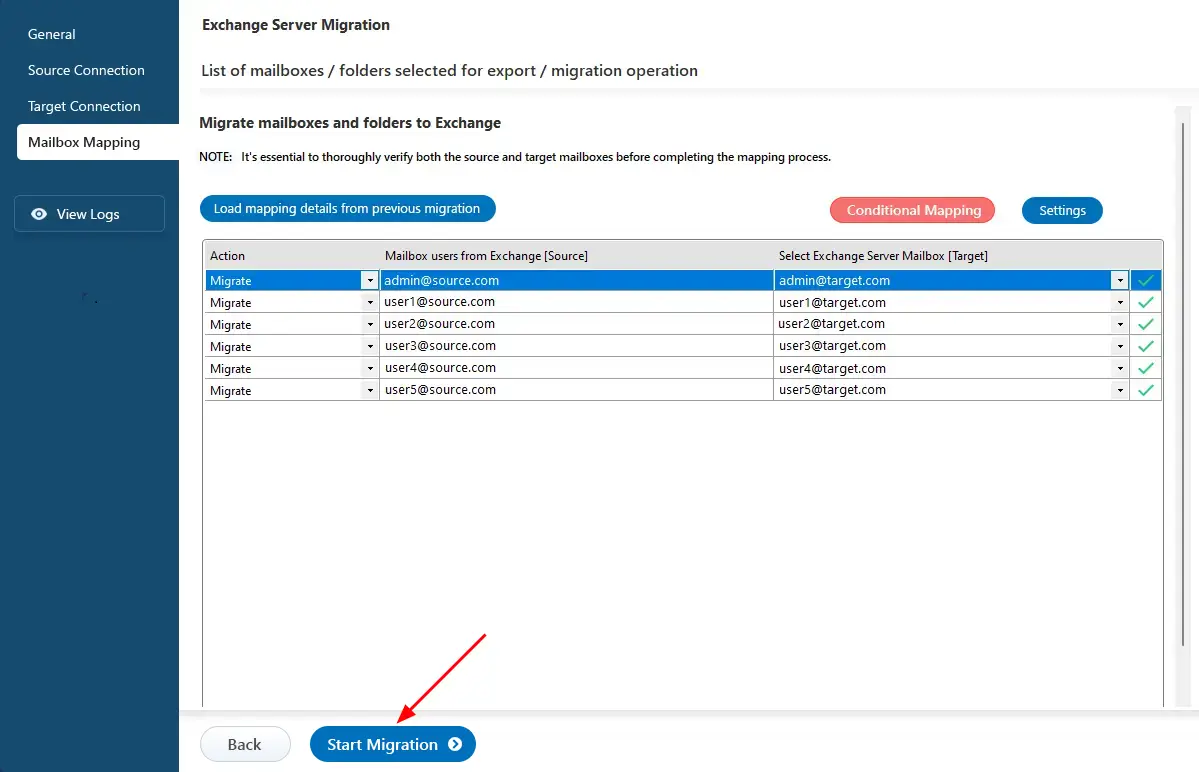
Step 5: Hosted Exchange to Live Exchange Mailbox Mapping
- Select the required mapping option..
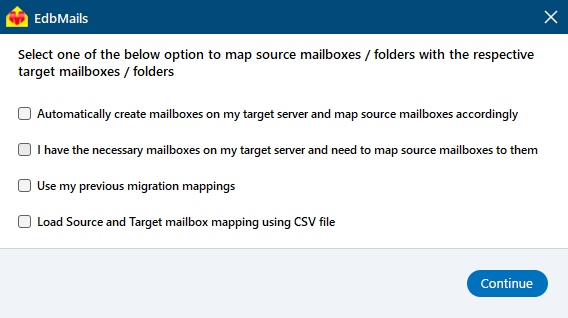
- EdbMails automatically maps the mailboxes from the Hosted Exchange server to the live Exchange server. This feature significantly reduces manual effort and the time required for large-scale migrations.
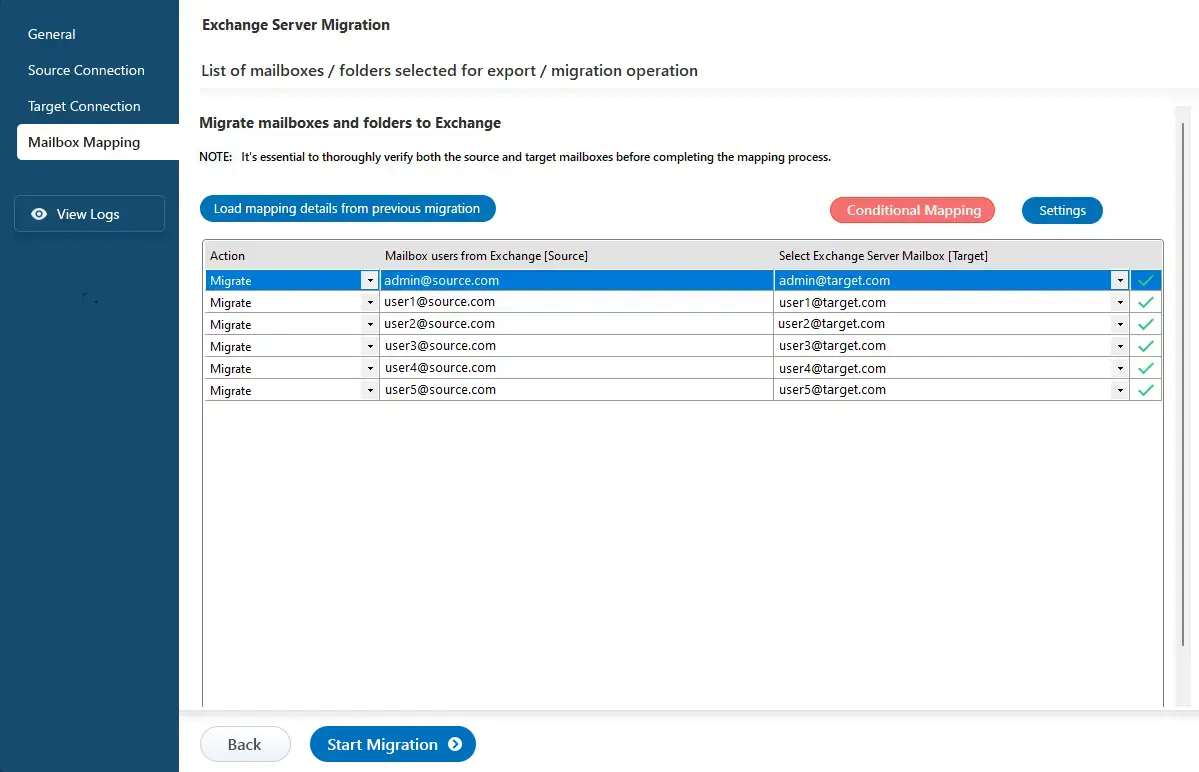
- Select the required mapping option..
Step 6: Start Migration from Hosted Exchange to Live Exchange Server
- Click the ‘Start Migration’ button to initiate the process.
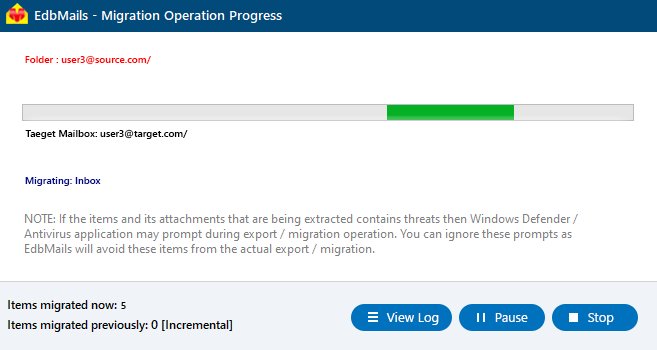
- Once the migration is successfully finished, EdbMails prompts the migration completion message. Click the 'View Log' button to check the migration report.
- Click the ‘Start Migration’ button to initiate the process.
Hosted Exchange to Live Exchange : Post-migration Tasks
- Step 1: Update the MX records to point to target Exchange server
To receive messages on the target Exchange server, update the MX records to enable email to work with the new server you have migrated to. In addition, configure the Autodiscover record to allow Outlook to connect to the migrated mailboxes.
- Step 2: Create a new Outlook profile for users in the new domain
Configure the Outlook profile for each user in your domain if Outlook has problems connecting to the new Exchange server.
- Step 1: Update the MX records to point to target Exchange server
Troubleshooting guide for Hosted Exchange to Live Exchange Migration
For assistance with migration errors, refer to the Exchange migration troubleshooting guide, which offers potential solutions. Additionally, for more information about EdbMails Exchange migration, check the Frequently Asked Questions.
Advantages of using EdbMails for Hosted Exchange migration
- Concurrent Mailbox Migration: EdbMails allows for concurrent mailbox migration, enabling multiple mailboxes to be migrated simultaneously. This significantly speeds up the migration process, making it ideal for large-scale migrations.
- High-performance Migration: EdbMails provides high-performance migration capabilities that facilitate faster and more efficient data transfers, reducing downtime and enhancing overall productivity.
- Migrate from any Hosted Exchange Server: EdbMails allows for migration from any hosted Exchange server (such as Intermedia, Rackspace, and GoDaddy) to an on-premises Exchange server, providing flexibility and convenience for organizations transitioning their email infrastructure.
- Granular brick-Level Migration: EdbMails enables the migration of individual items, such as emails, contacts, and calendar entries, allowing for precise control over data transfer.
- Incremental Migration: EdbMails supports an incremental (delta) migration feature that ensures only new or modified items are migrated during subsequent operations, effectively eliminating duplicates and optimizing bandwidth usage.
- Advanced Filtering Options: EdbMails allow you to migrate only the emails, contacts, and calendar items you need by applying specific date ranges and excluding unwanted folders.
- Automatic Mailbox Mapping: EdbMails supports automatic mapping of source mailboxes to target mailboxes, ensuring accurate data alignment during migration.
- Direct Migration: EdbMails enables direct migrations from any Exchange version (2007-2019) without the need for coexistence issues.


