
EdbMails EDB Recovery and Migration software
  • Products
    EdbMails
    All-in-one Recovery and Migration
    Explore our products
    • EDB recovery and Migration
    • OST, PST, MBOX, NSF, EML, MSG
    • Office 365, Exchange Migration
    • SharePoint, OneDrive & Teams
    • G Suite Migration
    • IMAP Migration
    • Duplicate Remover
    • Windows Data Recovery
    • Backup Solutions

    EDB Recovery and Migration

    EdbMails lets you recover corrupted, damaged, and offline Exchange EDB files, convert EDB mailboxes to PST format, and directly migrate mailbox data to Office 365 and live Exchange Server.

    EDB to PST
    Recover corrupted, damaged, offline EDB files and convert Exchange EDB mailboxes to PST file format
    Public Folder to Exchange
    Migrate public folders from an Exchange offline EDB file to live Exchange Server
    EDB to Live Exchange Migration
    Directly migrate offline Exchange database (EDB) files to live Exchange server
    Archive Mailbox to Office 365
    Migrate archive mailboxes from offline EDB files directly to Office 365
    EDB to Office 365 Migration
    Directly migrate offline Exchange database (EDB) files to Office 365
    Public Folder to Office 365
    Migrate public folders from an offline Exchange EDB file to Office 365

    OST, PST, MBOX, NSF, EML, MSG Export and Migration

    EdbMails lets you to recover OST and PST files, export OST, PST, MBOX, NSF, EML, and MSG files to PST files, and directly migrate OST, PST, MBOX, and NSF mailbox data to Office 365 and live Exchange Server.

    OST Recovery and Migration
    Recover offline OST files, convert OST to PST, and migrate OST to Office 365 and Exchange Server
    PST Recovery and Migration
    Recover Outlook PST files , Export PST to PST, migrate PST to Office 365 and Exchange Server
    MBOX Export and Migration
    Export MBOX to PST, migrate MBOX to Office 365 and Exchange Server
    NSF Export and Migration
    Export NSF to PST, migrate NSF to Office 365 and Exchange Server
    EML to PST Export
    Convert EML files to Outlook PST files
    PST to MSG Export
    Convert Outlook PST file to MSG file format
    MSG to PST Export
    Export MSG files to Outlook PST files

    Office 365, Exchange Migration

    EdbMails lets you securely migrate mailboxes across Microsoft 365, Exchange, Google Workspace (G Suite), and IMAP-supported servers such as Outlook, Gmail, Zimbra, Zoho Mail, and cPanel, ensuring zero downtime.

    Office 365 Migration
    Migrate between Office 365 tenants, Office 365 to Exchange, Office 365 to PST, PST files to Office 365.
    Exchange Migration
    Migrate between any Exchange Servers, Exchange to Office 365, Exchange to PST, PST files to Exchange.
    Tenant to Tenant Migration
    Migrate Mailboxes, Public Folders, Archive Mailboxes between Office 365 Tenants.
    Exchange to Office 365
    Migrate Mailboxes, Public Folders, Archive Mailboxes from live Exchange server to Office 365.
    Office 365 to IMAP
    Migrate Office 365 to IMAP, Office 365 to Gmail, Office 365 to Outlook, Office 365 to Zoho etc.
    Exchange to IMAP
    Migrate from live Exchange Server to IMAP servers such as Gmail, Outlook, and Zoho Mail.
    Public Folder to Office 365
    Migrate Public Folders between Office 365 tenants with complete folder hierarchy and mailbox data integrity.
    Exchange to PST
    Export live Exchange Server mailboxes, public folders, and archive mailboxes to Outlook PST files.

    SharePoint, OneDrive & Microsoft Teams Migration

    EdbMails lets you migrate SharePoint sites, OneDrive data, Microsoft Teams, teams, channels, chats, permissions, and documents between Microsoft 365 tenants while maintaining the existing folder structure and data integrity.

    SharePoint Online Migration
    Migrate documents, lists, files and folders from SharePoint sites.
    OneDrive for Business Migration
    Migrate documents, lists, files, folders, private chats from OneDrive.
    Microsoft Teams Migration
    Migrate Teams, chats, channels, documents, files and folders etc.

    Google Workspace / G Suite Migration

    EdbMails G Suite Migration Tool lets you easily migrate emails, calendars, contacts, tasks, and more from G Suite to Office 365, Exchange Server, and IMAP servers using a Google Admin account without requiring individual user credentials.

    G Suite Migration
    Migrate emails, calendars, contacts, tasks from G Suite to Office 365, G Suite to Exchange, G Suite to IMAP Servers
    G Suite to Office 365
    Migrate emails, calendars, contacts, tasks from Google Workspace / G Suite to Office 365
    G Suite to Exchange Server
    Migrate emails, calendars, contacts, tasks from Google Workspace / G Suite to on-Premise Exchange Server
    G Suite to IMAP
    Migrate emails, calendars, contacts, tasks from Google Workspace / G Suite to IMAP, Outlook, Zimbra, Zoho etc.

    IMAP Migration

    EdbMails IMAP Migration tool lets you easily migrate emails from IMAP servers such as Outlook, Gmail, Zoho Mail, Zimbra, cPanel, and more. Supports IMAP to IMAP, Office 365, Exchange Server, PST, and bulk PST to IMAP migration.

    IMAP Email Backup & Migration
    Backup and migrate emails from IMAP servers to PST, Office 365, and On-Premises Exchange Server
    IMAP to Office 365
    Migrate emails, folders, and attachments from IMAP servers to Office 365
    IMAP to Exchange
    Migrate emails, folders, and attachments from IMAP servers to on-premises Exchange Server
    IMAP to PST
    Export emails, folders, and attachments from IMAP servers to Outlook PST files for backup
    PST to IMAP
    Migrate emails, folders, and attachments from bulk PST files to IMAP servers

    Duplicate Remover

    EdbMails Duplicate Remover lets you easily remove duplicate items from Office 365 and Exchange Server, and from IMAP, Outlook, Gmail, Zimbra, Zoho Mail, etc., ensuring a clean and organized mailbox.

    Remove Duplicates
    Easily clean up your Office 365, Exchange, Outlook and IMAP accounts by removing duplicate emails.
    Remove Duplicates from Office 365
    Remove duplicate emails, calendars, contacts, journal tasks, etc. from Office 365.
    Remove Duplicates from Exchange Server
    Remove duplicate emails, calendars, contacts, journal tasks, etc. from live Exchange Server.
    Remove Duplicates from IMAP, Outlook
    Remove duplicate emails, attachments from IMAP, Outlook, Gmail, Zimbra, Zoho Mail etc.

    Exchange, SharePoint, OneDrive, Teams and Office 365 Backup

    EdbMails enables secure, automated backup and recovery for Microsoft 365 services including Exchange Online, SharePoint, OneDrive, Teams, and Live Exchange Server with complete data protection and restore flexibility.

    Office 365 Backup
    Incremental, Granular, Encrypted and Compressed Office 365 Mailboxes Backup
    Exchange Server Backup
    Incremental, Granular, Encrypted and Compressed Exchange Mailboxes Backup
    SharePoint, OneDrive & Teams Backup
    Backup Online site collections, Team sites, Office 365 groups, all documents etc.

    Windows Data Recovery

    EdbMails Windows Data Recovery Software lets you recover permanently deleted data, including photos, videos, documents, and archived files, from partitions on hard drives, SSDs, USB drives, SD cards, and external storage devices.

    Windows Data Recovery
    Recover and restore permanently deleted data from hard drives, SSDs, USB drives, SD cards, and etc.
    Whitepaper
    Request a Demo
    Sign Up
  • Features
  • FAQ
  • Pricing
  • Download
  • Support
  • Sign in
User’s Manual
Exchange Server Migration

User Manual

User Manual

  • Exchange Migration Overview
  • Initial Setup
  • System Requirements
  • Migration Scenarios
  • Installation
    • Installation process
    • Reinstall or Upgrade
    • How to uninstall
  • FAQ
    • General
    • Migration Free Trial / Demo
    • Migration License
    • Before Migration
    • Migration - Steps
    • After Migration
  • Videos
    • Exchange to Exchange
    • Exchange to Office 365
    • Exchange to IMAP
    • Exchange to PST
    • Public Folder to Office 365
    • Archive Mailbox to Office 365
    • Public Folder to Exchange
    • Archive Mailbox to Exchange
    • Restore Bulk PST files to Exchange
  • Screenshots
    • Exchange to Exchange
    • Exchange to Office 365
    • Exchange to PST
  • Understanding the Application
    • Migration
    • Migration Speed
    • Incremental Migration
    • Exchange Throttling Policy
  • How it works?
    • Exchange to Exchange
    • Exchange to Office 365
    • Exchange to PST
    • Exchange to IMAP
    • Exchange Public Folder to Office 365
    • Exchange Public Folder to Exchange
    • Exchange 2010 to 2016 Public folder
    • Exchange 2013 Public folder to Office 365
    • Exchange 2016 Public folder to Office 365
    • Exchange Public Folder to Shared Mailbox
    • Archive Mailbox to Office 365
    • Archive Mailbox to Exchange
    • Hosted Exchange Migration
    • Hosted Exchange to Live Exchange Migration
    • Hosted Exchange to Office 365 Migration
    • Live Exchange to Hosted Exchange Migration
    • Hosted Exchange Public Folder to Office 365 Migration
    • Cross-forest migration from Exchange 2013 to Exchange 2019/2016
    • Hybrid Migration
    • Public folder Migration in Hybrid Environment
    • Disable msExchMailboxGuid
    • Exchange to Gmail Migration
    • Multiple PST to Exchange server
    • Hosted Exchange to Office 365 Shared mailbox
  • Connect to Exchange server for multiple mailboxes migration
    • Connect with Global Admin
    • Connect to Multiple users using CSV file
    • Connect using full access permission
    • Connect individual users for Single / Specific user Migration
  • Connect to Hosted Exchange for its Migration
    • Connect with Full Access permissions
    • Connect to multiple users using CSV file
    • Connect to Individual user for migration
  • Connect to target Office 365
  • Modern Authentication Using OAuth 2.0
    • Microsoft 365 modern authentication
    • Automatic Registration
    • Manual Registration
  • Set Exchange Server Impersonation rights
    • Exchange 2007 and below
    • Exchange 2010, 2013, 2016 and 2019
    • Set using Exchange Server GUI
  • Knowledge Base
    • Exchange to Exchange Migration
    • Exchange to Office 365 Migration
    • Migrate Legacy Exchange to Latest Exchange
    • Cross-forest and cross-domain migration
    • Public folder, Shared mailbox migration
    • Archive mailbox migration
    • Hosted Exchange Migration
    • Incremental migration
    • Cutover, staged and hybrid migration
    • Migrate SBS 2003, 2008, 2011 to a Modern Exchange Environment
    • Export Exchange Mailbox to PST
    • Secure Exchange Migration
    • Selective Mailbox / Folder Migration
    • Automatic Mailbox Mapping
    • Assign Public Folder to one target destination
    • Multiple PST Restore
    • No Impact on users - Zero downtime
    • Migrate Email Rules, Forwarding and Junk Email Configuration
    • Exchange migration speed and throttling management
    • Support for all the languages
    • Advanced settings and options
    • GAL and all address lists Migration
    • Exchange migration reports
    • Best Exchange Migration software
    • Exchange migration checklist
    • Exchange migration manager
    • Feature rich Exchange migration software
    • Exchange to Office 365 migration planning
    • Exchange server migration tips
    • Export Exchange server users to CSV
    • Create a Public folder in Exchange Server 2010
    • Load Exchange mailboxes from CSV file
    • Language settings on Exchange server
    • Export and import Exchange Retention Policy Tags
    • Fix Outlook security alert after migration
    • Assign public folders to Exchange
    • Connect to Exchange with Default Connection
    • Connect to Exchange with Autodiscover Email
  • Set Office 365 Impersonation rights
    • Using PowerShell commands
    • Using Office 365 GUI
  • Migration Types
    • Cutover Migration
    • Staged Migration
    • Hybrid Migration
  • Map the Mailboxes
  • Migration Walkthrough
    • From Exchange 2003
    • From Exchange 2007
    • From Exchange 2010 to Exchange 2019
    • From Exchange 2010 to Exchange 2016
    • From Exchange 2010 to Office 365
    • From Exchange 2013 to Exchange 2019
    • From Exchange 2013 to Exchange 2016
    • From Exchange 2013 to Office 365
    • From Exchange 2016 to Exchange 2019
    • From Exchange 2016 to Office 365
    • From Exchange 2019 to Office 365
    • From Office 365
    • Exchange 2013 mailbox to PST
    • Exchange 2016 mailbox to PST
    • Exchange 2019 mailbox to PST
    • Exchange 2010 mailbox to PST
  • Multifactor Authentication
    • Enable MFA in Office 365
    • Create App password for MFA
    • Disable Security Defaults
    • Disable MFA in Office 365
  1. Home
  2. Product
  3. Exchange Migration Checklist
Download Buy Now

Exchange Migration Checklist for Exchange Server Migration

Upgrading from one Exchange Server version to another can be challenging, even for experienced administrators. The process requires proper planning, identifying the required data, and managing mailboxes across both the old and new servers. It can become more complex when the servers are in different environments or configured differently.

Migration becomes necessary when older Exchange versions reach the end of support. For example, Microsoft no longer provides updates or technical support for Exchange Server 2010. Migrating to a newer version such as Exchange Server 2013, 2016, or 2019 helps organizations stay updated with the latest security patches, ongoing updates, and improved features while ensuring uninterrupted access to their email environment.

This Exchange Migration Checklist works as a practical reference for administrators, helping them stay organized throughout the migration process. It outlines the key steps and considerations required to plan, set up, and carry out Exchange migration smoothly while ensuring a reliable and efficient migration experience.
Exchange migration checklist

Phases of an Exchange Migration

An Exchange migration typically involves three main phases:

 Planning: In the planning phase, you gather all the necessary details for the migration. This includes setting up and deploying the new system, managing mailboxes and public folders, configuring mail flow, using the Exchange Management Shell, ensuring client connectivity, and making sure both the old and new Exchange servers work together.

 Deployment: During deployment, you set up Exchange 2013, 2016, or 2019 and prepare for migration from Exchange 2010. This phase ensures that both old and new servers operate together without affecting existing services.

 Migration: The migration phase involves migrating emails, mailboxes, and public folders from the old Exchange 2010 server to the new Exchange 2013, 2016, or 2019 server. Using EdbMails Exchange Migration Tool helps complete the migration effectively.

Exchange Migration 2010 to 2013 / 2016 / 2019: Thorough Checklist

Here are some useful tips to help administrators handle challenges during an Exchange Server migration from Exchange 2010 to Exchange 2013, 2016, or 2019.

 Project Progression: Before starting the migration, it is important to evaluate your current environment and resources. A proper assessment helps you understand the scope of the project, allocate the right resources, and estimate timelines accurately. This step is essential for tracking progress and ensuring that the migration stays on schedule.

Key Considerations:

  • Understand your business requirements, including recovery goals and migration needs, and identify how much data must be retained.
  • Evaluate the total volume of data that will be migrated to plan resources effectively.
  • Specify the types of data to be migrated, such as emails, contacts, calendars, tasks, and address books.
  • Set a practical timeline for completing the migration, whether it can be done within a week, two weeks, or over several months.

These key points and strategies help you collect the necessary details to build a clear plan and set the right expectations for your Exchange 2010 to 2013, 2016, or 2019 migration project.

 Verify System Prerequisites: After reviewing the project guidelines, release details, and other important information, the next step is to verify all system prerequisites. Collect details about the required hardware, software, operating systems, and network performance. Also, make sure coexistence scenarios between old and new Exchange servers are properly planned.

 Hardware Requirements: If you plan to install Exchange Server 2010 or 2013 temporarily before moving to Exchange 2019, consider using a virtual environment. This approach makes it easier to deploy and remove servers as needed. For physical servers without virtualization support, you may need to purchase or rent a temporary server for the setup.

When setting up a new Exchange 2019 server, the requirements depend on the mailbox size and the number of users. For an organization with around 50 users, it is recommended to have at least 4 CPU cores, 32 GB of RAM, and assign approximately a quarter of the storage for the paging file.

Suggested storage allocation:

  • 100 GB for the operating system
  • 50 GB for Exchange installation
  • 100 GB for mailbox storage
  • 20 GB for the paging file

Adjust these values according to your organization’s current data and storage needs.

 Active Directory Cleanup: Before migration, it’s important to clean up your Active Directory to maintain its integrity and prevent issues during the process. Remove any unauthenticated or unused references from Exchange domains and related Active Directory objects. You can use ADSI Edit to delete these entries, but always ensure you have a complete backup before making any changes.

 Maintain Exchange Database Health: Keeping your Exchange databases in good condition is essential for a successful migration. If the database is corrupted or unstable, it can cause data transfer errors or service interruptions. Use the ESEUTIL tool to check and repair database integrity, and make regular backups to safeguard against unexpected issues.

 Consider Server Roles: Exchange 2010 includes the following five server roles:

  • Client Access Server (CAS)
  • Mailbox server
  • Unified messaging server
  • Edge Transport server
  • Hub Transport server

For migration purposes, only the Mailbox Server and Client Access Server (CAS) roles are required. Review your current Exchange setup and evaluate how these roles and changes will impact the overall migration process. This assessment helps you plan the migration flow more effectively.

 Managing Public Folders: Migrating public folders can be complex, particularly when moving to modern public folders in Exchange 2013 and later versions. While it’s possible to move public folder content to SharePoint, many organizations still choose to retain them within Exchange.

Modern public folders require careful handling throughout the migration process to ensure data consistency and folder permissions are maintained. With EdbMails Exchange Migration Tool, you can easily migrate public folder data to another Exchange server while preserving folder hierarchy and permissions.

 Migration Roadmap: A well-defined migration roadmap is essential for completing the process efficiently. Each newer version of Exchange introduces specific steps and procedures for migrating from Exchange 2010 to 2013, 2016, or 2019. Review the latest Exchange Server migration checklist and assess how the changes affect your organization. This evaluation helps you plan and execute a clear, organized, and successful migration strategy.

Moving to Exchange 2013 / 2016 / 2019

Conduct a final verification by consolidating all your existing messaging system data and migrating it to the new version. Once you're confident that all the Exchange components are functioning well, you can proceed with making Exchange 2013 / 2016 / 2019 your active platform.

However, don't overlook the post-migration tasks. After successfully migrating to Exchange 2013 / 2016 / 2019 , it's crucial to ensure that everything, including mail flow and mailboxes, is operating smoothly.

Administrators can follow the steps mentioned above for a reliable and secure migration.

Replace the Exchange Migration Checklist with the EdbMails Exchange Migration Tool

Alternatively, you can bypass the complex manual migration process by utilizing a user-friendly and secure third-party software i.e. EdbMails Exchange Migration tool.

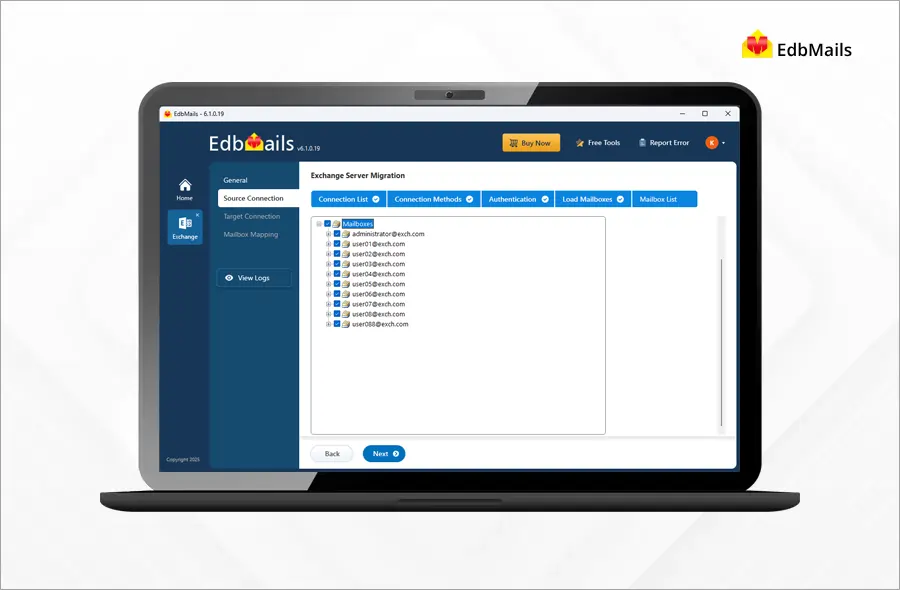
EdbMails is a reliable choice for various recovery and migration needs. You can start the migration operation within a few clicks. Simply connect to your source and the target Exchange servers, select the option to load the mailboxes, and configure settings. The software will automatically map the mailboxes between the source and target servers.

EdbMails facilitates migration between different versions of Exchange and Office 365 within the same domain or across domains. It covers all the migration scenarios required for successful Exchange migration.

Steps to perform Exchange Migration using EdbMails

EdbMails is the best software for Exchange server migration. The software manages the migration of mailboxes, public folders, archive mailboxes, and shared mailboxes from the source Exchange server to different target servers such as live Exchange, Office 365, and Hosted Exchange servers. Furthermore, it supports migration in hybrid environments.

EdbMails allows direct migration of mailbox data between different Exchange servers, regardless of their versions. It facilitates data migration across Exchange 2019, Exchange 2016, Exchange 2010, Exchange 2013, and Exchange 2007.

Navigate through the below link for steps to perform the Exchange migration using EdbMails

  •  Exchange 2010 to 2019 migration
  •  Exchange 2013 to 2019 migration
  •  Exchange 2016 to 2019 migration
  •  Exchange 2010 to Office 365 migration
  •  Exchange 2013 to Office 365 migration
  •  Exchange 2016 to Office 365 migration
  •  Exchange 2019 to Office 365 migration

Benefits of using the EdbMails Exchange Migration Tool

  • EdbMails supports an incremental migration process to avoid duplicating items during successive migration operations to the target server.
  • Utilize advanced include and exclude filters for selective mailbox items and folders.
  • Enable the migration of Exchange Public folders and Shared Mailboxes.
  • Data consistency with zero downtime and data loss.
  • Establish direct mailbox mapping between the source and target servers.
  • Achieve migration to Exchange and Office 365 without requiring technical expertise.
  • Ensures quick migrations with full data consistency between the source and target servers.
  • Direct migration from any Exchange version (2010-2019) without coexistence issues.
  • Compatible with all Windows server and client operating systems.

Download
Buy Now

 In this manual

IntroductionMoving to ExchangeReplace Exchange MigrationExchange migration stepsBenefits

Live Exchange Migration

100 Mailboxes $299 Only

Buy Now

Need help?

24/7 Customer support

Contact us on Live chat

Personalized Demo

Book a personalized demo

Still need help?

Email us / Call us

© 2026 Shifttocloud Inc. Privacy Policy | Terms of Use | GDPR | Security | Press Releases

hidden msg
Live Chat

Hi, May I help you?

Hide Chat Now