


Import Multiple PST to Exchange Server
As businesses expand and email data grows, importing PST files into an Exchange Server becomes an important task for IT administrators. PST (Personal Storage Table) files contain essential Outlook data such as emails, contacts, calendars, and attachments. However, storing data in multiple PST files can lead to scattered information, security risks, and difficulties in managing email data across the organization. Migrating PST data to an Exchange Server helps centralize communication data within a single environment. This approach improves collaboration, strengthens data security, and supports compliance requirements while allowing administrators to manage and access all mailbox data more efficiently from one platform.
EdbMails Exchange Migration Software enables you to import multiple PST files to the Exchange Server in a single operation. It supports all major Exchange Server versions including 2019, 2016, 2013, 2010, and 2007. With the ability to handle multiple PST files at the same time, the software simplifies the migration process and improves overall performance.
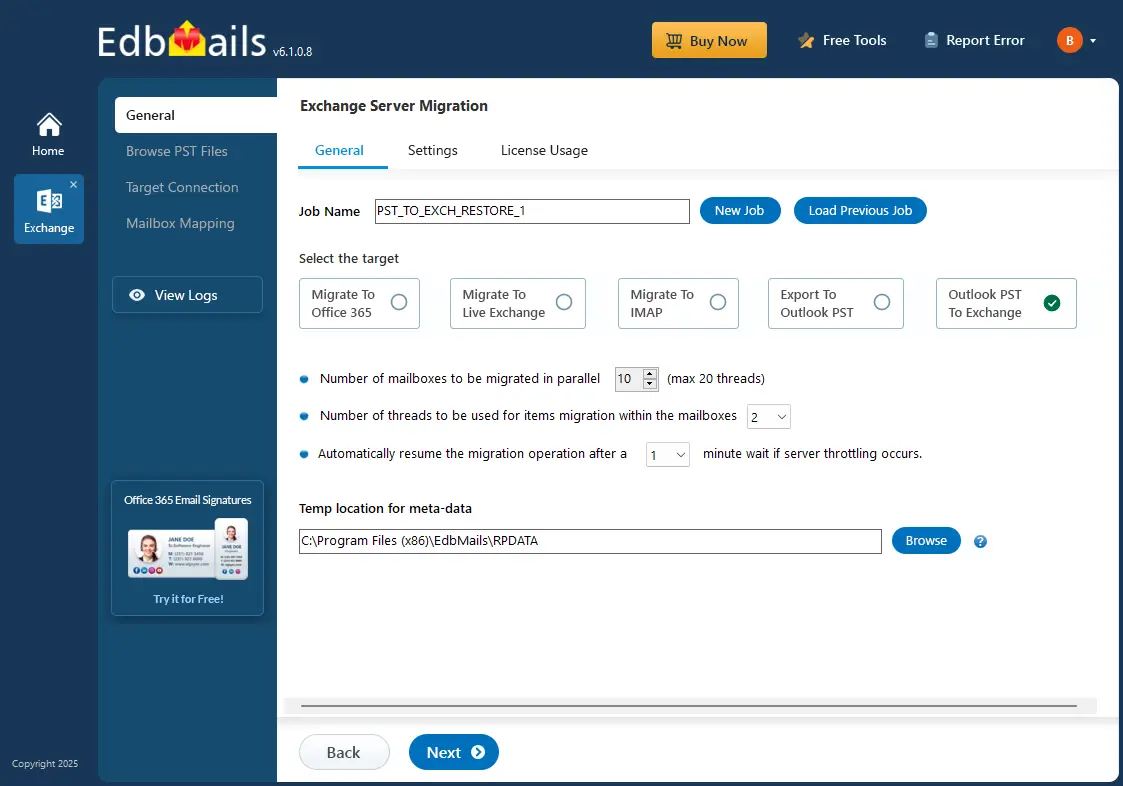
EdbMails includes advanced features such as incremental migration, which migrates only newly added data during subsequent imports and prevents duplicate items. The application efficiently handles large PST files while preserving the original folder hierarchy, email properties, and attachments throughout the migration process. It also supports concurrent migration, allowing multiple PST files to be migrated at the same time to improve efficiency during large-scale projects. Additionally, you can choose to create a separate folder in the target mailbox with the same name as the source PST file for better organization.
The following sections provide detailed information on the migration process, migration prerequisites, PST to Exchange migration steps, and troubleshooting solutions to ensure the successful import of bulk import PST to Exchange server.
Prerequisites to Migrate PST to Exchange Server
- Set up Microsoft Outlook on your computer
To import PST files to the Exchange server using EdbMails, it is essential to have Microsoft Outlook installed on your computer.
- Create an Outlook profile
To ensure a smooth migration from PST to live Exchange server, it's necessary to have an Outlook profile.
See the steps to create Outlook profile.
- Ensure to create mailboxes on the target Exchange server
- If you are using Global admin account to connect to Exchange server, ensure to set impersonation rights
Steps to set impersonation rights in Exchange 2007
See the Steps to set impersonation rights in Exchange 2019, 2016, 2013, 2010
- Optimize EWS throttling and mail size limits for uninterrupted migration For the successful migration, adjust the EWS throttling settings on the target Exchange server
Steps to create custom EWS throttling policies on Exchange server
To ensure large emails are migrated, increase the message size limit on the target Exchange server
- Set up Microsoft Outlook on your computer
Steps to Import Bulk PST Files into Exchange Server
Step 1: Download and install the EdbMails application
- Download and install EdbMails software on your computer that can be connected to your target Exchange server.

- Start the EdbMails application on your system.
- Enter your registered email ID and password and click ‘Login’. If you are a new user, select ‘Start Your Free Trial’ to proceed with the trial version.Note: The trial version provides access to all key features and supports migration of up to 30 items per folder. For unlimited migration, purchase Exchange Migration license from the EdbMails website.After completing the purchase, close and reopen the application. Then log in using the same email ID and password used during the purchase to activate the license successfully.

- Download and install EdbMails software on your computer that can be connected to your target Exchange server.
Step 2: Select ‘Live Exchange Migration’ option
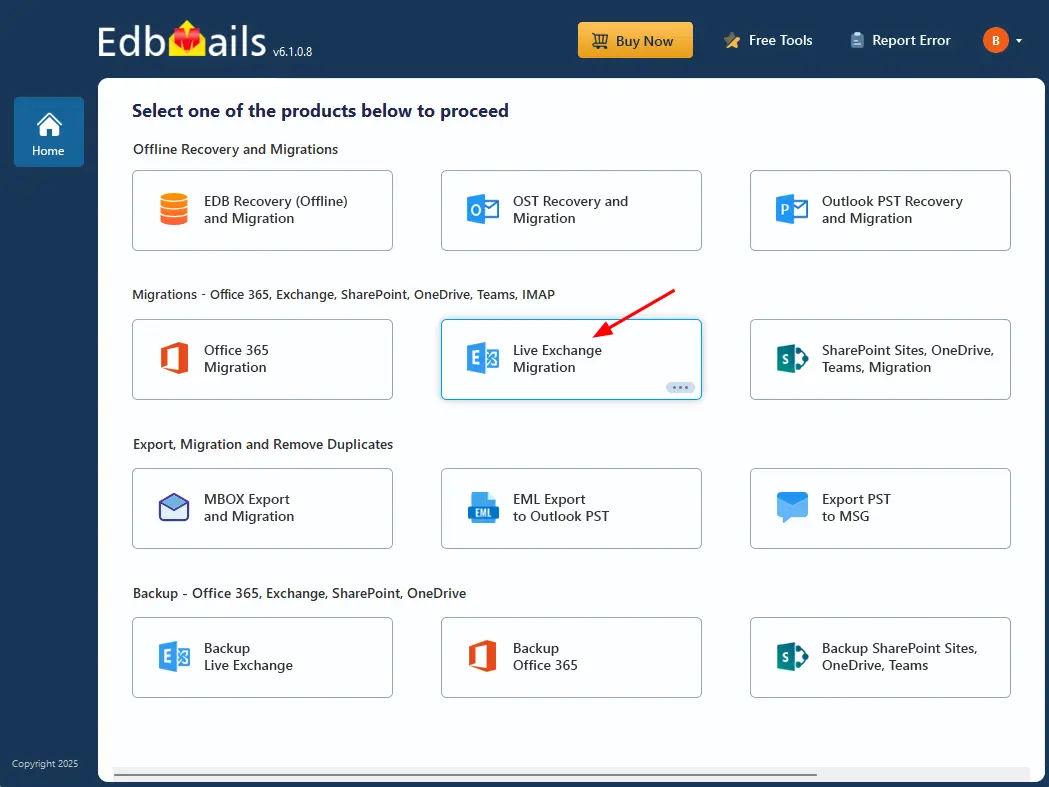
- Choose the 'Live Exchange Migration' option.
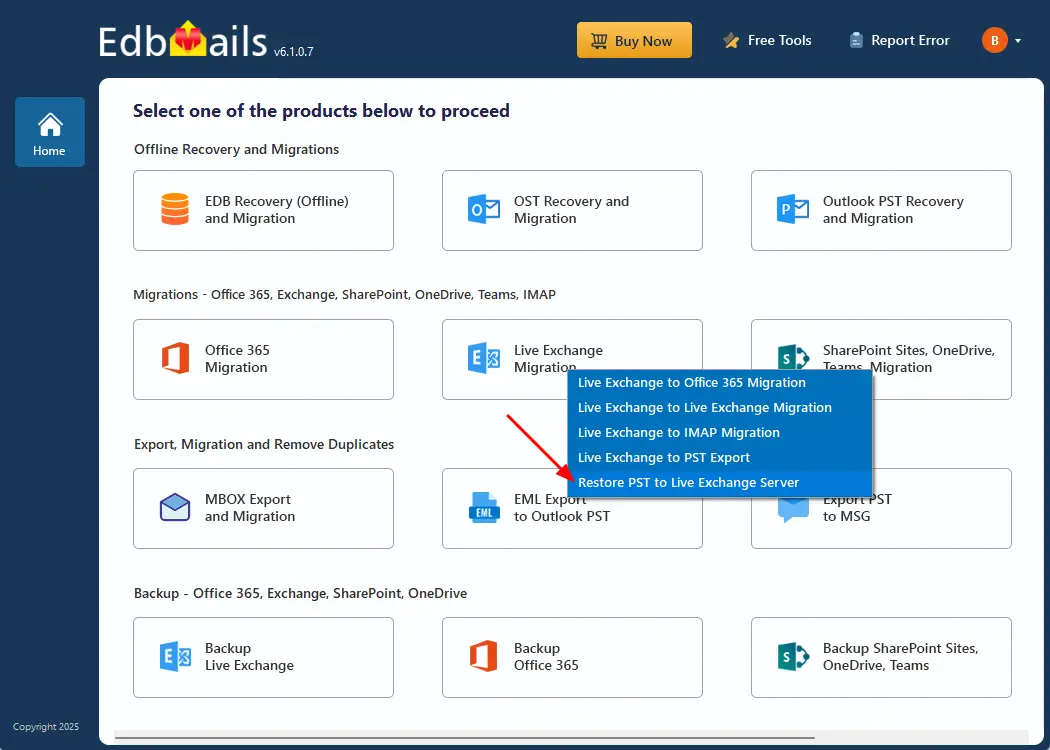
- Select ‘Restore PST to Live Exchange Server’ option.
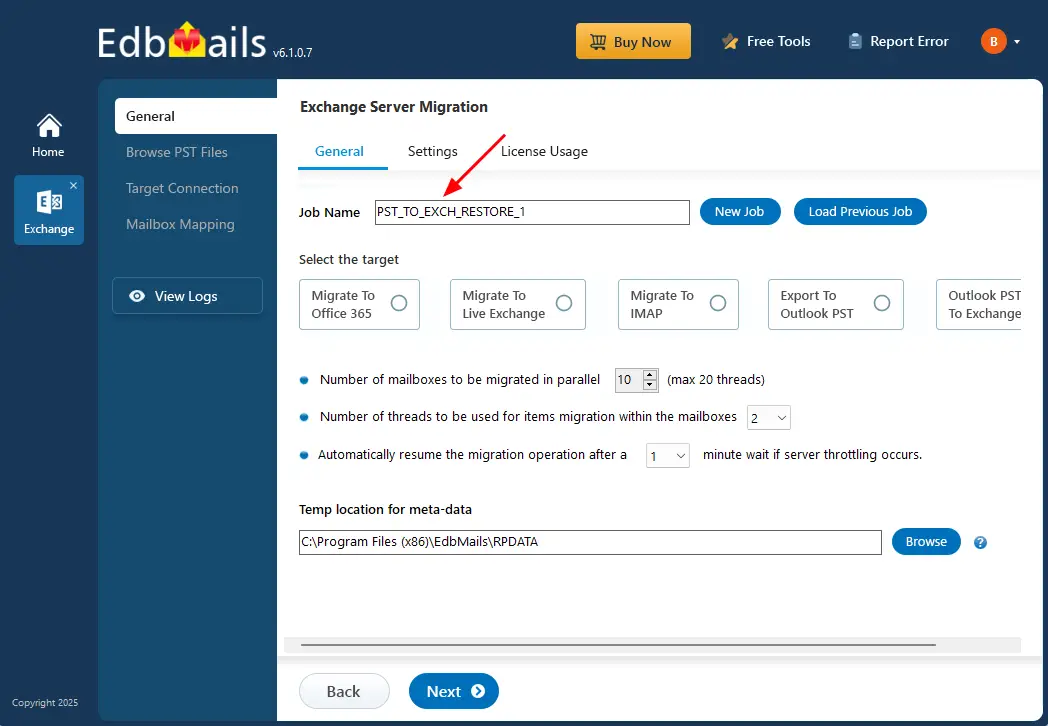
- You can either keep the default job name or click the ‘New Job’ button to change the job name.
- Choose the 'Live Exchange Migration' option.
Step 3: Add the PST files
- Click the ‘Add file(s)’ button to select the PST file/files for restore option.
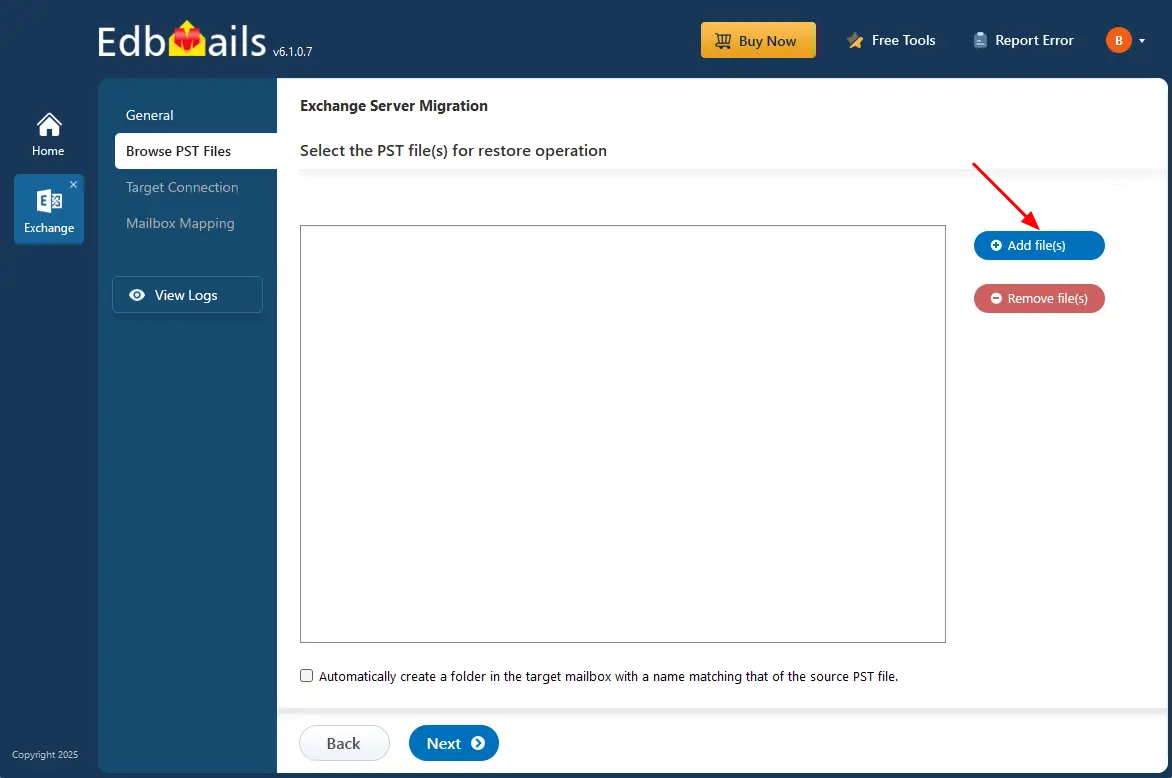
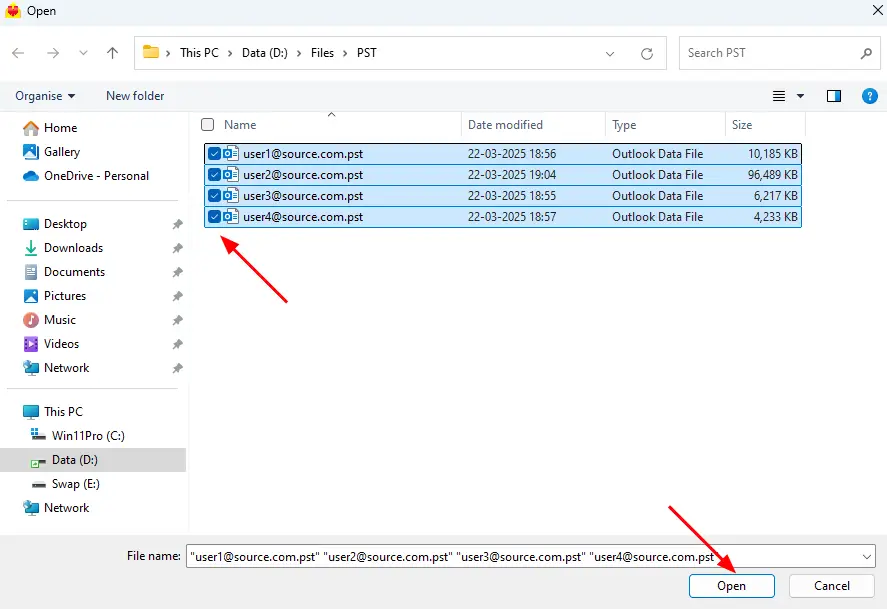
- Choose the multiple PST files you wish to select from your computer drive.
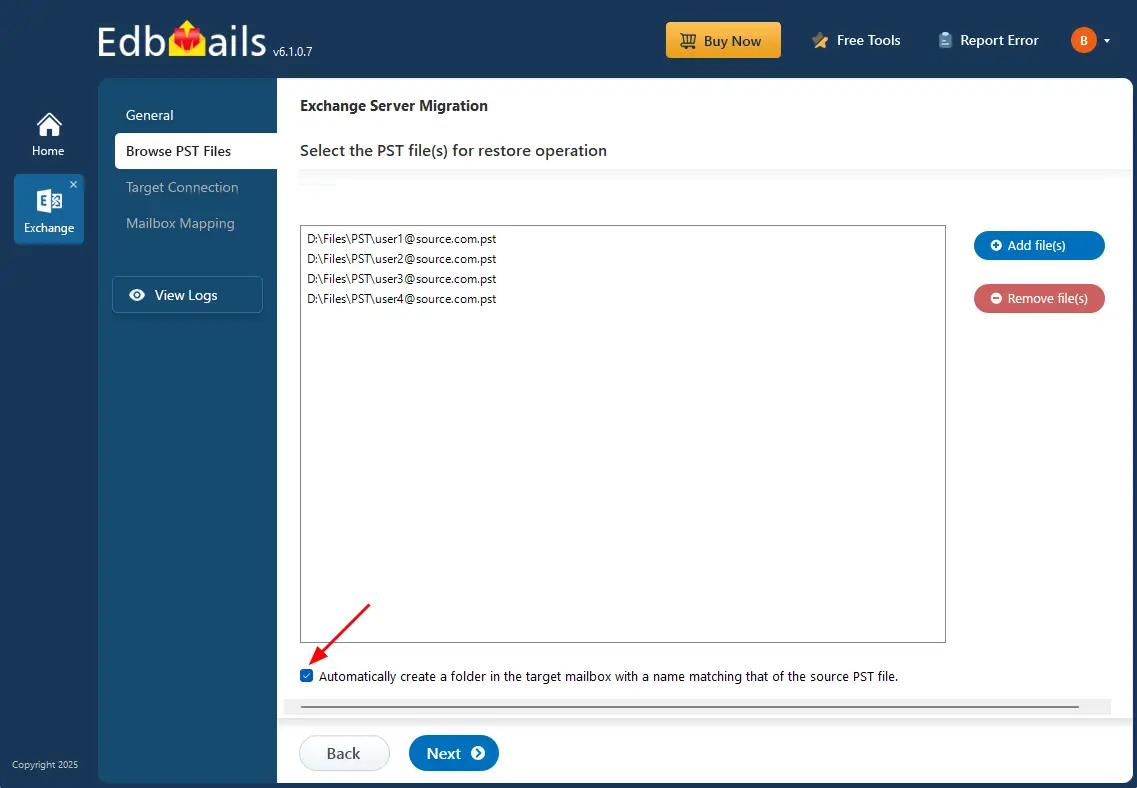
- Verify the selected PST files.
- To create a folder in the target mailbox with the same name as the source PST file, refer to the screenshot below.
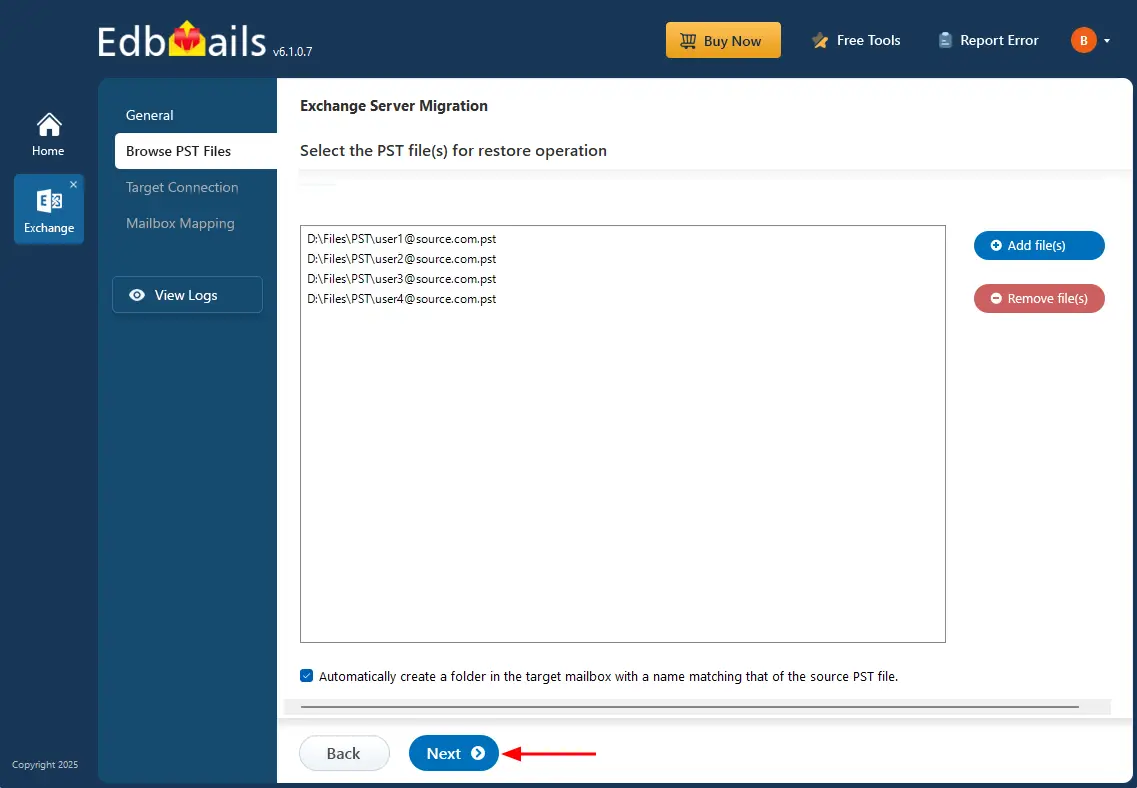
- Click the ‘Next’ button to proceed.
- Click the ‘Add file(s)’ button to select the PST file/files for restore option.
Step 4: Connect to target Exchange server
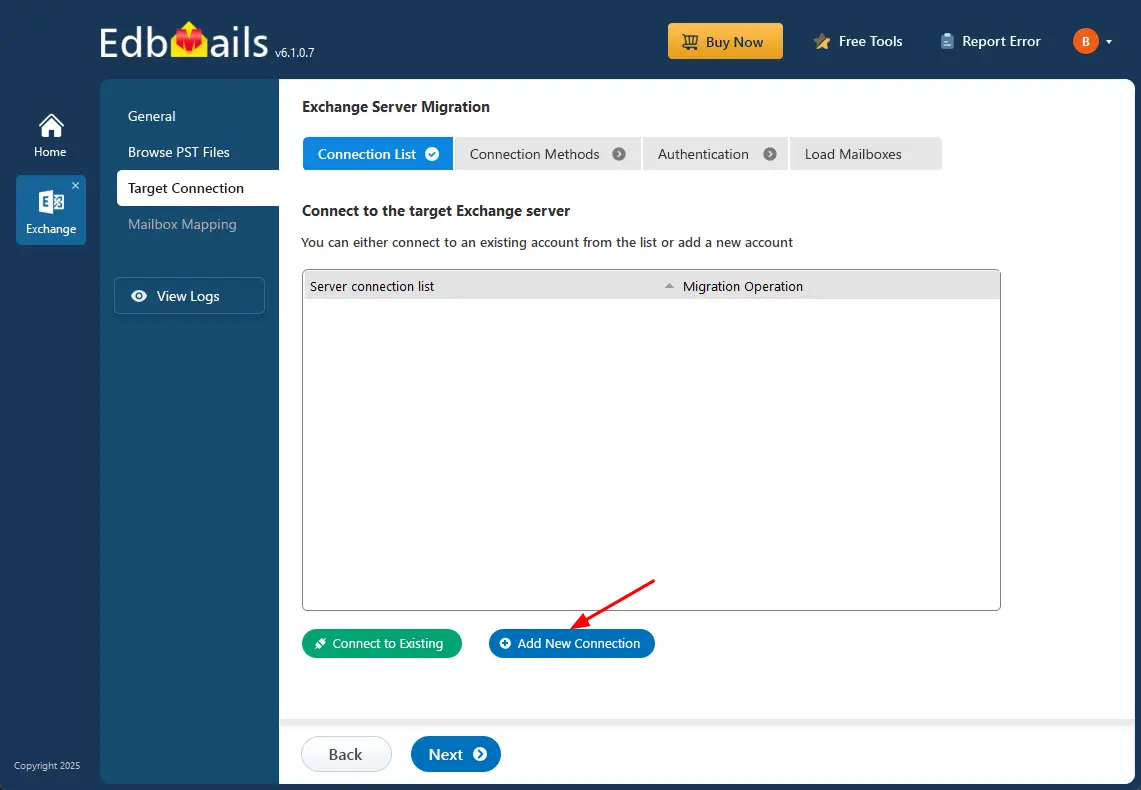
- Click ‘Add New Connection’ to create a new connection with the source Exchange server. If you have already configured a connection earlier, choose it from the connection list and click ‘Connect to Existing’ to continue.
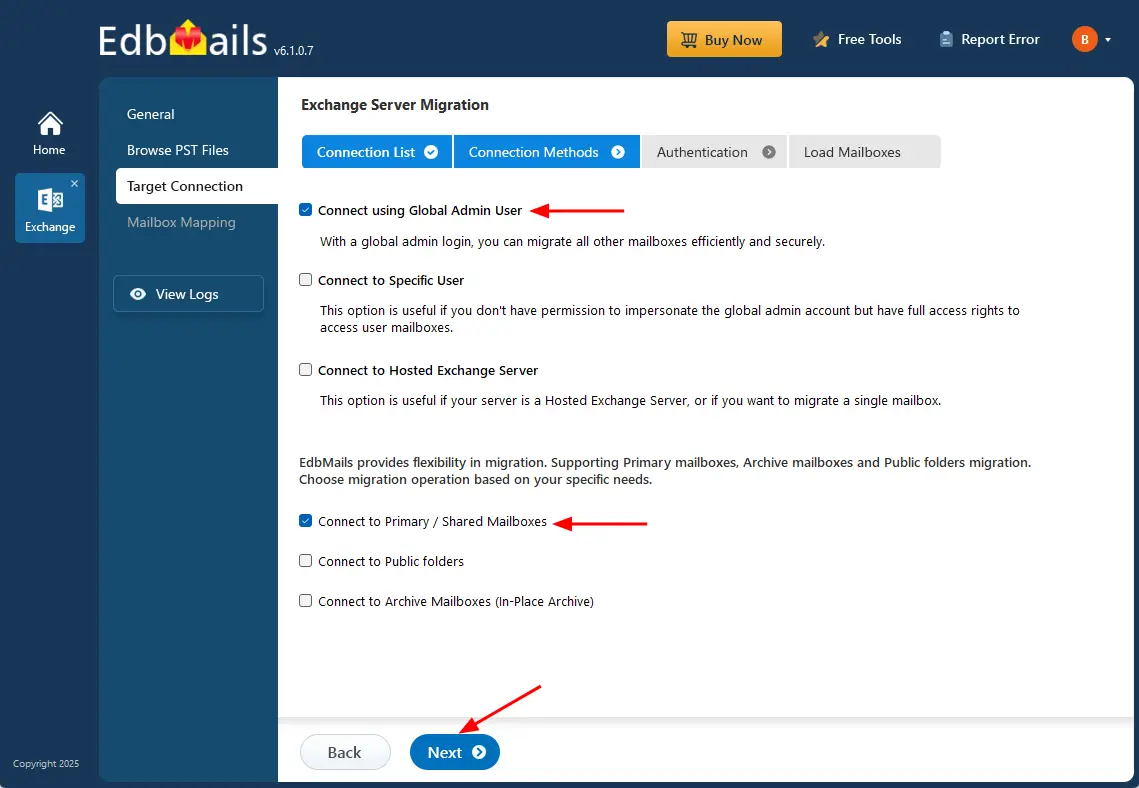
- Select the required option to connect to your target Exchange server. If you want to connect using a global admin account, ensure impersonation rights are set
Different options to connect to Exchange server in EdbMails
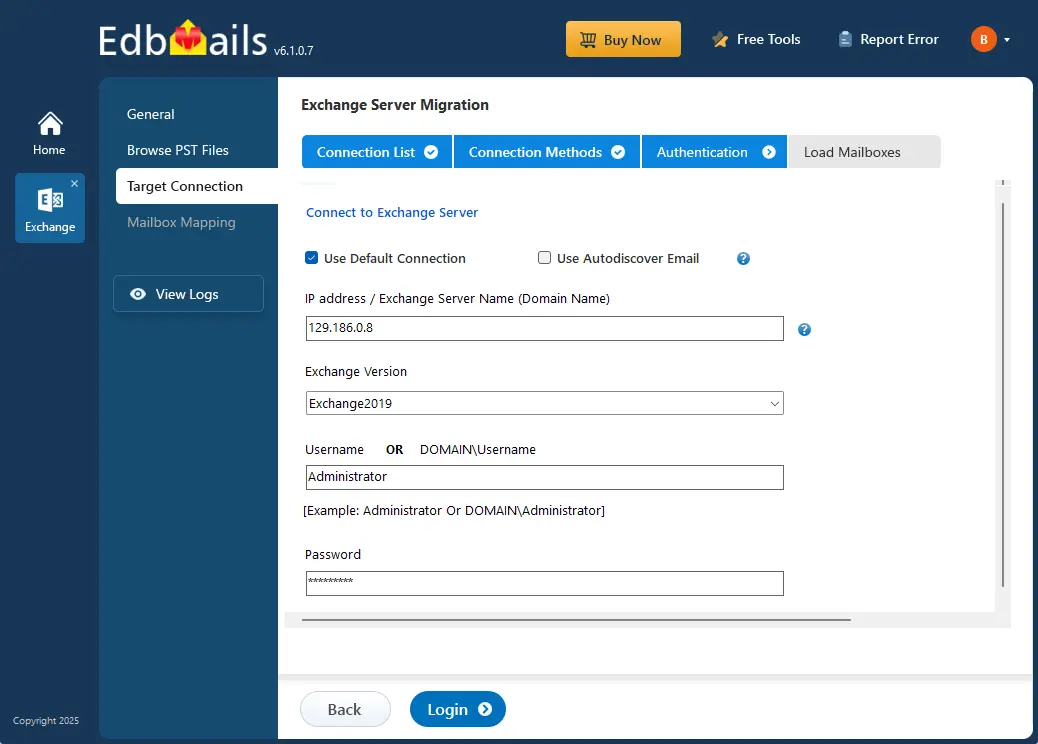
- Enter the target Exchange server details and click the ‘Login’ button
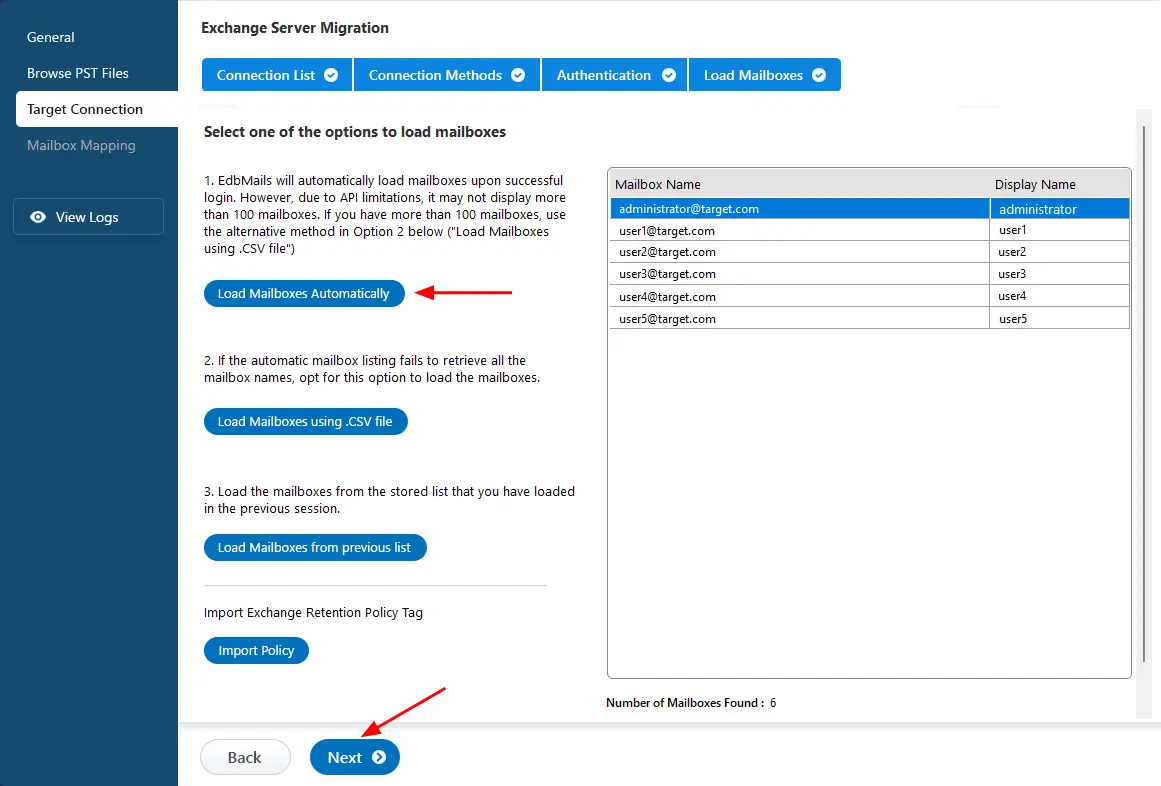
- Select a suitable method to load mailboxes from the target Exchange server. EdbMails usually loads mailbox details automatically. However, due to Microsoft API limitations, only up to 100 mailboxes can be displayed. If your environment contains more than 100 mailboxes, choose the ‘Load mailboxes using .CSV file’ option to include all mailboxes.
- Select ‘Load Mailboxes Automatically’ and click the ‘Next’ button to continue.
- Click ‘Add New Connection’ to create a new connection with the source Exchange server. If you have already configured a connection earlier, choose it from the connection list and click ‘Connect to Existing’ to continue.
Step 5: PST to Exchange server mailbox mapping
- Select the option to map the mailboxes between source and the target server.
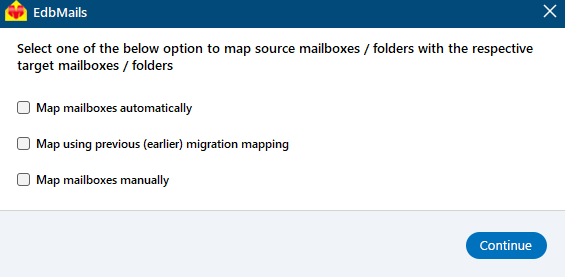
- EdbMails automatically maps the source mailboxes to the target mailboxes. You can also manually map the mailboxes.
- Select the option to map the mailboxes between source and the target server.
Step 6: Start to migrate PST to Exchange server
- Verify the mailboxes mapping
- Click the ‘Start Restore’ button to initiate the migration process.
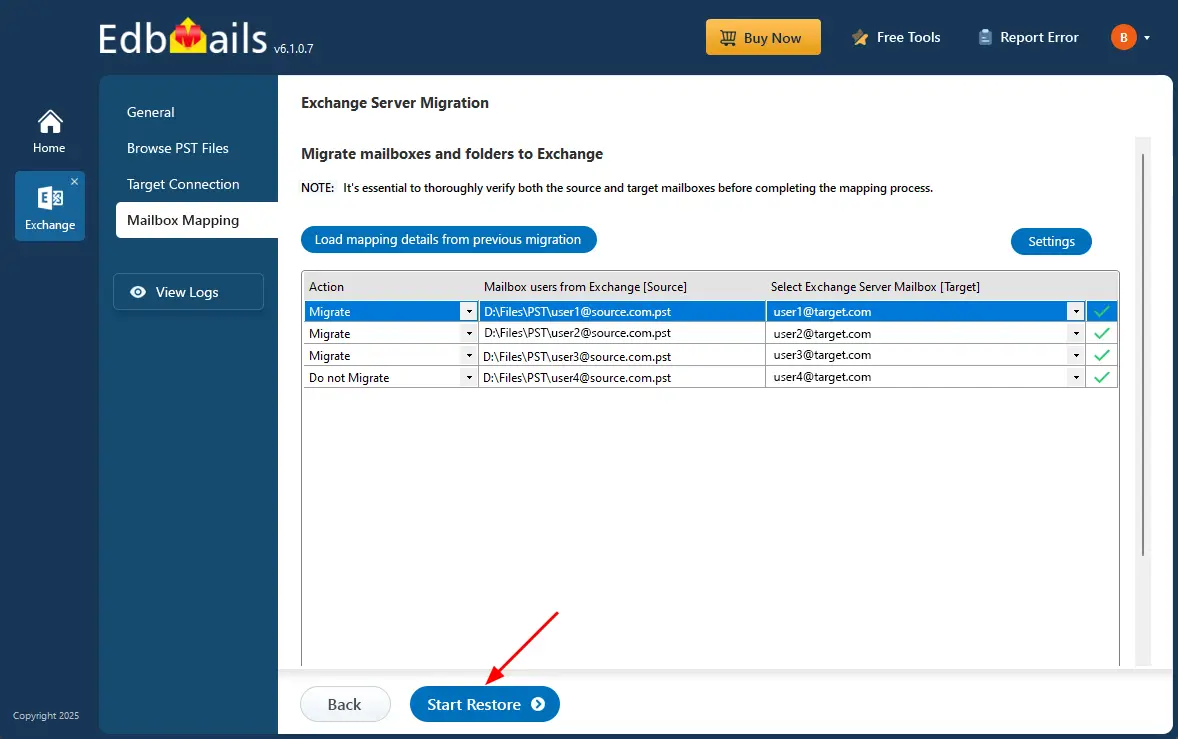
- While Restoring, you can track progress in real-time. Once completed, a confirmation message will appear.
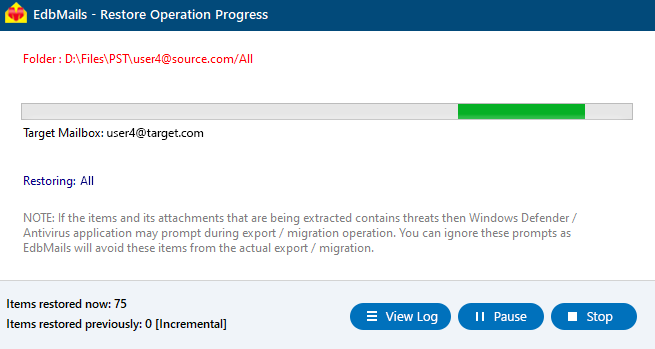
- Once the process is complete, the software prompts the message to review the migration status. Click the 'View Log' button to view the migration report.
Troubleshooting guide to Import PST Files to Exchange Server
If you encounter any difficulties during the bulk PST to Exchange server migration, refer to the troubleshooting guide for solutions

Advantages of EdbMails for Bulk Import PST to Exchange Server
- Direct Migration Capability:
EdbMails enables users to import PST to Exchange server directly, streamlining the process by removing any intermediary steps. This streamlining enhances operational efficiency and reduces complexity.
- Support for Multiple Exchange Versions:
The software is compatible with various versions of Exchange server, including 2019, 2016, and earlier editions. This versatility ensures users can migrate PST to Exchange server regardless of their existing organization infrastructure.
- Incremental Migration Feature:
EdbMails supports incremental migration, allowing only newly added or modified items to be transferred during subsequent migration operations. This capability avoids data duplication on the target server and optimizes bandwidth utilization.
- Comprehensive Data Integrity:
EdbMails Exchange migration software preserves the original folder structure and metadata during migration, ensuring data integrity.
- Advanced Filtering Options:
EdbMails offers advanced filtering options, enabling users to select specific emails based on criteria such as date range, attachments, subject, sender address, recipient address, message size etc. This targeted approach ensures only relevant data is imported.
- Automatic Mapping of Mailboxes:
EdbMails Exchange migration automatically maps PST file mailboxes to corresponding mailboxes in Exchange server, reducing the manual effort and overall migration time.
- Import PST Files of any Size:
EdbMails allows importing PST files of any size into the Exchange server. This flexibility allows organizations to manage large datasets without concern.
- User-friendly Interface:
Designed with an intuitive interface, EdbMails simplifies complex tasks associated with PST migrations. Users can navigate the software interface easily.
- Detailed Reporting:
EdbMails generates comprehensive reports of the migration process, providing insights into each operation's status. This clarity facilitates troubleshooting and promotes accountability.
Frequently Asked Questions (FAQ)
Can I import PST files directly to Exchange Online or only on-premises Exchange?
How does EdbMails handle large PST file imports?
Will my folder hierarchy remain intact after migration?
Does EdbMails support incremental PST imports?


