EdbMails EDB Recovery and Migration software
  • Products
    EdbMails
    All-in-one Recovery and Migration
    Explore our products
    • EDB recovery and Migration
    • OST, PST, MBOX, NSF, EML, MSG
    • Office 365, Exchange Migration
    • SharePoint, OneDrive & Teams
    • G Suite Migration
    • IMAP Migration
    • Duplicate Remover
    • Windows Data Recovery
    • Backup Solutions

    EDB Recovery and Migration

    EdbMails lets you recover corrupted, damaged, and offline Exchange EDB files, convert EDB mailboxes to PST format, and directly migrate mailbox data to Office 365 and live Exchange Server.

    EDB to PST
    Recover corrupted, damaged, offline EDB files and convert Exchange EDB mailboxes to PST file format
    Public Folder to Exchange
    Migrate public folders from an Exchange offline EDB file to live Exchange Server
    EDB to Live Exchange Migration
    Directly migrate offline Exchange database (EDB) files to live Exchange server
    Archive Mailbox to Office 365
    Migrate archive mailboxes from offline EDB files directly to Office 365
    EDB to Office 365 Migration
    Directly migrate offline Exchange database (EDB) files to Office 365
    Public Folder to Office 365
    Migrate public folders from an offline Exchange EDB file to Office 365

    OST, PST, MBOX, NSF, EML, MSG Export and Migration

    EdbMails lets you to recover OST and PST files, export OST, PST, MBOX, NSF, EML, and MSG files to PST files, and directly migrate OST, PST, MBOX, and NSF mailbox data to Office 365 and live Exchange Server.

    OST Recovery and Migration
    Recover offline OST files, convert OST to PST, and migrate OST to Office 365 and Exchange Server
    PST Recovery and Migration
    Recover Outlook PST files , Export PST to PST, migrate PST to Office 365 and Exchange Server
    MBOX Export and Migration
    Export MBOX to PST, migrate MBOX to Office 365 and Exchange Server
    NSF Export and Migration
    Export NSF to PST, migrate NSF to Office 365 and Exchange Server
    EML to PST Export
    Convert EML files to Outlook PST files
    PST to MSG Export
    Convert Outlook PST file to MSG file format
    MSG to PST Export
    Export MSG files to Outlook PST files

    Office 365, Exchange Migration

    EdbMails lets you securely migrate mailboxes across Microsoft 365, Exchange, Google Workspace (G Suite), and IMAP-supported servers such as Outlook, Gmail, Zimbra, Zoho Mail, and cPanel, ensuring zero downtime.

    Office 365 Migration
    Migrate between Office 365 tenants, Office 365 to Exchange, Office 365 to PST, PST files to Office 365.
    Exchange Migration
    Migrate between any Exchange Servers, Exchange to Office 365, Exchange to PST, PST files to Exchange.
    Tenant to Tenant Migration
    Migrate Mailboxes, Public Folders, Archive Mailboxes between Office 365 Tenants.
    Exchange to Office 365
    Migrate Mailboxes, Public Folders, Archive Mailboxes from live Exchange server to Office 365.
    Office 365 to IMAP
    Migrate Office 365 to IMAP, Office 365 to Gmail, Office 365 to Outlook, Office 365 to Zoho etc.
    Exchange to IMAP
    Migrate from live Exchange Server to IMAP servers such as Gmail, Outlook, and Zoho Mail.
    Public Folder to Office 365
    Migrate Public Folders between Office 365 tenants with complete folder hierarchy and mailbox data integrity.
    Exchange to PST
    Export live Exchange Server mailboxes, public folders, and archive mailboxes to Outlook PST files.

    SharePoint, OneDrive & Microsoft Teams Migration

    EdbMails lets you migrate SharePoint sites, OneDrive data, Microsoft Teams, teams, channels, chats, permissions, and documents between Microsoft 365 tenants while maintaining the existing folder structure and data integrity.

    SharePoint Online Migration
    Migrate documents, lists, files and folders from SharePoint sites.
    OneDrive for Business Migration
    Migrate documents, lists, files, folders, private chats from OneDrive.
    Microsoft Teams Migration
    Migrate Teams, chats, channels, documents, files and folders etc.

    Google Workspace / G Suite Migration

    EdbMails G Suite Migration Tool lets you easily migrate emails, calendars, contacts, tasks, and more from G Suite to Office 365, Exchange Server, and IMAP servers using a Google Admin account without requiring individual user credentials.

    G Suite Migration
    Migrate emails, calendars, contacts, tasks from G Suite to Office 365, G Suite to Exchange, G Suite to IMAP Servers
    G Suite to Office 365
    Migrate emails, calendars, contacts, tasks from Google Workspace / G Suite to Office 365
    G Suite to Exchange Server
    Migrate emails, calendars, contacts, tasks from Google Workspace / G Suite to on-Premise Exchange Server
    G Suite to IMAP
    Migrate emails, calendars, contacts, tasks from Google Workspace / G Suite to IMAP, Outlook, Zimbra, Zoho etc.

    IMAP Migration

    EdbMails IMAP Migration tool lets you easily migrate emails from IMAP servers such as Outlook, Gmail, Zoho Mail, Zimbra, cPanel, and more. Supports IMAP to IMAP, Office 365, Exchange Server, PST, and bulk PST to IMAP migration.

    IMAP Email Backup & Migration
    Backup and migrate emails from IMAP servers to PST, Office 365, and On-Premises Exchange Server
    IMAP to Office 365
    Migrate emails, folders, and attachments from IMAP servers to Office 365
    IMAP to Exchange
    Migrate emails, folders, and attachments from IMAP servers to on-premises Exchange Server
    IMAP to PST
    Export emails, folders, and attachments from IMAP servers to Outlook PST files for backup
    PST to IMAP
    Migrate emails, folders, and attachments from bulk PST files to IMAP servers

    Duplicate Remover

    EdbMails Duplicate Remover lets you easily remove duplicate items from Office 365 and Exchange Server, and from IMAP, Outlook, Gmail, Zimbra, Zoho Mail, etc., ensuring a clean and organized mailbox.

    Remove Duplicates
    Easily clean up your Office 365, Exchange, Outlook and IMAP accounts by removing duplicate emails.
    Remove Duplicates from Office 365
    Remove duplicate emails, calendars, contacts, journal tasks, etc. from Office 365.
    Remove Duplicates from Exchange Server
    Remove duplicate emails, calendars, contacts, journal tasks, etc. from live Exchange Server.
    Remove Duplicates from IMAP, Outlook
    Remove duplicate emails, attachments from IMAP, Outlook, Gmail, Zimbra, Zoho Mail etc.

    Exchange, SharePoint, OneDrive, Teams and Office 365 Backup

    EdbMails enables secure, automated backup and recovery for Microsoft 365 services including Exchange Online, SharePoint, OneDrive, Teams, and Live Exchange Server with complete data protection and restore flexibility.

    Office 365 Backup
    Incremental, Granular, Encrypted and Compressed Office 365 Mailboxes Backup
    Exchange Server Backup
    Incremental, Granular, Encrypted and Compressed Exchange Mailboxes Backup
    SharePoint, OneDrive & Teams Backup
    Backup Online site collections, Team sites, Office 365 groups, all documents etc.

    Windows Data Recovery

    EdbMails Windows Data Recovery Software lets you recover permanently deleted data, including photos, videos, documents, and archived files, from partitions on hard drives, SSDs, USB drives, SD cards, and external storage devices.

    Windows Data Recovery
    Recover and restore permanently deleted data from hard drives, SSDs, USB drives, SD cards, and etc.
    Whitepaper
    Request a Demo
    Sign Up
  • Features
  • FAQ
  • Pricing
  • Download
  • Support
  • Sign in
User’s Manual
Exchange Server Migration

User Manual

User Manual

  • Exchange Migration Overview
  • Initial Setup
  • System Requirements
  • Migration Scenarios
  • Installation
    • Installation process
    • Reinstall or Upgrade
    • How to uninstall
  • FAQ
    • General
    • Migration Free Trial / Demo
    • Migration License
    • Before Migration
    • Migration - Steps
    • After Migration
  • Videos
    • Exchange to Exchange
    • Exchange to Office 365
    • Exchange to IMAP
    • Exchange to PST
    • Public Folder to Office 365
    • Archive Mailbox to Office 365
    • Public Folder to Exchange
    • Archive Mailbox to Exchange
    • Restore Bulk PST files to Exchange
  • Screenshots
    • Exchange to Exchange
    • Exchange to Office 365
    • Exchange to PST
  • Understanding the Application
    • Migration
    • Migration Speed
    • Incremental Migration
    • Exchange Throttling Policy
  • How it works?
    • Exchange to Exchange
    • Exchange to Office 365
    • Exchange to PST
    • Exchange to IMAP
    • Exchange Public Folder to Office 365
    • Exchange Public Folder to Exchange
    • Exchange 2010 to 2016 Public folder
    • Exchange 2013 Public folder to Office 365
    • Exchange 2016 Public folder to Office 365
    • Exchange Public Folder to Shared Mailbox
    • Archive Mailbox to Office 365
    • Archive Mailbox to Exchange
    • Hosted Exchange Migration
    • Hosted Exchange to Live Exchange Migration
    • Hosted Exchange to Office 365 Migration
    • Live Exchange to Hosted Exchange Migration
    • Hosted Exchange Public Folder to Office 365 Migration
    • Cross-forest migration from Exchange 2013 to Exchange 2019/2016
    • Hybrid Migration
    • Public folder Migration in Hybrid Environment
    • Disable msExchMailboxGuid
    • Exchange to Gmail Migration
    • Multiple PST to Exchange server
    • Hosted Exchange to Office 365 Shared mailbox
  • Connect to Exchange server for multiple mailboxes migration
    • Connect with Global Admin
    • Connect to Multiple users using CSV file
    • Connect using full access permission
    • Connect individual users for Single / Specific user Migration
  • Connect to Hosted Exchange for its Migration
    • Connect with Full Access permissions
    • Connect to multiple users using CSV file
    • Connect to Individual user for migration
  • Connect to target Office 365
  • Modern Authentication Using OAuth 2.0
    • Microsoft 365 modern authentication
    • Automatic Registration
    • Manual Registration
  • Set Exchange Server Impersonation rights
    • Exchange 2007 and below
    • Exchange 2010, 2013, 2016 and 2019
    • Set using Exchange Server GUI
  • Knowledge Base
    • Exchange to Exchange Migration
    • Exchange to Office 365 Migration
    • Migrate Legacy Exchange to Latest Exchange
    • Cross-forest and cross-domain migration
    • Public folder, Shared mailbox migration
    • Archive mailbox migration
    • Hosted Exchange Migration
    • Incremental migration
    • Cutover, staged and hybrid migration
    • Migrate SBS 2003, 2008, 2011 to a Modern Exchange Environment
    • Export Exchange Mailbox to PST
    • Secure Exchange Migration
    • Selective Mailbox / Folder Migration
    • Automatic Mailbox Mapping
    • Assign Public Folder to one target destination
    • Multiple PST Restore
    • No Impact on users - Zero downtime
    • Migrate Email Rules, Forwarding and Junk Email Configuration
    • Exchange migration speed and throttling management
    • Support for all the languages
    • Advanced settings and options
    • GAL and all address lists Migration
    • Exchange migration reports
    • Best Exchange Migration software
    • Exchange migration checklist
    • Exchange migration manager
    • Feature rich Exchange migration software
    • Exchange to Office 365 migration planning
    • Exchange server migration tips
    • Export Exchange server users to CSV
    • Create a Public folder in Exchange Server 2010
    • Load Exchange mailboxes from CSV file
    • Language settings on Exchange server
    • Export and import Exchange Retention Policy Tags
    • Fix Outlook security alert after migration
    • Assign public folders to Exchange
    • Connect to Exchange with Default Connection
    • Connect to Exchange with Autodiscover Email
  • Set Office 365 Impersonation rights
    • Using PowerShell commands
    • Using Office 365 GUI
  • Migration Types
    • Cutover Migration
    • Staged Migration
    • Hybrid Migration
  • Map the Mailboxes
  • Migration Walkthrough
    • From Exchange 2003
    • From Exchange 2007
    • From Exchange 2010 to Exchange 2019
    • From Exchange 2010 to Exchange 2016
    • From Exchange 2010 to Office 365
    • From Exchange 2013 to Exchange 2019
    • From Exchange 2013 to Exchange 2016
    • From Exchange 2013 to Office 365
    • From Exchange 2016 to Exchange 2019
    • From Exchange 2016 to Office 365
    • From Exchange 2019 to Office 365
    • From Office 365
    • Exchange 2013 mailbox to PST
    • Exchange 2016 mailbox to PST
    • Exchange 2019 mailbox to PST
    • Exchange 2010 mailbox to PST
  • Multifactor Authentication
    • Enable MFA in Office 365
    • Create App password for MFA
    • Disable Security Defaults
    • Disable MFA in Office 365
  1. Home
  2. Product
  3. Migrate from Legacy Exchange Server to Latest Exchange Server
Download Buy Now

Migrate Legacy Exchange Server to Exchange 2016 or 2019

Many organizations continue to run older Exchange servers such as Exchange 2007 or 2010. While these platforms worked well earlier, they now present several limitations including security vulnerabilities, outdated functionality, and the lack of official Microsoft support. As a result, businesses may face higher risks of data loss, security breaches, and compliance issues.

Upgrading to the latest versions such as Exchange 2016 or 2019 helps improve security, system performance, and the overall user experience. The EdbMails Exchange Migration Tool provides a simple and reliable way to migrate mailboxes from any legacy Exchange server directly to the latest Exchange versions. It eliminates the need for intermediate servers or complicated configurations. The solution ensures a smooth, fast, and secure migration while maintaining complete data integrity and enabling the process with zero downtime.

Migrate from the Legacy Exchange to the Latest Exchange

What is a Legacy Exchange Server?

In Microsoft Exchange, the term ‘legacy’ refers to older versions of the Exchange Server software that are still in use but no longer supported or updated by Microsoft. Examples include Exchange 2007 and Exchange 2010, which lack the latest security patches and modern features, making them less reliable for current business needs.

EdbMails helps simplify the process of migrating mailbox data from these legacy Exchange servers to the latest versions, ensuring a smooth, secure, and hassle-free migration without data loss.

Why Migrate the Legacy Exchange Server to the Latest Exchange Server?

There are several reasons why organizations may consider migrating from a legacy version of Microsoft Exchange server to the latest version:

  • Enhanced Features and Functionality:

    Upgrading to the latest Exchange Server versions gives organizations access to improved features that boost collaboration, security, and productivity. Newer versions include tools and enhancements that are not available in legacy servers.

    EdbMails makes it easy to migrate mailbox data from older Exchange servers, ensuring you can take advantage of these latest features. To fully use all the new tools, some additional system configuration may be needed beyond the migration process.

  • Security Updates

    Older Exchange servers are more exposed to security risks because they no longer receive updates or patches. This makes them vulnerable to data breaches and other threats.

    EdbMails helps migrate mailbox data to the latest Exchange Server, allowing your organization to benefit from critical security updates and better protection for sensitive information.

  • Compatibility with Modern Technology

    As technology advances, it’s important that your email system works well with the latest devices and applications. Older Exchange servers may face compatibility issues with new tools and software.

    EdbMails helps migrate mailbox data to the latest Exchange versions, keeping your email infrastructure up-to-date and reducing problems caused by outdated systems.

  • Performance Improvements

    The latest Exchange versions are built for better performance, providing faster response times and improved reliability compared to older servers. While EdbMails handles the migration of mailbox data, upgrading to the newest Exchange can boost system speed and efficiency, helping your organization maintain a more responsive and stable IT environment.

  • End of Support for Legacy Versions

    When legacy Exchange servers reach the end of Microsoft’s support, they no longer receive critical updates or security patches. This leaves your system at risk of vulnerabilities and compliance issues.

    EdbMails provides a smooth migration of mailbox data to supported Exchange versions, ensuring your email system stays secure, updated, and fully supported.

  • Regulator Compliance

    Evolving compliance regulations require staying on updated platforms. EdbMails enables the migration of mailbox data to the latest Exchange versions, helping your organization remain compliant with industry standards and safeguarding data from regulatory risks.

  • Integration with Microsoft Services

    The latest Exchange versions work better with Microsoft services like SharePoint and Teams, enabling smoother collaboration across your organization. While EdbMails handles mailbox data migration, upgrading to the newest Exchange improves your ability to connect with these services and make the most of your Microsoft ecosystem.

  • Improved User Experience

    The latest Exchange versions often include user interface improvements. EdbMails ensures a hassle-free transition of mailbox data, allowing users to experience a more intuitive interface and adopt new features with minimal disruption.

  • Advanced Email Archiving

    The latest Exchange versions include improved email archiving, with better retention policies and enhanced search options. EdbMails supports migrating in-place archives along with active mailboxes, ensuring continued access to archived emails for compliance and organizational needs.

  • Enhanced Mobile Device Management

    The latest Exchange versions offer improved mobile device management, including stronger security policies and remote wipe capabilities.

    While EdbMails focuses on migrating mailbox data, upgrading to the newest Exchange version ensures organizations can take advantage of these advanced features, improving security and productivity for mobile users.

Major Drawbacks of Native Solutions for Legacy to Latest Exchange Migration

Migrating from legacy Exchange versions to the latest servers can be complex and challenging. Relying on native migration solutions has several drawbacks:

  • Double-hop migration requirement

    Upgrading from Exchange 2007 or 2010 to Exchange 2019 often requires an intermediate version like Exchange 2013 or 2016. This adds extra steps, making the migration process longer and more complicated.

  • Resource intensive

    Native migration requires careful planning, time, and scripting knowledge. Managing multiple phases can consume a lot of IT resources.

  • Potential for downtime

    Users may face interruptions during migration, limiting access to emails and affecting productivity.

  • Complex decommissioning

    After migration, both the legacy server and the intermediate Exchange server must be decommissioned, adding extra complexity and potential risks.

EdbMails Exchange migration software for legacy to latest Exchange migration

Unlike native solutions, EdbMails Exchange migration software provides a streamlined way to move from legacy to the latest Exchange versions while avoiding common migration challenges:

  1. Single-hop migration

    Migrate directly from Exchange 2007 or 2010 to Exchange 2013, 2016, or 2019 without needing an intermediate server. This makes the migration process faster and simpler.

  2. Zero downtime

    Users can continue to access their emails and send messages during migration, keeping business operations uninterrupted.

  3. User-Friendly Interface

    The intuitive interface makes the migration process simple, even for users with limited technical experience.

  4. Comprehensive Support

    EdbMails provides dedicated assistance throughout the migration, helping organizations quickly resolve any issues.

  5. Data Integrity

    Mailbox data is securely migrated, reducing the risk of data loss or corruption during the transition.

By opting for EdbMails, users and organizations can achieve a migration from legacy Exchange servers to the latest versions, fully leveraging modern features and capabilities without the complications associated with traditional methods.

Legacy Exchange to latest Exchange migration migration scenarios

  • Directly migrate mailboxes from any legacy Exchange to the latest Exchange server
  • Single-hop migration between any two Exchange servers
  • Upgrade Exchange 2007 to Exchange 2016
  • Migrate Exchange 2010 to Exchange 2016
  • Migrate Exchange 2010 to Exchange 2013
  • Migrate Exchange 2010 to Exchange 2019
  • Migrate the Legacy Public folder to the latest Exchange server
  • Migrate the mailboxes between any two AD forests

Best method to Migrate from Legacy Exchange Server to the Latest Exchange Server

Migrating from a legacy Exchange server to the latest version is a critical step for organizations looking to enhance their IT infrastructure. Native solutions often introduce unnecessary complexities, requiring multiple migration stages and leading to significant challenges. For example, upgrading from Exchange 2010 to Exchange 2019 typically involves a double-hop process, necessitating an intermediate upgrade to Exchange 2016 due to incompatibility within the same Active Directory forest. This complicated method can result in extended downtimes, increased risk of data loss, and added pressure on IT teams to manage a multi-step migration.

EdbMails Exchange Migration Software simplifies the migration process by enabling organizations to directly migrate mailbox data from legacy Exchange versions such as Exchange 2007 or 2010 to newer environments like Exchange 2013, 2016, or 2019 without requiring any intermediate servers. This direct migration approach reduces complexity and improves overall performance, enabling concurrent migrations that minimize downtime.

EdbMails supports incremental migration, ensuring that only new or modified items are migrated after the initial transfer. The software automatically creates mailboxes on the target servers and facilitates automatic mailbox mapping, reducing manual effort. With built-in automatic throttling management, EdbMails optimizes the migration process, ensuring a smooth and uninterrupted experience.

By choosing EdbMails, organizations benefit from a high-performance, reliable, and user-friendly migration solution. Users can maintain access to their emails throughout the process, ensuring business continuity and enhancing user satisfaction.

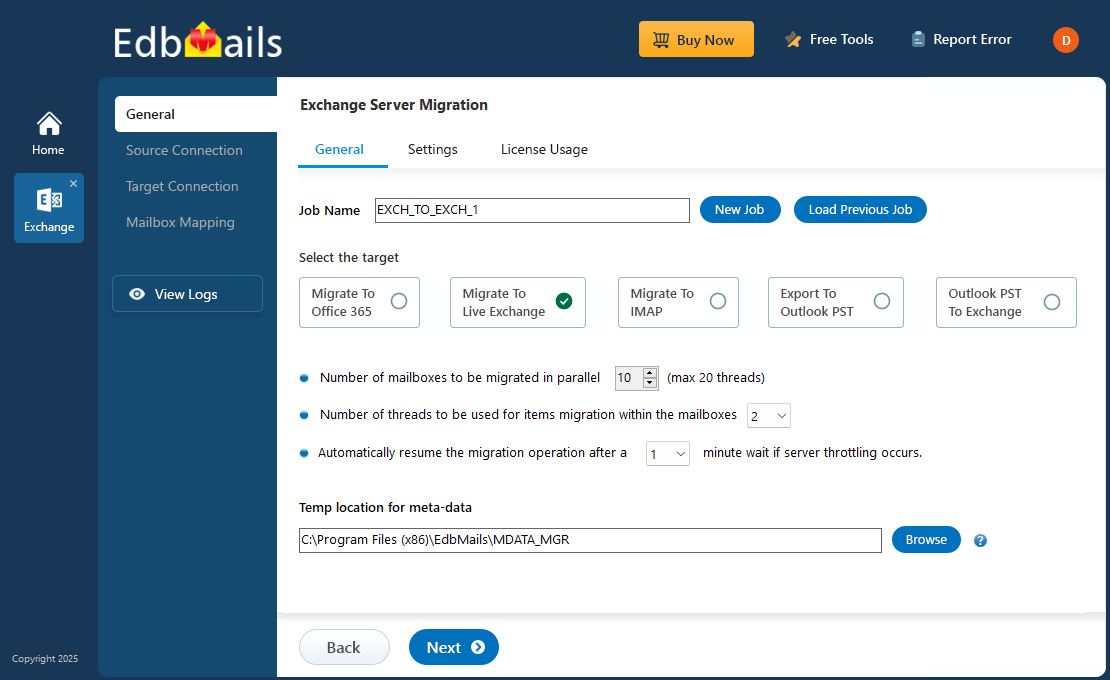
 Steps to perform direct migration between any Exchange servers


Additional resources:

  • Migrating older version of Exchange server to Exchange server 2016
  • Step by Step guide for Exchange server 2010 to 2016 Migration
  • User Manual for Exchange Server Migration
  • Videos - Exchange to Exchange Migration
  • Step by step guide for Exchange 2010 to 2019 migration
  • Complete guide for Exchange 2013 to Exchange 2019 migration
  • Comprehensive guide for Exchange 2013 to 2016 migration
  • Step by step guide for Exchange 2016 to Exchange 2019
  • Step by step guide for Exchange 2003 migration to exchange 2010/2013/2016/2019
  • Complete guide for Exchange 2007 to exchange 2016, 2019 migration
additional resource

 In this manual

IntroductionLegacy Exchange ServerMigrate to Latest ExchangeDrawbacks of legacy Exchange Migration ToolLatest Exchange MigrationBest Method for Migration

Live Exchange Migration

100 Mailboxes $299 Only

Buy Now

Need help?

24/7 Customer support

Contact us on Live chat

Personalized Demo

Book a personalized demo

Still need help?

Email us / Call us

© 2026 Shifttocloud Inc. Privacy Policy | Terms of Use | GDPR | Security | Press Releases

hidden msg
Live Chat

Hi, May I help you?

Hide Chat Now