EdbMails EDB Recovery and Migration software
  • Products
    Exchange EDB / Email Recovery Tools
    • EDB Recovery and MigrationRecover EDB to PST, EDB to Office 365 and Exchange NO Duplicate Migration
    • OST Recovery and MigrationRecover OST to PST, OST to Office 365 and Exchange Migration
    • PST Recovery and MigrationRecover Outlook PST, PST to Office 365 and Exchange Migration
    • MBOX Export and MigrationExport MBOX to PST, MBOX to Office 365 and Exchange Migration
    • NSF Export and MigrationExport NSF to PST, NSF to Office 365 and Exchange Migration
    • EML to PST ExportEML files export to Outlook PST format
    • PST to MSG ExportOutlook PST files export to MSG format
    • MSG to PST ExportExport MSG files Outlook PST files
    Exchange and Office 365 Migration
    • Exchange Server MigrationMigrate between any Exchange Servers, Exchange to Office 365, Export Exchange to PST, Migrate PST files to Exchange server
    • Office 365 MigrationMigrate between Office 365 tenants, Office 365 to Exchange, Export Office 365 to PST, Migrates PST files to Office 365
    • IMAP Email Backup & MigrationMigrate between any IMAP Servers (Gmail, Outlook, Zimbra, Zoho, Yahoo etc.), IMAP to Office 365, Exchange, IMAP to PST, PST to IMAP
    • G Suite MigrationMigrate emails, contacts, calendars from G Suite /Google Work Space to Office 365, Exchange, IMAP
    • SharePoint Online MigrationMigrate documents, lists, files and folders from SharePoint sites
    • OneDrive for Business MigrationMigrate documents, lists, files and folders from OneDrive
    • Microsoft Teams MigrationMigrate Teams, chats, channels, documents, files and folders etc.
    Exchange and Office 365 Backup
    • Office 365 BackupIncremental, Granular, Encrypted and Compressed Office 365 Mailboxes Backup
    • Exchange Server BackupIncremental, Granular, Encrypted and Compressed Exchange Mailboxes Backup
    • SharePoint, OneDrive & Teams BackupBackup Online site collections, Team sites, Office 365 groups, all documents etc.
    • Duplicate Remover - Office 365, Exchange, IMAP & Outlook Remove duplicate emails, calendars, contacts, journal etc. from Office 365, Exchange, IMAP, Outlook, Gmail, Zimbra, Zoho Mail etc.
    • Windows Data Recovery Recover and restore permanently deleted data from partitions across hard drives, SSDs, USB drives, SD cards, and external storage devices.
    • More Products
  • Features
  • FAQ
  • Pricing
  • Download
  • Support
  • Sign in
User’s Manual
Exchange Server Migration

User Manual

User Manual

  • Exchange Migration Overview
  • Initial Setup
  • System Requirements
  • Migration Scenarios
  • Installation
    • Installation process
    • Reinstall or Upgrade
    • How to uninstall
  • FAQ
    • General
    • Migration Free Trial / Demo
    • Migration License
    • Before Migration
    • Migration - Steps
    • After Migration
  • Videos
    • Exchange to Exchange
    • Exchange to Office 365
    • Exchange to IMAP
    • Exchange to PST
    • Public Folder to Office 365
    • Archive Mailbox to Office 365
    • Public Folder to Exchange
    • Archive Mailbox to Exchange
    • Restore Bulk PST files to Exchange
  • Screenshots
    • Exchange to Exchange
    • Exchange to Office 365
    • Exchange to PST
  • Understanding the Application
    • Migration
    • Migration Speed
    • Incremental Migration
    • Exchange Throttling Policy
  • How it works?
    • Exchange to Exchange
    • Exchange to Office 365
    • Exchange to PST
    • Exchange to IMAP
    • Exchange Public Folder to Office 365
    • Exchange Public Folder to Exchange
    • Exchange 2010 to 2016 Public folder
    • Exchange 2013 Public folder to Office 365
    • Exchange 2016 Public folder to Office 365
    • Exchange Public Folder to Shared Mailbox
    • Archive Mailbox to Office 365
    • Archive Mailbox to Exchange
    • Hosted Exchange Migration
    • Hosted Exchange to Live Exchange Migration
    • Hosted Exchange to Office 365 Migration
    • Live Exchange to Hosted Exchange Migration
    • Hosted Exchange Public Folder to Office 365 Migration
    • Cross-forest migration from Exchange 2013 to Exchange 2019/2016
    • Hybrid Migration
    • Public folder Migration in Hybrid Environment
    • Disable msExchMailboxGuid
    • Exchange to Gmail Migration
    • Multiple PST to Exchange server
    • Hosted Exchange to Office 365 Shared mailbox
  • Connect to Exchange server for multiple mailboxes migration
    • Connect with Global Admin
    • Connect to Multiple users using CSV file
    • Connect using full access permission
    • Connect individual users for Single / Specific user Migration
  • Connect to Hosted Exchange for its Migration
    • Connect with Full Access permissions
    • Connect to multiple users using CSV file
    • Connect to Individual user for migration
  • Connect to target Office 365
  • Modern Authentication Using OAuth 2.0
    • Microsoft 365 modern authentication
    • Automatic Registration
    • Manual Registration
  • Set Exchange Server Impersonation rights
    • Exchange 2007 and below
    • Exchange 2010, 2013, 2016 and 2019
    • Set using Exchange Server GUI
  • Knowledge Base
    • Exchange to Exchange Migration
    • Exchange to Office 365 Migration
    • Migrate Legacy Exchange to Latest Exchange
    • Cross-forest and cross-domain migration
    • Public folder, Shared mailbox migration
    • Archive mailbox migration
    • Hosted Exchange Migration
    • Incremental migration
    • Cutover, staged and hybrid migration
    • Migrate SBS 2003, 2008, 2011 to a Modern Exchange Environment
    • Export Exchange Mailbox to PST
    • Secure Exchange Migration
    • Selective Mailbox / Folder Migration
    • Automatic Mailbox Mapping
    • Assign Public Folder to one target destination
    • Multiple PST Restore
    • No Impact on users - Zero downtime
    • Migrate Email Rules, Forwarding and Junk Email Configuration
    • Exchange migration speed and throttling management
    • Support for all the languages
    • Advanced settings and options
    • GAL and all address lists Migration
    • Exchange migration reports
    • Best Exchange Migration software
    • Exchange migration checklist
    • Exchange migration manager
    • Feature rich Exchange migration software
    • Exchange to Office 365 migration planning
    • Exchange server migration tips
    • Export Exchange server users to CSV
    • Create a Public folder in Exchange Server 2010
    • Load Exchange mailboxes from CSV file
    • Language settings on Exchange server
    • Export and import Exchange Retention Policy Tags
    • Fix Outlook security alert after migration
    • Assign public folders to Exchange
    • Connect to Exchange with Default Connection
    • Connect to Exchange with Autodiscover Email
  • Set Office 365 Impersonation rights
    • Using PowerShell commands
    • Using Office 365 GUI
  • Migration Types
    • Cutover Migration
    • Staged Migration
    • Hybrid Migration
  • Map the Mailboxes
  • Migration Walkthrough
    • From Exchange 2003
    • From Exchange 2007
    • From Exchange 2010 to Exchange 2019
    • From Exchange 2010 to Exchange 2016
    • From Exchange 2010 to Office 365
    • From Exchange 2013 to Exchange 2019
    • From Exchange 2013 to Exchange 2016
    • From Exchange 2013 to Office 365
    • From Exchange 2016 to Exchange 2019
    • From Exchange 2016 to Office 365
    • From Exchange 2019 to Office 365
    • From Office 365
    • Exchange 2013 mailbox to PST
    • Exchange 2016 mailbox to PST
    • Exchange 2019 mailbox to PST
    • Exchange 2010 mailbox to PST
  • Multifactor Authentication
    • Enable MFA in Office 365
    • Create App password for MFA
    • Disable Security Defaults
    • Disable MFA in Office 365
  1. Home
  2. Product
  3. Exchange Public folder migration to Exchange server | EdbMails
Download Buy Now

Exchange Public Folder to Exchange Migration

Public folders in Microsoft Exchange help teams store and share emails, calendars, contacts, and documents in a centralized location. When organizations need to migrate these folders to another Exchange server or to a newer Exchange version, the process can become complex. Native approaches usually require detailed scripting, multiple manual steps, and careful planning. This can make the migration time-consuming and increase the risk of errors, particularly in large environments with numerous folders and subfolders.

If not managed correctly, migration challenges can lead to broken folder hierarchies, missing permissions, or user downtime. Since public folders play an important role in team collaboration, these issues can interrupt workflows, increase administrative effort, and impact overall business productivity.

The EdbMails Exchange migration tool provides a dependable solution that simplifies the migration process while maintaining folder hierarchy, permissions, metadata, and email content. It includes features such as incremental migration, advanced filtering options, automatic folder mapping, and real-time progress tracking. These capabilities help avoid duplicate items, ensure zero downtime, and allow only the required data to be migrated in a secure and efficient manner.
Exchange Public folder to Exchange

With EdbMails, administrators can perform a secure and streamlined migration with zero downtime. The destination Exchange environment is replicated to match the source, allowing users to continue accessing shared resources without any interruption.

This guide outlines the step-by-step process to prepare, configure, and perform the migration. It explains how to choose folders, apply filters, track the migration progress, and verify the results. By following these instructions, you can complete the public folder migration securely with zero downtime.


  1. Top reasons for Exchange public folder migration

    Exchange public folder migration is a strategic decision that can improve organizational efficiency and collaboration. Key reasons to consider this migration include:

    1. Access to enhanced features

      Migrating to a newer Exchange server enables organizations to leverage the latest tools and functionalities, including improved collaboration features and advanced administrative capabilities. EdbMails simplifies the migration process, ensuring users can benefit from these enhancements immediately.

    2. Improved performance and scalability

      Newer Exchange versions are optimized for better performance and can efficiently handle larger volumes of data. Using EdbMails for migration ensures a smooth transfer, helping organizations scale their systems as needed.

    3. Stronger security measures

      Each Exchange update introduces advanced security features to protect sensitive information. EdbMails ensures a secure migration process, safeguarding public folder data throughout the transition.

    4. Simplified management and administration

      Upgrading reduces the complexity of managing public folders. EdbMails provides an intuitive interface and automated workflows, making it easier for IT teams to administer public folder data efficiently.

    5. Compliance with modern standards

      Migrating to the latest Exchange version helps organizations meet current regulatory standards and best practices. EdbMails accurately transfers public folder data along with permissions, supporting compliance requirements.

  2. Plan for Exchange Public Folder to Exchange Migration

    Before starting an Exchange Public Folder migration, it is important to evaluate your requirements and ensure all prerequisites are in place. Careful planning helps reduce risks, minimize downtime, and ensure a smooth migration process.

    Key factors to consider include:

    • Total size and folder count: Review the total size of your public folders and the number of folders you plan to migrate. This will help in estimating migration time and resources.
    • Migration approach: Decide whether to migrate all folders at once or prioritize based on usage and criticality. A phased approach can help reduce downtime and allow for incremental verification.
    • Network assessment: Assess your network bandwidth and configurations to ensure they can handle the migration load without affecting other services.
    • Destination options: DDetermine whether public folders should be migrated to dedicated public folders or converted into shared mailboxes on the target Exchange server.

    Addressing these factors in advance will help streamline the migration process, minimize disruptions, and ensure a successful transition.

  3. Pre migration activities on Exchange server

    It is essential to ensure that Exchange Server 2013 is updated to at least Cumulative Update 15 (CU15) or later, while Exchange Server 2016 should be at Cumulative Update 4 (CU4) before initiating the migration process.

    • For Exchange Server 2010, Service Pack 3 Release 3 or a higher version must be installed.
    • Assign the Server Management role group within Exchange Server.
    • Confirm that the management role for the admin account on the source Exchange server has been granted Application Impersonation permissions, and ensure that the mailboxes and associated folders intended for import are not excluded from address lists.
    • Assign admin access to all the public folders on the source Exchange server.

       See Steps to assign admin permissions to Exchange public folders

    • Create public folder on the target Exchange server and assign admin permissions
  4. Steps to migrate Exchange server public folders to Exchange

    • Step 1: Download and Install the EdbMails application

      • Download and install the EdbMails application on your computer, ensuring it has the appropriate access to connect with your source Exchange server.

        EdbMails software installation

      • Open the EdbMails application on your computer.
      • Enter your registered email ID and password, then click ‘Login’. If you haven’t created an account yet, choose ‘Start Your Free Trial’ to proceed with the trial version.
        Note: The trial edition provides access to all key features and supports migration of up to 30 items per folder. To enable unlimited migration, purchase an Exchange Migration license from the official EdbMails website.

         Click here to view Exchange Migration pricing details.

        After completing the purchase, close and reopen the application. Then sign in again using the same email ID and password used during the purchase to successfully activate your license.

        Login to EdbMails application

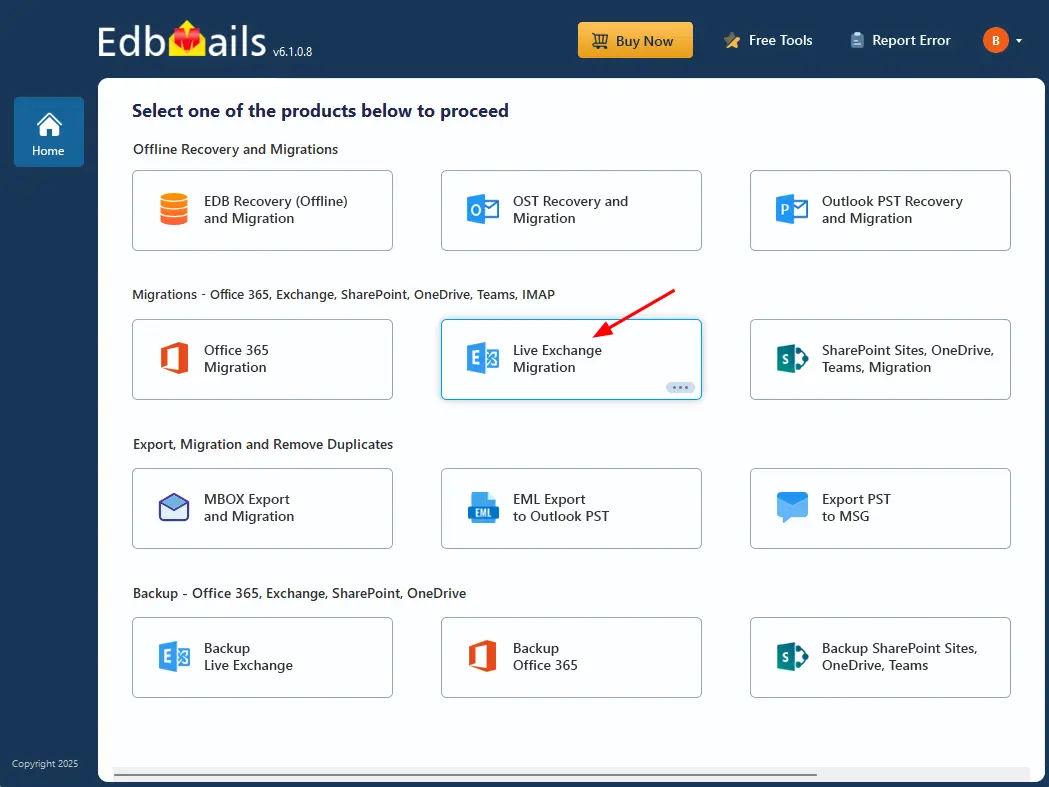
      • Choose the 'Live Exchange Migration' option.

        Choose ‘Live Exchange Migration’ option

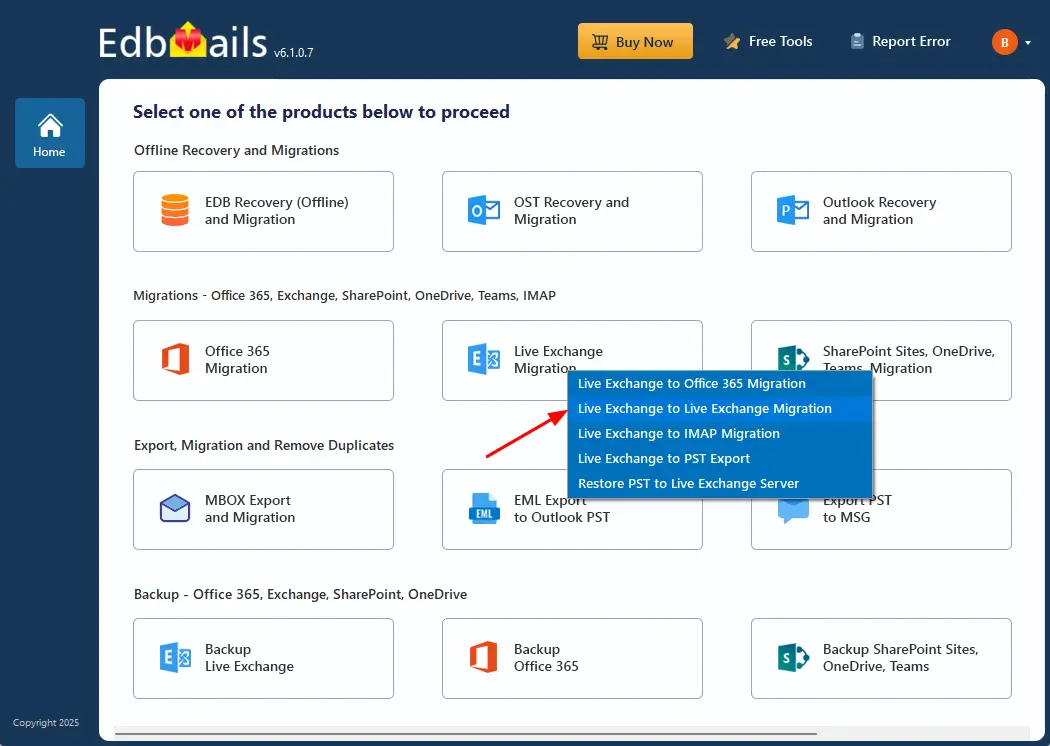
      • Select 'Live Exchange to Live Exchange Migration'

        Select Live Exchange to  Live Exchange

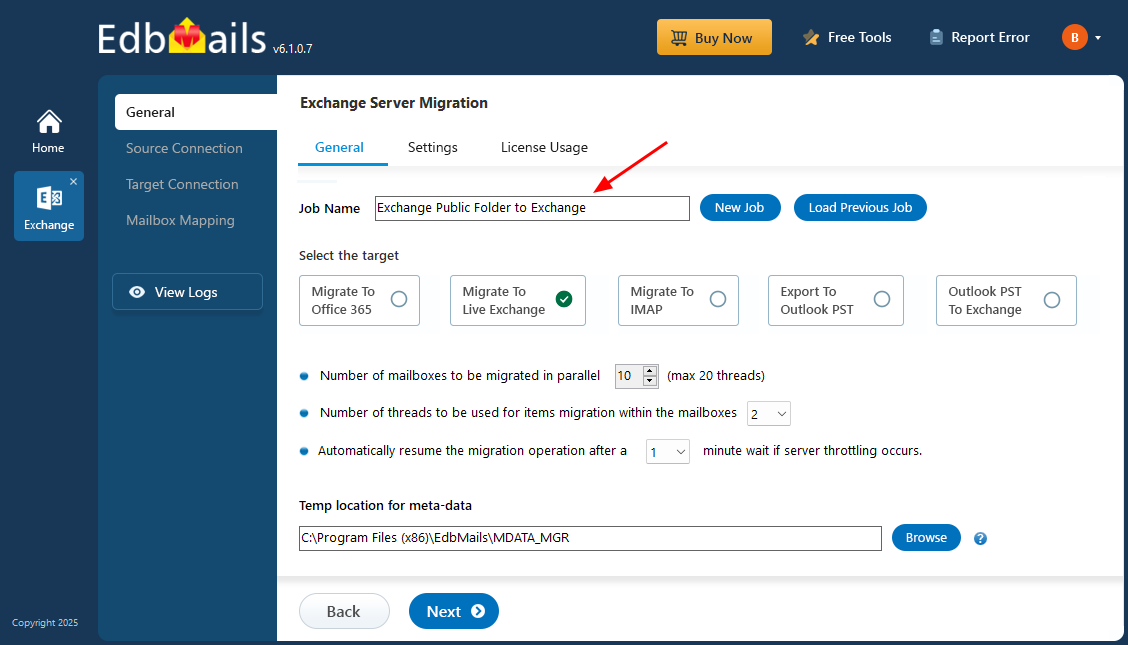
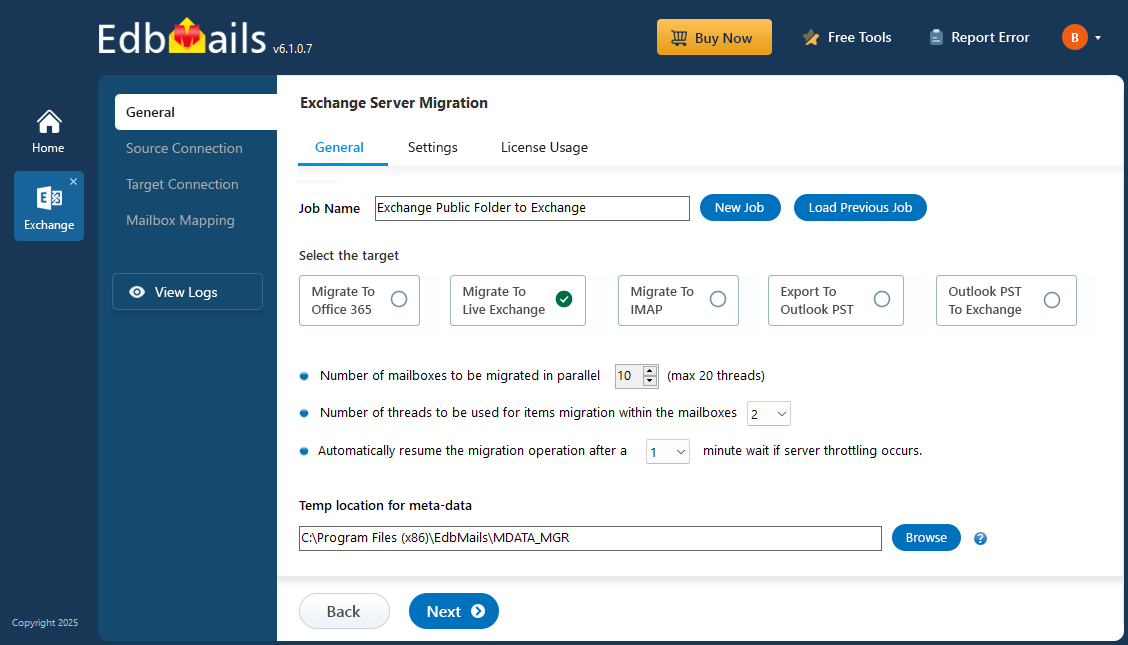
      • You can either keep the default job name or click the ‘New Job’ button to change the job name.

        Exchange Public Folder to Exchange job name

    • Step 2: Connect to Source Exchange server

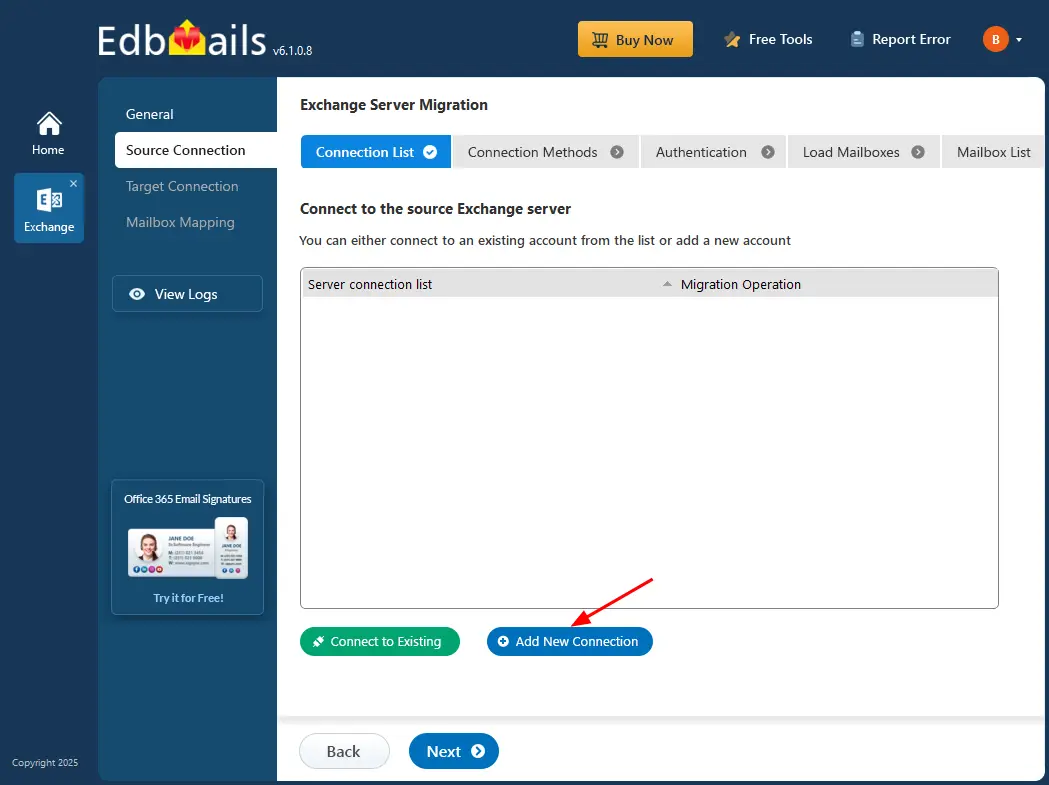
      • To set up a new connection with the source Exchange server, click on ‘Add New Connection’. If you've already connected before, just choose it from the list and click ‘Connect to Existing’ to continue.

        Click Add New Connection

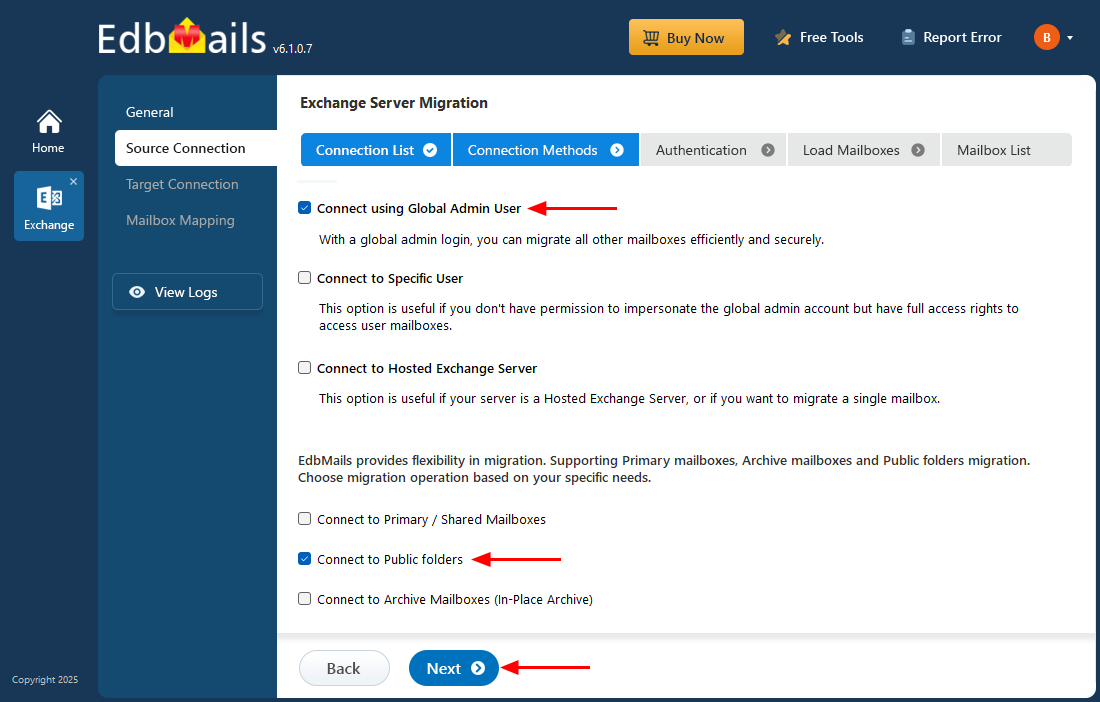
      • Select the required connection options and click the ‘Next’ button.

        Choose ‘Connect to public folders’ option

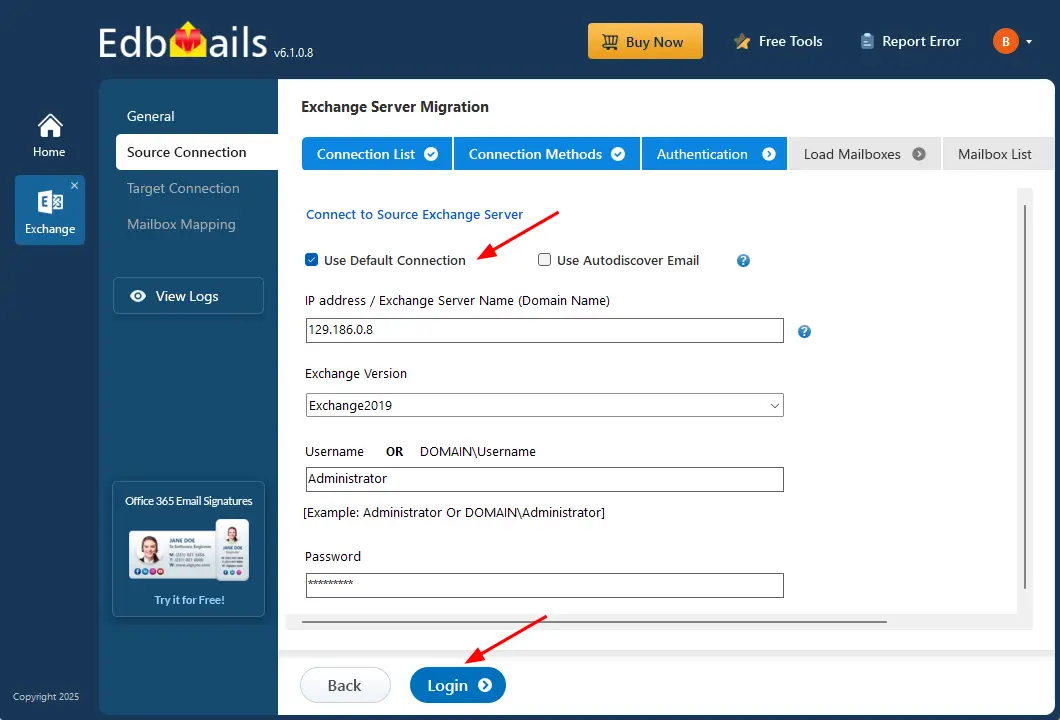
      • Provide the source Exchange server details such as the IP address (Domain name), Exchange version, Username, and password.
      • After entering the required information, click the ‘Login’ button.

        Login to source Exchange server

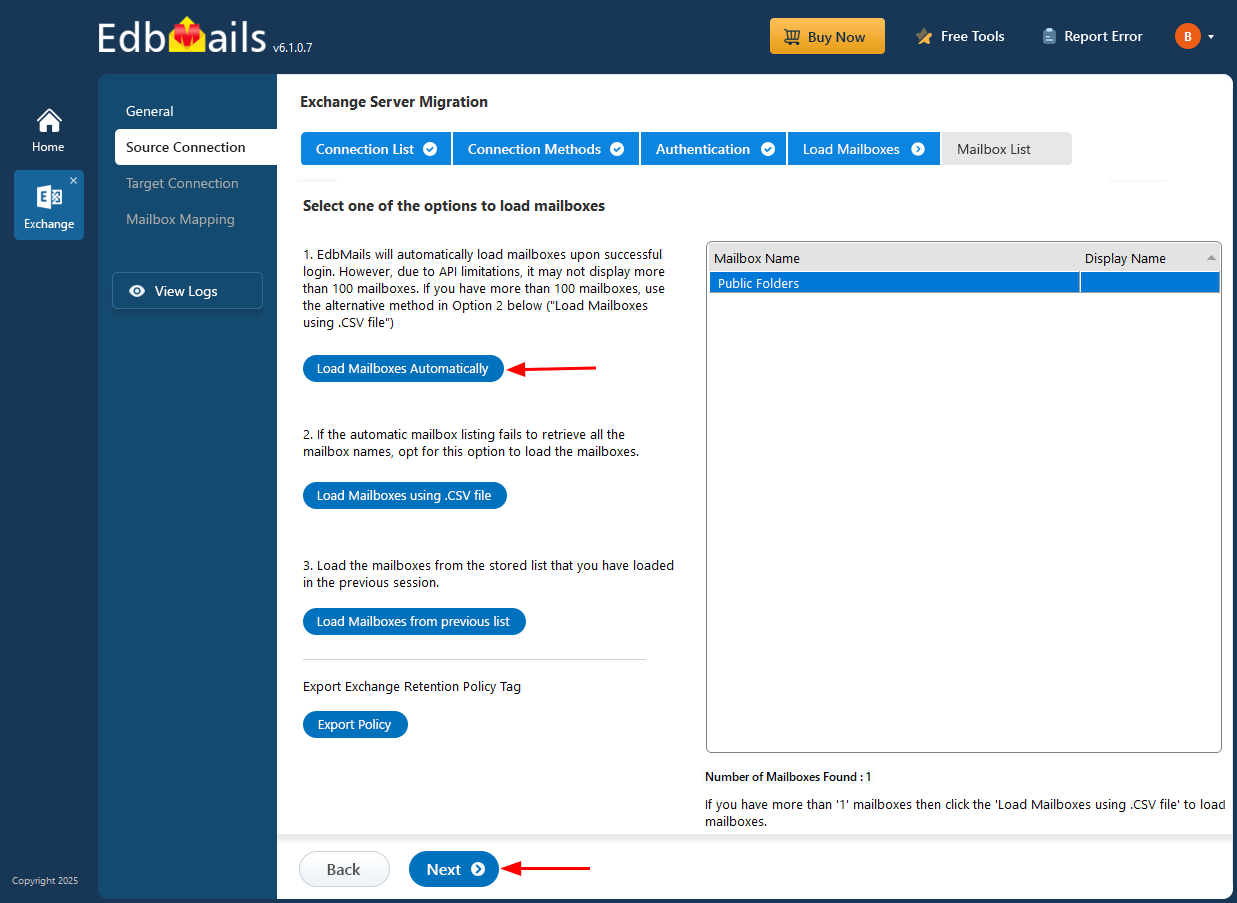
      • After successful authentication, select one of the following options to load the mailboxes:

        i) Load Mailboxes Automatically: After signing in, EdbMails automatically loads and displays the available mailboxes, making the configuration process simple. Due to Microsoft API limitations, only up to 100 mailboxes may be displayed. If your environment has more than 100 mailboxes, use the alternative option below.

        ii) Load Mailboxes using CSV file: If the automatic option does not display all mailbox names, choose ‘Load Mailboxes using .CSV file’ to load the required mailboxes.

        iii) Load Mailboxes from previous list: This option allows you to quickly access the mailbox list that was saved and imported during your previous session.

      • Select ‘Load Mailboxes Automatically’ and click ‘Next’ to proceed.

        Select Public Source load mailboxes option

    • Step 3: Select the Exchange Public folders for migration

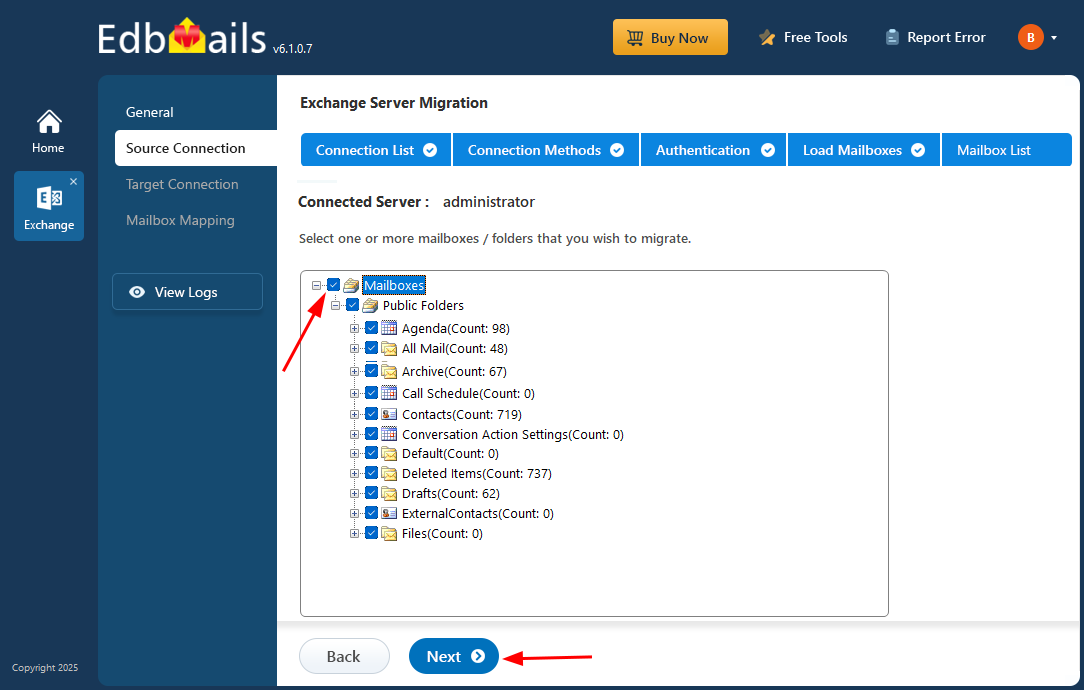
      • Select the public folders on the Exchange server that you wish to migrate.
      • Then, click the 'Next' button to initiate the connection with the destination server.

        Select the mailboxes

    • Step 4: Connect to target Exchange server

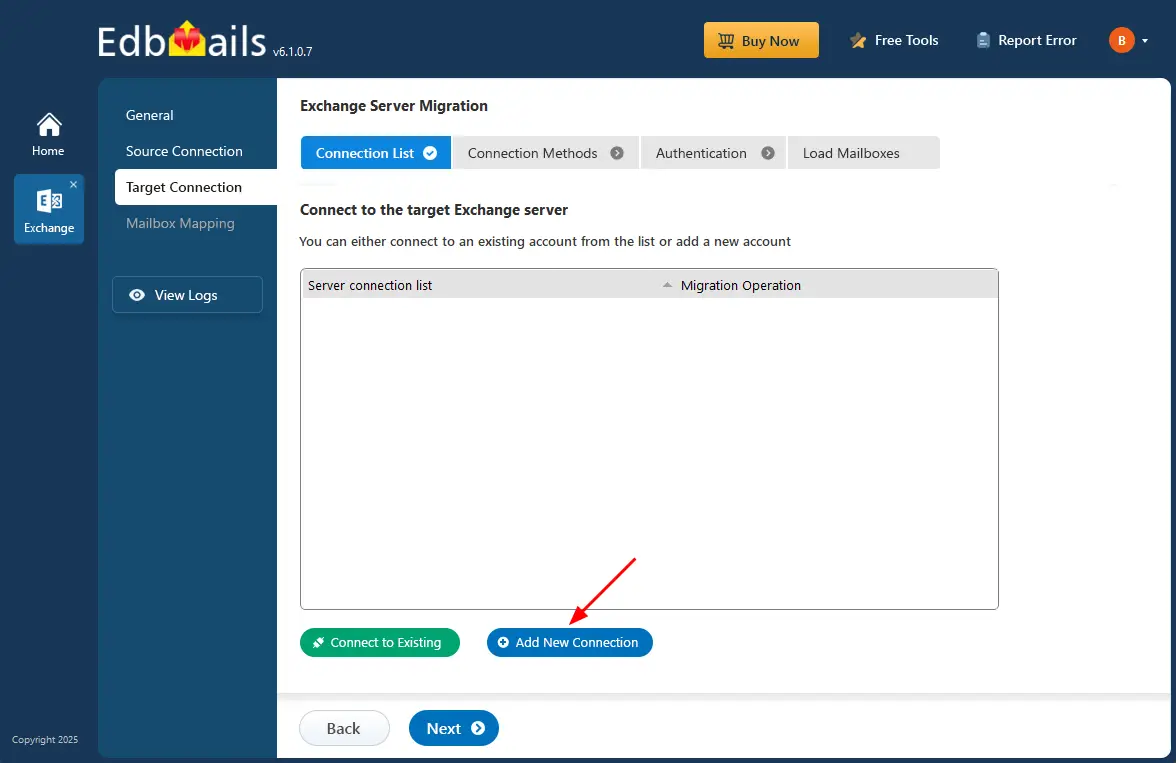
      • To connect to the target Exchange server, click ‘Add New Connection’ to set up a new one. If you've connected before, simply pick it from the list and click ‘Connect to Existing’ to move forward.

        Target Exchange Server Connection

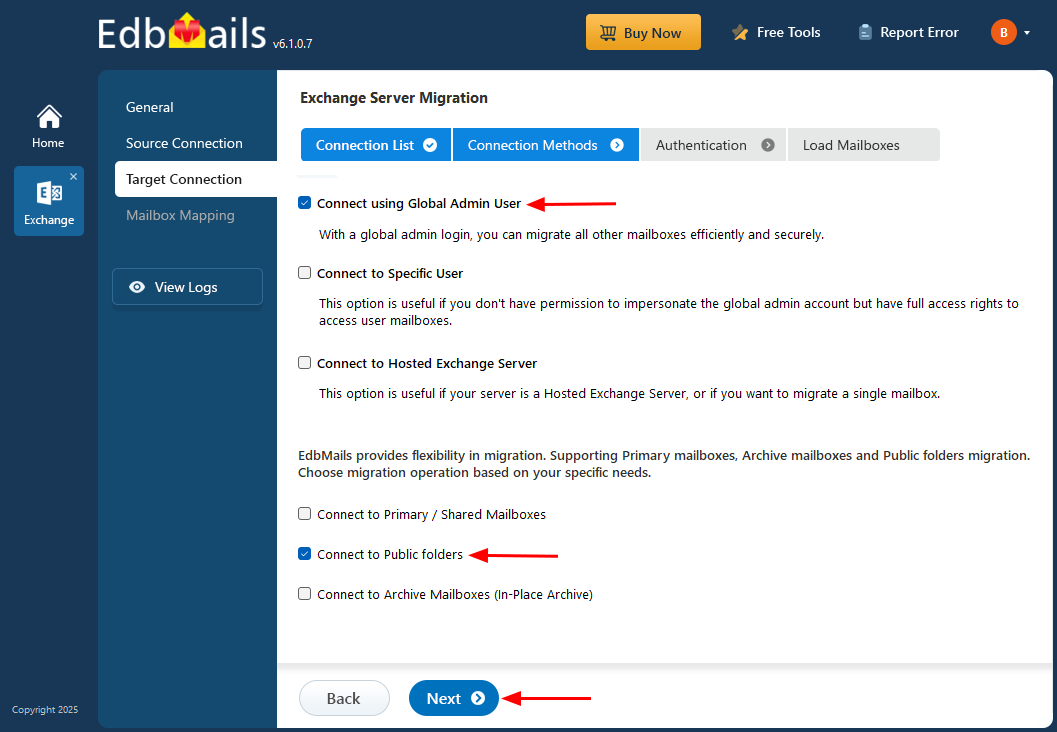
      • Choose ‘Connect to Public folders’ to connect to the target Exchange server public folder, then click ‘Next’ to continue.

        Choose ‘Connect to public folders’ option

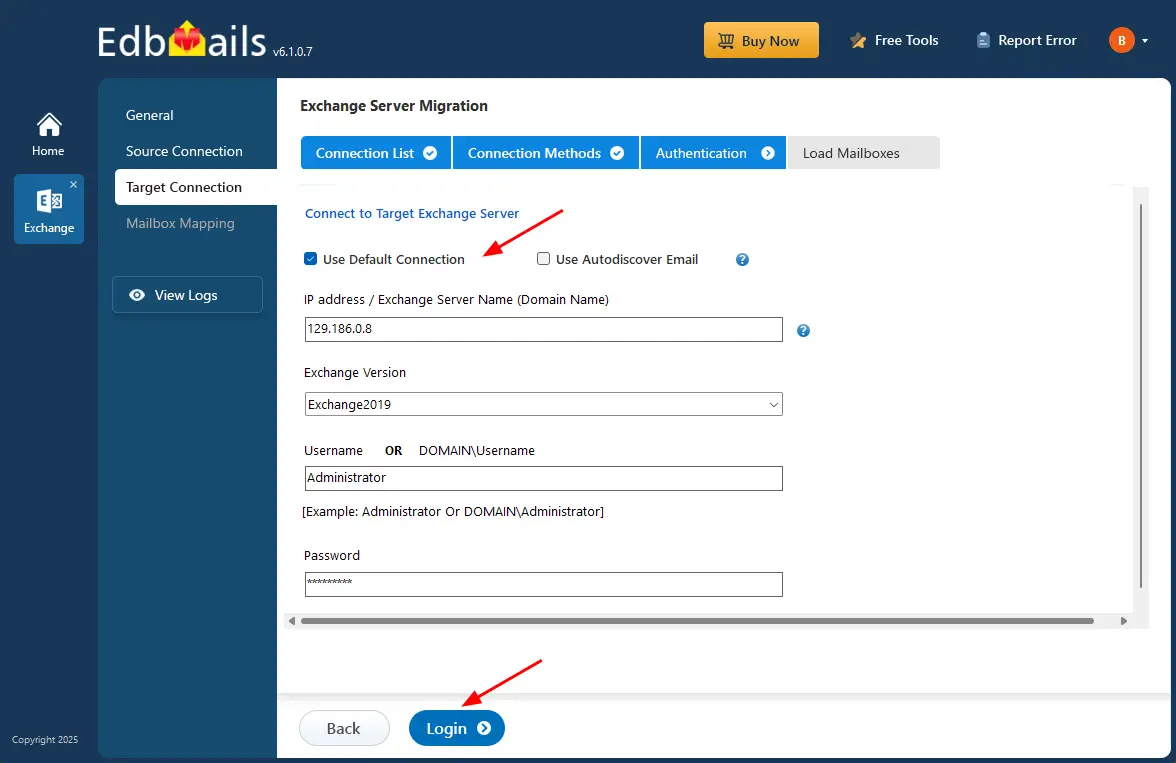
      • Enter the target Exchange server details and click the ‘Login’ button

        Login to Exchange server

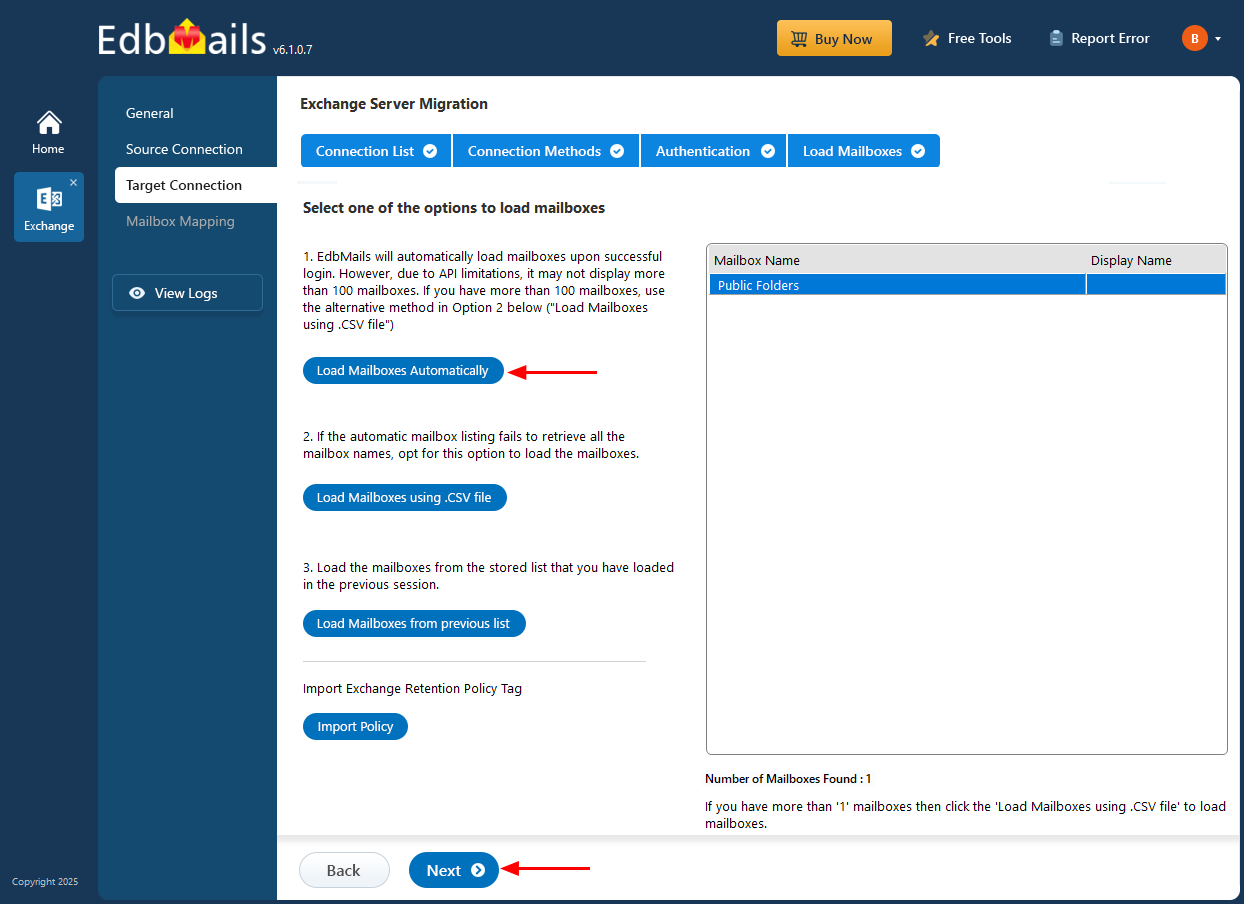
      • Choose one of the methods to load the target Exchange server public folders.

        Select Public Target load mailboxes option

    • Step 5: Public folder mapping between source and target servers

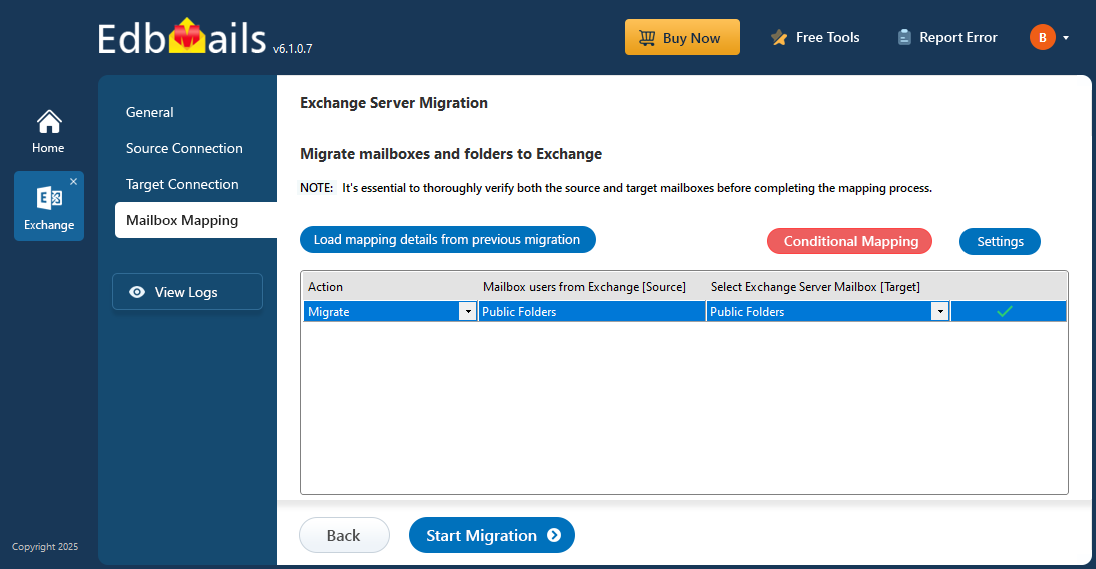
      • EdbMails automatically maps public folders between the source and target servers. If preferred, you can also perform the mapping manually during the migration.

        Exchange Public Folder to Exchange mailboxes mapping

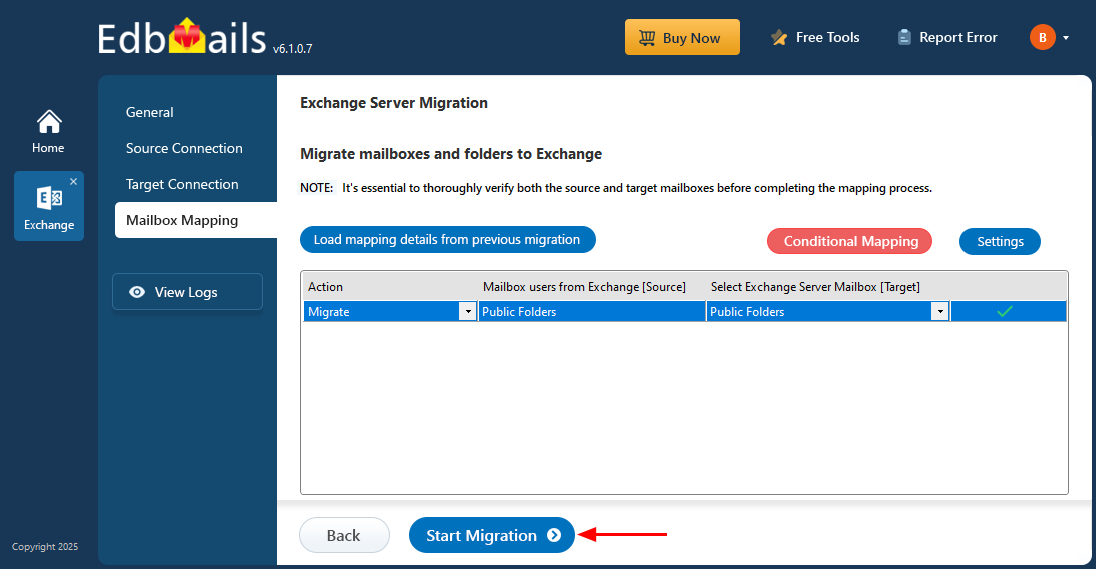
    • Step 6: Start Exchange Public folder migration

      • After mapping the public folders, click on ‘Start Migration’ to initiate the migration process.

        Exchange public folder to Exchange migration

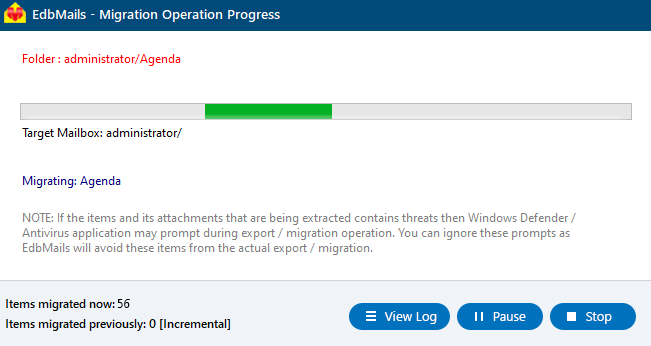
      • During migration, you can track progress in real-time. Once completed, a confirmation message will appear.

        Exchange public folder to Exchange migration.

      • Clicking the 'View Logs' button to view the migration report. Additionally, log in to your target exchange server to confirm that items such as emails, calendars, contacts, and other data have been migrated successfully.
  5. Exchange public folder to Exchange: post migration tasks

    Step 1: Update MX records to route emails to the new Exchange server

    To ensure proper email delivery to the target Exchange server, update the MX records to direct traffic to the newly migrated server. Additionally, configure the Autodiscover record to facilitate seamless connections between Outlook and the migrated mailboxes.

    Step 2: Create new Outlook profiles for users in the new domain

    If users experience connectivity issues with the new Exchange server, it is advisable to create new Outlook profiles for each user within your domain to ensure reliable access.

    Step 3: Decommission and uninstall the old Exchange server

    Upon successful migration, proceed to uninstall and decommission the original Exchange server.

    • Instructions for uninstalling Exchange Server 2013
    • Instructions for uninstalling Exchange Server 2010
  6. Troubleshooting Guide for Exchange Public Folder Migration

    Navigate to Exchange migration troubleshooting guide and the Public folder troubleshooting for potential solutions to any errors you may encounter during the migration process. For further insights regarding EdbMails Exchange migration, refer to the frequently asked questions.

    Solution to Exchange public folders migration failing due to insufficient permissions

Benefits of EdbMails for Exchange public folder to Exchange migration

  • Targeted Migration for Public Folders: EdbMails specializes in migrating public folders with precision, ensuring the accurate transfer of unique properties, permissions, and folder hierarchies. This targeted approach guarantees that all data is preserved without any loss, maintaining the integrity of their public folder structures throughout the migration process.
  • Incremental Migration Capabilities: EdbMails supports incremental migration, migrating only new and modified data during subsequent migration operations. This approach reduces overall migration time and optimizes bandwidth usage.
  • Advanced Filtering Options: Users can selectively migrate specific folders or items based on criteria such as email sent/received date, subject, attachment names, cc address, bcc address, read and unread status of the messages providing enhanced control over the migration process.
  • Detailed Migration Reports: EdbMails generates comprehensive reports for each migration session, providing complete transparency throughout the migration process. These detailed reports outline the status of the migration, including the number of items migrated.
  • Compatibility with all Exchange Versions: EdbMails is compatible with a wide range of Exchange versions such as 2007, 2010, 2013, 2016 and 2019, enabling organizations with diverse environments to execute migrations without encountering compatibility issues.
  • Comprehensive Support: EdbMails offers free 24/7 customer support to ensure a smooth and successful migration experience at every step of the process.

Additional resources:

  • EdbMails Exchange migration software
  • Exchange public folder migration to Office 365
  • Exchange to Exchange migration
  • Exchange to Office 365 migration
  • Exchange to IMAP migration
  • Exchange to PST export
lady image


 In this manual

IntroductionExchange PF MigrationPF Migration PlanExchange Pre-MigrationPF Migration StepsPost-Migration TasksTroubleshootingEdbMails Benefits

Live Exchange Migration

100 Mailboxes $299 Only

Buy Now

Need help?

24/7 Customer support

Contact us on Live chat

Personalized Demo

Book a personalized demo

Still need help?

Email us / Call us

© 2026 Shifttocloud Inc. Privacy Policy | Terms of Use | GDPR | Security | Press Releases

hidden msg
Live Chat

Hi, May I help you?

Hide Chat Now