


Hosted Exchange Public Folder to Office 365 Migration
Migrating Hosted Exchange public folders to Office 365 improves accessibility by enabling users to reach shared data from any device while working with Microsoft 365 services such as Teams and SharePoint. It also shifts infrastructure maintenance and security management to Microsoft, providing scalable storage for future business needs. With centralized administration, advanced search capabilities, and built-in data protection, organizations can manage data more efficiently, maintain reliability, and create a modern collaboration environment that supports better productivity.
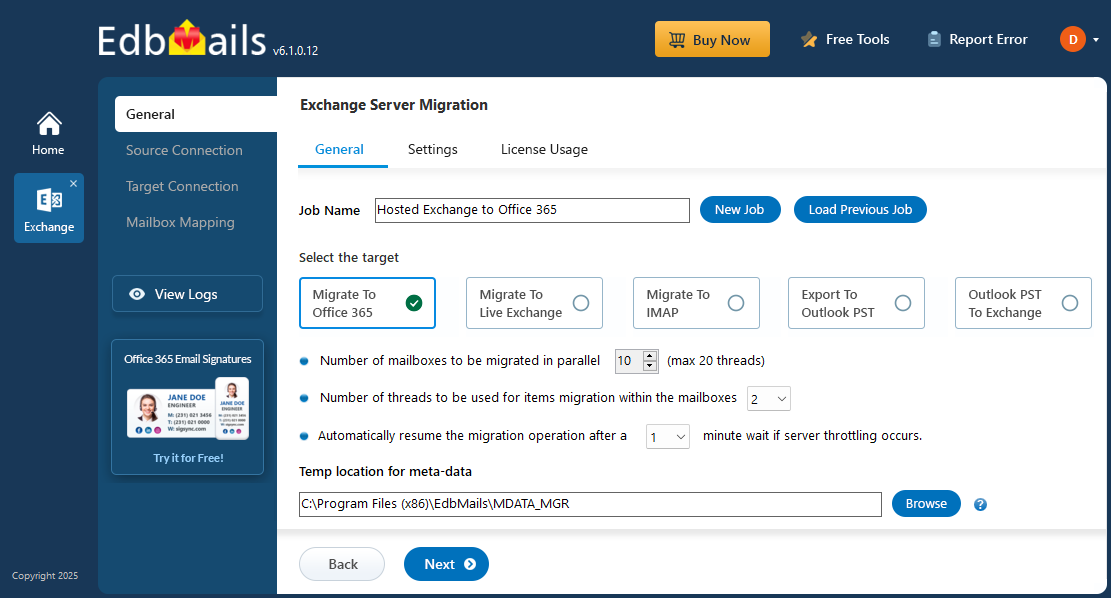
EdbMails Exchange Migration Software provides a reliable and efficient way to migrate public folders from Hosted Exchange to Office 365. Once the connection to the source and target servers is established, the application automatically loads the complete public folder structure with subfolders and item counts, making it simple to review and navigate the data. It supports concurrent migration, helping improve overall performance by processing multiple migrations at the same time. With built-in capabilities such as automatic throttling management, zero downtime, and delta migration that migrates only newly added or modified items, EdbMails ensures a smooth and dependable migration process without disruption.
Hosted Exchange Public Folder to Office 365 Migration: Pre-requisites
Step 1: Assess current environment
- Create a detailed list of all public folders, including sizes and item counts, to understand the scope of the migration.
- Grant admin permissions to all the public folders you want to migrate.
Steps to assign admin permissions to the Exchange public folders.
Step 2: Prepare your Office 365 environment
- Ensure you have the appropriate Office 365 subscription that supports public folders.
- Ensure to create the public folders and assign admin permissions on your target Office 365 server
Steps to create the public folders and assign admin permissions on Office 365
Step 3: Network and connectivity
Evaluate your network bandwidth to handle the migration workload without impacting daily operations.
Step 4: Migration tool preparation
- Install and configure the migration tool, ensuring it’s set up to connect to both the source and target environments.
- Set up service accounts with the necessary permissions to access public folders for migration.
Step 5: Plan for Delta migration
Prepare to execute delta migrations post-initial transfer to capture any changes made during the migration process.
Step 6: User communication
Inform users about the migration timeline and any changes in accessing public folders post-migration to minimize disruptions.
Steps to enable Hosted Exchange Public Folders to Office 365 Migration
Step 1: Download and install EdbMails software
- Download and install the EdbMails application on your computer.
System requirements for Hosted Exchange to Office 365 migration

- Open the EdbMails application on your computer.
- Enter your registered email ID and password, then click ‘Login’. If you don’t have an account yet, select ‘Start Your Free Trial’ to continue with the trial version.Note: The trial version includes all key features and supports migration of up to 30 items per folder. To perform unlimited migration, purchase an Exchange Migration license from the EdbMails website.After purchasing the license, close the application and open it again. Then sign in using the same email ID and password used during the purchase to activate the license successfully.

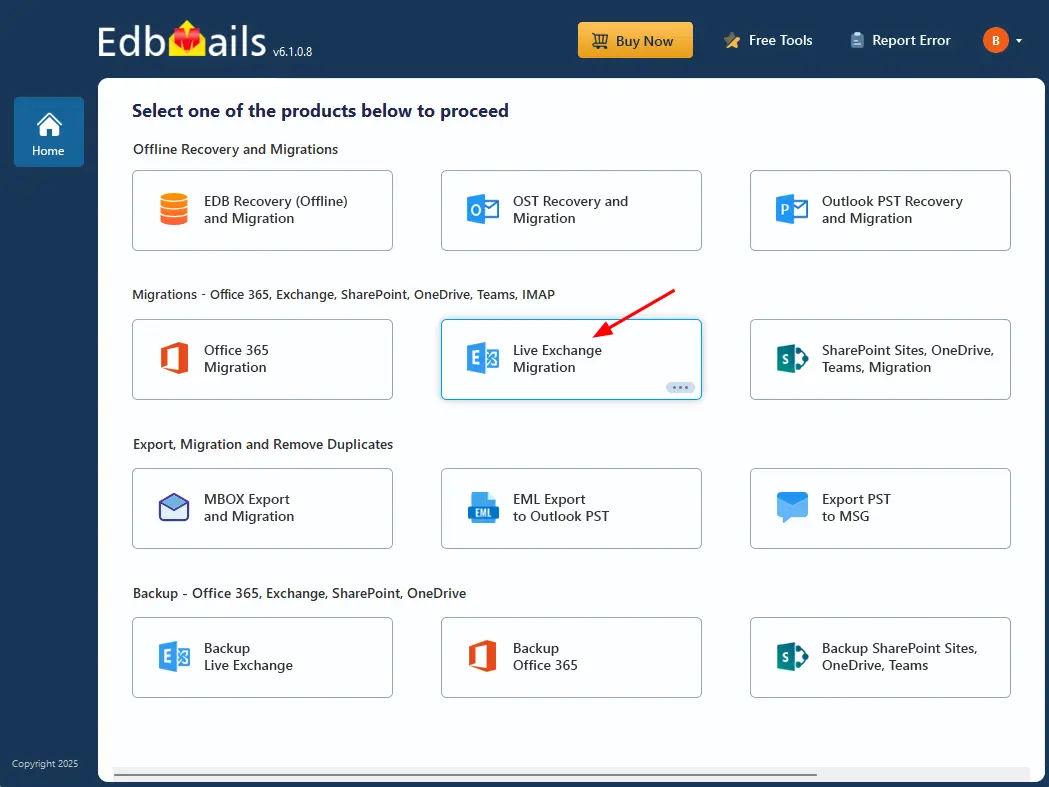
- Select 'Live Exchange migration' option.
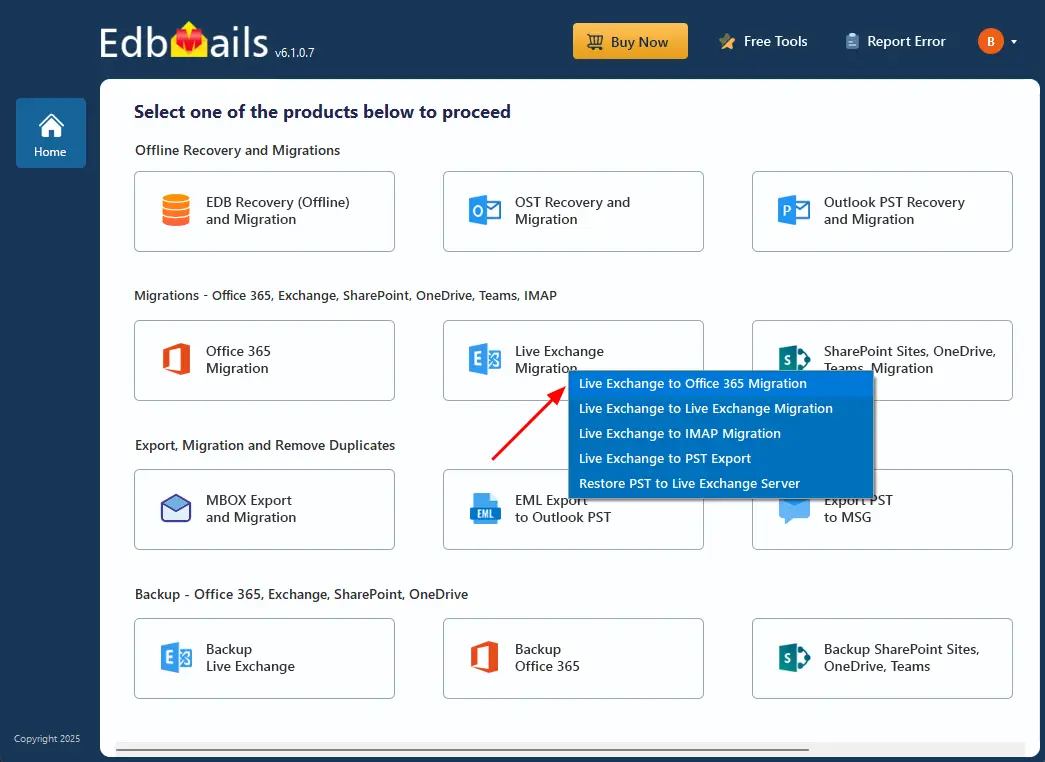
- Select 'Live Exchange to Office 365 Migration' option.
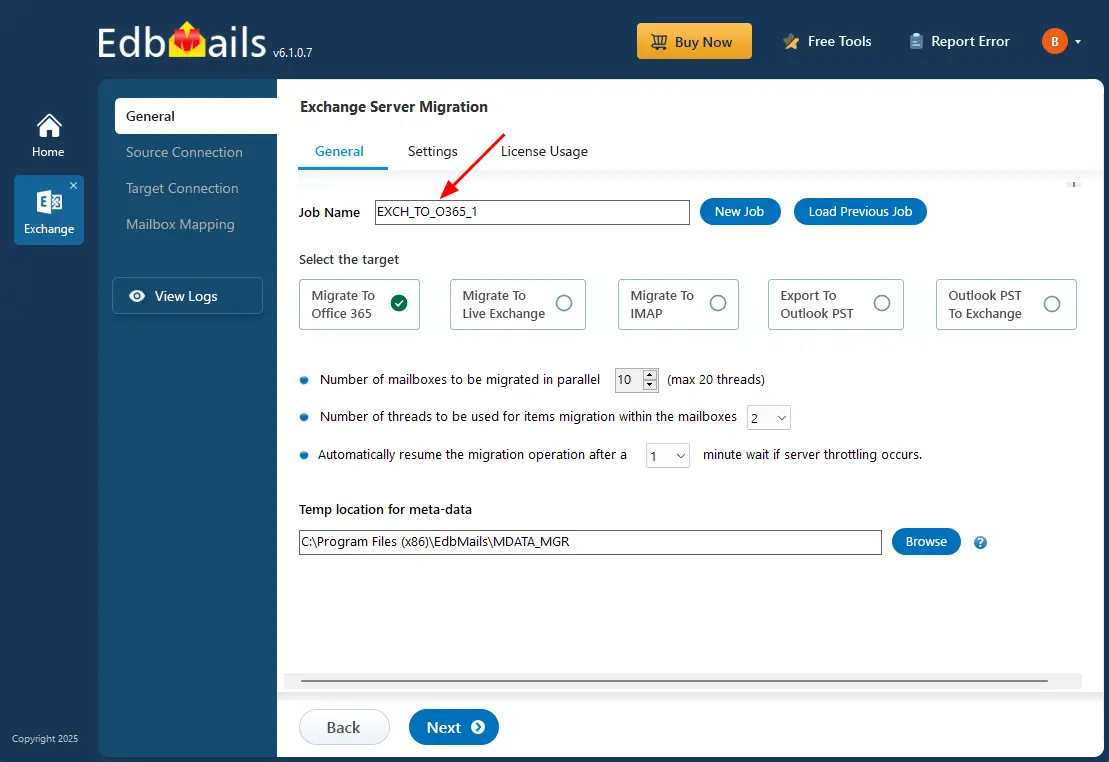
- Either proceed with the default job name or choose 'New Job' to modify it.
- Download and install the EdbMails application on your computer.
Step 2: Connect to source Hosted Exchange server
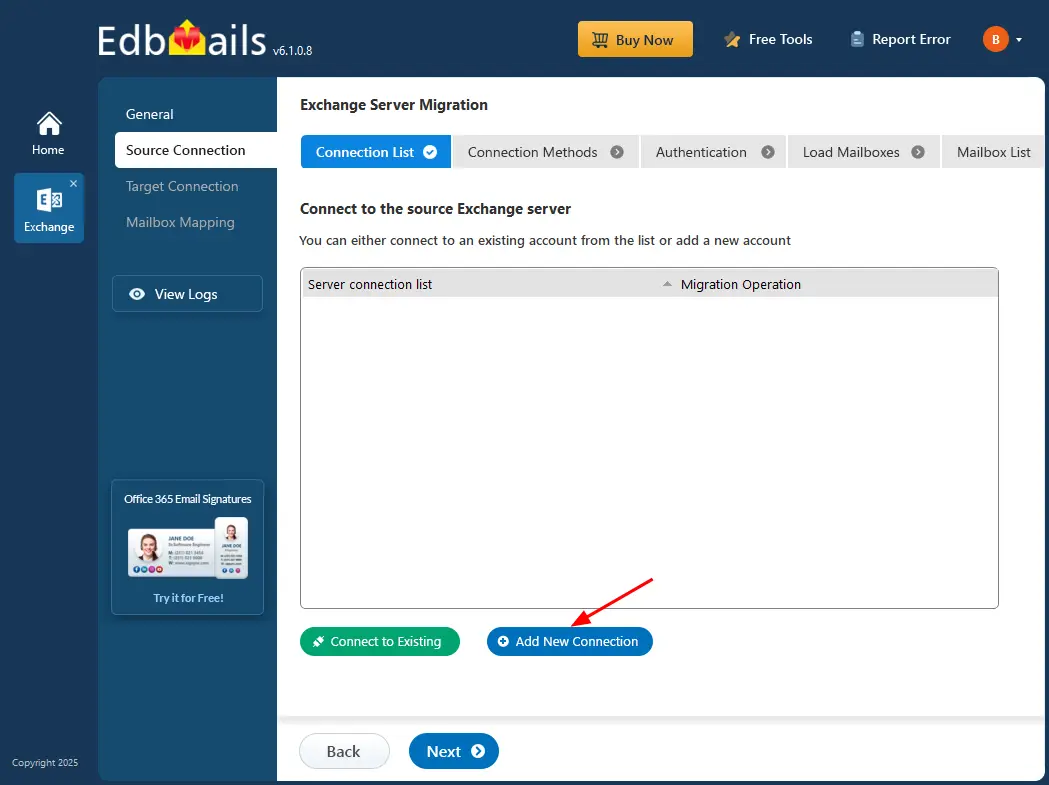
- To connect to the source Exchange server, choose ‘Add New Connection’ to create a new connection or select an existing connection and click ‘Connect to Existing’ to continue.
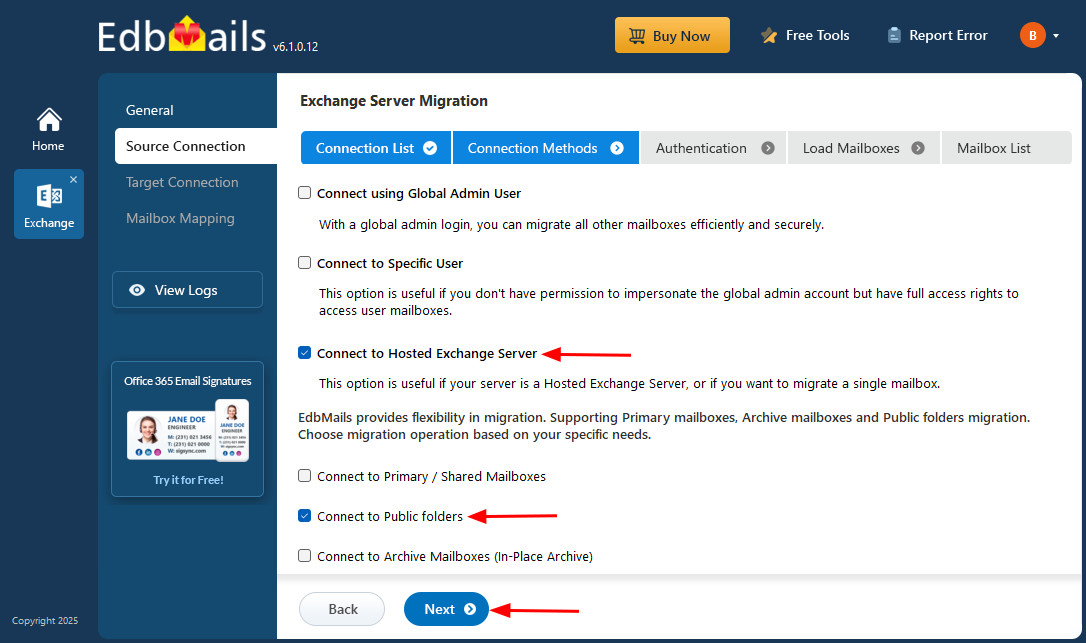
- Select ‘Connect to Hosted Exchange Server’ and the required migration option.
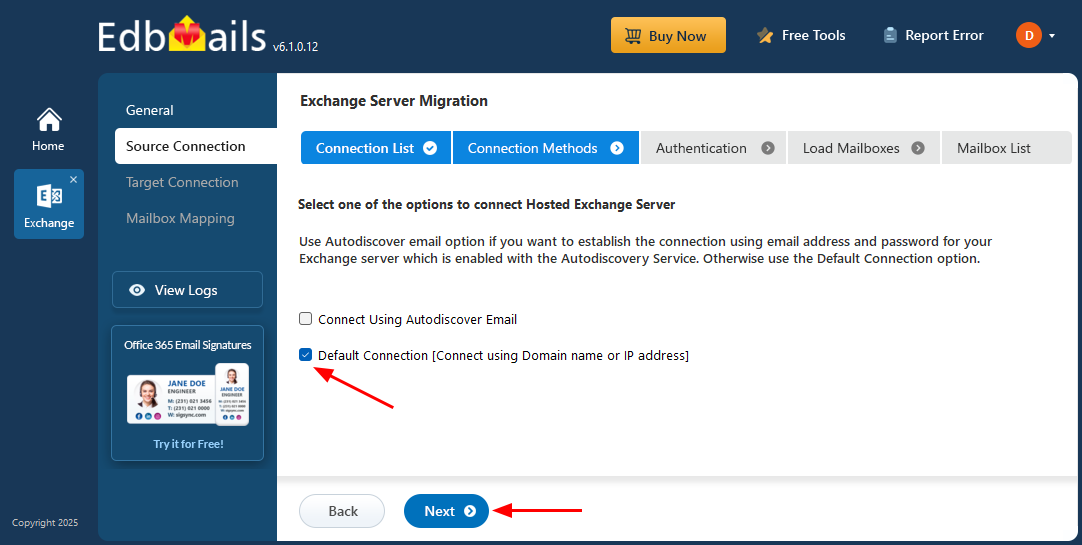
- Select ‘Connect Using Autodiscover Email’ and enter your email address and password if your Hosted Exchange supports Autodiscover. If Autodiscover is not available, choose ‘Default Connection’ and provide the domain name or IP address to establish the connection.
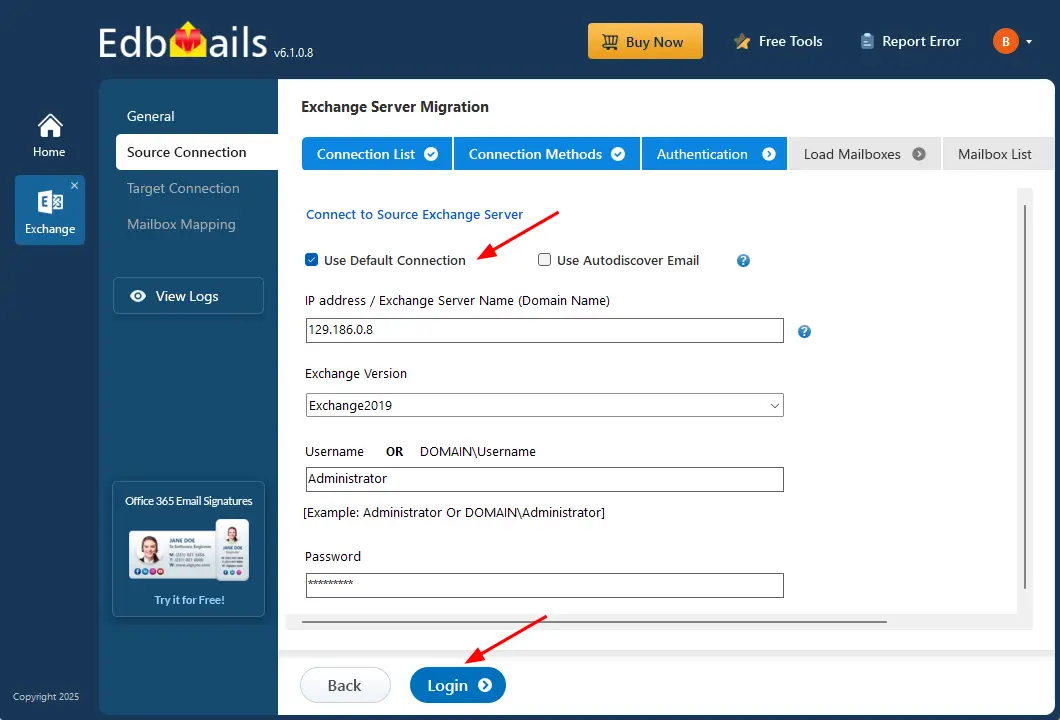
- Enter the source Exchange server details, including the IP address (Domain name), Exchange version, username, and password.
- Click the ‘Login’ button to proceed.
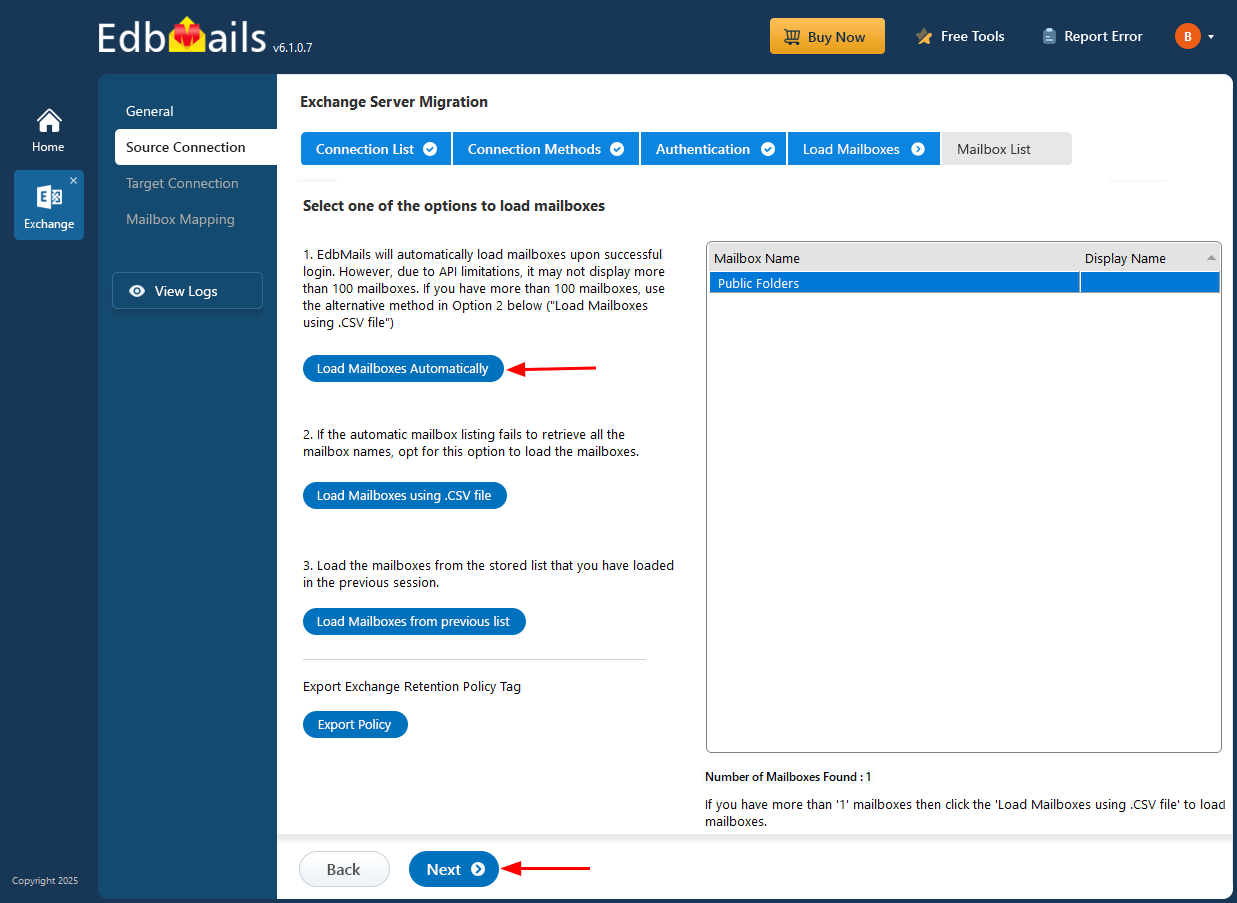
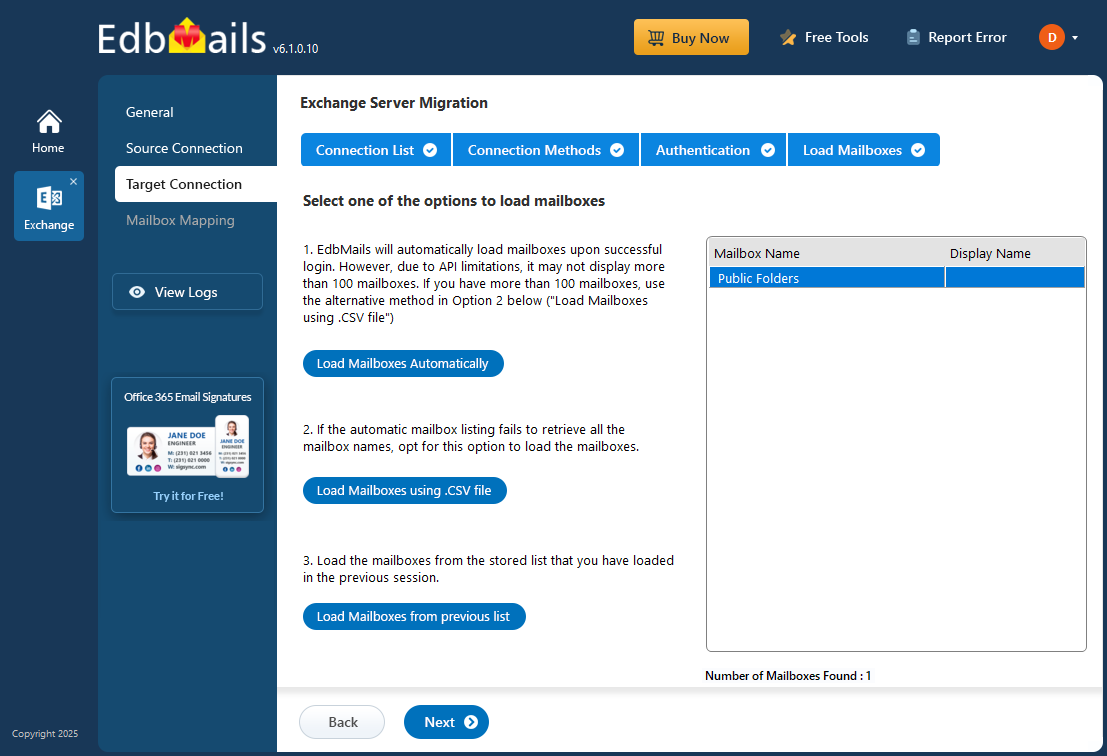
- After successful authentication, choose one of the following options to load the mailboxes:
i) Load Mailboxes Automatically: Once you sign in, EdbMails automatically retrieves and displays the available mailboxes, simplifying the setup process. Due to Microsoft API limitations, only up to 100 mailboxes may appear in the list. If your environment contains more than 100 mailboxes, use the alternative option below.
ii) Load Mailboxes using CSV file: If the automatic method does not show all mailbox names, select ‘Load Mailboxes using .CSV file’ to import and load the required mailboxes.
iii) Load Mailboxes from previous list: This option lets you quickly load the mailbox list that was saved during your earlier session.
- Choose ‘Load Mailboxes Automatically’ and click ‘Next’ to continue.
- To connect to the source Exchange server, choose ‘Add New Connection’ to create a new connection or select an existing connection and click ‘Connect to Existing’ to continue.
Step 3: Select Hosted Exchange public folders
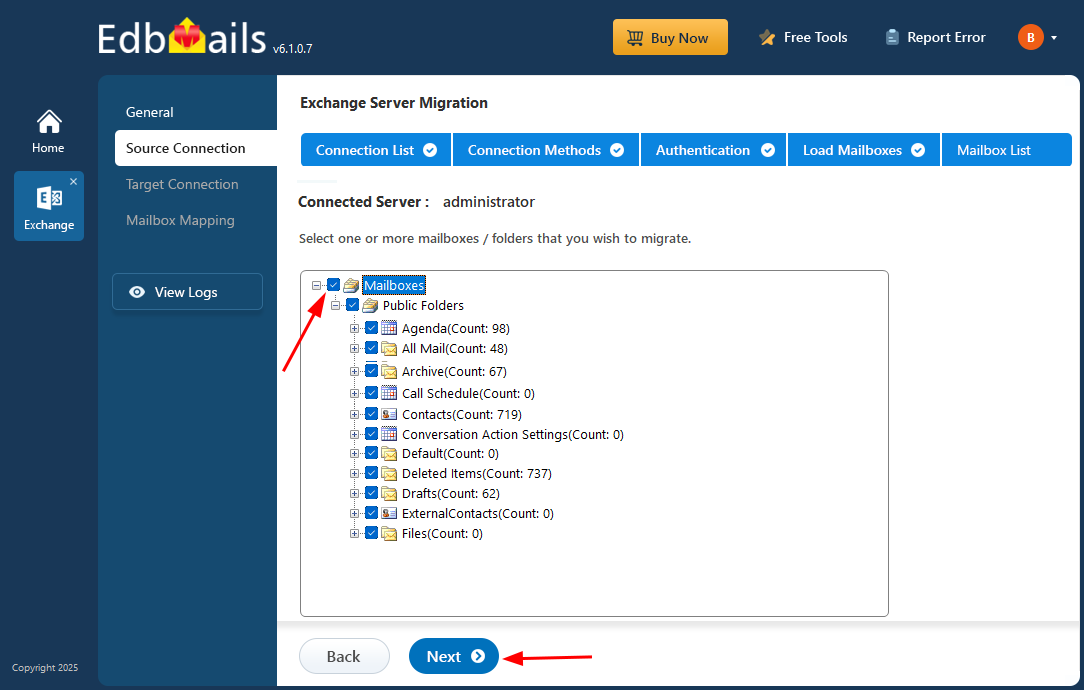
- Select the public folders from your Hosted Exchange server that you want to migrate to Office 365.
- Click ‘Next’ to initiate the connection to the target server.
Step 4: Connect to target Office 365 server
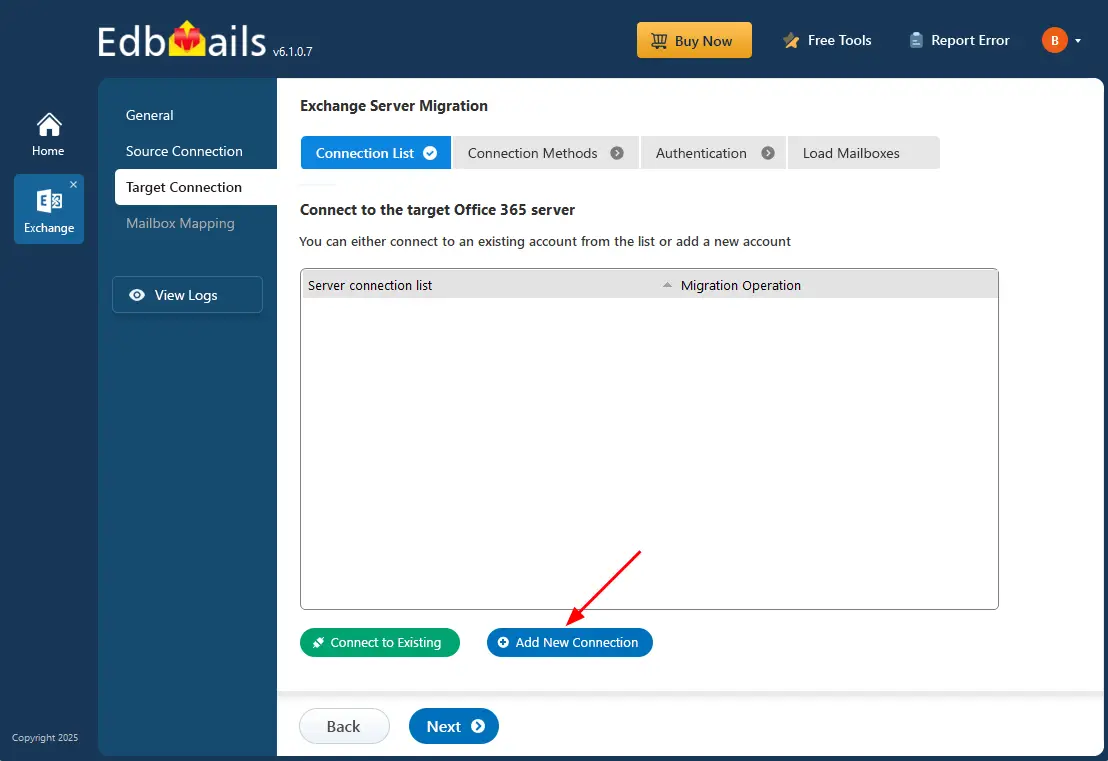
- To connect to your target Office 365, choose ‘Add New Connection’ for a new connection or select a previously saved connection and click ‘Connect to Existing’.
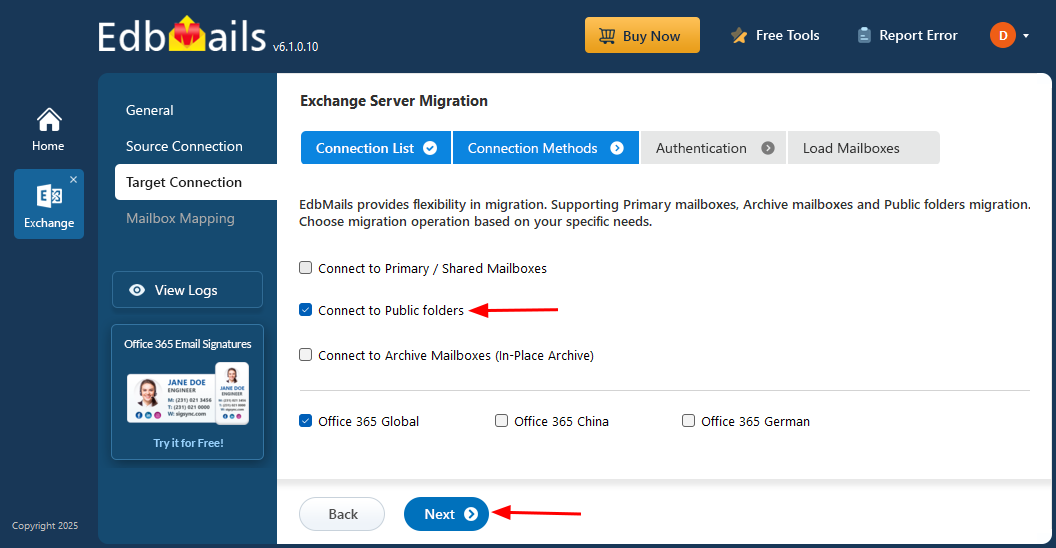
- Choose the ‘Connect to Public folders’ option and click the ‘Next’ button.
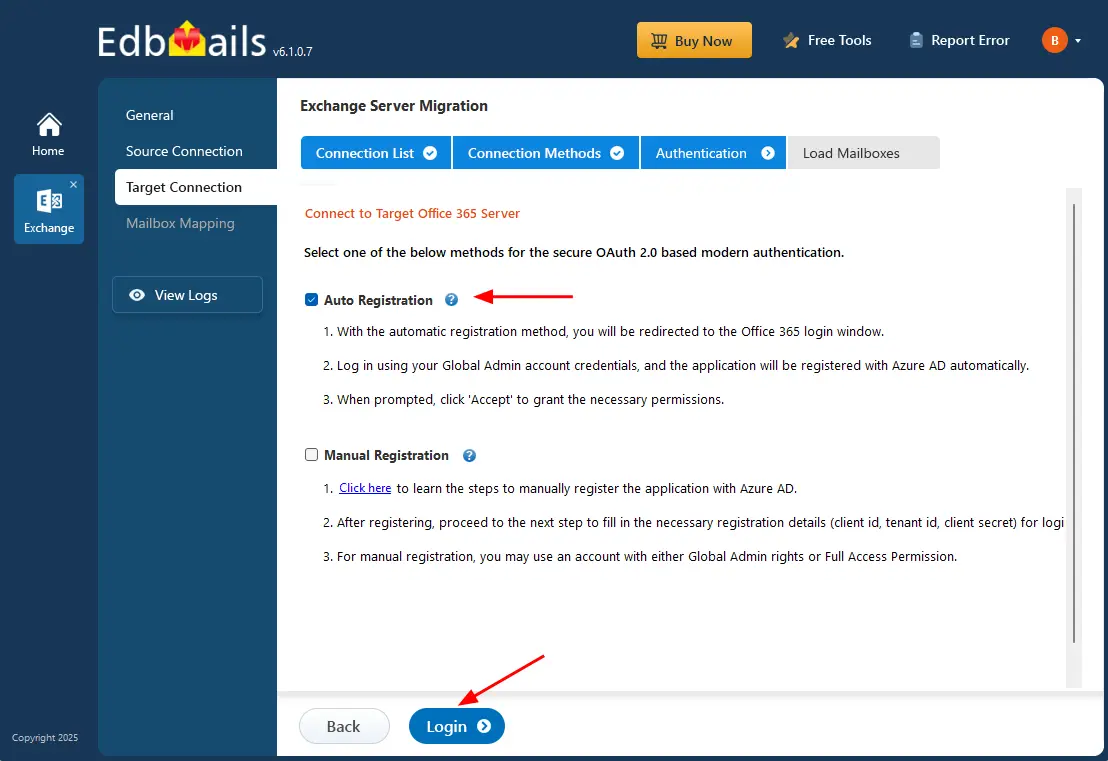
- Make sure you have a Global Admin account with an active mailbox. This is required to auto register the EdbMails application in your Entra ID (Azure Active Directory).
- If you select the Manual Registration option, you can sign in using a Global Admin account or a user account that has full access permissions.
- Choose ‘Auto Registration’ to connect with Office 365 and click the ‘Login’ button to continue.
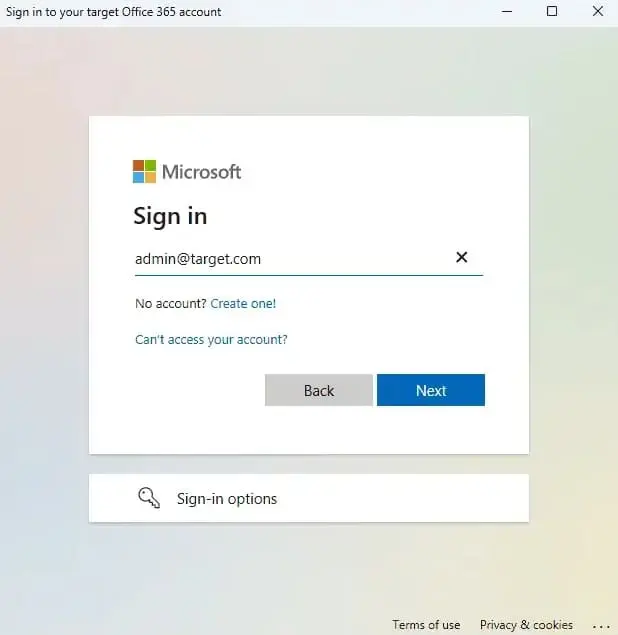
- Authenticate on Microsoft sign-in page.
- Select one of the methods to load the public folders.
- To connect to your target Office 365, choose ‘Add New Connection’ for a new connection or select a previously saved connection and click ‘Connect to Existing’.
Step 5: Hosted Exchange to Office 365 public folder mapping
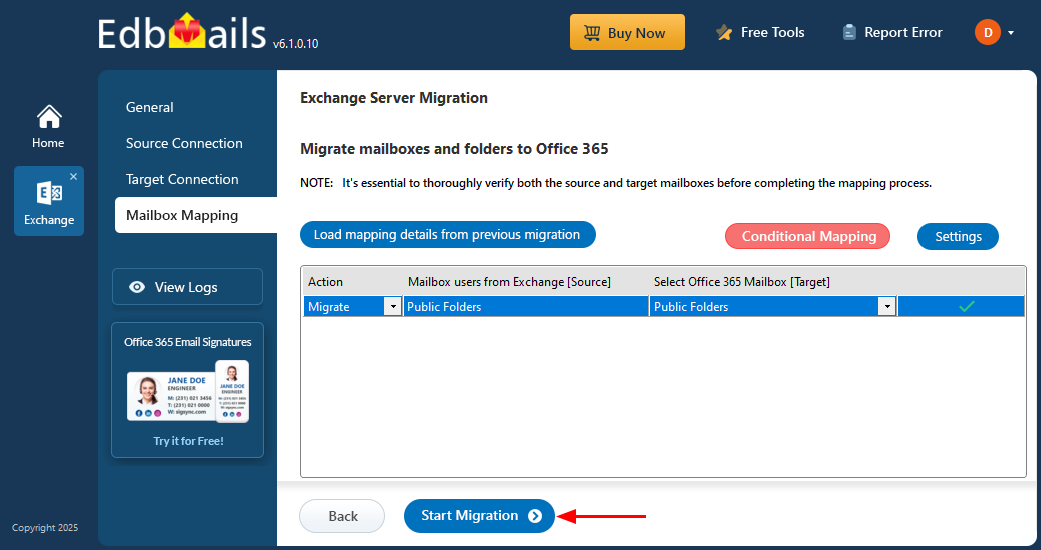
- EdbMails automatically maps public folders between the Hosted Exchange server and Office 365.
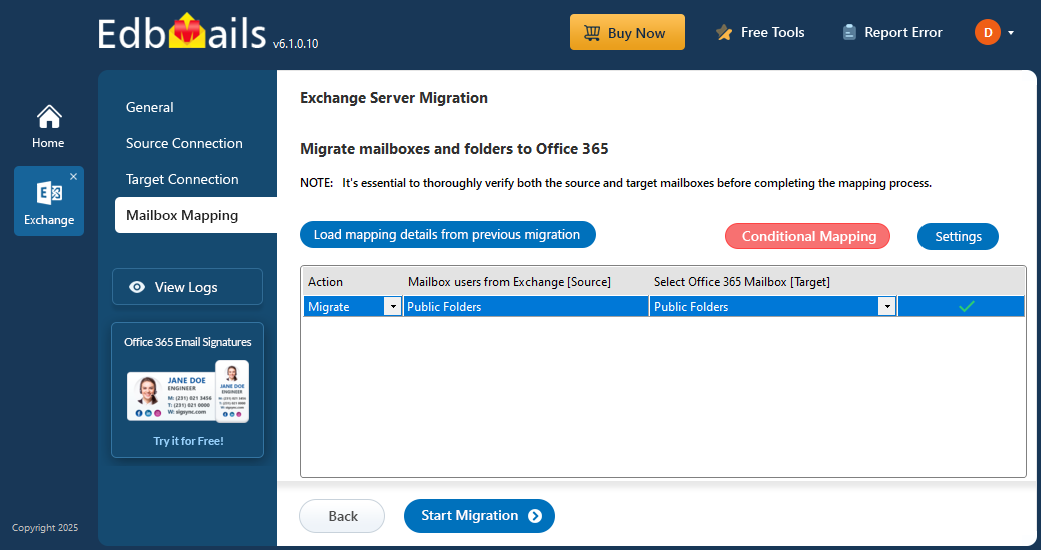
- EdbMails automatically maps public folders between the Hosted Exchange server and Office 365.
Step 6: Start Hosted Exchange Public folder to Office 365 migration
- Click the 'Start Migration’ button to initiate the migration process.
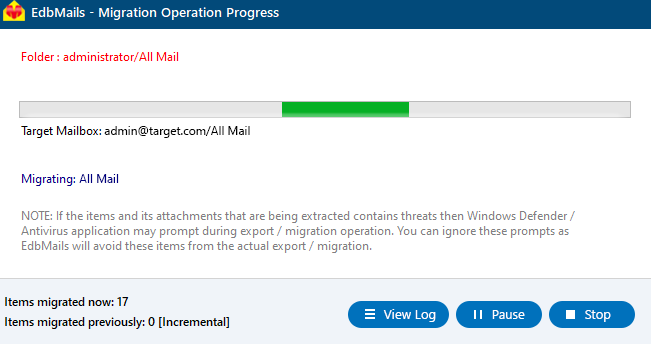
- Monitor the migration progress using the progress bar. Once the migration is complete, EdbMails will prompt you to review the status. Click the ‘View Logs’ button to access the migration report.
- Click the 'Start Migration’ button to initiate the migration process.
Hosted Exchange Public folder to Office 365: post-migration tasks
- Verify migration : Confirm that all emails, contacts, calendars, and tasks have been successfully migrated.
- Test mail flow : Send and receive test emails to verify proper mail flow functionality.
- User account configuration : Ensure all user accounts are properly configured in the new environment.
- Update MX records : Change MX records to route emails to the new server.
- Email client setup : Assist users in setting up their email clients with the new server configurations.
- Mobile device testing : Test connectivity for mobile devices utilizing ActiveSync.
- Collect user feedback : Gather feedback from users about their post-migration experience.
- Create Outlook profile : If Outlook encounters connectivity hiccups with Office 365, create fresh Outlook profiles for each user in your domain. This action will help troubleshoot and establish proper connections.
- Decommission Hosted Exchange servers : Shut down the Exchange servers after confirming a successful migration and user satisfaction.
Troubleshooting Guide for Hosted Exchange Public Folder to Office 365 Migration
For assistance with resolving migration errors, refer to the Exchange migration troubleshooting guide. For more details about EdbMails Exchange migration, visit the Frequently Asked Questions section.
Hosted Exchange Public Folder to Office 365 Migration: Pros
- Direct Migration: EdbMails enables direct migration between Hosted Exchange and Office 365 without the need for intermediary steps, allowing for quick and efficient data transfer.
- Advanced Filter Settings: With advanced filter settings, users can customize their migration by applying specific criteria such as date ranges, item types, or folder exclusions. This precision ensures that only relevant data is migrated, optimizing both storage usage and performance.
- Incremental Migration: EdbMails supports incremental migration, allowing organizations to transfer only new or modified items after the initial migration. This feature is particularly beneficial for minimizing bandwidth usage and ensuring that no critical updates are missed during the Hosted Exchange public folder to Office 365 migration process.
- Automatic Mailbox Mapping: The tool automatically maps mailboxes/public folders between the source and destination environments, significantly reducing the manual effort required during migration.
- User-friendly Interface: EdbMails boasts a user-friendly interface that simplifies the migration process for both technical and non-technical users.
- Migration Reports: Comprehensive migration reports provide detailed insights into the migration process, including counts of migrated items, any errors encountered, and summaries of completed tasks.
- Zero downtime: EdbMails ensures a zero-downtime migration experience, allowing users to continue accessing their emails and data without interruption during the transition.
Frequently Asked Questions (FAQ)
Can I migrate large public folders from Hosted Exchange to Office 365?
Does EdbMails preserve permissions during migration?
Is there downtime during the migration?
Can I perform staged or delta migrations?
Additional resources:
- EdbMails Exchange migration software
- Exchange to Exchange migration
- Exchange to Office 365 migration
- Export Exchange mailbox to PST
- Exchange to IMAP migration
- Hosted Exchange migration
- Hosted Exchange to Office 365 migration
- Exchange public folder migration to Office 365
- Exchange 2013 public folder to Office 365 migration
- Exchange 2016 public folder to Office 365 migration


