


Migrate Exchange 2013 Public Folders to Office 365
Migrating Exchange 2013 public folders to Office 365 provides several advantages, including enhanced collaboration, improved accessibility, and simplified administration. With the cloud-based capabilities of Office 365, organizations benefit from greater scalability and stronger security, making it a reliable platform for modern business environments. Public folders, which are widely used for sharing emails and calendars across teams, also benefit from the flexibility and advanced features available in Office 365.
However, the migration process can be challenging, as it requires secure data handling, maintaining the original folder hierarchy, and preserving user permissions. The EdbMails Exchange Migration software simplifies Exchange 2013 public folder migration to Office 365, ensuring a smooth and reliable migration with zero downtime and no interruption to daily operations.
EdbMails Exchange Migration software enables organizations to migrate public folders from Exchange 2013 to Office 365 while preserving the original folder hierarchy and user permissions. It ensures secure data migration and efficiently manages large volumes of data without downtime. The software automatically handles throttling limits and connection interruptions, while concurrent mailbox migration helps improve speed without exceeding throttling restrictions. This makes it a reliable solution for organizations planning to migrate public folders to Office 365.
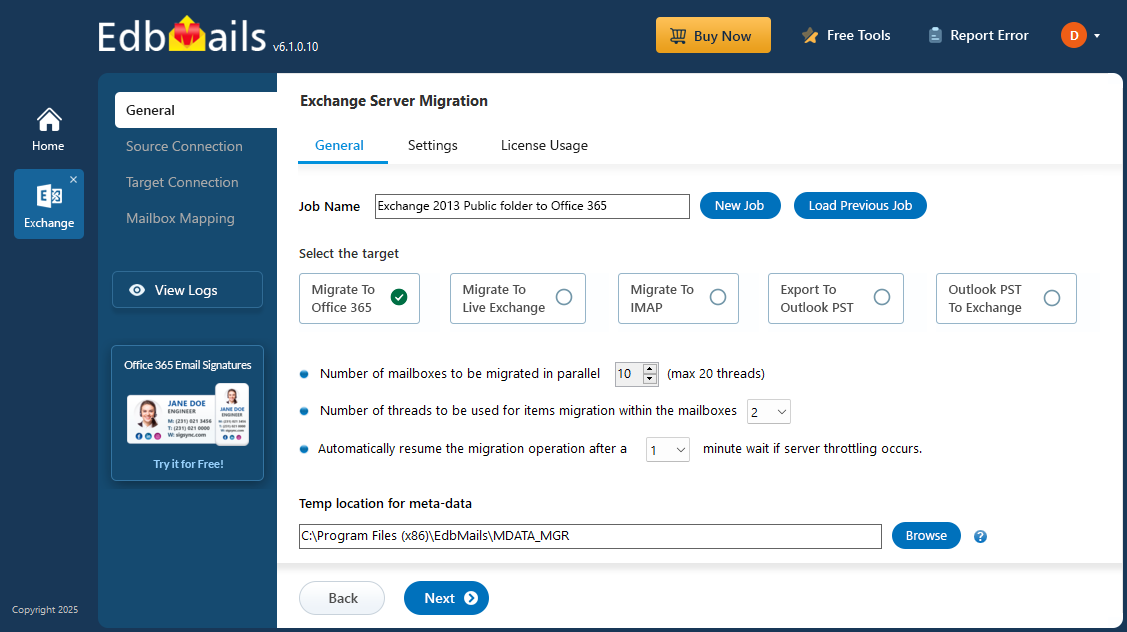
EdbMails provides incremental migration, transferring only new or modified items during each migration cycle. This reduces bandwidth usage and shortens migration time. The software simplifies the setup by automatically mapping public folders, eliminating the need for manual alignment, which is particularly useful when handling a large number of folders. Additionally, EdbMails provides advanced filtering options, allowing users to select specific items for migration based on criteria such as email date, sender, recipient, subject, attachment name, and message status (read/unread). With strong performance and 24/7 support, EdbMails ensures a smooth transition as you migrate public folders to Office 365.
Key Challenges in Exchange 2013 Public Folder Migration with Solutions
- Public folder size and item count limitations:
Challenge: Exchange 2013 and Office 365 both have public folder mailbox size and item count restrictions. When migrating large public folders or mailboxes exceeding the target quota, migrations can fail or stop midway.
Solution: EdbMails simplifies large-scale public folder migrations, Microsoft 365 imposes size limits per public folder mailbox. To avoid failures:
- Split large public folders into smaller mailboxes before migration.
- Review and increase Office 365 public folder quotas if necessary.
- Use incremental migration in EdbMails to transfer only new or changed items, reducing the data load in each cycle.
- Handling large hierarchies and subfolders:
Challenge: Public folders often contain complex hierarchies and thousands of subfolders, making it difficult to ensure accurate mapping and migration continuity.
Solution: EdbMails preserves the complete folder structure and hierarchy during public folder migration, ensuring that all subfolders and items are migrated exactly as they exist in the source Exchange server.
- Throttling and connection issues during bulk migration:
Challenge: Exchange Online imposes connection throttling policies and can interrupt large or concurrent migrations, leading to timeouts or incomplete data transfer.
Solution: EdbMails automatically manages throttling and re-establishes interrupted connections without user intervention. It supports concurrent migration sessions and auto-reconnect to maintain performance even under network or throttling constraints.
- Public folder size and item count limitations:
Exchange 2013 Public Folder Migration to Office 365 Planning
Before you migrate Exchange 2013 public folders to Office 365, it's essential to assess the migration requirements and prerequisites. Below is a checklist to help you identify and prepare your environments effectively.
- Assess if your current migration environment is Hybrid or non-Hybrid.
- Evaluate the total size and number of Public folders you plan to migrate.
- Create Public folders in Office 365 and ensure they are configured for mail.
- Determine whether you want to execute the migration in one go or in multiple phases.
- Review your internet connection speed and network setup.
- Decide if you will transfer Public folders to other Public folders, Primary mailboxes, or Shared mailboxes on the destination server.
Check out the essential requirements for migrating public folders to Office 365.
Exchange 2013 Public Folder to Office 365 Pre-migration activities
- Step 1: Assign admin permissions to all source Public folders
Steps to assign admin permissions to Exchange public folders migration
- Step 2: Create public folders on the target Office 365 server
Ensure to create Public folders on your target Office 365 server and assign the admin permissions to all the public folders
Create Office 365 Public folder and assign admin permissions
If your mailboxes are in a Hybrid environment, it is not possible to migrate the Public folders directly to Office 365. Refer to this workaround solution to migrate Public folders in a hybrid environment.
- Step 3: Add a custom domain to Office 365 (Optional)
If you have a custom email domain from your hosting provider to which you want to migrate and receive emails, you must add and verify the domain on Office 365.
- Step 4: Install cumulative updates (CU) on Exchange server 2013
For migrating Exchange server 2013 to Office 365, it is required that you have latest cumulative updates (CU15 or later) installed on the source server (2013)
- Step 1: Assign admin permissions to all source Public folders
Steps to Migrate Exchange 2013 Public Folders to Office 365
Step 1: Download and install EdbMails software setup
- Download EdbMails and install the software on any computer with Windows OS connected to your source Exchange 2013 server..
System requirements for Exchange 2013 to Office 365 public folder migration

- Launch the EdbMails application on your computer.
- Enter your registered email ID and password, then click ‘Login’. If you don’t have an account yet, choose ‘Start Your Free Trial’ to proceed with the trial version.Note: The trial version gives access to all major features and allows migration of up to 30 items per folder. To enable unlimited migration, purchase an Exchange Migration license from the official EdbMails website.Once the license purchase is completed, close the application and open it again. Then sign in with the same email ID and password used during the purchase to activate your license successfully.

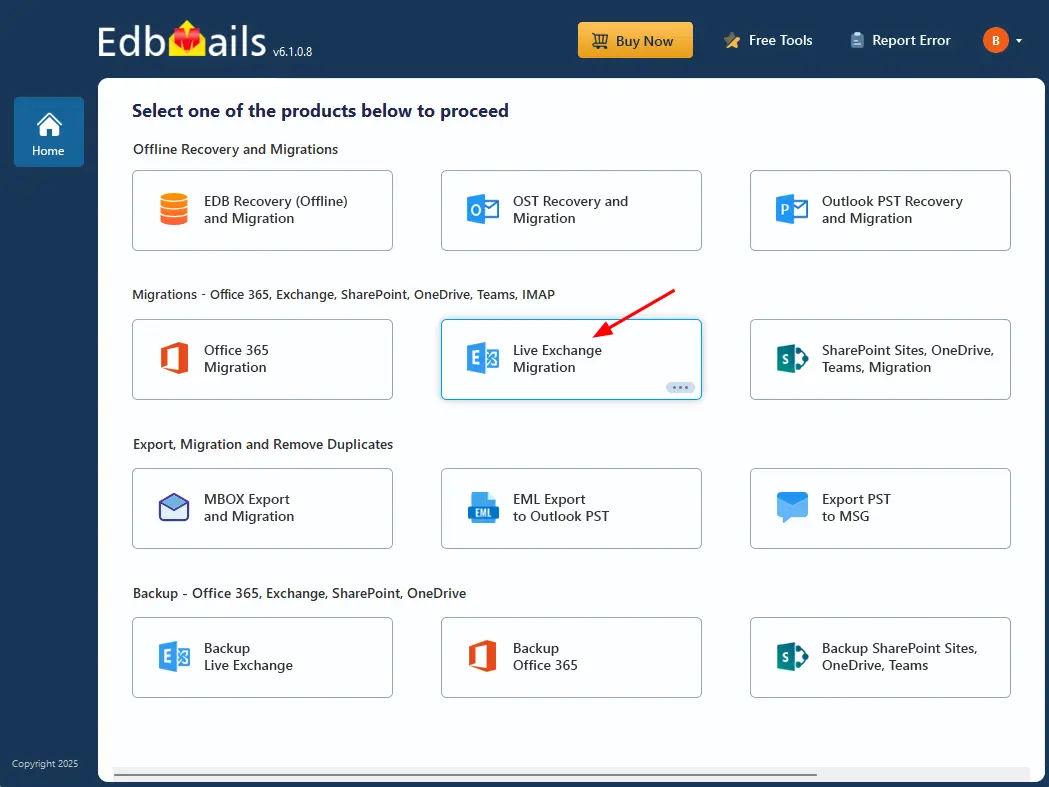
- Choose the ‘Live Exchange Migration’ option.
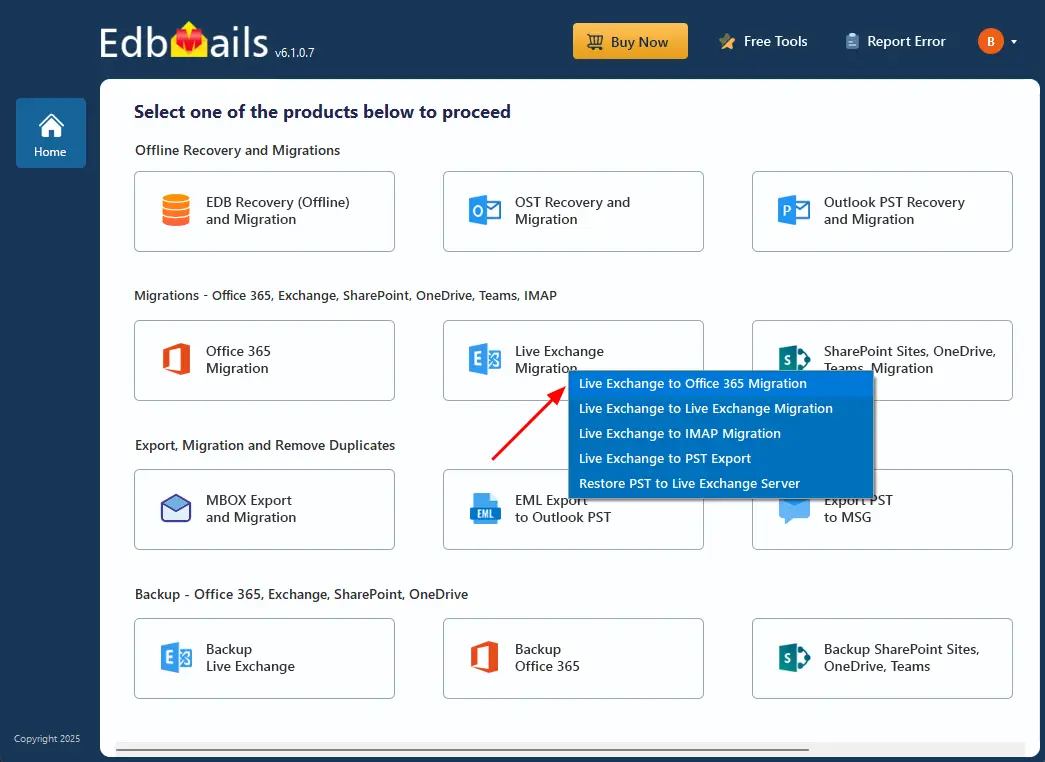
- Select 'Live Exchange to Office 365 Migration'
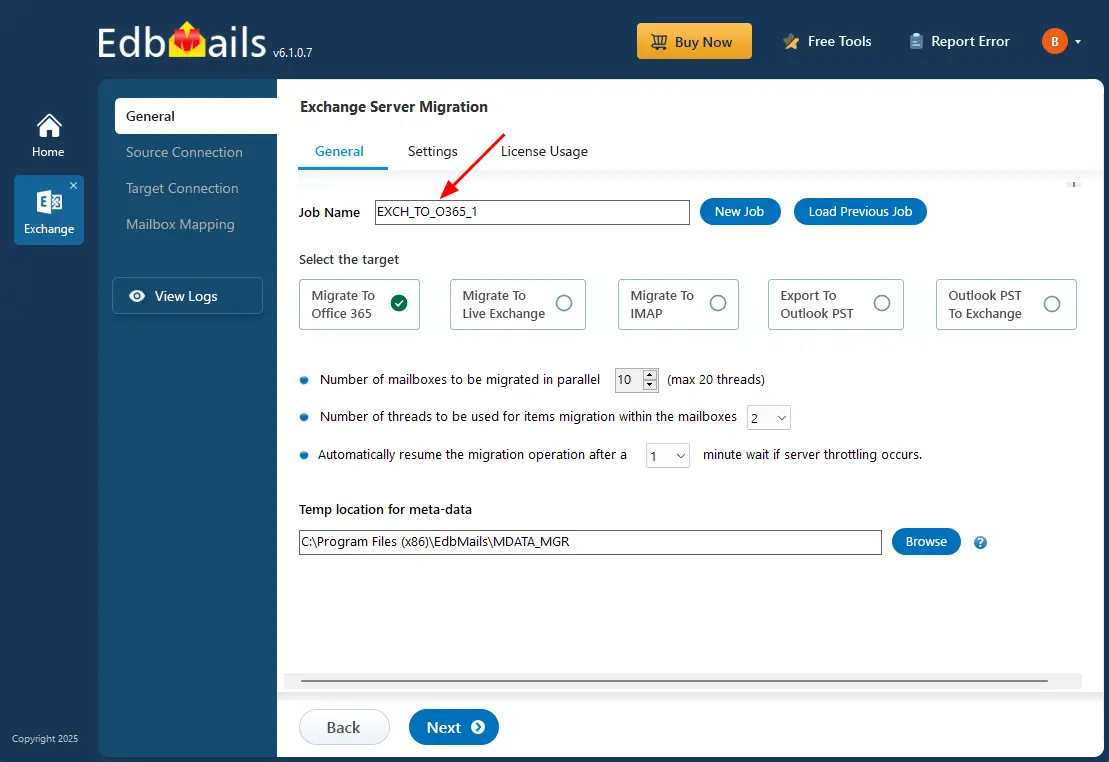
- You can keep the default job name or click the ‘New Job’ button if you wish to change it.
- Download EdbMails and install the software on any computer with Windows OS connected to your source Exchange 2013 server..
Step 2: Connect to source Exchange 2013 server
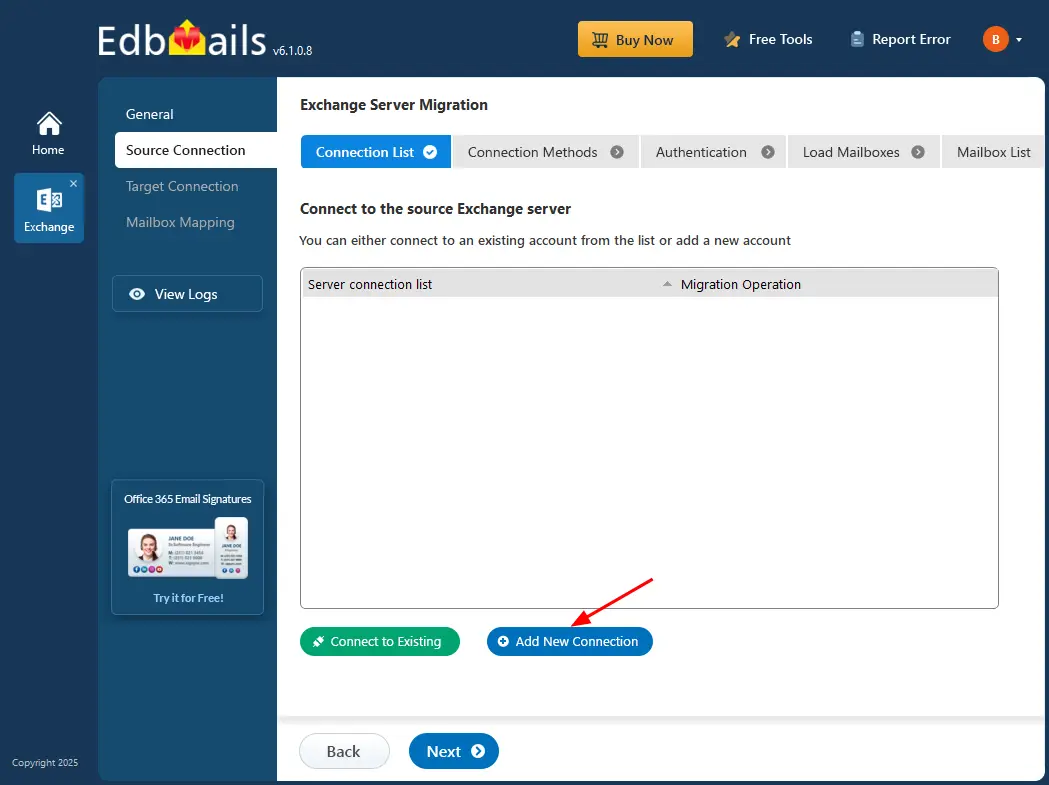
- Click ‘Add New Connection’ to establish a connection to the source Exchange server. If you want to reconnect using an existing connection, simply choose it from the list and click ‘Connect to Existing’.
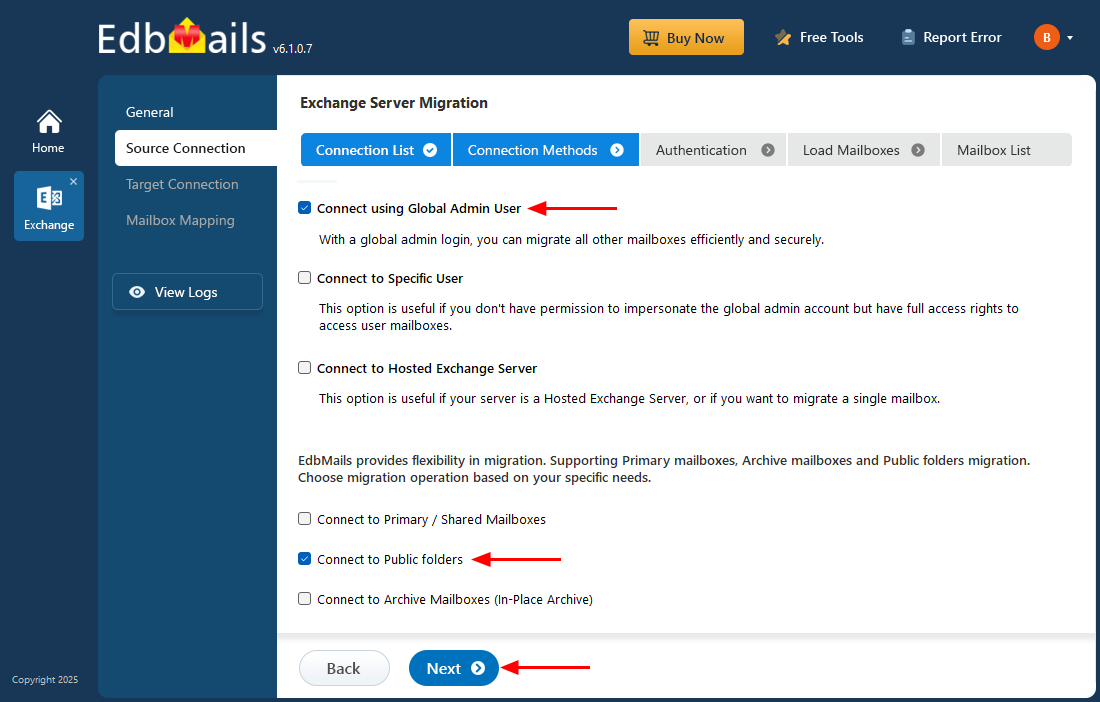
- ️Select the ‘Connect to Public folders’ option and click the ‘Next’ button.
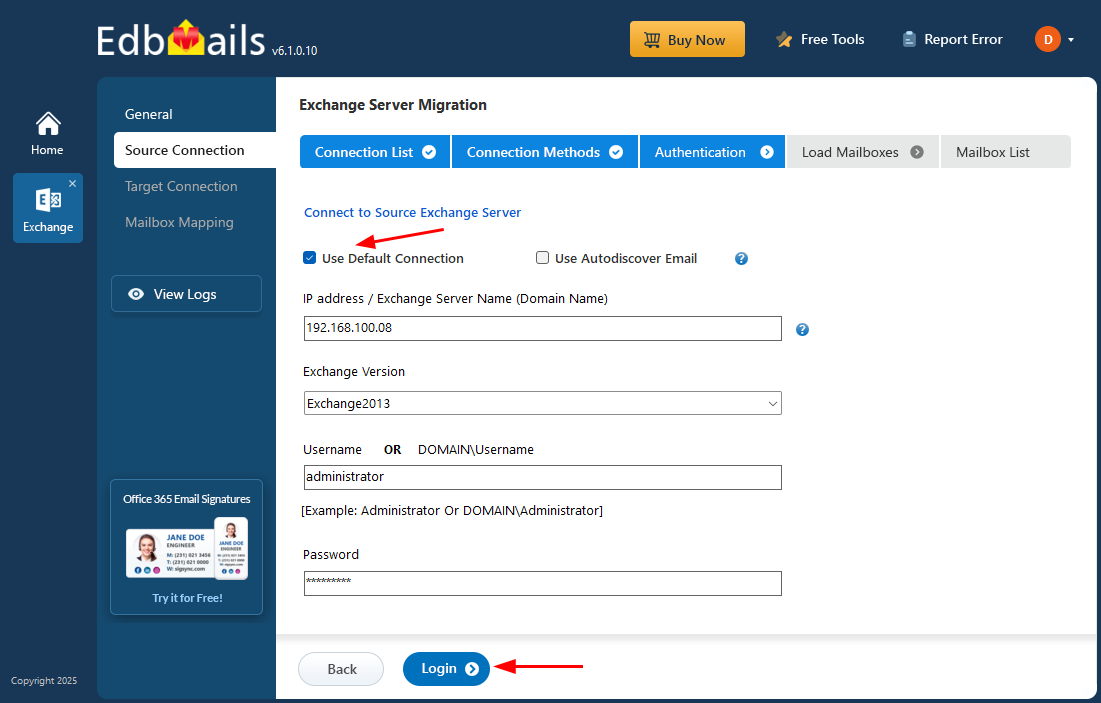
- Enter the source Exchange 2013 server details, including the IP address (Domain name), Exchange version, username, and password.
- Click the ‘Login’ button to proceed.
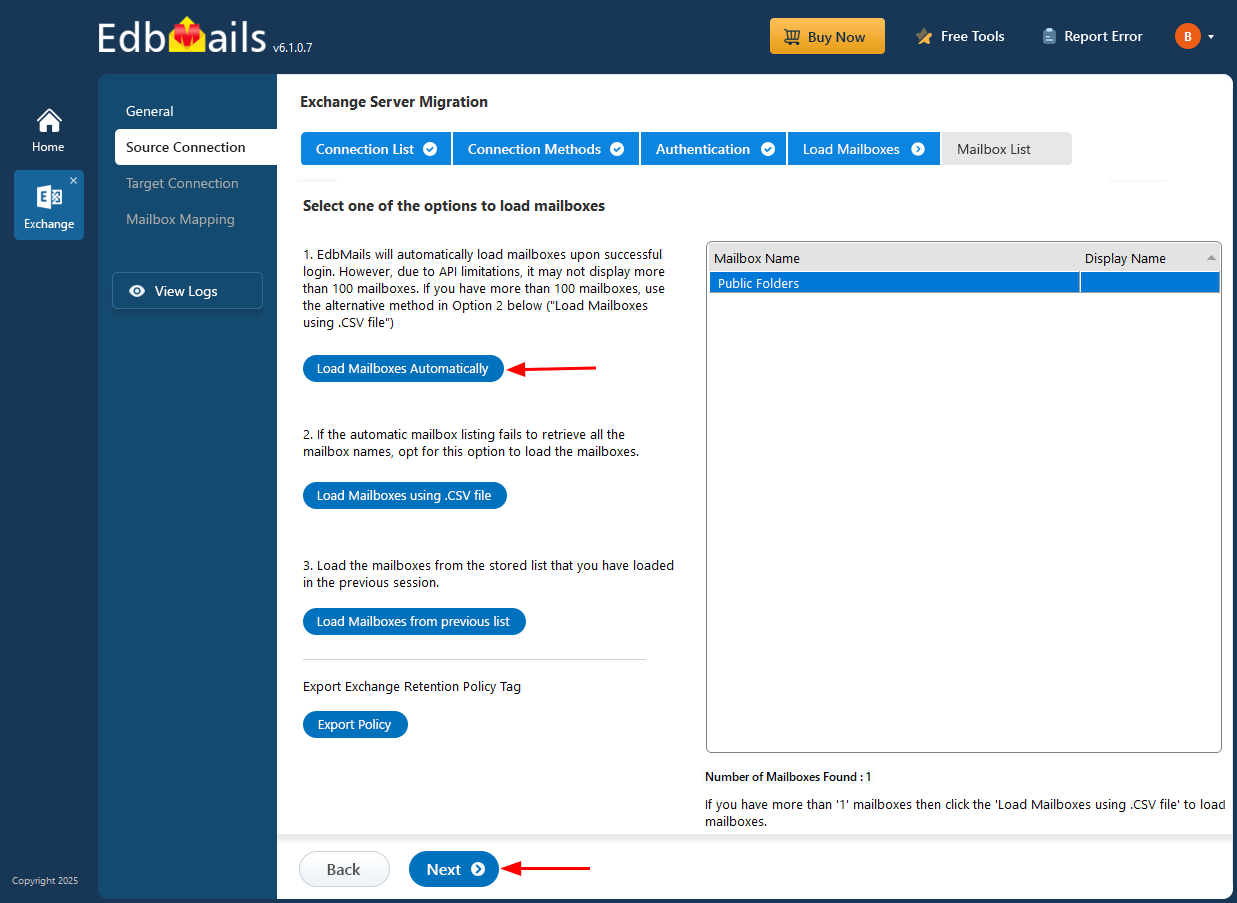
- After signing in to your target Office 365 server, select the preferred method to load the mailboxes.
- EdbMails provides an automatic option to load mailboxes, making the setup quick and simple. Due to Microsoft API limitations, this method displays up to 100 mailboxes at a time.
- For large environments or when specific mailboxes need to be included, choose the ‘Load Mailboxes using .CSV file’ option. This method enables manual selection and offers complete control over the mailbox loading process.
- Select ‘Load Mailboxes Automatically’ and click ‘Next’ to continue.
- Click ‘Add New Connection’ to establish a connection to the source Exchange server. If you want to reconnect using an existing connection, simply choose it from the list and click ‘Connect to Existing’.
Step 3: Select Exchange 2013 Public folders
- Choose Exchange 2013 public folders you need to migrate to Office 365.
- Then, click 'Next' to initiate the connection with the target server.
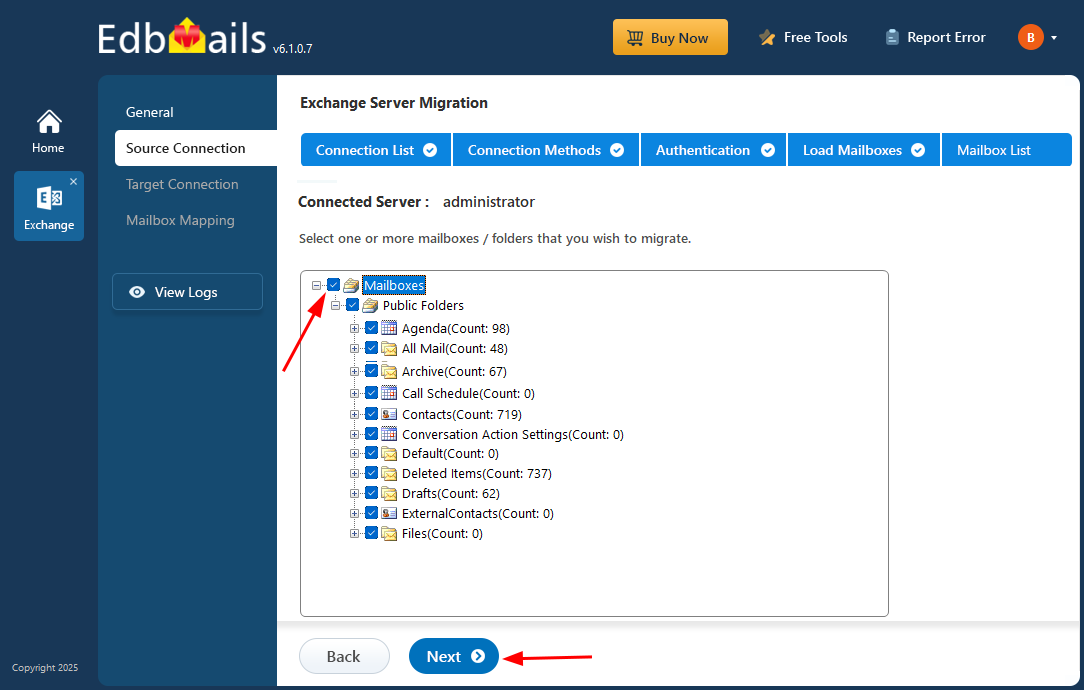
If this is the first migration using EdbMails, it will be a full migration. Any subsequent migrations from the same source to the target will be incremental migration.
Step 4: Connect to target Office 365 server
- Click the ‘Add New Connection’ button to create a fresh connection to the target Office 365 server. To reconnect using a previously established connection, choose it from the list and click ‘Connect to Existing’ to continue.
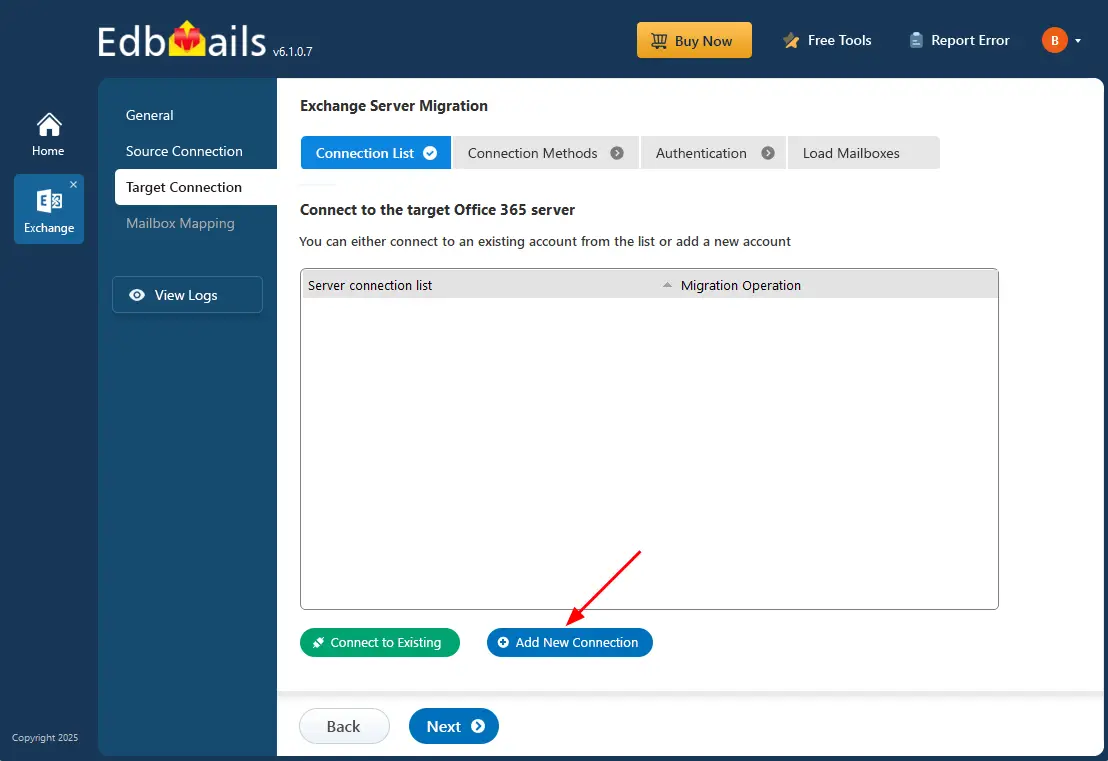
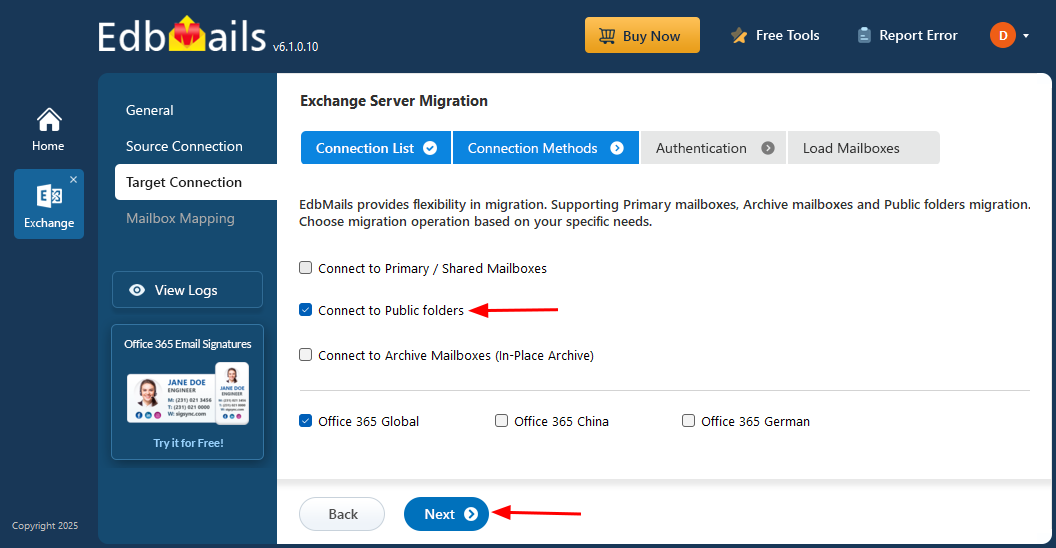
- Choose the ‘Connect to Public folders’ option and click the ‘Next’ button.
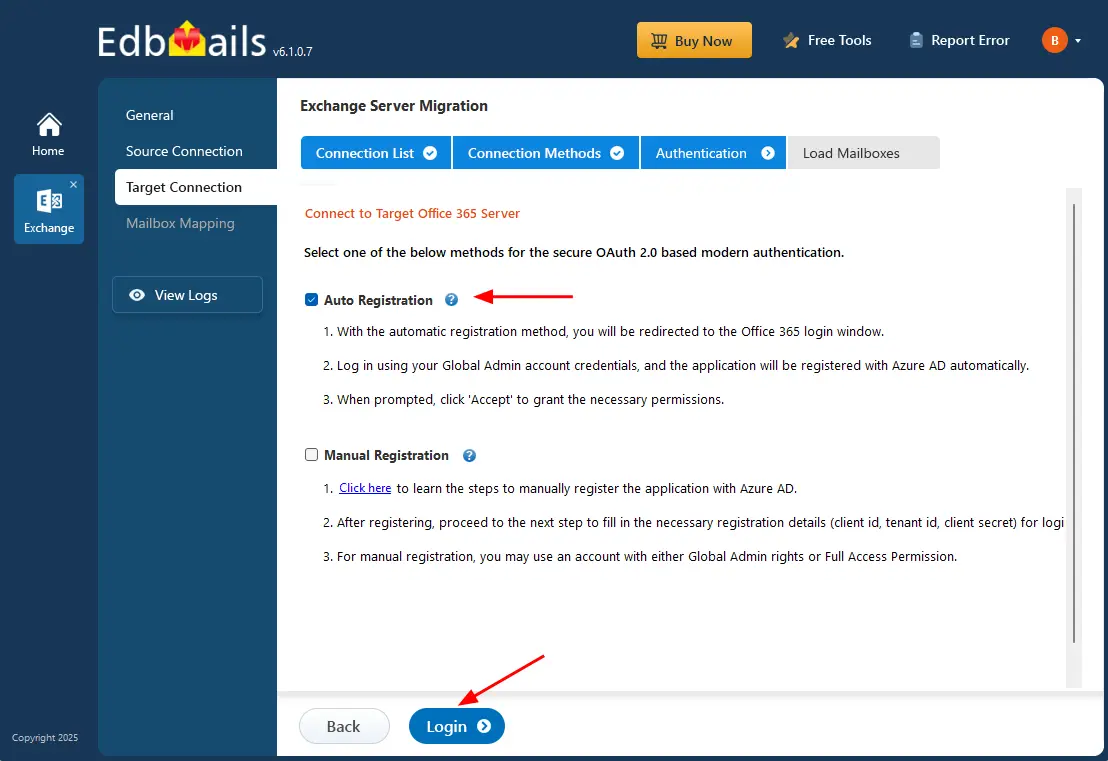
- Select one of the authentication methods and click the ‘Login’ button.
- Authenticate on Microsoft sign-in page.
- Select one of the methods to load the public folders and click ‘Next’.
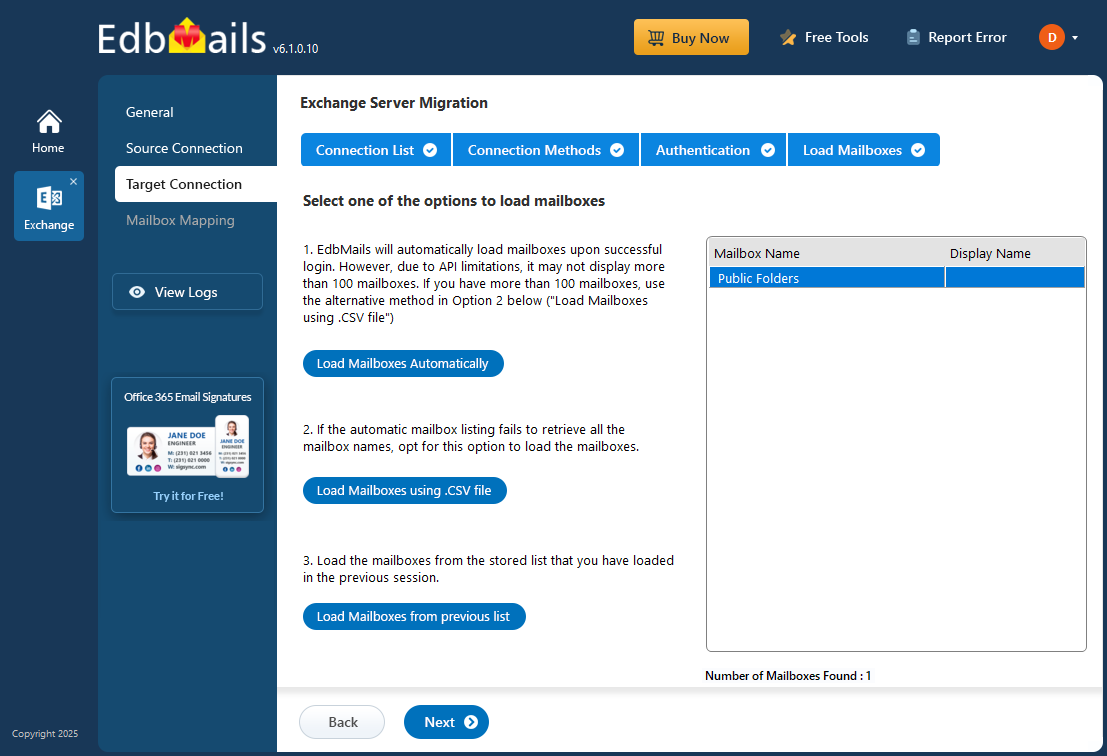
- Click the ‘Add New Connection’ button to create a fresh connection to the target Office 365 server. To reconnect using a previously established connection, choose it from the list and click ‘Connect to Existing’ to continue.
Step 5: Exchange 2013 to Office 365 public folders Mapping
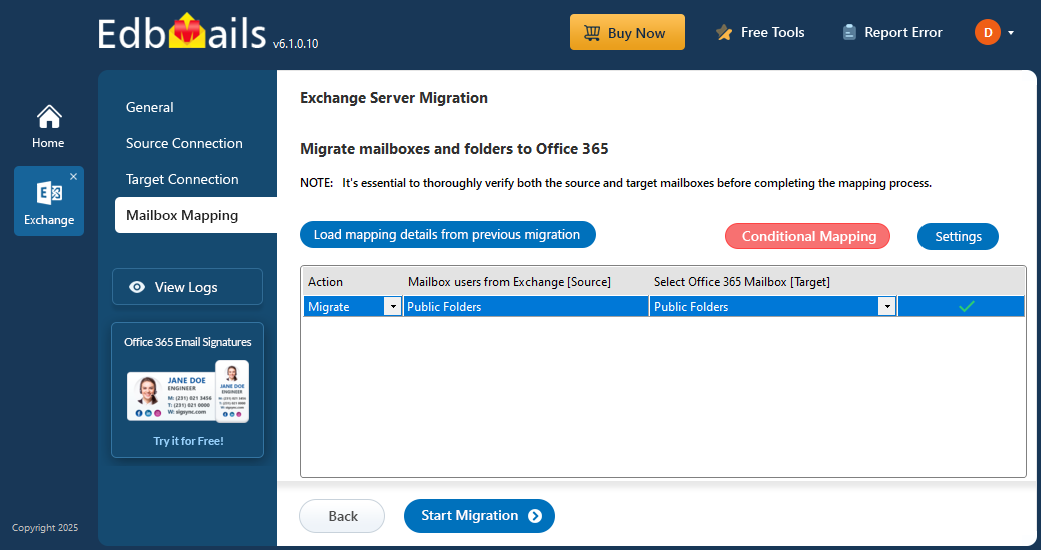
- EdbMails automatically maps the public folders between Exchange 2013 server and Office 365 , simplifying the process and eliminating the manual effort.
- EdbMails allows you to apply filters Settings to migrate only the data based on items received/sent within the date range, sender email address, recipient address, email subject, sender address, recipient address, read and unread status of the message etc. Click the ‘Settings’ button to apply the filters.
Step 6: Start Exchange 2013 public folder migration to Office 365
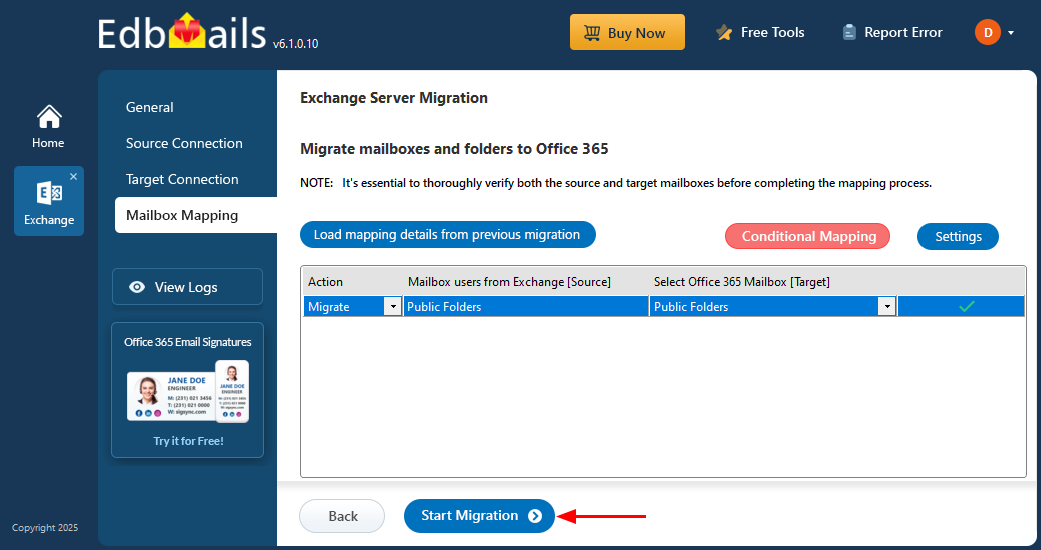
- Click the ‘Start Migration’ button to begin the migration process
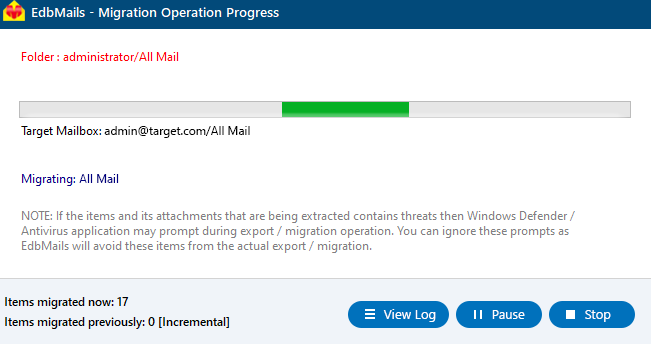
- The migration process is now underway, and you can track its progress through the progress bar. Once the migration is finished, EdbMails will display a completion message. To see the migration report, simply click the 'View Logs' button.
- Click the ‘Start Migration’ button to begin the migration process
Troubleshooting guide for Exchange 2013 public folder migration to Office 365
Refer to the Exchange migration troubleshooting guide and the Public folder troubleshooting resources for potential solutions to migration errors. For further information regarding EdbMails Exchange migration, refer to the frequently asked questions.
Solution for public folders migration failure due to insufficient permissions
Benefits of EdbMails to migrate Exchange 2013 public folders to Office 365
- EdbMails ensures high-performance migration of Exchange public folders to Office 365.
- The software incorporates automatic throttling to optimize migration speeds and maintain efficiency.
- Public folder structures and permissions are preserved throughout the migration process.
- Migrate public folders without the need for complex PowerShell scripts, making the process user-friendly with an intuitive interface.
- Allows for direct migration of public folders from Exchange 2013 to Office 365 without any intermediate steps.
- Supports the migration of Exchange public folders to shared mailboxes.
- Incremental migration helps prevent duplicate items during subsequent migrations, ensuring data integrity.
- Provides an optimal solution for migrating public folders with zero downtime, ensuring no disruption to ongoing operations.
- Guarantees that all data is securely migrated without any loss
Frequently Asked Questions (FAQ)
Can I migrate Exchange 2013 public folders to Office 365 directly using EdbMails?
Does EdbMails preserve folder permissions and hierarchy during migration?
Can I perform an incremental migration if I’ve already migrated once?
Is there any downtime during migration?


