


Staged Exchange Migration
Migrating mailboxes in medium and large organizations can be complex due to the large volume of data involved. A staged Exchange migration simplifies this process by migrating mailboxes and user data in phases instead of completing everything in a single step. This approach helps maintain zero downtime and ensures that daily business activities continue without disruption. With EdbMails, administrators can plan and control the migration process based on their requirements, allowing priority mailboxes or critical data to be migrated first while maintaining the original email structure, folders, and attachments. The software supports cutover, staged, and hybrid migration methods and includes features such as real-time migration monitoring and detailed reporting. This structured approach allows organizations to manage migrations in a controlled manner while maintaining data integrity and continuity throughout the process.
In a staged migration, the process is divided into two or more phases, carried out over specific timelines.
- Initial migration: In the first phase, data is migrated based on a specific date range. Organizations can move either older or newer items first, giving priority to critical information and preparing for the upcoming migration.
- Final migration: In this stage, the remaining data is migrated using a specific date range, and incremental migration ensures duplicates are avoided and only the required data is transferred.
EdbMails Exchange Migration Software simplifies staged migration by offering advanced date filters to selectively move data in each phase. This flexibility allows businesses to prioritize important mail items during the initial stage. The built-in incremental migration feature ensures that only new or modified items are migrated in later passes, preventing duplication and minimizing disruption.
Cases for using the Staged Migration
Swift data migration
A company operating continuously on a legacy Exchange Server has opted for a swift upgrade to the latest version. Given the substantial data involved, minimizing downtime is critical. Using EdbMails Exchange migration software, the initial focus is on migrating the past two months of data, allowing employees to access essential information immediately. This first migration phase is completed smoothly, followed by updating MX records to redirect mail flow to the new server. The second migration phase can then begin, enabling users to retrieve older data seamlessly.
Merging Two Organizations into One
As two organizations prepare for a future merger, both are operating on outdated Exchange Server versions and plan to consolidate their data into a new Exchange environment. During the transition, the companies will continue working on their legacy systems, so the migration is planned in phases to minimize disruption. In the first phase, a date filter is applied to migrate items older than one month, while excluding non-email folders. This migration can run continuously, even during business hours, ensuring minimal downtime. The second and final phase is scheduled just before the merger potentially over a weekend where all remaining data is migrated using an inclusive date filter. After updating the MX records, both companies can operate seamlessly on a shared Exchange server, completing the consolidation efficiently and securely.
Navigating slow internet challenges
Facing poor IT infrastructure and slow internet connectivity, a company plans to relocate quickly and migrate its data to a new Exchange server. Although only a small number of mailboxes need to be transferred, a cutover migration would be too time-consuming, making a staged approach with EdbMails Exchange Migration more practical. In the first phase, data from the last two weeks is migrated, including all types of items, with the date filter appropriately configured. This ensures employees can start working promptly in the new office on the new Exchange server. After completing the initial migration, MX records are updated to redirect mail flow, allowing the second phase to migrate the remaining data, with flexible scheduling options to minimize disruption.
Steps to perform Staged Exchange Migration
During a staged migration, if certain items are migrated in the initial phase and the MX records are updated, altering source or email addresses prior to the second phase can lead to item duplication. To avoid duplicates and facilitate incremental mailbox migration, follow the steps below :
Step 1: Install and Launch EdbMails
- Download and install EdbMails on a Windows computer.
- Open the EdbMails application on your computer.
- Enter your registered email ID and password, then click 'Login'. If you are a new user, select 'Start Your Free Trial' to continue with the trial version.Note: The trial version includes all key features and supports migration of up to 30 items per folder. To perform unlimited migration, purchase an Exchange Migration license from the EdbMails website.After purchasing the license, close the application and launch it again. Then log in using the same email ID and password used during the purchase to activate the license successfully.

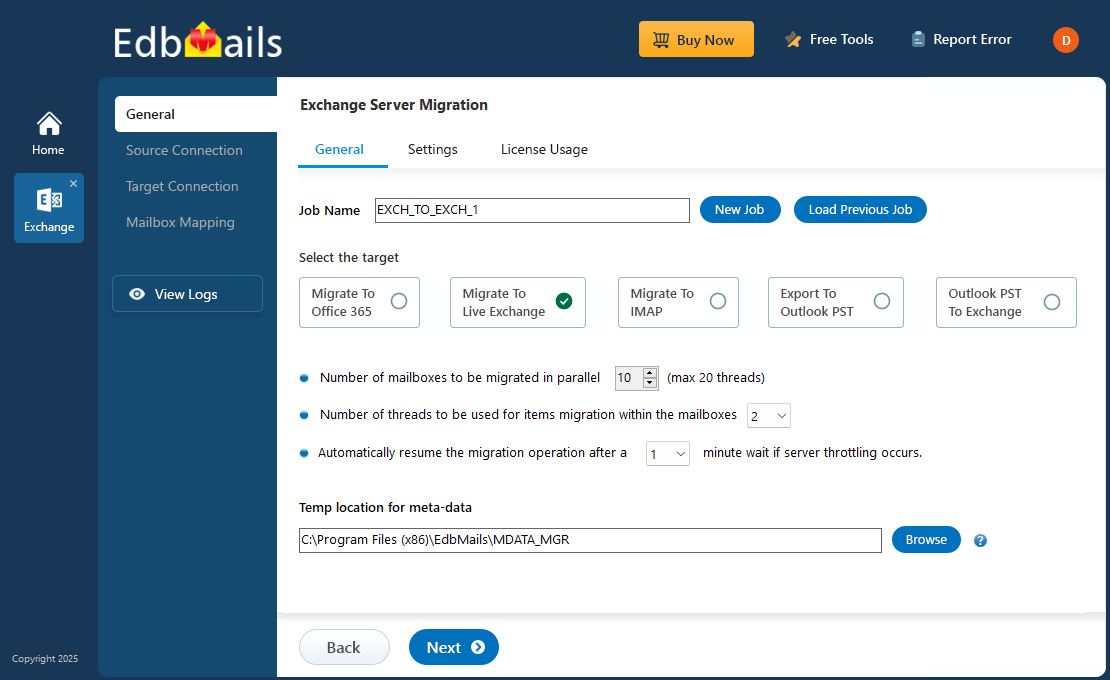
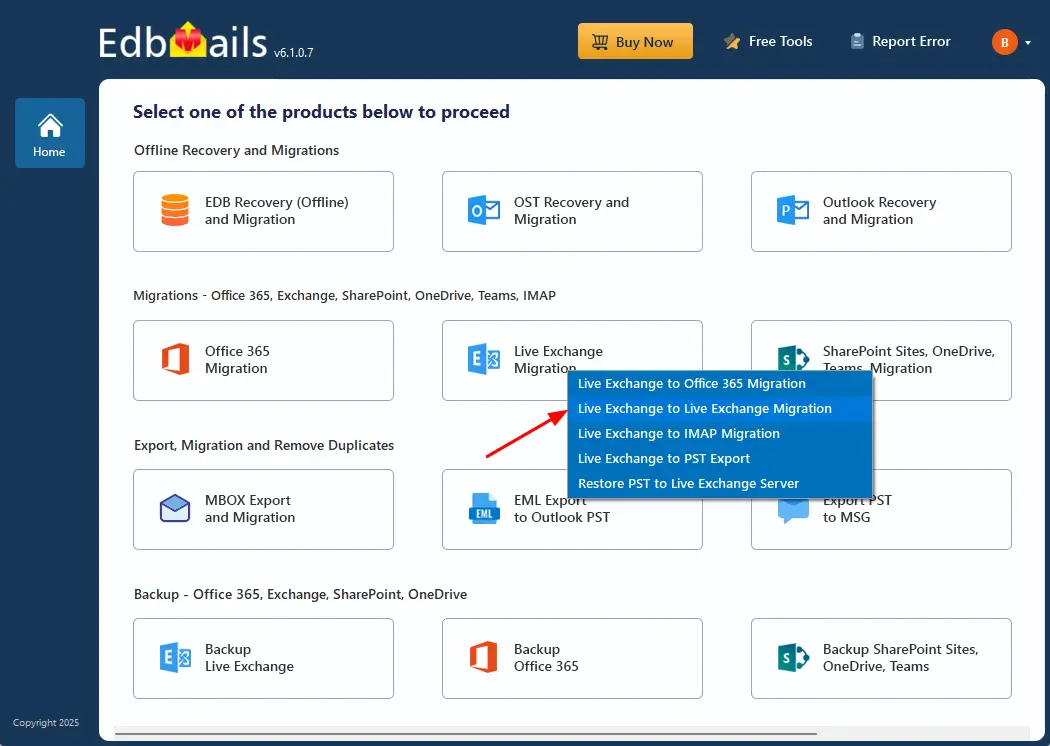
- Select ‘Live Exchange Migration’ > ‘Live Exchange to Live Exchange Migration’.
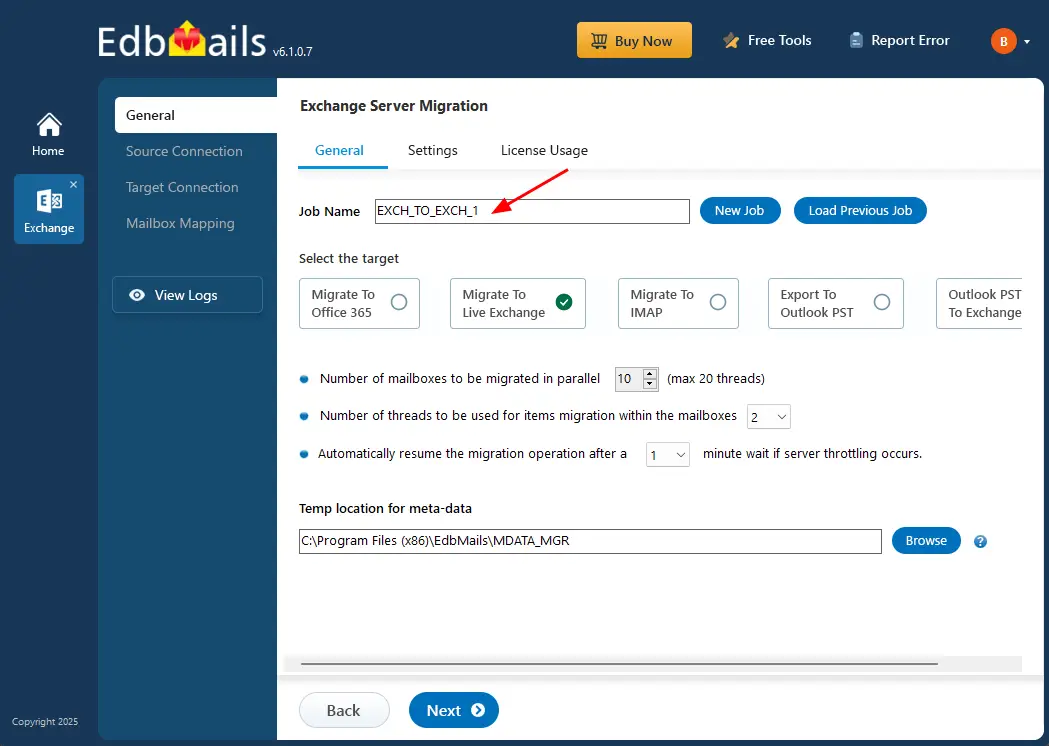
- Keep the default job name or click ‘New Job’ to rename it.
Step 2: Connect to source Exchange server
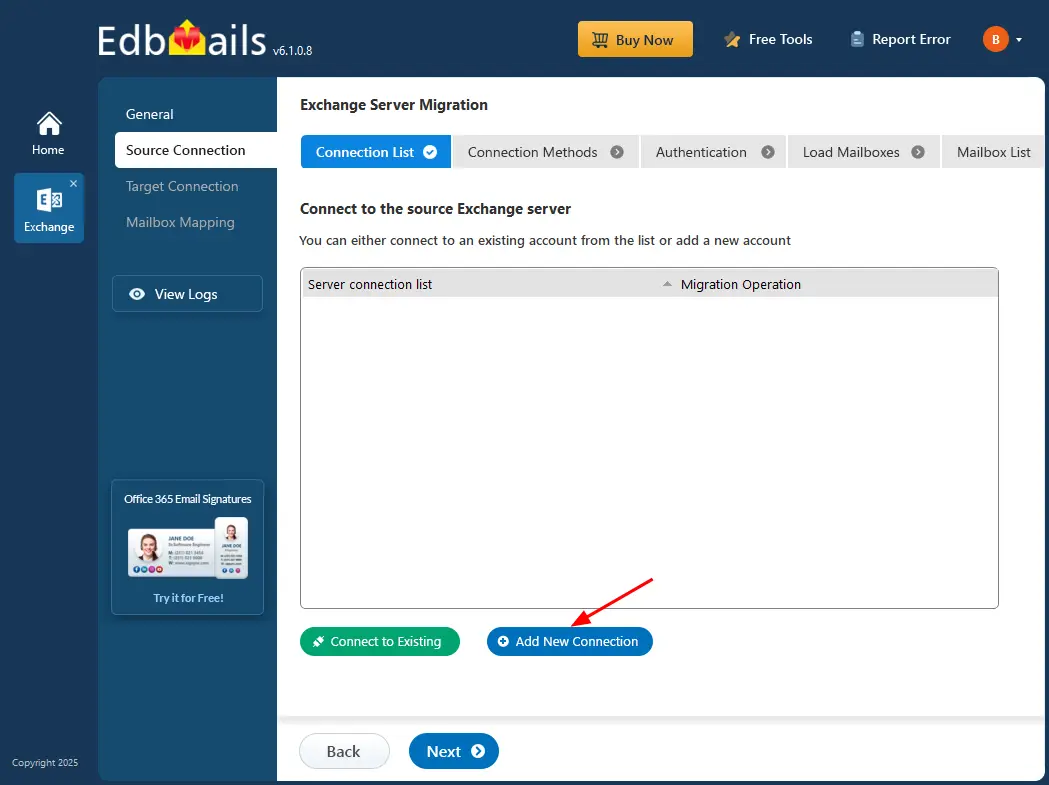
- Click the ‘Add New Connection’ button to establish a new connection. To use a previous connection, select it from the connection list and click the ‘Connect to Existing’ button to proceed.
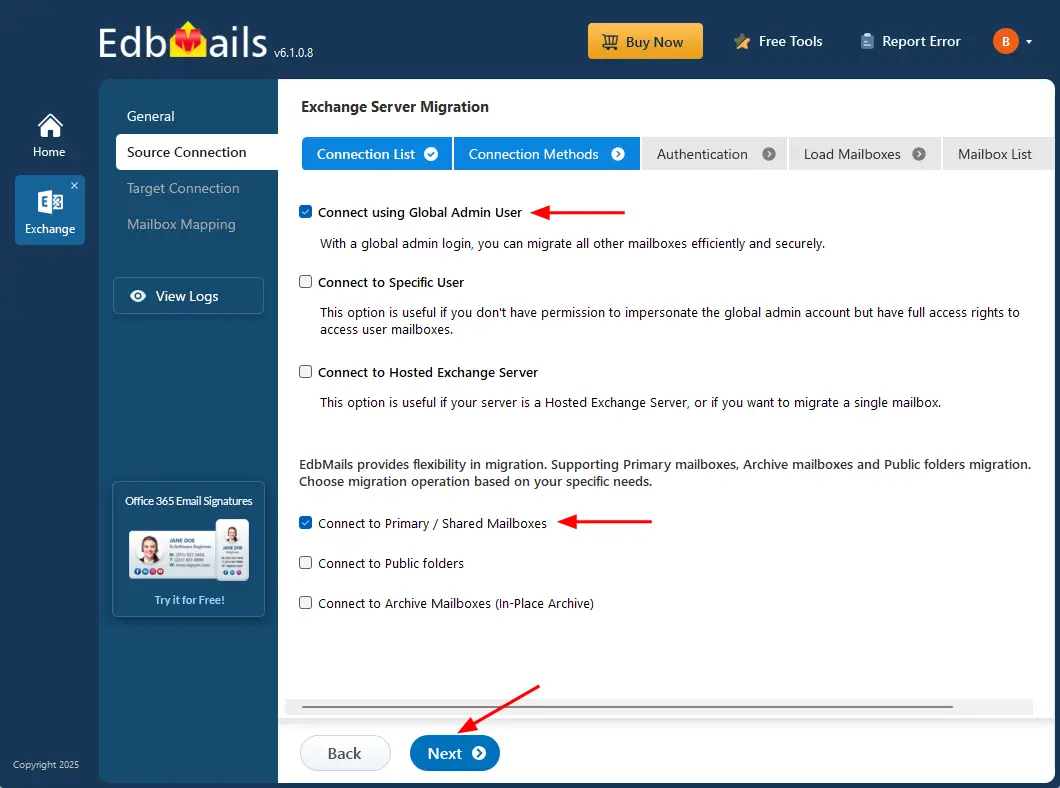
- Select the required connection options and click the ‘Next’ button.
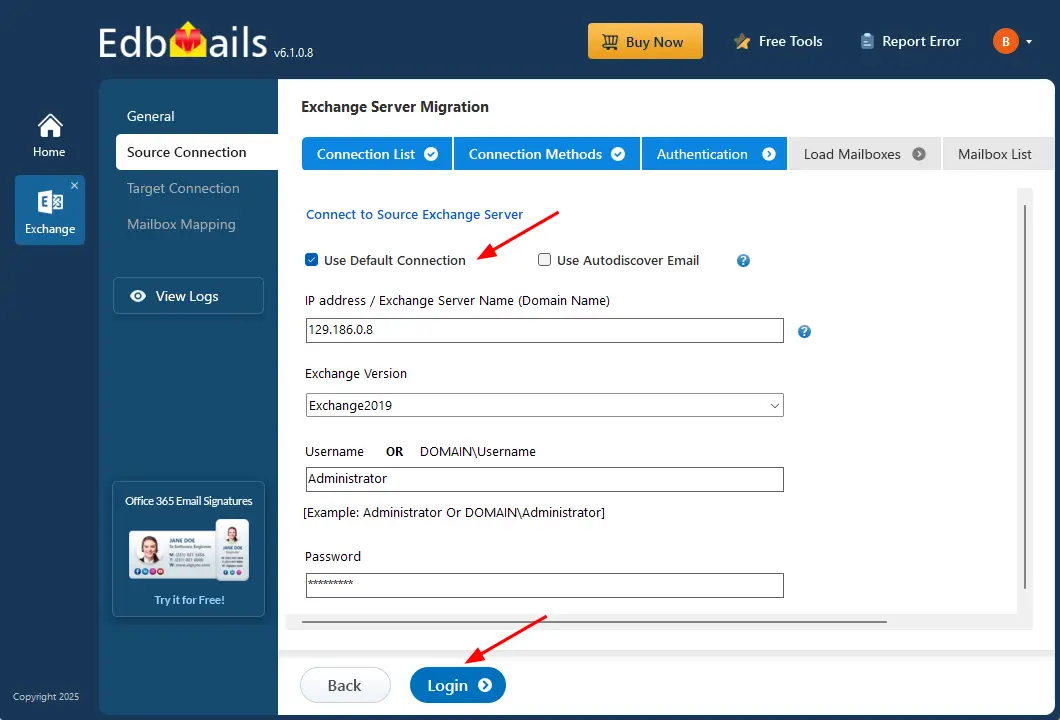
- Enter the source Exchange server details and click the ‘Login’ button.
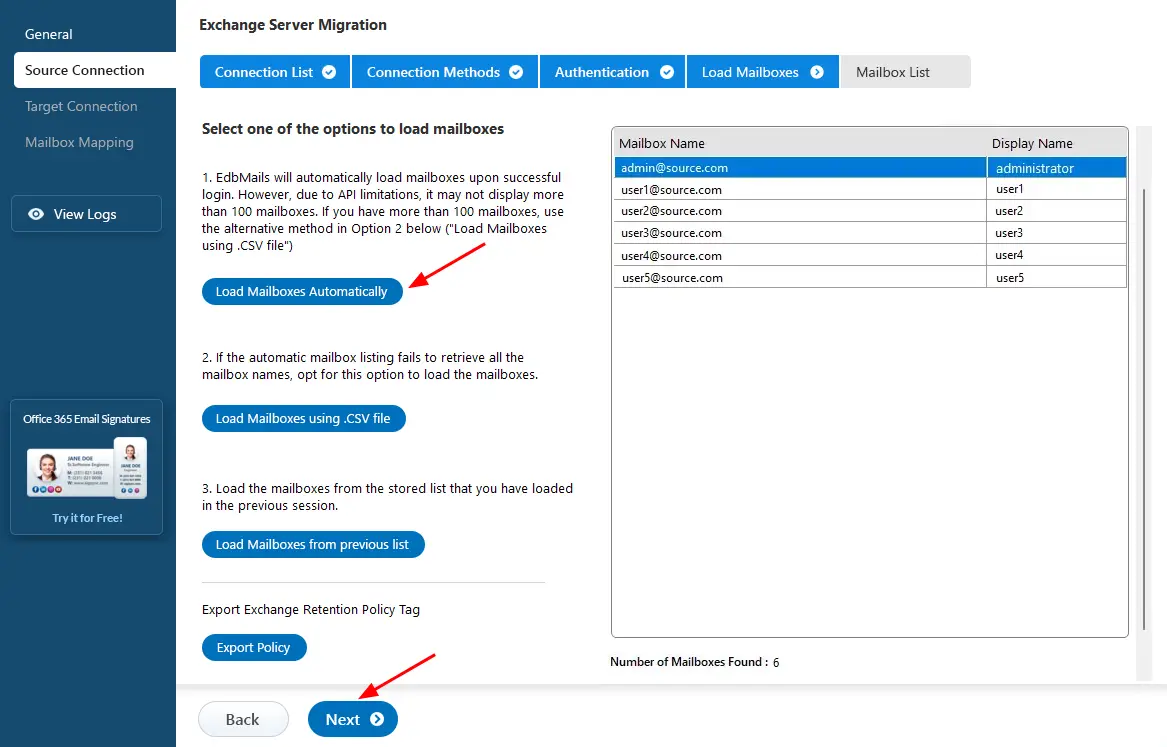
- After signing in to your target server, select the preferred method to load the mailboxes.
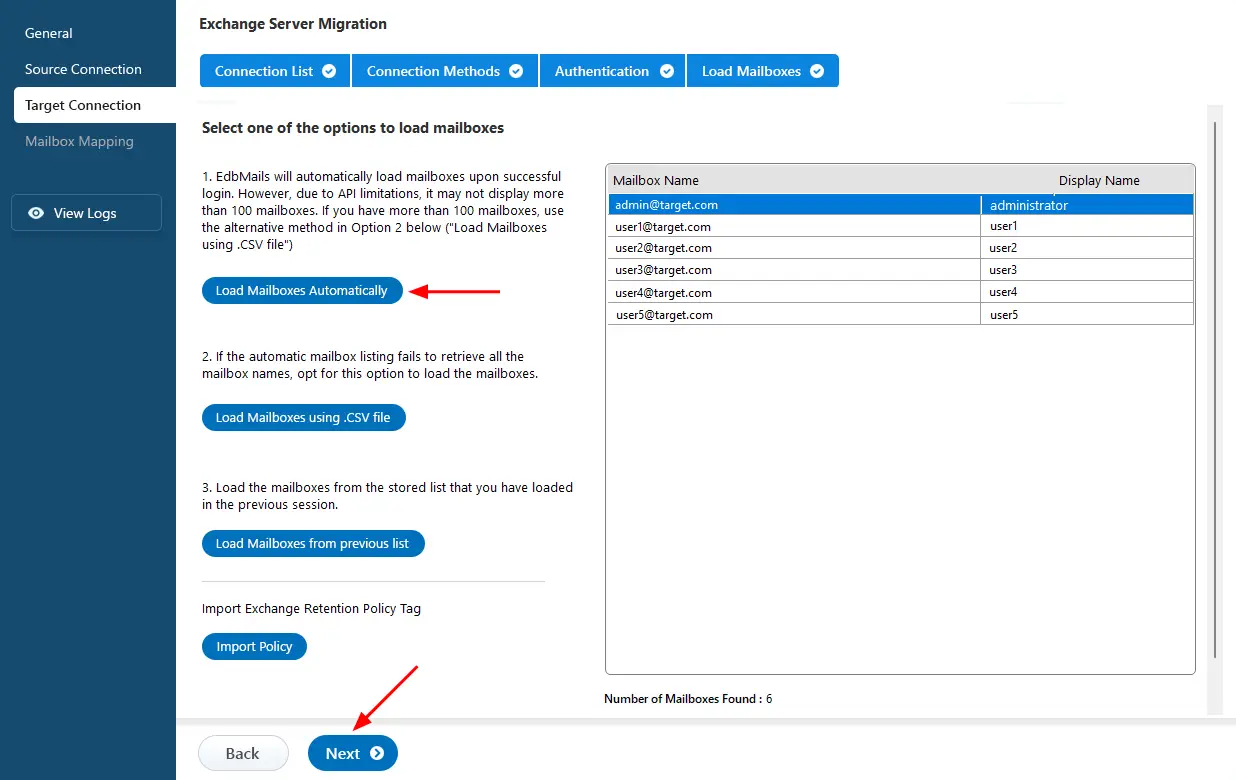
- EdbMails provides an automatic option to load mailboxes, making the setup quick and simple. Due to Microsoft API limitations, this method displays up to 100 mailboxes at a time.
- For large environments or when specific mailboxes need to be included, choose the ‘Load Mailboxes using .CSV file’ option. This method enables manual selection and offers complete control over the mailbox loading process.
- Select ‘Load Mailboxes Automatically’ and click ‘Next’ to continue.
- Click the ‘Add New Connection’ button to establish a new connection. To use a previous connection, select it from the connection list and click the ‘Connect to Existing’ button to proceed.
Step 3: Select the mailboxes for migration
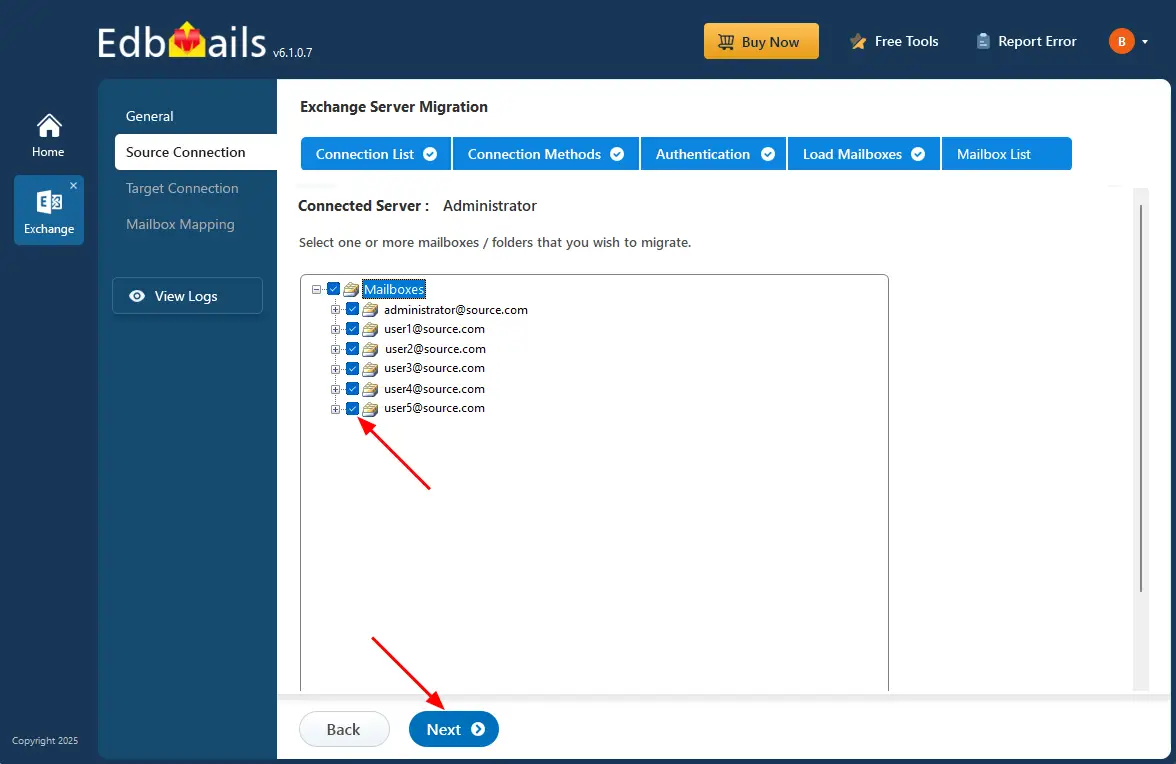
- Select the mailboxes/folders you want to migrate from the source Exchange server.
- Click the ‘Next’ button.
Step 4: Connect to target Exchange server
- Click the ‘Add New Connection’ button to set up a new connection. If you’ve already connected before, simply choose the existing connection from the list and click ‘Connect to Existing’ to continue.
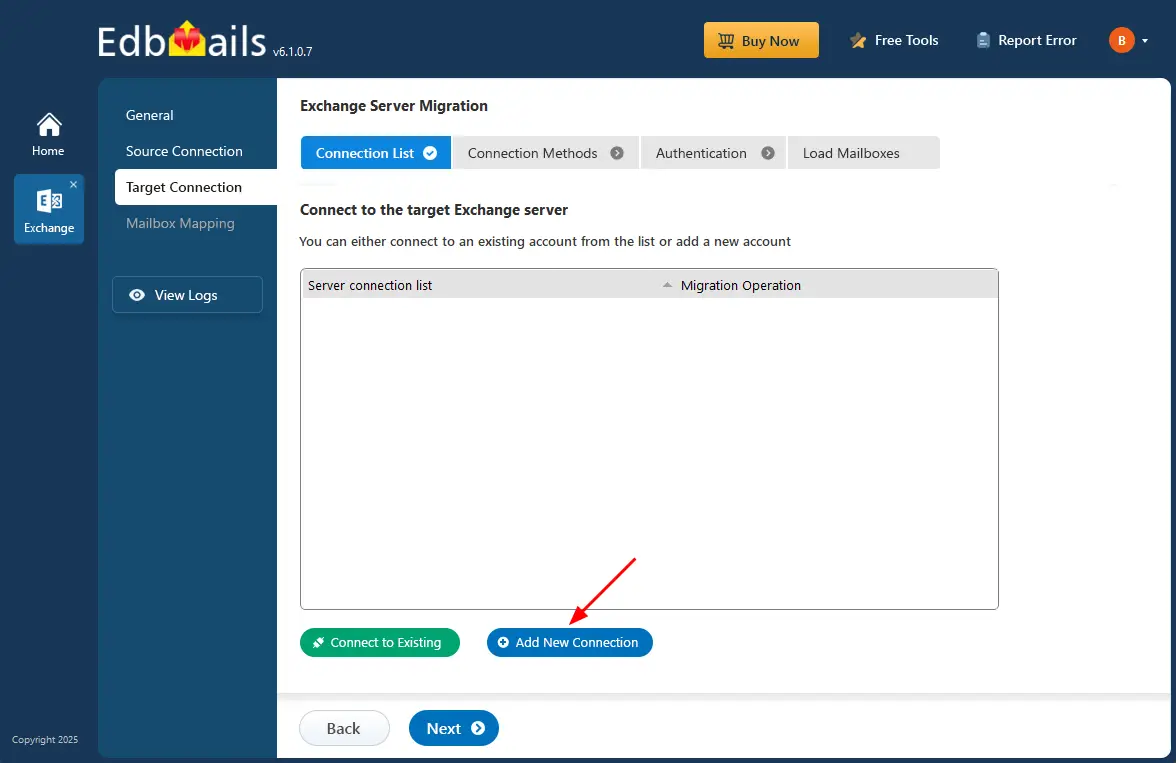
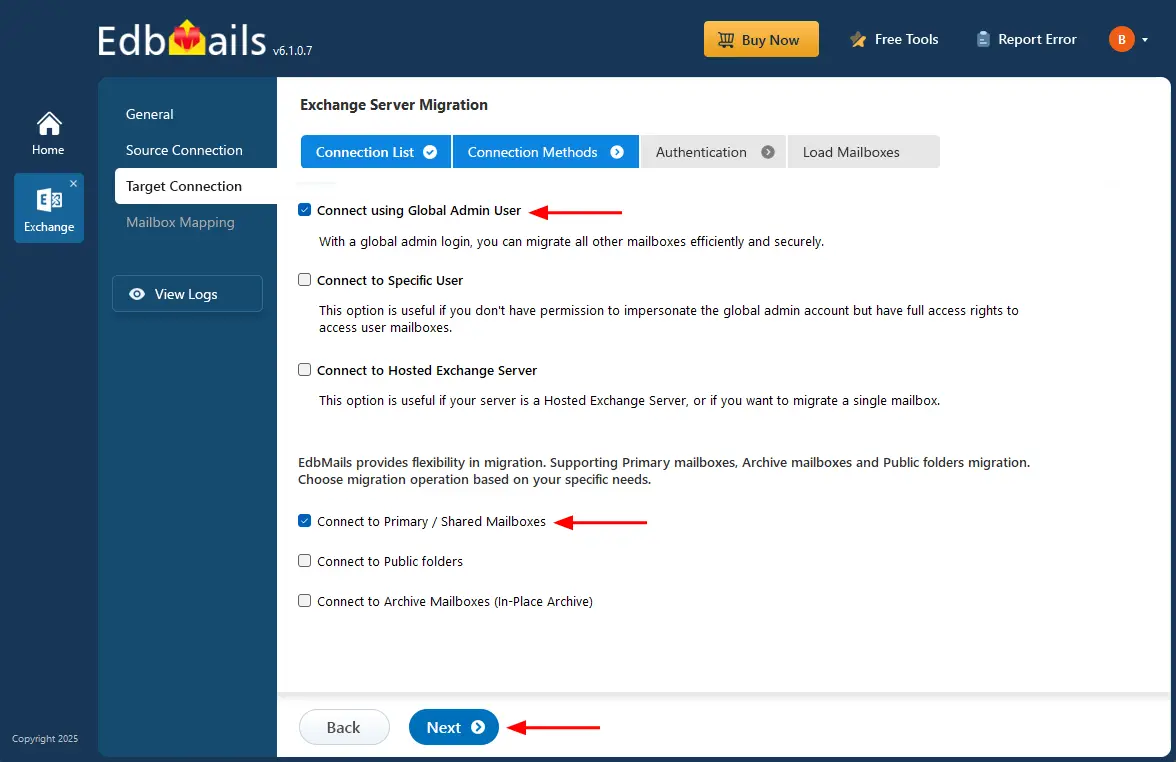
- Choose the required options to connect to your target Exchange server and click the ‘Next’ button.
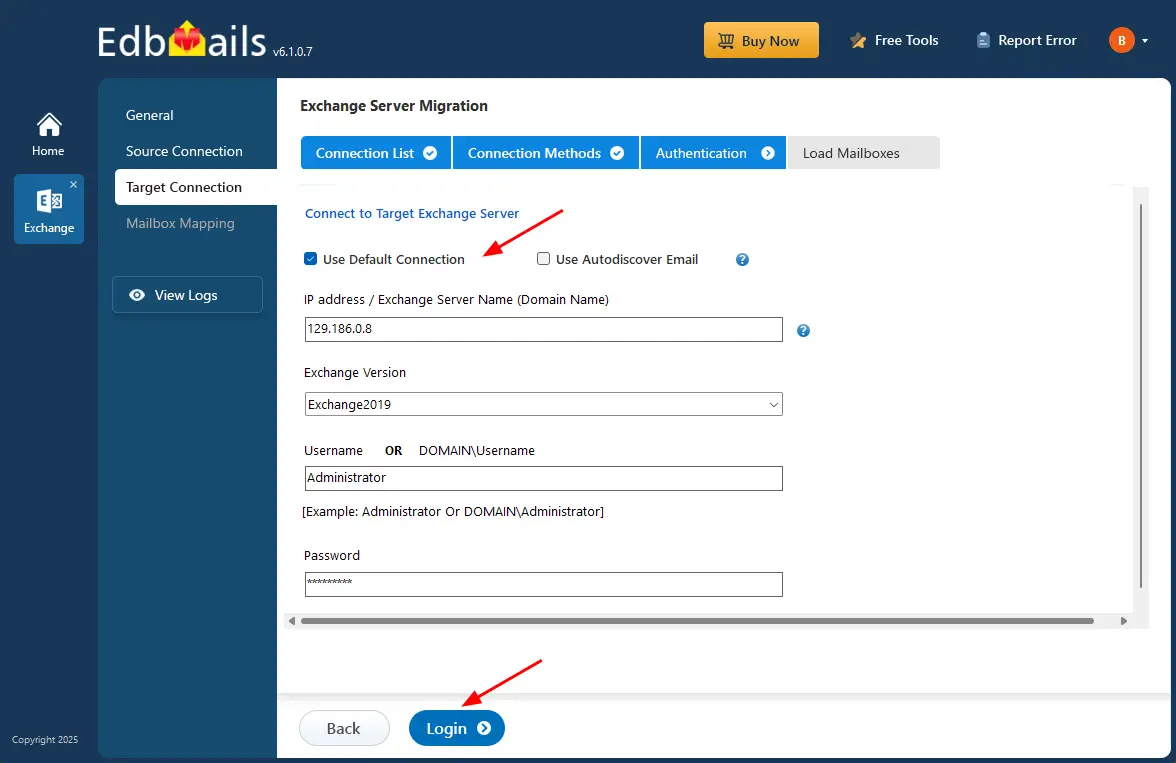
- Enter the target Exchange server details and click the ‘Login’ button.
- Select one of the methods to load the mailboxes.
- Click the ‘Add New Connection’ button to set up a new connection. If you’ve already connected before, simply choose the existing connection from the list and click ‘Connect to Existing’ to continue.
Step 5: Map source and target Exchange server mailboxes
- Select the required mapping option
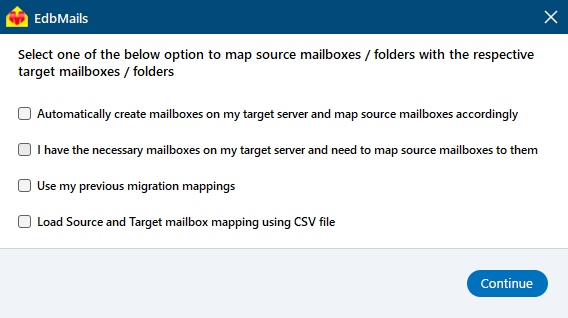
- If you have installed EdbMails on your Exchange server, you can choose to automatically create mailboxes on the target Exchange server.
Click here to know more about automatic mailbox creation
- EdbMails automatically maps the mailboxes and folders between the source and target servers. You can also manually map source mailboxes to the target mailboxes
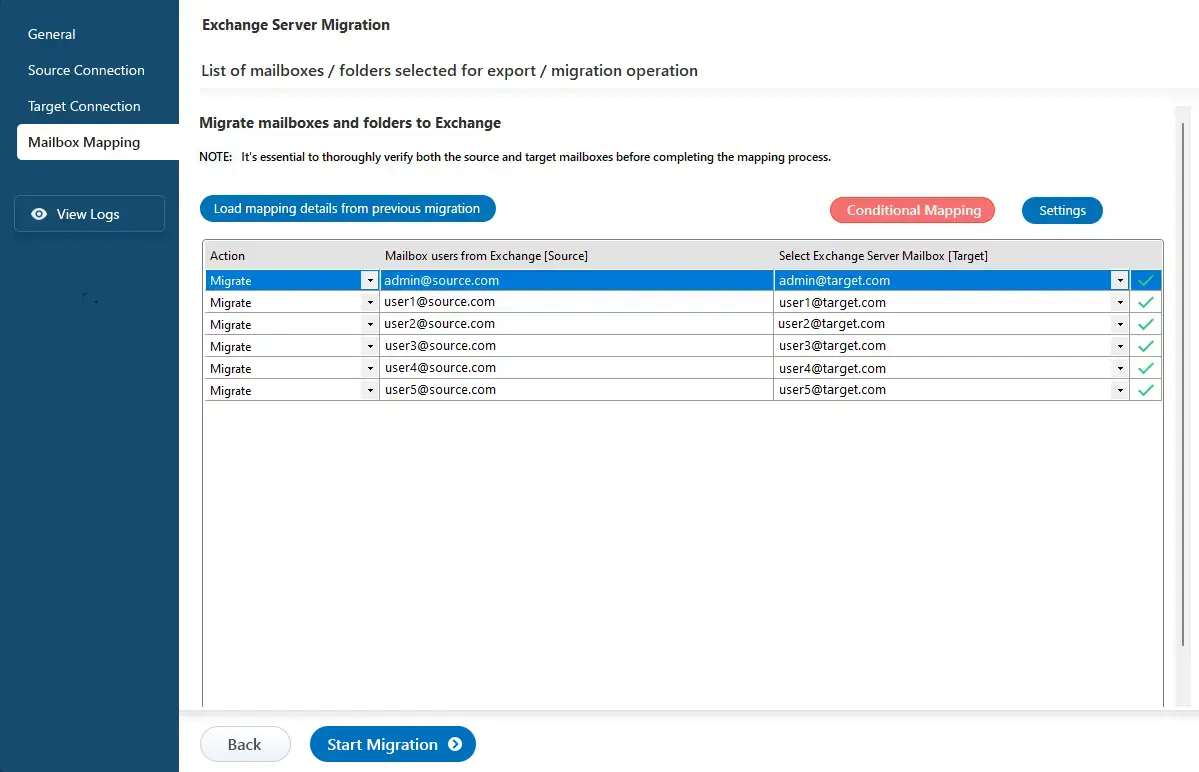
- Select the required mapping option
Step 6: Start Staged Exchange migration
- Click ‘Start Migration’ to begin the process.
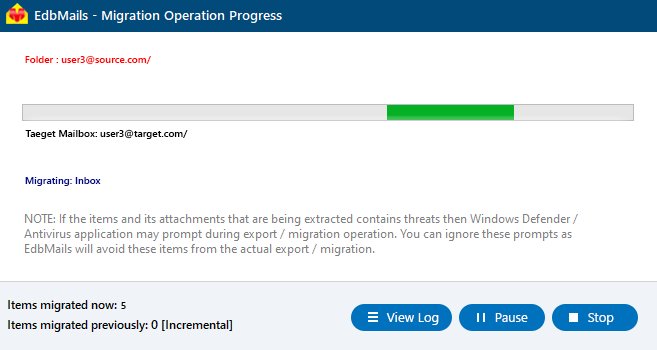
- Monitor progress in the status bar. After completion, click ‘View Logs’ to check the migration report.
- Log in to the target server to verify migrated items.
Advantages of Using EdbMails for Staged Migration
- Incremental Migration Support: Incremental Migration prevents duplicate items during successive migration operations.
- Advanced Filtering Options: Advanced include and exclude filters options to allow precise selection of mailbox items and folders.
- Public & Shared Mailbox Migration: Supports migration of Exchange Public Folders and Shared Mailboxes.
- Automatic Mailbox Mapping: Automatic mapping of mailboxes between source and target servers.
- Simple Migration Setup: Enables migration to Exchange and Office 365 without requiring technical expertise.
- Fast and Reliable Migration: Fast migration ensures complete data consistency between source and target servers.
- Auto Reconnect Capability: Automatically reconnects during intermittent internet interruptions.
- Flexible Migration Options: Supports batch migration or selective folder migration based on requirements.
- Zero Downtime Migration: Maintains zero downtime throughout the migration process.


