Security alert in Outlook after migrating to new Exchange server
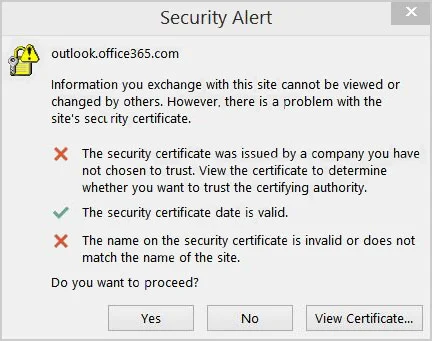
When you migrate to a new Exchange server, Outlook may encounter a common issue: the new server lacks certificates. This can prompt a security alert message for Outlook clients connected to your environment. This problem often occurs during the migration to a new Exchange 2016 server, resulting in an error message like "The Security certificate was issued by a company you have not chosen to trust. View the certificate to determine whether you want to trust the certifying authority." This security alert assesses the Outlook profile configuration with the Exchange Server and informs users accordingly.
Causes for Certificate Warnings in Outlook:
When you install Exchange Server 2016 in your Active Directory, it creates a special point called Service Connection Point (SCP) for Autodiscover. Autodiscover helps programs like Outlook find the right information about mailboxes and services in Exchange. So, when you set up a new Outlook profile, Autodiscover does the work of figuring out the server settings for you.
By default, Autodiscover uses a url with the Exchange server's full name. You can verify this URL by running the following command in the Exchange Management Shell:
Get-ClientAccessService -Identity
Autodiscover operates through an HTTPS (SSL) connection accessible to clients. The Exchange server extends its services through various HTTPS connections for clients, including Exchange Web Services (EWS), Outlook on the web (also known as OWA), ActiveSync (tailored for mobile devices), and Outlook Anywhere (utilized by Outlook clients).
Because the connection is secured with HTTPS, the SSL certificate configured on the server must satisfy the below specific criteria to be deemed valid by the client:
- The certificate must be issued by a trusted certificate authority (CA).
- The certificate must remain valid and not have expired.
- The name on the certificate must align with the server name (or URL) that the client is connecting to.
How to resolve certificate warning errors in Outlook?
The resolution involves two ways:
Set up the Autodiscover URL for the service
When updating the Autodiscover URL, choose a DNS name or an alias for the server name. It's best to avoid using the actual full domain name of the Exchange Server.
Set-ClientAccessService -Identity
If the DNS record for the namespace is missing in Exchange, you must add the A record to the internal DNS Zone.
Install a valid SSL certificate:
To properly set up the namespace, it is necessary to install the SSL Certificate on the Exchange Server. Following are the steps for installing the SSL certificate in the Exchange Admin Center:
- Log in to the Exchange Admin Center and navigate to ‘Servers’ >> ‘Certificates’.
- In the 'Select Server' list, choose the specific Exchange Server for certificate installation. Opt for 'More Options •••' and select 'Import Exchange Certificate.'
- In the ‘Import Exchange certificate’ wizard, on the 'This wizard will import a certificate from a file' page, provide the following details:
- File to import from: Provide the complete UNC path for the SSL file name.
- Password: If the certificate is password-protected, input the password and click ‘Next’.
- On the 'Specify the servers you want to apply this certificate to' page, click the ‘Add (+)’ icon.
- Choose the Exchange Server and click the ‘Add’ button. You can select multiple Exchange Servers as needed.
- Click the ‘Finish’ button to complete the process.
EdbMails For Exchange migration
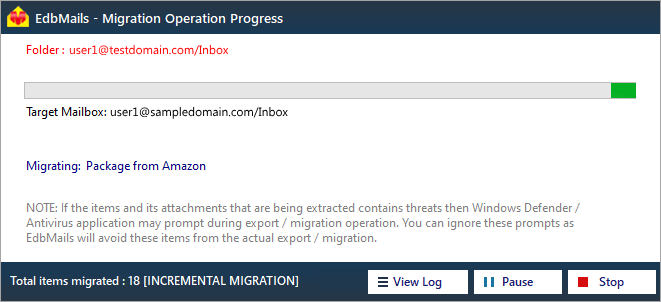
EdbMails is the perfect solution for Exchange migration, offering a range of advanced features such as concurrent mailbox migration, incremental migration, automatic throttling management, and automatic mailbox mapping etc. The software supports the migration of various mailbox types, including user mailboxes, public folders, archive mailboxes, and shared mailboxes, ensuring the successful migration of essential email data from the source to the target server regardless of the Exchange server versions.
Simple Steps to perform Exchange migration using EdbMails
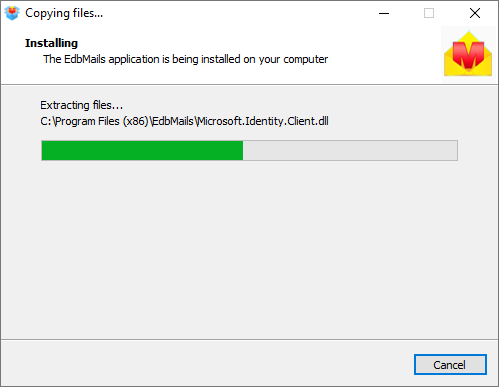
- Download and install EdbMails Exchange Migration software
- Launch the application and login with required details
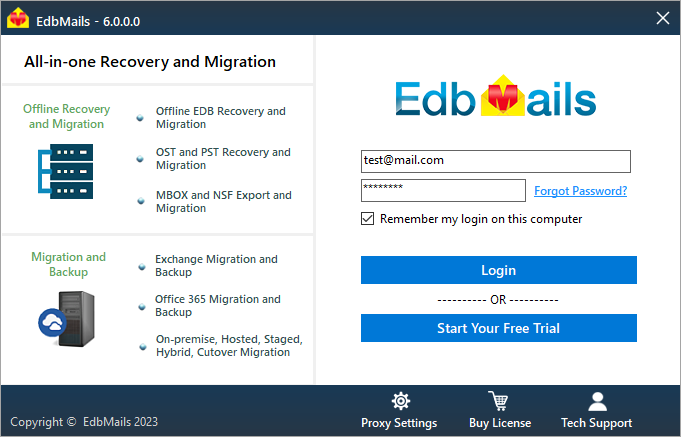
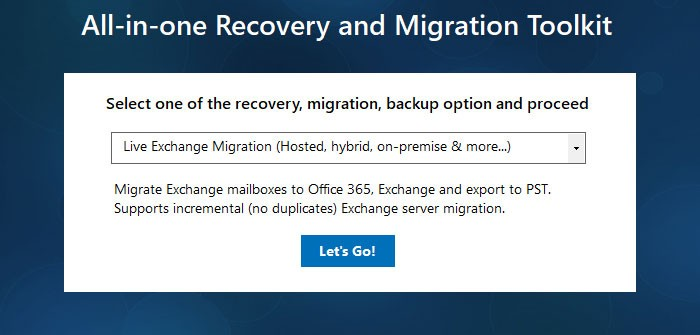
- choose the ‘Live Exchange Migration’ from the dropdown options
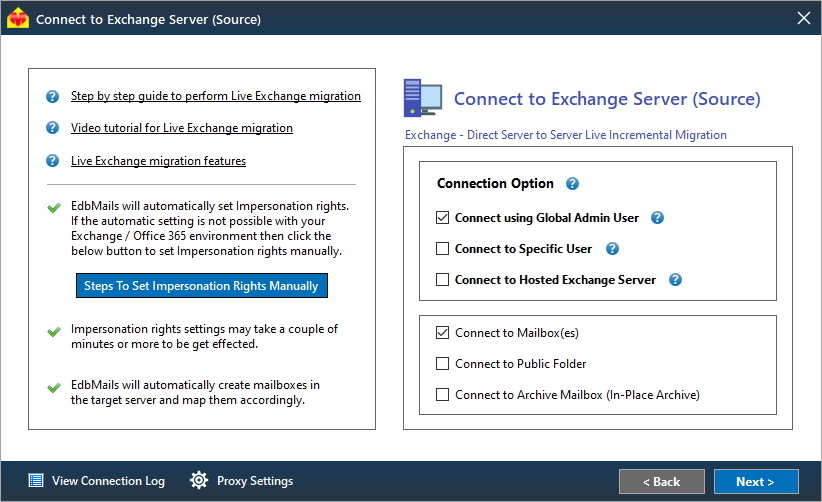
- Connect to Source Exchange server
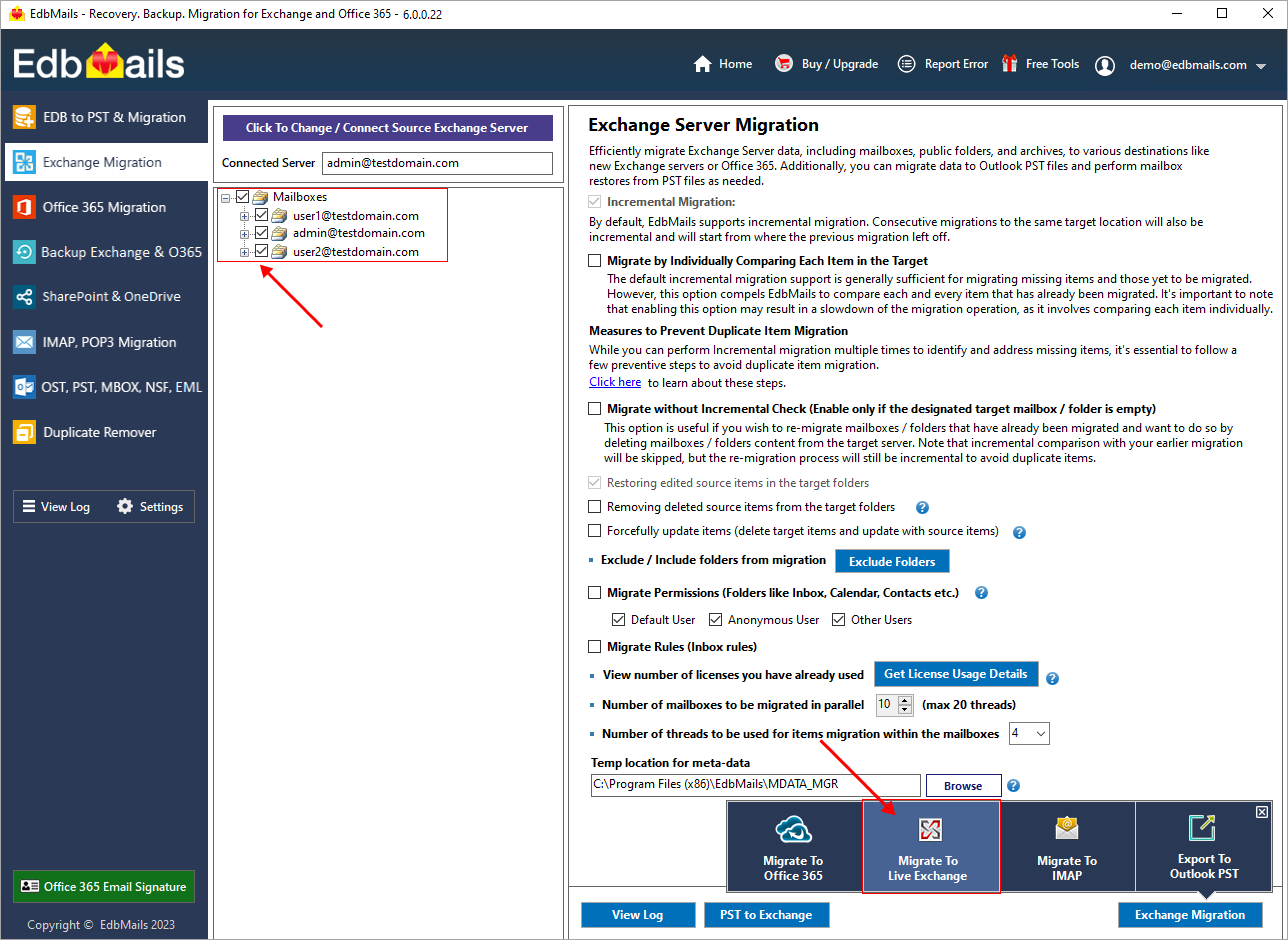
- Select the mailboxes / folders for the migration and click ‘Migrate to Exchange’
- Connect to target Exchange server
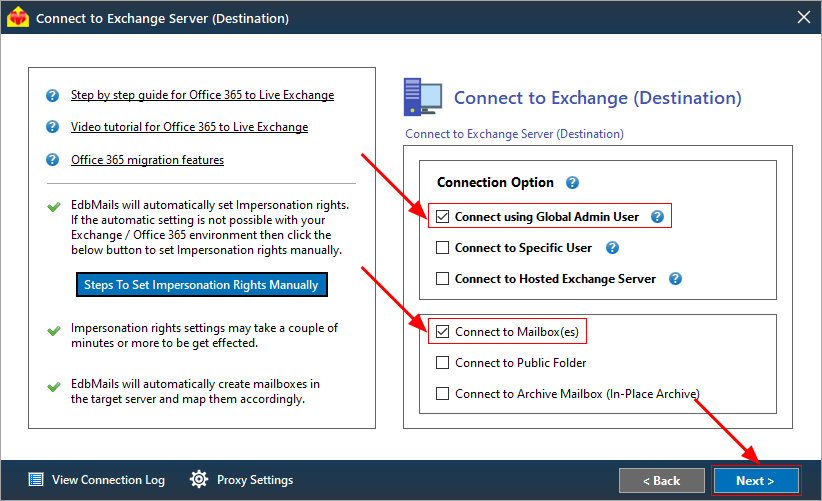
- Select option to map mailboxes
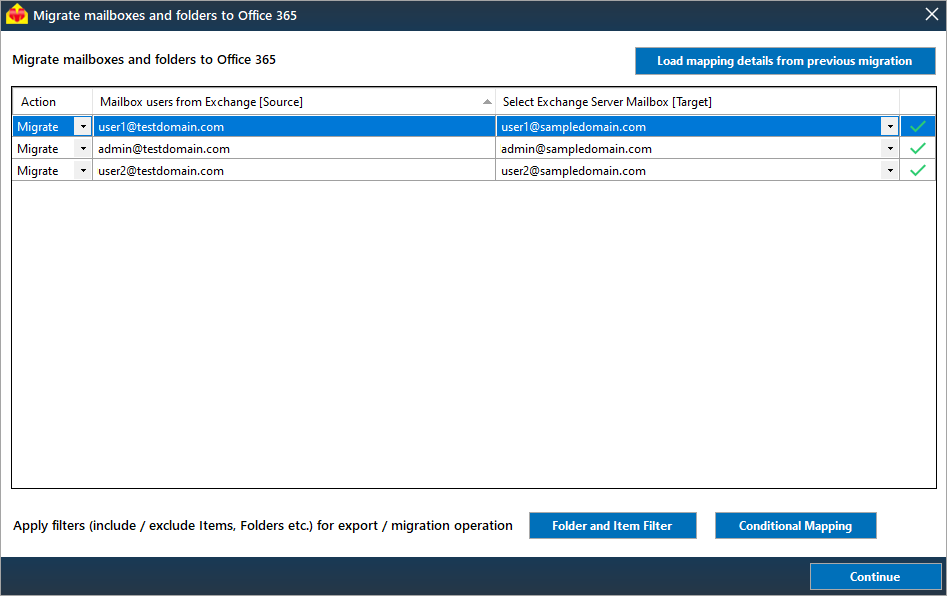
- Start Exchange migration operation