EdbMails EDB Recovery and Migration software
  • Products
    EdbMails
    All-in-one Recovery and Migration
    Explore our products
    • EDB recovery and Migration
    • OST, PST, MBOX, NSF, EML, MSG
    • Office 365, Exchange Migration
    • SharePoint, OneDrive & Teams
    • G Suite Migration
    • IMAP Migration
    • Duplicate Remover
    • Windows Data Recovery
    • Backup Solutions

    EDB Recovery and Migration

    EdbMails lets you recover corrupted, damaged, and offline Exchange EDB files, convert EDB mailboxes to PST format, and directly migrate mailbox data to Office 365 and live Exchange Server.

    EDB to PST
    Recover corrupted, damaged, offline EDB files and convert Exchange EDB mailboxes to PST file format
    Public Folder to Exchange
    Migrate public folders from an Exchange offline EDB file to live Exchange Server
    EDB to Live Exchange Migration
    Directly migrate offline Exchange database (EDB) files to live Exchange server
    Archive Mailbox to Office 365
    Migrate archive mailboxes from offline EDB files directly to Office 365
    EDB to Office 365 Migration
    Directly migrate offline Exchange database (EDB) files to Office 365
    Public Folder to Office 365
    Migrate public folders from an offline Exchange EDB file to Office 365

    OST, PST, MBOX, NSF, EML, MSG Export and Migration

    EdbMails lets you to recover OST and PST files, export OST, PST, MBOX, NSF, EML, and MSG files to PST files, and directly migrate OST, PST, MBOX, and NSF mailbox data to Office 365 and live Exchange Server.

    OST Recovery and Migration
    Recover offline OST files, convert OST to PST, and migrate OST to Office 365 and Exchange Server
    PST Recovery and Migration
    Recover Outlook PST files , Export PST to PST, migrate PST to Office 365 and Exchange Server
    MBOX Export and Migration
    Export MBOX to PST, migrate MBOX to Office 365 and Exchange Server
    NSF Export and Migration
    Export NSF to PST, migrate NSF to Office 365 and Exchange Server
    EML to PST Export
    Convert EML files to Outlook PST files
    PST to MSG Export
    Convert Outlook PST file to MSG file format
    MSG to PST Export
    Export MSG files to Outlook PST files

    Office 365, Exchange Migration

    EdbMails lets you securely migrate mailboxes across Microsoft 365, Exchange, Google Workspace (G Suite), and IMAP-supported servers such as Outlook, Gmail, Zimbra, Zoho Mail, and cPanel, ensuring zero downtime.

    Office 365 Migration
    Migrate between Office 365 tenants, Office 365 to Exchange, Office 365 to PST, PST files to Office 365.
    Exchange Migration
    Migrate between any Exchange Servers, Exchange to Office 365, Exchange to PST, PST files to Exchange.
    Tenant to Tenant Migration
    Migrate Mailboxes, Public Folders, Archive Mailboxes between Office 365 Tenants.
    Exchange to Office 365
    Migrate Mailboxes, Public Folders, Archive Mailboxes from live Exchange server to Office 365.
    Office 365 to IMAP
    Migrate Office 365 to IMAP, Office 365 to Gmail, Office 365 to Outlook, Office 365 to Zoho etc.
    Exchange to IMAP
    Migrate from live Exchange Server to IMAP servers such as Gmail, Outlook, and Zoho Mail.
    Public Folder to Office 365
    Migrate Public Folders between Office 365 tenants with complete folder hierarchy and mailbox data integrity.
    Exchange to PST
    Export live Exchange Server mailboxes, public folders, and archive mailboxes to Outlook PST files.

    SharePoint, OneDrive & Microsoft Teams Migration

    EdbMails lets you migrate SharePoint sites, OneDrive data, Microsoft Teams, teams, channels, chats, permissions, and documents between Microsoft 365 tenants while maintaining the existing folder structure and data integrity.

    SharePoint Online Migration
    Migrate documents, lists, files and folders from SharePoint sites.
    OneDrive for Business Migration
    Migrate documents, lists, files, folders, private chats from OneDrive.
    Microsoft Teams Migration
    Migrate Teams, chats, channels, documents, files and folders etc.

    Google Workspace / G Suite Migration

    EdbMails G Suite Migration Tool lets you easily migrate emails, calendars, contacts, tasks, and more from G Suite to Office 365, Exchange Server, and IMAP servers using a Google Admin account without requiring individual user credentials.

    G Suite Migration
    Migrate emails, calendars, contacts, tasks from G Suite to Office 365, G Suite to Exchange, G Suite to IMAP Servers
    G Suite to Office 365
    Migrate emails, calendars, contacts, tasks from Google Workspace / G Suite to Office 365
    G Suite to Exchange Server
    Migrate emails, calendars, contacts, tasks from Google Workspace / G Suite to on-Premise Exchange Server
    G Suite to IMAP
    Migrate emails, calendars, contacts, tasks from Google Workspace / G Suite to IMAP, Outlook, Zimbra, Zoho etc.

    IMAP Migration

    EdbMails IMAP Migration tool lets you easily migrate emails from IMAP servers such as Outlook, Gmail, Zoho Mail, Zimbra, cPanel, and more. Supports IMAP to IMAP, Office 365, Exchange Server, PST, and bulk PST to IMAP migration.

    IMAP Email Backup & Migration
    Backup and migrate emails from IMAP servers to PST, Office 365, and On-Premises Exchange Server
    IMAP to Office 365
    Migrate emails, folders, and attachments from IMAP servers to Office 365
    IMAP to Exchange
    Migrate emails, folders, and attachments from IMAP servers to on-premises Exchange Server
    IMAP to PST
    Export emails, folders, and attachments from IMAP servers to Outlook PST files for backup
    PST to IMAP
    Migrate emails, folders, and attachments from bulk PST files to IMAP servers

    Duplicate Remover

    EdbMails Duplicate Remover lets you easily remove duplicate items from Office 365 and Exchange Server, and from IMAP, Outlook, Gmail, Zimbra, Zoho Mail, etc., ensuring a clean and organized mailbox.

    Remove Duplicates
    Easily clean up your Office 365, Exchange, Outlook and IMAP accounts by removing duplicate emails.
    Remove Duplicates from Office 365
    Remove duplicate emails, calendars, contacts, journal tasks, etc. from Office 365.
    Remove Duplicates from Exchange Server
    Remove duplicate emails, calendars, contacts, journal tasks, etc. from live Exchange Server.
    Remove Duplicates from IMAP, Outlook
    Remove duplicate emails, attachments from IMAP, Outlook, Gmail, Zimbra, Zoho Mail etc.

    Exchange, SharePoint, OneDrive, Teams and Office 365 Backup

    EdbMails enables secure, automated backup and recovery for Microsoft 365 services including Exchange Online, SharePoint, OneDrive, Teams, and Live Exchange Server with complete data protection and restore flexibility.

    Office 365 Backup
    Incremental, Granular, Encrypted and Compressed Office 365 Mailboxes Backup
    Exchange Server Backup
    Incremental, Granular, Encrypted and Compressed Exchange Mailboxes Backup
    SharePoint, OneDrive & Teams Backup
    Backup Online site collections, Team sites, Office 365 groups, all documents etc.

    Windows Data Recovery

    EdbMails Windows Data Recovery Software lets you recover permanently deleted data, including photos, videos, documents, and archived files, from partitions on hard drives, SSDs, USB drives, SD cards, and external storage devices.

    Windows Data Recovery
    Recover and restore permanently deleted data from hard drives, SSDs, USB drives, SD cards, and etc.
    Whitepaper
    Request a Demo
    Sign Up
  • Features
  • FAQ
  • Pricing
  • Download
  • Support
  • Sign in
User’s Manual
Exchange Server Migration

User Manual

User Manual

  • Exchange Migration Overview
  • Initial Setup
  • System Requirements
  • Migration Scenarios
  • Installation
    • Installation process
    • Reinstall or Upgrade
    • How to uninstall
  • FAQ
    • General
    • Migration Free Trial / Demo
    • Migration License
    • Before Migration
    • Migration - Steps
    • After Migration
  • Videos
    • Exchange to Exchange
    • Exchange to Office 365
    • Exchange to IMAP
    • Exchange to PST
    • Public Folder to Office 365
    • Archive Mailbox to Office 365
    • Public Folder to Exchange
    • Archive Mailbox to Exchange
    • Restore Bulk PST files to Exchange
  • Screenshots
    • Exchange to Exchange
    • Exchange to Office 365
    • Exchange to PST
  • Understanding the Application
    • Migration
    • Migration Speed
    • Incremental Migration
    • Exchange Throttling Policy
  • How it works?
    • Exchange to Exchange
    • Exchange to Office 365
    • Exchange to PST
    • Exchange to IMAP
    • Exchange Public Folder to Office 365
    • Exchange Public Folder to Exchange
    • Exchange 2010 to 2016 Public folder
    • Exchange 2013 Public folder to Office 365
    • Exchange 2016 Public folder to Office 365
    • Exchange Public Folder to Shared Mailbox
    • Archive Mailbox to Office 365
    • Archive Mailbox to Exchange
    • Hosted Exchange Migration
    • Hosted Exchange to Live Exchange Migration
    • Hosted Exchange to Office 365 Migration
    • Live Exchange to Hosted Exchange Migration
    • Hosted Exchange Public Folder to Office 365 Migration
    • Cross-forest migration from Exchange 2013 to Exchange 2019/2016
    • Hybrid Migration
    • Public folder Migration in Hybrid Environment
    • Disable msExchMailboxGuid
    • Exchange to Gmail Migration
    • Multiple PST to Exchange server
    • Hosted Exchange to Office 365 Shared mailbox
  • Connect to Exchange server for multiple mailboxes migration
    • Connect with Global Admin
    • Connect to Multiple users using CSV file
    • Connect using full access permission
    • Connect individual users for Single / Specific user Migration
  • Connect to Hosted Exchange for its Migration
    • Connect with Full Access permissions
    • Connect to multiple users using CSV file
    • Connect to Individual user for migration
  • Connect to target Office 365
  • Modern Authentication Using OAuth 2.0
    • Microsoft 365 modern authentication
    • Automatic Registration
    • Manual Registration
  • Set Exchange Server Impersonation rights
    • Exchange 2007 and below
    • Exchange 2010, 2013, 2016 and 2019
    • Set using Exchange Server GUI
  • Knowledge Base
    • Exchange to Exchange Migration
    • Exchange to Office 365 Migration
    • Migrate Legacy Exchange to Latest Exchange
    • Cross-forest and cross-domain migration
    • Public folder, Shared mailbox migration
    • Archive mailbox migration
    • Hosted Exchange Migration
    • Incremental migration
    • Cutover, staged and hybrid migration
    • Migrate SBS 2003, 2008, 2011 to a Modern Exchange Environment
    • Export Exchange Mailbox to PST
    • Secure Exchange Migration
    • Selective Mailbox / Folder Migration
    • Automatic Mailbox Mapping
    • Assign Public Folder to one target destination
    • Multiple PST Restore
    • No Impact on users - Zero downtime
    • Migrate Email Rules, Forwarding and Junk Email Configuration
    • Exchange migration speed and throttling management
    • Support for all the languages
    • Advanced settings and options
    • GAL and all address lists Migration
    • Exchange migration reports
    • Best Exchange Migration software
    • Exchange migration checklist
    • Exchange migration manager
    • Feature rich Exchange migration software
    • Exchange to Office 365 migration planning
    • Exchange server migration tips
    • Export Exchange server users to CSV
    • Create a Public folder in Exchange Server 2010
    • Load Exchange mailboxes from CSV file
    • Language settings on Exchange server
    • Export and import Exchange Retention Policy Tags
    • Fix Outlook security alert after migration
    • Assign public folders to Exchange
    • Connect to Exchange with Default Connection
    • Connect to Exchange with Autodiscover Email
  • Set Office 365 Impersonation rights
    • Using PowerShell commands
    • Using Office 365 GUI
  • Migration Types
    • Cutover Migration
    • Staged Migration
    • Hybrid Migration
  • Map the Mailboxes
  • Migration Walkthrough
    • From Exchange 2003
    • From Exchange 2007
    • From Exchange 2010 to Exchange 2019
    • From Exchange 2010 to Exchange 2016
    • From Exchange 2010 to Office 365
    • From Exchange 2013 to Exchange 2019
    • From Exchange 2013 to Exchange 2016
    • From Exchange 2013 to Office 365
    • From Exchange 2016 to Exchange 2019
    • From Exchange 2016 to Office 365
    • From Exchange 2019 to Office 365
    • From Office 365
    • Exchange 2013 mailbox to PST
    • Exchange 2016 mailbox to PST
    • Exchange 2019 mailbox to PST
    • Exchange 2010 mailbox to PST
  • Multifactor Authentication
    • Enable MFA in Office 365
    • Create App password for MFA
    • Disable Security Defaults
    • Disable MFA in Office 365
  1. Home
  2. Product
  3. How to Export Exchange 2019 Mailbox to PST files?
Download Buy Now

Export Exchange 2019 Mailbox to PST

Exchange Server 2019 has played a vital role in enabling secure email communication and collaboration within organizations. With built-in Mailbox and Edge Transport roles, it supports efficient data handling and smooth operations. However, with Microsoft ending support for Exchange Server 2019 in October 2025, it’s critical for businesses to begin planning their data retention and migration strategies well in advance.

One of the most reliable ways to preserve mailbox data is by exporting it to PST format. PST files offer long-term accessibility, making them ideal for archiving, employee offboarding, compliance, and recovery scenarios. As part of your Exchange migration planning, exporting to PST ensures your data remains accessible even after the server is no longer supported.

Export Exchange 2019 mailbox to PST

EdbMails Exchange Migration Software provides a powerful, easy-to-use solution to export Exchange 2019 mailboxes to PST. Unlike manual methods, EdbMails automates the entire process with features such as incremental export, advanced filtering, PST file splitting, and a free built-in PST merge tool. This ensures a secure, efficient, and error-free experience, even when dealing with large mailboxes or complex environments.

Whether you're preparing for an upgrade, decommissioning an old server, or archiving inactive accounts, EdbMails Exchange migration simplifies the task. It’s a trusted solution for IT teams looking to future-proof their data and maintain business continuity as Exchange 2019 approaches end of life.

Limitations of Native method:

The native method to export Exchange 2019 mailboxes to PST comes with several limitations that can hinder efficiency and data accuracy. The process is time-consuming and requires technical expertise to avoid human errors, which can result in incomplete or corrupted exports. Additionally, it does not allow for selective folder exports, making it difficult to manage large mailboxes effectively. The manual method also struggles with large data sizes. Users cannot split a large PST file, nor can they export multiple mailboxes at once. If the process is interrupted, there is no option to resume, forcing a restart. Furthermore, there’s no guarantee that the data hierarchy will be maintained, leading to potential data loss or disorganization.

Due to these limitations, many professionals prefer automated tools like EdbMails software that offer faster, more reliable, and error-free exports with enhanced features for handling large data sets and ensuring data integrity.

Why EdbMails is the best option over native method?

When it comes to exporting Exchange 2019 mailboxes to PST, EdbMails Exchange migration software is a smarter and more efficient alternative to the native method. With its intuitive, user-friendly interface, even non-technical users can complete the migration process without hassle, saving both time and effort. Unlike the manual PowerShell-based approach, which can be complex and error-prone, EdbMails simplifies every step of the export.

One of its biggest advantages is zero downtime, users can continue working with their Exchange mailboxes while the export runs in the background, avoiding disruptions and productivity loss. EdbMails also supports concurrent mailbox exports, allowing multiple mailboxes to be processed at once, which is especially helpful in large-scale environments where speed matters.

To further enhance the experience, EdbMails offers free 24/7 technical support, so you’re never left without help if questions or issues arise. With all these features combined - ease of use, performance, support, and reliability, EdbMails delivers a much more flawless and dependable solution than the native Exchange export method.

  1. Prerequisites to export Exchange 2019 mailbox to PST

    Step 1: Assign impersonation rights to the global admin user

    If you're using a global administrator account to connect to your Exchange server, make sure it has impersonation rights. This permission allows the admin to access and export mailboxes on behalf of other users.

     How to assign impersonation rights

    Step 2: Install Microsoft Outlook on your computer

    EdbMails relies on Outlook to generate PST files. Make sure Outlook is installed on your computer with the latest updates. Also, ensure there’s enough disk space to save the exported PST files.

    Step 3: Set up an Outlook Profile

    To ensure a smooth export, create a new Outlook profile

     How to create an Outlook profile

  2. Steps to export Exchange 2019 mailbox to PST

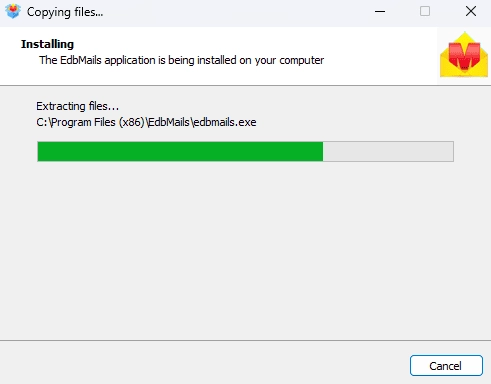
    • Step 1: Download and Install EdbMails Exchange migration software

      • Download EdbMails and install the software on your computer.

          See the system requirements for using EdbMails to export Exchange 2019 mailbox to PST.

        EdbMails software installation

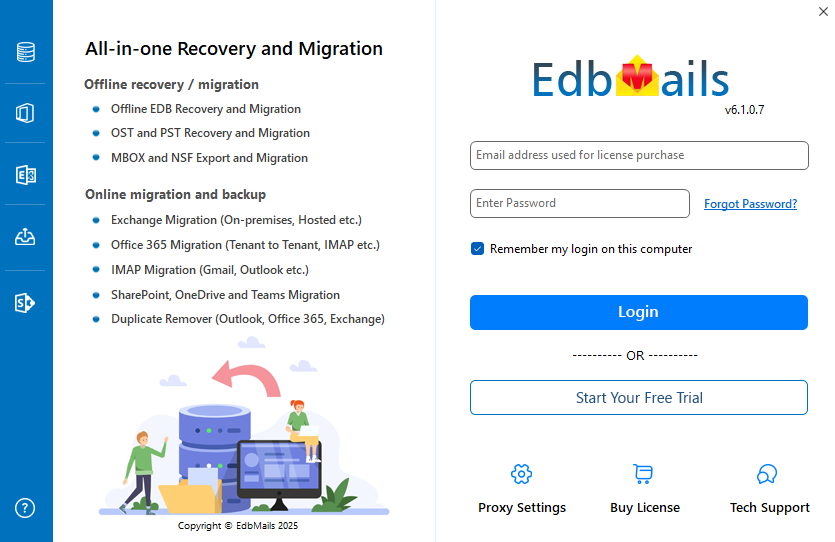
      • Start the EdbMails application on your system.
      • Enter your registered email ID and password and click ‘Login’. If you are a new user, select ‘Start Your Free Trial’ to proceed with the trial version.
         Note: The trial version provides access to all key features and supports migration of up to 30 items per folder. For unlimited migration, purchase Exchange Migration license from the EdbMails website.

         Click here to view the Exchange Migration pricing details.

        After completing the purchase, close and reopen the application. Then log in using the same email ID and password used during the purchase to activate the license successfully.

        Login to EdbMails application

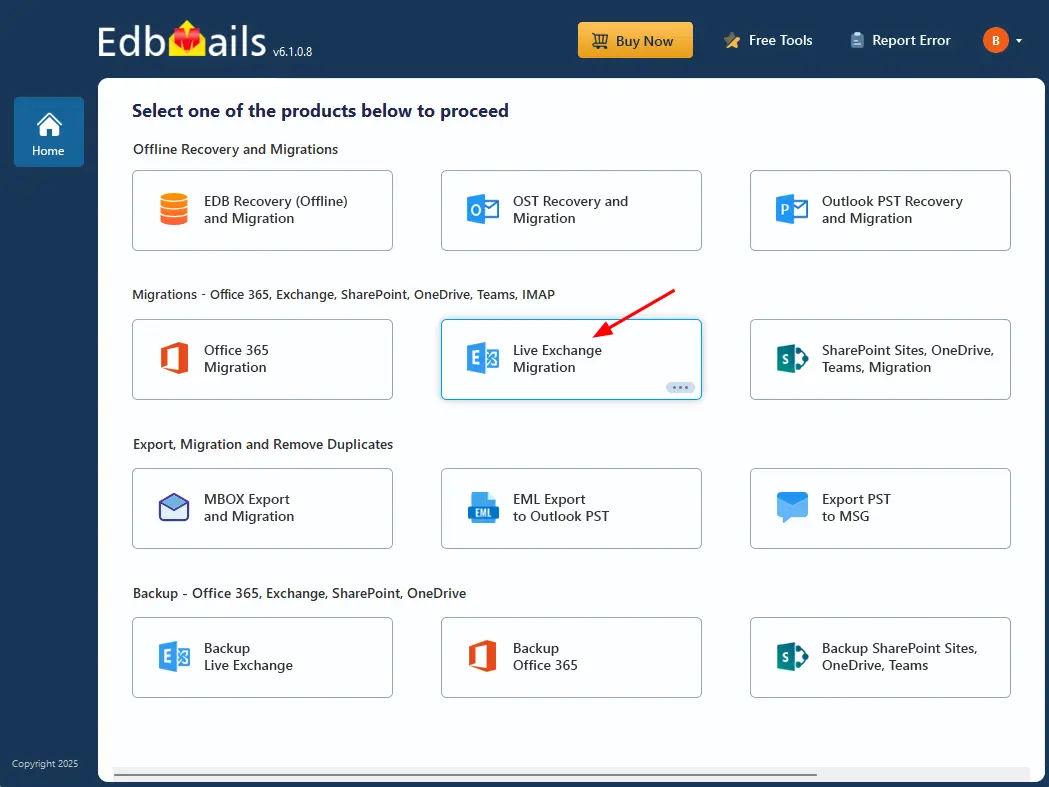
      • Choose the ‘Live Exchange Migration’ option.

        Choose ‘Live Exchange Migration’ option

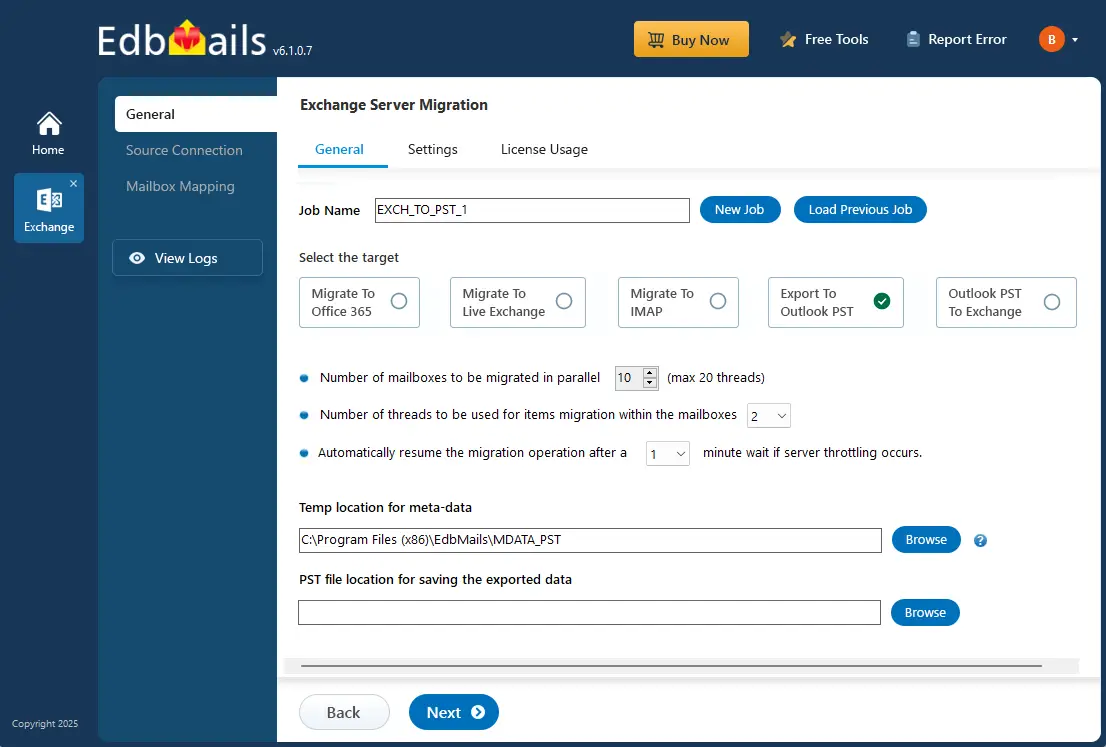
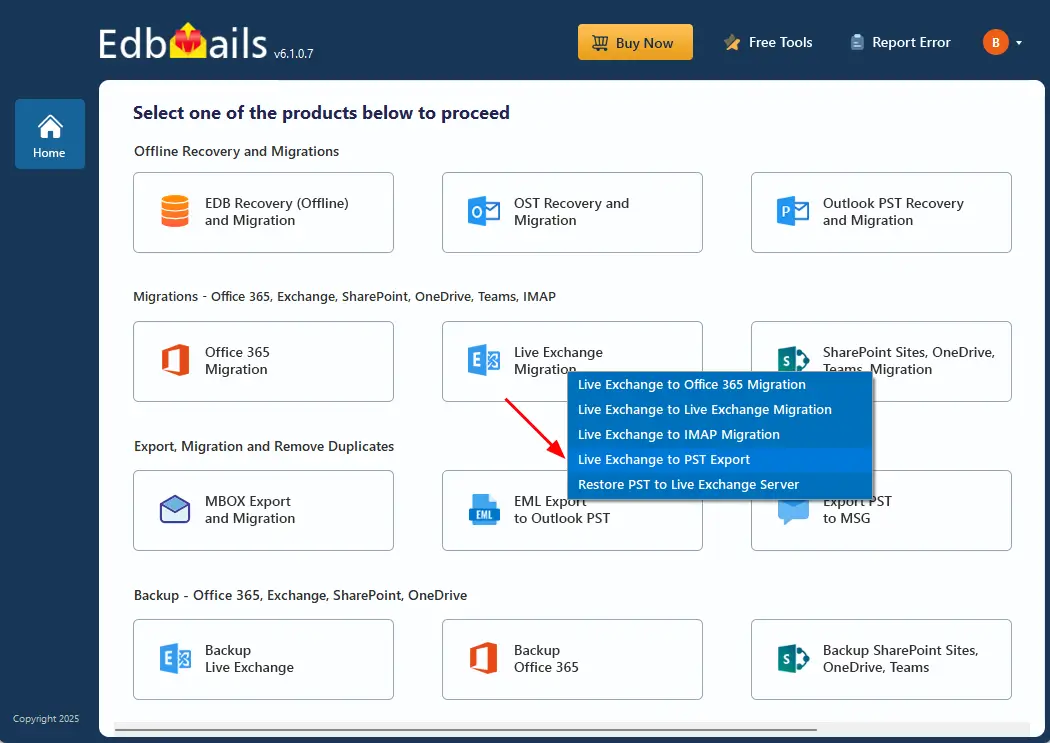
      • Select 'Live Exchange to PST Export’ option.

        Choose ‘Live Exchange Migration’ option

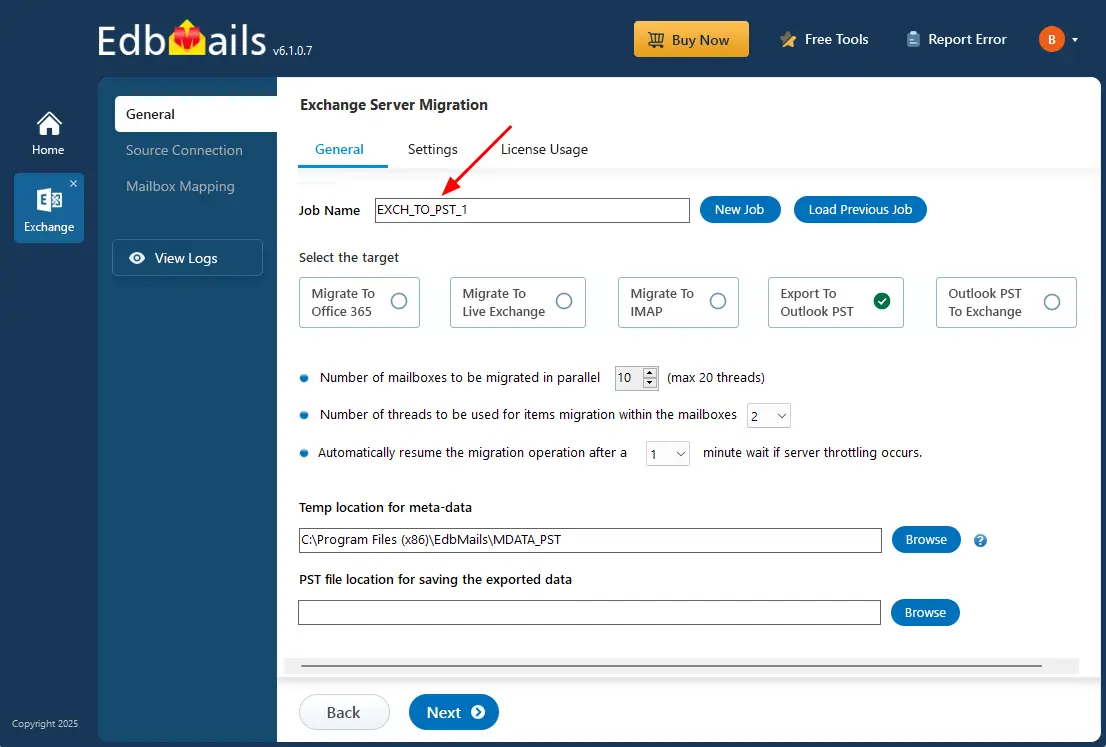
      • You can keep the default job name or choose the ‘New Job’ to change.

        Exchange 2013 to PST export job name

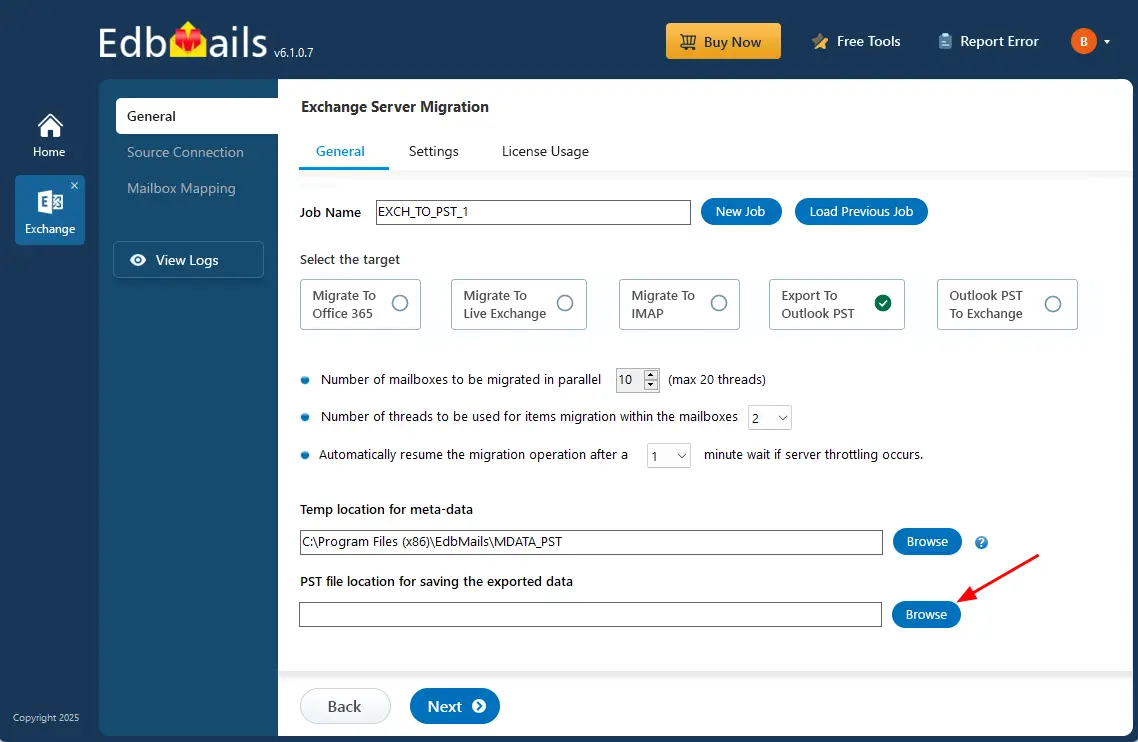
      • Click the ‘Browse’ button and select the destination location where the PST file will be saved for the exported data.

        Click the ‘Browse’ button

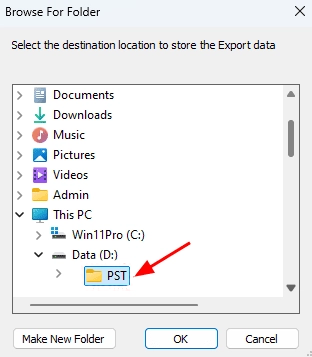
      • Choose the destination folder where you want to save the exported PST files. Ensure that there is enough disk space available to store them successfully.

        Select PST location

    • Step 2: Connect to source Exchange 2019 server

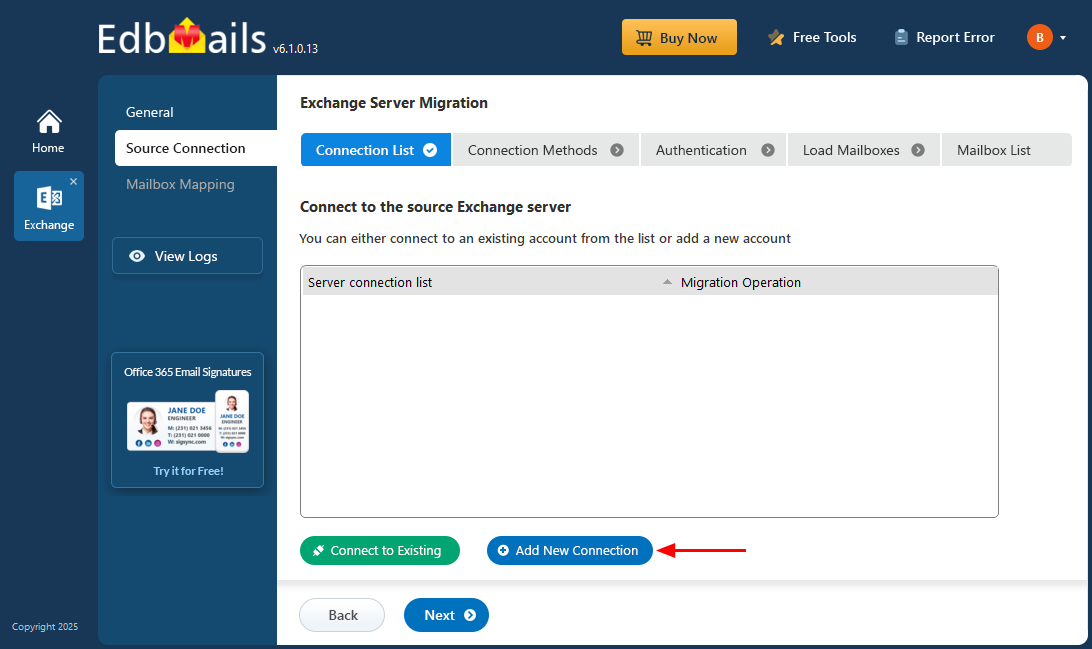
      • Click ‘Add New Connection’ to create a connection with the source Exchange 2019 server. If a connection is already configured, select it from the list and click ‘Connect to Existing’ to continue

        Click Add New Source Exchange Connection

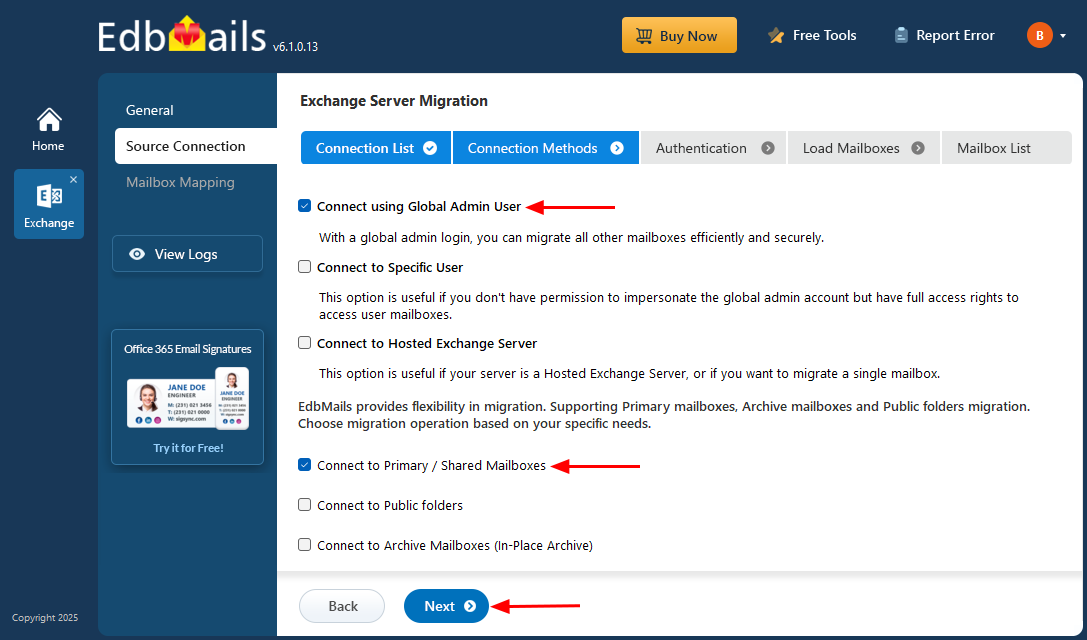
      • Choose the required connection options and click the ‘Next’ button.

         Learn more about Exchange server connection methods

      • Using EdbMails, you can export mailboxes, public folders, and archive mailboxes from your Exchange server to Outlook PST files.

        Source Exchange server connection

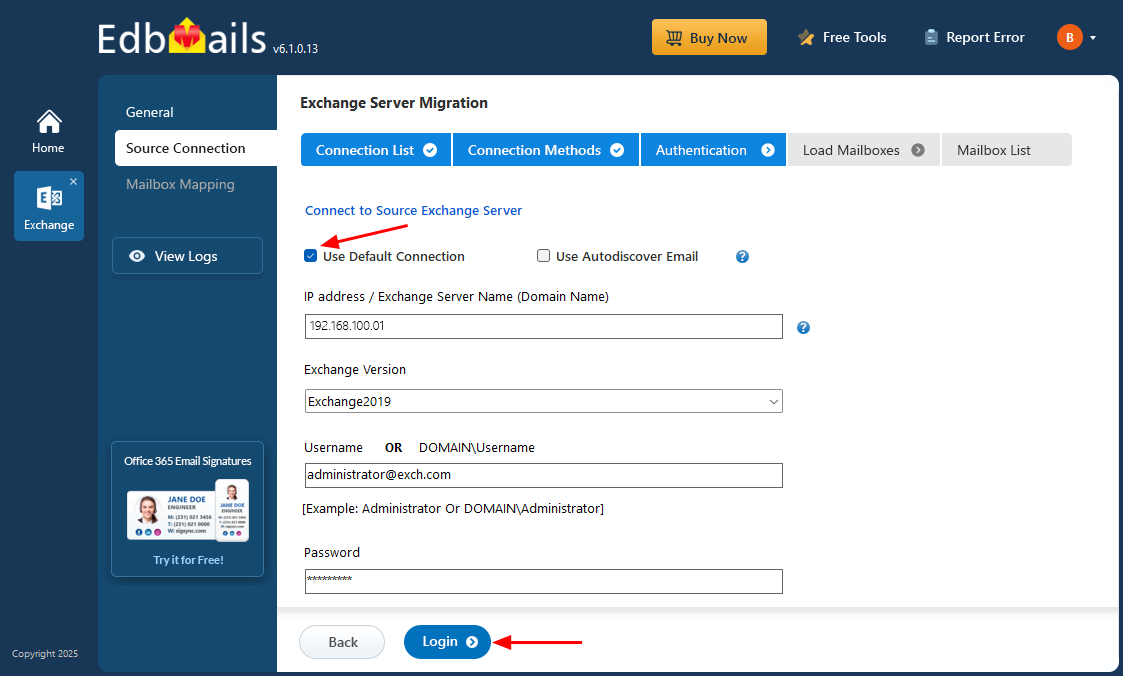
      • Provide the source Exchange 2019 Server details such as the IP address (Domain name), Exchange version, username, and password.
      • Click the ‘Login’ button to continue.

        Login to source Exchange server

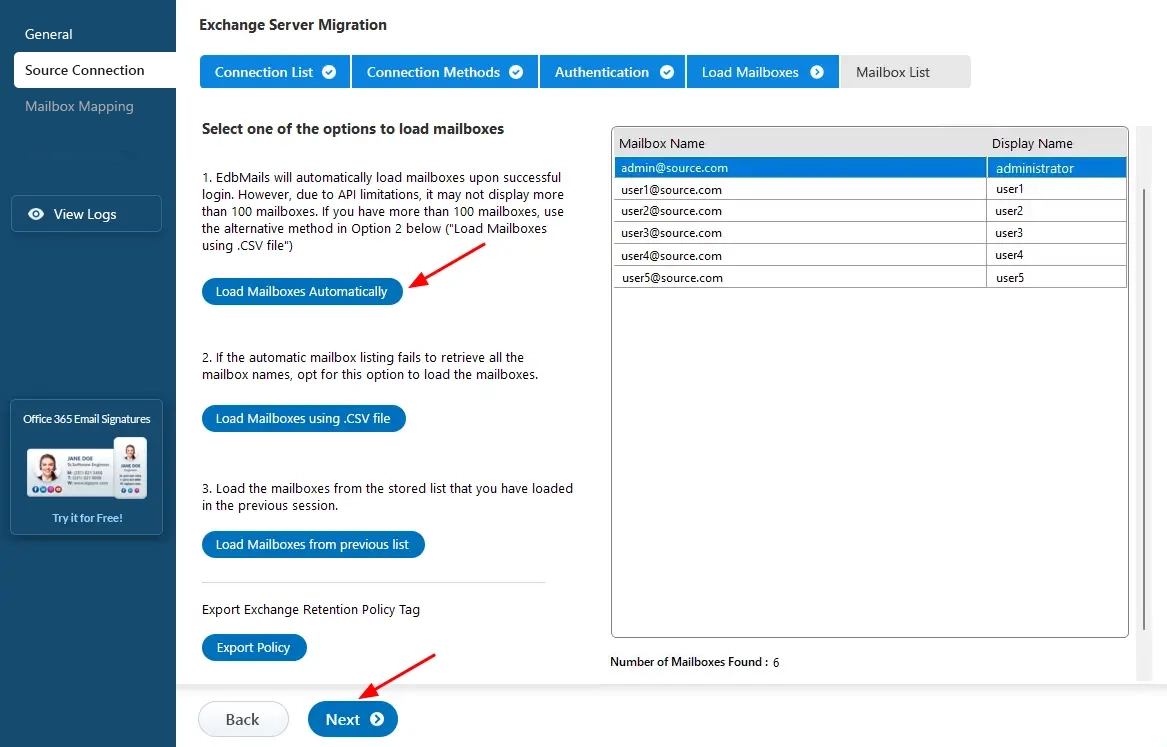
      • After successfully signing in to the source Exchange server, choose a suitable method to load the mailboxes. EdbMails automatically loads the mailboxes for you. However, due to Microsoft API limitations, only up to 100 mailboxes may be displayed. If your environment contains more than 100 mailboxes, use the ‘Load Mailboxes using .CSV file’ option.

         See how to load Exchange server mailboxes using CSV file.

      • Click the ‘Next’ button to continue.

        Select the option to load mailboxes

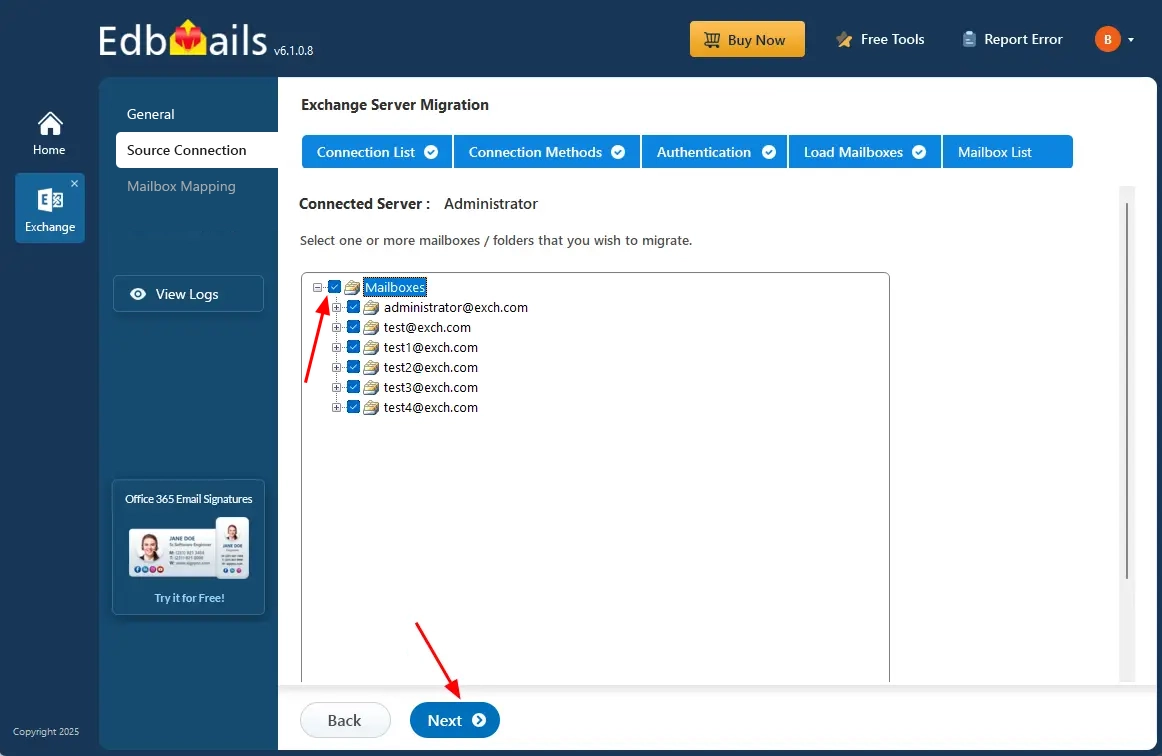
    • Step 3: Select the Exchange 2019 server mailboxes

      • Choose the specific mailboxes/folders you wish to export from the source Exchange server
      • Click the ‘Next’ button to proceed.

        Select source Exchange server mailboxes

    • Step 4: Start Exchange 2019 to PST export operation

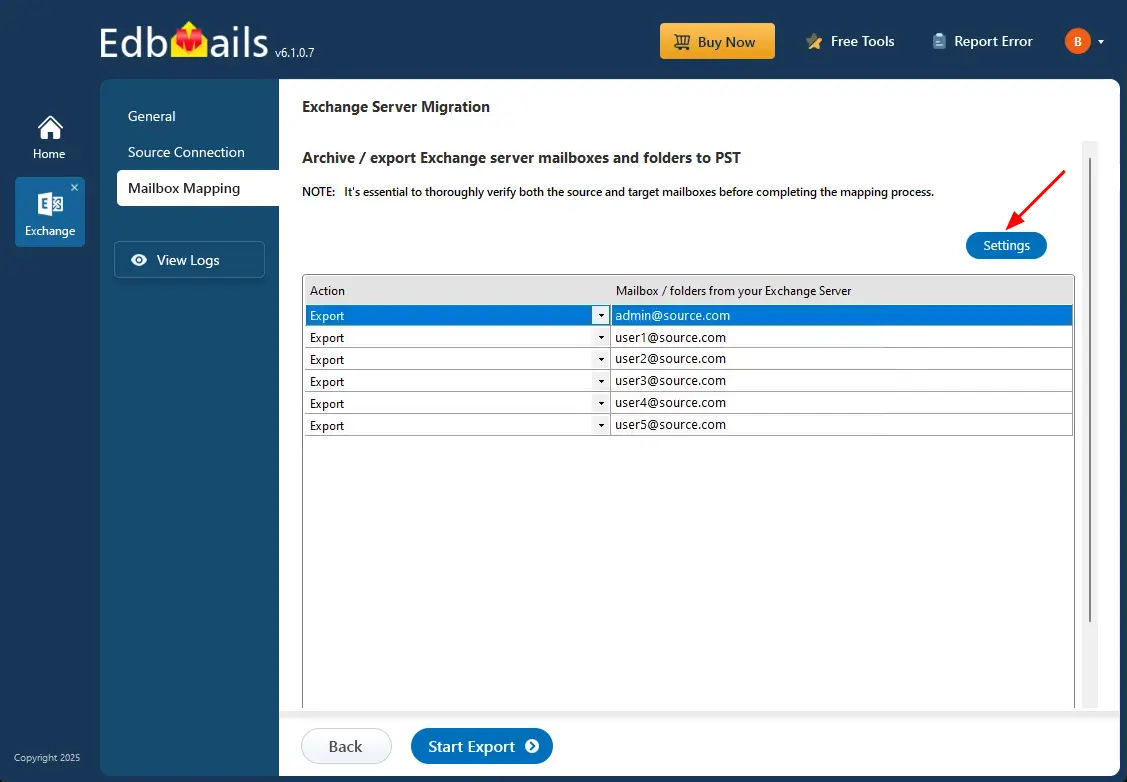
      • Double-check the mailboxes selected for export and ensure the ‘Action’ is set to ‘Export’.
      • If you want to filter the data, click ‘Settings’ to apply options like date range, sender, recipient, CC/BCC, or message status. You can also choose to split the PST files. If no filters are needed, just continue without making any changes.
      • Save the settings.

        Exchange to PST export settings

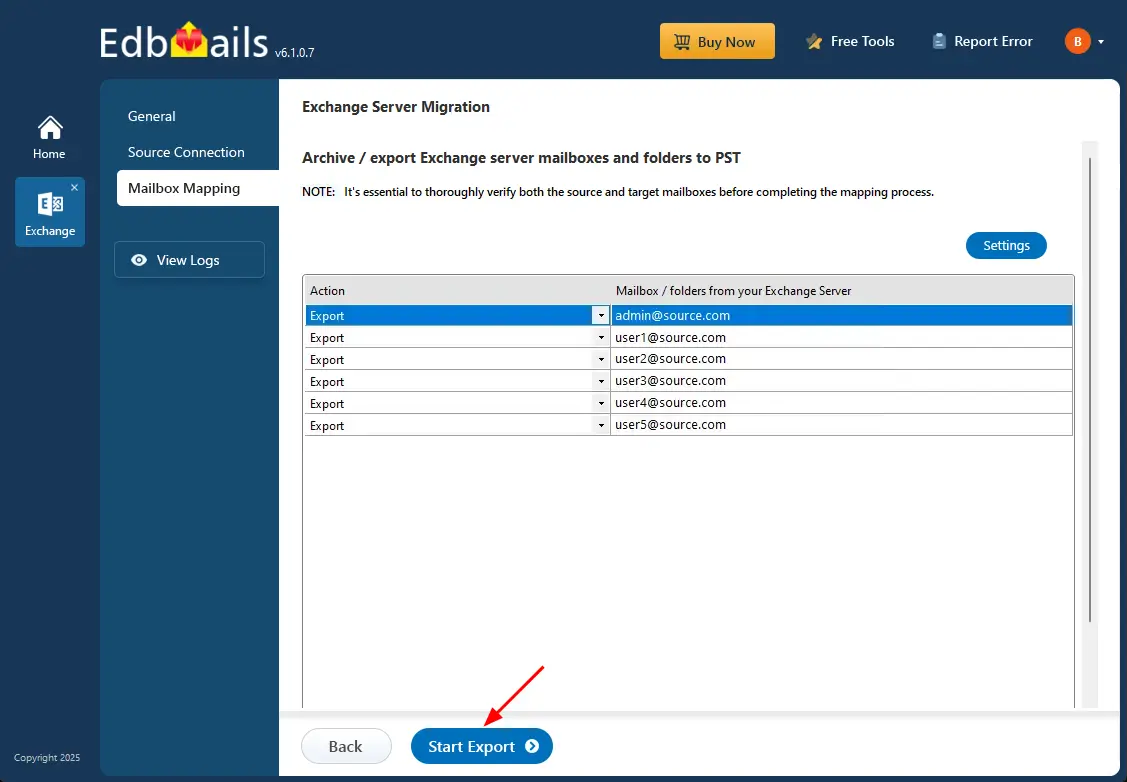
      • Click the 'Start Export' button.

        Start export

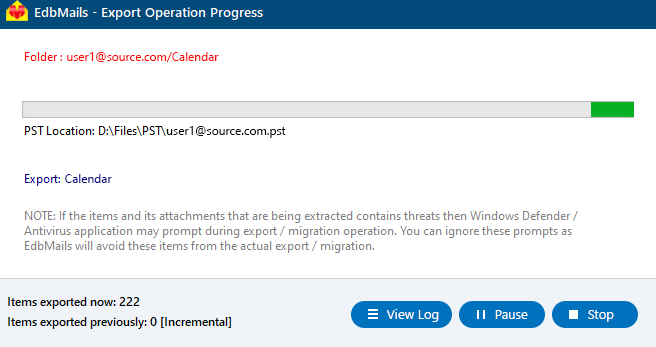
      • The migration process has now started, and you can track its progress through the progress bar.
      • Once completed, you will receive a notification to review the migration status report. Click ‘View Logs’ to check the detailed report.
      • You can pause or resume the migration at any time based on your requirement

        Exchange 2013 to PST Progress

Advantages of EdbMails to export Exchange 2019 mailbox to PST

  • Free PST merge tool

    EdbMails provides a free PST merge tool that allows users to combine multiple PST files into one, ensuring no data corruption and easy organization.

  • Split the output PST file

    The software enables users to split large PST files into smaller, manageable parts, preventing issues with oversized files and maintaining compatibility with different email clients.

  • Free trial

    EdbMails offers a free trial, giving users the opportunity to evaluate its features and performance before purchasing, ensuring it meets their requirements for exporting Exchange 2019 mailboxes.

  • Archiving and long-term data preservation

    EdbMails supports flawless archiving and long-term data preservation, securely exporting older emails into PST format for easy access and compliance with retention policies.

  • Migrate without data loss

    EdbMails ensures a safe migration process, preserving mailbox structure and maintaining data integrity, ensuring no loss of emails, attachments, contacts, or calendar items during export.

  • Detailed Log Reports for Auditing:

    EdbMails automatically generates detailed log reports for every migration or export job. These include overall job summaries, mailbox-level item counts, excluded folder details, timestamps, and any errors or warnings. These reports help with clear auditing and documentation of the entire process.


Additional resources:

  • Archive Mailbox to Office 365
  • Archive Mailbox to Exchange
  • Hosted Exchange Migration
  • Hosted Exchange to Live Exchange Migration
  • Hosted Exchange to Office 365 Migration
  • Live Exchange to Hosted Exchange Migration
additional resource


 In this manual

IntroductionReasons to ExportExport PrerequisitesExport StepsEdbMails Advantages

Live Exchange Migration

100 Mailboxes $299 Only

Buy Now

Need help?

24/7 Customer support

Contact us on Live chat

Personalized Demo

Book a personalized demo

Still need help?

Email us / Call us

© 2026 Shifttocloud Inc. Privacy Policy | Terms of Use | GDPR | Security | Press Releases

hidden msg
Live Chat

Hi, May I help you?

Hide Chat Now