


Migrate Hosted Exchange to Office 365
Migrating from Hosted Exchange providers such as Intermedia, Rackspace, or GoDaddy to Office 365 has become a common step for organizations looking to adopt cloud-based solutions. Office 365 provides scalable infrastructure, improved collaboration, strong security, and access from anywhere, making it a practical choice for modern workplaces. However, migration from a Hosted Exchange environment to Office 365 can involve technical complexities and requires proper planning to ensure a smooth migration.
EdbMails Exchange Migration software simplifies the entire process by supporting multiple migration types, including mailboxes, public folders, and archive mailboxes. It securely migrates emails, calendars, contacts, tasks, and other mailbox data while maintaining complete data integrity and ensuring zero downtime throughout the migration process.
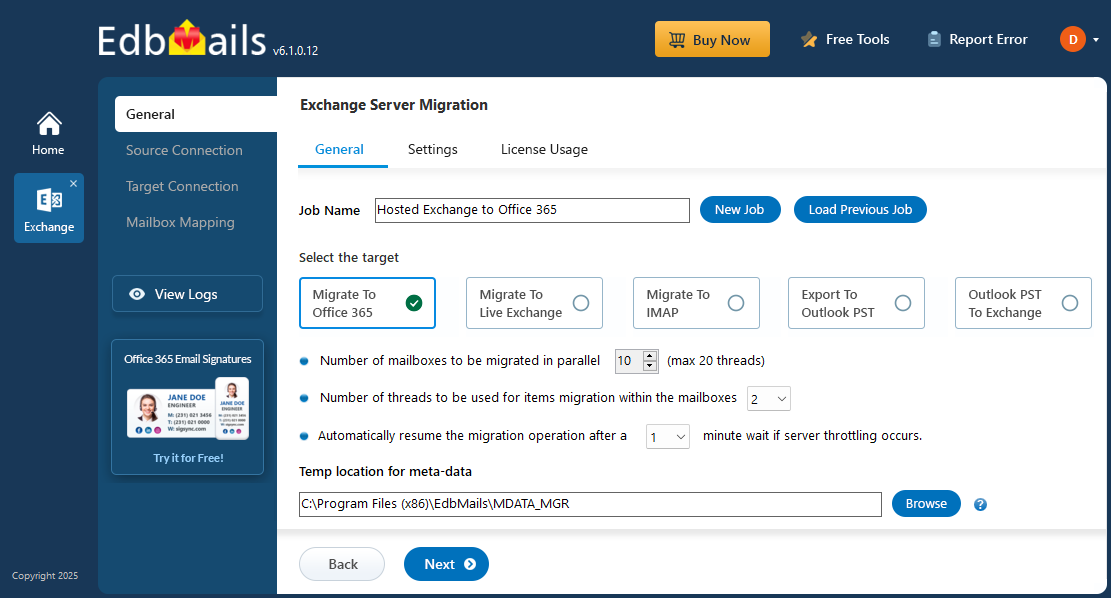
EdbMails simplifies the entire migration process with an automated approach, making it easy even for first-time users to handle mailbox migration without complexity. It includes useful features such as incremental migration to prevent duplicates and advanced filtering options that help perform selective migration based on specific requirements. Whether you need to migrate a few mailboxes or manage a large-scale migration, EdbMails ensures a smooth and reliable migration from Hosted Exchange Server to Office 365.
Hosted Exchange to Office 365 Migration Prerequisites
- Step 1: Set the impersonation role to the admin user on the source server
If you are using global admin account to connect to source Hosted Exchange server, then set the Application Impersonation permissions to list and migrate other user mailboxes
- Step 2: Create mailboxes on the target Office 365 server
Before you migrate Hosted Exchange to Office 365, ensure that you create mailboxes for users in your organization and assign suitable licenses to them.
If you plan to migrate Public folders to Office 365, ensure that you create and configure the Public folders on the target server.
Steps to create Office 365 Public folder and assign admin permissions
- Step 3: Add a custom domain to Office 365 (Optional)
If you have a custom email domain from your hosting provider to which you want to migrate and receive emails, you must add and verify the domain on Office 365.
- Step 4: Configure Office 365 to send and receive large messages
Increase the message size limit on Office 365 to 150 MB. This option enables you to bypass message size limitations during the migration.
- Step 1: Set the impersonation role to the admin user on the source server
Steps to Migrate Hosted Exchange to Office 365
Step 1: Download and install EdbMails software
- Download and install EdbMails on any computer.
System requirements for Hosted Exchange to Office 365 migration

- Open the EdbMails application on your computer.
- Sign in with your registered email ID and password, then click ‘Login’. If you are a new user, select ‘Start Your Free Trial’ to continue with the trial version.Note: The trial version includes all key features and supports migration of up to 30 items per folder. To perform unlimited migration, purchase an Exchange Migration license from the official EdbMails website.After purchasing the license, close the application and launch it again. Then log in using the same email ID and password used during the purchase to activate the license successfully.

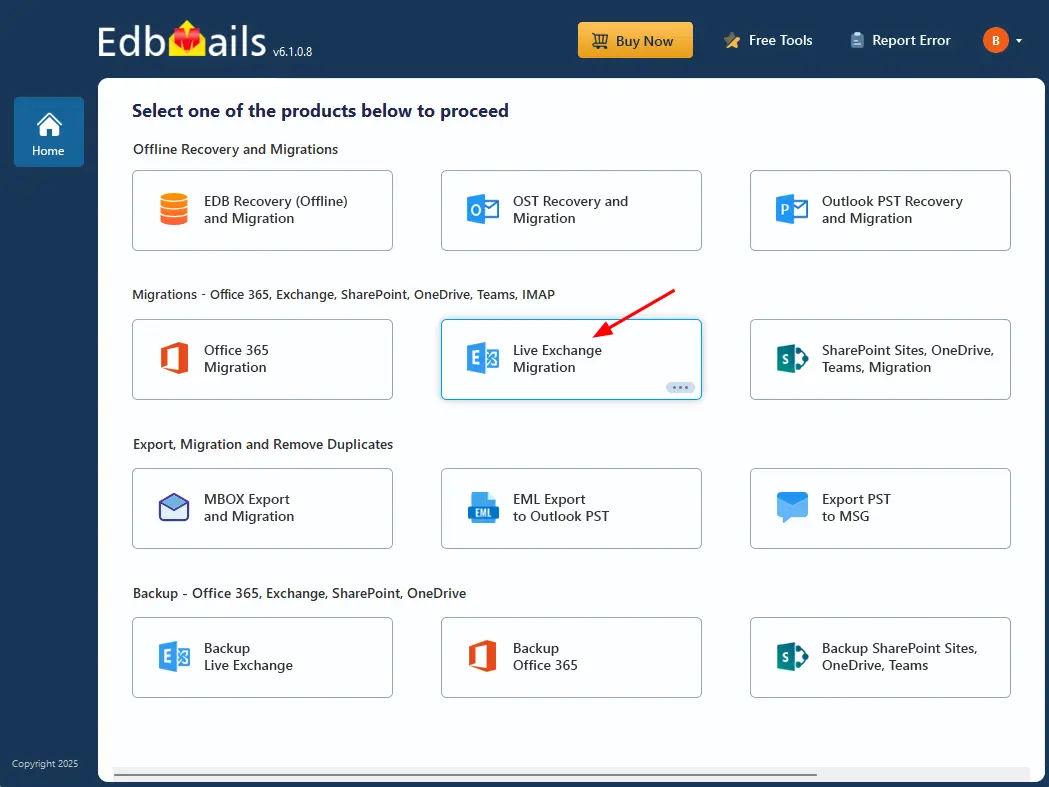
- Select 'Live Exchange migration' option.
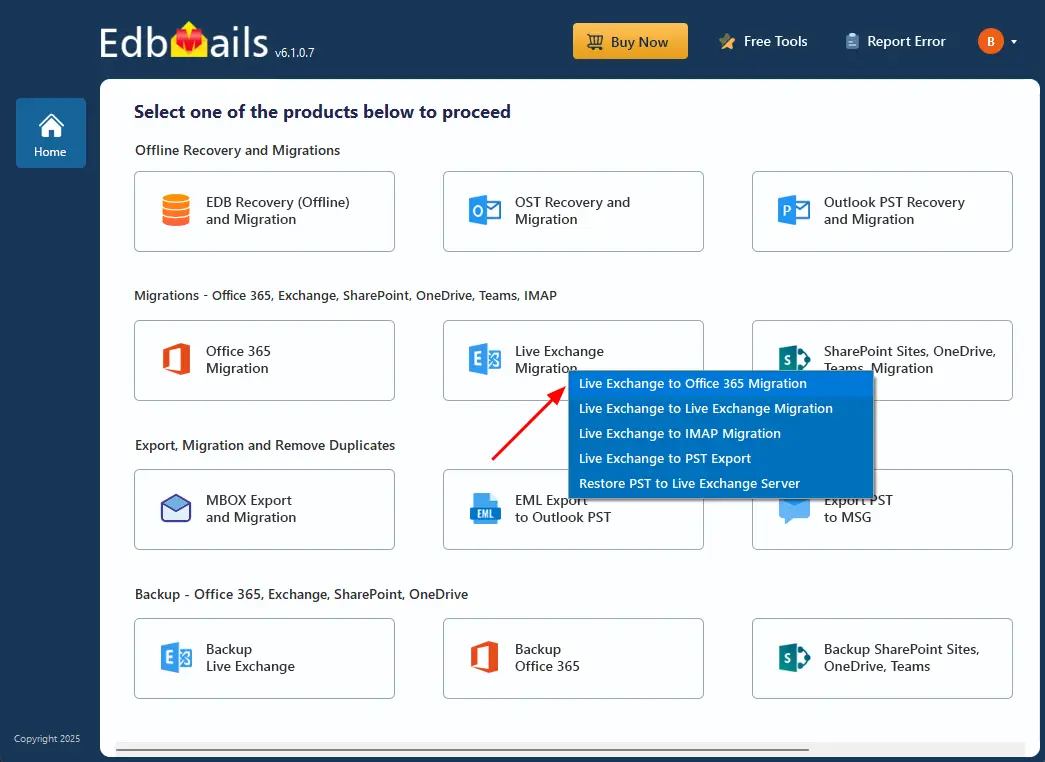
- Select 'Live Exchange to Office 365 Migration' option.
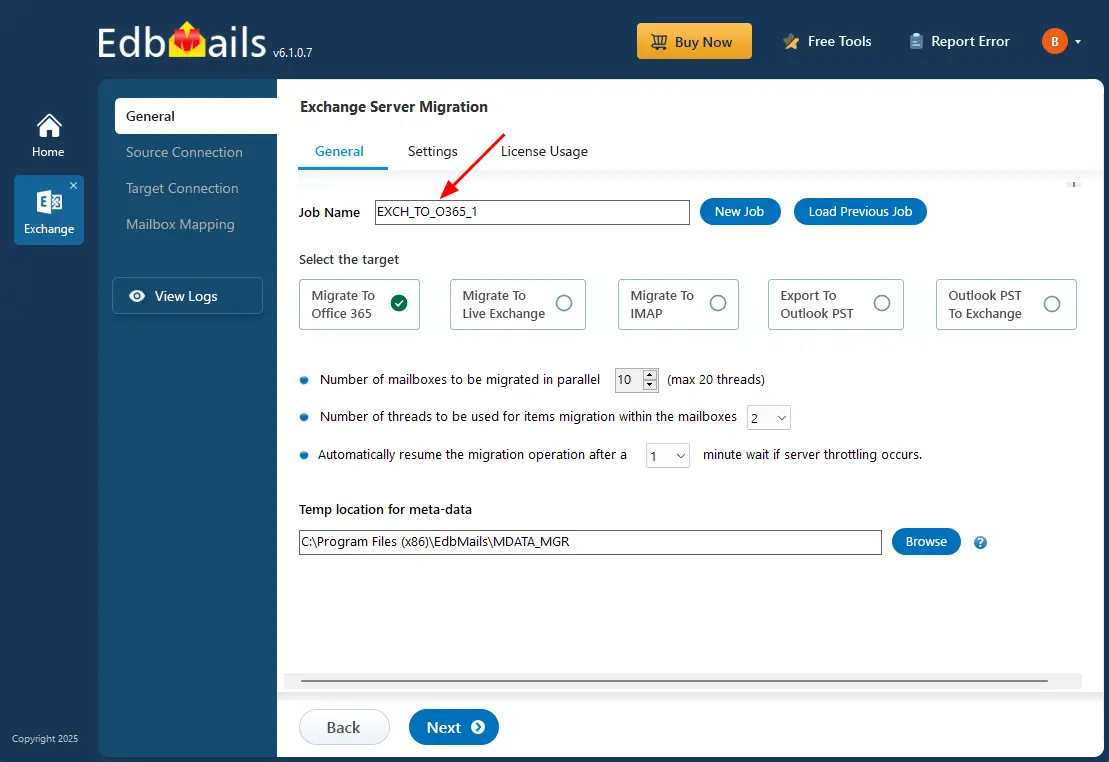
- You can either keep the default job name or click 'New Job' to change it.
- Download and install EdbMails on any computer.
Step 2: Connect to the source Hosted Exchange server
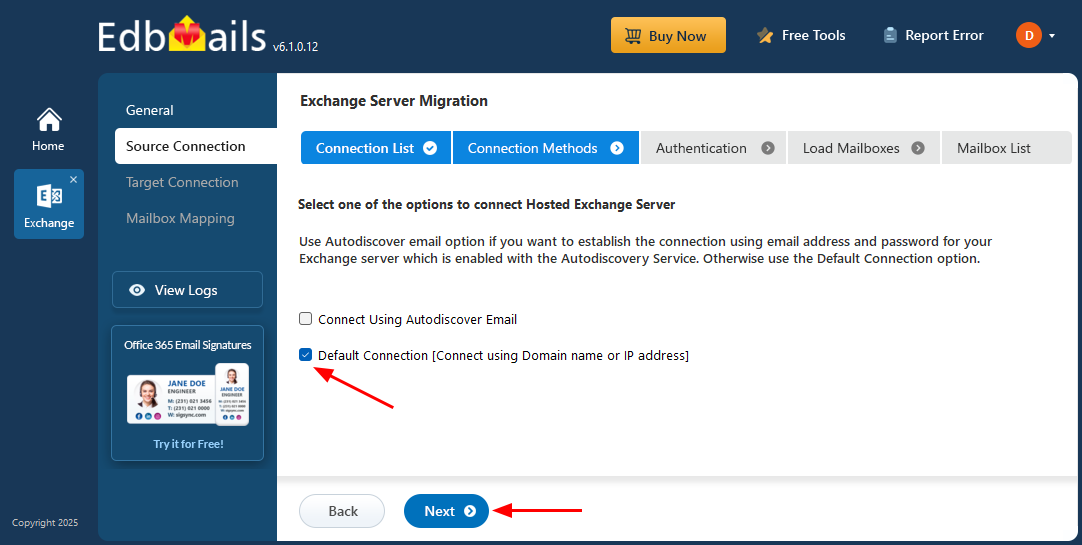
- To establish a new connection to the source Hosted Exchange server, click ‘Add New Connection’. To reuse a previous connection, select it from the list and click ‘Connect to Existing’.
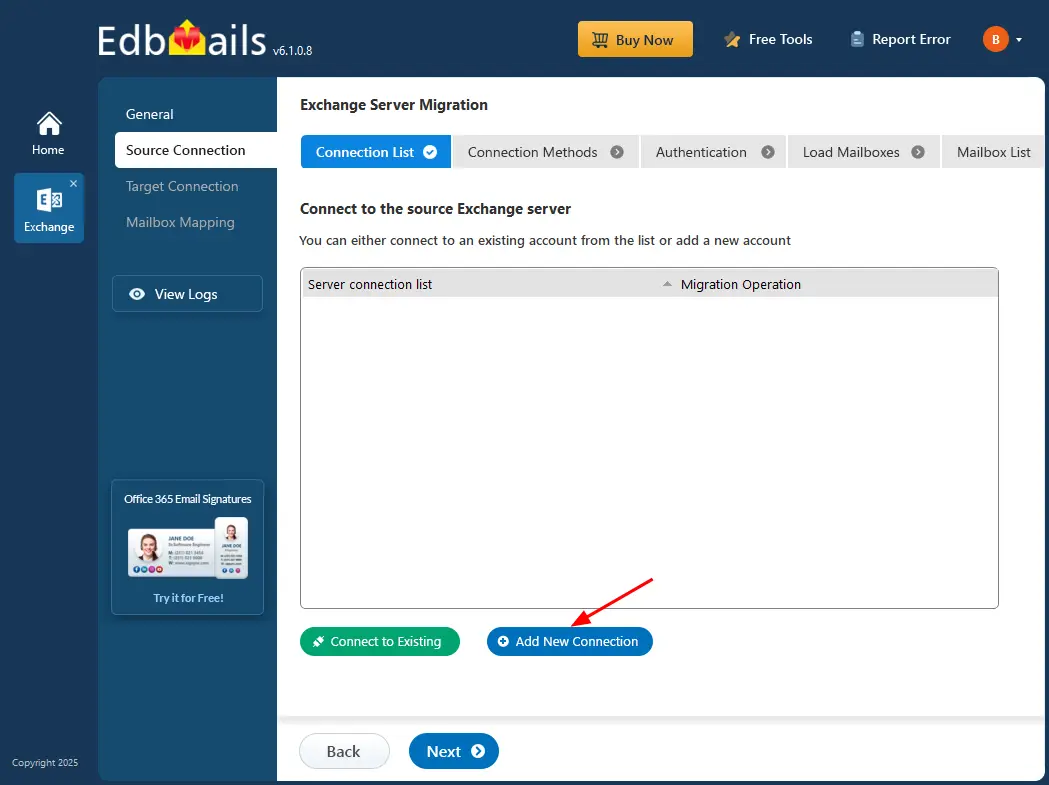
- Choose ‘Connect to Hosted Exchange Server’ to set up a connection with your Hosted Exchange environment. This option is ideal if your email service runs on a Hosted Exchange Server or when you need to migrate a single mailbox.
- Select ‘Connect to Primary / Shared Mailboxes’, then click ‘Next’ to continue.
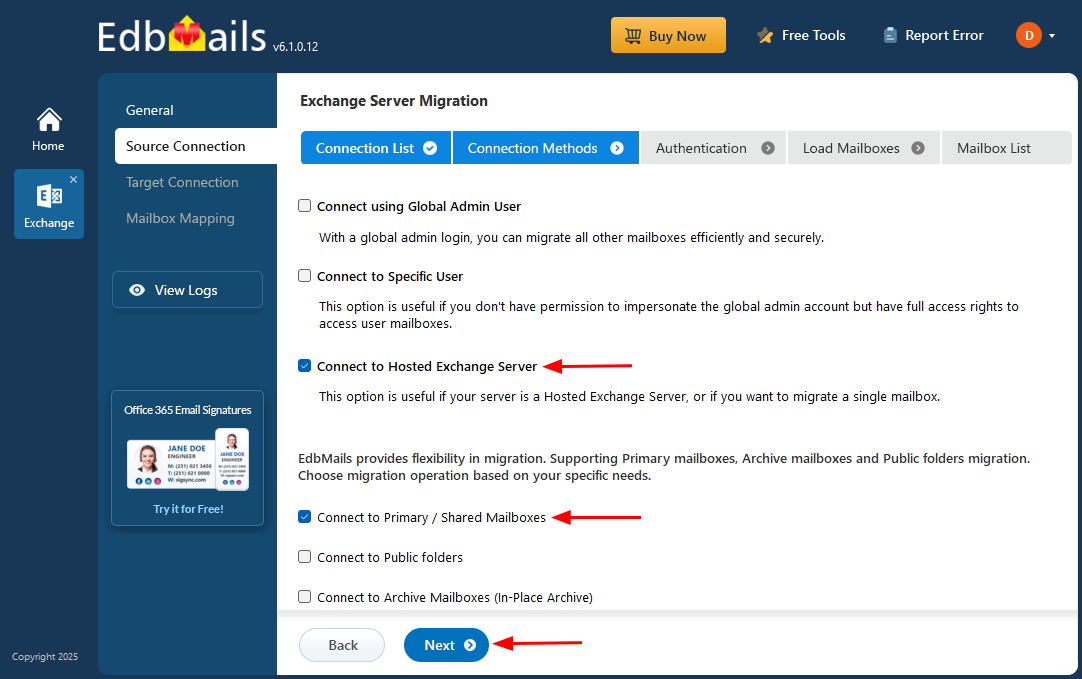
- Select the appropriate option to perform ‘Multiple user migration’ or ‘Single User migration’.
Different options to connect to Hosted Exchange server
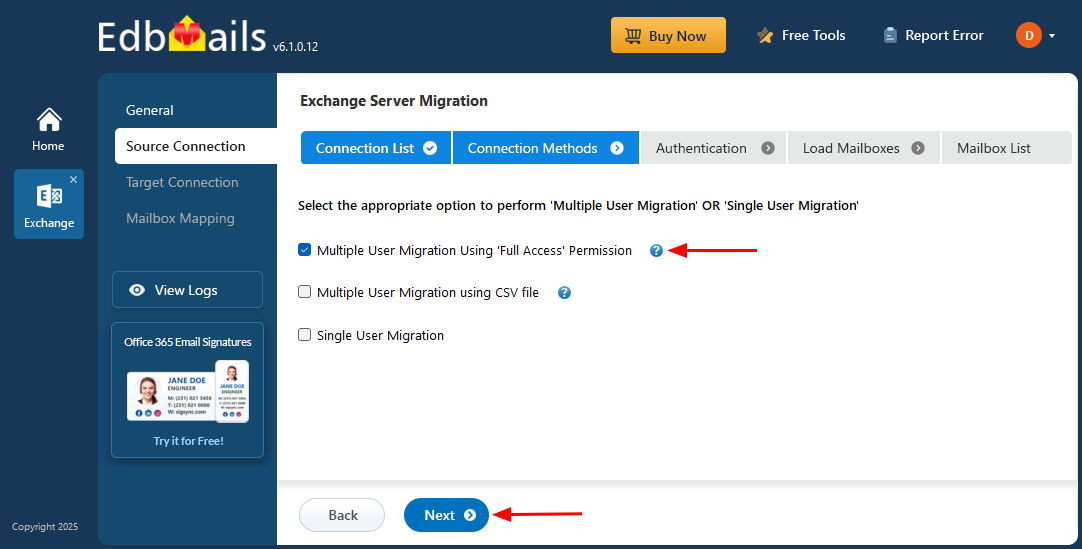
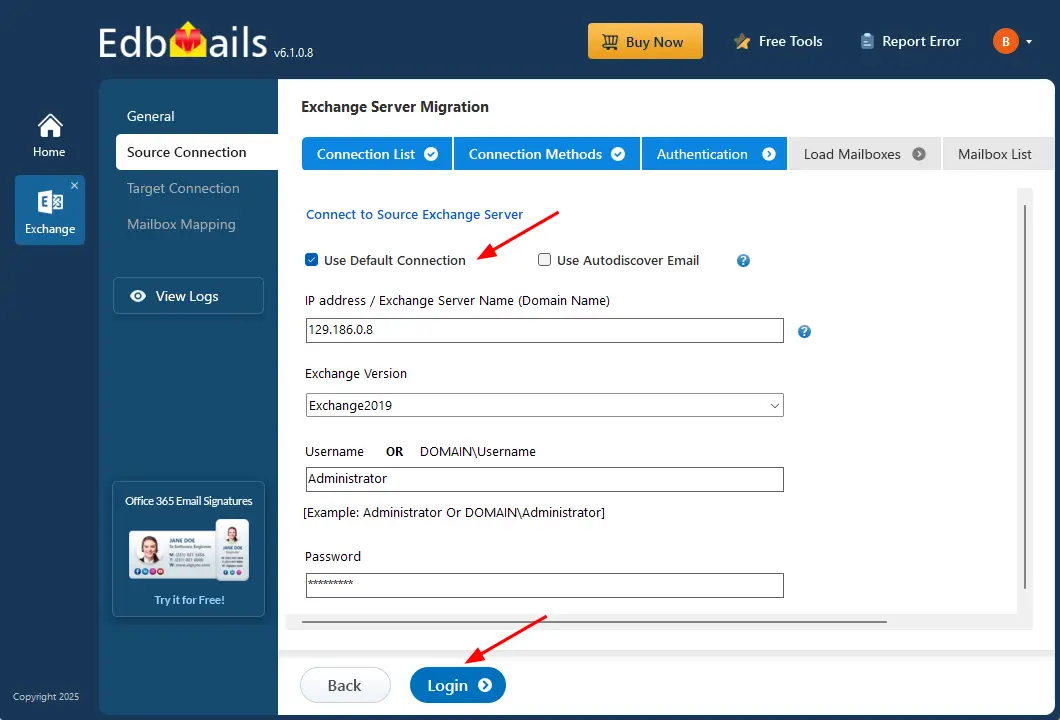
- Choose ‘Connect Using Autodiscover Email’ and enter your email address and password if Autodiscover is enabled on your Hosted Exchange server. If Autodiscover is not available, select ‘Default Connection’ and connect using the server’s domain name or IP address.
- Enter the source Exchange server details, including the IP address (Domain name), Exchange version, username, and password.
- Click the ‘Login’ button to proceed.
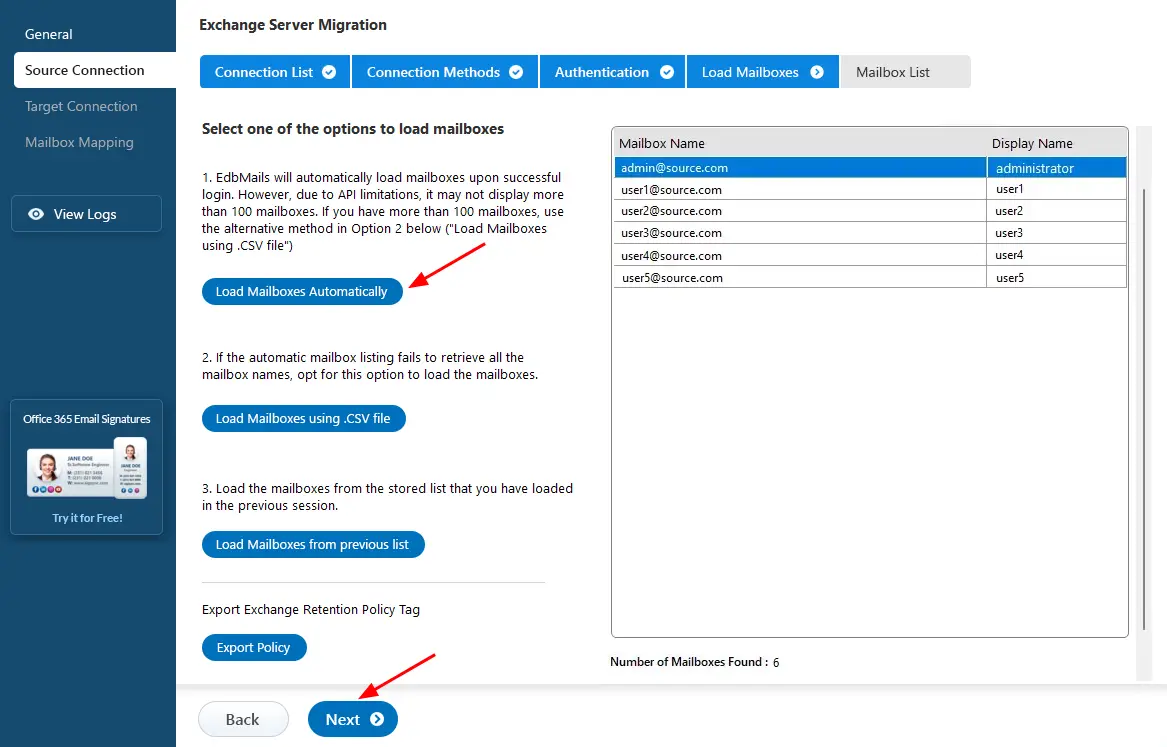
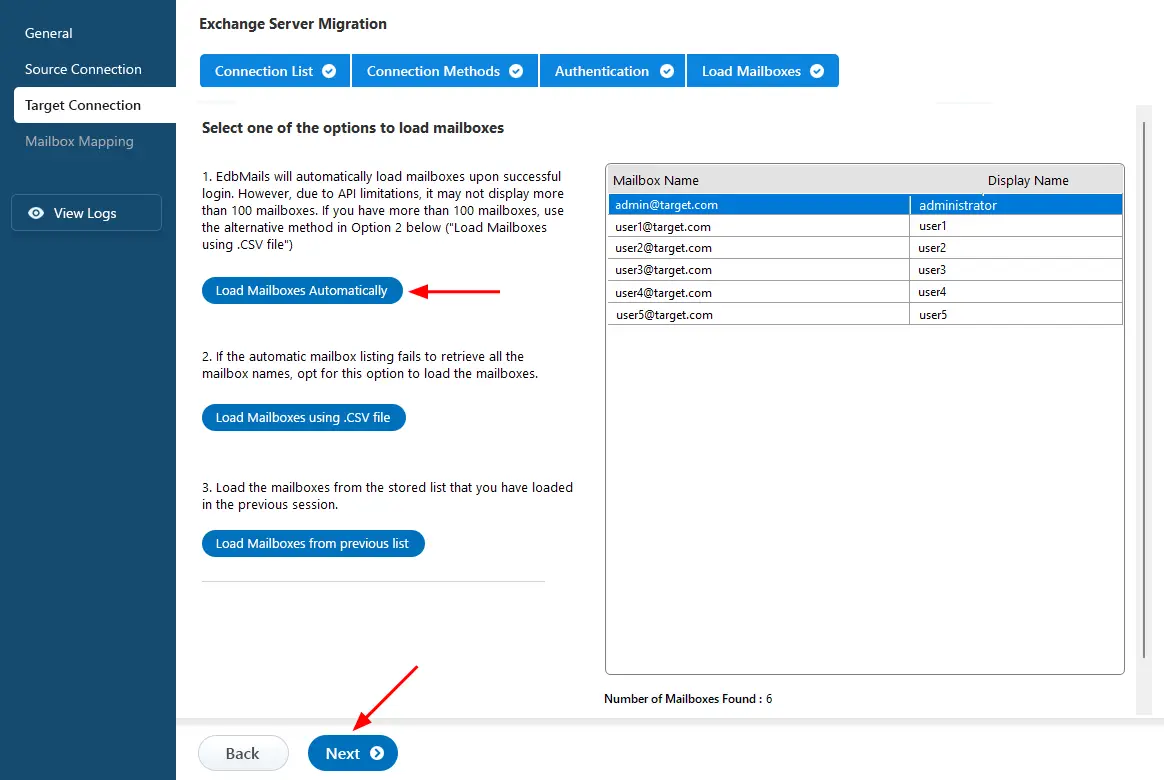
- After signing in to your target Office 365 server, select the preferred method to load the mailboxes.
- EdbMails provides an automatic option to load mailboxes, making the setup quick and simple. Due to Microsoft API limitations, this method displays up to 100 mailboxes at a time.
- For large environments or when specific mailboxes need to be included, choose the ‘Load Mailboxes using .CSV file’ option. This method enables manual selection and offers complete control over the mailbox loading process.
- Select ‘Load Mailboxes Automatically’ and click ‘Next’ to continue.
- To establish a new connection to the source Hosted Exchange server, click ‘Add New Connection’. To reuse a previous connection, select it from the list and click ‘Connect to Existing’.
Step 3: Select the hosted Exchange server mailboxes
- Choose the mailboxes you wish to migrate to the target Office 365 server.
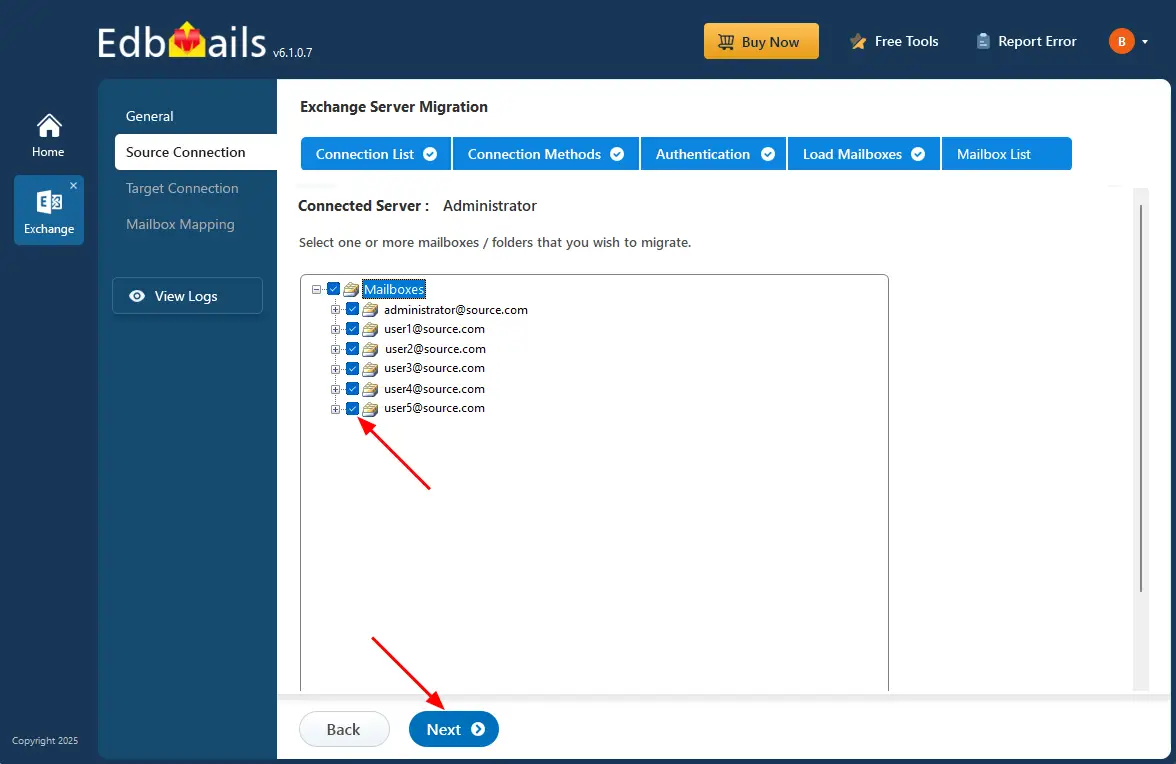
- Choose the mailboxes you wish to migrate to the target Office 365 server.
Step 4: Connect to target Office 365 server
- To set up a new connection with your target Office 365 account, click ‘Add New Connection’. If you've connected before, just pick it from the list and click ‘Connect to Existing’ to continue.
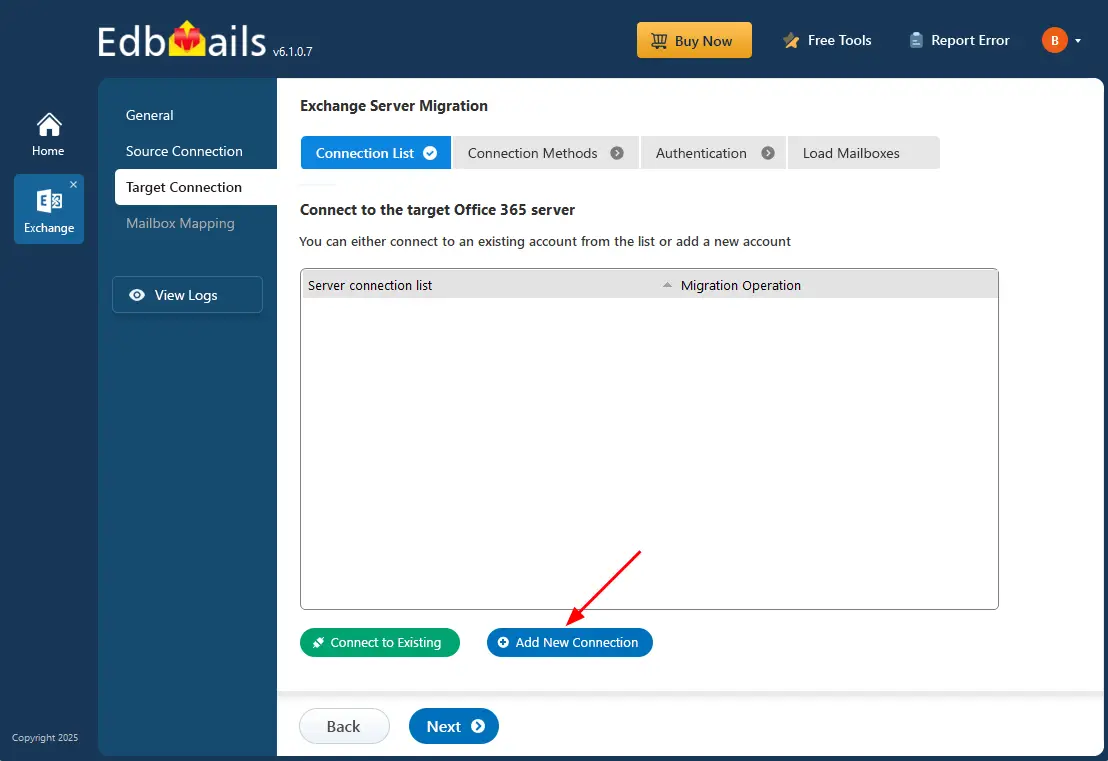
- Select the required connection options and click the ‘Next’ button.
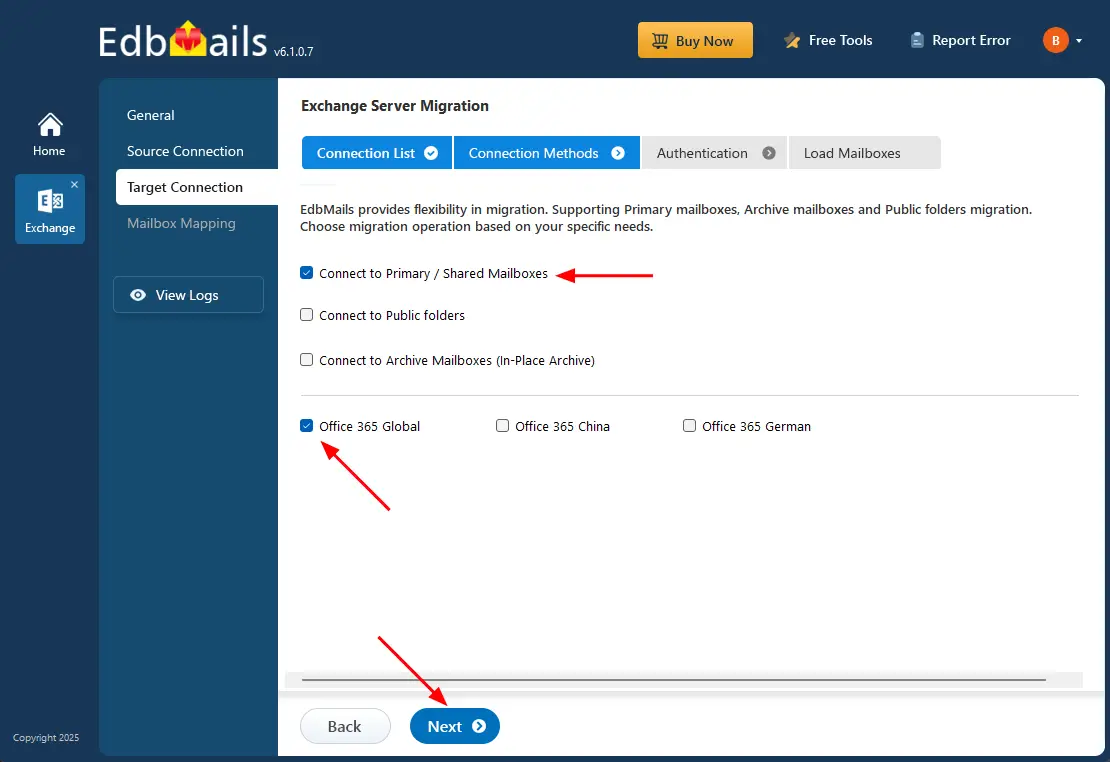
- Ensure you have a Global Admin account with an active mailbox to enable auto registration of the EdbMails application in your Entra ID (Azure Active Directory).
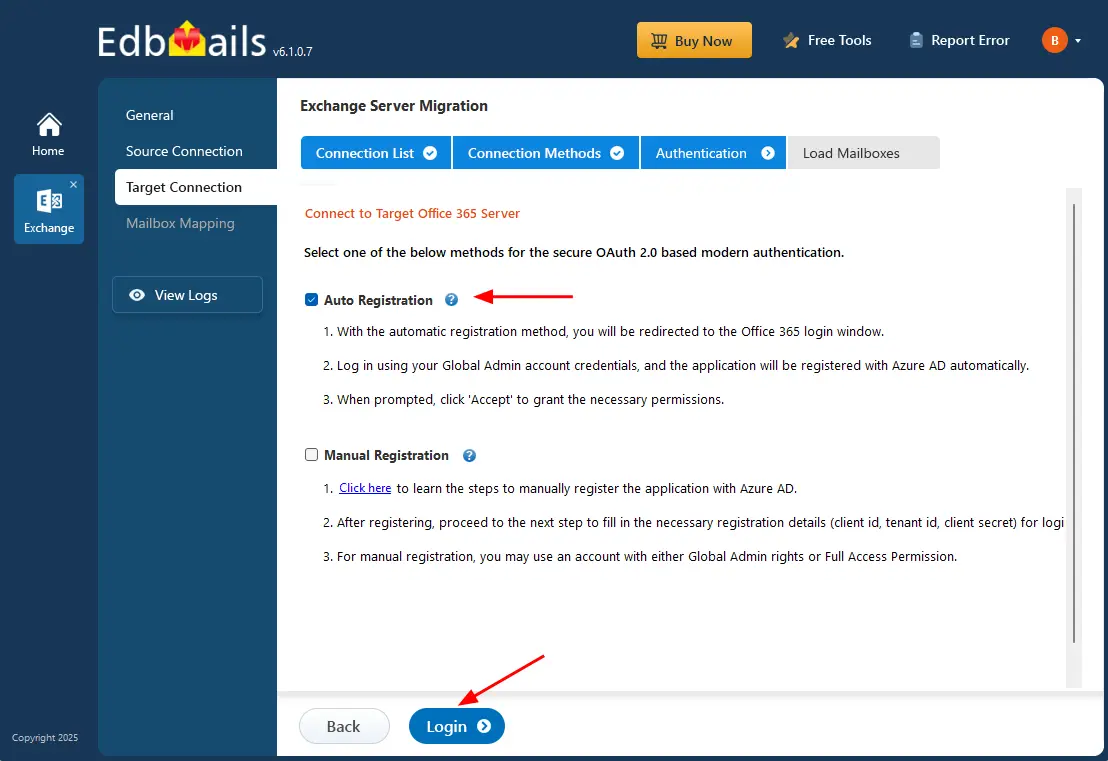
- If you choose the Manual Registration option, you can sign in using either a Global Admin account or a user account that has full access permissions.
- Select ‘Auto Registration’ to establish the connection with Office 365, then click the ‘Login’ button to proceed.
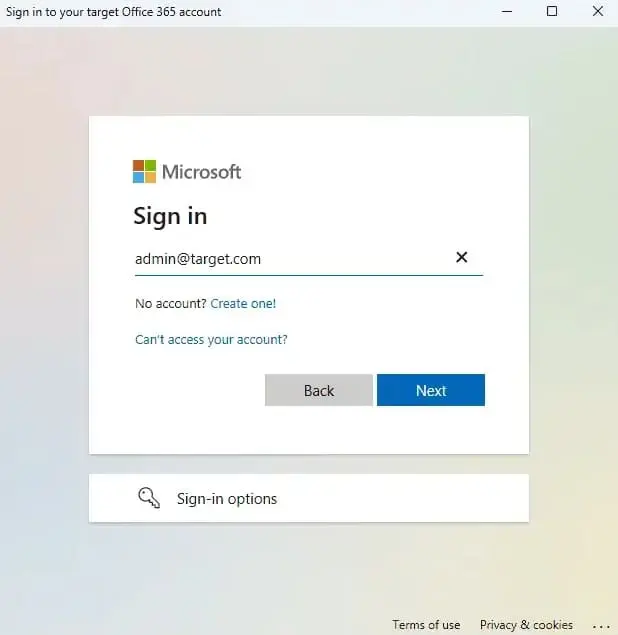
- Authenticate on Microsoft sign-in page.
- Choose a method to load the mailboxes. You can also upload a CSV file containing the mailbox details, then click ‘Next’ to proceed.
- To set up a new connection with your target Office 365 account, click ‘Add New Connection’. If you've connected before, just pick it from the list and click ‘Connect to Existing’ to continue.
Step 5: Hosted Exchange to Office 365 mailboxes mapping
- Choose the required mailbox mapping option.
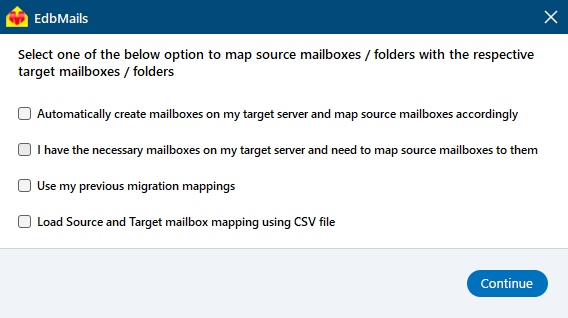
- EdbMails automatically creates mailboxes on your target Office 365 server and assigns the necessary licenses.
Learn more about the automatic mailbox creation process on the target Office 365 server.
- EdbMails automatically maps mailboxes from the source Hosted Exchange server to the target Office 365 mailboxes. You can also map them manually or use a CSV file for mailbox mapping.
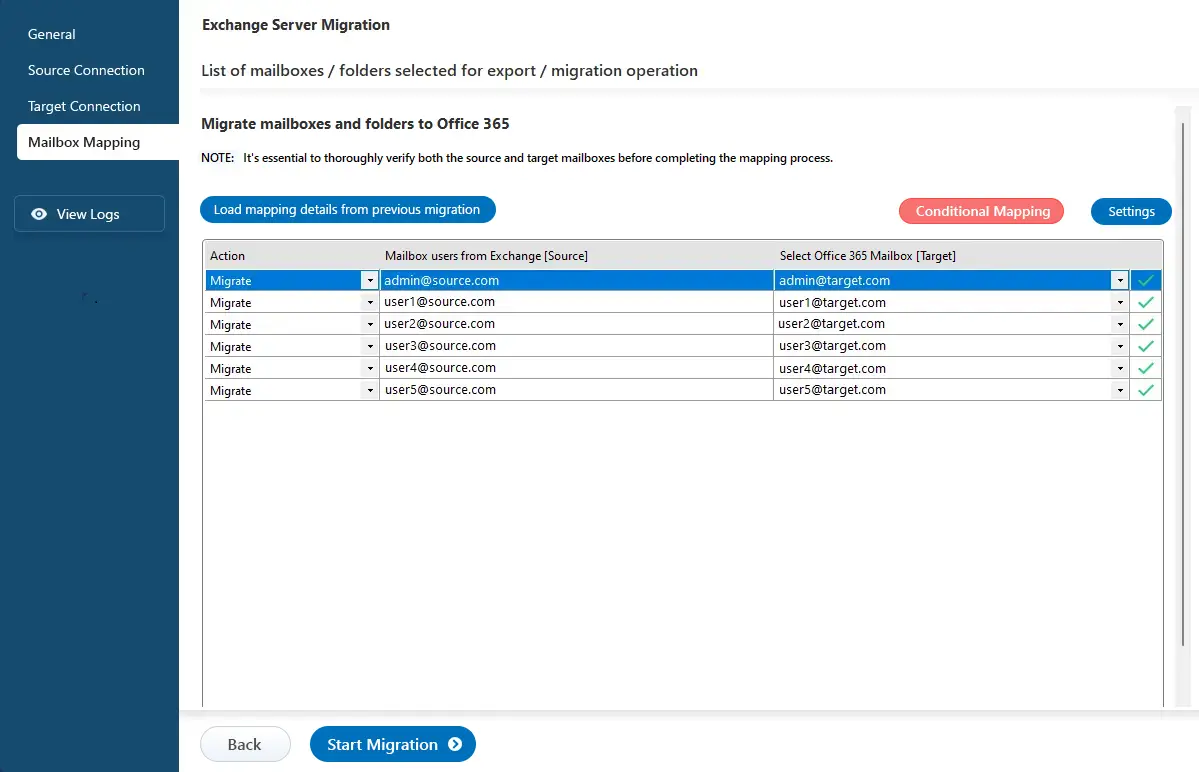
- Choose the required mailbox mapping option.
Step 6: Start to Migrate from Hosted Exchange to Office 365
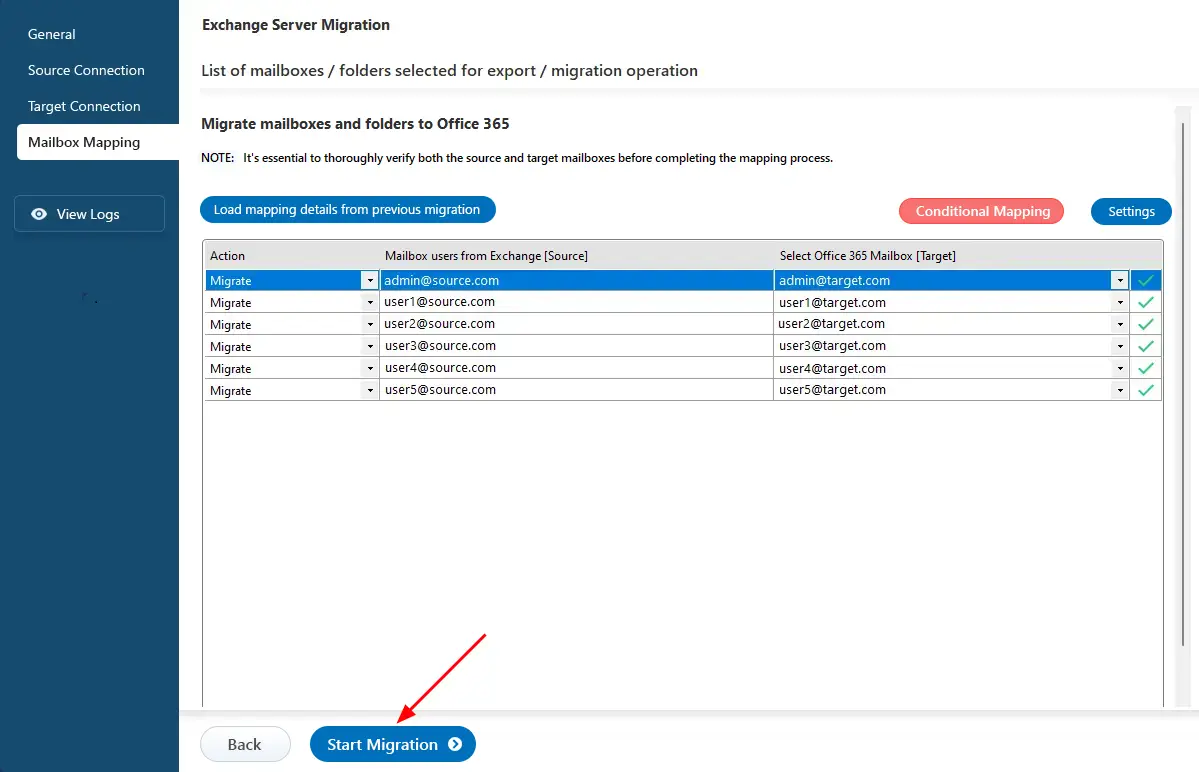
- Click the 'Start Migration’ button to initiate the migration process.
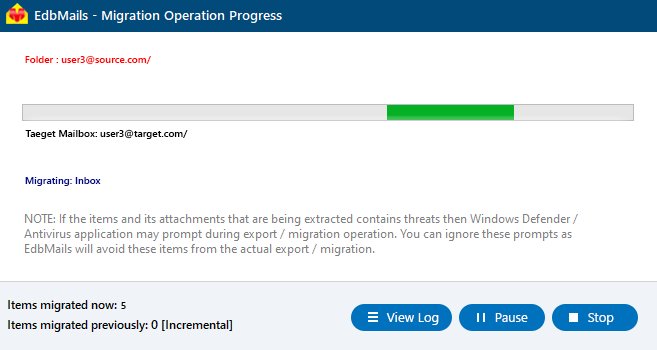
- You can track the migration progress using the progress bar. Once the process is complete, EdbMails will display a confirmation message. Click ‘View Logs’ to review the detailed migration report.
- Click the 'Start Migration’ button to initiate the migration process.
Hosted Exchange to Office 365 Post-migration Tasks
- Step 1: Update Office 365 MX records in your DNS
Update your MX records in your DNS to start receiving messages on Office 365. This switch ensures smooth email operation with your newly migrated server. Additionally, set up the Autodiscover record for the Outlook connectivity to the migrated mailboxes.
- Step 2: Create Outlook Profiles for the new domain users
If Outlook encounters connectivity hiccups with Office 365, create fresh Outlook profiles for each user in your domain. This action will help troubleshoot and establish proper connections.
- Step 1: Update Office 365 MX records in your DNS
Troubleshooting Guide to Migrate Hosted Exchange to Office 365
For potential solutions to migration errors, refer to the Exchange migration troubleshooting guide. For further information regarding EdbMails Exchange/ Hosted Exchange migration, visit the Frequently Asked Questions.


